# Helperbird — Full Documentation
> Helperbird is an accessibility and productivity browser extension for Chrome, Edge, Firefox, Safari, iPad, and iPhone. It gives readers and writers dyslexia support, text to speech, reading tools, and writing tools on any website, PDF, or document. Made by Coffee & Fun LLC (founded 2015). Free tier available; Pro is $35/year with a 3-day free trial.
This file contains the full text of Helperbird's feature pages, help guides, and blog, generated at build time from the same sources as the website. Curated index: https://www.helperbird.com/llms.txt
# Feature pages
---
## Accessibility Profiles | One-Click Settings for Dyslexia, ADHD & More
URL: https://www.helperbird.com/features/accessibility-profiles/
## A Starting Point You Can Make Your Own
Choosing fonts, spacing, colors, and reading tools can take time. Accessibility Profiles give you a starting point to try, with a preview of the settings before you apply them.
Choose a profile, review its settings, and select **Apply**. You can change individual settings afterwards. These are personal reading preferences, not treatments or a guarantee that a website meets accessibility standards.
[Learn how to use Accessibility Profiles](/help/how-to-use-accessibility-profiles-in-helperbird/)
### Related features
- [Dyslexia Fonts](/features/specialised-dyslexic-fonts/) - Switch between 15+ fonts including OpenDyslexic and Lexend.
- [Reading Ruler](/features/ruler/) - Guide your focus line by line with a reading ruler.
- [Color Overlay](/features/overlay/) - Reduce eye strain with tinted screen overlays.
- [Text to Speech](/features/text-to-speech/) - Have any page read aloud with natural voices.
---
## Available Profiles
**Dyslexia:** Verdana, wider letter and word spacing, a reading ruler, taller lines, narrower paragraphs, and left-aligned text.
**ADHD & Focus:** A reading ruler, narrower paragraphs, taller lines, reduced motion, and hidden GIFs. Still images stay visible.
**Low Vision:** Atkinson Hyperlegible, 150% page zoom, increased contrast, underlined links, adjusted spacing, and left-aligned text.
**Contrast & Color:** Increased contrast and underlined links. Font, spacing, and paragraph-width overrides are off.
**Reading Comfort:** A cream background, larger text, taller lines, narrower paragraphs, and left-aligned text.
**Motor Accessibility:** A larger cursor, 125% page zoom, reduced motion, and taller lines.
**Autism & Sensory:** A cream background, Verdana, reduced motion, hidden GIFs, taller lines, and narrower, left-aligned paragraphs. Still images stay visible.
**Motion Sensitivity:** Reduced motion and hidden GIFs, with text-size, spacing, and paragraph-width overrides off. This cannot guarantee that all moving or flashing content is removed.
---
## How It Works
Open Helperbird's Settings page and choose **Profiles** from the section menu. Choose one of the eight cards, review what it includes, and select **Apply**.
Applying a profile replaces your current reading settings and updates your quick actions. You can use **Undo** to restore the previous setup while the Settings page remains open, or adjust individual features afterwards. Export settings you want to keep before experimenting.
---
## Who Uses This
**New users** who want a good starting point without configuring everything manually.
**Students** who want to try a reading setup and adjust it to their preferences.
**IT administrators** setting up accessible browser environments for their teams.
**Anyone** who wants to try different accessibility configurations without guessing.
---
## Is This Free?
You can use profiles with Helperbird Free. Settings that require Pro are only applied with an active Pro subscription; the preview reflects the settings available to you.
---
## Accessibility Toolbar for Any Website | Chrome, Firefox, Edge & Safari
URL: https://www.helperbird.com/features/accessibility-toolbar/
## Your Tools, One Click Away
Opening the Helperbird popup every time you want to read a page aloud or look up a word adds up. The accessibility toolbar puts your favourite tools right on the page.
A small Helperbird logo floats in the corner of every website. Click it and a tidy bar slides open with read aloud, dictionary, immersive reader, predictive text, voice typing, the reading ruler, reading mode, and Screenshot Reader. Pick a tool, and you are off. Works on Chrome, Firefox, Edge, and Safari.
[Learn how to use the accessibility toolbar](/help/how-to-use-the-helperbird-accessibility-toolbar/)
### Related features
- [Text to Speech](/features/text-to-speech/) - Listen to any text on the web read aloud with support for over 100 languages.
- [Voice Typing](/features/speech-to-text/) - Speak and watch your words appear, then copy them anywhere.
- [Immersive Reader](/features/immersive-reader-for-chrome/) - Open any page in a clean, distraction-free reading view.
---
## What's on the Toolbar
The toolbar groups your tools so they are easy to find:
**Read aloud** - Play and stop. Reads your selection, or the whole page if nothing is selected, and highlights each word as it goes.
**Dictionary** - Select a word and get its meaning in a click.
**Immersive Reader** - Open your selection, or the whole page, in Microsoft's clean reading view.
**Predictive text** - Turn on word prediction as you type in any text box.
**Voice typing** - Open a dictation window, press the mic, and speak. Your words appear as text, ready to copy.
**Reading ruler** - Turn on a guide that helps you focus on one line at a time.
**Reading mode** - Strip away ads and clutter to read just the article.
**Screenshot Reader** - Pull the text out of an image or a scanned PDF.
**Settings** - Opens the full Helperbird panel for everything else. This button is on Chrome and Edge only.
---
## It Goes Where You Want
The toolbar starts as a small logo so it stays out of your way. Click it to open, click again to tuck it back down.
Grab the move handle and drag it anywhere on the screen. Helperbird remembers exactly where you left it, so it is waiting in the same spot next time. Prefer the keyboard? Tab to the move handle and use the arrow keys to nudge it into place, holding Shift for fine adjustments.
The whole toolbar is built to be self-contained. It sits in its own isolated layer on top of the page, so it always looks and works the same, no matter which website you are on.
---
## Speak Instead of Type
The voice typing tool opens a simple dictation window. Press the mic, talk, and watch your words appear. When you are done, copy the text and paste it wherever you need it, an email, a document, a comment box, anywhere.
It is perfect for long replies, capturing a thought quickly, or writing when typing is tiring.
---
## Built for Keyboards Too
You do not need a mouse to use the toolbar. Open it from the keyboard, then Tab or use the arrow keys to move between tools. Press Escape to close it. Every button has a clear label for screen readers, and the tooltips spell out what each one does.
---
## Who Uses This
**People with dyslexia** who want read aloud and the reading ruler a single click away.
**Students** moving quickly between reading, looking up words, and dictating notes.
**People who find typing tiring** and prefer to speak their writing.
**Anyone who wants their accessibility tools on the page** instead of buried in a menu.
**Teachers and schools** who want a simple, always-visible set of tools for every student.
---
## Works in Lockdown and Kiosk Mode
Because the toolbar lives on the web page rather than in the browser's toolbar, it keeps working in locked-down environments where the usual popup and side panel cannot be opened, such as exam browsers, kiosks, and locked online quizzes. Students keep one-tap access to their tools right on the page, exactly when the other ways in are unavailable.
It even works while Helperbird is paused: switch a tool on from the toolbar and it runs on the current page only, then clears itself when you refresh or move on. Administrators can set an initial toolbar state through managed policy. Users can still turn it off or back on unless the toolbar itself is explicitly blocked. See [How to Enable the Helperbird Floating Button](/help/how-to-enable-the-helperbird-floating-button/) and [How to Deploy Helperbird in ChromeOS Kiosk Mode](/help/how-to-deploy-helperbird-in-chromeos-kiosk-mode/).
---
## Turning It On
The toolbar is off by default. To switch it on, open Helperbird and click the **toolbar button** in the header at the top of the panel. The toolbar then appears on every page you visit, and you can click the same button again to turn it off. Schools and organizations can set it on by default through managed policy. Your explicit on/off choice is kept across later policy refreshes.
---
## Is This Free?
The toolbar itself is free, and so are read aloud, the reading ruler, and reading mode. On a free account, read aloud stops after 5,000 characters. Five of the tools, dictionary, immersive reader, voice typing, predictive text, and Screenshot Reader, are part of Helperbird Pro. Free users still see them on the toolbar with a quick note that they are Pro features.
---
## Letter, Word & Line Spacing Extension | Improve Reading on Any Website
URL: https://www.helperbird.com/features/adjust-letters-and-words/
## Spread Out Cramped Text
Ever feel like letters on a website are jammed together? Or that lines of text are too close, making it hard to track where you are? You can fix that.
Helperbird lets you adjust letter spacing, word spacing, and line height on any website or PDF. Spread things out until text feels comfortable to read.
[Learn how to adjust text spacing](/help/how-to-change-the-letter-spacing-on-any-website/)
### Related features
- [Font Size Control](/features/font-sizes/) - Increase font size to enhance readability alongside improved spacing.
- [Dyslexia-Friendly Fonts](/features/specialised-dyslexic-fonts/) - Combine spacing adjustments with fonts specifically designed for dyslexia.
- [Paragraph Width](/features/paragraph-widths/) - Narrow text columns work even better with improved letter and word spacing.
---
## What You Can Change
**Letter spacing:** Add more space between individual letters. Helps when characters feel like they're blending together.
**Word spacing:** Increase the gaps between words. Makes it easier to see where one word ends and the next begins.
**Line height:** Add more vertical space between lines of text. Keeps your eyes from jumping to the wrong line.
You can adjust each one separately, so you can get exactly the spacing that works for you.
---
## Why Spacing Matters
Standard text on most websites is designed for speed, not comfort. Letters are packed tight. Lines are close together. For many people, this makes reading harder than it needs to be.
Research shows that increased spacing helps readers with dyslexia process text more easily. The extra room gives your brain more time to recognize each letter and word.
But you don't need dyslexia to benefit. Anyone who reads on screens for hours knows how tiring cramped text can be.
---
## Who Uses This
**People with dyslexia** who find crowded text harder to decode.
**Readers with low vision** who need more visual separation between elements.
**Students** reading dense academic papers or textbooks online.
**Office workers** staring at documents and emails all day.
**Anyone** who finds default website text uncomfortable to read.
---
## Is This Free?
Yes. Letter spacing, word spacing, and line height adjustments are all free in Helperbird.
---
## Show Alt Text & Link Descriptions on Hover | Chrome Extension
URL: https://www.helperbird.com/features/alt-tool-tip-highlighter/
> **Changed in Helperbird 2026.7.28:** Show link descriptions and Show image descriptions used to be two separate switches. They are now a single **Show descriptions** toggle covering both. The steps below still apply — you just turn on one switch instead of two.
## See What's Behind Images and Links
Ever wonder what an image is supposed to show? Or where a link will take you before you click it?
Helperbird can show you. When you hover over an image, you'll see its alt text (the description the website gave it). When you hover over a link, you'll see where it actually goes.
[Learn how to show alt text and link descriptions](/help/how-to-show-link-and-image-descriptions-on-any-website/)
### Related features
- [Hide Images & GIFs](/features/hide-images/) - Remove images entirely while keeping their alt text visible for accessibility.
- [High Contrast Mode](/features/high-contrast/) - Make alt text and tooltips stand out more with better visual contrast.
- [Page Zoom & Magnifier](/features/zoom/) - Enlarge images and their descriptions for easier visibility.
---
## Why This Is Useful
**Understand unlabeled images:** Some images don't make sense without context. The alt text often explains what the image shows or why it's there.
**Check links before clicking:** Not sure where a link goes? Hover over it to see the actual URL. Useful for avoiding suspicious links or just knowing what you're about to open.
**Catch missing descriptions:** If an image has no alt text, you'll see that too. Helpful if you're checking a website for accessibility.
---
## How It Works
Turn on the feature in Helperbird, and tooltips will appear when you hover:
- **Images:** Shows the alt text that describes the image
- **Links:** Shows where the link points to
The tooltip appears right next to your cursor, so you don't have to look elsewhere.
---
## Who Uses This
**People with low vision** who want extra context about images they can't see clearly.
**Anyone cautious about clicking links** who wants to verify destinations first.
**Web developers and content creators** checking if images have proper descriptions.
**Students and researchers** trying to understand diagrams or figures in online materials.
---
## Is This Free?
Yes. Showing alt text and link descriptions is free in Helperbird.
---
## Text Statistics | Word Count and Reading Time in the Helperbird Notepad
URL: https://www.helperbird.com/features/analyze/
## Text Statistics in the Notepad
You are writing an essay and you need to know whether you have hit the word count. Or you want to know how long the thing you have written will take to read aloud.
**Text stats** is built into the [Helperbird Notepad](/features/editor/). Open a note, open Text stats, and you get fourteen figures for what you have written.
### Related features
- [Notepad](/features/editor/) - Where Text stats lives. Write, save and export your work.
- [Spelling & Grammar Checker](/features/spell-check/) - Catch typos while you write.
- [Word Prediction](/features/word-prediction/) - Suggested words as you type.
---
## What You Get
**Counting**
- Words, characters, sentences, paragraphs and lines
- Unique words, so you can see how much you are repeating yourself
**Averages**
- Average word length
- Average words per sentence
- Average characters per sentence
- Your longest and shortest sentence
**Time**
- Reading time
- Speaking time, which is the useful one before a presentation
- Writing time
All three times are given in minutes.
---
## One Thing to Know
Text stats reads **the note you have open in the Notepad**. It does not measure a web page or a PDF you are visiting.
If you want to work with text from a page, paste it into a note first. To count words as you write rather than after, the Notepad shows a live word count while you type.
---
## Sticky Notes & Annotations for Websites | Chrome Extension
URL: https://www.helperbird.com/features/annotation/
## Take Notes Right on the Page
Found something useful on a website? Don't copy it somewhere else. Just add a sticky note right
there on the page.
Helperbird lets you leave notes and annotations on web pages. When you come back later, your notes
are still there, exactly where you left them.
[Learn how to add sticky notes and annotations](/help/how-to-annotate-any-website-with-sticky-notes/)
### Related features
- [PDF Reader](/features/pdfs/) - Read PDFs aloud and add text boxes or drawings in a dedicated
reader.
- [Write on PDFs](/features/write-on-pdfs/) - Type text directly onto a PDF (different from
sticky-note comments).
- [PDF Drawing Tools](/features/pdf-drawing/) - Draw freehand, add shapes, and arrows directly on
PDFs for visual markup.
- [Web Highlighter](/features/web-highlighter-and-pdfs/) - Mark important passages with color-coded
highlights for quick reference.
- [Note Organizer](/features/notes/) - View and manage all your sticky notes and highlights in one
searchable place.
- [Screenshot Tool](/features/screenshot/) - Capture and annotate portions of webpages for visual
note-taking.
---
## What You Can Do
**Add sticky notes:** Place a note anywhere on a page. Write whatever you want - reminders,
questions, ideas, comments.
**Highlight text:** Mark important passages with different colors. Come back later and see exactly
what caught your attention.
**Leave comments:** Place notes beside the sections you want to remember. Move them using the handle
at the top.
**Organize with colors:** Use different colors for different purposes. Yellow for questions, green
for key points, red for things to follow up on - whatever system works for you.
---
For PDF annotations, use [text boxes](/features/write-on-pdfs/) or
[drawing tools](/features/pdf-drawing/) in PDF Reader. Web sticky notes do not appear inside that
reader.
## Your Notes Stay With You
Notes save automatically in your browser's own storage. When you return to a page, your annotations
are waiting. If you are signed in to Chrome, Edge or Safari and have sync switched on, they travel
to your other computers the same way your bookmarks do. Helperbird runs no server of its own for
this.
You can also export your notes if you need them in another format, or search through all your notes
to find something specific.
---
## Who Uses This
**Students** taking notes while researching online.
**Researchers** collecting and organizing information from multiple sources.
**Professionals** annotating reports, documents, or articles.
**Anyone** who wants to remember why they bookmarked something.
---
## Is This Free?
Sticky notes and annotations are a Pro feature in Helperbird.
---
## Auto Scroll Extension | Hands-Free Scrolling for Any Website
URL: https://www.helperbird.com/features/auto-scroll/
## Let the Page Scroll Itself
Reading a long article? Hands busy with something else? Just turn on auto scroll and let the page move at a steady pace while you read.
Helperbird's auto scroll keeps the page moving so you don't have to. Set the speed, sit back, and read.
[Learn how to use auto scroll](/help/how-to-auto-scroll-on-any-website-or-app/)
### Related features
- [Reading Mode](/features/reading-mode-for-chrome-and-firefox/) - Strip a page back to just its text.
- [Text to Speech](/features/text-to-speech/) - Pair auto-scroll with read-aloud functionality for hands-free reading.
- [Reading Mode](/features/reading-mode-for-chrome-and-firefox/) - Combine auto-scroll with a clean, distraction-free layout.
---
## Pick Your Speed
Not everyone reads at the same pace. Auto scroll lets you choose:
- **Slow:** For careful reading or dense content
- **Medium:** A comfortable pace for most articles
- **Fast:** For skimming or scanning through content
Click once to start. Click again to stop. Simple.
---
## Why This Helps
**Reading long content:** No more constantly flicking your scroll wheel or trackpad. The page moves at a steady pace you control.
**Following text-to-speech:** Pair auto scroll with Helperbird's text-to-speech so the page scrolls along as the voice reads.
**Mobility challenges:** If using a mouse or trackpad is difficult, auto scroll removes that barrier entirely.
**Presentations:** Need to show a long webpage during a meeting? Auto scroll keeps things moving smoothly without fumbling with controls.
---
## Who Uses This
**People with motor difficulties** who find constant scrolling tiring or painful.
**Readers using text-to-speech** who want the page to follow along.
**Presenters** showing web content in meetings or classes.
**Anyone** reading long articles who wants a more relaxed experience.
---
## Is This Free?
Auto scroll is a Pro feature in Helperbird.
---
## Read It Later | Save Articles & Websites for Later Reading
URL: https://www.helperbird.com/features/bookmarks/
## Save It Now, Read It Later
Found an interesting article but don't have time to read it? Save it to Helperbird and come back when you're ready.
No more losing tabs or forgetting where you saw something. Your saved articles stay in one place, waiting for you.
[Learn how to save articles for later](/help/how-to-use-helperbirds-reading-list-feature/)
### Related features
- [Note Organizer](/features/notes/) - Manage your saved articles alongside your highlights and notes in one place.
- [Reading Mode](/features/reading-mode-for-chrome-and-firefox/) - Clean up articles before saving them for a better reading experience later.
- [PDF Reader & Annotator](/features/pdfs/) - Save and annotate PDFs with the same tools you use for web articles.
---
## How It Works
Click the save button on any page. That's it. The article gets added to your reading list inside Helperbird.
When you're ready to read, open your list and pick something. All your saved articles are right there, organized and easy to find.
---
## Why This Beats Browser Bookmarks
**Everything in one place:** Your reading list lives inside Helperbird, not scattered across bookmark folders.
**Synced across devices:** Save something on your laptop, read it on your phone later.
**Actually organized:** See what you've saved, what you've read, and what's still waiting.
**Quick access:** No digging through bookmark menus. Your list is always a click away.
---
## Who Uses This
**Researchers** collecting articles for a project.
**Students** saving study materials to review later.
**Professionals** keeping track of industry news and reports.
**Anyone** who finds interesting things online but doesn't have time to read them right away.
---
## Is This Free?
Read It Later is a Pro feature in Helperbird.
---
## Color Blindness Support | Make Links Visible on Any Website
URL: https://www.helperbird.com/features/color-blindness/
## Links That Don't Rely on Color
Many websites show links only by changing the text color. If you have color blindness, those links can be nearly invisible.
Helperbird adds underlines and outlines to links, so you can see them regardless of color. No more guessing which text is clickable.
[Learn how to enable color blindness support](/help/how-to-use-helperbirds-color-blind-features-on-websites/)
### Related features
- [High Contrast Mode](/features/high-contrast/) - Boost visibility and make text stand out from backgrounds.
- [Color Overlay](/features/overlay/) - Apply a tinted filter to enhance text-background separation.
- [Grayscale Mode](/features/gray-hue-overlay/) - Remove color entirely for an alternative viewing approach.
---
## The Problem with Color-Only Links
Most websites use blue or purple text for links. But if you have protanopia (red-blind) or deuteranopia (green-blind), these colors can look almost identical to regular text.
You end up hovering over random text hoping to find links, or missing them entirely.
---
## What Helperbird Does
Turn on color blindness support, and Helperbird will:
- **Underline all links** so they're obvious even without color
- **Add outlines** to make clickable elements stand out
Now links are visible no matter what colors you can see.
---
## Who Uses This
**People with protanopia or deuteranopia** who struggle to see color-coded links.
**Anyone with color vision deficiency** who finds websites hard to navigate.
**Web testers** checking how sites look without relying on color.
---
## Is This Free?
Yes. Color blindness support is free in Helperbird.
---
## Custom Cursor Size | Make Your Cursor Bigger and Easier to See
URL: https://www.helperbird.com/features/cursor-control/
## Never Lose Your Cursor Again
Ever find yourself wiggling your mouse just to figure out where your cursor went? A small cursor on a large screen can be surprisingly hard to track.
Helperbird lets you make your cursor bigger, so it's always easy to spot.
[Learn how to change your cursor size](/help/how-to-change-the-cursor-size-in-google-chrome-firefox-or-edge/)
### Related features
- [Page Zoom & Magnifier](/features/zoom/) - Magnify the entire page alongside a larger cursor for complete visual enhancement.
- [Font Size Control](/features/font-sizes/) - Enlarge text while making your cursor easier to locate on the page.
- [High Contrast Mode](/features/high-contrast/) - Apply contrast enhancement to make both text and cursor stand out clearly.
---
## Three Sizes to Choose From
Pick what works for you:
- **Small:** Standard cursor size
- **Medium:** Noticeably larger, easier to track
- **Large:** Much bigger, ideal for low vision
The change applies to all websites, so your cursor stays consistent as you browse.
---
## Why This Helps
**Low vision:** A bigger cursor is simply easier to see.
**Large monitors:** The bigger your screen, the easier it is to lose a tiny cursor.
**Reduce eye strain:** Less time hunting for your cursor means less strain on your eyes.
**Motor difficulties:** A larger target is easier to position accurately.
---
## Who Uses This
**People with low vision** who need a more visible cursor.
**Users with large or multiple monitors** where a small cursor gets lost.
**Anyone** who just prefers a bigger, easier-to-see cursor.
---
## Is This Free?
Yes. Custom cursor size is free in Helperbird.
---
## Dictionary Extension | Look Up Words on Any Website
URL: https://www.helperbird.com/features/dictionary/
## Give Unfamiliar Words Some Context
Open Helperbird's Dictionary to search for an English word or short phrase. The search-first page keeps definitions, examples, and related words together.
Enter your search and press **Enter** or the magnifying-glass button. Use the speaker buttons to hear the word or an example sentence aloud.
[Learn how to use the dictionary](/help/how-to-use-the-helperbird-dictionary/)
### Related features
- [Google Translate](/features/google-translate/) - Translate unfamiliar words into your native language instantly.
- [Highlight Menu](/features/highlight-menu/) - Mark and save important words while you read.
- [Text to Speech](/features/text-to-speech/) - Hear the correct pronunciation of words you look up.
---
## What You Get
**Definitions:** Clear explanations of what the word means, including different meanings if there are multiple.
**Synonyms:** Similar words you could use instead.
**Read aloud:** Hear the word and its example sentences using your browser's speech support. Pronunciation text appears when available.
**Examples:** See how the word can be used in a sentence.
**Opposite words:** Explore antonyms when the result includes them.
**Part of speech:** Whether it's a noun, verb, adjective, etc.
---
## Search, Listen, and Keep Exploring
Select a similar or opposite word to look it up next. Use your browser's Back and Forward buttons to revisit lookups in the current tab. The Dictionary no longer keeps a separate recent-search list.
Definitions are AI-generated by Helperbird and can contain mistakes. The **Learn more on Wikipedia** link offers further reading; it is not the source of the definition. Check important meanings against a trusted reference.
---
## Who Uses This
**Students** reading academic texts with unfamiliar vocabulary.
**Language learners** building English vocabulary.
**Readers** who encounter new words and want to understand them in context.
**Writers** looking for the right word or checking usage.
---
## Is This Free?
Dictionary lookups require Helperbird Pro and an internet connection. Searches can contain up to six words or 120 characters.
---
## Notepad (formerly Editor) | Take Notes in Your Browser
URL: https://www.helperbird.com/features/editor/
## Write Notes Right in Your Browser
Sometimes you just need somewhere to jot things down. Helperbird has a built-in notepad where you
can write notes, draft text, or organize your thoughts without opening another app.
The Notepad autosaves as you write and keeps a Save button for an explicit save. Open **Tools → Text
stats** to see word and character counts.
Switch to **Highlights & Notes** to find captured content, or open your Reading List alongside your
writing. Notepad, Notes, and Reading List shortcuts all lead to this shared workspace.
[Learn how to use the notepad](/help/how-to-use-the-helperbird-editor/)
### Related features
- [Voice Typing](/features/speech-to-text/) - Compose your thoughts faster by dictating instead of
typing in the editor.
- [Word Prediction](/features/word-prediction/) - Speed up your typing with smart word suggestions
as you write.
- [Note Organizer](/features/notes/) - Keep all your notes and writing organized in one searchable
dashboard.
---
## Simple and Focused
This isn't trying to be Microsoft Word. It's a clean writing space where you can:
- Write and format text
- Organize your thoughts
- Save your work
- Export when you need it elsewhere
No distractions, no complicated menus. Just a place to write.
---
## Export Options
When your notes are ready to go somewhere else:
- **Microsoft Word:** Download a Word file, which you can also upload to Google Docs
- **Markdown:** For developers, bloggers, or note apps that use Markdown
- **Plain text:** Just the words, no formatting
---
## Who Uses This
**Students** taking notes during online lectures or research.
**Writers** drafting ideas before moving them to a full document.
**Researchers** collecting thoughts and quotes while browsing.
**Anyone** who needs a quick place to write while browsing the web.
---
## Is This Free?
Yes. Writing, formatting, saving, autosave, document management, read aloud, equations and downloads
are free in the standalone Notepad. Notes/Highlights and Reading List remain Helperbird Pro
features.
Keep a downloaded copy of important work; browser storage and sync are not a backup service.
---
## Equation Editor | Write & Dictate Maths on Any Site
URL: https://www.helperbird.com/features/equation-editor/
## Write Maths the Way That Works for You
Type LaTeX commands, tap symbols on the on-screen math keyboard, or dictate your equation out loud.
The Equation Editor gives you a full-page space to write maths — then read it back, copy it, or
download it as an image.
[Learn how to use the Equation Editor](/help/how-to-use-the-equation-editor-in-helperbird/)
### Related features
- [Speech to Math](/features/speech-to-math/) - Dictate maths, chemistry, and physics out loud.
- [Maths Reader](/features/maths-reader/) - Hear maths on any page read aloud with Immersive Reader.
- [Voice Typing](/features/speech-to-text/) - Dictate text and notation anywhere on the web.
---
## What You Get
**Try an example:** Start with a sample equation, fraction, or integral when the input is empty.
Edit it to learn how the notation works.
**Preview as you write:** See the rendered equation below the input. Show or hide the math keyboard
when you need more room.
**Type or tap:** Write LaTeX commands like `\frac` and `\sqrt`, or use the on-screen math keyboard
for symbols you can't easily type.
**Dictate it:** Speak your equation using Math, Chemistry, or Physics voice modes and Helperbird
inserts the notation for you.
**Hear it back:** Read your equation aloud in proper math language — "x squared" rather than "x
caret two" — with Microsoft Immersive Reader.
**Export anywhere:** Copy as LaTeX, MathML, or an image, or download a crisp PNG to drop into Word,
Slides, or email.
---
## Who Uses This
**Students** writing up maths, chemistry, and physics homework.
**Teachers** building equations for worksheets, slides, and quizzes.
**Anyone** who finds typing mathematical notation slow or fiddly.
---
## Admin Controls
School and workplace admins can enable or disable the Equation Editor — and any other Helperbird
feature — for their organization using managed policy in Google Admin, Microsoft Intune, or a
supported Apple MDM deployment. Use the [policy builder](/help/json-policy-validator/) to choose the
format for your devices.
See
[How to Disable Helperbird Features Using JSON Policy](/help/how-to-disable-helperbird-features-though-json-policy/).
---
## Is This Free?
The Equation Editor is a Helperbird Pro feature.
---
## Floating Button | One-Tap Access to Helperbird
URL: https://www.helperbird.com/features/floating-button/
## Your Tools, One Click Away
Hunting for the extension icon breaks your reading.
The floating button, called the **Floating Toolbar** in the extension, puts a Helperbird logo on top of every website you read. Click it and a bar of tools opens right there. On it: Play and Stop for read aloud, plus Dictionary, Immersive, Word prediction, Voice typing, Reading guide, Reading Mode and Screenshot Reader.
It is off until you turn it on. Switch it on once from the Helperbird popup and the logo is there on every website you visit after that. It does not appear on Helperbird's own pages, such as Notes and the PDF reader.
[Learn how to use the floating button](/help/how-to-use-the-helperbird-accessibility-toolbar/), or read the full [Accessibility Toolbar guide](/help/how-to-use-the-helperbird-accessibility-toolbar/).
### Related features
- [Accessibility Toolbar](/features/accessibility-toolbar/) - The full bar of reading and writing tools the floating button opens.
- [Shortcuts](/features/shortcuts/) - Open Helperbird and trigger features straight from the keyboard.
- [Immersive Reader](/features/immersive-reader-for-chrome/) - A distraction-free reading view for any page.
- [Reading Mode](/features/reading-mode-for-chrome-and-firefox/) - Strip a page back to clean, readable text.
---
## What You Get
**Your tools on the page:** Click the logo and the bar opens beside it. No popup, no menu digging.
**Move it anywhere:** Drag the logo, or the **Drag to move** handle, wherever suits you, and Helperbird remembers the spot. Tab to the handle and the arrow keys move the toolbar too.
**It stays when Helperbird is paused:** Pause Helperbird, or [turn it off on a website](/help/how-to-disable-helperbird-on-specific-websites/) with the **Website exclusion list**, and the toolbar is still there waiting. Turn on Reading guide or Word prediction from the toolbar while Helperbird is paused and it runs on that page only. It is not saved, and it clears when you reload or move on.
**Good for locked-down devices:** In ChromeOS kiosk or locked mode the browser toolbar is out of reach. The floating button gives students a way back to their tools.
---
## Who Uses This
**Schools** running Helperbird in kiosk or locked mode, where the browser toolbar is stripped away.
**Students** moving between reading, looking up words and dictating.
---
## Admin Controls
Admins can set the floating button on by default with managed policy. Users can still turn it off or back on, and their explicit choice survives later policy refreshes. To block the toolbar entirely, an admin must enable feature restrictions and include `FloatingButton` in the disabled list. The [policy builder](/help/json-policy-validator/) supports Chrome, Edge, and Apple configuration formats.
See [How to Enable the Floating Helperbird Button for Admins](/help/how-to-enable-the-helperbird-floating-button/) and [How to Disable Helperbird Features Using JSON Policy](/help/how-to-disable-helperbird-features-though-json-policy/).
---
## Is This Free?
The floating button itself is free, and so are Play, Stop, Reading guide and Reading Mode. The other five buttons need Helperbird Pro. On a free account, read aloud from the toolbar stops after 5,000 characters.
The [button-by-button table](/help/how-to-use-the-helperbird-accessibility-toolbar/) shows which is which.
It works on Chrome, Firefox, Edge and Safari. The **Settings** button, which opens Helperbird in the side panel, is on Chrome and Edge only.
---
## Focus Ruler | Spotlight the Line You're Reading
URL: https://www.helperbird.com/features/focus-ruler/
## Spotlight the Line You're Reading
The Focus Ruler dims the whole page except a clear horizontal band, so the line you're reading stands out and everything else fades into the background. It's a digital version of the typoscope — a card with a window cut out — that readers have leaned on for decades.
[Learn how to use the Focus Ruler](/help/how-to-use-a-line-focus-on-any-website/)
### Related features
- [Dyslexia Ruler](/features/ruler/) - A colored bar that highlights the line you're reading.
- [Reading Guide](/features/reading-guide/) - A cursor-following horizontal line to keep your place.
- [Color Overlay](/features/overlay/) - Add a colored tint over the whole page to reduce visual stress.
- [Reading Mode](/features/reading-mode-for-chrome-and-firefox/) - Strip a page back to clean, distraction-free text.
---
## What You Can Customize
**Height:** Set how tall the focus band is — a single line or a few at a time.
**Width:** Cover the full page width or just the column you're reading.
**Color and dimming:** Choose the tint and how much the rest of the page dims.
---
## Why It Helps
A busy page pulls your eyes everywhere at once. The Focus Ruler removes that noise — it darkens everything but the band you're reading, so your attention stays in one place. It makes a real difference when working through long articles.
---
## Who Uses This
**People with ADHD** who are easily pulled away by the rest of the page.
**Readers with dyslexia** who lose their place in dense text.
**Anyone** reading something long who wants to block out distractions.
---
## Is This Free?
Yes. The Focus Ruler is free in Helperbird.
---
## Change Font Size on Any Website | Make Text Bigger or Smaller
URL: https://www.helperbird.com/features/font-sizes/
## Make Text the Size You Need
Some websites have tiny text. Others have text that's too big. Either way, it's hard to read comfortably.
Helperbird lets you change the font size on any website. Bump it up when text is too small, or scale it down if it's overwhelming. You control how big the words appear.
[Learn how to change font size](/help/how-to-change-the-font-size-on-any-website/)
### Related features
- [Dyslexia-Friendly Fonts](/features/specialised-dyslexic-fonts/) - Switch to OpenDyslexic or Lexend fonts designed for easier reading.
- [Letter, Word & Line Spacing](/features/adjust-letters-and-words/) - Spread out cramped text by adjusting spacing alongside font size.
- [Paragraph Width](/features/paragraph-widths/) - Control text column width to work together with larger fonts for comfortable reading.
---
## Better Than Browser Zoom
Your browser's zoom feature scales everything - text, images, layout. Things can get weirdly stretched or cut off.
Helperbird's font size control changes just the text. The page layout stays intact, images stay the same size, but the words become easier to read.
---
## What You Can Adjust
**Paragraph text:** The main content on most pages.
**Headers:** The titles and section headings.
You can adjust each independently, so you can make body text larger while keeping headers at a reasonable size.
---
## Who Uses This
**People with low vision** who need larger text to read comfortably.
**Anyone reading small text** on sites that chose style over readability.
**Users with high-resolution screens** where text can appear tiny at default size.
**Readers who prefer larger text** for any reason at all.
---
## Is This Free?
Yes. Font size control is free in Helperbird.
---
## Translate Any Website or PDF | Google Translate and AI Translation
URL: https://www.helperbird.com/features/google-translate/
## Two Ways to Translate
Helperbird gives you two routes, and they behave differently. Pick by whether
you want to stay on the page.
**Translate text** reads what you selected and shows the translation in the
Helperbird panel. You stay where you are.
**Translate page** and the right-click menu hand the job to Google Translate,
which opens in a new tab with the whole page translated.
[Learn how to translate a webpage](/help/how-to-translate-a-webpage-with-helperbird/)
### Related features
- [Reword and Simplify](/features/reword-and-simplify-websites/) - Break down complex sentences into simpler language.
- [Immersive Reader](/features/immersive-reader-for-chrome/) - Read translated text in a clean, customizable format.
- [Dictionary](/features/dictionary/) - Look up word meanings and definitions while reading.
---
## How It Works
To stay on the page:
1. Select the text you want to translate
2. Open Helperbird and choose **Translate**
3. Pick your language and press **Translate text**
4. The translation appears in the panel
To translate the whole page:
1. Right-click anywhere on the page
2. Choose **Translate** and pick your language
Google Translate opens in a new tab with the page translated. The same happens
from the **Translate page** button in the Helperbird panel.
---
## Why This Is Useful
**Reading foreign websites:** Understand articles, news, or documentation in other languages.
**Learning languages:** See translations in context while reading native content.
**Research:** Access sources in languages you don't speak fluently.
**Work:** Communicate with international colleagues or read documents from other regions.
---
## Who Uses This
**Language learners** reading content in their target language.
**Researchers** accessing sources in multiple languages.
**International professionals** working with documents from different countries.
**Travelers** reading reviews, guides, or local websites.
**Anyone** who encounters text in a language they don't understand.
---
## Supported Languages
Both routes offer the same 64 languages:
- Afrikaans
- Albanian
- Arabic
- Azerbaijani
- Basque
- Bengali
- Belarusian
- Bulgarian
- Catalan
- Chinese Simplified
- Chinese Traditional
- Croatian
- Czech
- Danish
- Dutch
- English
- Esperanto
- Estonian
- Filipino
- Finnish
- French
- Galician
- Georgian
- German
- Greek
- Gujarati
- Haitian Creole
- Hebrew
- Hindi
- Hungarian
- Icelandic
- Indonesian
- Irish
- Italian
- Japanese
- Kannada
- Korean
- Latin
- Latvian
- Lithuanian
- Macedonian
- Malay
- Maltese
- Norwegian
- Persian
- Polish
- Portuguese
- Romanian
- Russian
- Serbian
- Slovak
- Slovenian
- Spanish
- Swahili
- Swedish
- Tamil
- Telugu
- Thai
- Turkish
- Ukrainian
- Urdu
- Vietnamese
- Welsh
- Yiddish
---
## Is This Feature Free?
Yes, Helperbird offers free translation support for websites, text, PDFs, and even Google Docs.
---
## Grayscale Mode | Remove Color from Any Website
URL: https://www.helperbird.com/features/gray-hue-overlay/
## Strip Away the Color
Bright, colorful websites can be overwhelming. The colors compete for your attention, making it harder to focus on what you're actually reading.
Grayscale mode removes all the color. You see the page in shades of gray, which can make text easier to read and reduce visual fatigue.
[Learn how to adjust color saturation](/help/how-to-adjust-color-saturation-on-any-website/)
### Related features
- [Color Overlay](/features/overlay/) - Add a colored tint instead of removing color for a different visual effect.
- [High Contrast Mode](/features/high-contrast/) - Improve text visibility with stronger contrast between elements.
- [Color Blindness Support](/features/color-blindness/) - Ensure content remains accessible regardless of color perception.
---
## Why Remove Color?
**Reduce distraction:** Without color pulling your eyes in different directions, it's easier to focus on the content.
**Ease eye strain:** Bright colors and high contrast can tire your eyes. Grayscale is gentler.
**Help with light sensitivity:** If bright screens give you headaches, removing color can make browsing more comfortable.
**Reduce blue light:** Grayscale naturally cuts down on blue light emission from your screen.
---
## Available Themes
Helperbird offers several grayscale and contrast options:
- **Grayscale:** Everything in shades of gray
- **Inverted grayscale:** Dark background with light gray text
- **Yellow on black:** High contrast for low vision
- **Inverted colors:** Swap light and dark
- **Increased contrast:** Boost visibility without going full grayscale
---
## Who Uses This
**People with light sensitivity** who find colorful screens uncomfortable.
**Anyone working long hours** who wants to reduce eye strain.
**Readers who get distracted** by colorful ads and page elements.
**Night browsers** who want a calmer screen before bed.
---
## Is This Free?
Yes. Grayscale mode is free in Helperbird.
---
## Hide Images & GIFs | Block Distracting Visuals on Any Website
URL: https://www.helperbird.com/features/hide-images/
> **Changed in Helperbird 2026.7.28:** Hide images and Hide GIFs used to be two separate switches. They are now a single **Hide images & GIFs** toggle that does both. If you had either of the old switches on, the combined one is already on for you — nothing to set up again.
## Remove the Visual Clutter
Images everywhere. Ads in the sidebar. GIFs flashing in your peripheral vision. Sometimes you just want to read the text without all the visual noise.
One switch hides images and GIFs together. Turn it off, focus on the words, turn it back on when you're done.
[Learn how to hide images](/help/how-to-hide-images-and-gifs-on-every-website/)
### Related features
- [Mute Auto-Playing Videos](/features/mute-videos/) - Block distracting auto-play media while keeping your focus on text.
- [Reading Mode](/features/reading-mode-for-chrome-and-firefox/) - Remove ads and images for a cleaner, distraction-free reading experience.
- [Privacy Protection](/features/privacy/) - Hide images and protect your privacy while browsing safely.
---
## What You Can Hide
**All images:** Every photo, graphic, and picture disappears.
**GIFs only:** Stop the motion while keeping static images.
**Flashing content:** Block animated elements that could trigger discomfort or seizures.
---
## Why Hide Images?
**Focus on reading:** Without images competing for attention, text is easier to concentrate on.
**Reduce data usage:** On slow connections or mobile data, skipping images speeds things up.
**Photosensitivity protection:** Flashing GIFs and animations can be dangerous for people with photosensitive epilepsy. Blocking them makes browsing safer.
**Avoid upsetting content:** Sometimes you don't want to see whatever images a page decides to show you.
---
## Who Uses This
**People with photosensitive epilepsy** who need to avoid flashing content.
**Readers who get distracted** by images and want to focus on text.
**Users on slow connections** who want pages to load faster.
**Anyone** who wants a cleaner, simpler view of web content.
---
## Is This Free?
Yes. Hiding images and GIFs is free in Helperbird.
---
## High Contrast Mode | Improve Text Visibility on Any Website
URL: https://www.helperbird.com/features/high-contrast/
## Make Text Stand Out
Some websites have poor contrast. Light gray text on white backgrounds. Thin fonts that disappear. It's hard to read even with good vision.
High contrast mode fixes that. Apply a theme that makes text bold and clear against its background.
[Learn how to enable high contrast mode](/help/how-to-use-helperbirds-high-contrast-features/)
### Related features
- [Color Overlay](/features/overlay/) - Apply a colored tint to make reading more comfortable and reduce eye strain.
- [Color Blindness Support](/features/color-blindness/) - Make links and interactive elements easier to identify.
- [Grayscale Mode](/features/gray-hue-overlay/) - Remove distracting colors while maintaining strong contrast.
---
## Available Themes
**Inverted colors:** Swap dark and light. A normal light page becomes light text on a dark background.
**Yellow on black:** High visibility combination, popular for low vision users.
**Grayscale:** Remove color distractions while keeping contrast.
**Inverted grayscale:** Dark background with light gray text.
**Increased contrast:** Boost the existing contrast without changing colors dramatically.
---
## Why High Contrast Helps
**Low vision:** When text is hard to see, high contrast makes it readable.
**Color blindness:** Removing or simplifying colors can make content clearer.
**Eye strain:** Strong contrast means your eyes don't have to work as hard to distinguish text from background.
**Poor website design:** Some sites just have bad contrast. High contrast mode overrides their choices with something readable.
---
## Who Uses This
**People with low vision** who need strong contrast to read.
**Users with color blindness** who benefit from simplified color schemes.
**Anyone reading in bright light** where low-contrast text washes out.
**Night readers** who want a dark theme across all sites.
---
## Is This Free?
Yes. High contrast mode is free in Helperbird.
---
## Highlight Menu | Quick Access to Text Tools When You Select Text
URL: https://www.helperbird.com/features/highlight-menu/
## Tools Right Where You Need Them
Select any text on a page, and a small menu appears. From that menu, you can read the text aloud,
look up a word, translate it, or search for it - all without leaving the page or opening Helperbird.
It's the fastest way to use Helperbird's features.
[Learn how to use the highlight menu](/help/how-to-use-the-highlight-menu-in-helperbird/)
### Related features
- [Web Highlighter](/features/web-highlighter-and-pdfs/) - Save your highlighted passages for later
review and organization.
- [Dictionary](/features/dictionary/) - Look up words directly from the highlight menu while
reading.
- [Text to Speech](/features/text-to-speech/) - Play selected text aloud through the convenient
highlight menu.
---
## What's in the Menu
**Play:** Have the selected text read aloud.
**Dictionary:** Look up the definition of a word.
**Search Web:** Search the web for the selected text.
**Translate:** Translate the text into another language.
**Immersive Reader:** Open the text in a clean, focused reading view.
**Stop:** Stop reading aloud.
For colored marks, turn on **Highlighter** separately in All Features. Its palette appears below
your selection while the reading menu stays above. Each menu can run on its own.
---
## Why This Saves Time
Without the highlight menu, you'd have to:
1. Select text
2. Open Helperbird
3. Find the feature you want
4. Apply it
With the highlight menu, you select text and click once. Done.
---
## Who Uses This
**Students** who need to quickly look up words or translate text while studying.
**Researchers** who want fast access to definitions and searches.
**Anyone** who reads online and wants quick tools at their fingertips.
---
## Is This Free?
The highlight menu opens on the free plan, and search works from it. Making a highlight needs
Helperbird Pro, as do text-to-speech and Immersive Reader. The separate Highlighter palette requires
Pro; saved highlights remain readable on the free plan.
---
## Paragraph Borders | Visual Separation for Easier Reading
URL: https://www.helperbird.com/features/highlight-paragraphs/
## Break Up Walls of Text
Some pages are just dense blocks of text with nothing to break them up. It's easy to lose your place or feel overwhelmed before you even start reading.
Paragraph borders add visual separation between sections. Each paragraph gets its own space, making it easier to see where one ends and the next begins.
[Learn how to highlight paragraphs](/help/how-to-highlight-paragraphs-on-any-page/)
### Related features
- [Reading Guide](/features/reading-guide/) - Use a horizontal line to track your position across paragraphs.
- [Color Overlay](/features/overlay/) - Add a background tint that complements paragraph borders.
- [Highlight Menu](/features/highlight-menu/) - Highlight specific words and phrases within paragraphs.
---
## What You Can Customize
**Border color:** Pick any color that helps you see the separation clearly. It is the only border setting. The line itself is always solid and 2px wide, with rounded corners, and it goes around headings as well as paragraphs.
**Background** and **Width** are separate toggles in the same Paragraphs panel. Background puts a color behind each paragraph. Width narrows the text column.
---
## Why This Helps
**Track your position:** When every paragraph has a clear boundary, it's easier to keep your place.
**Reduce overwhelm:** Dense text becomes less intimidating when it's visually broken up.
**Support ADHD and dyslexia:** Visual structure can help maintain focus and reduce the "jumping" sensation some readers experience.
---
## Who Uses This
**Readers with dyslexia or ADHD** who benefit from visual structure.
**Students** reading long academic texts or research papers.
**Anyone** who finds dense paragraphs hard to follow.
---
## Is This Free?
Yes. Paragraph borders are free in Helperbird.
---
## Immersive Reader for Any Website | Chrome, Firefox, Edge & Safari
URL: https://www.helperbird.com/features/immersive-reader-for-chrome/
## Use Immersive Reader on Any Website
You might know Immersive Reader from Microsoft Word or Edge. It's that clean reading view that strips away everything except the text and lets you customize how it looks.
With Helperbird, you can use Immersive Reader on any website or PDF. Just highlight the text you want to read and open it in Immersive Reader. Works on Chrome, Firefox, Edge, and Safari.
[Learn how to use Immersive Reader](/help/how-to-use-immersive-reader-on-any-website/)
### Related features
- [Text to Speech](/features/text-to-speech/) - Listen to any text on the web read aloud with support for 109 languages.
- [Dyslexia Fonts](/features/specialised-dyslexic-fonts/) - Switch to OpenDyslexic or Lexend fonts designed for easier reading.
- [Reading Mode](/features/reading-mode-for-chrome-and-firefox/) - Remove ads and distractions from any webpage.
---
## What It Does
**Removes distractions:** Ads, sidebars, pop-ups - all gone. You see just the text in a clean layout.
**Reads aloud:** Click play and listen to the text. Each word highlights as it's spoken so you can follow along.
**Shows grammar:** Turn on parts of speech to see nouns, verbs, and adjectives highlighted in different colors. Helpful for learning grammar or understanding sentence structure.
**Picture dictionary:** Some words show a small picture to help explain the meaning.
**Syllable breakdown:** Splits words into syllables to help with pronunciation and decoding.
**Line focus:** Shows one, three, or five lines at a time to help you stay focused on what you're reading.
---
## Why People Like It
Immersive Reader isn't just for people who struggle with reading. It's for anyone who wants to:
**Focus on content** without getting distracted by everything else on the page.
**Listen instead of read** when their eyes need a break.
**Understand grammar** by seeing how sentences are structured.
**Read in a different language** and hear how words are pronounced.
**Customize text** with the font size, spacing, and colors that work best for them.
---
## Works on Articles, PDFs, and More
Once you highlight text, you can open it in Immersive Reader no matter where it came from:
- News articles
- Wikipedia pages
- Online textbooks
- PDF documents
- Google Docs
- Emails
- Really, any text you can select
---
## Who Uses This
**Students** reading textbooks or research papers who need to focus.
**People with dyslexia** who benefit from the clean layout and read-aloud feature.
**English language learners** using the grammar tools and pronunciation.
**Anyone tired of cluttered web pages** who just wants to read the article.
---
## Is This Free?
Yes. Immersive Reader is free in Helperbird. You can use it on up to 1,200 characters at a time without paying anything.
---
## Maths Reader | Read Math Problems with Immersive Reader
URL: https://www.helperbird.com/features/maths-reader/
> **Changed in Helperbird 2026.7.28:** The Maths Reader is now automatic inside the [Screenshot Reader](/features/optical-character-recognition/). There is no mode to pick — one capture handles a page that mixes writing and equations and returns both in reading order.
## Maths Problems in a Clean, Readable Format
Maths problems on websites and PDFs can be hard to read. Small fonts, cluttered layouts, distracting elements around the problem.
Draw a box around the problem and Helperbird reads what is in it. Equations come back as real
maths, ordinary writing comes back as text, and both arrive in the order they appear on the page.
Open the result in Immersive Reader for a clean background, an adjustable font, and the option to
hear it read aloud.
[Learn how to use the Screenshot Reader](/help/how-to-extract-text-from-any-image-pdf-or-website/)
### Related features
- [Text to Speech](/features/text-to-speech/) - Have maths problems read aloud for better understanding.
- [Immersive Reader](/features/immersive-reader-for-chrome/) - Open maths problems in a clean, focused reading view.
- [Font Sizes](/features/font-sizes/) - Make small maths text larger and easier to read.
---
## How It Works
1. Open the Screenshot Reader in Helperbird
2. Draw a box around the area containing the problem
3. Helperbird reads it, detecting writing and equations on its own
4. The result opens where you chose to send it
From there, you can have it read aloud, adjust the font size, change colors, or just read it in a distraction-free view. There is no maths mode to turn on — one capture does both.
---
## Why This Helps
**Isolate the problem:** Remove everything except what you're trying to solve.
**Hear it read aloud:** Sometimes hearing a problem helps you understand it better than just reading.
**Customize the display:** Make text bigger, change colors, whatever helps you focus.
**Accessibility:** Useful for dyslexia, dyscalculia, or anyone who finds standard math displays hard to parse.
---
## Who Uses This
**Students** working through math homework or tests.
**Teachers** helping students with reading difficulties access STEM content.
**Anyone** who finds math problems on websites hard to read in their original format.
---
## Is This Free?
The Screenshot Reader, which now reads equations for you, is a Pro feature in Helperbird.
---
## Mute Videos | Set the Volume of Any Video on a Page
URL: https://www.helperbird.com/features/mute-videos/
## Turn the Volume Down, or All the Way Off
A video starts playing and it is far too loud. You then have to find that player's own volume control, which every site hides somewhere different.
**Video volume** sets the volume of every video on the page at once. Slide it to 0% and they are silent. Slide it anywhere between and they all play at that level.
[Learn how to mute videos on any page](/help/how-to-mute-all-videos-on-any-page/)
### Related features
- [Hide Images & GIFs](/features/hide-images/) - Remove moving pictures as well as sound.
- [Reading Mode](/features/reading-mode-for-chrome-and-firefox/) - Strip a page back to the text.
- [Reduce Motion](/help/how-to-stop-animations-on-any-websites/) - Stop animations that make a page hard to read.
---
## What It Does
The slider runs from **0% to 100%**.
- **0%** mutes every video on the page.
- **50%** sets them all to half volume.
- **100%** leaves them at normal volume.
Helperbird remembers each video's own volume before it changes anything. Turn the feature off and every video goes back to the level it had.
---
## What It Does Not Do
Two things worth knowing before you rely on it:
- **It works on videos, not on separate audio players.** A page that plays sound through an audio player rather than a video will not be affected.
- **It sets the volume. It does not stop a video from playing.** The video still loads and still plays. At 0% it makes no sound.
If a page keeps playing something you cannot silence, [Reading Mode](/features/reading-mode-for-chrome-and-firefox/) removes the media from the page instead.
---
## Note Organizer - Manage Your Notes
URL: https://www.helperbird.com/features/notes/
## All Your Notes in One Place
You've been highlighting things. Adding sticky notes. Saving text. But where does it all go?
The Note Organizer collects your highlights, sticky notes, and any text you chose to save from
Screenshot Reader, and puts them in one searchable, organized dashboard.
[Learn how to use the Note Organizer](/help/how-to-manage-sticky-notes-and-highlights-in-helperbird/)
### Related features
- [Sticky Notes & Annotations](/features/annotation/) - Add comments and notes directly to websites
as you research.
- [Web Highlighter](/features/web-highlighter-and-pdfs/) - Highlight important text with color
coding that syncs to your note organizer.
- [Notepad](/features/editor/) - Write longer, formatted notes and essays in a dedicated notepad
space.
---
## What You Can See
**Highlights:** Everything you've highlighted across all websites.
**Sticky notes:** All your annotations and comments.
**Saved text:** Text you pulled out of an image with Screenshot Reader, when you set its destination
to **Save as note**. The default destination is Copy to clipboard, so nothing lands here until you
change it.
**Where it came from:** Items are grouped by their source. Notes you write inside the app belong to
**General**. Click a note card to edit it. Cards do not show a date, but the print export does.
---
## What You Can Do
**Search:** Find notes by keyword instead of trying to remember which site they came from.
**Edit:** Update notes without going back to the original page.
**Delete:** Remove notes you don't need anymore.
**Export:** Pick the notes you want, then send them to your browser's print dialog or download them
as a plain text file.
---
## Synced Across Devices
Notes save in your browser's own storage. If you are signed in to Chrome, Edge or Safari and have
sync switched on, a note you take on your laptop appears on your other devices, the same way your
bookmarks do. Helperbird runs no server of its own for this. If you save more notes than the
browser's sync quota allows, Helperbird keeps them on that device instead and they stop syncing.
---
## Who Uses This
**Researchers** collecting information from many sources.
**Students** keeping track of notes across different subjects and sites.
**Professionals** organizing web research and reference materials.
**Anyone** who takes notes while browsing and wants to actually find them later.
---
## Is This Free?
The Note Organizer is a Pro feature in Helperbird.
---
## OCR / Screenshot Reader | Extract Text from Images & Screenshots
URL: https://www.helperbird.com/features/optical-character-recognition/
> **Renamed in Helperbird 2026.7.28:** Extract text (OCR) is now called the Screenshot Reader. It now reads equations automatically alongside ordinary text in the same capture — there is no separate maths mode to switch on — and each capture goes to a single destination you choose rather than to several at once.
## Get Text Out of Images
See text in an image you can't select? A screenshot, a PDF scan, a photo of a document? Helperbird can extract it.
Draw a box around the area, and OCR (Optical Character Recognition) converts the image into actual text you can copy, read aloud, or use however you need.
[Learn how to extract text from images](/help/how-to-extract-text-from-any-image-pdf-or-website/)
### Related features
- [PDF Reader](/features/pdfs/) - Use all Helperbird tools on PDF documents with full accessibility support.
- [Text to Speech](/features/text-to-speech/) - Listen to extracted text read aloud in your preferred voice.
- [Printing Tool](/features/printing-tool/) - Print extracted text in a clean, formatted layout.
---
## What You Can Do With Extracted Text
**Copy to clipboard:** Paste it into a document, email, or anywhere else.
**Read aloud:** Have Helperbird speak the text using text-to-speech.
**Open in Immersive Reader:** View and customize the text in a clean, distraction-free format.
**Save as a note:** Keep it in Helperbird for later reference.
---
## Where This Works
- **Images on websites:** Text in photos, infographics, or screenshots
- **PDF scans:** Scanned documents that aren't searchable
- **Video frames:** Pause a video and extract visible text
- **Screenshots:** Anything you can see on your screen
---
## Who Uses This
**Students** extracting text from textbook images or lecture slides.
**Researchers** pulling quotes from scanned academic papers.
**Professionals** digitizing text from printed documents.
**Anyone** who needs to copy text that's trapped in an image.
---
## Is This Free?
OCR / Screenshot Reader is a Pro feature in Helperbird.
---
## Color Overlay for Reading | Dyslexia & Irlen Syndrome Support
URL: https://www.helperbird.com/features/overlay/
## Put a Colored Tint Over Any Website
White backgrounds and bright screens can make reading uncomfortable. For some people, it causes headaches. For others, the words seem to move or blur together.
A color overlay puts a tint over the whole page. Many people find that a specific color, like blue, yellow, or pink, makes text easier to read and reduces visual stress.
[Learn how to add a color overlay](/help/how-to-add-a-overlay-to-any-website/)
### Related features
- [Grayscale Mode](/features/gray-hue-overlay/) - Turn any website grayscale to reduce visual distractions.
- [Ruler](/features/ruler/) - Highlight the line you're reading to maintain focus and track your position.
- [Reading Guide](/features/reading-guide/) - A horizontal guide that follows your cursor to keep your place while reading.
- [Accessibility Profiles](/features/accessibility-profiles/) - Apply recommended reading comfort settings in one click.
---
## Why Color Overlays Help
Research shows that colored overlays can make a real difference for certain readers:
**Irlen Syndrome (Scotopic Sensitivity):** People with this condition see distortions when reading, like words moving, letters changing size, or text appearing to have "rivers" of white running through it. The right overlay color can reduce or eliminate these distortions.
**Dyslexia:** While not everyone with dyslexia benefits from overlays, many find that a tinted background reduces visual stress and makes reading feel less tiring.
**Light sensitivity:** Bright screens can cause discomfort or headaches. A colored overlay dims the harsh white background without making text hard to read.
**General eye strain:** Even without a specific condition, staring at bright screens all day is tiring. An overlay can make long reading sessions more comfortable.
---
## Pick Your Color
Helperbird includes 24 preset colors to try. The best color varies from person to person, so it's worth experimenting.
Common choices include:
- Yellow or cream (reduces brightness)
- Blue (calming, popular for reading)
- Pink or rose (often helps with Irlen Syndrome)
- Green (easy on the eyes for long sessions)
Can't find the right shade? You can also create a custom color and adjust the opacity until it feels right.
---
## Who Uses This
**People with Irlen Syndrome** who need a specific tint color to read comfortably.
**Readers with dyslexia** who find colored backgrounds reduce visual stress.
**Anyone with light sensitivity** or frequent headaches from screens.
**Night readers** who want a softer screen before bed.
**Students and office workers** who spend hours reading on screens.
---
## Is This Free?
Yes. Color overlays are free in Helperbird. No subscription needed.
---
## Paragraph Width Control | Narrow Text Columns for Easier Reading
URL: https://www.helperbird.com/features/paragraph-widths/
## Control How Wide Text Spreads
On a wide monitor, text can stretch all the way across the screen. Your eyes have to travel a long distance from the end of one line to the start of the next. It's tiring.
Paragraph width control lets you make text columns narrower, so lines are shorter and easier to follow.
[Learn how to adjust paragraph width](/help/how-to-adjust-paragraph-width-on-any-website/)
### Related features
- [Font Size Control](/features/font-sizes/) - Make text larger while narrowing columns to reduce eye strain and improve focus.
- [Letter, Word & Line Spacing](/features/adjust-letters-and-words/) - Combine narrower widths with improved spacing for maximum readability.
- [Text Alignment](/features/text-align/) - Choose left-aligned or justified text to work with your preferred column width.
---
## Why Narrower Is Often Better
Research on reading suggests that lines of 50-75 characters are optimal for comfortable reading. Most websites on wide screens go way beyond that.
Narrower columns mean:
- Your eyes move less
- You're less likely to lose your place
- Reading feels less like work
---
## What You Can Adjust
**Column width:** Make paragraphs narrower to shorten line length.
**Background color:** Add a background tint to the text area if it helps.
**Border:** Add visual separation around paragraphs.
---
## Who Uses This
**Anyone on a wide monitor** where text stretches too far.
**Readers who lose their place** tracking across long lines.
**People who read a lot** and want to reduce fatigue.
**Users with reading difficulties** who benefit from shorter lines.
---
## Is This Free?
Yes. Paragraph width control is free in Helperbird.
---
## PDF Drawing Tools | Draw, Annotate & Mark Up Any PDF
URL: https://www.helperbird.com/features/pdf-drawing/
## Draw Directly on Any PDF
Sometimes you need to circle something, draw an arrow to a key detail, or sketch a quick note in the
margin. Text boxes aren't always enough.
Helperbird's PDF drawing tools let you draw directly on any PDF - freehand pen, rectangles, ovals,
lines, and arrows. Pick your color, adjust the stroke width, and mark up the document however you
need.
[Learn how to use drawing tools on PDFs](/help/how-to-use-drawing-tools-on-pdfs-with-helperbird/)
### Related features
- [PDF Reader](/features/pdfs/) - Open and read PDFs with all of Helperbird's accessibility tools.
- [Write on PDFs](/features/write-on-pdfs/) - Type text directly into a PDF - fill forms and add
answers.
- [Text to Speech](/features/text-to-speech/) - Have PDF content read aloud with natural-sounding
voices.
- [OCR / Screenshot Reader](/features/optical-character-recognition/) - Extract text from scanned or
image-based PDFs.
- [Immersive Reader](/features/immersive-reader-for-chrome/) - Open PDF text in a clean,
customizable reading format.
- [Web Highlighter](/features/web-highlighter-and-pdfs/) - Save colored highlights on web pages with
a separate selection palette.
---
## What You Can Do
**Draw freehand:** Use the pen tool to draw, underline, or circle anything on the page. Great for
quick marks and handwritten notes.
**Add shapes:** Drop rectangles and ovals to highlight sections, frame important content, or draw
attention to specific areas.
**Draw lines and arrows:** Point to key details with straight lines or arrows. Perfect for calling
out specific parts of a document.
**Choose your color:** Pick from nine colors - red, orange, yellow, green, blue, purple, pink,
black, or white - to organize your markup.
**Adjust stroke width:** Cycle through thin, medium, thick, and extra-thick strokes to get the right
look.
**Move and delete drawings:** Select any shape you've drawn and drag it to a new position. Delete
individual shapes when you don't need them anymore.
**Undo mistakes:** Made a wrong mark? Hit undo to step back, or clear all to start fresh on the
current page.
---
## Your Drawings Stay Visible
When you close the drawing toolbar, your drawings stay right where you put them. Navigate between
pages and your marks are still there.
When you're ready to share, download the PDF with all your drawings and text annotations included.
The exported file works in any standard PDF reader.
---
## Who Uses This
**Students** marking up lecture slides and study materials.
**Teachers** annotating assignments and providing visual feedback.
**Researchers** circling key data points and drawing connections between findings.
**Professionals** reviewing documents, marking up designs, or highlighting items that need
attention.
**Anyone** who thinks better with a pen in hand.
---
## Is This Free?
PDF drawing tools are free in Helperbird. Open a PDF and choose **Draw** to start marking up the page.
---
## PDF Reader & Annotator | Use Helperbird Tools on Any PDF
URL: https://www.helperbird.com/features/pdfs/
## Helperbird Works on PDFs Too
PDFs are everywhere - academic papers, work documents, ebooks, forms. But they're often hard to
read. Small text, no customization options, no accessibility features.
Helperbird changes that. Open a PDF in Helperbird's reader and you get text-to-speech, Speed
Reading, text boxes and drawing tools.
[Learn how to use Helperbird with PDFs](/help/how-to-use-the-helperbird-pdf-support/)
### Related features
- [Write on PDFs](/features/write-on-pdfs/) - Type text directly into a PDF to fill forms and add
answers.
- [PDF Drawing Tools](/features/pdf-drawing/) - Draw freehand, add shapes, arrows, and lines
directly on PDFs.
- [Annotations & Sticky Notes](/features/annotation/) - Save sticky-note comments on web pages while
researching.
- [Text to Speech](/features/text-to-speech/) - Have PDF content read aloud with natural-sounding
voices.
- [OCR / Screenshot Reader](/features/optical-character-recognition/) - Extract text from scanned or
image-based PDFs.
- [Immersive Reader](/features/immersive-reader-for-chrome/) - Open PDF text in a clean,
customizable reading format.
---
## What You Can Do
**Find text on the current page:** Use the free search tool to move between matches on the page you
are reading, without searching the whole document.
**Adjust your view:** Use the zoom slider, Fit width, or Fit page in a separate toolbar. Show or
hide it from the header.
**Read PDFs aloud:** Select text and have it read to you with text-to-speech.
**Read one word at a time:** Choose **Speed Reading** in All Features or the reader header. The card
opens above the current PDF page and waits for you to start.
**Mark important passages:** Use **Draw** for lines and shapes. The web Highlighter palette and
Highlight Menu do not run inside this PDF Reader.
**Type on the page:** Use **Add Textbox** in the reader's toolbar to put comments and answers
straight onto the PDF. Download **With my changes** to keep those annotations in the file.
**Draw on PDFs:** Use pen, shapes, arrows, and lines to mark up documents visually.
**Use Immersive Reader:** Open PDF text in a clean, customizable reading view.
A PDF page is drawn as a picture with an invisible text layer on top. Web page overlays, rulers and
font changes do not apply to the PDF itself. Immersive Reader has its own font choices, Calibri,
Sitka and Comic Sans. OpenDyslexic and Lexend apply to web pages, not to a PDF's own text.
---
## Keep a Copy of Your Work
The reader keeps one current PDF session locally so you can recover it after reopening. This does
not overwrite your original or sync the PDF to another device. Download **With my changes** before
switching files or sharing your work. See
[saving and recovery](/help/how-to-save-and-download-annotated-pdfs/).
---
## Why This Matters
Most PDF readers give you very few options. You read what you're given. Helperbird lets you
customize the experience - make text bigger, hear it read aloud, add notes, change colors.
For people with dyslexia or visual difficulties, this can make the difference between a PDF being
usable or not.
---
## Who Uses This
**Students** studying from academic PDFs and textbooks.
**Researchers** annotating papers and highlighting key findings.
**Professionals** reviewing contracts, reports, and documents.
**Anyone with dyslexia** who needs accessible PDF reading tools.
---
## Is This Free?
Opening a PDF, searching the current page, adjusting zoom, reading it aloud with your device's
voices, adding text boxes and downloading it are free. You can also type and format notes in the
side Notepad, then add them to the current page for free. Drawing is free too. Immersive Reader is
free for up to 1,200 characters per launch; select a shorter passage if a page exceeds the limit.
Helperbird Pro adds longer Immersive Reader passages, voice typing, grammar, equations,
Screenshot Reader, Summarize and Translate.
---
## Quick Print | Print Web Pages Without the Clutter
URL: https://www.helperbird.com/features/printing-tool/
## Quick Print Has Been Removed
Helperbird no longer includes the Quick Print button. This page stays online for people who bookmarked it.
Here is the good news: you have not lost anything. The button only ever opened your browser's own print window. That window is still there, and it works exactly the same way.
One nice extra: you do not need to turn Helperbird off before you print. Helperbird hides its overlays and color filters on the printout, so the page prints in its own colors. Your on-screen settings stay exactly as they are.
## How to Print Now: Ctrl+P or Cmd+P
Your keyboard does the same job the button did.
- **Windows and Chromebook:** press **Ctrl+P**.
- **Mac:** press **Cmd+P**.
The print window opens right away. Pick your printer and click Print. You can also choose a page range, set the number of copies, or pick "Save as PDF" as the destination. Same result, one button fewer.
## What to Use Instead
Two Helperbird features make printing even better:
- **[Reading Mode](/features/reading-mode-for-chrome-and-firefox/)** — turn it on before you print. It strips out ads, menus, and clutter, so only the article is left. Then press Ctrl+P or Cmd+P for a clean printout that saves paper and ink.
- **[PDF Reader & Annotator](/features/pdfs/)** — want to keep a page instead of printing it? Choose "Save as PDF" in the print window. Then open that PDF with Helperbird to read it your way and add notes and highlights.
## See Everything Helperbird Can Do
Helperbird keeps growing. Browse the full list of current features at [helperbird.com/features](/features/).
---
## Privacy Protection | No Tracking, No Data Collection
URL: https://www.helperbird.com/features/privacy/
## Your Data Stays Yours
Most browser extensions collect data about you - what you read, where you browse, what you click. They sell it or use it for ads.
Helperbird doesn't. We don't track you. We don't store your browsing data. We don't sell anything about you to anyone.
[Read our privacy policy](/privacy/)
### Related features
- [Hide Images & GIFs](/features/hide-images/) - Reduce data collection by blocking image tracking pixels used for surveillance.
- [Mute Auto-Playing Videos](/features/mute-videos/) - Prevent auto-play videos from loading and tracking your behavior.
- [Keyboard Shortcuts](/features/shortcuts/) - Use keyboard navigation to access features privately without web tracking.
---
## What We Don't Do
**No tracking:** We don't monitor what websites you visit or what you read.
**No data collection:** Your browsing activity, highlights, and notes aren't stored on our servers (unless you choose to sync).
**No third-party analytics:** No Google Analytics, no Facebook pixels, no tracking scripts.
**No ads:** We make money from subscriptions, not advertising.
**No selling data:** We have nothing to sell because we don't collect anything.
---
## Safe for Schools
Helperbird is compliant with:
**COPPA:** Children's Online Privacy Protection Act - safe for students under 13.
**FERPA:** Family Educational Rights and Privacy Act - protects student education records.
Schools can deploy Helperbird knowing student data is protected.
---
## Who Cares About This
**Schools and districts** that need privacy-compliant tools.
**Parents** who want safe software for their kids.
**Anyone** who's tired of being tracked across the internet.
---
## Is This Free?
Yes. Privacy protection isn't a feature you pay for - it's how we build everything.
---
## Reading Guide | A Line to Follow While You Read
URL: https://www.helperbird.com/features/reading-guide/
## Keep Your Place While Reading
Reading long blocks of text online, it's easy to lose your place. Your eyes drift to the wrong line. You re-read the same sentence twice.
The reading guide adds a horizontal bar that follows your cursor. Move down the page, and the guide moves with you. Your eyes always know where to look.
[Learn how to use the Reading Guide](/help/how-to-use-a-reading-guide-on-any-website/)
### Related features
- [Ruler](/features/ruler/) - A colored bar that highlights the line you're reading.
- [Color Overlay](/features/overlay/) - Add a tinted background to reduce visual fatigue and eye strain.
- [Paragraph Borders](/features/highlight-paragraphs/) - Visually separate paragraphs to make text structure clearer.
---
## What You Can Customize
**Color:** Pick any color that helps you track your position without being distracting.
**Width:** Make it thin and subtle or thicker and more visible.
**Transparency:** Adjust how solid or see-through the guide is.
**Lock position:** Keep the guide in one place if you prefer.
---
## How It Helps
**Prevents line skipping:** Your eyes won't accidentally jump to the wrong line.
**Reduces re-reading:** You know exactly where you stopped.
**Less mental effort:** Instead of actively tracking your position, the guide does it for you.
**Supports dyslexia:** Visual guides help many readers with dyslexia maintain their place in text.
---
## Who Uses This
**Readers with dyslexia** who benefit from visual tracking aids.
**Anyone who loses their place** while reading online.
**Students** reading long articles or textbooks.
**People with ADHD** who find it hard to maintain focus on text.
---
## Is This Free?
The basic reading guide is free. Advanced customization options are available with Helperbird Pro.
---
## Reading Mode Extension | Remove Ads & Read Any Article Clean
URL: https://www.helperbird.com/features/reading-mode-for-chrome-and-firefox/
## Strip Away the Clutter
Modern websites are messy. Ads in the sidebar. Pop-ups asking you to subscribe. Auto-playing videos.
Related articles fighting for your attention. Sometimes you just want to read the actual content.
Reading Mode extracts the main article into a focused layout, away from the surrounding page. It
works best on articles and blog posts; some pages cannot be extracted cleanly.
[Learn how to use Reading Mode](/help/how-to-use-reading-mode-and-remove-ads-on-any-website/)
### Related features
- [Text to Speech](/features/text-to-speech/) - Have the article read aloud to you with
natural-sounding voices.
- [Immersive Reader](/features/immersive-reader-for-chrome/) - Clean reading view with enhanced
formatting and read-aloud features.
- [Color Overlay](/features/overlay/) - Add a colored tint to reduce eye strain during reading
sessions.
---
## What Gets Removed
Reading Mode aims to leave the main article and its relevant images, without the surrounding:
- Ads and banners
- Sidebars and navigation menus
- Pop-ups and overlays
- Auto-playing videos
- Social media buttons
- Comments sections
- "Related articles" clutter
The result depends on the website's structure. Reading Mode does not unlock paywalled content or
replace an ad blocker across the whole site.
---
## Make It Your Own
The reader presents the article in a focused column, keeps wide tables scrollable, and respects the
article's reading direction. Its header stays within reach while you scroll.
Show the read-aloud controls when you want to listen, or hide them to give the article more space.
The full-screen button expands the reading view where your browser supports it.
---
## Tools Built In
Reading Mode also gives you quick access to:
**Text to speech:** Show the player, then play, pause, stop, or change the reading speed. The
progress and time display help you follow along.
**Translate:** Open the article in Google Translate for further reading in another language.
**Close:** Return to the original webpage using the close button or **Escape**.
The current toolbar does not include separate font controls, a dictionary button, or a print button.
For a reading view with its own text preferences and picture dictionary, try
[Immersive Reader](/features/immersive-reader-for-chrome/).
---
## Where It Works
Reading Mode works on most websites with articles or long-form content:
- News sites
- Blogs
- Wikipedia
- Medium articles
- Research papers
- Documentation
- Most places with text content
It won't work on every page (some sites structure their content in ways that are hard to extract),
but it handles most articles well.
---
## Who Uses This
**Anyone annoyed by website clutter** who just wants to read the content.
**Students** reading articles and research without distractions.
**People with ADHD** who get easily distracted by busy page layouts.
**Night readers** who want a dark, calm reading experience.
**Anyone printing articles** who doesn't want to waste paper on ads.
---
## Is This Free?
Yes. Reading Mode is completely free in Helperbird.
---
## Simplify Text | Make Complex Content Easier to Read
URL: https://www.helperbird.com/features/reword-and-simplify-websites/
## When Text Is Too Hard to Read
Some content is written in a way that makes it unnecessarily difficult. Long sentences, technical jargon, complex vocabulary. The meaning is buried under words you have to struggle through.
Simplify text takes that content and rewrites it at a reading level you can understand. Same information, easier words.
### Related features
- [Summarizing Tool](/features/summarizing-tool/) - Get key points from articles without reading the entire content.
- [Google Translate](/features/google-translate/) - Translate difficult text into your preferred language.
- [Immersive Reader](/features/immersive-reader-for-chrome/) - View simplified text in a clean, distraction-free format.
---
## How It Works
Select text on any webpage. Choose the reading level you want. Helperbird rewrites the content:
- Long sentences become shorter ones
- Complex words become simpler alternatives
- The meaning stays the same, but it's easier to follow
---
## Choose Your Reading Level
Pick the level that works for you:
- **Elementary:** Simple words and short sentences
- **Middle school:** More vocabulary, still accessible
- **High school:** Standard complexity
- **Original:** No changes, just the original text
Different content might need different levels. Adjust as you go.
---
## Who Uses This
**Language learners** reading content in a language they're still learning.
**Students** dealing with difficult academic texts.
**People with cognitive difficulties** who benefit from simpler language.
**Anyone** who just wants to understand something without fighting through complex writing.
---
## Is This Free?
Simplify text is a Pro feature in Helperbird.
---
## Dyslexia Reading Ruler | Highlight Lines as You Read
URL: https://www.helperbird.com/features/ruler/
## A Ruler for Your Screen
Physical reading rulers have helped people with dyslexia for years. You place the ruler under the line you're reading, and it helps you focus on that line without getting distracted by the rest of the text.
Helperbird's digital ruler does the same thing on your screen. A colored bar highlights the line you're reading, helping your eyes stay focused.
[Learn how to use the Dyslexia Ruler](/help/how-to-use-a-dyslexia-ruler-on-any-website/)
### Related features
- [Reading Guide](/features/reading-guide/) - Keep your place while reading with a cursor-following horizontal guide.
- [Color Overlay](/features/overlay/) - Add a colored tint to reduce visual stress and eye strain.
- [High Contrast Mode](/features/high-contrast/) - Improve text visibility with stronger contrast between text and background.
- [Accessibility Profiles](/features/accessibility-profiles/) - Apply a full set of recommended settings for dyslexia, ADHD, or focus needs.
---
## What You Can Customize
**Color:** Pick any color that helps you focus. Some people prefer yellow, others blue or pink.
**Size:** Adjust the height to match the line height of the text you're reading.
**Position:** Move the ruler to wherever it helps most.
**Lock:** Keep it in one place, or let it follow your cursor.
---
## Why Rulers Help
For many readers with dyslexia, text doesn't stay still. Letters move, lines blur together, the eye jumps around without meaning to.
A ruler provides an anchor. It says "this is the line you're on." Everything else fades into the background. The brain can focus on processing one line at a time instead of being overwhelmed by the whole page.
---
## Who Uses This
**Readers with dyslexia** who find text overwhelming.
**People with visual tracking difficulties** who lose their place easily.
**Anyone** who finds it helpful to focus on one line at a time.
---
## Is This Free?
Yes. The Dyslexia Reading Ruler is free in Helperbird.
---
## Screenshot Tool | Capture Any Part of a Webpage
URL: https://www.helperbird.com/features/screenshot/
## Capture What You're Looking At
Sometimes you just need to save what's on screen. An article, a receipt, a design, some data. The screenshot tool captures it in one click.
Grab the whole page or select just the part you want. Save it to your device, done.
[Learn how to take screenshots](/help/how-to-take-screenshot-with-helperbird/)
### Related features
- [Quick Print](/features/printing-tool/) - Print webpages cleanly as an alternative to screenshot preservation.
- [OCR / Screenshot Reader](/features/optical-character-recognition/) - Extract text from screenshots you've captured for easy copying or reading aloud.
- [Sticky Notes & Annotations](/features/annotation/) - Annotate screenshots with notes and highlights for documentation.
---
## What You Can Capture
**Selected area:** Draw a box around exactly what you want to save.
**Visible area:** What you can currently see on screen.
**Full page:** The entire webpage from top to bottom, even the parts you'd have to scroll to see.
---
## Why Use This Instead of Print Screen
Your keyboard's screenshot function captures your whole screen - browser chrome, tabs, everything. Helperbird captures just the webpage content.
Full page captures get the whole page in one image, even if it's longer than your screen. No stitching together multiple screenshots.
---
## Who Uses This
**Students** saving articles and research materials.
**Professionals** documenting web content for work.
**Shoppers** saving receipts and order confirmations.
**Anyone** who needs to capture and save web content.
---
## Is This Free?
Yes. The screenshot tool is free in Helperbird.
---
## Keyboard Shortcuts | Quick Access to Helperbird Features
URL: https://www.helperbird.com/features/shortcuts/
## Skip the Clicks
Opening Helperbird, finding a feature, clicking buttons - it all takes time. Keyboard shortcuts let you trigger features instantly without touching your mouse.
Select text, hit a shortcut, and it's reading aloud. One keystroke for reading mode. Another for the dictionary.
[Learn about Helperbird shortcuts](/help/what-are-the-helperbird-shortcuts/)
### Related features
- [Text to Speech](/features/text-to-speech/) - Set shortcuts to quickly activate read-aloud features on any selected text.
- [Immersive Reader](/features/immersive-reader-for-chrome/) - Use keyboard shortcuts to instantly open clean, focused reading views.
- [Highlight Menu](/features/highlight-menu/) - Access all text tools faster with custom keyboard shortcuts instead of menus.
---
## How to Enable Shortcuts
Keyboard shortcuts need to be turned on first. Go to Helperbird's Accessibility settings and enable shortcuts. Then they'll work anywhere in your browser.
---
## Available Shortcuts
---
## Who Uses This
**Power users** who want the fastest way to use features.
**Users with motor difficulties** who prefer keyboard navigation over mouse clicking.
**Anyone** who uses Helperbird frequently and wants to save time.
---
## Is This Free?
Yes. Keyboard shortcuts are free in Helperbird.
---
## Dyslexia Fonts - OpenDyslexic & Lexend
URL: https://www.helperbird.com/features/specialised-dyslexic-fonts/
## Change Any Website to a Dyslexia-Friendly Font
Reading online can be tough when the font doesn't work for you. Helperbird lets you swap the font on any website to one that's easier on your eyes.
Pick from 32 fonts. Some are designed for dyslexia, like OpenDyslexic, Lexend, Atkinson Hyperlegible and Andika. The rest are the standard ones you already know. 29 of the 32 are available on iPad. The change happens instantly and works everywhere you browse.
[Learn how to change fonts with Helperbird](/help/how-to-change-the-font-on-any-page-to-a-dyslexic-font/)
### Related features
- [Adjust Letters and Words](/features/adjust-letters-and-words/) - Fine-tune spacing between letters and lines for optimal readability.
- [Font Sizes](/features/font-sizes/) - Make text larger or smaller across any website with one click.
- [Immersive Reader](/features/immersive-reader-for-chrome/) - Combine font changes with a clean reading view and read-aloud features.
- [Accessibility Profiles](/features/accessibility-profiles/) - Apply recommended dyslexia settings in one click.
---
## Why These Fonts Help
Fonts like OpenDyslexic and Lexend aren't just different looking. They're built with specific features that make reading easier:
**Letters that don't flip:** The letters "b" and "d" or "p" and "q" look different enough that your brain won't mix them up.
**More space between letters:** Reduces that crowded feeling where letters seem to blur together.
**Heavier bottoms on letters:** Keeps letters anchored so they don't seem to float or move around.
**Consistent letter heights:** Your eyes can follow the line more smoothly without jumping around.
These small changes add up. Many readers find they can read faster, understand more, and feel less tired after reading.
---
## Fonts You Can Choose From
**Dyslexia-focused fonts:**
- OpenDyslexic
- Lexend (7 variations: Deca, Mega, Giga, Tera, Peta, Exa, Zetta)
**Other popular fonts:**
- Arial
- Comic Sans
- Verdana
- Tahoma
- Georgia
- Helvetica
- Trebuchet
- Gothic
- Bookman
- Courier
- Impact
- Times
---
## Who Uses This
**People with dyslexia** who struggle with standard website fonts.
**Students** who spend hours reading online for school or research.
**Parents** looking for tools to help their kids read more easily.
**Anyone** who finds certain fonts easier to read than others.
---
## Works on Any Website
Once you pick a font, it applies to every website you visit. News sites, Google Docs, Wikipedia, online textbooks, PDFs - all of it changes to your preferred font.
You can also adjust font size, letter spacing, and line height to get things exactly how you want them.
---
## Is This Free?
Yes. Dyslexia fonts are completely free in Helperbird. No Pro subscription needed.
---
## Speech to Math | Dictate Maths, Chemistry & Physics
URL: https://www.helperbird.com/features/speech-to-math/
## Speak Maths, Chemistry, and Physics
Dictate notation out loud and Helperbird writes it for you. Say "x squared plus three x" and get x² + 3x. Switch to Chemistry mode for "H two O" → H₂O, or Physics mode for "nine point eight metres per second squared" → 9.8 m/s².
[Learn how to use Speech to Math](/help/how-to-use-speech-to-math-in-helperbird/)
### Related features
- [Equation Editor](/features/equation-editor/) - A full-page space to write, read, and export equations.
- [Voice Typing](/features/speech-to-text/) - Dictate plain text on any website.
- [Maths Reader](/features/maths-reader/) - Hear maths read aloud with Immersive Reader.
---
## Three Modes for STEM
**Math mode:** "x squared plus three x" → x² + 3x, "square root of 72" → √72, "the integral from zero to one of x squared" → ∫₀¹ x². It covers Greek letters, fractions, exponents, roots, integrals, and more.
**Chemistry mode:** "H two O" → H₂O, "sulfate" → SO₄²⁻, "calcium hydroxide" → Ca(OH)₂. It even balances spoken equations and knows all 118 elements, ions, isotopes, and state symbols.
**Physics mode:** "ten newtons" → 10 N, "vector F" → F⃗ — units, vectors, and constants on top of everything Math mode does.
[Learn how to use Chemistry and Physics voice typing](/help/how-to-use-chemistry-and-physics-voice-typing-in-helperbird/)
---
## Where It Works
Speech to Math is available everywhere Helperbird offers voice typing: dictate into **any website** from the popup, into your notes in the **PDF reader**, or straight into the math field of the **Equation Editor**.
---
## Who Uses This
**Students** working through maths, chemistry, and physics problems.
**Anyone** who finds typing notation slow, difficult, or painful.
**Learners** who think out loud and want their words captured as proper notation.
---
## Admin Controls
Admins can enable or disable voice typing — and any other Helperbird feature — for their organization using managed JSON policy in the Google Admin Console or Microsoft Intune.
See [How to Disable Helperbird Features Using JSON Policy](/help/how-to-disable-helperbird-features-though-json-policy/).
---
## Is This Free?
Speech to Math is part of voice typing, a Helperbird Pro feature.
---
## Voice Typing | Speak Instead of Type
URL: https://www.helperbird.com/features/speech-to-text/
## Talk Instead of Type
Sometimes typing is slow. Sometimes it's painful. Sometimes you just think faster than you can type.
Voice typing lets you speak into your microphone and see your words appear as text. Dictate an email, write a document, take notes - all without touching the keyboard.
[Learn how to use Voice Typing](/help/how-to-use-speech-to-text-or-dictation-on-any-website/)
### Related features
- [Speech to Math](/features/speech-to-math/) - Dictate maths, chemistry, and physics and get properly formatted notation.
- [Word Prediction](/features/word-prediction/) - Get smart suggestions as you type to write faster and reduce errors.
- [Spelling & Grammar Checker](/features/spell-check/) - Catch mistakes as you type before sending emails or documents.
- [Notepad](/features/editor/) - Write and organize notes directly in your browser without switching apps.
---
## How It Works
1. Click the voice typing button
2. Start speaking
3. Watch your words appear as text
4. Edit if needed, then use the text wherever you want
Works with Gmail, Google Docs, and most text fields you'll encounter online.
---
## 40+ Languages
Voice typing works in:
English, Spanish, French, German, Italian, Portuguese, Dutch, Russian, Japanese, Korean, Chinese, Arabic, Hindi, and many more.
Switch languages as needed for multilingual work.
---
## Math, Chemistry, and Physics Modes
Voice typing isn't just for words. Switch to a STEM mode and Helperbird turns your speech into formatted notation — say "x squared plus three x" and get x² + 3x, "H two O" → H₂O, or "ten newtons" → 10 N.
See the [Speech to Math](/features/speech-to-math/) feature for the full STEM experience, plus the guides on [Speech to Math](/help/how-to-use-speech-to-math-in-helperbird/) and [Chemistry and Physics voice typing](/help/how-to-use-chemistry-and-physics-voice-typing-in-helperbird/).
---
## Who Uses This
**People with motor difficulties** who find typing painful or impossible.
**Writers** who want to get ideas down quickly.
**Professionals** drafting emails and documents faster.
**Students** taking notes during lectures.
**Anyone** who thinks faster than they type.
---
## Is This Free?
Voice typing is a Pro feature in Helperbird.
---
## Speed Reading | Read One Word at a Time
URL: https://www.helperbird.com/features/speed-reading-extension/
## Read at Your Own Pace
Speed Reading shows one word at a time above your article or PDF. Set a pace that lets you
understand the text, pause when you need to, or step through words yourself. The original text stays
below the card for context.
## Open Speed Reading
Open **All Features** in Helperbird and select **Speed Reading**. On a web article, Reading Mode
opens with the Speed Reading card already visible. In Helperbird's PDF Reader, the shortcut opens
the PDF's own Speed Reading card.
You can also open the card from the **Speed Reading** button inside either reader. Opening it does
not start playback. Select **Play** when you are ready.
## Controls That Stay in Your Hands
- Choose the playback speed in words per minute.
- Pause, go back one word or move forward one word.
- Stop to return to the first word without playing.
- Turn the middle-letter focus highlight on or off.
- Keep your place when you reopen the card in the same reading view.
The card always opens paused with Play and Stop visible, including when Reduce Motion is enabled.
Press Play when you are ready, or step through words at your own pace.
## Reading PDFs
The PDF card reads the current page. Changing pages loads the new page's text and pauses playback.
Scanned pages without a text layer need text extraction first.
## Is Speed Reading Free?
Speed Reading is free in Helperbird. Your organization's policy may hide its shortcut when Reader
Mode is restricted.
[See the Speed Reading guide](/help/how-to-use-speed-reading-in-reading-mode-and-pdf-reader/) for
the controls and examples.
---
## Spelling & Grammar Checker | Catch Errors as You Type
URL: https://www.helperbird.com/features/spell-check/
## Catch Mistakes Before You Send
Typos happen. Grammar mistakes slip through. Usually you only notice after you've hit send.
Spell check switches on the spell checker already built into your browser, for the whole page. Misspelt words get the red wavy underline as you type. Grammar is a separate feature that checks a passage when you press Check.
[Learn how to use the Spell Checker](/help/how-to-enable-spell-check-on-any-website-or-app/)
### Related features
- [Word Prediction](/features/word-prediction/) - Get typing suggestions that help prevent misspellings before they happen.
- [Voice Typing](/features/speech-to-text/) - Reduce typos entirely by speaking your message instead of typing.
- [Dictionary](/features/dictionary/) - Look up definitions to use the right word with confidence.
---
## Where It Works
**Gmail:** Check your emails before sending.
**Web forms:** Anywhere you type online.
**Most text fields:** If you can type there, the spell checker can help.
**Not Google Docs:** Google Docs draws its own text instead of using a normal text box, so no browser spell checker reaches it.
---
## What Gets Checked
**Spelling:** Misspelt words get the familiar red wavy underline as you type. Right-click one and your browser offers corrections.
**Boxes that leave the setting alone:** Spell check sets the attribute on the page body, so text boxes that do not set their own value pick it up. A box where the site explicitly switched spell checking off keeps its own setting and stays off.
**Your browser's own checker:** Helperbird switches on the spell checker already built into Chrome, Edge, Firefox or Safari. Nothing you type is sent anywhere.
Grammar is a separate Helperbird feature. You paste or select a passage, press Check, and it comes back with the grammar, spelling and punctuation corrected. It does not change your meaning or tone, it does not run as you type, and the passage goes to OpenAI for the check. See [how to check grammar and spelling](/help/how-to-use-the-grammar-checker-in-helperbird/).
---
## Who Uses This
**Students** writing essays and assignments.
**Professionals** sending emails and reports.
**Writers** who want a safety net for typos.
**Anyone with dyslexia** who benefits from spelling support.
---
## Is This Free?
The spelling and grammar checker is a Pro feature in Helperbird.
---
## Custom Colors | Change Text, Background & Link Colors on Any Website
URL: https://www.helperbird.com/features/styles/
## Make Websites Look the Way You Need
Some websites have terrible color choices. White text on light gray backgrounds. Links you can't distinguish from regular text. Glaring white backgrounds that hurt your eyes.
Custom colors lets you override all of that. Pick your own text color, background color, and link colors. Make every website readable.
[Learn how to customize colors](/help/how-to-change-the-background-color-of-a-website/)
### Related features
- [Text Alignment](/features/text-align/) - Combine color changes with text alignment preferences for better visual hierarchy.
- [Font Size Control](/features/font-sizes/) - Increase font size along with custom colors to reduce eye strain.
- [High Contrast Mode](/features/high-contrast/) - Use contrast enhancement alongside custom colors for maximum visibility.
---
## What You Can Change
**Text color:** Make body text whatever color is easiest for you to read.
**Background color:** Cream, gray, blue, black - whatever reduces strain.
**Link colors:** Make links stand out so you can actually find them.
**Visited link colors:** See which links you've already clicked.
---
## Dyslexia-Friendly Presets
Not sure what colors work best? Helperbird includes preset color combinations that research suggests help with dyslexia:
- Cream background with dark text
- Blue background with yellow text
- Light yellow background with black text
Try different combinations to find what works for you.
---
## Who Uses This
**People with dyslexia** who find certain color combinations easier to read.
**Users with visual sensitivities** who need to reduce glare.
**Anyone** who finds default website colors hard to read.
---
## Is This Free?
Custom colors are free in Helperbird.
---
## Summarize Articles | Get Key Points in Bullet Form
URL: https://www.helperbird.com/features/summarizing-tool/
## Too Long, Didn't Read? Get a Summary.
Some articles are 3000 words when they could be 300. You don't always have time to read everything, but you need to know the main points.
Summarize turns a full article into bullet points. Click once, get the key ideas, decide if you want to read more.
### Related features
- [Reword and Simplify](/features/reword-and-simplify-websites/) - Make complex text easier to understand with adjusted reading levels.
- [Text to Speech](/features/text-to-speech/) - Listen to article summaries instead of reading them.
- [Reading Mode](/features/reading-mode-for-chrome-and-firefox/) - Remove clutter before summarizing to focus on key content.
---
## How It Works
1. Open an article or webpage
2. Click the summarize button
3. Get a bullet-point summary of the main ideas
You can choose between 5 or 7 bullet points depending on how much detail you want.
---
## When This Is Useful
**Deciding if something's worth reading:** Get the summary first, then decide if you want the full article.
**Research:** Quickly understand what an article covers before adding it to your sources.
**Keeping up with news:** Get the key points from multiple articles without spending hours reading.
**Study materials:** Summarize chapters or papers into reviewable bullet points.
---
## Who Uses This
**Students** going through lots of reading material.
**Researchers** screening sources quickly.
**Professionals** staying informed without spending all day reading.
**Anyone** facing a backlog of articles.
---
## Is This Free?
Summarize is a Pro feature in Helperbird.
---
## Text Alignment | Left, Right, Center or Justified Text
URL: https://www.helperbird.com/features/text-align/
## Align Text the Way You Prefer
Some people read left-aligned text more easily. Others prefer justified text with clean edges on both sides. Some websites force one alignment that doesn't work for you.
Text alignment lets you override the website's choice. Left, right, center, justified - pick what works best for how you read.
[Learn how to change text alignment](/help/how-to-change-the-text-alignment-on-any-website/)
### Related features
- [Paragraph Width](/features/paragraph-widths/) - Adjust column width alongside alignment for a customized reading layout.
- [Font Size Control](/features/font-sizes/) - Larger text benefits from proper alignment to maintain readability.
- [Custom Colors](/features/styles/) - Combine alignment changes with color customization for optimal visual comfort.
---
## Your Options
**Left-aligned:** Text starts at the left edge, ragged on the right. Most common for body text.
**Right-aligned:** Text starts at the right edge. Used in some languages and designs.
**Centered:** Text is centered on each line. Good for headings, awkward for paragraphs.
**Justified:** Text is spaced to align with both left and right edges. Clean look, but can create awkward spacing.
---
## Why Alignment Matters
For many readers, especially those with dyslexia, left-aligned text is easier to track because the ragged right edge creates a varied pattern that helps locate each line.
Justified text looks neat but can create uneven spacing that makes reading harder.
It's personal. Try different alignments to see what works for you.
---
## Who Uses This
**People with dyslexia** who find certain alignments easier to read.
**Anyone** who has a preference that most websites don't accommodate.
---
## Is This Free?
Text alignment is free in Helperbird.
---
## Text to Speech for Chrome, Firefox & Edge | Read Aloud Any Website
URL: https://www.helperbird.com/features/text-to-speech/
## Listen to Any Website
Sometimes you don't want to read. Maybe your eyes are tired, you're multitasking, or reading just isn't your thing. Text to speech lets you highlight any text and have it read aloud.
It works on any website, PDF, or Google Doc. Just select the text you want to hear, click play, and listen.
[Learn how to use text to speech](/help/how-to-use-text-to-speech-on-any-website/)
### Related features
- [Immersive Reader](/features/immersive-reader-for-chrome/) - Opens any webpage in a distraction-free reading view with read-aloud capability.
- [Reading Mode](/features/reading-mode-for-chrome-and-firefox/) - Strips away ads and clutter to show just the article text.
- [Auto Scroll](/features/auto-scroll/) - Let the page scroll itself at a pace you set.
---
## How People Use It
**Catching up on articles** while making dinner or doing chores.
**Proofreading writing** by listening back to catch mistakes your eyes missed.
**Studying** by hearing material read aloud, which helps some people remember better.
**Learning a language** by hearing proper pronunciation.
**Giving eyes a break** after staring at screens all day.
**Helping with reading difficulties** like dyslexia, where listening can be easier than reading.
---
## Customize How It Sounds
You control how the voice sounds:
**Speed:** Slow it down to catch every word, or speed it up to get through content faster.
**Voice:** Pick from different voices. Some people prefer a voice that matches their accent or language.
**Highlighting:** As the text is read, you can see each word highlighted. This helps you follow along and connects what you hear with what you see.
---
## Works in 90+ Languages
Helperbird's text to speech supports voices in:
English (US, UK, Australian, Irish), Spanish, French, German, Italian, Portuguese, Dutch, Russian, Japanese, Korean, Chinese (Mandarin, Cantonese), Arabic, Hindi, Swedish, Norwegian, Danish, Finnish, Polish, Czech, Greek, Turkish, Thai, Vietnamese, and many more.
Whether you're reading content in your native language or practicing a new one, there's a voice available.
---
## Sample Voices
A few examples of the voices you can choose:
- Samantha, Alex, Victoria (American English)
- Daniel (British English)
- Karen (Australian English)
- Moira (Irish English)
- Thomas (French)
- Anna (German)
- Monica, Jorge (Spanish)
- Alice, Luca (Italian)
- Kyoko (Japanese)
- Yuna (Korean)
- Ting-Ting (Chinese)
And dozens more across all supported languages.
---
## Who Uses This
**Students** who learn better by listening than reading.
**People with dyslexia** who find listening easier than reading.
**Busy professionals** who want to catch up on emails or articles while doing other things.
**Language learners** practicing pronunciation and comprehension.
**Anyone with tired eyes** who needs a break from reading.
---
## Is This Free?
Yes. Text to speech is free in Helperbird.
---
## Web Highlighter | Save Colored Highlights on Websites
URL: https://www.helperbird.com/features/web-highlighter-and-pdfs/
## Mark What Matters
Reading something important? Highlight it. Different colors for different purposes. Come back later
and your highlights are still there.
On a web page, select text and choose a color from the Highlighter palette.
[Learn how to use the Web Highlighter](/help/how-to-highlight-words-and-paragraphs-on-any-website/)
### Related features
- [PDF Drawing Tools](/features/pdf-drawing/) - Draw shapes, arrows, and freehand marks directly on
PDFs.
- [Sticky Notes & Annotations](/features/annotation/) - Pair your highlights with notes for deeper
engagement with content.
- [Note Organizer](/features/notes/) - View all your highlights and retrieve them from a centralized
dashboard.
- [PDF Reader](/features/pdfs/) - Read PDFs and annotate them with drawing tools and text boxes.
---
## Multiple Colors
Use colors to organize your highlights:
- **Yellow** for key points
- **Green** for things you agree with
- **Red** for things to question
- **Blue** for definitions
Or use whatever system makes sense to you.
---
## Your Highlights Stick Around
Highlights save automatically. Close the tab, come back tomorrow, they're still there. Return to a
page you highlighted weeks ago and see exactly what you marked.
You can also export your highlights if you need them in another format.
---
## Where It Works
**Websites:** Any article, blog post, or web content.
**PDFs:** The web Highlighter palette does not run inside Helperbird’s PDF Reader. Use
[PDF drawing tools](/features/pdf-drawing/) or [text boxes](/features/write-on-pdfs/) there.
Turn on **Highlighter** in All Features, then select text and choose a color from its palette.
---
## Who Uses This
**Students** marking up research and study materials.
**Researchers** color-coding sources and findings.
**Professionals** highlighting key information in reports.
**Anyone** who wants to remember what was important on a page.
---
## Is This Free?
Highlighting needs Helperbird Pro. Free users can still view saved highlights when Highlighter is
on, but the creation palette requires Pro.
---
## Word Prediction | Smart Suggestions as You Type
URL: https://www.helperbird.com/features/word-prediction/
## Finish Words Before You Type Them
Start typing and word prediction suggests what comes next. Tap to accept, keep typing. Fewer
keystrokes, fewer typos, faster writing.
Works in supported text fields, web forms, and Google Docs. Some custom editors and protected fields
do not support insertion.
[Learn how to use Word Prediction](/help/how-to-use-word-prediction-on-any-website-or-google-docs/)
### Related features
- [Voice Typing](/features/speech-to-text/) - Dictate text by speaking instead of typing for
hands-free composing.
- [Spelling & Grammar Checker](/features/spell-check/) - Fix spelling and grammar errors as you
write across the web.
- [Notepad](/features/editor/) - Draft and format documents in a distraction-free notepad built into
your browser.
---
## How It Works
As you type, suggestions appear in a movable panel. Select one to insert it, or keep typing to
ignore them.
Suggestions use the words around your cursor, not only the letters you have started typing. Recent
improvements keep contextually ranked suggestions in order and improve recovery from typos, accents,
and quoted words.
When learning is enabled, Helperbird can remember words and combinations you use. Changing the
prediction language or topic does not require clearing your learned words. You can
[clear learned words and selection preferences](/help/how-to-clear-learned-words-in-word-prediction/)
in its settings.
Helperbird can detect and correct misspellings too. If you type a misspelled word and press space,
corrections appear highlighted in the suggestion bar.
---
## Choose Your Layout
In **Word prediction** settings, use **Layout** to choose **Across** for a horizontal row or
**Stacked** for a vertical list. Move the panel using its drag handle. You can also change its size,
theme and number of suggestions.
[Learn how to change the layout](/help/how-to-change-word-prediction-layout/)
---
## Supported Languages
- English
- French
- German
- Spanish
- Portuguese
Switch between languages as needed.
---
## Who Uses This
**People with dyslexia** who benefit from spelling support while writing.
**Slow typists** who want to write faster.
**Anyone with motor difficulties** who wants to reduce keystrokes.
**Language learners** who need help with vocabulary.
**Writers** who want to speed up drafting.
---
## Is This Free?
Word prediction is a Pro feature in Helperbird.
---
## Write on PDFs | Add & Type Text Directly Into Any PDF
URL: https://www.helperbird.com/features/write-on-pdfs/
## Type Text Straight Onto Any PDF
Plenty of PDFs aren't fillable - worksheets, forms, handouts that arrive as flat documents with
nowhere to type. Printing them out just to write by hand is a hassle.
Helperbird lets you drop a text box anywhere on a PDF and type right into it. Fill in a form, answer
a worksheet, label a diagram, or add a note in the margin - then download the PDF with your text
baked in.
[Learn how to add text boxes to PDFs](/help/how-to-add-text-boxes-to-pdf-with-helperbird/)
### Related features
- [PDF Reader](/features/pdfs/) - Open and read PDFs with all of Helperbird's accessibility tools.
- [PDF Drawing Tools](/features/pdf-drawing/) - Draw freehand, add shapes, arrows, and lines
directly on PDFs.
- [Annotations & Sticky Notes](/features/annotation/) - Attach sticky-note comments to web pages.
- [Voice Typing](/features/speech-to-text/) - Dictate into a PDF text box instead of typing it.
- [Text to Speech](/features/text-to-speech/) - Have PDF content read aloud with natural-sounding
voices.
---
## What You Can Do
**Add a text box anywhere:** Choose **Add Textbox**, type your note, then move the box into place.
Place as many boxes as you need across any page.
**Format your text:** Make it bold, italic, or underlined, and adjust the size so it fits the form
field or the space you're filling.
**Dictate instead of typing:** Don't feel like typing? Use voice typing to speak your text straight
into the box - handy for long answers or if typing is tiring.
**Move, resize, and delete:** Drag a box to reposition it, resize it to fit, or remove it if you
change your mind.
**Works across pages:** Add text on any page of the document - your boxes stay put as you scroll and
navigate.
---
## Type, or Just Say It
Every text box works with Helperbird's voice typing, so you can write on a PDF with your voice. Open
a box, start dictating, and your words appear as text - useful for filling long forms, answering
worksheets, or anyone who finds typing slow or tiring.
---
## Your Text Saves With the PDF
When you're done, download the PDF and your text boxes come with it - flattened into the document so
they show up in any standard PDF reader. Share it, print it, or hand it in, and your writing is
right where you put it.
---
## How It's Different From Sticky Notes
Text boxes write **onto** the page, like filling in a form - the text sits directly on the document
where you place it. [Sticky notes](/features/annotation/) are separate note bubbles you attach for
comments and reminders, kept apart from the page content. Use text boxes to fill things in; use
sticky notes to comment.
---
## Who Uses This
**Students** filling in worksheets, lab sheets, and practice papers without printing.
**Anyone completing a form** that isn't set up as fillable - applications, intake sheets, permission
slips.
**Teachers** adding answers, feedback, or labels to handouts.
**People with motor or writing difficulties** who'd rather type or dictate than write by hand.
---
## Is This Free?
Adding text boxes, typing, downloading your PDF, and inserting content from the side NotePad are
free. Voice typing, grammar correction and equation editing in the PDF Reader require Helperbird
Pro.
---
## Page Zoom & Magnifier | Make Everything Bigger
URL: https://www.helperbird.com/features/zoom/
## Make Everything Bigger
Some websites are just too small. Tiny text, tiny buttons, everything scaled for someone with perfect vision and a magnifying glass.
Page zoom makes everything larger. Set your preferred zoom level and keep it as you browse.
[Learn how to use Page Zoom](/help/how-to-adjust-zoom-magnifying-for-any-website/)
### Related features
- [Custom Cursor Size](/features/cursor-control/) - Make your cursor larger to match your zoomed-in view for easier tracking.
- [Font Size Control](/features/font-sizes/) - Adjust text size for fine-grained control alongside whole-page magnification.
- [Hide Images & GIFs](/features/hide-images/) - Zoom in on text content while removing images that take up screen space.
---
## Stays Consistent
Set your zoom once and it stays. Navigate to another page, still zoomed. Open a new site, still zoomed. You don't have to keep adjusting every time you go somewhere new.
---
## Why Not Just Use Browser Zoom?
You can, but Helperbird's zoom is:
- Easier to control
- Stays consistent across sites
- Works alongside other Helperbird features
- Part of your overall accessibility setup
If browser zoom works for you, great. If you want something more integrated, Helperbird has it.
---
## Who Uses This
**People with low vision** who need larger text and images.
**Users on high-resolution screens** where default sizing is too small.
**Anyone** who finds default web sizes uncomfortable.
---
## Is This Free?
Yes. Page zoom is free in Helperbird.
---
## How Helperbird Reads Equations from a Screenshot
URL: https://www.helperbird.com/help/how-helperbird-reads-equations-from-a-screenshot/
## What You Get Back
Draw a box around a scanned worksheet, a photographed textbook page, or a PDF that will not let you select the text. The Screenshot Reader reads what is inside the box. Words come back as words, equations come back as equations, and both arrive in the order they appear on the page.
An equation stays an equation rather than a flat line of symbols, so a fraction still reads as a fraction and a power stays a power. That is what makes it possible to hear it read aloud correctly.
Screenshot Reader is a Helperbird Pro feature. On the free plan the **Start** button stays greyed out.
---
## Who is This For?
This is helpful for:
- Students working from scanned or photographed maths
- People who want an equation read aloud rather than decoded on the page
- Anyone who finds maths easier to read at a larger size or in a different font
---
## Step 1: Start a Capture
Open Helperbird, go to **All Features** and open **Screenshot Reader**.
Choose where the result should go before you start. Your capture goes to one destination, not several, so turning one on turns the others off. Copy to clipboard is the default.
Press **Start**.
---
## Step 2: Draw a Box Around the Maths
Drag a box around the part of the page you want. You can include the surrounding words. You do not need to isolate the equations.
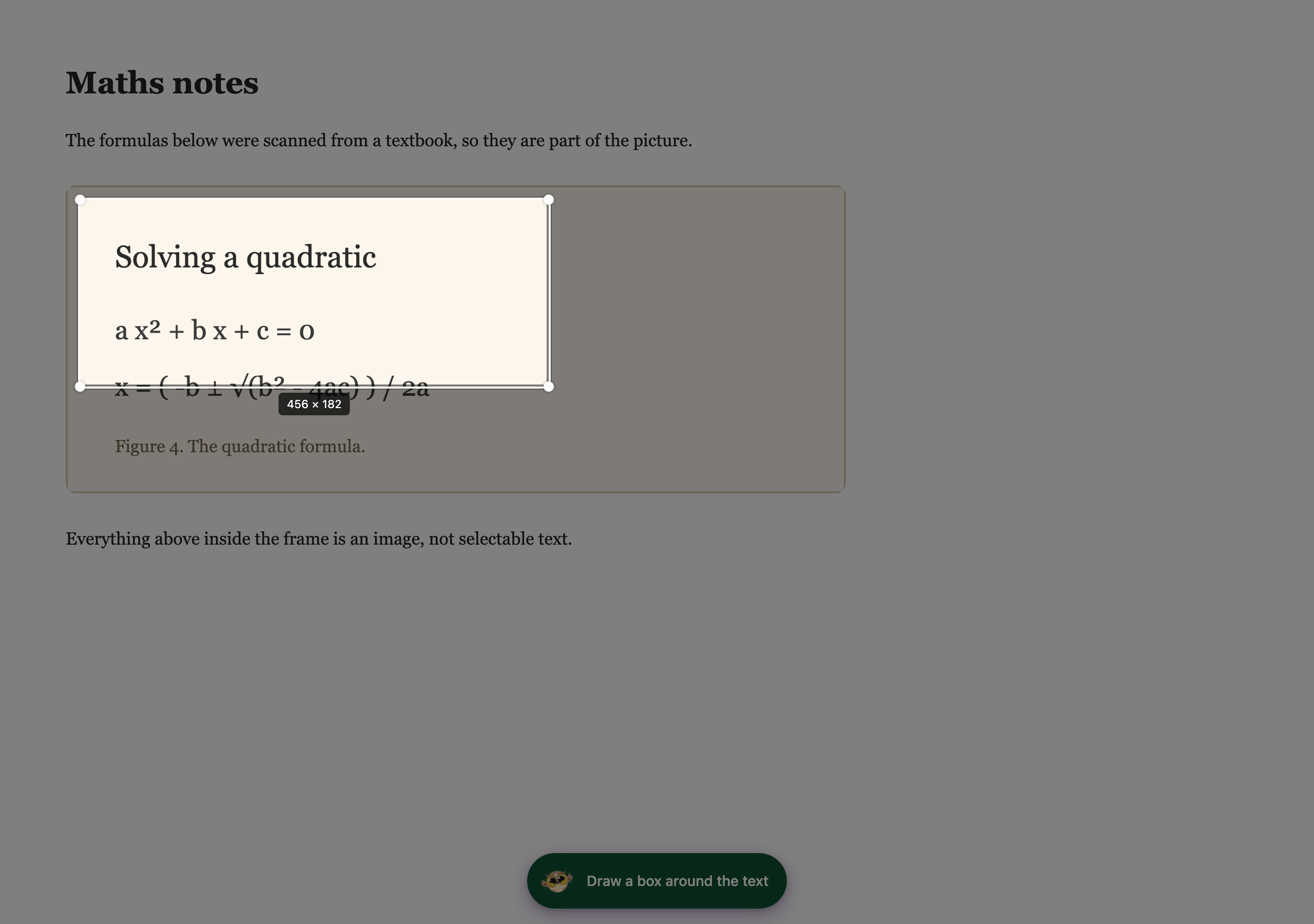
---
## Step 3: Where the Maths Goes
The result arrives at the one destination you picked before you started.
- **Immersive Reader** lays each equation out as maths, next to the words around it. You can change the text size, font and background color there, and hear it read aloud.
- **Copy to clipboard**, **Save as note**, **Listen** and **Translate** all work on text, so an equation arrives in words. 2x + 3 = 7 becomes "two x plus three equals seven".
If an equation cannot be rebuilt, Helperbird reads it out in words instead of showing you a broken one, and tells you it has done that.
**[Explain mode](/help/how-to-use-explain-mode-in-the-screenshot-reader/)** is a separate setting. Turn it on and you get the maths described in plain language instead of transcribed, which is often what you want with a formula.
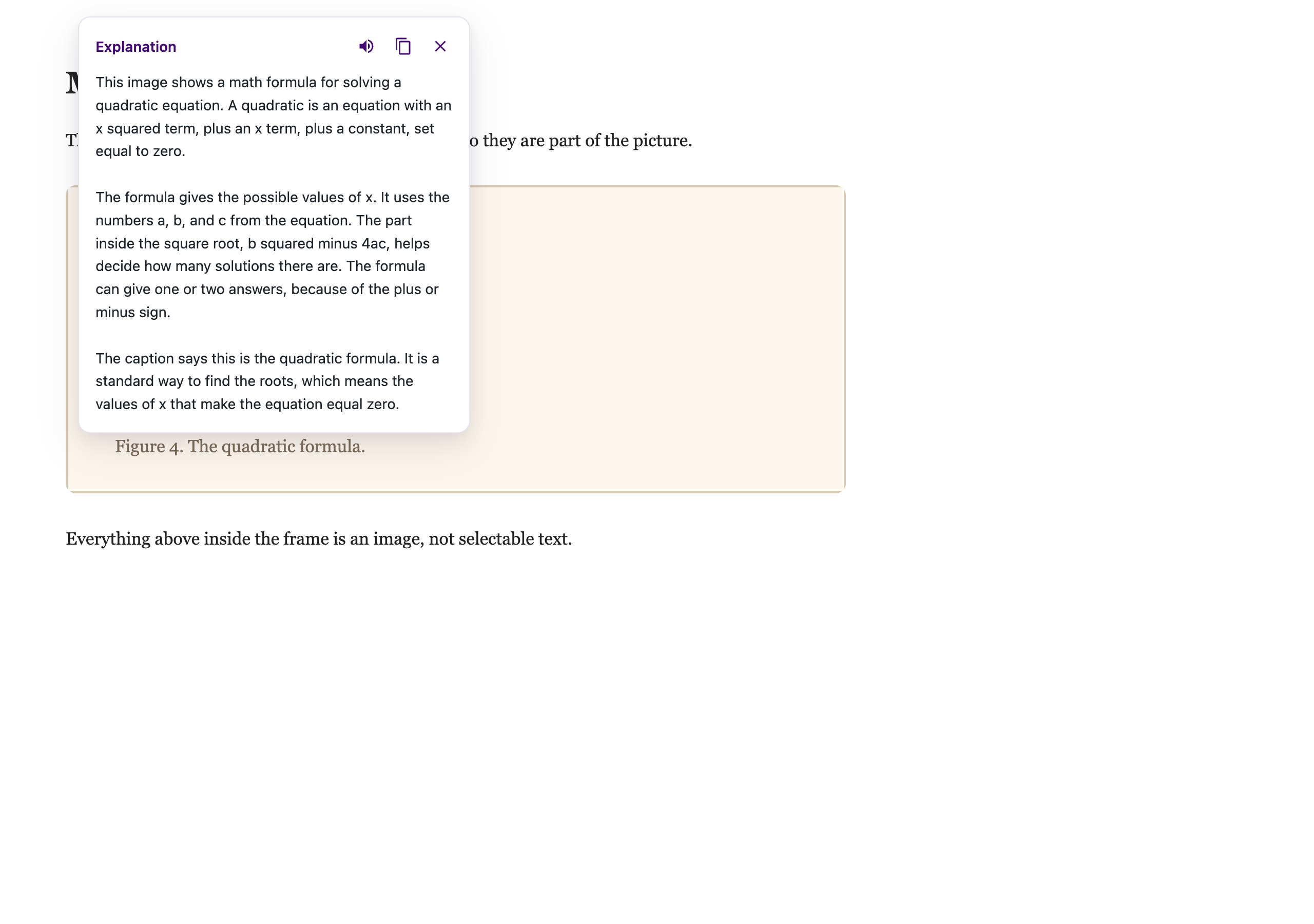
---
## If the Maths Comes Back Wrong
- **Capture a bigger area.** Cutting through the middle of a fraction or a root gives it less to work with.
- **Check the picture is sharp.** A blurry photo of a whiteboard is hard for anyone to read.
- **Try one equation at a time** if a dense page comes back muddled.
- **Multi-row layouts**, such as matrices or aligned systems, can display with their rows overlapping when opened in Immersive Reader. That is a limitation of the reader rather than of the capture, so try another destination if a matrix looks wrong.
See also [how to use the Screenshot Reader](/help/how-to-extract-text-from-any-image-pdf-or-website/) for captures of every kind, [the Equation Editor](/help/how-to-open-the-helperbird-equation-editor/) if you want to write maths rather than capture it, and [what happened to the Math Reader](/help/how-to-use-the-maths-reader-in-helperbird/) if you came here looking for that.
---
## Need Additional Help?
If you have any questions or run into any issues, please contact the Helperbird support team. You can reach us at [Helperbird support](/support/). We are happy to help you get the most out of Helperbird.
---
## How to Add a Color Overlay to Any Website
URL: https://www.helperbird.com/help/how-to-add-a-overlay-to-any-website/
## What is a Color Overlay?
A color overlay adds a transparent colored layer on top of the entire webpage. It is like looking
through a sheet of colored plastic or glass.
Many people find that a tinted overlay reduces the harsh contrast of black text on white
backgrounds. This can make text appear calmer and easier to read.
---
## Who is This For?
This feature is helpful for:
- People with dyslexia who benefit from colored overlays
- Anyone with Irlen Syndrome or visual stress
- People who find bright white screens uncomfortable
- Anyone who experiences eye strain or headaches when reading online
- Students who need to read for long periods
---
## Step 1: Open Helperbird
Click the Helperbird icon in your browser toolbar. It looks like a small owl and is usually in the
top-right corner of your browser.
This will open the Helperbird menu.
---
## Step 2: Open the All Features Section
Scroll down to the bottom of the Helperbird menu. You will see a section called **All Features**.
Click the arrow next to **All Features** to expand it and show all available features.
---
## Step 3: Find Color Overlay
Look through the list of features until you see **Color overlay**.
It has a red icon with a layers symbol on it.
---
## Step 4: Open Color Overlay
Click the **Open** button next to **Color overlay** to open it.
A panel will appear with the overlay toggle at the top and a **Settings** section below it.
---
## Step 5: Turn on Overlay
At the top of the panel, look for the **Color overlay** toggle.
Click the toggle switch to turn it **on**.
A colored tint will immediately appear over the entire webpage, and a green **Active** badge will
show next to the feature in the list.
---
## Step 6: Customize the Overlay
To adjust the overlay color and intensity, scroll down to the **Settings** section in the same
panel.
Here you can choose different colors and adjust how strong the overlay appears.
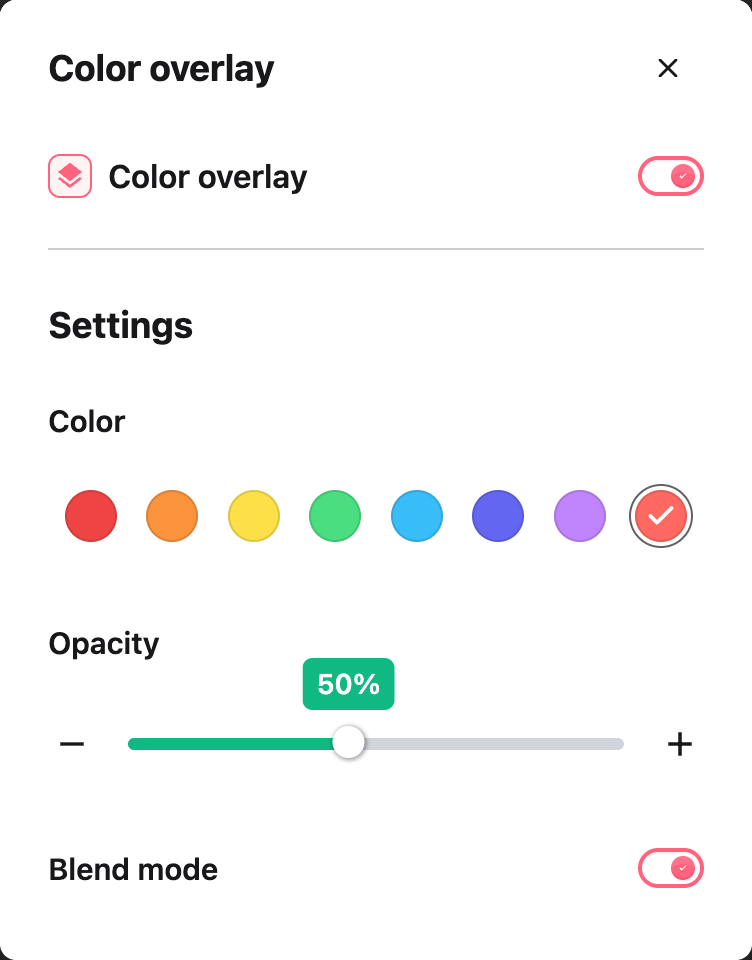
---
## Overlay Settings
In the Settings section, you can customize the following:
- **Color** - Choose a color for the overlay from the color grid. Popular choices include yellow,
blue, pink, and green. Different colors work better for different people, so try a few to find
what is most comfortable for you.
- **Opacity** - Adjust how strong the overlay is using the slider or the minus and plus buttons. A
lower opacity makes the overlay more transparent, while a higher opacity makes the color more
intense.
- **Blend mode** - Control how the tint mixes with the page. It is on by default, which keeps text
sharp under the color. Turn it off to see the exact color you picked on every page. Read the guide
to [Blend mode in the color overlay](/help/how-to-use-blend-mode-in-the-colour-overlay/) for when
to use each setting.
The overlay's color and opacity are separate from the reading ruler settings, so you can adjust each
one independently.
**Tip:** Many people with dyslexia or Irlen Syndrome find that certain specific colors work best for
them. If you have worked with a specialist who recommended a particular overlay color, you can match
it here. Try different colors and opacity levels to find what feels most comfortable for your eyes.
---
## Video Tutorial
Coming soon
---
## Need Additional Help?
If you have any questions or run into any issues, please contact the Helperbird support team. You
can reach us at [Helperbird support](/support/). We are happy to help you get the most out of
Helperbird.
---
## How to Add a Saved Note to Your Notepad Document
URL: https://www.helperbird.com/help/how-to-add-a-saved-note-to-your-notepad-document/
## What This Does
While you read, Helperbird lets you save notes and highlight passages on any page. **Highlights &
Notes** brings those into the Notepad, so you can pull a quote or a thought straight into what you
are writing instead of hunting for it again.
---
## Who is This For?
This is helpful for:
- Students writing something up from pages they read earlier
- Anyone gathering quotes for an essay or a report
- People who research first and write afterwards
- Anyone who has highlighted something and cannot remember where
---
## Step 1: Open Highlights & Notes
Choose **Highlights & Notes** in NotePad's top toolbar. The library opens above the document, so
your writing stays on the same page.
Saved items appear as cards. If the library is empty, choose **New note** or save a highlight from a
webpage.
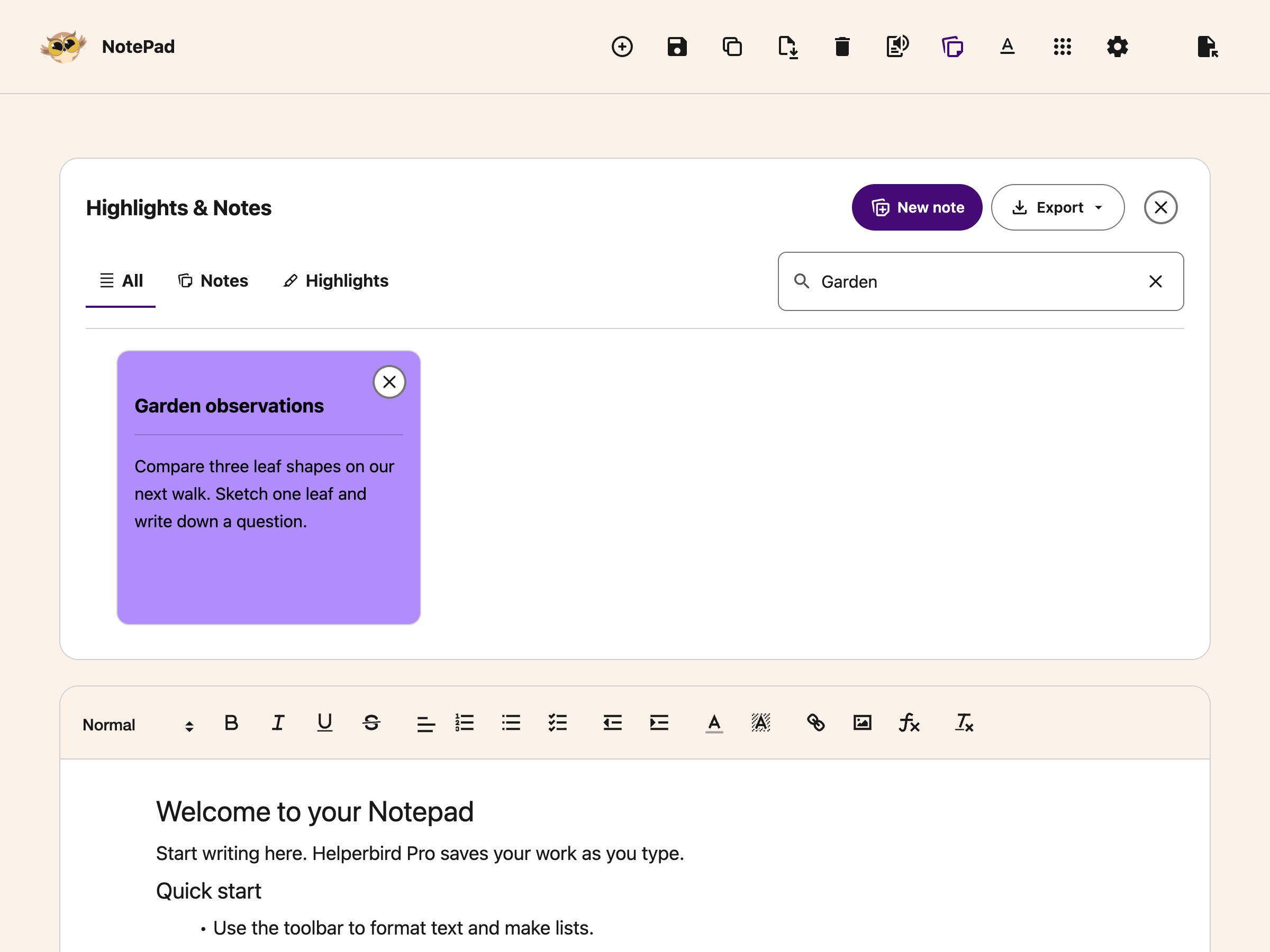
---
## Step 2: Find the Note
Use **All**, **Notes** or **Highlights** to filter your saved items. Type into **Search notes and
highlights…** to narrow the cards. The clear button inside the field removes your query.
---
## Step 3: Click It to Add It
Open the card you want. Its editor shows the note text or captured highlight. Choose **Insert into
Notepad** to add it to your document.
The saved item remains in your library. Close the library when you want more room to write.
---
## Need Additional Help?
If you have any questions or run into any issues, please contact the Helperbird support team. You
can reach us at [Helperbird support](/support/). We are happy to help you get the most out of
Helperbird.
---
## How to Add Equations to PDFs and Notepad
URL: https://www.helperbird.com/help/how-to-add-equations-to-pdfs-and-notepad/
## What This Does
Add fractions, powers and other equations to a PDF or Notepad. You see the maths as you type, then
insert it as an image. Helperbird keeps the equation source in your saved workspace so you can
change it later.
Adding and editing equations in the standalone Notepad is free. Equations in the PDF Reader,
including its side Notepad, still need Helperbird Pro. Creating the equation image happens on your
device.
## Step 1: Open the Equation Editor
In the **PDF Reader**, open your PDF. Choose **Tools** in the top toolbar, then **Insert equation**.
Its icon shows a mathematical function.
In **Notepad**, put your cursor where you want the equation. Choose **Insert equation** beside the
image button in the text toolbar. This also works in the Notepad beside a PDF.
## Step 2: Write Your Equation
Type into **Your equation**. For example, type `x^2` to write x squared. The field shows the result
as you type.
Choose **Show math keyboard** to find fractions, roots and other symbols. The keyboard fills the
width of your screen, with the editor above it. Choose **More options** beneath the equation field
for the math menu. You can also type LaTeX, such as `\frac{1}{2}` for one half.
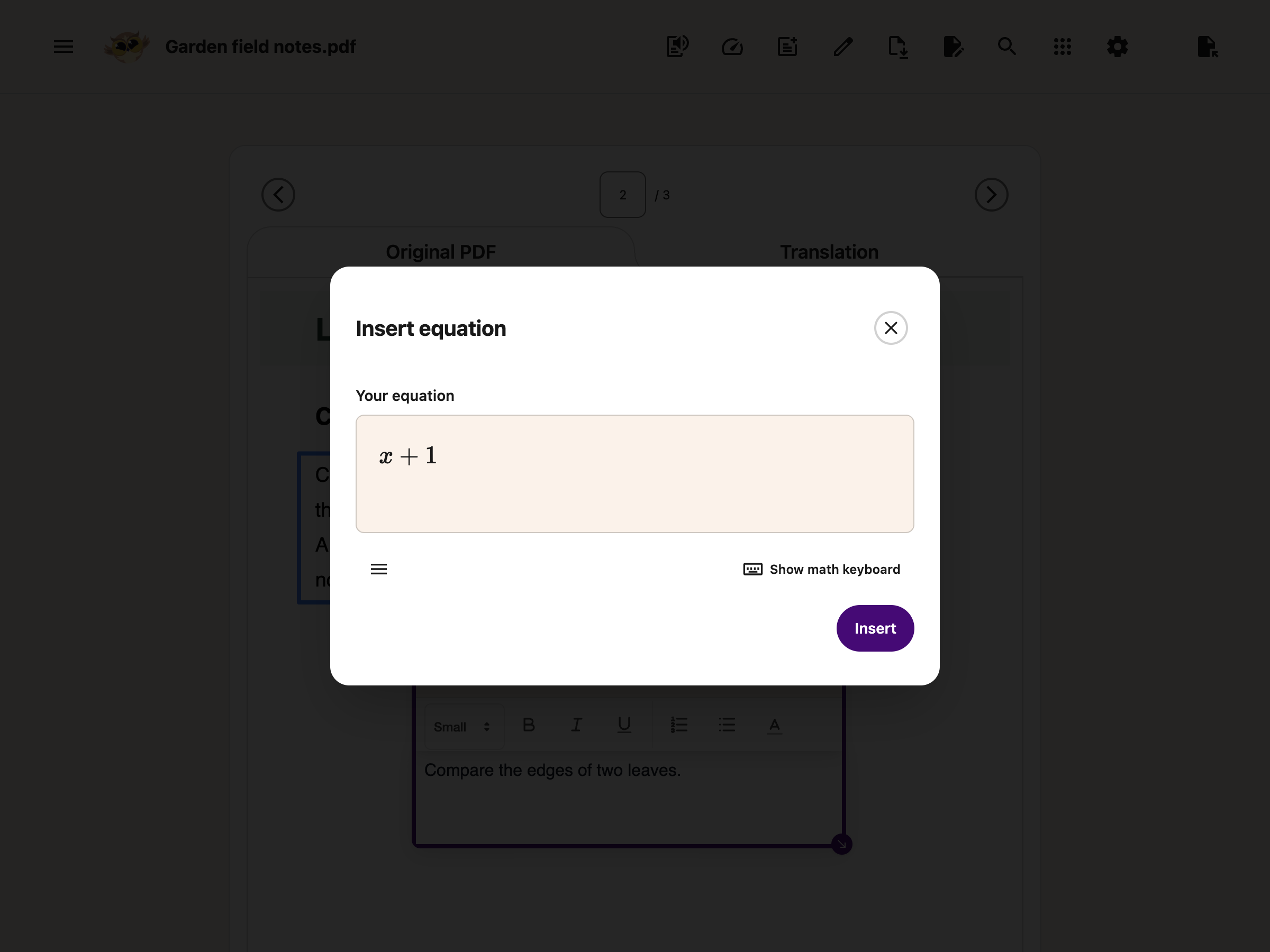
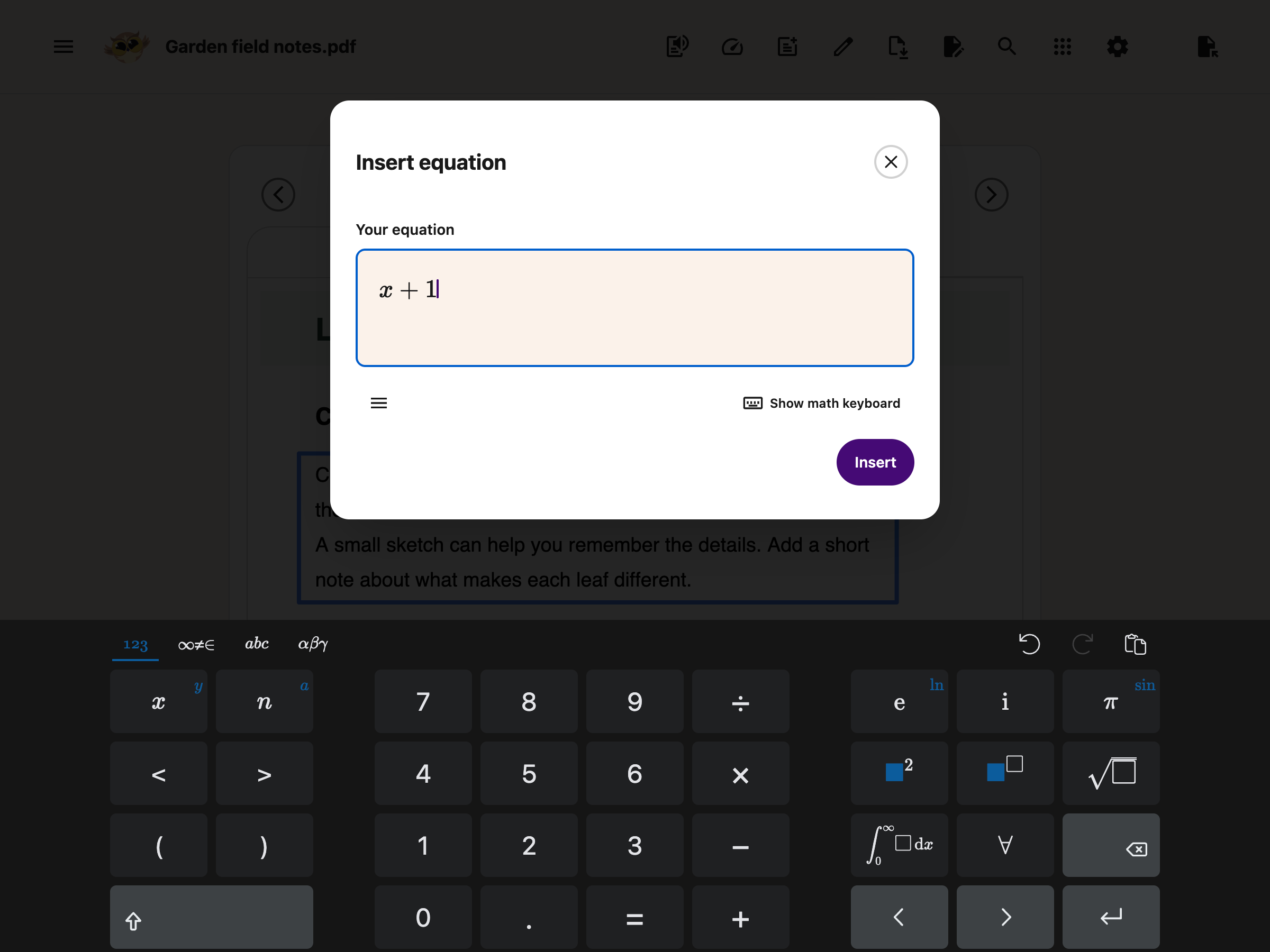
## Step 3: Insert Your Equation
Choose **Insert**.
On a PDF, the equation appears on the current page. Drag it into place. Use the corner handle to
change its size. You can also focus its image and use the arrow keys to move it.
In Notepad, the equation appears at your cursor. If you selected text, it replaces that selection.
## Edit an Equation
On a PDF, choose **Edit equation** in the equation’s page bar, beside the remove button. In Notepad,
click the equation, or focus it and press Enter.
Change the equation and choose **Save**. Close the dialog or press Escape to leave it as it was.
Helperbird adds a text description to equation images for screen readers.
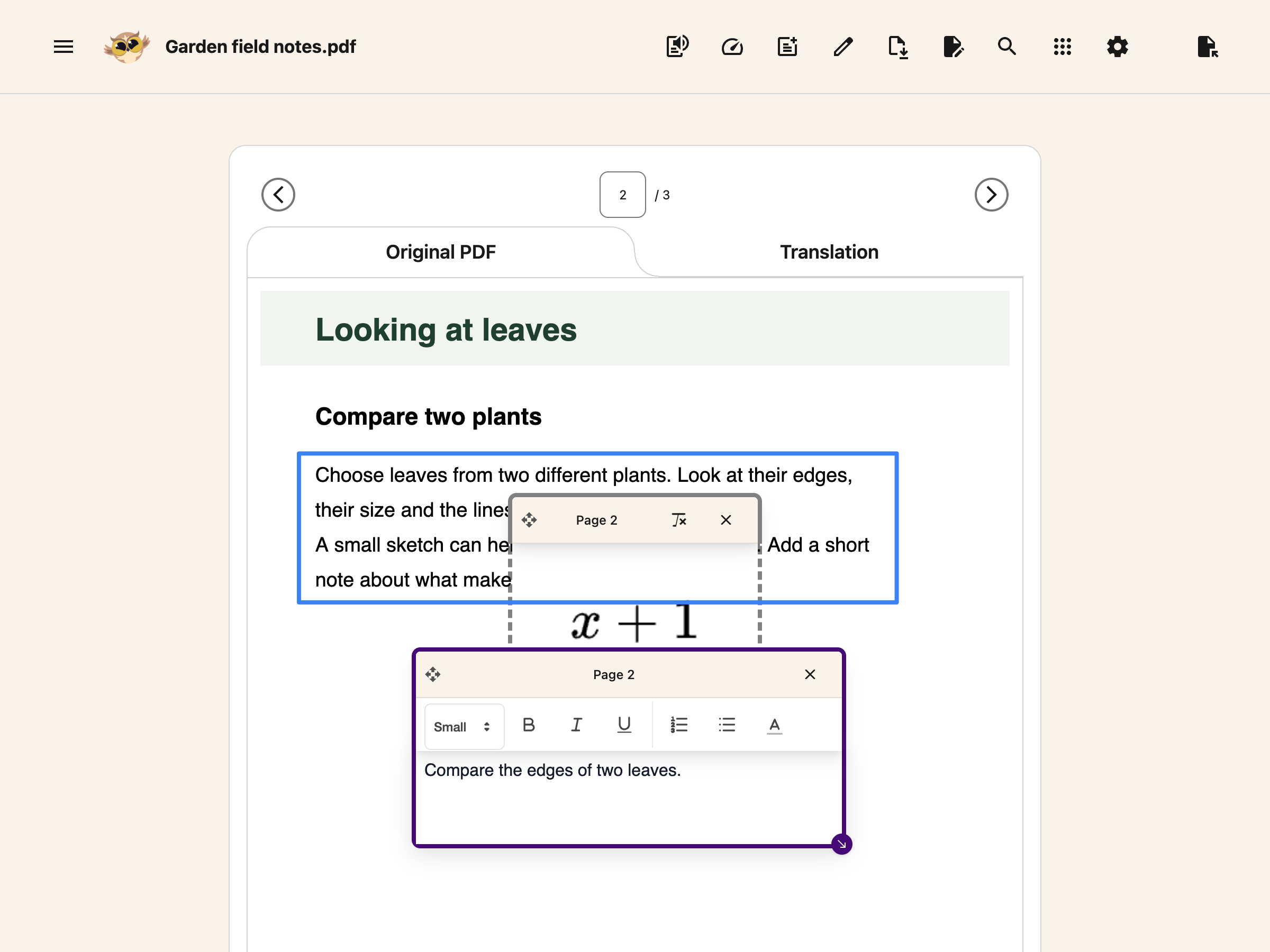
## Save and Download
Your current PDF workspace keeps equations with its other annotations in device-local recovery.
Opening another PDF replaces that recovery copy. When you download, choose the option that includes
your notes and drawings. The equation image becomes part of the downloaded PDF.
The downloaded PDF contains an image, not an editable or tagged maths object. Keep the original
workspace if you need to edit the equation later. Its image description does not turn the downloaded
PDF into an accessible maths document.
Notepad saves equations with your document. Word downloads include the image and its description.
Plain text uses the description; Markdown keeps the LaTeX source.
For other ways to share maths, see
[Copy an equation from Helperbird](/help/how-to-copy-an-equation-from-helperbird/).
## Move Notepad Content into a PDF
In the PDF's side Notepad, choose **Add Textbox to PDF** below the editor. Text, ordinary pictures
and equations become separate boxes in the order they appear in your note. Transferred equations
keep their **Edit equation** control.
Typing and transferring a PDF side note are free. Creating or editing equations in the PDF Reader
still needs Helperbird Pro. If an image cannot load or the full note will not fit, Helperbird shows
a message and keeps the note and PDF unchanged.
See [pasting text and images into a PDF](/help/how-to-paste-text-and-images-onto-a-pdf/) for another
way to add content.
## Troubleshooting
**Insert is unavailable:** Write an equation first. Fill any empty fraction or root boxes before
inserting it.
**The equation cannot be inserted:** Check the equation and try again. If you changed pages or
documents, reopen **Insert equation** in the place you want to use.
**I closed the dialog:** Nothing is added until you choose **Insert** or **Save**.
## Need Additional Help?
If you need help, contact [Helperbird support](/support/).
---
## How to Add Image Descriptions to a PDF
URL: https://www.helperbird.com/help/how-to-add-image-descriptions-to-a-pdf/
## Why Describe Your Pictures
A chart or picture can contain information that a reader cannot see. Add an **Image description** to
explain its meaning alongside the picture in your downloaded PDF.
This guide covers images you add to a PDF in Helperbird. It does not change pictures that are
already part of the original PDF. Pasting pictures and adding descriptions are free.
## Step 1 Add Your Picture
[Open your PDF](/help/how-to-open-the-pdf-reader-in-helperbird/) and go to the page you want. Copy
the image itself, click on the PDF outside any text box or side NotePad, and press **Ctrl + V** on
Windows or Chromebook, or **Command + V** on Mac.
A new image box appears. Move it with the arrows handle and resize it with the corner handle. For
more detail, follow
[pasting text and images onto a PDF](/help/how-to-paste-text-and-images-onto-a-pdf/).
## Step 2 Open Annotation Options
On the picture's attached toolbar, expand **Annotation options**. Find the **Image description**
field. Type the information a reader needs to understand the picture in this document.
For this example, the description is:
> Bar chart showing plant height increasing from 4 cm in week 1 to 8 cm in week 2.
Describe the information the picture contributes to the page.
For a graph, include the main trend and important values. For a diagram, explain the relationship it
illustrates. For a picture of text, include the words that matter. A useful description explains
more than a filename or a phrase such as “picture of a chart.”
Your changes stay with that image box. You can reopen Annotation options to edit the description.
Repeat this for each picture you add.
## When to Mark an Image as Decorative
Select **This image is decorative** only when the picture adds no information, such as a purely
ornamental divider. The description field becomes unavailable while this is selected.
Do not mark an informative chart, diagram or screenshot as decorative to skip writing its
description. The chart in this guide needs a description because its values are part of the answer.
Clear the decorative checkbox if you need to describe the picture again.
## Step 3 Download Your PDF
Choose **Download**, then **With my changes**. Helperbird checks the pictures you added. If an
informative image has no description, the download stops and that image's controls open. Your work
remains in the reader.
If a description is missing, add it in the controls Helperbird opens.
Add the missing description, then try **Download → With my changes** again. If another picture needs
attention, repeat the same steps. Equation images already have an equation description.
Open the downloaded PDF and check your work before sharing it. Descriptions provide reading
information, but do not repair the original PDF or guarantee that the whole document is accessible.
The downloaded pictures and equations are not editable Helperbird boxes.
## Related Guides
- [Save and download annotated PDFs](/help/how-to-save-and-download-annotated-pdfs/)
- [Add equations to PDFs and NotePad](/help/how-to-add-equations-to-pdfs-and-notepad/)
- [Make PDF text boxes smaller](/help/how-to-make-pdf-text-boxes-smaller/)
- [Contact Helperbird support](/support/)
---
## How to Add Text Boxes to PDFs in Helperbird
URL: https://www.helperbird.com/help/how-to-add-text-boxes-to-pdf-with-helperbird/
## What are PDF Annotations?
PDF Annotations let you add text boxes directly onto PDF documents. You can write notes, add
comments, or fill in forms. Download **With my changes** to embed your answer text in a copy you can
save and share. These steps are for the browser extension; the
[native Apple app has its own guide](/help/how-to-use-helperbird-pdf-reader-on-iphone-ipad-and-mac/).
A PDF text box with a cream Page bar, formatting controls, and two corner handles.
---
## Who is This For?
This feature is helpful for:
- Students who want to add notes to study materials
- Anyone who needs to fill out PDF forms
- People who want to add comments to documents for review
- Researchers who need to annotate academic papers
- Anyone who wants to mark up PDF documents
---
## Step 1: Open a PDF in Helperbird
[Open the PDF Reader](/help/how-to-open-the-pdf-reader-in-helperbird/), choose **Open PDF**, and
select a file from your device. The page appears with its reading controls above it.
---
## Step 2: Add a Text Box
In the toolbar at the top of the PDF Reader, click the **Add Textbox** button (the document icon
with a plus sign).
The browser PDF Reader toolbar and a sample form with an answer box.
A text box will appear on the current page. You can drag it to any position and resize it by pulling
the handle at the bottom-right corner.
Click the **Add Textbox** button again to add more text boxes. Each new text box is slightly offset
from the previous one so they don't stack on top of each other.
---
You can also [paste text, links or an image](/help/how-to-paste-text-and-images-onto-a-pdf/) with no
field or dialog focused to make a new box. Pasting into an existing text box keeps editing that box.
## Step 3: Type and Format Your Text
Click inside a text box and start typing. The text box will expand as you type.
Click inside the text box to reveal its formatting toolbar. Use it to:
- Make text **bold**, _italic_, or underlined
- Change text colors and font sizes
- Add bulleted or numbered lists
If your answer covers too much of a worksheet, follow
[how to make PDF text boxes smaller](/help/how-to-make-pdf-text-boxes-smaller/). It shows how to
select your text, choose a smaller size, and shrink the box with the corner handle.
When the box contains text, **click away to hide the toolbar**. Click back into the text to show it
again. It hides after about three seconds, but stays while you use toolbar controls or an open
size/color menu. Empty boxes keep their controls visible.
Your answer remains on the page when the editing toolbar hides.
Drag the **Page bar** or the **lower-left move handle** to reposition the box. Use the **lower-right
handle** to resize it. The Page bar also has the remove button. Press **Escape** to leave text
editing, then use **Tab** to reach the box controls. Maths boxes have an **Edit equation** button.
The text-box controls follow the reader’s light or dark appearance.
---
## Step 4: Add Text from the Notepad
You can also write text in the Notepad and insert it as a text box on the PDF.
Click the **NotePad** button in the toolbar to open the split view. Type your notes in the Notepad
panel, then click **Add Textbox to PDF** below the editor to place them on the current page. Both
typing and inserting notes are free. The voice typing, grammar and equation tools need Helperbird
Pro.
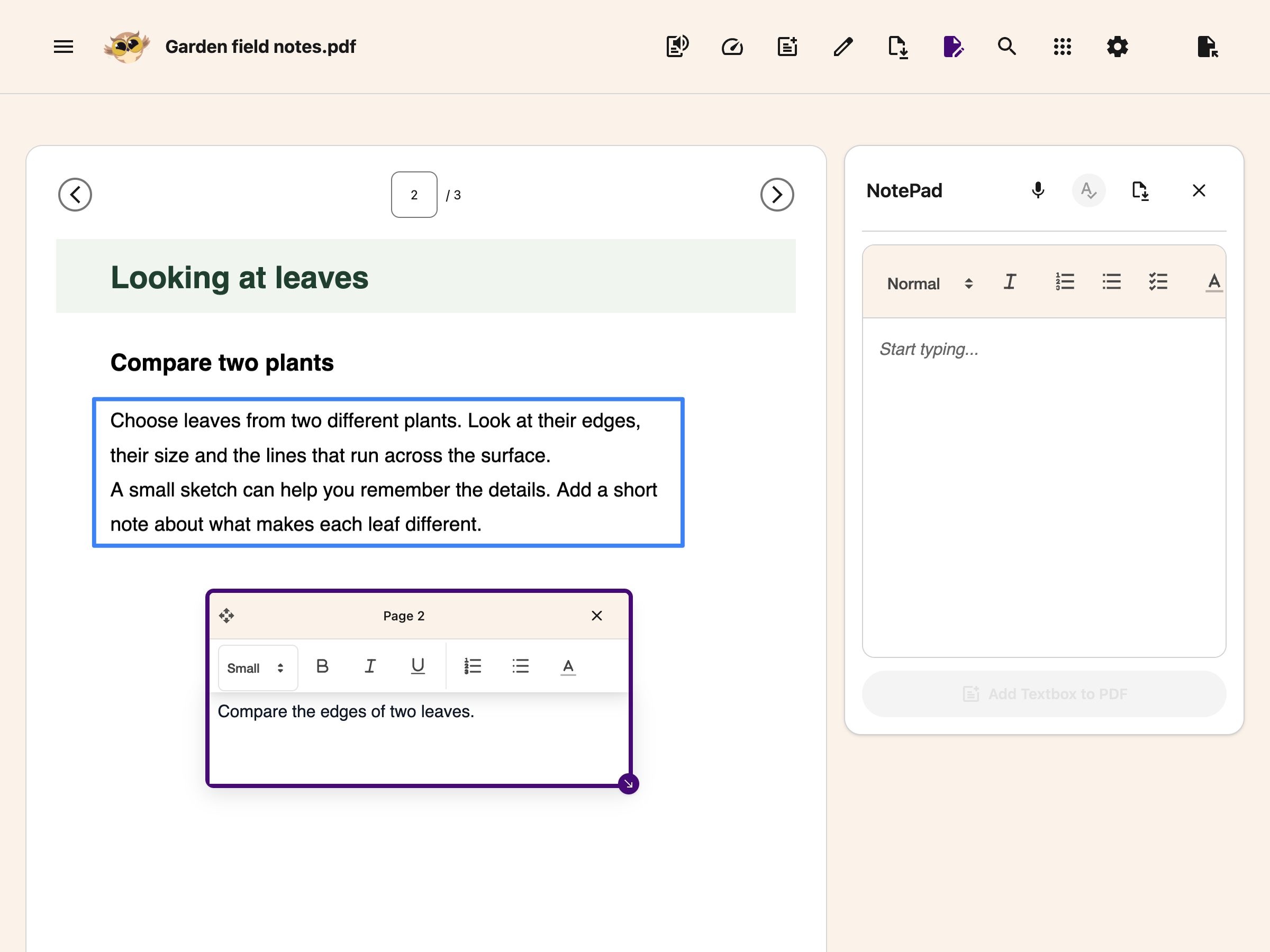
The Notepad also has a **Download note** button. It opens your browser's print dialog with your
notes in it, so you can print them or choose **Save as PDF** to keep a copy.
---
Notes with images or [equations](/help/how-to-add-equations-to-pdfs-and-notepad/) become separate
text and image boxes in the order you wrote them. If the full note will not fit or an image cannot
load, Helperbird leaves the note and PDF unchanged.
## Step 5: Download Your Annotated PDF
When you are finished adding your annotations, click the **Download** button (download icon with
arrow) in the toolbar.
An options menu will appear with two choices:
- **Original only** - Download the original PDF without any annotations
- **With my changes** - Download the PDF with all your text boxes and formatting included
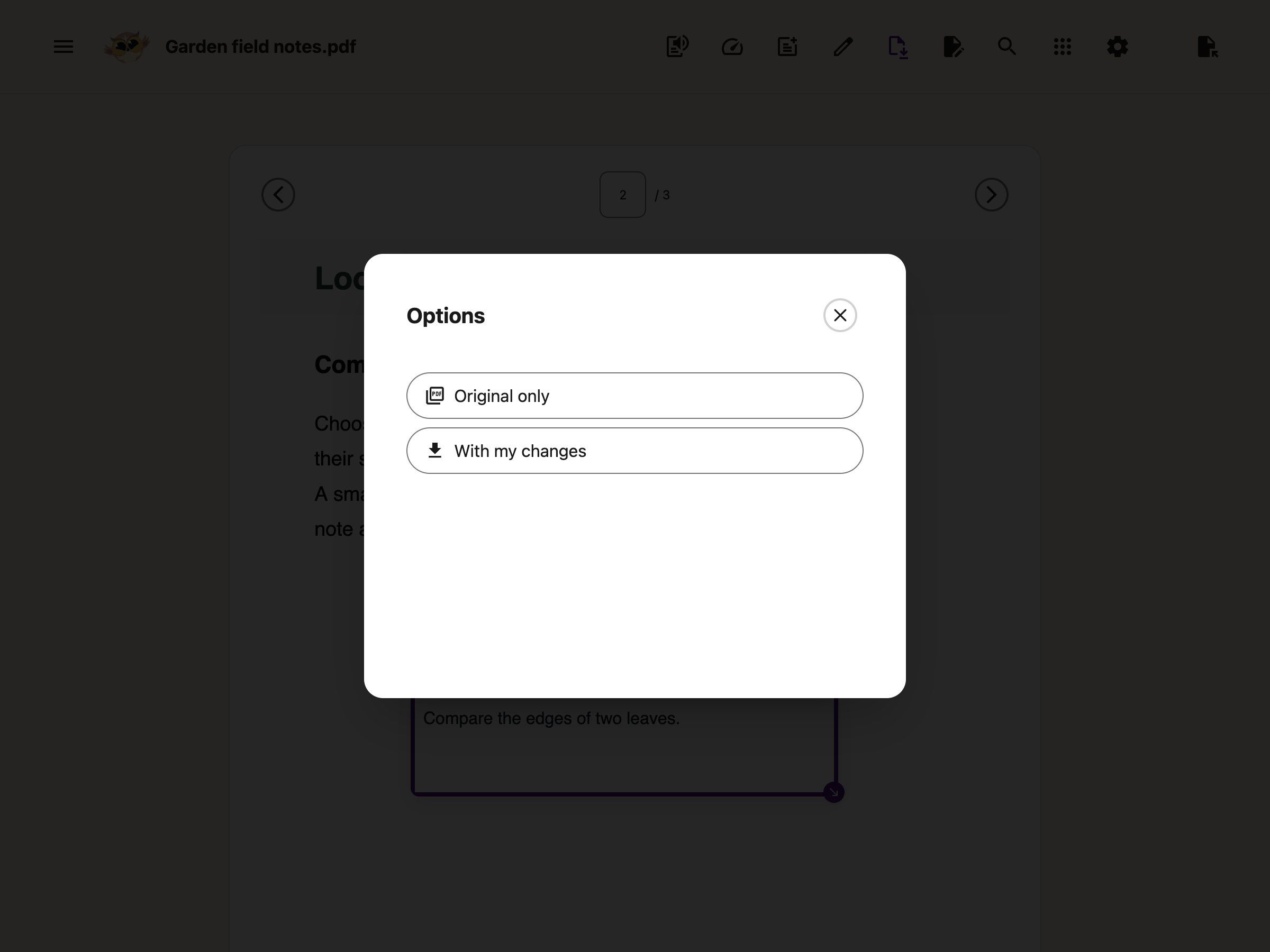
Click **With my changes**. A green notification saying "Downloaded with notes" will confirm your
download. Your annotated PDF will have all text boxes permanently embedded, so anyone who opens it
in any PDF reader will see them.
---
## Tips
- Your annotations are saved as part of the PDF, so they are visible in any standard PDF reader.
- Combine text boxes with the
[Drawing Tools](/help/how-to-use-drawing-tools-on-pdfs-with-helperbird/) for detailed markup. Add
a text box next to an arrow for context.
- Use the Notepad for longer notes and the direct text box for quick annotations on specific spots.
---
## Related Guides
- [How to Annotate and Export a PDF with Helperbird](/help/how-to-annotate-and-export-a-pdf-with-helperbird/)
- [How to Use Drawing Tools on PDFs](/help/how-to-use-drawing-tools-on-pdfs-with-helperbird/)
- [How to Save and Download Annotated PDFs](/help/how-to-save-and-download-annotated-pdfs/)
- [How to Share and Export PDFs with Helperbird](/help/how-to-share-pdfs-with-helperbird/)
- [How to Use the PDF Reader in Helperbird](/help/how-to-use-pdf-reader-in-helperbird/)
- [How to Use Helperbird for Reading Long PDFs](/help/how-to-use-helperbird-for-reading-long-pdfs/)
---
## Doing This Without a Mouse
Every part of a text box can be done from the keyboard, including positioning it one pixel at a time
so the text sits on a form line rather than near it. See
[how to move and resize PDF text boxes with the keyboard](/help/how-to-move-and-resize-pdf-text-boxes-with-the-keyboard/).
---
## Need Additional Help?
If you have any questions or run into any issues, please contact the Helperbird support team. You
can reach us at [Helperbird support](/support/). We are happy to help you get the most out of
Helperbird.
---
## How to Add a Text Outline on Any Website
URL: https://www.helperbird.com/help/how-to-add-text-outline-with-helperbird/
## What Happened to Text Outline?
Text Outline (also called Text Stroke) drew a colored line around each letter on a web page. This feature has been removed from Helperbird.
If you look for Text Stroke in the Display section, you will not find it anymore. Nothing is wrong on your end. The feature is gone for everyone.
The good news: other Helperbird tools solve the same problem, text that is hard to tell apart from the background, and they often do it better.
---
## What to Use Instead
- **[High Contrast](/features/high-contrast/)** - the closest match. It changes the text and background colors so words stand out sharply on any website. If Text Outline helped you see letters more clearly, start here.
- **[Dyslexia-friendly fonts](/features/specialised-dyslexic-fonts/)** - switch any website to fonts like OpenDyslexic or Lexend. Their clear, weighted letter shapes are easier to tell apart at a glance.
- **[Color overlays](/features/overlay/)** - place a soft tint over the whole page. This cuts glare and can make text feel calmer and clearer, much like a colored reading strip.
---
## How to Make Text Stand Out Now
High Contrast covers the same need as Text Outline. Here is how to turn it on:
1. Click the Helperbird icon in your browser toolbar.
2. Scroll down and open **All Features**.
3. Open **Display**.
4. Turn on **High contrast** and pick the style that reads best for you.
You can also mix tools. Try a dyslexia-friendly font together with High Contrast, or add a color overlay on bright pages.
**Tip:** Change one thing at a time. That way you can tell which setting helps you most.
You can browse everything Helperbird offers today on the [features page](/features/).
---
## Need Additional Help?
If you have any questions or run into any issues, please contact the Helperbird support team. You can reach us at [Helperbird support](/support/). We are happy to help you get the most out of Helperbird.
---
## How to Adjust Color Saturation on Any Website
URL: https://www.helperbird.com/help/how-to-adjust-color-saturation-on-any-website/
## What is Saturation?
Saturation controls how vivid or muted the colors appear on a website. You can reduce saturation to
make colors less intense, or even turn a page completely grayscale (black and white). This can help
reduce visual distractions and make reading easier.
---
## Who is This For?
This feature is helpful for:
- People who find bright colors distracting or overwhelming
- Anyone with light sensitivity or visual processing difficulties
- People who want to reduce eye strain while reading
- Anyone who prefers a simpler, less colorful display
- People with certain types of color blindness who find grayscale easier
---
## Step 1: Open Helperbird
Click the Helperbird icon in your browser toolbar. It looks like a small owl and is usually in the
top-right corner of your browser.
This will open the Helperbird menu.
---
## Step 2: Go to the All Features Section
Scroll down to the bottom of the Helperbird menu. You will see a section called **All Features**.
Click the arrow next to **All Features** to expand it and show all available features.
---
## Step 3: Find Display
Look through the list of features until you see **Display**. Saturation lives inside this panel,
alongside the other display settings.
---
## Step 4: Open Display
Click **Open** on the **Display** row. The panel holds **High contrast**, **Highlight links**,
**Saturation**, **Cursor size** and **Magnifier**.
---
## Step 5: Turn on Saturation
In the Display options panel, find **Saturation** and click the toggle switch next to it to turn it
**on**.
---
## Step 6: Adjust the Level
Once Saturation is turned on, a slider will appear below the toggle.
Drag the slider to adjust the saturation level:
- Slide to the left to reduce color intensity (more grayscale)
- Slide to the right to increase color vibrancy
You can also use the **-** and **+** buttons beside the slider for small adjustments. The current
value is shown in a bubble above the slider.
The changes apply to the page immediately so you can see the effect in real time.
**Tip:** If you find colorful websites overwhelming, try reducing saturation to around 50% for a
calmer reading experience. Set it to 0% for a fully grayscale page.
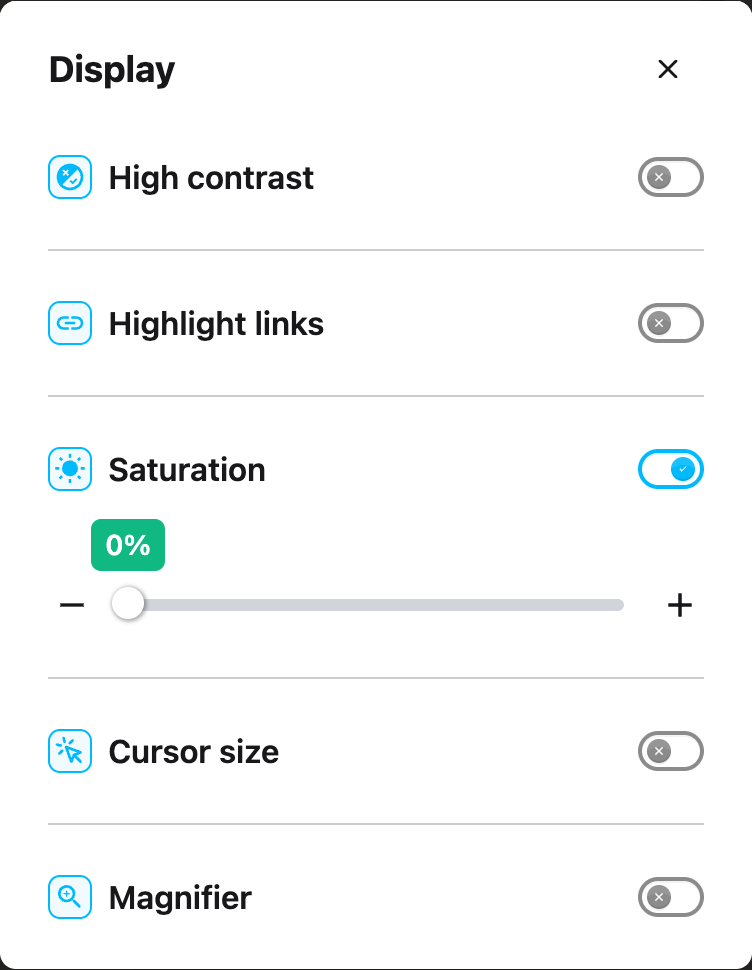
---
## Need Additional Help?
If you have any questions or run into any issues, please contact the Helperbird support team. You
can reach us at [Helperbird support](/support/). We are happy to help you get the most out of
Helperbird.
---
## How to Adjust Paragraph Width on Any Website
URL: https://www.helperbird.com/help/how-to-adjust-paragraph-width-on-any-website/
## What is Paragraph Width?
Paragraph Width lets you control how wide text paragraphs appear on any website. Narrower text
columns can be easier to read because your eyes don't have to travel as far across the screen.
This is a Helperbird Pro feature.
---
## Who is This For?
Paragraph Width is helpful for people who find wide text columns hard to follow, readers on large
monitors where text stretches too wide, anyone with reading difficulties like dyslexia, people who
prefer a book-like reading experience, and users who want to reduce eye strain from long lines of
text.
---
## How to Adjust Paragraph Width
### Step 1: Open Helperbird
Click the Helperbird icon in the top right corner of your browser to open the extension menu.
---
### Step 2: Go to the All Features Section
Scroll down to the **All Features** section and expand it to see all available features.
---
### Step 3: Find Paragraphs
Look through the list of features until you see **Paragraphs**.
---
### Step 4: Open the Paragraphs Panel
Click **Open** on the **Paragraphs** row. The panel has three settings: **Border**, **Background**
and **Width**. Paragraph width is the one labeled **Width**. If you use the search bar instead, it
appears as **Line width**.
---
### Step 5: Turn on Width
Click the toggle switch next to **Width** to turn it **on**. The toggle will turn green when it is
enabled.
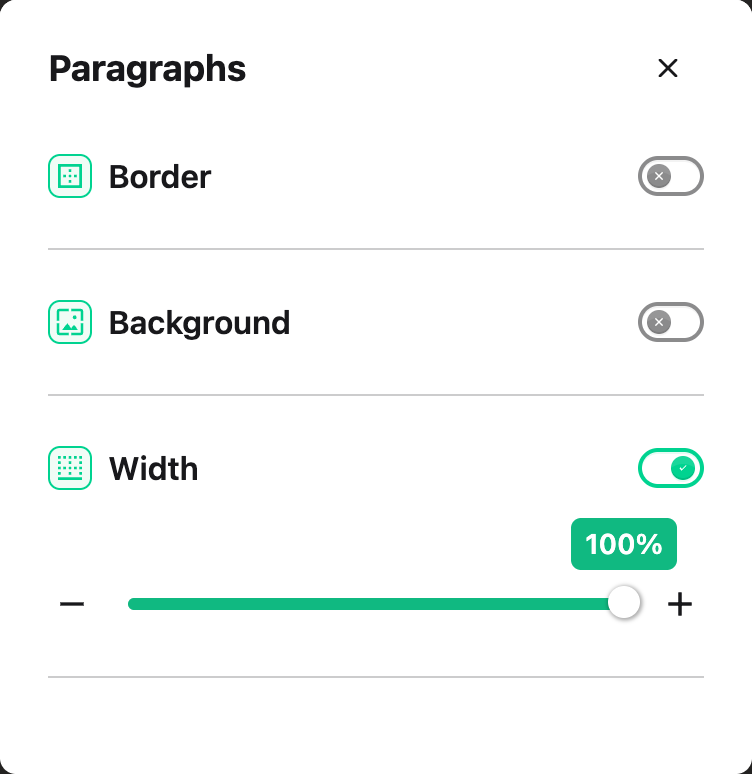
---
### Step 6: Adjust the Width
Use the slider to set your preferred paragraph width. Moving the slider left makes paragraphs
narrower, while moving it right makes them wider.
**Tip:** A width of 60-80 characters per line is often considered optimal for comfortable reading.
---
## Finding Your Ideal Width
Start by narrowing the text slightly and reading a few paragraphs. If it feels cramped, widen it a
bit. The goal is to find a width where your eyes can follow from the end of one line to the
beginning of the next without losing your place.
---
## Related Guides
- [How to Adjust Line Height](/help/how-to-change-the-line-height-on-any-website/)
- [How to Adjust Letter Spacing](/help/how-to-change-the-letter-spacing-on-any-website/)
- [How to Use Reading Mode](/help/how-to-use-reading-mode-and-remove-ads-on-any-website/)
---
## Need Additional Help?
If you have questions about Paragraph Width, reach out to our [Helperbird support team](/support/)
and we'll help you out!
---
## How to Zoom In and Magnify Any Website
URL: https://www.helperbird.com/help/how-to-adjust-zoom-magnifying-for-any-website/
## What is the Magnifier?
The **Magnifier** makes a whole web page larger. Text, images and buttons all grow together, so the
page keeps its shape rather than reflowing.
It can also make a page smaller, which is useful when a site is designed for a bigger screen than
yours.
In the extension this control is called **Magnifier**. If you have been looking for something called
Zoom, this is it.
---
## Who is This For?
This feature is helpful for:
- People with low vision who need larger text and images
- Anyone who finds website text too small to read
- People using small screens or sitting far from their monitor
- Anyone who experiences eye strain from squinting at small content
- People who want more control over how websites appear
---
## Step 1: Open Helperbird
Click the Helperbird icon in your browser toolbar. It looks like a small owl and is usually in the
top-right corner of your browser.
This will open the Helperbird menu.
---
## Step 2: Open the All Features Section
Scroll down to the bottom of the Helperbird menu. You will see a section called **All Features**.
Click the arrow next to **All Features** to expand it and show all available features.
---
## Step 3: Find Display
Look through the list of features until you see **Display**.
---
## Step 4: Open Display
Click **Open** on the **Display** row.
A panel will appear showing various display settings you can adjust.
---
## Step 5: Turn on the Magnifier
In the Display panel, look for **Magnifier**. It sits below High contrast, Highlight links,
Saturation and Cursor size.
Click the toggle switch next to it to turn it **on**. The toggle will turn green when it is enabled.
---
## Step 6: Adjust How Much
Once the Magnifier is on, a slider appears below the toggle.
Drag the slider to the right to zoom in and make the page larger. Drag it to the left to zoom out
and make the page smaller.
The number beside it shows how much bigger or smaller the page is than normal, not an absolute zoom
level.
- **0%** is normal size, and is where the slider starts
- **+100%** is the largest, one and a half times normal
- **-100%** is the smallest, half normal size
It moves in steps of 10%. There is no 150% or 200% here: +100% is as large as it goes.
The zoom applies immediately so you can see the change right away.
**Tip:** Somewhere between +20% and +50% suits most people for everyday reading. Go further if you
need it.
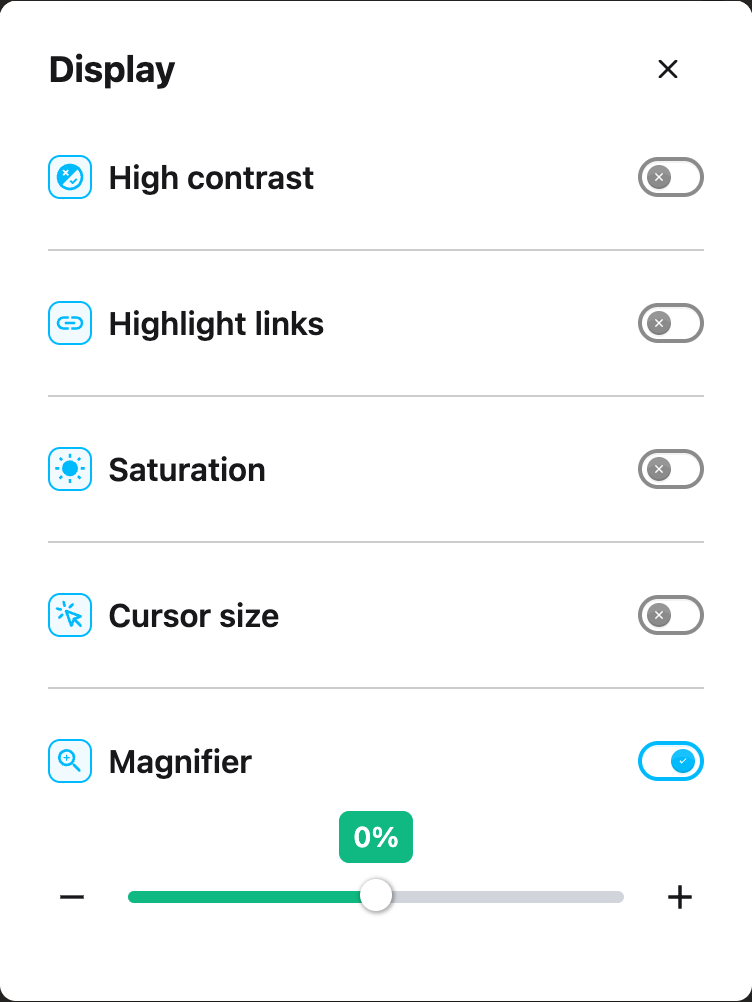
---
## Video Tutorial
Coming soon
---
## Need Additional Help?
If you have any questions or run into any issues, please contact the Helperbird support team. You
can reach us at [Helperbird support](/support/). We are happy to help you get the most out of
Helperbird.
---
## How to Annotate and Export a PDF with Helperbird
URL: https://www.helperbird.com/help/how-to-annotate-and-export-a-pdf-with-helperbird/
This guide walks you through the whole process: opening a PDF in Helperbird, marking it up with text
and drawings, and exporting the finished file with every annotation permanently included.
Everything happens in your browser. There is nothing to install beyond Helperbird, and the exported
PDF is a standard file that opens in any PDF viewer.
---
## What You Can Do
Inside the Helperbird PDF reader you can:
- **Type on the page** - drop a text box anywhere and type into it, with bold, italic, underline,
lists and color
- **Draw and highlight** - freehand pen, rectangles, ovals, lines and arrows in nine colors
- **Take notes side by side** - a full notepad next to the PDF, with voice typing and spell check
- **Export the finished PDF** - download it with your changes baked in, or grab the original
untouched
---
## Who is This For?
- **Students** filling in worksheets, lab sheets or exam practice papers on a Chromebook
- **Teachers** marking up handouts or leaving feedback on submitted work
- **Assistive technology specialists** setting up accommodations for students who cannot handwrite
- **Anyone** who needs to sign, fill in or comment on a PDF without buying separate software
---
## Step 1: Open Your PDF in Helperbird
For a PDF in Google Drive, Classroom or Gmail, download the file to your computer first. Then
[open the PDF Reader](/help/how-to-open-the-pdf-reader-in-helperbird/), choose **Open PDF**, and
select the downloaded file.
On supported web addresses ending in **.pdf**, a green **Click to open PDF in Helperbird** message
may appear. Choose it to open that document in the reader.
The PDF opens in Helperbird's reader with the annotation toolbar across the top. Use the **Page**
field, arrows or **Page thumbnails** to move between pages.
A sample form open in the browser PDF Reader.
---
## Step 2: Add Text Boxes
Click the **Add Textbox** button in the toolbar (a page with a plus).
A text box appears on the page. From here you can:
- **Type straight into it** - click inside and start typing
- **Format your text** - the mini toolbar on the box gives you size, **B**old, *I*talic,
Underline, numbered lists, bulleted lists and text color
- **Move it** - drag the Page bar or lower-left move handle to reposition it anywhere on the page
- **Resize it** - drag the purple handle in the bottom-right corner
- **Delete it** - click the **×** in the top-right corner of the box
Add text boxes on any page. Each stays on the page where you placed it.
If a box covers a form line, follow
[how to make PDF text boxes smaller](/help/how-to-make-pdf-text-boxes-smaller/). A filled box hides
its toolbar when you click away. Click the text again to reveal it. The toolbar is not included in
the downloaded PDF.
A text box on a PDF form, with formatting and corner move/resize controls.
---
## Step 3: Draw and Mark Up the Page
Click the **Draw** button in the toolbar (the pencil icon). A drawing toolbar appears with:
- **Select / Move** - pick up a shape you have already drawn, move it, or delete it
- **Pen** - freehand drawing
- **Rectangle** and **Oval** - shapes for boxing things out
- **Line** and **Arrow** - for pointing things out
- **Nine colors** - red, orange, yellow, green, blue, purple, pink, black and white
- **Stroke size** - cycle through thin, medium, thick and extra-thick
- **Undo** - remove the last shape you added, on this page only
- **Clear all** - remove every drawing on the page
Switch to the **Select** tool to click, move or delete a drawing you have already made. Your marks
stay on the page when you close the drawing toolbar.
This is perfect for circling answers, crossing out, underlining key passages, or drawing arrows to
link ideas.
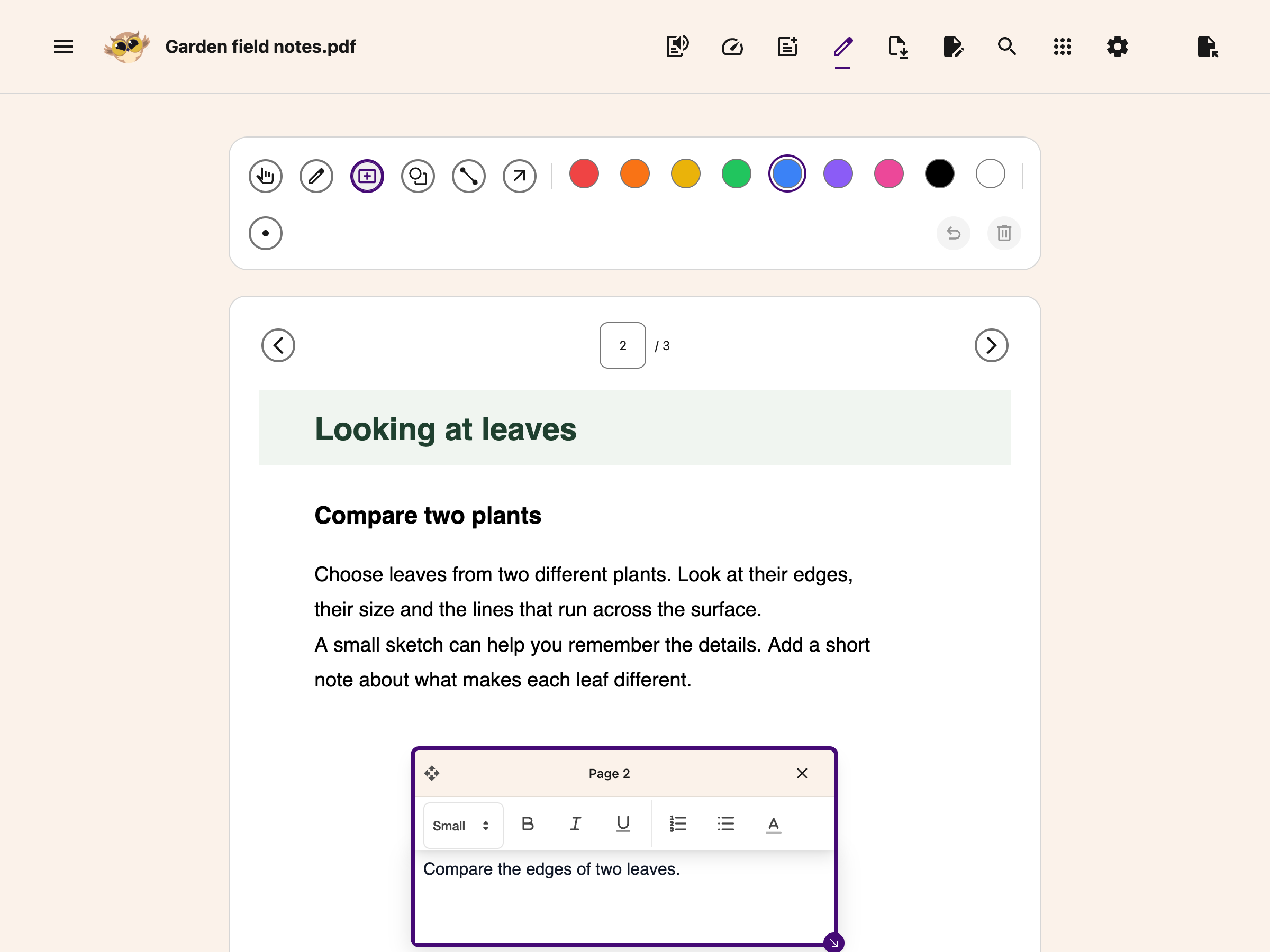
---
## Step 4: Take Notes Alongside the PDF
Click the **Notepad** button in the toolbar. The screen splits, with the PDF on the left and a full
notepad on the right.
Typing, formatting, adding notes to the page and printing are free. Voice typing and grammar need
Helperbird Pro.
In the notepad you can:
- **Type notes** with full formatting (headings, bold, lists, links, images, quotes)
- **Use voice typing** - click the microphone icon and dictate instead of typing
- **Run a spelling and grammar check** on what you have written
- **Push notes onto the PDF** - click the **Add Textbox to PDF** button to insert your notes as a
text box on the current page
- **Print your notes** - the **Download note** button opens your browser's print dialog with the
notes in it. It does not save a file, so choose **Save as PDF** there if you want one

---
## Step 5: Export Your Annotated PDF
When you are happy with your annotations, click the **Download** button in the toolbar (the page
with a down arrow).
An **Options** window opens with two choices:
- **Original only** - downloads the PDF exactly as it was, with none of your changes
- **With my changes** - downloads the PDF with every annotation permanently embedded
Choose **With my changes**. The file saves to your device's downloads folder with `_annotated` added
to the name. That name comes from the title stored inside the PDF's own document properties, not the
file name on your device. So a PDF titled Sample PDF downloads as `Sample PDF_annotated.pdf`, and a
PDF with no title at all downloads as `Helperbird PDF_annotated.pdf`.
Open the downloaded file and check every page. Make sure your answers are complete, in the right
places, and do not cover anything you need to read.
> **If "With my changes" is greyed out,** you have not added any annotations yet. Add a text box or
> a drawing first.

---
## What Gets Exported
The exported PDF includes:
Table: What an exported PDF includes.
| Included | Details |
| ---------------------- | -------------------------------------------------------------- |
| Text boxes | All typed text, with formatting, in the position you placed it |
| Freehand drawings | Every pen stroke, in the color and thickness you chose |
| Shapes | Rectangles, ovals, lines and arrows |
| Notes added to the PDF | Anything you pushed across with **Add Textbox to PDF** |
The original PDF content is untouched. Your annotations sit on top of it. Anyone who opens the file
will see them, whether or not they have Helperbird.
**Your files stay on your device.** Helperbird does not upload your PDFs to any server. The
annotated file goes straight to your downloads folder, and from there you can submit it through
Google Classroom, upload it to Drive or OneDrive, email it, or print it with the annotations
included.
---
## Tips for Classrooms
- **Worksheets** - students who struggle to handwrite can type directly onto the worksheet and
submit it back through Classroom.
- **Feedback** - teachers can circle, arrow and comment on submitted work, then send the annotated
copy back.
- **Exam practice** - students can mark up past papers and keep a clean original alongside the
annotated version.
- **Chromebooks** - this works fully on managed Chromebooks with no extra software. See our
[admin deployment guide](/help/setting-chrome-storage-managed-keys/).
- **Read it aloud first** - click **Text to Speech**, the first button in the toolbar, or open
**Immersive Reader** from the **Tools** menu, so students can hear the document before annotating.
---
## Troubleshooting
### The green "Open PDF in Helperbird" button does not appear
Check that Helperbird has permission to run on file URLs if you are opening a local PDF. In Chrome,
go to `chrome://extensions`, click **Details** on Helperbird, and turn on **Allow access to file
URLs**.
### My annotations disappeared
Reopen the PDF Reader in the same browser profile to try restoring its recovery copy. Opening a
different PDF replaces that copy. Use **Download → With my changes** to keep a separate file.
[Read about recovery and downloads](/help/how-to-save-and-download-annotated-pdfs/).
### The downloaded PDF looks blank in a preview
Open the downloaded file in another PDF viewer, such as Chrome, Preview or Adobe Acrobat. If your
work is still missing, return to the reader and check that you chose **With my changes**. Contact
[support](/support/) if a fresh download is still incomplete.
### I only want the original back
Choose **Original only** in the download options. Your annotations are not written into that copy.
---
## Related Guides
- [How to Use the PDF Reader in Helperbird](/help/how-to-use-pdf-reader-in-helperbird/)
- [How to Add Text Boxes to PDFs](/help/how-to-add-text-boxes-to-pdf-with-helperbird/)
- [How to Use Drawing Tools on PDFs](/help/how-to-use-drawing-tools-on-pdfs-with-helperbird/)
- [How to Save and Download Annotated PDFs](/help/how-to-save-and-download-annotated-pdfs/)
- [How to Share and Export PDFs with Helperbird](/help/how-to-share-pdfs-with-helperbird/)
- [How to Translate PDFs with Helperbird](/help/how-to-translate-pdfs-with-helperbird/)
- [How to Use Helperbird for Reading Long PDFs](/help/how-to-use-helperbird-for-reading-long-pdfs/)
- [How to Open PDFs with Helperbird in Google Drive, Classroom or Gmail](/help/open-pdfs-with-helperbird-though-google-products/)
---
## Need Additional Help?
If you have any questions or run into any issues, please contact the Helperbird support team. You
can reach us at [Helperbird support](/support/). We are happy to help you get the most out of
Helperbird.
---
## How to Add Sticky Notes to Websites
URL: https://www.helperbird.com/help/how-to-annotate-any-website-with-sticky-notes/
## What are Sticky Notes?
Sticky Notes let you add digital notes to web pages. They work just like real sticky notes that you
would put on a document, except they stay attached to the webpage.
You can add titles, write content, and use different colors to organize your notes.
---
## Who is This For?
This feature is helpful for:
- Students who want to take notes while reading online
- Researchers who need to annotate web articles
- Anyone who wants to save reminders on specific web pages
- People who learn better by writing things down
- Anyone who needs to organize information from websites
---
## Step 1: Open Helperbird
Click the Helperbird icon in your browser toolbar. It looks like a small owl and is usually in the
top-right corner of your browser.
This will open the Helperbird menu.
---
## Step 2: Go to the All Features Section
Open **All Features** in Helperbird.
---
## Step 3: Find Sticky Note
Look through the list of features until you see **Sticky note**.
It has a note icon next to it.
---
## Step 4: Create a Sticky Note
Click the **plus (+)** button next to **Sticky note**, labelled **Create a new note**.
If you do not see a plus button, sticky notes needs Helperbird Pro. On the free plan the row shows a
Pro badge in place of the button. See [what is Helperbird Pro](/help/what-is-helperbird-pro/).
A new sticky note appears on the page. Use **Drag to move** at the top to reposition it. With the
handle focused, arrow keys move the note, Shift + arrow moves it farther, and Escape cancels a move.
---
## Step 5: Customize Your Note
On your sticky note:
1. Click the **Title** field at the top and add a title for your note
2. Click in the text area below to write your note content
3. Choose a **color** from the palette at the bottom to change the note's appearance
4. Use **Delete note** (the X) only when you want to remove the note
You can create multiple sticky notes on the same page. Use different colors to organize them by
category or priority.
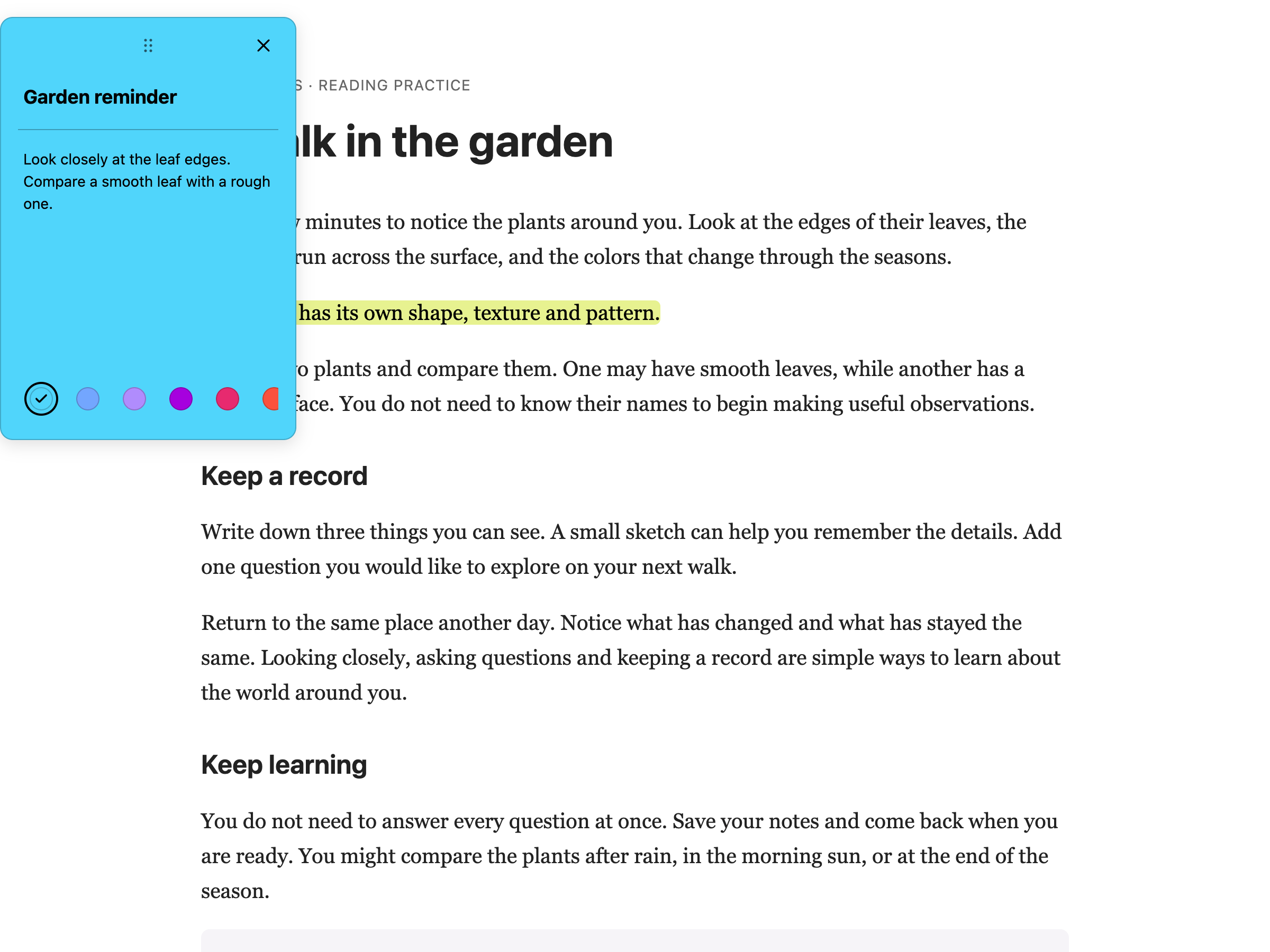
**Tip:** Your sticky notes save as you type and appear again when you revisit the same webpage. Open
[Highlights & Notes](/help/how-to-manage-sticky-notes-and-highlights-in-helperbird/) to search your
saved notes. If browser sync storage fills up, new notes remain on the current device.
Web sticky notes do not appear inside PDF Reader. Use
[PDF text boxes](/help/how-to-add-text-boxes-to-pdf-with-helperbird/) for comments in a PDF.
---
## Video Tutorial
Coming soon
---
## Need Additional Help?
If you have any questions or run into any issues, please contact the Helperbird support team. You
can reach us at [Helperbird support](/support/). We are happy to help you get the most out of
Helperbird.
---
## How to Use Auto Scroll on Any Website
URL: https://www.helperbird.com/help/how-to-auto-scroll-on-any-website-or-app/
## What is Auto Scroll?
Auto Scroll automatically scrolls web pages at a steady pace you control. Instead of manually
scrolling, the page moves on its own while you read. You can adjust the speed to match your reading
pace.
This is a Helperbird Pro feature.
---
## Who is This For?
Auto Scroll is helpful for people who want hands-free reading, those with motor difficulties that
make scrolling uncomfortable, readers who prefer a consistent reading pace, anyone reading long
articles or documents, and people using text-to-speech who want the page to follow along.
---
## Step 1: Open Helperbird
Click the Helperbird icon in your browser toolbar. It looks like a small owl and is usually in the
top-right corner of your browser.
This will open the Helperbird menu.
---
## Step 2: Open the All Features Section
Scroll down to the bottom of the Helperbird menu. You will see a section called **All Features**.
Click the arrow next to **All Features** to expand it and show all available features.
---
## Step 3: Find Auto Scroll
Look through the list of features until you see **Auto-scroll**.
---
## Step 4: Open the Auto Scroll Panel
Click the open button (the small arrow icon) on the **Auto-scroll** row.
A panel will appear showing the auto scroll controls.
---
## Step 5: Turn on Auto Scroll
In the Auto-scroll panel, click the **Start** button.
The page will immediately start scrolling down automatically. While the page is scrolling, the
button changes to **Stop**, click it whenever you want the page to stop moving. Closing the panel
also stops the scrolling.
---
## Step 6: Adjust the Speed
At the top of the panel you will see a **Scroll speed** slider, with a bubble above it showing the
current value.
Drag the slider, or use the **-** and **+** buttons on either side of it, to adjust how fast the
page scrolls:
- Slide to the left to scroll slower
- Slide to the right to scroll faster
Find a speed that matches your comfortable reading pace.
**Tip:** Start with a slower speed and increase it as you get used to auto-scrolling. Auto scroll
stops on its own when you reach the bottom of the page, and you can press the **Stop** button at any
time.
---
## Stopping Auto Scroll
To stop scrolling, click the **Stop** button in the Auto Scroll panel. Closing the panel also stops
scrolling, and Auto Scroll stops on its own when the page reaches the bottom.
**Tip:** If you have keyboard shortcuts enabled in Helperbird, you can press **Option + A** (Mac) or
**Alt + Shift + A** (Windows/ChromeOS) to start or stop Auto Scroll.
---
## Related Guides
- [How to Use Text to Speech](/help/how-to-use-text-to-speech-on-any-website/)
- [How to Use Reading Mode](/help/how-to-use-reading-mode-and-remove-ads-on-any-website/)
- [How to Use the Dyslexia Ruler](/help/how-to-use-a-dyslexia-ruler-on-any-website/)
---
## Video Tutorial
Coming soon
---
---
## Need Additional Help?
If you have questions about Auto Scroll, reach out to our [Helperbird support team](/support/) and
we'll help you out!
---
## How to Change the Paragraph Background Color on Any Website
URL: https://www.helperbird.com/help/how-to-change-paragraph-background-color-on-any-website/
## What is Paragraph Background Color?
The Paragraph Background Color feature adds a colored background behind each paragraph on a webpage.
This makes it easier to visually separate blocks of text and helps you keep your place while
reading.
It works differently from the text highlighter. Instead of highlighting selected words, it
automatically shades entire paragraphs across the page.
---
## Who is This For?
This feature is helpful for:
- People with dyslexia who lose their place between paragraphs
- Students reading long articles or textbooks online
- Anyone who finds walls of text hard to follow
- People with visual processing difficulties
- Anyone who wants clearer visual separation between paragraphs
---
## Step 1: Open Helperbird
Click the Helperbird icon in your browser toolbar. It looks like a small owl and is usually in the
top-right corner of your browser.
This will open the Helperbird menu.
---
## Step 2: Go to the All Features Section
Scroll down to the bottom of the Helperbird menu. You will see a section called **All Features**.
Click the arrow next to **All Features** to expand it and show all available features.
---
## Step 3: Find Paragraphs
Look through the list of features until you see **Paragraphs**.
---
## Step 4: Open the Paragraphs Panel
Click **Open** on the **Paragraphs** row. The panel has three settings: **Border**, **Background**
and **Width**.
---
## Step 5: Turn on Background
Click the toggle switch next to **Background** to turn it **on**. The toggle will turn green when it
is enabled.
Every paragraph on the current page will now have a colored background applied to it.
---
## Step 6: Choose a Color
A grid of color swatches appears under **Color**. Click any swatch to set the background color, or
use the color wheel at the end of the grid to pick your own.
Lighter colors like pale yellow, light blue, or soft green tend to work well for reading without
straining your eyes.
**Tip:** Try combining this with the Paragraph Border feature for even clearer paragraph separation.
You can also use it alongside custom fonts and line height adjustments for the most comfortable
reading experience.
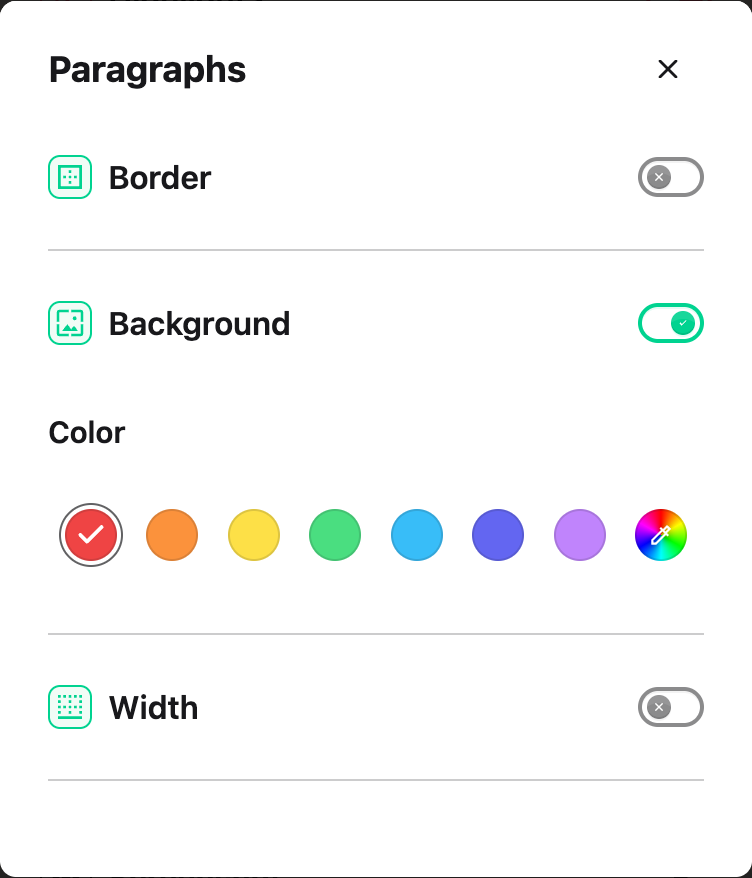
---
## Need Additional Help?
If you have any questions or run into any issues, please contact the Helperbird support team. You
can reach us at [Helperbird support](/support/). We are happy to help you get the most out of
Helperbird.
---
## How to Change Background Color on Any Website
URL: https://www.helperbird.com/help/how-to-change-the-background-color-of-a-website/
## What is Background Color?
The background color feature lets you change the background color of any website. Instead of reading
on a bright white background, you can choose softer colors like cream, light blue, or any color that
is easier on your eyes.
This is different from an overlay because it actually changes the page background rather than adding
a tinted layer on top.
---
## Who is This For?
This feature is helpful for:
- People who find bright white backgrounds uncomfortable
- Anyone who experiences eye strain or headaches when reading online
- People with dyslexia who benefit from colored backgrounds
- Students who read for long periods
- Anyone who wants to reduce screen glare
---
## Step 1: Open Helperbird
Click the Helperbird icon in your browser toolbar. It looks like a small owl and is usually in the
top-right corner of your browser.
This will open the Helperbird menu.
---
## Step 2: Open the All Features Section
Scroll down to the bottom of the Helperbird menu. You will see a section called **All Features**.
Click the arrow next to **All Features** to expand it and show all available features.
---
## Step 3: Find Colors
Look through the list of features until you see **Colors**.
It has a yellow icon with a paint palette on it.
---
## Step 4: Open Colors
Click the arrow button on the **Colors** row to open its panel.
A panel will appear with all the color settings: **Text**, **Links**, and **Background**.
---
## Step 5: Find the Background Section
Scroll through the panel until you see the **Background** section.
This is where you will find the background color option along with other color settings.
---
## Step 6: Turn on Background Color
In the Colors panel, look for **Background**.
Click the toggle switch next to it to turn it **on**. The toggle will turn green when it is enabled.
---
## Step 7: Choose Your Color
Once Background is turned on, a color palette will appear below the toggle.
Click on any color to select it. The background color of the website will change immediately so you
can see how it looks.
If you do not see a color you like, you can click the color picker icon to choose any custom color.
**Tip:** Soft, warm colors like cream, light yellow, or light blue are popular choices for reducing
eye strain. Avoid very bright or neon colors as they can be just as tiring as white.
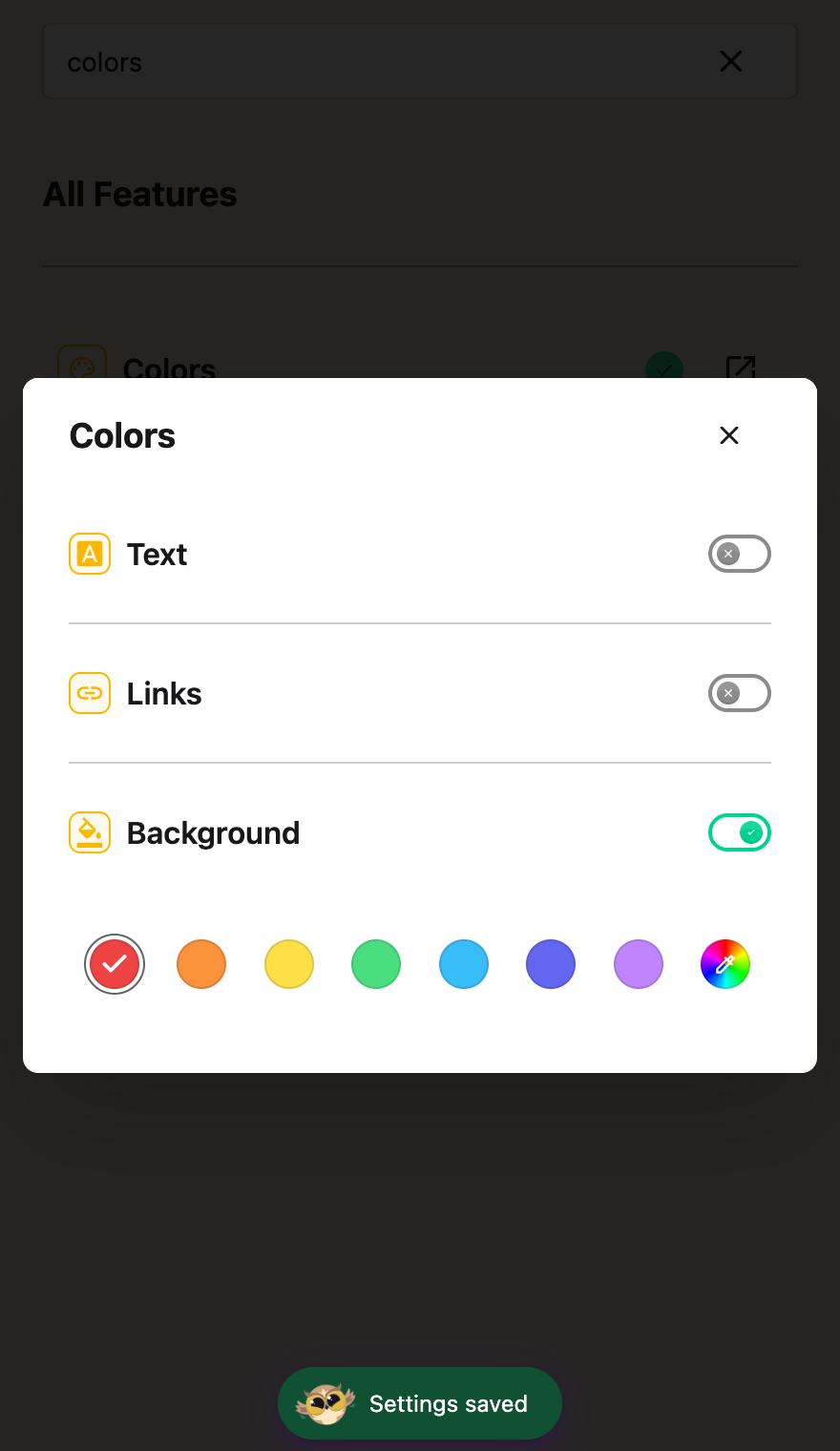
---
## Video Tutorial
Coming soon
---
## Need Additional Help?
If you have any questions or run into any issues, please contact the Helperbird support team. You
can reach us at [Helperbird support](/support/). We are happy to help you get the most out of
Helperbird.
---
## How to Change the Cursor Size in Google Chrome, Firefox, or Edge
URL: https://www.helperbird.com/help/how-to-change-the-cursor-size-in-google-chrome-firefox-or-edge/
## What is Cursor Size?
The Cursor Size feature lets you make your mouse pointer larger than normal. A bigger cursor is
easier to spot and follow as you move it around the screen.
This replaces the small default cursor with a larger, more visible version.
---
## Who is This For?
This feature is helpful for:
- People with low vision who have trouble seeing the standard cursor
- Anyone who loses track of their cursor on the screen
- People using high-resolution displays where cursors appear small
- Anyone with motor difficulties who needs a larger target
- People who find the default cursor too small
---
## Step 1: Open Helperbird
Click the Helperbird icon in your browser toolbar. It looks like a small owl and is usually in the
top-right corner of your browser.
This will open the Helperbird menu.
---
## Step 2: Open the All Features Section
Scroll down to the bottom of the Helperbird menu. You will see a section called **All Features**.
Click the arrow next to **All Features** to expand it and show all available features.
---
## Step 3: Find Display Options
Look through the list of features until you see **Display**.
---
## Step 4: Open Display Options
Click on **Display** to open it.
A panel will appear showing various display settings you can adjust.
---
## Step 5: Turn on Cursor Size
In the Display panel, look for **Cursor size**.
Click the toggle switch next to it to turn it **on**. The toggle will turn green when it is enabled.
---
## Step 6: Adjust the Size
Once Cursor size is turned on, a slider will appear below the toggle.
Drag the slider to the right to make the cursor larger. Drag it to the left to make it smaller.
A label will show you the current size setting (Small, Medium, Large, etc.).
The change happens immediately so you can see the new cursor size right away.
**Tip:** If you have a high-resolution display, you may want to use a larger cursor size. The
default cursor can look very tiny on 4K monitors.
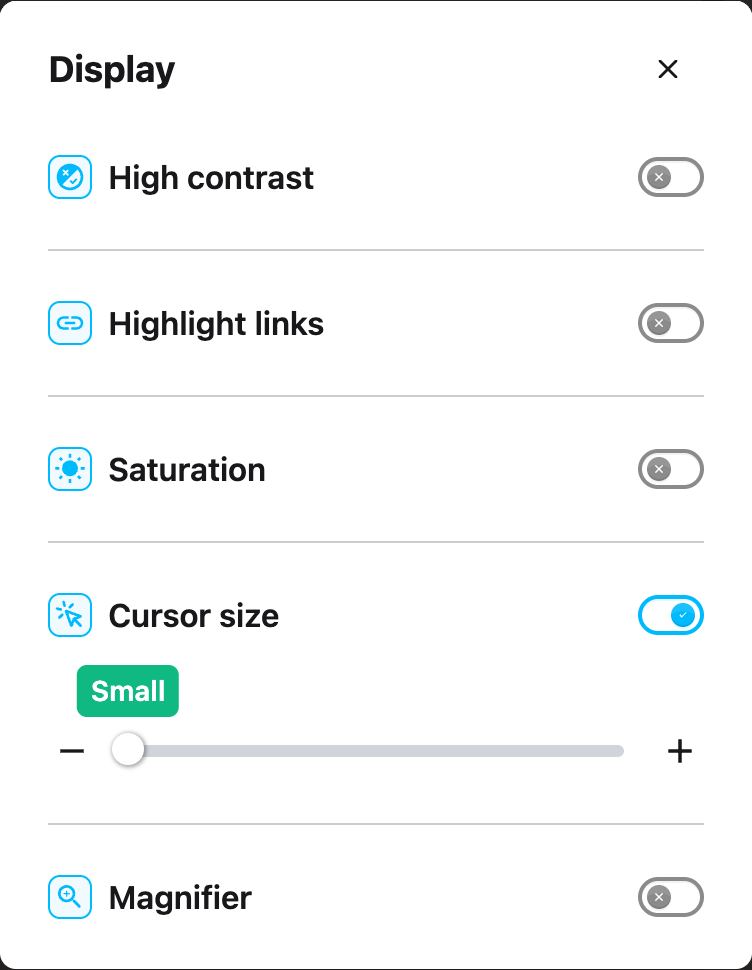
---
## Video Tutorial
Coming soon
---
## Need Additional Help?
If you have any questions or run into any issues, please contact the Helperbird support team. You
can reach us at [Helperbird support](/support/). We are happy to help you get the most out of
Helperbird.
---
## How to Change Text Color on Any Website
URL: https://www.helperbird.com/help/how-to-change-the-font-color-of-a-website/
## What is Text Color?
The text color feature lets you change the color of all text on a website. Instead of reading black
text on white, you can choose any color that is more comfortable for your eyes.
This can help reduce eye strain and make reading easier, especially if you are sensitive to certain
color combinations.
---
## Who is This For?
This feature is helpful for:
- People with visual stress who find certain colors easier to read
- Anyone who experiences eye strain from black text on white backgrounds
- People with dyslexia who benefit from specific color combinations
- Anyone who wants to customize how websites look
- People who read for long periods and want to reduce fatigue
---
## Step 1: Open Helperbird
Click the Helperbird icon in your browser toolbar. It looks like a small owl and is usually in the
top-right corner of your browser.
This will open the Helperbird menu.
---
## Step 2: Open the All Features Section
Scroll down to the bottom of the Helperbird menu. You will see a section called **All Features**.
Click the arrow next to **All Features** to expand it and show all available features.
---
## Step 3: Find Colors
Look through the list of features until you see **Colors**.
It has a yellow icon with a paint palette on it.
---
## Step 4: Open Colors
Click the arrow button next to **Colors** to open it.
A panel will appear with color options for **Text**, **Links**, **Background**, and **Highlight**.
---
## Step 5: Turn on Text Color
In the Colors panel, look for **Text** at the top of the list.
Click the toggle switch next to it to turn it **on**. The toggle will turn green when it is enabled.
---
## Step 6: Choose Your Color
Once Text is turned on, a color palette will appear below the toggle.
Click on any color to select it. The text color on the website will change immediately so you can
see how it looks.
If you do not see a color you like, you can click the color picker icon to choose any custom color.
**Tip:** Try pairing a custom text color with a custom background color for the best results. For
example, cream-colored text on a dark blue background, or dark text on a soft pastel background.
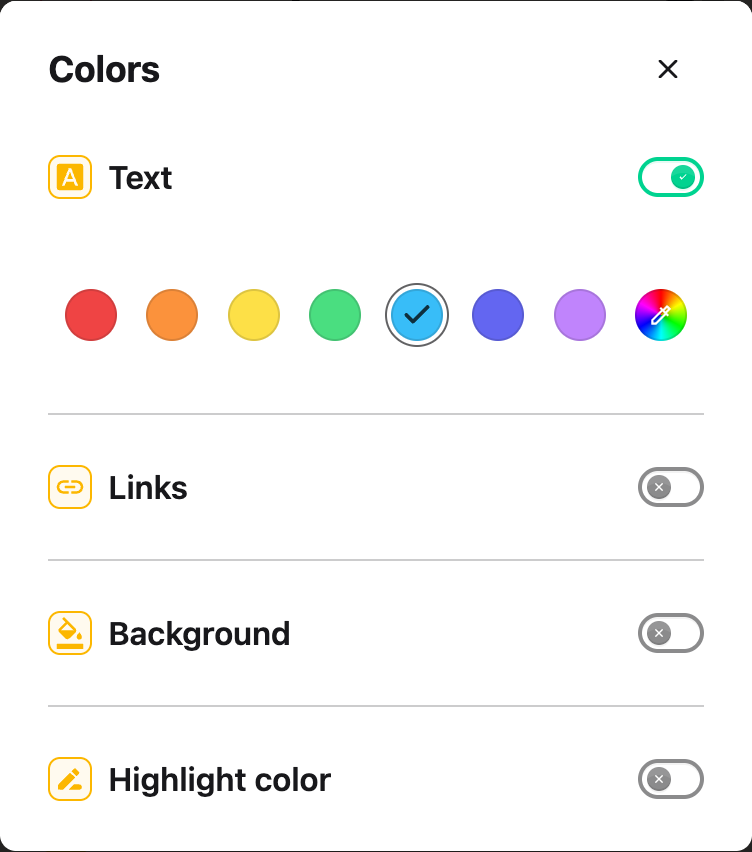
---
## Video Tutorial
Coming soon
---
## Need Additional Help?
If you have any questions or run into any issues, please contact the Helperbird support team. You
can reach us at [Helperbird support](/support/). We are happy to help you get the most out of
Helperbird.
---
## How to Use Dyslexia Friendly Fonts with Helperbird
URL: https://www.helperbird.com/help/how-to-change-the-font-on-any-page-to-a-dyslexic-font/
## What Makes a Font Easier to Read
Letters like b and d can look like mirror images.
A dyslexia friendly font pulls those pairs apart. Some weight the bottom of every letter, so it sits
the right way up. Others widen the space around the letters so words stop crowding.
No font suits everyone. Try two or three, then keep the one that tires you least.
---
## The Fonts Worth Trying First
You get 32 fonts. These are the ones drawn for readers who find text hard to read.
Table: The Helperbird fonts made for dyslexia, low vision or new readers.
| Font | What it does |
| --------------------- | ------------------------------------------------------------------------------------------------------------------------------------------------------------- |
| OpenDyslexic | Every letter has a heavy, weighted bottom, so b, d, p and q are harder to swap. |
| The Lexend fonts | Six widths, listed as Deca, Exa, Giga, Mega, Zetta and Peta. The letters and the gaps between them both get wider. Deca is the tightest, Zetta the most open. |
| Andika | Drawn for people learning to read. Shapes that usually look alike are kept apart. |
| Atkinson Hyperlegible | From the Braille Institute, drawn for low vision. Capital I, lowercase l and the digit 1 all look different. |
| Comic sans | Not designed for dyslexia, but its letters are less uniform than most sans-serifs. |
You also get a bold and an italic version of OpenDyslexic, Andika and Atkinson Hyperlegible.
Start with OpenDyslexic or Lexend Deca. If the words still crowd, try a wider Lexend such as Giga or
Zetta.
The rest are everyday fonts such as Arial, Georgia, Verdana, Lora and Palatino.
On iPad and iPhone you get 29. The three Lora fonts are left out.
---
## How to Turn on Font
Turn **Font** on in **Text settings**, then pick one of the fonts above.
[How to Change Fonts on Any Website](/help/how-to-change-the-font-on-any-page/) lists all 32 and
shows each step with screenshots.
Each name is drawn in its own typeface, so you can see the shapes before you choose. A green check
marks the one in use, and the page changes as you click.
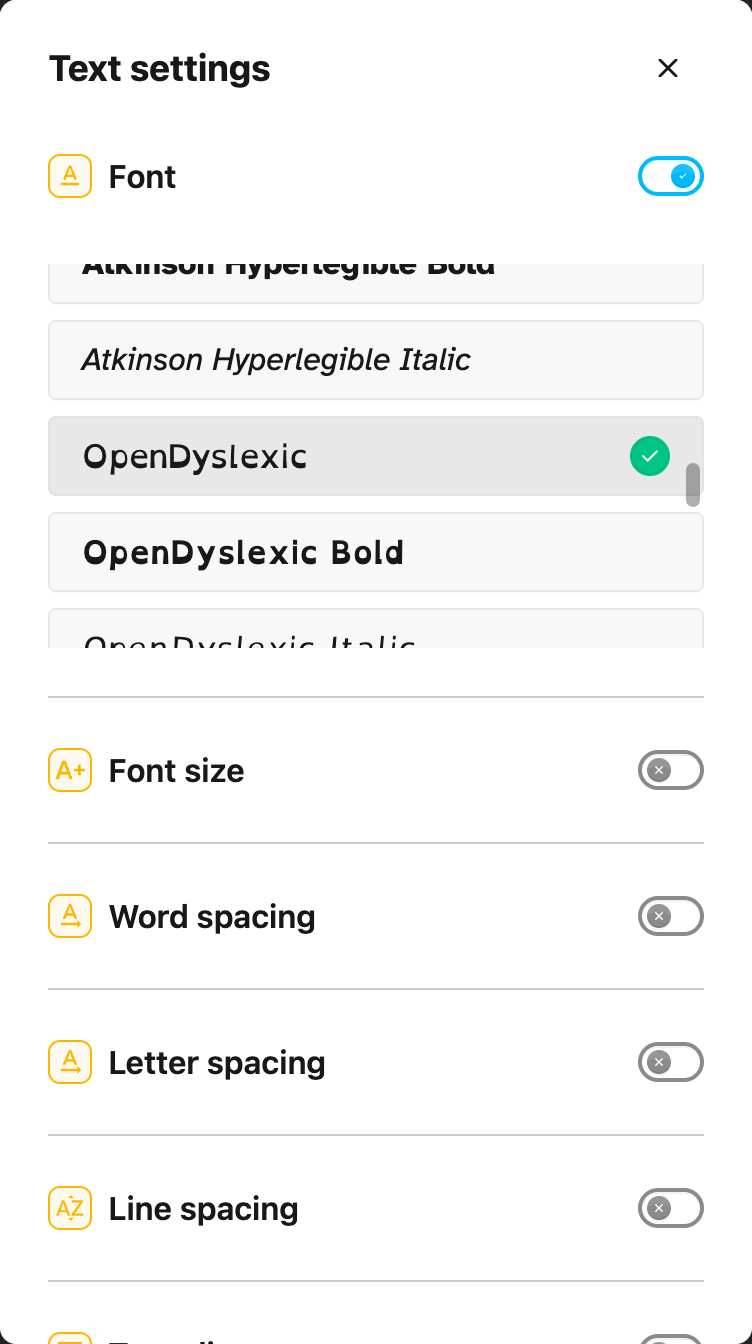
Font is in the free version. OpenDyslexic, Andika and Atkinson Hyperlegible also set the line height
on the page to 1.5.
If a new font does not help you, spacing often does.
[How to Use the Text Settings in Helperbird](/help/how-to-use-helperbird-text-settings/) covers the
rest of the panel.
The [Helperbird Google Docs and Slides add-on](/help/helperbird-for-google-docs-addon/) has a
**Dyslexia** button that applies Lexend Deca. It changes the whole document in Docs, the open sheet
in Sheets, and the whole slide in Slides. Selecting text first makes no difference.
---
## Where the Font Does Not Apply
- **Google Docs, Slides, Sheets and Forms.** In Docs, Slides and Sheets the toggle is replaced by a
**Better in the Google add-on** badge.
- **PDFs.** The toggle is replaced by a **Not available on this page** note.
[A Helperbird Feature is Not Supported](/help/feature-not-supported-on-page/) explains what that
note means.
- **Icons and symbols.** Most icon fonts are left alone, so they do not turn into letters. A site
using an unusual icon set can still end up with icons showing as characters.
---
## Video Tutorial
Coming soon
---
## Need Additional Help?
If you have any questions or run into any issues, please contact the Helperbird support team. You
can reach us at [Helperbird support](/support/). We are happy to help you get the most out of
Helperbird.
---
## How to Change Fonts on Any Website
URL: https://www.helperbird.com/help/how-to-change-the-font-on-any-page/
## What is the Font Feature?
Helperbird lets you change the font on any website to one that is easier for you to read. This means
you can replace hard-to-read fonts with clearer, more comfortable options like Lexend, OpenDyslexic,
Atkinson Hyperlegible, or Comic Sans.
The font change applies to all the text on the page instantly, so you can see the difference right
away.
---
## Who is This For?
This feature is helpful for:
- People with dyslexia who find certain fonts easier to read
- Anyone who struggles with small, thin, or decorative fonts
- Students who want a consistent reading experience across different websites
- People with visual stress or eye strain
- Anyone who prefers a different font style
---
## Step 1: Open Helperbird
Click the Helperbird icon in your browser toolbar. It looks like a small owl and is usually in the
top-right corner of your browser.
This will open the Helperbird menu.
---
## Step 2: Open the All Features Section
Scroll down to the bottom of the Helperbird menu. You will see a section called **All Features**.
Click the arrow next to **All Features** to expand it and show all available features.
---
## Step 3: Find Text Settings
Look through the list of features until you see **Text settings**.
It has a yellow icon with the letter "T" on it.
---
## Step 4: Open Text Settings
Click on **Text settings** to open it.
A panel will appear with all the text options in one scrollable list, with **Font** at the top.
Scroll down to see the other text options.
---
## Step 5: Turn on the Font Feature
At the top of the panel, you will see **Font** with a toggle switch next to it.
Click the toggle switch to turn it **on**. The toggle will turn blue when it is enabled.

---
## Step 6: Choose Your Font
Once the Font feature is on, a list of fonts will appear below the toggle.
Click on any font name to select it. A green checkmark will appear next to the font you choose.
The font will apply to the website immediately. You can try different fonts to see which one you
like best.
---
## Available Fonts
Helperbird includes 32 fonts. Three of them, the Lora faces, are not available on iPad or iPhone, so
you see 29 there.
The full list:
**Standard Fonts:**
- **Arial** - A clean, simple sans-serif font that is easy to read
- **Comic Sans** - A friendly, informal font that many people with dyslexia find easier to read
- **Courier** - A monospaced font where every letter takes the same width
- **Georgia** - A serif font designed for easy reading on screens
- **Gothic** - A clean, modern sans-serif font
- **Helvetica** - A classic, neutral sans-serif font
- **Impact** - A bold, heavy font for emphasis
- **Palatino** - An elegant serif font based on Renaissance designs
- **Tahoma** - A clear sans-serif font with good readability
- **Times** - A traditional serif font used in newspapers
- **Trebuchet** - A humanist sans-serif font with good legibility
- **Verdana** - A wide sans-serif font designed for screen reading
- **Bookman** - A traditional serif font with a friendly appearance
**Dyslexia-Friendly Fonts (Lexend Family):**
- **Lexend Deca** - Designed to reduce visual stress and improve reading fluency
- **Lexend Exa** - Wider letter spacing for easier word recognition
- **Lexend Giga** - Even wider spacing for maximum readability
- **Lexend Mega** - Extra-wide variant for those who need more space
- **Lexend Peta** - Extremely wide spacing between letters
- **Lexend Zetta** - The widest Lexend variant available
**Dyslexia-Friendly Fonts (OpenDyslexic Family):**
- **OpenDyslexic** - Weighted bottoms on letters help prevent them from rotating or flipping
- **OpenDyslexic Bold** - A bolder version for better visibility
- **OpenDyslexic Italic** - An italic version for emphasis
**Accessibility Fonts (Andika Family):**
- **Andika** - Designed for literacy learners, with letterforms chosen so similar characters cannot
be confused
- **Andika Bold** - A heavier weight of the same design
- **Andika Italic** - The italic face
**Accessibility Fonts (Atkinson Hyperlegible Family):**
- **Atkinson Hyperlegible** - From the Braille Institute, designed for low vision. It pulls apart
characters that usually look alike, such as capital I, lowercase l and the digit 1
- **Atkinson Hyperlegible Bold** - A heavier weight of the same design
- **Atkinson Hyperlegible Italic** - The italic face
**Other Fonts:**
- **Coming Soon** - A relaxed, handwriting-style font with a friendly feel
- **Lora** - A well-balanced serif font with moderate contrast. The three Lora faces are the ones
not available on iPad or iPhone
- **Lora Bold** - A bolder version for headings or emphasis
- **Lora Italic** - An italic version for quotes or emphasis
**Note:** Some fonts (Lora, Lora Bold, Lora Italic) are not available on iPad.
**Tip:** If you have dyslexia, try OpenDyslexic or one of the Lexend fonts first. These fonts are
specifically designed to reduce letter confusion and make reading less tiring.
---
## Video Tutorial
Coming soon
---
## Need Additional Help?
If you have any questions or run into any issues, please contact the Helperbird support team. You
can reach us at [Helperbird support](/support/). We are happy to help you get the most out of
Helperbird.
---
## How to Change the Font Size on Any Website
URL: https://www.helperbird.com/help/how-to-change-the-font-size-on-any-website/
## What is the Font Size Feature?
Helperbird lets you change the size of text on any website. You can make text larger if it is too
small to read comfortably, or make it smaller if you prefer more compact text.
The size change applies to all text on the page instantly. You can adjust it using a simple slider
to find the perfect size for you.
---
## Who is This For?
This feature is helpful for:
- People with low vision who need larger text
- Anyone who finds website text too small to read comfortably
- People who get eye strain from reading small text
- Students reading long articles or documents online
- Anyone who wants more control over how websites look
---
## Step 1: Open Helperbird
Click the Helperbird icon in your browser toolbar. It looks like a small owl and is usually in the
top-right corner of your browser.
This will open the Helperbird menu.
---
## Step 2: Open the All Features Section
Scroll down to the bottom of the Helperbird menu. You will see a section called **All Features**.
Click the arrow next to **All Features** to expand it and show all available features.
---
## Step 3: Find Text Settings
Look through the list of features until you see **Text settings**.
It has a yellow icon with the letter "T" on it.
---
## Step 4: Open Text Settings
Click on **Text settings** to open it.
A panel will appear with all of the text options in a single list. This is where you will find the
font size option.
---
## Step 5: Turn on Font Size
In the panel, look for **Font size**. It has a yellow icon with an "A+" symbol.
Click the toggle switch next to it to turn it **on**. The toggle will turn blue when it is enabled.
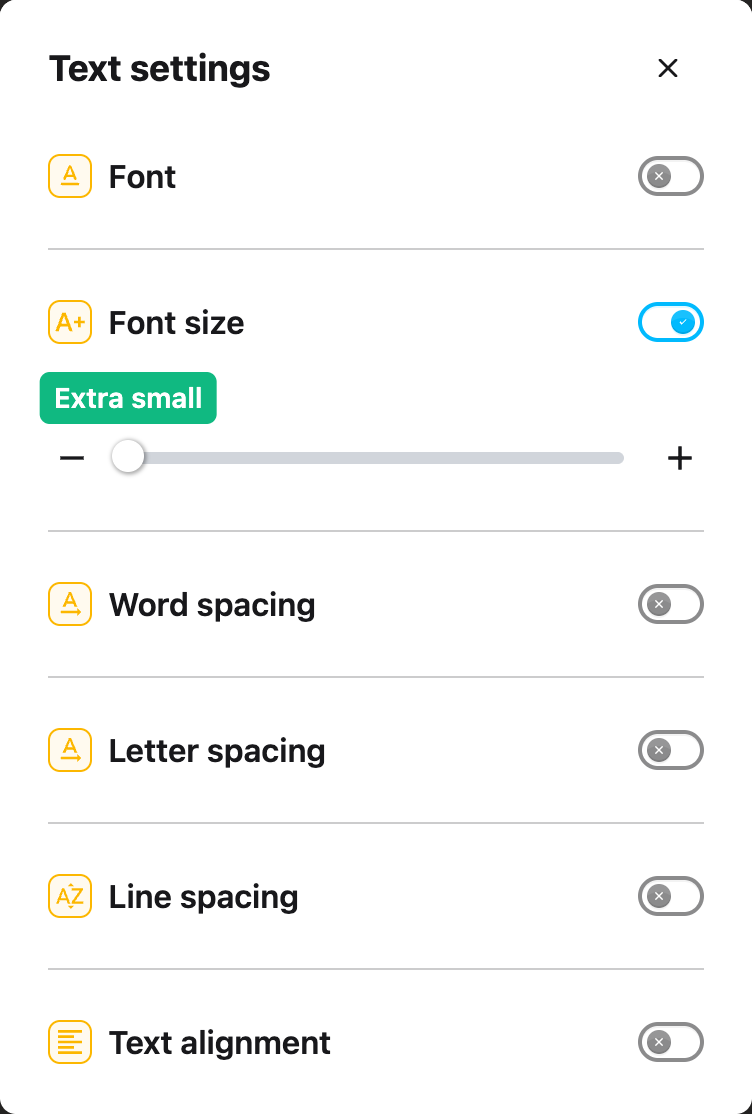
---
## Step 6: Adjust the Size
Once Font size is turned on, a slider will appear below the toggle. A bubble above the slider always
shows the current size, and there is a **minus** button on the left and a **plus** button on the
right.
Drag the slider to the right to make text larger, or drag it to the left to make text smaller. You
can also click the minus and plus buttons to change the size one step at a time.
The changes will apply to the website immediately, so you can see the effect as you adjust the
slider.
**Tip:** Start with a small adjustment and keep increasing until the text feels comfortable to read.
Everyone has different preferences, so take your time to find the size that works best for you.
---
## Video Tutorial
Coming soon
---
## Need Additional Help?
If you have any questions or run into any issues, please contact the Helperbird support team. You
can reach us at [Helperbird support](/support/). We are happy to help you get the most out of
Helperbird.
---
## How to Change the Highlight Color on Any Website
URL: https://www.helperbird.com/help/how-to-change-the-highlight-color-of-a-website/
## Choose a Highlight Color
1. Open Helperbird and expand **All Features**.
2. Turn **Highlighter** on. Creating highlights requires Helperbird Pro.
3. Select text on a web page.
4. Choose Blue, Green, Red, Yellow, Gray or Purple from the palette below your selection.
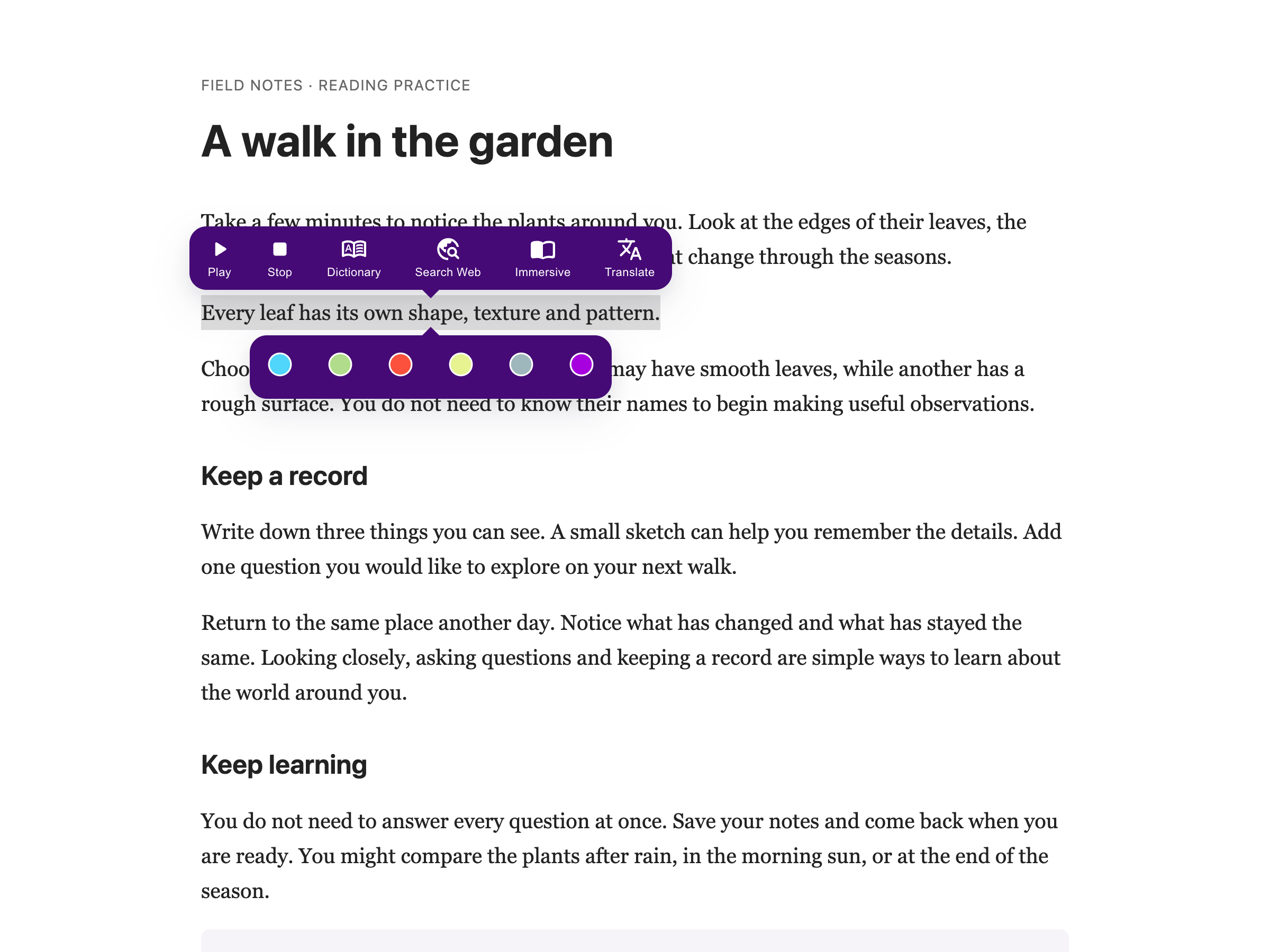
Each highlight keeps the color you choose. Select more text to make another mark in the same or a
different color. Your highlights are saved to Notes and appear when you return to the same page.
The separate **Highlight Menu** provides reading tools. If both are on, the reading menu appears
above the text and the color palette below it. Near the window edge, the menus move to fit.
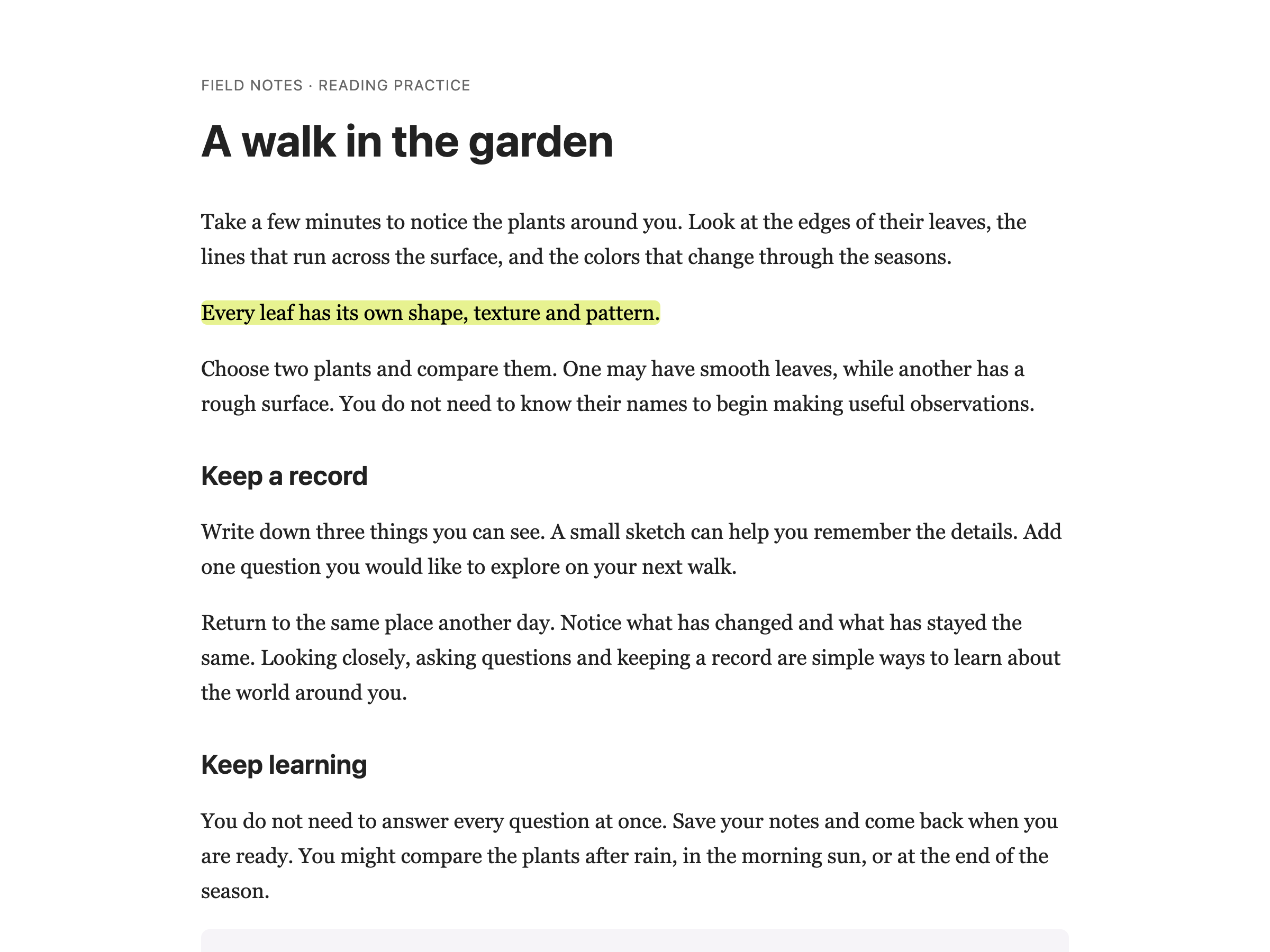
## Show or Hide Highlights
Turn **Highlighter** off to hide the palette and saved marks. Turn it on to show them again. A toast
confirms each saved change. Hiding highlights does not delete them.
## Where the Old Control Went
Highlighter in All Features replaces the old **Highlights** toggle and **Colors → Highlight color**
control. Your saved marks and their colors are preserved. The Colors panel now contains text, link
and background settings.
## Need Additional Help?
See [how to highlight text](/help/how-to-highlight-words-and-paragraphs-on-any-website/) or
[contact Helperbird support](/support/).
---
## How to Change Letter Spacing on Any Website
URL: https://www.helperbird.com/help/how-to-change-the-letter-spacing-on-any-website/
## What is Letter Spacing?
Letter spacing adds extra space between each letter in the text. Instead of letters being close
together, they are spread out more.
For example, the word "hello" with increased letter spacing would look like "h e l l o" with small
gaps between each letter.
This can make text much easier to read because the letters do not blend together.
---
## Who is This For?
This feature is helpful for:
- People with dyslexia who find tightly spaced letters hard to read
- Anyone who experiences visual crowding when reading
- People with visual stress or eye strain
- Students who struggle to distinguish between similar letters like "b" and "d"
- Anyone who finds spread-out text easier to read
---
## Step 1: Open Helperbird
Click the Helperbird icon in your browser toolbar. It looks like a small owl and is usually in the
top-right corner of your browser.
This will open the Helperbird menu.
---
## Step 2: Open the All Features Section
Scroll down to the bottom of the Helperbird menu. You will see a section called **All Features**.
Click the arrow next to **All Features** to expand it and show all available features.
---
## Step 3: Find Text Settings
Look through the list of features until you see **Text settings**.
It has a yellow icon with the letter "T" on it.
---
## Step 4: Open Text Settings
Click the arrow button next to **Text settings** to open it.
A panel will appear with all of the text options in a single scrollable list, including font, text
size, word spacing, and letter spacing.
---
## Step 5: Turn on Letter Spacing
In the panel, scroll down until you see **Letter spacing**.
Click the toggle switch next to it to turn it **on**. The toggle will turn blue when it is enabled.
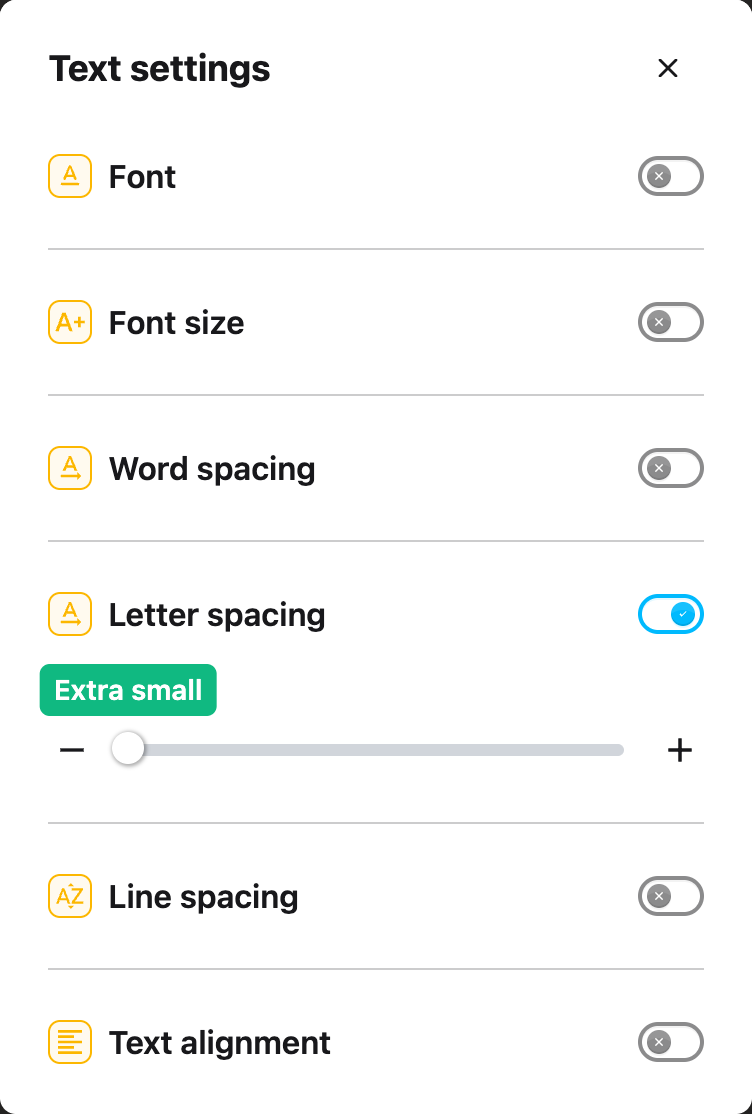
---
## Step 6: Adjust the Spacing
Once Letter spacing is turned on, a slider will appear below the toggle, with a minus button on the
left and a plus button on the right.
Drag the slider to the right to increase the space between letters. Drag it to the left to decrease
the spacing. You can also click the minus and plus buttons to change the spacing one step at a time.
The changes will apply to the website immediately, so you can see the effect as you adjust the
slider.
**Tip:** Start with a small increase. Even a little extra space between letters can make a big
difference in readability. Too much spacing can make words harder to recognize, so find the balance
that works best for you.
---
## Video Tutorial
Coming soon
---
## Need Additional Help?
If you have any questions or run into any issues, please contact the Helperbird support team. You
can reach us at [Helperbird support](/support/). We are happy to help you get the most out of
Helperbird.
---
## How to Change Line Height on Any Website
URL: https://www.helperbird.com/help/how-to-change-the-line-height-on-any-website/
## What is Line Height?
Line height is the vertical space between each line of text. When you increase line height, the
lines spread apart more, giving text more breathing room.
For example, a paragraph with increased line height will have larger gaps between each row of text,
making it easier to follow from one line to the next without accidentally skipping or rereading
lines.
---
## Who is This For?
This feature is helpful for:
- People with dyslexia who lose their place between lines
- Anyone who finds tightly packed text difficult to read
- People with visual stress or eye strain
- Students reading long articles or documents
- Anyone who wants text to feel less crowded
---
## Step 1: Open Helperbird
Click the Helperbird icon in your browser toolbar. It looks like a small owl and is usually in the
top-right corner of your browser.
This will open the Helperbird menu.
---
## Step 2: Open the All Features Section
Scroll down to the bottom of the Helperbird menu. You will see a section called **All Features**.
Click the arrow next to **All Features** to expand it and show all available features.
---
## Step 3: Find Text Settings
Look through the list of features until you see **Text settings**.
It has a yellow icon with the letter "T" on it.
---
## Step 4: Open Text Settings
Click the arrow button next to **Text settings** to open it.
A panel will appear with all of the text options in one scrollable list. This is where you will find
the line height option.
---
## Step 5: Turn on Line Height
In the Text settings panel, scroll down until you see **Line spacing**.
Click the toggle switch next to it to turn it **on**. The toggle will turn blue when it is enabled.
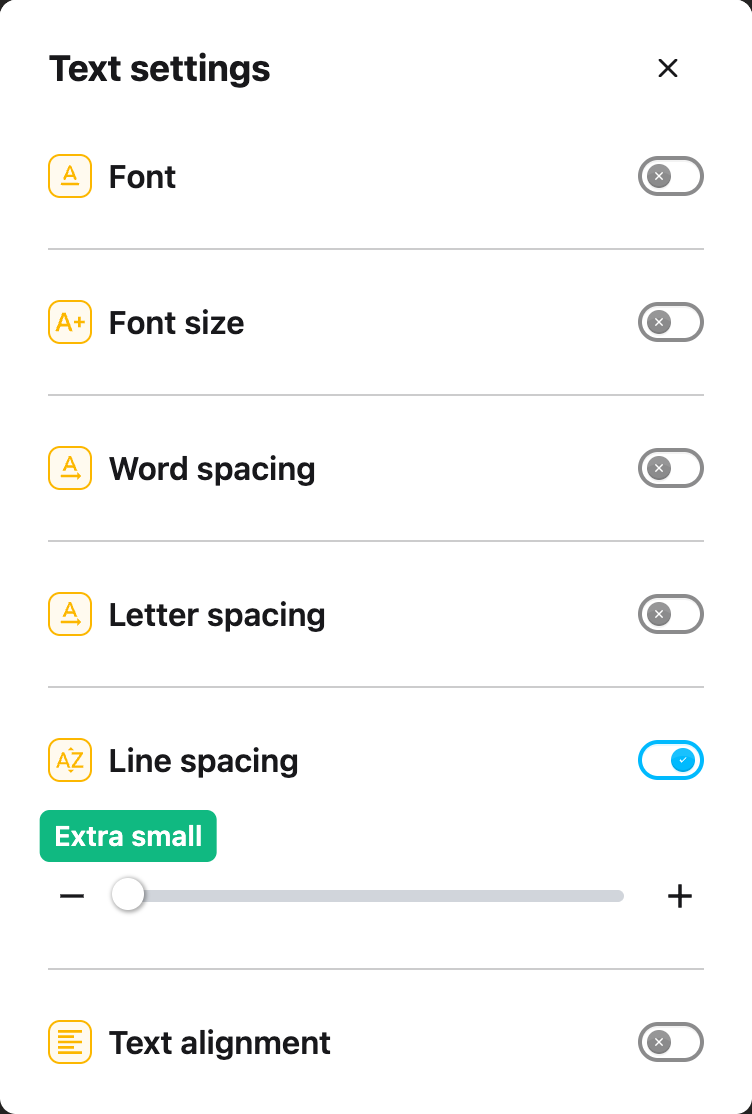
---
## Step 6: Adjust the Height
Once Line height is turned on, a slider will appear below the toggle.
Drag the slider to the right to increase the space between lines. Drag it to the left to decrease
the spacing.
The changes will apply to the website immediately, so you can see the effect as you adjust the
slider.
**Tip:** Line height works great together with letter spacing and word spacing. If text still feels
cramped after adjusting line height, try increasing the other spacing options too.
---
## Video Tutorial
Coming soon
---
## Need Additional Help?
If you have any questions or run into any issues, please contact the Helperbird support team. You
can reach us at [Helperbird support](/support/). We are happy to help you get the most out of
Helperbird.
---
## How to Change Link Color on Any Website
URL: https://www.helperbird.com/help/how-to-change-the-link-color-of-a-website/
## What is Link Color?
The link color feature lets you change the color of all clickable links on a website. Links are the
text you click to go to other pages.
By default, links are often blue, but some websites use colors that are hard to see or do not stand
out enough. With Helperbird, you can choose any color that makes links easier to find and read.
---
## Who is This For?
This feature is helpful for:
- People who have trouble seeing blue or other default link colors
- Anyone with color blindness who needs links to stand out more
- People who find it hard to distinguish links from regular text
- Anyone who wants links to match their custom color scheme
- People who read pages with poor link visibility
---
## Step 1: Open Helperbird
Click the Helperbird icon in your browser toolbar. It looks like a small owl and is usually in the
top-right corner of your browser.
This will open the Helperbird menu.
---
## Step 2: Open the All Features Section
Scroll down to the bottom of the Helperbird menu. You will see a section called **All Features**.
Click the arrow next to **All Features** to expand it and show all available features.
---
## Step 3: Find Colors
Look through the list of features until you see **Colors**.
It has a yellow icon with a paint palette on it.
---
## Step 4: Open Colors
Click the open panel arrow next to **Colors** to open it.
A panel will appear with color settings for **Text**, **Links**, **Background**, and **Highlight**.
---
## Step 5: Find the Links Section
Scroll through the Colors panel until you see the **Links** section.
This is where you will find the link color option.
---
## Step 6: Turn on Links
In the Colors panel, look for **Links**.
Click the toggle switch next to it to turn it **on**. The toggle will turn green when it is enabled.
---
## Step 7: Choose Your Color
Once Links is turned on, a color palette will appear below the toggle.
Click on any color to select it. All links on the website will change to your chosen color
immediately.
You will also see a **Visited link color** palette below it, so you can pick a separate color for
links you have already clicked.
**Tip:** Choose a color that contrasts well with both the background and regular text. Bright or
bold colors like orange, green, or purple often work well for making links stand out.
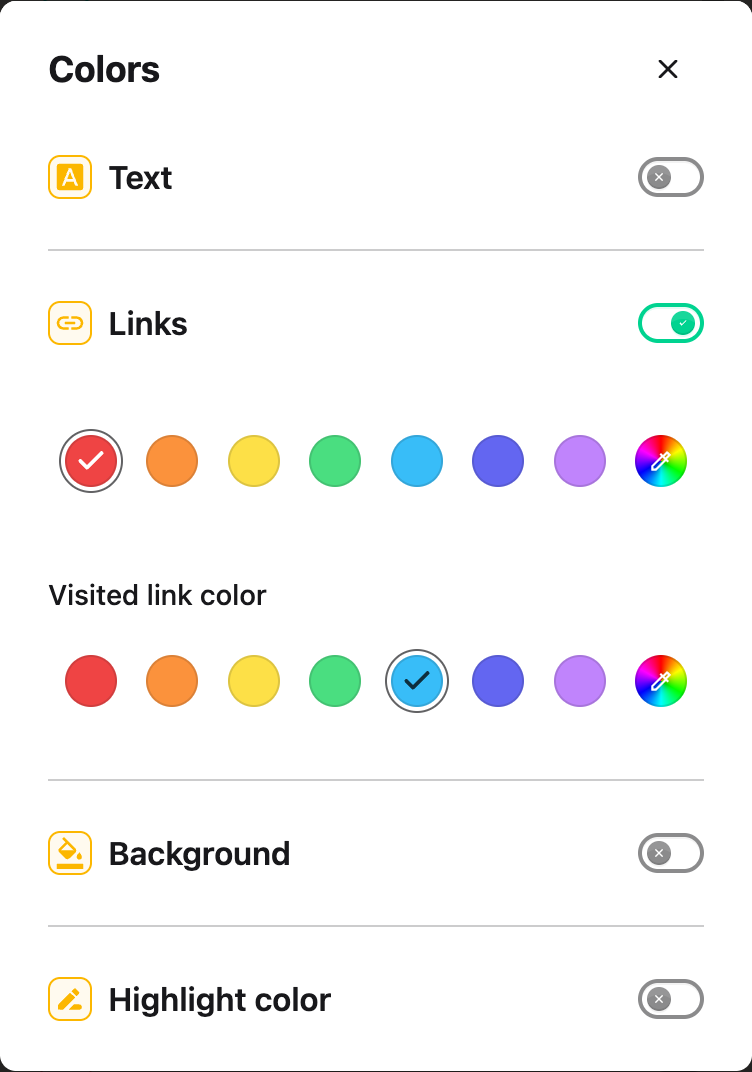
---
## Video Tutorial
Coming soon
---
## Need Additional Help?
If you have any questions or run into any issues, please contact the Helperbird support team. You
can reach us at [Helperbird support](/support/). We are happy to help you get the most out of
Helperbird.
---
## How to Change Text Alignment on Any Website
URL: https://www.helperbird.com/help/how-to-change-the-text-alignment-on-any-website/
## What is Text Alignment?
Text alignment controls how text is positioned horizontally on the page. You can align text to the
left edge, center it, align it to the right edge, or justify it so both edges are even.
Different alignment styles can make reading easier depending on your preferences and the type of
content you are reading.
---
## Who is This For?
This feature is helpful for:
- People who find left-aligned text easier to track
- Anyone who prefers a specific text layout
- People with dyslexia who may find certain alignments easier to read
- Students who want consistent formatting across different websites
- Anyone who finds justified text creates uneven spacing that is hard to read
---
## Step 1: Open Helperbird
Click the Helperbird icon in your browser toolbar. It looks like a small owl and is usually in the
top-right corner of your browser.
This will open the Helperbird menu.
---
## Step 2: Open the All Features Section
Scroll down to the bottom of the Helperbird menu. You will see a section called **All Features**.
Click the arrow next to **All Features** to expand it and show all available features.
---
## Step 3: Find Text Settings
Look through the list of features until you see **Text settings**.
It has a yellow icon with the letter "T" on it.
---
## Step 4: Open Text Settings
Click the arrow button next to **Text settings** to open it.
A panel will appear with all of the text options in a single scrollable list, including font, text
size, spacing, and line height.
Scroll down to the bottom of the list. This is where you will find the text alignment option.
---
## Step 5: Turn on Text Alignment
Scroll down until you see **Text alignment**. It is the last option in the panel.
Click the toggle switch next to it to turn it **on**. The toggle will turn blue when it is enabled.
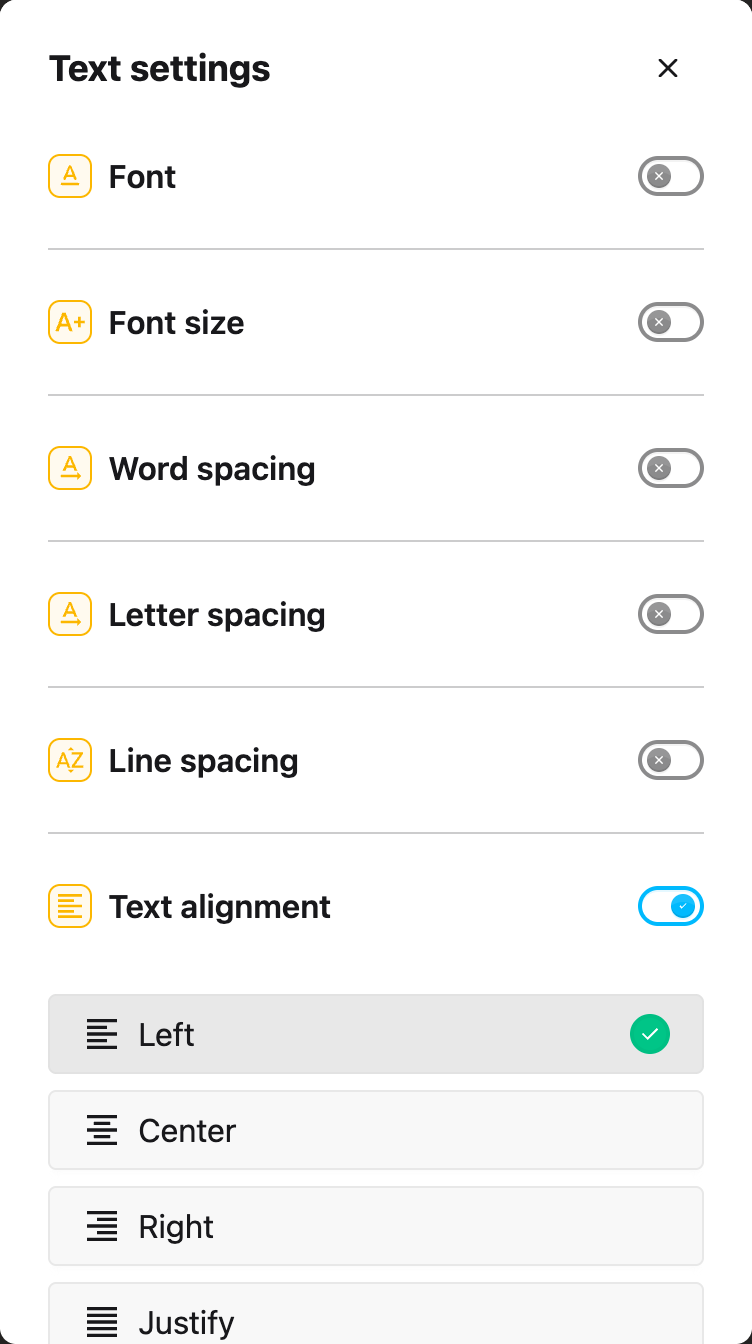
---
## Step 6: Choose Your Alignment
Once Text alignment is turned on, four alignment buttons will appear below the toggle.
Click on the alignment style you prefer. The text on the website will immediately change to match
your selection.
---
## Alignment Options
Helperbird offers four text alignment options:
- **Left** - Text aligns to the left edge. This is the most common and often easiest to read because
your eye always returns to the same starting point.
- **Center** - Text is centered in the middle. This works well for headings or short text but can be
harder to read for long paragraphs.
- **Right** - Text aligns to the right edge. This is less common for reading but can be useful for
certain layouts.
- **Justify** - Text stretches to align with both the left and right edges. This creates clean
margins but can cause uneven spacing between words that some people find distracting.
**Tip:** Most people find left-aligned text easiest to read because each line starts at the same
place. If you have dyslexia, avoid justified text as the uneven word spacing can make reading
harder.
---
## Need Additional Help?
If you have any questions or run into any issues, please contact the Helperbird support team. You
can reach us at [Helperbird support](/support/). We are happy to help you get the most out of
Helperbird.
---
## How to Change the Text and Style in Immersive Reader
URL: https://www.helperbird.com/help/how-to-change-the-text-and-style-in-immersive-reader/
## What This Panel Does
**Text Preferences** is the first of the three buttons, marked **AA**. It controls how the words look: how big, how spaced out, in what font, and on what color.
---
## Who is This For?
This is helpful for:
- Anyone who needs larger text than a website gives them
- Readers with dyslexia, who often read more with wider spacing
- People who find black on white harsh or glaring
- Anyone reading for a long stretch
---
## Open Text Preferences
Open Immersive Reader first. You can start it from the [floating toolbar](/help/how-to-open-immersive-reader-from-the-floating-toolbar/), from the Helperbird menu, or from the [Tools menu in the PDF Reader](/help/how-to-use-the-tools-menu-in-the-pdf-reader/).
Once it is open, the three buttons in the top-right corner hold every setting.
Click **AA**.
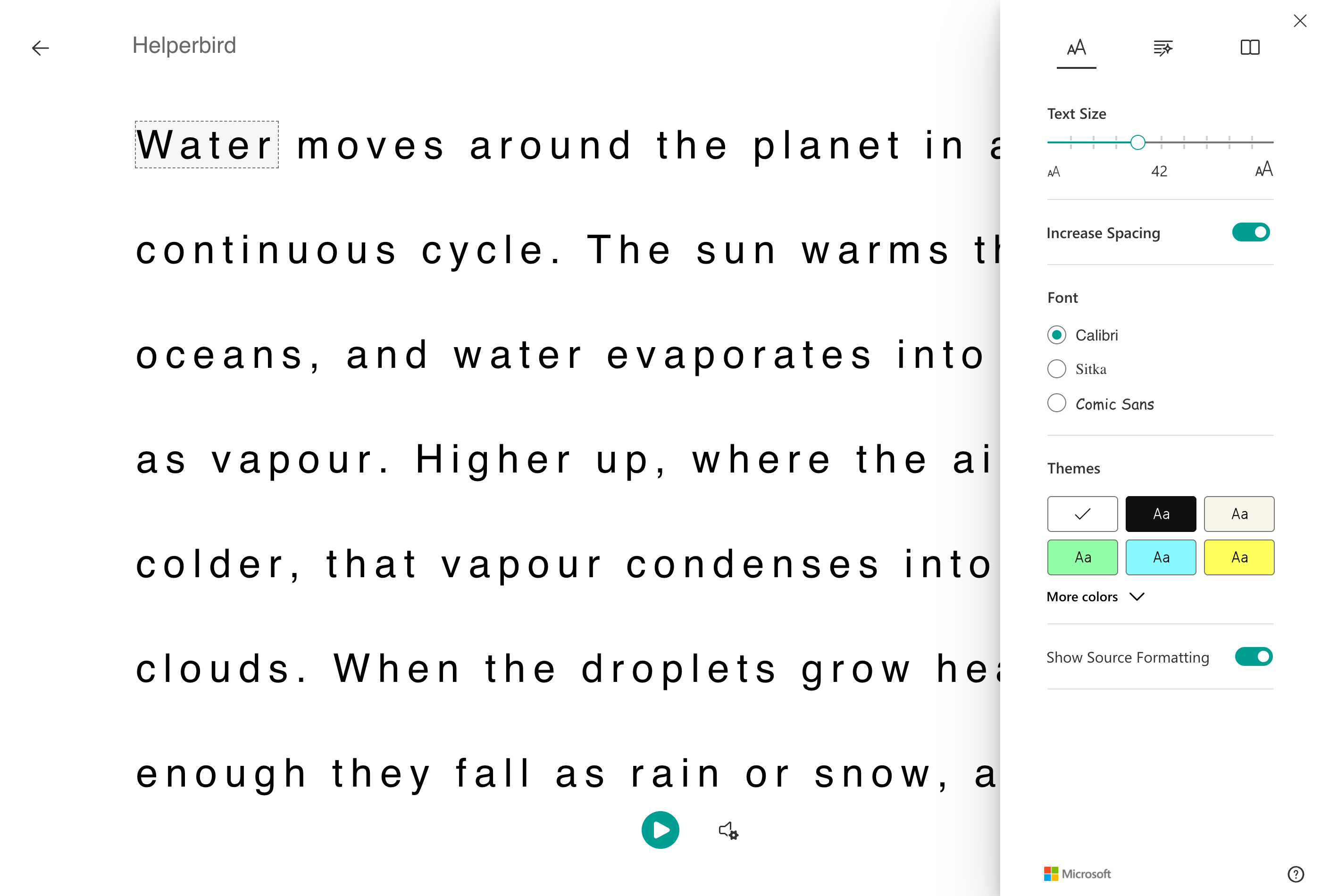
---
## Text Size
Drag the slider. The text resizes as you drag, so you can stop when it feels right rather than guessing at a number.
Go larger than you think you need. Immersive Reader reflows the text to fit, so nothing is cut off, and larger text is one of the cheapest ways to read for longer without tiring.
---
## Increase Spacing
This widens the gaps between letters, words and lines together.
It is worth turning on even if the text looks fine to you. Crowded letters are a common reason words seem to swim or swap places, and spacing them out is often more effective than making them bigger.
---
## Font
Three choices: **Calibri**, **Sitka** and **Comic Sans**.
Comic Sans is there for a reason, whatever its reputation. Its letters are less symmetrical than most, so b, d, p and q are harder to confuse, which some readers with dyslexia find genuinely easier.
If none of the three suits you, Helperbird has [a much wider set of fonts](/help/how-to-change-the-font-on-any-page-to-a-dyslexic-font/) for ordinary web pages.
---
## Themes
The color swatches change the page and text color together. **More colors** opens the full set.
A cream or soft color instead of white reduces glare, which helps if you get visual stress or find white pages uncomfortable. Black is there for reading in the dark.
---
## Show Source Formatting
On by default. It keeps the bold, italics and headings from the original page.
Turn it off if you want every word to look identical, which some readers find calmer.
Next: [Grammar Options](/help/how-to-use-grammar-options-in-immersive-reader/) and [Reading Preferences](/help/how-to-use-reading-preferences-in-immersive-reader/).
---
## Need Additional Help?
If you have any questions or run into any issues, please contact the Helperbird support team. You can reach us at [Helperbird support](/support/). We are happy to help you get the most out of Helperbird.
---
## How to Change Word Spacing on Any Website
URL: https://www.helperbird.com/help/how-to-change-the-word-spacing-on-any-website/
## What is Word Spacing?
Word spacing adds extra space between each word in the text. Instead of words being close together,
they are spread out more.
For example, "The quick brown fox" with increased word spacing would have larger gaps between each
word, making it easier to see where one word ends and the next begins.
---
## Who is This For?
This feature is helpful for:
- People with dyslexia who find words blending together
- Anyone who loses their place while reading
- People with visual processing difficulties
- Students reading dense paragraphs of text
- Anyone who finds it hard to distinguish between words
---
## Step 1: Open Helperbird
Click the Helperbird icon in your browser toolbar. It looks like a small owl and is usually in the
top-right corner of your browser.
This will open the Helperbird menu.
---
## Step 2: Open the All Features Section
Scroll down to the bottom of the Helperbird menu. You will see a section called **All Features**.
Click the arrow next to **All Features** to expand it and show all available features.
---
## Step 3: Find Text Settings
Look through the list of features until you see **Text settings**.
It has a yellow icon with the letter "T" on it.
---
## Step 4: Open Text Settings
Click the arrow button next to **Text settings** to open it.
A panel will appear with all of the text options in a single list that you can scroll through. This
is where you will find the word spacing option.
---
## Step 5: Turn on Word Spacing
In the panel, scroll down until you see **Word spacing**.
Click the toggle switch next to it to turn it **on**. The toggle will turn blue when it is enabled.
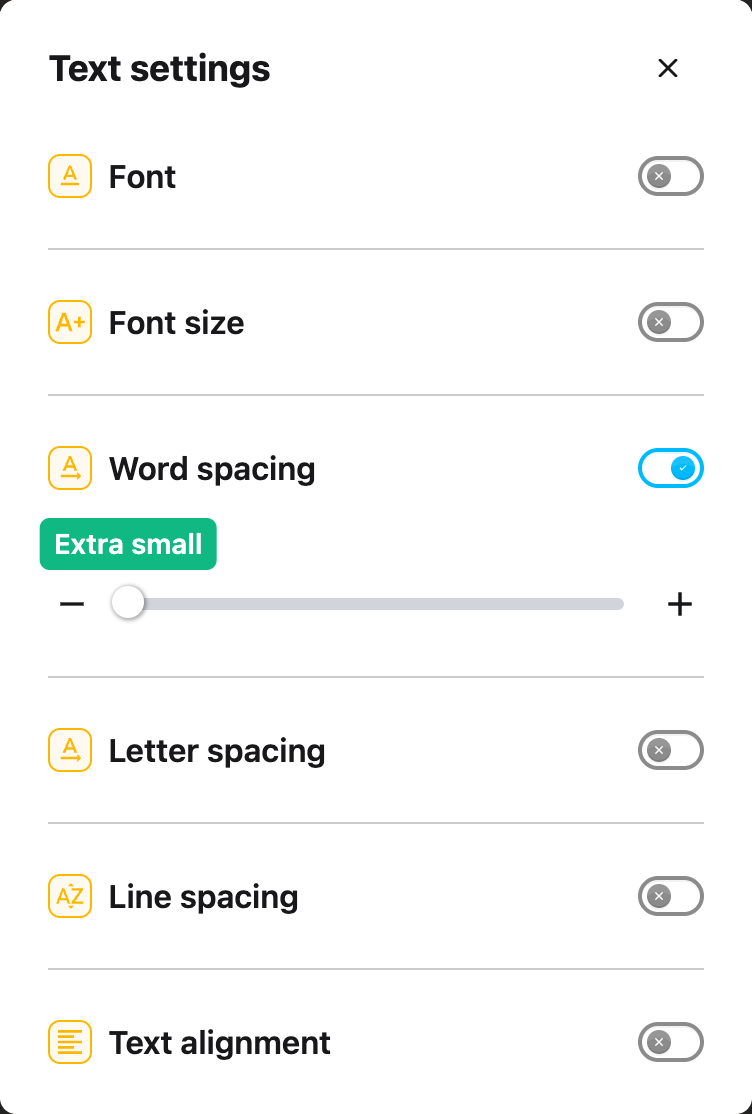
---
## Step 6: Adjust the Spacing
Once Word spacing is turned on, a slider will appear below the toggle.
Drag the slider to the right to increase the space between words. Drag it to the left to decrease
the spacing. You can also use the minus and plus buttons on either side of the slider to change the
spacing one step at a time.
The changes will apply to the website immediately, so you can see the effect as you adjust the
slider.
**Tip:** Word spacing works well when combined with letter spacing and line height. Try adjusting
all three together to find your perfect reading setup.
---
## Video Tutorial
Coming soon
---
## Need Additional Help?
If you have any questions or run into any issues, please contact the Helperbird support team. You
can reach us at [Helperbird support](/support/). We are happy to help you get the most out of
Helperbird.
---
## How to Change Video Playback Speed on Any Website
URL: https://www.helperbird.com/help/how-to-change-video-playback-speed-on-any-website/
## What is Video Playback Speed?
The Video Playback Speed feature lets you control how fast or slow videos play on any website. You
can slow videos down to 0.1x speed for detailed viewing, or speed them up to 2x to get through
content faster. It works on any website that uses HTML5 video, including YouTube, Vimeo, and most
modern video players.
---
## Who is This For?
This feature is helpful for:
- Students watching lectures or tutorials who want to speed up or slow down content
- Anyone who finds videos too fast and needs to slow them down for comprehension
- People learning a new language who want to slow down spoken dialogue
- Anyone who wants to get through video content faster
- People with auditory processing difficulties who benefit from slower playback
---
## Step 1: Open Helperbird
Click the Helperbird icon in your browser toolbar. It looks like a small owl and is usually in the
top-right corner of your browser.
This will open the Helperbird menu.
---
## Step 2: Go to the All Features Section
Scroll down to the bottom of the Helperbird menu. You will see a section called **All Features**.
Click the arrow next to **All Features** to expand it and show all available features.
---
## Step 3: Find Media Controls
Look through the list of features until you see **Media controls**. The playback speed controls live
inside this panel, along with Volume boost.
---
## Step 4: Open Media Controls
Click **Open** on the **Media controls** row. The panel holds **Playback speed** and **Volume
boost**.
---
## Step 5: Turn on Playback Speed
In the Media controls panel, click the toggle switch next to **Playback speed** to turn it **on**.
The toggle will turn blue when it is enabled.
---
## Step 6: Adjust the Speed
Use the **slider** to set your preferred playback speed. You can also use the **minus (-)** and
**plus (+)** buttons to adjust the speed in small increments of 0.1x.
- **Below 1x** - Slows the video down (for example, 0.5x plays at half speed)
- **1x** - Normal speed
- **Above 1x** - Speeds the video up (for example, 1.5x plays at one and a half times normal speed)
- **2x** - Maximum speed, plays at double speed
The speed change applies to all HTML5 videos on the current page immediately.
**Tip:** Pair this with the Volume Booster feature if you find that speeding up videos makes the
audio harder to hear. You can also combine it with text-to-speech subtitles for the best learning
experience.
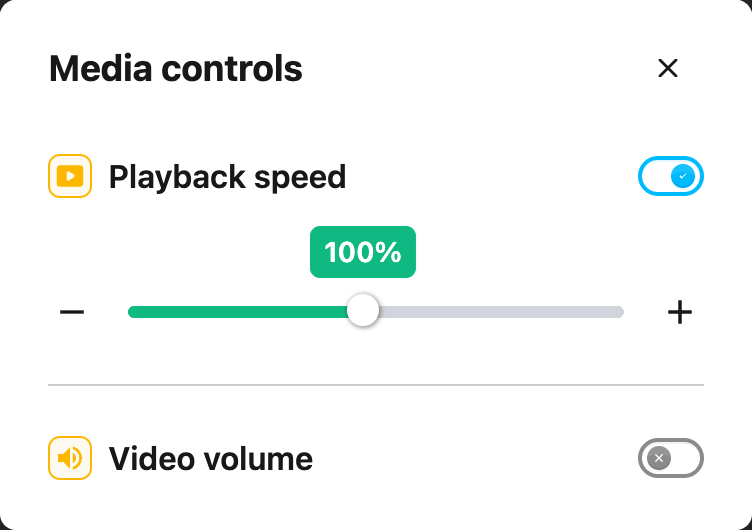
---
## Need Additional Help?
If you have any questions or run into any issues, please contact the Helperbird support team. You
can reach us at [Helperbird support](/support/). We are happy to help you get the most out of
Helperbird.
---
## How to Change Voice and Language Settings in Helperbird
URL: https://www.helperbird.com/help/how-to-change-voice-settings-in-helperbird/
## What are Voice and Language Settings?
Helperbird lets you customize the voice used for Text to Speech and the language used for Voice
Typing. You can choose from over 60 languages and a wide range of natural-sounding voices.
These settings let you control how text sounds when read aloud, including the voice and speed. For
Voice Typing, you can select which language you are speaking so Helperbird recognizes your words
correctly.
---
## Who is This For?
This feature is helpful for:
- Multilingual learners who need content read in their first language
- Students in French Immersion or ESL programs
- People who prefer a specific voice style or speed
- Anyone who finds the default voice too fast or too slow
- Educators working with diverse language groups
---
## Changing Text to Speech Voice Settings
### Step 1: Open Helperbird
Click the Helperbird icon in your browser toolbar. It looks like a small owl and is usually in the
top-right corner of your browser.
This will open the Helperbird menu.
---
### Step 2: Open Text to Speech
Scroll down to the bottom of the Helperbird menu. You will see a section called **All Features**.
Click the arrow next to **All Features** to expand it and show all available features.
Look through the list until you see **Text to Speech**. Click on it to open it.
---
### Step 3: Find the Voice Dropdown
In the Text to Speech panel, the **Voice** dropdown is at the top of the panel, just below the text
area.
There is no separate settings screen to open. All the voice options are right there in the panel.
---
### Step 4: Choose a Voice
Use the **Voice** dropdown to browse available voices. Voices are grouped into two sections:
- **Standard Voices** - Free voices built into your browser.
- **Natural voices** - Premium, natural-sounding voices. These need an internet connection and
Helperbird Pro. A **Pro** label appears when they are locked on a free account. Availability
differs by browser and platform.
Each voice is shown with a country flag and a short, easy-to-read name, so you can quickly spot the
language and accent you want.
Select a voice, enter a short passage, and click **Play** to hear it. The same voice group
previously called “Neural Voices” is now labeled **Natural voices**.
Voice names vary by browser and device. Natural voices appear below Standard Voices.
---
### Step 5: Adjust the Reading Speed
Look for the speed button in the player bar. It shows the current speed, such as **1x**.
Click the button to cycle through the available speeds. A slower speed is helpful for learning or
following along. A faster speed is good for getting through content quickly.
Your settings are saved automatically and will apply the next time you use Text to Speech.
---
## Changing Voice Typing Language
When using Voice Typing (Speech to Text), you can change the language Helperbird listens for.
1. Open **Voice Typing** from the All Features section.
2. Look for the **language dropdown** below the text area. It will show your current language, such
as "English (United States)."
3. Click the dropdown and select the language you want to speak in.
4. Click the microphone button and start speaking. Helperbird will recognize your speech in the
selected language.
---
## Supported Languages
Helperbird supports over 60 languages for Text to Speech and Voice Typing, including:
- English (US, UK, Australia, Canada, India)
- French (France, Canada)
- Spanish (Spain, Mexico, US)
- German
- Italian
- Portuguese (Brazil, Portugal)
- Chinese (Mandarin, Cantonese)
- Japanese
- Korean
- Arabic
- Hindi
- Dutch
- Polish
- Russian
- Turkish
- Vietnamese
- And many more
The exact voices available depend on your browser and operating system. If you do not see a voice,
check the voices available on that browser and device.
---
## Need Additional Help?
If you have any questions or run into any issues, please contact the Helperbird support team. You
can reach us at [Helperbird support](/support/). We are happy to help you get the most out of
Helperbird.
---
## How to Change the Word Prediction Layout
URL: https://www.helperbird.com/help/how-to-change-word-prediction-layout/
## Choose a layout
1. Open Helperbird and expand **All Features**.
2. Open **Word prediction**.
3. Under **Layout**, choose **Across** or **Stacked** from the dropdown.
**Across** is the original horizontal bar. **Stacked** shows one suggestion per row. Helperbird
remembers your choice. You can switch back at any time.
## Use your suggestions
Click a word to insert it, or its speaker button to hear it with
[Text to Speech](/help/how-to-use-text-to-speech-on-any-website/). In Stacked view, use **Alt +
Down** and **Alt + Up** to move between suggestions, then **Alt + Enter** to insert the selected
word. The existing **Alt + Left**, **Alt + Right** and numbered shortcuts still work.
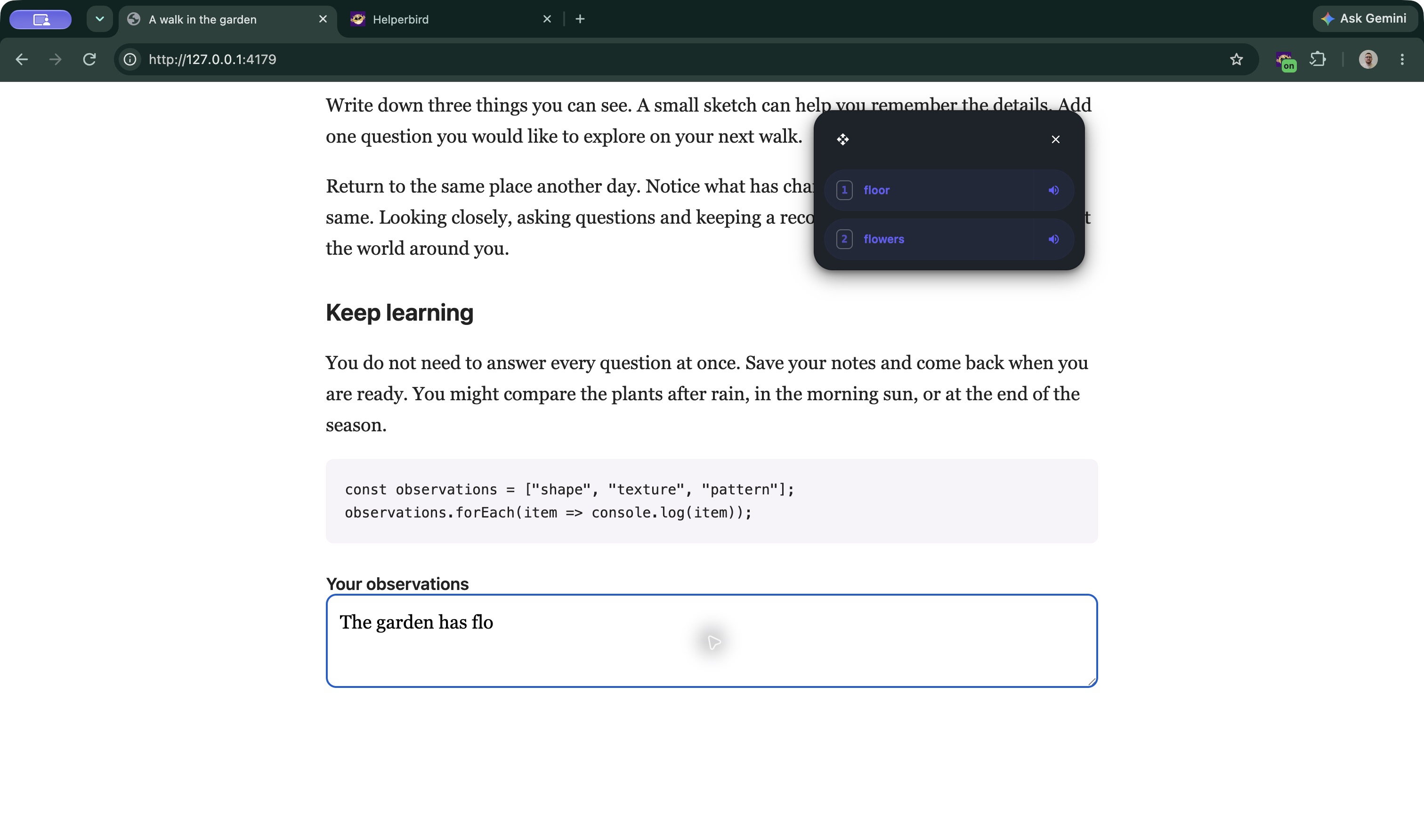
You can still change the text size, theme and number of suggestions. Drag the panel using its move
handle. If the list is taller than the available space, scroll inside it to see more suggestions.
In Google Docs, the panel follows the cursor until you drag it to your preferred spot. Changing the
layout keeps the same predictions, spelling corrections and read-aloud tools.
See the [Word prediction guide](/help/how-to-use-word-prediction-on-any-website-or-google-docs/) for
setup and the other controls.
---
## How to Change Your Reading View in Helperbird Apps
URL: https://www.helperbird.com/help/how-to-change-your-reading-view-in-helperbird-apps/
## What This Does
Helperbird's reading apps save their own display choices. You can use larger text in Dictionary and
a different width in NotePad. Changing one app does not apply those preferences to every website or
reader.
These controls change your view. They do not rewrite dictionary definitions, change the words in a
PDF, or replace the formatting saved in your NotePad document.
## Step 1: Find the Reading Controls
Table: Reading controls in each Helperbird app
| Where you are | Text controls | Width and theme |
| --------------- | --------------------------------------- | ------------------------------------------------------------ |
| NotePad | **Text settings** in the header | **Settings** |
| Dictionary | **Text settings** in the header | **Settings** |
| Reading Mode | **Settings** in the header | **Reading Width** and the Light or Dark button in the header |
| Equation Editor | **Text settings** changes equation size | **Settings** |
| PDF Reader | Use zoom for the original page | **Settings** changes reader width and theme |
Reach a button with Tab to see its name. On a narrow Reading Mode view, open **More options** to
reveal the header controls.
## Step 2: Make the Text Comfortable
In NotePad, Dictionary or Reading Mode, choose a font and text size. Then adjust line height, word
spacing or letter spacing if they help you follow the text. Change one option at a time so you can
judge its effect.
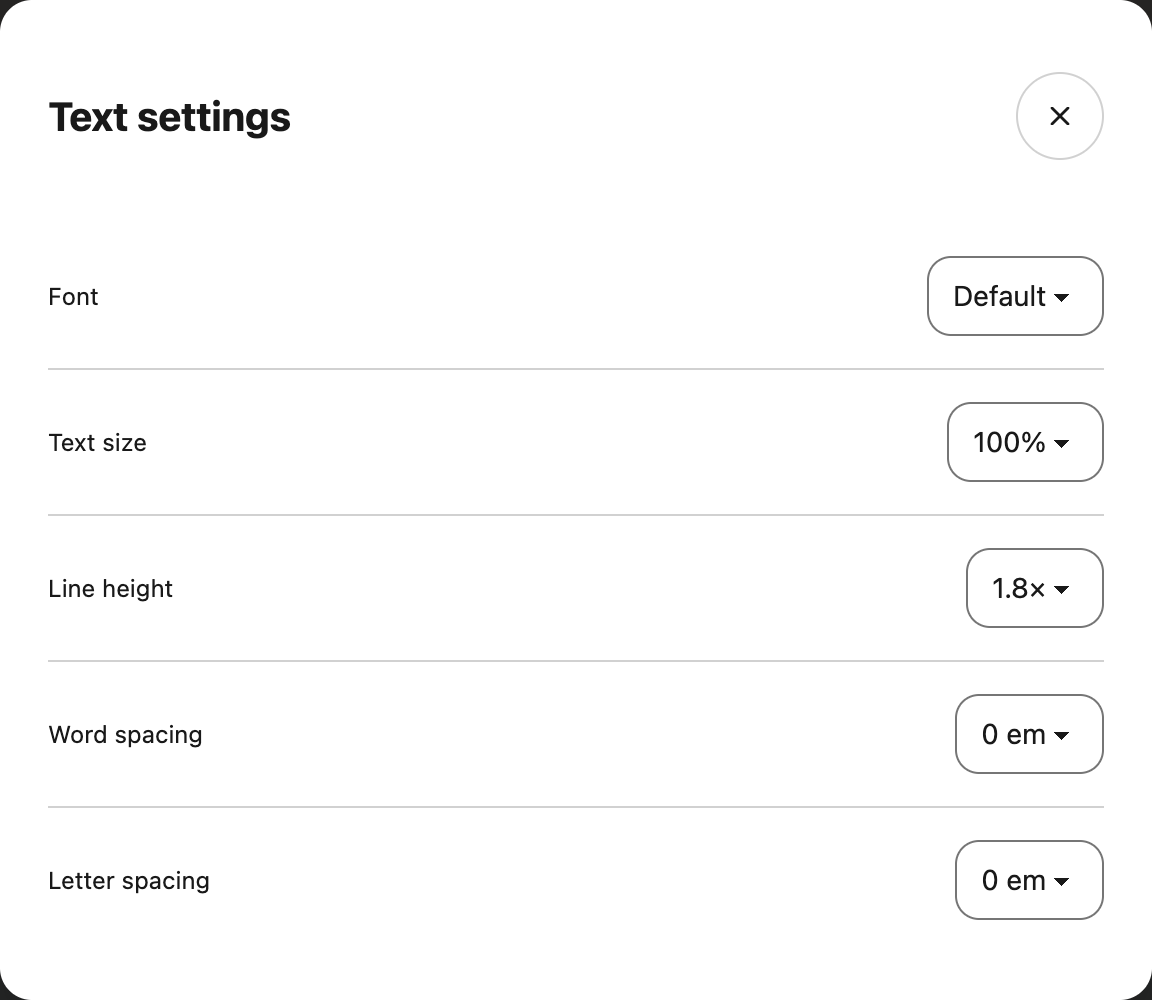
The Equation Editor keeps the normal math font and symbol spacing. Its size control enlarges the
displayed equation without changing the exported image.
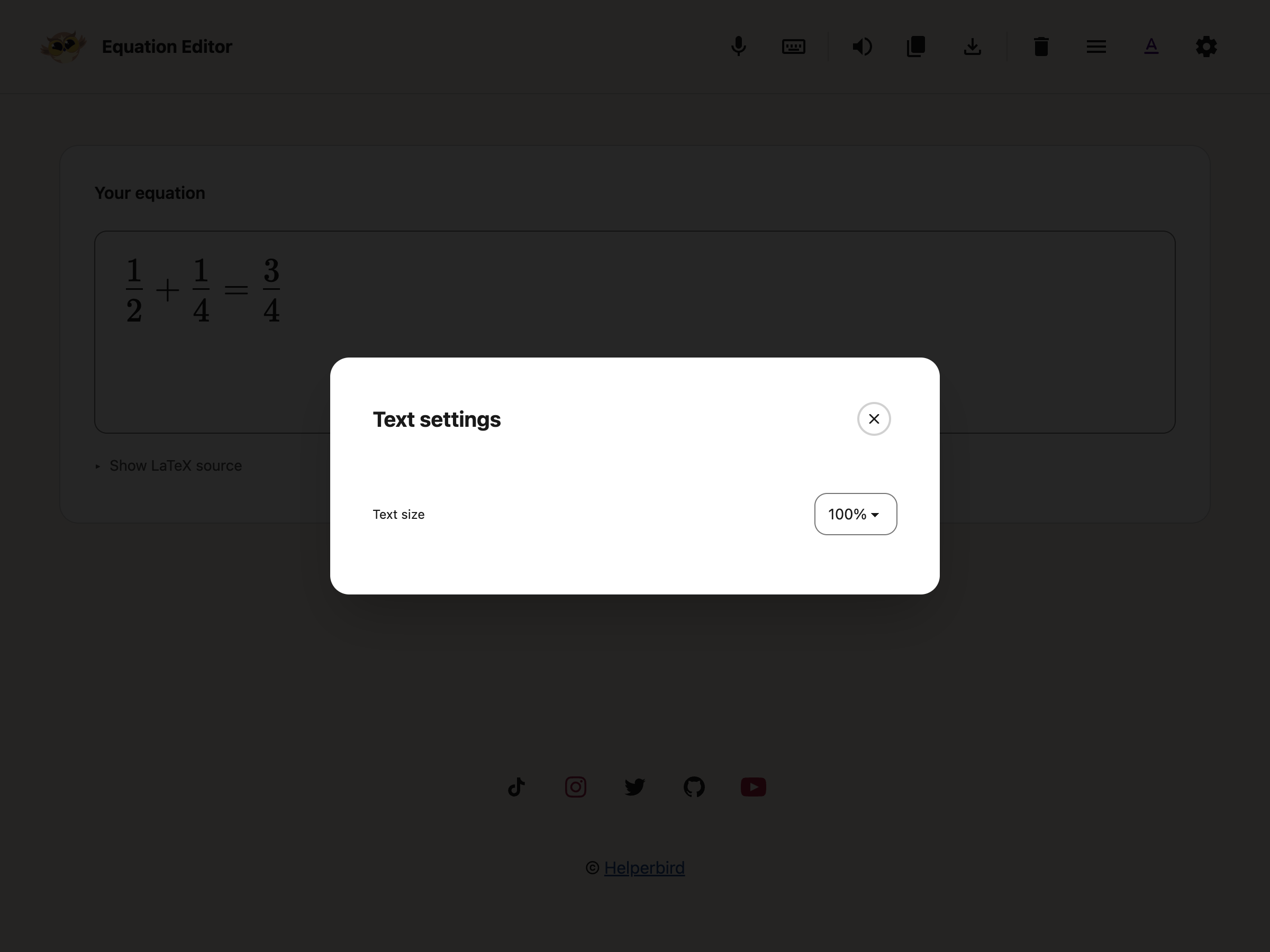
PDF pages keep their original layout. Use **Zoom and search** for **Fit page**, **Fit width** and
magnification. For reformatted PDF text, try
[Immersive Reader](/help/how-to-use-the-tools-menu-in-the-pdf-reader/).
## Step 3: Choose Width and Theme
In an app's **Settings**, select the width button to cycle through Small, Medium and Large. The text
beside it shows the current width. The Light or Dark button switches the theme.
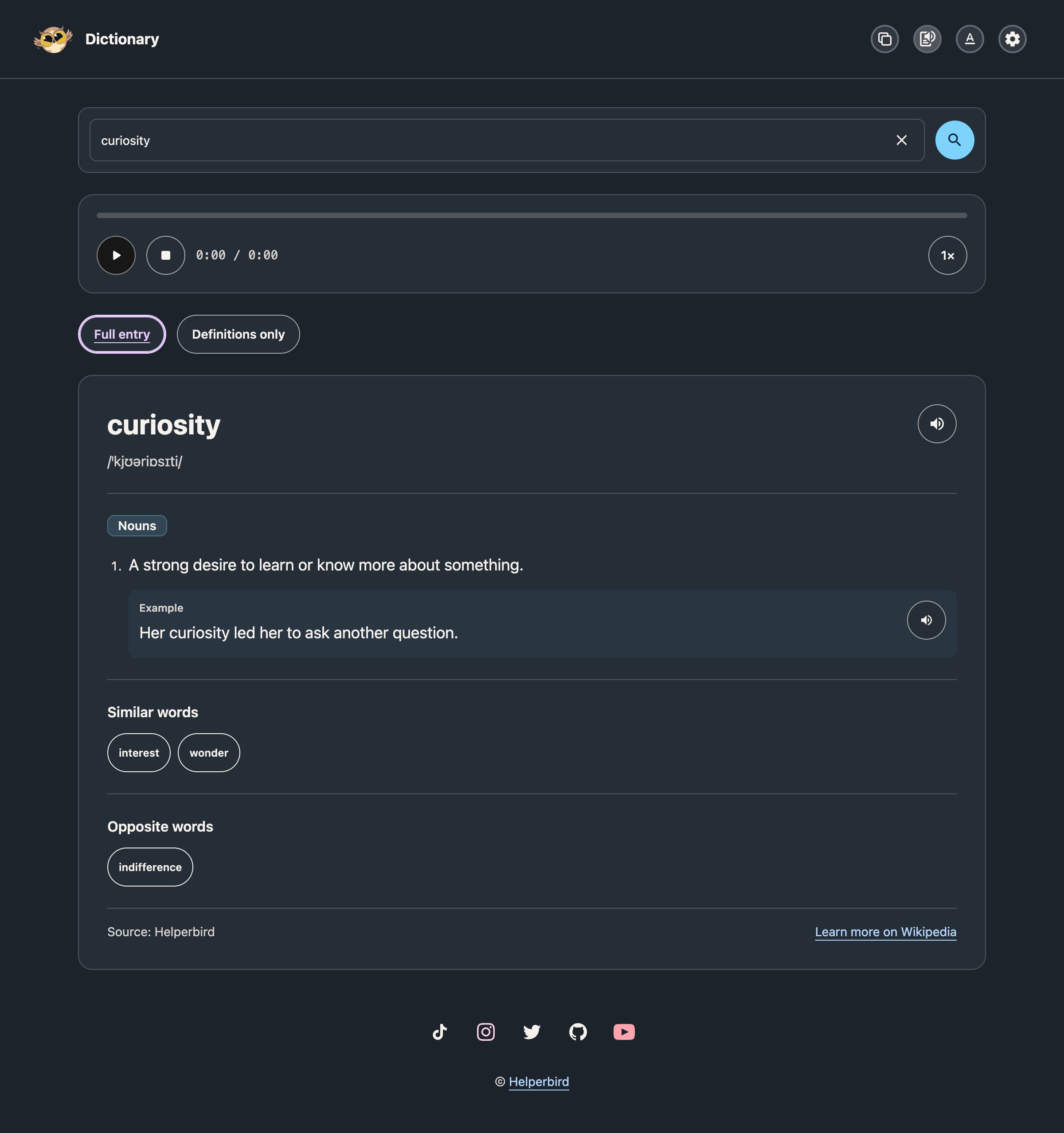
The PDF theme changes the reader and the page colors on screen. Pictures and diagrams may look
different in dark mode. Switch to light mode when their exact colors matter. Your original file and
downloaded PDF keep their original colors.
## Step 4: Reset Only What You Need
NotePad, Dictionary and Equation Editor offer two separate **Reset** buttons in Settings:
- **Reset text settings** restores the default font, size and spacing, or the default equation size.
- **Reset layout** restores the app's default width and theme. In Dictionary, it also returns to
**Full entry**.
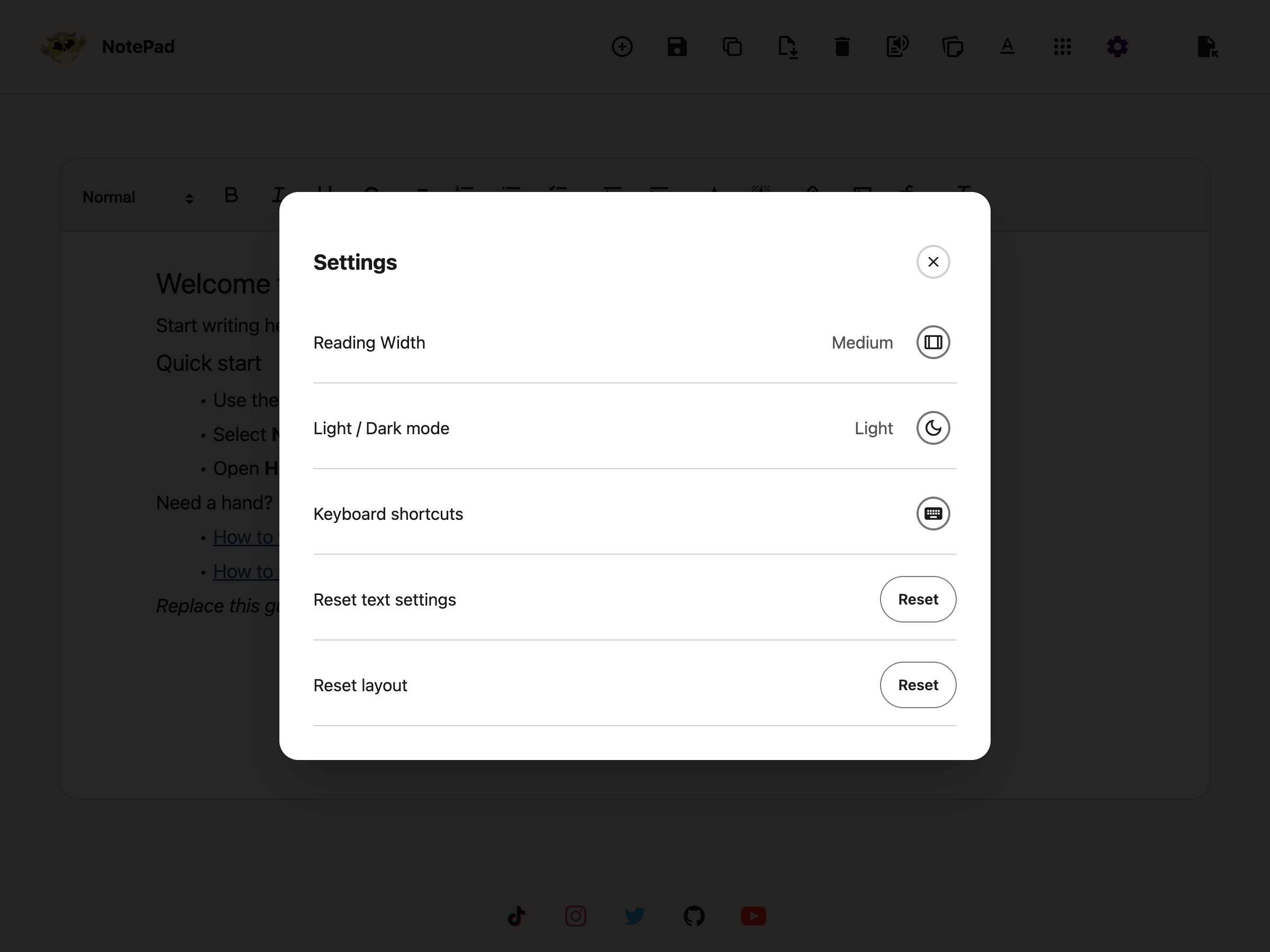
These resets do not delete your writing, notes or equation. They are separate from the Settings
page's data deletion tools.
## Need Additional Help?
See the guides for [Dictionary](/help/how-to-use-the-helperbird-dictionary/),
[NotePad](/help/how-to-use-the-helperbird-editor/),
[Reading Mode](/help/how-to-use-reading-mode-and-remove-ads-on-any-website/),
[Equation Editor](/help/how-to-use-the-equation-editor-in-helperbird/) or
[PDF Reader](/help/how-to-use-the-helperbird-pdf-support/).
---
## How to Clear Learned Words in Word Prediction
URL: https://www.helperbird.com/help/how-to-clear-learned-words-in-word-prediction/
## Why You Would Do This
Word prediction learns from what you type, so it gets better at suggesting the words you actually
use. The catch is that it cannot tell a word you meant from a word you misspelled. Type the same
typo a few times and it will start offering it back to you as a suggestion.
Clearing the learned words wipes that memory and starts it fresh.
---
## Who is This For?
This is helpful for:
- Anyone whose predictions have started suggesting their own misspellings
- People who share a computer and are getting someone else's words
- Anyone who has been writing about one topic and now wants a clean slate
---
## Step 1: Open Word Prediction Options
Open Helperbird, go to **All Features**, find **Word prediction** and open its options. Scroll down
to **Settings**.
---
## Step 2: Click Clear Learned Words
Click **Clear learned words**.
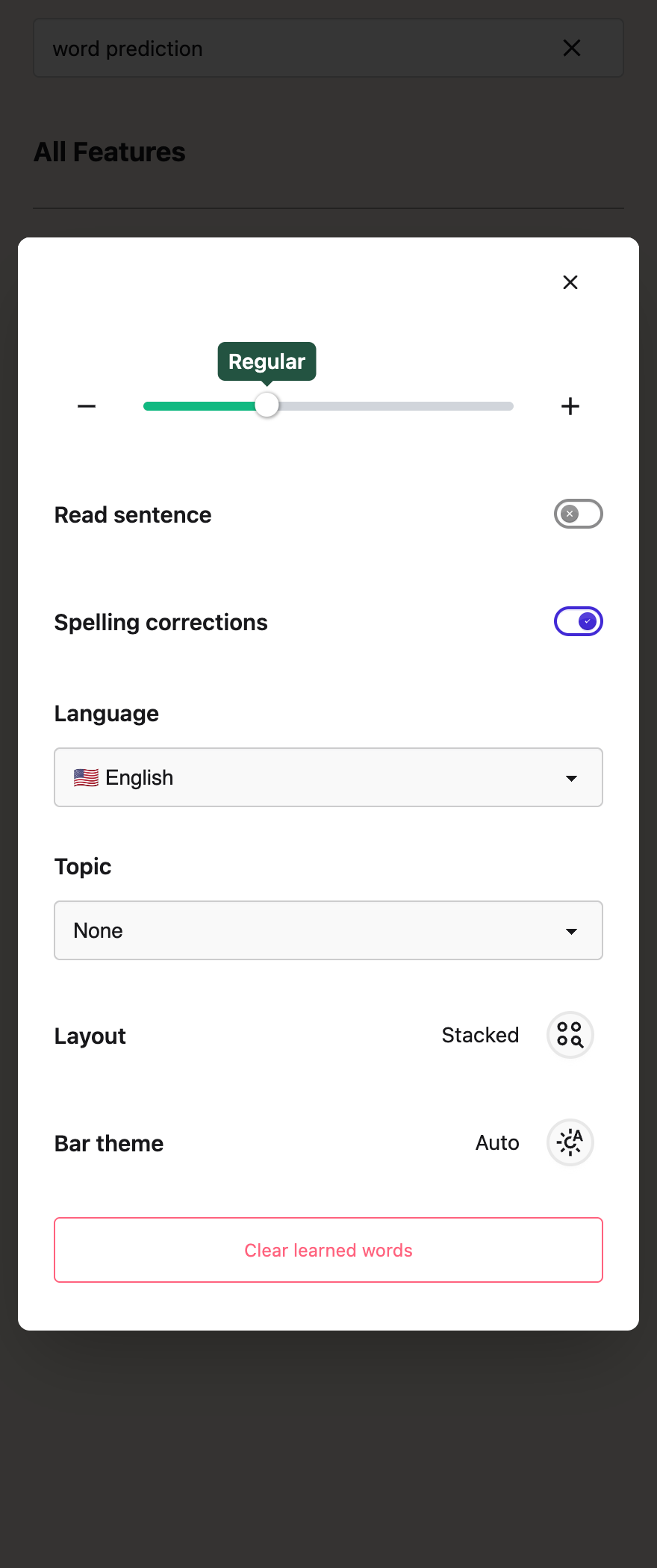
It happens straight away. Any tabs you already have open pick up the change without needing a
reload.
---
## What It Clears, and What It Keeps
**It clears** learned words, learned word combinations, and preferences built from the suggestions
you selected. These are cleared together, not one word at a time.
**It keeps** the built-in dictionary, your chosen **Topic**, your **Language**, and your **Spelling
corrections** setting. You are not resetting word prediction itself, only the words it picked up
from you.
Your learned words live on the computer you are using. They are not synced, so clearing them on one
machine does not clear them on another. If you use Helperbird in two places, you will need to do it
in both.
---
## Before You Do It
There is no confirmation and no undo, and it is all or nothing. There is currently no way to remove
a single learned word, so if one bad word has crept in, clearing the lot is the only fix. Useful
learned words are cleared too. Learning resumes as you write if learning is enabled. Changing the
Topic does not require clearing your learned words.
See also
[how to use word prediction](/help/how-to-use-word-prediction-on-any-website-or-google-docs/).
---
## Need Additional Help?
If you have any questions or run into any issues, please contact the Helperbird support team. You
can reach us at [Helperbird support](/support/). We are happy to help you get the most out of
Helperbird.
---
## How to Copy a Document in the Helperbird Notepad
URL: https://www.helperbird.com/help/how-to-copy-a-document-in-the-helperbird-notepad/
## What This Does
**Copy** makes a second, identical document in your list. The original is left exactly as it was, so
you can change the copy freely.
---
## Who is This For?
This is helpful for:
- Anyone about to make big changes who wants the old version kept
- Students keeping a first draft alongside a rewrite
- Anyone reusing the same starting point again and again, like a weekly template
---
## Step 1: Open the Document
Open the document you want to duplicate, using
**[View](/help/how-to-open-a-saved-document-in-the-helperbird-notepad/)** if it is not already on
screen.
---
## Step 2: Click Copy
Click **Copy** in the toolbar. It is the two overlapping squares, between Save and Delete.
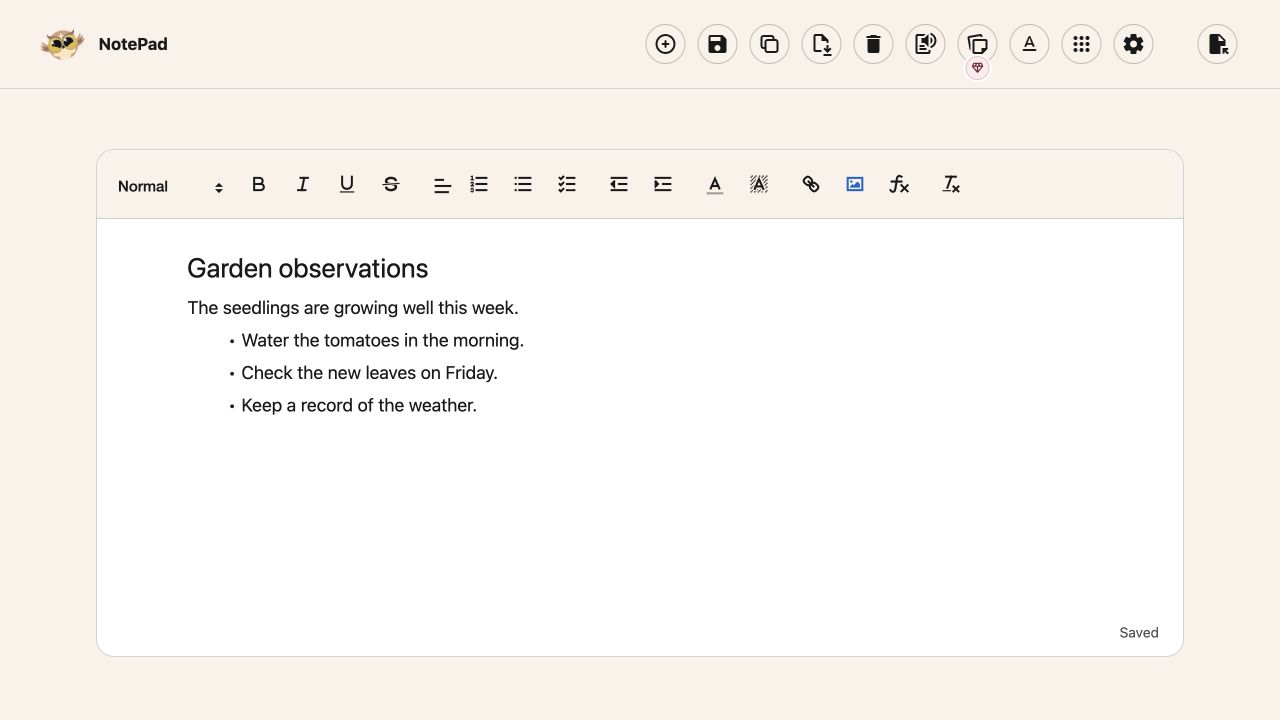
A duplicate is added to your saved documents. Open it from **View** and edit it without touching the
original.
---
## About the Message You See
After copying, Helperbird shows a message reading "Copied to clipboard". That wording is misleading:
nothing is placed on your clipboard, and you cannot paste the document elsewhere with Ctrl+V or
Cmd+V.
What actually happened is that a duplicate was added to your documents list. To get your writing
onto the clipboard instead, select it on the page and copy it the normal way, or
[download it](/help/how-to-download-your-notepad-document/).
---
## Need Additional Help?
If you have any questions or run into any issues, please contact the Helperbird support team. You
can reach us at [Helperbird support](/support/). We are happy to help you get the most out of
Helperbird.
---
## How to Copy an Equation from Helperbird
URL: https://www.helperbird.com/help/how-to-copy-an-equation-from-helperbird/
## What This Does
Copying takes the equation you have written and puts it on your clipboard, in one of three formats.
Which one you want depends entirely on where you are about to paste it.
---
## Who is This For?
This is helpful for:
- Students pasting an equation into an assignment
- Anyone moving maths into a document, a slide or a web page
- People who need maths that a screen reader can still read
---
## Step 1: Write Your Equation
Write it in the editor first. See
[how to write an equation](/help/how-to-write-an-equation-in-helperbird/).
---
## Step 2: Open Copy
Click **Copy** in the toolbar and pick a format.
---
## Which Format Should You Pick?
**Copy as LaTeX** gives you the plain-text version, like `E = mc^2`. Pick this for anywhere that
understands LaTeX: a maths forum, a document written in LaTeX, or to paste back into this editor
another day.
**Copy as MathML** gives you the equation as structured maths. Pick this when it needs to stay
readable by a screen reader, or when you are pasting into a web page or a Word document where the
maths should remain real maths rather than a picture. This is the accessible choice.
**Copy as image** gives you a picture of the equation. Pick this when nothing else will paste
properly, such as a chat message or a slide. Be aware that a picture cannot be read by a screen
reader and cannot be edited afterwards, so it is the last resort rather than the default.
If you need a file rather than a clipboard copy,
[download it as an image](/help/how-to-download-an-equation-as-an-image/) instead.
---
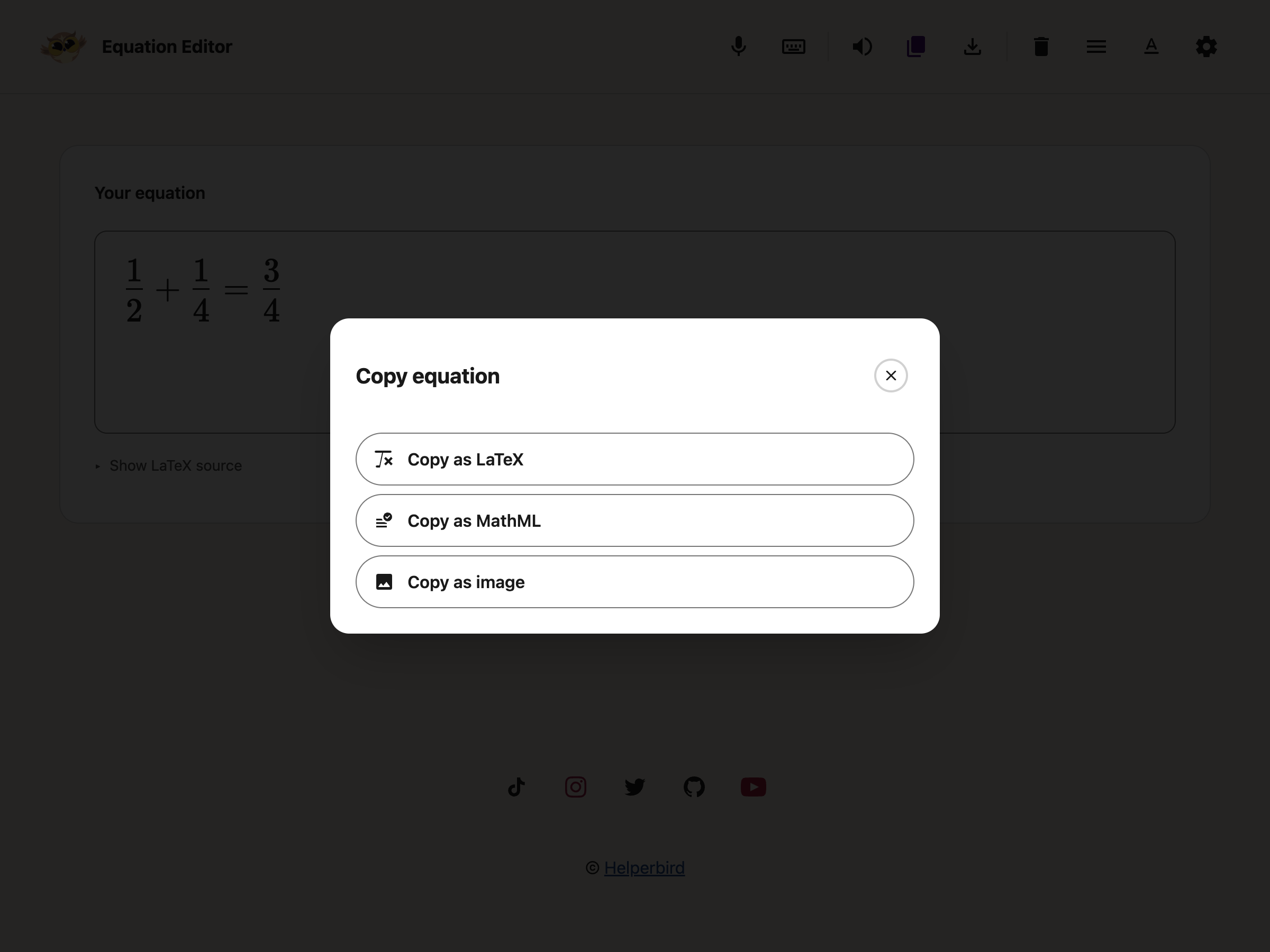
---
## Need Additional Help?
If you have any questions or run into any issues, please contact the Helperbird support team. You
can reach us at [Helperbird support](/support/). We are happy to help you get the most out of
Helperbird.
---
## How to Delete a Document in the Helperbird Notepad
URL: https://www.helperbird.com/help/how-to-delete-a-document-in-the-helperbird-notepad/
## What This Does
**Delete** removes the document you have open from your saved documents.
---
## Who is This For?
This is helpful for:
- Anyone tidying up old drafts
- Students clearing out finished assignments
- Anyone who has run out of room to save because of large old documents
---
## Before You Delete
There is no undo, and deleted documents do not go to a recycle bin. If there is any chance you will
want the writing again, [download it](/help/how-to-download-your-notepad-document/) as a Word or
text file first. That takes a few seconds and the file is yours to keep.
---
## Step 1: Open the Document
Open the one you want to remove, using
**[Open document](/help/how-to-open-a-saved-document-in-the-helperbird-notepad/)**.
Check the page carefully before the next step, because Delete acts on whatever is currently open.
---
## Step 2: Click Delete
Click **Delete** in the toolbar. It is the bin icon, beside Download.

The document is removed from your list.
---
## Need Additional Help?
If you have any questions or run into any issues, please contact the Helperbird support team. You
can reach us at [Helperbird support](/support/). We are happy to help you get the most out of
Helperbird.
---
## How to Dictate an Equation with Your Voice
URL: https://www.helperbird.com/help/how-to-dictate-an-equation-with-your-voice/
## What This Does
Rather than typing an equation, you can say it. Helperbird listens and writes the maths into the
editor for you.
---
## Who is This For?
This is helpful for:
- Anyone who finds typing slow or painful
- People who know how to say an equation but not how to write it
- Students working with their hands full, or away from a keyboard
- Anyone who cannot remember the LaTeX for what they want
---
## How to Do It
Click **Voice typing** in the toolbar. It is the microphone.
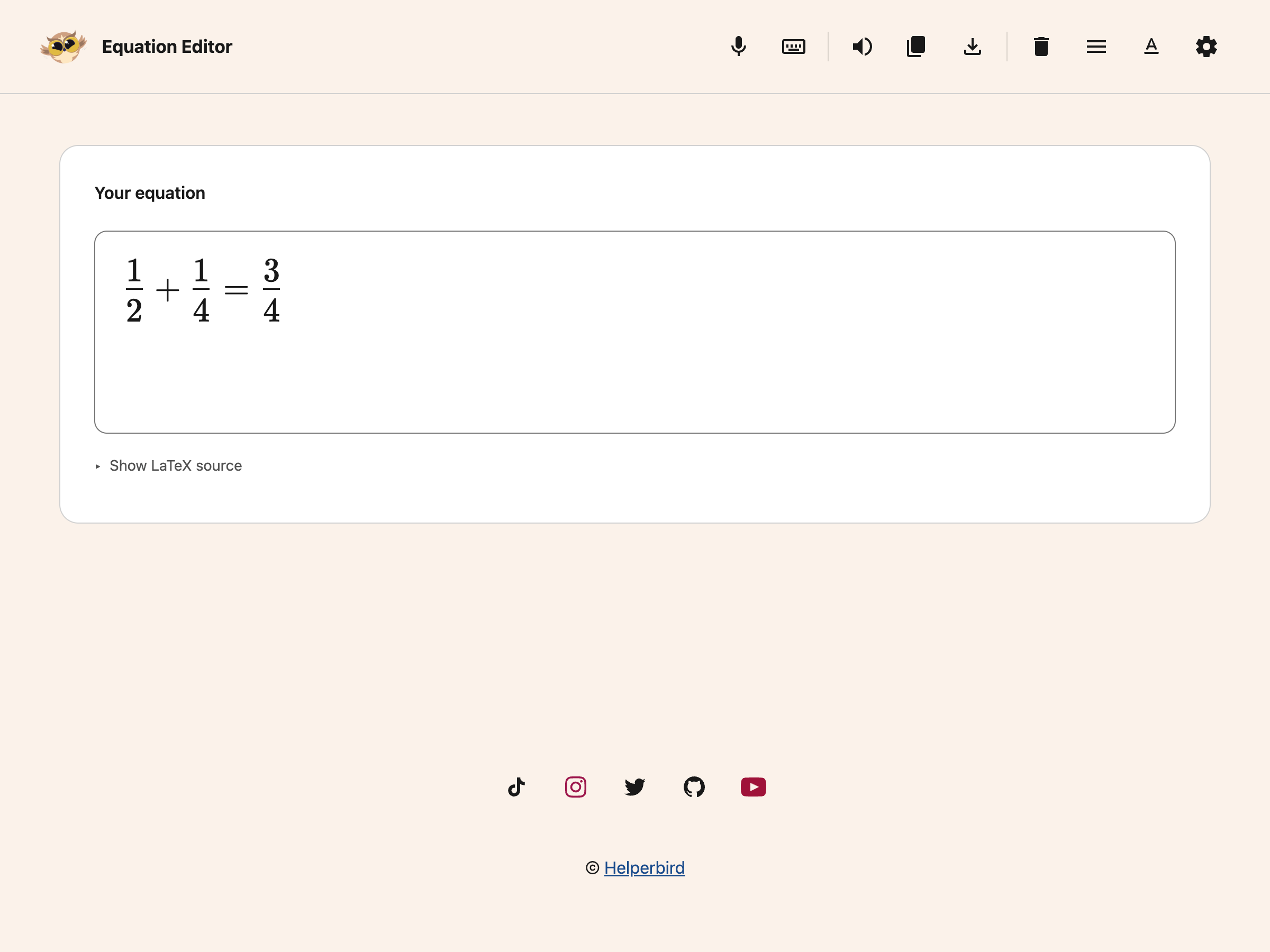
Your browser will ask for permission to use the microphone the first time. Say your equation out
loud, then click the button again to stop.
Dictation also stops after ten seconds without recognized speech. The microphone closes and your
equation stays in place. Click the microphone button again when you are ready to continue.
---
## What the Messages Mean
You will see the editor move through a few states:
- **Connecting** while it gets ready
- **Listening** when it is waiting for you to speak
- **Hearing** while it is picking up your voice
If it never gets past Connecting, check that your browser has microphone permission for this page.
---
## If It Mishears You
Maths dictation is harder than ordinary dictation, because so much depends on grouping. Say the
structure out loud as you would to a person: "one over two" rather than "half", and "x squared plus
three" rather than trailing off.
Anything that comes out wrong can be fixed by typing, or with
[the maths keyboard](/help/how-to-write-an-equation-in-helperbird/). You can also dictate ordinary
text elsewhere in Helperbird with
[speech to text](/help/how-to-use-speech-to-text-or-dictation-on-any-website/).
---
## Need Additional Help?
If you have any questions or run into any issues, please contact the Helperbird support team. You
can reach us at [Helperbird support](/support/). We are happy to help you get the most out of
Helperbird.
---
## How to Disable Helperbird on Specific Websites
URL: https://www.helperbird.com/help/how-to-disable-helperbird-on-specific-websites/
## What is Website Exclusion?
Turn Helperbird off on sites where you do not want its tools. Add each site to your exclusion list.
Your other sites keep their settings.
This is useful if a website doesn't work well with Helperbird, or if you want Helperbird turned off
on certain pages like testing platforms or work tools.
---
## Who is This For?
This feature is helpful for:
- Students who need Helperbird turned off during online tests
- Anyone who finds that a specific website doesn't work well with Helperbird
- Users who want Helperbird off on certain work or school tools
- People who want more control over where Helperbird runs
---
## Step 1: Open Helperbird Settings
Click the Helperbird icon in your browser toolbar to open the popup. Then click the **Settings**
gear icon in the top-left corner of the popup.
This will open the Helperbird Settings page in a new tab.
---
## Step 2: Find the Disable on Websites Section
Scroll down the Settings page until you see the section called **Disable on websites**.
---
## Step 3: Turn On the Exclusion List
You will see a toggle switch next to **Enable website exclusion list**. Turn this on to start using
the feature.
---
## Step 4: Add a Website
Once the exclusion list is turned on, you will see a text field where you can type a website
address.
Type the domain name of the website you want to exclude. For example, type `typingclub.com` and then
click the **Add** button or press **Enter**.
You do not need to type `https://` or `www.` - just the domain name is enough.
From Helperbird 2026.9.29, you can add up to 20 websites to your personal list. Each website you add
will appear as a small pill below the text field.
**Tip:** Adding a domain like `example.com` will also cover all its subdomains, such as
`mail.example.com` or `app.example.com`.
---
## Step 5: Remove a Website
To remove a website from your exclusion list, click the **X** button on the pill next to the website
name.
The website will be removed immediately and Helperbird will start working on that site again.
**Note:** If your school or workplace has added websites to the exclusion list, those will appear
with a lock icon and cannot be removed. Only your administrator can change those.
---
## What Happens on an Excluded Website
When you visit a website on your exclusion list:
- The Helperbird toolbar icon shows a blue **||** badge
- The popup shows a message saying **Helperbird is disabled on this website**
- The on/off toggle is greyed out so it cannot be changed
- Helperbird's page features are paused. If you have enabled the floating toolbar, it remains
available
When you switch to a different tab that is not excluded, everything goes back to normal.
---
## Need Additional Help?
Need help with a site? [Contact support](/support/). Tell us its address and which browser you use.
---
## How to Download an Equation as an Image
URL: https://www.helperbird.com/help/how-to-download-an-equation-as-an-image/
## What This Does
**Download as image** saves your equation to your computer as a picture, so you can put it anywhere
that takes an image.
---
## Who is This For?
This is helpful for:
- Anyone putting an equation into a slide or a poster
- Students whose software will not accept pasted maths
- Anyone sharing an equation in a chat or an email
---
## How to Do It
Write your equation, then click **Download as image** in the toolbar. It is the downward arrow.

The file goes to your downloads folder like any other download.
---
## When a Picture is the Wrong Choice
A picture of an equation cannot be read by a screen reader, cannot be searched, and cannot be edited
later without starting again. If the equation is going somewhere it will be read by other people,
that matters.
Where you can, [copy it as MathML](/help/how-to-copy-an-equation-from-helperbird/) instead. That
keeps it as real maths, which assistive technology can read out. Use an image when nothing else will
paste, and add a text description alongside it if the place you are putting it allows one.
---
## Need Additional Help?
If you have any questions or run into any issues, please contact the Helperbird support team. You
can reach us at [Helperbird support](/support/). We are happy to help you get the most out of
Helperbird.
---
## How to Download Your Notepad Document
URL: https://www.helperbird.com/help/how-to-download-your-notepad-document/
## What This Does
You can take your writing out of the Notepad as a file, in one of three formats, so you can hand it
in, email it, or keep it somewhere else.
---
## Who is This For?
This is helpful for:
- Students handing an assignment in as a Word document
- Anyone moving their writing into Google Docs to share it
- Anyone who wants a copy that does not depend on the browser
- People keeping a backup before deleting a document
---
## Step 1: Open the Options
Click the **Download** arrow in the toolbar to open the download options.
---
## Step 2: Pick a Format
Choose the one you want.
The choices are **Word**, **Markdown**, and **Text file**.
---
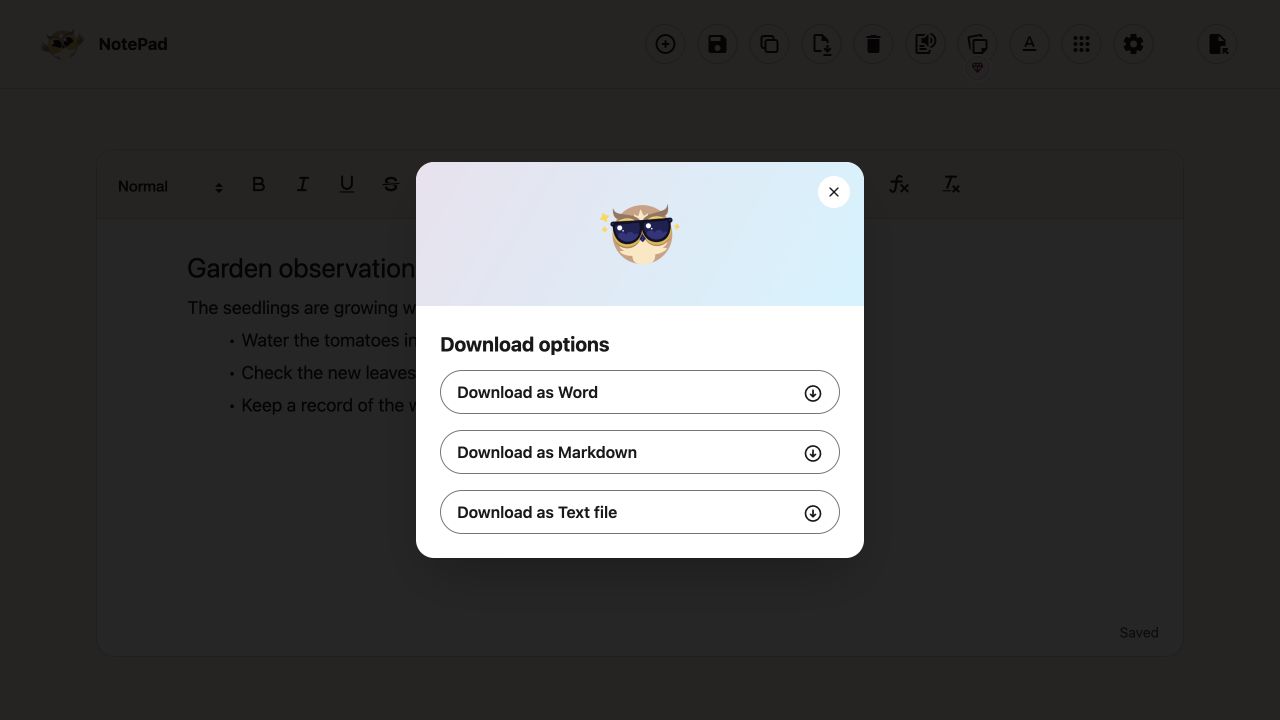
---
## Which Format Should You Pick?
- **Word** keeps your headings, bold, lists and colors. Pick this for anything you are handing in or
sending to someone who uses Word.
- **Markdown** keeps the structure as plain symbols. Useful if you write for the web or use a notes
app that understands it.
- **Text file** is your writing with all formatting stripped out. The safest option if something
else will not open, and the smallest file.
To use the document in Google Docs, download **Word** and upload that file to Google Drive yourself.
The former Google Docs option produced the same Word file; it was not a direct upload.
If you are downloading to keep a copy before
[deleting the document](/help/how-to-delete-a-document-in-the-helperbird-notepad/), Word or text is
the sensible choice.
---
## Downloads with Equations
[Equations you insert in Notepad](/help/how-to-add-equations-to-pdfs-and-notepad/) are included in
all three formats:
- **Word** includes each equation image and its text description.
- **Markdown** keeps the LaTeX source.
- **Text file** uses the equation's text description.
Keep your saved Helperbird document if you want to reopen and edit the equation in the same
workspace. An equation image in a Word file is not a Word equation object.
## Need Additional Help?
If you have any questions or run into any issues, please contact the Helperbird support team. You
can reach us at [Helperbird support](/support/). We are happy to help you get the most out of
Helperbird.
---
## How to Draw on a PDF with Your Keyboard
URL: https://www.helperbird.com/help/how-to-draw-on-a-pdf-with-your-keyboard/
PDF drawing is free. Open a PDF and choose **Draw** to begin.
## Why Use the Keyboard?
Drawing on a PDF normally means holding a mouse steady while you drag. That is difficult for a lot
of people, and impossible for some.
Helperbird's PDF Reader lets you do the same job with the keyboard instead. You drop a shape onto
the page with one key, then nudge it into place with the arrow keys. Nothing has to be dragged.
---
## Who is This For?
This is helpful for:
- Anyone who finds a mouse or trackpad hard to control precisely
- People with tremor, limited hand movement, or joint pain
- Screen reader and keyboard-only users
- Anyone who wants shapes lined up neatly rather than drawn by hand
---
## Step 1: Turn Drawing On
Open your PDF, then press **Draw** in the toolbar at the top. The drawing bar appears underneath it.

---
## Step 2: Choose a Shape
Tab to the drawing bar and choose **Rectangle**, **Oval**, **Line** or **Arrow**.

The **Pen** tool draws freehand and needs a pointer, so it is the one tool that cannot be used this
way. Everything else can.
---
## Step 3: Place the Shape
Tab to the drawing area, then press **Enter** or **Space**.
The shape appears in the middle of the page and is selected straight away. Helperbird announces
"Shape added to the centre of the page. Arrow keys move it, Alt plus arrow keys resize it, Delete
removes it."
---
## Step 4: Move It
Use the **arrow keys** to move the selected shape.
- **Arrow key** moves it 5 pixels
- **Shift + arrow key** moves it 20 pixels
Use Shift to cross the page quickly, then tap the arrow keys on their own to line it up.
---
## Step 5: Resize It
Hold **Alt** and use the **arrow keys**.
- **Alt + arrow key** resizes by 5 pixels
- **Alt + Shift + arrow key** resizes by 20 pixels
Freehand pen strokes can be moved but not resized. Rectangles, ovals, lines and arrows can all be
resized.
---
## Step 6: Delete It
Press **Delete** or **Backspace** while the shape is selected. It is removed straight away.
If you want to keep it but stop working on it, press **Escape** to deselect instead.
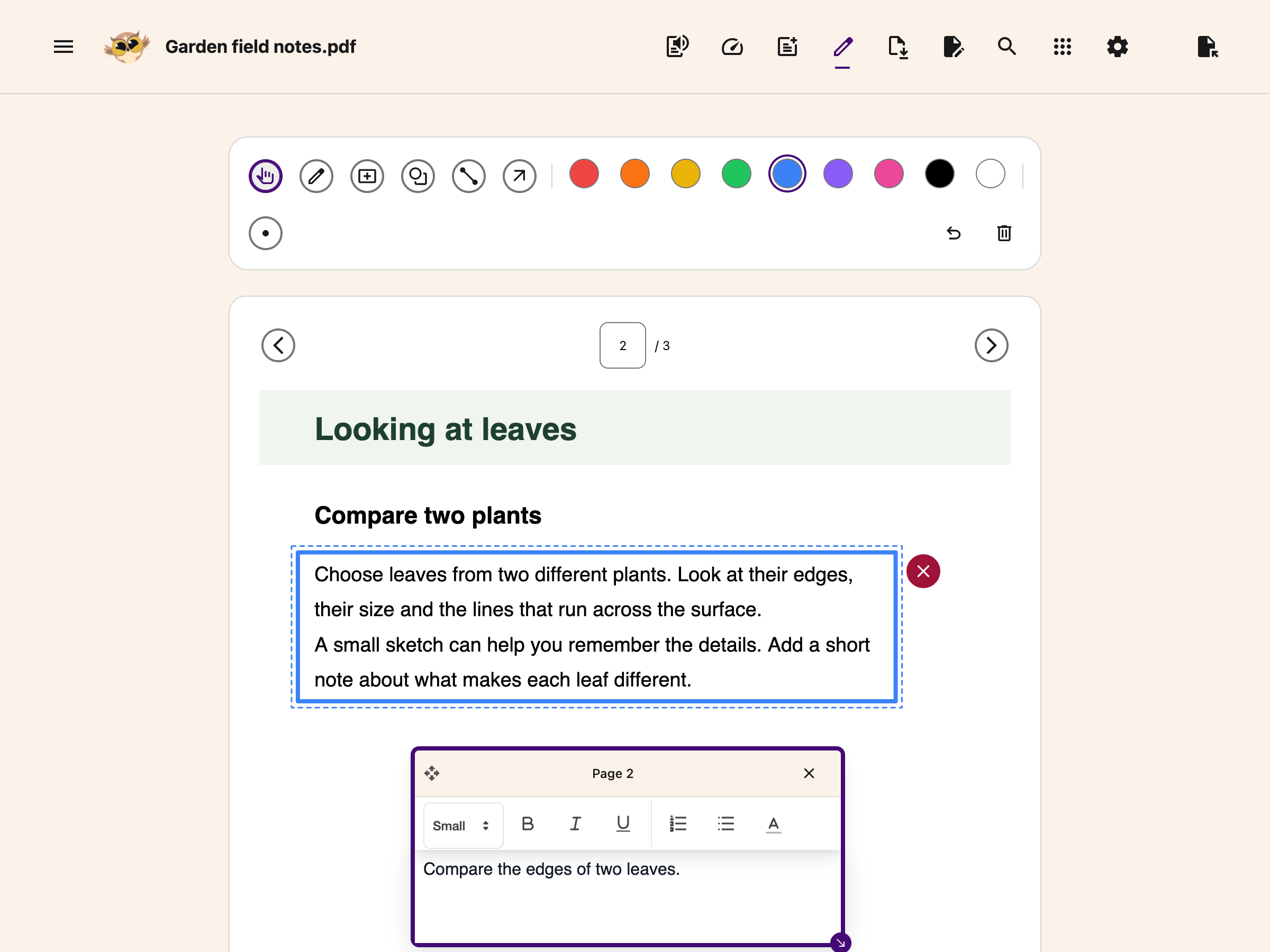
---
## Moving Between Shapes
Choose the **Select / Move** tool, then press **Tab** to step forward through the shapes on the
page, or **Shift + Tab** to step back.
When you reach the last shape, Tab takes you out of the drawing area and on to the next control, so
you are never stuck inside it.
---
## All the Keys
Table: Every key used for drawing on a PDF.
| Key | What it does |
| ----------------------- | ------------------------------------------------- |
| Enter or Space | Place the chosen shape in the middle of the page |
| Arrow key | Move the shape 5 pixels |
| Shift + arrow key | Move the shape 20 pixels |
| Alt + arrow key | Resize the shape by 5 pixels |
| Alt + Shift + arrow key | Resize the shape by 20 pixels |
| Delete or Backspace | Remove the selected shape |
| Escape | Deselect, keeping the shape |
| Tab / Shift + Tab | Step between shapes, then out of the drawing area |
The **Undo** button in the drawing bar removes the last shape you added, and **Clear All** empties
the current page. Both are ordinary buttons you can reach with Tab.
---
## Need Additional Help?
If you have any questions or run into any issues, please contact the Helperbird support team. You
can reach us at [Helperbird support](/support/). We are happy to help you get the most out of
Helperbird.
---
## How to Highlight Links on Any Website
URL: https://www.helperbird.com/help/how-to-emphasize-links-on-any-website/
## What is Highlight Links?
Many websites strip the underline from their links, which leaves color as the only thing marking
them. That is hard to spot, and impossible if you cannot distinguish the color.
**Highlight links** puts a striped bar under every link instead, in grey, yellow, red and teal. It
is deliberately not a plain underline: a four-color stripe is recognisable whatever your color
vision.
---
## Who is This For?
This feature is helpful for:
- People who have difficulty distinguishing links from regular text
- Anyone with low vision who needs clearer visual cues
- People who prefer consistent link styling across all websites
- Anyone who finds it frustrating when links are hard to identify
- People with cognitive differences who benefit from clear navigation
---
## Step 1: Open Helperbird
Click the Helperbird icon in your browser toolbar. It looks like a small owl and is usually in the
top-right corner of your browser.
This will open the Helperbird menu.
---
## Step 2: Go to the All Features Section
Scroll down to the bottom of the Helperbird menu. You will see a section called **All Features**.
Click the arrow next to **All Features** to expand it and show all available features.
---
## Step 3: Find Display
Look through the list of features until you see **Display**. Highlight links lives inside this
panel, alongside the other display settings.
---
## Step 4: Open Display
Click **Open** on the **Display** row. The panel holds **High contrast**, **Highlight links**,
**Saturation**, **Cursor size** and **Magnifier**.
---
## Step 5: Turn on Highlight Links
Click the toggle switch next to **Highlight links** to turn it **on**. The toggle will turn blue
when it is enabled.
All links on the page will immediately become more visible with clear underline styling.
**Tip:** Combine this feature with the Link Color feature to make links stand out even more with a
custom color.
---
## What It Looks Like
Highlight links has no settings. It is a single switch in the **Display** panel, alongside High
contrast, Saturation, Cursor size and Magnifier.
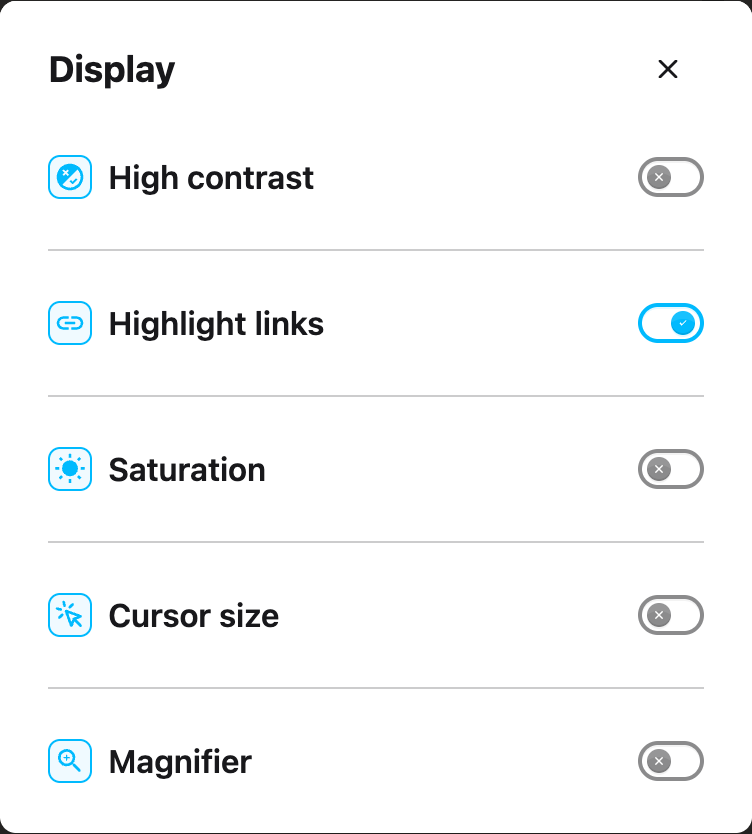
The style it applies is fixed: a 2 pixel striped bar under each link, in grey, yellow, red and teal.
Any underline the site had is replaced by it.
That matters for anyone who cannot rely on color alone to spot a link, which is why there is nothing
to configure. If you want to change how links look more generally, use
[link color](/help/how-to-change-the-link-color-of-a-website/) instead.
---
## Video Tutorial
Coming soon
---
## Need Additional Help?
If you have any questions or run into any issues, please contact the Helperbird support team. You
can reach us at [Helperbird support](/support/). We are happy to help you get the most out of
Helperbird.
---
## How to Turn On Spell Check on Any Website
URL: https://www.helperbird.com/help/how-to-enable-spell-check-on-any-website-or-app/
## What is Spell Check?
Spell check turns your browser's own spell checker on for the whole page. Once it is on, misspelled words get the familiar red wavy underline as you type, and you can right-click any underlined word to see suggestions.
Spell check sets the attribute on the page body, so every text box that does not set its own value picks it up. Comment fields, forums and ticket systems often leave it unset, and those start underlining. A box where the site explicitly switched spell checking off keeps its own setting and stays off.
This is your browser's spell checker, not Helperbird's. Nothing you type is sent anywhere.
---
## Who is This For?
This is helpful for:
- Anyone with dyslexia typing into a site that has spell checking switched off
- People filling in forms, comment boxes or support tickets
- Anyone writing in a language they are still learning
- People who want the red underline everywhere, without thinking about it
---
## Two Ways to Switch It On
Spell check is not in the All features list, and the popup search will not find it. There are two ways to reach it.
**A Quick actions tile.** Pin Spell check to the Quick actions grid and you get a button you can click. No keyboard needed. The setting is saved, so it stays on for every page until you switch it off. The steps below cover this route. See [how to use the Quick actions area](/help/how-to-use-the-quick-action-area-to-improve-accessibility-on-the-web/) for more on pinning.
**The keyboard shortcut.** It applies to the page you press it on and is not saved. It is covered further down this guide.
**Spell check is a Pro feature.** On the free plan the tile shows a diamond **Pro feature** badge and does nothing when clicked, and the shortcut shows an upgrade message.
---
## Step 1: Pin Spell Check to Quick Actions
Open Helperbird from your browser's toolbar. The Quick actions grid is the first thing on the home screen.
Click the **Quick actions** button in the bar at the top of the popup. A window opens listing every feature you can pin, in alphabetical order.
Find **Spell check** in the list and click it. A green check mark appears beside it. Close the window with the **Close** button in the corner, or press Escape.
---
## Step 2: Turn the Tile On
A new round button appears in the Quick actions grid. Look for the spell check icon. Hover over the button, or move to it with a screen reader, and it announces **Spell check**.
The caption under the button reads Grammar in the current version. That is a labeling bug, not a different feature. Trust the icon and the hover label.
Click the button to turn spell check on. It stays highlighted while spell check is running.
This setting is saved. Spell check stays on for every page you visit until you turn it off.
---
## Step 3: Check That It Worked
Click into a text box on the page and type a word that is definitely wrong, something like `teh`.
If spell check is on, the word gets a red wavy underline. Right-click it and your browser offers corrections.
---
## Turning It Off Again
Click the **Spell check** tile in the Quick actions grid a second time. The highlight clears and the underlines go away.
---
## Using the Keyboard Shortcut
If you prefer keys, spell check also has a shortcut. It only works when Helperbird's shortcuts are switched on, so check that first. Open Helperbird, click the gear icon to open the **Options** menu, and make sure the **Shortcuts** toggle is on. See [how to use Helperbird's keyboard shortcuts](/help/what-are-the-helperbird-shortcuts/) for the full list.
Click on the web page first so the page has focus, not the Helperbird menu or your browser's address bar. Then press:
- **Mac:** Option + 0
- **Windows, Linux and Chromebook:** Alt + Shift + 0
Use the **0** along the top of the keyboard. The 0 on the number pad is a different key and will not work.
The shortcut works as a toggle. Press it again to switch spell check back off.
Two things make the shortcut different from the tile:
- It applies to the page you press it on and is not saved. A new tab needs the shortcut again.
- On the free plan it shows an upgrade message rather than turning anything on.
---
## Spell Check or Grammar: Which One?
These are two different tools and they solve different problems.
Table: Spell check and grammar compared.
| | Spell check | [Grammar](/help/how-to-use-the-grammar-checker-in-helperbird/) |
| --- | --- | --- |
| What it does | Underlines misspelled words as you type | Corrects the grammar, spelling and punctuation in a passage |
| Where it works | Text boxes on the page that do not switch it off | A panel in the Helperbird menu |
| When it runs | Live, while you type | When you press Check |
| Who does the work | Your browser | OpenAI, through Helperbird |
Use spell check when you are typing into a site and only want the underlines. Use Grammar when you have written a passage and want the whole thing checked over, not one word at a time.
---
## Troubleshooting
**I see two tiles with the caption Grammar.** One of them is Spell check with the wrong caption, a known bug. Hover over each tile. The real Spell check tile announces Spell check and carries the spell check icon.
**The tile shows a Pro feature badge, or I get an upgrade message.** Spell check is a Pro feature. See [Helperbird pricing](/pricing/).
**Nothing happens when I press the shortcut.** Check that the **Shortcuts** toggle is on in Settings, and that you clicked on the page first. If the focus is in the address bar or the Helperbird menu, the page never receives the key press.
**I still get no underlines in one particular box.** A few sites use their own editor that draws text rather than using a normal text box. Those cannot be spell checked by the browser at all. [Word prediction](/help/how-to-use-word-prediction-on-any-website-or-google-docs/) and [Grammar](/help/how-to-use-the-grammar-checker-in-helperbird/) both work there instead.
**The underlines are in the wrong language.** The browser decides which dictionary to use, not Helperbird. Change it in your browser's own language settings.
---
## Related Features
- [Grammar](/help/how-to-use-the-grammar-checker-in-helperbird/) - Check and correct a whole passage.
- [Word prediction](/help/how-to-use-word-prediction-on-any-website-or-google-docs/) - Suggested words as you type, with phonetic spelling help.
- [Voice typing](/help/how-to-use-speech-to-text-or-dictation-on-any-website/) - Dictate instead of typing.
- [Keyboard shortcuts](/help/what-are-the-helperbird-shortcuts/) - The full list of Helperbird shortcuts.
---
## Need Additional Help?
If you have any questions or run into any issues, please contact the Helperbird support team. You can reach us at [Helperbird support](/support/). We are happy to help you get the most out of Helperbird.
---
## How to Use the Screenshot Reader
URL: https://www.helperbird.com/help/how-to-extract-text-from-any-image-pdf-or-website/
> **Renamed in Helperbird 2026.7.28:** Extract text (OCR) is now called the Screenshot Reader. It
> now reads equations automatically alongside ordinary text in the same capture, so there is no
> separate maths mode to switch on, and each capture goes to a single destination you choose rather
> than to several at once.
## What is the Screenshot Reader?
The Screenshot Reader uses OCR (Optical Character Recognition) to read the text in a picture. Text
that is stuck inside an image becomes real text you can copy, edit, read aloud, or translate.
One capture handles words and equations together. If the area you draw has both in it, you get both,
in the order they appear on the page. There is no maths mode to switch on.
**Listen** opens Helperbird's text to speech, so the voice, speed and other reading settings are
whatever you have chosen there. See
[how to use text to speech](/help/how-to-use-text-to-speech-on-any-website/).
This is useful for text in screenshots, infographics, scanned documents, or any image where you
cannot select the text normally.
Screenshot Reader is a Helperbird Pro feature. On the free plan, choosing it opens **Unlock
Helperbird Pro** with the trial offer and a link for existing subscribers. Enter your subscription
key or log in if you already have Pro. See
[what Helperbird Pro includes](/help/what-is-helperbird-pro/).
---
## Who is This For?
This feature is helpful for:
- People who need to copy text from images or screenshots
- Anyone who wants to listen to text that is in an image
- Students who need to work with text from infographics
- People who want to translate text in images
- Anyone who encounters inaccessible text in pictures
---
## Step 1: Open Helperbird
Click the Helperbird icon in your browser toolbar. It looks like a small owl and is usually in the
top-right corner of your browser.
This will open the Helperbird menu.
---
## Step 2: Find the Screenshot Reader
Scroll down to the bottom of the Helperbird menu. You will see a section called **All Features**.
Click the arrow next to **All Features** to expand it. Look through the list until you see
**Screenshot Reader**, then click **Open** on that row.
If you are looking for the old name, searching the popup for "extract text" or "ocr" still finds it.
A panel will appear with several options you can configure before capturing text.
---
## Step 3: Choose Where the Text Goes
Your capture goes to **one** destination, not several. Turning one on turns the others off, and Copy
to clipboard is the default.
- **Immersive Reader** - Open the text in Immersive Reader for easier reading.
- **Translate** - Open the captured text in Google Translate using your chosen language.
- **Listen** - Have the text read aloud. This opens Helperbird's
[text to speech](/help/how-to-use-text-to-speech-on-any-website/), so it uses the voice and speed
you have chosen there.
- **Save as note** - Save the text as a sticky note on the page.
- **Copy to clipboard** - Copy the text to your clipboard. This is the default.
Under **Settings** there is one more toggle:
- **Explain mode** - Turn this on to get a plain-language explanation of what you capture instead of
the exact text. Good for confusing paragraphs, charts, diagrams, tables, and formulas. The
explanation appears in a card on the page with buttons to listen, copy, or close it.
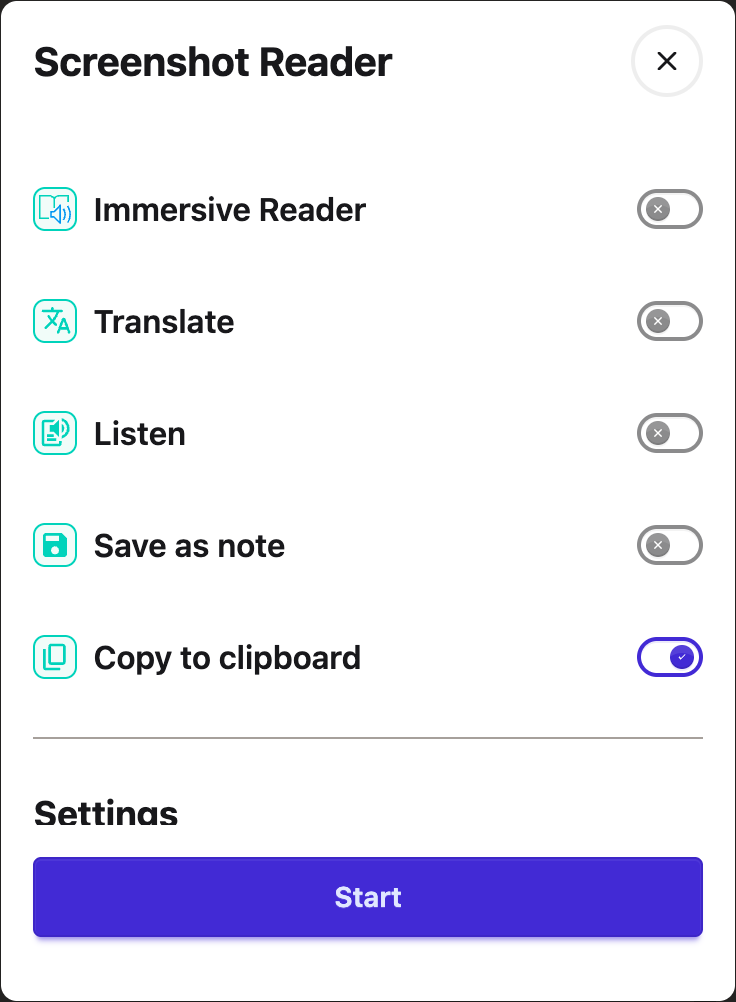
After choosing your options, click the **Start** button.
---
## Step 4: Select the Area
After clicking Start, your cursor will change to a crosshair.
Click and drag to draw a rectangle around the area of the screen that contains the text you want to
extract.
To select without dragging, press an arrow key to create a rectangle. Use arrow keys to move it,
**Shift + arrow keys** to resize it, and **Enter** to confirm while the selection has focus.
**Escape** cancels. Follow
[use Screenshot Reader with the keyboard](/help/how-to-use-screenshot-reader-with-the-keyboard/) for
screenshots and the complete controls.
Helperbird will show "Extracting text..." while it processes the image.
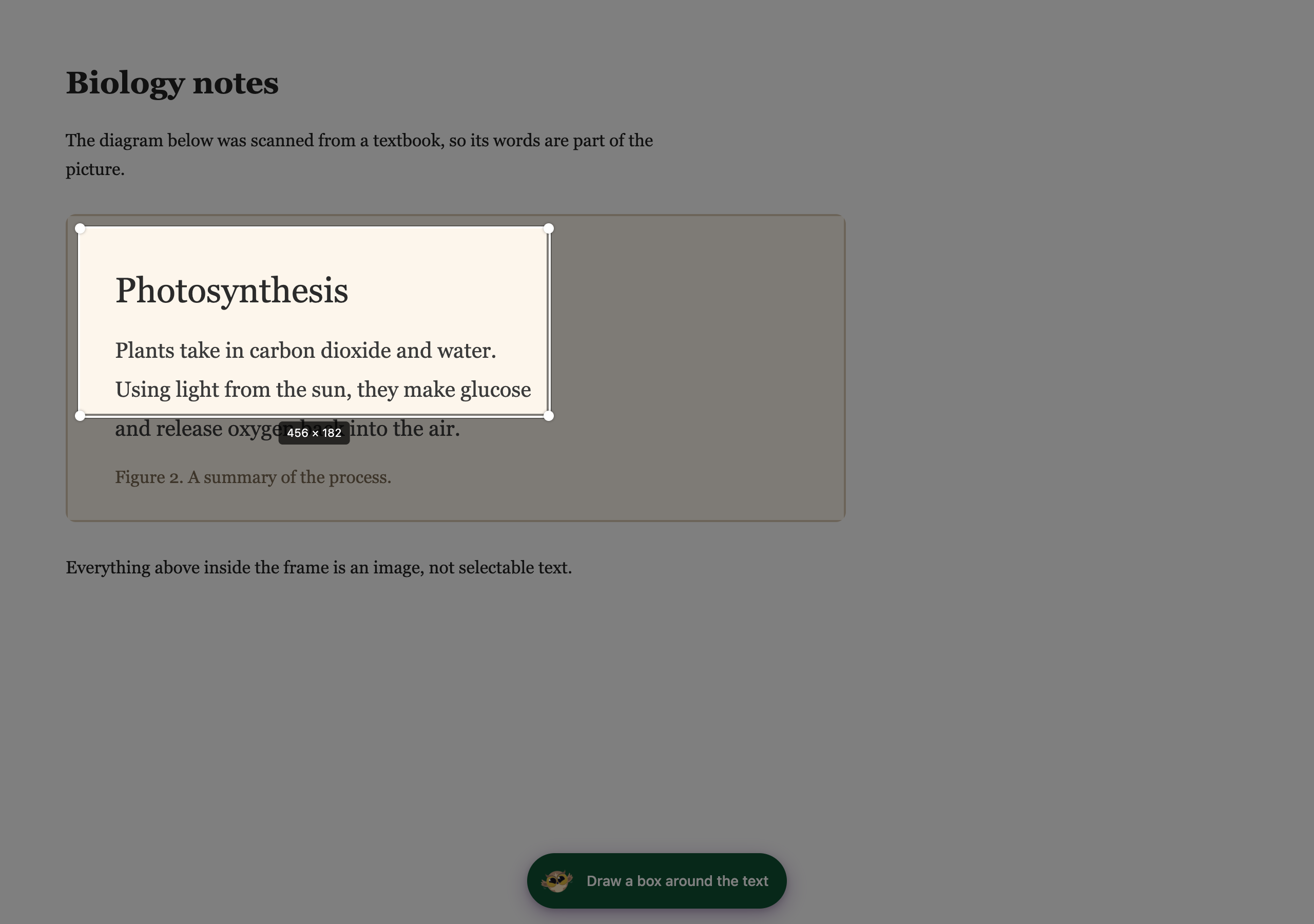
---
## Step 5: Use the Extracted Text
The text arrives at the one destination you picked in Step 3:
- **Copy to clipboard** puts it on your clipboard, ready to paste anywhere
- **Immersive Reader** opens it there, with any equations laid out as maths rather than flattened
into a line of symbols
- **Listen** reads it aloud
- **Translate** opens it in Google Translate with your chosen language
- **Save as note** puts it in a sticky note on the page
With Explain mode on, a card appears with a plain-language explanation instead of the exact text.
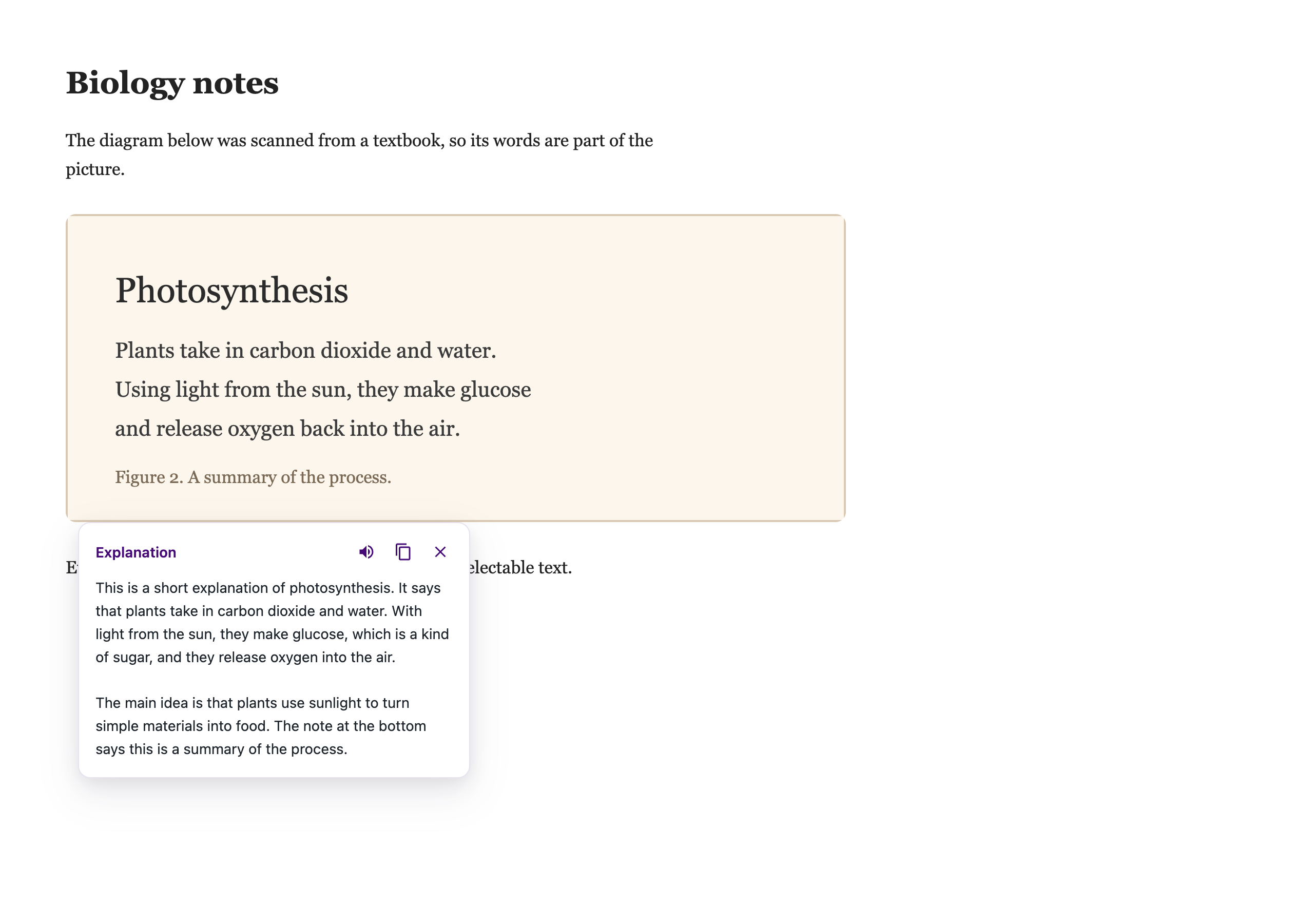
---
## Tips
- For best results, make sure the text in the image is clear and readable. Very small, blurry, or
handwritten text may not be recognized accurately.
- Use Explain mode for charts, diagrams, and formulas. It gives you a plain-English breakdown
instead of raw text.
- You can also open the Screenshot Reader from inside the PDF Reader. See the next section.
---
## Using Screenshot Reader in the PDF Reader
Screenshot Reader is also built into Helperbird's browser PDF Reader. If the current page has no
selectable text, its notice includes a **Screenshot Reader** button. The button sits beside the
message when there is enough room and wraps below it on a narrow screen.
Use Screenshot Reader when a PDF page is an image.
Open your PDF, then click the round button with the dots grid icon in the toolbar. It is the last
button in the group, and it is labelled **Tools**.
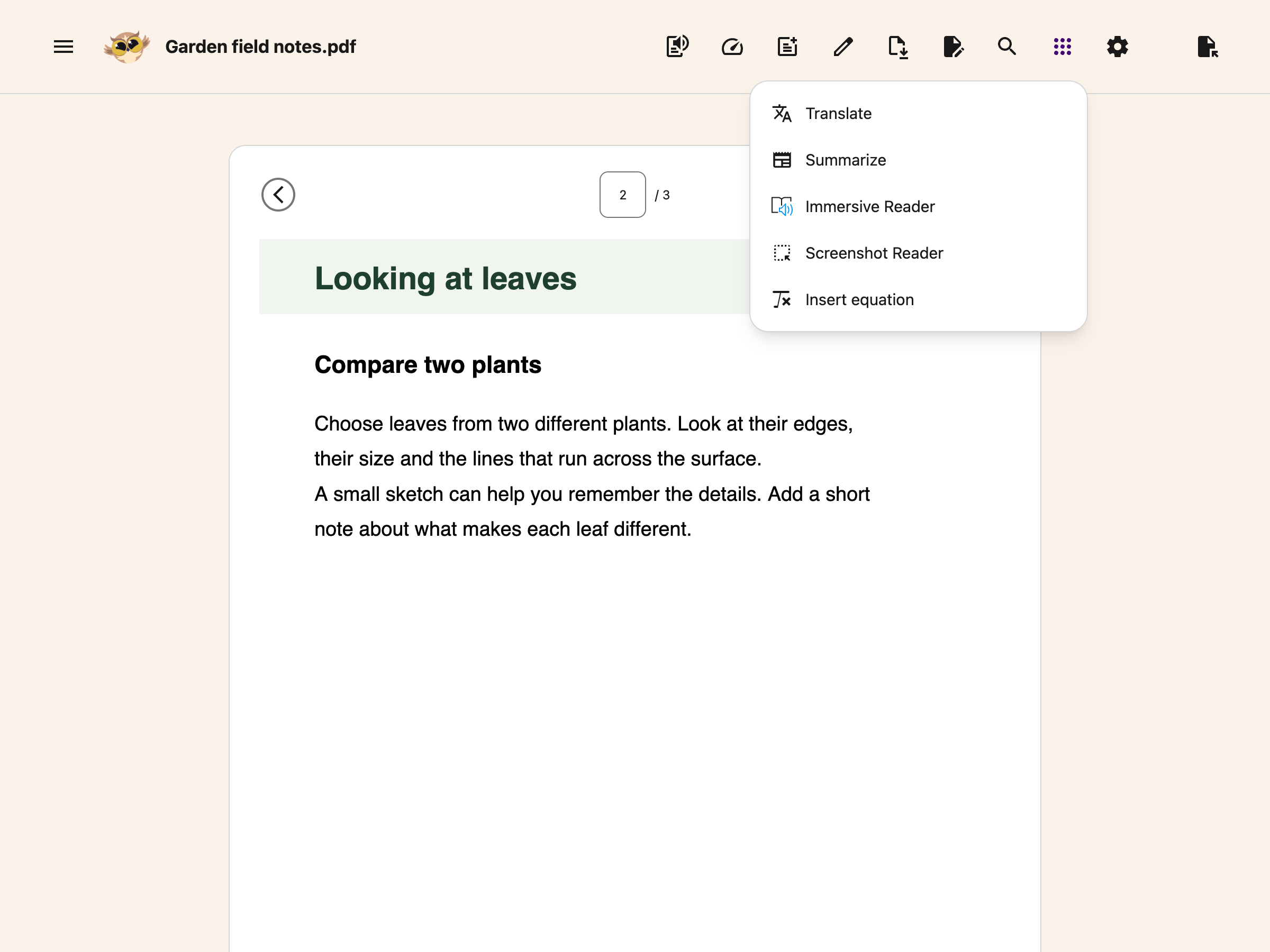
Choose **Screenshot Reader** from the menu and you can capture a region of the page and pull the
text out of it.
It behaves exactly the same way there as it does on a website, and it uses the same settings, so
anything you have chosen here carries over. See
[how to use the Tools menu in the PDF Reader](/help/how-to-use-the-tools-menu-in-the-pdf-reader/).
---
## Translate from Google Slides
Open **Translate** in Helperbird while viewing a Google Slides deck. Its **Screenshot Reader**
button starts capture immediately and opens the result in **Immersive Reader**. Use **Reading
Preferences** there to translate it. This one-capture shortcut leaves your saved Screenshot Reader
destination unchanged. See
[reading and translating Slides](/help/how-to-use-text-to-speech-and-immersive-reader-in-google-slides/).
## Guides for Each Part
- [Use Explain mode](/help/how-to-use-explain-mode-in-the-screenshot-reader/) to get a
plain-language explanation instead of the raw text.
- [How equations are handled](/help/how-helperbird-reads-equations-from-a-screenshot/) -
automatically, with no mode to choose.
---
## Video Tutorial
Coming soon
---

---
## Need Additional Help?
If you have any questions or run into any issues, please contact the Helperbird support team. You
can reach us at [Helperbird support](/support/). We are happy to help you get the most out of
Helperbird.
---
## How to Find a Page in Your Helperbird Reading List
URL: https://www.helperbird.com/help/how-to-find-a-page-in-your-helperbird-reading-list/
## What This Does
Searching narrows your Reading list down to the pages that match what you type, so a long list stops
being a problem.
---
## Who is This For?
This is helpful for:
- Anyone whose list has grown past a screenful
- Students looking for one source among many
- Anyone who remembers a word from the title but not where it came from
---
## Step 1: Open the Search Box
Select the **Search** field at the top of the Reading list. It is already visible when the list
opens.
---
## Step 2: Type What You Remember
Type a word from the page's title or its address. The list narrows as you type.
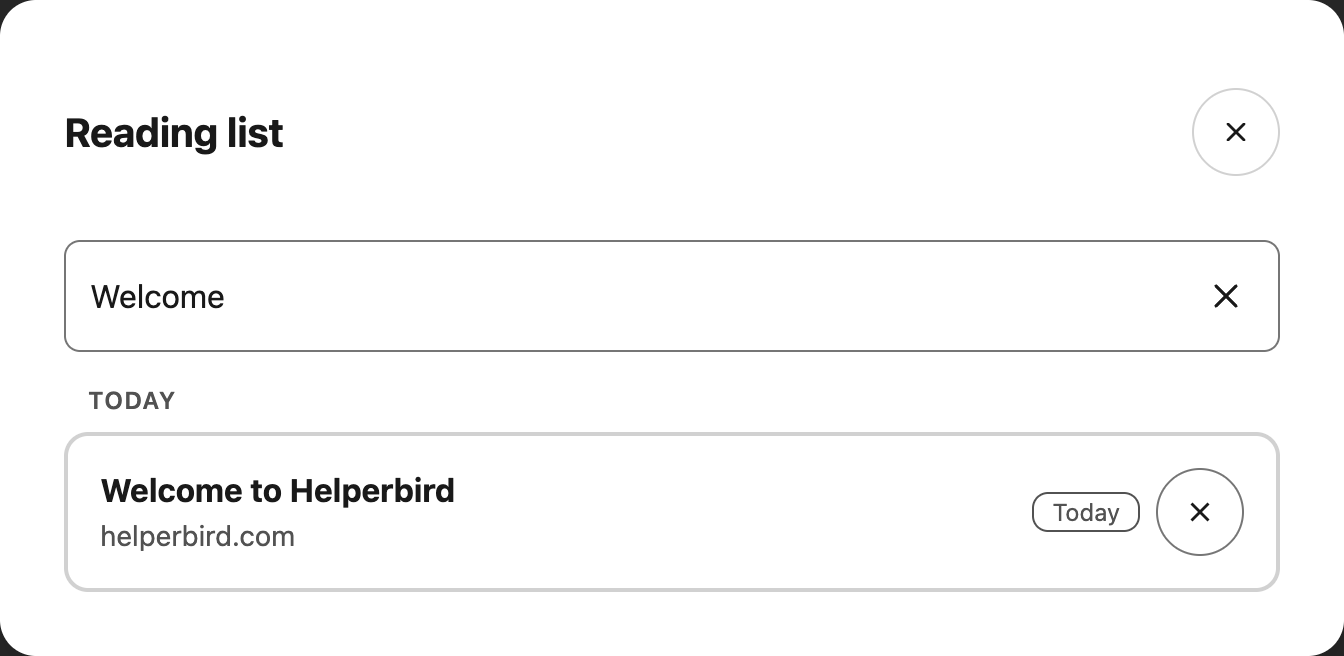
You do not need the whole title. A distinctive word is usually enough.
---
## Clearing the Search
Select **Clear**, the cross inside the search field, to bring the whole list back. Focus returns to
the field so you can type another search.
Searching only filters what is shown. Nothing is removed from your list, so clearing the box always
brings everything back.
---
## Need Additional Help?
If you have any questions or run into any issues, please contact the Helperbird support team. You
can reach us at [Helperbird support](/support/). We are happy to help you get the most out of
Helperbird.
---
## How to Find Similar and Opposite Words in Helperbird
URL: https://www.helperbird.com/help/how-to-find-similar-and-opposite-words-in-helperbird/
## What This Does
Under the definitions, the Helperbird Dictionary lists **Similar words**, which mean roughly the same thing, and **Opposite words**, which mean the reverse. Each one is a button you can click.
---
## Who is This For?
This is helpful for:
- Anyone writing who keeps reaching for the same word
- Students asked to use more varied vocabulary
- People learning English who want to see a word's neighbours
- Anyone who half-remembers a word and is trying to find it
---
## Finding Similar Words
Look up a word, choose **Full entry**, and scroll down past the definitions. **Similar words** appears as a row of buttons.
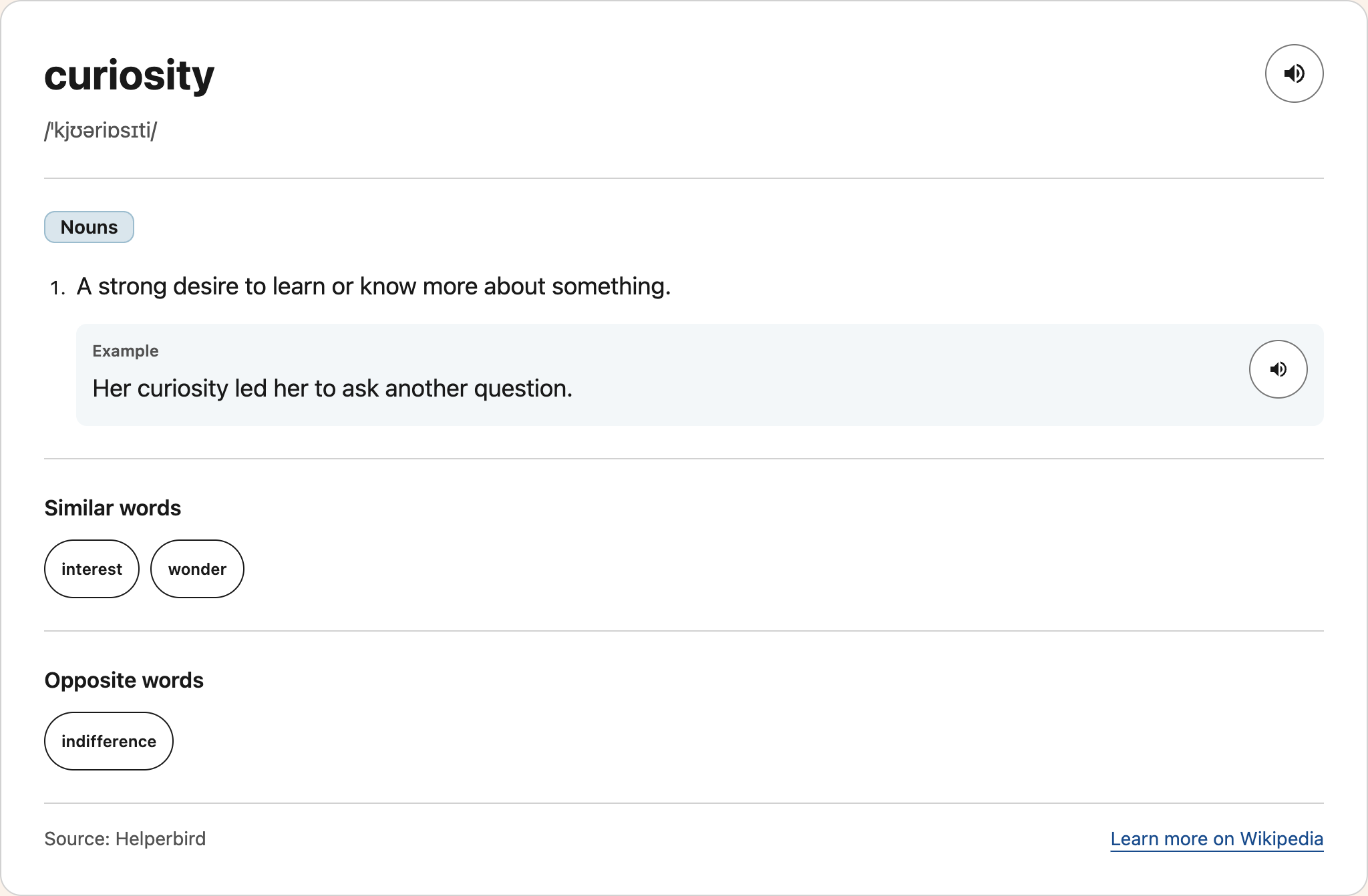
---
## Looking One Up
Click any of those words and the Dictionary looks it up immediately, replacing the result on screen. You do not have to retype it.
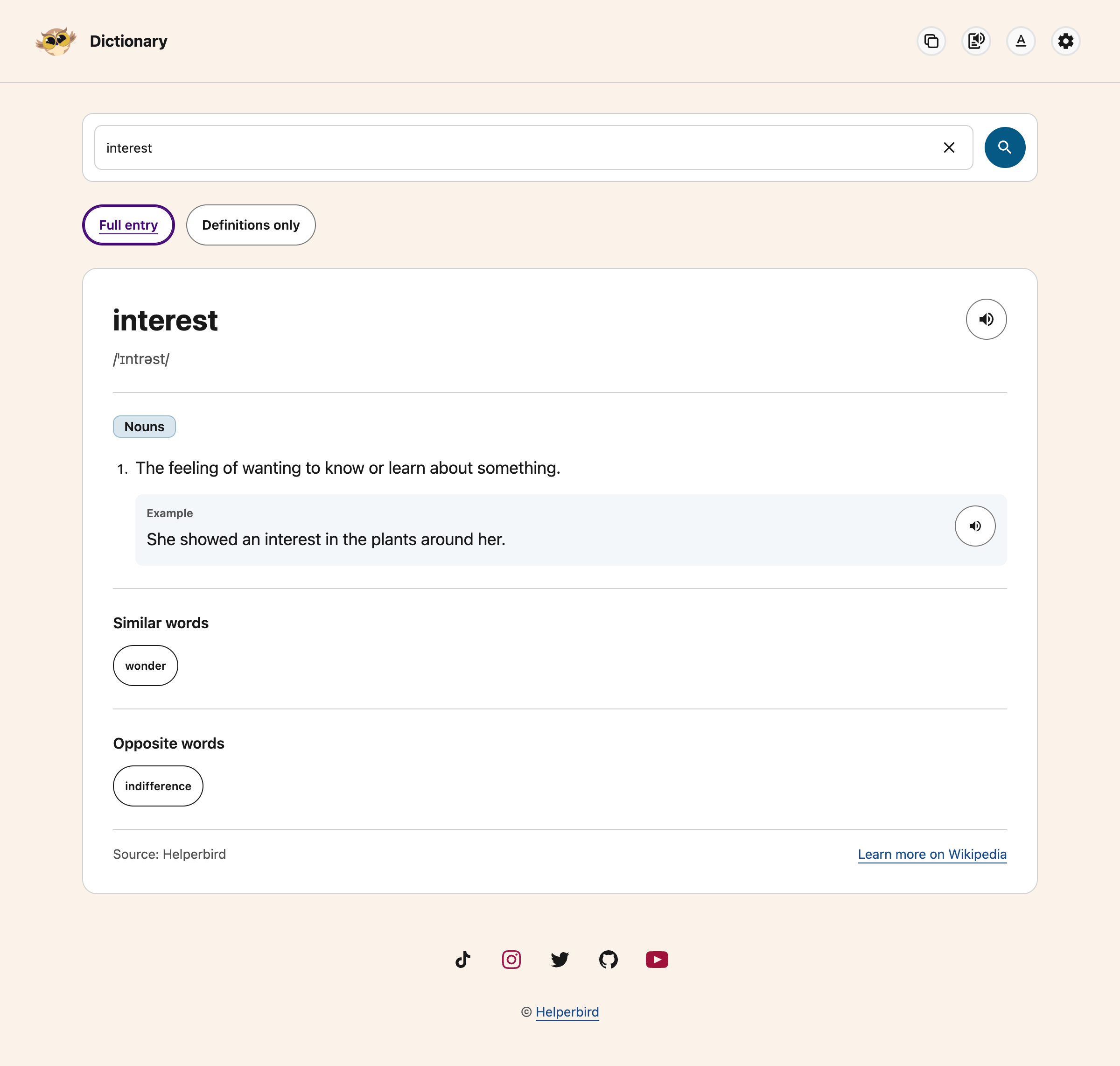
This is a quick way to follow a chain of related words until you find the one you actually want. Your browser's back button returns you to the previous word.
---
## Opposite Words
**Opposite words** works exactly the same way, and appears underneath.
Not every lookup returns similar or opposite words. If a list is missing, first check that **Full entry** is selected. **Definitions only** hides both lists and the examples.
---
## Need Additional Help?
If you have any questions or run into any issues, please contact the Helperbird support team. You can reach us at [Helperbird support](/support/). We are happy to help you get the most out of Helperbird.
---
## How to Hear a Word Read Aloud in the Helperbird Dictionary
URL: https://www.helperbird.com/help/how-to-hear-a-word-read-aloud-in-the-helperbird-dictionary/
## What This Does
There are two kinds of speaker button in the Helperbird Dictionary. One reads the word itself, so
you can hear how it is said. The others read a single example sentence, so you can hear the word
used in context.
---
## Who is This For?
This is helpful for:
- Anyone who cannot tell how a word is said from its spelling
- People with dyslexia, where an unfamiliar word is easier to recognize by ear
- People learning English who want to hear the stress and rhythm of a sentence
- Anyone who prefers listening to reading
---
## Hearing the Word
Look up a word, then click the **speaker button** next to it at the top of the result. Helperbird
reads the word on its own. The player appears above the result, and the speaker button becomes
**Stop** until reading finishes.
---
## Hearing an Example Sentence
Every **Example** has its own speaker button on the right. Click it and Helperbird reads just that
sentence, not the whole page.
This is the more useful of the two when you already know what a word means but are not sure how it
is used.
---
## Hearing the Entry
Select **Text to Speech** in the top toolbar to show the player, then **Play**. It reads the content
in your chosen view: **Full entry** includes examples and related words; **Definitions only** reads
the meanings.
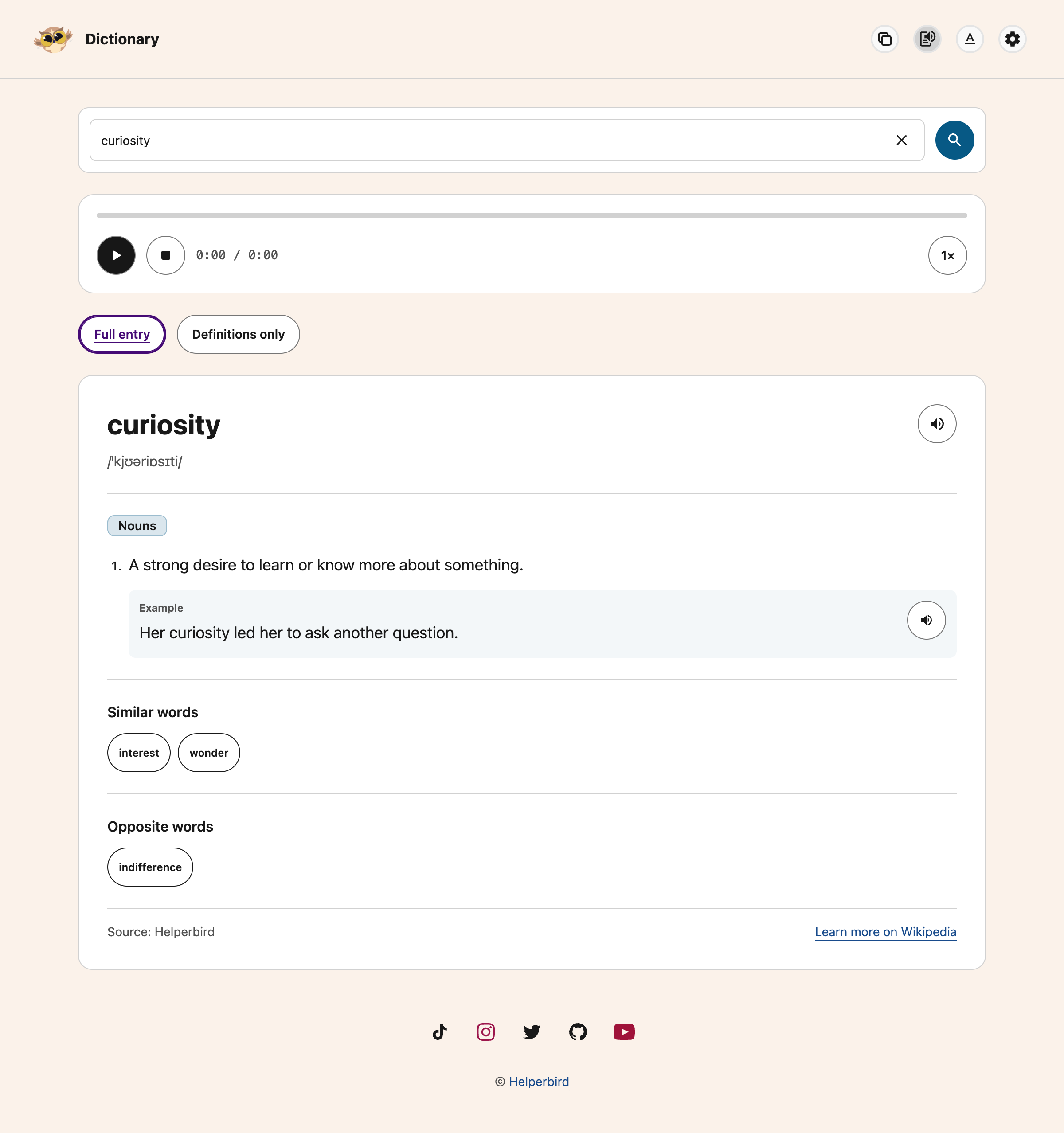
Use **Pause** and **Play** to continue from the same place. **Stop** ends the reading. The **1×**
button cycles through reading speeds. The progress bar and time estimate help you follow along.
Looking up another word, clearing the search, changing views or hiding the player stops reading.
Showing the player never starts reading automatically.
---
## Which Voice is Used?
The player and speaker buttons use Helperbird's shared text-to-speech engine and your saved voice
choices. Change the voice in
[text-to-speech settings](/help/how-to-use-text-to-speech-on-any-website/). The Dictionary player
starts at **1×** speed; use its speed button to change the pace.
If nothing is spoken, check that a voice is selected in those settings, and that your device is not
muted.
---
## Need Additional Help?
If you have any questions or run into any issues, please contact the Helperbird support team. You
can reach us at [Helperbird support](/support/). We are happy to help you get the most out of
Helperbird.
---
## How to Hear an Equation Read Aloud in Helperbird
URL: https://www.helperbird.com/help/how-to-hear-an-equation-read-aloud-in-helperbird/
## What This Does
**Read aloud** speaks your equation, saying it the way a person would rather than reading the
symbols one by one.
---
## Who is This For?
This is helpful for:
- Anyone who finds a dense line of symbols hard to take in by eye
- Students checking they have written what they meant
- People with dyslexia or dyscalculia working through maths
- Anyone learning how an unfamiliar equation is said out loud
---
## How to Do It
Write your equation, then click **Read aloud** in the toolbar. It is the speaker on the left.

It uses the same voice and speed as the rest of Helperbird's
[text to speech](/help/how-to-use-text-to-speech-on-any-website/), so change them there and this
follows.
---
## Why It Helps
Reading maths by eye is slow and easy to get wrong, because the meaning is carried by position as
much as by the symbols. A squared term and a subscript look similar at a glance and sound completely
different.
Hearing it back is the quickest way to catch that you have written the wrong one, in the same way
that [hearing a sentence read back](/help/how-to-hear-your-sentence-read-back-as-you-type/) catches
a sentence that does not say what you meant.
---
## Need Additional Help?
If you have any questions or run into any issues, please contact the Helperbird support team. You
can reach us at [Helperbird support](/support/). We are happy to help you get the most out of
Helperbird.
---
## How to Hear Your Sentence Read Back as You Type
URL: https://www.helperbird.com/help/how-to-hear-your-sentence-read-back-as-you-type/
## What This Does
Hearing your own writing read back is one of the most reliable ways to catch a sentence that does not say what you meant. Your eye skips over it; your ear does not.
With **Read sentence** on, Helperbird speaks each sentence back to you the moment you finish it, so you catch problems as you write rather than at the end.
---
## Who is This For?
This is helpful for:
- Anyone with dyslexia who finds proofreading by eye unreliable
- Students who have been told to read their work aloud, done automatically
- Anyone writing in a second language who wants to hear whether it sounds right
- People who think more clearly by ear than by eye
---
## Step 1: Turn Word Prediction On
Read sentence lives inside word prediction and only works while prediction is running. Open Helperbird, go to **All Features**, and turn on **Word prediction**.
---
## Step 2: Turn On Read Sentence
Open the word prediction options and turn on **Read sentence**.
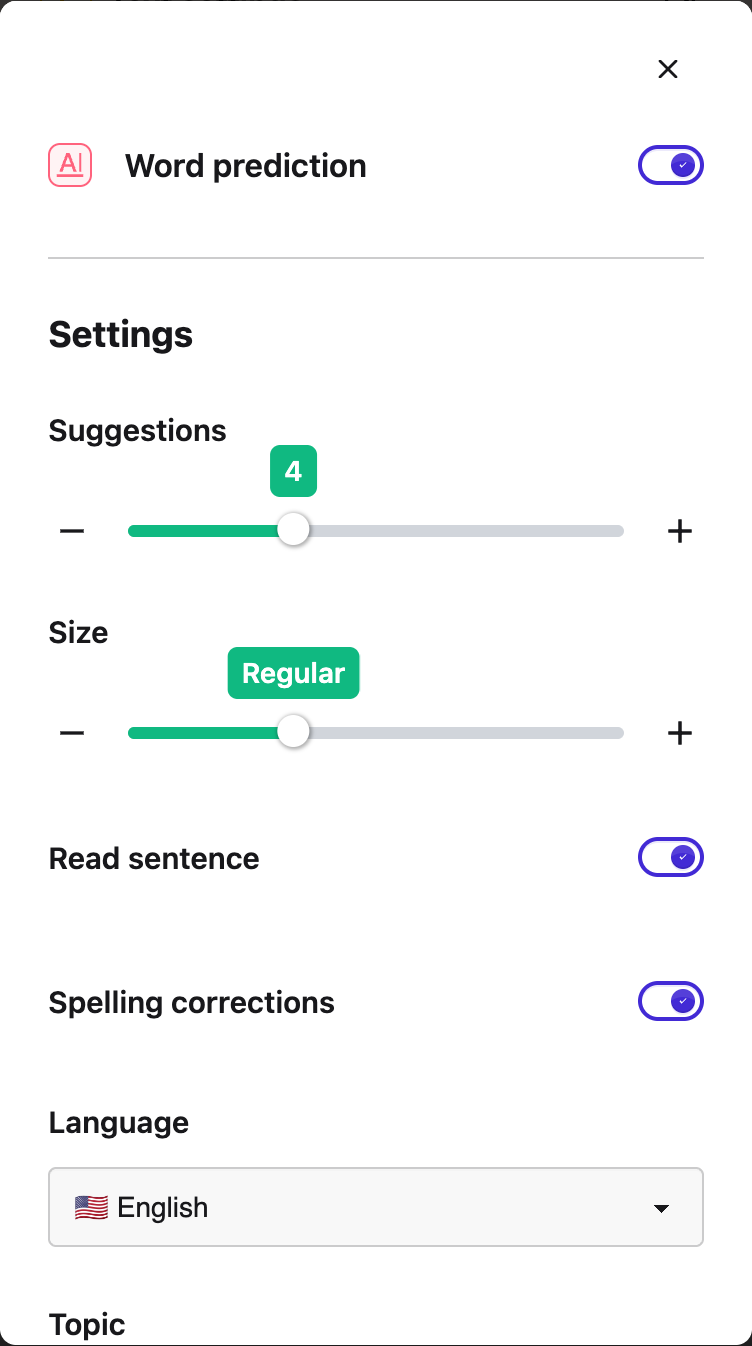
---
## Step 3: Write a Sentence
Type as normal. When you finish a sentence with a full stop, a question mark or an exclamation mark, Helperbird reads that sentence back to you.
It reads whole sentences, not each word as you type it, so it does not interrupt you mid-thought. If you never type a full stop, nothing is read.
---
## Which Voice It Uses
It uses the same voice, speed and pitch as the rest of Helperbird's [text to speech](/help/how-to-use-text-to-speech-on-any-website/). Change them there and this follows.
It is worth picking a voice you are happy to hear often, and a slightly faster speed than you would use for reading a page, since you already know what the sentence says.
---
## If You Hear Nothing
- Check **word prediction itself is on**. Read sentence does nothing on its own.
- Check you finished the sentence with `.`, `?` or `!`.
- Check a voice is chosen in your text to speech settings, and that your device is not muted.
This pairs well with [word prediction](/help/how-to-use-word-prediction-on-any-website-or-google-docs/) for help while you write, and with [the grammar checker](/help/how-to-use-the-grammar-checker-in-helperbird/) for a check once you have finished.
---
## Need Additional Help?
If you have any questions or run into any issues, please contact the Helperbird support team. You can reach us at [Helperbird support](/support/). We are happy to help you get the most out of Helperbird.
---
## How to Hide Images and GIFs on Any Website
URL: https://www.helperbird.com/help/how-to-hide-images-and-gifs-on-every-website/
## What is Hide Images?
**Hide images & GIFs** takes every picture off a web page and leaves the text. Animated images go
with them, so nothing on the page moves.
This helps you focus on reading the actual content without being distracted by pictures or moving
images.
---
## Who is This For?
This feature is helpful for:
- People who are distracted by images when trying to read
- Anyone sensitive to motion or flashing images
- People with slow internet connections who want pages to load faster
- Students who want to focus on text content
- Anyone who finds animated GIFs overwhelming
---
## Step 1: Open Helperbird
Click the Helperbird icon in your browser toolbar. It looks like a small owl and is usually in the
top-right corner of your browser.
This will open the Helperbird menu.
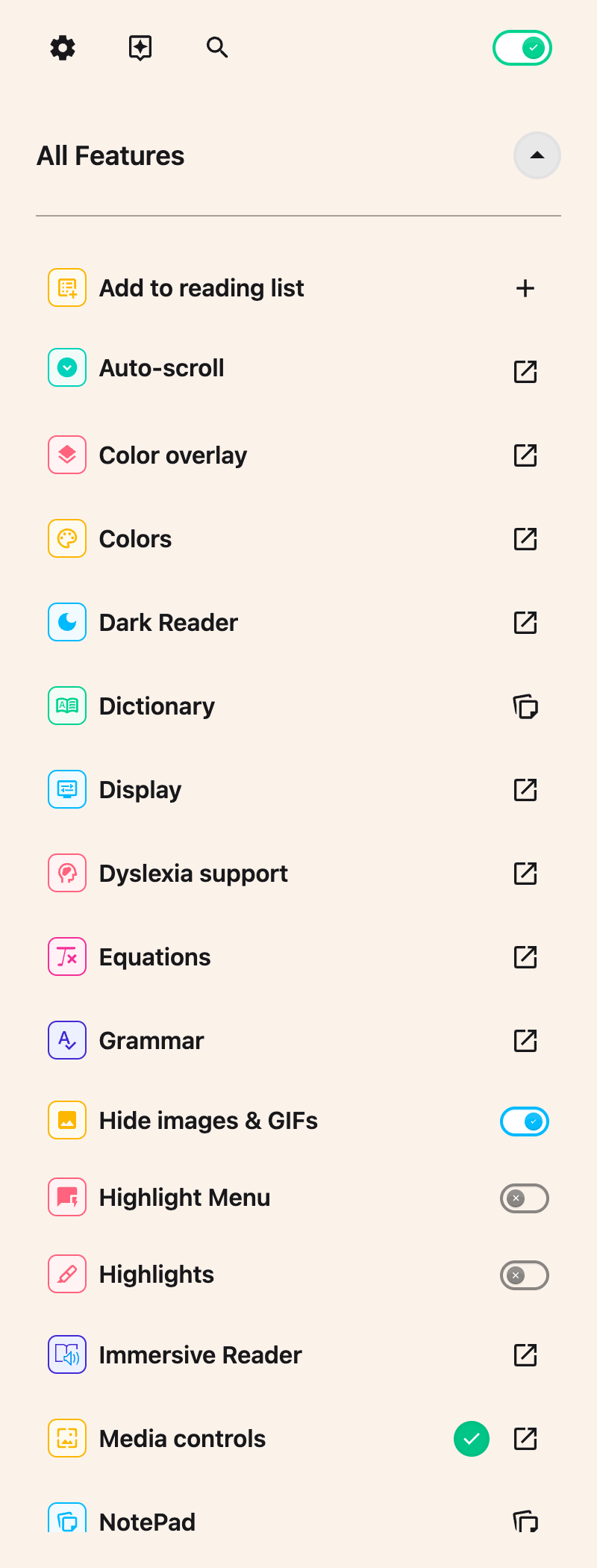
---
## Step 2: Go to the All Features Section
Scroll down to the bottom of the Helperbird menu. You will see a section called **All Features**.
Click the arrow next to **All Features** to expand it and show all available features.
---
## Step 3: Find Hide Images & GIFs
Look through the list of features until you see **Hide images & GIFs**.
This used to be two separate rows. It is now one, so there is a single toggle to find rather than a
pair.
---
## Step 4: Turn It On
Click the toggle switch next to the feature you want to use:
Click the toggle. Every image on the page disappears, animated ones included, and the text stays
exactly where it was.
The toggles will turn green when enabled. The changes apply immediately to the current page.
There is no longer a way to hide only the animated images and keep the still ones. If movement is
the problem rather than the pictures, use
[Reduce motion](/help/how-to-stop-animations-on-any-websites/) instead, which stops animation
without taking the images away.
---
## Video Tutorial
Coming soon
---
## Need Additional Help?
If you have any questions or run into any issues, please contact the Helperbird support team. You
can reach us at [Helperbird support](/support/). We are happy to help you get the most out of
Helperbird.
---
## How to Hide Your Highlights Without Deleting Them
URL: https://www.helperbird.com/help/how-to-hide-your-highlights-without-deleting-them/
## What This Does
Highlights are useful while you are working and distracting when you are not. This switch takes them
off the page without deleting anything, so you can read the page clean and bring them back whenever
you want.
---
## Who is This For?
This is helpful for:
- Anyone re-reading a page they have already marked up heavily
- Students testing themselves without the answers highlighted in front of them
- Anyone who finds a page of color hard to read
- People about to share their screen who would rather not show their notes
---
## Step 1: Open All Features
Open Helperbird and go to **All Features**. Scroll to the **Highlighter** row.
The row needs Helperbird Pro. On the free plan the toggle is replaced by a **Pro feature** badge
that links to the upgrade page. It is not there at all on iPad or iPhone.
---
## Step 2: Turn Highlights Off
Turn **Highlighter** off. Saved marks and the color palette disappear, and a toast confirms the
change after it is saved. The separate Highlight Menu stays available if its own toggle is on.
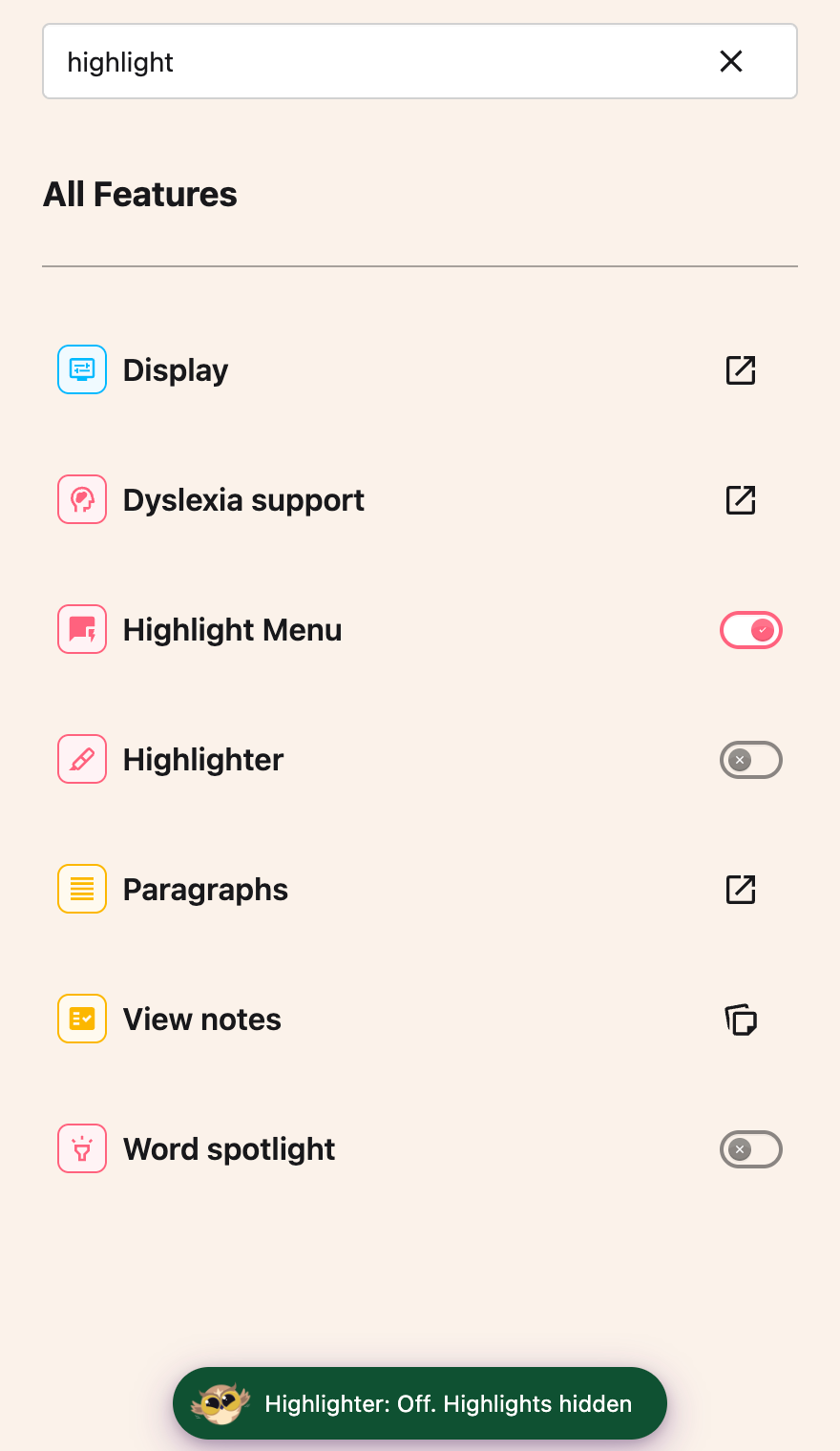
Nothing has been deleted. Every highlight is still saved, still attached to the page it was made on,
and still listed in your notes.
---
## Getting Them Back
Turn **Highlighter** back on. A toast confirms the change and your saved marks reappear. Select text
to use the color palette again. If saving fails, the toggle returns to its previous state and an
error message appears.
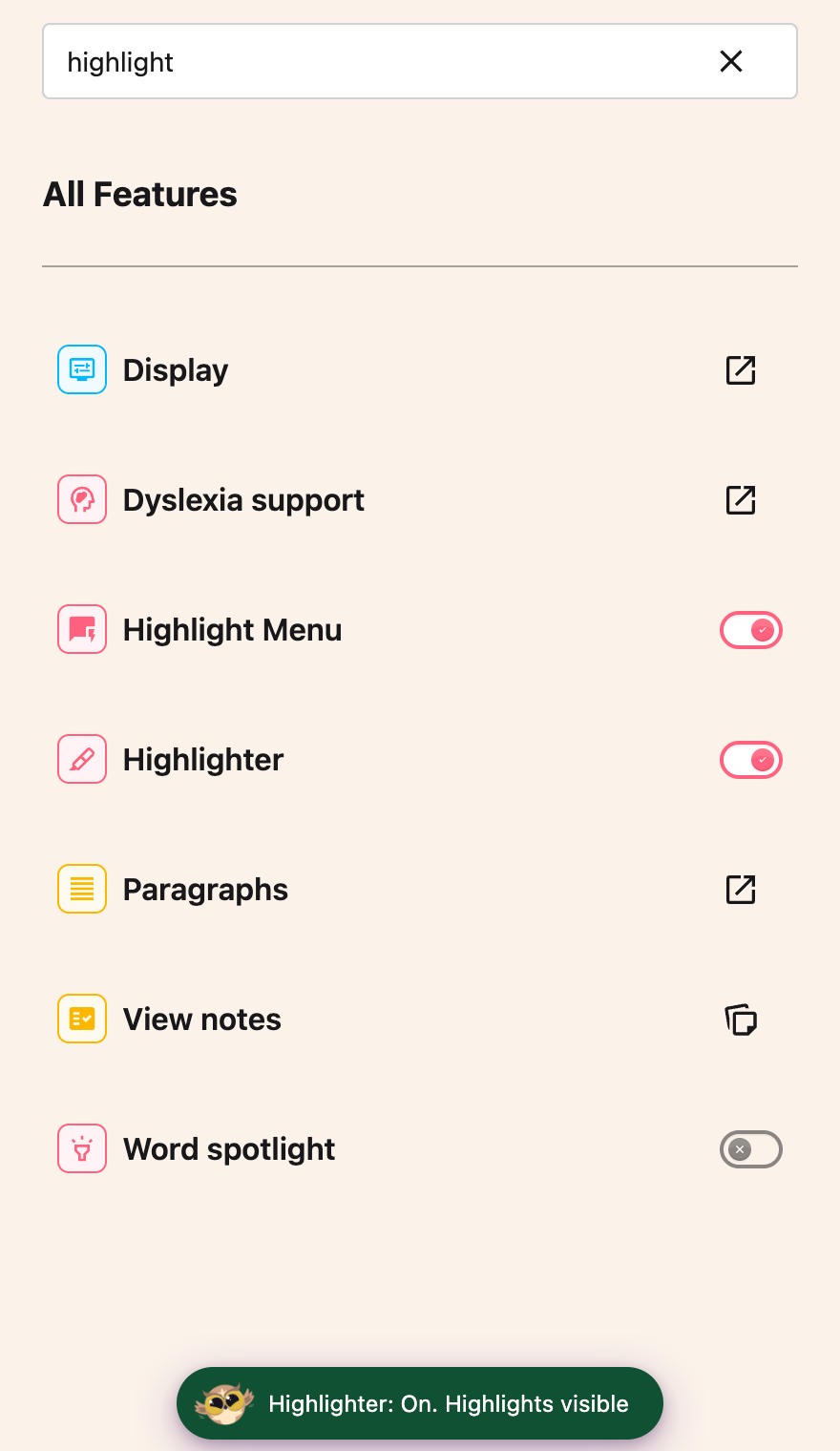
If you actually want a highlight gone for good, that is a different job. See
[how to manage sticky notes and highlights](/help/how-to-manage-sticky-notes-and-highlights-in-helperbird/).
See also
[how to highlight words and paragraphs](/help/how-to-highlight-words-and-paragraphs-on-any-website/).
---
## Need Additional Help?
If you have any questions or run into any issues, please contact the Helperbird support team. You
can reach us at [Helperbird support](/support/). We are happy to help you get the most out of
Helperbird.
---
## How to Put a Border Around Every Paragraph on Any Website
URL: https://www.helperbird.com/help/how-to-highlight-paragraphs-on-any-page/
## What are Paragraph Borders?
This page is about borders, not highlighting. Paragraph Borders draws a colored outline around the
edge of every paragraph on a page. It does not fill the paragraph with color.
The outline shows you where one paragraph ends and the next one starts, so it is harder to lose your
place while you read.
**Looking for the shaded version?** The feature that fills each paragraph with color is the
**Background** row, one row down in the same **Paragraphs** panel. Helperbird calls it Paragraph
highlight when you search for it. It has its own guide:
[How to Change the Paragraph Background Color on Any Website](/help/how-to-change-paragraph-background-color-on-any-website/).
You can turn on Border, Background, or both.
You can choose any border color you like.
---
## Who is This For?
This feature is helpful for:
- People who lose their place while reading long text
- Anyone who finds walls of text hard to navigate
- Students reading dense articles or essays
- People with dyslexia or attention difficulties
- Anyone who wants clearer visual separation between paragraphs
---
## Step 1: Open Helperbird
Click the Helperbird icon in your browser toolbar. It looks like a small owl and is usually in the
top-right corner of your browser.
This will open the Helperbird menu.
---
## Step 2: Open the All Features Section
Scroll down to the bottom of the Helperbird menu. You will see a section called **All Features**.
Click the arrow next to **All Features** to expand it and show all available features.
---
## Step 3: Find Paragraphs
Look through the list of features until you see **Paragraphs**.
---
## Step 4: Open the Paragraphs Panel
Click the arrow button next to **Paragraphs** to open it.
A panel will appear with the paragraph settings, starting with **Border**.
---
## Step 5: Turn on Border
In the Paragraphs panel, find **Border** with a toggle switch next to it.
Click the toggle to turn it **on**. The toggle will turn green when it is enabled.
All paragraphs on the page will now have colored borders around them.
---
## Step 6: Choose a Color
After turning on Border, a **Color** heading and a grid of swatches appear below the toggle.
Click any swatch to change the border color. You can also set your own color instead of using a
swatch.
Your choice is saved automatically.
**Tip:** Use a contrasting color that stands out against the page background for the best
visibility.
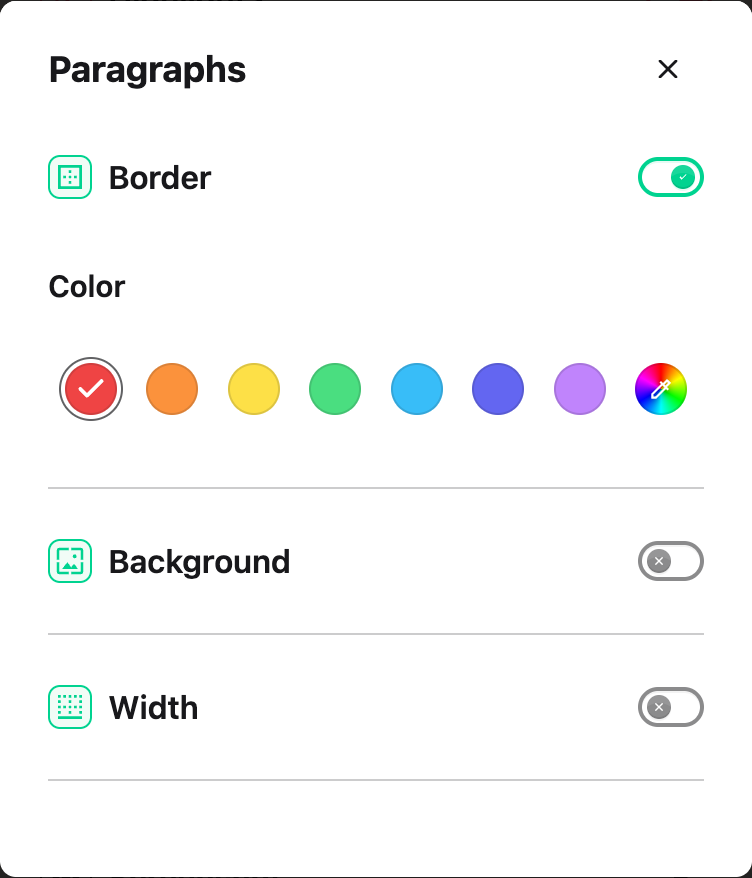
---
## Video Tutorial
Coming soon
---
## Need Additional Help?
If you have any questions or run into any issues, please contact the Helperbird support team. You
can reach us at [Helperbird support](/support/). We are happy to help you get the most out of
Helperbird.
---
## How to Highlight Text on Any Website
URL: https://www.helperbird.com/help/how-to-highlight-words-and-paragraphs-on-any-website/
## What This Does
Select text, pick a color, and the text stays marked.
Every highlight you make is saved. Come back to the same page next week and your marks are still
there.
---
## Who is This For?
This feature helps if:
- You study from web pages and need to find the important lines again
- You research across many pages and want the useful parts in one place
- You read better when you mark up the text
- You sort information by color
- You return to the same reference pages often
---
## How to Turn On the Highlighter
1. Click the Helperbird icon in your browser toolbar.
2. Scroll to the bottom of the menu and open **All Features**.
3. Find **Highlighter** in the list.
4. Turn its toggle on.
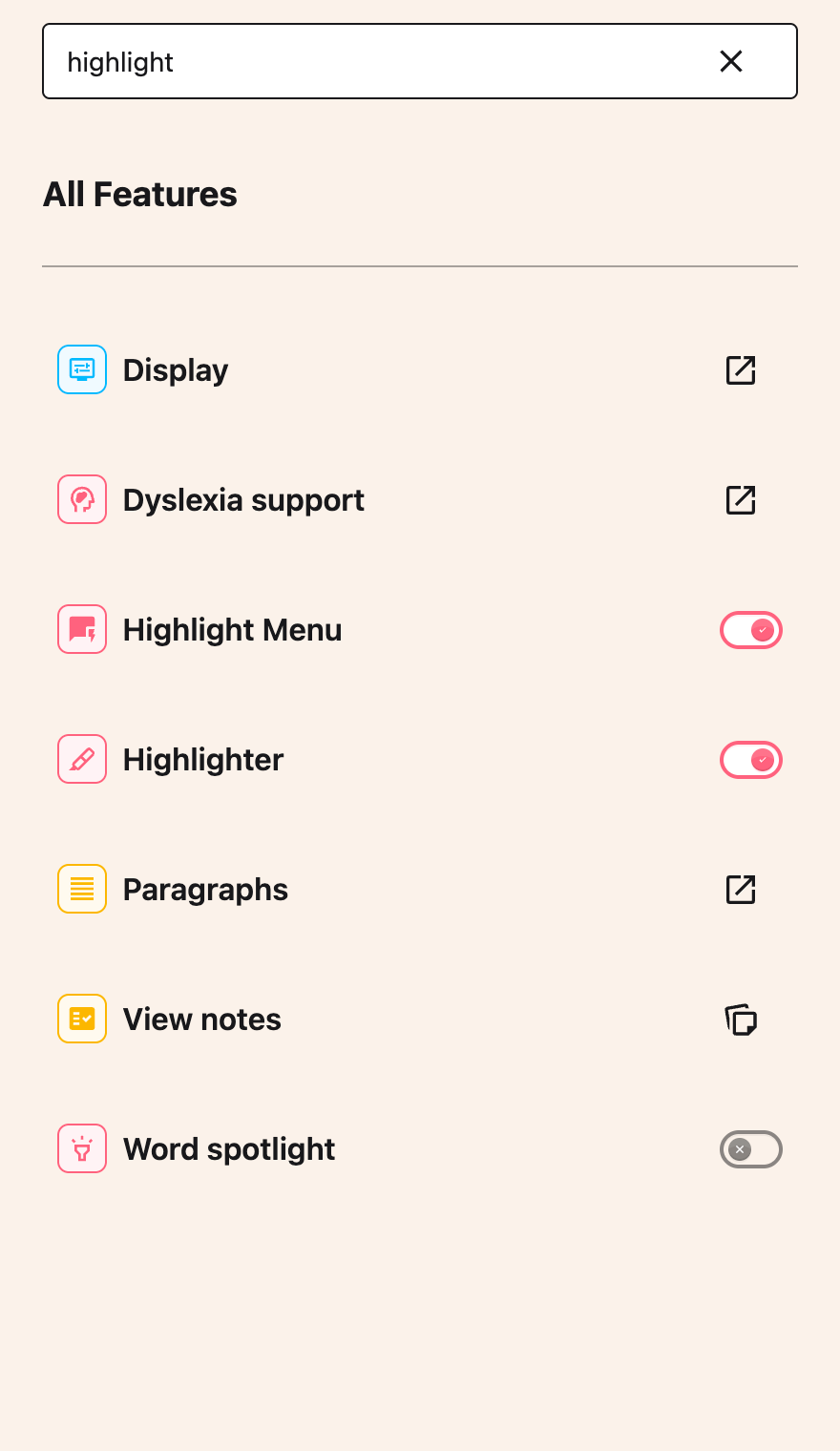
Turning Highlighter on shows your saved highlights and makes the color palette available when you
select text. A confirmation appears after the setting is saved.
The separate **Highlight Menu** contains the reading tools. If both are on, the reading menu appears
above your selection and the color palette below it. Near the edge of the window, the menus move to
fit without covering each other. You can use either menu on its own.
---
## How to Highlight Text
1. Select the words you want to mark.
2. Choose a color directly from the palette below the selection: Blue, Green, Red, Yellow, Gray or
Purple.

The text takes that color straight away. Select more text to add another highlight.

Making highlights requires Helperbird Pro. Free users can still view previously saved highlights
when Highlighter is on, but do not see the creation palette.
Each highlight keeps the color you chose. The Colors panel is for page text, links and backgrounds;
Highlighter has its own control in All Features.
---
## Where Your Highlights Go
Every highlight is saved to Notes as well as painted on the page.
Click a highlight, or press Enter or Space when it has focus, and Notes opens in a new tab. From
Notes you can export what you have gathered as a PDF or as plain text.
Clicking a highlight does not remove it. You delete a highlight in Notes.
Your saved highlights keep appearing even when the **Highlight Menu** toggle is off. The reading
menu is independent. To hide both the saved marks and the color palette without deleting anything,
turn **Highlighter** off. That toggle is a Helperbird Pro feature. See
[how to hide your highlights](/help/how-to-hide-your-highlights-without-deleting-them/).
---
## Limits and Browser Support
Your highlights come back when you open the same web address. Links that carry extra text after a
question mark, such as tracking links and search result links, can count as a different address.
When that happens the marks do not appear.
By default your highlights follow you to the browsers you are signed in to. If you have turned
**Sync** off in Helperbird's settings, they stay on this device. See
[how to sync your Helperbird settings](/help/how-to-sync-your-helperbird-settings/).
Storage space can run out. If it fills up, Helperbird saves to this device instead. If that is full
too, the highlight is not saved.
The web selection menus are not available inside Helperbird’s PDF Reader. Use its
[drawing tools](/help/how-to-use-drawing-tools-on-pdfs-with-helperbird/) or
[text boxes](/help/how-to-add-text-boxes-to-pdf-with-helperbird/) to annotate a PDF.
Table: Where the Highlight Menu and the Highlighter toggle are available.
| Where | Highlight Menu | Highlighter toggle |
| ----------------------------- | -------------- | ------------------ |
| Chrome, Edge, Firefox, Safari | Yes | Yes |
| Helperbird PDF Reader | No | No |
| Google Docs | No | No |
| iPad and iPhone | No | No |
---
## Video Tutorial
This video shows an older combined menu. Use the separate **Highlighter** toggle and palette
described above in the current version.
Coming soon
---
## Related Guides
- [Word spotlight](/help/how-to-highlight-words-on-hover/) - A yellow highlight that follows your
mouse and saves nothing.
- [The Highlight Menu](/help/how-to-use-the-highlight-menu-in-helperbird/) - Read aloud, look up
words, search and translate selected text.
- [Highlight words as they are read aloud](/help/how-to-highlight-words-as-they-are-read-aloud/) -
Word highlighting that follows the voice.
- [Notes](/help/how-to-manage-sticky-notes-and-highlights-in-helperbird/) - Where your highlights
collect and how to export them.
- [Hide your highlights](/help/how-to-hide-your-highlights-without-deleting-them/) - Clear the color
from the screen without deleting it.
---
## Need Additional Help?
If you have any questions or run into any issues, please contact the Helperbird support team. You
can reach us at [Helperbird support](/support/). We are happy to help you get the most out of
Helperbird.
---
## How to Highlight Words as They Are Read Aloud
URL: https://www.helperbird.com/help/how-to-highlight-words-as-they-are-read-aloud/
## What This Does
With this on, each word lights up as it is spoken. Instead of listening and reading separately, your
eye is pulled along by the voice.
This is a beta feature, so it is still being worked on.
---
## Who is This For?
This is helpful for:
- Anyone who loses their place when listening and reading at the same time
- Readers with dyslexia, where pairing the sound with the word helps it stick
- Students learning to read, or reading in a second language
- Anyone who drifts off partway through a paragraph
---
## Step 1: Turn It On
Beta features live on the settings page. Open Helperbird, open **Options**, choose **Settings**, and
scroll to **Beta features**. See
[how to use beta features](/help/how-to-use-beta-features-in-helperbird/) for the full route.
Highlight spoken words with its preview sentence and color choices.
**Highlight spoken words** starts on. Turn it on if you previously switched it off.
---
## Step 2: Pick a Color
Underneath the switch there is a row of colors and a preview sentence showing how the highlight will
look. Yellow is chosen to start with.
Pick one you can see but that does not drown out the text. If you use a color overlay or dark mode,
check the preview, because a highlight that works on white may disappear on a tinted page.
---
## Where It Works
Highlighting appears in **Reading Mode** and when you have **selected some text** and had it read.
It does not highlight when reading a whole page you have not selected.
---
## If Nothing Highlights
**Word highlighting only works with your computer's own voices.** If you have chosen one of the
Natural voices, the words will not light up, because those voices do not report their position as
they speak.
Switch to a local voice in your
[text to speech settings](/help/how-to-use-text-to-speech-on-any-website/) and it will start
working. Voice availability depends on your browser and device.
---
---
## Need Additional Help?
If you have any questions or run into any issues, please contact the Helperbird support team. You
can reach us at [Helperbird support](/support/). We are happy to help you get the most out of
Helperbird.
---
## How to Use Word Spotlight to Highlight Words on Hover with Helperbird
URL: https://www.helperbird.com/help/how-to-highlight-words-on-hover/
## How Word Spotlight Behaves
**Word spotlight** paints the single word under your mouse pointer yellow. One word at a time, always the word you are pointing at.
It waits for you to stop moving. The yellow appears about 80 milliseconds after the pointer settles, so nothing lights up mid-sweep. The word stays lit until you land on a different word.
Helperbird paints over the page rather than editing it. Your text is never rewritten, nothing is saved, and turning the feature off leaves the page exactly as it was.
New to it? Start with [what Word spotlight is and how to turn it on](/help/how-to-use-word-spotlight-on-any-website/).
---
## Where It Works
Table: Where Word spotlight works and what it needs there.
| Where | Works |
| --- | --- |
| Chrome, Edge, Firefox, Safari | Yes |
| Normal websites | Yes |
| Helperbird's own pages, such as the PDF reader and Notes | No |
| iPad and iPhone | Only with a mouse or trackpad attached |
Helperbird's own switch, at the top right of the menu, has to be on. When Helperbird is off, Word spotlight is off with it.
---
## What It Does Not Do
**It does not dim the rest of the page.** There is no torch beam and no shaded area around the pointer. One word is colored; everything else stays exactly as it was.
**The color is fixed.** It is always the same marker yellow. Nothing in Helperbird changes it, including the colors you pick for the highlighter pen.
**It needs a pointer.** Word spotlight follows mouse movement and nothing else. Touch does not trigger it, and neither does the keyboard.
**It skips text you can edit.** Text boxes, search fields and rich text editors are left alone, so it will not follow you while you type.
**It splits words at apostrophes and hyphens.** In "don't" it highlights **don** or **t**, not the whole word. Same with "well-known".
**It splits at accented letters too.** In "café" it highlights **caf**. On text that does not use the Latin alphabet, such as Greek, Arabic or Japanese, nothing highlights at all.
---
## What a Screen Reader Hears
Each time the yellow moves to a new word, Helperbird announces "Highlighted word", followed by the word.
The announcement is polite, so it waits for your screen reader to finish what it is saying rather than cutting in. It only fires when the word changes, so sweeping the pointer across a line does not read the whole line out.
The yellow itself is invisible to a screen reader. It is paint, not content.
---
## Three Ways Helperbird Highlights
Helperbird has three highlighting features that people mix up. Here is the difference.
Table: The three Helperbird highlighting features, what each one colors, and whether it is saved.
| Feature | What it colors | What moves it | Is it saved? |
| --- | --- | --- | --- |
| Word spotlight | One word | Your mouse pointer | No |
| [Read aloud word highlighting](/help/how-to-highlight-words-as-they-are-read-aloud/) | One word | The voice reading the page | No |
| [Highlighter](/help/how-to-highlight-words-and-paragraphs-on-any-website/) | The text you select, across paragraphs if you want | You, when you pick a color | Yes, and it returns on your next visit |
---
## Related Guides
These mark a whole line rather than one word, and they respond to touch as well as to a mouse:
- [Reading guide](/help/how-to-use-a-reading-guide-on-any-website/) - A solid colored bar that shows which line you are on.
- [Line focus](/help/how-to-use-a-line-focus-on-any-website/) - Dims the page so only a strip of text stays clear.
- [Dyslexia ruler](/help/how-to-use-a-dyslexia-ruler-on-any-website/) - A colored bar that follows your pointer or stays in a fixed position.
---
## Need Additional Help?
If you have any questions or run into any issues, please contact the Helperbird support team. You can reach us at [Helperbird support](/support/). We are happy to help you get the most out of Helperbird.
---
## How to Keep Sticky Notes Visible on Your Desktop
URL: https://www.helperbird.com/help/how-to-keep-sticky-notes-visible-on-your-desktop/
## What This Guide Covers
Helperbird's sticky notes work inside your browser. This guide shows you how to add a shortcut to your desktop so you can open your notes with one click.
---
## Who is This For?
This feature is helpful for:
- Students who need reminders to stay on track
- Anyone who wants fast access to their notes
- Teachers and therapists looking for executive function tools
- People who like visual reminders on their screen
---
## Option 1: Desktop Shortcut in Chrome
1. Click the **Helperbird icon** in your browser toolbar
2. Scroll to **All Features** and expand it
3. Click **View notes** to open it in a new tab
4. Click the **three-dot menu** in the top-right corner of Chrome
5. Click **Save and share** then **Create shortcut**
6. Check **Open as window** and click **Create**
A shortcut will appear on your desktop. Double-click it to open your notes.
---
## Option 2: Desktop Shortcut in Edge
1. Click the **Helperbird icon** in your browser toolbar
2. Scroll to **All Features** and expand it
3. Click **View notes** to open it in a new tab
4. Click the **three-dot menu** in the top-right corner of Edge
5. Click **Apps** then **Install this site as an app**
6. Click **Install**
A shortcut will appear on your desktop and Start menu.
---
## Option 3: Pin to Taskbar or Dock
After creating a shortcut, you can pin it for faster access.
**On Windows:**
1. Right-click the shortcut on your desktop
2. Click **Pin to taskbar**
**On macOS:**
1. Open the notes shortcut so it appears in your Dock
2. Right-click the icon in the Dock
3. Click **Options** then **Keep in Dock**
---
## Option 4: Chromebook Shelf Shortcut
1. Click the **Helperbird icon** in your browser toolbar
2. Open the **Notes** app in a new tab
3. Click the **three-dot menu** in the top-right corner of Chrome
4. Click **Save and share** then **Create shortcut**
5. Check **Open as window** and click **Create**
6. Right-click the app in your launcher and select **Pin to shelf**
Your notes are now on the Chromebook shelf, ready to open with one click.
---
## Tips for Using Sticky Notes as an Executive Function Tool
Here are some ways to use sticky notes to stay organized:
- **Color code by priority** - Red for urgent, yellow for today, green for later
- **One task per note** - Keep each note focused on one thing
- **Daily checklist** - Write your top three tasks each morning
- **Open as a window** - Your notes sit beside your other apps instead of getting lost in tabs
- **Pair with a timer** - Work through tasks one at a time
---
## Video Tutorial
Coming soon
---
## Need Additional Help?
If you have any questions or run into any issues, please contact the Helperbird support team. You can reach us at [Helperbird support](/support/). We are happy to help you get the most out of Helperbird.
---
## How to Listen to Your Notepad Document
URL: https://www.helperbird.com/help/how-to-listen-to-your-notepad-document/
## What This Does
NotePad's [Text to Speech](/help/how-to-use-text-to-speech-on-any-website/) player reads your
document aloud. Use it to check how a sentence sounds or follow your writing while you listen.
The player sits above your writing. Opening or hiding it does not change the document. NotePad
writing, document actions and this speech player are free. Notes/Highlights and Reading List remain
Pro features.
## Who is This For?
Use it to review a draft or listen while you read.
## Step 1: Open Your Document
[Open NotePad](/help/how-to-open-the-helperbird-notepad/) and write a few sentences. To continue
earlier work, choose **Open document** in the top toolbar and open a saved document.
Make sure the document contains text. The player cannot read an empty document as a passage.
## Step 2: Show the Player
Choose **Text to Speech** in the top toolbar. The player opens above the document. It waits for you
to choose Play; it does not start speaking as soon as you open it.
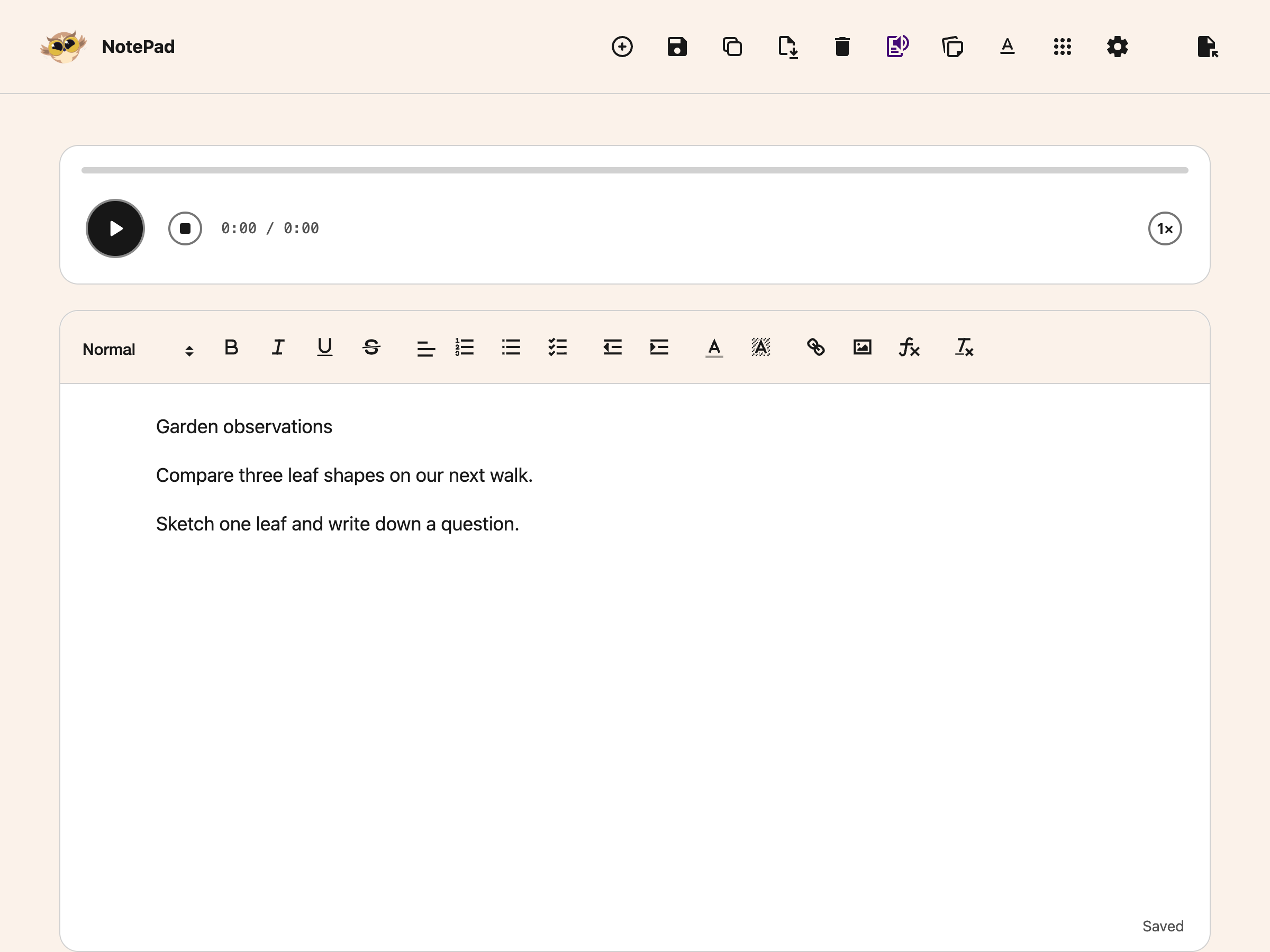
## Step 3: Play, Pause or Stop
Choose **Play** to read the document. The button becomes **Pause** while speech is playing. Pause
keeps your place so you can continue listening. **Stop** ends the reading.
The time display helps you follow progress. Total reading time is an estimate, so it may differ from
the voice's actual duration.
Choose the speed button, such as **1×**, to cycle through the available speeds. Try a slower pace
for unfamiliar material. The
[voice settings guide](/help/how-to-change-voice-settings-in-helperbird/) explains how to choose a
voice in Helperbird.
## Step 4: Continue Writing
Stop playback before making a large edit or opening another document. This helps you keep track of
which version you are hearing. Choose **Text to Speech** again when you want to hide the player.
To change the font, spacing, width or theme, see
[adjust your reading view](/help/how-to-change-your-reading-view-in-helperbird-apps/). These choices
do not change the document's saved formatting.
## Troubleshooting
If you cannot hear speech, check your device volume and selected voice. Confirm that the document
contains readable text. If the voice is unavailable, choose another voice and try again.
The player does not create an audio download. To keep a document copy, use
[Download](/help/how-to-download-your-notepad-document/).
## Need Additional Help?
Return to [the NotePad guide](/help/how-to-use-the-helperbird-editor/) or
[contact Helperbird support](/support/).
---
## How to Look Up a Word from the Floating Toolbar
URL: https://www.helperbird.com/help/how-to-look-up-a-word-from-the-floating-toolbar/
## What This Does
Select a word you do not know and press **Dictionary**. Helperbird looks it up for you.
---
## Who is This For?
This is helpful for:
- Students meeting new vocabulary while reading
- Anyone reading something written above their usual level
- People learning English
- Anyone who would otherwise open a new tab and lose their place
---
## Step 1: Open the Toolbar
If the toolbar is closed, it sits in the bottom-left corner as a single round button. Click it to open the row of tools.
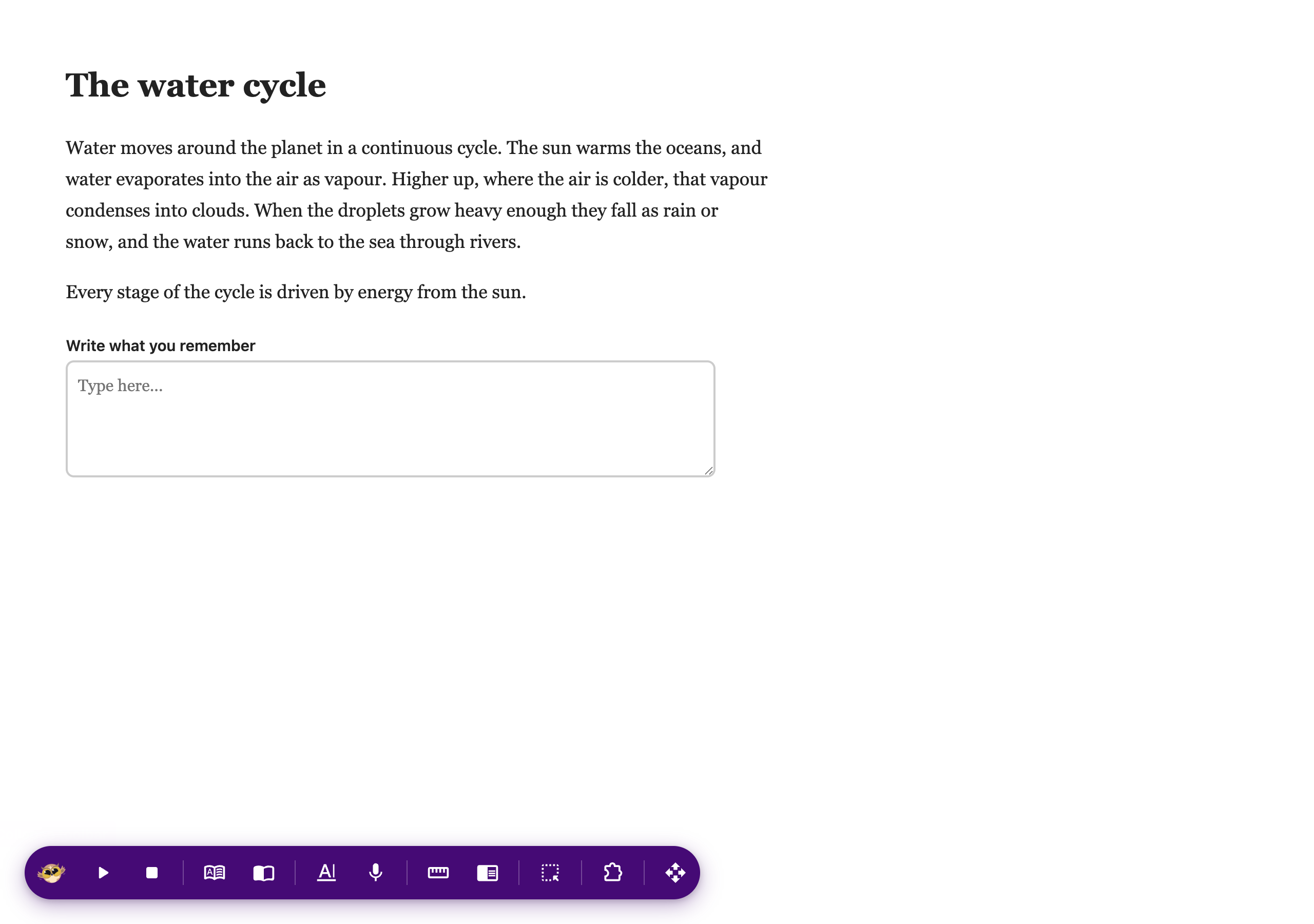
If you do not see it at all, it needs turning on first. See [how to turn on the floating toolbar](/help/how-to-use-the-helperbird-accessibility-toolbar/).
---
## Step 2: Use It
Drag across one word, then press **Dictionary** on the toolbar. The Dictionary opens in a new tab with the word already looked up.
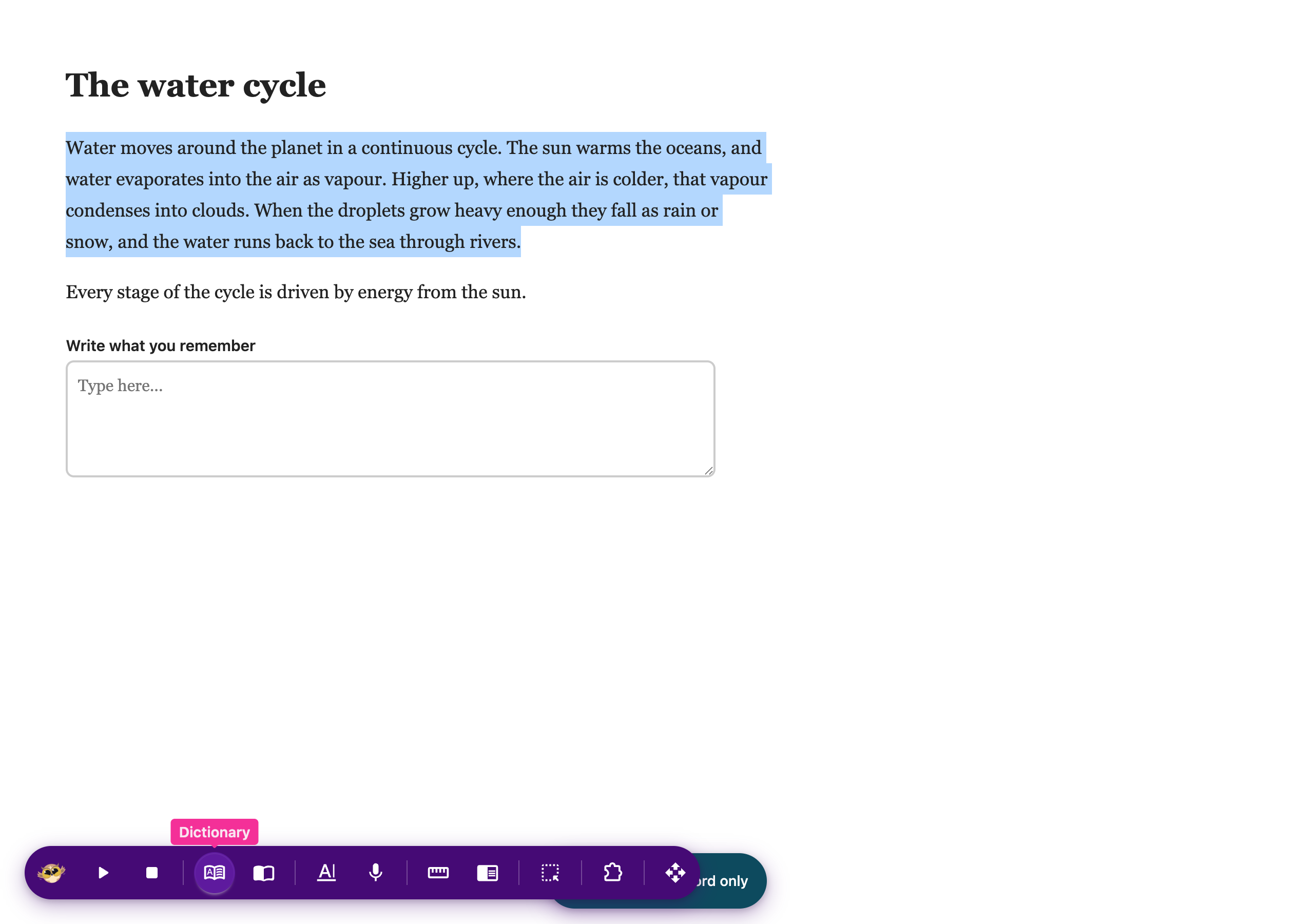
For definitions, examples and similar words in a fuller view, see [the Helperbird Dictionary](/help/how-to-open-the-helperbird-dictionary/).
---
## Need Additional Help?
If you have any questions or run into any issues, please contact the Helperbird support team. You can reach us at [Helperbird support](/support/). We are happy to help you get the most out of Helperbird.
---
## How to Look Up a Word in the Helperbird Dictionary
URL: https://www.helperbird.com/help/how-to-look-up-a-word-in-the-helperbird-dictionary/
## What This Does
You type a word into the Helperbird Dictionary and it shows you what the word means, how it is used
in a sentence, and other words close to it in meaning.
---
## Who is This For?
This is helpful for:
- Students meeting a word they do not know in a reading
- Anyone who wants a definition in plain language
- People learning English
- Anyone who finds a full page of search results overwhelming
---
## Step 1: Open the Dictionary
See [how to open the Helperbird Dictionary](/help/how-to-open-the-helperbird-dictionary/) if it is
not open yet. It starts with an empty search box and the message **Look up any word**.
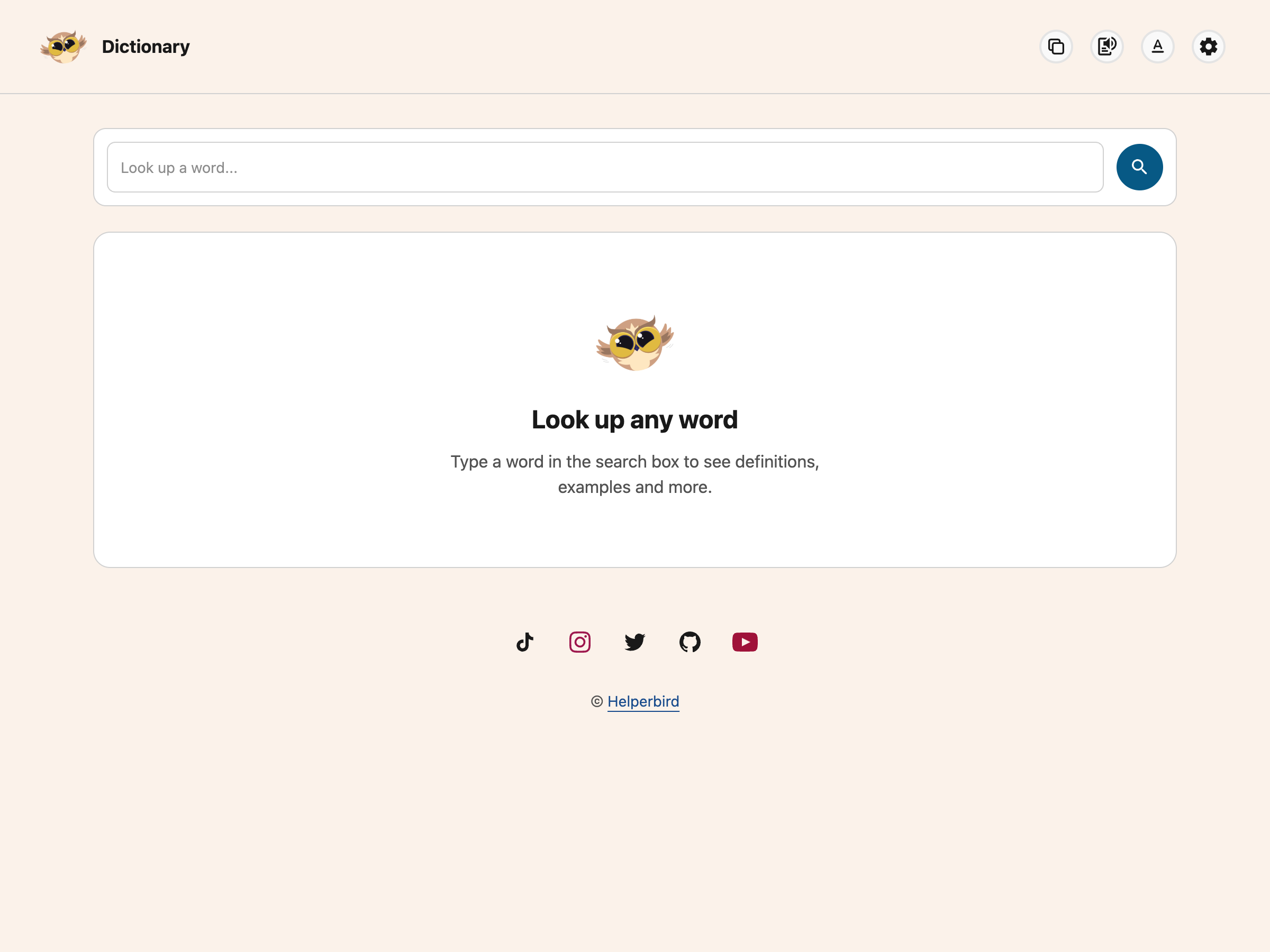
---
## Step 2: Type Your Word
Click the box at the top and type a word or short phrase, up to six words or 120 characters. The
example below looks up **curiosity**. Lookups require Helperbird Pro and an internet connection.
Press **Ctrl+K** (**⌘K** on Mac) to focus and select the search. The clear button inside the field
clears it.
---
## Step 3: Press Enter
Press **Enter** to look the word up. You can also click the magnifying glass to the right of the
box, which does the same thing.
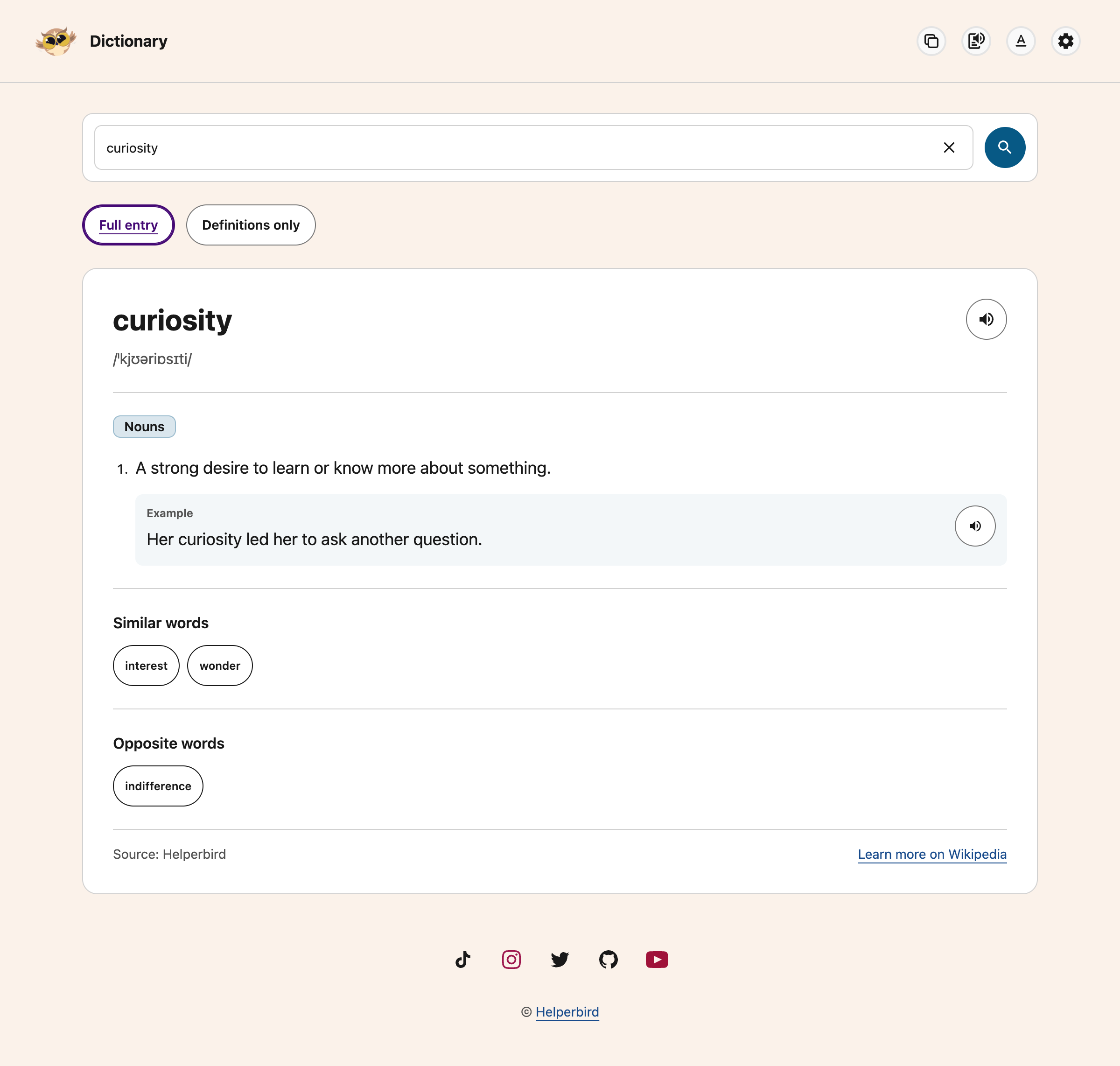
---
## Reading the Result
The word appears at the top with a speaker button beside it. Each example has its own speaker
button. **Learn more on Wikipedia** appears below the result, beside **Source: Helperbird**.
Helperbird provides AI-generated definitions, which can contain mistakes. The Wikipedia link is
further reading, not the source of the definition.
Underneath, the meanings are grouped by **part of speech**, so all the noun meanings sit together
under a **Nouns** heading, all the verb meanings under **Verbs**, and so on. This separates
different uses of the same word.
Within each group you get:
- **Definition** - what the word means
- **Example** - a sentence using the word that way
A word with several meanings gets several Definition and Example pairs, one after another.
---
## If a Section is Missing
The Dictionary only shows what it has. **Pronunciation** and **Opposite words** appear for words
that have them and are left out for words that do not. Some words have no opposite, so no Opposite
words section appears. That is normal and not an error.
If a word is not found, check the spelling or try a shorter search. If a request fails, select **Try
Again**. Loading placeholders show while the lookup is running; they are not an empty result.
The Dictionary is English only, and the Wikipedia link goes to the English Wikipedia.
---
## Need Additional Help?
If you have any questions or run into any issues, please contact the Helperbird support team. You
can reach us at [Helperbird support](/support/). We are happy to help you get the most out of
Helperbird.
---
## How to Make Google Slides Readable with Helperbird
URL: https://www.helperbird.com/help/how-to-make-google-slides-readable-in-helperbird/
## The Problem This Solves
The Slides editor draws slide text differently from ordinary webpages. To read that text, use
Screenshot Reader or the Google Workspace add-on. Helperbird’s notice links to **More information**
about these options.
With this on, opening a supported view-only deck switches you to an HTML version of the same deck.
Reading tools work directly in that view, so Helperbird no longer shows the add-on notice.
This is a beta feature, so it is still being worked on.
---
## Who is This For?
This is helpful for:
- Students sent lecture slides as a view-only link
- Anyone who needs slides read aloud or in a different font
- People revising from a deck rather than a document
---
## Step 1: Turn It On
Beta features live on the settings page. Open Helperbird, open **Options**, choose **Settings**, and
scroll to **Beta features**. See
[how to use beta features](/help/how-to-use-beta-features-in-helperbird/) for the full route.
Beta features with the Readable Google Slides setting enabled.
**Readable Google Slides** is on by default for new settings. Turn it on if you previously disabled
it.
---
## Step 2: Open a Deck
Open a view-only Slides link as usual. Helperbird switches you to the readable version, and from
there your fonts, rulers, colors and [read aloud](/help/how-to-use-text-to-speech-on-any-website/)
all work as they do anywhere else.
To get back to the slides as they were designed, press your browser's **Back** button.
---
## Presentation Mode
While Readable Google Slides is on, expand **More options**. Turn on **Also use in presentations**
if you want presentation links to open in the text view too. This extra switch is off by default.
Turn it on and full-screen presentations switch to the readable view too. It is off by default for a
good reason: it changes the deck while you are presenting it, which is rarely what you want in front
of a room.
---
## What It Never Changes
This only affects decks you are **viewing**. A deck you can edit is never touched, so there is no
risk of it altering your own slides while you work on them.
---
Readable Google Slides with More options expanded and Also use in presentations switched off.
---
## Need Additional Help?
If you have any questions or run into any issues, please contact the Helperbird support team. You
can reach us at [Helperbird support](/support/). We are happy to help you get the most out of
Helperbird.
---
## How to Make PDF Text Boxes Smaller
URL: https://www.helperbird.com/help/how-to-make-pdf-text-boxes-smaller/
## Fit an Answer on Your Worksheet
In the browser PDF Reader, text size and box size are separate controls. Select the answer, choose a
smaller text size, then resize the box. Text boxes have a minimum width and height, so a very narrow
answer space may still be too small.
If you need a box first, follow
[adding text boxes](/help/how-to-add-text-boxes-to-pdf-with-helperbird/). The examples below use a
sample registration form.
## Step 1 Select Your Answer Text
Click inside the box, then select the words you want to resize. For the whole answer, press **Ctrl +
A** on Windows or Chromebook, or **Command + A** on Mac, while the text editor is focused.
## Step 2 Choose a Smaller Text Size
Open the **size menu** on the left of the formatting toolbar. Choose **Small** or **Normal**. The
menu also offers **Medium**, **Large**, and **X-Large**. The label shows the size of the current
selection, so it may be different in your box.
Select your answer text, then choose a size from the formatting toolbar.
## Step 3 Shrink the Text Box
Drag the **lower-right corner handle** inward: up for less height, left for less width. Stop at the
size you need or the minimum size. Keep all words visible; make the box larger if text wraps or gets
cut off.
The corner handles move and resize the box independently of its text formatting.
## Step 4 Move Your Answer into Place
Drag the **lower-left move handle**, or the **Page bar** with the arrows icon, until the answer sits
above its form line. Align the text with the answer space.
Click away from a filled text box to hide its toolbar. The answer stays where you placed it. Click
back in the text to reveal the toolbar again. It hides after about three seconds unless you are
using the toolbar or an open size/color menu. Empty boxes keep their controls visible so you can
start writing.
Clicking away hides the toolbar without removing the answer.
## If the Box Still Gets in the Way
- **The box stops shrinking:** it has reached its minimum size. Smaller letters do not remove that
limit.
- **The toolbar covers a question:** click outside the filled box to hide the toolbar. It can appear
below the text when there is not enough room above it.
- **Only some words changed size:** select the whole answer before choosing the size.
- **The box grows as you type:** finish writing, resize it, and check that every word fits.
- **Dragging is difficult:** use the
[keyboard controls](/help/how-to-move-and-resize-pdf-text-boxes-with-the-keyboard/).
## Save Your Finished Worksheet
Choose **Download → With my changes**. Open the downloaded PDF and check your answers before sharing
it. Text is flattened into the exported page; the editing toolbar, box outline, and corner handles
are not included.
See [saving an annotated PDF](/help/how-to-save-and-download-annotated-pdfs/) for export details.
## Related Guides
- [Add text boxes to PDFs](/help/how-to-add-text-boxes-to-pdf-with-helperbird/)
- [Move and resize boxes with the keyboard](/help/how-to-move-and-resize-pdf-text-boxes-with-the-keyboard/)
- [Use the native iPhone, iPad, or Mac reader](/help/how-to-use-helperbird-pdf-reader-on-iphone-ipad-and-mac/)
---
## How to Manage Your Sticky Notes and Highlights in Helperbird
URL: https://www.helperbird.com/help/how-to-manage-sticky-notes-and-highlights-in-helperbird/
## What This Guide Covers
The Notes app in Helperbird keeps what you have saved in one place. That means your sticky notes,
your highlights, and any text you saved from a
[Screenshot Reader](/help/how-to-extract-text-from-any-image-pdf-or-website/) capture. Screenshot
Reader needs Helperbird Pro.
This guide shows you how to manage that saved content. You will learn how to create new notes from
the Notes app, edit your notes and highlights, delete items you no longer need, visit the original
page where you created them, search, and export.
---
## Who This Is For
- Students collecting quotes from several pages
- Readers who highlight as they go
- Anyone who saves text from a Screenshot Reader capture
---
## Step 1: Open the Notes App
Click the **Helperbird icon** in your browser toolbar to open the Helperbird menu. Scroll down to
the **All Features** section and click the arrow to expand it. Find the **View notes** row and click
its open button.
This opens **NotePad** with the **Highlights & Notes** card above your document. You can also show
or hide this card with the **Highlights & Notes** button in NotePad's top toolbar.
On Safari a **Notes** tile is already pinned in **Quick actions**. On other browsers you can pin one
there yourself.
Clicking a highlight on a web page opens Notes as well. See
[How to Highlight Text on Any Website](/help/how-to-highlight-words-and-paragraphs-on-any-website/).
If you have no saved items, the card explains how to get started and shows one **New note** button.
Search, filters and Export appear once you save something.

---
## Step 2: Create a New Note
You do not need to be on a website to create a note. You can create one right from the Notes app:
1. Click **New note** in the card header, or in the empty card if you have no saved items
2. Write your note in the **Note** field
3. Add a **Title** if you want one
4. Pick a **Color**
5. Click **Create note**
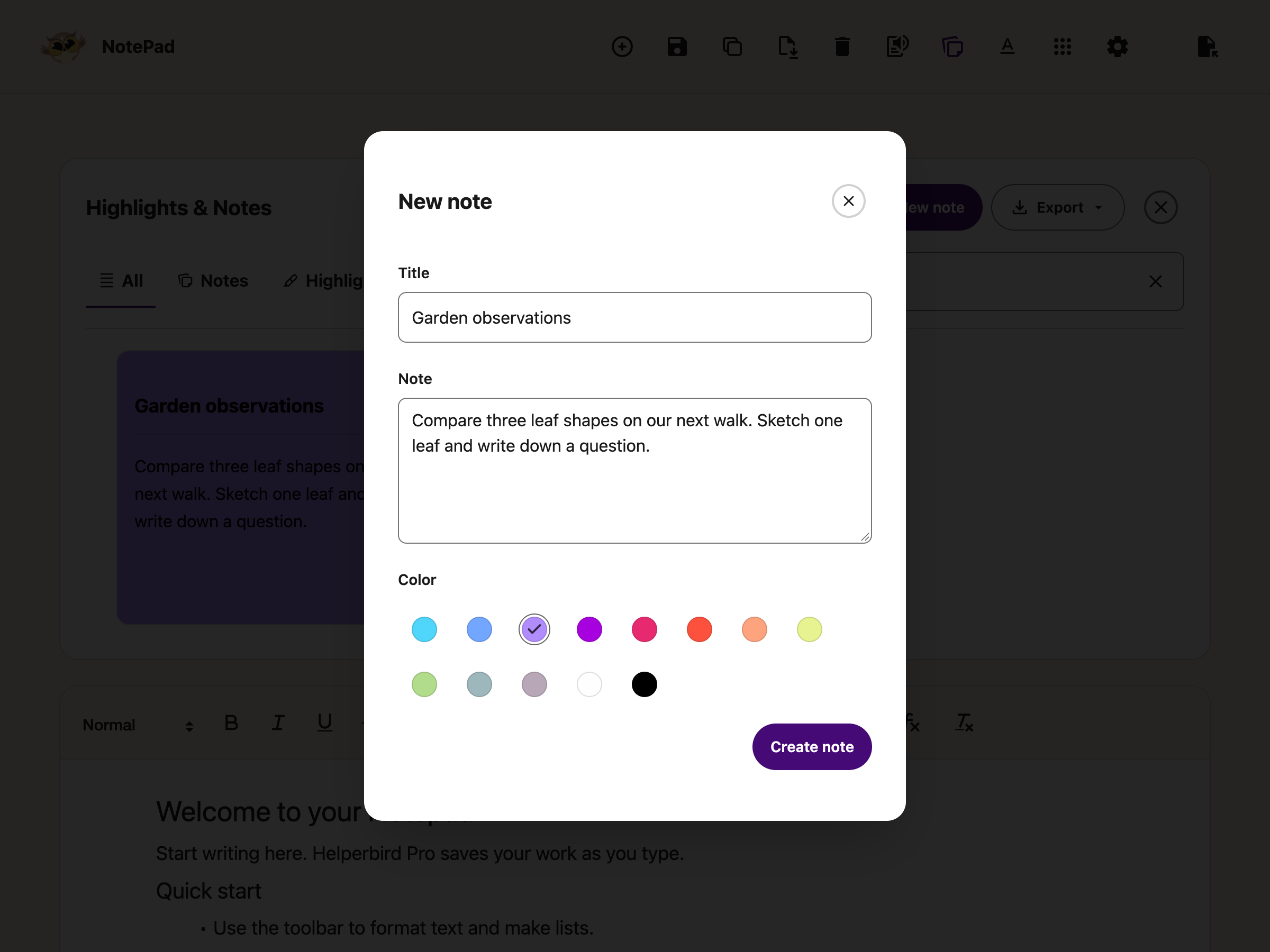
**Create note** stays greyed out until the **Note** field has something in it. A title is optional
and holds up to 120 characters. A note with no title shows on its card as **Helperbird Note**.
Notes created this way are stored in a **General** group, since they are not attached to any web
page. This is a good way to write down quick ideas, to-do lists, or study notes that do not belong
to a specific website.
Putting a sticky note on the web page itself is a different feature, and it needs Helperbird Pro.
See [How to Add Sticky Notes to Websites](/help/how-to-annotate-any-website-with-sticky-notes/).
---
## Step 3: Filter by Notes or Highlights
Once you have saved an item, filter tabs appear below the card header:
- **All** - Shows all your saved items
- **Notes** - Shows your sticky notes and any text you saved from a capture
- **Highlights** - Shows the passages you marked on a page
Click a tab to narrow down what you see. If that category has no items, the tabs and search stay
available so you can change the filter.

---
## Step 4: Edit a Note
You can change a note at any time without leaving the Notes app:
1. Find the note you want to change
2. Click the note's card, or focus it with Tab and press Enter
3. Update the **Title**, the **Note** text, or the **Color**
4. Click **Save changes**
Your changes are saved right away, so the note is updated everywhere it appears.
---
## Step 5: Edit a Highlight
Highlights can be edited too:
1. Find the highlight you want to change
2. Click the highlight's card, or focus it with Tab and press Enter
3. Update the **Title**, the **Description**, or the **Color**
4. Click **Save changes**
**Note:** The text you captured from the web page is shown at the top of the box and cannot be
changed. This keeps your highlight a true record of what the page said. You can only edit the
details around it, like the title and description.
Changing the color here also changes the color on the web page, the next time you load that page.
---
## Step 6: Visit the Original Page
Open a note or highlight to find its source link. Follow that link to return to the original website
in a new tab.
**Note:** Notes created directly in NotePad are not linked to a website.
---
## Step 7: Delete a Note or Highlight
To delete a single sticky note or highlight:
1. Find the note or highlight you want to remove in the Notes app
2. Click the **✕** button in the top right corner of the card, labelled **Delete note**
3. Choose **Delete note** in the confirmation, or **Cancel** to keep it
Export anything you want to keep before confirming deletion.
Deleting a highlight card also removes the color from the web page. A page you already have open
keeps showing the color until you reload it.
---
## Step 8: Delete Several Notes
The Notes app does not have a bulk delete option. Notes and highlights are removed one card at a
time. If you want to clean up several notes or highlights:
1. Use the filter tabs or the search box to narrow down what you see
2. Click the **Delete note** button on each note or highlight you want to remove
**Tip:** If you want to keep a copy of anything before deleting it, export it first (see Step 10).
---
## Step 9: Search Your Notes
Use **Search notes and highlights…** beside the filters. Your cards are filtered as you type. Search
matches text, titles, categories and source websites within the selected tab.
If nothing matches, the search field stays visible. Use its **Clear** button to remove the query, or
select **All** to search every category.
---
## Step 10: Export or Print Your Notes
Before deleting notes, you may want to save a copy:
1. Open **Export** in the card header, then choose **Export as PDF** or **Export as Text**
2. Click each note or highlight you want to include. A bar appears above your cards showing how many
you have picked
3. Click the button in that bar to finish. It stays greyed out until you pick at least one card
Choose **Cancel** in the selection bar to leave the export without downloading.
Choosing **Export as PDF** opens your browser's print dialog, where you can save the notes as a PDF
file or print a hard copy. If no window opens, check your popup blocker.
The exported PDF is built to be read and shared. It has a Helperbird header, and your notes are
grouped by the website they came from. Each note shows a category badge and the date it was saved.
Choosing **Export as Text** downloads a plain text file. Every note is listed with its title, its
category, where it came from, and its text.
To back up your notes in one file instead, see
[How to Export Your Helperbird Notes](/help/how-to-export-your-helperbird-notes/). That backup
includes highlights, sticky notes, NotePad documents and reading-list pages. Use
[restore notes and your reading list](/help/how-to-restore-notes-and-reading-list-from-backup/) to
import it later. PDF and text exports of selected cards cannot be imported as a backup.
**Tip:** Export important highlights and notes before cleaning up your Notebook, so you always have
a backup of your research and ideas.
---
## Good to Know
- Your notes move between your devices when your browser's own sync is turned on. The **Sync**
setting in Helperbird has to be on as well.
- Cards do not show a date. The date you saved a note appears in the PDF export.
- Note colors come from a fixed set of thirteen. You cannot enter a color of your own.
- Your notes live in your browser's storage. If it runs out of room for synced data, new notes stay
on that device and stop reaching your others. Nothing tells you this has happened.
---
## Video Tutorial
Coming soon
---
## Need Additional Help?
If you have any questions or run into any issues, please contact the Helperbird support team. You
can reach us at [Helperbird support](/support/). We are happy to help you get the most out of
Helperbird.
---
## How to Move and Resize PDF Text Boxes with the Keyboard
URL: https://www.helperbird.com/help/how-to-move-and-resize-pdf-text-boxes-with-the-keyboard/
## Why Use the Keyboard?
Filling in a PDF usually means dragging a box to exactly the right spot on a line. That is fiddly
with a mouse and hard for anyone who cannot hold a pointer steady.
Every part of a Helperbird text box can be done from the keyboard instead. You move it with the
arrow keys, one pixel at a time if you need to, and resize it the same way.
---
## Who is This For?
This is helpful for:
- Anyone filling in a form who needs the text to land on the line
- People with tremor, limited hand movement, or joint pain
- Screen reader and keyboard-only users
- Anyone who finds precise dragging slow or frustrating
---
## Step 1: Add a Text Box
Open your PDF, then press **Add Textbox** in the toolbar.
The browser PDF Reader with its Add Textbox button above the page.
A new box appears on the page. Each one you add is offset slightly from the last, so they do not
stack on top of each other.
---
## Step 2: Type Your Text
The box opens ready for typing. Type what you need, and use the formatting bar if you want to change
the size, weight or color.
An answer box with a move handle at the lower left and a resize handle at the lower right.
When you have finished typing, press **Escape**. That leaves the editor without deleting anything,
and lets you Tab to the box's own controls.
---
## Step 3: Move the Box
Tab to the box's **drag grip** at the lower-left corner, then use the **arrow keys**. Focusing a box
control reveals its toolbar again. The Page bar also supports dragging with a pointer.
- **Arrow key** moves the box 1 pixel
- **Shift + arrow key** moves it 10 pixels
One pixel at a time is deliberately fine. It is what lets you sit text neatly on a form line rather
than near it. Use Shift to cover distance, then tap the arrow keys on their own for the last few
pixels.
---
## Step 4: Resize the Box
Tab to the box's **resize handle** at the lower-right corner, then use the **arrow keys**.
- **Arrow key** resizes by 5 pixels
- **Shift + arrow key** resizes by 20 pixels
Make the box wider if your text is wrapping when you do not want it to, or narrower to fit a column.
To reduce the text size as well, see
[how to make PDF text boxes smaller](/help/how-to-make-pdf-text-boxes-smaller/), with screenshots of
the size menu and corner handle. Boxes have a minimum size, so they may not fit every answer space.
---
## Step 5: Delete the Box
With the **drag grip** focused, press **Delete** or **Backspace**. The box and its text are removed.
There is also a delete button on the box itself, which you can reach with Tab.
---
## All the Keys
Table: Every key for moving and resizing a text box, by where you are.
| Where you are | Key | What it does |
| ------------- | ------------------- | ----------------------------------- |
| In the text | Escape | Finish editing and leave the editor |
| Drag grip | Arrow key | Move 1 pixel |
| Drag grip | Shift + arrow key | Move 10 pixels |
| Drag grip | Delete or Backspace | Remove the box |
| Resize handle | Arrow key | Resize by 5 pixels |
| Resize handle | Shift + arrow key | Resize by 20 pixels |
Once everything is where you want it,
[download the PDF with your changes](/help/how-to-save-and-download-annotated-pdfs/) to keep them.
---
## Need Additional Help?
If you have any questions or run into any issues, please contact the Helperbird support team. You
can reach us at [Helperbird support](/support/). We are happy to help you get the most out of
Helperbird.
---
## How to Mute All Videos on Any Page
URL: https://www.helperbird.com/help/how-to-mute-all-videos-on-any-page/
## What is Video Volume?
**Video volume** sets the volume of every video on the page at the same time. One slider, from 0% to 100%.
At 0% every video is silent. At 50% they all play at half volume. At 100% they play normally.
It saves you hunting for each player's own volume control, which every website hides in a different place.
---
## Who is This For?
This is helpful for:
- Anyone who finds sudden loud sound painful or startling
- People with sensory sensitivity, including autistic people and people with misophonia
- Anyone reading in a quiet room, a library or a classroom
- Anyone on a page with several videos that all want to be heard at once
---
## Step 1: Open Helperbird
Click the Helperbird icon in your browser toolbar, then open **All Features** at the bottom of the menu.
---
## Step 2: Open Media Controls
Find **Media controls** in the list and open it.
The panel holds two controls: **Playback speed** and **Video volume**.
---
## Step 3: Turn on Video Volume
Switch **Video volume** on. The slider appears underneath it.
---
## Step 4: Slide to 0% to Mute
Drag the slider all the way to the left, to **0%**. Every video on the page goes silent.
You can use the minus and plus buttons on either side instead of dragging, which is easier if a pointer is hard to control.
Any level between works too. 30% is often enough to keep a video listenable without it dominating the room.
---
## Turning It Off Again
Switch **Video volume** off.
Helperbird remembers what volume each video had before it changed anything, and puts each one back. If you adjusted a video yourself using the site's own controls while Helperbird was on, your choice is kept.
---
## What It Does Not Do
Two things to know before you rely on this:
- **It works on videos, not on separate audio players.** If a page plays sound through an audio player rather than a video, this will not silence it.
- **It sets the volume. It does not stop the video playing.** The video still runs. At 0% it makes no sound.
If a page keeps playing something you cannot silence, [Reading Mode](/help/how-to-use-reading-mode-and-remove-ads-on-any-website/) strips the page back to its text instead.
---
## Related Guides
- [Change video playback speed](/help/how-to-change-video-playback-speed-on-any-website/) - The other control in the same panel.
- [Hide images and GIFs](/help/how-to-hide-images-and-gifs-on-every-website/) - Remove moving pictures as well as sound.
- [Reduce motion](/help/how-to-stop-animations-on-any-websites/) - Stop animations that make a page hard to read.
---
## Need Additional Help?
If you have any questions or run into any issues, please contact the Helperbird support team. You can reach us at [Helperbird support](/support/). We are happy to help you get the most out of Helperbird.
---
## How to Open a Page from Your Helperbird Reading List
URL: https://www.helperbird.com/help/how-to-open-a-page-from-your-helperbird-reading-list/
## What This Does
Opens one of your saved pages so you can read it.
---
## Who is This For?
This is helpful for:
- Anyone coming back to something they saved earlier
- Students working through a set of sources one at a time
---
## Step 1: Open Your List
Open your Reading list from the Helperbird popup. See
[how to open your reading list](/help/how-to-open-your-helperbird-reading-list/).
---
## Step 2: Click the Page
Click anywhere on a row and that page opens.
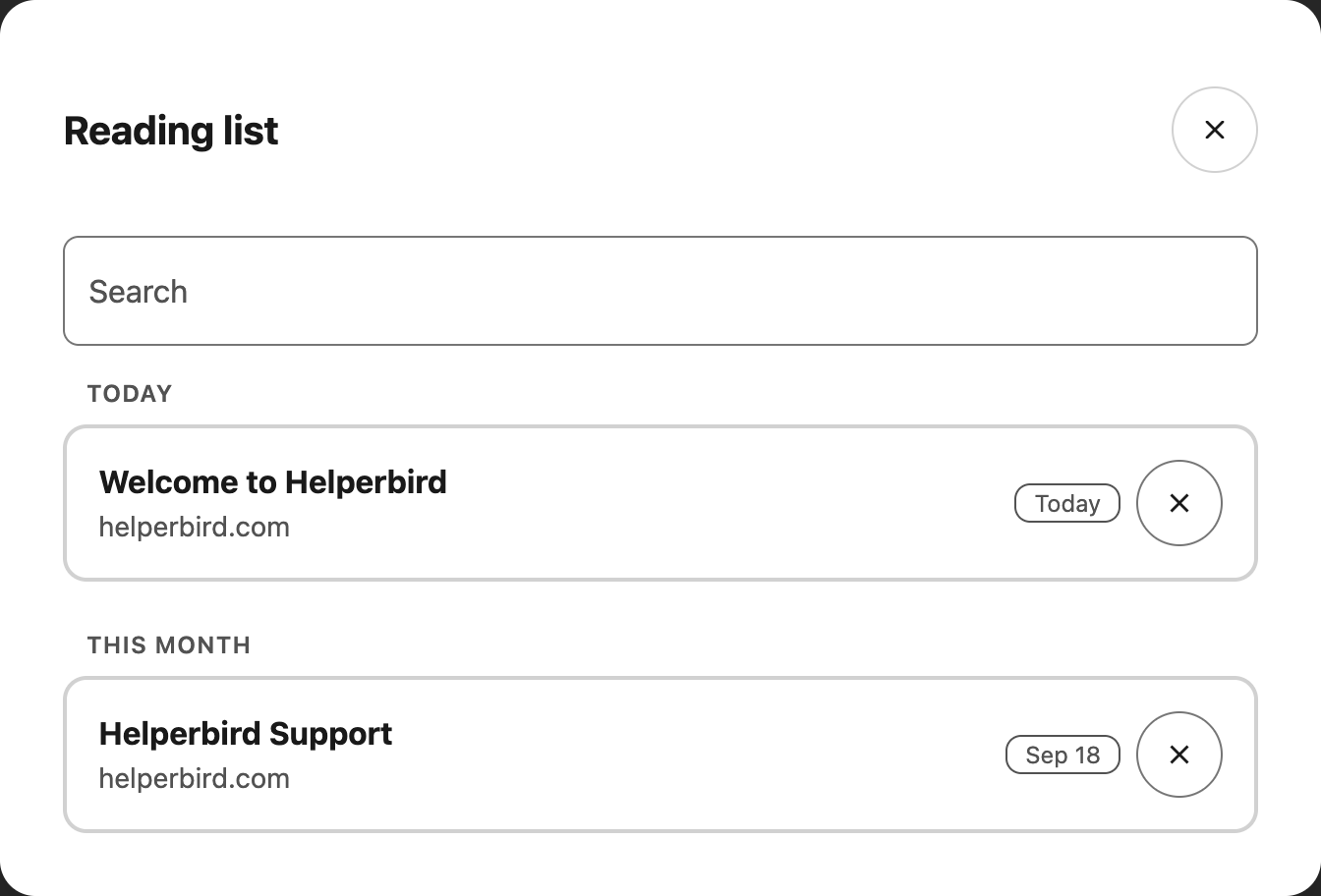
The whole row is the link, so you do not need to aim at the title. If you are using a keyboard, tab
to the row and press Enter.
There is no separate button to open a page. The only other control on a row is **Remove**, and that
appears only when you hover over the row or move to it with the keyboard.
---
## Reading It with Helperbird
Once the page opens, all of Helperbird's website tools work on it as normal. If you saved it because
it looked like hard going, this is the moment for:
- **[Text to speech](/help/how-to-use-text-to-speech-on-any-website/)** to have it read aloud
- **[Immersive Reader](/help/how-to-use-immersive-reader-on-any-website/)** for a clean, calm page
- **[A dyslexia font](/help/how-to-change-the-font-on-any-page-to-a-dyslexic-font/)** or a
[reading guide](/help/how-to-use-a-reading-guide-on-any-website/)
---
## Need Additional Help?
If you have any questions or run into any issues, please contact the Helperbird support team. You
can reach us at [Helperbird support](/support/). We are happy to help you get the most out of
Helperbird.
---
## How to Open a Saved Document in the Helperbird Notepad
URL: https://www.helperbird.com/help/how-to-open-a-saved-document-in-the-helperbird-notepad/
## What This Does
**Open document** shows the documents you have saved in the Notepad, so you can pick one up again.
---
## Who is This For?
This is helpful for:
- Anyone returning to a draft from a previous session
- Students moving between several pieces of work
- Anyone checking what they have saved
---
## Step 1: Open Documents
Click **Open document** in the toolbar. It is the pink button on the far right, on its own away from
the others.
---
## Step 2: Choose a Document
The **Documents** window lists everything you have saved. Click one to open it.
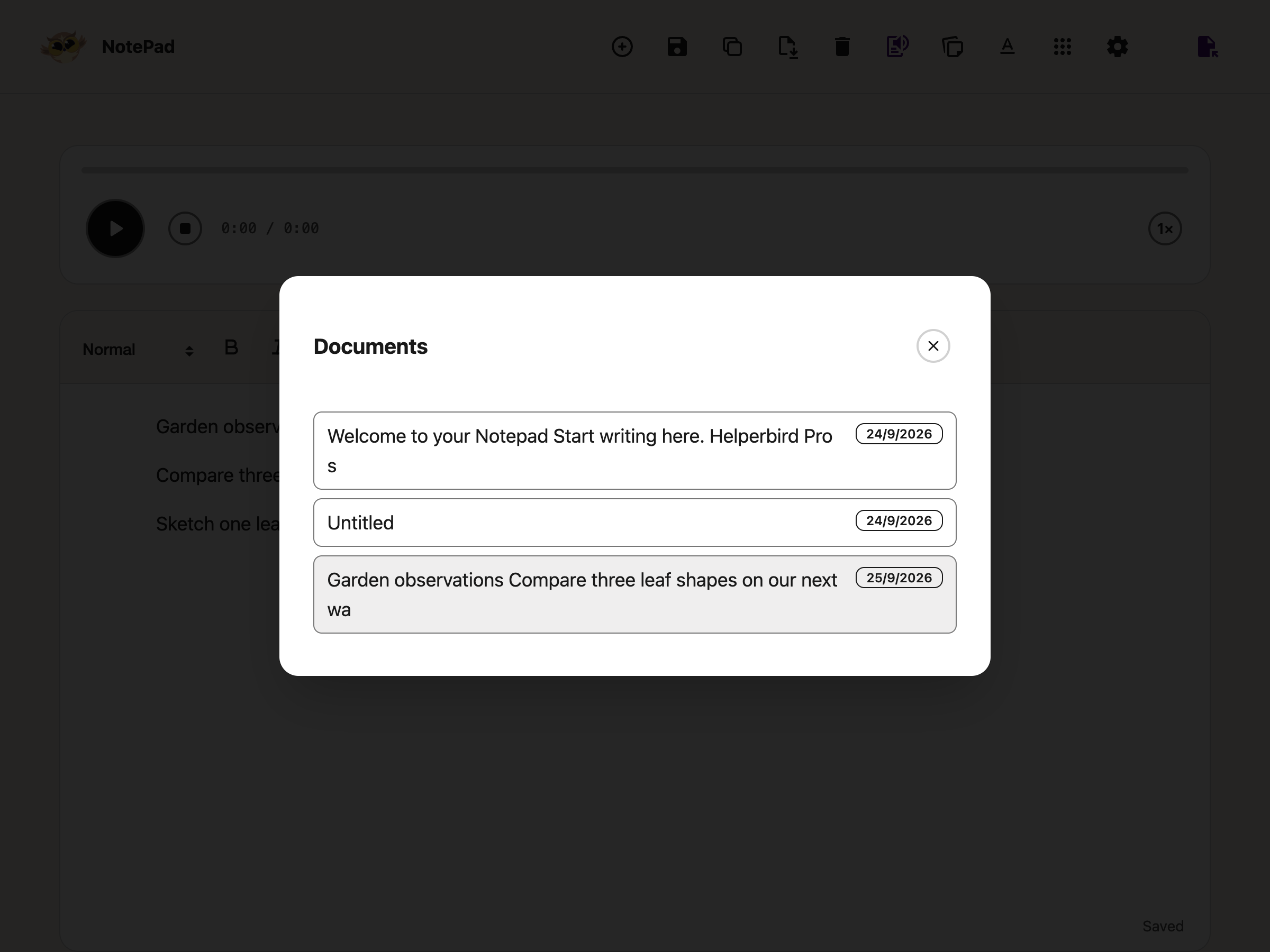
The document loads with your text and formatting as you left them.
If the list is empty, nothing has been saved yet. See
[how to save a document](/help/how-to-save-a-document-in-the-helperbird-notepad/).
---
## Need Additional Help?
If you have any questions or run into any issues, please contact the Helperbird support team. You
can reach us at [Helperbird support](/support/). We are happy to help you get the most out of
Helperbird.
---
## How to Open a Word on Wikipedia from Helperbird
URL: https://www.helperbird.com/help/how-to-open-a-word-on-wikipedia-from-helperbird/
## What This Does
A dictionary definition tells you what a word means in a sentence or two. Sometimes that is not enough, and you want the fuller picture. The **Learn more on Wikipedia** link takes you from the word to its English Wikipedia page.
---
## Who is This For?
This is helpful for:
- Students researching a topic rather than just a word
- Anyone who has met a term, a place or a name they want background on
- People who find an article with pictures easier than a dictionary entry
---
## Opening Wikipedia
Look up a word, then select **Learn more on Wikipedia** at the bottom of the result, beside **Source: Helperbird**.
Wikipedia opens with that word's page.
Once you are there, all of Helperbird's website tools work as normal, so you can turn on [text to speech](/help/how-to-use-text-to-speech-on-any-website/), a [dyslexia font](/help/how-to-change-the-font-on-any-page-to-a-dyslexic-font/) or [Immersive Reader](/help/how-to-use-immersive-reader-on-any-website/) to make the article easier to read.
---
## When This Helps
This is most useful for nouns that are also topics, such as a plant, a place, a person, or a piece of technology. For everyday words like "run" or "quickly", the definition and examples in the Dictionary will usually tell you more than the article does.
The link goes to the English Wikipedia. Some words may lead to a disambiguation page or have no matching article. Helperbird's definitions are AI-generated; the link does not mean the definition was taken from Wikipedia.
---
## Need Additional Help?
If you have any questions or run into any issues, please contact the Helperbird support team. You can reach us at [Helperbird support](/support/). We are happy to help you get the most out of Helperbird.
---
## How to Open Immersive Reader from the Floating Toolbar
URL: https://www.helperbird.com/help/how-to-open-immersive-reader-from-the-floating-toolbar/
## What This Does
**Immersive Reader** reopens the text in a reading view of its own, where you can change the size, spacing and font, focus on one line at a time, and have it read aloud.
---
## Who is This For?
This is helpful for:
- Anyone who needs bigger text or wider spacing to read comfortably
- Students who use line focus or syllable breaks
- People reading in a second language
- Anyone who finds the original page too busy
---
## Step 1: Open the Toolbar
If the toolbar is closed, it sits in the bottom-left corner as a single round button. Click it to open the row of tools.

If you do not see it at all, it needs turning on first. See [how to turn on the floating toolbar](/help/how-to-use-the-helperbird-accessibility-toolbar/).
---
## Step 2: Use It
**To send one part**, select the text first, then press **Immersive**.
**To send the whole page**, press it without selecting anything.
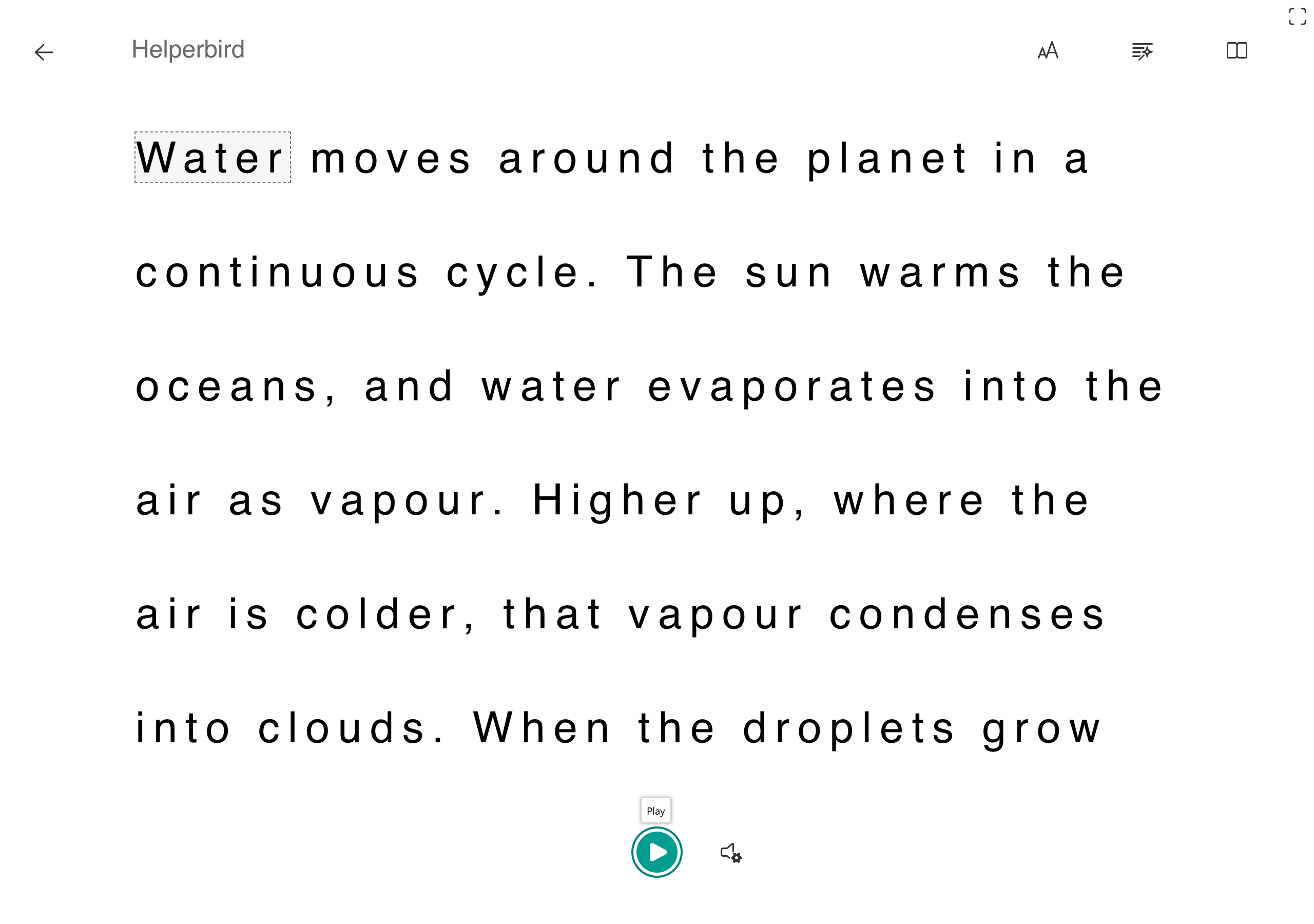
For everything you can change once you are in there, see [how to use Immersive Reader](/help/how-to-use-immersive-reader-on-any-website/).
---
## Need Additional Help?
If you have any questions or run into any issues, please contact the Helperbird support team. You can reach us at [Helperbird support](/support/). We are happy to help you get the most out of Helperbird.
---
## How to Open Reading Mode from the Floating Toolbar
URL: https://www.helperbird.com/help/how-to-open-reading-mode-from-the-floating-toolbar/
## What This Does
**Reading Mode** takes away the menus, adverts and sidebars and leaves the article, on a clean background, with an estimate of how long it will take to read.
---
## Who is This For?
This is helpful for:
- Anyone trying to read an article buried in adverts
- People who find movement and clutter distracting
- Students reading on a busy news or reference site
- Anyone who wants to know how long a page will take before starting
---
## Step 1: Open the Toolbar
If the toolbar is closed, it sits in the bottom-left corner as a single round button. Click it to open the row of tools.

If you do not see it at all, it needs turning on first. See [how to turn on the floating toolbar](/help/how-to-use-the-helperbird-accessibility-toolbar/).
---
## Step 2: Use It
Press **Reading Mode** on the toolbar. The page is rebuilt as a clean article.
Close it with the X in the top corner to go back to the normal page.
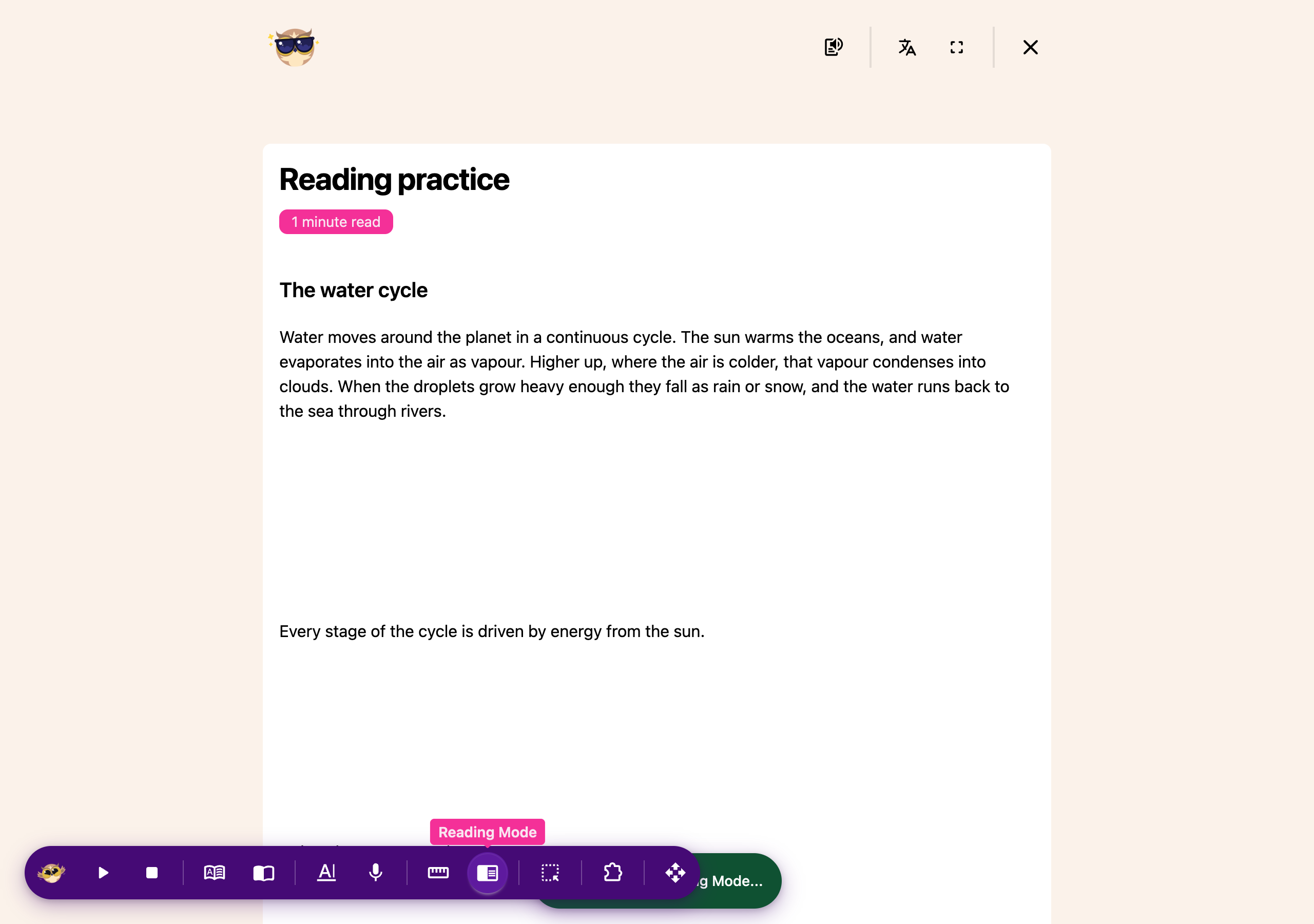
Inside Reading Mode you also get buttons to have it read aloud, translate it, and go full screen.
---
## Need Additional Help?
If you have any questions or run into any issues, please contact the Helperbird support team. You can reach us at [Helperbird support](/support/). We are happy to help you get the most out of Helperbird.
---
## How to Open the Helperbird Dictionary
URL: https://www.helperbird.com/help/how-to-open-the-helperbird-dictionary/
## What is the Dictionary?
[Dictionary](/help/how-to-use-the-helperbird-dictionary/) opens in its own browser tab.
Look up meanings, hear words aloud and find similar words.
---
## Who is This For?
Use it when you meet an unfamiliar word or want to hear its pronunciation.
---
## Step 1: Open Helperbird
Click the Helperbird icon in your browser toolbar. It looks like a small owl and is usually in the
top-right corner.
---
## Step 2: Open All Features
Scroll to the bottom of the Helperbird menu and open **All Features**.
---
## Step 3: Find Dictionary
Look through the list until you see **Dictionary**.
If you use it often, [favourite it](/help/how-to-favorite-a-feature-in-helperbird/) so it also
appears in Quick Actions at the top of the menu.
---
## Step 4: Open It
Click the button on the Dictionary row. The Dictionary opens in a new browser tab, showing **Look up
any word** and the search box.

If you had text selected on the page when you opened it, that word is looked up straight away.
---
## Other Ways to Open a Word
You do not have to open the app first. Each of these opens the Dictionary in a new tab with the word
already looked up:
- Select the word on the page and use the
[highlight menu](/help/how-to-use-the-highlight-menu-in-helperbird/)
- Select the word, right-click, open **Helperbird** and choose **Define**
- Use the lookup on the [Floating Toolbar](/help/how-to-look-up-a-word-from-the-floating-toolbar/)
The right-click menu is not added on iPhone, iPad or Safari, so use one of the other routes there.
---
## Need Additional Help?
[Contact Helperbird support](/support/) if you need a hand.
---
## How to Open the Helperbird Equation Editor
URL: https://www.helperbird.com/help/how-to-open-the-helperbird-equation-editor/
## What is the Equation Editor?
The Helperbird Equation Editor is a place to write a maths equation and get it back properly
typeset, read aloud, or copied into whatever you are working on. It opens in its own browser tab.
---
## Who is This For?
This is helpful for:
- Students writing up maths or science homework
- Anyone who needs an equation in a document and cannot face a formula editor
- People who find it easier to hear an equation than to read it
- Teachers preparing worked examples
---
## Step 1: Open Helperbird
Click the Helperbird icon in your browser toolbar, then open **All Features** at the bottom of the
menu.
---
## Step 2: Find Equations
Scroll the list until you see **Equations**.
---
## Step 3: Start Writing
Click the button on the row. The Equation Editor opens in a new tab with an empty box.
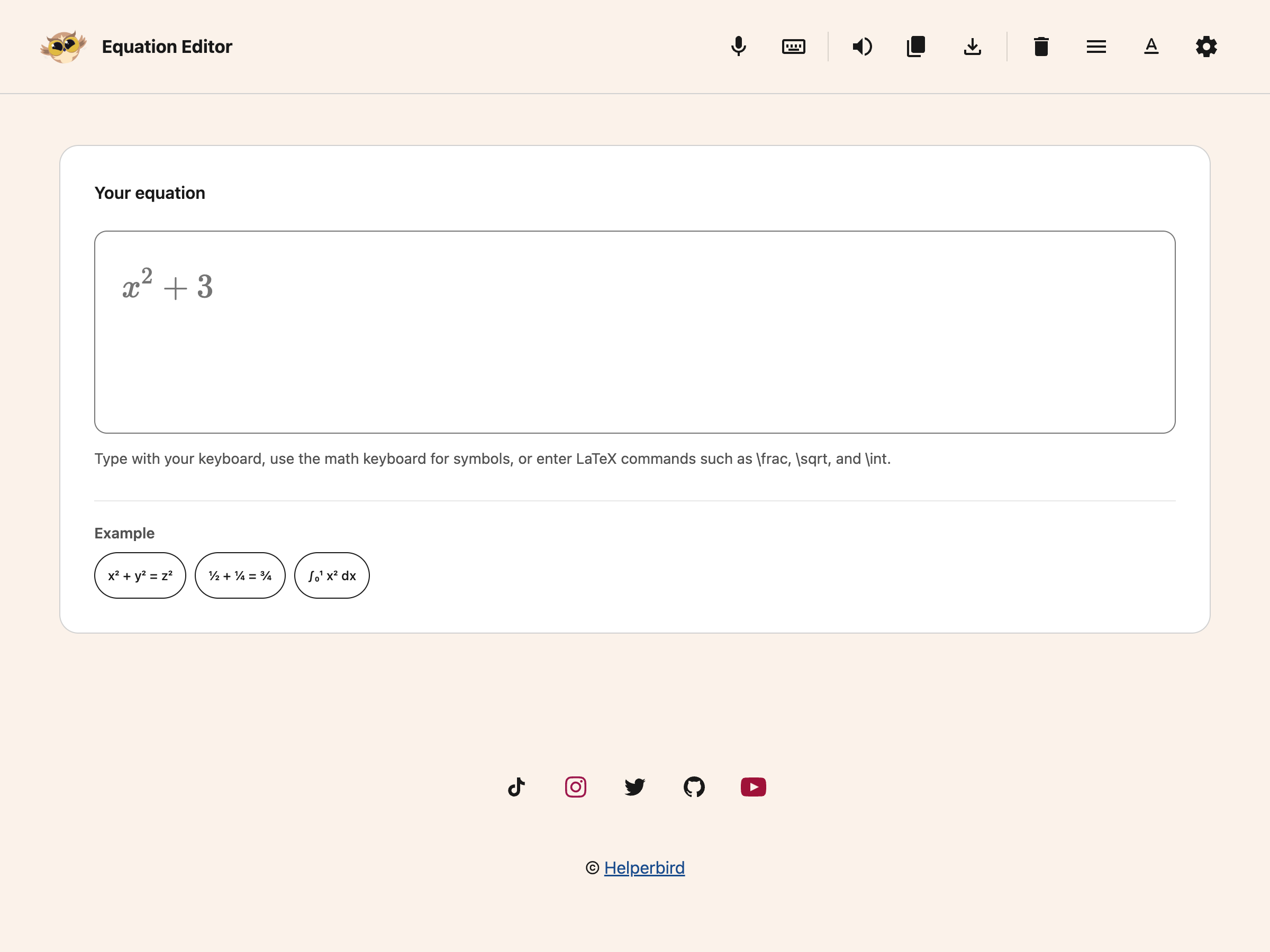
---
## What the Toolbar Does

- **[Read aloud](/help/how-to-hear-an-equation-read-aloud-in-helperbird/)** speaks the equation
- **[Copy](/help/how-to-copy-an-equation-from-helperbird/)** puts it on your clipboard in the format
you choose
- **[Download as image](/help/how-to-download-an-equation-as-an-image/)** saves it as a picture
- **[Voice typing](/help/how-to-dictate-an-equation-with-your-voice/)** lets you say the equation
instead of typing it
- **[The maths keyboard](/help/how-to-write-an-equation-in-helperbird/)** gives you symbols you
cannot type
- **Clear** empties the box and starts again
---
## Need Additional Help?
If you have any questions or run into any issues, please contact the Helperbird support team. You
can reach us at [Helperbird support](/support/). We are happy to help you get the most out of
Helperbird.
---
## How to Open the Helperbird Notepad
URL: https://www.helperbird.com/help/how-to-open-the-helperbird-notepad/
## What is the Notepad?
The Helperbird Notepad is a writing space that opens in its own browser tab. You get a page to type
on, a formatting toolbar, and buttons for saving, exporting and checking your writing, without
leaving your browser.
This page is about getting it open. For what each toolbar button does, see
[the Notepad toolbar](/help/how-to-use-the-helperbird-editor/).
---
## Who is This For?
This is helpful for:
- Students drafting an answer or an essay
- Anyone who wants somewhere to write without opening a separate app
- People collecting notes while researching in the browser
- Anyone who finds a busy word processor distracting
---
## Step 1: Open Helperbird
Click the Helperbird icon in your browser toolbar. It looks like a small owl and is usually in the
top-right corner.
---
## Step 2: Open All Features
Scroll to the bottom of the Helperbird menu and open **All Features**.
---
## Step 3: Find Open Notepad
Look through the list for **Open Notepad**. The row is named for the action, not the feature, so you
are looking for "Open Notepad" rather than "Notepad".
If you write often, [favourite it](/help/how-to-favorite-a-feature-in-helperbird/) so it also
appears in Quick Actions at the top of the menu.
---
## Step 4: Start Writing
Click the button on the row. The Notepad opens in a new tab with the toolbar across the top and the
writing area below it.
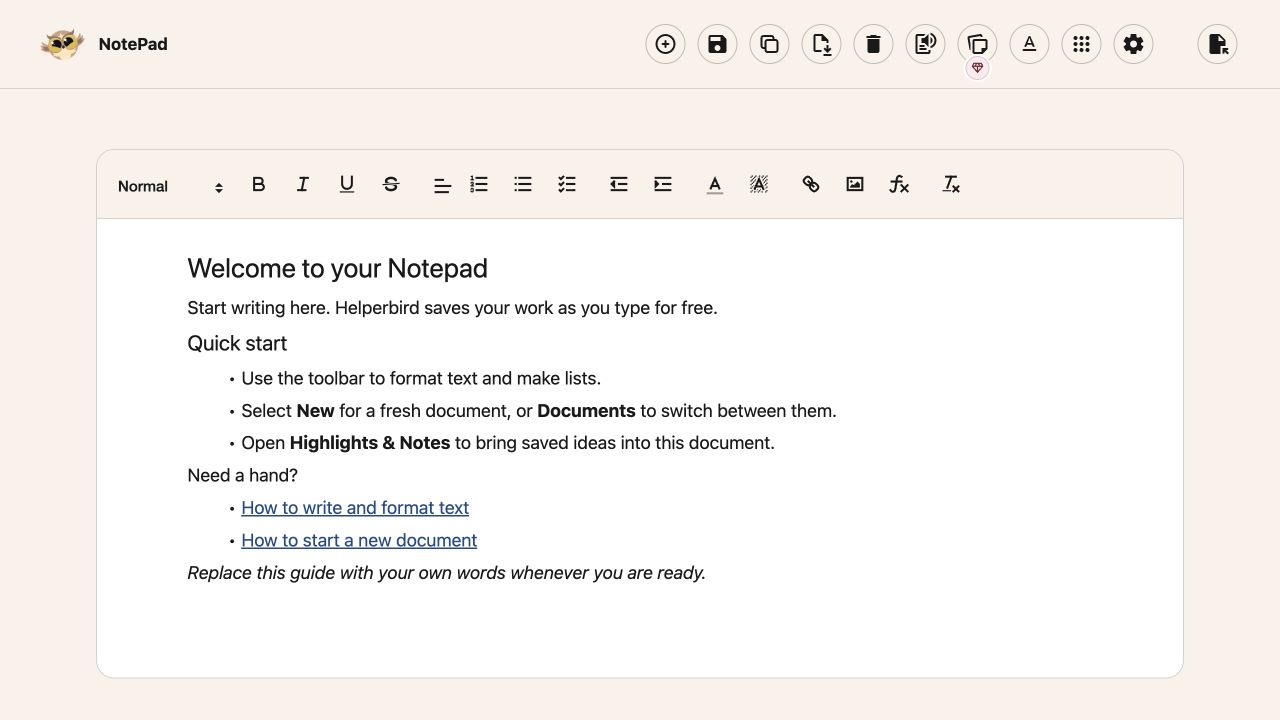
The first time you open it, a short welcome guide explains the workspace. Replace it with your own
text when you are ready. Existing documents are not replaced by the guide.
Then [format what you have written](/help/how-to-write-and-format-text-in-the-helperbird-notepad/).
Notepad writing, saving, downloads and equations are free. Notes/Highlights and Reading List remain
Pro features. Changes autosave, and you can also
[select Save](/help/how-to-save-a-document-in-the-helperbird-notepad/) explicitly.
The **Notepad**, **Notes**, and **Reading List** quick actions open the same workspace. Your
captured items are under **Highlights & notes**; saved pages open in the Reading List panel.
---
## Need Additional Help?
If you have any questions or run into any issues, please contact the Helperbird support team. You
can reach us at [Helperbird support](/support/). We are happy to help you get the most out of
Helperbird.
---
## How to Open the PDF Reader in Helperbird
URL: https://www.helperbird.com/help/how-to-open-the-pdf-reader-in-helperbird/
There are two ways to get a document into the Helperbird PDF Reader: open the reader from the popup
and pick a file, or click the message that appears on a PDF you are already looking at.
Opening PDFs, reading them aloud with your device's voices, and adding text boxes are free. The
advanced PDF tools need Helperbird Pro.
---
## Step 1: Open Helperbird
Click the Helperbird icon in your browser toolbar.
---
## Step 2: Search for PDF
Click the **Search** button at the top of the popup and type **pdf**.
You can also scroll down, open **All Features**, and find **PDF Reader** in the list.
Search for pdf, then choose the open button beside PDF Reader.
---
## Step 3: Find PDF Reader
Find **PDF Reader** in the list and click **Open PDF Reader**. The reader opens in a new browser
tab.
---
## Step 4: Open a PDF
If a recovery copy is available, the reader restores your last PDF. Otherwise, it starts with an
**Open PDF** button.
Choose Open PDF to select a file from your device.
Click **Open PDF** and choose a file from your computer. The document appears with its toolbar above
it. Use the **Page** field, arrows or **Page thumbnails** to move between pages.
The same **Open PDF** button stays in the top right. If you have unexported changes, the reader asks
before replacing the current file. Download your changes first if you need to keep them.
The reader can restore its last local session when you reopen it. Opening another PDF replaces that
single recovery copy; it is not a permanent document library.
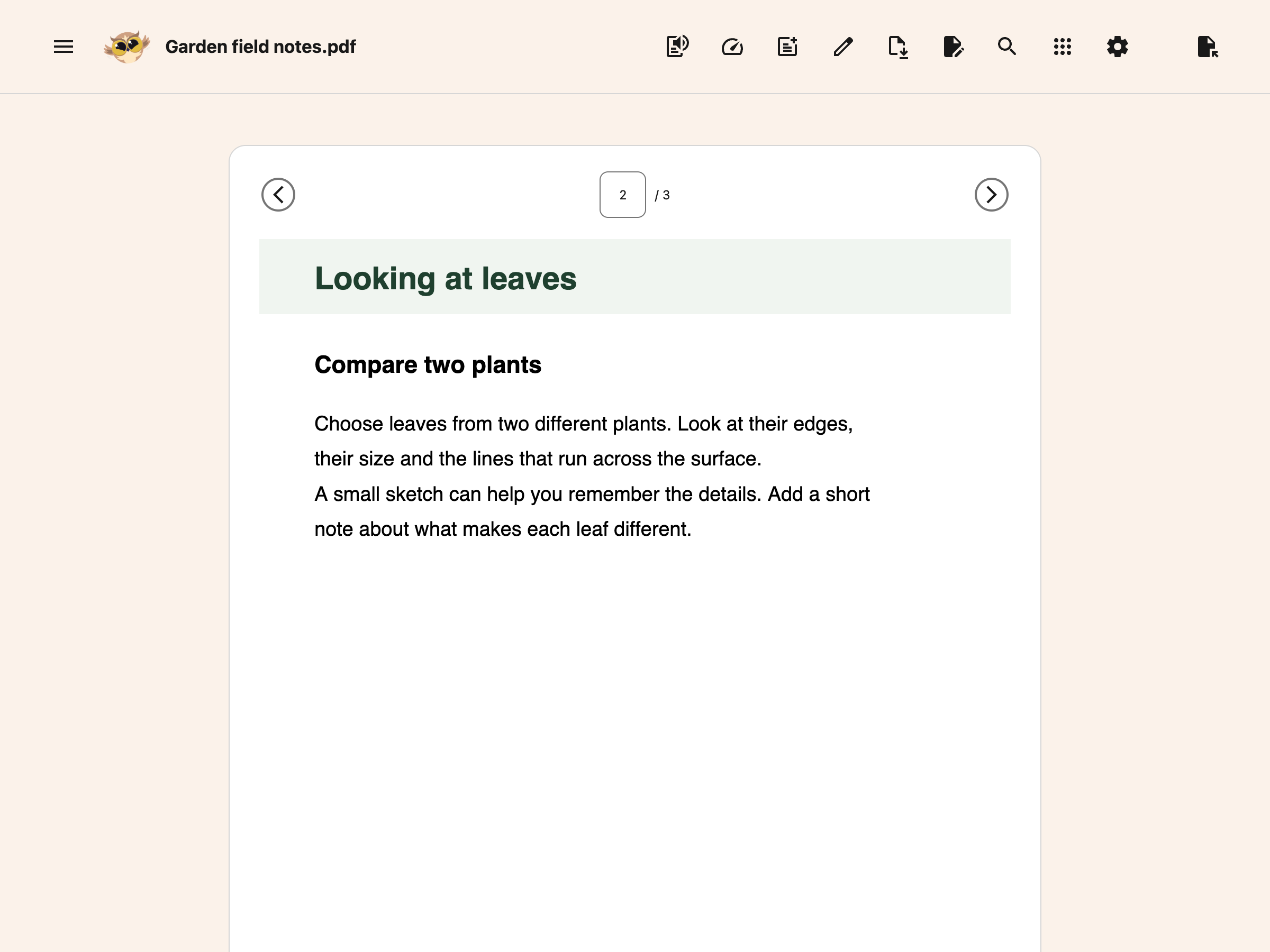
---
## Open a PDF You Are Already Viewing
If the page you are on is a PDF, you do not need the popup. A green message appears at the bottom
saying **Click to open PDF in Helperbird**. Click it and the reader opens in a new tab with that PDF
loaded.
A few things to know about the message:
- You can move it to the bottom left, middle or right in **Settings → Page notifications**. See
[moving page notifications](/help/how-to-open-the-helperbird-settings-page/#move-page-notifications).
- It clears itself after about six seconds. If you miss it, reload the page or use the steps above.
- It only appears when the web address ends in **.pdf**. A PDF held in Google Drive, Classroom or
Gmail does not, so download it first. See
[opening PDFs from Google products](/help/open-pdfs-with-helperbird-though-google-products/).
---
## When a PDF Will Not Open
**"Only PDF files supported"** means the file you picked is not a PDF. Check the file ending and try
again.
**"Couldn't open PDF"** means Helperbird could read the file but not the document inside it. A
password-protected PDF gives this, and so does a damaged one, or a very large file that takes more
than twenty seconds to load. Whatever you already had open stays where it is, so a bad file will not
lose your work.
**The reader is empty after a reload.** Recovery may be unavailable if browser storage was cleared,
full or unable to save. Open your last downloaded copy with **Open PDF**.
To restore saved work, reopen **PDF Reader** in the same browser profile without choosing another
PDF. Recovery keeps one document on this device. Opening another PDF replaces that copy.
[Download your work](/help/how-to-save-and-download-annotated-pdfs/) before switching files.
---
## Where to Go Next
- [Read a PDF and take notes](/help/how-to-use-pdf-reader-in-helperbird/) - Move through pages,
listen to them, write beside them.
- [Using the PDF Reader](/help/how-to-use-the-helperbird-pdf-support/) - What every button in the
toolbar does.
- [The Tools menu](/help/how-to-use-the-tools-menu-in-the-pdf-reader/) - Immersive Reader,
Translate, Summarize and Screenshot Reader.
- [Save and download PDFs](/help/how-to-save-and-download-annotated-pdfs/) - Keep the changes you
made.
---
## Need Additional Help?
If you have any questions or run into any issues, contact the [Helperbird support team](/support/).
We are happy to help you get the most out of Helperbird.
---
## How to Open Your Helperbird Reading List
URL: https://www.helperbird.com/help/how-to-open-your-helperbird-reading-list/
## What is the Reading List?
The Helperbird Reading list is somewhere to put pages you want to come back to. You save a page
while you are on it, and it waits for you in a tidy list rather than in a pile of open tabs.
Reading List requires Helperbird Pro. You can also open it from **Tools → Reading List** in the
Notepad. Free accounts see the Helperbird Pro dialog when they try to open the list. Use its login or
subscription key link if you already subscribe.
This page is about getting the list open. For how the list page is laid out, and which of the two
popup rows does what, see
[the Reading list tour](/help/how-to-use-helperbirds-reading-list-feature/).
---
## Who is This For?
This is helpful for:
- Students collecting sources for an assignment
- Anyone who finds a long article and would rather read it properly later
- People who end up with dozens of tabs open
- Anyone gathering pages to read with Helperbird's reading tools
---
## Step 1: Open Helperbird
Click the Helperbird icon in your browser toolbar. It looks like a small owl and is usually in the
top-right corner.
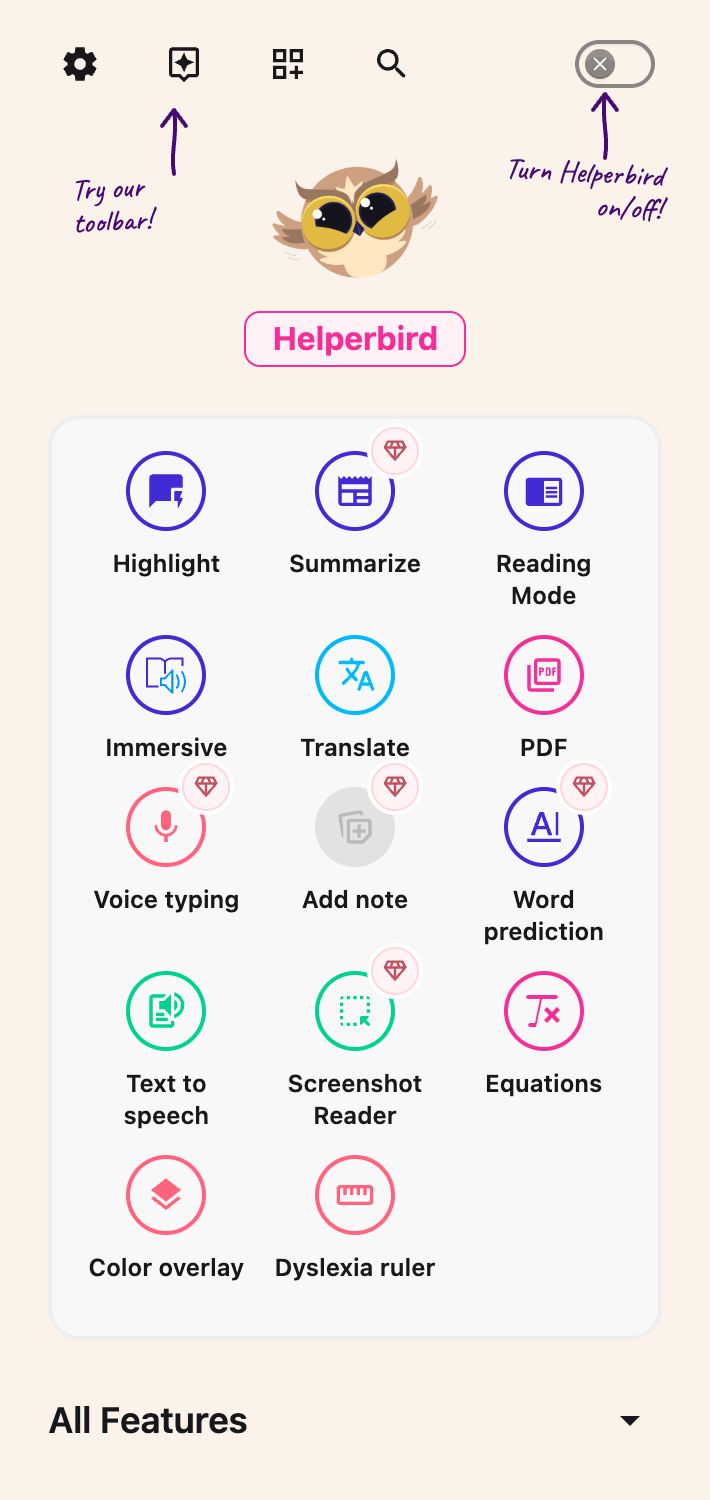
---
## Step 2: Find the View Reading List Row
Open **All Features** at the bottom of the menu and look for **View reading list**. The list is
alphabetical, so that row sits near the bottom.
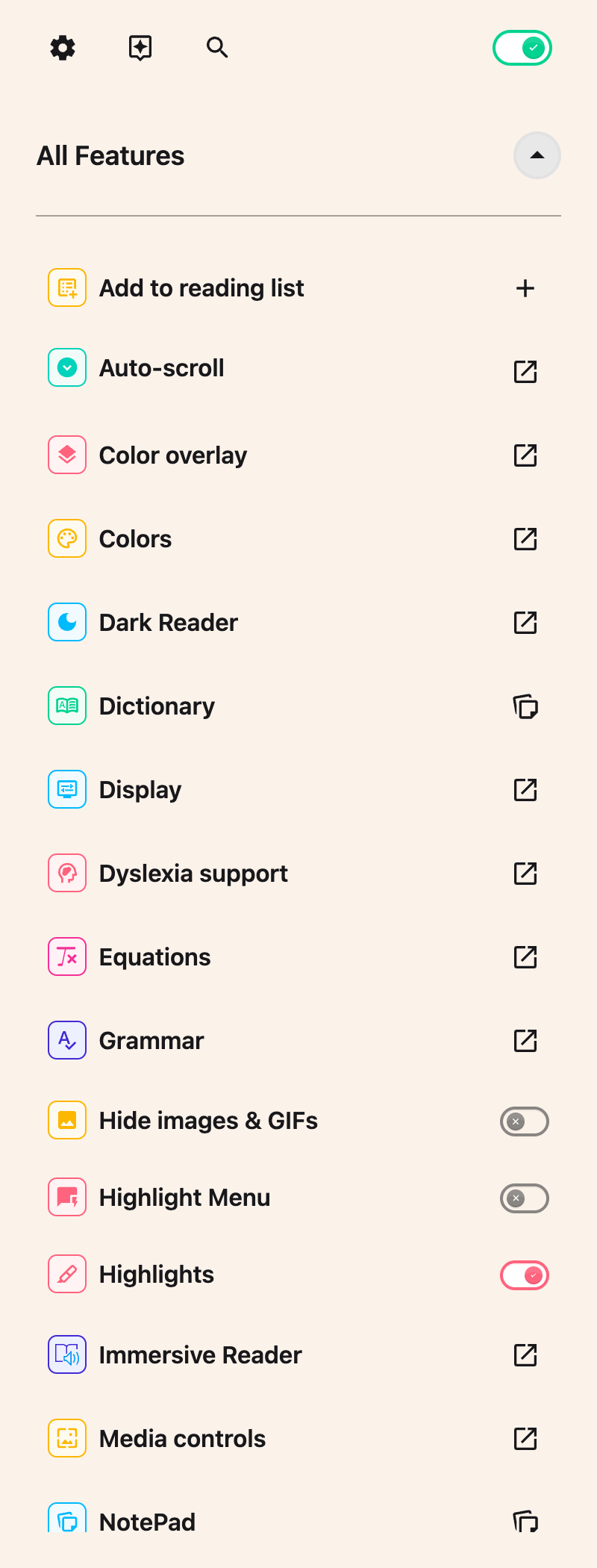
A second row, **Add to reading list**, sits near the top. If you are not sure which one you want,
see [the two reading list rows](/help/how-to-use-helperbirds-reading-list-feature/).
If you save pages often, [favourite it](/help/how-to-favorite-a-feature-in-helperbird/) so it also
appears in Quick Actions, labelled **Reading list**.
---
## Step 3: Open the List
Click the button on the **View reading list** row. A new NotePad tab opens with the **Reading list**
dialog.
The first time you open it, you see two welcome links. Your own saved pages appear alongside them.

Once you have [saved some pages](/help/how-to-save-a-page-to-your-helperbird-reading-list/), they
appear grouped by the day you saved them.
---
## Need Additional Help?
If you have any questions or run into any issues, please contact the Helperbird support team. You
can reach us at [Helperbird support](/support/). We are happy to help you get the most out of
Helperbird.
---
## How to Paste Text and Images onto a PDF
URL: https://www.helperbird.com/help/how-to-paste-text-and-images-onto-a-pdf/
## What This Does
Paste copied text, a link or an image onto the current PDF page to create a new box. You can move or
resize it before downloading your work. Pasting and typing into PDF boxes are free.
## Step 1: Open Your PDF
[Open a PDF in Helperbird](/help/how-to-open-the-pdf-reader-in-helperbird/) and go to the page where
you want to add the content.
Copy your text or image. To add a picture, copy the image itself; copying its web address adds a
link as text.
## Step 2: Paste onto the Page
Close any open dialog and click outside the text boxes, Notepad and search field. Press **Ctrl + V**
on Windows or **Command + V** on Mac.
Text or a link becomes a new editable text box. A copied image becomes an image box. Supported text
formatting and links are kept; pasted web content does not recreate a whole webpage.
A text box in the browser PDF Reader, with formatting, move, and resize controls.
If a text box already has focus, paste goes into that box instead. This also lets you paste into the
side Notepad without making a new PDF box.
## Step 3: Place and Edit the Box
Use the move handle in the attached bar to position the box. Drag the corner handle to resize it.
For text, click inside the box to type and use its formatting toolbar.
To remove a box, choose its remove button. Your original PDF text remains underneath; these boxes do
not replace or edit that text.
You can also
[write in the side Notepad](/help/how-to-use-pdf-reader-in-helperbird/#take-notes-beside-the-pdf)
and choose **Add Textbox to PDF**. Notes with pictures or equations become separate text and image
boxes in the same order.
## Step 4: Download Your Changes
For each pasted picture, open **Annotation options** on its attached toolbar and add an **Image
description**. Mark **This image is decorative** only if it adds no information. See
[add image descriptions to a PDF](/help/how-to-add-image-descriptions-to-a-pdf/) for examples.
Choose **Download**, then **With my changes**. If a picture needs a description, Helperbird opens
its controls and waits for you to add it before trying the download again. The downloaded PDF
includes your text and image boxes.
Boxes become part of the downloaded page. Keep your Helperbird workspace if you need to move or edit
them later. See [saving an annotated PDF](/help/how-to-save-and-download-annotated-pdfs/).
## Troubleshooting
**No new box appeared:** Check whether Notepad, a text box, search or a dialog has focus. Click
outside it and paste again.
**An image could not be added:** Try copying the image again, or use a smaller PNG or JPEG.
Unsupported or very large images may not load.
**Notepad content will not fit:** Shorten the note or add it in smaller parts. If the full transfer
cannot finish, Helperbird keeps your note and PDF unchanged.
## Need Additional Help?
For maths, see
[adding equations to PDFs and Notepad](/help/how-to-add-equations-to-pdfs-and-notepad/). You can
also contact [Helperbird support](/support/).
---
## How to Pause and Resume Helperbird
URL: https://www.helperbird.com/help/how-to-pause-helperbird/
## What is Pause?
Pausing Helperbird turns off all features temporarily without losing any of your settings. When you resume, all your customizations come back exactly as they were.
This is useful when you want to see a website in its original format or need to take screenshots without any Helperbird changes applied.
---
## Who is This For?
This feature is helpful for:
- Anyone who needs to temporarily see a website without customizations
- People who want to take screenshots of the original webpage
- Users who need to troubleshoot website issues
- Anyone who wants a quick break from Helperbird features
- People who want to compare before and after views
---
## Step 1: Open Helperbird
Click the Helperbird icon in your browser toolbar. It looks like a small owl and is usually in the top-right corner of your browser.
This will open the Helperbird menu.
---
## Step 2: Find the On/Off Toggle
At the very top of the Helperbird panel, you will see a toggle button. It says either **Helperbird is on** or **Helperbird is off**.
This toggle controls whether Helperbird features are active.
---
## Step 3: Pause or Resume Helperbird
Click the toggle to turn Helperbird off or back on:
- **To pause** - Click the toggle when it says "Helperbird is on". It will switch to "Helperbird is off" and all features will be temporarily disabled.
- **To resume** - Click the toggle when it says "Helperbird is off". It will switch back to "Helperbird is on" and all your features will be active again.
Your settings are preserved when Helperbird is paused. Nothing is lost.
**Tip:** Pausing Helperbird is perfect when you need to see a website in its original format or want to take screenshots without customizations.
---
## Video Tutorial
Coming soon
---
## Need Additional Help?
If you have any questions or run into any issues, please contact the Helperbird support team. You can reach us at [Helperbird support](/support/). We are happy to help you get the most out of Helperbird.
---
## How to Print a Webpage with Helperbird
URL: https://www.helperbird.com/help/how-to-print-a-webpage-with-helperbird/
## What Happened to the Print Feature?
Helperbird used to have a Print button in its menu. That button has been removed.
Here is the good news: you have not lost anything. The button only ever did one thing. It opened your browser's own print dialog. Pressing **Ctrl+P** (or **Cmd+P** on Mac) opens the exact same dialog. Everything you could print before, you can still print now.
You also do not need to turn Helperbird off before printing. Helperbird hides its overlays, like the color overlay and reading ruler, for the printout only. The page prints in its own colors, even if Dark Reader or High Contrast is on, and your on-screen settings stay exactly as they are.
---
## What to Use Instead
- **Your browser's print shortcut.** Press **Ctrl+P** on Windows or **Cmd+P** on Mac. It works on every page and does the same job the button did.
- **[Reading Mode](/features/reading-mode-for-chrome-and-firefox/), then print.** Reading Mode strips out ads, menus, and sidebars. Print from there and you get a clean copy of just the article. See our [Reading Mode guide](/help/how-to-use-reading-mode-and-remove-ads-on-any-website/) for full steps.
- **[PDF support](/features/pdfs/)** if you save pages instead of printing them. Choose "Save as PDF" in the print dialog, then open the file in your browser. Helperbird's reading tools work on PDFs too.
---
## How to Print a Webpage Now
For a clean, easy-to-read printout:
1. Open the page you want to print.
2. Click the Helperbird icon in your toolbar and turn on **Reading Mode**. The page becomes simple, clear text with no ads or menus.
3. Press **Ctrl+P** (Windows) or **Cmd+P** (Mac).
4. Choose your printer, or pick **Save as PDF** to save the page as a file.
5. Click **Print** or **Save**.
Want the full page, ads and all? Skip step 2 and just press the shortcut.
---
## Need Additional Help?
If you have any questions or run into any issues, please contact the Helperbird support team. You can reach us at [Helperbird support](/support/). We are happy to help you get the most out of Helperbird.
---
## How to Read a Page Aloud from the Floating Toolbar
URL: https://www.helperbird.com/help/how-to-read-a-page-aloud-from-the-floating-toolbar/
## What This Does
The **Play** button reads the page to you. Select some text first and it reads only that; select
nothing and it reads the whole page.
---
## Who is This For?
This is helpful for:
- Anyone who takes more in by listening than by reading
- Students working through a long article
- People with dyslexia or tired eyes
- Anyone who wants to follow along while doing something else
---
## Step 1: Open the Toolbar
If the toolbar is closed, it sits in the bottom-left corner as a single round button. Click it to
open the row of tools.

If you do not see it at all, it needs turning on first. See
[how to turn on the floating toolbar](/help/how-to-use-the-helperbird-accessibility-toolbar/).
---
## Step 2: Use It
**To read one part**, drag across the text you want, then press **Play**.
**To read the whole page**, press **Play** without selecting anything.
Press **Stop**, the square next to it, to finish early or cancel a reading that is still loading.
Closing or collapsing the toolbar also stops speech.
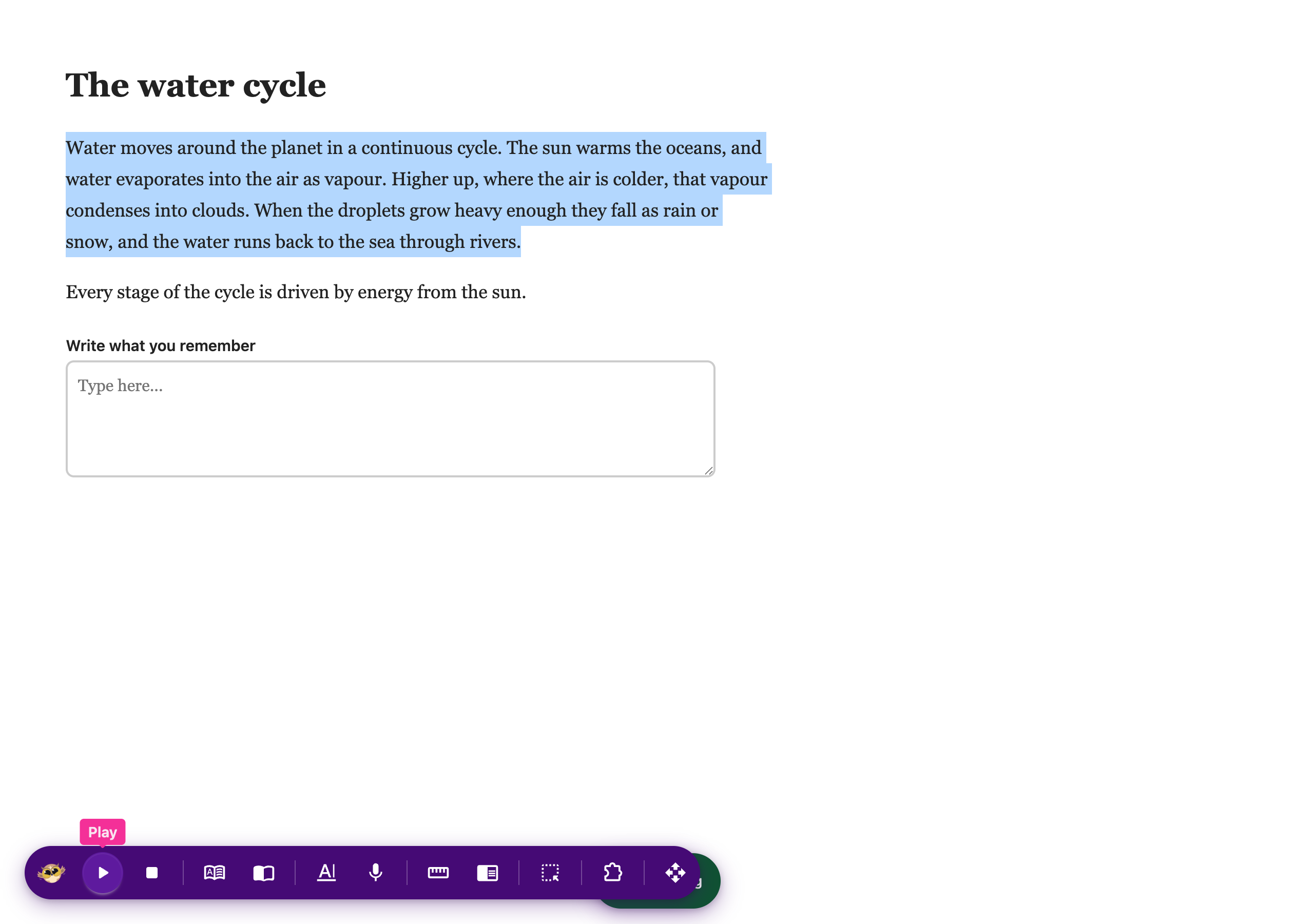
It uses the voice and speed from your
[text to speech settings](/help/how-to-use-text-to-speech-on-any-website/), so change them there and
this follows.
---
In Google Docs, highlight a visible passage before pressing **Play**. Your selection stays available
when you move to the toolbar. If it cannot be read, select it again; Helperbird does not read the
whole document instead.
For selected text inside a lesson, try the optional
[Read text in online lessons](/help/how-to-read-text-in-embedded-lessons/).
## Need Additional Help?
If you have any questions or run into any issues, please contact the Helperbird support team. You
can reach us at [Helperbird support](/support/). We are happy to help you get the most out of
Helperbird.
---
## How to Read Text in Embedded Lessons
URL: https://www.helperbird.com/help/how-to-read-text-in-embedded-lessons/
## What This Does
**Read text in online lessons** lets Helperbird try to read text selected inside an embedded lesson.
This is content displayed in a smaller page within the main website, such as a course activity.
The feature is a beta and is **off by default**. Support depends on how the lesson is built. Turning
it on does not make every learning platform compatible.
## Step 1: Turn On Embedded Reading
1. [Open Helperbird Settings](/help/how-to-open-the-helperbird-settings-page/).
2. Open **Beta features**.
3. Turn on **Read text in online lessons**.
4. Return to the lesson. If it was already open and does not respond, refresh that tab.
Read text in online lessons in the Beta features card, switched off.
You can turn the same switch off at any time. It does not enable voice typing or word prediction
inside every embedded editor.
## Step 2: Select a Passage
Click inside the lesson and highlight a short passage. Choose visible, selectable text rather than
an image of words.
If several activities are open on the page, select the text in the activity you want to hear just
before using Helperbird.
## Step 3: Read the Selection
Open the [floating toolbar](/help/how-to-use-the-helperbird-accessibility-toolbar/) and press
**Play**. It uses your [Text to Speech voice](/help/how-to-use-text-to-speech-on-any-website/).
If Helperbird cannot read the selection, it asks you to select text again. It should not substitute
text from a different activity or the surrounding course page.
Press **Stop**, or collapse the toolbar, to end the reading.
## Troubleshooting
**Nothing can be selected:** The lesson may use a picture or canvas to display its words. This beta
does not perform image recognition. Try
[Screenshot Reader](/help/how-to-extract-text-from-any-image-pdf-or-website/) where available.
**The selected text is not read:** Refresh the lesson, select a shorter visible passage and try
again. Some embedded content restricts extension access and remains unsupported.
**The lesson changed pages:** Make a fresh selection. Selections from a removed or replaced activity
cannot be reused.
**It still does not work:** Turn the beta off and contact support with the platform name and steps
you tried. Support can vary between activities on the same platform.
## Need Additional Help?
See [beta features](/help/how-to-use-beta-features-in-helperbird/) or contact
[Helperbird support](/support/).
---
## How to Remove a Page from Your Helperbird Reading List
URL: https://www.helperbird.com/help/how-to-remove-a-page-from-your-helperbird-reading-list/
## What This Does
Takes a page off your Reading list. The page itself is not affected in any way, only your saved link
to it.
---
## Who is This For?
This is helpful for:
- Anyone tidying up after finishing an article
- Students clearing out sources from a finished assignment
- Anyone whose list has become too long to be useful
---
## Step 1: Find the Page
Open your Reading list and find the row you want to remove. If the list is long,
[search for it](/help/how-to-find-a-page-in-your-helperbird-reading-list/) first.
---
## Step 2: Find the Remove Button
Each saved page has a **Remove** button, shown as a cross on the right. With a keyboard, press Tab
until that button has focus.

---
## Step 3: Click Remove
Click the button and the page is taken off your list.
Clicking anywhere else on the row opens the page instead, so aim for the small round button on the
right.
There is no undo and no confirmation. If you remove something by mistake, go back to the page and
[save it again](/help/how-to-save-a-page-to-your-helperbird-reading-list/).
---
## Need Additional Help?
If you have any questions or run into any issues, please contact the Helperbird support team. You
can reach us at [Helperbird support](/support/). We are happy to help you get the most out of
Helperbird.
---
## How to Restore Notes and Reading List Backups
URL: https://www.helperbird.com/help/how-to-restore-notes-and-reading-list-from-backup/
## Before You Import
Use this guide when you have a **.helperbird** backup and want to bring back saved notes or pages.
The file can come from **Export → Helperbird Notes** or **Export → Settings** on Helperbird's
Settings page.
**Import replaces each saved collection included in the file; it does not merge that collection with
your current items.** For example, importing a backup with saved pages replaces your current reading
list with the pages in that backup. Collections missing from the file are left alone. A Settings
backup can also replace your preferences.
First
[export your current settings and saved content](/help/how-to-export-your-helperbird-settings/) if
you want a copy of what you have now. Keep that new backup separate from the older file you are
restoring.
A PDF or text export of selected notes is for reading and sharing. It cannot be imported as a
Helperbird backup. The local recovery copy of an unfinished PDF is separate; see
[recovering and saving PDF work](/help/how-to-save-and-download-annotated-pdfs/#local-recovery-is-not-a-download).
## Step 1 Open the Import Control
Open Helperbird and choose the **Settings** gear. On the Settings page, choose **Data** in the
section menu. Under **Import**, choose the **Import** button beside **Settings**.
Use this same button for a Helperbird Notes backup, even though the row is called Settings.
Use the Import button below the two export choices.
## Step 2 Review the Backup
Choose your **.helperbird** file. The **Import this backup?** window lists the saved collections and
item counts. Depending on the file, you may see **Notes**, **Sticky notes**, **Highlights**, **Saved
pages**, and settings.
Check that these are the collections you want to restore. If you chose the wrong file, close the
window and select the right backup before continuing.
Read the item counts and replacement warning before choosing Import.
A notes-only backup restores saved content without changing your reading preferences. Your
subscription key and storage mode are not imported. Importing a backup does not transfer a Pro
subscription.
## Step 3 Import and Continue
Choose **Import**. Wait for **Imported successfully**, then choose **Continue** to reload Settings.
If an error appears, read it before trying again; do not assume the restore finished.
Continue after the import has finished.
## Step 4 Check Your Restored Content
Open **NotePad** to check your documents and the **Highlights & Notes** card. Open **Reading list**
to check your saved pages. Use the same browser profile where you imported the file.
The sample saved page is back in Reading list after import.
If an item is missing, check whether its collection was present in the preview and whether the
backup was made before that item was created. An older backup cannot restore newer work. Helperbird
cannot recreate deleted content that was never saved in a backup.
## Related Guides
- [Export your notes and saved pages](/help/how-to-export-your-helperbird-notes/)
- [Manage sticky notes and highlights](/help/how-to-manage-sticky-notes-and-highlights-in-helperbird/)
- [Use your reading list](/help/how-to-use-helperbirds-reading-list-feature/)
- [Contact Helperbird support](/support/)
---
## How to Rewind and Skip While Text to Speech is Reading
URL: https://www.helperbird.com/help/how-to-rewind-and-skip-in-text-to-speech-with-theater-mode/
Theater mode was removed in the September 2026 release. Use **Play**, **Pause**, **Stop** and the
speed control in [Text to Speech](/help/how-to-use-text-to-speech-on-any-website/). To replay a
sentence, stop the reading, select that sentence and press Play again.
The instructions below describe older versions only.
## What This Does
Normally Helperbird streams speech as it reads, and you can only play, pause and stop. **Theater**
prepares the whole passage first, which gives you a bar you can drag: back to hear a sentence again,
forward to skip, and a readout of how far through you are.
---
## Who is This For?
This is helpful for:
- Anyone who missed a sentence and wants to hear that part again
- Students working through a dense paragraph a few lines at a time
- Anyone who wants to know how much is left before they start
---
## Step 1: Open the Listen Panel
Open Helperbird, go to **All Features**, and open **Text to speech**. The mode button sits in the
row of controls, next to the speed.
---
## Step 2: Choose a Neural Voice
**This is the step people miss.** Theater only works with a neural voice, the higher quality ones
Helperbird provides. It does not work with the voices built into your computer.
Open the voice menu and pick a neural voice first. If you skip this, the mode button stays greyed
out.
---
## Step 3: Switch to Theater
Click the mode button. Once it is on, a draggable bar and a time readout appear while it reads, and
you can pull the bar back to replay.
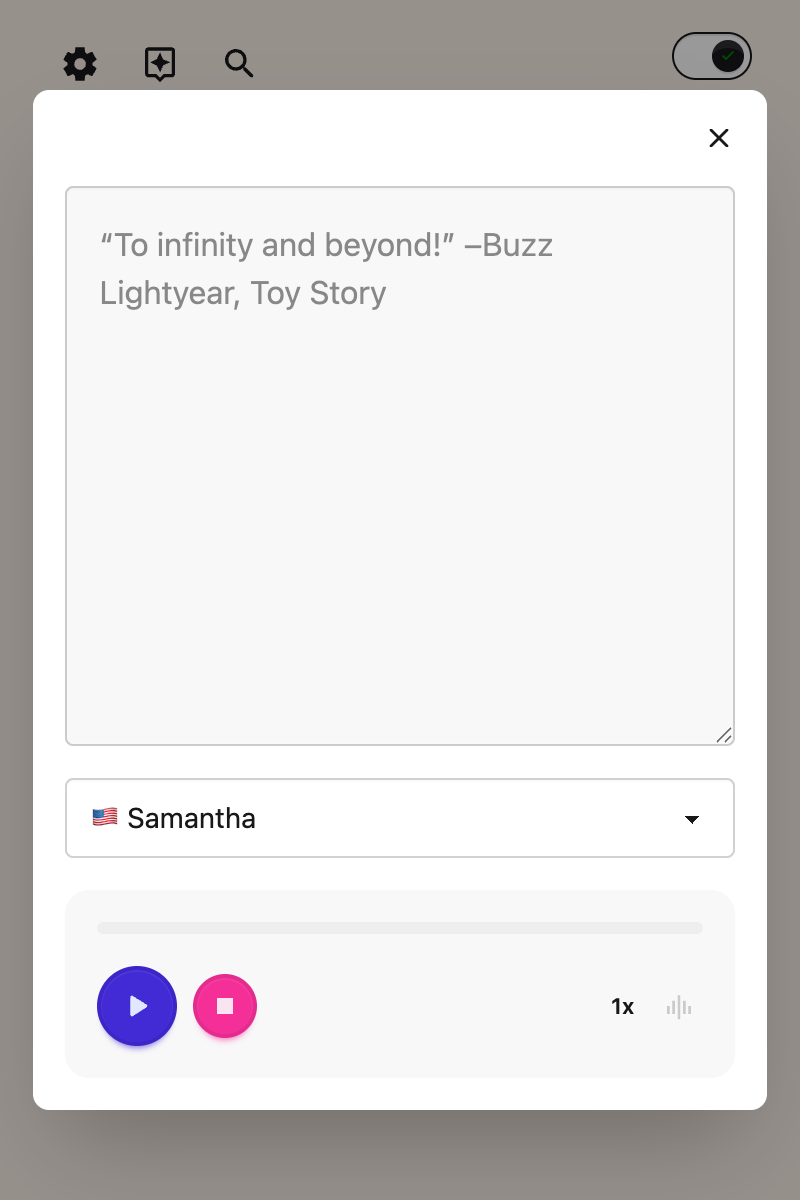
The first time you press play, there is a wait while the audio is prepared and you will see
**Generating audio**. That pause is normal and is the price of being able to rewind. Nothing has
frozen.
---
## Why the Button is Greyed Out
The screenshot above shows it greyed out, which is how most people first meet it. There are four
reasons, and the message it gives is not always the helpful one:
- **You are on one of your computer's own voices.** This is by far the most common reason. The
message says _"Theater mode needs a neural voice"_. Pick a neural voice from the voice menu and
the button becomes available.
- **It is already reading.** You cannot switch mid-sentence. Press stop, then switch.
- **You are on the free plan.** The button shows _"Unlock Theater Mode"_.
- **You are on iPhone or iPad.** The button is not shown there at all.
There is one more thing worth knowing. If you switch to a computer voice while Theater is on,
Helperbird quietly goes back to streaming and the drag bar disappears without saying anything. If
your rewind bar vanishes, check your voice.
---
## If You Have Seen It Called Buffer Mode
Older versions called this **Buffer Mode** in some of its messages while the button said
**Theater**. They were always the same feature. Everything now says **Theater mode**.
See also [how to use text to speech](/help/how-to-use-text-to-speech-on-any-website/) and
[what to do when text to speech is not working](/help/text-to-speech-not-working/).
---
## Need Additional Help?
If you have any questions or run into any issues, please contact the Helperbird support team. You
can reach us at [Helperbird support](/support/). We are happy to help you get the most out of
Helperbird.
---
## How to Save a Document in the Helperbird Notepad
URL: https://www.helperbird.com/help/how-to-save-a-document-in-the-helperbird-notepad/
## What This Does
Saving keeps the document you are writing so you can come back to it later, and so it appears in
your list of saved documents.
---
## Who is This For?
This is helpful for:
- Anyone working on something over more than one sitting
- Students keeping drafts of an assignment
- Anyone who wants their writing available on their other computer
---
## Step 1: Write Something
Type your text into the Notepad.
---
## Step 2: Click Save
The Notepad autosaves changes as you write. You can also click the **Save** disk icon in the toolbar
to save explicitly before switching tasks. Writing, saving and autosave are free.

---
## Where Your Document is Kept
Documents use Helperbird's selected storage mode. With Sync enabled and supported by your browser,
they can follow the same browser account. With Sync off, they stay on this device. Storage limits
can cause data to remain local, so check your setup before relying on another device.
They are not stored on a Helperbird server, and they are not shared with anyone.
---
## If Saving Fails
A save can fail because storage is full or unavailable, or because the browser temporarily limits
writes. Save an external copy before troubleshooting.
- Break a very long document into two
- Remove large pasted images
- Or [download it](/help/how-to-download-your-notepad-document/) as a Word or text file to keep a
copy outside the browser
Avoid editing the same saved collection in multiple Notepad tabs at once. Autosave is not a
guarantee against a browser crash or conflicting edits, so download important work regularly.
---
## Need Additional Help?
If you have any questions or run into any issues, please contact the Helperbird support team. You
can reach us at [Helperbird support](/support/). We are happy to help you get the most out of
Helperbird.
---
## How to Save a Page to Your Helperbird Reading List
URL: https://www.helperbird.com/help/how-to-save-a-page-to-your-helperbird-reading-list/
## What This Does
This saves the page you are looking at to your Reading list, so you can close the tab and still find
it again.
---
## Who is This For?
This is helpful for:
- Anyone who finds something worth reading at the wrong moment
- Students gathering sources as they research
- People who keep tabs open because they are afraid of losing the page
---
## Step 1: Go to the Page
Open the web page you want to save and stay on it. Helperbird saves whichever page you are currently
viewing, so this has to be the tab in front of you.
---
## Step 2: Open Helperbird
Click the Helperbird icon in your browser toolbar.
---
## Step 3: Use the Add to Reading List Row
Open **All Features** at the bottom of the menu and look for **Add to reading list**.
The list is in alphabetical order, so this row sits near the top. The separate **View reading list**
row further down opens your saved pages rather than adding to them.

Click the button on that row. A message appears saying **Added to reading list**, and the page is
saved.
To check it worked, open your list with **View reading list**. See
[how to open your reading list](/help/how-to-open-your-helperbird-reading-list/).
---
## Where Your List is Kept
Your reading list is stored by your browser and synced with your browser profile. If you are signed
into the same browser on another computer, your saved pages follow you there.
It is not stored on a Helperbird server, and it does not move between different browsers. Pages
saved in Chrome will not appear in Firefox.
---
## Need Additional Help?
If you have any questions or run into any issues, please contact the Helperbird support team. You
can reach us at [Helperbird support](/support/). We are happy to help you get the most out of
Helperbird.
---
## How to Save and Download Annotated PDFs in Helperbird
URL: https://www.helperbird.com/help/how-to-save-and-download-annotated-pdfs/
## Local Recovery Is Not a Download
Helperbird keeps one recovery copy of the current PDF and its editing state on this device, when
browser storage is available. Reopening the PDF Reader can restore that session after a refresh or
browser restart.
To reopen it, use Helperbird's **PDF Reader** launcher in the same browser profile. Open the reader
itself rather than opening a different PDF. Wait for the saved document to load, then check its
pages, text boxes and drawings.
Reopening the reader restored the sample PDF and its editable additions.
This does not overwrite the original PDF, sync the file to other devices, or create a file you can
hand in. Opening another PDF replaces the recovery slot. Download **With my changes** before
switching documents or sharing your work.
The reader warns before replacing unexported work and asks before clearing a page. Browser storage
limits, clearing browser data, and interrupted saves can prevent recovery, so keep a downloaded copy
of important work.
---
## How to Download Your PDF
1. Click **Download** in the toolbar above the PDF. A window called **Options** opens.
2. Pick **Original only** for the file exactly as it arrived, or **With my changes** for a copy with
your text boxes, pasted images, equations and drawings on it.

**With my changes** stays greyed out until you have added a text box, image, equation or drawing.
Before downloading, give each pasted picture an **Image description**, or mark **This image is
decorative** if it adds no information. Describe what the picture shows or means. If a description
is missing, Helperbird opens that picture's controls so you can add it and download again. Your
edits stay in place. Equation images already carry their equation description. Follow
[add image descriptions to a PDF](/help/how-to-add-image-descriptions-to-a-pdf/) for a screenshot
walkthrough.
To get a note from the Notepad into the file, click **Add Textbox to PDF** in the Notepad first.
Typing notes and adding them to the PDF are free. Text becomes text boxes; pictures and equations
become image boxes. All are included in **With my changes**.
---
## What Goes Into the Download
These additions are included:
- **Text boxes** you typed onto the page. Bold, italic, underline, color, text size, and numbered
and bulleted lists all carry over.
- **Images and equations** added to the page, including pictures transferred from Notepad.
- **Drawings**: pen strokes, rectangles, ovals, lines and arrows, in the color and stroke width you
drew them.
A text box in the browser PDF Reader, with formatting, move, and resize controls.
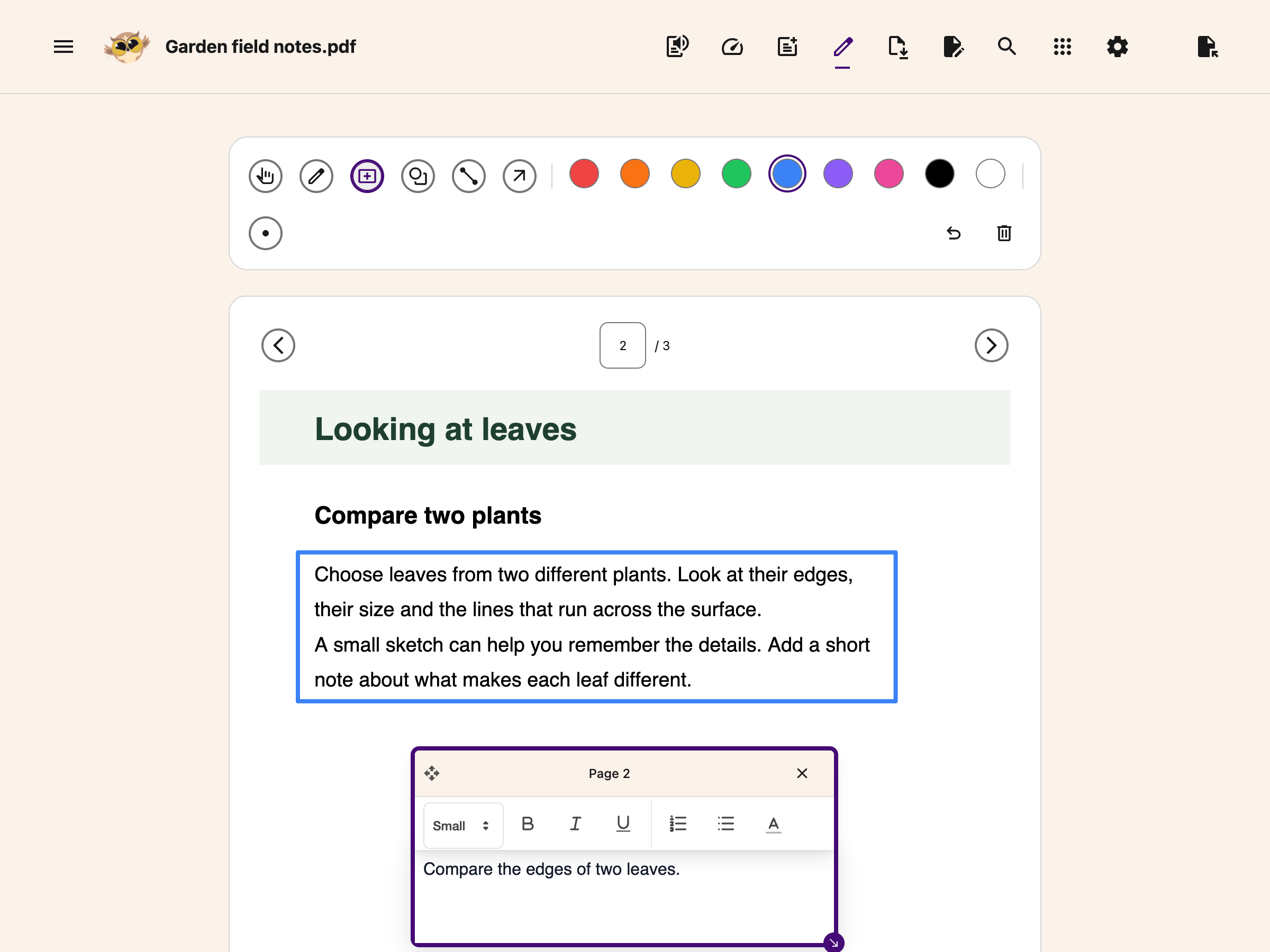
---
## What Does Not Go Into the Download
- **Highlights.** Color you put on the text of the document stays on screen. It is never written
into the saved file.
- **Notepad content you have not inserted.** Use **Add Textbox to PDF** first.
- **Translation.** Download keeps the original PDF text. The Translation tab is a reading view, not
a translated PDF export.
Older saved PDF highlights may appear in Notes without returning to the page. Helperbird cannot
safely place them when their saved record does not identify the PDF and page. You can still read
those notes. New highlights remember the document and page where you made them.
---
## How Your Work Looks in the Saved File
The words already in the PDF are untouched. Your work is painted on top of them. Plan for this
before you download:
- Your text, images, equations and shapes become page content. They are no longer movable Helperbird
boxes or comment threads.
- The editing toolbar, box outline and resize handle are not included. Click away from a filled box
to hide its toolbar while reading nearby form lines. Check the downloaded file before sharing it.
- Text that does not fit inside its box is cut off at the bottom edge. Drag the box bigger before
you download.
- Rectangles and ovals come out as outlines. They are never filled in.
- Text outside the standard PDF font, including other writing systems and emoji, uses fonts from
your device. Check these characters in the saved file; their appearance depends on the fonts
available. If text cannot be rendered, the download fails instead of silently dropping it.
- Check every page, especially if the PDF mixes page sizes or rotated pages. Confirm that text,
images and drawings are in the right places.
Text annotations and image descriptions also include reading information where the source PDF allows
it. This does not repair the original document or guarantee a fully accessible PDF. Dark mode
changes the on-screen colors only; downloaded pages keep their original colors.
---
Equation images in the download do not keep an editable maths object. Keep your Helperbird workspace
to [edit an equation later](/help/how-to-add-equations-to-pdfs-and-notepad/#edit-an-equation).
## Where the File Goes and What It Is Called
The downloaded file goes to your browser's normal download location. Separately, the reader keeps
one device-local recovery session; it is not cloud storage or a permanent document library.
The tools in the **Tools** menu work differently. Summarize, Immersive Reader, Translate and
Screenshot Reader send text or a screenshot from your PDF to OpenAI or Azure so they can do their
work. [Where Helperbird stores your data](/help/helperbird-data-hosting/) covers this in full.
The name comes from the title stored inside the PDF, not from the name of the file you opened. A
copy with your changes gets `_annotated` added to it. When a PDF carries no title of its own, the
file is called `Helperbird PDF_annotated.pdf`.
Some PDFs store a title that already ends in .pdf, so the copy can come out named like
`report.pdf_annotated.pdf`. Rename it after you download.
From there it is an ordinary PDF.
[Sharing and exporting PDFs](/help/how-to-share-pdfs-with-helperbird/) covers sending it on.
---
## Related Guides
- [How to Annotate and Export a PDF with Helperbird](/help/how-to-annotate-and-export-a-pdf-with-helperbird/)
- [How to Open the PDF Reader in Helperbird](/help/how-to-open-the-pdf-reader-in-helperbird/)
- [How to Use the PDF Reader in Helperbird](/help/how-to-use-pdf-reader-in-helperbird/)
- [How to Use Drawing Tools on PDFs](/help/how-to-use-drawing-tools-on-pdfs-with-helperbird/)
- [How to Add Text Boxes to PDFs](/help/how-to-add-text-boxes-to-pdf-with-helperbird/)
- [How to Use Helperbird for Reading Long PDFs](/help/how-to-use-helperbird-for-reading-long-pdfs/)
- [How to Open PDFs with Helperbird in Google Drive, Classroom or Gmail](/help/open-pdfs-with-helperbird-though-google-products/)
- [Where Helperbird Stores Your Data](/help/helperbird-data-hosting/)
---
## Need Additional Help?
If you have any questions or run into any issues, please contact the Helperbird support team. You
can reach us at [Helperbird support](/support/). We are happy to help you get the most out of
Helperbird.
---
## How to Search and Filter Features in Helperbird
URL: https://www.helperbird.com/help/how-to-search-and-filter-features-in-helperbird/
## What is Search?
The Search feature helps you quickly find any Helperbird tool or setting. Instead of scrolling
through all the features, you can type what you are looking for and see matching results instantly.
---
## Who is This For?
This feature is helpful for:
- Anyone who wants to find features quickly
- People who are new to Helperbird and exploring tools
- Users who cannot remember where a specific feature is located
- Anyone who wants faster access to Helperbird tools
- People who use many different features
---
## Step 1: Open Helperbird
Click the Helperbird icon in your browser toolbar. It looks like a small owl and is usually in the
top-right corner of your browser.
This will open the Helperbird menu.

---
## Step 2: Open Search
In the top right corner of the Helperbird panel, look for the search icon. It looks like a
magnifying glass.
Select **Search** (the magnifying glass). Keyboard users can Tab to it and press Enter.
A search bar opens with the cursor ready for you to type.
---
## Step 3: Search for Features
Type the name of the feature you are looking for. Helperbird will instantly filter the results to
show only matching tools.
You can search by:
- Feature names like "Reading Mode", "Voice Typing", or "Translate"
- Categories like "Reading", "Writing", or "Dyslexia"
- Keywords related to what you want to do
As you type, the results update in real time. Use a feature’s control to open or enable it.
If nothing matches, the message includes your search words. Select **Clear** to see all features and
type another search. Closing search returns keyboard focus to the Search button.
**Tip:** If you do not remember the exact feature name, try searching for what you want to
accomplish. For example, search "read aloud", "highlight", or "fonts" to find related tools.
---
## Video Tutorial
Coming soon
---
## Need Additional Help?
If you have any questions or run into any issues, please contact the Helperbird support team. You
can reach us at [Helperbird support](/support/). We are happy to help you get the most out of
Helperbird.
---
## How to Search and Zoom a PDF in Helperbird
URL: https://www.helperbird.com/help/how-to-search-and-zoom-a-pdf/
## What This Does
Find a word on the PDF page you are reading, or make the page a comfortable size. Search, zoom,
**Fit width** and **Fit page** are free.
Search checks one page at a time. It does not search every page in the document or recognize text
inside a scan.
## Step 1: Open PDF Tools
[Open your PDF in Helperbird](/help/how-to-open-the-pdf-reader-in-helperbird/). Choose **Zoom and
search** in the header to show the bar above the document.
Choose the same button again to hide the bar. Hiding it keeps your search state.
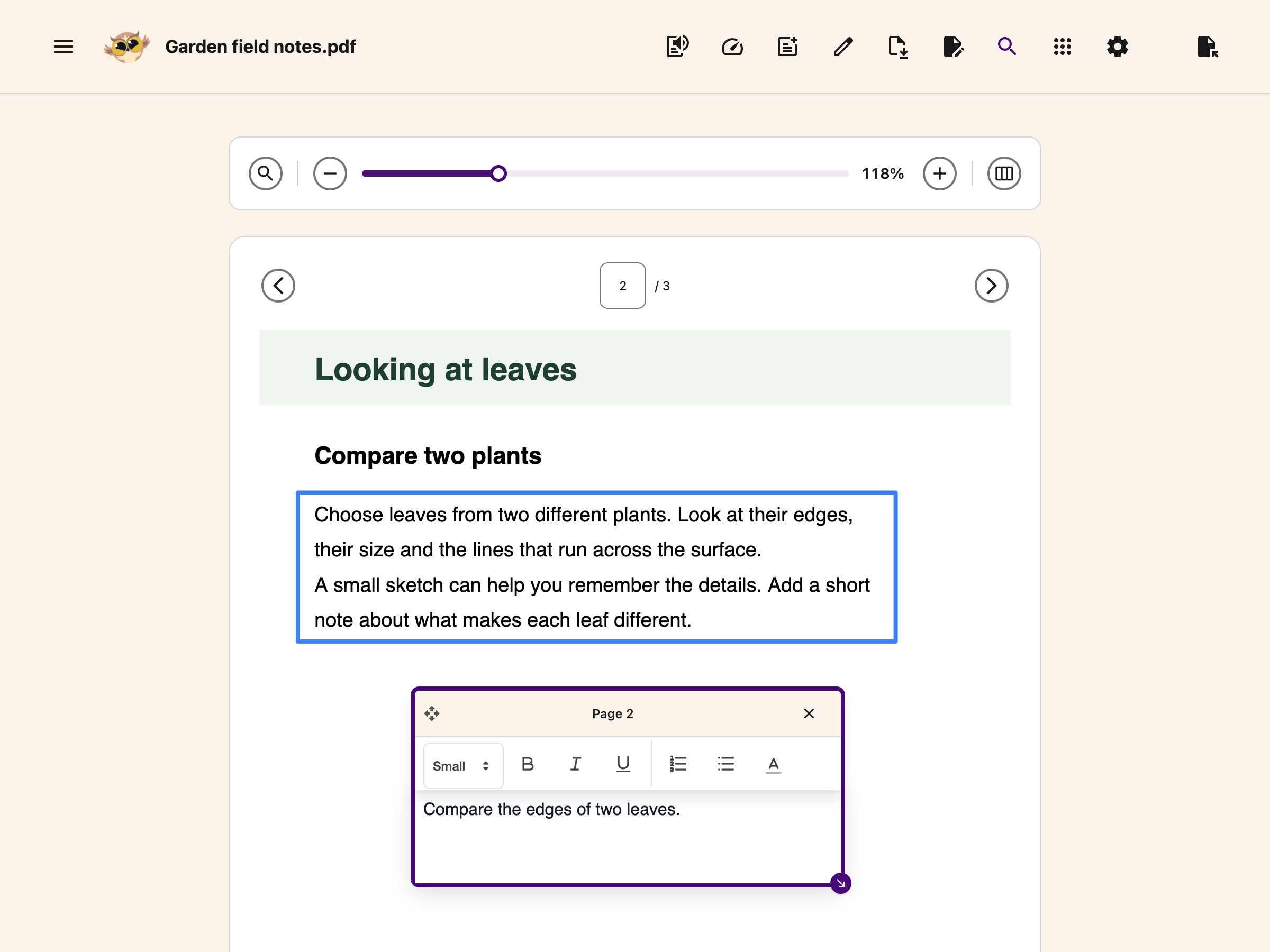
## Step 2: Search the Current Page
Choose **Search** in the PDF Tools bar and type a word or phrase. Search replaces the zoom controls
while it is open.
Matches are highlighted on the current page. Use the next and previous match buttons to move through
them. The counter shows your place among the matches on this page.
You can also press **Enter** for the next match or **Shift + Enter** for the previous one. Press
**Escape** to close search and return focus to its button.
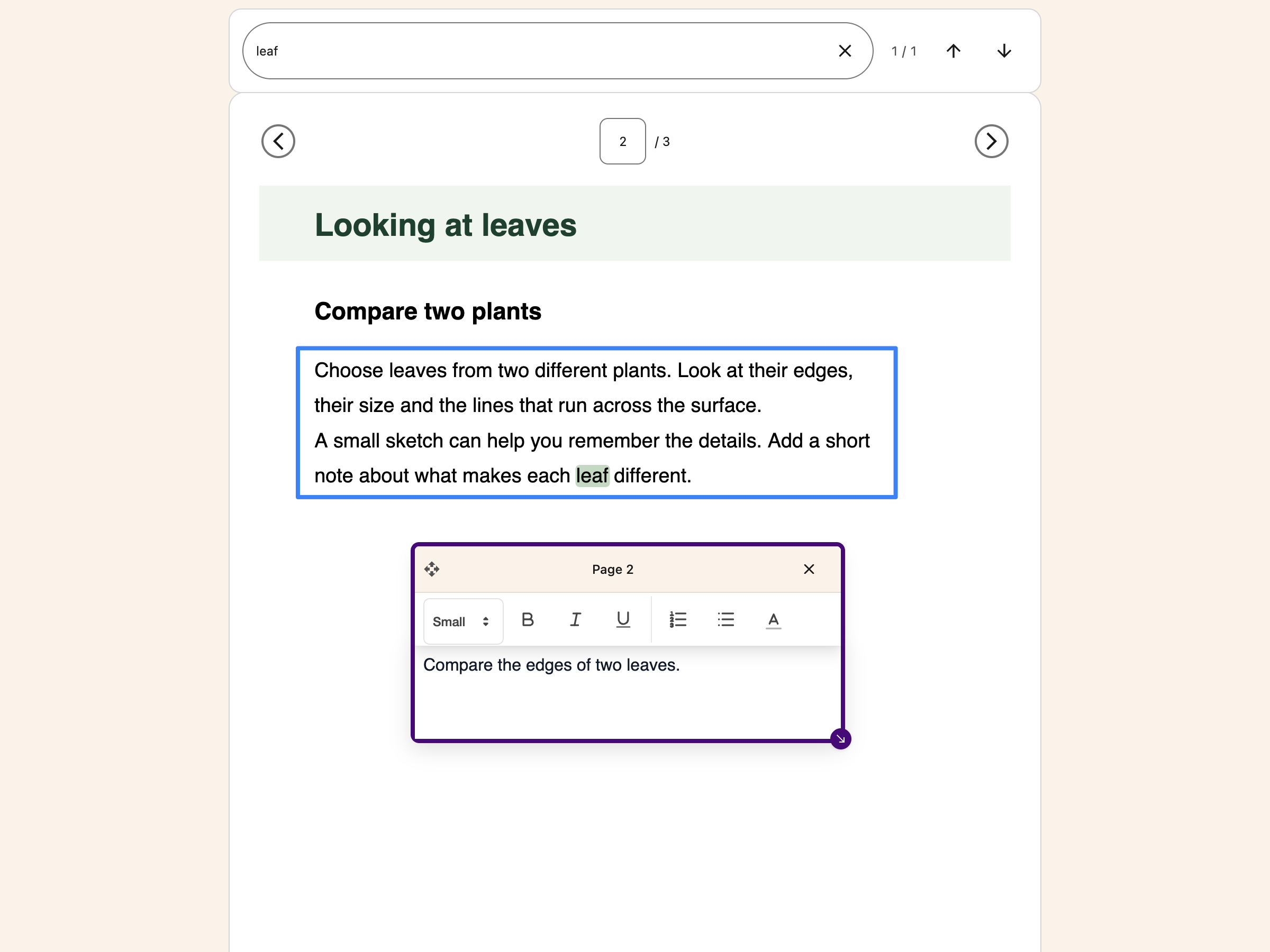
Turn to another page to search there. Your query stays in the search box, and the matches and count
update for that page.
## Step 3: Adjust the View
Close search to return to the zoom controls.
- Drag the zoom slider, or use **minus** and **plus**, to change the page size.
- Choose **Fit width** to fill the available reading width.
- Choose **Fit page** to see the page within the available space.
Zoom changes your view. It does not change the page size in a downloaded PDF.
## Troubleshooting
**No matches:** Check the spelling and current page number. For a scan, use
[Screenshot Reader](/help/how-to-extract-text-from-any-image-pdf-or-website/) to extract the text.
**The zoom buttons are missing:** Close search, or show **Zoom and search** again.
**You are viewing a translation:** PDF search and view controls return you to the original PDF. Use
the [translation tabs](/help/how-to-translate-pdfs-with-helperbird/) to compare the two views.
## Need Additional Help?
See the [PDF Reader guide](/help/how-to-use-the-helperbird-pdf-support/) or contact
[Helperbird support](/support/).
---
## How to Split Text into Columns on Websites
URL: https://www.helperbird.com/help/how-to-set-the-column-width-on-any-page/
## What Happened to Paragraph Columns?
Helperbird used to have a Paragraph columns feature. It lived in the **Paragraphs** panel as a **Text columns** toggle, and it split the text on a webpage into two or more narrow columns, like a newspaper.
That feature has been removed. The toggle is no longer in the popup, and there is no setting to bring it back.
The reason people used it still matters. Shorter lines are easier to track, so your eyes do not get lost on the way from one line to the next. Helperbird still gives you shorter lines, without the column layout.
---
## What to Use Instead
- **[Paragraph width](/help/how-to-adjust-paragraph-width-on-any-website/).** Narrows every paragraph on the page to a width you choose. You get one column of short, comfortable lines instead of several. This is the closest match to what Paragraph columns did.
- **[Reading Mode](/help/how-to-use-reading-mode-and-remove-ads-on-any-website/).** Rebuilds the page as one clean column of text, with ads, menus, and sidebars stripped out. Pick this when the whole page feels cluttered, not only the line length.
---
## How to Get Shorter Lines Now
Paragraph width does the same job Paragraph columns did, with one column instead of several:
1. Open the page you want to read.
2. Click the Helperbird icon in your browser toolbar.
3. Scroll down to **All Features** and expand it.
4. Click **Open** on the **Paragraphs** row.
5. Turn on the **Width** toggle. If you use the search bar instead, look for **Line width**.
6. Move the slider to the left until the lines feel comfortable.
For screenshots of every step, see the full [Paragraph width guide](/help/how-to-adjust-paragraph-width-on-any-website/).
---
## Need Additional Help?
If you have any questions or run into any issues, please contact the Helperbird support team. You can reach us at [Helperbird support](/support/). We are happy to help you get the most out of Helperbird.
---
## How to Share and Export PDFs with Helperbird
URL: https://www.helperbird.com/help/how-to-share-pdfs-with-helperbird/
## How Sharing a PDF Works
You share a marked-up PDF the same way you share any file.
There is no share or send button in the PDF Reader. You download the file to your computer first,
then pass it on with whatever you already use.
Some tools in the **Tools** menu send text or a screenshot from your PDF to OpenAI or Azure. See
[where Helperbird stores your data](/help/helperbird-data-hosting/).
---
## Step 1: Download the PDF With Your Changes
Click **Download** in the toolbar. In the **Options** window, choose **With my changes**. You get a
standard PDF that opens in any viewer.
Read [what survives a download](/help/how-to-save-and-download-annotated-pdfs/) before you hand in
work that will be graded.

---
## Step 2: Send the File
The downloaded PDF behaves like any other file on your computer. You can:
- Upload it to Google Drive and share it with a teacher or classmate
- Attach it to an assignment in Google Classroom
- Attach it to an email
- Upload it to OneDrive or hand it in through Microsoft Teams
- Upload it to Canvas, Schoology, Brightspace or whichever platform your school uses
- Print it, with your text boxes and drawings on the page
---
## What the Person Opening It Sees
- An ordinary PDF, with no need for Helperbird at their end
- The original document, unchanged, with your work drawn on top
- Text and shapes that are now part of the page, so they cannot be clicked, moved or replied to
---
## What Sharing Does Not Do
- Highlights are not in the file you send, and neither is anything left in the Notepad.
- Your text boxes and drawings become part of the downloaded page. To change an answer, reopen your
editable recovery session in the same browser, if it is still available, and download again. If
that session has been replaced, start again from the original PDF.
---
## How Students Hand Work Back
Your teacher shares a PDF worksheet through Google Classroom.
You open it in the [Helperbird PDF Reader](/help/how-to-open-the-pdf-reader-in-helperbird/) and fill
it in with text boxes and drawing tools.
Then you download it with your changes and hand the file back the same way it came.
---
## Related Guides
- [How to Annotate and Export a PDF with Helperbird](/help/how-to-annotate-and-export-a-pdf-with-helperbird/)
- [How to Use the PDF Reader in Helperbird](/help/how-to-use-pdf-reader-in-helperbird/)
- [How to Use Drawing Tools on PDFs](/help/how-to-use-drawing-tools-on-pdfs-with-helperbird/)
- [How to Add Text Boxes to PDFs](/help/how-to-add-text-boxes-to-pdf-with-helperbird/)
- [How to Use Helperbird for Reading Long PDFs](/help/how-to-use-helperbird-for-reading-long-pdfs/)
- [How to Open PDFs with Helperbird in Google Drive, Classroom or Gmail](/help/open-pdfs-with-helperbird-though-google-products/)
---
## Need Additional Help?
If you have any questions or run into any issues, please contact the Helperbird support team. You
can reach us at [Helperbird support](/support/). We are happy to help you get the most out of
Helperbird.
---
## How to Show Link and Image Descriptions on Any Website
URL: https://www.helperbird.com/help/how-to-show-link-and-image-descriptions-on-any-website/
> **Changed in Helperbird 2026.7.28:** Show link descriptions and Show image descriptions used to be
> two separate switches. They are now a single **Show descriptions** toggle covering both. The steps
> below still apply. You just turn on one switch instead of two.
## What are Link and Image Descriptions?
Many links carry title text saying where they lead, and images carry alt text describing what they
show. Both are normally invisible. **Show descriptions** puts that text in a tooltip when you hover,
so you can read it.
---
## Who is This For?
This feature is helpful for:
- People who want to know where a link leads before clicking
- Anyone who wants to understand images without seeing them clearly
- People with visual impairments who use screen magnification
- Anyone researching or fact-checking content
- People who want more context about links and images on a page
---
## Step 1: Open Helperbird
Click the Helperbird icon in your browser toolbar. It looks like a small owl and is usually in the
top-right corner of your browser.
This will open the Helperbird menu.
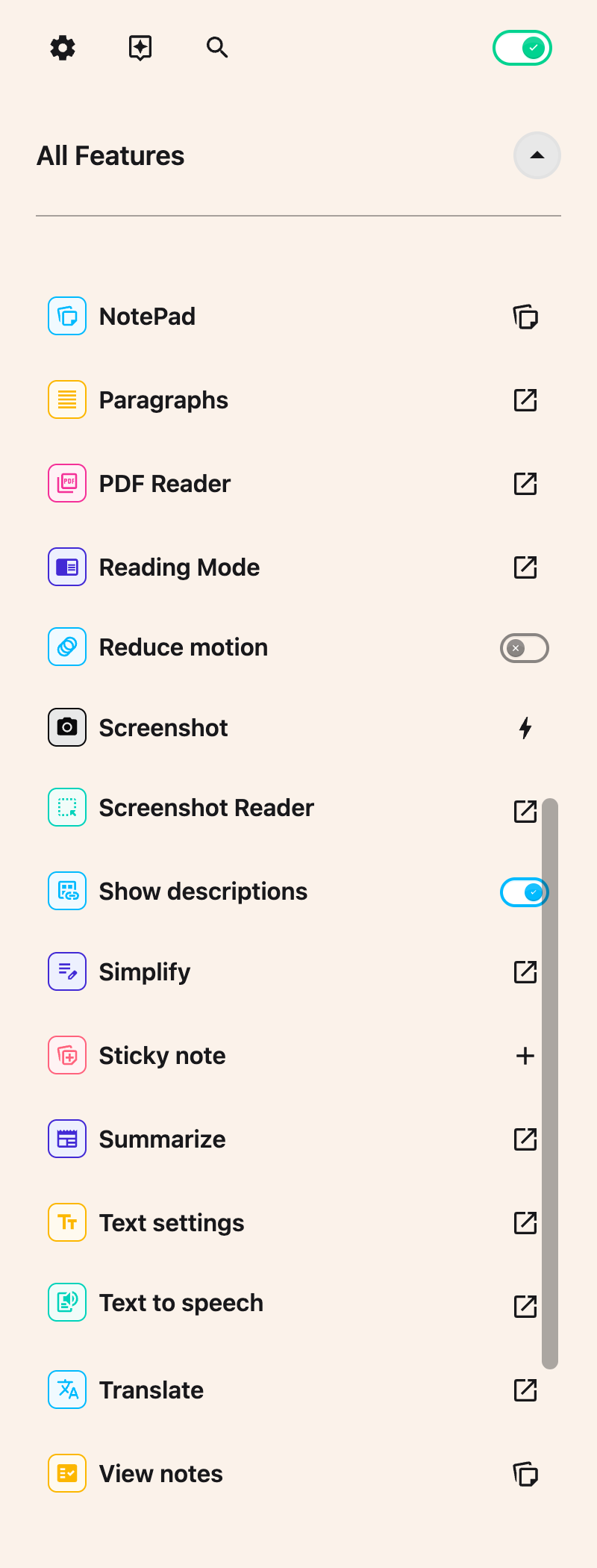
---
## Step 2: Go to the All Features Section
Scroll down to the bottom of the Helperbird menu. You will see a section called **All Features**.
Click the arrow next to **All Features** to expand it and show all available features.
---
## Step 3: Find Show Descriptions
Look through the list of features until you see **Show descriptions**. This one switch covers both
images and links. (Before Helperbird 2026.7.28 these were two separate features, **Show image
titles** and **Show alt text**.)
---
## Step 4: Turn on Show Descriptions
Click the toggle next to **Show descriptions**. It turns green when it is enabled.
That single switch gives you descriptions for both images and links when you hover over them, so you
no longer need to turn on two separate features.
---
## Step 5: Hover Over Links and Images
Move your mouse over any link or image on the page.
A small tooltip will appear showing:
- For links: the title of the link, or where it goes
- For images (with **Show image titles** turned on): The alt text description of the image
This helps you understand what links and images are about before interacting with them.
**Tip:** This feature is especially useful on pages with many links, helping you decide which ones
are worth clicking.
---
## Need Additional Help?
If you have any questions or run into any issues, please contact the Helperbird support team. You
can reach us at [Helperbird support](/support/). We are happy to help you get the most out of
Helperbird.
---
## How to Simplify Text on Any Website with Helperbird
URL: https://www.helperbird.com/help/how-to-simplify-text-on-any-website/
## What is Simplify?
Simplify rewrites text with short sentences and common words. Choose a reading level for your
rewrite. Check it against the original before you use it.
You need Helperbird Pro to use Simplify. On the free plan, you can open the panel but cannot start a
rewrite.
If you want the key points of a long passage rather than a rewrite, try
[Summarize](/help/how-to-summarize-text-on-any-website/) instead.
---
## Who is This For?
This feature is helpful for:
- People with reading difficulties or dyslexia
- English language learners who find complex text hard to understand
- Students reading academic or technical content above their reading level
- Seniors who prefer plain language
- Anyone who finds jargon-heavy websites confusing
- People with cognitive disabilities who benefit from simpler text
---
## Step 1: Open Simplify
Click the Helperbird icon in your browser toolbar. Find **Simplify** in the feature list and click
the open button beside it. If you have added it to your quick actions, it appears there as
**Simplify text**.
The Simplify window opens.
---
## Step 2: Add Your Text
There are two ways to give Simplify text to work on.
**Highlight text on the page.** Before you open Helperbird, select the text you want with your
mouse. Leave the box in the Simplify window empty.
**Type or paste into the box.** The Simplify window has a text box. Paste or type anything into it,
even text from another app.
If the box has text in it, Helperbird uses that text and ignores anything highlighted on the page.
Two limits apply:
- The box holds up to **1,000 characters**. A counter below the box shows how much you have used,
and it turns red as you get close. A longer paste is cut off at 1,000 characters. There is no
pop-up when that happens, so check the counter after a big paste.
- Simplify handles up to **250 words** at a time, whether the text is typed or highlighted. Longer
text shows a "Text too long" message that tells you how many words to remove.
---
## Step 3: Pick a Reading Level
Use the **Reading level** menu near the bottom of the window. There are four levels:
- **Simple**
- **Elementary**
- **Middle school**
- **High school**
**Simple** is the plainest and is the default. Helperbird remembers your choice, so the next time
you open Simplify your level is already set.
---
## Step 4: Click Simplify
Click **Simplify**. Wait for the new text to appear.
---
## Step 5: Read the Result
The rewrite appears in the window on the **Simplified** tab. Your text is not changed on the page
itself.
Click the **Original** tab to see your text exactly as you gave it. Switch between the two tabs as
often as you like to compare them.
---
## Listen, Start Over, and Copy
Three buttons sit under the result:
- **Listen** opens [text to speech](/help/how-to-use-text-to-speech-on-any-website/) with your text
loaded. Press **Play** to hear it.
- **Start over** clears the result and your text so you can begin again.
- **Copy** puts the text on your clipboard. You see "Copied" when it works.
**Listen** and **Copy** act on the tab you are viewing. If you are on the **Original** tab, they
speak or copy your original text, not the rewrite.
---
## Troubleshooting
**"Select some text first."** The box was empty and nothing was highlighted on the page. Add text
one of the two ways above.
**"Text too long. Remove X words."** Your text is over the 250 word limit. The message tells you how
many words to cut.
**"Something went wrong. Please try again."** The rewrite failed on our end. If you typed or pasted
your text, it is kept in the box, so press **Simplify** again. If you highlighted text on the page,
highlight it again first.
**Your pasted text got shorter.** Pastes are cut at 1,000 characters with no message. The counter
under the box shows the cut-off.
**Closing the window clears everything**, including text you typed and the result. Use **Copy**
first if you want to keep the rewrite.
---
## Video Tutorial
Coming soon
---
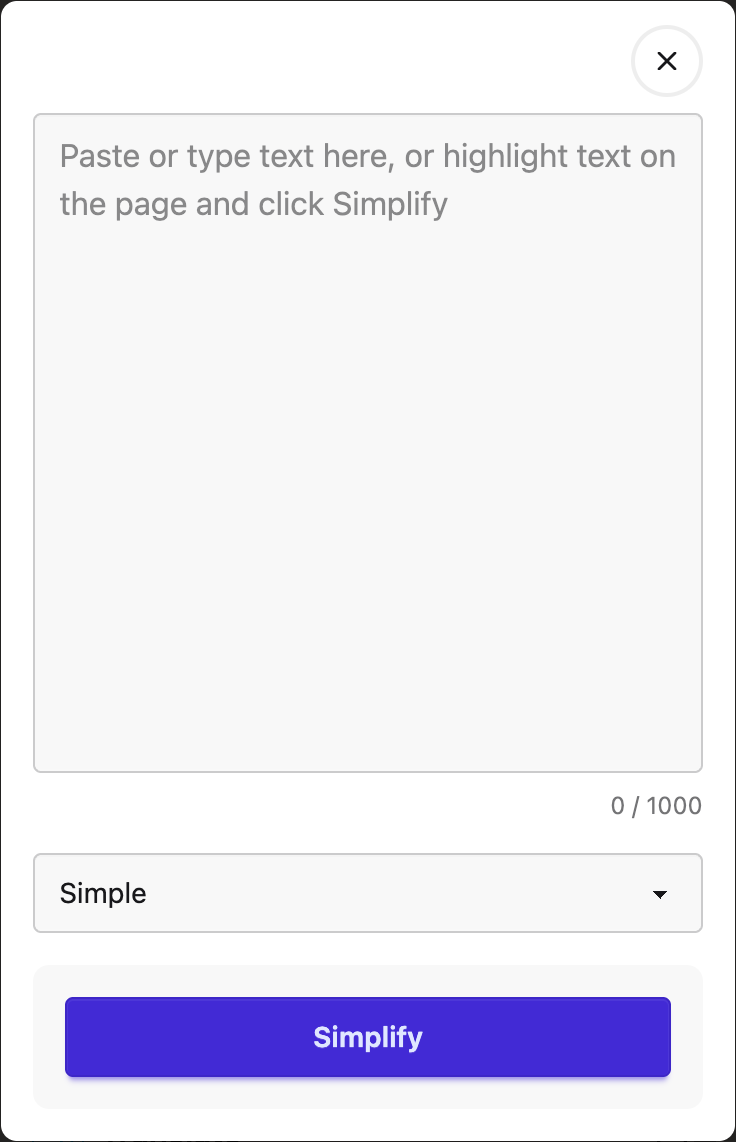
---
## Need Additional Help?
If you have any questions or run into any issues, please contact the Helperbird support team. You
can reach us at [Helperbird support](/support/). We are happy to help you get the most out of
Helperbird.
---
## How to Start a New Document in the Helperbird Notepad
URL: https://www.helperbird.com/help/how-to-start-a-new-document-in-the-helperbird-notepad/
## What This Does
**New document** clears the page and starts you on a fresh one, so you can keep separate pieces of
writing apart instead of piling everything into one.
---
## Who is This For?
This is helpful for:
- Students with more than one assignment on the go
- Anyone who keeps a separate page per subject, per class or per day
- Anyone who has finished one thing and wants to start the next
---
## Step 1: Save What You Have
If you want to keep what is on the page,
[save it first](/help/how-to-save-a-document-in-the-helperbird-notepad/). Starting a new document
clears the page.
---
## Step 2: Click New Document
Click **New document** in the toolbar. It is the circled plus in the top toolbar.
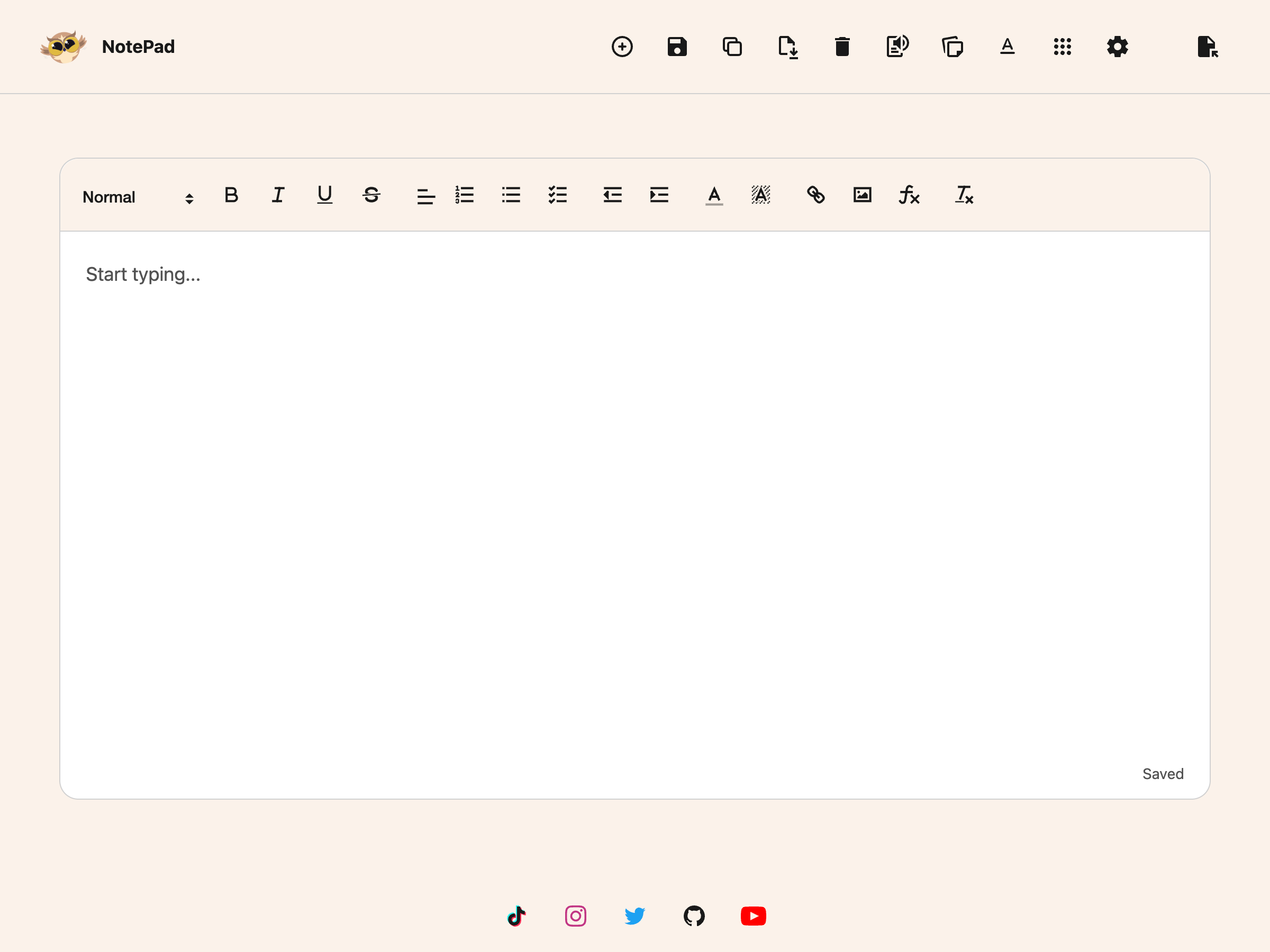
The page clears and you can start typing.
Everything you saved before is still there. Open it again from
**[Open document](/help/how-to-open-a-saved-document-in-the-helperbird-notepad/)** whenever you need
it.
---
## Need Additional Help?
If you have any questions or run into any issues, please contact the Helperbird support team. You
can reach us at [Helperbird support](/support/). We are happy to help you get the most out of
Helperbird.
---
## How to Stop Animations on Any Website
URL: https://www.helperbird.com/help/how-to-stop-animations-on-any-websites/
## What is Reduce Motion?
Reduce Motion tells websites to minimize or stop animations and moving effects. This includes things
like sliding menus, bouncing buttons, parallax scrolling, and other animated elements.
When enabled, websites that respect this setting will show simpler, calmer versions of their pages
with less movement.
---
## Who is This For?
This feature is helpful for:
- People with vestibular disorders who get dizzy from motion
- Anyone who experiences motion sickness from screen animations
- People with ADHD who find animations distracting
- Anyone with epilepsy who is sensitive to flashing or moving content
- People who prefer a calmer browsing experience
---
## Step 1: Open Helperbird
Click the Helperbird icon in your browser toolbar. It looks like a small owl and is usually in the
top-right corner of your browser.
This will open the Helperbird menu.
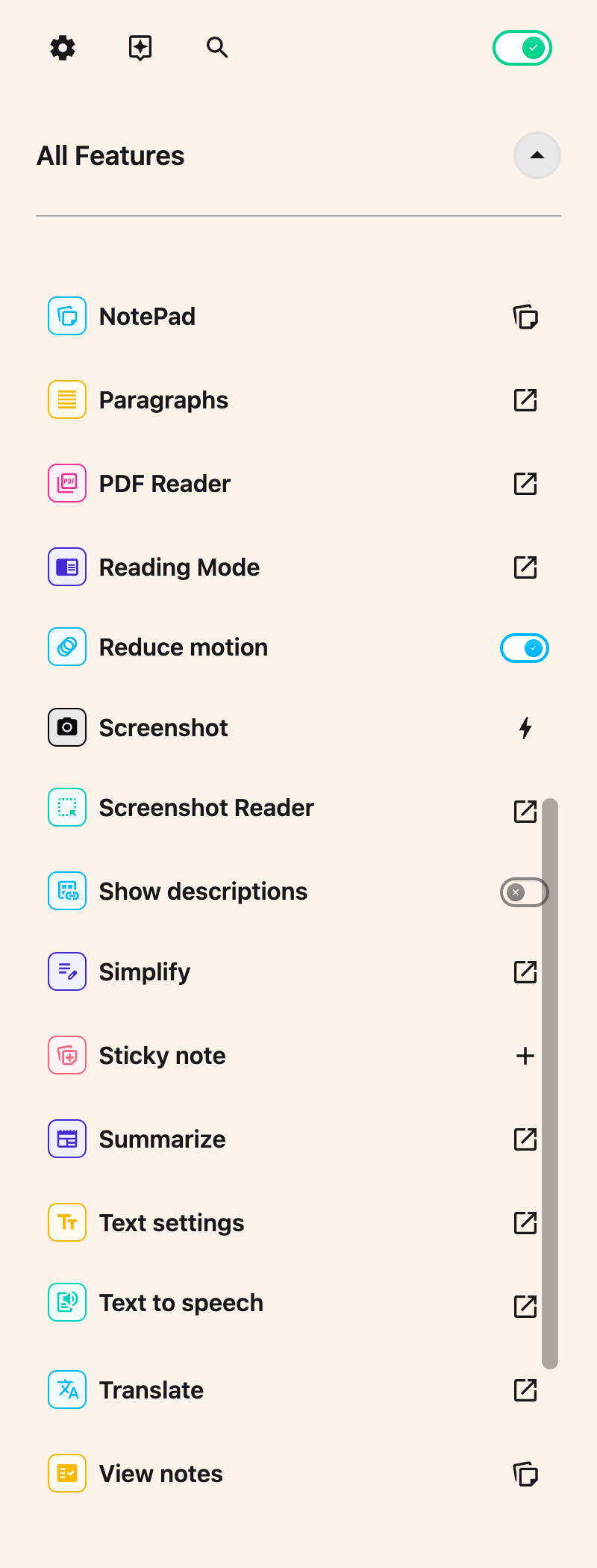
---
## Step 2: Open the All Features Section
Scroll down to the bottom of the Helperbird menu. You will see a section called **All Features**.
Click the arrow next to **All Features** to expand it and show all available features.
---
## Step 3: Find Reduce Motion
Look through the list of features until you see **Reduce motion**. It has its own row in the list,
with a toggle switch right next to it.
---
## Step 4: Turn on Reduce Motion
Click the toggle switch next to **Reduce motion** to turn it **on**. A green check badge will appear
on the row to show the feature is active.
Websites will now show with reduced animations. The effect depends on how each website is built.
Well-designed websites will respect this setting and show calmer versions of their animations.
**Tip:** For even fewer moving elements, turn on **Hide images & GIFs** in the same All Features
list. That takes the pictures away entirely, animated ones included. See
[how to hide images and GIFs](/help/how-to-hide-images-and-gifs-on-every-website/).
---
## Need Additional Help?
If you have any questions or run into any issues, please contact the Helperbird support team. You
can reach us at [Helperbird support](/support/). We are happy to help you get the most out of
Helperbird.
---
## How to Summarize Text on Any Website with Helperbird
URL: https://www.helperbird.com/help/how-to-summarize-text-on-any-website/
## What is Summarize?
The Summarize feature takes long blocks of text and turns them into a short list of key points.
Instead of reading an entire article or page, you get the main ideas in a few lines.
Summarize is a Pro feature. You need a Helperbird Pro subscription to use it.
---
## Who is This For?
This feature is helpful for:
- Students who need to understand long articles or textbook passages
- Researchers who want to scan content faster
- Anyone who finds long text overwhelming or difficult to process
- People with ADHD or reading difficulties who benefit from shorter text
- Anyone who wants to save time while browsing
---
## Step 1: Open the Summarize Panel
Click the Helperbird icon in your browser toolbar. It looks like a small owl and is usually in the
top-right corner of your browser.
In the Helperbird menu, find **Summarize** and click the **Open** button beside it. The Summarize
panel appears with a text box and a **Summarize** button.
Summarize is not available in the popup on Google Docs or on PDF files. For PDFs, use
[Helperbird's PDF Reader](#using-summarize-in-the-pdf-reader) instead.
---
## Step 2: Choose What to Summarize
You have three ways to give Helperbird the text:
- **Highlight text on the page.** Click and drag to select a paragraph, a section, or the full
article, then leave the text box empty.
- **Type or paste your own text.** Put the text straight into the box in the Summarize panel. It can
come from anywhere, an email, a document, or another app.
- **Use the page text.** Leave the box empty with no text selected. Helperbird uses the page's main
content, skipping menus and ads where it can.
The text box holds up to 1,000 characters. A counter under the box shows how much you have used, for
example 250 / 1000. The counter turns red when you get close to the limit, and the box stops
accepting text once you reach it. If your text is longer, summarize it in parts.
If you typed or pasted text, Helperbird uses that first, even if you also have text selected on the
page.
---
## Step 3: Click Summarize
Click **Summarize**. A gray placeholder appears while Helperbird works. When the summary is ready, a
list of key points replaces the text box.
A few things can stop the summary:
- On the free plan the **Summarize** button is greyed out and does nothing. The feature row in the
popup shows a diamond **Pro feature** badge.
- If the page has no readable text and you gave Helperbird nothing to work with, you see "Select
some text first". Highlight some text or paste it into the box, then try again.
- If the summary fails, you see "Can't summarize this page". Try again with a smaller piece of text.
---
## Step 4: Read the Summary
The summary replaces the text box. Each key point appears on its own line, so you can read them one
at a time.
Three buttons appear under the summary: **Listen**, **Start over**, and **Copy**.
---
## Listen, Start Over, and Copy
- **Listen** sends the summary to Helperbird's
[text to speech](/help/how-to-use-text-to-speech-on-any-website/), so you can hear the key points
read aloud.
- **Start over** clears the summary and the text box, so you can run a new one without closing the
panel.
- **Copy** puts the whole summary on your clipboard. You see a "Copied" message when it works.
Hover over each button to see its name. When you are done, close the panel or press Escape.
---
## Using Summarize in the PDF Reader
Summarize is also built into Helperbird's PDF Reader, so you do not have to leave your document to
use it.
Open your PDF, then choose **Tools**, the dots-grid button in the toolbar.

Choose **Summarize** from the menu. A panel called **Summary** opens with one **Summarize** button.
Select a passage before opening it to summarize that passage, or leave the page unselected to
summarize the whole page.
The PDF version is smaller than the one in the popup. It shows the summary as a list of points, but
it does not have the **Listen**, **Start over**, or **Copy** buttons, and there is no box for typing
your own text. See
[how to use the Tools menu in the PDF Reader](/help/how-to-use-the-tools-menu-in-the-pdf-reader/).
---
## Video Tutorial
Coming soon
---
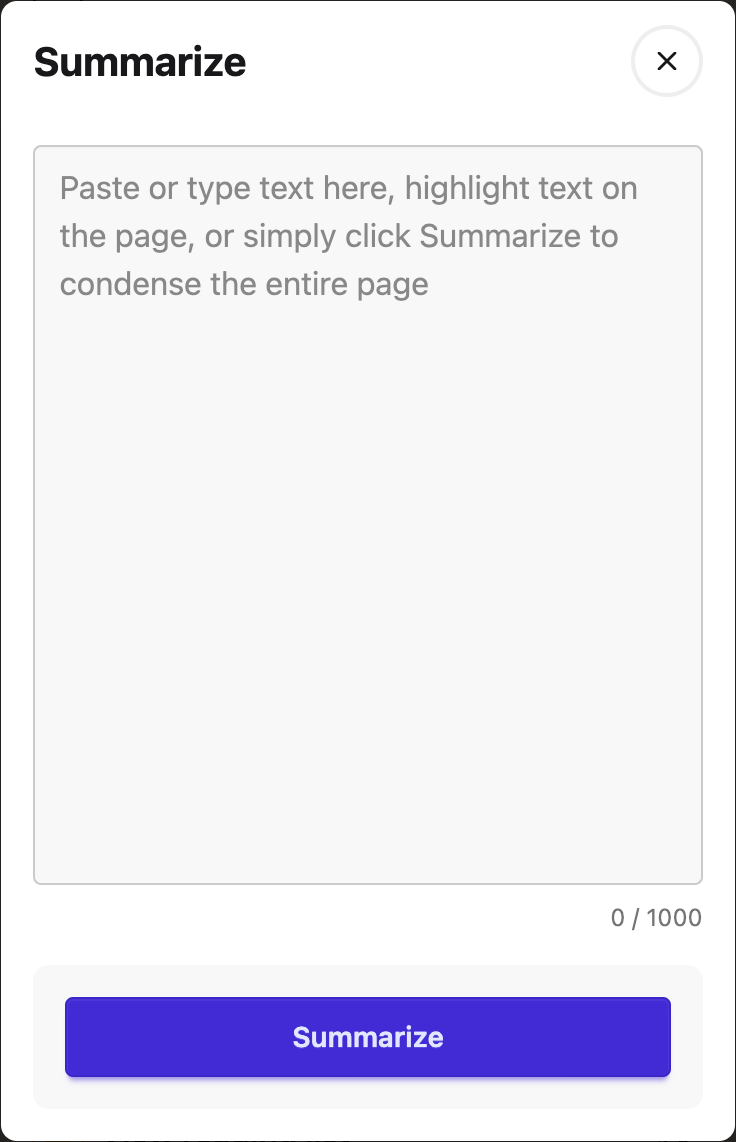
---
## Need Additional Help?
If you have any questions or run into any issues, please contact the Helperbird support team. You
can reach us at [Helperbird support](/support/). We are happy to help you get the most out of
Helperbird.
---
## How to Take a Screenshot with Helperbird
URL: https://www.helperbird.com/help/how-to-take-screenshot-with-helperbird/
## What is the Screenshot Tool?
The Screenshot Tool captures an image of the current webpage. It takes a picture of exactly what you
see on your screen and saves it as a file on your computer.
This is useful for saving information from websites, keeping a record of important pages, or sharing
what you see with others. It captures the visible webpage area, not content below the screen.
To extract words from a picture instead, use
[Screenshot Reader](/help/how-to-extract-text-from-any-image-pdf-or-website/). Its
[keyboard selection controls](/help/how-to-use-screenshot-reader-with-the-keyboard/) belong to that
separate tool.
---
## Who is This For?
This feature is helpful for:
- Students who need to save information for assignments
- Anyone who wants to keep a record of webpage content
- People who need to share what they see online with others
- Researchers who want to document web sources
- Anyone who needs to capture website content quickly
---
## Step 1: Open Helperbird
Click the Helperbird icon in your browser toolbar. It looks like a small owl and is usually in the
top-right corner of your browser.
This will open the Helperbird menu.
---
## Step 2: Open the All Features Section
Scroll down to the bottom of the Helperbird menu. You will see a section called **All Features**.
Click the arrow next to **All Features** to expand it and show all available features.
---
## Step 3: Find Screenshot
Look through the list of features until you see **Screenshot**.
The row has a camera icon beside its name and a lightning-bolt action button on the right.
Use the action button on the Screenshot row.
---
## Step 4: Capture Screenshot
Click the **lightning-bolt action button** next to Screenshot.
Helperbird captures the visible area of the current webpage. Scroll to the area you want before
taking the screenshot.
The screenshot will be saved automatically to your browser's downloads folder as a PNG file. The
filename includes a timestamp so you can organize your captures.
**Tip:** Screenshots are saved directly to your default downloads folder. You can find them in your
file manager or by clicking the downloads icon in your browser.
---
## Video Tutorial
Coming soon
---
## Need Additional Help?
If you have any questions or run into any issues, please contact the Helperbird support team. You
can reach us at [Helperbird support](/support/). We are happy to help you get the most out of
Helperbird.
---
## How to Translate Any Website to Another Language
URL: https://www.helperbird.com/help/how-to-translate-a-webpage-with-helperbird/
## What is Translate?
The Translate feature converts text on a website from one language to another. You can translate an
entire webpage or just the text you select.
Helperbird uses Google Translate for free translations in many different languages. For Pro
subscribers, selected-text translations appear inside Helperbird. Whole webpages open in Google
Translate.
---
## Who is This For?
This feature is helpful for:
- People reading websites in foreign languages
- Students researching content from other countries
- Anyone who wants to access information not available in their language
- People learning a new language who want to understand content
- Travelers looking up information in local languages
---
## Step 1: Open Helperbird
Click the Helperbird icon in your browser toolbar. It looks like a small owl and is usually in the
top-right corner of your browser.
This will open the Helperbird menu.
---
## Step 2: Go to the All Features Section
Scroll down to the bottom of the Helperbird menu. You will see a section called **All Features**.
Click the arrow next to **All Features** to expand it and show all available features.
---
## Step 3: Find Translate
Look through the list of features until you see **Translate**.
Click the open (arrow) button next to **Translate**.
The Translate window opens with a language dropdown and one **Translate** button. There is no custom
text box.
---
## Step 4: Choose Your Language
Click the **Translate to** dropdown and choose the language you want to translate the page into.
Helperbird saves your choice, so it will already be selected the next time you open the Translate
window.
---
## Step 5: Translate the Page
Choose your language, then press **Translate**.
**To translate the whole webpage**, leave the page without a text selection. Helperbird opens it in
Google Translate.
**To translate one passage**, highlight that passage on the webpage before opening Helperbird. The
same **Translate** button uses your selection. Pro subscribers see the result inside Helperbird;
free users see it in Google Translate.
Use the **Close** icon or press Escape to dismiss the window.
---
**Tip:** You can also highlight text on a webpage first, then use the Highlight Menu that appears to
quickly translate just the selected text.
---
## Translate Google Slides
On a Google Slides deck, **Translate** shows two choices: the Google Workspace add-on and Screenshot
Reader. From this dialog, **Screenshot Reader** starts selection immediately and sends the captured
text to **Immersive Reader**. Open **Reading Preferences** there to translate.
Translation guidance for Google Slides with add-on instructions and a Screenshot Reader shortcut.
For installation, capture steps, and help with blocked access, follow
[reading and translating Google Slides](/help/how-to-use-text-to-speech-and-immersive-reader-in-google-slides/).
## Using Translate in the PDF Reader
Translate is also built into Helperbird's PDF Reader, so you do not have to leave your document to
use it.
Open your PDF, then choose **Tools**, the dots-grid button in the toolbar.

Choose **Translate**, pick a language, and press **Translate**. This translates only the current PDF
page. Once it finishes, switch between **Original PDF** and **Translation** above the page. Use
Helperbird's existing reading tools with the translated text.
See [how to translate the current PDF page](/help/how-to-translate-pdfs-with-helperbird/).
---
## Troubleshooting
**The whole page opened in Google Translate:** Select the passage before opening Helperbird if you
only want to translate those words.
**The selected passage is too long:** Free selected-text translation passes up to 5,000 characters
to Google Translate. Select a shorter passage to check the complete result.
**The PDF translation looks different:** PDF Translate creates a reading view with the structure it
can detect. It does not reproduce complex tables, columns or exact page layout.
## Video Tutorial
Coming soon
---
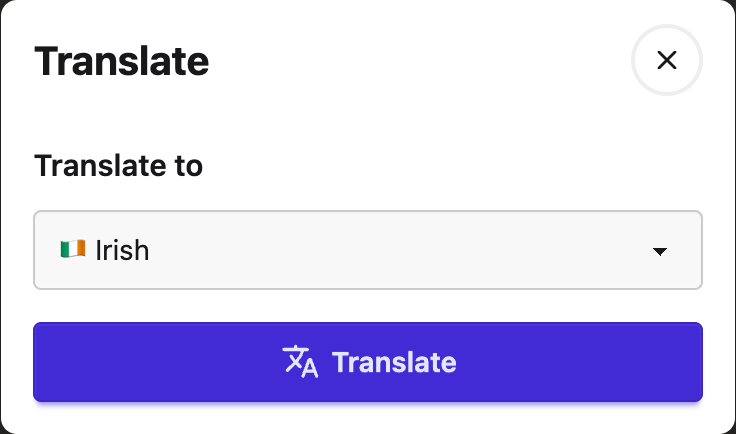
---
## Need Additional Help?
If you have any questions or run into any issues, please contact the Helperbird support team. You
can reach us at [Helperbird support](/support/). We are happy to help you get the most out of
Helperbird.
---
## How to Translate in Immersive Reader
URL: https://www.helperbird.com/help/how-to-translate-in-immersive-reader/
## What This Does
Immersive Reader can translate what you are reading into your own language. You can have the whole thing translated, or just tap the words you get stuck on.
---
## Who is This For?
This is helpful for:
- Students studying in a language that is not their first
- Anyone sent a document in a language they read slowly
- Families reading a school letter written in another language
- Language learners who want to check themselves word by word
---
## Step 1: Open Reading Preferences
Open Immersive Reader first. You can start it from the [floating toolbar](/help/how-to-open-immersive-reader-from-the-floating-toolbar/), from the Helperbird menu, or from the [Tools menu in the PDF Reader](/help/how-to-use-the-tools-menu-in-the-pdf-reader/).
Once it is open, the three buttons in the top-right corner hold every setting.
Click the book button.
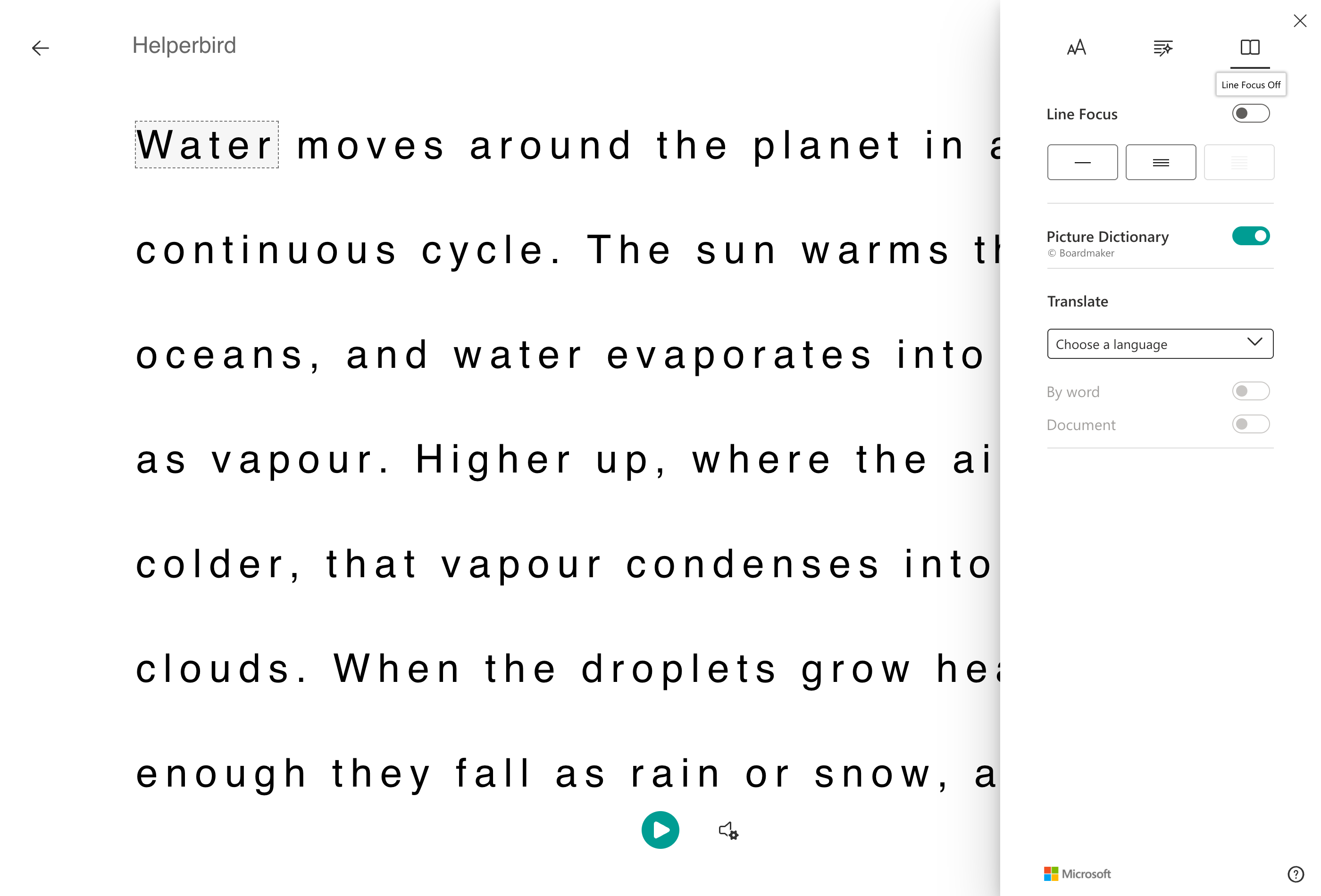
---
## Step 2: Choose a Language
Under **Translate**, open **Choose a language** and pick yours.
Nothing happens yet. The two switches underneath stay greyed out until a language is chosen, which is the usual reason people think translation is broken.
---
## By Word, or the Whole Document
Once a language is set, two switches become available:
- **By word** translates a single word when you click it, leaving everything else as it was.
- **Document** translates the whole thing at once.
---
## Which Should You Use?
**By word** if you can mostly read the text and only stumble on some of it. You stay in the original language, which is how you improve, and get help exactly where you need it.
**Document** if the text is beyond you, or you need to understand it quickly rather than work through it.
You can turn both on. Then the page is in your language and clicking a word shows you that word on its own.
To translate an ordinary web page without opening Immersive Reader, see [how to translate a webpage](/help/how-to-translate-a-webpage-with-helperbird/).
---
## Need Additional Help?
If you have any questions or run into any issues, please contact the Helperbird support team. You can reach us at [Helperbird support](/support/). We are happy to help you get the most out of Helperbird.
---
## How to translate PDFs with Helperbird
URL: https://www.helperbird.com/help/how-to-translate-pdfs-with-helperbird/
Translate turns the text on the current PDF page into your chosen language. It is a Helperbird Pro
feature. Your source PDF, drawings and text boxes stay unchanged.
## Translate the current page
1. Open a PDF in Helperbird and go to the page you want to translate.
2. Open **Tools** in the PDF toolbar and choose **Translate**.
3. The dialog title shows the page number. Choose a language under **Translate to**.
4. Press **Translate**. Loading placeholders appear while Helperbird translates the page. You can
use the **Close** icon or press Escape to stop waiting.
5. When it finishes, the dialog closes and the **Translation** tab opens beside **Original PDF**.
Only the current page is translated. Highlighting a passage does not change the scope, and other
pages are not translated automatically. Helperbird remembers your chosen language for next time.
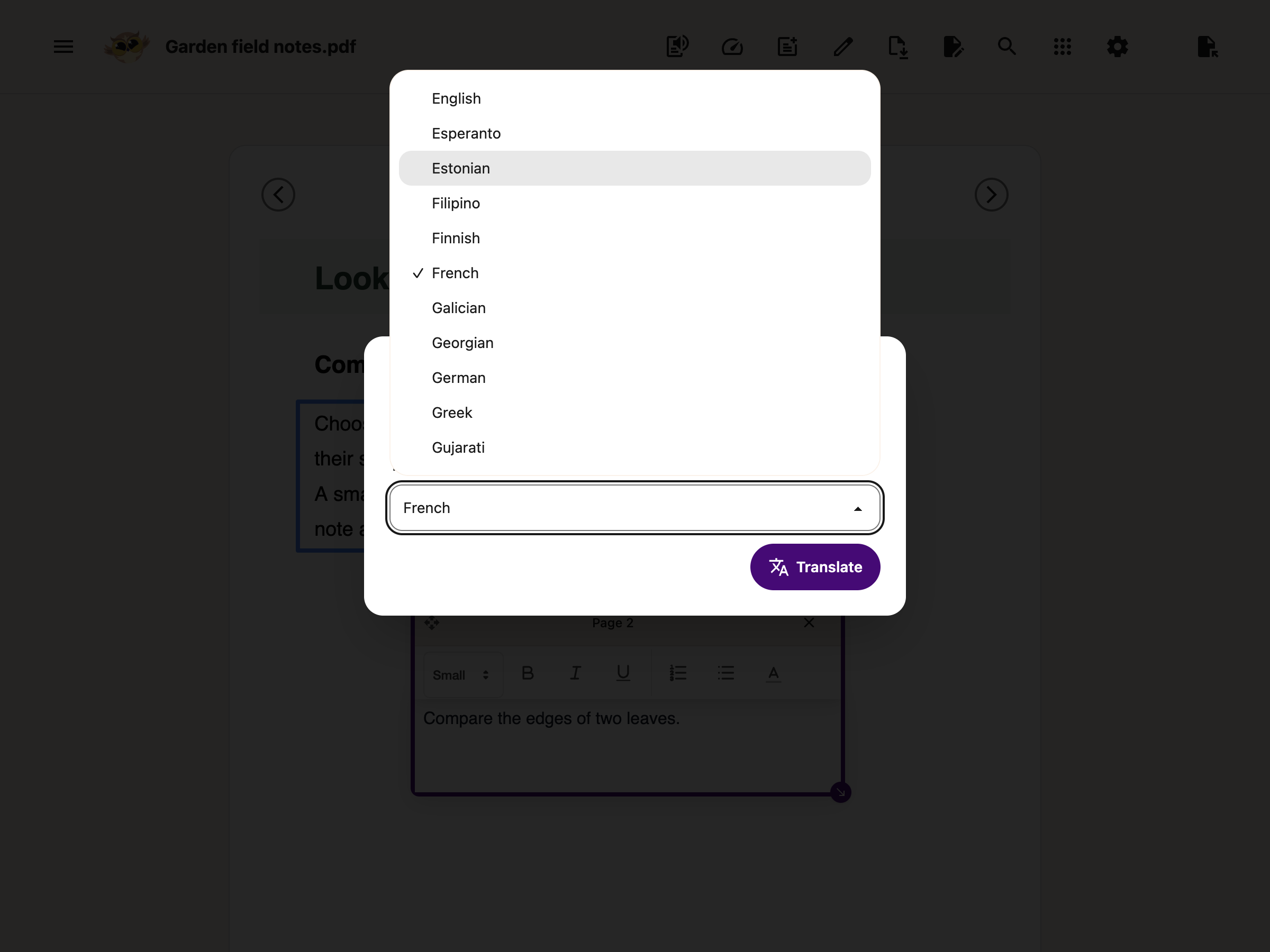
## Read and compare
Switch between **Original PDF** and **Translation** to compare them. You can also focus either tab
and use the arrow keys to switch.
The translated page uses the existing reading tools. Open **Text to Speech** in the main toolbar to
listen, or select translated words before using a reading tool. The translated view has no separate
copy or speech toolbar.
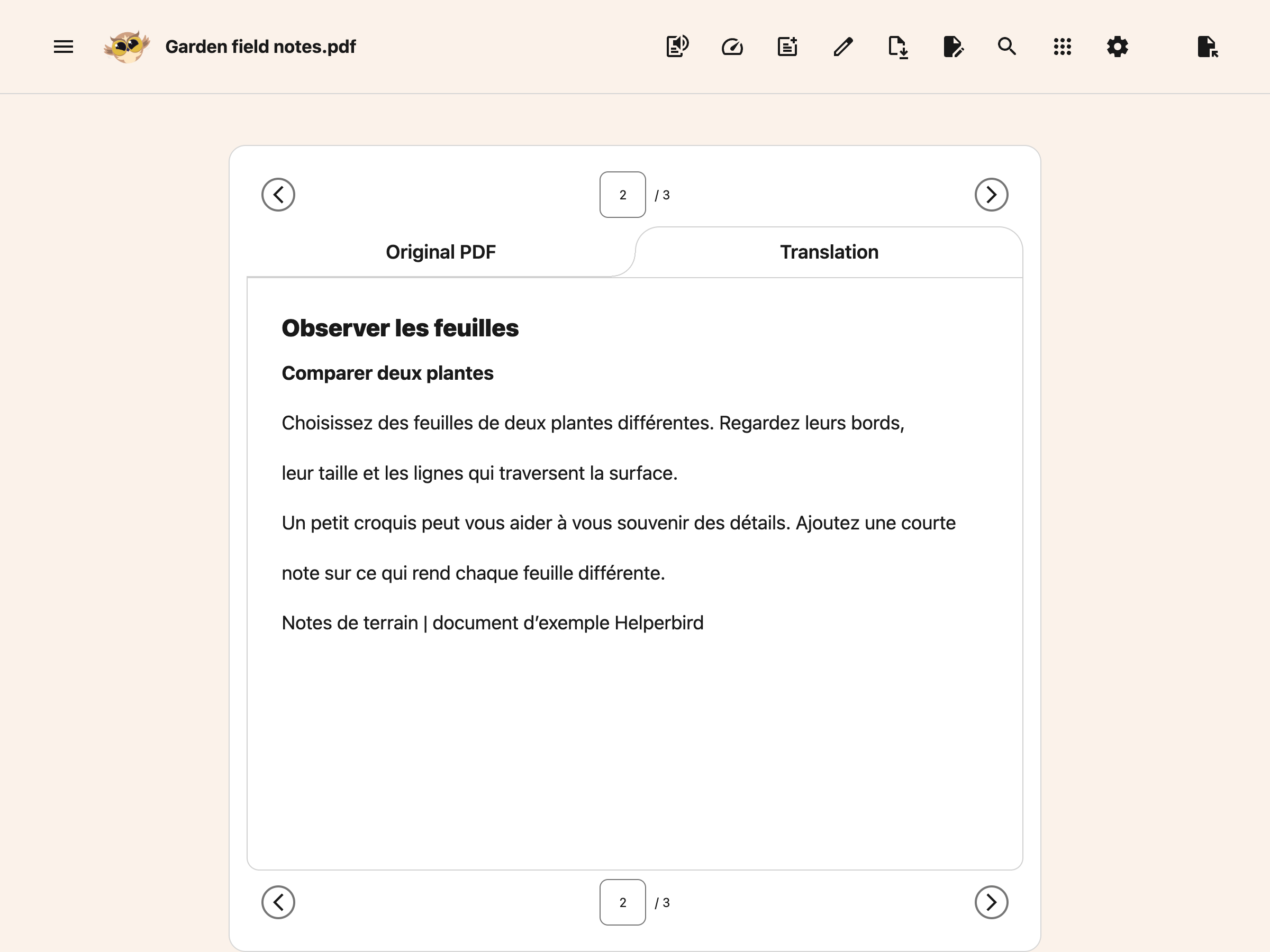
Changing pages clears the previous translation and returns to the original PDF. Choose **Translate**
again when you want to translate the new page. To change languages on the same page, open
**Translate** again. Cancelling that dialog keeps the translation you already have.
PDF drawing, text boxes and page-layout tools work on the original PDF. Downloading the PDF
preserves the original document and your annotations; it does not replace the source text with the
translation.
## Formatting and indentation
The translation is a reading view. Where the PDF exposes enough structure, it keeps headings,
paragraphs, lists, bold and italic text, and indentation. Wrapped lines reflow so the translated
text fits the available width.
First-line and hanging indents can carry over too. Their accuracy depends on the page structure and
the translation keeping the same paragraph breaks. Compare with **Original PDF** when layout affects
the meaning.
Complex columns, tables, pictures and exact page positioning are not recreated. Translation does not
create a replacement PDF or translate your annotation boxes.
## Troubleshooting
**No selectable text:** The page may be a scan or an image. Use **Screenshot Reader** to extract its
text first. This dialog does not automatically run image recognition.
**Translation could not finish:** The dialog stays open so you can try again. A partial translation
is never shown as a finished page.
**Wrong language:** Reopen **Translate**, select a different language and press **Translate** again.
**A result disappeared:** Moving to another page or opening another PDF clears the translation.
Comparing the two tabs on the same page preserves it.
## Related features
- [Open the PDF Reader](/help/how-to-open-the-pdf-reader-in-helperbird/)
- [Use the PDF Tools menu](/help/how-to-use-the-tools-menu-in-the-pdf-reader/)
- [Screenshot Reader](/help/how-to-extract-text-from-any-image-pdf-or-website/)
- [Helperbird support](/support/)
---
## How to Turn On Dark Mode in Helperbird
URL: https://www.helperbird.com/help/how-to-turn-on-dark-mode-in-helperbird/
## What is Dark Mode?
Dark Mode changes websites to use dark colors instead of bright white backgrounds. This makes
websites easier on your eyes, especially when browsing in low-light conditions or at night.
Dark Mode inverts the colors on websites so that light areas become dark and dark text becomes
light.
---
## Who is This For?
This feature is helpful for:
- People who browse at night or in dimly lit rooms
- Anyone who finds bright screens uncomfortable
- People who experience eye strain from light backgrounds
- Anyone who prefers dark-themed interfaces
- People who want to reduce screen brightness
---
## Step 1: Open Helperbird
Click the Helperbird icon in your browser toolbar. It looks like a small owl and is usually in the
top-right corner of your browser.
This will open the Helperbird menu.
---
## Step 2: Open the All Features Section
Scroll down to the bottom of the Helperbird menu. You will see a section called **All Features**.
Click the arrow next to **All Features** to expand it and show all available features.
---
## Step 3: Find Dark Reader
Look through the list of features until you see **Dark reader**.
It has a moon icon next to it.
---
## Step 4: Open Dark Reader Settings
Click on **Dark reader** to open it.
A settings panel will appear with options to configure Dark Mode.
---
## Step 5: Turn on Dark Mode
In the Dark Reader panel, you will see a toggle switch at the top.
Click the toggle switch to turn Dark Mode **on**. The toggle will turn green when it is enabled.
The current webpage will immediately switch to a dark color scheme.
---
## Step 6: Customize Settings
You can adjust how Dark Mode looks using the sliders in the panel:
- **Brightness** - Adjust how bright or dim the dark theme appears
- **Contrast** - Change the difference between light and dark elements
- **Grayscale** - Add a grayscale effect to reduce color intensity
- **Sepia** - Add a warm sepia tone to the dark theme
Experiment with these settings to find what is most comfortable for your eyes.
**Tip:** Dark Mode works great when combined with the Reduce Motion feature if you also want a
calmer browsing experience.
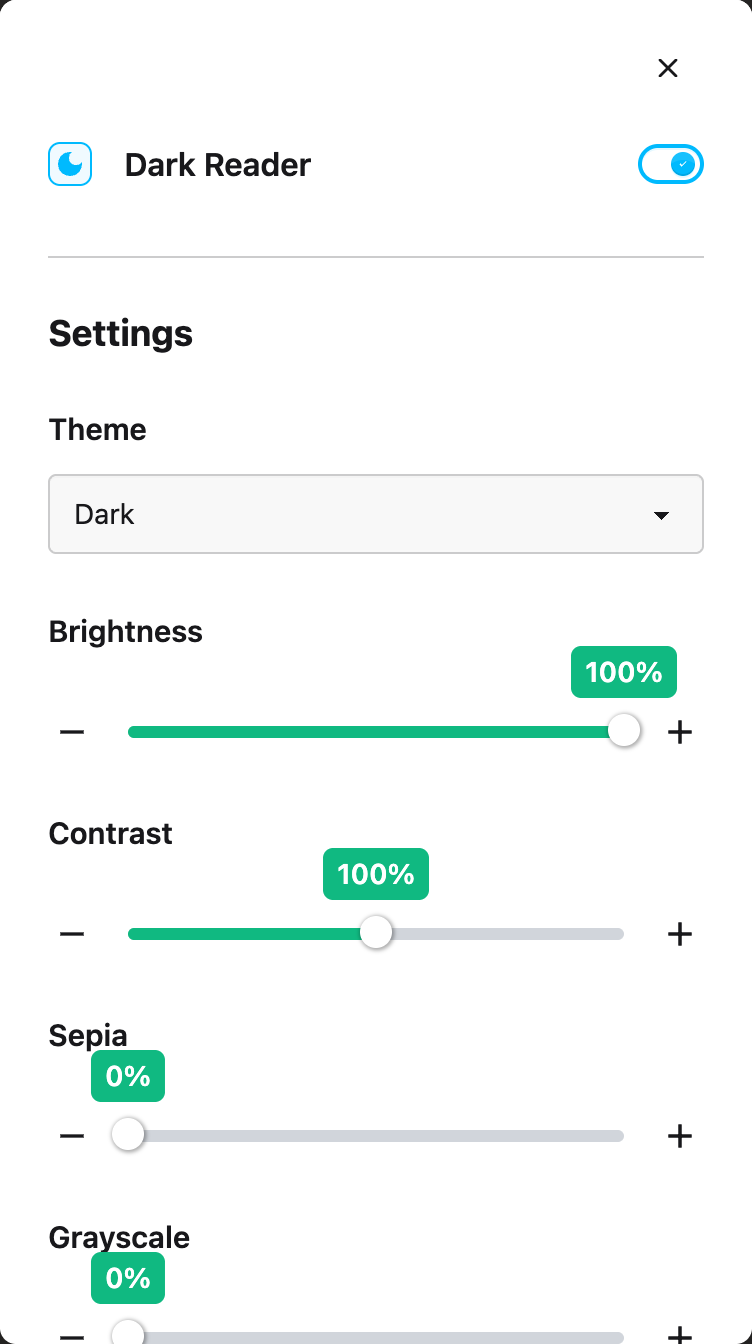
---
## Need Additional Help?
If you have any questions or run into any issues, please contact the Helperbird support team. You
can reach us at [Helperbird support](/support/). We are happy to help you get the most out of
Helperbird.
---
## How to Turn On the Reading Guide from the Floating Toolbar
URL: https://www.helperbird.com/help/how-to-turn-on-the-reading-guide-from-the-floating-toolbar/
## What This Does
The **Reading guide** button brings back the ruler you last chose in **Dyslexia support**. This may
be the Reading guide, Dyslexia ruler or Focus ruler.
---
## Who is This For?
This is helpful for:
- Anyone who loses their line in a wall of text
- People with dyslexia or visual stress
- Students working through long passages
- Anyone reading a page with narrow columns or small type
---
## Step 1: Open the Toolbar
If the toolbar is closed, it sits in the bottom-left corner as a single round button. Click it to
open the row of tools.

If you do not see it at all, it needs turning on first. See
[how to turn on the floating toolbar](/help/how-to-use-the-helperbird-accessibility-toolbar/).
---
## Step 2: Use It
Press **Reading guide** on the toolbar. Your chosen ruler appears with its saved settings.
For new users, the Dyslexia ruler follows the cursor by default. If yours stays still, open
**Dyslexia support** and turn on **Follow cursor**. An earlier saved choice to keep it fixed is
preserved. See [ruler settings](/help/how-to-use-a-dyslexia-ruler-on-any-website/#ruler-settings).
Press it again to turn it off.
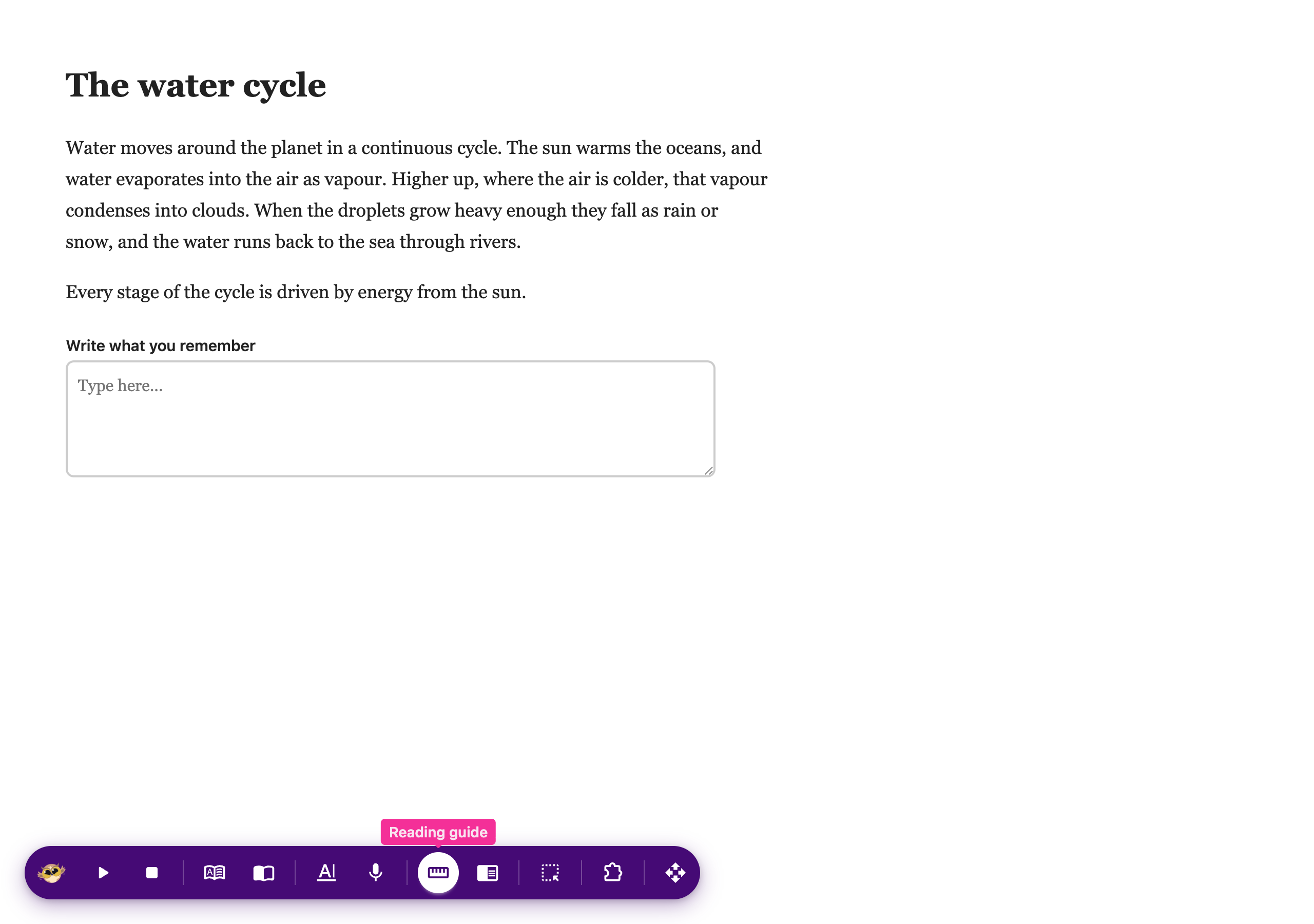
---
To change the Reading guide's height, width, color or opacity, open **Dyslexia support** in the
popup. Its width is independent of the Dyslexia ruler. See
[Reading guide settings](/help/how-to-use-a-reading-guide-on-any-website/#guide-settings).
## Need Additional Help?
If you have any questions or run into any issues, please contact the Helperbird support team. You
can reach us at [Helperbird support](/support/). We are happy to help you get the most out of
Helperbird.
---
## How to Turn On Word Prediction from the Floating Toolbar
URL: https://www.helperbird.com/help/how-to-turn-on-word-prediction-from-the-floating-toolbar/
## What This Does
**Word prediction** suggests words while you type, so you can pick the one you want instead of spelling it out.
---
## Who is This For?
This is helpful for:
- Anyone who knows the word but not the spelling
- People with dyslexia writing into a form or a comment box
- Students typing answers online
- Anyone who types slowly and wants fewer keystrokes
---
## Step 1: Open the Toolbar
If the toolbar is closed, it sits in the bottom-left corner as a single round button. Click it to open the row of tools.

If you do not see it at all, it needs turning on first. See [how to turn on the floating toolbar](/help/how-to-use-the-helperbird-accessibility-toolbar/).
---
## Step 2: Use It
Press **Word prediction** on the toolbar, then click into any box on the page and start typing. Suggestions appear as you go.
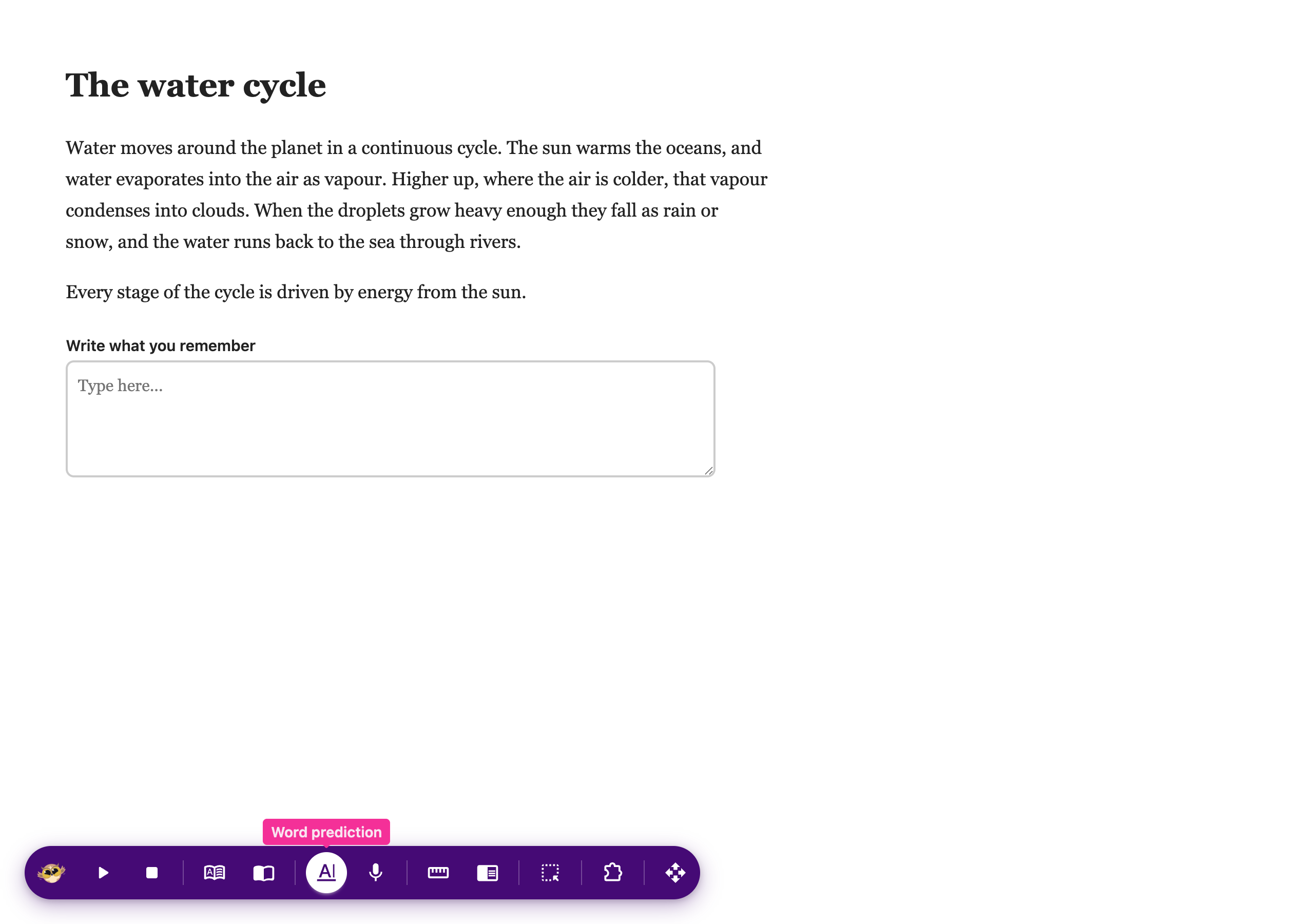
For the settings behind it, including [clearing words it has learned](/help/how-to-clear-learned-words-in-word-prediction/) and [hearing your sentence read back](/help/how-to-hear-your-sentence-read-back-as-you-type/), see [how to use word prediction](/help/how-to-use-word-prediction-on-any-website-or-google-docs/).
---
## Need Additional Help?
If you have any questions or run into any issues, please contact the Helperbird support team. You can reach us at [Helperbird support](/support/). We are happy to help you get the most out of Helperbird.
---
## How to Type Dictation Straight into the Page
URL: https://www.helperbird.com/help/how-to-type-dictation-straight-into-the-page/
## What This Does
The **Voice typing into the page** Beta setting sends words from the floating toolbar into the text
field you selected, including supported Google Docs documents. It is off by default.
Voice typing opened from the Helperbird menu writes into its own draft box. Use the floating toolbar
when you want this Beta feature to type into the page.
## Step 1: Turn It On
1. Open Helperbird, choose the **gear icon**, then **Settings**.
2. Scroll to **Beta features**.
3. Turn on **Voice typing into the page**. Your choice saves automatically.
Turn this Beta setting on to use direct dictation from the floating toolbar.
If the setting is managed by your organization, ask your administrator about access. See the
[Beta features guide](/help/how-to-use-beta-features-in-helperbird/) for the other options.
## Step 2: Dictate
1. Click inside the field where you want to write.
2. Open **Voice typing** on the
[floating toolbar](/help/how-to-use-the-helperbird-accessibility-toolbar/).
3. Choose your spoken language and press the **microphone**.
4. Speak, then press the microphone again to stop.
Recognized final phrases go into the field you selected. Moving to the toolbar does not change that
target. A draft also remains in the toolbar.
In Google Docs, click the exact insertion point first. Selected text may be replaced, so check your
selection before recording. Browser voice typing needs Pro, internet access, and microphone
permission.
## Moving to the Next Box
**Stop recording**, click the next field or insertion point, then start a new recording. Do this
each time you move to another answer.
## If Insertion Cannot Finish
If a field disappears or cannot accept the words, stop and check the draft in the toolbar. Open
**More options → Copy**, then paste the draft where it belongs.
After **10 seconds without recognized speech**, recording stops. Closing or collapsing the floating
toolbar also stops its microphone. Reopening it on the same page keeps the draft, but copy anything
you need before navigating away.
## Where It Will Not Type
Direct dictation skips password, payment, and security-code fields. Some custom website editors may
not accept direct insertion. Use the draft's Copy action if that happens.
## Need Additional Help?
[Contact Helperbird support](/support/) with the website, browser, and Helperbird version.
---
## How to Use the Dyslexia Ruler on Any Website
URL: https://www.helperbird.com/help/how-to-use-a-dyslexia-ruler-on-any-website/
## What is the Dyslexia Ruler?
The Dyslexia Ruler is a colored bar that lies across the page, like a physical reading ruler on a
book.
For new users, **Follow cursor** is on: the bar follows your mouse up and down the page. If you
prefer a fixed bar, turn Follow cursor off and set its **Position**. Your saved choice is respected
when you update Helperbird. The bar does not block clicks on the page underneath, and screen readers
ignore it.
---
## Who is This For?
This feature is helpful for:
- People with dyslexia who lose their place while reading
- Anyone who finds long lines of text hard to follow
- Readers who want a marker that holds one spot on the screen
- Students working through dense paragraphs or textbooks
---
## Step 1: Open Helperbird
Click the Helperbird icon in your browser toolbar to open the menu. It looks like a small owl and is
usually in the top-right corner.
---
## Step 2: Open the All Features Section
Scroll to the bottom of the menu and click the arrow next to **All Features**. The list expands to
show every feature.
---
## Step 3: Find Dyslexia Support
Look through the list until you see **Dyslexia support**. It has a purple icon with a brain symbol
on it.
---
## Step 4: Open Dyslexia Support
Click on **Dyslexia support** to open it.
The panel has three toggles at the top: **Dyslexia ruler**, **Focus ruler** and **Reading guide**.
Below them sits a divider and a **Settings** section.
---
## Step 5: Turn on the Dyslexia Ruler
**Dyslexia ruler** is the first toggle. Click it to turn it on.
The bar appears on the page straight away. Click the toggle again to remove it.
---
## Ruler Settings
Scroll to the **Settings** section below the divider in the same panel. The controls there change
with the ruler you have on. The Dyslexia ruler has all six.
Table: Every setting for the Dyslexia ruler and what it changes.
| Setting | What it does |
| ------------- | ------------------------------------------------------------------------------------------------- |
| Height | How tall the bar is. |
| Width | How far the bar stretches across the page, from a tenth of the width to the full width. |
| Color | Choose a rainbow preset or Custom for another shade. |
| Opacity | How solid the bar is. Turn it down to read the text underneath. |
| Follow cursor | On by default for new users. The bar follows your mouse vertically. Turn it off to show Position. |
| Position | How far down the screen the bar sits. It appears only while Follow cursor is off. |
Dyslexia support with the Dyslexia ruler enabled and its size and color controls.Scroll down in Dyslexia support to find Follow cursor. It starts on for new users.
**Tip:** A soft color at a low opacity gives you a line to read against without hiding any words.
---
## Choosing Between the Three Rulers
Only one ruler runs at a time. Turning one on turns the other two off. The Reading guide saves its
width separately from the Dyslexia ruler. Height, color and opacity are shared.
Table: The three rulers in the Dyslexia support panel.
| Toggle | What you get | Full guide |
| -------------- | ------------------------------------------------------------------------------------------------ | ----------------------------------------------------------------- |
| Dyslexia ruler | A bar that follows your mouse vertically by default. Turn Follow cursor off to park it in place. | This page |
| Reading guide | A bar that always follows your pointer, with adjustable height, width, color and opacity. | [Reading guide](/help/how-to-use-a-reading-guide-on-any-website/) |
| Focus ruler | Dims the page above and below a bright strip of text. | [Focus ruler](/help/how-to-use-a-line-focus-on-any-website/) |
---
## Turning the Ruler On Without the Popup
Two faster ways to the same toggle:
- Press **Option + D** on Mac, or **Alt + Shift + D** on Windows and Linux. Shortcuts need switching
on first. See
[How to enable and use keyboard shortcuts](/help/what-are-the-helperbird-shortcuts/).
- Press the **Reading guide** button on the Floating Toolbar. See
[How to turn on the Reading guide from the Floating Toolbar](/help/how-to-turn-on-the-reading-guide-from-the-floating-toolbar/).
Both bring back whichever of the three rulers you last chose, whatever the button is called.
---
## Video Tutorial
Coming soon
---
## Need Additional Help?
If you have any questions or run into any issues, please contact the Helperbird support team. You
can reach us at [Helperbird support](/support/). We are happy to help you get the most out of
Helperbird.
---
## How to Use the Line Focus on Any Website
URL: https://www.helperbird.com/help/how-to-use-a-line-focus-on-any-website/
## What is Line Focus?
Line Focus (also called Focus Ruler) creates a spotlight effect on the line you are reading. It dims
everything on the page except for one strip of text, making it much easier to concentrate.
Think of it like shining a flashlight on just one line while the rest of the page fades into the
background. This helps reduce visual clutter and keeps your attention on the text you are reading.
---
## Who is This For?
This feature is helpful for:
- People with dyslexia who get distracted by surrounding text
- Anyone with ADHD or attention difficulties
- People who find busy web pages overwhelming
- Students who need to focus while studying
- Anyone who wants to reduce visual distractions while reading
---
## Step 1: Open Helperbird
Click the Helperbird icon in your browser toolbar. It looks like a small owl and is usually in the
top-right corner of your browser.
This will open the Helperbird menu.
---
## Step 2: Open the All Features Section
Scroll down to the bottom of the Helperbird menu. You will see a section called **All Features**.
Click the arrow next to **All Features** to expand it and show all available features.
---
## Step 3: Find Dyslexia Support
Look through the list of features until you see **Dyslexia support**.
It has a purple icon with a brain symbol on it.
---
## Step 4: Open Dyslexia Support
Click on **Dyslexia support** to open it.
A panel will appear with three toggles: **Dyslexia ruler**, **Focus ruler** and **Reading guide**,
with a **Settings** section below them.
The **Focus ruler** toggle is the one you need for Line Focus.
---
## Step 5: Turn on Line Focus
In the panel, look for **Focus ruler** (also called Line Focus).
Click the toggle switch next to it to turn it **on**. The toggle will turn green when it is enabled.
The page will immediately dim except for a strip of text where you can focus.
---
## Step 6: Customize the Focus
To adjust how the line focus looks, scroll to the **Settings** section below the toggles in the same
panel.
Here you can change the size, color, and opacity of the focus area.
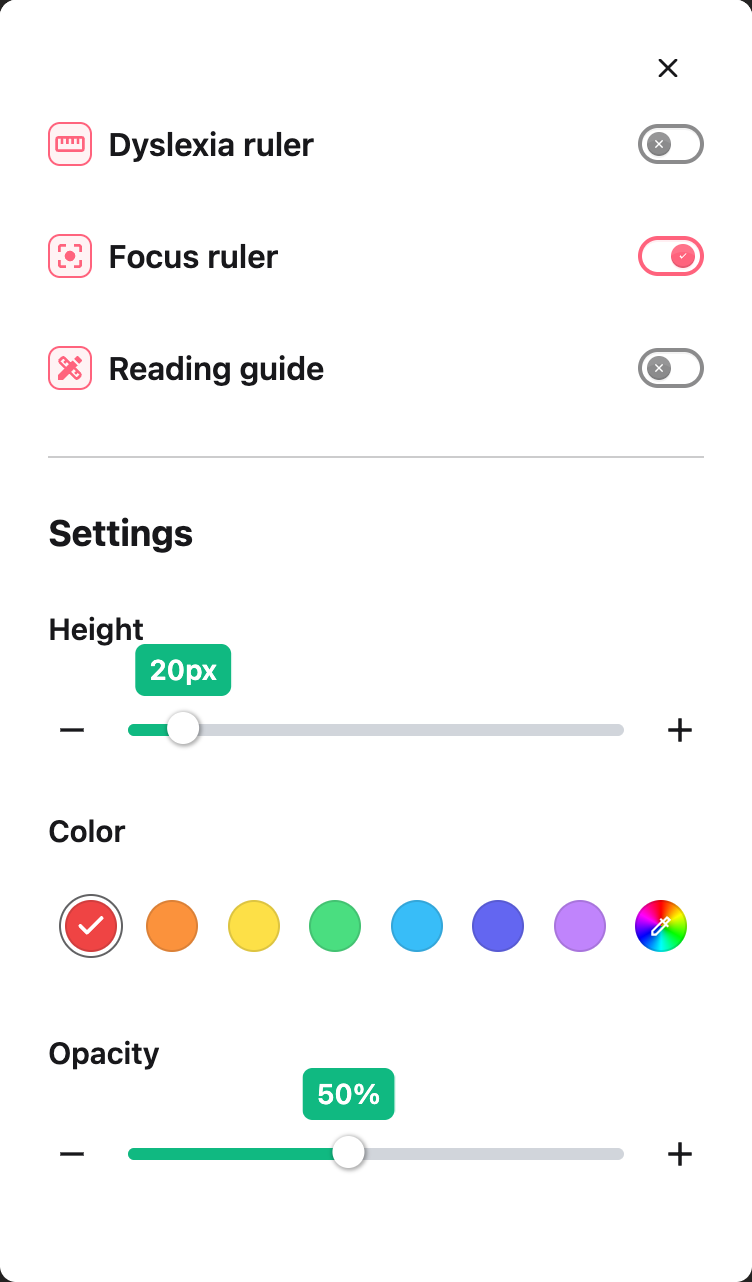
---
## Focus Settings
In the Settings section, you can customize the following:
- **Height** - Adjust how tall the focused reading area is. Make it taller to see more lines or
shorter to focus on just one line.
- **Color** - Choose the color of the dimmed area around your focus strip. Darker colors create more
contrast.
- **Opacity** - Adjust how dark the dimmed area is. Higher opacity makes the surrounding area
darker.
**Tip:** For the best reading experience, use a dark mask color with a higher opacity. The focus
area follows your mouse automatically, creating a spotlight effect as you read down the page.
---
## Video Tutorial
Coming soon
---
## Need Additional Help?
If you have any questions or run into any issues, please contact the Helperbird support team. You
can reach us at [Helperbird support](/support/). We are happy to help you get the most out of
Helperbird.
---
## How to Use the Reading Guide on Any Website
URL: https://www.helperbird.com/help/how-to-use-a-reading-guide-on-any-website/
## What is the Reading Guide?
The **Reading guide** is a colored bar that follows your mouse or finger. Move it across a sentence
or down the page to help keep your place.
You can change its height, width, color and opacity. The bar lets clicks and taps through to the
page underneath, and it stays by your pointer as you scroll.
## Who is This For?
Use the guide when you lose your place between lines, want a marker under a passage, or prefer to
read a small section at a time. The Reading guide is free.
## How This Differs From the Dyslexia Ruler
The Reading guide always follows your pointer. The **Dyslexia ruler** can follow your pointer or
stay at a chosen position. The **Focus ruler** dims the page around a reading strip.
Only one runs at a time. Turning on the Reading guide switches the other two off. Its width is saved
separately from the Dyslexia ruler's width; height, color and opacity are shared settings.
See
[the three ruler choices](/help/how-to-use-a-dyslexia-ruler-on-any-website/#choosing-between-the-three-rulers).
## How to Turn On the Reading Guide
1. Open Helperbird and expand **All Features**.
2. Open **Dyslexia support**.
3. Turn on **Reading guide**.
4. Return to the page and move your mouse or finger over the text.
After choosing this ruler, you can bring it back with the
[Reading guide button on the floating toolbar](/help/how-to-turn-on-the-reading-guide-from-the-floating-toolbar/).
## Guide Settings
Find **Settings** below the three ruler switches in the same panel.
- **Height:** Make the bar thinner or taller, from 10 to 100 pixels.
- **Width:** Choose how much of the screen the bar covers. This changes the guide without changing
your Dyslexia ruler's saved width.
- **Color:** Pick a rainbow preset or use **Choose custom color** for another color.
- **Opacity:** Lower it to see more of the page through the bar. Raise it for a more solid marker.
Use a slider or its minus and plus buttons to adjust a value. With keyboard focus on a slider, use
the arrow keys. Changes save as you make them.
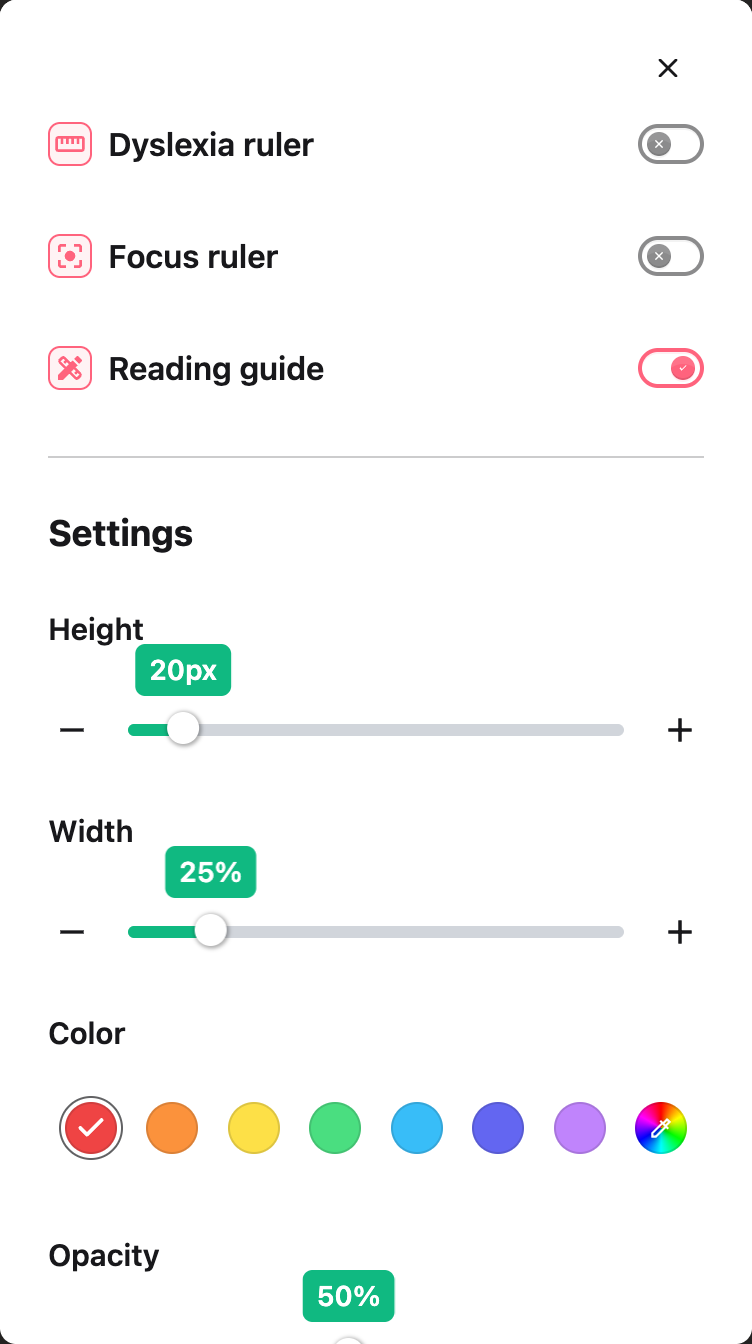
The guide always follows your pointer, so it has no **Follow cursor** or **Position** control. To
keep a ruler in one place, use the Dyslexia ruler instead.
## Troubleshooting
**The guide covers too much text:** Reduce Height or Width, or lower Opacity.
**The guide reaches the edge of the screen:** Move your pointer back over the text. The bar can
extend beyond the visible edge without adding extra page scrolling.
**The guide is missing:** Check that Helperbird and **Reading guide** are on. Browser settings pages
and other protected pages do not allow page tools.
## Need Additional Help?
See [color settings](/help/how-to-use-helperbird-color-features/) or contact
[Helperbird support](/support/).
---
## How to Use Accessibility Profiles in Helperbird
URL: https://www.helperbird.com/help/how-to-use-accessibility-profiles-in-helperbird/
## What are Accessibility Profiles?
Accessibility Profiles are starting points for your reading preferences. Preview a profile, apply
it, and adjust individual features afterwards. They are not treatments or a guarantee of
accessibility compliance. Free users can apply the settings available on their plan; Pro-only
settings are included with an active Pro subscription.
---
## Who is This For?
This feature is helpful for:
- People with dyslexia who need optimized font and spacing settings
- People with ADHD who benefit from reduced distractions and focus tools
- People with low vision who need larger text and high contrast
- Anyone who wants a quick starting point for accessible reading
- Teachers and support staff helping someone try a reading setup
---
## Step 1: Open Helperbird Settings
Click the Helperbird icon in your browser toolbar to open the Helperbird panel.
Then click the **Settings** button (the gear icon) in the top-left corner of the panel.
This opens the Helperbird Settings page.
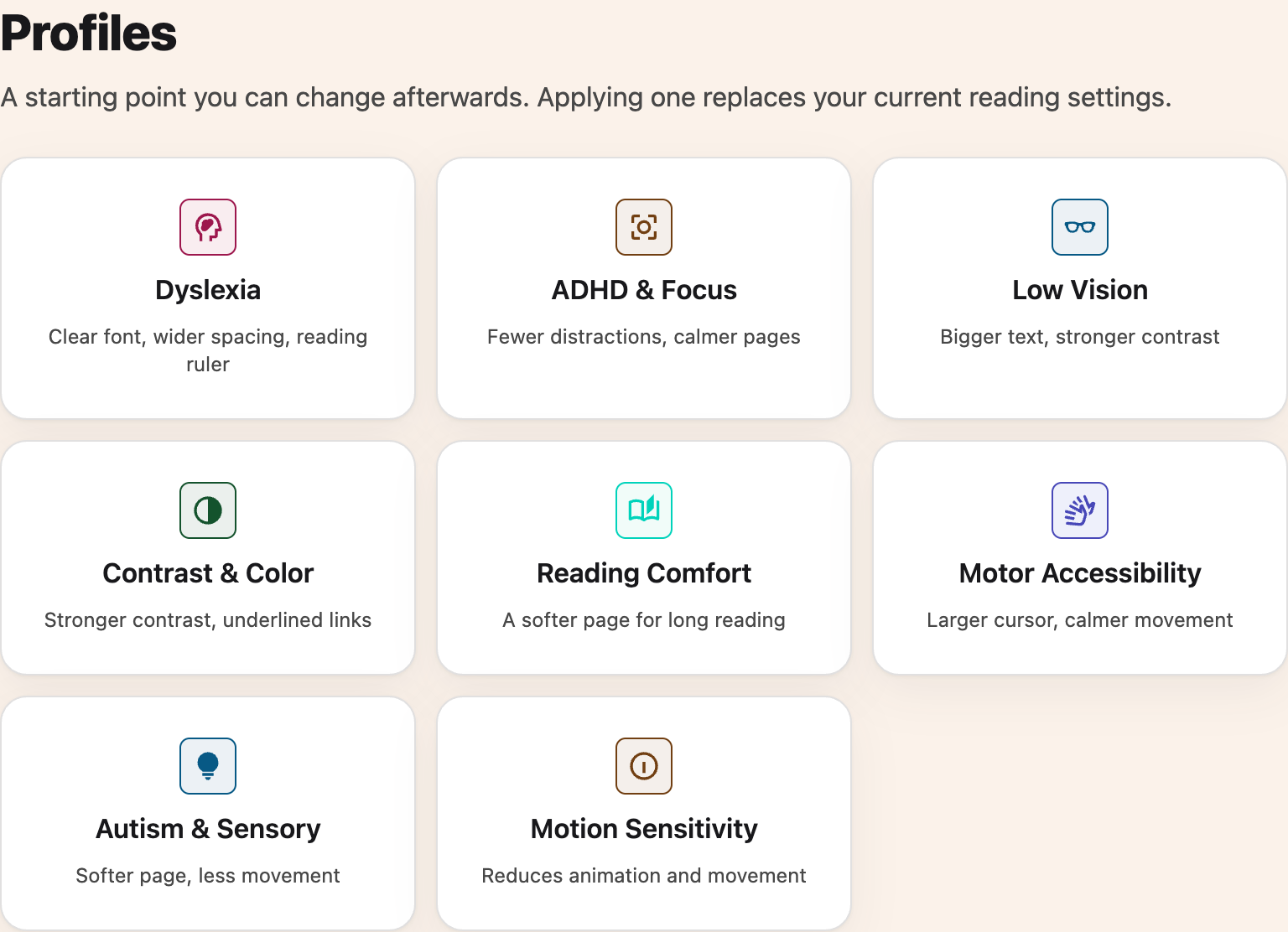
---
## Step 2: Find the Profiles Section
Choose **Profiles** in the Settings section menu, or scroll past Account and Billing. The
**Profiles** section has eight cards.
---
## Step 3: Choose a Profile
Click the profile card that matches what you need. The eight profiles are Dyslexia, ADHD & Focus,
Low Vision, Contrast & Color, Reading Comfort, Motor Accessibility, Autism & Sensory, and Motion
Sensitivity.
---
## Step 4: Review and Apply
A window appears showing the profile name and a list of exactly what it will change, so nothing
happens without you seeing it first. The Dyslexia profile, for example, lists the Verdana font,
wider letter and word spacing, and a reading ruler.
Review the list, then click **Apply**.
Your settings will update immediately. A confirmation message will appear to let you know the
profile has been applied.
---
## Available Profiles
Each profile replaces your reading settings and updates your quick actions. The preview lists the
settings available on your plan before you apply them.
**Dyslexia** switches to Verdana, widens letter and word spacing, opens a line-style reading ruler,
raises the line height, narrows paragraphs, and left-aligns text.
**ADHD & Focus** opens a line-style reading ruler, narrows paragraphs, raises the line height, hides
GIFs, and reduces motion. Still images stay visible. Reading Mode is added to your quick actions,
not opened automatically.
**Low Vision** switches to Atkinson Hyperlegible, zooms the page to 150%, turns on Increased
Contrast, underlines links, adjusts spacing and paragraph width, and left-aligns text. It does not
invert page colors.
**Contrast & Color** turns on Increased Contrast and underlines links. Font, text-spacing, and
paragraph-width overrides are off.
**Reading Comfort** uses a cream background, increases text size and line height, narrows
paragraphs, and left-aligns text.
**Motor Accessibility** enlarges the cursor, zooms the page to 125%, reduces motion and raises the
line height.
**Autism & Sensory** sets a cream background, switches to Verdana, reduces motion, hides GIFs,
raises the line height, and narrows and left-aligns paragraphs. Still images stay visible.
**Motion Sensitivity** reduces motion and hides GIFs. It keeps still images, with text-size,
spacing, and paragraph-width overrides off. It cannot guarantee that all moving or flashing content
is removed.
If a profile is close but not exactly right, apply it and then adjust the individual settings. The
profile is a starting point, not a lock.
---
## Tips
Use Restore my settings while the Settings page remains open.
- A profile replaces your current reading settings.
[Export your settings](/help/how-to-export-your-helperbird-settings/) first if you want to keep a
copy.
- Choose **Restore my settings** below the profile cards to restore the setup from before your most
recent profile change. This option stays available while the Settings page remains open. Reloading
or closing the page clears it.
- After applying a profile, you can still adjust individual settings to fine-tune things to your
preference.
- You can switch profiles at any time. Review the preview each time, including any settings that
will be switched off.
- Trying two or three profiles is a quick way to find out what actually helps you, which is often
not the one you expected.
---
## Related Features
- [Dyslexia Fonts](/features/specialised-dyslexic-fonts/) - Choose your reading font from 32
options, 29 of them on iPad and iPhone.
- [Reading Ruler](/features/ruler/) - Focus on one line at a time.
- [Color Overlay](/features/overlay/) - Add a tinted overlay to reduce eye strain.
- [Reading Mode](/help/how-to-use-reading-mode-and-remove-ads-on-any-website/) - Strip a page back
to the article.
- [Text to Speech](/features/text-to-speech/) - Listen to any page read aloud.
- [Accessibility Profiles Feature Page](/features/accessibility-profiles/) - Overview of all
available profiles.
---
## Video Tutorial
Coming soon
---
## Need Additional Help?
If you have any questions or run into any issues, please contact the Helperbird support team. You
can reach us at [Helperbird support](/support/). We are happy to help you get the most out of
Helperbird.
---
## How to Use Beta Features in Helperbird
URL: https://www.helperbird.com/help/how-to-use-beta-features-in-helperbird/
## What are Beta Features?
Beta features are tools we are still improving. Each has its own switch, and you can change your
choices at any time. Two reading features start on; online lessons and direct dictation start off.
## Step 1: Open the Settings Page
Open Helperbird, choose the **gear icon**, then **Settings** at the bottom of the Options list. The
settings page opens in a new tab.
See [opening Settings](/help/how-to-open-the-helperbird-settings-page/) if you need help finding it.
## Step 2: Find Beta Features
Scroll to **Beta features**. The four settings share one card. The word-highlighting example shows
what the selected color will look like.
Each row has a short explanation and its own switch.
## Step 3: Turn One On
Choose the switch beside the feature. Changes save automatically. Refresh a webpage if it was
already open and has not picked up your change.
## What is Available Right Now
Table: The four Beta features and their starting settings.
| Setting | What it does | Starts |
| --------------------------------------------------------------------------------- | ---------------------------------------------------------------------------------------------------------------- | ------ |
| [Highlight spoken words](/help/how-to-highlight-words-as-they-are-read-aloud/) | Highlights words in Reading Mode or selected text, using local browser voices. Choose a color below the preview. | On |
| [Read text in online lessons](/help/how-to-read-text-in-embedded-lessons/) | Tries read-aloud for selected text inside supported embedded lessons. | Off |
| [Readable Google Slides](/help/how-to-make-google-slides-readable-in-helperbird/) | Opens supported view-only decks as text so reading tools can work. Editable slides stay unchanged. | On |
| [Voice typing into the page](/help/how-to-type-dictation-straight-into-the-page/) | Uses Voice typing from the floating toolbar to fill a selected field, including Google Docs. | Off |
When **Readable Google Slides** is on, expand **More options** to find **Also use in
presentations**. That separate switch starts off because it changes the view while you are
presenting. Your browser's Back button returns to the original slides.
## If the Switches are Greyed Out
**Managed by your admin** means your organization controls that setting. Contact the person who
manages Helperbird at your school or workplace.
## Need Additional Help?
If a Beta feature is not working for your page, turn it off and [let support know](/support/).
---
## How to Use Blend Mode in the Color Overlay
URL: https://www.helperbird.com/help/how-to-use-blend-mode-in-the-colour-overlay/
## What Blend Mode Does
**Blend mode** controls how the [color overlay](/help/how-to-add-a-overlay-to-any-website/) mixes with the page underneath it.
When it is **on**, which is the default, the tint blends into the page. Dark text stays dark and sharp under the color, and dark websites keep their dark look.
When it is **off**, Helperbird paints the color you picked over the whole page as a plain tint, at the opacity you set. The page still shows through the tint, but the color stops reacting to what is behind it.
---
## Who is This For?
This is helpful for:
- Anyone whose overlay looks different from the color they picked
- People who a specialist has matched to one exact overlay color
- People who browse dark websites or use a dark mode extension
- Anyone whose overlay seems to disappear on some pages
---
## Step 1: Open the Color Overlay Settings
Open Helperbird, go to **All Features**, find **Color overlay** and open it. The full steps are in [how to add a color overlay to any website](/help/how-to-add-a-overlay-to-any-website/).
Scroll down to the **Settings** section of the panel.
---
## Step 2: Find Blend Mode
Below the **Opacity** slider, find the **Blend mode** toggle.
It is on by default. Click the toggle to switch it. The overlay on the page updates straight away, so you can flip it back and forth to compare.
---
## When to Keep It On
For most people, on is the right choice. Blending keeps text readable, because dark letters stay dark under the tint instead of being covered by it. It also plays well with dark websites and dark mode extensions, which keep their look under the overlay.
If you are happy with how your overlay reads, leave it alone.
---
## When to Turn It Off
Turn Blend mode off when the exact color matters.
With blending on, the color you see is a mix of your tint and the page, so it shifts from page to page. If a specialist has matched you to one specific overlay color, or you know from experience that one precise shade works for you, turn Blend mode off. The tint then stays close to your chosen shade everywhere, instead of shifting with each page.
The trade-off is that the color paints over everything evenly, including the text. On dark pages it will brighten the page toward your color. If the text gets harder to read, lower the **Opacity**.
---
## Troubleshooting
**The overlay disappears on dark websites.** With Blend mode on, the tint blends into dark backgrounds and can vanish on a black page. Turn Blend mode off to see your color there.
**The color does not match the one I picked.** That is blending at work. Turn Blend mode off and the overlay stays much closer to your chosen shade. A tint is see-through, so the page underneath always has some effect.
**The page looks washed out.** This can happen with Blend mode off on dark pages. Turn Blend mode back on, or lower the **Opacity**.
Blend mode is part of the free Color overlay feature, so it does not need a Pro subscription. Your choice is saved and stays set the next time you use the overlay.
---
## Need Additional Help?
If you have any questions or run into any issues, please contact the Helperbird support team. You can reach us at [Helperbird support](/support/). We are happy to help you get the most out of Helperbird.
---
## How to Use Chemistry and Physics Voice Typing in Helperbird
URL: https://www.helperbird.com/help/how-to-use-chemistry-and-physics-voice-typing-in-helperbird/
## What Are Voice Typing Modes?
Use Voice typing to create a draft, write notes beside a PDF, or enter an equation. Four **modes**
change how Helperbird interprets your speech:
- **Regular**: turn speech into a text draft. Review the words before using them.
- **Math**: convert spoken equations into math notation (say "x squared plus y squared" → get
`x² + y²`).
- **Chemistry**: convert spoken chemistry into chemical formulas (say "H two O" → get `H₂O`).
- **Physics**: convert spoken physics into notation with units and vectors (say "nine point eight
metres per second squared" → get `9.8 m/s²`), plus everything Math mode does.
Only one mode is active at a time. Whichever you choose stays set until you change it, and the same
setting follows you between the popup and the PDF reader.
---
## How to Switch Modes
1. Open **Voice typing** in Helperbird. Keep the microphone off while you choose a mode.
2. Open **Options** beside the microphone.
3. In the **Mode** dropdown, choose **Regular**, **Math mode**, **Chemistry mode**, or **Physics
mode**. A badge on the **Options** button shows when a science or math mode is active.
4. Press the microphone and start speaking. Your words are converted as you go.
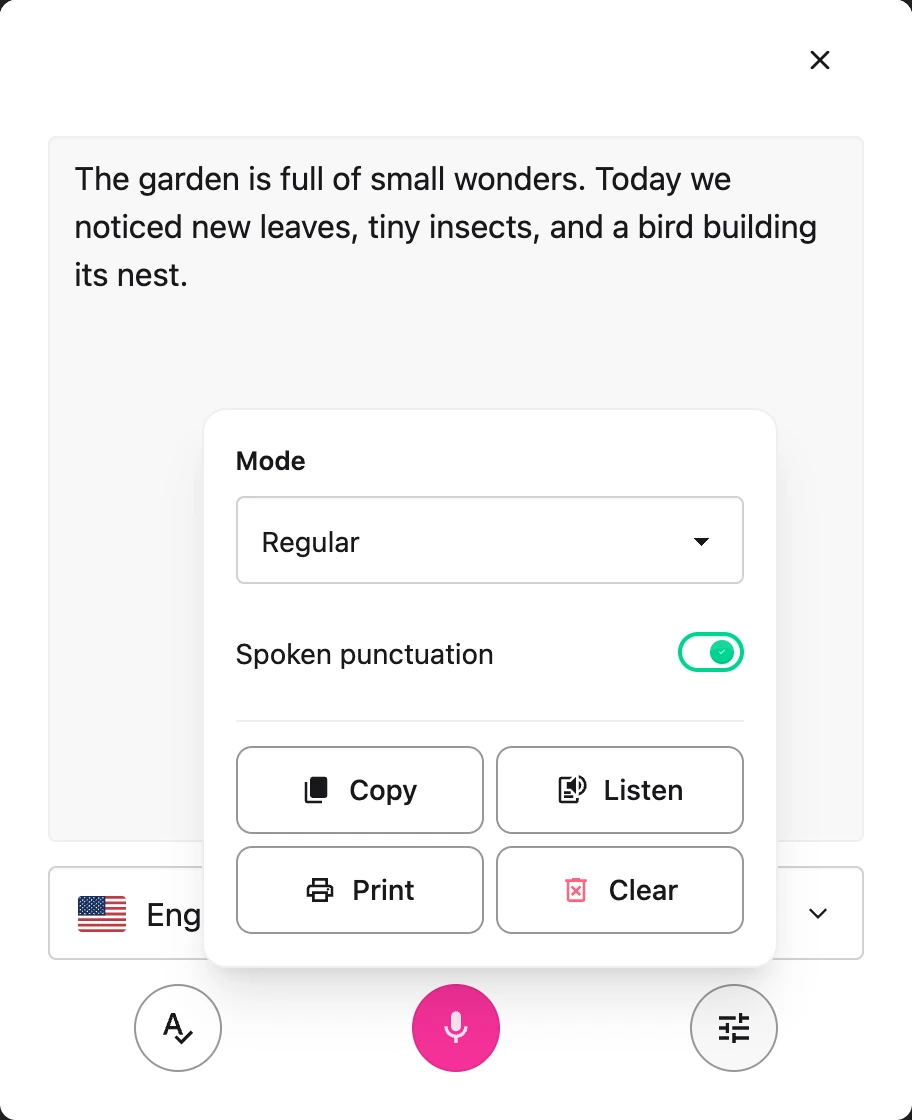
The screenshot shows **Options** open in the Voice typing panel. You can choose a mode before
starting the microphone.
Switching mode applies to your **next** dictation, so pick the mode before you start speaking.
---
## Chemistry Mode
Chemistry mode turns spoken chemistry into properly formatted formulas and equations.
**Formulas and compounds**
- "H two O" → `H₂O`
- "carbon dioxide" → `CO₂`
- "sulfuric acid" → `H₂SO₄`
- "glucose" → `C₆H₁₂O₆`
- "calcium hydroxide" → `Ca(OH)₂`
**Ions and charges**
- "sulfate" → `SO₄²⁻`
- "ammonium" → `NH₄⁺`
- "sodium ion" → `Na⁺`
**Balanced equations**
- "two H two plus O two yields two H two O" → `2H₂ + O₂ → 2H₂O`
- "N two plus three H two yields two N H three" → `N₂ + 3H₂ → 2NH₃`
The number you say **before** an element stays full-size (it's a coefficient), while a number
**after** an element becomes a subscript, so "two H two O" correctly gives `2H₂O`.
**Isotopes, hydrates, and more**
- "carbon fourteen" → `¹⁴C`, "uranium 235" → `²³⁵U`, "deuterium" → `²H`
- "copper sulfate pentahydrate" → `CuSO₄·5H₂O`
- "aqueous" → `(aq)`, "yields" → `→`, "reversible reaction" → `⇌`
Chemistry mode also recognises all 118 elements by name, common acids and bases, polyatomic ions,
organic groups, and reaction conditions.
---
## Physics Mode
Physics mode does everything Math mode does, and adds units, vectors, and physics constants.
**Units**
- "ten newtons" → `10 N`
- "nine point eight metres per second squared" → `9.8 m/s²`
- "kilometres per hour" → `km/h`
- "fifty joules" → `50 J`
**Vectors and operators**
- "vector F" → `F⃗`
- "unit vector n" → `n̂`
- "vector v cross vector B" → `v⃗ × B⃗`
**Constants and equations**
- "speed of light" → `c`
- "energy equals m c squared" → `energy = m c²`
- "three times ten to the power of eight metres per second" → `3 × 10⁸ m/s`
Because physics is mostly maths plus units, anything Math mode understands, including Greek letters,
fractions, exponents and integrals, works in Physics mode too.
---
## Math Mode
Math mode converts spoken equations into math notation without the chemistry or physics extras. For
a full guide to Math mode, see
[How to Use Speech to Math in Helperbird](/help/how-to-use-speech-to-math-in-helperbird/).
- "x squared plus three x" → `x² + 3x`
- "the integral from zero to one of x squared" → `∫₀¹ x²`
- "square root of 72" → `√72`
---
## Tips for Best Results
- **Pick the mode before you speak.** Mode changes apply to the next dictation session.
- **Speak clearly and check the result.** Chemistry and Physics modes support science vocabulary.
Review formulas, numbers, and units before using them.
- **Say compound names when you can.** "Sulfuric acid" is more reliable than spelling out "H two S O
four".
- **For isotopes, say the element name and number** ("carbon fourteen"), not the symbol, because
that is how Helperbird knows you mean an isotope rather than an atom count.
- **Switch back to Regular** when you're done writing science so ordinary words aren't converted.
---
## Where It Works
Voice typing modes are available in:
- **The popup**: dictate into Helperbird's draft box, then copy the result into your work.
- **The PDF reader**: dictate notes alongside a PDF.
- **The Equation Editor**: dictate equations directly into the math field.
Voice typing is a Helperbird Pro feature.
---
## Related Guides
- [How to Use Speech to Math in Helperbird](/help/how-to-use-speech-to-math-in-helperbird/)
- [How to Use the Equation Editor in Helperbird](/help/how-to-use-the-equation-editor-in-helperbird/)
- [How to Use the Maths Reader in Helperbird](/help/how-to-use-the-maths-reader-in-helperbird/)
- [How to Use Speech to Text on Any Website](/help/how-to-use-speech-to-text-or-dictation-on-any-website/)
---
## Need Additional Help?
If you have any questions or run into any issues, please contact the Helperbird support team. You
can reach us at [Helperbird support](/support/). We are happy to help you get the most out of
Helperbird.
---
## How to Use Drawing Tools on PDFs in Helperbird
URL: https://www.helperbird.com/help/how-to-use-drawing-tools-on-pdfs-with-helperbird/
PDF drawing is free. Open a PDF and choose **Draw** to begin.
## What are PDF Drawing Tools?
PDF Drawing Tools let you draw directly on any PDF document in Helperbird's PDF Reader. You can use
a freehand pen, draw rectangles, ovals, straight lines, and arrows. You can choose from multiple
colors, adjust the line thickness, and move or delete individual drawings.
Your drawings stay visible even when you close the drawing toolbar, and you can download the PDF
with all your drawings included.

---
## Who is This For?
This feature is helpful for:
- Students who want to circle, underline, or annotate study materials
- Teachers providing visual feedback on assignments
- Researchers marking up papers and highlighting key data
- Professionals reviewing documents, designs, or reports
- Anyone who prefers visual annotation over typed notes
---
## Step 1: Open a PDF in Helperbird
[Open the PDF Reader](/help/how-to-open-the-pdf-reader-in-helperbird/), choose **Open PDF**, and
select a file from your device. The page appears with its reading controls above it.

---
## Step 2: Open the Drawing Toolbar
In the toolbar at the top of the PDF Reader, click the **Draw** button (the pencil icon).
A drawing toolbar will appear below the main toolbar. This bar contains all your drawing tools,
color options, and stroke controls.

---
## Step 3: Choose a Tool
The drawing toolbar gives you six tools to work with:
- **Select / Move** - Click on existing drawings to select, move, or delete them
- **Pen** - Draw freehand lines and shapes with your mouse or finger
- **Rectangle** - Click and drag to draw a rectangle
- **Oval** - Click and drag to draw an oval or circle
- **Line** - Click and drag to draw a straight line
- **Arrow** - Click and drag to draw a line with an arrowhead at the end

Click on a tool to activate it. The active tool is highlighted so you can always see which one is
selected.
---
## Step 4: Pick a Color and Stroke Width
**Colors:** Choose from nine colors in the toolbar: red, orange, yellow, green, blue, purple, pink,
black, and white. Click a color swatch to select it. The active color has a visible ring around it.

**Stroke width:** Click the stroke width button to cycle through four sizes: thin (2px), medium
(4px), thick (6px), and extra-thick (8px). The button shows the current width so you always know
what you're working with.
---
## Step 5: Draw on the PDF
With your tool and color selected, click and drag on the PDF page to draw.
- For the **pen tool**, hold down the mouse button and move to draw freehand.
- For **shapes, lines, and arrows**, click where you want to start, drag to set the size and
direction, then release.
Your drawing appears immediately on the page.

---
## Step 6: Select, Move, and Delete Drawings
Switch to the **Select / Move** tool to interact with existing drawings.
**To select:** Click on any drawing. A dashed blue outline will appear around it, and a small red
delete button will show at the corner.
**To move:** Click and drag a selected drawing to reposition it anywhere on the page.
**To delete:** Click the red delete button on a selected drawing, or press the **Delete** or
**Backspace** key on your keyboard.

---
## Step 7: Undo or Clear Drawings
**Undo:** Click the **Undo** button in the drawing toolbar to remove the last drawing you made on
the current page.
**Clear all:** Click **Clear All**. A confirmation explains that every drawing on this page will be
removed. Choose **Cancel** to keep them, or confirm to clear them. Clearing cannot be undone.
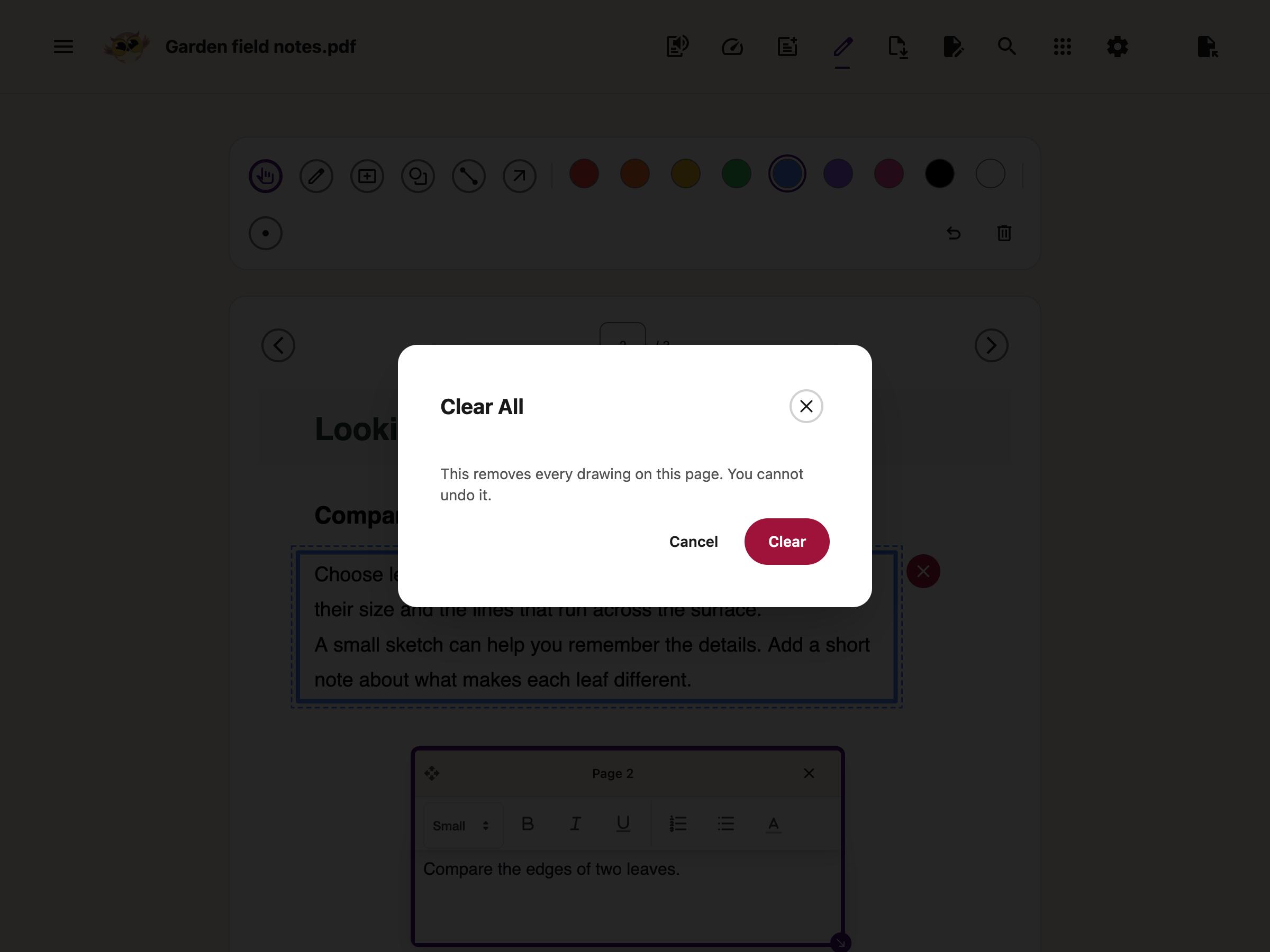
---
## Step 8: Close the Toolbar
Click the **Draw** button again in the main toolbar to close the drawing toolbar.
Your drawings stay visible on the PDF. You can continue reading, navigating pages, or using other
Helperbird features. Your marks remain exactly where you placed them.
To make changes, just open the drawing toolbar again.
---
## Step 9: Download Your Marked-Up PDF
When you are finished, click the **Download** button (the download icon) in the toolbar.
A dialog will appear with two options. Choose **With my changes** to save the PDF with your
drawings. Choosing **Original only** downloads the PDF without them.
Your PDF will be downloaded with all drawings and text annotations permanently embedded. The file
works in any standard PDF reader.

---
## Keyboard Shortcuts
When the drawing canvas is focused, you can use these keyboard shortcuts:
- **Tab** - Cycle through shapes on the current page to select them
- **Arrow keys** - Move a selected shape by a small amount
- **Shift + Arrow keys** - Move a selected shape by a larger amount
- **Delete / Backspace** - Delete the selected shape
- **Escape** - Deselect the current shape
---
## Tips
- Use **arrows** to point reviewers to specific issues in a document.
- Use **rectangles** or **ovals** to frame sections that need attention.
- Combine **text boxes** and **drawings** for detailed annotations. Add a text box next to an arrow
for context.
- Your drawings are saved per page, so each page keeps its own set of marks.
- If you open drawing mode while a text box is being added, drawing mode will close automatically to
avoid conflicts.
---
## Related Features
- [Draw on a PDF with Your Keyboard](/help/how-to-draw-on-a-pdf-with-your-keyboard/) - Place, move,
resize and delete shapes without a mouse.
- [Annotate and Export a PDF](/help/how-to-annotate-and-export-a-pdf-with-helperbird/) - The full
start-to-finish walkthrough
- [PDF Reader](/features/pdfs/) - Open and read PDFs with all of Helperbird's accessibility tools
- [Add Text Boxes to PDFs](/help/how-to-add-text-boxes-to-pdf-with-helperbird/) - Type annotations
directly onto PDF pages
- [Text to Speech on PDFs](/features/text-to-speech/) - Have PDF content read aloud
- [Extract Text from PDFs](/features/optical-character-recognition/) - Use OCR to pull text from
scanned PDFs
- [Immersive Reader](/features/immersive-reader-for-chrome/) - Read PDF text in a distraction-free
format
- [Highlight PDFs](/features/web-highlighter-and-pdfs/) - Mark text with color-coded highlights
- [PDF Drawing Tools Feature Page](/features/pdf-drawing/) - Overview of all drawing capabilities
- [Save and Download Annotated PDFs](/help/how-to-save-and-download-annotated-pdfs/) - Save your
annotated PDF to your device
- [Share and Export PDFs](/help/how-to-share-pdfs-with-helperbird/) - Share annotated PDFs through
Google Drive, email, or Classroom
---
## Video Tutorial
Coming soon
---
## Need Additional Help?
If you have any questions or run into any issues, please contact the Helperbird support team. You
can reach us at [Helperbird support](/support/). We are happy to help you get the most out of
Helperbird.
---
## How to Use Explain Mode in the Screenshot Reader
URL: https://www.helperbird.com/help/how-to-use-explain-mode-in-the-screenshot-reader/
## What Explain Mode Does
Normally the Screenshot Reader gives you back exactly the words it found in a picture. **Explain mode** does something different: it explains what you captured, in plain language.
Point it at a chart and it tells you what the chart shows. Point it at a paragraph you have read three times and it tells you what it means.
---
## Who is This For?
This is helpful for:
- Anyone stuck on a paragraph that will not go in, however many times they read it
- Students meeting a diagram, chart or table in a subject they are new to
- People who find a formula easier to understand described in words
- Anyone reading in a second language
---
## Step 1: Open the Screenshot Reader
Open Helperbird, go to **All Features**, and open **Screenshot Reader**.
---
## Step 2: Turn On Explain Mode
Scroll down to **Settings** inside the panel and turn on **Explain mode**.
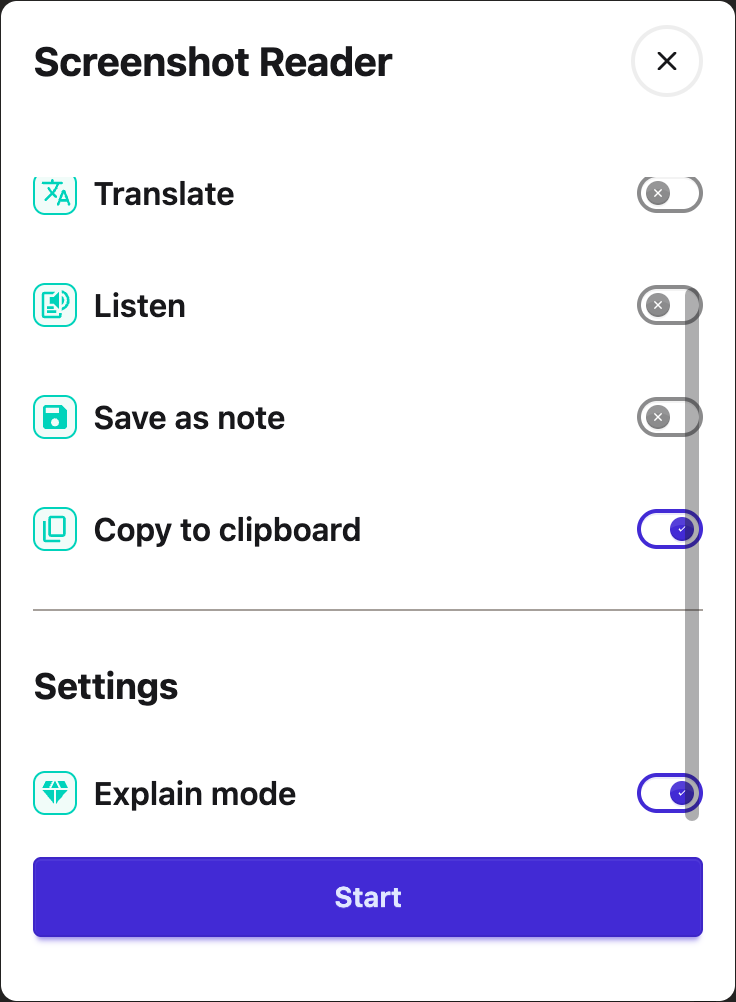
This is a setting, not a one-off. It stays on until you turn it off, so remember to switch it back when you want the plain text again.
---
## Step 3: Draw a Box
Press **Start**, then drag a box around whatever you want explained.

---
## Step 4: Read the Explanation
The explanation appears in a card on the page. It has buttons to listen to it, copy it, or close it.

The **listen** button uses Helperbird's [text to speech](/help/how-to-use-text-to-speech-on-any-website/), so it uses the voice and speed you have chosen there.
---
## When to Use It, and When Not To
**Use it** when the problem is understanding: charts, diagrams, formulas, dense or badly written paragraphs, or anything in unfamiliar jargon.
**Turn it off** when you want the actual words. If you are copying a quote, filling in a form, or need the text exactly as written, Explain mode gives you a description instead, which is not what you want. Switch it off and the Screenshot Reader goes back to giving you the text itself.
See also [how to use the Screenshot Reader](/help/how-to-extract-text-from-any-image-pdf-or-website/) and [how it handles equations](/help/how-helperbird-reads-equations-from-a-screenshot/).
---
## Need Additional Help?
If you have any questions or run into any issues, please contact the Helperbird support team. You can reach us at [Helperbird support](/support/). We are happy to help you get the most out of Helperbird.
---
## How to Use Grammar Options in Immersive Reader
URL: https://www.helperbird.com/help/how-to-use-grammar-options-in-immersive-reader/
## What This Panel Does
**Grammar Options** is the middle of the three buttons. It breaks words and sentences down: splitting long words into syllables, and colouring the nouns, verbs, adjectives and adverbs.
---
## Who is This For?
This is helpful for:
- Anyone stuck on a long word they cannot get their mouth around
- Students learning parts of speech, seeing them in real writing rather than in a list
- People learning English who want to see how a sentence is built
- Readers who find a dense sentence easier once it has visible structure
---
## Open Grammar Options
Open Immersive Reader first. You can start it from the [floating toolbar](/help/how-to-open-immersive-reader-from-the-floating-toolbar/), from the Helperbird menu, or from the [Tools menu in the PDF Reader](/help/how-to-use-the-tools-menu-in-the-pdf-reader/).
Once it is open, the three buttons in the top-right corner hold every setting.
Click the middle button.
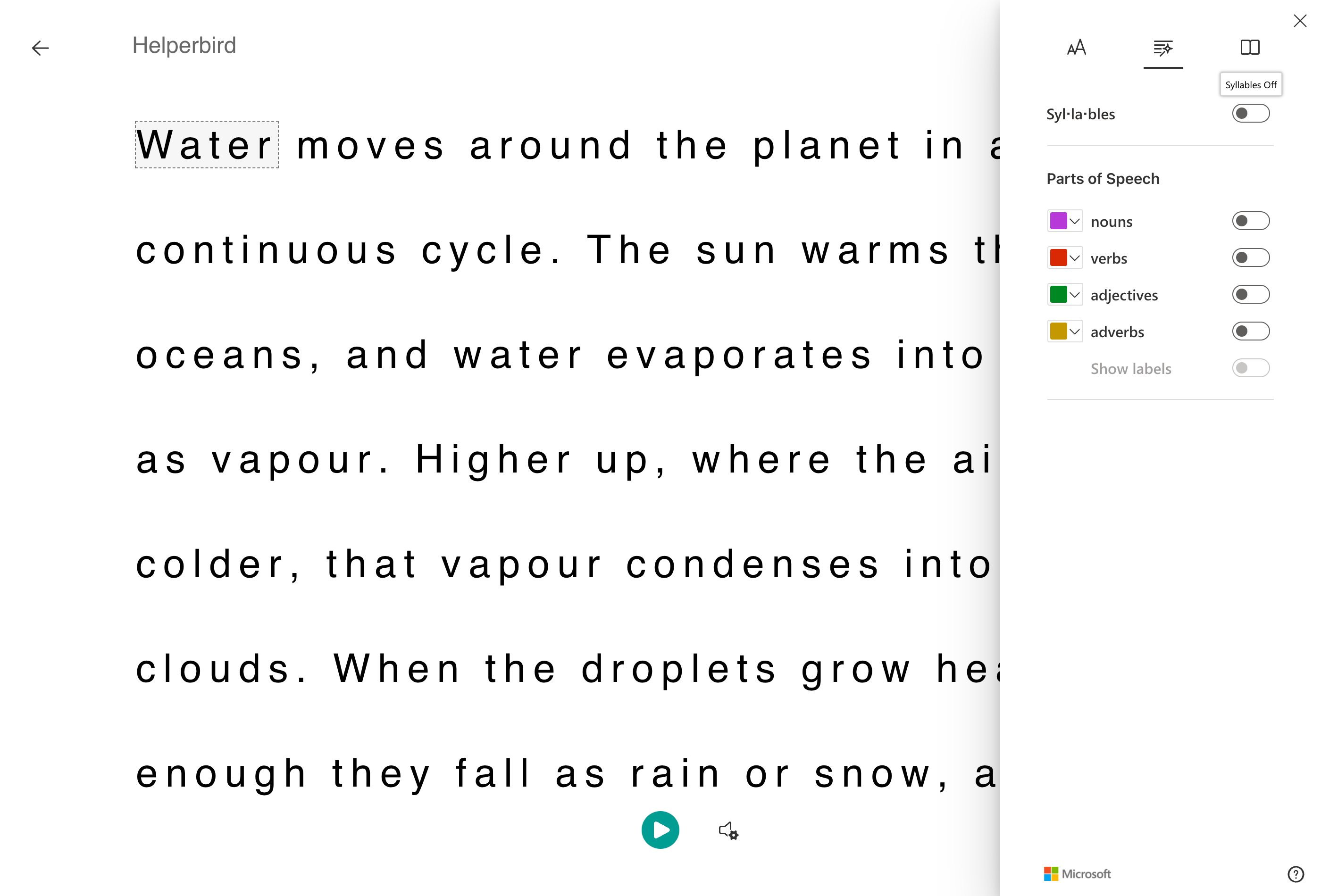
---
## Syllables
Turn on **Syllables** and long words are split with small dots, so "continuous" becomes con·tin·u·ous.
This is the single most useful setting here for anyone who stalls on unfamiliar words. Breaking a word into chunks you can say is usually all it takes to get past it.
---
## Parts of Speech
Four toggles, each with its own color you can change:
- **Nouns** in purple
- **Verbs** in red
- **Adjectives** in green
- **Adverbs** in yellow
Turn on one at a time rather than all four. Four colors at once turns the page into confetti and teaches nothing. One color at a time shows you a pattern.
Click the small square beside any of them to change its color, which matters if you find some colors hard to tell apart.
---
## Show Labels
Once at least one part of speech is on, **Show labels** becomes available. It writes the name above each highlighted word.
Use it while you are still learning which is which, then turn it off, because it makes the lines taller and harder to read.
---
## A Word of Caution
Parts of speech are worked out automatically, and English is inconsistent. A word that is both a noun and a verb will sometimes be labelled the way it is not being used. Treat it as a good guide rather than a marking scheme.
Next: [Text Preferences](/help/how-to-change-the-text-and-style-in-immersive-reader/) and [Reading Preferences](/help/how-to-use-reading-preferences-in-immersive-reader/).
---
## Need Additional Help?
If you have any questions or run into any issues, please contact the Helperbird support team. You can reach us at [Helperbird support](/support/). We are happy to help you get the most out of Helperbird.
---
## How to Use Helperbird AI Features for Learning
URL: https://www.helperbird.com/help/how-to-use-helperbird-ai-features-for-learning/
## Overview
Helperbird includes a set of AI-powered features that help students access curriculum content and
demonstrate their learning. These features work across websites, Google Docs, Google Slides, and
PDFs.
Students who struggle with reading, writing, or language barriers can use these tools to engage with
the same content as their peers, and to express their understanding in their own way.
---
## AI Features for Reading
These features help students access and understand content:
### Text-to-Speech
Reads text aloud with a choice of voices and speeds. Word highlighting needs a supported local
browser voice; it is not available with Natural voices. Google Docs, Slides, and PDFs have their own
reading steps. See [How to Use Text to Speech](/help/how-to-use-text-to-speech-on-any-website/).
### Text Simplification
Rewrites text at a chosen reading level. Students can compare the rewrite with the original to check
the meaning. See [How to Simplify Text](/help/how-to-simplify-text-on-any-website/).
### Summarization
Condenses long passages into short key-point summaries so students can focus on the main ideas. See
[How to Summarize Text](/help/how-to-summarize-text-on-any-website/).
### Translation
Translates full pages or selected text into another language. Supports multilingual learners who are
working with English-language curriculum. See
[How to Translate a Page or Selected Text](/help/how-to-translate-a-webpage-with-helperbird/).
### Dictionary and Picture Dictionary
Look up any word with a definition, audio pronunciation, and a visual image. See
[How to Use the Dictionary](/help/how-to-use-the-helperbird-dictionary/).
### OCR (Reading Text from Images)
Extracts text from images, screenshots, and scanned documents so it can be read aloud or interacted
with. See
[How to Extract Text from Any Image, PDF, or Website](/help/how-to-extract-text-from-any-image-pdf-or-website/).
### Immersive Reader
A distraction-free reading view with syllable splitting, parts of speech highlighting, and line
focus. See [How to Use Immersive Reader](/help/how-to-use-immersive-reader-on-any-website/).
---
## AI Features for Writing
These features help students express their learning:
### Voice Typing (Speech-to-Text)
Students speak to create a draft in Helperbird's text box, then review and copy it. The floating
toolbar can also fill a supported page field when the optional Beta setting is on. See
[How to Use Speech to Text](/help/how-to-use-speech-to-text-or-dictation-on-any-website/).
### Word Prediction
Suggests words as the student types, with context-based and phonetic recognition to support early
and struggling writers. See
[How to Use Word Prediction](/help/how-to-use-word-prediction-on-any-website-or-google-docs/).
### Grammar and Spelling Checker
Reviews text for grammar and spelling mistakes and provides corrected suggestions. See
[How to Use the Grammar Checker](/help/how-to-use-the-grammar-checker-in-helperbird/).
### PDF Annotation
You can type answers onto a PDF or mark it with drawings. Typing and drawing are free; voice typing
needs Helperbird Pro. Follow
[drawing on PDFs](/help/how-to-use-drawing-tools-on-pdfs-with-helperbird/) or
[adding text boxes](/help/how-to-add-text-boxes-to-pdf-with-helperbird/).
Use the text-box guide to fit answers onto a worksheet.
---
## How Students Use These Features
Here are some common classroom examples:
- A student reads an article that is above their reading level. They use **text simplification** to
get a plain-language version, then use **text-to-speech** to hear it read aloud with word
highlighting.
- A student needs to write a paragraph response. They use **voice typing** to speak their answer,
then use the **grammar checker** to review it before submitting.
- A multilingual learner translates a science assignment into their first language using
**translation**, reads it, then writes their response in English with support from **word
prediction**.
- A student annotates a PDF worksheet using **text boxes** and **drawing tools**, then downloads the
completed PDF to submit.
---
## Admin Control
All of these features can be enabled or disabled by your school admin through the Google Admin
Console or Microsoft Intune using managed JSON policy. This allows administrators to control exactly
which tools are available during assessments or in specific organizational units.
For details on disabling features, see
[How to Disable Helperbird Features Using JSON Policy](/help/how-to-disable-helperbird-features-though-json-policy/).
For details on deploying Helperbird to your school, see
[How to Deploy Helperbird to Your School or Business](/help/how-to-deploy-helperbird-to-your-school-or-business/).
---
## Related Guides
- [How to Use Text to Speech on Any Website](/help/how-to-use-text-to-speech-on-any-website/)
- [How to Simplify Text on Any Website](/help/how-to-simplify-text-on-any-website/)
- [How to Summarize Text on Any Website](/help/how-to-summarize-text-on-any-website/)
- [How to Translate a Page or Selected Text](/help/how-to-translate-a-webpage-with-helperbird/)
- [How to Use Speech to Text on Any Website](/help/how-to-use-speech-to-text-or-dictation-on-any-website/)
- [How to Use Word Prediction](/help/how-to-use-word-prediction-on-any-website-or-google-docs/)
- [How to Use the Grammar Checker](/help/how-to-use-the-grammar-checker-in-helperbird/)
- [How to Use the Dictionary in Helperbird](/help/how-to-use-the-helperbird-dictionary/)
- [How to Extract Text from Any Image, PDF, or Website](/help/how-to-extract-text-from-any-image-pdf-or-website/)
- [How to Use Immersive Reader on Any Website](/help/how-to-use-immersive-reader-on-any-website/)
- [How to Use Drawing Tools on PDFs](/help/how-to-use-drawing-tools-on-pdfs-with-helperbird/)
- [How to Add Text Boxes to PDFs](/help/how-to-add-text-boxes-to-pdf-with-helperbird/)
- [How to Disable Helperbird Features Using JSON Policy](/help/how-to-disable-helperbird-features-though-json-policy/)
---
## Need Additional Help?
If you have any questions or run into any issues, please contact the Helperbird support team. You
can reach us at [Helperbird support](/support/). We are happy to help you get the most out of
Helperbird.
---
## How to Use the Colors Panel in Helperbird
URL: https://www.helperbird.com/help/how-to-use-helperbird-color-features/
## What This Does
Open **All Features → Colors**. The panel holds three settings: **Text**, **Links** and
**Background**.
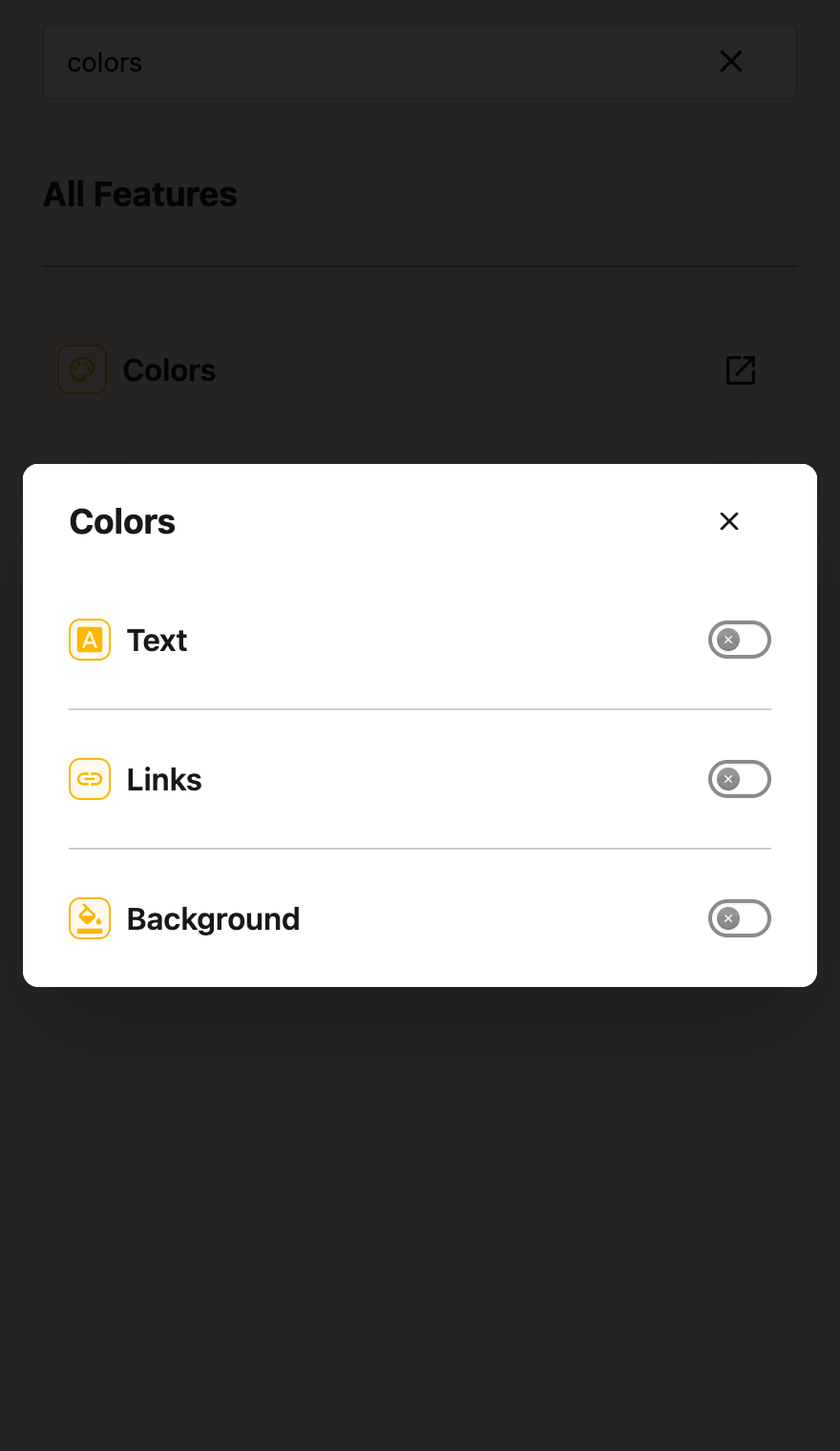
They let you build your own color scheme for any website. Many people who read with dyslexia or low
vision have one combination that works for them. These settings give you that combination on every
page, instead of a preset someone else chose.
All three work the same way. Turn the toggle on, then pick a color from the swatches or set your
own. Each one is separate, so you can use one or all of them.
---
## Who is This For?
- Anyone who reads better on a colored background than on white
- People with low vision who need more contrast than a site gives
- Anyone who finds black text on white tiring
- Anyone who cannot see the color a site uses for its links
---
## The Three Settings
Table: What each color setting changes, and where to read more.
| Setting | What it changes | Guide |
| ---------- | -------------------------------------------------------------------------------------------- | -------------------------------------------------------------------------- |
| Background | The page background color. | [Background color](/help/how-to-change-the-background-color-of-a-website/) |
| Text | The color of the text. It leaves links alone, which is why Link color is a separate setting. | [Text color](/help/how-to-change-the-font-color-of-a-website/) |
| Links | The color of every link. It has a second color for links you have already visited. | [Link color](/help/how-to-change-the-link-color-of-a-website/) |
To mark selected text, use **Highlighter** in All Features. Its separate palette controls highlight
colors. See
[how to choose a highlight color](/help/how-to-change-the-highlight-color-of-a-website/).
Set Background and Text together. One without the other can leave you with text you cannot read.
---
## Pick a Color
Turn on the setting you want, then choose one of seven rainbow swatches: red, orange, yellow, green,
blue, indigo or violet. Select **Choose custom color** to open the color picker for another shade,
including black or white.

The swatches stay in one row. In a narrow panel, scroll sideways to reach the remaining choices.
Keyboard focus also brings a choice into view. Your saved custom color stays selected until you
choose another.
Ruler and overlay color controls use the same row. Some controls, such as the beta word-highlighting
color, offer presets without a Custom option.
## If You Would Rather Use a Preset
Two other Helperbird tools give you a color change in one step.
- **[Color overlay](/help/how-to-add-a-overlay-to-any-website/)** puts a colored tint over the whole
page. The page keeps its own colors underneath.
- **[Reading Mode](/help/how-to-use-reading-mode-and-remove-ads-on-any-website/)** shows the main
article with your enabled text settings.
---
## Related Guides
- [Color blindness](/help/how-to-use-helperbirds-color-blind-features-on-websites/) - Which
Helperbird tools help when color is hard to see.
- [Dark mode](/help/how-to-turn-on-dark-mode-in-helperbird/) - Darken the page without setting
colors by hand.
---
## Need Additional Help?
If you have any questions or run into any issues, please contact the Helperbird support team. You
can reach us at [Helperbird support](/support/). We are happy to help you get the most out of
Helperbird.
---
## Helperbird Display Features That Make a Page Easier to See
URL: https://www.helperbird.com/help/how-to-use-helperbird-display-features/
## What This Does
The **Display** panel holds five tools. Each one changes how a page looks, so it is easier to see.
That is a different job from making text easier to read. Fonts, spacing and text to speech live in other panels.
You can turn on as many of these as you want at once. They are separate settings.
---
## Who is This For?
This panel helps if:
- You have low vision
- You lose the mouse pointer on a busy page
- Pale grey text on a white background is hard to make out
- You cannot tell which words on a page are links
- You want the page bigger without changing anything else
---
## A Guide for Each Part
Table: Each display control, what it does, and its guide.
| Control | What it does | Guide |
| --- | --- | --- |
| High contrast | Increases the difference between the text and the background. You pick a style: Increased Contrast, Greyscale, Inverted Color, Inverted Greyscale or Yellow on Black. | [High contrast](/help/how-to-use-helperbirds-high-contrast-features/) |
| Highlight links | Marks every link with a striped bar, so you do not have to rely on color. | [Highlight links](/help/how-to-emphasize-links-on-any-website/) |
| Saturation | Makes the colors on the page stronger. | [Saturation](/help/how-to-adjust-color-saturation-on-any-website/) |
| Cursor size | Makes the mouse pointer bigger. Four sizes: Small, Medium, Large and Extra large. | [Cursor size](/help/how-to-change-the-cursor-size-in-google-chrome-firefox-or-edge/) |
| Magnifier | Scales the whole page up or down. | [Magnifier](/help/how-to-adjust-zoom-magnifying-for-any-website/) |
---
## Three Things Worth Knowing
**Saturation only adds color.** It cannot take color away. At the lowest setting the page looks normal. At the highest, the colors are four times as strong. To remove color instead, pick the **Greyscale** style in High contrast.
**The Magnifier goes both ways.** The slider runs from -100% to +100% in steps of 10%. 0% is the normal page size, and anything below 0% makes the page smaller. It scales the whole page, so it is not a lens that follows your pointer.
**Cursor size is free.** It used to be a Pro feature. Every one of the five tools in this panel is now in the free version.
---
## Related Guides
- [Color blindness](/help/how-to-use-helperbirds-color-blind-features-on-websites/) - Which tools help most if colors are hard to tell apart.
- [Accessibility profiles](/help/how-to-use-accessibility-profiles-in-helperbird/) - Turn on a set of tools together.
---
## Need Additional Help?
If you have any questions or run into any issues, please contact the Helperbird support team. You can reach us at [Helperbird support](/support/). We are happy to help you get the most out of Helperbird.
---
## How to Use Helperbird During Google Forms Locked Quizzes
URL: https://www.helperbird.com/help/how-to-use-helperbird-during-google-forms-locked-quizzes/
This page is for the student taking a locked quiz and the teacher sitting with them. It covers the few minutes before the quiz starts. The Google Admin side is on [how to use Helperbird in locked mode on Chromebooks](/help/how-to-use-helperbird-in-locked-mode-on-chromebooks/).
---
## Set Up Before You Click Start
1. Open the quiz page. Do not click **Start** yet.
2. Open Helperbird. Click the Helperbird icon in the browser toolbar, or the Helperbird button on the page if your school has turned on the Floating Toolbar.
3. Turn on the features you need and check each one is working on the quiz page.
4. Click **Start**.
Helperbird saves your settings, so whatever you turn on now is still on inside the quiz. Do it in this order, because once locked mode starts there may be nothing left to click.
---
## What to Turn On
Pick what is in your plan, not the whole list.
- **Text to speech**, to hear questions and answer choices read out.
- **One ruler.** Dyslexia ruler, Focus ruler or Reading guide. Helperbird runs one at a time, so choose the one that helps.
- **Font.** OpenDyslexic, Atkinson Hyperlegible and Andika are in the list, along with 29 others.
- **Color overlay**, to tint the page and cut glare.
- **Font size, Letter spacing and Line spacing**, for more comfortable reading.
- **Highlight Menu**, to mark key words in a question.
Leave out anything that opens a new tab. **Translate page** sends you to Google Translate in a new tab, which takes you out of the quiz.
Opened from the Helperbird panel, Immersive Reader reads up to 2,000 characters at a time on a free account. If your school gave you Helperbird Pro, that cap does not apply.
---
## If You Cannot Open Helperbird During the Quiz
Locked mode hides the Chromebook shelf, and depending on how the Chromebook is set up the extension icons may not be reachable either.
If your school has turned on the **Floating Toolbar**, there is a Helperbird button on the page itself, in a bottom corner. Click it and a bar of tools opens on the page, so you do not need the browser toolbar. The buttons carry no printed text, so point at one to see its name. For what each button does, see [how to use the floating Helperbird button](/help/how-to-use-the-helperbird-accessibility-toolbar/).
If there is no button on the page, tell your teacher. Your IT admin can turn it on.
---
## What Your School Sets Up First
Helperbird only runs inside a locked quiz if your school installed it for you through Google Admin. A copy you added yourself from the Chrome Web Store stops when locked mode starts.
Your school also chooses which features you get and whether the Floating Toolbar is on. If something in your plan is missing from the menu, that is set on their side. Send your teacher or IT admin [how to use Helperbird in locked mode on Chromebooks](/help/how-to-use-helperbird-in-locked-mode-on-chromebooks/) and [how to assign Helperbird accommodations to students](/help/how-to-assign-helperbird-accommodations-to-students/).
---
## Troubleshooting
**You forgot to turn a feature on.** Once the quiz is locked you may not be able to open Helperbird. Ask your teacher whether you can leave and restart, then set up first.
**A button is greyed out and its name ends in "(Pro)".** That button needs Helperbird Pro. Your school's subscription turns it on, so ask your teacher.
---
## Related Guides
- [How to Use Helperbird in Locked Mode on Chromebooks](/help/how-to-use-helperbird-in-locked-mode-on-chromebooks/)
- [How to Assign Helperbird Accommodations to Students](/help/how-to-assign-helperbird-accommodations-to-students/)
- [How to Use the Floating Helperbird Button](/help/how-to-use-the-helperbird-accessibility-toolbar/)
- [How to Use Accessibility Profiles in Helperbird](/help/how-to-use-accessibility-profiles-in-helperbird/)
- [What Are the Helperbird Keyboard Shortcuts](/help/what-are-the-helperbird-shortcuts/)
- [How to Use the Highlight Menu in Helperbird](/help/how-to-use-the-highlight-menu-in-helperbird/)
---
## How to Use Helperbird for ADHD and Focus
URL: https://www.helperbird.com/help/how-to-use-helperbird-for-adhd-and-focus/
The web is noisy. Ads, autoplaying videos, flashing banners, and long walls of text all pull your
attention in different directions. If you have ADHD or just struggle to stay focused online,
Helperbird has a set of tools built to quiet all that down.
---
## Overview
There is no one feature that fixes focus. What helps is stripping away the stuff you do not need and
keeping your eyes in the right place. Helperbird does both.
This guide walks through the tools that help most, and how to combine them into a setup that works
for you.
---
## Reducing Distractions on the Page
A lot of what makes a webpage hard to focus on is not the text. It is everything around the text.
Helperbird can hide most of it.
- **[Hide images and GIFs](/help/how-to-hide-images-and-gifs-on-every-website/)** removes pictures
and animated images from the page.
- **[Reduce motion](/help/how-to-stop-animations-on-any-websites/)** reduces supported page
animations. It does not stop every video or moving image.
- **[Disable Helperbird on specific sites](/help/how-to-disable-helperbird-on-specific-websites/)**
lets you turn features off where you do not want them.
For some readers, just hiding images is enough to make a long article feel manageable.
---
## Staying on One Line
ADHD often makes it hard to track which line you are on. Your eyes jump, you re-read, you lose the
thread. Helperbird has three tools that keep your eyes where they should be.
- **[Line Focus](/help/how-to-use-a-line-focus-on-any-website/)** dims everything except the line
you are reading, like a spotlight. Most people with ADHD find this the most useful of the three.
- **[Reading Guide](/help/how-to-use-a-reading-guide-on-any-website/)** puts a solid bar under the
line you are on.
- **[Dyslexia Ruler](/help/how-to-use-a-dyslexia-ruler-on-any-website/)** is a colored bar you can
move with your cursor.
The Reading guide and Focus ruler follow your pointer. The Dyslexia ruler has a **Follow cursor**
switch, which starts on for new users. Use the Focus ruler when you want the area around your
reading line to be dimmed.
---
## Reading Mode and Immersive Reader
Sometimes the best focus tool is just to get rid of the page entirely and show only the text.
- **[Reading Mode](/help/how-to-use-reading-mode-and-remove-ads-on-any-website/)** strips a webpage
down to just the article text, in a clean layout.
- **[Immersive Reader](/help/how-to-use-immersive-reader-on-any-website/)** opens the content in a
focused reader with options for font, spacing, syllables, and parts of speech.
Try either reading view to see whether it helps you keep your place.
---
## Text to Speech to Stay Engaged
If your focus drifts while reading silently, hearing the words can pull you back in. Listening and
reading at the same time is one of the simplest ways to stay engaged with a long article.
See [How to use text to speech in Helperbird](/help/how-to-use-text-to-speech-on-any-website/) for
the basics. You can highlight a paragraph and have just that read, or play the whole page from the
top.
Try speeding the voice up a little. A lot of ADHD readers find that a slightly faster voice holds
their attention better than a slow one.
---
## Notes and Highlights
If you read to remember, writing things down as you go helps a lot more than re-reading later.
Helperbird has built-in tools for this so you do not have to switch to another app.
- **[Web highlighter](/help/how-to-highlight-words-and-paragraphs-on-any-website/)** lets you mark
the important parts of a page in different colors.
- **[Sticky notes](/help/how-to-annotate-any-website-with-sticky-notes/)** let you add your own
notes right on the page.
- **[Notepad](/help/how-to-use-the-helperbird-editor/)** gives you a simple writing space that is
always a click away.
Your highlights and notes save across pages, so you can come back to them later.
---
## Tips for Staying Focused
- **Start with one feature, not ten.** If you turn on everything at once it becomes its own
distraction. Pick line focus or reading mode and start there.
- **Use accessibility profiles.** The
[Focus profile](/help/how-to-use-accessibility-profiles-in-helperbird/) turns on a set of focus
tools with one click, so you do not have to set up every feature by hand.
- **Try timed reading.** Open a long article, turn on reading mode, and give yourself ten minutes.
The combination of a clean page and a clear time limit is a strong focus trigger.
- **Pair with text to speech.** Reading and listening at the same time holds attention better than
either one alone.
- **Tweak the overlay.** A slightly tinted screen can reduce the visual noise that keeps pulling
your eyes around.
---
## Related Guides
- [How to Use Helperbird for Dyslexia](/help/how-to-use-helperbird-for-dyslexia/)
- [How to Use Helperbird for Writing Essays and Assignments](/help/how-to-use-helperbird-for-writing-essays-and-assignments/)
- [How to Use Helperbird for Reading Long PDFs](/help/how-to-use-helperbird-for-reading-long-pdfs/)
- [How to Use Helperbird as a Teacher](/help/how-to-use-helperbird-as-a-teacher/)
- [How to Use Accessibility Profiles in Helperbird](/help/how-to-use-accessibility-profiles-in-helperbird/)
- [How to Use Helperbird at Home](/help/how-to-use-helperbird-at-home/)
---
## Need Help?
If you are building a focus setup for yourself or a student and are not sure where to start, reach
out to our [support team](/support/). We are happy to help you pick the right tools.
---
## How to Use Helperbird for Dyslexia
URL: https://www.helperbird.com/help/how-to-use-helperbird-for-dyslexia/
Reading online with dyslexia can be hard. The text is often too small, too close together, or in a
font that is difficult to track. Helperbird was built to fix those small things that add up to a
hard reading day. This guide walks through how to use Helperbird if you or someone you support has
dyslexia.
---
## Overview
Helperbird has a group of tools that work well together for dyslexia. You do not need to use all of
them. Most people pick two or three that help the most and stick with those.
Tools work on supported pages in Chrome, Edge, Firefox, and Safari. Some websites limit what an
extension can change. To use your preferences on another device, follow the
[settings sync guide](/help/how-to-sync-your-helperbird-settings/).
---
## Fonts That Help
The font on a webpage can make a huge difference. Some fonts are designed specifically for dyslexia,
and others are just easier to read because the letters are more distinct.
Helperbird includes dyslexia-friendly fonts like **OpenDyslexic**, **Lexend**, **Lexie Readable**,
and **Comic Sans**. You can change the font on any website in one click.
- To change the font on any website, see
[How to change the font on any page](/help/how-to-change-the-font-on-any-page/).
- To switch to a dyslexia-friendly font specifically, see
[How to use a dyslexic font on any page](/help/how-to-change-the-font-on-any-page-to-a-dyslexic-font/).
You can also adjust **[letter spacing](/help/how-to-change-the-letter-spacing-on-any-website/)**,
**[word spacing](/help/how-to-change-the-word-spacing-on-any-website/)**, and
**[line height](/help/how-to-change-the-line-height-on-any-website/)**. Giving the text a little
more room is one of the simplest changes that makes reading feel easier.
---
## Reading Rulers and Focus
Losing your place while reading is one of the most common dyslexia challenges. Helperbird has three
tools that help with this, and each one works a bit differently.
- **[Dyslexia Ruler](/help/how-to-use-a-dyslexia-ruler-on-any-website/)** puts a colored bar across
the page that you can move with your cursor.
- **[Reading Guide](/help/how-to-use-a-reading-guide-on-any-website/)** is a solid bar that sits
under the line you are reading, like a ruler under a book.
- **[Focus Ruler](/help/how-to-use-a-line-focus-on-any-website/)** dims the whole page except for
one line, like a spotlight.
Try each one for a few minutes and see which feels best. Many readers start with the reading guide
because it is the most familiar, then switch to the focus ruler when they need to block out
distractions.
---
## Text to Speech
Hearing text read aloud is one of the most powerful supports for dyslexia. It lets you understand
long passages without burning out on decoding.
Helperbird can read any selected text or the whole page. You can change the voice, speed, and
language to whatever feels natural.
- See [How to use text to speech in Helperbird](/help/how-to-use-text-to-speech-on-any-website/) for
the basics.
- For reading long PDFs out loud, see
[How to Use Helperbird for Reading Long PDFs](/help/how-to-use-helperbird-for-reading-long-pdfs/).
If you are studying, try reading a paragraph silently first, then listening to it. That combination
helps a lot of dyslexic readers understand and remember better.
---
## Color Overlays
Many people with dyslexia find that a tinted overlay reduces glare and makes text easier to track.
This is sometimes called a color filter or an Irlen overlay.
Helperbird lets you add a color overlay to any website and choose the exact color and opacity. If a
specialist has recommended a specific overlay color, you can match it.
See [How to add a color overlay to any website](/help/how-to-add-a-overlay-to-any-website/) for the
full walkthrough.
You can also change the
**[background color](/help/how-to-change-the-background-color-of-a-website/)** of a page, which is a
different way of softening harsh white backgrounds.
---
## Writing Support
Dyslexia affects writing as much as reading. Helperbird has a full set of writing tools to take the
pressure off spelling, word-finding, and proofreading.
- **[Voice typing](/help/how-to-use-speech-to-text-or-dictation-on-any-website/)** lets you dictate
instead of typing.
- **[Word prediction](/help/how-to-use-word-prediction-on-any-website-or-google-docs/)** suggests
the next word as you type, so you do not have to spell everything from scratch.
- **[Spell check](/help/how-to-enable-spell-check-on-any-website-or-app/)** uses your browser's
spelling underlines in supported fields.
- **[Grammar](/help/how-to-use-the-grammar-checker-in-helperbird/)** checks a passage after you
press **Check**.
- **[Dictionary](/help/how-to-use-the-helperbird-dictionary/)** helps you look up words without
leaving the page.
For a full walkthrough of using Helperbird to write essays and assignments, see
[How to Use Helperbird for Writing Essays and Assignments](/help/how-to-use-helperbird-for-writing-essays-and-assignments/).
---
## Building Your Setup
If you are just starting, here is a good dyslexia setup to try:
1. Change the font to **OpenDyslexic** or **Lexend**.
2. Increase the **font size** and **line height** a little.
3. Turn on a **color overlay** in a soft cream or blue.
4. Turn on the **Reading guide**. It follows your pointer.
5. Set up **text to speech** with a voice you like.
Once you have these on, Helperbird remembers them. You do not have to set it up again every time.
For a ready-made starting point, preview **Reading Comfort** in
[Accessibility Profiles](/help/how-to-use-accessibility-profiles-in-helperbird/), then adjust the
settings to suit you.
---
## Related Guides
- [How to Use Helperbird for ADHD and Focus](/help/how-to-use-helperbird-for-adhd-and-focus/)
- [How to Use Helperbird for Writing Essays and Assignments](/help/how-to-use-helperbird-for-writing-essays-and-assignments/)
- [How to Use Helperbird for Reading Long PDFs](/help/how-to-use-helperbird-for-reading-long-pdfs/)
- [How to Use Helperbird as a Teacher](/help/how-to-use-helperbird-as-a-teacher/)
- [How to Use Helperbird at Home](/help/how-to-use-helperbird-at-home/)
- [How to Use Accessibility Profiles in Helperbird](/help/how-to-use-accessibility-profiles-in-helperbird/)
- [Switching from Read&Write to Helperbird](/help/switching-from-read-and-write-to-helperbird/)
---
## Need Help?
If you are setting Helperbird up for yourself, your child, or your student and want help picking the
right features, reach out to our [support team](/support/). Helperbird was founded by someone with
dyslexia, and we are always happy to help.
---
## How to Use Helperbird for Reading Long PDFs
URL: https://www.helperbird.com/help/how-to-use-helperbird-for-reading-long-pdfs/
Long PDFs are tough. Research papers, textbooks, legal documents, course readings. The text is
small, the pages feel endless, and it is easy to lose your place. Helperbird's PDF Reader gives you
text to speech, a notepad, drawing and text box tools, and a menu of reading tools, so you can get
through a PDF without burning out.
---
## Overview
Helperbird opens PDFs in its own reader inside your browser. The reader is a separate workspace
built for documents, so it has its own set of tools rather than the ones you use on a website.
What you get in the reader is text to speech, a notepad, drawing tools, text boxes, page navigation,
and a Tools menu holding Immersive Reader, Translate, Summarize and Screenshot Reader.
The PDF Reader has its own controls. Web page Highlighter, sticky notes, overlays and reading rulers
do not run inside it. Fonts cannot restyle the PDF's own words. For a different reading layout, use
**Immersive Reader** from **Tools**. It has its own text size, spacing, font and line focus
controls.
You can open PDFs from your computer and supported Google products. Reading, search and translation
need readable text; image-only scans need text extraction first.
---
## Opening PDFs in Helperbird
There are a few ways to open a PDF with Helperbird.
- From Google Drive, Classroom, or Gmail, right-click the PDF and choose **Open with Helperbird**.
Full guide:
[Open PDFs with Helperbird in Google products](/help/open-pdfs-with-helperbird-though-google-products/).
- From your computer, drag the PDF into a browser tab or right-click and open with your browser,
then click the Helperbird icon.
- For the full walkthrough, see
[How to use the Helperbird PDF reader](/help/how-to-use-pdf-reader-in-helperbird/).
Once the PDF is open in Helperbird, everything else in this guide is available.

---
## Listening to PDFs
If you are reading a long PDF, listening is often faster and less tiring than reading silently.
Helperbird can read the text layer of a PDF out loud. For an image-only scan, use **Screenshot
Reader** from **Tools** to extract its text first.
- Highlight a paragraph and click play to hear just that section.
- Or press play with nothing selected to hear the whole page you are on.
Text to speech reads one page at a time, not the whole document. Turning to the next page stops the
read, so press play again on each new page.
See [How to use text to speech in Helperbird](/help/how-to-use-text-to-speech-on-any-website/) for
the details. You can change the voice, speed, and language to whatever feels natural.
Tip: start the text to speech, then walk around. Listening on the move works well for long readings
where you do not need to take notes.

---
## Keeping Your Place
PDFs are where most readers lose their place. The columns, footnotes, and page breaks all make
tracking hard. The reader gives you two ways to stay with the text.
**Search this page.** Show **Zoom and search** from the header, then choose the search icon. Search
is free and looks only through the page you are on. The match counter and arrows move between its
matches; changing pages reruns the query on the new page.
See [search and zoom controls](/help/how-to-search-and-zoom-a-pdf/) for keyboard steps and
troubleshooting.
**Choose a comfortable zoom.** In the same bar, use the zoom slider or minus/plus buttons, or choose
**Fit width** or **Fit page**. All of these view controls are free. Choose **Zoom and search** again
when you want more space.
**Follow the voice.** Press play with nothing selected and Helperbird can highlight each word as it
is spoken, scrolling to keep it on screen so your eye always has something to follow. Word
highlighting needs one of your device's own voices. With a Natural voice, or when you have selected
text first, the page is read without it. See
[how to listen to a PDF](/help/how-to-use-text-to-speech-on-any-website/).
**Read one passage at a time.** Select a sentence or paragraph with your mouse before you press
Play. Helperbird reads only what you selected, instead of the whole page. Immersive Reader and
Summarize also use selected text. **Translate** always uses the current original PDF page, even when
you select a shorter passage.
**Use Immersive Reader for a calmer page.** Open the Tools menu in the toolbar and choose
**Immersive Reader**. It reformats the text in a clean window with its own controls for text size,
spacing, font and line focus, and it can read aloud as well. See
[how to use the Tools menu](/help/how-to-use-the-tools-menu-in-the-pdf-reader/).

---
## Marking Up and Taking Notes
Use **Draw** to mark a PDF with lines and shapes, **Add Textbox** to type on it, or **Notepad** to
write beside it. The web Highlighter palette and Highlight Menu are not available in the PDF Reader.
**The notepad** opens beside your PDF so you can write while you read. Typing, formatting and adding
notes to the page are free. Voice typing and grammar checking need Helperbird Pro.

> **Keep a downloaded copy.** Device-local recovery can restore your current notes and PDF, but
> opening another PDF replaces that copy. Use **Add Textbox to PDF**, then
> [download With my changes](/help/how-to-save-and-download-annotated-pdfs/) before switching
> documents.
Use text boxes for comments that need to appear in your downloaded PDF. The separate
[Web Highlighter](/help/how-to-highlight-words-and-paragraphs-on-any-website/) and
[sticky notes](/help/how-to-annotate-any-website-with-sticky-notes/) are for collecting ideas on web
pages.
---
## Drawing and Text Boxes
For PDFs where you need to fill in a form, mark up a diagram, or add comments, Helperbird has
drawing and text box tools.
- **[Drawing tools on PDFs](/help/how-to-use-drawing-tools-on-pdfs-with-helperbird/)** let you
sketch, underline, or circle anything.
- **[Text boxes on PDFs](/help/how-to-add-text-boxes-to-pdf-with-helperbird/)** let you type
directly onto the page.
You can export the marked-up PDF when you are done.

---
## A Good PDF Reading Flow
If you want a step-by-step approach for working through a long PDF, try this:
1. **Open the PDF in Helperbird.** See
[how to open the PDF Reader](/help/how-to-open-the-pdf-reader-in-helperbird/).
2. **Open the notepad** so you have somewhere to write as you go.
3. **Start text to speech** on the page you are reading, and follow the highlighted word if you are
using one of your device's own voices. Press play again on each new page.
4. **Pause when something matters** and type it into the notepad, or dictate it with voice typing.
5. **Circle or underline it on the page** with the drawing tools, or drop a text box beside it.
6. **If a page is hard going**, open it in Immersive Reader from the Tools menu, or use Summarize to
get the gist first.
7. **Before you finish**, add your notepad text to the page and download the PDF, so nothing is
lost.
Work at your own pace. The reader keeps one device-local recovery session, but download your
annotated PDF before opening another file or handing in your work.
---
## Related Guides
- [How to Use Helperbird for Dyslexia](/help/how-to-use-helperbird-for-dyslexia/)
- [How to Use Helperbird for ADHD and Focus](/help/how-to-use-helperbird-for-adhd-and-focus/)
- [How to Use Helperbird for Writing Essays and Assignments](/help/how-to-use-helperbird-for-writing-essays-and-assignments/)
- [How to Use Helperbird as a Teacher](/help/how-to-use-helperbird-as-a-teacher/)
- [How to Use the Helperbird PDF Reader](/help/how-to-use-pdf-reader-in-helperbird/)
- [How to Open PDFs with Helperbird in Google Products](/help/open-pdfs-with-helperbird-though-google-products/)
- [How to Use Accessibility Profiles in Helperbird](/help/how-to-use-accessibility-profiles-in-helperbird/)
---
For another language, [translate the current PDF page](/help/how-to-translate-pdfs-with-helperbird/)
and compare it with the original. For maths notes,
[insert an equation](/help/how-to-add-equations-to-pdfs-and-notepad/).
## Need Help?
If you are working through a long PDF and want help setting Helperbird up to make it easier, reach
out to our [support team](/support/). We are always happy to help.
---
## How to Use Helperbird for Writing Essays and Assignments
URL: https://www.helperbird.com/help/how-to-use-helperbird-for-writing-essays-and-assignments/
Writing an essay is a stack of small tasks. Getting ideas out of your head. Finding the right word.
Spelling it. Checking it reads well. If any of those steps are harder for you than they should be,
Helperbird has a tool that helps. This guide walks through how to use Helperbird to draft, polish,
and proofread a piece of writing.
---
## Overview
Use Helperbird while writing in Google Docs, Microsoft Word Online, or a supported webpage. Some
tools work in your writing field. Others, such as Grammar and the Voice typing panel, return text
for you to review and copy back.
The tools in this guide can all be turned on together, or one at a time. Most students find that two
or three of them cover what they need.
---
## Voice Typing
If typing is slow or tiring, voice typing lets you dictate instead. You speak, Helperbird types.
See
[How to use voice typing in Helperbird](/help/how-to-use-speech-to-text-or-dictation-on-any-website/)
for the full walkthrough.
Voice typing is especially useful for first drafts. It is easier to fix a messy draft than to stare
at a blank page, and speaking your ideas out loud often gets them out faster than typing them.
Tip: dictate one paragraph at a time. It is much easier to fix short chunks than a whole essay.
---
## Word Prediction
If you know what you want to say but spelling or word-finding slows you down, word prediction shows
you suggestions as you type. You type a few letters, Helperbird predicts the full word.
See
[How to use word prediction in Helperbird](/help/how-to-use-word-prediction-on-any-website-or-google-docs/)
for the walkthrough.
Word prediction is a huge support for students with dyslexia. It takes the pressure off spelling
every word perfectly, and it suggests words you might not have remembered on your own.
---
## Spelling and Grammar
Helperbird has two separate tools here, and both are Pro features.
**Spell check** switches on the spell checker already built into your browser, for the whole page.
Misspelt words get the red wavy underline as you type, and you right-click one to see your browser's
corrections. Helperbird supplies no dictionary and no suggestions of its own. See
[how to turn on spell check on any website](/help/how-to-enable-spell-check-on-any-website-or-app/).
**Grammar** checks a whole passage. Paste or select your writing, then press **Check**. Review the
suggested changes before copying the result back. Grammar does not change the text on the page for
you. See [how to use the grammar checker](/help/how-to-use-the-grammar-checker-in-helperbird/).
---
## Dictionary
If you are not sure about a word, you can look it up without leaving the page.
See [How to use the dictionary in Helperbird](/help/how-to-use-the-helperbird-dictionary/) for the
full guide.
The dictionary also works the other way. If you are searching for a word and it is on the tip of
your tongue, typing what you mean into the dictionary or using word prediction can help you find it.
---
## Proofreading by Listening
The single most useful proofreading trick for anyone who writes: have your essay read aloud to you.
Your ears catch things your eyes miss, especially awkward sentences, missing words, and lines that
do not flow.
Use Helperbird's [text to speech](/help/how-to-use-text-to-speech-on-any-website/) to read your
essay out loud. Highlight a paragraph and listen, then highlight the next one. You will catch
mistakes in minutes that you would miss on a silent read.
For a final proof, try playing the whole essay while you follow along with your eyes. If something
sounds wrong, pause and rewrite.
---
## Staying Focused While Writing
Writing is half focus. If the page is distracting, or you keep jumping between tabs, Helperbird can
help.
- **[Line focus](/help/how-to-use-a-line-focus-on-any-website/)** dims everything except the line
you are on.
- **[Reading mode](/help/how-to-use-reading-mode-and-remove-ads-on-any-website/)** strips your
research pages down to just the text.
- **[Hide images and GIFs](/help/how-to-hide-images-and-gifs-on-every-website/)** removes visual
clutter while you work.
- **[Notepad](/help/how-to-use-the-helperbird-editor/)** gives you a simple side-panel to drop ideas
without leaving the page you are on.
For more focus tips, see
[How to Use Helperbird for ADHD and Focus](/help/how-to-use-helperbird-for-adhd-and-focus/).
---
## A Good Writing Workflow
If you want a step-by-step writing flow using Helperbird, try this:
1. **Draft with voice typing.** Get your ideas out first. Do not worry about grammar.
2. **Tidy with word prediction and spellcheck.** Go back and fix the draft.
3. **Look up anything fuzzy with the dictionary.**
4. **Proof by listening.** Read it out loud with text to speech and fix anything that sounds off.
5. **Read once more with the eyes.** Now that the sound is right, give it one final visual pass.
---
## Related Guides
- [How to Use Helperbird for Dyslexia](/help/how-to-use-helperbird-for-dyslexia/)
- [How to Use Helperbird for ADHD and Focus](/help/how-to-use-helperbird-for-adhd-and-focus/)
- [How to Use Helperbird for Reading Long PDFs](/help/how-to-use-helperbird-for-reading-long-pdfs/)
- [How to Use Helperbird as a Teacher](/help/how-to-use-helperbird-as-a-teacher/)
- [How to Use the Helperbird Add-on for Google Docs and Slides](/help/how-to-install-helperbird-google-docs-slides-addon/)
- [How to Use Accessibility Profiles in Helperbird](/help/how-to-use-accessibility-profiles-in-helperbird/)
---
## Need Help?
If you are writing an essay and want help getting the right Helperbird setup for your writing style,
reach out to our [support team](/support/). Helperbird was founded by someone with dyslexia who has
written many essays the hard way, and we love helping students find a setup that makes writing
easier.
---
## How to Use Helperbird in Your Language
URL: https://www.helperbird.com/help/how-to-use-helperbird-in-your-language/
## How It Works
Helperbird is translated into over 65 languages. You do not need to change any settings inside the extension: Helperbird automatically detects the language your computer or browser is set to and displays all menus, labels, and feature names in that language.
If your computer is set to French, Helperbird will appear in French. If your computer is set to Japanese, Helperbird will appear in Japanese. It is that simple.
---
## Supported Languages
Helperbird currently supports the following languages:
- **Afrikaans** (af)
- **Amharic** (am)
- **Arabic** (ar)
- **Azerbaijani** (az)
- **Bulgarian** (bg)
- **Bengali** (bn)
- **Bosnian** (bs)
- **Catalan** (ca)
- **Czech** (cs)
- **Welsh** (cy)
- **Danish** (da)
- **German** (de)
- **Greek** (el)
- **English** (en)
- **Spanish** (es)
- **Estonian** (et)
- **Persian** (fa)
- **Finnish** (fi)
- **Filipino** (fil)
- **French** (fr)
- **Irish** (ga)
- **Gujarati** (gu)
- **Hebrew** (he)
- **Hindi** (hi)
- **Croatian** (hr)
- **Hungarian** (hu)
- **Armenian** (hy)
- **Indonesian** (id)
- **Icelandic** (is)
- **Italian** (it)
- **Japanese** (ja)
- **Georgian** (ka)
- **Khmer** (km)
- **Kannada** (kn)
- **Korean** (ko)
- **Lao** (lo)
- **Lithuanian** (lt)
- **Latvian** (lv)
- **Macedonian** (mk)
- **Malayalam** (ml)
- **Marathi** (mr)
- **Malay** (ms)
- **Burmese** (my)
- **Norwegian Bokmål** (nb)
- **Nepali** (ne)
- **Dutch** (nl)
- **Norwegian** (no)
- **Polish** (pl)
- **Portuguese: Brazil** (pt)
- **Portuguese: Portugal** (pt-PT)
- **Romanian** (ro)
- **Russian** (ru)
- **Sinhala** (si)
- **Slovak** (sk)
- **Slovenian** (sl)
- **Albanian** (sq)
- **Serbian** (sr)
- **Swedish** (sv)
- **Swahili** (sw)
- **Tamil** (ta)
- **Telugu** (te)
- **Thai** (th)
- **Turkish** (tr)
- **Ukrainian** (uk)
- **Urdu** (ur)
- **Uzbek** (uz)
- **Vietnamese** (vi)
- **Chinese** (zh)
- **Zulu** (zu)
---
## How to Change Your Language
Since Helperbird follows your computer or browser language, you can change the language Helperbird displays in by changing your system or browser language settings.
### On Windows
1. Open **Settings** and go to **Time & Language**
2. Click **Language & Region**
3. Set your preferred language as the display language
4. Restart your browser for the change to take effect
### On Mac
1. Open **System Settings** and go to **General**
2. Click **Language & Region**
3. Drag your preferred language to the top of the list
4. Restart your browser for the change to take effect
### On Chrome (browser language only)
1. Open Chrome and go to **Settings**
2. Click **Languages** in the left sidebar
3. Add or move your preferred language to the top of the list
4. Restart Chrome for the change to take effect
After restarting your browser, Helperbird will automatically display in the new language.
---
## Need Additional Help?
If Helperbird is not showing in your preferred language, or if you would like to help translate Helperbird into a new language, reach out to our [Helperbird support team](/support/). We would love to hear from you!
---
## How to Use Helperbird's Media Controls
URL: https://www.helperbird.com/help/how-to-use-helperbird-media-features/
## What Media Controls Does
**Media controls** is the Helperbird panel for video. It holds two settings.
Both of them change every video on the page at once. You do not have to open each player and set it yourself.
There are only two controls here, and each one has its own guide.
---
## Who is This For?
This is helpful for:
- Anyone who finds videos too fast to follow
- Anyone who wants more time to read the subtitles
- Anyone who wants to get through a long video faster
- Anyone who needs a page to be quiet
- Anyone startled by video that starts playing on its own
---
## The Two Controls
Table: Each media control, what it does, and its guide.
| Control | What it does | Guide |
| --- | --- | --- |
| Playback speed | Sets how fast every video plays, from 10% to 200% of normal speed. | [Change video playback speed](/help/how-to-change-video-playback-speed-on-any-website/) |
| Video volume | Sets how loud every video is, from 0% to 100%. 0% mutes them. | [Mute all videos on a page](/help/how-to-mute-all-videos-on-any-page/) |
Turn a control on with its toggle. A slider then appears underneath it.
Helperbird remembers what each video was set to before you changed it. When you switch a control off, it puts each video back.
---
## What These Controls Cannot Do
- **Video volume cannot go above 100%.** It is not a booster. Browsers cap video volume at normal, so there is no headroom above it.
- **Video volume sets the volume, it does not stop the video.** At 0% a video keeps playing, silently.
- **Both controls affect video only.** Separate audio players are not video, so they are not changed.
- **Neither one changes Helperbird's own reading voice.** That has its own volume, covered in [text to speech](/help/how-to-use-text-to-speech-on-any-website/).
---
## Related Guides
- [Reading Mode](/help/how-to-use-reading-mode-and-remove-ads-on-any-website/) - Strip a page back to its text, media included.
- [Reduce motion](/help/how-to-stop-animations-on-any-websites/) - Stop animations that make a page hard to read.
- [Hide images and GIFs](/help/how-to-hide-images-and-gifs-on-every-website/) - Remove moving pictures as well as sound.
---
## Need Additional Help?
If you have any questions or run into any issues, please contact the Helperbird support team. You can reach us at [Helperbird support](/support/). We are happy to help you get the most out of Helperbird.
---
## How to Use Helperbird Offline
URL: https://www.helperbird.com/help/how-to-use-helperbird-offline/
## Does Helperbird Work Offline?
Yes. Helperbird is a browser extension that runs locally on your device. Most features work without
an internet connection. Once the extension is installed and activated, it does not need to contact a
server to apply your settings or run most tools.
---
## Features That Work Offline
These features work fully offline because they run directly in your browser:
- Dyslexia-friendly fonts (OpenDyslexic, Atkinson Hyperlegible, Andika, Lexend)
- Font size, letter spacing, line height, and word spacing adjustments
- Background color, font color, and link color changes
- High contrast themes
- Reading ruler and reading guide
- Overlay and tint
- Text alignment
- Cursor size and color changes
- Hide images and GIFs
- Paragraph spacing and margins
- Auto-scroll
- Zoom and magnification
- Accessibility profiles
- Word prediction
Text-to-speech keeps working offline using your device's built-in voices. The Natural voices are a
Pro feature and come from Microsoft Azure, so they need a connection. Helperbird switches to your
device's voices on its own when you go offline.
---
## Features That Need Internet
A small number of features send text or images to a processor and need a connection:
- Translation. Translating a whole page opens Google Translate in a new tab. Translating text opens
Google Translate on the free plan; with Pro, Helperbird translates it in the popup through OpenAI.
- AI text simplification and summarization, a Pro feature (OpenAI)
- Screenshot Reader, a Pro feature that reads text and equations out of an image (OpenAI)
- Immersive Reader, including its read-aloud and picture dictionary (Microsoft Azure)
- Dictionary lookups (dictionaryapi.dev, with an OpenAI fallback)
- Voice typing, also called speech to text, a Pro feature (Microsoft Azure)
Any of these features can be disabled by your school admin through Google Admin Console using
managed JSON policy. For details, see
[How to Disable Helperbird Features Using JSON Policy](/help/how-to-disable-helperbird-features-though-json-policy/).
If you lose your connection while using one of these features, the rest of Helperbird continues to
work normally. When your connection returns, these features become available again automatically.
---
## How It Works
Helperbird is cloud-based for deployment and licensing, but the extension itself runs locally in the
browser. Your settings are stored in the browser and applied on every page load without needing to
contact a server.
When the extension is force-installed via Google Admin or Microsoft Intune with a managed
subscription key, the license is cached locally. Students do not need to be online to have their
Helperbird settings applied.
---
## Related Guides
- [How to Use Text to Speech on Any Website](/help/how-to-use-text-to-speech-on-any-website/)
- [How to Use Speech to Text on Any Website](/help/how-to-use-speech-to-text-or-dictation-on-any-website/)
- [How to Translate a Page or Selected Text](/help/how-to-translate-a-webpage-with-helperbird/)
- [How to Extract Text from Any Image, PDF, or Website](/help/how-to-extract-text-from-any-image-pdf-or-website/)
- [How to Use Accessibility Profiles in Helperbird](/help/how-to-use-accessibility-profiles-in-helperbird/)
- [Where Helperbird Stores Your Data](/help/helperbird-data-hosting/)
- [Sync or Store Data Locally in Helperbird](/help/sync-data-locally-or-remote-helperbird/)
---
## Need Additional Help?
If you have any questions or run into any issues, please contact the Helperbird support team. You
can reach us at [Helperbird support](/support/). We are happy to help you get the most out of
Helperbird.
---
## Helperbird Paragraph Features and What Each One Does
URL: https://www.helperbird.com/help/how-to-use-helperbird-paragraph-features/
## What This Does
The **Paragraphs** panel changes the shape of a block of text. It does not change the letters inside it. Font, size and spacing are separate settings.
These three controls decide how wide a block of text runs, and what marks it out from the block above it.
**Width** is the one most people notice. Narrower paragraphs mean shorter lines. A shorter line is easier to track back to the start of, so you lose your place less often.
All three controls are free. Border used to need Pro. It does not any more.
---
## Who is This For?
This is helpful for:
- Anyone who loses their place at the end of a long line
- Anyone reading a wide screen of text that runs edge to edge
- Anyone who cannot see where one paragraph stops and the next starts
- Anyone who reads better with a color behind the text
---
## The Three Controls
They appear in the panel in this order. All three affect headings as well as paragraphs.
Table: Each paragraph control, what it does, and its guide.
| Control | What it does | Guide |
| --- | --- | --- |
| Border | Draws a colored outline around every paragraph, so each one becomes its own box. Turn it on and a **Color** picker appears below it. | [Paragraph borders](/help/how-to-highlight-paragraphs-on-any-page/) |
| Background | Puts a color behind every paragraph. Turn it on and a **Color** picker appears below it. | [Paragraph background](/help/how-to-change-paragraph-background-color-on-any-website/) |
| Width | Limits how wide a block of text runs, which makes every line shorter. Turn it on to get a slider, with **Narrower** and **Wider** buttons either side of it. | [Paragraph width](/help/how-to-adjust-paragraph-width-on-any-website/) |
---
## Which One Should You Try First?
Try them in this order. Stop when the page reads well for you.
1. **Width.** Move the slider down until the lines feel short enough. This helps most on wide screens.
2. **Background.** Use this if the paragraphs blur into one another, or if a color behind the text is easier on your eyes.
3. **Border.** Use this if you want a hard edge around each block rather than a color fill.
You can leave all three on at once. They are separate settings.
---
## Related Guides
- [Line focus](/help/how-to-use-a-line-focus-on-any-website/) - Dim the page around the line you are reading.
- [Letter spacing](/help/how-to-change-the-letter-spacing-on-any-website/) - Change the letters rather than the block.
---
## Need Additional Help?
If you have any questions or run into any issues, please contact the Helperbird support team. You can reach us at [Helperbird support](/support/). We are happy to help you get the most out of Helperbird.
---
## How to Use the Text Settings in Helperbird
URL: https://www.helperbird.com/help/how-to-use-helperbird-text-settings/
## What This Does
**Text settings** changes how text looks on the websites you read. There are six controls in this
panel.
All six are free. Each one stays on until you turn it off, so a setting you pick today applies to
the pages you open tomorrow.
You can use one control on its own, or combine several. These settings also apply to the article in
Reading Mode, including changes you make while it is open. Turning a setting off restores the reader
default for that setting.
---
## Who is This For?
This is helpful for:
- Anyone who finds dense blocks of text hard to read
- Readers with dyslexia
- Anyone who loses their place at the end of a line
- Anyone who wants bigger text without zooming the whole page
---
## Start Here: Spacing Before Fonts
Most people change the font first. The research points the other way.
Spacing is worth trying before fonts. Extra room between letters, words and lines helps a lot of
people read more comfortably, and it costs nothing to test. Fonts matter too, but they are more a
matter of personal preference than most people expect.
So try the controls in this order:
1. **Letter spacing.** Push the letters apart.
2. **Word spacing.** Make the gaps between words clearer.
3. **Line spacing.** Give each line more room, so your eye finds the next one.
4. **Font size.** Make the text bigger.
Change one thing at a time. Read a paragraph after each change. Stop when the page feels
comfortable.
---
## A Guide for Each Control
Table: Each text control, what it does, and its guide.
| Control | What it does | Guide |
| -------------- | --------------------------------------- | ------------------------------------------------------------------------------- |
| Font | Sets the typeface used on the page. | [Change the font](/help/how-to-change-the-font-on-any-page/) |
| Font size | Makes the text bigger or smaller. | [Change the font size](/help/how-to-change-the-font-size-on-any-website/) |
| Letter spacing | Adds space between individual letters. | [Change letter spacing](/help/how-to-change-the-letter-spacing-on-any-website/) |
| Word spacing | Adds space between words. | [Change word spacing](/help/how-to-change-the-word-spacing-on-any-website/) |
| Line spacing | Adds space between lines of text. | [Change line spacing](/help/how-to-change-the-line-height-on-any-website/) |
| Text alignment | Sets how the text lines up on the page. | [Change text alignment](/help/how-to-change-the-text-alignment-on-any-website/) |
---
## If You Want a Dyslexia Font
Helperbird includes OpenDyslexic, Atkinson Hyperlegible, Andika and the Lexend fonts. Some readers
prefer them. Pick one from the **Font** control.
See
[how to use dyslexia friendly fonts](/help/how-to-change-the-font-on-any-page-to-a-dyslexic-font/)
for the full list and the steps.
---
## Where These Settings Do Not Apply
These six controls change websites. They do not change **Google Docs** or **PDF files**. On those
pages the controls are turned off.
---
Your enabled font, text size, spacing and alignment also apply inside
[Reading Mode](/help/how-to-use-reading-mode-and-remove-ads-on-any-website/). You can adjust them
while it is open; the article updates without resetting your reading position.
## Need Additional Help?
If you have any questions or run into any issues, please contact the Helperbird support team. You
can reach us at [Helperbird support](/support/). We are happy to help you get the most out of
Helperbird.
---
## Helperbird Features That Help with Color Blindness
URL: https://www.helperbird.com/help/how-to-use-helperbirds-color-blind-features-on-websites/
## What Helperbird Does and Does Not Do
Helperbird **does not** simulate color blindness, and it does not correct it. There is no protanopia or deuteranopia filter.
What Helperbird does is change how a page presents information, so that less of it depends on color alone. That is the part that causes the most trouble day to day.
The most useful tool for this is **Highlight links**. The rest of this page lists the others.
---
## Who is This For?
This is helpful for:
- Anyone who cannot tell link text apart from ordinary text
- People with red-green color vision deficiency, the most common kind
- Anyone who finds low-contrast pages hard to read
- Anyone who wants stronger, clearer colors on a page
---
## Start Here: Highlight Links
Most websites show a link only by making the text a different color. If you cannot see that color difference, the link is invisible.
**Highlight links** puts a striped bar under every link on the page. The bar is 2 pixels tall and uses four colors: grey, yellow, red and teal. Because it is a shape as well as a color, you can see it whichever colors are hard for you.
To turn it on, open Helperbird, open **All Features**, and switch on **Highlight links**.
See [how to highlight links on any website](/help/how-to-emphasize-links-on-any-website/) for the full steps.
---
## The Other Tools That Help
Table: Other tools that help with color vision, and their guides.
| Tool | What it does | Guide |
| --- | --- | --- |
| High contrast | Increases the difference between the text and the background. | [High contrast](/help/how-to-use-helperbirds-high-contrast-features/) |
| Color overlay | Puts a colored tint over the page. | [Color overlay](/help/how-to-add-a-overlay-to-any-website/) |
| Saturation | Makes the colors on the page stronger, from 100% up to 400%. It cannot make them weaker. | [Saturation](/help/how-to-adjust-color-saturation-on-any-website/) |
| Dark Reader | Darkens the page. It also has a greyscale slider, which removes color completely. | [Dark Reader](/help/how-to-turn-on-dark-mode-in-helperbird/) |
| Link color | Sets your own color for every link, so you choose one you can see. | [Link color](/help/how-to-change-the-link-color-of-a-website/) |
| Text color | Sets your own color for the body text. | [Text color](/help/how-to-change-the-font-color-of-a-website/) |
| Background color | Sets your own page background color. | [Background color](/help/how-to-change-the-background-color-of-a-website/) |
---
## Which One Should You Try First?
Try them in this order. Stop when the page works for you.
1. **Highlight links.** This fixes the most common problem, and it changes nothing else on the page.
2. **Link color.** Use this if you would rather links were a color you can see.
3. **High contrast.** Use this if the whole page is hard to read, not only the links.
4. **Dark Reader with the greyscale slider.** Use this if color is a distraction rather than a help.
You can leave all of them on at once. They are separate settings.
---
## Related Guides
- [Highlight links](/help/how-to-emphasize-links-on-any-website/) - Make links visible without relying on color.
- [High contrast](/help/how-to-use-helperbirds-high-contrast-features/) - Increase the difference between text and background.
- [Color overlay](/help/how-to-add-a-overlay-to-any-website/) - Tint the page.
- [Accessibility profiles](/help/how-to-use-accessibility-profiles-in-helperbird/) - Switch on a set of tools together.
---
## Need Additional Help?
If you have any questions or run into any issues, please contact the Helperbird support team. You can reach us at [Helperbird support](/support/). We are happy to help you get the most out of Helperbird.
---
## How to Use Helperbird's High Contrast Themes
URL: https://www.helperbird.com/help/how-to-use-helperbirds-high-contrast-features/
## What High Contrast Does
Some websites put pale grey text on a white background.
**High contrast** recolors the page so the text stands out. You pick one of five themes and the page
changes straight away.
The theme stays on until you turn it off, so the next page you open looks the same way.
Turning it on is free.
---
## Who is This For?
This is helpful for:
- People with low vision
- Anyone who finds bright pages painful to look at
- Anyone who reads better with the color taken off the page
- Anyone reading in strong light, where pale text washes out
---
## Turn On High Contrast
High contrast lives in the **Display** panel, under **All Features** in the Helperbird menu. Turn on
the **High contrast** toggle, then open the box under it and choose a theme.
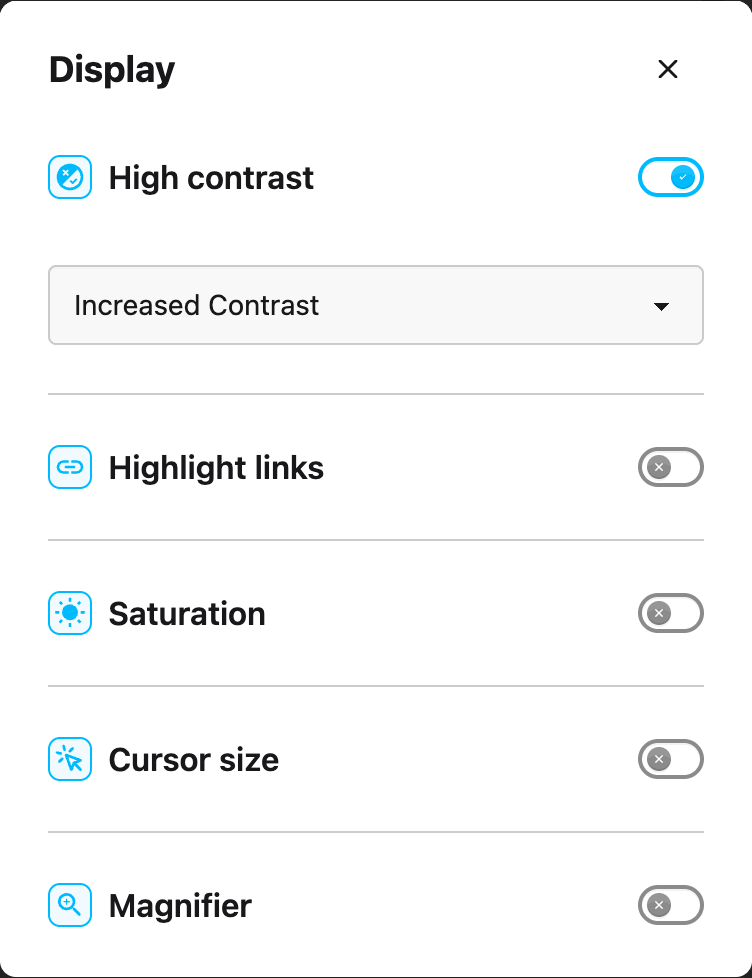
The box shows **Increased Contrast** before you choose, but the page uses **Greyscale**. Choose a
theme yourself, even the one already showing.
For the same steps with a screenshot at every stage, see
[how to enable high contrast mode](/help/how-to-use-helperbirds-high-contrast-features/).
### Keyboard shortcut
Press **Option + 7** on a Mac. On Windows, Linux and Chromebook, press **Alt + Shift + 7**. Either
one switches High contrast on and off.
The shortcut changes the page you are on. It does not change the saved setting, so the next page you
open follows the toggle in the menu.
You need [Helperbird Pro](/help/what-is-helperbird-pro/) for the shortcut, and
[keyboard shortcuts](/help/what-are-the-helperbird-shortcuts/) turned on.
---
## The Five Themes
Table: The five high contrast themes and what each one looks like.
| Theme | What you see |
| ------------------ | -------------------------------------------------------------------------------------------------------- |
| Increased Contrast | Colors stay, but go deeper. Text stands out more against a light background. |
| Greyscale | Color comes off. The page is black, white and grey. |
| Inverted Color | Every color flips to its opposite. A white page turns dark, and a page that is already dark turns light. |
| Inverted Greyscale | Color comes off and then flips. You get light text on a dark background. |
| Yellow on Black | Yellow text on a black background. |
If you are not sure where to start, try **Increased Contrast** first. It keeps the colors the page
already has, so the page still looks like itself.
---
## High Contrast or Dark Reader?
**Dark Reader** paints pages dark, with its own dark themes and brightness controls. It flips
nothing, so a page that is already dark stays dark. See
[how to turn on Dark Reader](/help/how-to-turn-on-dark-mode-in-helperbird/).
**High contrast** changes the colors that are already on the page instead. It can take color off,
flip color, or push the colors further apart.
So use Dark Reader to read at night. Use High contrast when you want the color gone, the contrast
pushed up, or yellow on black.
**Dark mode** is a third, separate setting. It changes the colors of Helperbird's own windows, not
the websites you visit.
---
## What It Does Not Change
You cannot apply the theme to the text only. Menus, buttons and ads change with it.
Greyscale, Inverted Greyscale and Yellow on Black recolor photos and videos too. Increased Contrast
and Inverted Color leave most photos and videos close to their own colors.
---
## Video Tutorial
Coming soon
---
## Need Additional Help?
If you have any questions or run into any issues, please contact the Helperbird support team. You
can reach us at [Helperbird support](/support/). We are happy to help you get the most out of
Helperbird.
---
## How to Use Immersive Reader on Any Website
URL: https://www.helperbird.com/help/how-to-use-immersive-reader-on-any-website/
## What is Immersive Reader?
Immersive Reader is a reading tool made by Microsoft. It takes the text from a webpage and shows it
in a clean, simple view without any distractions like ads, menus, or sidebars.
Immersive Reader also includes helpful features like text-to-speech, syllable breaking, parts of
speech highlighting, and adjustable text size and spacing.
---
## Who is This For?
This feature is helpful for:
- People with dyslexia who benefit from a simplified reading view
- Anyone who is distracted by busy webpage layouts
- Students who want to focus on the content they are reading
- People learning to read or learning a new language
- Anyone who wants text-to-speech with word highlighting
---
## Step 1: Open Helperbird
Click the Helperbird icon in your browser toolbar. It looks like a small owl and is usually in the
top-right corner of your browser.
This will open the Helperbird menu.
---
## Step 2: Go to the All Features Section
Scroll down to the bottom of the Helperbird menu. You will see a section called **All Features**.
Click the arrow next to **All Features** to expand it and show all available features.
---
## Step 3: Find Immersive Reader
Look through the list of features until you see **Immersive Reader**.
It has a book icon next to it.
---
## Step 4: Click Immersive Reader
Click on **Immersive Reader**.
The webpage will transform into a clean reading view. You will see just the text and images from the
page, without any of the extra elements like navigation menus, ads, or sidebars.
---
## Step 5: Use Immersive Reader Features
Immersive Reader opens with the text reflowed, spaced out and stripped of everything else on the
page.
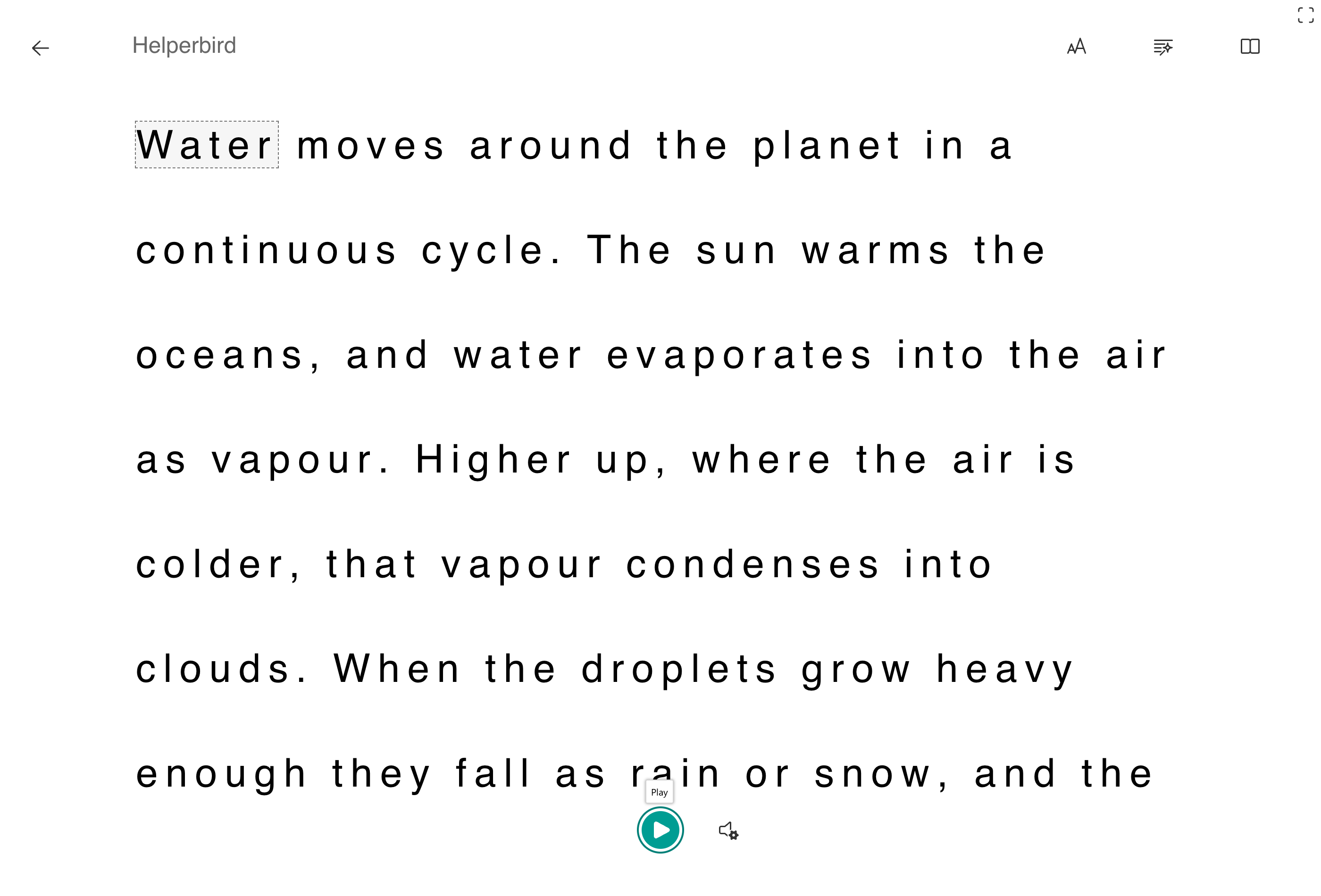
Three buttons in the top-right corner hold every setting, and each has its own guide:
- **[Text Preferences](/help/how-to-change-the-text-and-style-in-immersive-reader/)**, marked AA,
for text size, spacing, font and background color.
- **[Grammar Options](/help/how-to-use-grammar-options-in-immersive-reader/)** for splitting words
into syllables and colouring nouns, verbs, adjectives and adverbs.
- **[Reading Preferences](/help/how-to-use-reading-preferences-in-immersive-reader/)** for line
focus and the picture dictionary. [Translation](/help/how-to-translate-in-immersive-reader/) lives
here too.
At the bottom, **Play** reads the text aloud and highlights each word as it goes. The speaker beside
it opens the voice settings, where you choose the voice and how fast it reads.
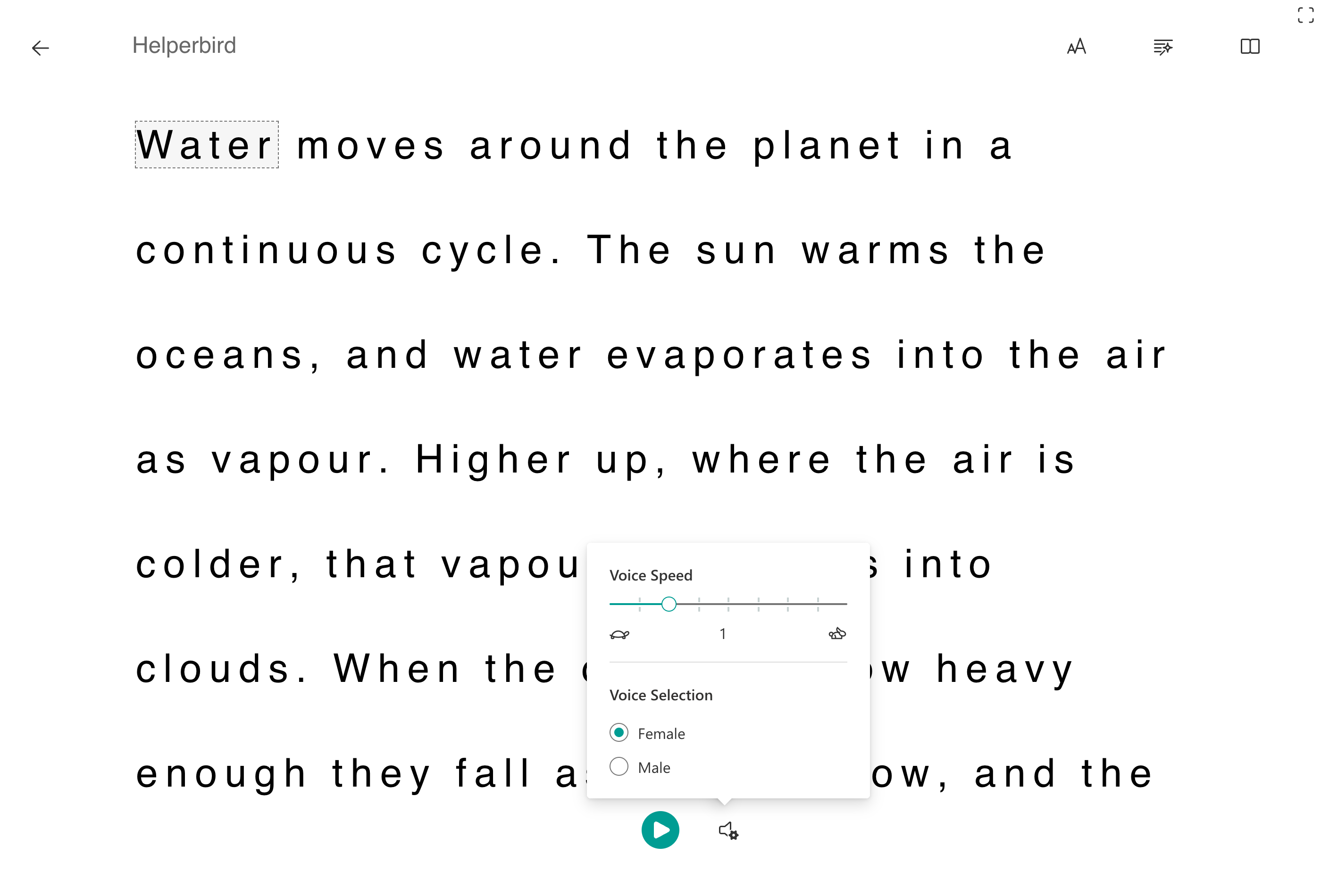
To leave, press the back arrow in the top-left corner.
---
## Reading Selected Text
If you only want to read part of a webpage:
1. First, highlight the text you want to read by clicking and dragging your mouse over it
2. Then open Helperbird and click the Immersive Reader button
3. Immersive Reader will open with only your selected text
This is useful when you want to focus on a specific section of a long article.
**Tip:** Immersive Reader is especially helpful for long articles or academic content. The clean
view removes distractions and the read aloud feature lets you listen while following along.
---
## Frequently Asked Questions
**Is Immersive Reader free?** Yes! Immersive Reader is included in Helperbird Free. No Pro
subscription required.
**Does Immersive Reader work on all websites?** It works on most websites with readable text
content. Some complex web apps or sites with unusual layouts may not work perfectly.
**Can I use Immersive Reader on PDFs?** Yes! Open the PDF in Helperbird's PDF reader and use
Immersive Reader from there.
**What languages does Immersive Reader support?** Immersive Reader supports over 60 languages for
text-to-speech and translation features.
**Can I save my Immersive Reader settings?** Yes, your preferences (text size, colors, etc.) are
saved automatically and will apply the next time you use Immersive Reader.
---
## Related Guides
- [How to Use Text to Speech](/help/how-to-use-text-to-speech-on-any-website/)
- [How to Use Reading Mode](/help/how-to-use-reading-mode-and-remove-ads-on-any-website/)
- [How to Use Dyslexia Fonts](/help/how-to-change-the-font-on-any-page/)
---
## Using Immersive Reader in the PDF Reader
Immersive Reader is also built into Helperbird's PDF Reader, so you do not have to leave your
document to use it.
Open your PDF, then choose **Tools**, the dots-grid button in the toolbar.

Choose **Immersive Reader** from the menu and the page you are reading, or just the text you have
highlighted, opens in Immersive Reader.
It behaves exactly the same way there as it does on a website, and it uses the same settings, so
anything you have chosen here carries over. See
[how to use the Tools menu in the PDF Reader](/help/how-to-use-the-tools-menu-in-the-pdf-reader/).
---
## Video Tutorial
Coming soon
---
If Immersive Reader is still opening, wait for that request to finish. Clicking again reuses the
same opening request. After closing the reader or seeing an error, you can try again.
For the new PDF translation tabs, see
[translating the current PDF page](/help/how-to-translate-pdfs-with-helperbird/). Translation inside
Immersive Reader remains a separate option.
## Need Additional Help?
If you have any questions or run into any issues, please contact the Helperbird support team. You
can reach us at [Helperbird support](/support/). We are happy to help you get the most out of
Helperbird.
---
## How to Use Microsoft 365 Single Sign-On (SSO) with Helperbird
URL: https://www.helperbird.com/help/how-to-use-microsoft-365-single-sign-on-with-helperbird/
## What is Microsoft 365 SSO with Helperbird?
Helperbird integrates with your school's Microsoft 365 environment so students and staff can access
Helperbird without creating a separate account or remembering another password.
With a school key, students do not need to sign in. To use email instead, they choose the Microsoft
account button in Edge and allow access to their email.
---
## Who is This For?
This guide is for:
- IT administrators deploying Helperbird across a school board or district
- Schools using Microsoft 365 and Microsoft Intune for device management
- Organizations that want a simple, secure way to give students access to Helperbird
---
## Two Authentication Methods
Helperbird supports two ways to authenticate users in a Microsoft 365 environment. Both methods mean
students never need a separate Helperbird username or password.
---
## Method 1: Subscription Key (Recommended)
This is the simplest and most private method. A single subscription key is added to the extension
configuration during deployment. Every user on a managed device gets access automatically.
### How It Works
1. Your IT team deploys Helperbird as a managed extension through Microsoft Intune.
2. The subscription key is included in the extension policy configuration.
3. When a student or staff member logs into their managed device with their Microsoft 365 account,
the browser opens with Helperbird already installed and activated.
4. No sign-in to Helperbird is needed. The extension is ready to use.
### Why We Recommend This Method
- **No student data collected** - A school key identifies your domain, not the student. Helperbird
does not need to know who the user is.
- **No extra permissions required** - The extension does not need access to the user's email or
identity.
- **No student sign-in** - The managed key activates Helperbird after the policy arrives and the
subscription is verified.
- **Best for privacy** - No personally identifiable information is shared with Helperbird.
---
## Method 2: School Email Sign-In
If your organization prefers user-level authentication, Helperbird can identify users by the school
email address they are signed into their browser with.
### How It Works
1. The student or staff member opens Helperbird's settings page and clicks the sign-in button. This
method needs Edge, where the button reads **Continue with Microsoft Account** and Helperbird
reads the Microsoft 365 account the browser profile is signed in with. On Chrome the button reads
**Continue with Google Account** and reads the Google account the profile is signed in with
instead.
2. Helperbird asks the browser for permission to see the email address the user is signed in with.
3. The user approves the permission. Helperbird reads their school email address from the browser
session.
4. Helperbird activates their license based on their email.
### What This Looks Like for the User
- No separate password is needed. Helperbird uses the email from the Microsoft 365 account they are
already signed into.
- A permission prompt asks to share the browser profile's email address. It may appear again if
permissions are removed or the browser profile changes.
### When to Use This Method
- When you need to track usage per individual user
- When your licensing model requires user-level identification
- When your organization prefers explicit user authentication
---
## Which Method Should I Use?
Table: Subscription keys and school email sign-in compared.
| | Subscription Key | School Email Sign-In |
| ---------------------- | ------------------------------------- | --------------------------------------- |
| Setup effort | Minimal, one key in the policy | Minimal, users approve once |
| User action needed | None | One-time permission approval |
| Student data collected | None | Email address only |
| Best for | Boardwide deployment, maximum privacy | Per-user tracking, user-level licensing |
| Recommended | **Yes** | When user-level tracking is needed |
For most school boards, we recommend the **subscription key method**. It is simpler to deploy,
requires no action from students, and collects no personally identifiable information.
---
## Need Additional Help?
If you have any questions or run into any issues, please contact the Helperbird support team. You
can reach us at [Helperbird support](/support/). We are happy to help you get the most out of
Helperbird.
---
## How to Use the PDF Reader in Helperbird
URL: https://www.helperbird.com/help/how-to-use-pdf-reader-in-helperbird/
For the installed iPhone, iPad, or Mac app, use the
[native PDF Reader guide](/help/how-to-use-helperbird-pdf-reader-on-iphone-ipad-and-mac/). These
steps cover the browser extension.
This guide covers reading a document that is already open in the Helperbird PDF Reader: moving
through the pages, listening to them, and writing notes beside them.
If the reader is not open yet, start with
[how to open the PDF Reader](/help/how-to-open-the-pdf-reader-in-helperbird/). For a summary of the
toolbar buttons and available tools, see
[using the PDF Reader](/help/how-to-use-the-helperbird-pdf-support/).
---
## Move Through the Pages
Use the **Page** field above or below the PDF. Type a page number and press Enter. The arrows beside
it move one page at a time.
Choose **Page thumbnails** in the header to see small previews. Select a preview to open that page.
Close the thumbnails when you want the space back.
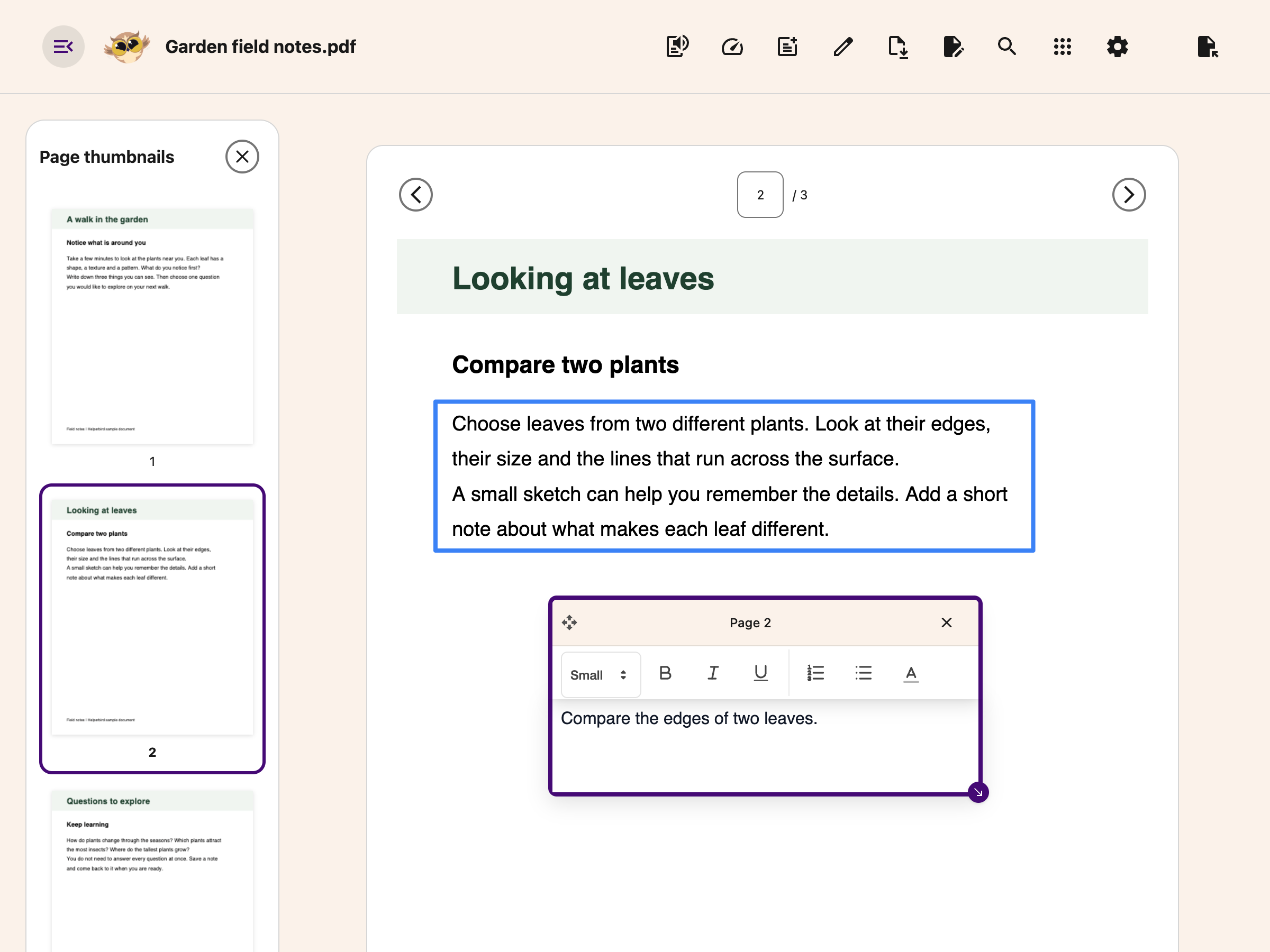
When you are not typing in a note, text box or another control, Left and Right move between pages.
Open **Settings → Keyboard shortcuts** for the full list.
---
## Listen to the Page
Click **Text to Speech** in the toolbar. A player bar opens above the document with play and pause,
stop, a progress bar, and a speed button.
- Press play with nothing selected and the whole page is read.
- Highlight a sentence or a paragraph first and only that is read.
- The speed button cycles through 0.5x, 0.75x, 0.9x, 1x, 1.25x, 1.5x and 2x. The reader opens at 1x
every time, whatever speed you use elsewhere in Helperbird.
To follow each word as it is read, choose a local voice and press Play with no text selected. The
page scrolls to keep the spoken word in view. With a Natural voice, or with text selected, you hear
the words without a highlight.
Reading stops when you turn the page, so press play again on the new one. The voice itself comes
from your own settings, covered in
[how to use text to speech](/help/how-to-use-text-to-speech-on-any-website/).
---
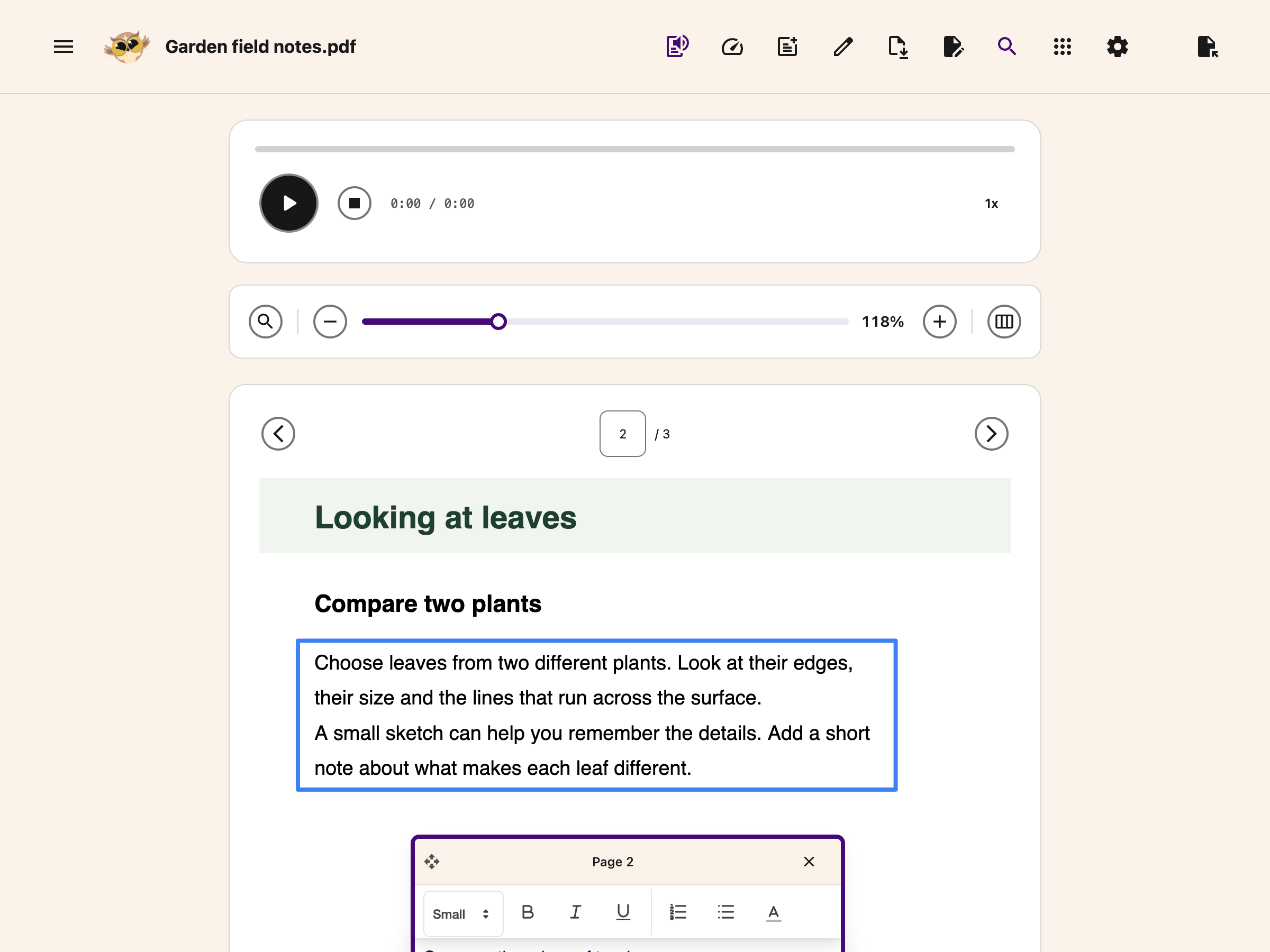
---
## Read One Word at a Time
Choose **Speed Reading** in the header to open a word-by-word view of the current page. It stays
paused until you choose Play. Turning to another page loads that page's words and pauses playback.
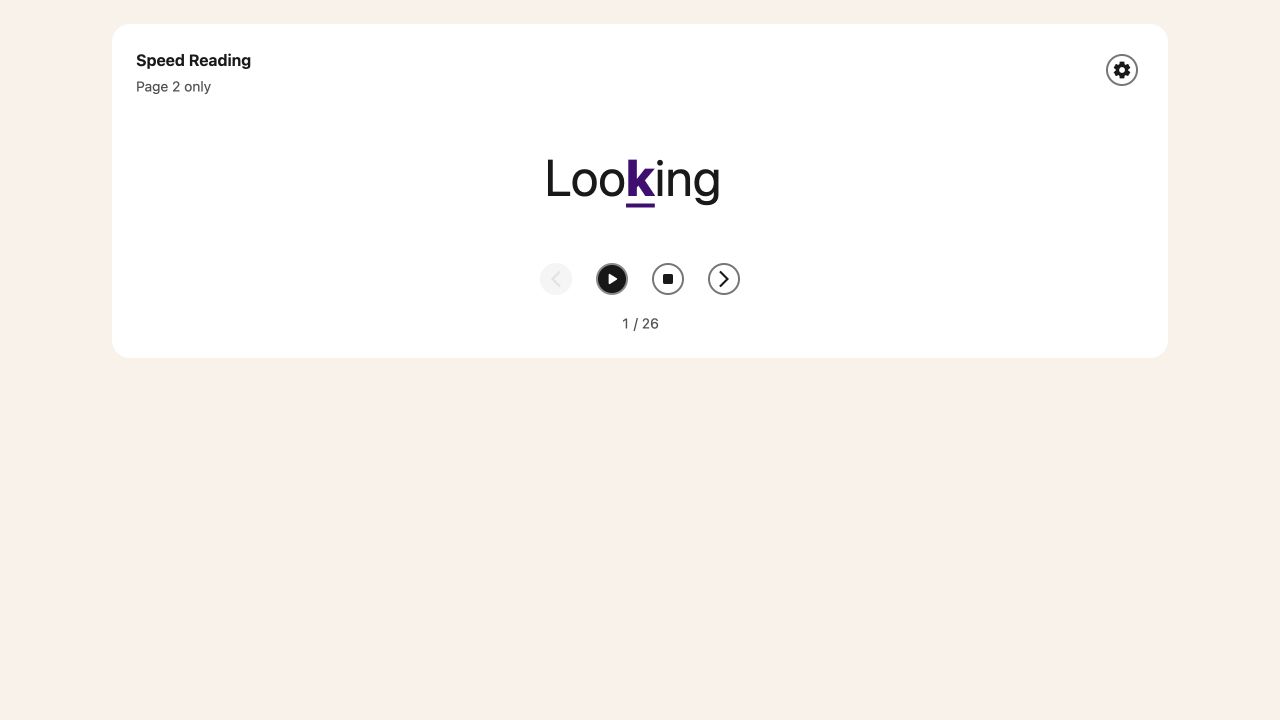
Use **Tools** on the card for playback speed and **Highlight the middle letter for focus**. Read the
[Speed Reading guide](/help/how-to-use-speed-reading-in-reading-mode-and-pdf-reader/) for the
controls and scanned-page limits.
---
## Take Notes Beside the PDF
Click **Notepad** in the toolbar. The view splits, with your PDF on the left and a writing panel on
the right. Click **Notepad** again, or the close button in the panel, to go back to the full-width
document.
Drawing is free. Immersive Reader is also free for passages of up to 1,200 characters; select a
shorter passage if the current page is too long.
Typing and formatting notes are free. Choose **Add Textbox to PDF** below the editor to place them
on the current page, also for free. Voice typing, grammar and equation editing need Helperbird Pro
and show a diamond above their icons.

> **Recovery is not a download.** The current PDF and your notes can be restored from this device
> while its recovery copy is available. Opening a different PDF replaces that copy. Use **Add
> Textbox to PDF**, then [download With my changes](/help/how-to-save-and-download-annotated-pdfs/)
> to keep a portable copy.
---
## What the Notepad Buttons Do
Table: The buttons above the Notepad text and what each one does.
| Button | What it does |
| --------------------- | -------------------------------------------------------------------------------------------------------------------------------------------------------- |
| Microphone (Pro) | Dictates into the panel instead of typing. A **π** badge on the button means maths mode is on, which you set in the popup |
| Grammar (Pro) | Rewrites what you have written with the corrections applied, up to 1,000 words at a time |
| Insert equation (Pro) | Adds maths at your cursor; click the equation later to edit it |
| Add Textbox to PDF | Adds your note to the current page. Text, pictures and equations become separate boxes in their original order |
| Download note | Opens your browser's print dialog with your notes in it. Choose **Save as PDF** as the destination to keep a copy. Check the print preview before saving |
---
If a picture cannot load or the complete note will not fit on the page, the transfer stops with a
message. Your note and PDF stay unchanged. Shorten the note or add it in smaller parts.
Spoken punctuation follows the saved choice in **Voice typing → Options** in the browser extension.
Set it before starting the next recording; in Regular mode it controls whether spoken punctuation
commands become marks or words. See the
[Voice typing guide](/help/how-to-use-speech-to-text-or-dictation-on-any-website/#step-6-use-your-text).
## Related Guides
- [Search and zoom a PDF](/help/how-to-search-and-zoom-a-pdf/)
- [Translate the current PDF page](/help/how-to-translate-pdfs-with-helperbird/)
- [Add and edit equations](/help/how-to-add-equations-to-pdfs-and-notepad/)
- [Open the PDF Reader](/help/how-to-open-the-pdf-reader-in-helperbird/) - Get the reader open and a
file loaded.
- [The Tools menu](/help/how-to-use-the-tools-menu-in-the-pdf-reader/) - Immersive Reader,
Translate, Summarize and Screenshot Reader.
- [Add text boxes to PDFs](/help/how-to-add-text-boxes-to-pdf-with-helperbird/) - Type onto the page
itself.
- [Drawing tools on PDFs](/help/how-to-use-drawing-tools-on-pdfs-with-helperbird/) - Pen, shapes,
lines and arrows.
- [Save and download PDFs](/help/how-to-save-and-download-annotated-pdfs/) - Which of your changes
end up in the file.
- [Reading long PDFs](/help/how-to-use-helperbird-for-reading-long-pdfs/) - A working order for a
long document.
---
## Need Additional Help?
If you have any questions or run into any issues, contact the [Helperbird support team](/support/).
We are happy to help you get the most out of Helperbird.
---
## How to Use Reading Mode on Any Website
URL: https://www.helperbird.com/help/how-to-use-reading-mode-and-remove-ads-on-any-website/
## What is Reading Mode?
Reading Mode removes distractions from a webpage and shows you just the main content. It gets rid of
ads, navigation menus, sidebars, and other elements that can make reading difficult.
The result is a clean, simple view that looks like a book or document, making it much easier to
focus on reading.
---
## Who is This For?
This feature is helpful for:
- People who are distracted by ads and other page elements
- Anyone with dyslexia who benefits from simplified layouts
- People with ADHD who need fewer distractions
- Students reading articles for research
- Anyone who finds cluttered websites overwhelming
---
## Step 1: Open Helperbird
Click the Helperbird icon in your browser toolbar. It looks like a small owl and is usually in the
top-right corner of your browser.
This will open the Helperbird menu.
---
## Step 2: Go to the All Features Section
Scroll down to the bottom of the Helperbird menu. You will see a section called **All Features**.
Click the arrow next to **All Features** to expand it and show all available features.
---
## Step 3: Find Reading Mode
Look through the list of features until you see **Reading Mode**.
It has a document or page icon next to it.
---
## Step 4: Click Reading Mode
Click on **Reading Mode**.
Helperbird extracts the main article into a focused reading view, away from the surrounding
navigation and advertising. Results depend on how the website structures its content.
You will see just the main text and images from the article.
---
## Step 5: Customize Your View
Use the buttons in the Reading Mode header. On a narrow screen, open **More options** to reach the
controls.
- **Show read-aloud controls** opens the
[Text to Speech](/help/how-to-use-text-to-speech-on-any-website/) player. Opening the player does
not start speech. Choose Play when you are ready.
- **Speed Reading** shows one word at a time. Choose Play, Pause or the word arrows to control your
pace.
- **Reading Width** cycles the article width.
- The **Light** or **Dark** button switches the reading theme.
- **Settings** opens font, text size, line height, word spacing and letter spacing.
- **Translate** opens the article in Google Translate.
- **Close** returns to the webpage.
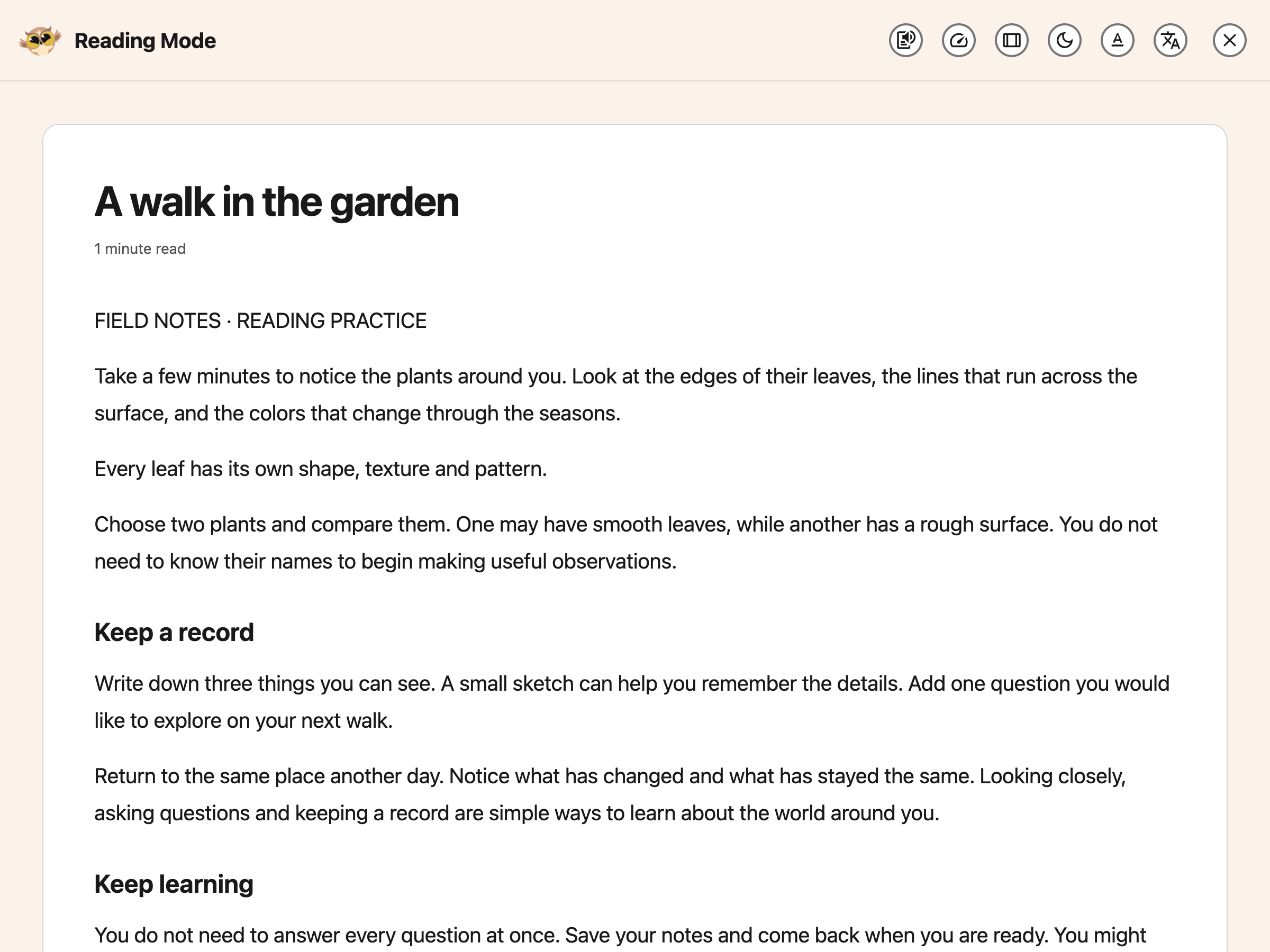
Reading Mode saves its own appearance choices. Changing these controls does not change the original
webpage or your other Helperbird apps.
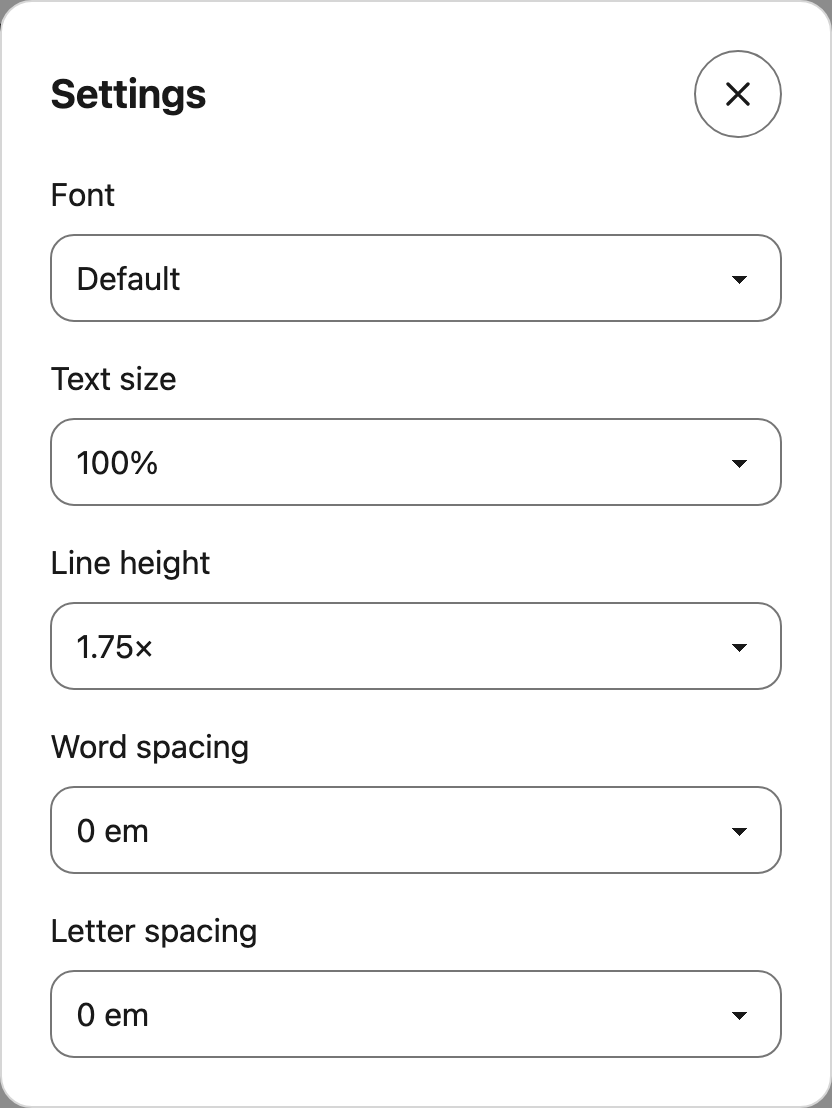
Wide tables and code blocks can scroll sideways. Code keeps its formatting and has a Copy control.
For a word-by-word view, follow
[the Speed Reading guide](/help/how-to-use-speed-reading-in-reading-mode-and-pdf-reader/).
---
If the article includes a code block, Reading Mode keeps its spacing and uses syntax colors to
distinguish parts of the code.

## Step 6: Exit Reading Mode
When you are done reading, click the **X** button in the top corner of the Reading Mode view.
This will return you to the normal webpage. You can also press **Escape** to close Reading Mode.
**Tip:** Reading Mode works best on articles, blog posts, and news stories. It may not work well on
pages that are mostly images or interactive content.
---
## Frequently Asked Questions
**Is Reading Mode free?** Yes! Reading Mode is included in Helperbird Free.
**Does Reading Mode work on all websites?** Reading Mode works best on articles, blog posts, and
news sites. Some complex web apps, paywalled content, or image-heavy sites may not work perfectly.
**Where are the font and text-size controls?** Open **Settings** in the Reading Mode header. These
preferences belong to Reading Mode.
[Immersive Reader](/help/how-to-use-immersive-reader-on-any-website/) has its own controls.
**Can I print from Reading Mode?** There is no dedicated print button in the current Reading Mode
toolbar. Your browser's print command may include the underlying webpage, so check its preview
before printing.
**What's the difference between Reading Mode and Immersive Reader?** Reading Mode is Helperbird's
built-in feature for clean reading. Immersive Reader is Microsoft's tool with additional features
like syllable breaking and parts of speech highlighting. Both remove distractions, but Immersive
Reader has more learning-focused tools.
---
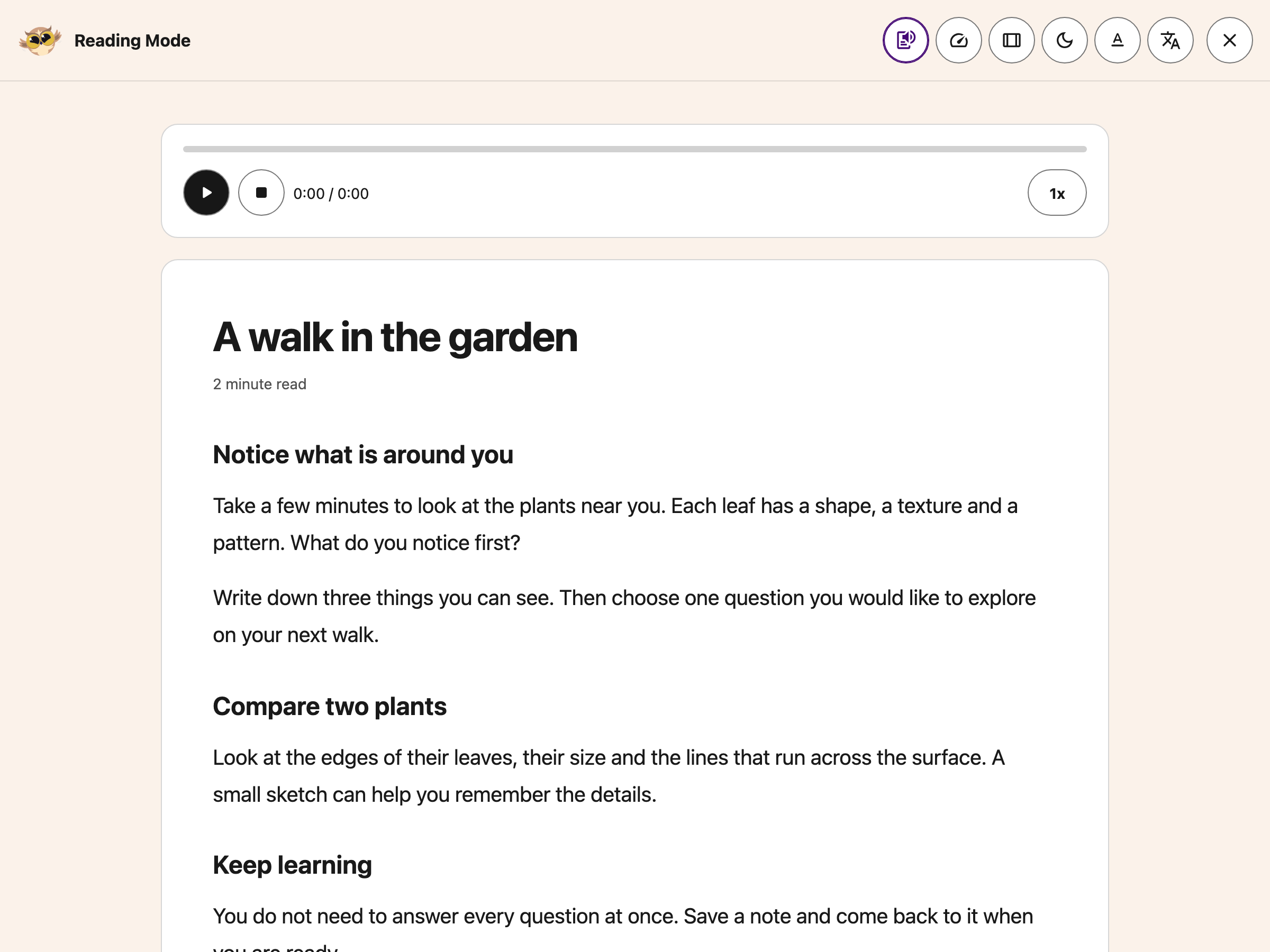
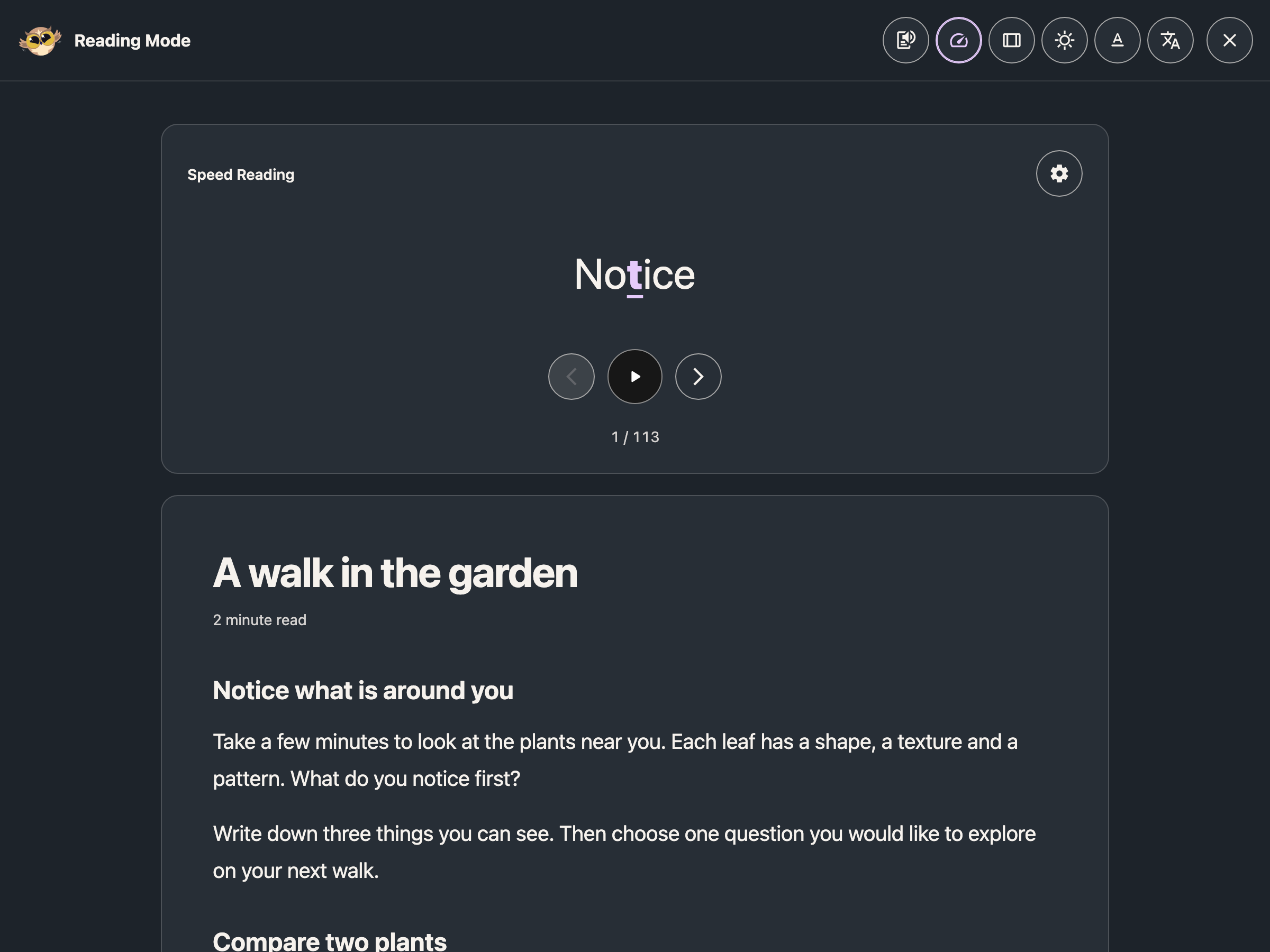
---
## Related Guides
- [How to Use Immersive Reader](/help/how-to-use-immersive-reader-on-any-website/)
- [How to Use Text to Speech](/help/how-to-use-text-to-speech-on-any-website/)
- [How to Change Fonts](/help/how-to-change-the-font-on-any-page/)
---
## Video Tutorial
Coming soon
---
## Need Additional Help?
If you have any questions or run into any issues, please contact the Helperbird support team. You
can reach us at [Helperbird support](/support/). We are happy to help you get the most out of
Helperbird.
---
## How to Use Reading Preferences in Immersive Reader
URL: https://www.helperbird.com/help/how-to-use-reading-preferences-in-immersive-reader/
## What This Panel Does
**Reading Preferences** is the third button, the open book. It holds the two settings that help you stay with the text: **Line Focus** and the **Picture Dictionary**. Translation lives here too, and has [its own guide](/help/how-to-translate-in-immersive-reader/).
---
## Who is This For?
This is helpful for:
- Anyone whose eye jumps to the wrong line in a block of text
- Readers who meet words they cannot picture
- Students reading in a second language
- Anyone who reads a paragraph and realises they took none of it in
---
## Open Reading Preferences
Open Immersive Reader first. You can start it from the [floating toolbar](/help/how-to-open-immersive-reader-from-the-floating-toolbar/), from the Helperbird menu, or from the [Tools menu in the PDF Reader](/help/how-to-use-the-tools-menu-in-the-pdf-reader/).
Once it is open, the three buttons in the top-right corner hold every setting.
Click the book button.

---
## Line Focus
Turn on **Line Focus** and everything except the line you are reading is dimmed.
Underneath are three widths: one line, three lines, or five lines. One line is the most focused and the most work, because you move it constantly. Three is a good middle. Five keeps some context around you.
Start at three. If you still lose your place, go to one.
---
## Picture Dictionary
On by default. Click any word while it is on and a picture of that word appears, from the Boardmaker symbol set.
It is most useful for concrete nouns, where a picture is quicker than a definition, and for anyone reading in a second language. It cannot illustrate an abstract word, so nothing will appear for something like "however".
For a full definition rather than a picture, use [the Helperbird Dictionary](/help/how-to-open-the-helperbird-dictionary/).
Next: [Text Preferences](/help/how-to-change-the-text-and-style-in-immersive-reader/) and [Grammar Options](/help/how-to-use-grammar-options-in-immersive-reader/).
---
## Need Additional Help?
If you have any questions or run into any issues, please contact the Helperbird support team. You can reach us at [Helperbird support](/support/). We are happy to help you get the most out of Helperbird.
---
## How to Use Recent Searches in the Helperbird Dictionary
URL: https://www.helperbird.com/help/how-to-use-recent-searches-in-the-helperbird-dictionary/
## What This Does
**From version 2026.9.6, the Dictionary no longer shows or records a separate recent-search list.** Use your browser's **Back** and **Forward** buttons to revisit lookups in the current tab, or enter the word again. This is not a replacement vocabulary list.
The instructions below describe the previous version and are kept for reference.
Previously, the Helperbird Dictionary remembered the words you have looked up and listed them under **Recent searches**, so you could get back to one without retyping it.
---
## Who is This For?
This is helpful for:
- Students building a list of new words from a reading
- Anyone who looked something up, moved on, and wants it back
- People revising vocabulary
- Anyone who finds retyping a long or awkward word slow
---
## Finding Your Recent Words
Recent searches appear on the Dictionary's opening screen, underneath **Look up any word**. You see them when the search box is empty, so open the Dictionary fresh, or clear the box, to get back to them.
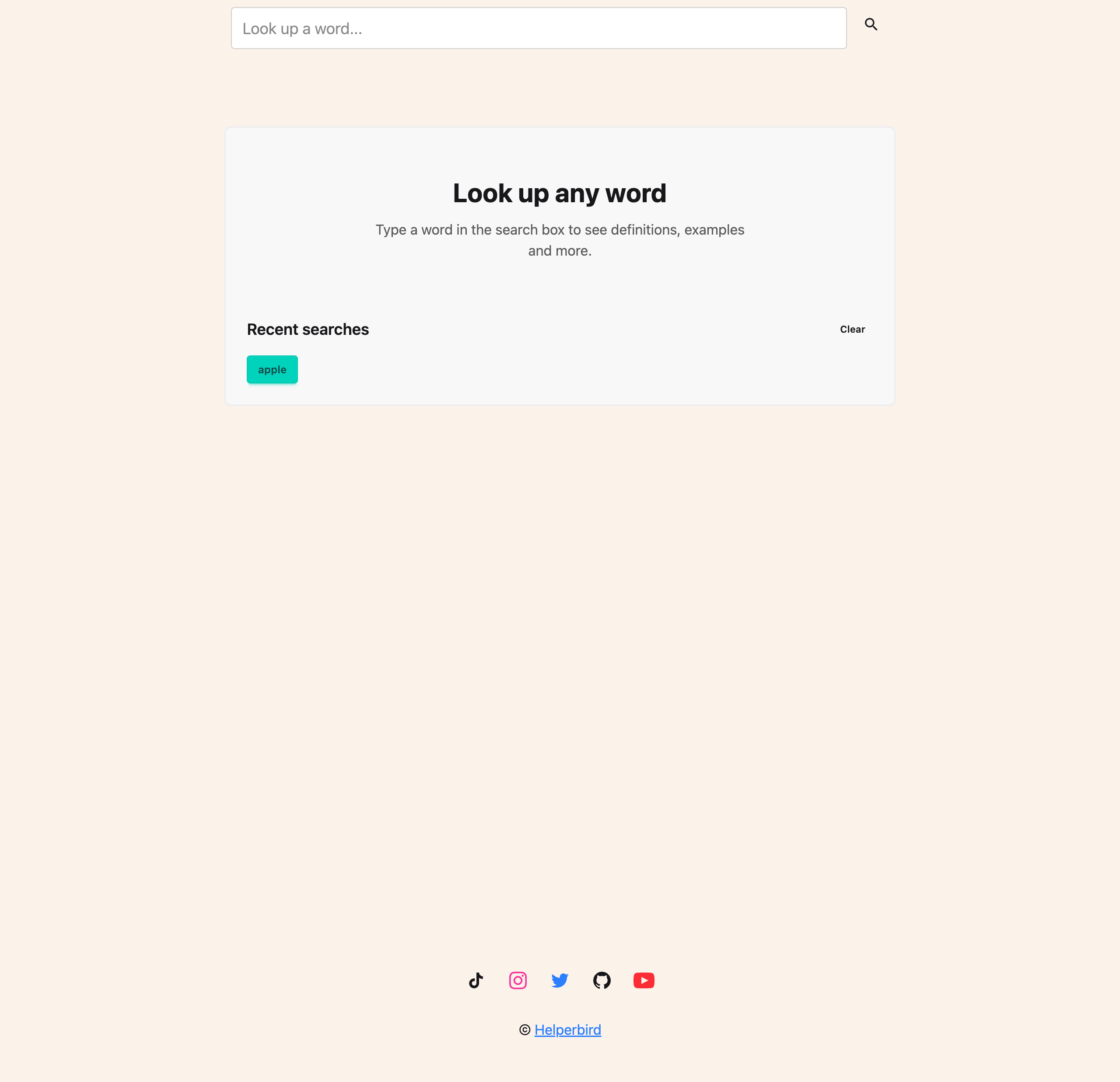
---
## Going Back to a Word
Click any word in the list and the Dictionary looks it up again straight away.
---
## Clearing the List
Click **Clear** to the right of the heading. The whole list is removed.
Use this if you share a computer, or if the list has filled up with words you no longer need. There is no undo, so anything you clear has to be looked up again.
---
## Need Additional Help?
If you have any questions or run into any issues, please contact the Helperbird support team. You can reach us at [Helperbird support](/support/). We are happy to help you get the most out of Helperbird.
---
## How to Use Screenshot Reader with the Keyboard
URL: https://www.helperbird.com/help/how-to-use-screenshot-reader-with-the-keyboard/
## What This Does
Screenshot Reader can capture text in a picture even when you cannot select the words normally. Use
the keyboard to create, move and resize its capture rectangle without dragging a mouse. Screenshot
Reader requires **Helperbird Pro** and an internet connection to process the capture.
The separate **Screenshot** tool saves an image of the visible page. Choose **Screenshot Reader**
when you want to copy, listen to or translate text from an image.
## Step 1 Choose Where the Text Goes
Bring the text you want to capture into view first. Finish scrolling or adjusting the page zoom
before starting.
Open Helperbird, expand **All Features**, and open **Screenshot Reader**. Choose a destination, such
as **Copy to clipboard**, **Listen** or **Immersive Reader**. Only one destination is used at a
time; Copy to clipboard is the default. Leave **Explain mode** off if you want the original words.
Choose the result you need before starting the capture.
Choose **Start**. If you already have your options set, you can also focus **Screenshot Reader** on
the expanded floating toolbar and press **Enter**. That toolbar button starts capture directly with
your saved options.
## Step 2 Create a Selection
When the selection overlay opens, press an **arrow key**. Helperbird creates a rectangle near the
center of the visible page. You can adjust it before sending anything for recognition.
The first arrow key creates a selection without a mouse drag.
## Step 3 Move and Resize the Rectangle
Use these controls while the capture overlay has focus:
Table: Keyboard controls for Screenshot Reader selection.
| Key | What it does |
| ------------------------------------- | ----------------------------------------------------- |
| **Arrow keys** | Move the whole rectangle one pixel in that direction. |
| **Shift + Left** or **Shift + Right** | Make the rectangle narrower or wider. |
| **Shift + Up** or **Shift + Down** | Make the rectangle shorter or taller. |
| **Enter** | Confirm the rectangle and start recognition. |
| **Escape** | Cancel without processing a capture. |
Resizing changes the right or bottom edge. Move the rectangle as well when you need to adjust its
top or left edge. Hold a key to repeat small adjustments. The selection stays within the visible
page and cannot become smaller than its minimum size.
Include the complete words you need and leave out unrelated text.
## Step 4 Confirm or Cancel
Press **Enter** while the selection overlay has focus to process the selected area. The result goes
to your chosen destination. With Copy to clipboard, paste it into your document to review it. Check
names, numbers and equations against the original image before relying on the extracted text.
Press **Escape** to leave without a capture, or use the **Cancel** button. If you tab to Cancel,
pressing Enter activates that button and cancels; it does not confirm the rectangle.
## If Selection Is Difficult
- **The arrow keys scroll the page:** press Escape and start Screenshot Reader again so the overlay
receives focus.
- **Some text is outside the rectangle:** adjust the selection before pressing Enter. For content
below the screen, cancel, scroll and capture that section separately.
- **The result is an explanation:** turn off Explain mode in Screenshot Reader and try again.
- **Nothing is copied:** check your chosen destination, Pro access and internet connection. Blurry
or very small text can also give poor results.
## Related Guides
- [All Screenshot Reader destinations](/help/how-to-extract-text-from-any-image-pdf-or-website/)
- [Use Explain mode](/help/how-to-use-explain-mode-in-the-screenshot-reader/)
- [Use the floating toolbar](/help/how-to-use-the-helperbird-accessibility-toolbar/)
---
## How to Use Speech to Math (Math Mode) in Helperbird
URL: https://www.helperbird.com/help/how-to-use-speech-to-math-in-helperbird/
Math Mode lets you speak equations and have Helperbird write them as proper math notation. Say "x
squared plus three x" and get x² + 3x, which suits anyone who finds typing maths slow or difficult.
---
## What is Math Mode?
Math Mode is one of Helperbird's voice typing modes. With it on, your dictation is converted from
spoken English into formatted mathematical notation as you talk. It covers a huge vocabulary: Greek
letters, fractions, exponents, roots, integrals, derivatives, and more.
---
## How to Turn On Math Mode
### Step 1: Start voice typing
Open **Voice typing** in Helperbird. Leave the microphone stopped while you choose a mode.

The screenshot shows **Options** open in the Voice typing panel. Choose the mode here before you
start speaking.
### Step 2: Open the options menu
Open **Options** beside the microphone.
### Step 3: Choose Math under "Mode"
Choose **Math mode** from the **Mode** dropdown. A **π** badge appears on the **Options** button.
The mode stays selected until you change it. Pick your mode before recording; changes apply to your
next recording.
### Step 4: Speak
Press the microphone and dictate. Your words are converted as you go.
---
## What You Can Say
Table: What to say, and the maths you get.
| You say | You get |
| -------------------------------------------- | ------- |
| "x squared plus three x" | x² + 3x |
| "square root of 72" | √72 |
| "alpha equals pi r squared" | α = πr² |
| "the integral from zero to one of x squared" | ∫₀¹ x² |
| "a over b" | a/b |
| "x is greater than or equal to y" | x ≥ y |
Tip: you can drop the word "of", so "square root seventy two" works the same as "square root of 72".
---
## Where It Works
Math Mode is available wherever Helperbird offers voice typing:
- **The popup**: dictate into Helperbird's draft box, then copy the result into your work.
- **The PDF reader**: dictate maths into your notes.
- **The Equation Editor**: dictate equations straight into the math field.
For chemistry and physics dictation, switch to **Chemistry** or **Physics** mode instead. See the
related guide below. Voice typing is a Helperbird Pro feature.
---
## Related Guides
- [How to Use Chemistry and Physics Voice Typing in Helperbird](/help/how-to-use-chemistry-and-physics-voice-typing-in-helperbird/)
- [How to Use the Maths Reader in Helperbird](/help/how-to-use-the-maths-reader-in-helperbird/)
- [How to Use Word Prediction in Helperbird](/help/how-to-use-word-prediction-on-any-website-or-google-docs/)
---
## Need Additional Help?
If you have any questions or run into any issues, please contact the Helperbird support team. You
can reach us at [Helperbird support](/support/). We are happy to help you get the most out of
Helperbird.
---
## How to Use Voice Typing (Speech to Text) on Any Website
URL: https://www.helperbird.com/help/how-to-use-speech-to-text-or-dictation-on-any-website/
## What is Voice Typing?
Speak into your microphone and collect a draft in Helperbird's text box. You can edit it, copy it,
listen to it, or print it. Voice typing in the browser extension needs Helperbird Pro, microphone
permission, and an internet connection.
## Step 1: Open Helperbird
Click the Helperbird owl in your browser toolbar.
## Step 2: Go to the All Features Section
Expand **All Features** and find **Voice typing**. You can also search for it in Helperbird.
## Step 3: Find Voice Typing
Open **Voice typing**. Its panel contains a text box, language selector, and three controls:
**Grammar**, **Start recording**, and **Options**. Opening the panel does not start the microphone.
Your draft stays in the text box until you choose an action.
## Step 4: Select Your Language
Choose the language and regional variant you will speak from the language selector below the text.
Stop recording before changing it.
## Step 5: Start Speaking
Click the pink **microphone** and allow microphone access if your browser asks. Speak clearly; your
words appear in the text box. Click the microphone again when you are finished.
Recording also stops after **10 seconds without recognized speech**. Your draft stays in place.
Press the microphone again to continue.
## Step 6: Use Your Text
Open **Options**, the sliders button beside the microphone. It contains:
- **Mode:** Regular, Math, Chemistry, or Physics. Choose before you start recording.
- **Spoken punctuation:** in Regular mode, turn this on to convert supported spoken punctuation
commands into punctuation marks. Turn it off if you want those words kept as words. Language
support varies. This choice is saved for your next recording.
- **Copy:** copy your draft so you can paste it into a document or form.
- **Listen:** open the draft in Read Aloud.
- **Print:** open a printable version of the draft.
- **Clear:** remove the draft from the panel.
Spoken punctuation lives inside Options, along with the draft actions.
Spoken punctuation is unavailable while recording or preparing a recording, and in Math, Chemistry,
and Physics modes. Those modes handle symbols separately. The Grammar button beside the microphone
checks the draft for writing errors.
With a keyboard, focus **Options** and press **Enter** or **Space**. Press **Tab** to move through
its controls. **Escape** closes Options first; press Escape again to close Voice typing.
## Type Directly into a Field
To put words straight into a webpage or Google Docs, enable **Voice typing into the page** in
**Settings → Beta features**, then use Voice typing from the **floating toolbar**. This is still a
Beta feature. The panel opened from the Helperbird menu continues to collect a draft in its own text
box.
Follow [dictating into the page](/help/how-to-type-dictation-straight-into-the-page/) for the full
steps. For notes beside a PDF, use its
[Notepad](/help/how-to-use-pdf-reader-in-helperbird/#take-notes-beside-the-pdf).
## Troubleshooting
**No words appear:** check your microphone permission, selected language, internet connection, and
Helperbird Pro access. Stop and start the microphone after changing a permission.
**Recording stopped during a pause:** the 10-second silence limit has been reached. Start again when
you are ready.
**A setting cannot be changed:** finish recording first. Spoken punctuation is only available in
Regular mode.
**You need to keep the draft:** copy it into your document before closing the browser or leaving the
page. The panel is not a document-saving service.
## Need Additional Help?
[Contact Helperbird support](/support/) with your browser, Helperbird version, and what happened.
---
## How to Use Helperbird Speed Reading
URL: https://www.helperbird.com/help/how-to-use-speed-reading-in-reading-mode-and-pdf-reader/
## What This Does
Speed Reading shows one word at a time above the original article or PDF. You choose when it starts
and how quickly the words change. You can pause, step back or move forward without starting
automatic playback.
This is a visual reading tool. To hear the words instead, use
[Text to Speech](/help/how-to-use-text-to-speech-on-any-website/).
## Who is This For?
Use it when you want to focus on a short passage, read at a steady pace, or review words one at a
time. Choose a pace that lets you understand the text. You do not need to read faster to use this
feature.
## Step 1: Open Your Reading View
Open **All Features** in Helperbird and select **Speed Reading**. On a web article, Reading Mode
opens with the Speed Reading card already visible. In Helperbird's PDF Reader, the shortcut opens
the PDF's own card. Open a PDF first and choose the page you want to read.
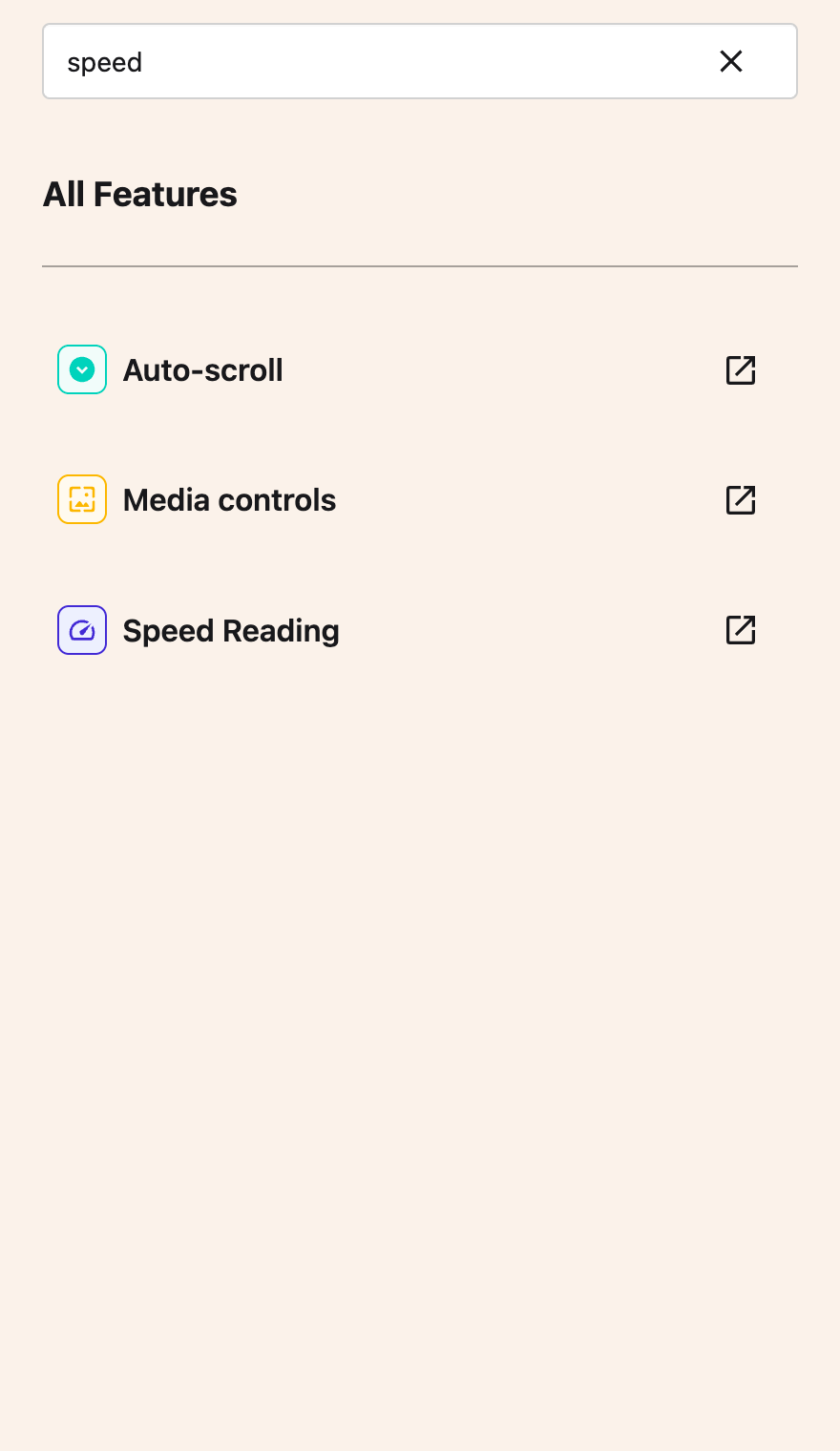
You can also select **Speed Reading** in either reader's header. In Reading Mode on a narrow screen,
open **More options** to reach the header controls.
Speed Reading is free. If your organization disables Reader Mode, the Speed Reading shortcut is also
hidden and cannot launch either reader. It can also be restricted separately by your admin.
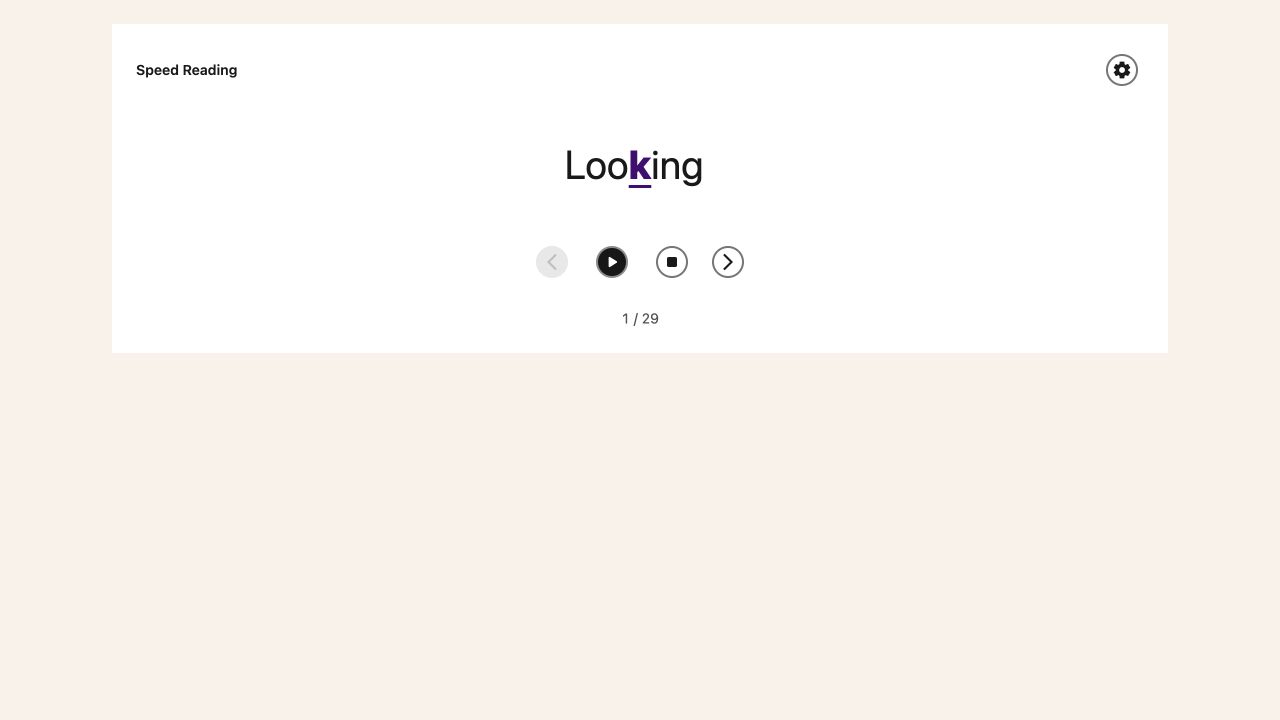
Opening the card does not start playback. The original text stays below it so you can check the
surrounding sentence.
## Step 2: Set Your Pace
Open **More options** on the Speed Reading card. Choose **Playback speed**, measured in words per
minute. Start slowly and adjust after trying a few sentences.
Turn **Highlight the middle letter for focus** on if the colored letter helps you follow each word.
Turn it off if you prefer plain text. **Start over** returns to the first word.
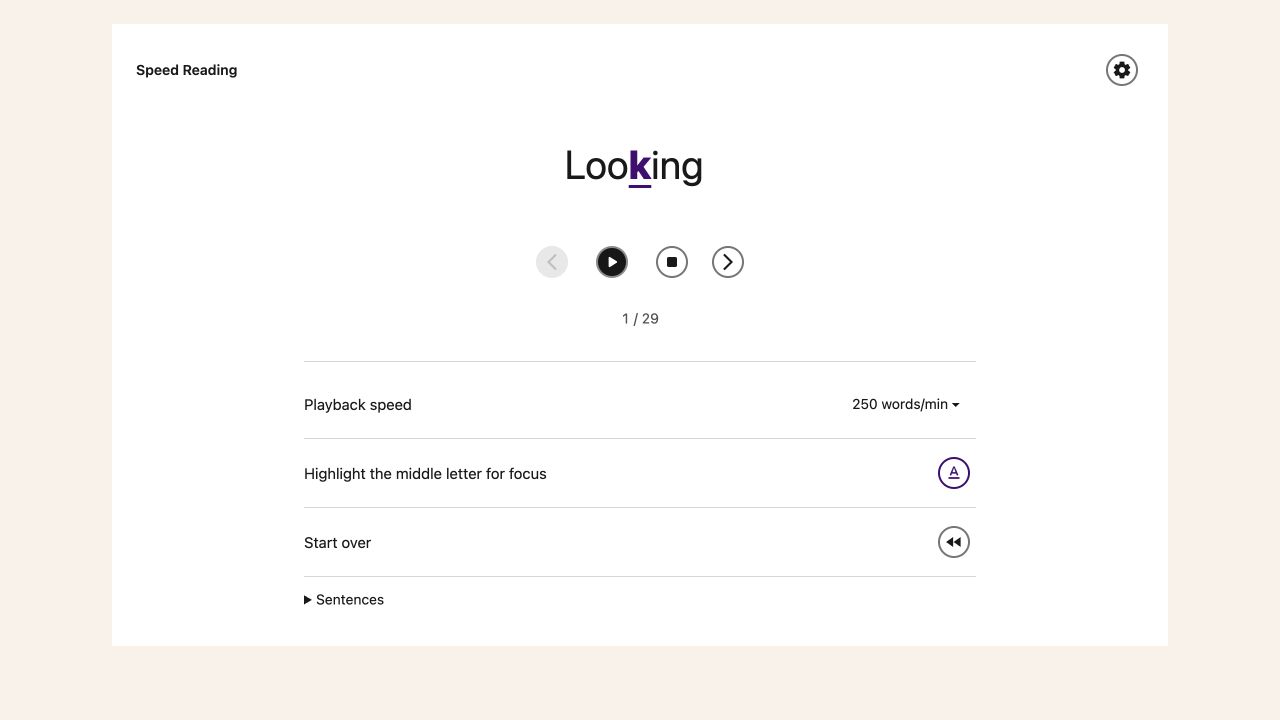
## Step 3: Read and Pause
Choose **Play** to start. Choose **Pause** whenever you need time to think. The previous and next
word buttons move one word at a time and leave playback paused. Choose **Stop** to return to the
first word without playing.
Use Tab to reach the controls and Enter or Space to activate buttons. The word count shows your
position in the passage. Choose **Speed Reading** in the header again to hide the card.
Speed Reading always opens paused with **Play** and **Stop** visible, including when Reduce Motion
is enabled. Choose **Play** when you are ready, or use the previous and next word controls to read
at your own pace. Turning Reduce Motion on during playback pauses it until you choose Play again.
## Reading a PDF
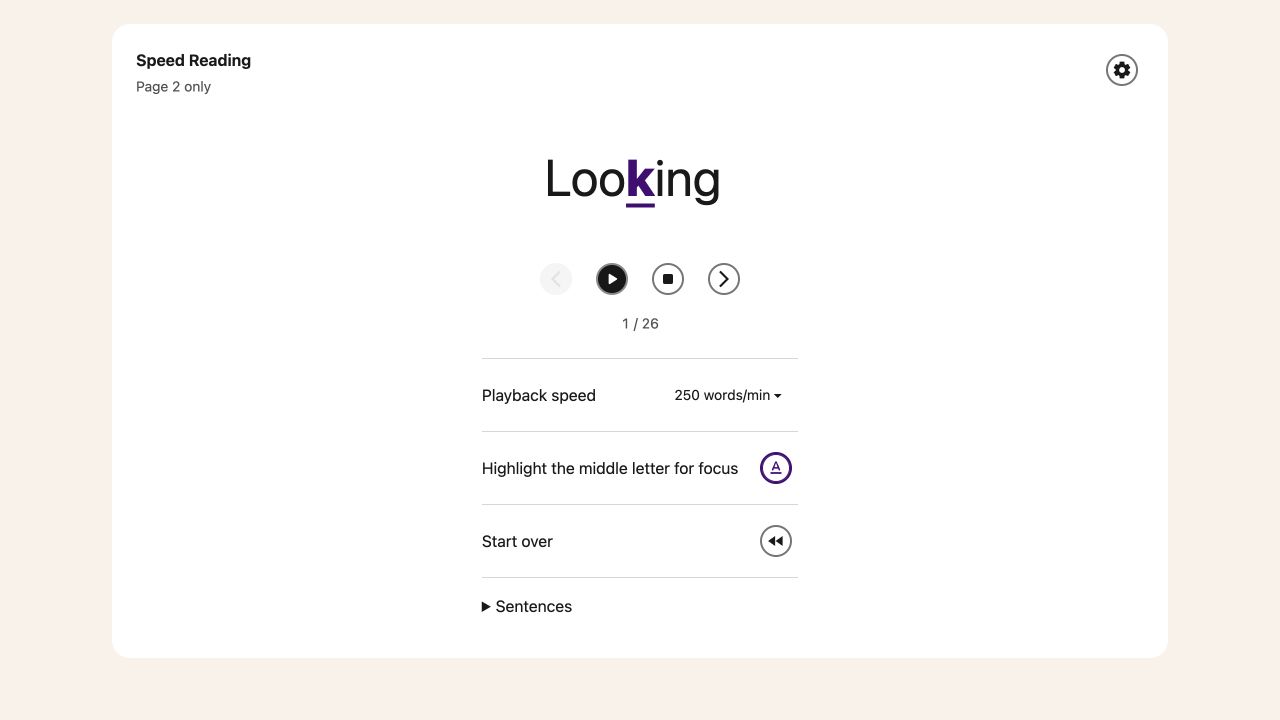
The PDF card reads the current page only. Turning to another page loads its words and pauses
playback. Check the **Page … only** label before starting again.

A scanned page may have no readable text. Use **Tools → Screenshot Reader** to extract its text, or
use a PDF with a text layer. An empty page cannot supply words to this card.
## Need Additional Help?
See the [PDF Reader guide](/help/how-to-use-the-helperbird-pdf-support/) or
[contact Helperbird support](/support/).
---
## How to Count Words and Characters in the Helperbird Notepad
URL: https://www.helperbird.com/help/how-to-use-text-analytics-in-helperbird-editor/
## What Text Stats Shows You
The Helperbird Notepad counts your writing for you. Open the **Text stats** window and you get your
word count and character count, plus twelve more figures.
Those include sentences, unique words, lines, paragraphs, and estimates of how long your text takes
to read, to say out loud, and to write by hand.
The Notepad does not show a running count while you type. You open Text stats when you want the
numbers.
---
## Who is This For?
This feature is helpful for:
- Students writing essays with word count requirements
- Writers who need to track document length
- Content creators who need specific word counts
- Anyone who wants to estimate reading time
- People preparing speeches who need timing information
---
## Step 1: Open Helperbird
Click the Helperbird icon in your browser toolbar. It looks like a small owl and is usually in the
top-right corner of your browser.
This will open the Helperbird menu.
---
## Step 2: Open the All Features Section
Scroll down to the bottom of the Helperbird menu. You will see a section called **All Features**.
Click the arrow next to **All Features** to expand it and show all available features.
---
## Step 3: Find Notepad
Look through the list of features until you see **Notepad**.
---
## Step 4: Open the Notepad
Click the button on the **Notepad** row to open the Helperbird text editor.
A new tab will open with the Notepad where you can write or paste your text.
---
## Step 5: Open Text Stats
Once you have text in your Notepad, open **Tools** in the top toolbar, then choose **Text stats**.
A window opens with fourteen figures about your writing.
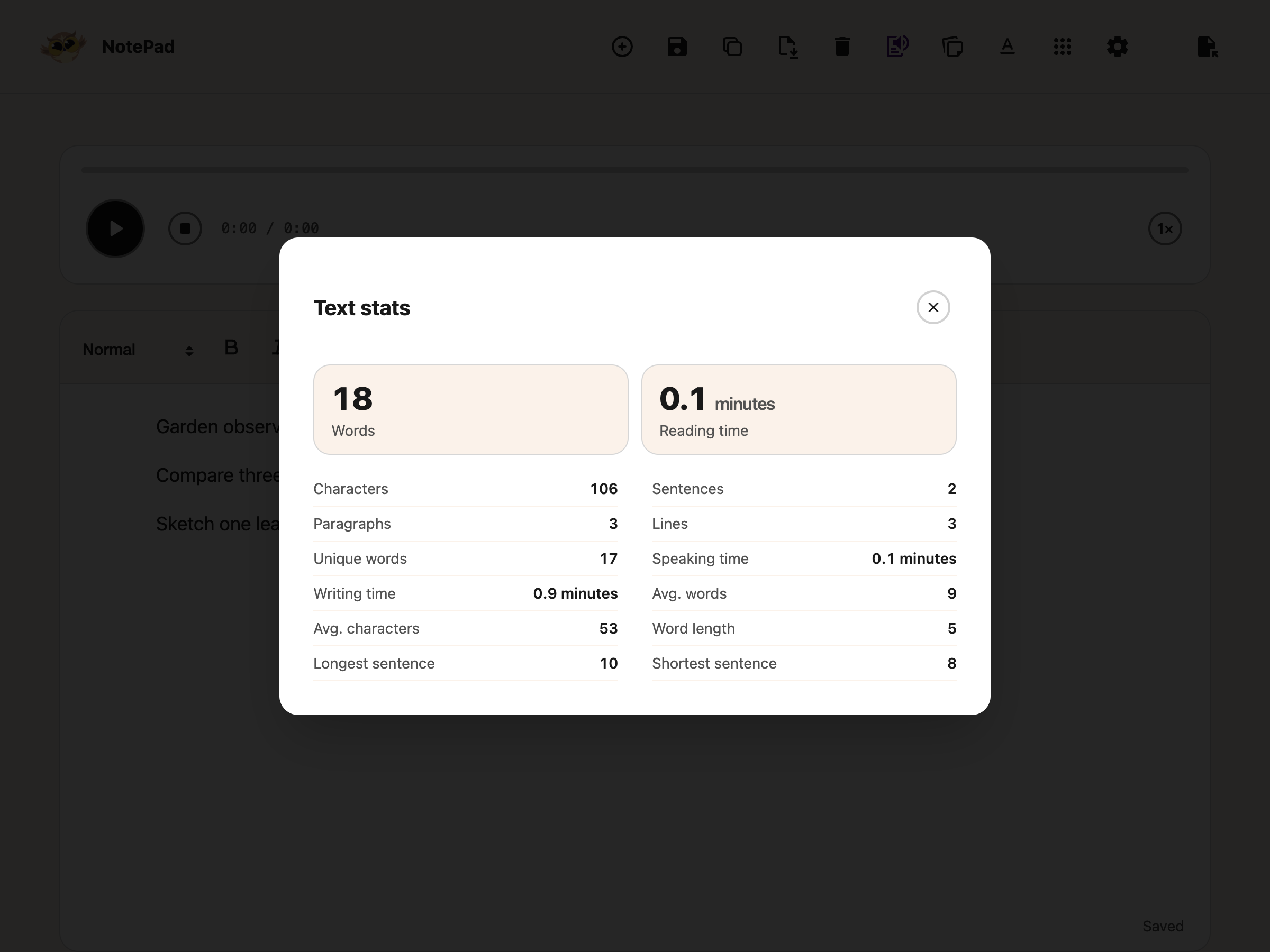
- **Words** - how many words you have written
- **Characters** - every character, spaces included
- **Sentences** - how many sentences there are
- **Reading time** - roughly how long it would take to read, in minutes
- **Speaking time** - roughly how long it would take to read aloud, in minutes
- **Writing time** - roughly how long it would take to write out by hand, in minutes
The remaining figures show:
- **Unique words** - how many different words you used
- **Avg. characters** - the average number of characters in a sentence
- **Longest sentence** - the word count of your longest one
- **Shortest sentence** - the word count of your shortest one
- **Lines** - how many lines there are
- **Paragraphs** - how many paragraphs there are
- **Avg. words** - the average number of words per sentence
- **Word length** - the average length of a word
All three times are estimates worked out from your word count, not measurements of what you actually
did. Reading assumes 250 words a minute, speaking 150, and writing by hand 20. Time estimates are
shown in minutes.
**Tip:** Use this to check a word limit before handing something in, or to see whether your
sentences are running long. A high **Avg. words** with a big **Longest sentence** usually means a
sentence is worth breaking up.
---
## Need Additional Help?
If you have any questions or run into any issues, please contact the Helperbird support team. You
can reach us at [Helperbird support](/support/). We are happy to help you get the most out of
Helperbird.
---
## How to Use Text to Speech and Immersive Reader in Google Slides
URL: https://www.helperbird.com/help/how-to-use-text-to-speech-and-immersive-reader-in-google-slides/
## Read or Translate Google Slides
Slide text is not always available to a browser extension. Use **Screenshot Reader** to capture
visible slide text, or use the **Helperbird Google Workspace add-on** to work with selected text
inside Slides. These are separate routes.
## Step 1: Open Your Slides
Open the deck in Google Slides and display the slide you want to read. Make the text large enough to
see clearly.
## Step 2: Open Helperbird
Click the Helperbird owl in your browser toolbar. Open **Translate** to see the two Slides options.
The Screenshot Reader shortcut opens captured text in Immersive Reader.
## Step 3: Use Screenshot Reader
From this **Translate** dialog, click **Screenshot Reader**. Selection starts immediately: draw a
box around the slide text. When extraction finishes, the text opens in **Immersive Reader**.
In Immersive Reader, open **Reading Preferences**, choose a translation language, and select the
translation option you want. You can also use its reading controls to listen to the text.
This shortcut does not change your usual Screenshot Reader destination. It requires Helperbird Pro
and remains subject to your school's feature and network permissions.
## Choose a Different Reading Destination
For read-aloud without the translation shortcut, open **Screenshot Reader** from Helperbird's **All
Features** list. Choose **Listen** or **Immersive Reader**, then **Start**, and draw your box. Only
the selected destination receives the capture; copying to the clipboard is a separate choice.
See the [Screenshot Reader guide](/help/how-to-extract-text-from-any-image-pdf-or-website/) for all
destinations and [keyboard selection](/help/how-to-use-screenshot-reader-with-the-keyboard/).
## Use the Google Workspace Add-on
1. Install the free
[Helperbird Google Workspace add-on](https://workspace.google.com/marketplace/app/helperbird/844716805038)
if your organization allows it.
2. In Google Slides, choose **Extensions → Helperbird → Open Helperbird**.
3. Select the slide text, choose **Translate** in the Helperbird sidebar, then pick a language.
The browser extension and Workspace add-on are separate installations. If the add-on is blocked by
your organization, ask your Google Workspace administrator about approval. See
[Helperbird for Google Slides](/help/helperbird-for-google-slides-addon/) for more add-on tools.
## Open View-only Slides as Text
The **Readable Google Slides** Beta setting can open supported view-only decks in a text view. It
leaves editable decks alone. Read the
[readable Slides guide](/help/how-to-make-google-slides-readable-in-helperbird/) for setup and
presentation options.
## Troubleshooting
**The capture missed words:** enlarge the slide and capture a smaller, clearer area. Check the
extracted text before relying on the translation.
**Translate is blocked:** a Pro lock, a setting managed by your organization, and a network block
are different problems. Check the message. Sign in or enter your subscription key for Pro access;
ask your administrator about managed settings or blocked services.
## Need Additional Help?
[Contact Helperbird support](/support/) with the message you see and your browser version.
---
## How to Use Text to Speech in Microsoft Word Online
URL: https://www.helperbird.com/help/how-to-use-text-to-speech-in-microsoft-word-online/
## What is Text to Speech in Word Online?
Text to Speech reads your Microsoft Word Online documents out loud using a computer voice. Instead of reading with your eyes, you can listen to your document being spoken while following along with word highlighting.
Helperbird works directly in Microsoft Word Online. You can have the entire document read aloud, listen to just the text you highlight, or copy and paste text into the Text to Speech panel.
---
## Who is This For?
This feature is helpful for:
- People with dyslexia who find listening easier than reading
- Students who want to proofread their writing by hearing it
- People with visual impairments who use Word Online
- Anyone who learns better by listening
- Educators who want to review student work by listening
---
## Step 1: Open Your Document
Go to Microsoft Word Online and open the document you want to listen to.
You can access Word Online at [office.com](https://www.office.com) or through your school's Microsoft 365 account.
---
## Step 2: Open Helperbird
Click the Helperbird icon in your browser toolbar. It looks like a small owl and is usually in the top-right corner of your browser.
This will open the Helperbird menu.
---
## Step 3: Find Text to Speech
Scroll down to the bottom of the Helperbird menu. You will see a section called **All Features**.
Click the arrow next to **All Features** to expand it and show all available features.
Look through the list until you see **Text to Speech**. Click on it to open it.
A panel will appear with a text area and playback controls.
---
## Step 4: Play the Text
There are several ways to use Text to Speech in Word Online:
- **Read selected text** - Highlight the text you want to hear in your Word document by clicking and dragging your mouse over it. Then click the play button. Helperbird will read the highlighted text.
- **Read custom text** - Copy text from your Word document and paste it into the text box in the panel. Click the play button to hear it read aloud.
To stop the audio, click the pause or stop button.
---
## Step 5: Customize Settings
You can adjust how the text is read directly in the Text to Speech panel:
- **Voice** - Use the voice dropdown at the top of the panel to choose from different voices. You can select male or female voices in various accents.
- **Speed** - Click the speed button (for example, **1x**) next to the play controls to cycle through speeds from 0.5x to 2x. A slower speed is good for learning, while a faster speed helps you get through content quickly.
As your text is read aloud, Helperbird highlights each word so you can follow along.
---
## Need Additional Help?
If you have any questions or run into any issues, please contact the Helperbird support team. You can reach us at [Helperbird support](/support/). We are happy to help you get the most out of Helperbird.
---
## How to Use Text to Speech on Any Website
URL: https://www.helperbird.com/help/how-to-use-text-to-speech-on-any-website/
## What is Text to Speech?
Text to Speech reads text out loud using a computer voice. Instead of reading text with your eyes,
you can listen to it being spoken.
Helperbird can read an entire webpage, just the text you have highlighted, or custom text that you
type or paste.
---
## Who is This For?
This feature is helpful for:
- People with dyslexia who find listening easier than reading
- Anyone who wants to multitask while consuming content
- People with visual impairments
- Students who learn better by listening
- Anyone who prefers auditory learning
---
## Step 1: Open Helperbird
Click the Helperbird icon in your browser toolbar. It looks like a small owl and is usually in the
top-right corner of your browser.
This will open the Helperbird menu.
---
## Step 2: Go to the All Features Section
Scroll down to the bottom of the Helperbird menu. You will see a section called **All Features**.
Click the arrow next to **All Features** to expand it and show all available features.
---
## Step 3: Find Text to Speech
Look through the list of features until you see **Text to Speech**.
Click on **Text to Speech** to open it.
A panel will appear with a text area and playback controls.
Read Aloud with a sample passage, voice choice, and playback controls.
---
## Step 4: Play the Text
There are several ways to use Text to Speech:
- **Read the whole page** - If you have not highlighted any text, click the play button. Helperbird
will read all the text on the current page.
- **Read selected text** - First, highlight the text you want to hear by clicking and dragging your
mouse over it. Then click the play button. Helperbird will read only the highlighted text.
- **Read custom text** - Type or paste text into the text box in the panel. Click the play button to
hear that text read aloud.
Use **Pause** to pause a reading, or **Stop** to end it. Stop also cancels a reading that is still
loading. Press **Play** when you want to listen again.
---
## Step 5: Customize Settings
You can adjust how the text is read directly in the panel:
- **Voice** - Use the voice dropdown in the panel to choose from different voices. You can select
male or female voices in various accents.
- **Speed** - Click the speed button (for example, **1x**) in the player controls to cycle through
playback speeds. A slower speed is good for learning, while a faster speed helps you get through
content quickly.
**Standard Voices** use your browser or device's speech system. Voices that run locally can work
offline. **Natural voices** need Helperbird Pro and an internet connection.
Flags beside voices identify their language or region. They are included as images, so they also
display on Windows. Read the voice name and language when choosing; the flag is only an extra visual
cue.
There is one set of playback controls. Theater mode and its seek bar are no longer available. To
hear a passage again, stop, select that text and press Play.
**Tip:** You can also highlight text on any webpage, then use the Highlight Menu that appears to
quickly access Text to Speech for that selected text.
The September 2026 update makes a one-time change for people upgrading from an earlier version: Text
to Speech selects the first available voice under **Standard Voices**. This clears natural-voice
selections left over from trials or promotions. Your speed and pitch stay the same. You can choose
another voice at any time; natural voices need Helperbird Pro. Later updates keep your choice.
The voice menu with Standard Voices and Natural voices.
---
If the browser popup is short or your text is enlarged, scroll inside the panel to reach the voice
and playback controls. The **Close** button remains available at the top.
The premium voice group is now called **Natural voices**. It is the same group previously called
Neural Voices. See [voice settings](/help/how-to-change-voice-settings-in-helperbird/) for
availability.
## Frequently Asked Questions
**Why isn't Text to Speech working?** First, check that your device volume is not muted. Also check
that the browser tab isn't muted (look for a speaker icon in the tab). If it still doesn't work, try
refreshing the page or restarting your browser.
**Can I use Text to Speech offline?** Some voices require an internet connection to work. If you're
offline, only local system voices will be available.
**How do I change the voice language?** In the voice dropdown in the panel, look through the
available voices. Voices are named by language and accent (e.g., "English (US)", "English (UK)",
"Spanish").
**Does Text to Speech work on PDFs?** Yes! Open the PDF in Helperbird's PDF reader and you can use
Text to Speech on the document content.
**How do I read selected text in Google Docs?** Select the words in your document, then click
**Play** in Helperbird's floating toolbar. You can drag over the text or hold **Shift** and use the
arrow keys. There is no need to copy and paste.
If Helperbird cannot read the selection, refresh the Google Docs tab and select the words again. Try
a shorter section that is visible on screen. Google Docs selections play without Helperbird's
word-by-word highlighting. If a selection cannot be read, Helperbird asks you to select text instead
of switching to the whole document.
**Can I read text inside an embedded lesson?** Try
[Read text in online lessons](/help/how-to-read-text-in-embedded-lessons/), an optional beta that is
off by default. It works with supported selectable text inside a lesson. Support varies by platform.
**Why did speech stop when I closed the floating toolbar?** Closing or collapsing the toolbar stops
its read-aloud and voice-typing sessions. Reopen it when you are ready to continue.
**Can I use keyboard shortcuts?** Yes, you can use keyboard shortcuts to control playback. Check the
Helperbird settings for the available shortcuts.
---
## Related Guides
- [How to Use Immersive Reader](/help/how-to-use-immersive-reader-on-any-website/)
- [How to Use Reading Mode](/help/how-to-use-reading-mode-and-remove-ads-on-any-website/)
- [Text to Speech Not Working - Troubleshooting](/help/text-to-speech-not-working/)
---
## Video Tutorial
Coming soon
---
## Need Additional Help?
If you have any questions or run into any issues, please contact the Helperbird support team. You
can reach us at [Helperbird support](/support/). We are happy to help you get the most out of
Helperbird.
---
## How to Check Your Grammar on Any Website with Helperbird
URL: https://www.helperbird.com/help/how-to-use-the-grammar-checker-in-helperbird/
## What is the Grammar Checker?
The Grammar Checker suggests fixes for grammar, spelling and punctuation in a passage. Type or paste
your text, or select text on a page, then press **Check**. Review the changes to make sure they
still say what you mean.
Your text goes to OpenAI to be checked, and is not kept there. See
[how Helperbird handles your data](/privacy/). You need a connection for this to work.
This is a **Helperbird Pro** feature. On the free plan the panel still opens, but the **Check**
button is greyed out and cannot be pressed.
---
## Grammar and Spell Check Are Two Different Tools
Both help with spelling, but not in the same way, and you find them in different places.
Table: Spell check and the Grammar Checker compared.
| Compare | Spell check | Grammar Checker |
| ------------------ | ------------------------------------------------------------- | --------------------------------------------------------- |
| What it checks | Spelling, one word at a time | Grammar, spelling and punctuation, across a whole passage |
| When it runs | While you type | When you press **Check** |
| What does the work | Your browser | OpenAI |
| Where you find it | A keyboard shortcut, or a Quick actions tile once you add one | The **Grammar** row in All Features |
Both are Helperbird Pro features. Both work in Chrome, Edge, Firefox, Safari and on iPad.
Spell check switches on your browser's own checker for the page, so misspelt words get the red wavy
underline as you type. Helperbird adds no dictionary and no suggestions, and nothing you type is
sent anywhere. Press Option + 0 on a Mac, or Alt + Shift + 0 on Windows, Linux and Chromebook, with
keyboard shortcuts turned on in Settings. Spell check is not in the All Features list. If you add it
to Quick actions, the tile is labelled Spell check but the caption under it reads Grammar. See
[how to turn on spell check on any website](/help/how-to-enable-spell-check-on-any-website-or-app/).
The rest of this page is about the Grammar Checker.
---
## Who is This For?
This feature is helpful for:
- Students checking an essay, email or assignment before sending it
- People with dyslexia who find proofreading their own writing hard
- Anyone who writes in a second language
- Anyone who wants a passage read over, not one word at a time
- Anyone who wants to improve their writing
---
## Step 1: Open Helperbird
Click the Helperbird icon in your browser toolbar. It looks like a small owl and is usually in the
top-right corner of your browser.
---
## Step 2: Open the All Features Section
Scroll to the bottom of the Helperbird menu and open **All Features**.
---
## Step 3: Find Grammar
The list runs roughly A to Z. Look down it until you see **Grammar**.
---
## Step 4: Open the Check Panel
Click **Grammar**. The Grammar panel opens with a box for your text and a **Check** button.
---
## Step 5: Add Your Text
Type or paste your writing into the box. The limit is **5,000 characters** at a time. The counter
below the box shows how many you have used. It turns red above 4,500 characters.
The panel opens empty. If you highlighted text on the page first, leave the box empty and Helperbird
picks that selection up when you press Check. A selection longer than 5,000 characters is cut to
fit.
---
## Step 6: Press Check
Click **Check**. Your text goes off to be checked and a corrected version comes back.
---
## Reading the Corrections
The result has two tabs.
**Changes** marks the corrections against what you wrote. Removed words are struck through and the
replacements are highlighted, so you can see what changed. A badge counts them. If your writing was
already right, you get **No changes needed**.
**Corrected text** is the clean version with no markup.
Three buttons come with the result. **Listen** opens
[Text to speech](/help/how-to-use-text-to-speech-on-any-website/) with the corrected text already
loaded, using the voice and speed you set there. Nothing plays until you press Play. **Start over**
empties the panel, including what you typed. **Copy** puts the corrected version on your clipboard.
---
## Where Else the Grammar Button Appears
There is also a Grammar button in the
[Voice typing](/help/how-to-use-speech-to-text-or-dictation-on-any-website/) panel and in the notes
editor of the [PDF Reader](/help/how-to-use-pdf-reader-in-helperbird/). In the PDF Reader the
corrected version replaces your note. In Voice typing it replaces the transcript in the panel, and
you copy it out from there with the Copy button.
Those two buttons check the first 1,000 words only. Anything past that is dropped without a warning.
---
## What It Does Not Do
- It only runs when you press **Check**, not while you type.
- It does not underline mistakes on the page or correct them where you wrote them.
- It shows you what changed, not why.
- There is no language picker, no personal dictionary and no tone or style rewriting.
- Text under 10 characters shows an error instead of a correction.
- It needs a connection. If a check takes longer than 30 seconds, it stops.
- It is not part of the Google Docs, Slides and Sheets add-ons.
---
## Need Additional Help?
If you have any questions or run into any issues, please contact the Helperbird support team. You
can reach us at [Helperbird support](/support/). We are happy to help you get the most out of
Helperbird.
---
## How to Use the Helperbird Accessibility Toolbar
URL: https://www.helperbird.com/help/how-to-use-the-helperbird-accessibility-toolbar/
## What is the Accessibility Toolbar?
The accessibility toolbar is a small Helperbird button that floats on every website. Click it and a
tidy bar slides open with your favourite tools, all in one place. In the Helperbird panel, the
switch that turns it on is called **Floating Toolbar**.
From the toolbar you can read the page aloud, look up a word, open Immersive, turn on word
prediction, dictate with voice typing, switch on the reading guide, open Reading Mode, and pull text
out of an image. It saves you opening the Helperbird popup every time you need a tool.
---
## Who is This For?
This feature is helpful for:
- People with dyslexia who want read aloud and the reading ruler one click away
- Students who move quickly between reading, looking up words, and taking notes
- Anyone who finds typing tiring and prefers to speak their writing
- People who want their accessibility tools on the page instead of in a menu
- Teachers and schools who want a simple, always-visible set of tools
---
## Step 1: Turn On the Toolbar
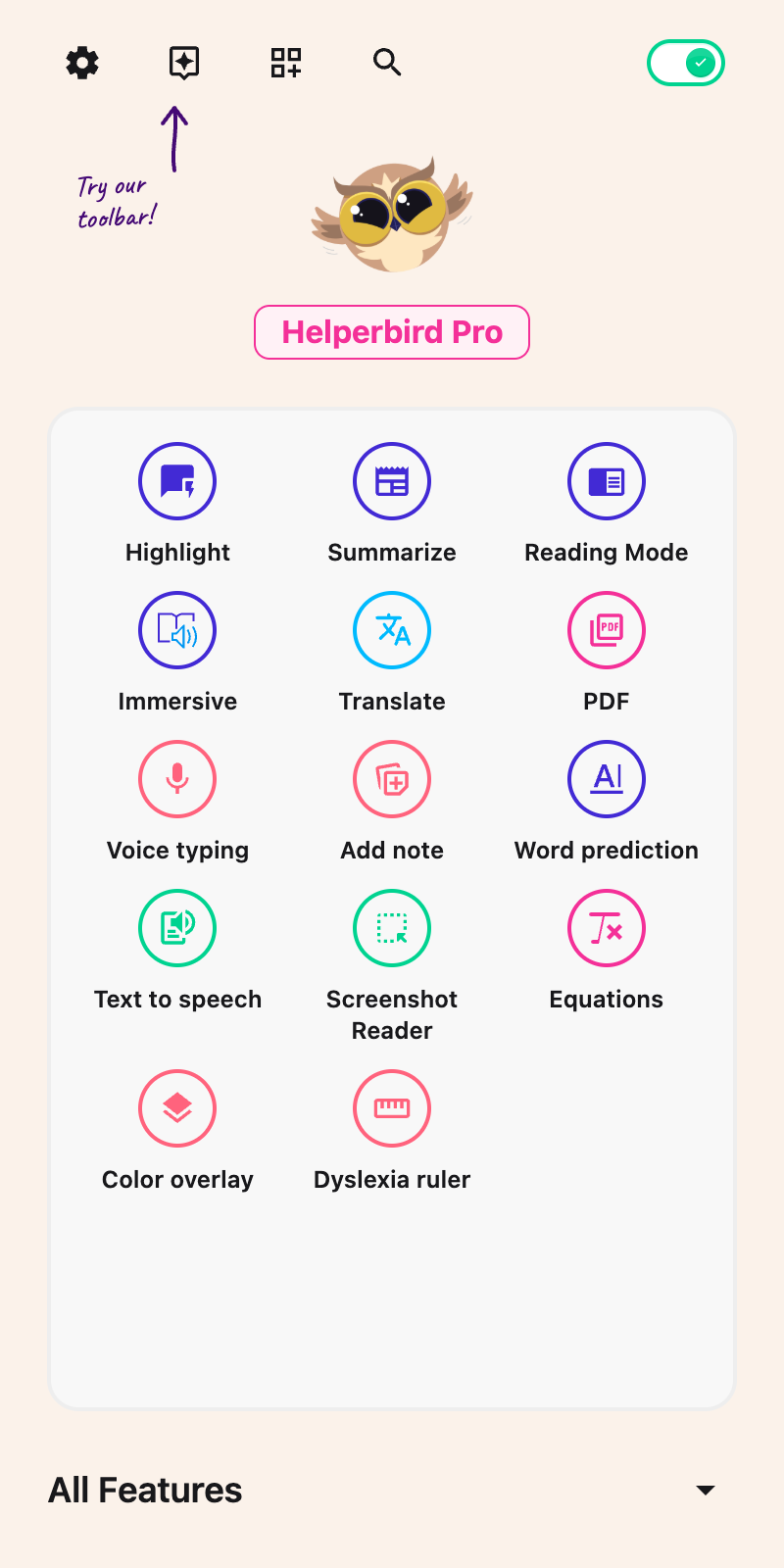
The toolbar is off until you switch it on, and you can switch it on yourself. Click the Helperbird
icon in your browser toolbar to open the Helperbird panel.
At the top of the panel, click the **Floating Toolbar** button. The header buttons carry no printed
text, so point at one to see its name. It lights up to show the toolbar is on, and a small
Helperbird logo appears on every website you visit. Click the same button again at any time to turn
the toolbar off.
**Tip:** Schools and organizations can turn the toolbar on for everyone using a managed policy, so
students do not have to enable it themselves. An administrator setting it on by default does not
lock your choice; you can still turn it off or back on. If your administrator has blocked the
feature, the **Floating Toolbar** button is not in the panel header at all.
---
## Step 2: Open the Toolbar
Look for the small Helperbird logo floating on the page. The first time, it sits in the bottom-left
corner. After that it comes back wherever you last left it.
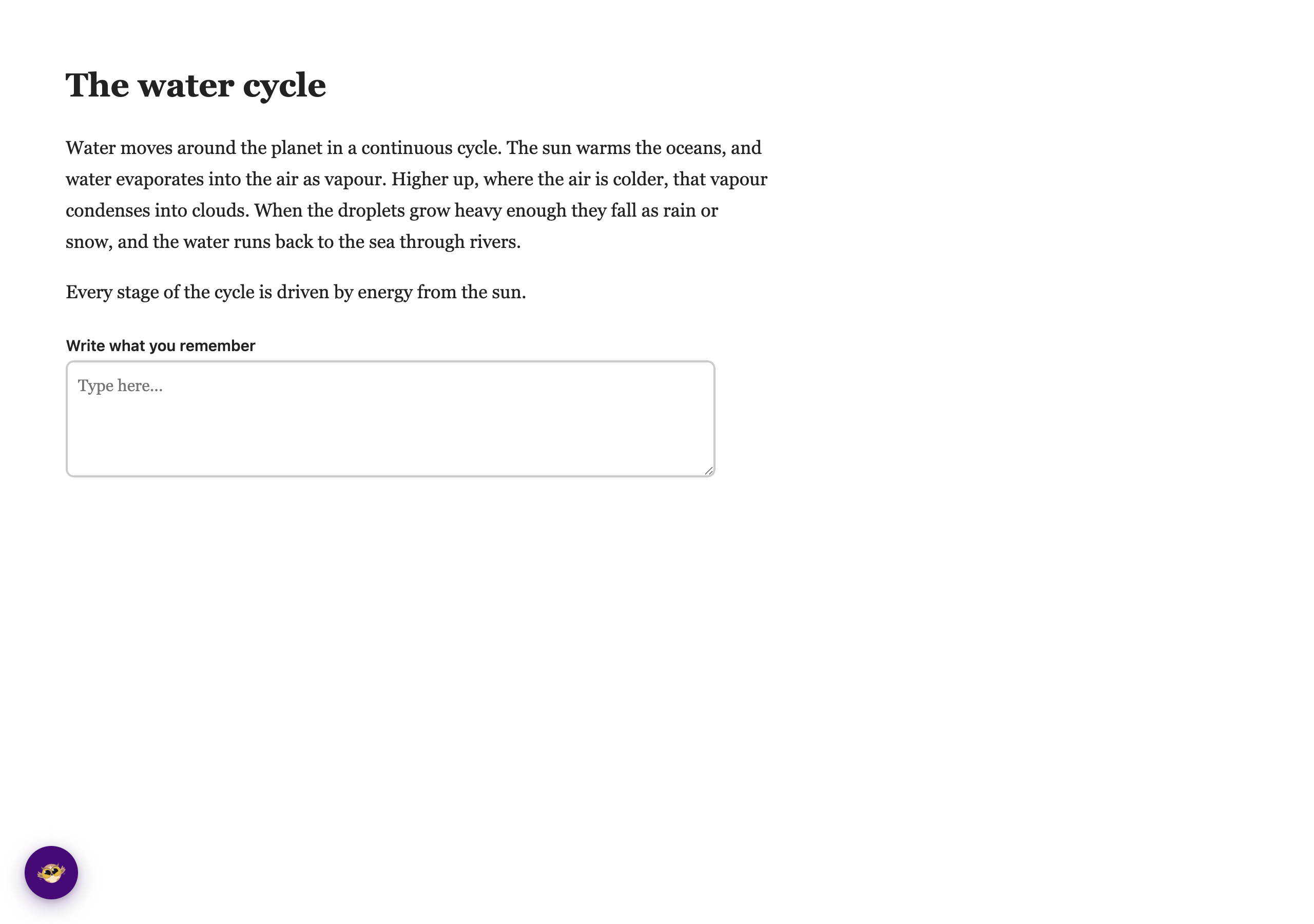
Click it once and the toolbar slides open to show all of your tools.

Click the logo again to tuck the toolbar back down to the logo on its own. Pressing **Escape** while
you are on the toolbar closes it too. Closing or collapsing the toolbar stops its read-aloud and
voice-typing sessions, including a session still starting. Its dictation draft remains available
when you reopen it on the same page.
---
## Step 3: Use a Tool
Each tool on the toolbar does one thing. The buttons carry no printed text, so hover over one to see
its name. A Pro button is greyed out and its name ends in "(Pro)".
Table: Every button on the floating toolbar, in the order it appears, with the name Helperbird shows
and whether it needs Helperbird Pro.
| Button | What it does | Free or Pro |
| ---------------------------------------------------------------------------------- | ------------------------------------------------------------------------------------------------------------------------------------------------------------------------------------------------ | ----------- |
| [Play](/help/how-to-read-a-page-aloud-from-the-floating-toolbar/) | Reads the page aloud. Highlight some text first and only that text is read, with each word highlighted as it is spoken. With nothing selected, the whole page is read without word highlighting. | Free |
| [Stop](/help/how-to-read-a-page-aloud-from-the-floating-toolbar/) | Stops the reading. | Free |
| [Dictionary](/help/how-to-look-up-a-word-from-the-floating-toolbar/) | Highlight a single word, then click Dictionary to see its meaning. | Pro |
| [Immersive](/help/how-to-open-immersive-reader-from-the-floating-toolbar/) | Opens your selection, or the whole page, in a clean reading view. | Pro |
| [Word prediction](/help/how-to-turn-on-word-prediction-from-the-floating-toolbar/) | Suggests words while you type in text boxes. | Pro |
| [Voice typing](/help/how-to-use-speech-to-text-or-dictation-on-any-website/) | Opens a dictation window so you can speak instead of type. See below. | Pro |
| [Reading guide](/help/how-to-turn-on-the-reading-guide-from-the-floating-toolbar/) | Turns on a guide that helps you focus on one line at a time. | Free |
| [Reading Mode](/help/how-to-open-reading-mode-from-the-floating-toolbar/) | Removes ads and clutter so you can read the article on its own. | Free |
| [Screenshot Reader](/help/how-to-extract-text-from-any-image-pdf-or-website/) | Pulls the text out of an image or a scanned PDF. | Pro |
| [Settings](/help/how-to-open-helperbird-in-chrome-or-edge-side-panel/) | Opens the full Helperbird panel for everything else. Chrome and Edge only. | Free |
The last button on the open bar is the **Drag to move** handle, covered in the next step.
---
## Step 4: Move the Toolbar
You can put the toolbar wherever suits you.
Click and hold the **Drag to move** handle (the grip on the far right of the toolbar) and drag it
anywhere on the screen. The toolbar always stays fully on screen. When you let go, Helperbird
remembers the spot, so the toolbar is waiting in the same place next time. When the toolbar is
closed, you can also drag the logo itself to move it.
Prefer the keyboard? Tab to the **Drag to move** handle and use the **arrow keys** to nudge the
toolbar around the screen. Hold **Shift** while pressing an arrow for fine, one-pixel adjustments.
If you are on a tool button instead, the arrow keys move you along the bar.
---
## Using Voice Typing
Click the **Voice typing** button (the microphone) and a small dictation window opens.
Press the **mic** in that window to start, then speak. Your words appear in the box as you talk.
Press the mic again to stop, or stop talking and it switches itself off after about 10 seconds
without recognized speech. Speaking resets that timer, and you can press the mic again whenever you
are ready to continue.
The panel's **More options** menu holds the language, Regular/Math/Chemistry/Physics modes, **Spoken
punctuation**, **Copy**, and **Clear**. Stop recording before changing language or mode. Spoken
punctuation works in Regular mode and applies to your next recording. Copy the text, then paste it
into your document or message.
You can edit the draft directly, or choose **Correct grammar** after recording stops. Grammar
correction is a separate Pro action that sends the draft for processing only when you request it.
Closing and reopening the panel keeps its draft on the current page; navigating away does not save
it as a document.
**Skip the copy step.** Turn on **Voice typing into the page** under **Beta features** on the
Helperbird settings page, and your words go straight into the box you were already typing in, Google
Docs included. It never types into a password, payment or security-code box. See
[How to Type Dictation Straight into the Page](/help/how-to-type-dictation-straight-into-the-page/).
The toolbar does not appear on Helperbird's own pages, but the Helperbird PDF reader has its own
voice typing button.
**Tip:** Voice typing is great for long replies or for capturing a thought quickly without typing.
---
## Use Tools While Helperbird is Paused
Even when Helperbird is paused, the toolbar stays available, so you are never locked out of your
tools. Switch a tool on from the toolbar and it runs right there on the page you are reading.
This is temporary and stays on that page only: it does not change your saved settings and it does
not affect your other tabs. As soon as you refresh the page or move to a new one, it clears itself.
Un-pause Helperbird from the panel whenever you want to go back to your usual setup.
---
## What It Does Not Do
- It does not appear on Helperbird's own pages, such as Notes, the Editor and the PDF reader.
- The **Button position** setting on the Settings page picks the corner it starts in, Left or Right.
After that, you place it by dragging.
- The **Settings** button opens Helperbird in the browser side panel, which is Chrome and Edge only.
Firefox and Safari show nine buttons, not ten.
---
## Lockdown and Kiosk Mode
Because the toolbar lives on the web page itself rather than in the browser's toolbar, it keeps
working in locked-down environments where the usual Helperbird popup and side panel cannot be
opened, such as exam browsers, kiosks, and locked online quizzes. Students keep one-tap access to
read aloud, the reading guide, and the rest of the toolbar's tools right on the page.
Administrators can set the toolbar on by default through managed policy. Users can turn it off or
back on; that preference survives policy refreshes. An explicit `FloatingButton` feature restriction
can block it entirely. For setup, see:
- [How to Enable the Helperbird Floating Button (Admin Guide)](/help/how-to-enable-the-helperbird-floating-button/)
- [How to Use Helperbird in Locked Mode on Chromebooks](/help/how-to-use-helperbird-in-locked-mode-on-chromebooks/)
- [How to Deploy Helperbird in ChromeOS Kiosk Mode](/help/how-to-deploy-helperbird-in-chromeos-kiosk-mode/)
- [How to Use Helperbird During Google Forms Locked Quizzes](/help/how-to-use-helperbird-during-google-forms-locked-quizzes/)
---
## What's Free and What's Pro
The toolbar itself is free, and so are five of its ten buttons: Play, Stop, Reading guide, Reading
Mode and Settings.
The other five are part of Helperbird Pro: Dictionary, Immersive, Word prediction, Voice typing and
Screenshot Reader. Free users still see these on the toolbar, greyed out, with "(Pro)" on the end of
the name. Click one and Helperbird shows "This is a Helperbird Pro feature. Upgrade to use it."
On a free account, Play stops after 5,000 characters and shows an upgrade note.
---
## Read a Selection in Google Docs or a Lesson
In Google Docs, select the words you want, then press **Play**. Helperbird keeps that selection when
you move to the toolbar. If Docs cannot provide it, select a shorter visible passage and try again.
For selectable text inside an embedded lesson, try the
[Read text in online lessons](/help/how-to-read-text-in-embedded-lessons/). It is off by default and
does not guarantee support for every lesson platform.
## Tips
- The toolbar only shows tools that are available. If an administrator has turned a tool off, it
will not appear.
- The toolbar lives in its own isolated layer, so it looks and behaves the same on every website, no
matter how that site is styled.
- Word highlighting needs a local browser voice. With an online voice the text is read without
highlighting.
- You can use the whole toolbar with a keyboard. Tab or use the arrow keys to move between tools,
and press Escape to close it.
---
## Frequently Asked Questions
**Is the accessibility toolbar free?** Yes. The toolbar is free, along with Play, Stop, the Reading
guide and Reading Mode. Dictionary, Immersive, Word prediction, Voice typing and Screenshot Reader
are part of Helperbird Pro. On a free account, Play stops after 5,000 characters.
**Which browsers does it work on?** The toolbar works on Chrome, Firefox, Edge, and Safari. The
Settings button uses the side panel, which is available on Chrome and Edge, so Firefox and Safari
show nine buttons instead of ten.
**How do I turn the toolbar off?** Open Helperbird and click the **Floating Toolbar** button in the
header again to switch it off. An administrator enabling it by default does not lock this button. An
explicit restriction on the entire toolbar is different and cannot be overridden here.
**Will it get in the way of the page?** No. It starts as a small logo and stays out of the way. You
can drag it anywhere, and it remembers where you put it.
**Does the toolbar change how websites look?** No. The toolbar sits in its own isolated layer on top
of the page, so it does not affect the website, and the website cannot change how the toolbar looks.
---
## Related Guides
- [How to Use Text to Speech](/help/how-to-use-text-to-speech-on-any-website/)
- [How to Use Voice Typing](/help/how-to-use-speech-to-text-or-dictation-on-any-website/)
- [How to Use Immersive Reader](/help/how-to-use-immersive-reader-on-any-website/)
- [How to Use a Dyslexia Ruler](/help/how-to-use-a-dyslexia-ruler-on-any-website/)
---
## A Guide for Each Tool
- [Read a page aloud](/help/how-to-read-a-page-aloud-from-the-floating-toolbar/)
- [Look up a word](/help/how-to-look-up-a-word-from-the-floating-toolbar/)
- [Open Immersive Reader](/help/how-to-open-immersive-reader-from-the-floating-toolbar/)
- [Turn on word prediction](/help/how-to-turn-on-word-prediction-from-the-floating-toolbar/)
- [Dictate with voice typing](/help/how-to-use-speech-to-text-or-dictation-on-any-website/)
- [Type dictation straight into the page](/help/how-to-type-dictation-straight-into-the-page/)
- [Turn on the reading guide](/help/how-to-turn-on-the-reading-guide-from-the-floating-toolbar/)
- [Open Reading Mode](/help/how-to-open-reading-mode-from-the-floating-toolbar/)
- [Pull text out of an image or PDF](/help/how-to-extract-text-from-any-image-pdf-or-website/)
- [Open the side panel with Settings](/help/how-to-open-helperbird-in-chrome-or-edge-side-panel/)
---
## Video Tutorial
Coming soon
---
## Need Additional Help?
If you have any questions or run into any issues, please contact the Helperbird support team. You
can reach us at [Helperbird support](/support/). We are happy to help you get the most out of
Helperbird.
---
## How to Use the Highlight Menu in Helperbird
URL: https://www.helperbird.com/help/how-to-use-the-highlight-menu-in-helperbird/
## What is the Highlight Menu?
The Highlight Menu is a toolbar that appears when you select text on any webpage. It gives you quick
access to Helperbird's most useful tools without having to open the main extension panel.
Select some text and a small menu appears above your selection.
---
## Who is This For?
This feature is helpful for:
- Anyone who wants quick access to reading tools
- People who frequently use text-to-speech on selected text
- Students who need to look up words while reading
- Anyone who translates text often
---
## Step 1: Open Helperbird
Click the Helperbird icon in your browser toolbar. It looks like a small owl and is usually in the
top-right corner of your browser.
This will open the Helperbird menu.
---
## Step 2: Go to the All Features Section
Open **All Features** in Helperbird.
---
## Step 3: Find Highlight Menu
Look through the list of features until you see **Highlight Menu**.
---
## Step 4: Turn on Highlight Menu
Click the toggle switch next to **Highlight Menu** to turn it **on**. The switch shows a check when
it is enabled.

---
## Step 5: Select Text on a Webpage
Go to any webpage and use your mouse to select some text. Click and drag to highlight a word,
sentence, or paragraph.
A small toolbar will appear above your selected text.

---
## Step 6: Use the Menu Tools
Click any button in the toolbar to use that tool on your selected text. The action happens
immediately.
---
## Available Tools
The Highlight Menu includes these tools:
- **Play** - Reads the selected text aloud using
[Text to Speech](/help/how-to-use-text-to-speech-on-any-website/)
- **Stop** - Stops the text-to-speech playback
- **Dictionary** - Opens a definition for the selected word
- **Search Web** - Searches the web for the selected text
- **Immersive** - Opens the selected text in Microsoft Immersive Reader
- **Translate** - Translates the highlighted text to your chosen language
To save colored highlights, turn on **Highlighter** separately in All Features. Its color palette
appears below the selection while this reading menu stays above it. Near a window edge, both menus
move to fit. Each toggle works independently. See
[how to highlight text](/help/how-to-highlight-words-and-paragraphs-on-any-website/).
**Tip:** The Highlight Menu works on almost any text on the web, making it easy to quickly access
Helperbird's tools without opening the main extension panel.
---
## Video Tutorial
This video shows an older combined menu. Highlighter now has its own toggle and palette.
Coming soon
---
## Need Additional Help?
If you have any questions or run into any issues, please contact the Helperbird support team. You
can reach us at [Helperbird support](/support/). We are happy to help you get the most out of
Helperbird.
---
## What Happened to the Math Reader
URL: https://www.helperbird.com/help/how-to-use-the-maths-reader-in-helperbird/
> **Changed in Helperbird 2026.7.28:** The Math Reader is now automatic inside the [Screenshot Reader](/help/how-to-extract-text-from-any-image-pdf-or-website/). There is no mode to pick. One capture handles a page that mixes writing and equations, and returns both in reading order.
## There is No Math Reader to Find
If you are looking for **Math Reader** in the list of features, it is not there any more, and you do not need it.
Reading maths is now part of the [Screenshot Reader](/help/how-to-extract-text-from-any-image-pdf-or-website/). One capture works out for itself what it is looking at. Draw a box around words and you get the words. Draw a box around equations and you get the equations. Draw a box around a page that has both and you get both, in the order they appear.
There is nothing to switch on, and nothing to choose between.
---
## Why It Changed
The old Math Reader made you say what you were looking at before you had seen the result. You picked words or you picked maths. A worksheet page is usually both, so whichever one you picked threw the other half away.
One capture now reads the whole region and hands back the writing and the equations together.
---
## What to Use Instead
Open Helperbird, expand **All Features**, open **Screenshot Reader**, then press **Start** and draw a box around the maths. You can include the words around the equations.
- [How Helperbird reads equations from a screenshot](/help/how-helperbird-reads-equations-from-a-screenshot/) has the steps, and what arrives at each destination.
- [How to use the Screenshot Reader](/help/how-to-extract-text-from-any-image-pdf-or-website/) covers captures of every kind, not only maths.
- [The Equation Editor](/help/how-to-open-the-helperbird-equation-editor/) is for writing maths rather than capturing it.
Screenshot Reader is a Helperbird Pro feature. On the free plan the **Start** button stays greyed out.
---
## Need Additional Help?
If you have any questions or run into any issues, please contact the Helperbird support team. You can reach us at [Helperbird support](/support/). We are happy to help you get the most out of Helperbird.
---
## How to Use the Quick Action Area to Improve Accessibility on the Web
URL: https://www.helperbird.com/help/how-to-use-the-quick-action-area-to-improve-accessibility-on-the-web/
## What are Quick Actions?
Quick Actions are buttons at the top of the Helperbird menu that give you one-click access to your
most-used features. Instead of scrolling through all the features, you can click a Quick Action
button to instantly use a tool.
You can customize which features appear in Quick Actions so you have fast access to the tools you
use most.
---
## Who is This For?
This feature is helpful for:
- Anyone who uses certain Helperbird features frequently
- People who want faster access to their favorite tools
- Users who want a personalized Helperbird experience
- Anyone who wants to simplify the Helperbird interface
- People who want one-click access to specific features
---
## Step 1: Open Helperbird
Click the Helperbird icon in your browser toolbar. It looks like a small owl and is usually in the
top-right corner of your browser.
This will open the Helperbird menu.
---
## Step 2: View Quick Actions
At the top of the Helperbird menu, you will see a row of colorful circular buttons. These are your
Quick Actions.
Each button represents a different feature. Default Quick Actions include Highlight Menu, Reading
Mode, Immersive Reader, Text to Speech, and more.
---
## Step 3: Use a Quick Action
Click any Quick Action button to use that feature immediately.
Some buttons toggle a feature on or off (like Highlight Menu). Other buttons open a panel with more
options (like Text to Speech or Translate).
---
## Step 4: Customize Quick Actions
To add or remove features from Quick Actions:
1. Click the **plus (+)** button in the Quick Actions area
2. A menu will appear showing all available features
3. Features with green checkmarks are currently in your Quick Actions
4. Click any feature to add or remove it from Quick Actions
5. Close the menu when you are done
Your changes are saved automatically.
**[Add note](/help/how-to-annotate-any-website-with-sticky-notes/)** creates a sticky note on the
current page. **[Save page](/help/how-to-save-a-page-to-your-helperbird-reading-list/)** saves the
webpage to your reading list.
A diamond beside a tool means it needs Helperbird Pro. Choosing the diamond opens upgrade options.
The badge sits away from the tool label so you can still see what the action does.
**Tip:** Add the features you use most often to Quick Actions for faster access. You can have as
many or as few tools as you want in your Quick Actions area.
---
## Video Tutorial
Coming soon
---
## Need Additional Help?
If you have any questions or run into any issues, please contact the Helperbird support team. You
can reach us at [Helperbird support](/support/). We are happy to help you get the most out of
Helperbird.
---
## How to Use the Right-Click Context Menu in Helperbird
URL: https://www.helperbird.com/help/how-to-use-the-right-click-context-menu-in-helperbird/
## What is the Context Menu?
The context menu is the menu that appears when you right-click on a webpage. Helperbird adds its own options to this menu so you can quickly use features like text-to-speech, translate, dictionary, and more, without having to open the Helperbird popup first.
---
## Who is This For?
This feature is helpful for:
- Anyone who wants the fastest way to access Helperbird features
- People who prefer right-clicking over opening the extension popup
- Power users who want quick actions on selected text
- Anyone who already uses right-click menus in their browser
---
## Step 1: Select Text on a Webpage
Go to any webpage and use your mouse to highlight the text you want to use a Helperbird feature on. Click and drag to select a word, sentence, or paragraph.
---
## Step 2: Right-Click to Open the Menu
With your text selected, **right-click** on the highlighted text. A context menu will appear. Look for the **Helperbird** option in the menu. It may have a submenu with multiple actions.
---
## Step 3: Choose a Helperbird Action
Click on the Helperbird action you want to use. The feature will run immediately on your selected text.
---
## Available Context Menu Actions
The right-click context menu gives you quick access to features including:
- **Text-to-Speech** - Read the selected text aloud, with a **Stop** option to end playback
- **Translate** - Translate the selected text to another language
- **Dictionary** - Look up the definition of a selected word
- **Immersive Reader** - Open the selected text in Immersive Reader
Looking for **Summarize**, **Simplify**, or **Extract Text**? These features are not in the right-click menu. You can find them in the Helperbird popup, and Extract Text is also available from the accessibility toolbar and the PDF reader's Tools dropdown.
**Tip:** The right-click context menu works alongside the Highlight Menu and the main Helperbird popup. Use whichever method is quickest for how you work. If you prefer a toolbar that appears when you select text, check out the [Highlight Menu](/help/how-to-use-the-highlight-menu-in-helperbird/).
---
## Need Additional Help?
If you have any questions or run into any issues, please contact the Helperbird support team. You can reach us at [Helperbird support](/support/). We are happy to help you get the most out of Helperbird.
---
## How to Use the Speed Reading Feature in Helperbird with Syllables
URL: https://www.helperbird.com/help/how-to-use-the-speed-reading-feature-in-helperbird-with-syllables/
## What happened to Speed Reading?
The original Speed Reading tool was removed in July 2026. It showed one word at a time in the middle
of your screen, with an option to break words into syllables. That older syllable-based tool is no
longer in the extension.
A new **Speed Reading** card is now available in Reading Mode and the PDF Reader. It has Play and
Pause, previous and next word controls, a pace setting and an optional middle-letter highlight. It
does not split words into syllables.
Follow
[the current Speed Reading guide](/help/how-to-use-speed-reading-in-reading-mode-and-pdf-reader/).
---
## What to use instead
Helperbird still has strong tools for focused, faster reading:
- **[Reading Mode](/features/reading-mode-for-chrome-and-firefox/)** - clears away ads, sidebars,
and clutter. You get one clean column of text, so your eyes stay on the words.
- **[Text to Speech](/help/how-to-use-text-to-speech-on-any-website/)** - reads any page out loud.
Turn up the voice speed to move through text quickly while you listen and follow along.
- **[Focus Ruler](/features/focus-ruler/)** - a reading guide that follows your cursor. It shades
the rest of the page so you see one line at a time.
---
## How to read with focus now
1. Open the page you want to read.
2. Click the Helperbird icon in your browser toolbar.
3. Turn on **Reading Mode** to strip the page down to just the text.
4. Turn on **Text to Speech** and pick a faster voice speed if you want a quick pace. See
[how to change voice settings](/help/how-to-change-voice-settings-in-helperbird/) for the steps.
5. Add the **Focus Ruler** if you want help keeping your place, line by line.
You can mix and match these tools. Many people use Reading Mode and Text to Speech together to get
what Speed Reading offered, a steady pace with fewer distractions.
---
## Need Additional Help?
If you have any questions or run into any issues, please contact the Helperbird support team. You
can reach us at [Helperbird support](/support/). We are happy to help you find the reading setup
that works best for you.
---
## How to Use the Tools Menu in the PDF Reader
URL: https://www.helperbird.com/help/how-to-use-the-tools-menu-in-the-pdf-reader/
The **Tools** menu brings reading tools and equations into your PDF. Immersive Reader is free for up
to 1,200 characters per launch. Translate, Summarize, Screenshot Reader and Insert equation need
Helperbird Pro. Opening a PDF, searching it, changing zoom, drawing and typing notes are free.
## What the Tools Menu Is
Choose the round dots-grid button labelled **Tools** in the main PDF toolbar. It is separate from
**Zoom and search**, which shows or hides the search and zoom bar.
## Choose the Whole Page or One Passage
The tools use different parts of the document:
- **Immersive Reader** and **Summarize** use selected text when you have a selection. Otherwise,
they use the current page. On the Translation tab, they use the translated text.
- **Translate** always translates the current original PDF page, even if you selected a shorter
passage.
- **Screenshot Reader** uses the area you capture on the original PDF.
- **Insert equation** adds a new equation image to the original PDF page.
## Open the Menu
1. [Open a PDF](/help/how-to-open-the-pdf-reader-in-helperbird/) and go to the page you want.
2. Select a passage first if you want to use only that text with Immersive Reader or Summarize.
3. Open **Tools** and choose a tool.

## What Each Tool Does
**[Immersive Reader](/help/how-to-use-immersive-reader-on-any-website/)** opens a reading view with
read aloud, text settings, a picture dictionary and learning tools.
**[Translate](/help/how-to-translate-pdfs-with-helperbird/)** asks for a language, then translates
the current page. When it finishes, the dialog closes and **Original PDF** and **Translation** tabs
appear. Use the main reading tools with the translated text.
**[Summarize](/help/how-to-summarize-text-on-any-website/)** produces a shorter version of the
selected text or current page. Check the source for details that a summary may leave out.
**[Screenshot Reader](/help/how-to-extract-text-from-any-image-pdf-or-website/)** extracts words and
equations from an area you capture. Use it when a PDF page is a scan and its text cannot be
selected.
**[Insert equation](/help/how-to-add-equations-to-pdfs-and-notepad/)** opens an equation field with
a math keyboard. Insert the result as a movable image. Equation rendering happens on your device.
## When a Tool Will Not Run
**No document is open:** Choose **Open PDF** first.
**No selectable text:** Use Screenshot Reader for a scan. You can also use the **Screenshot Reader**
button in the image-page notice.
A scanned-page notice with an inline Screenshot Reader button.
PDF Translate does not run image recognition automatically.
**A tool has a diamond:** It needs Pro. In this menu, the diamond sits on the tool’s icon;
navigation buttons show it directly below the button. On the free plan, choosing a paid tool opens
**Unlock Helperbird Pro**. Search, zoom, drawing and typed notes remain free.
**Immersive Reader says the text is too long:** Select a shorter passage of up to 1,200 characters
or use Helperbird Pro for longer passages.
**Translation fails:** Stay on the same page and try again. Selecting a shorter passage does not
limit PDF Translate to that passage.
## Related Guides
- [Search and zoom a PDF](/help/how-to-search-and-zoom-a-pdf/)
- [Read a PDF and take notes](/help/how-to-use-pdf-reader-in-helperbird/)
- [Save your changes](/help/how-to-save-and-download-annotated-pdfs/)
## Need Additional Help?
Contact [Helperbird support](/support/) with the tool name and what happened.
---
## How to Use Topic Dictionaries in Word Prediction
URL: https://www.helperbird.com/help/how-to-use-topic-dictionaries-in-word-prediction/
## What are Topic Dictionaries?
[Word prediction](/help/how-to-use-word-prediction-on-any-website-or-google-docs/) normally draws on
everyday English. A topic dictionary adds the vocabulary of one subject on top: Science, History,
Geography, Space, Animals, or the page you are on. Pick Science and words like "photosynthesis"
start appearing after a few letters, instead of never being offered at all.
Each subject list holds between about 150 and 200 words, and they are built into Helperbird. Nothing
is downloaded, so topics work offline.
Topic words are added to your suggestions, never swapped in for them. Everyday words still appear as
normal. Topic words also count as correctly spelled, so **Spelling corrections** will not flag them.
Topic dictionaries are English only.
---
## Who is This For?
This is helpful for:
- Students writing about one subject for a term or a project
- Anyone whose subject words are long, technical, and hard to spell
- People writing about the article or assignment in front of them
- Anyone setting up a shared computer for a class unit
---
## Step 1: Open Word Prediction Options
Open Helperbird, go to **All Features**, find **Word prediction** and open its options. Scroll down
to **Settings**.
Check that **Language** is set to **English**. The **Topic** picker only appears when the language
is English.
---
## Step 2: Pick a Topic
Click **Topic** and choose a subject: **This page**, **Science**, **History**, **Geography**,
**Space**, or **Animals**.

The change applies straight away, including in tabs you already have open. Start typing and the
subject's words appear alongside your usual suggestions.
To turn topics off, pick **None**.
---
## The This Page Topic
**This page** is different from the other topics. Instead of a fixed subject list, Helperbird reads
the page you are writing on and builds a word list from its most distinctive words. Writing a reply
about an article? The article's own vocabulary shows up in your predictions.
Everything happens on your computer. The page text never leaves the tab, and the word list is thrown
away when you leave the page. Nothing is saved.
Two limits to know about:
- Short pages do not give Helperbird enough text to work with, so on a thin page this topic does
nothing.
- In Google Docs there is no page text for Helperbird to read, so **This page** stays quiet there.
The other topics work in Google Docs as normal.
---
## Troubleshooting
**There is no Topic picker.** Your **Language** is not set to English. Topic dictionaries are
English only, and the picker is hidden for other languages.
**This page is not adding anything.** The page may be too short, or you are in Google Docs. Pick one
of the subject topics instead.
**Subject words are not appearing.** Check that a topic is chosen and does not say **None**. Then
type the first three or four letters of a subject word and watch the bar.
See also [how to clear learned words](/help/how-to-clear-learned-words-in-word-prediction/).
---
## Need Additional Help?
If you have any questions or run into any issues, please contact the Helperbird support team. You
can reach us at [Helperbird support](/support/). We are happy to help you get the most out of
Helperbird.
---
## How to Use Volume Booster on Any Website
URL: https://www.helperbird.com/help/how-to-use-volume-booster-on-any-website/
## What is Volume Booster?
Volume Booster lets you set the volume of every video on a webpage at once, from 10% up to 100%,
using one simple slider. If a video starts off quiet or a site's own volume controls are fiddly to
reach, Volume Booster brings every video up to full volume in one place so you can hear it clearly.
---
## Who is This For?
Volume Booster is helpful for people with hearing difficulties who need videos at full volume,
anyone watching videos that start off too quiet, users in noisy environments, people who find small
in-player volume controls hard to use, and anyone who finds certain websites have quieter videos
than others.
---
## How to Enable Volume Booster
### Step 1: Open Helperbird
Click the Helperbird icon in the top right corner of your browser to open the extension menu.
---
### Step 2: Go to the All Features Section
Scroll down to the **All Features** section and expand it to see all available features.
---
### Step 3: Find Media Controls
Look through the list of features until you see **Media controls**. Volume boost lives inside this
panel, alongside Playback speed.
---
### Step 4: Open Media Controls
Click **Open** on the **Media controls** row. The panel holds **Playback speed** and **Volume
boost**.
---
### Step 5: Turn on Volume Boost
Click the toggle switch next to **Volume boost** to turn it **on**. The toggle will turn green when
it is enabled.
---
### Step 6: Adjust the Volume
Use the slider, or the **-** and **+** buttons beside it, to set the volume anywhere from 10% to
100%. The bubble above the slider shows the current level.
**Tip:** The level you choose applies to every video on the page at once, so you don't need to
adjust each player separately.
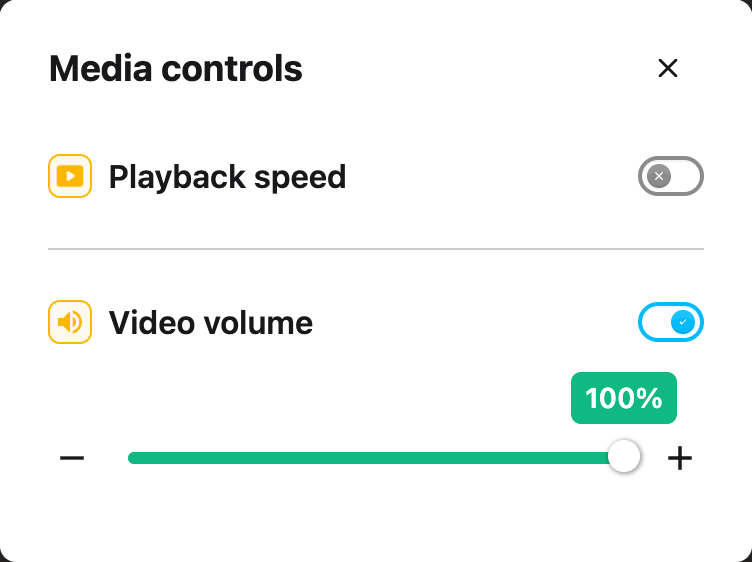
---
## Using Volume Booster
Once enabled, your chosen volume applies to all videos on the current page. If you navigate to a new
page, the same volume will continue to apply.
To return to full volume, move the slider back to 100%. You can also turn off the Volume Booster
toggle to stop Helperbird from managing video volume.
---
## Important Notes
**Videos Only:** Volume Booster controls video players on the page. Standalone audio-only players
are not affected.
**Maximum is 100%:** Volume Booster sets each video to its own full volume. It does not amplify
audio beyond that. If everything is still too quiet at 100%, turn up your device or speaker volume
as well.
---
## Related Guides
- [How to Use Text to Speech](/help/how-to-use-text-to-speech-on-any-website/)
- [How to Mute Auto-Playing Videos](/help/how-to-mute-all-videos-on-any-page/)
---
## Need Additional Help?
If you have questions about Volume Booster, reach out to our [Helperbird support team](/support/)
and we'll help you out!
---
## How to Use Word Prediction on Any Website or Google Docs
URL: https://www.helperbird.com/help/how-to-use-word-prediction-on-any-website-or-google-docs/
## What is Word Prediction?
Word Prediction suggests words as you type. When you start typing a word, Helperbird shows you a
list of words that you might be trying to write. You can click on a suggestion to insert it instead
of typing the whole word.
This helps you write faster and also helps with spelling, since you can see the correct spelling
before you finish typing.
---
## Who is This For?
This feature is helpful for:
- People with dyslexia who struggle with spelling
- Anyone who wants to type faster
- People with motor difficulties who want to reduce keystrokes
- Students writing essays or assignments
- Anyone learning to spell in a new language
---
## Step 1: Open Helperbird
Click the Helperbird icon in your browser toolbar. It looks like a small owl and is usually in the
top-right corner of your browser.
This will open the Helperbird menu.
---
## Step 2: Go to the All Features Section
Scroll down to the bottom of the Helperbird menu. You will see a section called **All Features**.
Click the arrow next to **All Features** to expand it and show all available features.
---
## Step 3: Find Word Prediction
Look through the list of features until you see **Word prediction**.
---
## Step 4: Open Word Prediction
Click **Open** on the **Word prediction** row to open its panel.
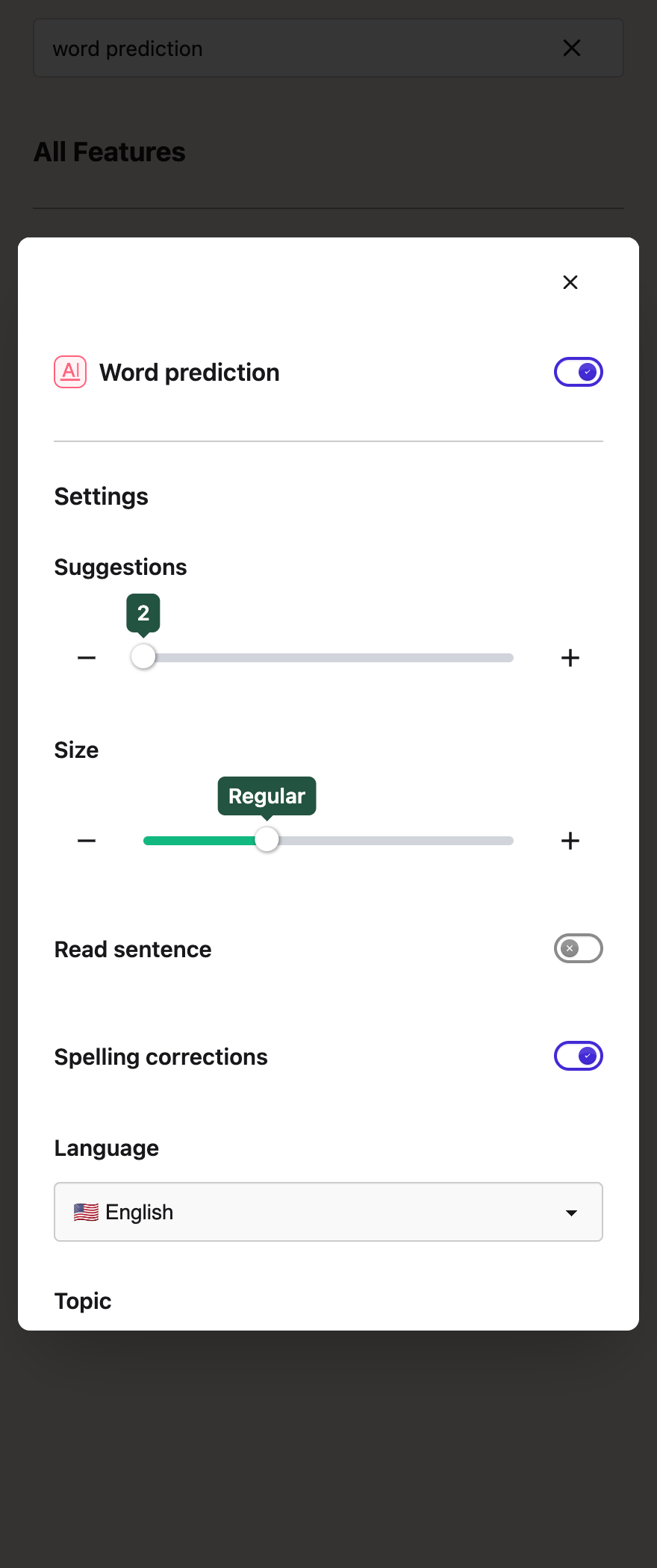
---
## Step 5: Turn on Word Prediction
In the Word Prediction panel, you will see a toggle switch at the top.
Click the toggle switch to turn Word Prediction **on**. The toggle will turn purple when it is
enabled. Word prediction is a Pro feature: on the free plan the toggle is greyed out and clicking it
shows an upgrade message.
---
## Step 6: Adjust Settings
You can customize Word Prediction with these options:
**Suggestions** – Use the slider or the **-** and **+** buttons to choose how many word suggestions
appear as you type. You can choose between 2 and 8 suggestions.
**Size** – Use the slider or the **-** and **+** buttons to change how big the whole suggestion bar
appears. Choose between **Small**, **Regular**, **Large**, and **Extra large**. Bigger sizes can
make suggestions easier to read at a glance.
**Read sentence** – Turn this on to hear each sentence read aloud as soon as you finish it with a
full stop, question mark, or exclamation point. Hearing your writing read back helps you catch
mistakes and check that it says what you meant. This works on websites and in Google Docs, and it
uses the same voice as your text to speech settings.
**Spelling corrections** – Suggested spelling fixes appear in the suggestion bar as amber chips when
a word looks misspelled. Turn this off if you would rather see predictions only.
**Language** – Pick the language you will be typing in from the dropdown. Options include English,
French, German, Spanish, and Portuguese.
**Topic** – When your language is English, you can also pick a topic: **This page**, Science,
History, Geography, Space, or Animals. **This page** builds the word list from the page you are on,
so the suggestions match whatever you are reading. Each topic adds between about 150 and 200 subject
words to your predictions, so words like "photosynthesis" or "archaeology" appear as you start
typing them. Pick **None** to turn this off. Everything works offline, because the topic word lists
are built into Helperbird. Read the full guide to
[topic dictionaries](/help/how-to-use-topic-dictionaries-in-word-prediction/).
**Layout** – Choose **Across** for the original horizontal bar or **Stacked** for one suggestion per
row. Your choice is saved. See
[how to change the prediction layout](/help/how-to-change-word-prediction-layout/).
**Bar theme** – Choose how the suggestion bar looks: **Light**, **Dark**, or **Auto**. Auto follows
whatever your browser is set to, so the bar matches the rest of your screen.
**Clear learned words** – Word prediction learns the words you use often so it can suggest them
sooner. This button empties that list and starts it again. Useful if you have been typing something
one-off, or if you are handing the computer to someone else.
---
## Step 7: Start Typing
Now go to any text field on a website or in Google Docs and start typing.
A bar will appear showing word suggestions. On websites the bar sits under the text you are typing
in; in Google Docs it docks under your cursor. You can drag it anywhere on the screen if you prefer
a different spot. These are words that match what you have typed so far.
To use a suggestion:
- Click on any word to insert it into your text
- Click the speaker icon next to a word to hear how it is pronounced
You can also use the keyboard:
- Press **Alt + Left Arrow** or **Alt + Right Arrow** to move between suggestions
- Press **Alt + Enter** to insert the highlighted suggestion
- Press **Alt + 1** through **Alt + 9** to insert a suggestion by its position. In Firefox, use **Ctrl + Alt + 1–9**. On a Mac, Alt is labelled **Option**. The number pad works too.
- Press **Escape** to close the suggestion bar
Each suggestion shows its keyboard shortcut. Number keys on their own still type numbers.
There is no countdown while you choose a word: you can pause for 10 seconds or longer. Suggestions update when you type, move the writing cursor, or select a word. Background Google Docs updates do not replace your choices. Moving away from the editor or closing the bar can dismiss it.
## Editing Earlier Text in Google Docs
Click within a sentence, or use the arrow keys to move back to an earlier word. The suggestions
follow your cursor and use the text before it. You can continue writing in the middle of a sentence
or return to an earlier paragraph.
If you move inside a word, choosing a suggestion replaces that word while keeping the surrounding
text. For example, placing the cursor after **ca** in **cats** and choosing **cattle** gives you
**cattle**, with the next sentence preserved.
For word prediction, place the cursor where you want to write rather than highlighting a passage.
Suggestions pause while a passage is selected or Docs cannot provide the cursor position. Click in
the document to continue. If Docs has just loaded or the cursor is outside the visible text, bring
that paragraph into view and place the cursor again.
To listen to a passage you have already written, select it and use
[Text to Speech](/help/how-to-use-text-to-speech-on-any-website/). To dictate at your cursor, see
[direct-to-page dictation](/help/how-to-type-dictation-straight-into-the-page/).
Word Prediction automatically learns from what you type. On Google Docs, it will also learn from the
existing text in your document to provide better suggestions.
Helperbird can also detect and correct misspellings. If you type a misspelled word and press space,
corrections may appear highlighted in the suggestion bar.
**Tip:** You do not need to finish typing a word. As soon as you see the word you want in the
suggestions, click it. This saves time and helps with correct spelling.
---
## Video Tutorial
Coming soon
---
## Google Docs and Slides
Google Docs supports tools such as Text to Speech, word prediction and voice typing. Features that
change webpage fonts or spacing cannot change every part of the Docs editing canvas.
Open the information button in the Workspace banner for the options available on that page. Google
Slides has different limits; use Screenshot Reader or the Workspace add-on when needed.
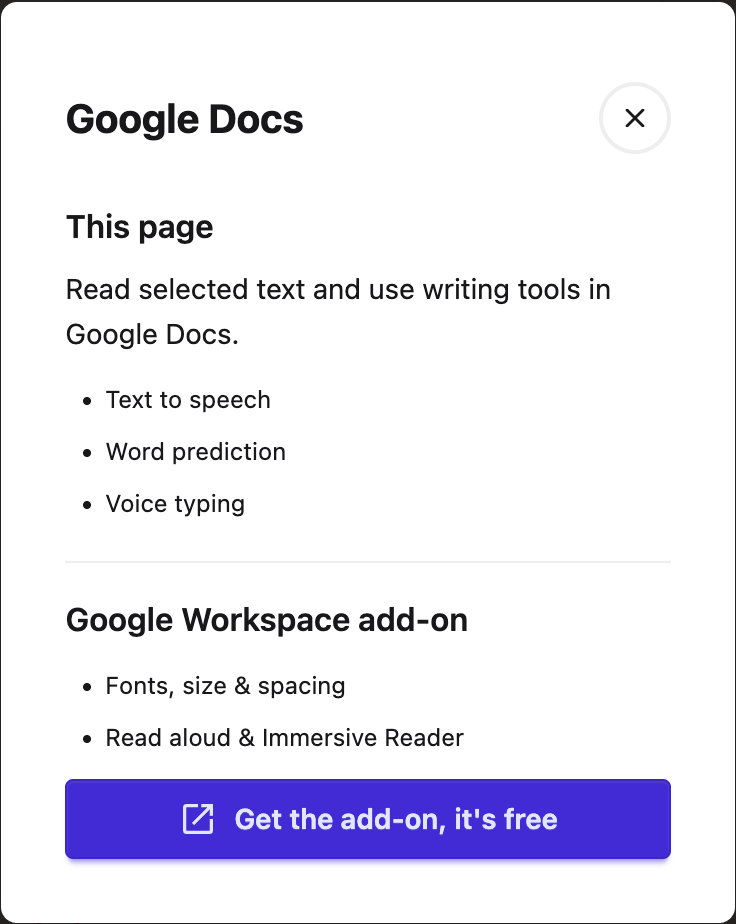
---
## Need Additional Help?
If you have any questions or run into any issues, please contact the Helperbird support team. You
can reach us at [Helperbird support](/support/). We are happy to help you get the most out of
Helperbird.
---
## How to Use Word Spotlight on Any Website
URL: https://www.helperbird.com/help/how-to-use-word-spotlight-on-any-website/
## What is Word spotlight?
Lost track of which word you were on?
**Word spotlight** colors the word your mouse pointer is on. Stop the pointer on a word and that
word turns yellow. Move to another word and the yellow follows.
Nothing is saved. The page's own text is never changed, and the yellow goes when you turn it off.
Word spotlight is a Helperbird Pro feature. See
[what is Helperbird Pro](/help/what-is-helperbird-pro/).
To mark text on purpose and keep it, use the
[Highlighter](/help/how-to-highlight-words-and-paragraphs-on-any-website/) instead.
---
## Who is This For?
- You lose your place partway through a line.
- Your eyes skip a line or read the same one twice.
- You track text with your finger on paper and want the same thing on screen.
---
## How to Turn On Word Spotlight
1. Click the Helperbird icon in your browser toolbar.
2. Open **All Features** at the bottom of the menu.
3. Scroll to **Word spotlight**. The list runs A to Z, so it sits near the bottom. You can also type
"spotlight" into the search box at the top of the menu.
4. Turn its toggle on.
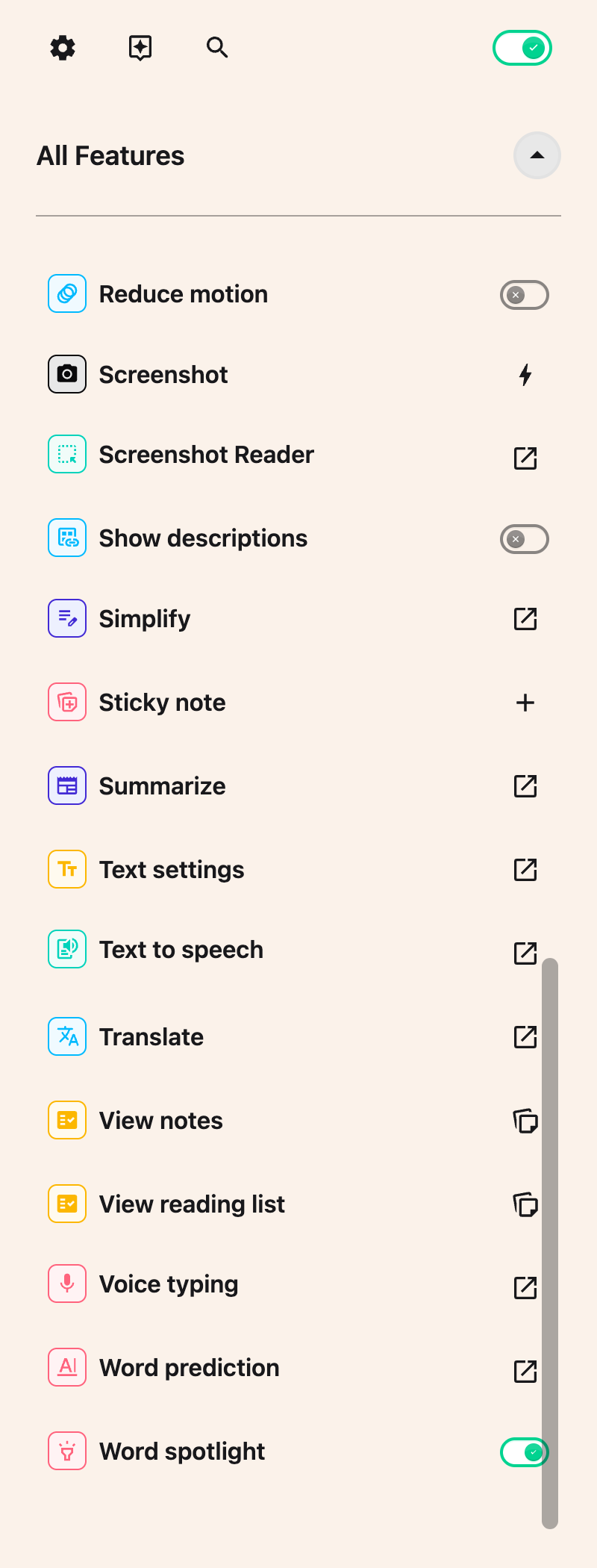
Point at a word in the text you are reading. It turns yellow when the pointer stops.
The toggle only appears with Helperbird Pro. On the free plan the row shows a **Pro feature** badge
where the toggle would be, and it opens the upgrade screen.
Word spotlight has no keyboard shortcut. If you use it a lot, add it to **Quick actions** from the
grid icon at the top of the menu. It then gets its own button there, one tap on and off.
---
## If Nothing Turns Yellow
- Helperbird's own switch, at the top right of the menu, has to be on.
- Word spotlight follows a mouse pointer. Without a mouse or trackpad there is nothing for it to
follow, so touch alone highlights nothing on an iPad or iPhone.
- It skips text you can type into, and it does not highlight every word in every alphabet.
Read [how Word spotlight behaves](/help/how-to-highlight-words-on-hover/) for the full list of where
it works and what it will not highlight.
---
## Need Additional Help?
If you have any questions or run into any issues, please contact the Helperbird support team. You
can reach us at [Helperbird support](/support/). We are happy to help you get the most out of
Helperbird.
---
## How to Write an Equation in Helperbird
URL: https://www.helperbird.com/help/how-to-write-an-equation-in-helperbird/
## What This Does
You write your equation in the box at the top, and Helperbird draws it out properly underneath as
you go, so you can see whether it looks right before you use it.
The Equation Editor is part of Helperbird Pro. Without it the box is read-only and typing does
nothing. To get the editor open, see
[opening the Equation Editor](/help/how-to-open-the-helperbird-equation-editor/).
---
## Who is This For?
This is helpful for:
- Anyone writing maths who wants to see it typeset as they type
- Students who know roughly what they want but not the symbol for it
- People who find a traditional formula editor slow
---
## Step 1: Type Into the Box
Click into **Your equation** and start typing. Ordinary maths works as you would expect: `E = mc^2`
gives you E equals m c squared. You can also choose an example below the box, such as the fractions
shown here.

The editor understands LaTeX, the standard way of writing maths as plain text. A few that cover most
of what you need:
- `x^2` for a power, `x_1` for a subscript
- `\frac{1}{2}` for a fraction
- `\sqrt{16}` for a square root
- `\pm` for plus-or-minus, `\times` for a multiplication sign
---
## Step 2: Use the Math Keyboard
For anything you cannot type, click **Show math keyboard** in the toolbar and pick the symbol.
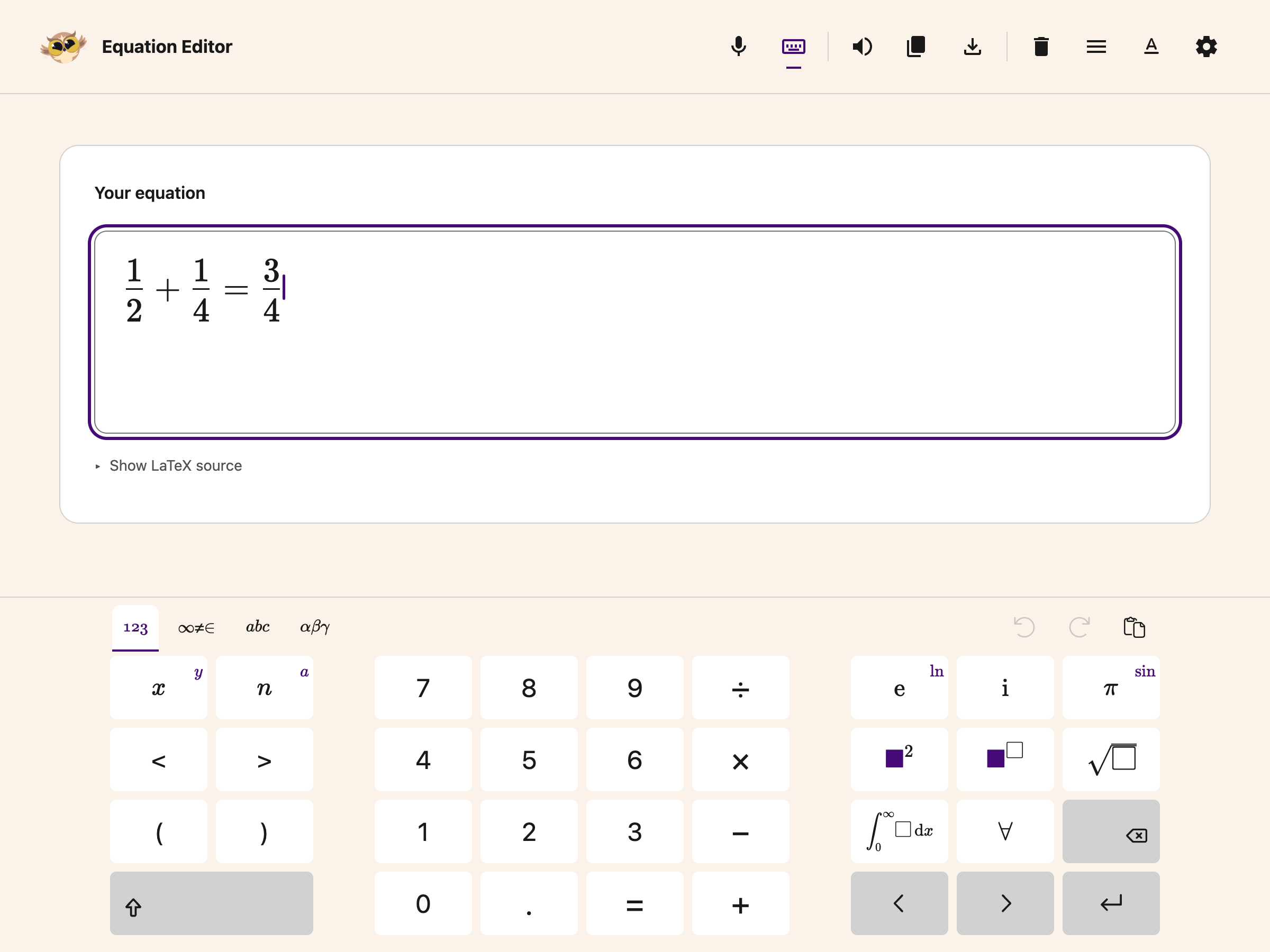
This is the quicker route for Greek letters, integrals and set notation, and it means you do not
have to remember the LaTeX name for a symbol you need once.
---
## A Note on Brackets
The editor closes curly brackets for you. When you type `{`, the matching `}` appears on its own, so
**do not type the closing bracket as well** or you will end up with two and the equation will come
out wrong: a fraction can end up with its bottom half sitting outside it.
If an equation looks scrambled, that is usually why. Clear it and let the editor close the brackets
for you.
Once it looks right, the rest of the toolbar takes it further. See
[what each Equation Editor button does](/help/how-to-use-the-equation-editor-in-helperbird/).
---
To put maths directly into your work, use
[Insert equation in a PDF or Notepad](/help/how-to-add-equations-to-pdfs-and-notepad/). That dialog
keeps the editor above a full-width math keyboard and includes a **More options** menu.
## Need Additional Help?
If you have any questions or run into any issues, please contact the Helperbird support team. You
can reach us at [Helperbird support](/support/). We are happy to help you get the most out of
Helperbird.
---
## How to Write and Format Text in the Helperbird Notepad
URL: https://www.helperbird.com/help/how-to-write-and-format-text-in-the-helperbird-notepad/
## What This Does
The Notepad is a rich text editor. You type onto the page and use the toolbar above it to change how
the writing looks, in the same way you would in a word processor.
---
## Who is This For?
This is helpful for:
- Anyone drafting something that needs structure, like headings and lists
- Students formatting an assignment before handing it in
- People who find a plain wall of text hard to read back
- Anyone who wants to color-code parts of their own notes
---
## Step 1: Type Your Text
Click anywhere on the page and start typing.

---
## Step 2: Select What to Change
Highlight the words you want to change, then use the toolbar. Formatting applies to whatever is
selected.

---
## What the Formatting Toolbar Has
Reading the toolbar from left to right:
- A **style menu** that starts on **Normal**, for turning a line into a heading
- **Bold**, **italic**, **underline** and **strikethrough**
- Four **alignment** buttons: left, centre, right and justified
- **Quote** and **code block**
- **Numbered**, **bulleted** and **checklist** lists
- **Indent** and **outdent**
- **Text color** and **highlight color**
- **Link**, **image** and **video**
- **Insert equation**, beside the image button, to add maths at your cursor
- **Clear formatting**, which strips everything back to plain text
If a piece of text ends up looking wrong and you cannot work out why, select it and press clear
formatting to start again.
For maths, [add an equation](/help/how-to-add-equations-to-pdfs-and-notepad/) and click it later to
edit. The equation appears as an image while you write, with its source kept in your saved note.
Once you have it how you want it,
[save the document](/help/how-to-save-a-document-in-the-helperbird-notepad/) so your work is kept.
---
## Need Additional Help?
If you have any questions or run into any issues, please contact the Helperbird support team. You
can reach us at [Helperbird support](/support/). We are happy to help you get the most out of
Helperbird.
---
## How to Enable and Use Keyboard Shortcuts in Helperbird
URL: https://www.helperbird.com/help/what-are-the-helperbird-shortcuts/
## What are Keyboard Shortcuts?
Keyboard shortcuts let you quickly activate Helperbird features by pressing key combinations instead of opening the menu and clicking. For example, you could press a few keys to instantly start text-to-speech or turn on Reading Mode.
Shortcuts are disabled by default because some websites have their own keyboard shortcuts that might conflict with Helperbird's.
---
## Who is This For?
This feature is helpful for:
- People who want faster access to features
- Anyone who prefers using the keyboard over the mouse
- Power users who use Helperbird features frequently
- People with motor difficulties who find keyboard navigation easier
- Anyone who wants to be more efficient
---
## Step 1: Open Helperbird
Click the Helperbird icon in your browser toolbar. It looks like a small owl and is usually in the top-right corner of your browser.
This will open the Helperbird menu.

---
## Step 2: Open the Options Menu
Click the **gear icon** in the top-left corner of the Helperbird menu.
This will open the Options panel with various settings and options.
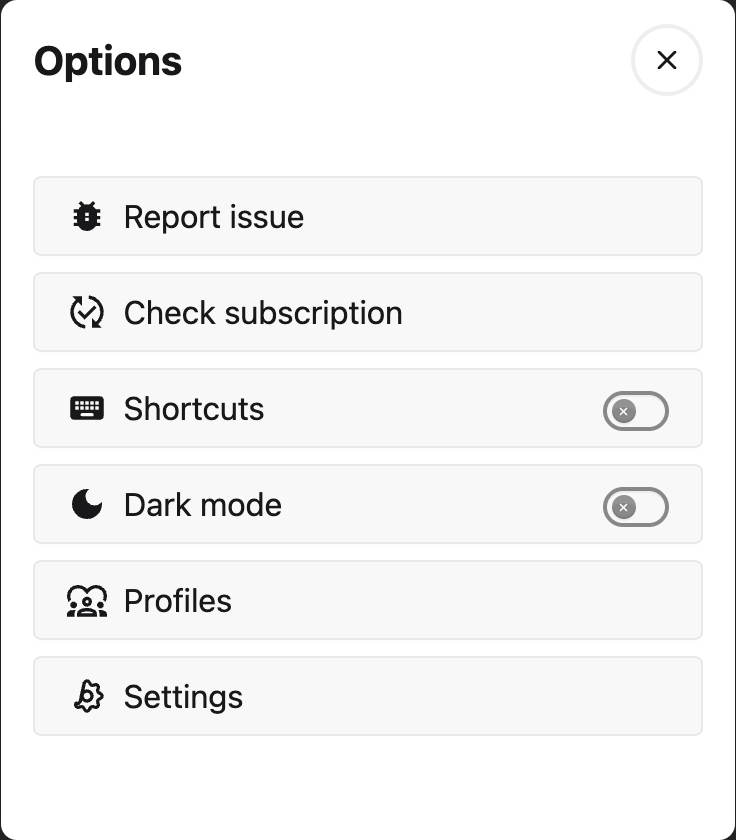
---
## Step 3: Enable Shortcuts
In the Options panel, look for **Shortcuts** with a toggle switch next to it.
Click the toggle switch to turn it **on**. A check mark shows that it is enabled.
You can now use keyboard combinations to quickly access Helperbird features.

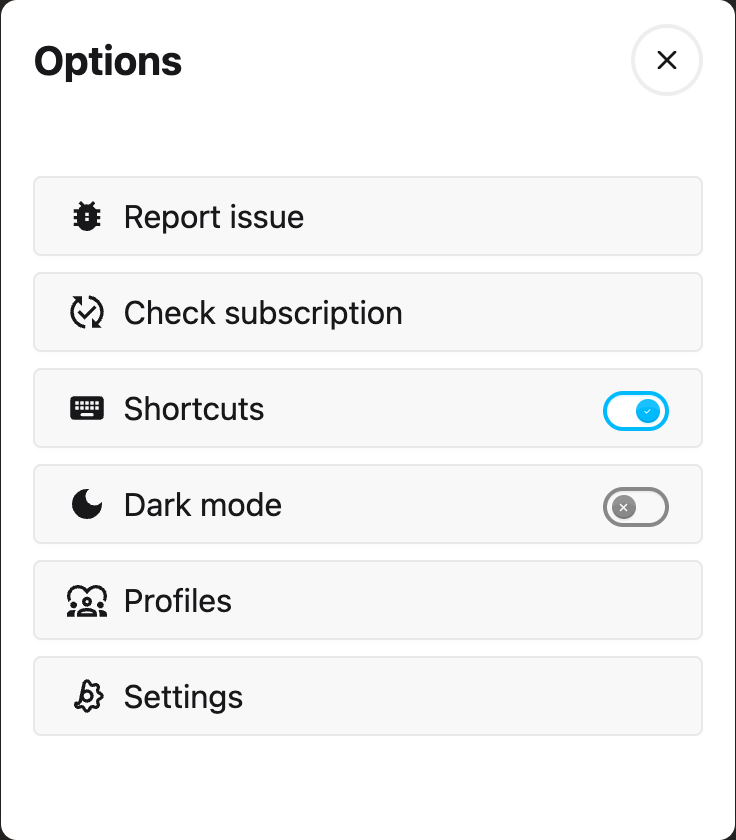
---
## Step 4: Find the Shortcut You Want
**Shortcuts** in the Options panel is a switch, not a list. Clicking it again turns shortcuts back off, so leave it alone once it is on.
The full list is the table below on this page. There is no list inside the extension.
**Important:** On **Mac**, shortcuts use **Option (⌥) + key**. On **Windows and Linux**, shortcuts use **Alt + Shift + key**.
---
## All Keyboard Shortcuts
Here is the complete list of every keyboard shortcut available in Helperbird.
Table: Every keyboard shortcut, on Mac and on Windows or Linux.
| Feature | Mac | Windows / Linux |
|---|---|---|
| **General** | | |
| Turn Helperbird On/Off | Option + . | Alt + Shift + . |
| **Notes & Annotations** | | |
| Create a Sticky Note | Option + S | Alt + Shift + S |
| **Reading** | | |
| Reader Mode | Option + R | Alt + Shift + R |
| Immersive Reader | Option + I | Alt + Shift + I |
| Auto Scroll | Option + A | Alt + Shift + A |
| **Colors & Tints** | | |
| Overlay Tint | Option + O | Alt + Shift + O |
| Text Color | Option + T | Alt + Shift + T |
| Link Color | Option + L | Alt + Shift + L |
| Background Color | Option + B | Alt + Shift + B |
| Paragraph Background | Option + G | Alt + Shift + G |
| **Text & Paragraphs** | | |
| Paragraph Width | Option + X | Alt + Shift + X |
| Highlight Paragraphs | Option + Z | Alt + Shift + Z |
| Word Spacing | Option + F | Alt + Shift + F |
| Font Size | Option + U | Alt + Shift + U |
| Text Alignment | Option + J | Alt + Shift + J |
| Line Height | Option + K | Alt + Shift + K |
| Letter Spacing | Option + Q | Alt + Shift + Q |
| Custom Font | Option + N | Alt + Shift + N |
| **Images & Visuals** | | |
| Magnifier (Zoom) | Option + 1 | Alt + Shift + 1 |
| Tooltip Descriptions | Option + 2 | Alt + Shift + 2 |
| Hide Images | Option + 3 | Alt + Shift + 3 |
| Hide GIFs | Option + 4 | Alt + Shift + 4 |
| Saturation Control | Option + 6 | Alt + Shift + 6 |
| **Accessibility** | | |
| High Contrast Mode | Option + 7 | Alt + Shift + 7 |
| Dark Reader | Option + W | Alt + Shift + W |
| Emphasize Links | Option + 8 | Alt + Shift + 8 |
| Cursor Size | Option + 9 | Alt + Shift + 9 |
| Spell Check | Option + 0 | Alt + Shift + 0 |
| Reduce Motion | Option + M | Alt + Shift + M |
| Dyslexia Ruler | Option + D | Alt + Shift + D |
| **Tools** | | |
| Extract Text | Option + E | Alt + Shift + E |
| Translate | Option + C | Alt + Shift + C |
| Screenshot | Option + V | Alt + Shift + V |
**Tip:** Start with two or three shortcuts you use often. Bookmark this guide to return to the full list.
---
## Need Additional Help?
If you have any questions or run into any issues, please contact the Helperbird support team. You can reach us at [Helperbird support](/support/). We are happy to help you get the most out of Helperbird.
---
## Why Immersive Reader Does Not Work on Some Websites
URL: https://www.helperbird.com/help/why-immersive-reader-does-not-work-on-some-websites/
## What is Happening?
You opened Immersive Reader on a website like **National Geographic** and instead of seeing the clean reading view, you saw a white screen, a loading spinner that never finished, or an error message.
The good news is your Helperbird is working fine. The website itself is blocking Immersive Reader from loading.
---
## Why it Happens
Immersive Reader is built by Microsoft. To show you the clean reading view, it needs to load a small Microsoft window inside the webpage you are on.
Some websites, like National Geographic, have strict security rules that do not allow any outside windows to load inside their pages. These rules are there to protect the website and its visitors. Unfortunately, those same rules also block helpful tools like Immersive Reader.
This is decided by the website, not by your browser or by Helperbird. There is no setting we can change to get around it.
---
## How to Tell if it is This Issue
You will usually see one of these signs:
- A white or blank screen when Immersive Reader opens
- A loading spinner that keeps spinning and never finishes
- An error message in Immersive Reader
- It works fine on other websites, but not on this one
If Immersive Reader works on most websites but not on a specific one, that website is most likely blocking it.
---
## What You Can Do
You have a few easy options to keep reading the page in a comfortable way.
### Option 1: Use Reading Mode instead
Helperbird has its own built-in **Reading Mode**. It also gives you a clean, distraction-free reading view, and it works on websites that block Immersive Reader.
1. Open Helperbird from your browser toolbar
2. Find **Reading Mode** in the features list
3. Turn it on
You can read more in our guide: [How to Use Reading Mode](/help/how-to-use-reading-mode-and-remove-ads-on-any-website/).
### Option 2: Use Text to Speech
If you mainly wanted Immersive Reader to read the page out loud, you can use Helperbird's **Text to Speech** feature instead. It works on almost every website.
1. Highlight the text you want read aloud
2. Open Helperbird and click **Text to Speech**
3. Press play
You can read more in our guide: [How to Use Text to Speech](/help/how-to-use-text-to-speech-on-any-website/).
### Option 3: Copy the text and use Immersive Reader on a different page
If you really want the Immersive Reader experience:
1. Highlight the article text on the page
2. Copy it
3. Open a new browser tab and go to a page that allows Immersive Reader, like a blank document or Helperbird's Notes page
4. Paste the text
5. Open Immersive Reader there
This way you still get all the Immersive Reader features, just on a different page.
---
## Is This a Bug in Helperbird?
No. Helperbird is working as expected. The website is making the choice to block outside tools. We cannot change a website's security rules.
If a website that used to work suddenly stops working with Immersive Reader, it usually means that website has updated its security rules.
---
## Need Additional Help?
If Immersive Reader is not working on a website and the steps above did not help, please contact the Helperbird support team. You can reach us at [Helperbird support](/support/). Let us know which website you were on and we will do our best to help.
# Help guides
---
## How to Use Accessibility Profiles in Helperbird
URL: https://www.helperbird.com/help/how-to-use-accessibility-profiles-in-helperbird/
## What are Accessibility Profiles?
Accessibility Profiles are starting points for your reading preferences. Preview a profile, apply
it, and adjust individual features afterwards. They are not treatments or a guarantee of
accessibility compliance. Free users can apply the settings available on their plan; Pro-only
settings are included with an active Pro subscription.
---
## Who is This For?
This feature is helpful for:
- People with dyslexia who need optimized font and spacing settings
- People with ADHD who benefit from reduced distractions and focus tools
- People with low vision who need larger text and high contrast
- Anyone who wants a quick starting point for accessible reading
- Teachers and support staff helping someone try a reading setup
---
## Step 1: Open Helperbird Settings
Click the Helperbird icon in your browser toolbar to open the Helperbird panel.
Then click the **Settings** button (the gear icon) in the top-left corner of the panel.
This opens the Helperbird Settings page.

---
## Step 2: Find the Profiles Section
Choose **Profiles** in the Settings section menu, or scroll past Account and Billing. The
**Profiles** section has eight cards.
---
## Step 3: Choose a Profile
Click the profile card that matches what you need. The eight profiles are Dyslexia, ADHD & Focus,
Low Vision, Contrast & Color, Reading Comfort, Motor Accessibility, Autism & Sensory, and Motion
Sensitivity.
---
## Step 4: Review and Apply
A window appears showing the profile name and a list of exactly what it will change, so nothing
happens without you seeing it first. The Dyslexia profile, for example, lists the Verdana font,
wider letter and word spacing, and a reading ruler.
Review the list, then click **Apply**.
Your settings will update immediately. A confirmation message will appear to let you know the
profile has been applied.
---
## Available Profiles
Each profile replaces your reading settings and updates your quick actions. The preview lists the
settings available on your plan before you apply them.
**Dyslexia** switches to Verdana, widens letter and word spacing, opens a line-style reading ruler,
raises the line height, narrows paragraphs, and left-aligns text.
**ADHD & Focus** opens a line-style reading ruler, narrows paragraphs, raises the line height, hides
GIFs, and reduces motion. Still images stay visible. Reading Mode is added to your quick actions,
not opened automatically.
**Low Vision** switches to Atkinson Hyperlegible, zooms the page to 150%, turns on Increased
Contrast, underlines links, adjusts spacing and paragraph width, and left-aligns text. It does not
invert page colors.
**Contrast & Color** turns on Increased Contrast and underlines links. Font, text-spacing, and
paragraph-width overrides are off.
**Reading Comfort** uses a cream background, increases text size and line height, narrows
paragraphs, and left-aligns text.
**Motor Accessibility** enlarges the cursor, zooms the page to 125%, reduces motion and raises the
line height.
**Autism & Sensory** sets a cream background, switches to Verdana, reduces motion, hides GIFs,
raises the line height, and narrows and left-aligns paragraphs. Still images stay visible.
**Motion Sensitivity** reduces motion and hides GIFs. It keeps still images, with text-size,
spacing, and paragraph-width overrides off. It cannot guarantee that all moving or flashing content
is removed.
If a profile is close but not exactly right, apply it and then adjust the individual settings. The
profile is a starting point, not a lock.
---
## Tips
Use Restore my settings while the Settings page remains open.
- A profile replaces your current reading settings.
[Export your settings](/help/how-to-export-your-helperbird-settings/) first if you want to keep a
copy.
- Choose **Restore my settings** below the profile cards to restore the setup from before your most
recent profile change. This option stays available while the Settings page remains open. Reloading
or closing the page clears it.
- After applying a profile, you can still adjust individual settings to fine-tune things to your
preference.
- You can switch profiles at any time. Review the preview each time, including any settings that
will be switched off.
- Trying two or three profiles is a quick way to find out what actually helps you, which is often
not the one you expected.
---
## Related Features
- [Dyslexia Fonts](/features/specialised-dyslexic-fonts/) - Choose your reading font from 32
options, 29 of them on iPad and iPhone.
- [Reading Ruler](/features/ruler/) - Focus on one line at a time.
- [Color Overlay](/features/overlay/) - Add a tinted overlay to reduce eye strain.
- [Reading Mode](/help/how-to-use-reading-mode-and-remove-ads-on-any-website/) - Strip a page back
to the article.
- [Text to Speech](/features/text-to-speech/) - Listen to any page read aloud.
- [Accessibility Profiles Feature Page](/features/accessibility-profiles/) - Overview of all
available profiles.
---
## Video Tutorial
Coming soon
---
## Need Additional Help?
If you have any questions or run into any issues, please contact the Helperbird support team. You
can reach us at [Helperbird support](/support/). We are happy to help you get the most out of
Helperbird.
---
## How to Use the Helperbird Accessibility Toolbar
URL: https://www.helperbird.com/help/how-to-use-the-helperbird-accessibility-toolbar/
## What is the Accessibility Toolbar?
The accessibility toolbar is a small Helperbird button that floats on every website. Click it and a
tidy bar slides open with your favourite tools, all in one place. In the Helperbird panel, the
switch that turns it on is called **Floating Toolbar**.
From the toolbar you can read the page aloud, look up a word, open Immersive, turn on word
prediction, dictate with voice typing, switch on the reading guide, open Reading Mode, and pull text
out of an image. It saves you opening the Helperbird popup every time you need a tool.
---
## Who is This For?
This feature is helpful for:
- People with dyslexia who want read aloud and the reading ruler one click away
- Students who move quickly between reading, looking up words, and taking notes
- Anyone who finds typing tiring and prefers to speak their writing
- People who want their accessibility tools on the page instead of in a menu
- Teachers and schools who want a simple, always-visible set of tools
---
## Step 1: Turn On the Toolbar

The toolbar is off until you switch it on, and you can switch it on yourself. Click the Helperbird
icon in your browser toolbar to open the Helperbird panel.
At the top of the panel, click the **Floating Toolbar** button. The header buttons carry no printed
text, so point at one to see its name. It lights up to show the toolbar is on, and a small
Helperbird logo appears on every website you visit. Click the same button again at any time to turn
the toolbar off.
**Tip:** Schools and organizations can turn the toolbar on for everyone using a managed policy, so
students do not have to enable it themselves. An administrator setting it on by default does not
lock your choice; you can still turn it off or back on. If your administrator has blocked the
feature, the **Floating Toolbar** button is not in the panel header at all.

---
## Step 2: Open the Toolbar
Look for the small Helperbird logo floating on the page. The first time, it sits in the bottom-left
corner. After that it comes back wherever you last left it.

Click it once and the toolbar slides open to show all of your tools.

Click the logo again to tuck the toolbar back down to the logo on its own. Pressing **Escape** while
you are on the toolbar closes it too. Closing or collapsing the toolbar stops its read-aloud and
voice-typing sessions, including a session still starting. Its dictation draft remains available
when you reopen it on the same page.
---
## Step 3: Use a Tool
Each tool on the toolbar does one thing. The buttons carry no printed text, so hover over one to see
its name. A Pro button is greyed out and its name ends in "(Pro)".
Table: Every button on the floating toolbar, in the order it appears, with the name Helperbird shows
and whether it needs Helperbird Pro.
| Button | What it does | Free or Pro |
| ---------------------------------------------------------------------------------- | ------------------------------------------------------------------------------------------------------------------------------------------------------------------------------------------------ | ----------- |
| [Play](/help/how-to-read-a-page-aloud-from-the-floating-toolbar/) | Reads the page aloud. Highlight some text first and only that text is read, with each word highlighted as it is spoken. With nothing selected, the whole page is read without word highlighting. | Free |
| [Stop](/help/how-to-read-a-page-aloud-from-the-floating-toolbar/) | Stops the reading. | Free |
| [Dictionary](/help/how-to-look-up-a-word-from-the-floating-toolbar/) | Highlight a single word, then click Dictionary to see its meaning. | Pro |
| [Immersive](/help/how-to-open-immersive-reader-from-the-floating-toolbar/) | Opens your selection, or the whole page, in a clean reading view. | Pro |
| [Word prediction](/help/how-to-turn-on-word-prediction-from-the-floating-toolbar/) | Suggests words while you type in text boxes. | Pro |
| [Voice typing](/help/how-to-use-speech-to-text-or-dictation-on-any-website/) | Opens a dictation window so you can speak instead of type. See below. | Pro |
| [Reading guide](/help/how-to-turn-on-the-reading-guide-from-the-floating-toolbar/) | Turns on a guide that helps you focus on one line at a time. | Free |
| [Reading Mode](/help/how-to-open-reading-mode-from-the-floating-toolbar/) | Removes ads and clutter so you can read the article on its own. | Free |
| [Screenshot Reader](/help/how-to-extract-text-from-any-image-pdf-or-website/) | Pulls the text out of an image or a scanned PDF. | Pro |
| [Settings](/help/how-to-open-helperbird-in-chrome-or-edge-side-panel/) | Opens the full Helperbird panel for everything else. Chrome and Edge only. | Free |
The last button on the open bar is the **Drag to move** handle, covered in the next step.
---
## Step 4: Move the Toolbar
You can put the toolbar wherever suits you.
Click and hold the **Drag to move** handle (the grip on the far right of the toolbar) and drag it
anywhere on the screen. The toolbar always stays fully on screen. When you let go, Helperbird
remembers the spot, so the toolbar is waiting in the same place next time. When the toolbar is
closed, you can also drag the logo itself to move it.
Prefer the keyboard? Tab to the **Drag to move** handle and use the **arrow keys** to nudge the
toolbar around the screen. Hold **Shift** while pressing an arrow for fine, one-pixel adjustments.
If you are on a tool button instead, the arrow keys move you along the bar.
---
## Using Voice Typing
Click the **Voice typing** button (the microphone) and a small dictation window opens.
Press the **mic** in that window to start, then speak. Your words appear in the box as you talk.
Press the mic again to stop, or stop talking and it switches itself off after about 10 seconds
without recognized speech. Speaking resets that timer, and you can press the mic again whenever you
are ready to continue.
The panel's **More options** menu holds the language, Regular/Math/Chemistry/Physics modes, **Spoken
punctuation**, **Copy**, and **Clear**. Stop recording before changing language or mode. Spoken
punctuation works in Regular mode and applies to your next recording. Copy the text, then paste it
into your document or message.
You can edit the draft directly, or choose **Correct grammar** after recording stops. Grammar
correction is a separate Pro action that sends the draft for processing only when you request it.
Closing and reopening the panel keeps its draft on the current page; navigating away does not save
it as a document.
**Skip the copy step.** Turn on **Voice typing into the page** under **Beta features** on the
Helperbird settings page, and your words go straight into the box you were already typing in, Google
Docs included. It never types into a password, payment or security-code box. See
[How to Type Dictation Straight into the Page](/help/how-to-type-dictation-straight-into-the-page/).
The toolbar does not appear on Helperbird's own pages, but the Helperbird PDF reader has its own
voice typing button.
**Tip:** Voice typing is great for long replies or for capturing a thought quickly without typing.
---
## Use Tools While Helperbird is Paused
Even when Helperbird is paused, the toolbar stays available, so you are never locked out of your
tools. Switch a tool on from the toolbar and it runs right there on the page you are reading.
This is temporary and stays on that page only: it does not change your saved settings and it does
not affect your other tabs. As soon as you refresh the page or move to a new one, it clears itself.
Un-pause Helperbird from the panel whenever you want to go back to your usual setup.
---
## What It Does Not Do
- It does not appear on Helperbird's own pages, such as Notes, the Editor and the PDF reader.
- The **Button position** setting on the Settings page picks the corner it starts in, Left or Right.
After that, you place it by dragging.
- The **Settings** button opens Helperbird in the browser side panel, which is Chrome and Edge only.
Firefox and Safari show nine buttons, not ten.
---
## Lockdown and Kiosk Mode
Because the toolbar lives on the web page itself rather than in the browser's toolbar, it keeps
working in locked-down environments where the usual Helperbird popup and side panel cannot be
opened, such as exam browsers, kiosks, and locked online quizzes. Students keep one-tap access to
read aloud, the reading guide, and the rest of the toolbar's tools right on the page.
Administrators can set the toolbar on by default through managed policy. Users can turn it off or
back on; that preference survives policy refreshes. An explicit `FloatingButton` feature restriction
can block it entirely. For setup, see:
- [How to Enable the Helperbird Floating Button (Admin Guide)](/help/how-to-enable-the-helperbird-floating-button/)
- [How to Use Helperbird in Locked Mode on Chromebooks](/help/how-to-use-helperbird-in-locked-mode-on-chromebooks/)
- [How to Deploy Helperbird in ChromeOS Kiosk Mode](/help/how-to-deploy-helperbird-in-chromeos-kiosk-mode/)
- [How to Use Helperbird During Google Forms Locked Quizzes](/help/how-to-use-helperbird-during-google-forms-locked-quizzes/)
---
## What's Free and What's Pro
The toolbar itself is free, and so are five of its ten buttons: Play, Stop, Reading guide, Reading
Mode and Settings.
The other five are part of Helperbird Pro: Dictionary, Immersive, Word prediction, Voice typing and
Screenshot Reader. Free users still see these on the toolbar, greyed out, with "(Pro)" on the end of
the name. Click one and Helperbird shows "This is a Helperbird Pro feature. Upgrade to use it."
On a free account, Play stops after 5,000 characters and shows an upgrade note.
---
## Read a Selection in Google Docs or a Lesson
In Google Docs, select the words you want, then press **Play**. Helperbird keeps that selection when
you move to the toolbar. If Docs cannot provide it, select a shorter visible passage and try again.
For selectable text inside an embedded lesson, try the
[Read text in online lessons](/help/how-to-read-text-in-embedded-lessons/). It is off by default and
does not guarantee support for every lesson platform.
## Tips
- The toolbar only shows tools that are available. If an administrator has turned a tool off, it
will not appear.
- The toolbar lives in its own isolated layer, so it looks and behaves the same on every website, no
matter how that site is styled.
- Word highlighting needs a local browser voice. With an online voice the text is read without
highlighting.
- You can use the whole toolbar with a keyboard. Tab or use the arrow keys to move between tools,
and press Escape to close it.
---
## Frequently Asked Questions
**Is the accessibility toolbar free?** Yes. The toolbar is free, along with Play, Stop, the Reading
guide and Reading Mode. Dictionary, Immersive, Word prediction, Voice typing and Screenshot Reader
are part of Helperbird Pro. On a free account, Play stops after 5,000 characters.
**Which browsers does it work on?** The toolbar works on Chrome, Firefox, Edge, and Safari. The
Settings button uses the side panel, which is available on Chrome and Edge, so Firefox and Safari
show nine buttons instead of ten.
**How do I turn the toolbar off?** Open Helperbird and click the **Floating Toolbar** button in the
header again to switch it off. An administrator enabling it by default does not lock this button. An
explicit restriction on the entire toolbar is different and cannot be overridden here.
**Will it get in the way of the page?** No. It starts as a small logo and stays out of the way. You
can drag it anywhere, and it remembers where you put it.
**Does the toolbar change how websites look?** No. The toolbar sits in its own isolated layer on top
of the page, so it does not affect the website, and the website cannot change how the toolbar looks.
---
## Related Guides
- [How to Use Text to Speech](/help/how-to-use-text-to-speech-on-any-website/)
- [How to Use Voice Typing](/help/how-to-use-speech-to-text-or-dictation-on-any-website/)
- [How to Use Immersive Reader](/help/how-to-use-immersive-reader-on-any-website/)
- [How to Use a Dyslexia Ruler](/help/how-to-use-a-dyslexia-ruler-on-any-website/)
---
## A Guide for Each Tool
- [Read a page aloud](/help/how-to-read-a-page-aloud-from-the-floating-toolbar/)
- [Look up a word](/help/how-to-look-up-a-word-from-the-floating-toolbar/)
- [Open Immersive Reader](/help/how-to-open-immersive-reader-from-the-floating-toolbar/)
- [Turn on word prediction](/help/how-to-turn-on-word-prediction-from-the-floating-toolbar/)
- [Dictate with voice typing](/help/how-to-use-speech-to-text-or-dictation-on-any-website/)
- [Type dictation straight into the page](/help/how-to-type-dictation-straight-into-the-page/)
- [Turn on the reading guide](/help/how-to-turn-on-the-reading-guide-from-the-floating-toolbar/)
- [Open Reading Mode](/help/how-to-open-reading-mode-from-the-floating-toolbar/)
- [Pull text out of an image or PDF](/help/how-to-extract-text-from-any-image-pdf-or-website/)
- [Open the side panel with Settings](/help/how-to-open-helperbird-in-chrome-or-edge-side-panel/)
---
## Video Tutorial
Coming soon
---
## Need Additional Help?
If you have any questions or run into any issues, please contact the Helperbird support team. You
can reach us at [Helperbird support](/support/). We are happy to help you get the most out of
Helperbird.
---
## How to Add Equations to PDFs and Notepad
URL: https://www.helperbird.com/help/how-to-add-equations-to-pdfs-and-notepad/
## What This Does
Add fractions, powers and other equations to a PDF or Notepad. You see the maths as you type, then
insert it as an image. Helperbird keeps the equation source in your saved workspace so you can
change it later.
Adding and editing equations in the standalone Notepad is free. Equations in the PDF Reader,
including its side Notepad, still need Helperbird Pro. Creating the equation image happens on your
device.
## Step 1: Open the Equation Editor
In the **PDF Reader**, open your PDF. Choose **Tools** in the top toolbar, then **Insert equation**.
Its icon shows a mathematical function.
In **Notepad**, put your cursor where you want the equation. Choose **Insert equation** beside the
image button in the text toolbar. This also works in the Notepad beside a PDF.
## Step 2: Write Your Equation
Type into **Your equation**. For example, type `x^2` to write x squared. The field shows the result
as you type.
Choose **Show math keyboard** to find fractions, roots and other symbols. The keyboard fills the
width of your screen, with the editor above it. Choose **More options** beneath the equation field
for the math menu. You can also type LaTeX, such as `\frac{1}{2}` for one half.


## Step 3: Insert Your Equation
Choose **Insert**.
On a PDF, the equation appears on the current page. Drag it into place. Use the corner handle to
change its size. You can also focus its image and use the arrow keys to move it.
In Notepad, the equation appears at your cursor. If you selected text, it replaces that selection.
## Edit an Equation
On a PDF, choose **Edit equation** in the equation’s page bar, beside the remove button. In Notepad,
click the equation, or focus it and press Enter.
Change the equation and choose **Save**. Close the dialog or press Escape to leave it as it was.
Helperbird adds a text description to equation images for screen readers.

## Save and Download
Your current PDF workspace keeps equations with its other annotations in device-local recovery.
Opening another PDF replaces that recovery copy. When you download, choose the option that includes
your notes and drawings. The equation image becomes part of the downloaded PDF.
The downloaded PDF contains an image, not an editable or tagged maths object. Keep the original
workspace if you need to edit the equation later. Its image description does not turn the downloaded
PDF into an accessible maths document.
Notepad saves equations with your document. Word downloads include the image and its description.
Plain text uses the description; Markdown keeps the LaTeX source.
For other ways to share maths, see
[Copy an equation from Helperbird](/help/how-to-copy-an-equation-from-helperbird/).
## Move Notepad Content into a PDF
In the PDF's side Notepad, choose **Add Textbox to PDF** below the editor. Text, ordinary pictures
and equations become separate boxes in the order they appear in your note. Transferred equations
keep their **Edit equation** control.
Typing and transferring a PDF side note are free. Creating or editing equations in the PDF Reader
still needs Helperbird Pro. If an image cannot load or the full note will not fit, Helperbird shows
a message and keeps the note and PDF unchanged.
See [pasting text and images into a PDF](/help/how-to-paste-text-and-images-onto-a-pdf/) for another
way to add content.
## Troubleshooting
**Insert is unavailable:** Write an equation first. Fill any empty fraction or root boxes before
inserting it.
**The equation cannot be inserted:** Check the equation and try again. If you changed pages or
documents, reopen **Insert equation** in the place you want to use.
**I closed the dialog:** Nothing is added until you choose **Insert** or **Save**.
## Need Additional Help?
If you need help, contact [Helperbird support](/support/).
---
## How to Add a Saved Note to Your Notepad Document
URL: https://www.helperbird.com/help/how-to-add-a-saved-note-to-your-notepad-document/
## What This Does
While you read, Helperbird lets you save notes and highlight passages on any page. **Highlights &
Notes** brings those into the Notepad, so you can pull a quote or a thought straight into what you
are writing instead of hunting for it again.
---
## Who is This For?
This is helpful for:
- Students writing something up from pages they read earlier
- Anyone gathering quotes for an essay or a report
- People who research first and write afterwards
- Anyone who has highlighted something and cannot remember where
---
## Step 1: Open Highlights & Notes
Choose **Highlights & Notes** in NotePad's top toolbar. The library opens above the document, so
your writing stays on the same page.
Saved items appear as cards. If the library is empty, choose **New note** or save a highlight from a
webpage.

---
## Step 2: Find the Note
Use **All**, **Notes** or **Highlights** to filter your saved items. Type into **Search notes and
highlights…** to narrow the cards. The clear button inside the field removes your query.
---
## Step 3: Click It to Add It
Open the card you want. Its editor shows the note text or captured highlight. Choose **Insert into
Notepad** to add it to your document.
The saved item remains in your library. Close the library when you want more room to write.
---
## Need Additional Help?
If you have any questions or run into any issues, please contact the Helperbird support team. You
can reach us at [Helperbird support](/support/). We are happy to help you get the most out of
Helperbird.
---
## How to Use the Helperbird Admin Dashboard
URL: https://www.helperbird.com/help/how-to-use-the-helperbird-admin-dashboard/
The admin dashboard tells you how widely Helperbird has been taken up across
your school or district. This guide explains what each number means.
Do not have a dashboard yet? See
[how to access the usage dashboard](/help/how-to-access-usage-dashboard/).
---
## What Each Panel Counts
Table: Each panel on the dashboard and what its number counts.
| Panel | What it counts |
| --- | --- |
| Active Installs | How many people in your organization currently have Helperbird |
| Yearly Breakdown | Active users, total views and overall adoption for the current year |
| Last Week | New installs and uninstalls over the past 7 days |
| Last 14 Days | New installs and uninstalls over the past two weeks |
| Last Quarter | New installs and uninstalls over the past 90 days |
| Recent Users | The most recent users, listed by organization domain |
Recent Users tells you which schools and organizational units the installs are
coming from. It lists the domain, not the person.
Active Installs is the panel most people want. Read it as "how many devices have
Helperbird on them", not "how many people used it today".
---
## Where the Numbers Come From
Someone is counted when they visit helperbird.com with Helperbird installed.
Nothing is sent from inside the extension while a person browses.
Removals are counted at the other end. When someone uninstalls Helperbird, their
browser opens a short Helperbird survey page, and your organization domain
travels with it. That is what fills the uninstall figures.
---
## What the Dashboard Does Not Show
**No feature usage.** There is no breakdown of which Helperbird features are used
most, and there never has been. The extension carries no analytics, which is why
our [Privacy Policy](/privacy/) says no usage data is collected.
**No per-person activity.** The dashboard does not show how many times any
individual has used Helperbird. Nothing in the extension counts that.
**No names.** The Recent Users panel lists organization domains.
**The numbers are approximate.** A person who has Helperbird but never opens our
website may not appear. Treat every figure as a floor for how many people have
Helperbird, not as a license audit, and say so when you put one in a report.
---
## Licenses Are Not Managed Here
The dashboard reports adoption. It does not assign or revoke access.
Helperbird licenses are pushed with your subscription key through
[Google Admin console](/help/set-helperbird-json-policy-in-google-admin/) or
[Microsoft Intune](/help/helperbird-intune-deployment/). Add or remove a person
from a licensed organizational unit or device group and their access follows,
with no step inside Helperbird.
---
## Related Guides
- [Helperbird Unlimited License Management](/help/helperbird-unlimited-license-management/)
- [How to Deploy Helperbird to Your School or Business](/help/how-to-deploy-helperbird-to-your-school-or-business/)
- [How to Set Helperbird JSON Policy in Google Admin](/help/set-helperbird-json-policy-in-google-admin/)
- [Helperbird Intune Deployment](/help/helperbird-intune-deployment/)
- [How to Assign Helperbird Accommodations to Students](/help/how-to-assign-helperbird-accommodations-to-students/)
---
## Need Additional Help?
If you have any questions or run into any issues, please contact the Helperbird support team. You can reach us at [Helperbird support](/support/). We are happy to help you get the most out of Helperbird.
---
## How to Use Helperbird AI Features for Learning
URL: https://www.helperbird.com/help/how-to-use-helperbird-ai-features-for-learning/
## Overview
Helperbird includes a set of AI-powered features that help students access curriculum content and
demonstrate their learning. These features work across websites, Google Docs, Google Slides, and
PDFs.
Students who struggle with reading, writing, or language barriers can use these tools to engage with
the same content as their peers, and to express their understanding in their own way.
---
## AI Features for Reading
These features help students access and understand content:
### Text-to-Speech
Reads text aloud with a choice of voices and speeds. Word highlighting needs a supported local
browser voice; it is not available with Natural voices. Google Docs, Slides, and PDFs have their own
reading steps. See [How to Use Text to Speech](/help/how-to-use-text-to-speech-on-any-website/).
### Text Simplification
Rewrites text at a chosen reading level. Students can compare the rewrite with the original to check
the meaning. See [How to Simplify Text](/help/how-to-simplify-text-on-any-website/).
### Summarization
Condenses long passages into short key-point summaries so students can focus on the main ideas. See
[How to Summarize Text](/help/how-to-summarize-text-on-any-website/).
### Translation
Translates full pages or selected text into another language. Supports multilingual learners who are
working with English-language curriculum. See
[How to Translate a Page or Selected Text](/help/how-to-translate-a-webpage-with-helperbird/).
### Dictionary and Picture Dictionary
Look up any word with a definition, audio pronunciation, and a visual image. See
[How to Use the Dictionary](/help/how-to-use-the-helperbird-dictionary/).
### OCR (Reading Text from Images)
Extracts text from images, screenshots, and scanned documents so it can be read aloud or interacted
with. See
[How to Extract Text from Any Image, PDF, or Website](/help/how-to-extract-text-from-any-image-pdf-or-website/).
### Immersive Reader
A distraction-free reading view with syllable splitting, parts of speech highlighting, and line
focus. See [How to Use Immersive Reader](/help/how-to-use-immersive-reader-on-any-website/).
---
## AI Features for Writing
These features help students express their learning:
### Voice Typing (Speech-to-Text)
Students speak to create a draft in Helperbird's text box, then review and copy it. The floating
toolbar can also fill a supported page field when the optional Beta setting is on. See
[How to Use Speech to Text](/help/how-to-use-speech-to-text-or-dictation-on-any-website/).
### Word Prediction
Suggests words as the student types, with context-based and phonetic recognition to support early
and struggling writers. See
[How to Use Word Prediction](/help/how-to-use-word-prediction-on-any-website-or-google-docs/).
### Grammar and Spelling Checker
Reviews text for grammar and spelling mistakes and provides corrected suggestions. See
[How to Use the Grammar Checker](/help/how-to-use-the-grammar-checker-in-helperbird/).
### PDF Annotation
You can type answers onto a PDF or mark it with drawings. Typing and drawing are free; voice typing
needs Helperbird Pro. Follow
[drawing on PDFs](/help/how-to-use-drawing-tools-on-pdfs-with-helperbird/) or
[adding text boxes](/help/how-to-add-text-boxes-to-pdf-with-helperbird/).
Use the text-box guide to fit answers onto a worksheet.
---
## How Students Use These Features
Here are some common classroom examples:
- A student reads an article that is above their reading level. They use **text simplification** to
get a plain-language version, then use **text-to-speech** to hear it read aloud with word
highlighting.
- A student needs to write a paragraph response. They use **voice typing** to speak their answer,
then use the **grammar checker** to review it before submitting.
- A multilingual learner translates a science assignment into their first language using
**translation**, reads it, then writes their response in English with support from **word
prediction**.
- A student annotates a PDF worksheet using **text boxes** and **drawing tools**, then downloads the
completed PDF to submit.
---
## Admin Control
All of these features can be enabled or disabled by your school admin through the Google Admin
Console or Microsoft Intune using managed JSON policy. This allows administrators to control exactly
which tools are available during assessments or in specific organizational units.
For details on disabling features, see
[How to Disable Helperbird Features Using JSON Policy](/help/how-to-disable-helperbird-features-though-json-policy/).
For details on deploying Helperbird to your school, see
[How to Deploy Helperbird to Your School or Business](/help/how-to-deploy-helperbird-to-your-school-or-business/).
---
## Related Guides
- [How to Use Text to Speech on Any Website](/help/how-to-use-text-to-speech-on-any-website/)
- [How to Simplify Text on Any Website](/help/how-to-simplify-text-on-any-website/)
- [How to Summarize Text on Any Website](/help/how-to-summarize-text-on-any-website/)
- [How to Translate a Page or Selected Text](/help/how-to-translate-a-webpage-with-helperbird/)
- [How to Use Speech to Text on Any Website](/help/how-to-use-speech-to-text-or-dictation-on-any-website/)
- [How to Use Word Prediction](/help/how-to-use-word-prediction-on-any-website-or-google-docs/)
- [How to Use the Grammar Checker](/help/how-to-use-the-grammar-checker-in-helperbird/)
- [How to Use the Dictionary in Helperbird](/help/how-to-use-the-helperbird-dictionary/)
- [How to Extract Text from Any Image, PDF, or Website](/help/how-to-extract-text-from-any-image-pdf-or-website/)
- [How to Use Immersive Reader on Any Website](/help/how-to-use-immersive-reader-on-any-website/)
- [How to Use Drawing Tools on PDFs](/help/how-to-use-drawing-tools-on-pdfs-with-helperbird/)
- [How to Add Text Boxes to PDFs](/help/how-to-add-text-boxes-to-pdf-with-helperbird/)
- [How to Disable Helperbird Features Using JSON Policy](/help/how-to-disable-helperbird-features-though-json-policy/)
---
## Need Additional Help?
If you have any questions or run into any issues, please contact the Helperbird support team. You
can reach us at [Helperbird support](/support/). We are happy to help you get the most out of
Helperbird.
---
## How to Allowlist Helperbird When Extensions Are Blocked
URL: https://www.helperbird.com/help/allowlist-helperbird-when-extensions-blocked/
Many organizations block all browser extensions by default and allow only approved ones. This guide shows how to make Helperbird an approved exception.
---
## How It Works
A blanket block is set with **`ExtensionInstallBlocklist`** containing a single wildcard `*` (block everything). You then list the extensions you trust in **`ExtensionInstallAllowlist`**. Force-installing an extension also overrides the blocklist, so you have two choices:
- **Allow** Helperbird. Users may install it themselves, but it isn't pushed.
- **Force-install** Helperbird, it's pushed to everyone *and* exempt from the block (see the [Intune](/help/helperbird-intune-deployment/), [Group Policy](/help/deploy-helperbird-with-windows-group-policy/), [Edge](/help/helperbird-edge-enterprise-deployment/), or [Jamf](/help/deploy-helperbird-with-jamf-macos/) guides).
---
## Chrome and Edge
Use the matching ID: Chrome `ahmapmilbkfamljbpgphfndeemhnajme`, Edge `bkibfggdahioahpokehoiimdmdjefjmd`.
**Google Admin console (Chrome/ChromeOS):** under **Devices > Chrome > Apps & extensions > Users & browsers**, set the OU's default to **Block**, then add Helperbird and set its **Installation policy** to **Allow** or **Force install**. A per-extension policy overrides the default.
**Group Policy / Intune (Chrome or Edge):**
- Keep your existing block: **ExtensionInstallBlocklist** = `*`
- Add Helperbird to **ExtensionInstallAllowlist**:
- Chrome → `ahmapmilbkfamljbpgphfndeemhnajme`
- Edge → `bkibfggdahioahpokehoiimdmdjefjmd`
In the Group Policy editor these live under **Administrative Templates > Google Chrome > Extensions** (or **Microsoft Edge > Extensions**) as **Allow specific extensions to be installed** / **Control which extensions cannot be installed**. In Intune, add the same settings from the **Settings catalog**.
---
## Firefox
Firefox uses the `ExtensionSettings` policy. Block everything with the wildcard, then allow (or force-install) Helperbird:
```json
{
"policies": {
"ExtensionSettings": {
"*": { "installation_mode": "blocked" },
"firefox@helperbird.com": {
"installation_mode": "force_installed",
"install_url": "https://addons.mozilla.org/firefox/downloads/latest/helperbird/latest.xpi"
}
}
}
}
```
Use `"installation_mode": "allowed"` instead of `force_installed` if you only want to permit (not push) Helperbird.
---
## References
- [Microsoft Edge – Allow or block extensions in group policy](https://learn.microsoft.com/en-us/deployedge/microsoft-edge-manage-extensions-policies)
- [Chrome Enterprise policy list – ExtensionInstallAllowlist / ExtensionInstallBlocklist](https://chromeenterprise.google/policies/#ExtensionInstallAllowlist)
- [Mozilla – ExtensionSettings policy](https://mozilla.github.io/policy-templates/#extensionsettings)
---
## Need Additional Help?
Reach out to our [Helperbird support team](/support/) and we'll help you add the exception.
---
## How to Annotate and Export a PDF with Helperbird
URL: https://www.helperbird.com/help/how-to-annotate-and-export-a-pdf-with-helperbird/
This guide walks you through the whole process: opening a PDF in Helperbird, marking it up with text
and drawings, and exporting the finished file with every annotation permanently included.
Everything happens in your browser. There is nothing to install beyond Helperbird, and the exported
PDF is a standard file that opens in any PDF viewer.
---
## What You Can Do
Inside the Helperbird PDF reader you can:
- **Type on the page** - drop a text box anywhere and type into it, with bold, italic, underline,
lists and color
- **Draw and highlight** - freehand pen, rectangles, ovals, lines and arrows in nine colors
- **Take notes side by side** - a full notepad next to the PDF, with voice typing and spell check
- **Export the finished PDF** - download it with your changes baked in, or grab the original
untouched
---
## Who is This For?
- **Students** filling in worksheets, lab sheets or exam practice papers on a Chromebook
- **Teachers** marking up handouts or leaving feedback on submitted work
- **Assistive technology specialists** setting up accommodations for students who cannot handwrite
- **Anyone** who needs to sign, fill in or comment on a PDF without buying separate software
---
## Step 1: Open Your PDF in Helperbird
For a PDF in Google Drive, Classroom or Gmail, download the file to your computer first. Then
[open the PDF Reader](/help/how-to-open-the-pdf-reader-in-helperbird/), choose **Open PDF**, and
select the downloaded file.
On supported web addresses ending in **.pdf**, a green **Click to open PDF in Helperbird** message
may appear. Choose it to open that document in the reader.
The PDF opens in Helperbird's reader with the annotation toolbar across the top. Use the **Page**
field, arrows or **Page thumbnails** to move between pages.
A sample form open in the browser PDF Reader.
---
## Step 2: Add Text Boxes
Click the **Add Textbox** button in the toolbar (a page with a plus).
A text box appears on the page. From here you can:
- **Type straight into it** - click inside and start typing
- **Format your text** - the mini toolbar on the box gives you size, **B**old, *I*talic,
Underline, numbered lists, bulleted lists and text color
- **Move it** - drag the Page bar or lower-left move handle to reposition it anywhere on the page
- **Resize it** - drag the purple handle in the bottom-right corner
- **Delete it** - click the **×** in the top-right corner of the box
Add text boxes on any page. Each stays on the page where you placed it.
If a box covers a form line, follow
[how to make PDF text boxes smaller](/help/how-to-make-pdf-text-boxes-smaller/). A filled box hides
its toolbar when you click away. Click the text again to reveal it. The toolbar is not included in
the downloaded PDF.
A text box on a PDF form, with formatting and corner move/resize controls.
---
## Step 3: Draw and Mark Up the Page
Click the **Draw** button in the toolbar (the pencil icon). A drawing toolbar appears with:
- **Select / Move** - pick up a shape you have already drawn, move it, or delete it
- **Pen** - freehand drawing
- **Rectangle** and **Oval** - shapes for boxing things out
- **Line** and **Arrow** - for pointing things out
- **Nine colors** - red, orange, yellow, green, blue, purple, pink, black and white
- **Stroke size** - cycle through thin, medium, thick and extra-thick
- **Undo** - remove the last shape you added, on this page only
- **Clear all** - remove every drawing on the page
Switch to the **Select** tool to click, move or delete a drawing you have already made. Your marks
stay on the page when you close the drawing toolbar.
This is perfect for circling answers, crossing out, underlining key passages, or drawing arrows to
link ideas.

---
## Step 4: Take Notes Alongside the PDF
Click the **Notepad** button in the toolbar. The screen splits, with the PDF on the left and a full
notepad on the right.
Typing, formatting, adding notes to the page and printing are free. Voice typing and grammar need
Helperbird Pro.
In the notepad you can:
- **Type notes** with full formatting (headings, bold, lists, links, images, quotes)
- **Use voice typing** - click the microphone icon and dictate instead of typing
- **Run a spelling and grammar check** on what you have written
- **Push notes onto the PDF** - click the **Add Textbox to PDF** button to insert your notes as a
text box on the current page
- **Print your notes** - the **Download note** button opens your browser's print dialog with the
notes in it. It does not save a file, so choose **Save as PDF** there if you want one

---
## Step 5: Export Your Annotated PDF
When you are happy with your annotations, click the **Download** button in the toolbar (the page
with a down arrow).
An **Options** window opens with two choices:
- **Original only** - downloads the PDF exactly as it was, with none of your changes
- **With my changes** - downloads the PDF with every annotation permanently embedded
Choose **With my changes**. The file saves to your device's downloads folder with `_annotated` added
to the name. That name comes from the title stored inside the PDF's own document properties, not the
file name on your device. So a PDF titled Sample PDF downloads as `Sample PDF_annotated.pdf`, and a
PDF with no title at all downloads as `Helperbird PDF_annotated.pdf`.
Open the downloaded file and check every page. Make sure your answers are complete, in the right
places, and do not cover anything you need to read.
> **If "With my changes" is greyed out,** you have not added any annotations yet. Add a text box or
> a drawing first.

---
## What Gets Exported
The exported PDF includes:
Table: What an exported PDF includes.
| Included | Details |
| ---------------------- | -------------------------------------------------------------- |
| Text boxes | All typed text, with formatting, in the position you placed it |
| Freehand drawings | Every pen stroke, in the color and thickness you chose |
| Shapes | Rectangles, ovals, lines and arrows |
| Notes added to the PDF | Anything you pushed across with **Add Textbox to PDF** |
The original PDF content is untouched. Your annotations sit on top of it. Anyone who opens the file
will see them, whether or not they have Helperbird.
**Your files stay on your device.** Helperbird does not upload your PDFs to any server. The
annotated file goes straight to your downloads folder, and from there you can submit it through
Google Classroom, upload it to Drive or OneDrive, email it, or print it with the annotations
included.
---
## Tips for Classrooms
- **Worksheets** - students who struggle to handwrite can type directly onto the worksheet and
submit it back through Classroom.
- **Feedback** - teachers can circle, arrow and comment on submitted work, then send the annotated
copy back.
- **Exam practice** - students can mark up past papers and keep a clean original alongside the
annotated version.
- **Chromebooks** - this works fully on managed Chromebooks with no extra software. See our
[admin deployment guide](/help/setting-chrome-storage-managed-keys/).
- **Read it aloud first** - click **Text to Speech**, the first button in the toolbar, or open
**Immersive Reader** from the **Tools** menu, so students can hear the document before annotating.
---
## Troubleshooting
### The green "Open PDF in Helperbird" button does not appear
Check that Helperbird has permission to run on file URLs if you are opening a local PDF. In Chrome,
go to `chrome://extensions`, click **Details** on Helperbird, and turn on **Allow access to file
URLs**.
### My annotations disappeared
Reopen the PDF Reader in the same browser profile to try restoring its recovery copy. Opening a
different PDF replaces that copy. Use **Download → With my changes** to keep a separate file.
[Read about recovery and downloads](/help/how-to-save-and-download-annotated-pdfs/).
### The downloaded PDF looks blank in a preview
Open the downloaded file in another PDF viewer, such as Chrome, Preview or Adobe Acrobat. If your
work is still missing, return to the reader and check that you chose **With my changes**. Contact
[support](/support/) if a fresh download is still incomplete.
### I only want the original back
Choose **Original only** in the download options. Your annotations are not written into that copy.
---
## Related Guides
- [How to Use the PDF Reader in Helperbird](/help/how-to-use-pdf-reader-in-helperbird/)
- [How to Add Text Boxes to PDFs](/help/how-to-add-text-boxes-to-pdf-with-helperbird/)
- [How to Use Drawing Tools on PDFs](/help/how-to-use-drawing-tools-on-pdfs-with-helperbird/)
- [How to Save and Download Annotated PDFs](/help/how-to-save-and-download-annotated-pdfs/)
- [How to Share and Export PDFs with Helperbird](/help/how-to-share-pdfs-with-helperbird/)
- [How to Translate PDFs with Helperbird](/help/how-to-translate-pdfs-with-helperbird/)
- [How to Use Helperbird for Reading Long PDFs](/help/how-to-use-helperbird-for-reading-long-pdfs/)
- [How to Open PDFs with Helperbird in Google Drive, Classroom or Gmail](/help/open-pdfs-with-helperbird-though-google-products/)
---
## Need Additional Help?
If you have any questions or run into any issues, please contact the Helperbird support team. You
can reach us at [Helperbird support](/support/). We are happy to help you get the most out of
Helperbird.
---
## How to Use Auto Scroll on Any Website
URL: https://www.helperbird.com/help/how-to-auto-scroll-on-any-website-or-app/
## What is Auto Scroll?
Auto Scroll automatically scrolls web pages at a steady pace you control. Instead of manually
scrolling, the page moves on its own while you read. You can adjust the speed to match your reading
pace.
This is a Helperbird Pro feature.
---
## Who is This For?
Auto Scroll is helpful for people who want hands-free reading, those with motor difficulties that
make scrolling uncomfortable, readers who prefer a consistent reading pace, anyone reading long
articles or documents, and people using text-to-speech who want the page to follow along.
---
## Step 1: Open Helperbird
Click the Helperbird icon in your browser toolbar. It looks like a small owl and is usually in the
top-right corner of your browser.
This will open the Helperbird menu.
---
## Step 2: Open the All Features Section
Scroll down to the bottom of the Helperbird menu. You will see a section called **All Features**.
Click the arrow next to **All Features** to expand it and show all available features.
---
## Step 3: Find Auto Scroll
Look through the list of features until you see **Auto-scroll**.
---
## Step 4: Open the Auto Scroll Panel
Click the open button (the small arrow icon) on the **Auto-scroll** row.
A panel will appear showing the auto scroll controls.
---
## Step 5: Turn on Auto Scroll
In the Auto-scroll panel, click the **Start** button.
The page will immediately start scrolling down automatically. While the page is scrolling, the
button changes to **Stop**, click it whenever you want the page to stop moving. Closing the panel
also stops the scrolling.
---
## Step 6: Adjust the Speed
At the top of the panel you will see a **Scroll speed** slider, with a bubble above it showing the
current value.
Drag the slider, or use the **-** and **+** buttons on either side of it, to adjust how fast the
page scrolls:
- Slide to the left to scroll slower
- Slide to the right to scroll faster
Find a speed that matches your comfortable reading pace.
**Tip:** Start with a slower speed and increase it as you get used to auto-scrolling. Auto scroll
stops on its own when you reach the bottom of the page, and you can press the **Stop** button at any
time.
---
## Stopping Auto Scroll
To stop scrolling, click the **Stop** button in the Auto Scroll panel. Closing the panel also stops
scrolling, and Auto Scroll stops on its own when the page reaches the bottom.
**Tip:** If you have keyboard shortcuts enabled in Helperbird, you can press **Option + A** (Mac) or
**Alt + Shift + A** (Windows/ChromeOS) to start or stop Auto Scroll.
---
## Related Guides
- [How to Use Text to Speech](/help/how-to-use-text-to-speech-on-any-website/)
- [How to Use Reading Mode](/help/how-to-use-reading-mode-and-remove-ads-on-any-website/)
- [How to Use the Dyslexia Ruler](/help/how-to-use-a-dyslexia-ruler-on-any-website/)
---
## Video Tutorial
Coming soon
---

---
## Need Additional Help?
If you have questions about Auto Scroll, reach out to our [Helperbird support team](/support/) and
we'll help you out!
---
## How to Change Background Color on Any Website
URL: https://www.helperbird.com/help/how-to-change-the-background-color-of-a-website/
## What is Background Color?
The background color feature lets you change the background color of any website. Instead of reading
on a bright white background, you can choose softer colors like cream, light blue, or any color that
is easier on your eyes.
This is different from an overlay because it actually changes the page background rather than adding
a tinted layer on top.
---
## Who is This For?
This feature is helpful for:
- People who find bright white backgrounds uncomfortable
- Anyone who experiences eye strain or headaches when reading online
- People with dyslexia who benefit from colored backgrounds
- Students who read for long periods
- Anyone who wants to reduce screen glare
---
## Step 1: Open Helperbird
Click the Helperbird icon in your browser toolbar. It looks like a small owl and is usually in the
top-right corner of your browser.
This will open the Helperbird menu.
---
## Step 2: Open the All Features Section
Scroll down to the bottom of the Helperbird menu. You will see a section called **All Features**.
Click the arrow next to **All Features** to expand it and show all available features.
---
## Step 3: Find Colors
Look through the list of features until you see **Colors**.
It has a yellow icon with a paint palette on it.
---
## Step 4: Open Colors
Click the arrow button on the **Colors** row to open its panel.
A panel will appear with all the color settings: **Text**, **Links**, and **Background**.
---
## Step 5: Find the Background Section
Scroll through the panel until you see the **Background** section.
This is where you will find the background color option along with other color settings.
---
## Step 6: Turn on Background Color
In the Colors panel, look for **Background**.
Click the toggle switch next to it to turn it **on**. The toggle will turn green when it is enabled.
---
## Step 7: Choose Your Color
Once Background is turned on, a color palette will appear below the toggle.
Click on any color to select it. The background color of the website will change immediately so you
can see how it looks.
If you do not see a color you like, you can click the color picker icon to choose any custom color.
**Tip:** Soft, warm colors like cream, light yellow, or light blue are popular choices for reducing
eye strain. Avoid very bright or neon colors as they can be just as tiring as white.

---
## Video Tutorial
Coming soon
---
## Need Additional Help?
If you have any questions or run into any issues, please contact the Helperbird support team. You
can reach us at [Helperbird support](/support/). We are happy to help you get the most out of
Helperbird.
---
## How to Use Beta Features in Helperbird
URL: https://www.helperbird.com/help/how-to-use-beta-features-in-helperbird/
## What are Beta Features?
Beta features are tools we are still improving. Each has its own switch, and you can change your
choices at any time. Two reading features start on; online lessons and direct dictation start off.
## Step 1: Open the Settings Page
Open Helperbird, choose the **gear icon**, then **Settings** at the bottom of the Options list. The
settings page opens in a new tab.
See [opening Settings](/help/how-to-open-the-helperbird-settings-page/) if you need help finding it.
## Step 2: Find Beta Features
Scroll to **Beta features**. The four settings share one card. The word-highlighting example shows
what the selected color will look like.
Each row has a short explanation and its own switch.
## Step 3: Turn One On
Choose the switch beside the feature. Changes save automatically. Refresh a webpage if it was
already open and has not picked up your change.
## What is Available Right Now
Table: The four Beta features and their starting settings.
| Setting | What it does | Starts |
| --------------------------------------------------------------------------------- | ---------------------------------------------------------------------------------------------------------------- | ------ |
| [Highlight spoken words](/help/how-to-highlight-words-as-they-are-read-aloud/) | Highlights words in Reading Mode or selected text, using local browser voices. Choose a color below the preview. | On |
| [Read text in online lessons](/help/how-to-read-text-in-embedded-lessons/) | Tries read-aloud for selected text inside supported embedded lessons. | Off |
| [Readable Google Slides](/help/how-to-make-google-slides-readable-in-helperbird/) | Opens supported view-only decks as text so reading tools can work. Editable slides stay unchanged. | On |
| [Voice typing into the page](/help/how-to-type-dictation-straight-into-the-page/) | Uses Voice typing from the floating toolbar to fill a selected field, including Google Docs. | Off |
When **Readable Google Slides** is on, expand **More options** to find **Also use in
presentations**. That separate switch starts off because it changes the view while you are
presenting. Your browser's Back button returns to the original slides.
## If the Switches are Greyed Out
**Managed by your admin** means your organization controls that setting. Contact the person who
manages Helperbird at your school or workplace.
## Need Additional Help?
If a Beta feature is not working for your page, turn it off and [let support know](/support/).
---
## How to Use Blend Mode in the Color Overlay
URL: https://www.helperbird.com/help/how-to-use-blend-mode-in-the-colour-overlay/
## What Blend Mode Does
**Blend mode** controls how the [color overlay](/help/how-to-add-a-overlay-to-any-website/) mixes with the page underneath it.
When it is **on**, which is the default, the tint blends into the page. Dark text stays dark and sharp under the color, and dark websites keep their dark look.
When it is **off**, Helperbird paints the color you picked over the whole page as a plain tint, at the opacity you set. The page still shows through the tint, but the color stops reacting to what is behind it.
---
## Who is This For?
This is helpful for:
- Anyone whose overlay looks different from the color they picked
- People who a specialist has matched to one exact overlay color
- People who browse dark websites or use a dark mode extension
- Anyone whose overlay seems to disappear on some pages
---
## Step 1: Open the Color Overlay Settings
Open Helperbird, go to **All Features**, find **Color overlay** and open it. The full steps are in [how to add a color overlay to any website](/help/how-to-add-a-overlay-to-any-website/).
Scroll down to the **Settings** section of the panel.
---
## Step 2: Find Blend Mode
Below the **Opacity** slider, find the **Blend mode** toggle.
It is on by default. Click the toggle to switch it. The overlay on the page updates straight away, so you can flip it back and forth to compare.
---
## When to Keep It On
For most people, on is the right choice. Blending keeps text readable, because dark letters stay dark under the tint instead of being covered by it. It also plays well with dark websites and dark mode extensions, which keep their look under the overlay.
If you are happy with how your overlay reads, leave it alone.
---
## When to Turn It Off
Turn Blend mode off when the exact color matters.
With blending on, the color you see is a mix of your tint and the page, so it shifts from page to page. If a specialist has matched you to one specific overlay color, or you know from experience that one precise shade works for you, turn Blend mode off. The tint then stays close to your chosen shade everywhere, instead of shifting with each page.
The trade-off is that the color paints over everything evenly, including the text. On dark pages it will brighten the page toward your color. If the text gets harder to read, lower the **Opacity**.
---
## Troubleshooting
**The overlay disappears on dark websites.** With Blend mode on, the tint blends into dark backgrounds and can vanish on a black page. Turn Blend mode off to see your color there.
**The color does not match the one I picked.** That is blending at work. Turn Blend mode off and the overlay stays much closer to your chosen shade. A tint is see-through, so the page underneath always has some effect.
**The page looks washed out.** This can happen with Blend mode off on dark pages. Turn Blend mode back on, or lower the **Opacity**.
Blend mode is part of the free Color overlay feature, so it does not need a Pro subscription. Your choice is saved and stays set the next time you use the overlay.
---
## Need Additional Help?
If you have any questions or run into any issues, please contact the Helperbird support team. You can reach us at [Helperbird support](/support/). We are happy to help you get the most out of Helperbird.
---
## Helperbird Blocked for Students Under 18 in Google Workspace
URL: https://www.helperbird.com/help/helperbird-blocked-for-users-under-18/
A student tries to use Helperbird in Google Docs, Slides or Classroom and is told the
app is for users aged 18 and over, or that access has been blocked.
Nothing is wrong with Helperbird, and there is no age rating on our listing. This is a
Google Workspace for Education policy, and your administrator can clear it in a few
minutes.
---
## What You See
Reports of this usually describe one of the following:
- A message that the app is restricted to **users 18 and older**
- A block screen with an option to **request access**
- IT declining an allowlist request, citing an "18+" tag on the app
- A prompt asking to allow Helperbird settings for **Google Classroom** or **Google Forms** that never completes
It affects students and not staff, which is the clearest sign that this is what you are
looking at.
---
## Why It Happens
Google Workspace for Education has a setting called **age-based access**. Administrators
mark which organizational units contain users designated as under 18.
**Marketplace apps are blocked for those users by default.** Google blocks every
third-party Marketplace app that an administrator has not allowlisted, admin installed or
configured. The user sees a block message, with the option to request access.
This is applied by Google, to every Marketplace app, before Helperbird is ever consulted.
It is not a rating we have set, and it is not specific to us.
> Google also notes that your organization is responsible for obtaining parental consent,
> where required, before under-18 users access third-party apps.
---
## This Affects the Add-on, Not the Extension
Helperbird ships as two separate products, and only one of them is a Marketplace app.
Table: Which Helperbird install this block applies to.
| Install | Comes from | Affected by the under-18 block |
| --- | --- | --- |
| Helperbird browser extension | Chrome Web Store | No |
| Helperbird Google Workspace add-on | Google Workspace Marketplace | **Yes** |
So if your students can use Helperbird on ordinary web pages but hit this message inside
Google Docs, Slides or Classroom, the add-on is what needs allowing.
Deploying the extension does not deploy the add-on, and the subscription key does not
install it either. See
[how to deploy the Google Docs and Slides add-on](/help/deploy-helperbird-google-workspace-add-on/).
---
## How an Administrator Fixes It
Admin installing the app removes the block for the organizational units you choose.
1. Go to [admin.google.com](https://admin.google.com)
2. Go to **Apps** → **Google Workspace Marketplace apps** → **Apps list**
3. Click **Add app** → **Google Workspace Marketplace**
4. Search for **Helperbird** and open the listing
5. Click **Admin install**
6. Choose **Certain organizational units or groups** and select your student units
7. Accept the data access notice and click **Finish**, then **Done**
**Choose Admin install rather than Individual install.** An individual install covers only
the administrator's own account and will not lift the block for students.
The change usually reaches users within minutes, though Google allows up to 24 hours.
---
## Approving a Student's Request Instead
If a student has already pressed **request access** on the block screen, that request is
waiting for you.
1. Go to **Security** → **Access and data control** → **API controls** → **App access control**
2. Find the pending request for Helperbird
3. Approve it, and set it to **Trusted** for the organizational units you want
Admin installing is the better route for a whole school or district, because it covers
everyone at once rather than one request at a time.
---
## Checking Your Age-Based Access Setting
If you are unsure which units are designated as under 18:
1. Go to **Account** → **Account settings** → **Age-based access**
2. Review which organizational units and groups are marked as containing users aged 18 and over
This setting is only present on Google Workspace for Education editions, which is why
schools see this and businesses do not.
Do not change this setting purely to unblock an app. It governs far more than Marketplace
access, and admin installing Helperbird is the correct fix.
---
## What This Does Not Affect
- **The Helperbird browser extension.** It is not a Marketplace app, so this block does not apply to it.
- **Your subscription.** Pro access, keys and licensing are unaffected either way.
- **Helperbird on any other browser or device.** Firefox, Safari, iPhone and iPad are unaffected.
---
## Related Guides
- [How to Deploy the Helperbird Google Docs and Slides Add-on](/help/deploy-helperbird-google-workspace-add-on/)
- [How to Install the Helperbird Add-on for Google Docs and Slides](/help/how-to-install-helperbird-google-docs-slides-addon/)
- [How to Allowlist Helperbird When Extensions Are Blocked](/help/allowlist-helperbird-when-extensions-blocked/)
- [Domains to Whitelist for Helperbird](/help/domains-to-whitelist-for-helperbird/)
- [How to Install Helperbird Through the Google Admin Console](/help/installing-helperbird-extension-through-the-g-suite-admin-panel/)
- [How to Verify and Troubleshoot a Helperbird Managed Deployment](/help/verify-helperbird-managed-deployment/)
- [Where Helperbird Stores Your Data](/help/helperbird-data-hosting/)
---
## References
- [Manage Marketplace apps access for users designated as under 18 - Google](https://knowledge.workspace.google.com/admin/apps/manage-marketplace-apps-access-for-users-designated-as-under-18)
- [Manage access to unconfigured third-party apps for users designated as under 18 - Google](https://knowledge.workspace.google.com/admin/getting-started/editions/manage-access-to-unconfigured-third-party-apps-for-users-designated-as-under-18)
- [Control access to Google services by age - Google](https://knowledge.workspace.google.com/admin/getting-started/editions/control-access-to-google-services-by-age)
---
## Need Additional Help?
If your students are still blocked after admin installing Helperbird, contact the
[Helperbird support team](/support/). We are happy to jump on a call with your IT team and
go through the Admin console with them.
---
## How to Change Your Reading View in Helperbird Apps
URL: https://www.helperbird.com/help/how-to-change-your-reading-view-in-helperbird-apps/
## What This Does
Helperbird's reading apps save their own display choices. You can use larger text in Dictionary and
a different width in NotePad. Changing one app does not apply those preferences to every website or
reader.
These controls change your view. They do not rewrite dictionary definitions, change the words in a
PDF, or replace the formatting saved in your NotePad document.
## Step 1: Find the Reading Controls
Table: Reading controls in each Helperbird app
| Where you are | Text controls | Width and theme |
| --------------- | --------------------------------------- | ------------------------------------------------------------ |
| NotePad | **Text settings** in the header | **Settings** |
| Dictionary | **Text settings** in the header | **Settings** |
| Reading Mode | **Settings** in the header | **Reading Width** and the Light or Dark button in the header |
| Equation Editor | **Text settings** changes equation size | **Settings** |
| PDF Reader | Use zoom for the original page | **Settings** changes reader width and theme |
Reach a button with Tab to see its name. On a narrow Reading Mode view, open **More options** to
reveal the header controls.
## Step 2: Make the Text Comfortable
In NotePad, Dictionary or Reading Mode, choose a font and text size. Then adjust line height, word
spacing or letter spacing if they help you follow the text. Change one option at a time so you can
judge its effect.

The Equation Editor keeps the normal math font and symbol spacing. Its size control enlarges the
displayed equation without changing the exported image.

PDF pages keep their original layout. Use **Zoom and search** for **Fit page**, **Fit width** and
magnification. For reformatted PDF text, try
[Immersive Reader](/help/how-to-use-the-tools-menu-in-the-pdf-reader/).
## Step 3: Choose Width and Theme
In an app's **Settings**, select the width button to cycle through Small, Medium and Large. The text
beside it shows the current width. The Light or Dark button switches the theme.

The PDF theme changes the reader and the page colors on screen. Pictures and diagrams may look
different in dark mode. Switch to light mode when their exact colors matter. Your original file and
downloaded PDF keep their original colors.
## Step 4: Reset Only What You Need
NotePad, Dictionary and Equation Editor offer two separate **Reset** buttons in Settings:
- **Reset text settings** restores the default font, size and spacing, or the default equation size.
- **Reset layout** restores the app's default width and theme. In Dictionary, it also returns to
**Full entry**.

These resets do not delete your writing, notes or equation. They are separate from the Settings
page's data deletion tools.
## Need Additional Help?
See the guides for [Dictionary](/help/how-to-use-the-helperbird-dictionary/),
[NotePad](/help/how-to-use-the-helperbird-editor/),
[Reading Mode](/help/how-to-use-reading-mode-and-remove-ads-on-any-website/),
[Equation Editor](/help/how-to-use-the-equation-editor-in-helperbird/) or
[PDF Reader](/help/how-to-use-the-helperbird-pdf-support/).
---
## How to Change the Email on Your Helperbird Subscription
URL: https://www.helperbird.com/help/how-to-change-my-email/
Your Helperbird Pro subscription is held against one email address. That address is where your
receipts go, and it is also what Helperbird checks when it unlocks Pro. Contact
[Helperbird support](/support/) to change it. The billing portal's email login keeps this address
protected, so you cannot change it there yourself.
---
> **Read this before you change it.**
>
> Changing your billing email is not only a contact detail. It is how Helperbird finds your
> subscription, so two things can go wrong.
>
> - **If you sign in with Google or Microsoft**, keep the billing email the same as the address you
> sign in with. If the two stop matching, Helperbird will not find your subscription and Pro will
> lock.
> - **If you unlock Helperbird with a subscription key**, your old key stops working. An individual
> key is issued for one email address and stops matching when that address changes. We send a new
> key to the new address, so watch for it and use that one from then on. A key issued to a whole
> school or workplace domain is not affected.
>
> If you are not sure which of these applies to you, [talk to support](/support/) before you change
> anything.
## Step 1: Open Your Billing Portal
The quickest route is from inside Helperbird. Click the Helperbird icon in your browser toolbar,
open the **Options** menu, and choose **Settings**. Scroll to the **Billing** section, then click
**Open** on the **Manage** row. The billing login page opens in a new tab. Enter your current
subscription email and follow the email verification prompt.
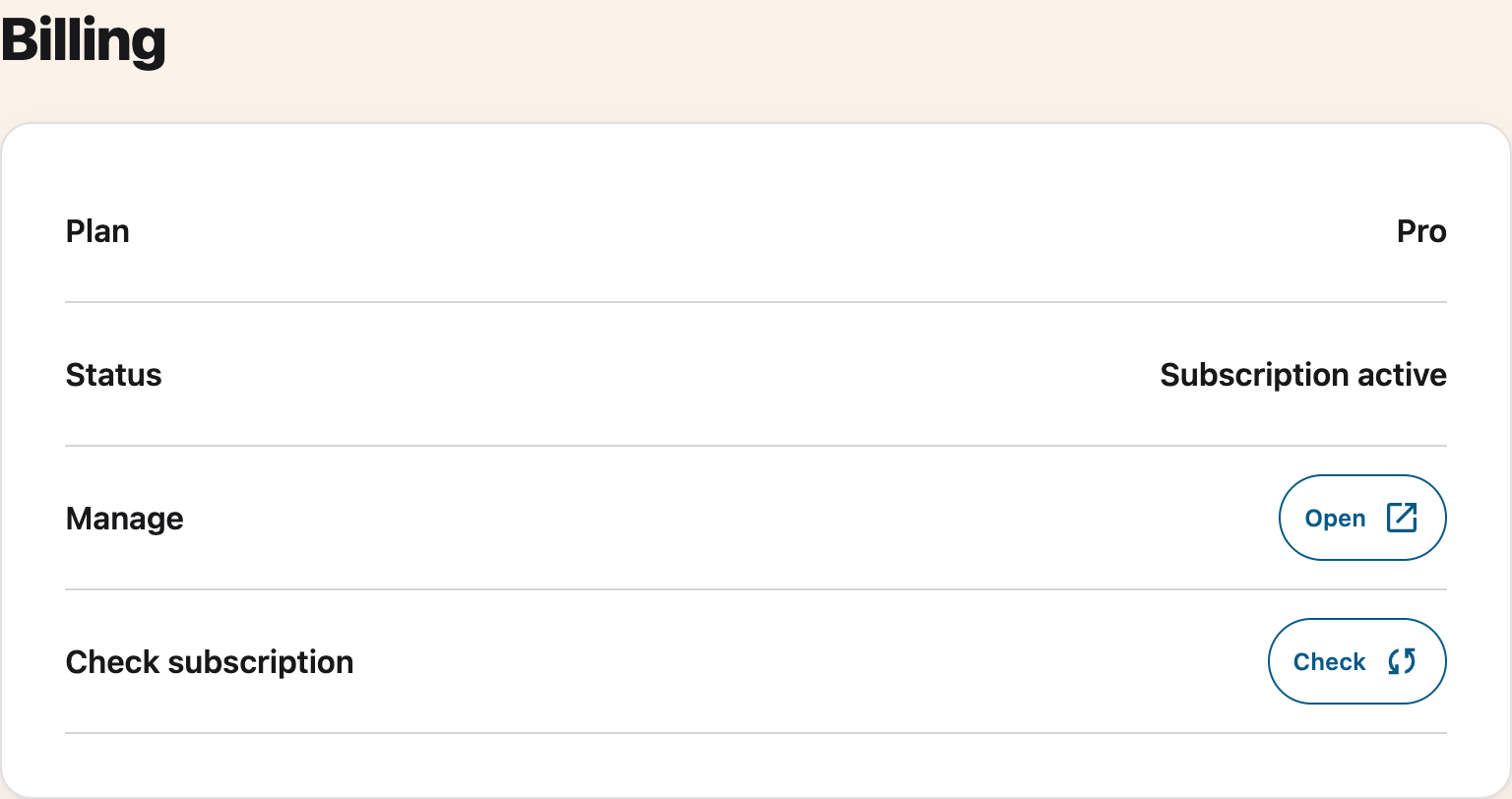
The **Manage** row appears when Helperbird has a billing link for your account, on any supported
browser. School and workplace accounts show **Managed by your organization** instead, because an
administrator owns the billing.
For a website purchase, if that link is unavailable, go to
[the Helperbird billing portal](https://payments.coffeeandfun.com/p/login/cN214adE29toci4bII)
directly. Enter the email address your subscription uses now, not the new one. App Store purchases
use Apple’s account and subscription settings instead.
---
## Step 2: Verify Your Email
Both routes verify your email before opening the portal. Check your inbox and follow the
verification prompt. If it has expired, request a new email.
---
## Step 3: Update Your Email Address
Contact [Helperbird support](/support/) with your current subscription email and the address you
want to use. We will help verify the change and update your subscription.
Have access to the new address before you do this. It is the address the portal will ask for next
time, and the one your receipts go to.
---
## Check That Pro Still Unlocks
Helperbird finds your subscription by email, so changing it can change how Pro unlocks.
- **On Chrome or Edge, if you use email login:** Helperbird reads the email of the browser profile
you are signed into and looks that up on your subscription. Sign that browser profile into the new
address, or switch to a subscription key.
- **If you use a subscription key:** a personal key carries the email it was made for. After you
change the address, [contact support](/support/) for a fresh key and enter that instead.
- **Either way:** open Helperbird's settings page, go to **Billing**, and press **Check** to pull
your subscription again.
School and organization keys are not tied to one person's email, so changing a single address does
not affect them.
---
## Need Additional Help?
If you run into any issues while changing your email, reach out to our friendly
[Helperbird support team](/support/), and we'll help you get it sorted out.
---
## How to Check Your Helperbird Version
URL: https://www.helperbird.com/help/how-to-check-your-helperbird-version/
## Why Check Your Version?
Knowing which version of Helperbird you are running is useful when troubleshooting issues with the
support team, confirming you have the latest features, or checking that an update has been applied.
The version number is always visible on the Settings page.
---
## Step 1: Open Helperbird
Click the Helperbird icon in your browser toolbar. It looks like a small owl and is usually in the
top-right corner of your browser.
This will open the Helperbird menu.
---
## Step 2: Open the Settings Page
Click the **gear icon** in the top-left corner of the Helperbird menu. This will open the Settings
page.
---
## Step 3: Find the Version Number
On the Settings page, look for the **Info** section at the top. The **Version** row shows your
current Helperbird version number, for example **2026.3.20**.
This is the number you should share with the support team if they ask which version you are using.
---
## How to Update Helperbird
Helperbird updates automatically through your browser's extension system. If you want to make sure
you are running the latest version, you can manually check for updates.
**In Chrome**, go to **chrome://extensions**, turn on **Developer mode** in the top right corner,
then click **Update** at the top of the page.
**In Edge**, go to **edge://extensions**, turn on **Developer mode** in the bottom left corner, then
click **Update** at the top of the page.
**In Firefox**, go to **about:addons**, click the gear icon, and select **Check for Updates**.
After updating, go back to the Helperbird Settings page to confirm the version number has changed.
---
## Need Additional Help?
If you have any questions or run into any issues, please contact the Helperbird support team. You
can reach us at [Helperbird support](/support/). We are happy to help you get the most out of
Helperbird.
---
## How to Use Chemistry and Physics Voice Typing in Helperbird
URL: https://www.helperbird.com/help/how-to-use-chemistry-and-physics-voice-typing-in-helperbird/
## What Are Voice Typing Modes?
Use Voice typing to create a draft, write notes beside a PDF, or enter an equation. Four **modes**
change how Helperbird interprets your speech:
- **Regular**: turn speech into a text draft. Review the words before using them.
- **Math**: convert spoken equations into math notation (say "x squared plus y squared" → get
`x² + y²`).
- **Chemistry**: convert spoken chemistry into chemical formulas (say "H two O" → get `H₂O`).
- **Physics**: convert spoken physics into notation with units and vectors (say "nine point eight
metres per second squared" → get `9.8 m/s²`), plus everything Math mode does.
Only one mode is active at a time. Whichever you choose stays set until you change it, and the same
setting follows you between the popup and the PDF reader.
---
## How to Switch Modes
1. Open **Voice typing** in Helperbird. Keep the microphone off while you choose a mode.
2. Open **Options** beside the microphone.
3. In the **Mode** dropdown, choose **Regular**, **Math mode**, **Chemistry mode**, or **Physics
mode**. A badge on the **Options** button shows when a science or math mode is active.
4. Press the microphone and start speaking. Your words are converted as you go.

The screenshot shows **Options** open in the Voice typing panel. You can choose a mode before
starting the microphone.
Switching mode applies to your **next** dictation, so pick the mode before you start speaking.
---
## Chemistry Mode
Chemistry mode turns spoken chemistry into properly formatted formulas and equations.
**Formulas and compounds**
- "H two O" → `H₂O`
- "carbon dioxide" → `CO₂`
- "sulfuric acid" → `H₂SO₄`
- "glucose" → `C₆H₁₂O₆`
- "calcium hydroxide" → `Ca(OH)₂`
**Ions and charges**
- "sulfate" → `SO₄²⁻`
- "ammonium" → `NH₄⁺`
- "sodium ion" → `Na⁺`
**Balanced equations**
- "two H two plus O two yields two H two O" → `2H₂ + O₂ → 2H₂O`
- "N two plus three H two yields two N H three" → `N₂ + 3H₂ → 2NH₃`
The number you say **before** an element stays full-size (it's a coefficient), while a number
**after** an element becomes a subscript, so "two H two O" correctly gives `2H₂O`.
**Isotopes, hydrates, and more**
- "carbon fourteen" → `¹⁴C`, "uranium 235" → `²³⁵U`, "deuterium" → `²H`
- "copper sulfate pentahydrate" → `CuSO₄·5H₂O`
- "aqueous" → `(aq)`, "yields" → `→`, "reversible reaction" → `⇌`
Chemistry mode also recognises all 118 elements by name, common acids and bases, polyatomic ions,
organic groups, and reaction conditions.
---
## Physics Mode
Physics mode does everything Math mode does, and adds units, vectors, and physics constants.
**Units**
- "ten newtons" → `10 N`
- "nine point eight metres per second squared" → `9.8 m/s²`
- "kilometres per hour" → `km/h`
- "fifty joules" → `50 J`
**Vectors and operators**
- "vector F" → `F⃗`
- "unit vector n" → `n̂`
- "vector v cross vector B" → `v⃗ × B⃗`
**Constants and equations**
- "speed of light" → `c`
- "energy equals m c squared" → `energy = m c²`
- "three times ten to the power of eight metres per second" → `3 × 10⁸ m/s`
Because physics is mostly maths plus units, anything Math mode understands, including Greek letters,
fractions, exponents and integrals, works in Physics mode too.
---
## Math Mode
Math mode converts spoken equations into math notation without the chemistry or physics extras. For
a full guide to Math mode, see
[How to Use Speech to Math in Helperbird](/help/how-to-use-speech-to-math-in-helperbird/).
- "x squared plus three x" → `x² + 3x`
- "the integral from zero to one of x squared" → `∫₀¹ x²`
- "square root of 72" → `√72`
---
## Tips for Best Results
- **Pick the mode before you speak.** Mode changes apply to the next dictation session.
- **Speak clearly and check the result.** Chemistry and Physics modes support science vocabulary.
Review formulas, numbers, and units before using them.
- **Say compound names when you can.** "Sulfuric acid" is more reliable than spelling out "H two S O
four".
- **For isotopes, say the element name and number** ("carbon fourteen"), not the symbol, because
that is how Helperbird knows you mean an isotope rather than an atom count.
- **Switch back to Regular** when you're done writing science so ordinary words aren't converted.
---
## Where It Works
Voice typing modes are available in:
- **The popup**: dictate into Helperbird's draft box, then copy the result into your work.
- **The PDF reader**: dictate notes alongside a PDF.
- **The Equation Editor**: dictate equations directly into the math field.
Voice typing is a Helperbird Pro feature.
---
## Related Guides
- [How to Use Speech to Math in Helperbird](/help/how-to-use-speech-to-math-in-helperbird/)
- [How to Use the Equation Editor in Helperbird](/help/how-to-use-the-equation-editor-in-helperbird/)
- [How to Use the Maths Reader in Helperbird](/help/how-to-use-the-maths-reader-in-helperbird/)
- [How to Use Speech to Text on Any Website](/help/how-to-use-speech-to-text-or-dictation-on-any-website/)
---
## Need Additional Help?
If you have any questions or run into any issues, please contact the Helperbird support team. You
can reach us at [Helperbird support](/support/). We are happy to help you get the most out of
Helperbird.
---
## How to Clear Learned Words in Word Prediction
URL: https://www.helperbird.com/help/how-to-clear-learned-words-in-word-prediction/
## Why You Would Do This
Word prediction learns from what you type, so it gets better at suggesting the words you actually
use. The catch is that it cannot tell a word you meant from a word you misspelled. Type the same
typo a few times and it will start offering it back to you as a suggestion.
Clearing the learned words wipes that memory and starts it fresh.
---
## Who is This For?
This is helpful for:
- Anyone whose predictions have started suggesting their own misspellings
- People who share a computer and are getting someone else's words
- Anyone who has been writing about one topic and now wants a clean slate
---
## Step 1: Open Word Prediction Options
Open Helperbird, go to **All Features**, find **Word prediction** and open its options. Scroll down
to **Settings**.
---
## Step 2: Click Clear Learned Words
Click **Clear learned words**.

It happens straight away. Any tabs you already have open pick up the change without needing a
reload.
---
## What It Clears, and What It Keeps
**It clears** learned words, learned word combinations, and preferences built from the suggestions
you selected. These are cleared together, not one word at a time.
**It keeps** the built-in dictionary, your chosen **Topic**, your **Language**, and your **Spelling
corrections** setting. You are not resetting word prediction itself, only the words it picked up
from you.
Your learned words live on the computer you are using. They are not synced, so clearing them on one
machine does not clear them on another. If you use Helperbird in two places, you will need to do it
in both.
---
## Before You Do It
There is no confirmation and no undo, and it is all or nothing. There is currently no way to remove
a single learned word, so if one bad word has crept in, clearing the lot is the only fix. Useful
learned words are cleared too. Learning resumes as you write if learning is enabled. Changing the
Topic does not require clearing your learned words.
See also
[how to use word prediction](/help/how-to-use-word-prediction-on-any-website-or-google-docs/).
---
## Need Additional Help?
If you have any questions or run into any issues, please contact the Helperbird support team. You
can reach us at [Helperbird support](/support/). We are happy to help you get the most out of
Helperbird.
---
## Helperbird Features That Help with Color Blindness
URL: https://www.helperbird.com/help/how-to-use-helperbirds-color-blind-features-on-websites/
## What Helperbird Does and Does Not Do
Helperbird **does not** simulate color blindness, and it does not correct it. There is no protanopia or deuteranopia filter.
What Helperbird does is change how a page presents information, so that less of it depends on color alone. That is the part that causes the most trouble day to day.
The most useful tool for this is **Highlight links**. The rest of this page lists the others.
---
## Who is This For?
This is helpful for:
- Anyone who cannot tell link text apart from ordinary text
- People with red-green color vision deficiency, the most common kind
- Anyone who finds low-contrast pages hard to read
- Anyone who wants stronger, clearer colors on a page
---
## Start Here: Highlight Links
Most websites show a link only by making the text a different color. If you cannot see that color difference, the link is invisible.
**Highlight links** puts a striped bar under every link on the page. The bar is 2 pixels tall and uses four colors: grey, yellow, red and teal. Because it is a shape as well as a color, you can see it whichever colors are hard for you.
To turn it on, open Helperbird, open **All Features**, and switch on **Highlight links**.
See [how to highlight links on any website](/help/how-to-emphasize-links-on-any-website/) for the full steps.
---
## The Other Tools That Help
Table: Other tools that help with color vision, and their guides.
| Tool | What it does | Guide |
| --- | --- | --- |
| High contrast | Increases the difference between the text and the background. | [High contrast](/help/how-to-use-helperbirds-high-contrast-features/) |
| Color overlay | Puts a colored tint over the page. | [Color overlay](/help/how-to-add-a-overlay-to-any-website/) |
| Saturation | Makes the colors on the page stronger, from 100% up to 400%. It cannot make them weaker. | [Saturation](/help/how-to-adjust-color-saturation-on-any-website/) |
| Dark Reader | Darkens the page. It also has a greyscale slider, which removes color completely. | [Dark Reader](/help/how-to-turn-on-dark-mode-in-helperbird/) |
| Link color | Sets your own color for every link, so you choose one you can see. | [Link color](/help/how-to-change-the-link-color-of-a-website/) |
| Text color | Sets your own color for the body text. | [Text color](/help/how-to-change-the-font-color-of-a-website/) |
| Background color | Sets your own page background color. | [Background color](/help/how-to-change-the-background-color-of-a-website/) |
---
## Which One Should You Try First?
Try them in this order. Stop when the page works for you.
1. **Highlight links.** This fixes the most common problem, and it changes nothing else on the page.
2. **Link color.** Use this if you would rather links were a color you can see.
3. **High contrast.** Use this if the whole page is hard to read, not only the links.
4. **Dark Reader with the greyscale slider.** Use this if color is a distraction rather than a help.
You can leave all of them on at once. They are separate settings.
---
## Related Guides
- [Highlight links](/help/how-to-emphasize-links-on-any-website/) - Make links visible without relying on color.
- [High contrast](/help/how-to-use-helperbirds-high-contrast-features/) - Increase the difference between text and background.
- [Color overlay](/help/how-to-add-a-overlay-to-any-website/) - Tint the page.
- [Accessibility profiles](/help/how-to-use-accessibility-profiles-in-helperbird/) - Switch on a set of tools together.
---
## Need Additional Help?
If you have any questions or run into any issues, please contact the Helperbird support team. You can reach us at [Helperbird support](/support/). We are happy to help you get the most out of Helperbird.
---
## How to Use the Colors Panel in Helperbird
URL: https://www.helperbird.com/help/how-to-use-helperbird-color-features/
## What This Does
Open **All Features → Colors**. The panel holds three settings: **Text**, **Links** and
**Background**.

They let you build your own color scheme for any website. Many people who read with dyslexia or low
vision have one combination that works for them. These settings give you that combination on every
page, instead of a preset someone else chose.
All three work the same way. Turn the toggle on, then pick a color from the swatches or set your
own. Each one is separate, so you can use one or all of them.
---
## Who is This For?
- Anyone who reads better on a colored background than on white
- People with low vision who need more contrast than a site gives
- Anyone who finds black text on white tiring
- Anyone who cannot see the color a site uses for its links
---
## The Three Settings
Table: What each color setting changes, and where to read more.
| Setting | What it changes | Guide |
| ---------- | -------------------------------------------------------------------------------------------- | -------------------------------------------------------------------------- |
| Background | The page background color. | [Background color](/help/how-to-change-the-background-color-of-a-website/) |
| Text | The color of the text. It leaves links alone, which is why Link color is a separate setting. | [Text color](/help/how-to-change-the-font-color-of-a-website/) |
| Links | The color of every link. It has a second color for links you have already visited. | [Link color](/help/how-to-change-the-link-color-of-a-website/) |
To mark selected text, use **Highlighter** in All Features. Its separate palette controls highlight
colors. See
[how to choose a highlight color](/help/how-to-change-the-highlight-color-of-a-website/).
Set Background and Text together. One without the other can leave you with text you cannot read.
---
## Pick a Color
Turn on the setting you want, then choose one of seven rainbow swatches: red, orange, yellow, green,
blue, indigo or violet. Select **Choose custom color** to open the color picker for another shade,
including black or white.

The swatches stay in one row. In a narrow panel, scroll sideways to reach the remaining choices.
Keyboard focus also brings a choice into view. Your saved custom color stays selected until you
choose another.
Ruler and overlay color controls use the same row. Some controls, such as the beta word-highlighting
color, offer presets without a Custom option.
## If You Would Rather Use a Preset
Two other Helperbird tools give you a color change in one step.
- **[Color overlay](/help/how-to-add-a-overlay-to-any-website/)** puts a colored tint over the whole
page. The page keeps its own colors underneath.
- **[Reading Mode](/help/how-to-use-reading-mode-and-remove-ads-on-any-website/)** shows the main
article with your enabled text settings.
---
## Related Guides
- [Color blindness](/help/how-to-use-helperbirds-color-blind-features-on-websites/) - Which
Helperbird tools help when color is hard to see.
- [Dark mode](/help/how-to-turn-on-dark-mode-in-helperbird/) - Darken the page without setting
colors by hand.
---
## Need Additional Help?
If you have any questions or run into any issues, please contact the Helperbird support team. You
can reach us at [Helperbird support](/support/). We are happy to help you get the most out of
Helperbird.
---
## How to Split Text into Columns on Websites
URL: https://www.helperbird.com/help/how-to-set-the-column-width-on-any-page/
## What Happened to Paragraph Columns?
Helperbird used to have a Paragraph columns feature. It lived in the **Paragraphs** panel as a **Text columns** toggle, and it split the text on a webpage into two or more narrow columns, like a newspaper.
That feature has been removed. The toggle is no longer in the popup, and there is no setting to bring it back.
The reason people used it still matters. Shorter lines are easier to track, so your eyes do not get lost on the way from one line to the next. Helperbird still gives you shorter lines, without the column layout.
---
## What to Use Instead
- **[Paragraph width](/help/how-to-adjust-paragraph-width-on-any-website/).** Narrows every paragraph on the page to a width you choose. You get one column of short, comfortable lines instead of several. This is the closest match to what Paragraph columns did.
- **[Reading Mode](/help/how-to-use-reading-mode-and-remove-ads-on-any-website/).** Rebuilds the page as one clean column of text, with ads, menus, and sidebars stripped out. Pick this when the whole page feels cluttered, not only the line length.
---
## How to Get Shorter Lines Now
Paragraph width does the same job Paragraph columns did, with one column instead of several:
1. Open the page you want to read.
2. Click the Helperbird icon in your browser toolbar.
3. Scroll down to **All Features** and expand it.
4. Click **Open** on the **Paragraphs** row.
5. Turn on the **Width** toggle. If you use the search bar instead, look for **Line width**.
6. Move the slider to the left until the lines feel comfortable.
For screenshots of every step, see the full [Paragraph width guide](/help/how-to-adjust-paragraph-width-on-any-website/).
---
## Need Additional Help?
If you have any questions or run into any issues, please contact the Helperbird support team. You can reach us at [Helperbird support](/support/). We are happy to help you get the most out of Helperbird.
---
## How to Contact Helperbird Support
URL: https://www.helperbird.com/help/how-to-contact-helperbird-support/
Need help with Helperbird? Our support team is here to assist you. Here's how to reach us.
---
## Email Support
The fastest way to get help is to email us directly.
**Email:** support@helperbird.com
Send us a message and we'll get back to you as quickly as possible, usually within 24-48 hours.
---
## Support Form
### Step 1: Visit the Support Page
Go to the [Helperbird support page](/support/).
---
### Step 2: Fill Out the Form
Enter your name, email address, and describe your issue or question in the message field.
---
### Step 3: Submit
Click **Send** and we'll respond to your email.
---
## Tips for Faster Help
To help us resolve your issue quickly, please include:
**Browser and Version**
Let us know which browser you're using (Chrome, Edge, Firefox, Safari) and the version number.
**Description of the Issue**
Tell us what's happening, what you expected to happen, and any error messages you see.
**Steps to Reproduce**
If you can, list the steps that lead to the problem so we can recreate it.
**Screenshots**
A screenshot can help us understand the issue faster.
**Subscription Status**
Let us know if you're using Helperbird Free or Pro so we can check your account.
---
## Need Additional Help?
We're always happy to help! Reach out to our [Helperbird support team](/support/) anytime.
---
## How to Copy a Document in the Helperbird Notepad
URL: https://www.helperbird.com/help/how-to-copy-a-document-in-the-helperbird-notepad/
## What This Does
**Copy** makes a second, identical document in your list. The original is left exactly as it was, so
you can change the copy freely.
---
## Who is This For?
This is helpful for:
- Anyone about to make big changes who wants the old version kept
- Students keeping a first draft alongside a rewrite
- Anyone reusing the same starting point again and again, like a weekly template
---
## Step 1: Open the Document
Open the document you want to duplicate, using
**[View](/help/how-to-open-a-saved-document-in-the-helperbird-notepad/)** if it is not already on
screen.
---
## Step 2: Click Copy
Click **Copy** in the toolbar. It is the two overlapping squares, between Save and Delete.

A duplicate is added to your saved documents. Open it from **View** and edit it without touching the
original.
---
## About the Message You See
After copying, Helperbird shows a message reading "Copied to clipboard". That wording is misleading:
nothing is placed on your clipboard, and you cannot paste the document elsewhere with Ctrl+V or
Cmd+V.
What actually happened is that a duplicate was added to your documents list. To get your writing
onto the clipboard instead, select it on the page and copy it the normal way, or
[download it](/help/how-to-download-your-notepad-document/).
---
## Need Additional Help?
If you have any questions or run into any issues, please contact the Helperbird support team. You
can reach us at [Helperbird support](/support/). We are happy to help you get the most out of
Helperbird.
---
## How to Copy an Equation from Helperbird
URL: https://www.helperbird.com/help/how-to-copy-an-equation-from-helperbird/
## What This Does
Copying takes the equation you have written and puts it on your clipboard, in one of three formats.
Which one you want depends entirely on where you are about to paste it.
---
## Who is This For?
This is helpful for:
- Students pasting an equation into an assignment
- Anyone moving maths into a document, a slide or a web page
- People who need maths that a screen reader can still read
---
## Step 1: Write Your Equation
Write it in the editor first. See
[how to write an equation](/help/how-to-write-an-equation-in-helperbird/).
---
## Step 2: Open Copy
Click **Copy** in the toolbar and pick a format.
---
## Which Format Should You Pick?
**Copy as LaTeX** gives you the plain-text version, like `E = mc^2`. Pick this for anywhere that
understands LaTeX: a maths forum, a document written in LaTeX, or to paste back into this editor
another day.
**Copy as MathML** gives you the equation as structured maths. Pick this when it needs to stay
readable by a screen reader, or when you are pasting into a web page or a Word document where the
maths should remain real maths rather than a picture. This is the accessible choice.
**Copy as image** gives you a picture of the equation. Pick this when nothing else will paste
properly, such as a chat message or a slide. Be aware that a picture cannot be read by a screen
reader and cannot be edited afterwards, so it is the last resort rather than the default.
If you need a file rather than a clipboard copy,
[download it as an image](/help/how-to-download-an-equation-as-an-image/) instead.
---

---
## Need Additional Help?
If you have any questions or run into any issues, please contact the Helperbird support team. You
can reach us at [Helperbird support](/support/). We are happy to help you get the most out of
Helperbird.
---
## How to Change the Cursor Size in Google Chrome, Firefox, or Edge
URL: https://www.helperbird.com/help/how-to-change-the-cursor-size-in-google-chrome-firefox-or-edge/
## What is Cursor Size?
The Cursor Size feature lets you make your mouse pointer larger than normal. A bigger cursor is
easier to spot and follow as you move it around the screen.
This replaces the small default cursor with a larger, more visible version.
---
## Who is This For?
This feature is helpful for:
- People with low vision who have trouble seeing the standard cursor
- Anyone who loses track of their cursor on the screen
- People using high-resolution displays where cursors appear small
- Anyone with motor difficulties who needs a larger target
- People who find the default cursor too small
---
## Step 1: Open Helperbird
Click the Helperbird icon in your browser toolbar. It looks like a small owl and is usually in the
top-right corner of your browser.
This will open the Helperbird menu.
---
## Step 2: Open the All Features Section
Scroll down to the bottom of the Helperbird menu. You will see a section called **All Features**.
Click the arrow next to **All Features** to expand it and show all available features.
---
## Step 3: Find Display Options
Look through the list of features until you see **Display**.
---
## Step 4: Open Display Options
Click on **Display** to open it.
A panel will appear showing various display settings you can adjust.
---
## Step 5: Turn on Cursor Size
In the Display panel, look for **Cursor size**.
Click the toggle switch next to it to turn it **on**. The toggle will turn green when it is enabled.
---
## Step 6: Adjust the Size
Once Cursor size is turned on, a slider will appear below the toggle.
Drag the slider to the right to make the cursor larger. Drag it to the left to make it smaller.
A label will show you the current size setting (Small, Medium, Large, etc.).
The change happens immediately so you can see the new cursor size right away.
**Tip:** If you have a high-resolution display, you may want to use a larger cursor size. The
default cursor can look very tiny on 4K monitors.

---
## Video Tutorial
Coming soon
---
## Need Additional Help?
If you have any questions or run into any issues, please contact the Helperbird support team. You
can reach us at [Helperbird support](/support/). We are happy to help you get the most out of
Helperbird.
---
## How to Customize Quick Actions
URL: https://www.helperbird.com/help/how-to-favorite-a-feature-in-helperbird/
Quick Actions puts your most-used Helperbird features right at your fingertips. Instead of searching
through menus, you can access everything you need in one spot.
Here's how to customize it.
---
## Step 1: Open Helperbird
Click the Helperbird icon in the top right corner of your browser. The Helperbird menu will open,
showing your current Quick Actions at the top with icon boxes.
---
## Step 2: Add Your Favorite Features
Look for the **Quick Actions button** near the top of Helperbird, beside the icon boxes. It looks
like a small grid of squares with a **plus sign (+)**, and says "Quick actions" when you hover over
it. Click it.
A list of all available features will appear. Browse through and click any feature you want to add
to Quick Actions. A **green checkmark** will appear on the right of the feature to show it has been
added.
The feature will instantly appear in your Quick Actions area.
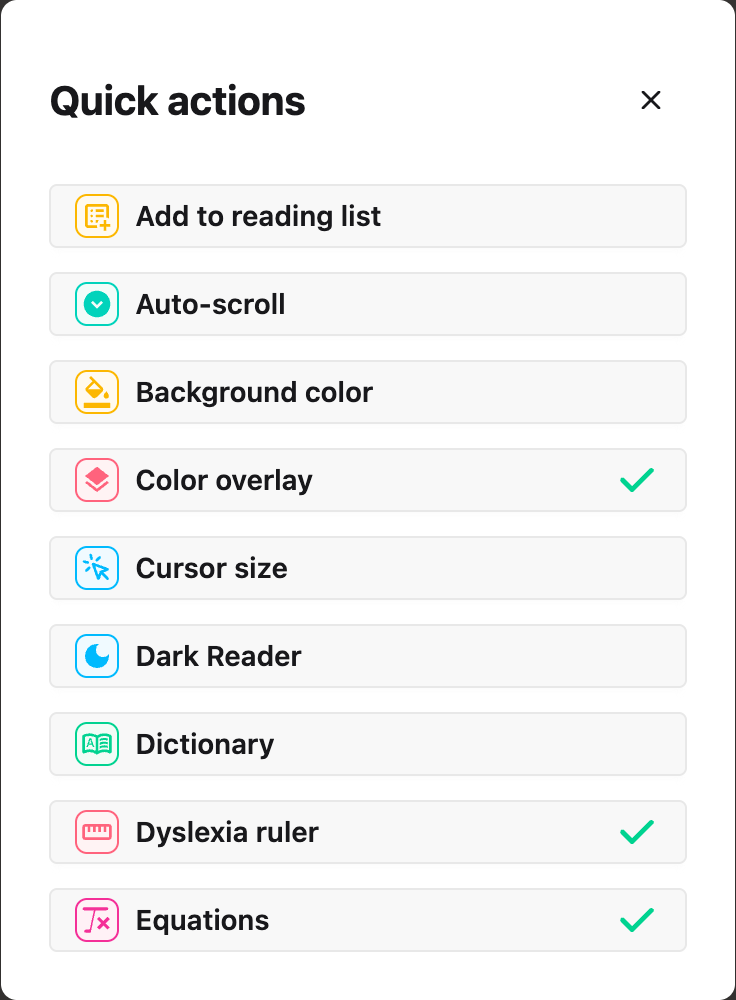
---
## Step 3: Remove Features You Don't Need
If you want to remove a feature from Quick Actions, click the **Quick Actions button** again.
Find the feature you want to remove in the list and click it. The **green checkmark** will go away,
and the feature will disappear from your Quick Actions area right away.
**Tip:** Add the features you use every day to Quick Actions. It saves you time and keeps the tools
you rely on in one place.
---
## Video Tutorial
Coming soon
---
## Need Additional Help?
If you run into any issues while customizing your Quick Actions, reach out to our
[Helperbird support team](/support/) and we'll help you out!
---
## How to Turn On Dark Mode in Helperbird
URL: https://www.helperbird.com/help/how-to-turn-on-dark-mode-in-helperbird/
## What is Dark Mode?
Dark Mode changes websites to use dark colors instead of bright white backgrounds. This makes
websites easier on your eyes, especially when browsing in low-light conditions or at night.
Dark Mode inverts the colors on websites so that light areas become dark and dark text becomes
light.
---
## Who is This For?
This feature is helpful for:
- People who browse at night or in dimly lit rooms
- Anyone who finds bright screens uncomfortable
- People who experience eye strain from light backgrounds
- Anyone who prefers dark-themed interfaces
- People who want to reduce screen brightness
---
## Step 1: Open Helperbird
Click the Helperbird icon in your browser toolbar. It looks like a small owl and is usually in the
top-right corner of your browser.
This will open the Helperbird menu.
---
## Step 2: Open the All Features Section
Scroll down to the bottom of the Helperbird menu. You will see a section called **All Features**.
Click the arrow next to **All Features** to expand it and show all available features.
---
## Step 3: Find Dark Reader
Look through the list of features until you see **Dark reader**.
It has a moon icon next to it.
---
## Step 4: Open Dark Reader Settings
Click on **Dark reader** to open it.
A settings panel will appear with options to configure Dark Mode.
---
## Step 5: Turn on Dark Mode
In the Dark Reader panel, you will see a toggle switch at the top.
Click the toggle switch to turn Dark Mode **on**. The toggle will turn green when it is enabled.
The current webpage will immediately switch to a dark color scheme.
---
## Step 6: Customize Settings
You can adjust how Dark Mode looks using the sliders in the panel:
- **Brightness** - Adjust how bright or dim the dark theme appears
- **Contrast** - Change the difference between light and dark elements
- **Grayscale** - Add a grayscale effect to reduce color intensity
- **Sepia** - Add a warm sepia tone to the dark theme
Experiment with these settings to find what is most comfortable for your eyes.
**Tip:** Dark Mode works great when combined with the Reduce Motion feature if you also want a
calmer browsing experience.

---
## Need Additional Help?
If you have any questions or run into any issues, please contact the Helperbird support team. You
can reach us at [Helperbird support](/support/). We are happy to help you get the most out of
Helperbird.
---
## How to Turn On Dark Mode for the Helperbird Menu
URL: https://www.helperbird.com/help/how-to-turn-on-dark-mode-for-the-helperbird-menu/
## What is Dark Mode for the Menu?
Dark Mode changes the Helperbird menu itself to a dark color scheme. The buttons, panels and text you see when you open Helperbird become dark instead of light.
This only changes how Helperbird looks. The websites you visit are not affected.
---
## Who is This For?
This is helpful for:
- People who find bright panels uncomfortable, especially at night
- Anyone with light sensitivity or visual stress
- People who already use a dark theme everywhere else and want Helperbird to match
- Anyone who finds dark backgrounds easier to focus on
---
## Step 1: Open Helperbird
Click the Helperbird icon in your browser toolbar. It looks like a small owl and is usually in the top-right corner of your browser.

---
## Step 2: Open Settings
Click the **gear icon** in the top left of the Helperbird menu. The **Options** list opens.

---
## Step 3: Find Dark Mode
Look down the Options list until you see **Dark mode**, just below **Shortcuts**.

---
## Step 4: Turn on Dark Mode
Click the switch next to **Dark mode**. The Helperbird menu uses its dark colors. If the open panel still looks light, close and reopen Helperbird.
Click the same switch again at any time to go back to the light menu.
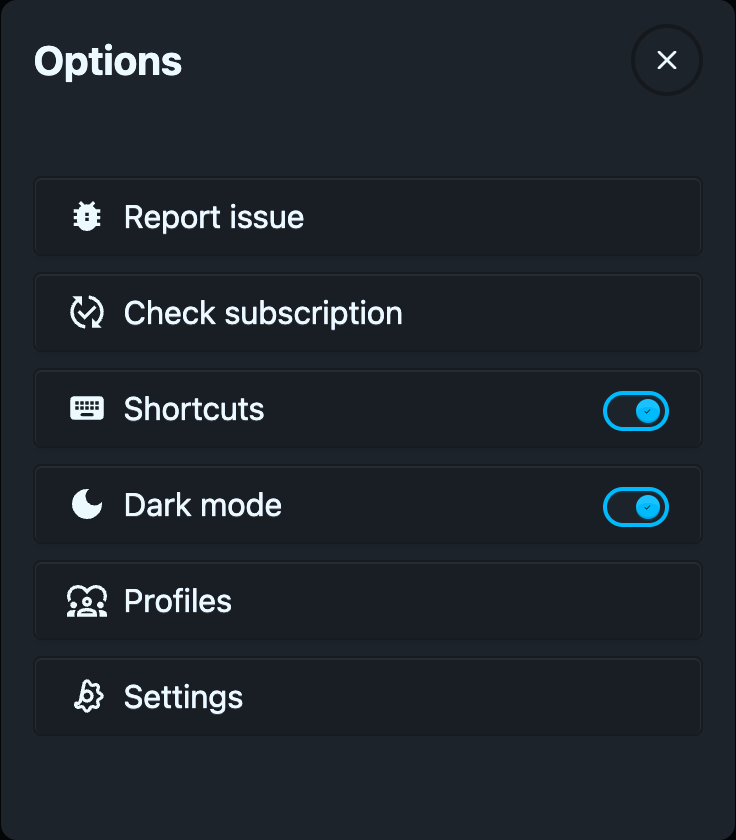
---
## Dark Mode or Dark Reader?
These are two different things, and it is easy to mix them up:
- **Dark mode**, on this page, changes **the Helperbird menu**.
- **[Dark Reader](/help/how-to-turn-on-dark-mode-in-helperbird/)** changes **the websites you visit**, turning bright pages dark.
You can use either on its own, or both together.
---
## Need Additional Help?
If you have any questions or run into any issues, please contact the Helperbird support team. You can reach us at [Helperbird support](/support/). We are happy to help you get the most out of Helperbird.
---
## Where Helperbird Stores Your Data
URL: https://www.helperbird.com/help/helperbird-data-hosting/
## Overview
Helperbird uses browser storage for preferences and saved content, with local and supported account-sync modes. PDF recovery is device-local. Some reading and writing features send selected content to online services to produce a result; those requests are separate from where your settings are saved.
This page explains exactly what is stored, where it is stored, and what happens when data is sent over the network.
---
## What Is Stored on the Device
Settings use the selected local or sync storage mode. The following preferences are stored by the browser:
### Font Preferences
Font family, size, and weight settings chosen by the user.
### Color Settings
Background color, text color, and link color preferences.
### Feature Toggles
Settings for features like reading ruler, overlay, line focus, and other tools.
### Accessibility Profiles
Saved profiles that bundle multiple settings together.
### Theme Preferences
Any theme or display preferences the user has configured.
### Custom Settings
Any other settings the user has configured in Helperbird.
With local mode selected, these settings stay in the browser's extension storage. With Sync enabled, supported browsers use their account-sync service. This is separate from a website's cookies and storage.
### PDF Recovery
The PDF Reader keeps one current PDF and its editing state in device-local browser storage (IndexedDB). Opening another PDF replaces that recovery session. This recovery copy does not sync across devices and is not an upload to Helperbird. Download your annotated PDF to keep a separate copy.
---
## What Is Never Collected
Helperbird does not collect, keep or sell any of the following:
- Page content or browsing history
- Student names, dates of birth, or student IDs
- Health information or special education designations
- A record of what you had read aloud, translated, captured or simplified
Some features do send content to a processor to do their work. That is set out
in full below. **Sent is not the same as stored.** Nothing in the list above is
retained after the request finishes, and none of it is used to train a model.
---
## Which Features Use the Network
This is the whole list. Every other Helperbird feature, including fonts,
colors, rulers, overlays, line focus, the magnifier, reading mode and
accessibility profiles, runs entirely on the device and makes no network call
at all.
Table: Which features use the network, where the data goes, and whether it is kept.
| Feature | Leaves the device? | Goes to | Kept after processing |
| --- | --- | --- | --- |
| Word prediction | No | Runs on the device | Nothing sent |
| Text-to-speech, **standard voice** | No | Your browser's own voices | Nothing sent |
| Text-to-speech, **natural voice** | Yes | Microsoft Azure | No |
| Voice typing | Yes | Microsoft Azure | No |
| Immersive Reader | Yes | Microsoft Azure | No |
| Screenshot Reader | Yes | Helperbird API, then OpenAI | No. Zero retention. |
| Translate | Yes | Helperbird API, then OpenAI | No. Zero retention. |
| Simplify, Summarize, Grammar | Yes | Helperbird API, then OpenAI | No. Zero retention. |
| Dictionary | Yes | Helperbird API | No |
| License check | Yes | Helperbird API | Subscription state only |
All of it travels over HTTPS.
### The two that need explaining
**Text-to-speech depends on which voice you pick.** The standard voices are the
ones already installed on your computer. Choosing one keeps everything on the
device, and no text is sent anywhere. The natural voices are generated by
Microsoft Azure, so the text you are reading is sent there to be spoken. If your
organization needs reading aloud to stay entirely on the device, use the
standard voices.
**Voice typing sends live audio.** While the microphone is on, audio streams to
Microsoft Azure to be turned into text. It is not recorded and it is not kept.
The microphone only runs while you have voice typing switched on.
### Zero retention, with both processors
Helperbird holds a **signed zero data retention agreement with OpenAI and with
Microsoft Azure**, and zero retention is switched on in both accounts.
That means, for every request in the table above:
- The content is used only to produce the answer, and is then discarded.
- Nothing is written to a log or held on either provider's side.
- Nothing is used to train any model.
This applies to the audio from voice typing and the images from the Screenshot
Reader exactly as it applies to text. Audio is never recorded, and a captured
image is never stored.
If your organization needs the agreements themselves for a procurement or
privacy review, ask us and we will provide them.
---
## Turning Network Features Off
Any of these can be switched off for a whole school or district through managed
JSON policy, so they never make a request in the first place. See
[how to disable Helperbird features using JSON policy](/help/how-to-disable-helperbird-features-though-json-policy/).
Turning them all off leaves a Helperbird that works entirely on the device.
---
## Admin-Managed Settings
When a school admin deploys Helperbird through the Google Admin Console or Microsoft Intune, the subscription key and feature policies are delivered through `chrome.storage.managed`. This is a read-only storage area controlled by the admin.
Managed values include the subscription key, admin control flag, disabled features, excluded domains, toolbar defaults, and word-highlighting settings. Subscription keys are sent to Helperbird's licensing service for validation; delivery through MDM does not make licensing an offline process.
Safari uses its native Apple configuration bridge instead of `chrome.storage.managed`. Raw managed keys are not copied into extension sync storage, personal settings exports, or debug exports. Managed status and allowed feature metadata remain separate from personal settings. See [Safari deployment on Mac](/help/deploy-helperbird-with-jamf-macos/#safari-on-mac) and [iPhone/iPad managed settings](/help/how-to-use-helperbird-on-ipad-in-the-classroom/#managed-settings-for-ipad-and-iphone).
For details on setting up managed policies, see [How to Set Helperbird JSON Policy in Google Admin](/help/set-helperbird-json-policy-in-google-admin/).
---
## Sync Settings
If a user turns on the **Sync Helperbird** toggle in settings, their preferences are synced across devices using Chrome's built-in `chrome.storage.sync`. This uses the user's own Google account sync infrastructure. Helperbird does not operate its own sync server.
When sync is off (the default), all settings stay on the current device only.
For more details, see [Sync or Store Data Locally in Helperbird](/help/sync-data-locally-or-remote-helperbird/).
---
## Data Deletion
- **Uninstalling Helperbird** removes all local extension storage from the device.
- **Clearing browser data** in Chrome settings can also remove extension storage.
- **Admin-managed settings** are removed when the admin removes the policy from Google Admin or Intune.
- If your organization needs a formal data deletion confirmation, contact Helperbird support.
---
## Related Guides
- [Sync or Store Data Locally in Helperbird](/help/sync-data-locally-or-remote-helperbird/)
- [Helperbird PHIPA and MFIPPA Compliance](/help/helperbird-phipa-and-mfippa-compliance/)
- [How to Use Helperbird Offline](/help/how-to-use-helperbird-offline/)
- [How to Deploy Helperbird to Your School or Business](/help/how-to-deploy-helperbird-to-your-school-or-business/)
- [How to Set Helperbird JSON Policy in Google Admin](/help/set-helperbird-json-policy-in-google-admin/)
---
## Need Additional Help?
If you have any questions about data hosting, privacy, or storage, please contact the Helperbird support team. You can reach us at [Helperbird support](/support/). We are happy to provide additional documentation as needed.
---
## Helperbird Declarative MDM Setup for iPhone and iPad
URL: https://www.helperbird.com/help/helperbird-iphone-ipad-declarative-management/
Declarative device management (DDM) can deliver Helperbird settings directly to its Safari extension on supported iPhones and iPads. This route avoids the periodic containing-app refresh required by [legacy managed app configuration](/help/helperbird-iphone-ipad-managed-app-configuration/).
It uses Apple's ManagedApp configuration, a private settings asset and an extension configuration entry. It is not a standalone `.mobileconfig` file you install by tapping a download.
## Before You Start
- iOS or iPadOS **18.4 or later**, for Helperbird's ManagedApp reader.
- An MDM deployment that supports ManagedApp data assets and `ExtensionConfigs`. General DDM support alone is not enough.
- A signed Helperbird build containing the **2026.9.6 managed-settings support**.
- The Safari extension's bundle ID and signing team ID, verified for your release.
- A managed app installation and a way to deliver its declarations through your MDM.
App installation and Safari extension enablement are separate from these settings. Confirm support with your deployment contact and pilot the signed app on enrolled devices before a fleet rollout.
## Step 1: Create the Settings Asset
1. Open the [Helperbird policy builder](/help/json-policy-validator/).
2. Choose **Safari on iPhone & iPad**.
3. Select **Declarative MDM: plist + extension fragment**.
4. Enable organization control and choose the settings to deliver.
5. Download the settings plist.
The settings use the same typed dictionary as [legacy AppConfig](/help/helperbird-iphone-ipad-managed-app-configuration/#step-1-create-the-app-configuration). `isAdminControl` must be `true`; `subKey` is optional. For all available fields, see the [Apple managed settings reference](/help/helperbird-macos-mobileconfig/#settings-you-can-manage).
Publish the plist through your MDM's **private data asset** process, using declaration type `com.apple.asset.data` and content type `application/x-plist`. Your MDM supplies the asset identifier and its delivery details.
A plist containing a subscription key must not be hosted at a publicly readable URL. Do not substitute a public website download link for your MDM's private asset setup.
## Step 2: Target the Safari Extension
Enter the private data asset identifier and verified signing team ID in the builder. Select **Download DDM fragment**.
The resulting fragment has this shape. `TEAMID1234` is an example placeholder, not Helperbird's release team ID:
```json
{
"ExtensionConfigs": {
"com.helperbird.Helperbird.Extension (TEAMID1234)": {
"DataAssetReference": "com.school.helperbird.settings"
}
}
}
```
Replace the team ID with the one from the signed release, and the asset reference with the declaration identifier your MDM created. The composed identifier includes a space before the parentheses.
Add this fragment to the managed app's `com.apple.configuration.app.managed` declaration using your MDM's workflow. Retain the declaration's existing app installation, identity and asset setup. **The fragment is not a complete declaration.**
Target the Safari extension under `ExtensionConfigs`. Supplying only `AppConfig` to `com.helperbird.Helperbird` does not feed this direct extension route.
Apple documents the relationship between the managed app, configuration assets and extension identifiers in [Configuring managed apps and extensions](https://developer.apple.com/documentation/devicemanagement/configuring-managed-apps-and-extensions).
## Step 3: Deploy and Verify
1. Assign the app declaration and its private asset to a test iPhone or iPad.
2. Check declaration status in your MDM, including asset delivery.
3. Enable Helperbird in Safari if it is not already enabled.
4. Open a normal website and verify one configured feature.
5. If the policy supplies a subscription key, check Pro status while online.
6. Change a feature without changing the key and confirm that the new setting arrives.
The extension observes ManagedApp updates and refreshes policy periodically while its background runs. Sleep, suspension and network loss can delay delivery. Unlike legacy AppConfig, this route does not need the containing app's weekly refresh.
## Change or Remove a Declaration
Use your MDM's declaration update process for policy edits and key rotation. To release management, deliver `isAdminControl: false` in the settings dictionary or remove the configuration through that same route. Verify the result on a connected test device.
An empty `subKey` releases managed licensing while keeping other feature settings active. Removing management restores personal settings and any personal subscription.
Once this installation has received DDM configuration, Helperbird continues to treat DDM as authoritative across restarts. It does not fall back to an old legacy AppConfig key when the declaration disappears.
If you must return to legacy AppConfig, arrange a reinstall or re-enrollment pilot with your deployment team. Preserve user work first and confirm the migration steps with support. Do not attempt the switch by pushing both configurations at once.
## Troubleshooting
**No settings arrive:** verify OS support, the signed app version, asset delivery and the composed extension identifier.
**Your MDM cannot accept the fragment:** it may support DDM without exposing ManagedApp extension configuration. Ask your MDM provider about `ExtensionConfigs`, or use the [legacy AppConfig route](/help/helperbird-iphone-ipad-managed-app-configuration/) on a suitable installation.
**Settings validate in the builder but do not apply:** the builder checks file structure. It cannot check enrollment, signing, asset permissions or subscription validity.
**An offline device keeps old restrictions:** delivery failure is not a confirmed policy removal. Bring the device online and check that it receives the updated declaration.
## Need Additional Help?
Contact [Helperbird support](/support/) with your app version, OS version and MDM. Share configuration structure with subscription keys removed.
For MDM implementation details, see [Apple's ManagedApp configuration documentation](https://developer.apple.com/documentation/managedapp/specifying-and-decoding-a-configuration) and [Jamf's ManagedApp and Blueprints guide](https://developer.jamf.com/jamf-pro/docs/test-apps-with-managedapp-and-blueprints).
---
## How to Delete a Document in the Helperbird Notepad
URL: https://www.helperbird.com/help/how-to-delete-a-document-in-the-helperbird-notepad/
## What This Does
**Delete** removes the document you have open from your saved documents.
---
## Who is This For?
This is helpful for:
- Anyone tidying up old drafts
- Students clearing out finished assignments
- Anyone who has run out of room to save because of large old documents
---
## Before You Delete
There is no undo, and deleted documents do not go to a recycle bin. If there is any chance you will
want the writing again, [download it](/help/how-to-download-your-notepad-document/) as a Word or
text file first. That takes a few seconds and the file is yours to keep.
---
## Step 1: Open the Document
Open the one you want to remove, using
**[Open document](/help/how-to-open-a-saved-document-in-the-helperbird-notepad/)**.
Check the page carefully before the next step, because Delete acts on whatever is currently open.
---
## Step 2: Click Delete
Click **Delete** in the toolbar. It is the bin icon, beside Download.

The document is removed from your list.
---
## Need Additional Help?
If you have any questions or run into any issues, please contact the Helperbird support team. You
can reach us at [Helperbird support](/support/). We are happy to help you get the most out of
Helperbird.
---
## Deploy Helperbird via Google Admin Console
URL: https://www.helperbird.com/help/how-to-deploy-helperbird-to-your-school-or-business/
This is the plan for one school or one business. Most start in the Google Admin
console, but the parts below are the same whichever tool you manage with.
Rolling out across several schools at once? Read
[deploy Helperbird to an entire school district](/help/how-to-deploy-helperbird-to-an-entire-school-district/).
---
## What a Deployment Is Made Of
A rollout is four separate things, not one. Each has its own guide.
Table: The four parts of a Helperbird rollout and where each one is covered.
| Part | What it does | Guide |
| --- | --- | --- |
| The install | Puts Helperbird on managed devices without asking users to do anything | [Force install Helperbird](/help/forcing-the-installation-of-the-helperbird-extension/) |
| The subscription key | Turns Helperbird Free into Helperbird Pro for everyone the policy covers | [Setting Chrome storage managed keys](/help/setting-chrome-storage-managed-keys/) |
| Your settings | Turns features off, keeps Helperbird off named sites, shows the Floating Toolbar | [Disable features with JSON policy](/help/how-to-disable-helperbird-features-though-json-policy/) |
| The check | Confirms the policy reached the browser | [Verify a managed deployment](/help/verify-helperbird-managed-deployment/) |
The install and the key are two different fields in your console. Adding the
extension does not carry your subscription key with it.
---
## What You Need Before You Start
- **Admin access** to the console you manage browsers with. Chrome and ChromeOS
use the
[Google Admin console](/help/installing-helperbird-extension-through-the-g-suite-admin-panel/).
For Windows, macOS or Firefox, pick your tool from the
[force install guide](/help/forcing-the-installation-of-the-helperbird-extension/).
- **The extension ID** for the browser you are configuring. Chrome, Edge and
Firefox each have a different one, listed on that same force install guide.
- **Your organization subscription key**, if you have bought Pro. See
[Helperbird Unlimited license management](/help/helperbird-unlimited-license-management/).
On a managed browser your users need nothing. No sign in, no key to type, no
download to run.
---
## The Order to Do It In
Push the install first, then the key. Sending both at once is fine too.
If the key lands after the install, Helperbird sees the policy change and
rechecks the license on its own. Pro turns on without a reinstall and without
anyone signing out. Turning `isAdminControl` back to `false` later takes the key
away again, and those users fall back to their own subscription or to Free. See
[what isAdminControl does](/help/setting-chrome-storage-managed-keys/#what-isadmincontrol-does)
for what else that switch removes.
Start with a small group rather than the whole organization. See
[install Helperbird for specific users](/help/installing-helperbird-to-certain-users/).
Then confirm it landed with
[verify and troubleshoot a managed deployment](/help/verify-helperbird-managed-deployment/).
---
## Related Guides
- [Deploy Helperbird to an entire school district](/help/how-to-deploy-helperbird-to-an-entire-school-district/)
- [Force pin the Helperbird extension](/help/pinning-helperbird-for-all-users/)
- [Allowlist Helperbird when extensions are blocked](/help/allowlist-helperbird-when-extensions-blocked/)
---
## Need Additional Help?
Ran into a snag while getting started? No worries at all. Reach out to our friendly [Helperbird support team](/support/), and we'll help you smooth things out in no time.
---
## How to Deploy Helperbird on Microsoft Edge
URL: https://www.helperbird.com/help/helperbird-edge-enterprise-deployment/
Microsoft Edge is built on Chromium, so deploying Helperbird works much like Chrome, but it uses the **Edge** extension ID and the Edge policy keys. This guide covers both Microsoft Intune and Windows Group Policy.
---
## Before You Start
- Helperbird's **Microsoft Edge** extension ID: `bkibfggdahioahpokehoiimdmdjefjmd`
(This is the Edge Add-ons ID, it is **not** the same as the Chrome ID.)
- Either a **Microsoft Intune** subscription, or domain-joined PCs managed with **Active Directory Group Policy**.
---
## Option A: Microsoft Intune
The full Intune walkthrough (force-install + subscription key) lives in our dedicated guide, which leads with Edge:
**[Deploy Helperbird using Microsoft Intune](/help/helperbird-intune-deployment/)**
In short: create a **Settings catalog** profile (Windows 10 and later) → **Microsoft Edge > Extensions > Control which extensions are installed silently** → add `bkibfggdahioahpokehoiimdmdjefjmd`. Because Helperbird is in the Edge Add-ons store, the ID alone is enough, no update URL needed.
---
## Option B: Group Policy
For domain-joined PCs:
### Step 1: Install the Edge ADMX templates
Download the **Microsoft Edge policy templates** from [microsoft.com/edge/business/download](https://www.microsoft.com/edge/business/download) and copy `msedge.admx` (and the matching `.adml`) into your domain Central Store at `\\\SYSVOL\\Policies\PolicyDefinitions\`.
### Step 2: Force-install Helperbird
Edit a GPO linked to your target OU, then go to **Computer Configuration > Policies > Administrative Templates > Microsoft Edge > Extensions**. Open **Control which extensions are installed silently**, set **Enabled**, click **Show**, and add the Edge ID:
```
bkibfggdahioahpokehoiimdmdjefjmd
```
---
## Activate Helperbird Pro
Push your subscription key as managed configuration. Edge reads it from the registry under `…\Microsoft\Edge\3rdparty\extensions\\policy`.
Using **Group Policy Preferences** (**Computer Configuration > Preferences > Windows Settings > Registry**), create values under hive **HKEY_LOCAL_MACHINE**, key:
```
Software\Policies\Microsoft\Edge\3rdparty\extensions\bkibfggdahioahpokehoiimdmdjefjmd\policy
```
Table: The registry value that activates Helperbird Pro.
| Value name | Type | Value |
| --- | --- | --- |
| `subKey` | REG_SZ | your enterprise subscription key |
| `isAdminControl` | REG_DWORD | `1` |
(Via Intune, deliver these same registry values with a Platform script, see the [Intune guide](/help/helperbird-intune-deployment/#activate-helperbird-pro).)
**Notes:**
- `isAdminControl` must be `1` or nothing applies. Values are **flat** (no `Value` wrapper).
- Optional keys match the [JSON policy](/help/set-helperbird-json-policy-in-google-admin/): `floatingButton`, `disableFeatures` + `disabledFeatures`, `excludedDomains` + `excludedDomainsList`, `enableTtsWordHighlight`, `ttsWordHighlightColor`.
---
## Verify
Run `gpupdate /force` (GPO) or sync the device (Intune), then open `edge://policy` and click **Reload policies**. Helperbird should be force-installed and its `subKey`/`isAdminControl` values listed. The extension shows **"Installed by your organization"** with Pro active.
---
## References
- [Microsoft Edge – Manage extensions with group policy](https://learn.microsoft.com/en-us/deployedge/microsoft-edge-manage-extensions-policies)
- [Microsoft Edge – Configure Microsoft Edge policy settings on Windows](https://learn.microsoft.com/en-us/deployedge/configure-microsoft-edge)
- [Chromium – Configuring policy for extensions (3rdparty managed storage)](https://www.chromium.org/administrators/configuring-policy-for-extensions/)
---
## Need Additional Help?
Reach out to our [Helperbird support team](/support/) and we'll help you deploy on Edge.
---
## How to Deploy Helperbird on Mozilla Firefox
URL: https://www.helperbird.com/help/helperbird-firefox-enterprise-deployment/
Firefox uses its own policy system. You can force-install Helperbird and push your subscription key with a single **`policies.json`** file (cross-platform), or with the Firefox **ADMX** templates on Windows.
---
## Before You Start
- Helperbird's **Firefox** add-on ID: `firefox@helperbird.com`
(Firefox IDs are an email-style string, not the 32-character Chrome/Edge IDs.)
- Firefox **ESR** or current Firefox on your managed devices.
---
## The policies.json File
This single file both force-installs Helperbird (`ExtensionSettings`) and delivers its managed configuration (`3rdparty`). Replace the key with your own:
```json
{
"policies": {
"ExtensionSettings": {
"firefox@helperbird.com": {
"installation_mode": "force_installed",
"install_url": "https://addons.mozilla.org/firefox/downloads/latest/helperbird/latest.xpi"
}
},
"3rdparty": {
"Extensions": {
"firefox@helperbird.com": {
"subKey": "YOUR-ENTERPRISE-SUBSCRIPTION-KEY",
"isAdminControl": true
}
}
}
}
}
```
**Notes:**
- `ExtensionSettings` handles the install; `3rdparty > Extensions` delivers the managed config Helperbird reads from `storage.managed`.
- `isAdminControl` is the master switch. It must be `true` or none of the admin values (including `subKey`) apply.
- The config object is **flat**, using the same key names as the [JSON policy](/help/set-helperbird-json-policy-in-google-admin/). Optional keys: `floatingButton` (bool), `floatingButtonPosition` (string, `left` or `right`, default `left`), `disableFeatures` (bool) + `disabledFeatures` (array), `excludedDomains` (bool) + `excludedDomainsList` (array), `enableTtsWordHighlight` (bool), `ttsWordHighlightColor` (string).
---
## Where to Place policies.json
Put the file in a `distribution` folder next to the Firefox binary:
- **Windows:** `C:\Program Files\Mozilla Firefox\distribution\policies.json`
- **macOS:** `/Applications/Firefox.app/Contents/Resources/distribution/policies.json` (deploy via Jamf/your MDM)
- **Linux:** `/etc/firefox/policies/policies.json` (or `/distribution/`)
---
## Windows Group Policy Option
If you prefer Group Policy on Windows, download the **Firefox ADMX templates** from [github.com/mozilla/policy-templates/releases](https://github.com/mozilla/policy-templates/releases), add them to your Central Store, then configure **Computer Configuration > Administrative Templates > Mozilla > Firefox > Extensions** to force-install `firefox@helperbird.com`. The `3rdparty`/managed-config keys are also exposed through the ADMX under the extension's policy section.
---
## Verify
On a managed device, open Firefox and go to **`about:policies`** → the **Active** tab. You should see the `ExtensionSettings` (force_installed) and `3rdparty` entries for Helperbird. Helperbird will be installed and unable to be removed by the user, with Pro active once the subscription key is read.
---
## References
- [Mozilla – Policy templates: ExtensionSettings & 3rdparty](https://mozilla.github.io/policy-templates/)
- [Mozilla – Customizing Firefox using policies.json](https://support.mozilla.org/en-US/kb/customizing-firefox-using-policiesjson)
---
## Need Additional Help?
Reach out to our [Helperbird support team](/support/) and we'll help you deploy on Firefox.
---
## How to Deploy Helperbird with Jamf Pro (macOS)
URL: https://www.helperbird.com/help/deploy-helperbird-with-jamf-macos/
Choose the browser you are deploying. **Safari** uses Helperbird's native Apple managed configuration. **Chrome** uses Chrome extension policies. The preference domains and installation steps are different; do not reuse a Chrome payload for Safari.
Use the [Helperbird policy builder](/help/json-policy-validator/) to create a macOS configuration profile or plist. For iPhone and iPad, follow the [managed iPad setup](/help/how-to-use-helperbird-on-ipad-in-the-classroom/#managed-settings-for-ipad-and-iphone) instead.
For the full Safari profile workflow, see [creating a Helperbird mobileconfig for Mac](/help/helperbird-macos-mobileconfig/). Mobile administrators can use the dedicated [iPhone and iPad AppConfig guide](/help/helperbird-iphone-ipad-managed-app-configuration/) or [declarative MDM guide](/help/helperbird-iphone-ipad-declarative-management/).
> Google Chrome must be installed on the Macs (deploy it via Jamf if needed). On macOS, Chrome reads managed policies from the `com.google.Chrome` preference domain, and per-extension managed configuration from `com.google.Chrome.extensions.`.
---
## Before You Start
- A **Jamf Pro** account with permission to create configuration profiles.
- Helperbird's **Chrome** extension ID: `ahmapmilbkfamljbpgphfndeemhnajme`
---
## Safari on Mac
Use a signed Helperbird Apple build containing the 2026.9.6 managed-configuration support. Installing a profile alone does not add this support to an older app. Install Helperbird and enable its Safari extension separately from configuring its settings.
1. Open the [policy builder](/help/json-policy-validator/) and choose the Safari/macOS format.
2. Enable **Admin control**, enter your organization's subscription key if needed, and choose any feature restrictions or toolbar defaults.
3. Download the macOS `.mobileconfig`, or the `.plist` for an **Application & Custom Settings** payload in Jamf Pro.
4. For a custom settings payload, use preference domain **`com.helperbird.Helperbird.Extension`**. This is the Safari extension, not the containing app.
5. Scope the profile to a test Mac first. After delivery, open Helperbird in Safari and check its Billing status and one configured feature.
Mac settings must be forced managed preferences. Ordinary `defaults write` values are ignored. Jamf's [Application & Custom Settings documentation](https://developer.jamf.com/jamf-pro/docs/application-custom-settings) explains how its preference-domain payload works.
Safari accepts the same ten Helperbird policy keys as Chrome and Edge. `isAdminControl` must be the boolean `true` for any of them to apply. With that gate enabled, an empty `subKey` leaves feature management active without supplying a managed subscription. A key must pass subscription validation; the policy cannot grant Pro by itself.
`floatingButton` is a user-editable starting state, not a lock. Users can turn the toolbar off or back on. To block it, enable `disableFeatures` and include the case-sensitive code `FloatingButton` in `disabledFeatures`.
To release all managed settings, set `isAdminControl` to `false` or remove the profile. Personal settings become active again. Test key rotation, removal, and feature restrictions on an enrolled Mac before wider deployment. Keep downloaded configuration files private because they can contain your subscription key.
The following three steps cover **Chrome on macOS**, not Safari.
---
## Step 1: Force-install Helperbird
1. In Jamf Pro, go to **Computers > Configuration Profiles > New**.
2. Add an **Application & Custom Settings > External Applications** payload. Set:
- **Source:** Custom Schema (or Upload, depending on your Jamf version)
- **Preference Domain:** `com.google.Chrome`
3. Provide this property list, which force-installs Helperbird from the Chrome Web Store:
```xml
ExtensionInstallForcelistahmapmilbkfamljbpgphfndeemhnajme;https://clients2.google.com/service/update2/crx
```
---
## Step 2: Activate Helperbird Pro
To unlock Pro, push your subscription key as managed configuration for the extension. Add a **second** Application & Custom Settings payload to the same profile:
- **Preference Domain:** `com.google.Chrome.extensions.ahmapmilbkfamljbpgphfndeemhnajme`
- Property list:
```xml
subKeyYOUR-ENTERPRISE-SUBSCRIPTION-KEYisAdminControl
```
**Notes:**
- `isAdminControl` is the master switch. It must be `true` or none of the admin values (including `subKey`) apply.
- Keys are **flat**, matching the names in the [JSON policy](/help/set-helperbird-json-policy-in-google-admin/). Optional keys: `floatingButton` (``), `floatingButtonPosition` (``, `left` or `right`, default `left`), `disableFeatures` + `disabledFeatures` (``), `excludedDomains` + `excludedDomainsList`, `enableTtsWordHighlight`, `ttsWordHighlightColor` (``).
- For **Microsoft Edge** on macOS, use the same approach with preference domains `com.microsoft.Edge` and `com.microsoft.Edge.extensions.bkibfggdahioahpokehoiimdmdjefjmd`.
---
## Step 3: Scope and Verify
1. On the **Scope** tab, target the Macs or smart group that should receive Helperbird, then **Save**.
2. On a managed Mac (after the profile installs), open Chrome and go to `chrome://policy` → **Reload policies**. You should see Helperbird in **ExtensionInstallForcelist** and the `subKey`/`isAdminControl` values under its 3rd-party policies.
3. Helperbird appears marked **"Installed by your organization"** with Pro active.
---
## References
- [Chromium – Configuring policy for extensions (macOS managed preferences)](https://www.chromium.org/administrators/configuring-policy-for-extensions/)
- [Chrome Enterprise – Set Chrome Browser policies on Mac](https://support.google.com/chrome/a/answer/9020077)
- [Jamf Pro – Application & Custom Settings](https://learn.jamf.com/en-US/bundle/jamf-pro-documentation-current/page/Computer_Configuration_Profiles.html)
---
## Need Additional Help?
Reach out to our [Helperbird support team](/support/) and we'll help you deploy with Jamf.
---
## How to Deploy Helperbird Using Microsoft Intune
URL: https://www.helperbird.com/help/helperbird-intune-deployment/
Microsoft Intune lets you force-install Helperbird and push its managed configuration, your
enterprise subscription key and admin lock, to Edge and Chrome across your Windows devices.
This guide uses the **Settings catalog**, which is the current method. (Intune's older
_Administrative Templates_ profile type is now read‑only, so new profiles must use the Settings
catalog.)
---
## Before You Start
- A **Microsoft Intune** account with the **Policy and Profile Manager** role (or higher).
- Windows 10/11 devices enrolled in Intune.
**Pick the extension ID that matches the browser you are configuring.** Each browser store issues
its own ID, they are not interchangeable. This guide leads with **Microsoft Edge**, the usual choice
for Intune-managed Windows fleets; the Chrome steps follow.
Table: The Helperbird extension ID for each browser.
| Browser | Helperbird extension ID |
| ---------------------------- | ---------------------------------- |
| **Microsoft Edge** (default) | `bkibfggdahioahpokehoiimdmdjefjmd` |
| **Google Chrome** | `ahmapmilbkfamljbpgphfndeemhnajme` |
> Configuring only one browser? Use just that browser's ID and skip the other section.
---
## Deploy to Microsoft Edge
### Step 1: Create a Settings catalog profile
In the [Intune admin center](https://intune.microsoft.com), go to **Devices > Configuration >
Create > New policy**. Set:
- **Platform:** Windows 10 and later
- **Profile type:** Settings catalog
Click **Create** and name it (e.g. "Helperbird – Force install (Edge)").
### Step 2: Add the force-install setting
On the **Configuration settings** tab, click **Add settings**. Search for **installed silently**,
then under **Microsoft Edge > Extensions** select **Control which extensions are installed
silently**.
### Step 3: Add Helperbird (Edge ID)
Enable the setting and add the **Edge** ID:
```
bkibfggdahioahpokehoiimdmdjefjmd
```
Helperbird is published on the Microsoft Edge Add-ons store, so the ID alone is enough: Edge
resolves it from its own store. Click **Next**, assign the profile to your target groups, and
**create** it.
---
## Deploy to Google Chrome
Only needed if you also manage Chrome. Repeat the same flow with the **Chrome** values.
### Step 1: Create a Settings catalog profile
**Devices > Configuration > Create > New policy** → **Windows 10 and later** → **Settings catalog**.
Name it for Chrome.
### Step 2: Add the force-install setting
**Add settings**, search for **force-installed**, then under **Google → Google Chrome → Extensions**
select **Configure the list of force-installed apps and extensions**.
### Step 3: Add Helperbird (Chrome ID + update URL)
Enable the setting and add the **Chrome** ID with the Chrome Web Store update URL (Chrome-hosted
extensions require it):
```
ahmapmilbkfamljbpgphfndeemhnajme;https://clients2.google.com/service/update2/crx
```
Assign to your groups and **create**.
---
## Activate Helperbird Pro
Force-installing only installs **Helperbird Free**. To unlock Pro for everyone, push your enterprise
**subscription key** as managed configuration (`subKey` + `isAdminControl`).
Chromium reads an extension's managed configuration from the Windows registry under the browser's
`3rdparty\extensions\\policy` key. Intune has no built-in setting for this, so deliver
it with a **Platform script**.
### Step 1: Add a platform script
**Devices > Scripts and remediations > Platform scripts > Add > Windows 10 and later**. Upload the
script below with **Run this script using the logged-on credentials = No** (runs as system) and
**Run script in 64-bit PowerShell = Yes**.
### Step 2: Use this script
Replace `YOUR-ENTERPRISE-SUBSCRIPTION-KEY` with your actual key. The Edge block is first; keep the
Chrome block only if you also manage Chrome.
```powershell
$key = "YOUR-ENTERPRISE-SUBSCRIPTION-KEY"
# Microsoft Edge (ID: bkibfggdahioahpokehoiimdmdjefjmd)
$edge = "HKLM:\Software\Policies\Microsoft\Edge\3rdparty\extensions\bkibfggdahioahpokehoiimdmdjefjmd\policy"
New-Item -Path $edge -Force | Out-Null
Set-ItemProperty -Path $edge -Name "subKey" -Value $key -Type String
Set-ItemProperty -Path $edge -Name "isAdminControl" -Value 1 -Type DWord
# Google Chrome (ID: ahmapmilbkfamljbpgphfndeemhnajme), only if you also manage Chrome
$chrome = "HKLM:\Software\Policies\Google\Chrome\3rdparty\extensions\ahmapmilbkfamljbpgphfndeemhnajme\policy"
New-Item -Path $chrome -Force | Out-Null
Set-ItemProperty -Path $chrome -Name "subKey" -Value $key -Type String
Set-ItemProperty -Path $chrome -Name "isAdminControl" -Value 1 -Type DWord
```
**Notes:**
- `isAdminControl` is the master switch. It **must** be `1` (true) or none of the admin-managed
values (including `subKey`) take effect.
- Each value is a **flat** registry entry: strings as `REG_SZ`, booleans as `REG_DWORD` (`1`/`0`).
There is **no** `Value` wrapper here. That wrapper is only for the Google Admin console's "Policy
for extensions" field.
- Optional keys (same names as the
[JSON policy](/help/set-helperbird-json-policy-in-google-admin/)): `floatingButton` (DWORD),
`floatingButtonPosition` (String, `left` or `right`, default `left`), `disableFeatures` (DWORD)
with `disabledFeatures`, `excludedDomains` (DWORD) with `excludedDomainsList`,
`enableTtsWordHighlight` (DWORD), `ttsWordHighlightColor` (String).
---
## Verify Deployment
### Step 1: Sync the device
Make sure the device has synced with Intune. New policies can take up to 8 hours; force a sync from
**Settings > Accounts > Access work or school > Info > Sync**.
### Step 2: Check the browser policies
On the device, open `edge://policy` (or `chrome://policy`) and click **Reload policies**. You should
see **ExtensionInstallForcelist** listing the Helperbird ID, plus the extension's managed values
(`subKey`, `isAdminControl`) under its 3rd-party policies.
Helperbird appears in the extensions list marked **"Installed by your organization"**, and Pro
features are active.
### Step 3: Test functionality
Click the Helperbird icon to confirm it opens and Pro features are unlocked.
**Tip:** If Pro isn't active, double-check that `isAdminControl` is `1` and the subscription key is
valid. If the extension is missing, reload policies, restart the browser, or force another sync.
---
## References
These steps are based on the official vendor documentation:
- [Microsoft Intune – Settings catalog](https://learn.microsoft.com/en-us/intune/intune-service/configuration/settings-catalog)
- [Microsoft Edge – Manage extensions with group policy (ExtensionInstallForcelist)](https://learn.microsoft.com/en-us/deployedge/microsoft-edge-manage-extensions-policies)
- [Chromium – Configuring policy for extensions (3rdparty managed storage)](https://www.chromium.org/administrators/configuring-policy-for-extensions/)
- [Chrome Enterprise policy list – ExtensionInstallForcelist](https://chromeenterprise.google/policies/#ExtensionInstallForcelist)
---
## Need Additional Help?
Having trouble with Intune deployment? Reach out to our [Helperbird support team](/support/) and
we'll help you get set up!
---
## How to Deploy Helperbird with Windows Group Policy (Chrome)
URL: https://www.helperbird.com/help/deploy-helperbird-with-windows-group-policy/
This guide is for **domain-joined Windows PCs** managed with on-premises Active Directory. It force-installs Helperbird in **Google Chrome** and pushes your enterprise subscription key using Group Policy.
> Managing devices with **Microsoft Intune** instead? See [Deploy Helperbird using Microsoft Intune](/help/helperbird-intune-deployment/). Managing **Microsoft Edge**? See [Deploy Helperbird on Microsoft Edge](/help/helperbird-edge-enterprise-deployment/).
---
## Before You Start
- A domain with the **Group Policy Management Console (GPMC)**.
- Permission to edit a GPO linked to the organizational unit (OU) you want to target.
- Helperbird's **Chrome** extension ID: `ahmapmilbkfamljbpgphfndeemhnajme`
---
## Step 1: Install the Chrome ADMX templates
1. Download the **Google Chrome Enterprise Bundle** (it contains the ADMX/ADML policy templates) from [chromeenterprise.google/browser/download](https://chromeenterprise.google/browser/download/).
2. Copy `chrome.admx` into your domain **Central Store**: `\\\SYSVOL\\Policies\PolicyDefinitions\`
3. Copy the matching `chrome.adml` into the language subfolder (e.g. `…\PolicyDefinitions\en-US\`).
The Chrome policies now appear in the Group Policy editor.
---
## Step 2: Force-install Helperbird
1. In **GPMC**, edit (or create) a GPO linked to your target OU.
2. Go to **Computer Configuration > Policies > Administrative Templates > Google > Google Chrome > Extensions**.
3. Open **Configure the list of force-installed apps and extensions**, set it to **Enabled**, click **Show**, and add this single line:
```
ahmapmilbkfamljbpgphfndeemhnajme;https://clients2.google.com/service/update2/crx
```
Helperbird (Free) will now silently install for every device in the OU, and users won't be able to remove it.
---
## Step 3: Activate Helperbird Pro
To unlock Pro, push your enterprise subscription key as managed configuration. Chrome reads an extension's managed config from the registry under `…\Google\Chrome\3rdparty\extensions\\policy`.
The easiest way to set these with Group Policy is **Group Policy Preferences**:
1. In the same GPO, go to **Computer Configuration > Preferences > Windows Settings > Registry**.
2. Create new registry items (**Action: Update**) under hive **HKEY_LOCAL_MACHINE**, key path:
```
Software\Policies\Google\Chrome\3rdparty\extensions\ahmapmilbkfamljbpgphfndeemhnajme\policy
```
3. Add these values:
Table: The registry value that activates Helperbird Pro.
| Value name | Type | Value |
| --- | --- | --- |
| `subKey` | REG_SZ | your enterprise subscription key |
| `isAdminControl` | REG_DWORD | `1` |
**Notes:**
- `isAdminControl` is the master switch. It must be `1` or nothing else (including `subKey`) applies.
- Values are **flat** (one registry value per setting). There is no `Value` wrapper (that is only for the Google Admin console).
- Optional values use the same names as the [JSON policy](/help/set-helperbird-json-policy-in-google-admin/): `floatingButton` (DWORD), `floatingButtonPosition` (REG_SZ, `left` or `right`, default `left`), `disableFeatures` (DWORD) + `disabledFeatures`, `excludedDomains` (DWORD) + `excludedDomainsList`, `enableTtsWordHighlight` (DWORD), `ttsWordHighlightColor` (REG_SZ).
---
## Step 4: Apply and Verify
1. On a target PC (or after replication), run `gpupdate /force`.
2. Open `chrome://policy` and click **Reload policies**. You should see Helperbird in **ExtensionInstallForcelist** and the `subKey`/`isAdminControl` values under its 3rd-party policies.
3. Helperbird shows **"Installed by your organization"** and Pro is active.
> Group Policy replicates across domain controllers on the standard schedule (often ~15 minutes within a site, longer between sites), so allow time before testing on remote machines.
---
## References
- [Chrome Enterprise – Set Chrome Browser policies on managed PCs](https://support.google.com/chrome/a/answer/187202)
- [Chromium – Configuring policy for extensions (3rdparty managed storage)](https://www.chromium.org/administrators/configuring-policy-for-extensions/)
- [Chrome Enterprise policy list – ExtensionInstallForcelist](https://chromeenterprise.google/policies/#ExtensionInstallForcelist)
---
## Need Additional Help?
Stuck on Group Policy deployment? Reach out to our [Helperbird support team](/support/) and we'll help you get set up!
---
## How to Add Image Descriptions to a PDF
URL: https://www.helperbird.com/help/how-to-add-image-descriptions-to-a-pdf/
## Why Describe Your Pictures
A chart or picture can contain information that a reader cannot see. Add an **Image description** to
explain its meaning alongside the picture in your downloaded PDF.
This guide covers images you add to a PDF in Helperbird. It does not change pictures that are
already part of the original PDF. Pasting pictures and adding descriptions are free.
## Step 1 Add Your Picture
[Open your PDF](/help/how-to-open-the-pdf-reader-in-helperbird/) and go to the page you want. Copy
the image itself, click on the PDF outside any text box or side NotePad, and press **Ctrl + V** on
Windows or Chromebook, or **Command + V** on Mac.
A new image box appears. Move it with the arrows handle and resize it with the corner handle. For
more detail, follow
[pasting text and images onto a PDF](/help/how-to-paste-text-and-images-onto-a-pdf/).
## Step 2 Open Annotation Options
On the picture's attached toolbar, expand **Annotation options**. Find the **Image description**
field. Type the information a reader needs to understand the picture in this document.
For this example, the description is:
> Bar chart showing plant height increasing from 4 cm in week 1 to 8 cm in week 2.
Describe the information the picture contributes to the page.
For a graph, include the main trend and important values. For a diagram, explain the relationship it
illustrates. For a picture of text, include the words that matter. A useful description explains
more than a filename or a phrase such as “picture of a chart.”
Your changes stay with that image box. You can reopen Annotation options to edit the description.
Repeat this for each picture you add.
## When to Mark an Image as Decorative
Select **This image is decorative** only when the picture adds no information, such as a purely
ornamental divider. The description field becomes unavailable while this is selected.
Do not mark an informative chart, diagram or screenshot as decorative to skip writing its
description. The chart in this guide needs a description because its values are part of the answer.
Clear the decorative checkbox if you need to describe the picture again.
## Step 3 Download Your PDF
Choose **Download**, then **With my changes**. Helperbird checks the pictures you added. If an
informative image has no description, the download stops and that image's controls open. Your work
remains in the reader.
If a description is missing, add it in the controls Helperbird opens.
Add the missing description, then try **Download → With my changes** again. If another picture needs
attention, repeat the same steps. Equation images already have an equation description.
Open the downloaded PDF and check your work before sharing it. Descriptions provide reading
information, but do not repair the original PDF or guarantee that the whole document is accessible.
The downloaded pictures and equations are not editable Helperbird boxes.
## Related Guides
- [Save and download annotated PDFs](/help/how-to-save-and-download-annotated-pdfs/)
- [Add equations to PDFs and NotePad](/help/how-to-add-equations-to-pdfs-and-notepad/)
- [Make PDF text boxes smaller](/help/how-to-make-pdf-text-boxes-smaller/)
- [Contact Helperbird support](/support/)
---
## How to Dictate an Equation with Your Voice
URL: https://www.helperbird.com/help/how-to-dictate-an-equation-with-your-voice/
## What This Does
Rather than typing an equation, you can say it. Helperbird listens and writes the maths into the
editor for you.
---
## Who is This For?
This is helpful for:
- Anyone who finds typing slow or painful
- People who know how to say an equation but not how to write it
- Students working with their hands full, or away from a keyboard
- Anyone who cannot remember the LaTeX for what they want
---
## How to Do It
Click **Voice typing** in the toolbar. It is the microphone.

Your browser will ask for permission to use the microphone the first time. Say your equation out
loud, then click the button again to stop.
Dictation also stops after ten seconds without recognized speech. The microphone closes and your
equation stays in place. Click the microphone button again when you are ready to continue.
---
## What the Messages Mean
You will see the editor move through a few states:
- **Connecting** while it gets ready
- **Listening** when it is waiting for you to speak
- **Hearing** while it is picking up your voice
If it never gets past Connecting, check that your browser has microphone permission for this page.
---
## If It Mishears You
Maths dictation is harder than ordinary dictation, because so much depends on grouping. Say the
structure out loud as you would to a person: "one over two" rather than "half", and "x squared plus
three" rather than trailing off.
Anything that comes out wrong can be fixed by typing, or with
[the maths keyboard](/help/how-to-write-an-equation-in-helperbird/). You can also dictate ordinary
text elsewhere in Helperbird with
[speech to text](/help/how-to-use-speech-to-text-or-dictation-on-any-website/).
---
## Need Additional Help?
If you have any questions or run into any issues, please contact the Helperbird support team. You
can reach us at [Helperbird support](/support/). We are happy to help you get the most out of
Helperbird.
---
## How to Type Dictation Straight into the Page
URL: https://www.helperbird.com/help/how-to-type-dictation-straight-into-the-page/
## What This Does
The **Voice typing into the page** Beta setting sends words from the floating toolbar into the text
field you selected, including supported Google Docs documents. It is off by default.
Voice typing opened from the Helperbird menu writes into its own draft box. Use the floating toolbar
when you want this Beta feature to type into the page.
## Step 1: Turn It On
1. Open Helperbird, choose the **gear icon**, then **Settings**.
2. Scroll to **Beta features**.
3. Turn on **Voice typing into the page**. Your choice saves automatically.
Turn this Beta setting on to use direct dictation from the floating toolbar.
If the setting is managed by your organization, ask your administrator about access. See the
[Beta features guide](/help/how-to-use-beta-features-in-helperbird/) for the other options.
## Step 2: Dictate
1. Click inside the field where you want to write.
2. Open **Voice typing** on the
[floating toolbar](/help/how-to-use-the-helperbird-accessibility-toolbar/).
3. Choose your spoken language and press the **microphone**.
4. Speak, then press the microphone again to stop.
Recognized final phrases go into the field you selected. Moving to the toolbar does not change that
target. A draft also remains in the toolbar.
In Google Docs, click the exact insertion point first. Selected text may be replaced, so check your
selection before recording. Browser voice typing needs Pro, internet access, and microphone
permission.
## Moving to the Next Box
**Stop recording**, click the next field or insertion point, then start a new recording. Do this
each time you move to another answer.
## If Insertion Cannot Finish
If a field disappears or cannot accept the words, stop and check the draft in the toolbar. Open
**More options → Copy**, then paste the draft where it belongs.
After **10 seconds without recognized speech**, recording stops. Closing or collapsing the floating
toolbar also stops its microphone. Reopening it on the same page keeps the draft, but copy anything
you need before navigating away.
## Where It Will Not Type
Direct dictation skips password, payment, and security-code fields. Some custom website editors may
not accept direct insertion. Use the draft's Copy action if that happens.
## Need Additional Help?
[Contact Helperbird support](/support/) with the website, browser, and Helperbird version.
---
## How to Use the Helperbird Dictionary
URL: https://www.helperbird.com/help/how-to-use-the-helperbird-dictionary/
Start by [opening the Dictionary](/help/how-to-open-the-helperbird-dictionary/).
Then type a word or short phrase in the search box.
---
## What is on the Page

Table: Each part of the Helperbird Dictionary page and what it does.
| Part of the page | What it does |
| ------------------------------------------------- | ----------------------------------------------------------------------------------------------------------------------------------------------------------------------------------------------------------------------------------------------------------------------------------------------------- |
| Search box | Type a word or short phrase, then press **Enter** or choose the magnifying-glass button. The clear button inside the box clears the search. Press **Ctrl+K** (**⌘K** on Mac) to focus and select the search. **Escape** dismisses an open tooltip first; otherwise, it clears the search while typing |
| Speaker buttons | Hear the word or an example sentence through the player above the result. Press the same button again to stop |
| **Full entry / Definitions only** | Choose the complete result or a shorter view with meanings only |
| **Copy** | Copy the entry text in your chosen view |
| **Text to Speech** | Show or hide the player. Choose Play to hear the entry, Pause to keep your place, or Stop to finish |
| **Learn more on Wikipedia** | Opens the word's English Wikipedia page |
| Pronunciation | The word written in phonetic symbols, between two slashes |
| **Nouns**, **Verbs**, **Adjectives**, **Adverbs** | Numbered meanings, grouped by part of speech. Each example sits beside its meaning. Other word classes appear under **Meaning** |
| **Similar words**, **Opposite words** | Buttons. Click one and that word is looked up |
| **Source** | Credits Helperbird, which provides AI-generated definitions. A Wikipedia link is for further reading, not the source of the definition |
---
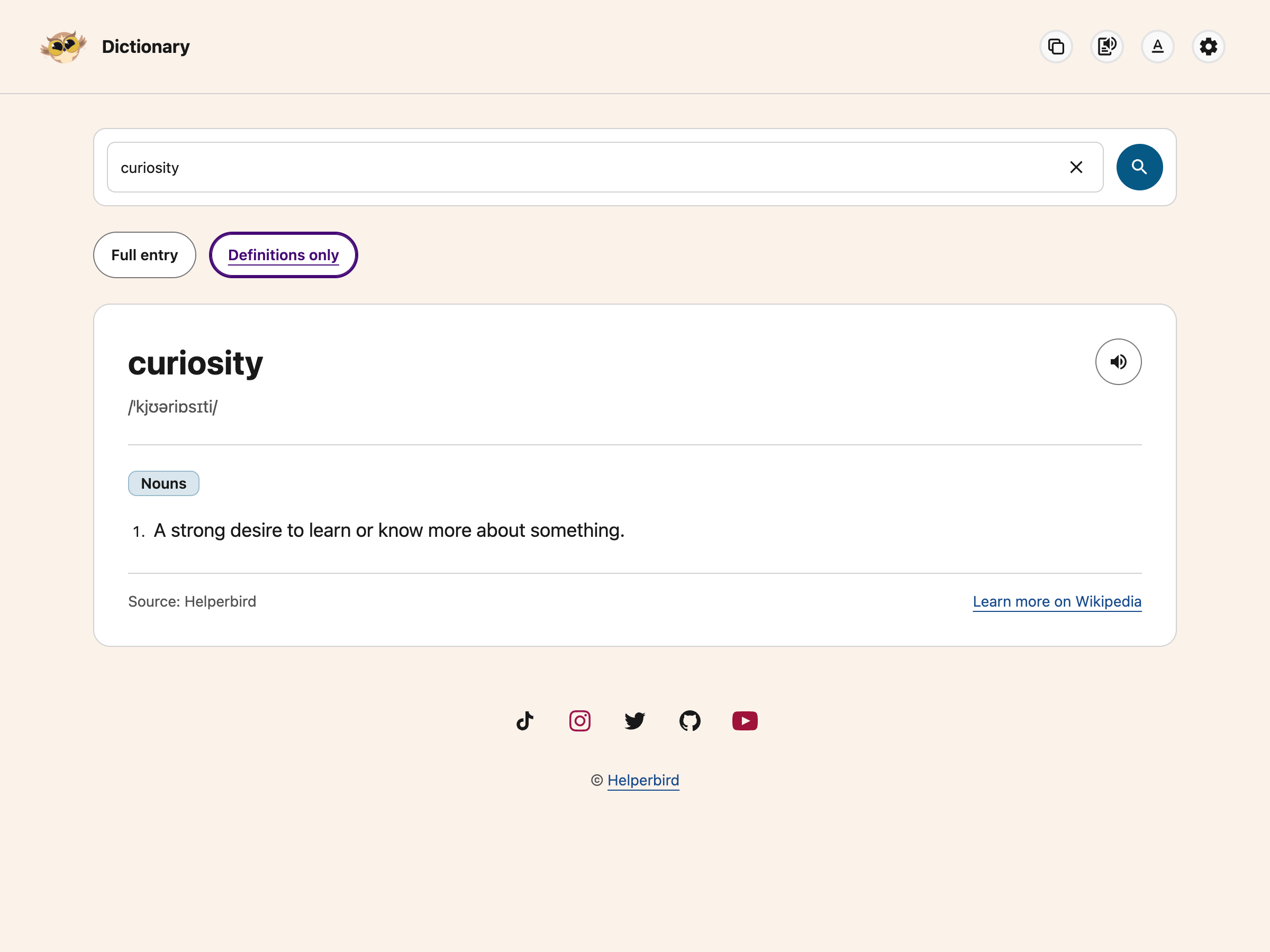
---
## Reading Controls
Use **Text settings** in the top toolbar to choose a font, text size, line height, word spacing and
letter spacing. These choices change the entry text and save for your next visit.
Open **Settings** to change reading width or switch between light and dark mode. The two Reset
buttons work separately: **Reset text settings** restores the font and spacing, while **Reset
layout** restores the theme, width and Full entry view.
Choose **Keyboard shortcuts** in Settings to see the controls. Use **Alt+Shift+P** to play or pause,
**Alt+Shift+X** to stop, **Alt+Shift+T** for Text settings, **Alt+Shift+S** for Settings and
**Alt+Shift+D** to switch theme. **Escape** closes a dialog; if a tooltip is open, the first Escape
dismisses it.
Dictionary follows your device's reduced-motion preference and Helperbird's Reduce motion setting.
Changing its reading preferences does not change your PDF, NotePad or website reading settings.
---

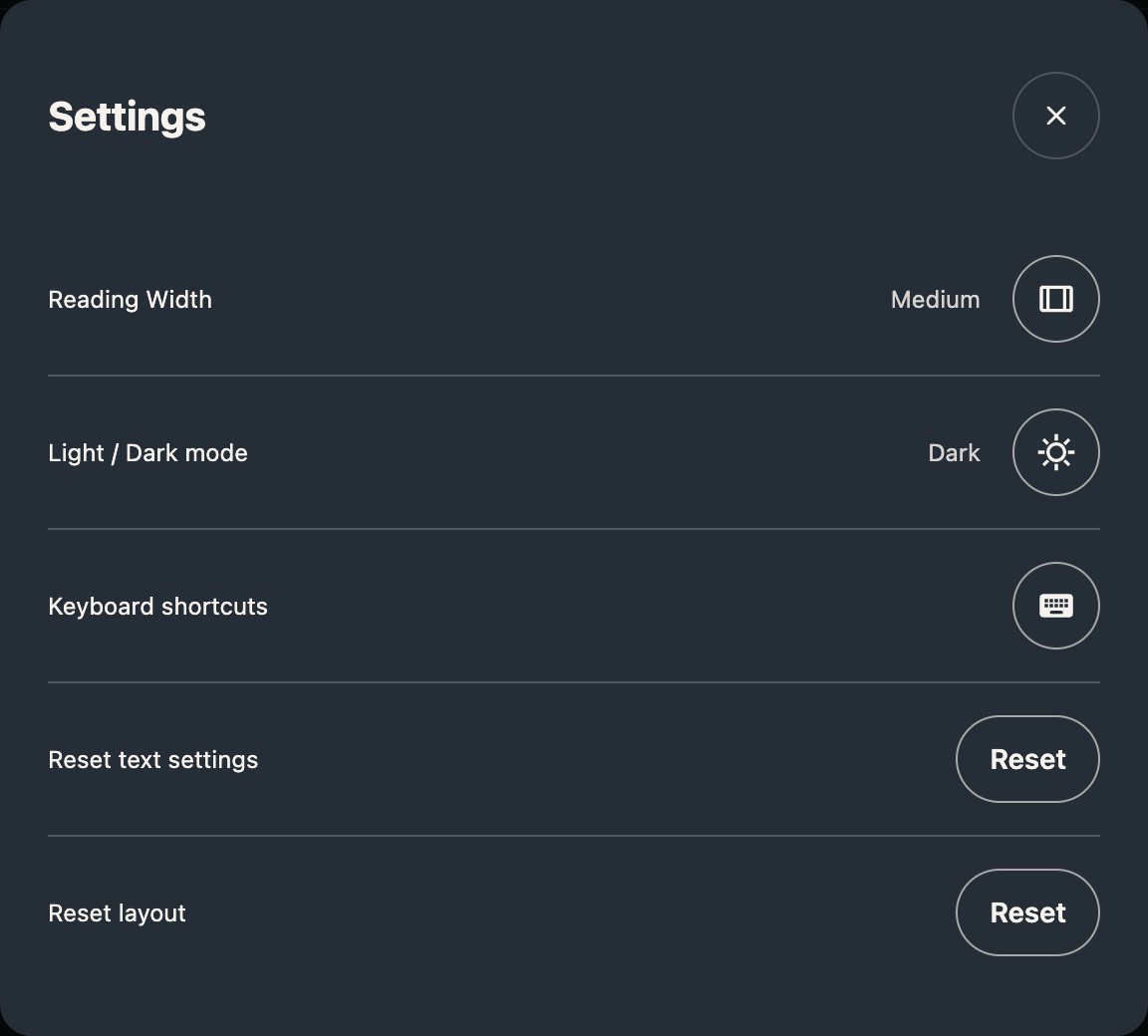
For a guide to the shared controls, see
[change your reading view](/help/how-to-change-your-reading-view-in-helperbird-apps/).
---
## What the Dictionary Cannot Do
- Definitions and examples are in English. You can search accented words, contractions, hyphenated
words and short phrases of up to six words (120 characters).
- AI-generated definitions can be wrong. Check a trusted reference when an exact meaning matters.
- **Pronunciation** and **Opposite words** appear only for words that have them. A word showing
neither is normal, not an error.
- Looking a word up needs Helperbird Pro. Your query stays in the box if Pro is not available.
- A missing word shows a no-results message. A connection or service problem offers **Try Again**.
Browser Back and Forward let you revisit successful searches.
---
## A Guide for Each Part
- [Open the Dictionary](/help/how-to-open-the-helperbird-dictionary/)
- [Look up a word](/help/how-to-look-up-a-word-in-the-helperbird-dictionary/)
- [Hear a word read aloud](/help/how-to-hear-a-word-read-aloud-in-the-helperbird-dictionary/)
- [Find similar and opposite words](/help/how-to-find-similar-and-opposite-words-in-helperbird/)
- [Open a word on Wikipedia](/help/how-to-open-a-word-on-wikipedia-from-helperbird/)
---
## Video Tutorial
Coming soon.
---
## Need Additional Help?
Ran into a snag while getting started? Reach out to our friendly
[Helperbird support team](/support/), and we will help you sort it out.
---
## How to Disable the Edge Mini Menu That Appears When Selecting Text
URL: https://www.helperbird.com/help/disable-edge-mini-menu/
If you're using Microsoft Edge and see a small floating toolbar every time you select text, that's Edge's built-in mini menu. It can get in the way of Helperbird's highlight toolbar and other selection features. Here's how to turn it off.
---
## What Is the Edge Mini Menu?
The mini menu is a small popup that Edge shows automatically when you highlight text on a page. It includes options like copy, search, and define. While useful for some people, it can overlap with Helperbird's own toolbar that appears when you select text.
---
## How to Disable It
1. Open Microsoft Edge.
2. Type `edge://settings/appearance` into the address bar and press Enter.
3. Scroll down to the **"Show mini menu when selecting text"** option.
4. Toggle it **off**.
That's it. The mini menu will no longer appear when you select text.
---
## Why This Helps
With the Edge mini menu turned off, Helperbird's highlight toolbar and selection tools will have a clear space to appear without anything overlapping or getting in the way. This makes it easier to use features like highlighting, text to speech, and quick actions on selected text.
---
## Need Additional Help?
If you're still having trouble with toolbars overlapping or Helperbird not appearing when you select text, reach out to our [Helperbird support team](/support/) and we'll help you sort it out!
---
## How to Disable Helperbird Features Using JSON Policy - Admins
URL: https://www.helperbird.com/help/how-to-disable-helperbird-features-though-json-policy/
This guide shows you how to **disable specific Helperbird features** for users in your organization using the Google Admin Console and managed JSON policy.
This is useful if you want to limit access to certain tools (for example, writing or editing features) while keeping the rest of Helperbird available.
---
## Before You Start
Make sure that:
* Helperbird is already added to your Organizational Unit (OU)
* You have administrator access to **[admin.google.com](https://admin.google.com)**
* You have already enabled admin control using `isAdminControl`
If you haven’t done this yet, follow our guide:
**How to Set Helperbird JSON Policy in Google Admin**
---
## Understanding Feature Types in Helperbird
Helperbird features are grouped into two types:
### Main Features (All Features)
* Appear in Helperbird’s **main feature list**
* Disabling one removes it from the primary interface
### Quick Features (Quick Actions)
* Appear in **Quick Actions**
* Disabling one removes it from the Quick Actions menu
> **Note:** Some features appear in both places.
> Disabling them will remove the feature everywhere it appears.
---
## How Feature Disabling Works
Helperbird uses two policy values:
* **`disableFeatures`** - turns feature disabling on or off
* **`disabledFeatures`** - the list of feature codes to disable
If `disableFeatures` is set to `false`, **no features are disabled**, even if a list exists.
---
## Starter JSON Template (Recommended)
If you’re not sure where to start, use this **starter template**.
It enables admin control and feature disabling, but does not disable anything yet.
```json
{
"subKey": {
"Value": "YOUR SUBSCRIPTION KEY"
},
"isAdminControl": {
"Value": true
},
"disableFeatures": {
"Value": true
},
"disabledFeatures": {
"Value": []
}
}
```
Add feature codes from the tables below into the `disabledFeatures` list.
---
## Feature Tables
To disable a feature, copy the **Policy Code** and add it to the `disabledFeatures` list.
### Quick Actions (Quick Features)
> **Codes marked *(retired)*** name features that no longer ship. Leaving them in an
> existing policy is harmless — Helperbird ignores them — but they will not turn anything
> off, because there is nothing left to turn off. Remove them at your next policy edit.
**Speed Reading policy:** `SpeedReading` hides and blocks the All Features shortcut. It also inherits
`ReadingModeTool`, including when the shortcut would open the PDF speed panel. These codes do not
remove the PDF Reader's own Speed Reading header control. `SpeedReadingOptions` refers only to the
retired syllable-based tool.
Table: The policy code for each Quick Action.
| Feature | Policy Code |
| ---------------------- | -------------------------- |
| Settings App | `SettingsApp` |
| Highlight Menu | `HighlightMenu` |
| Summarize Page | `SummarizePage` |
| Reading Mode Tool | `ReadingModeTool` |
| Simplify Options | `SimplifyOptions` |
| Grammar Options | `GrammarOptions` |
| Immersive Reader | `ImmersiveReader` |
| Translate Options | `TranslateOptions` |
| PDF Reader | `PdfReader` |
| Annotation Reader | `AnnotationReader` |
| Reading List Reader | `ReadinglistReader` |
| Add to Reading List | `ReadinglistReaderAdd` |
| Editor | `EditorReader` |
| Dictionary / Define | `DefineReader` |
| Hover Light Options | `HoverLightOptions` |
| Voice Typing | `VoiceTypingOptions` |
| Sticky Note | `StickyNote` |
| Word Prediction | `WordPrediction` |
| Text to Speech Options | `TextToSpeechOptions` |
| Highlighter Marker | `HighlighterMarkerOptions` |
| Text Color | `TextColor` |
| Link Color | `LinkColor` |
| Background Color | `BackgroundColor` |
| Screenshot Reader | `ExtractTextOptions` |
| Speed Reading shortcut | `SpeedReading` |
| Original syllable-based Speed Reading *(retired)* | `SpeedReadingOptions` |
| Screenshot | `ScreenshotOptions` |
| Overlay Tint | `OverlayTint` |
| Dyslexia Rulers | `DyslexiaRulers` |
| Custom Font | `CustomFont` |
| Text Size | `TextSize` |
| Word Spacing | `WordSpacing` |
| Letter Spacing | `LetterSpacing` |
| Line Height | `LineHeight` |
| Text Alignment | `TextAligment` |
| Paragraph Borders | `ParagraphBorders` |
| Paragraph Background | `ParagraphBackground` |
| Paragraph Width | `ParagraphWidth` |
| Paragraph Columns *(retired)* | `ParagraphColumns` |
| Show Alt Text | `ShowAlt` |
| Show Titles *(retired — use `ShowAlt`)* | `ShowTitles` |
| Hide Images | `HideImages` |
| Hide GIFs *(retired — use `HideImages`)* | `HideGifs` |
| Video Playback | `VideoPlayback` |
| Volume Booster | `VolumeBooster` |
| High Contrast | `HighContrast` |
| Emphasize Links | `EmphasizeLinks` |
| Text Stroke *(retired)* | `TextStroke` |
| Saturation Control | `SaturationControl` |
| Cursor Size | `CursorSize` |
| Zoom Control | `ZoomControl` |
| Reduce Motion | `ReduceMotion` |
| Spell Check | `SpellCheck` |
| Maths Options *(retired — the Screenshot Reader detects equations automatically)* | `MathsOptions` |
| Print Tool *(retired)* | `PrintTool` |
| New Menu *(retired — Helperbird ignores this code)* | `NewMenu` |
---
### All Features (Main Features)
Table: The policy code for every feature in the All Features list.
| Feature | Policy Code |
| ---------------------- | -------------------------- |
| Quick Actions Options *(retired — Helperbird ignores this code)* | `QuickActionsOptions` |
| Ignition Button *(retired — Helperbird ignores this code)* | `IgnitionButton` |
| Text to Speech Modal *(retired — Helperbird ignores this code)* | `TextToSpeechModal` |
| Banner Message *(retired — Helperbird ignores this code)* | `BannerMessage` |
| Reading Preferences | `ReadingPreferences` |
| Dyslexia Tools | `DyslexiaTools` |
| Translate Options | `TranslateOptions` |
| Screenshot Reader | `ExtractTextOptions` |
| Text to Speech Options | `TextToSpeechOptions` |
| Grammar Options | `GrammarOptions` |
| Highlight Menu | `HighlightMenu` |
| Maths Options *(retired — the Screenshot Reader detects equations automatically)* | `MathsOptions` |
| Screenshot | `ScreenshotOptions` |
| Immersive Reader | `ImmersiveReader` |
| Reading Mode Tool | `ReadingModeTool` |
| Simplify Options | `SimplifyOptions` |
| Summarize Page | `SummarizePage` |
| Word Prediction | `WordPrediction` |
| Settings Modal *(retired — Helperbird ignores this code)* | `SettingsModal` |
| Simplify Modal *(retired — Helperbird ignores this code)* | `SimplifyModal` |
| Summarize Modal *(retired — Helperbird ignores this code)* | `SummarizeModal` |
| Speed Reading shortcut | `SpeedReading` |
| Original syllable-based Speed Reading *(retired)* | `SpeedReadingOptions` |
| Voice Typing | `VoiceTypingOptions` |
| Highlighter Marker | `HighlighterMarkerOptions` |
| Grammar Dialog *(retired — Helperbird ignores this code)* | `GrammarDialog` |
| Display Options | `DisplayOptions` |
| PDF Reader | `PdfReader` |
| Annotation Reader | `AnnotationReader` |
| Reading List Reader | `ReadinglistReader` |
| Add to Reading List | `ReadinglistReaderAdd` |
| Editor | `EditorReader` |
| Dictionary / Define | `DefineReader` |
| Media Options | `MediaOptions` |
| Show Alt Text | `ShowAlt` |
| Show Titles *(retired — use `ShowAlt`)* | `ShowTitles` |
| Hover Light Options | `HoverLightOptions` |
| Reduce Motion | `ReduceMotion` |
| Hide Images | `HideImages` |
| Hide GIFs *(retired — use `HideImages`)* | `HideGifs` |
| Print Tool *(retired)* | `PrintTool` |
| Sticky Note | `StickyNote` |
---
## Example: Disable the Helperbird Editor Feature
To disable the Helperbird Editor feature everywhere it appears, add:
```json
{
"subKey": {
"Value": "YOUR SUBSCRIPTION KEY"
},
"isAdminControl": {
"Value": true
},
"disableFeatures": {
"Value": true
},
"disabledFeatures": {
"Value": [
"EditorReader"
]
}
}
```
---
## Commonly Disabled Features (Example)
The following features are commonly disabled in managed environments:
```txt
EditorReader
VoiceTypingOptions
ScreenshotOptions
```
Example JSON:
```json
{
"subKey": {
"Value": "YOUR SUBSCRIPTION KEY"
},
"isAdminControl": {
"Value": true
},
"disableFeatures": {
"Value": true
},
"disabledFeatures": {
"Value": [
"EditorReader",
"VoiceTypingOptions",
"EditWebsite",
"ScreenshotOptions"
]
}
}
```
---
## Important Notes
* **Feature codes are case-sensitive** and must match the tables exactly
* Features that appear in both **Main Features** and **Quick Actions** will be removed from both
* Unknown or invalid feature codes are **safely ignored**
---
## Verifying and Troubleshooting
If changes don’t appear immediately:
* Restart Chrome, or
* Visit `chrome://policy` and click **Reload policies**
Double-check:
* The correct OU is selected
* JSON formatting is valid
* `disableFeatures` is set to `true`
---
## Validate Your Policy
Use our [JSON Policy Validator](/help/json-policy-validator/) to check your policy for errors, invalid feature codes, and see exactly what each setting does before deploying.
---
## Need Additional Help?
If you need help finding a feature code or validating your policy, reach out to our [Helperbird support team](/support/) and we'll help you out!
---
## How to Disable Helperbird on Specific Websites Using JSON Policy
URL: https://www.helperbird.com/help/how-to-disable-helperbird-on-specific-websites-using-json-policy/
This guide shows you how to **disable Helperbird on specific websites** for users in your organization using Chrome managed policy. This is useful if you want Helperbird to automatically turn off on certain websites, such as testing platforms or internal tools.
---
## What This Does
When you add websites to the exclusion list, Helperbird will not run on those sites. Users will see a blue badge on the Helperbird icon and a message in the popup letting them know Helperbird is disabled on that page.
Users can still add their own excluded websites, but they cannot remove websites that you have added through the admin policy.
---
## Before You Start
Make sure that:
* Helperbird is already added to your Organizational Unit (OU)
* You have administrator access to **[admin.google.com](https://admin.google.com)**
* You have already enabled admin control using `isAdminControl`
If you haven't done this yet, follow our guide:
**How to Set Helperbird JSON Policy in Google Admin**
---
## JSON Policy Keys
There are two policy keys for website exclusion:
### `excludedDomains`
Turns the website exclusion feature on or off.
* Set to `true` to enable website exclusion
* Set to `false` to disable it (this also clears the managed domain list)
### `excludedDomainsList`
A list of website domains where Helperbird will be disabled. Each entry should be a domain name without `https://` or `www.`.
* Maximum of 20 domains in Chrome, Edge and Firefox from Helperbird 2026.9.29
* Domains are case-insensitive
* Subdomains are automatically included (adding `example.com` also covers `sub.example.com`)
---
## Starter Template
Use this template to get started. It enables admin control and website exclusion with an empty domain list.
```json
{
"subKey": {
"Value": "YOUR SUBSCRIPTION KEY"
},
"isAdminControl": {
"Value": true
},
"excludedDomains": {
"Value": true
},
"excludedDomainsList": {
"Value": []
}
}
```
---
## Example: Disable Helperbird on Testing Websites
To disable Helperbird on common testing platforms:
```json
{
"subKey": {
"Value": "YOUR SUBSCRIPTION KEY"
},
"isAdminControl": {
"Value": true
},
"excludedDomains": {
"Value": true
},
"excludedDomainsList": {
"Value": [
"typingclub.com",
"kahoot.it",
"quizlet.com"
]
}
}
```
---
## Example: Combine with Feature Disabling
You can use website exclusion alongside feature disabling in the same policy:
```json
{
"subKey": {
"Value": "YOUR SUBSCRIPTION KEY"
},
"isAdminControl": {
"Value": true
},
"excludedDomains": {
"Value": true
},
"excludedDomainsList": {
"Value": [
"typingclub.com",
"kahoot.it"
]
},
"disableFeatures": {
"Value": true
},
"disabledFeatures": {
"Value": [
"EditorReader"
]
}
}
```
---
## How It Works
When a user visits a website on the exclusion list:
* Helperbird's page features are paused; an enabled floating toolbar remains available
* The toolbar icon shows a blue **||** badge
* The popup shows a message saying **Helperbird is disabled on this website**
* The on/off toggle is greyed out and cannot be changed
* Clicking the banner opens the Settings page where users can see all excluded websites
Admin-managed domains appear as locked entries in the Settings page. Users can see them but cannot remove them.
---
## Turning Off Website Exclusion
To turn off website exclusion, set `excludedDomains` to `false`. This will also clear the managed domain list from user devices.
```json
{
"excludedDomains": {
"Value": false
}
}
```
Users' own excluded domains are not affected. If you re-enable the feature later, their personal list will still be there.
---
## Important Notes
* **Domain names only** - do not include `https://`, `http://`, or `www.`
* **Subdomains are included** - adding `example.com` also disables Helperbird on `mail.example.com`, `app.example.com`, etc.
* **Maximum 20 domains** - Chrome, Edge and Firefox support 20 entries from Helperbird 2026.9.29. Safari's native MDM list remains limited to 10
* **Case-insensitive** - `Example.com` and `example.com` are treated the same
* **Users can add their own** - users can still add personal exclusions, but cannot remove admin-managed ones
---
## Verifying and Troubleshooting
If changes don't appear immediately:
* Restart Chrome, or
* Visit `chrome://policy` and click **Reload policies**
Double-check:
* The correct OU is selected
* JSON formatting is valid
* `excludedDomains` is set to `true`
* `isAdminControl` is set to `true`
* Domain names do not include `https://` or `www.`
---
## Validate Your Policy
Before deploying, use our [JSON Policy Validator](/help/json-policy-validator/) to check for errors, validate feature codes, and see exactly what each setting does.
---
## Need Additional Help?
If you need help setting up website exclusions or validating your policy, reach out to our [Helperbird support team](/support/) and we'll help you out!
---
## How to Disable Helperbird on Specific Websites
URL: https://www.helperbird.com/help/how-to-disable-helperbird-on-specific-websites/
## What is Website Exclusion?
Turn Helperbird off on sites where you do not want its tools. Add each site to your exclusion list.
Your other sites keep their settings.
This is useful if a website doesn't work well with Helperbird, or if you want Helperbird turned off
on certain pages like testing platforms or work tools.
---
## Who is This For?
This feature is helpful for:
- Students who need Helperbird turned off during online tests
- Anyone who finds that a specific website doesn't work well with Helperbird
- Users who want Helperbird off on certain work or school tools
- People who want more control over where Helperbird runs
---
## Step 1: Open Helperbird Settings
Click the Helperbird icon in your browser toolbar to open the popup. Then click the **Settings**
gear icon in the top-left corner of the popup.
This will open the Helperbird Settings page in a new tab.

---
## Step 2: Find the Disable on Websites Section
Scroll down the Settings page until you see the section called **Disable on websites**.
---
## Step 3: Turn On the Exclusion List
You will see a toggle switch next to **Enable website exclusion list**. Turn this on to start using
the feature.
---
## Step 4: Add a Website
Once the exclusion list is turned on, you will see a text field where you can type a website
address.
Type the domain name of the website you want to exclude. For example, type `typingclub.com` and then
click the **Add** button or press **Enter**.
You do not need to type `https://` or `www.` - just the domain name is enough.
From Helperbird 2026.9.29, you can add up to 20 websites to your personal list. Each website you add
will appear as a small pill below the text field.
**Tip:** Adding a domain like `example.com` will also cover all its subdomains, such as
`mail.example.com` or `app.example.com`.
---
## Step 5: Remove a Website
To remove a website from your exclusion list, click the **X** button on the pill next to the website
name.
The website will be removed immediately and Helperbird will start working on that site again.
**Note:** If your school or workplace has added websites to the exclusion list, those will appear
with a lock icon and cannot be removed. Only your administrator can change those.
---
## What Happens on an Excluded Website
When you visit a website on your exclusion list:
- The Helperbird toolbar icon shows a blue **||** badge
- The popup shows a message saying **Helperbird is disabled on this website**
- The on/off toggle is greyed out so it cannot be changed
- Helperbird's page features are paused. If you have enabled the floating toolbar, it remains
available
When you switch to a different tab that is not excluded, everything goes back to normal.
---
## Need Additional Help?
Need help with a site? [Contact support](/support/). Tell us its address and which browser you use.
---
## Helperbird Display Features That Make a Page Easier to See
URL: https://www.helperbird.com/help/how-to-use-helperbird-display-features/
## What This Does
The **Display** panel holds five tools. Each one changes how a page looks, so it is easier to see.
That is a different job from making text easier to read. Fonts, spacing and text to speech live in other panels.
You can turn on as many of these as you want at once. They are separate settings.
---
## Who is This For?
This panel helps if:
- You have low vision
- You lose the mouse pointer on a busy page
- Pale grey text on a white background is hard to make out
- You cannot tell which words on a page are links
- You want the page bigger without changing anything else
---
## A Guide for Each Part
Table: Each display control, what it does, and its guide.
| Control | What it does | Guide |
| --- | --- | --- |
| High contrast | Increases the difference between the text and the background. You pick a style: Increased Contrast, Greyscale, Inverted Color, Inverted Greyscale or Yellow on Black. | [High contrast](/help/how-to-use-helperbirds-high-contrast-features/) |
| Highlight links | Marks every link with a striped bar, so you do not have to rely on color. | [Highlight links](/help/how-to-emphasize-links-on-any-website/) |
| Saturation | Makes the colors on the page stronger. | [Saturation](/help/how-to-adjust-color-saturation-on-any-website/) |
| Cursor size | Makes the mouse pointer bigger. Four sizes: Small, Medium, Large and Extra large. | [Cursor size](/help/how-to-change-the-cursor-size-in-google-chrome-firefox-or-edge/) |
| Magnifier | Scales the whole page up or down. | [Magnifier](/help/how-to-adjust-zoom-magnifying-for-any-website/) |
---
## Three Things Worth Knowing
**Saturation only adds color.** It cannot take color away. At the lowest setting the page looks normal. At the highest, the colors are four times as strong. To remove color instead, pick the **Greyscale** style in High contrast.
**The Magnifier goes both ways.** The slider runs from -100% to +100% in steps of 10%. 0% is the normal page size, and anything below 0% makes the page smaller. It scales the whole page, so it is not a lens that follows your pointer.
**Cursor size is free.** It used to be a Pro feature. Every one of the five tools in this panel is now in the free version.
---
## Related Guides
- [Color blindness](/help/how-to-use-helperbirds-color-blind-features-on-websites/) - Which tools help most if colors are hard to tell apart.
- [Accessibility profiles](/help/how-to-use-accessibility-profiles-in-helperbird/) - Turn on a set of tools together.
---
## Need Additional Help?
If you have any questions or run into any issues, please contact the Helperbird support team. You can reach us at [Helperbird support](/support/). We are happy to help you get the most out of Helperbird.
---
## How to Deploy Helperbird to an Entire School District
URL: https://www.helperbird.com/help/how-to-deploy-helperbird-to-an-entire-school-district/
A district is not one big school. It is many schools, several device types and
a roster that changes every term. This page is about those three problems. For
the steps of a single rollout, see
[deploy Helperbird to your school or business](/help/how-to-deploy-helperbird-to-your-school-or-business/).
---
## One Key for the Whole District
A district license is one subscription key. You paste the same value into every
organizational unit, tenant or device group you want covered. There is no
per-school key to keep track of and no reissue when you add a school.
The policy itself is two values, `subKey` and `isAdminControl`. Both are set out
in [setting Chrome storage managed keys](/help/setting-chrome-storage-managed-keys/),
and the console fields that hold them are in
[install through the Google Admin console](/help/installing-helperbird-extension-through-the-g-suite-admin-panel/).
---
## What the Key Is Tied To
The key belongs to the policy, not to a person. Any student on a device the
policy reaches gets Helperbird Pro, so shared exam Chromebooks and library
machines are covered without per-user setup.
One flip of `isAdminControl` to `false` takes the key back in every unit the
policy covers, not one school at a time. Read
[what isAdminControl does](/help/setting-chrome-storage-managed-keys/#what-isadmincontrol-does)
before you touch that switch district-wide.
---
## Pick an Organizational Unit Structure
Table: Three ways districts lay out organizational units, and what each is good for.
| Structure | Good for |
| --- | --- |
| One top-level unit | Covering every school at once, with the fewest places to keep updated |
| One unit per school | Rolling out school by school, or letting schools differ |
| A separate exam unit | Assessment devices that need the Floating Toolbar or a reduced feature set |
Child units inherit from their parent and can override it, so a per-school unit
under a district-wide one gets the key without you setting it twice. See
[set up a child organizational unit](/help/how-to-set-up-a-child-organizational-unit-for-helperbird/).
---
## Districts Rarely Have One Kind of Device
The same subscription key works everywhere. What changes is how the policy gets
there, and one platform is the exception.
Chromebooks, managed Chrome, Edge and Firefox all take the key by policy. Pick
your tool on [force install Helperbird](/help/forcing-the-installation-of-the-helperbird-extension/).
iPads and iPhones cannot be force installed and cannot be sent a managed policy.
Students install the app themselves and enter your district key by hand in
Helperbird's settings in Safari. Give them
[unlock Helperbird Pro on iPhone and iPad](/help/how-to-unlock-helperbird-pro-on-ios/),
and budget for the fact that this step is manual.
---
## New Students and Transfers
Nothing to do. A student added to a covered unit gets Helperbird Pro on their
next device sync, and a student moved between schools keeps Pro as long as the
new unit is covered too.
If you sync your roster from a student information system, that membership
change is enough on its own. See
[provision Helperbird with SDS, SFTP or Clever](/help/how-to-provision-helperbird-with-sds-sftp-or-clever/).
---
## Different Settings for Different Schools
Elementary and high school rarely want the same feature set. Because settings
travel in the same policy as the key, you can keep one key district-wide and
vary the rest per unit: turn features off, keep Helperbird off named sites, or
show the Floating Toolbar on exam devices.
- [Disable Helperbird features with JSON policy](/help/how-to-disable-helperbird-features-though-json-policy/)
- [Disable Helperbird on specific websites](/help/how-to-disable-helperbird-on-specific-websites-using-json-policy/)
- [Enable the Floating Toolbar](/help/how-to-enable-the-helperbird-floating-button/)
Adoption across the district is reported in the
[Helperbird Admin Dashboard](/help/how-to-use-the-helperbird-admin-dashboard/).
---
## Related Guides
- [Deploy Helperbird to your school or business](/help/how-to-deploy-helperbird-to-your-school-or-business/)
- [Helperbird Unlimited license management](/help/helperbird-unlimited-license-management/)
- [Install Helperbird for specific users](/help/installing-helperbird-to-certain-users/)
- [Deploy Helperbird using Microsoft Intune](/help/helperbird-intune-deployment/)
- [Verify and troubleshoot a managed deployment](/help/verify-helperbird-managed-deployment/)
---
## Need Additional Help?
If you have any questions about district-wide deployment or licensing, please contact the Helperbird support team. You can reach us at [Helperbird support](/support/). We are happy to help you get set up.
---
## Domains to Whitelist for Helperbird
URL: https://www.helperbird.com/help/domains-to-whitelist-for-helperbird/
If your school or organization uses a firewall, content filter, or proxy, you may need to whitelist certain domains for Helperbird to work properly. This guide lists everything your IT team needs.
---
## Required Domains
These domains must be accessible for Helperbird to function:
Table: Domains Helperbird needs, and what each one is used for.
| Domain | Purpose |
| --- | --- |
| `helperbird.com` | Main website and help documentation |
| `www.helperbird.com` | Main website |
| `engine.helperbird.app` | Helperbird engine for subscription validation, subscription checks, and feature data |
---
## Email Domain
Helperbird sends emails from the following domain. If your email system has strict filtering, make sure this domain is allowed:
Table: The domain used for account sign-in email.
| Domain | Purpose |
| --- | --- |
| `helperbird.com` | Subscription emails, account notifications, and support replies |
Emails will come from addresses like `support@helperbird.com` and `noreply@helperbird.com`.
---
## Optional Domains
These domains are used by specific Helperbird features and may need to be whitelisted depending on your setup:
Table: Domains needed only by certain features.
| Domain | Feature | Notes |
| --- | --- | --- |
| `chrome.google.com` | Chrome Web Store | Needed to install or update the extension |
| `microsoftedge.microsoft.com` | Edge Add-ons Store | Needed for Edge installations |
| `addons.mozilla.org` | Firefox Add-ons | Needed for Firefox installations |
| `*.cognitiveservices.azure.com` | Immersive Reader | Used by the Immersive Reader feature |
| `*.tts.speech.microsoft.com` | Text to speech, natural voices | Blocking this leaves the free browser voices working and the Pro voices silent |
| `*.stt.speech.microsoft.com` | Voice typing | The dictation stream. Blocking this stops voice typing with no error on screen |
| `*.api.cognitive.microsoft.com` | Azure token exchange | Used by both of the above |
> **Two of these are easy to miss.** Translation, Summarize, Simplify and the
> Screenshot Reader all go through `engine.helperbird.app`, not to Google or
> OpenAI directly, so that one host covers them. The Azure Speech hosts are
> separate: the region in the hostname is chosen at runtime, which is why they
> are listed with a wildcard. If they are blocked, the natural voices and voice
> typing fail quietly, with the feature appearing to do nothing.
---
## How to Whitelist
The exact steps depend on your firewall or content filter. Here are the general steps:
1. Log into your firewall, proxy, or content filter admin panel.
2. Find the URL or domain whitelist/allow list section.
3. Add the required domains listed above.
4. Save your changes and test by visiting `https://engine.helperbird.app` from a managed device.
If you use **Google Admin Console** to manage web filtering, add these domains to your URL allow list under **Devices** > **Chrome** > **Settings** > **Users & browsers** > **URL Blocking**.
---
## Troubleshooting
**Helperbird is installed but not activating:**
- Make sure `engine.helperbird.app` is not blocked.
- Check your proxy or SSL inspection settings. Some proxies can interfere with extension communication.
**Emails from Helperbird are not arriving:**
- Check your spam or junk folder.
- Make sure `helperbird.com` is allowed in your email filtering system.
**Immersive Reader or Translation not working:**
- These features use third-party services (Microsoft Azure and Google Translate). Make sure the optional domains above are not blocked.
---
## Related Guides
- [How to Deploy Helperbird to Your School](/help/how-to-deploy-helperbird-to-your-school-or-business/)
- [How to Set Helperbird JSON Policy in Google Admin](/help/set-helperbird-json-policy-in-google-admin/)
- [Setting Helperbird Policies in Enterprise Environments](/help/setting-helperbird-policies-in-enterprise-environments/)
---
## Need Help?
If you are having trouble getting Helperbird to work behind your firewall, reach out to our [support team](/support/) and we will help you get it sorted.
---
## How to Download the Helperbird App on iPad
URL: https://www.helperbird.com/help/how-to-download-helperbird-for-ipad/
Helperbird on iPad comes from the App Store as an app that carries a Safari extension.
The install is the same one an iPhone user follows. What differs on an iPad is who is allowed to
install it, and where Helperbird turns up in Safari.
## Install It from the App Store
One listing, **Helperbird for Safari**, covers iPad and iPhone. Open
[Helperbird for Safari in the App Store](https://apps.apple.com/us/app/helperbird-for-safari/id1589138053)
and tap **Get**. Your iPad needs **iPadOS 17.4 or later**.
For the install screen by screen, and for what the app does once it is on your home screen, read
[how to download Helperbird for iPhone](/help/how-to-download-helperbird-for-iphone/).
## If Someone Else Manages the iPad
**A school or work iPad.** Your IT team installs the app through their device management tool. In
most setups they cannot switch the Safari extension on from there, so someone still has to turn it
on from Settings on the iPad itself. If the Helperbird toggle is greyed out, that is the limit you
have hit:
[why the Safari extension is greyed out on iPad](/help/helperbird-safari-extension-greyed-out-ipad-jamf/).
Teachers and students:
[Helperbird on iPad in the classroom](/help/how-to-use-helperbird-on-ipad-in-the-classroom/).
**A child's iPad.** Screen Time restrictions can block the App Store install before it starts:
[installing with Screen Time on](/help/family-sharing-helperbird-installation-guide/).
**A Pro key from a school.** Your administrator may supply a key through
[managed app configuration](/help/helperbird-iphone-ipad-managed-app-configuration/). Otherwise,
enter it in Helperbird's settings in Safari:
[unlock Helperbird Pro](/help/how-to-unlock-helperbird-pro-on-ios/).
## Where Helperbird Appears on iPad
Nothing shows up in Safari until the extension is switched on in the Settings app. Follow
[how to enable Helperbird in Safari](/help/how-to-enable-helperbird-in-safari-on-ios/).
Then open Safari on any page, tap the **puzzle piece icon** in the address bar, and tap
**Helperbird**. Safari may show a page menu or extensions button beside the address bar. Older
versions use **aA**.
The installed app also includes a **free native PDF Reader**. Open it from your home screen to read,
annotate, and keep notes beside a PDF. See the
[native PDF Reader guide](/help/how-to-use-helperbird-pdf-reader-on-iphone-ipad-and-mac/).
Webpage tools live in the Safari extension. Which ones you get on an iPad:
[what is different about Helperbird on iOS](/help/helperbird-ios-vs-desktop-differences/). What to
do next: [how to use Helperbird on iPhone and iPad](/help/how-to-use-helperbird-on-ios/).
## Need Additional Help?
If you cannot install Helperbird on your iPad, or the extension will not turn on, contact the
[Helperbird support team](/support/).
---
## How to Download the Helperbird App on iPhone
URL: https://www.helperbird.com/help/how-to-download-helperbird-for-iphone/
Helperbird on iPhone comes from the App Store as an app that carries a Safari extension.
This page covers getting the app onto your iPhone. Turning the extension on happens afterwards, in
the Settings app.
## Install from the App Store
Open
[Helperbird for Safari in the App Store](https://apps.apple.com/us/app/helperbird-for-safari/id1589138053)
and tap **Get**. To find it by hand, open the **App Store**, tap **Search**, and type Helperbird.
The icon is a purple square with a cream owl.
Confirm with Face ID, Touch ID, or your Apple Account password. The app installs to your home
screen.
Your iPhone needs **iOS 17.4 or later**.
One listing covers iPhone and iPad, so these steps also work on an iPad. If that iPad belongs to a
school, a workplace, or a child, read
[how to download Helperbird for iPad](/help/how-to-download-helperbird-for-ipad/) instead.
## What the App Does
Open the app to use the **free native PDF Reader**. You can open a PDF, listen to its text, add
annotations, and keep notes. These PDF tools do not need a Helperbird account. Follow the
[native PDF Reader guide](/help/how-to-use-helperbird-pdf-reader-on-iphone-ipad-and-mac/) for steps
and screenshots.
The app's **puzzle-piece button** opens the Safari setup guide. The extension brings reading tools
to webpages; some extension features need Pro. Got a key from your school? See
[how to unlock Helperbird Pro](/help/how-to-unlock-helperbird-pro-on-ios/).
## Turn It On in Safari
Nothing appears in Safari until you switch the extension on in the Settings app. Follow
[how to enable Helperbird in Safari](/help/how-to-enable-helperbird-in-safari-on-ios/).
Once it is on, open Safari's **page menu** or **extensions button** beside the address bar, then
choose **Helperbird**. Older versions show **aA**. Next:
[how to use Helperbird on iPhone and iPad](/help/how-to-use-helperbird-on-ios/).
## Need Additional Help?
If the install does not finish, or you cannot find the app afterwards, contact the
[Helperbird support team](/support/).
---
## How to Download Your Notepad Document
URL: https://www.helperbird.com/help/how-to-download-your-notepad-document/
## What This Does
You can take your writing out of the Notepad as a file, in one of three formats, so you can hand it
in, email it, or keep it somewhere else.
---
## Who is This For?
This is helpful for:
- Students handing an assignment in as a Word document
- Anyone moving their writing into Google Docs to share it
- Anyone who wants a copy that does not depend on the browser
- People keeping a backup before deleting a document
---
## Step 1: Open the Options
Click the **Download** arrow in the toolbar to open the download options.
---
## Step 2: Pick a Format
Choose the one you want.
The choices are **Word**, **Markdown**, and **Text file**.
---

---
## Which Format Should You Pick?
- **Word** keeps your headings, bold, lists and colors. Pick this for anything you are handing in or
sending to someone who uses Word.
- **Markdown** keeps the structure as plain symbols. Useful if you write for the web or use a notes
app that understands it.
- **Text file** is your writing with all formatting stripped out. The safest option if something
else will not open, and the smallest file.
To use the document in Google Docs, download **Word** and upload that file to Google Drive yourself.
The former Google Docs option produced the same Word file; it was not a direct upload.
If you are downloading to keep a copy before
[deleting the document](/help/how-to-delete-a-document-in-the-helperbird-notepad/), Word or text is
the sensible choice.
---
## Downloads with Equations
[Equations you insert in Notepad](/help/how-to-add-equations-to-pdfs-and-notepad/) are included in
all three formats:
- **Word** includes each equation image and its text description.
- **Markdown** keeps the LaTeX source.
- **Text file** uses the equation's text description.
Keep your saved Helperbird document if you want to reopen and edit the equation in the same
workspace. An equation image in a Word file is not a Word equation object.
## Need Additional Help?
If you have any questions or run into any issues, please contact the Helperbird support team. You
can reach us at [Helperbird support](/support/). We are happy to help you get the most out of
Helperbird.
---
## How to Draw on a PDF with Your Keyboard
URL: https://www.helperbird.com/help/how-to-draw-on-a-pdf-with-your-keyboard/
PDF drawing is free. Open a PDF and choose **Draw** to begin.
## Why Use the Keyboard?
Drawing on a PDF normally means holding a mouse steady while you drag. That is difficult for a lot
of people, and impossible for some.
Helperbird's PDF Reader lets you do the same job with the keyboard instead. You drop a shape onto
the page with one key, then nudge it into place with the arrow keys. Nothing has to be dragged.
---
## Who is This For?
This is helpful for:
- Anyone who finds a mouse or trackpad hard to control precisely
- People with tremor, limited hand movement, or joint pain
- Screen reader and keyboard-only users
- Anyone who wants shapes lined up neatly rather than drawn by hand
---
## Step 1: Turn Drawing On
Open your PDF, then press **Draw** in the toolbar at the top. The drawing bar appears underneath it.

---
## Step 2: Choose a Shape
Tab to the drawing bar and choose **Rectangle**, **Oval**, **Line** or **Arrow**.

The **Pen** tool draws freehand and needs a pointer, so it is the one tool that cannot be used this
way. Everything else can.
---
## Step 3: Place the Shape
Tab to the drawing area, then press **Enter** or **Space**.
The shape appears in the middle of the page and is selected straight away. Helperbird announces
"Shape added to the centre of the page. Arrow keys move it, Alt plus arrow keys resize it, Delete
removes it."
---
## Step 4: Move It
Use the **arrow keys** to move the selected shape.
- **Arrow key** moves it 5 pixels
- **Shift + arrow key** moves it 20 pixels
Use Shift to cross the page quickly, then tap the arrow keys on their own to line it up.
---
## Step 5: Resize It
Hold **Alt** and use the **arrow keys**.
- **Alt + arrow key** resizes by 5 pixels
- **Alt + Shift + arrow key** resizes by 20 pixels
Freehand pen strokes can be moved but not resized. Rectangles, ovals, lines and arrows can all be
resized.
---
## Step 6: Delete It
Press **Delete** or **Backspace** while the shape is selected. It is removed straight away.
If you want to keep it but stop working on it, press **Escape** to deselect instead.

---
## Moving Between Shapes
Choose the **Select / Move** tool, then press **Tab** to step forward through the shapes on the
page, or **Shift + Tab** to step back.
When you reach the last shape, Tab takes you out of the drawing area and on to the next control, so
you are never stuck inside it.
---
## All the Keys
Table: Every key used for drawing on a PDF.
| Key | What it does |
| ----------------------- | ------------------------------------------------- |
| Enter or Space | Place the chosen shape in the middle of the page |
| Arrow key | Move the shape 5 pixels |
| Shift + arrow key | Move the shape 20 pixels |
| Alt + arrow key | Resize the shape by 5 pixels |
| Alt + Shift + arrow key | Resize the shape by 20 pixels |
| Delete or Backspace | Remove the selected shape |
| Escape | Deselect, keeping the shape |
| Tab / Shift + Tab | Step between shapes, then out of the drawing area |
The **Undo** button in the drawing bar removes the last shape you added, and **Clear All** empties
the current page. Both are ordinary buttons you can reach with Tab.
---
## Need Additional Help?
If you have any questions or run into any issues, please contact the Helperbird support team. You
can reach us at [Helperbird support](/support/). We are happy to help you get the most out of
Helperbird.
---
## How to Use Dyslexia Friendly Fonts with Helperbird
URL: https://www.helperbird.com/help/how-to-change-the-font-on-any-page-to-a-dyslexic-font/
## What Makes a Font Easier to Read
Letters like b and d can look like mirror images.
A dyslexia friendly font pulls those pairs apart. Some weight the bottom of every letter, so it sits
the right way up. Others widen the space around the letters so words stop crowding.
No font suits everyone. Try two or three, then keep the one that tires you least.
---
## The Fonts Worth Trying First
You get 32 fonts. These are the ones drawn for readers who find text hard to read.
Table: The Helperbird fonts made for dyslexia, low vision or new readers.
| Font | What it does |
| --------------------- | ------------------------------------------------------------------------------------------------------------------------------------------------------------- |
| OpenDyslexic | Every letter has a heavy, weighted bottom, so b, d, p and q are harder to swap. |
| The Lexend fonts | Six widths, listed as Deca, Exa, Giga, Mega, Zetta and Peta. The letters and the gaps between them both get wider. Deca is the tightest, Zetta the most open. |
| Andika | Drawn for people learning to read. Shapes that usually look alike are kept apart. |
| Atkinson Hyperlegible | From the Braille Institute, drawn for low vision. Capital I, lowercase l and the digit 1 all look different. |
| Comic sans | Not designed for dyslexia, but its letters are less uniform than most sans-serifs. |
You also get a bold and an italic version of OpenDyslexic, Andika and Atkinson Hyperlegible.
Start with OpenDyslexic or Lexend Deca. If the words still crowd, try a wider Lexend such as Giga or
Zetta.
The rest are everyday fonts such as Arial, Georgia, Verdana, Lora and Palatino.
On iPad and iPhone you get 29. The three Lora fonts are left out.
---
## How to Turn on Font
Turn **Font** on in **Text settings**, then pick one of the fonts above.
[How to Change Fonts on Any Website](/help/how-to-change-the-font-on-any-page/) lists all 32 and
shows each step with screenshots.
Each name is drawn in its own typeface, so you can see the shapes before you choose. A green check
marks the one in use, and the page changes as you click.

Font is in the free version. OpenDyslexic, Andika and Atkinson Hyperlegible also set the line height
on the page to 1.5.
If a new font does not help you, spacing often does.
[How to Use the Text Settings in Helperbird](/help/how-to-use-helperbird-text-settings/) covers the
rest of the panel.
The [Helperbird Google Docs and Slides add-on](/help/helperbird-for-google-docs-addon/) has a
**Dyslexia** button that applies Lexend Deca. It changes the whole document in Docs, the open sheet
in Sheets, and the whole slide in Slides. Selecting text first makes no difference.
---
## Where the Font Does Not Apply
- **Google Docs, Slides, Sheets and Forms.** In Docs, Slides and Sheets the toggle is replaced by a
**Better in the Google add-on** badge.
- **PDFs.** The toggle is replaced by a **Not available on this page** note.
[A Helperbird Feature is Not Supported](/help/feature-not-supported-on-page/) explains what that
note means.
- **Icons and symbols.** Most icon fonts are left alone, so they do not turn into letters. A site
using an unusual icon set can still end up with icons showing as characters.
---
## Video Tutorial
Coming soon
---
## Need Additional Help?
If you have any questions or run into any issues, please contact the Helperbird support team. You
can reach us at [Helperbird support](/support/). We are happy to help you get the most out of
Helperbird.
---
## How to Use the Dyslexia Ruler on Any Website
URL: https://www.helperbird.com/help/how-to-use-a-dyslexia-ruler-on-any-website/
## What is the Dyslexia Ruler?
The Dyslexia Ruler is a colored bar that lies across the page, like a physical reading ruler on a
book.
For new users, **Follow cursor** is on: the bar follows your mouse up and down the page. If you
prefer a fixed bar, turn Follow cursor off and set its **Position**. Your saved choice is respected
when you update Helperbird. The bar does not block clicks on the page underneath, and screen readers
ignore it.
---
## Who is This For?
This feature is helpful for:
- People with dyslexia who lose their place while reading
- Anyone who finds long lines of text hard to follow
- Readers who want a marker that holds one spot on the screen
- Students working through dense paragraphs or textbooks
---
## Step 1: Open Helperbird
Click the Helperbird icon in your browser toolbar to open the menu. It looks like a small owl and is
usually in the top-right corner.
---
## Step 2: Open the All Features Section
Scroll to the bottom of the menu and click the arrow next to **All Features**. The list expands to
show every feature.
---
## Step 3: Find Dyslexia Support
Look through the list until you see **Dyslexia support**. It has a purple icon with a brain symbol
on it.
---
## Step 4: Open Dyslexia Support
Click on **Dyslexia support** to open it.
The panel has three toggles at the top: **Dyslexia ruler**, **Focus ruler** and **Reading guide**.
Below them sits a divider and a **Settings** section.
---
## Step 5: Turn on the Dyslexia Ruler
**Dyslexia ruler** is the first toggle. Click it to turn it on.
The bar appears on the page straight away. Click the toggle again to remove it.
---
## Ruler Settings
Scroll to the **Settings** section below the divider in the same panel. The controls there change
with the ruler you have on. The Dyslexia ruler has all six.
Table: Every setting for the Dyslexia ruler and what it changes.
| Setting | What it does |
| ------------- | ------------------------------------------------------------------------------------------------- |
| Height | How tall the bar is. |
| Width | How far the bar stretches across the page, from a tenth of the width to the full width. |
| Color | Choose a rainbow preset or Custom for another shade. |
| Opacity | How solid the bar is. Turn it down to read the text underneath. |
| Follow cursor | On by default for new users. The bar follows your mouse vertically. Turn it off to show Position. |
| Position | How far down the screen the bar sits. It appears only while Follow cursor is off. |
Dyslexia support with the Dyslexia ruler enabled and its size and color controls.Scroll down in Dyslexia support to find Follow cursor. It starts on for new users.
**Tip:** A soft color at a low opacity gives you a line to read against without hiding any words.
---
## Choosing Between the Three Rulers
Only one ruler runs at a time. Turning one on turns the other two off. The Reading guide saves its
width separately from the Dyslexia ruler. Height, color and opacity are shared.
Table: The three rulers in the Dyslexia support panel.
| Toggle | What you get | Full guide |
| -------------- | ------------------------------------------------------------------------------------------------ | ----------------------------------------------------------------- |
| Dyslexia ruler | A bar that follows your mouse vertically by default. Turn Follow cursor off to park it in place. | This page |
| Reading guide | A bar that always follows your pointer, with adjustable height, width, color and opacity. | [Reading guide](/help/how-to-use-a-reading-guide-on-any-website/) |
| Focus ruler | Dims the page above and below a bright strip of text. | [Focus ruler](/help/how-to-use-a-line-focus-on-any-website/) |
---
## Turning the Ruler On Without the Popup
Two faster ways to the same toggle:
- Press **Option + D** on Mac, or **Alt + Shift + D** on Windows and Linux. Shortcuts need switching
on first. See
[How to enable and use keyboard shortcuts](/help/what-are-the-helperbird-shortcuts/).
- Press the **Reading guide** button on the Floating Toolbar. See
[How to turn on the Reading guide from the Floating Toolbar](/help/how-to-turn-on-the-reading-guide-from-the-floating-toolbar/).
Both bring back whichever of the three rulers you last chose, whatever the button is called.
---
## Video Tutorial
Coming soon
---
## Need Additional Help?
If you have any questions or run into any issues, please contact the Helperbird support team. You
can reach us at [Helperbird support](/support/). We are happy to help you get the most out of
Helperbird.
---
## How to Enable Helperbird in Safari on iPhone and iPad
URL: https://www.helperbird.com/help/how-to-enable-helperbird-in-safari-on-ios/
After downloading Helperbird from the App Store, you need to enable it in Safari before you can use it while browsing. Here's how to do it.
---
## Step 1: Open Safari Settings
Open **Settings → Apps → Safari → Extensions**. On older iOS versions, Safari appears directly in Settings.
Apple also explains the controls in its [Safari extensions guide](https://support.apple.com/guide/iphone/get-extensions-iphab0432bf6/ios).
---
## Step 2: Enable Helperbird
Tap **Helperbird** and turn on **Allow Extension**. If you use Safari profiles, enable Helperbird for each profile where you want to use it.
---
## Step 3: Allow Helperbird on Websites
Choose the websites Helperbird can access. Select **Allow** for the sites where you want to use its reading tools. You can allow all websites or keep **Ask** to approve access as you browse.
---
## Step 4: Start Using Helperbird
Open Safari and visit a webpage. Tap the **page menu** or **extensions button** beside the address bar, then choose **Helperbird**. Older versions of Safari show **aA** for the page menu.
Turn on Helperbird's main switch, then choose a tool. Follow [Using Helperbird on iPhone and iPad](/help/how-to-use-helperbird-on-ios/) for screenshots of the current controls.
**Tip:** You can also tap "Manage Extensions" from this menu to quickly access Helperbird settings.
---
## Need Additional Help?
If you're having trouble enabling Helperbird in Safari, reach out to our [Helperbird support team](/support/) and we'll help you out!
---
## How to Use the Equation Editor in Helperbird
URL: https://www.helperbird.com/help/how-to-use-the-equation-editor-in-helperbird/
The Equation Editor is a full-page space for writing maths, and it opens in its own browser tab.
This guide is the map of its toolbar: what each button does, and which guide covers it. The Equation
Editor is part of Helperbird Pro.
Your equation is typeset directly in the editing field. Open **Show LaTeX source** below it to see
its source. When it is empty, choose one of the example equations or type your own. The sample
placeholder is guidance, not content that will be exported.
Show or hide the math keyboard with its toolbar button to make room while writing. The copy and
download buttons keep their existing formats.
To get the editor open, see
[opening the Equation Editor](/help/how-to-open-the-helperbird-equation-editor/).
---
## What Each Toolbar Button Does

Table: Controls in the Equation Editor toolbar.
| Button | What it does |
| ---------------------- | ------------------------------------------------------------------------------------------------------------- |
| **Read aloud** | Speaks the equation in maths language, so `x^2` becomes "x squared" rather than "x caret two" |
| **Copy** | Copies the equation as LaTeX, MathML or an image. Three formats, one for each place you might paste it |
| **Download as image** | Saves the equation as a PNG file on your computer |
| **Voice typing** | Say the equation instead of typing it. It follows the Math, Chemistry or Physics mode you picked in the popup |
| **Show math keyboard** | Symbols you cannot type, such as Greek letters and integrals |
| **Clear** | Empties the box so you can start again |
| **Text settings** | Changes the displayed equation size |
| **Settings** | Changes width and theme, opens keyboard shortcuts, and resets display preferences |
**Read aloud**, **Copy**, **Download as image** and **Clear** are greyed out until there is
something in the box. **Show math keyboard** and **Voice typing** stay available on an empty box,
which is the point of them.
---
## The Menu Button
The **Menu** button sits beside Text settings and Settings. It opens the maths field's own menu
rather than a Helperbird one, so what is in it belongs to the field itself. It is the only part of
this page without a separate guide.
---
## Reading and Layout Controls
**Text settings** changes the displayed equation size from 100% to 200%. Math symbols keep their
usual font and spacing, and the exported equation stays the same.
**Settings** includes width and light/dark controls, plus **Keyboard shortcuts**. Choose **Reset
text settings** to restore the equation size, or **Reset layout** to restore the default width and
light theme. These choices save automatically and do not clear your equation.
Use **Alt + Shift + T** for Text settings, **Alt + Shift + S** for Settings, and **Alt + Shift + D**
to switch themes. The shortcut list also shows the existing copy, download, reading and voice
controls.
The math keyboard opens when you choose **Show math keyboard**. It follows your theme and leaves
room to reach the footer links. Closing it gives that space back to the page.

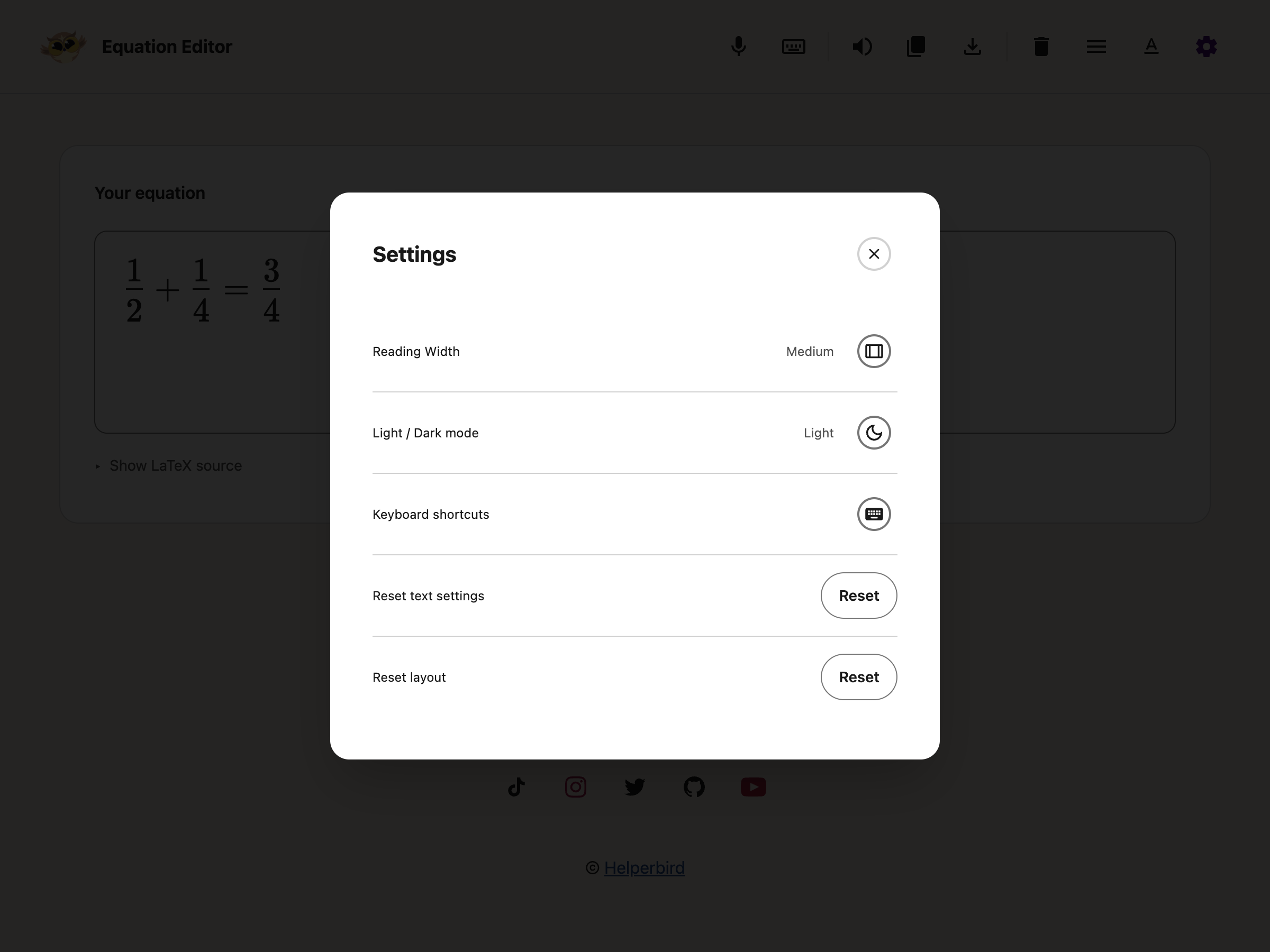

---
## Known Limits
- **Read aloud** hands the equation to Microsoft Immersive Reader, which opens as its own reading
window. It is not the same thing as Helperbird's
[text to speech](/help/how-to-use-text-to-speech-on-any-website/) on a web page, and it does not
use the voice and speed you set there.
- A matrix or an aligned system with more than one row can come out with its rows overlapping in
that reading window. Your equation is fine, the reader draws it badly.
- If **Read aloud** says it could not read the equation, check the box for a typo. A half-finished
expression is the usual cause.
- This app is for writing maths. To read maths that is already on a page or in a picture, use the
[Screenshot Reader](/help/how-helperbird-reads-equations-from-a-screenshot/) instead.
---
Voice typing stops after 10 seconds without recognized speech. Your final phrase is kept. Press the
microphone when you are ready to continue.
You can also insert maths without leaving a PDF or Notepad. Use **More options → Insert equation**
in the PDF Reader, or the equation button in Notepad. The dialog has a full-width math keyboard and
**More options** for extra controls.
## A Guide for Each Part
- [Open the Equation Editor](/help/how-to-open-the-helperbird-equation-editor/)
- [Write an equation](/help/how-to-write-an-equation-in-helperbird/)
- [Hear it read aloud](/help/how-to-hear-an-equation-read-aloud-in-helperbird/)
- [Copy it](/help/how-to-copy-an-equation-from-helperbird/)
- [Download it as an image](/help/how-to-download-an-equation-as-an-image/)
- [Add an equation to a PDF or Notepad](/help/how-to-add-equations-to-pdfs-and-notepad/)
- [Dictate it with your voice](/help/how-to-dictate-an-equation-with-your-voice/)
For what you can say while dictating, see
[speech to math](/help/how-to-use-speech-to-math-in-helperbird/) and
[chemistry and physics voice typing](/help/how-to-use-chemistry-and-physics-voice-typing-in-helperbird/).
---
## Video Tutorial
Coming soon.
---
## Need Additional Help?
If you have any questions or run into any issues, please contact the Helperbird support team. You
can reach us at [Helperbird support](/support/). We are happy to help you get the most out of
Helperbird.
---
## How Helperbird Reads Equations from a Screenshot
URL: https://www.helperbird.com/help/how-helperbird-reads-equations-from-a-screenshot/
## What You Get Back
Draw a box around a scanned worksheet, a photographed textbook page, or a PDF that will not let you select the text. The Screenshot Reader reads what is inside the box. Words come back as words, equations come back as equations, and both arrive in the order they appear on the page.
An equation stays an equation rather than a flat line of symbols, so a fraction still reads as a fraction and a power stays a power. That is what makes it possible to hear it read aloud correctly.
Screenshot Reader is a Helperbird Pro feature. On the free plan the **Start** button stays greyed out.
---
## Who is This For?
This is helpful for:
- Students working from scanned or photographed maths
- People who want an equation read aloud rather than decoded on the page
- Anyone who finds maths easier to read at a larger size or in a different font
---
## Step 1: Start a Capture
Open Helperbird, go to **All Features** and open **Screenshot Reader**.
Choose where the result should go before you start. Your capture goes to one destination, not several, so turning one on turns the others off. Copy to clipboard is the default.
Press **Start**.
---
## Step 2: Draw a Box Around the Maths
Drag a box around the part of the page you want. You can include the surrounding words. You do not need to isolate the equations.

---
## Step 3: Where the Maths Goes
The result arrives at the one destination you picked before you started.
- **Immersive Reader** lays each equation out as maths, next to the words around it. You can change the text size, font and background color there, and hear it read aloud.
- **Copy to clipboard**, **Save as note**, **Listen** and **Translate** all work on text, so an equation arrives in words. 2x + 3 = 7 becomes "two x plus three equals seven".
If an equation cannot be rebuilt, Helperbird reads it out in words instead of showing you a broken one, and tells you it has done that.
**[Explain mode](/help/how-to-use-explain-mode-in-the-screenshot-reader/)** is a separate setting. Turn it on and you get the maths described in plain language instead of transcribed, which is often what you want with a formula.

---
## If the Maths Comes Back Wrong
- **Capture a bigger area.** Cutting through the middle of a fraction or a root gives it less to work with.
- **Check the picture is sharp.** A blurry photo of a whiteboard is hard for anyone to read.
- **Try one equation at a time** if a dense page comes back muddled.
- **Multi-row layouts**, such as matrices or aligned systems, can display with their rows overlapping when opened in Immersive Reader. That is a limitation of the reader rather than of the capture, so try another destination if a matrix looks wrong.
See also [how to use the Screenshot Reader](/help/how-to-extract-text-from-any-image-pdf-or-website/) for captures of every kind, [the Equation Editor](/help/how-to-open-the-helperbird-equation-editor/) if you want to write maths rather than capture it, and [what happened to the Math Reader](/help/how-to-use-the-maths-reader-in-helperbird/) if you came here looking for that.
---
## Need Additional Help?
If you have any questions or run into any issues, please contact the Helperbird support team. You can reach us at [Helperbird support](/support/). We are happy to help you get the most out of Helperbird.
---
## How to Use Explain Mode in the Screenshot Reader
URL: https://www.helperbird.com/help/how-to-use-explain-mode-in-the-screenshot-reader/
## What Explain Mode Does
Normally the Screenshot Reader gives you back exactly the words it found in a picture. **Explain mode** does something different: it explains what you captured, in plain language.
Point it at a chart and it tells you what the chart shows. Point it at a paragraph you have read three times and it tells you what it means.
---
## Who is This For?
This is helpful for:
- Anyone stuck on a paragraph that will not go in, however many times they read it
- Students meeting a diagram, chart or table in a subject they are new to
- People who find a formula easier to understand described in words
- Anyone reading in a second language
---
## Step 1: Open the Screenshot Reader
Open Helperbird, go to **All Features**, and open **Screenshot Reader**.
---
## Step 2: Turn On Explain Mode
Scroll down to **Settings** inside the panel and turn on **Explain mode**.

This is a setting, not a one-off. It stays on until you turn it off, so remember to switch it back when you want the plain text again.
---
## Step 3: Draw a Box
Press **Start**, then drag a box around whatever you want explained.

---
## Step 4: Read the Explanation
The explanation appears in a card on the page. It has buttons to listen to it, copy it, or close it.

The **listen** button uses Helperbird's [text to speech](/help/how-to-use-text-to-speech-on-any-website/), so it uses the voice and speed you have chosen there.
---
## When to Use It, and When Not To
**Use it** when the problem is understanding: charts, diagrams, formulas, dense or badly written paragraphs, or anything in unfamiliar jargon.
**Turn it off** when you want the actual words. If you are copying a quote, filling in a form, or need the text exactly as written, Explain mode gives you a description instead, which is not what you want. Switch it off and the Screenshot Reader goes back to giving you the text itself.
See also [how to use the Screenshot Reader](/help/how-to-extract-text-from-any-image-pdf-or-website/) and [how it handles equations](/help/how-helperbird-reads-equations-from-a-screenshot/).
---
## Need Additional Help?
If you have any questions or run into any issues, please contact the Helperbird support team. You can reach us at [Helperbird support](/support/). We are happy to help you get the most out of Helperbird.
---
## How to Export Your Helperbird Notes
URL: https://www.helperbird.com/help/how-to-export-your-helperbird-notes/
## Why Export Your Notes?
The **Helperbird Notes** export backs up your saved content: sticky notes, highlights, NotePad
documents and reading-list pages. It includes extracted text only when you saved that text as a note
or document. Use it before clearing saved content or moving to another browser.
This backup does not include your reading preferences or the PDF Reader's local recovery workspace.
For preferences and saved content together, use
[Export Settings](/help/how-to-export-your-helperbird-settings/).
---
## Step 1: Open Helperbird
Click the Helperbird icon in your browser toolbar. It looks like a small owl and is usually in the
top-right corner of your browser.
This will open the Helperbird menu.
---
## Step 2: Open the Settings Page
Click the **gear icon** in the top-left corner of the Helperbird menu. This will open the Settings
page.
---
## Step 3: Click Export Next to Helperbird Notes
Choose **Data** in the Settings section menu, then find **Export**. You will see a **Helperbird
Notes** row with an **Export** button next to it.
Click the **Export** button.
---
## Step 4: Save the File
Your browser will download a **.helperbird** file containing all your saved notes, highlights, and
extracted text. The file is named with today's date, for example
**helperbird-March-26-2026.helperbird**. Save this file somewhere safe on your computer.
Choose Export beside Helperbird Notes to back up saved content.
To use this file later, follow
[restore notes and your reading list from a backup](/help/how-to-restore-notes-and-reading-list-from-backup/).
The importer replaces each collection included in the backup; it does not merge the items.
**Tip:** You can also export and print individual notes from inside the
[Notes app](/help/how-to-manage-sticky-notes-and-highlights-in-helperbird/). Use this Settings page
export when you want to download everything at once as a full backup.
---
## Need Additional Help?
If you have any questions or run into any issues, please contact the Helperbird support team. You
can reach us at [Helperbird support](/support/). We are happy to help you get the most out of
Helperbird.
---
## How to Export Your Helperbird Settings
URL: https://www.helperbird.com/help/how-to-export-your-helperbird-settings/
## Why Export Your Settings?
Exporting Settings creates a backup of your reading preferences, such as colors, fonts, spacing and
feature switches. It also includes saved notes, highlights, NotePad documents and reading-list
pages.
Use it before resetting Helperbird or moving to a new browser. **Check what is in the file before
sharing it:** a full settings backup can contain your own saved content. It is not a
preferences-only template.
---
## Step 1: Open Helperbird
Click the Helperbird icon in your browser toolbar. It looks like a small owl and is usually in the
top-right corner of your browser.
This will open the Helperbird menu.
Settings exports preferences and saved content; Helperbird Notes exports saved content.
---
## Step 2: Open the Settings Page
Click the **gear icon** in the top-left corner of the Helperbird menu. This will open the Settings
page.
---
## Step 3: Click Export Next to Settings
Scroll down to the **Export** section on the Settings page. You will see a **Settings** row with an
**Export** button next to it.
Click the **Export** button.
---
## Step 4: Save the File
Your browser will download a **.helperbird** file containing all your Helperbird settings. The file
is named with today's date, for example **helperbird-March-26-2026.helperbird**. Save this file
somewhere safe on your computer.
You can use it later to restore your settings using the
[Import Settings](/help/how-to-import-your-helperbird-settings/) feature. Subscription keys and
storage mode are not imported, and a backup does not transfer Pro access. Saved notes and pages may
contain personal information, so store the file appropriately.
The PDF Reader recovery workspace is separate.
[Download edited PDFs](/help/how-to-save-and-download-annotated-pdfs/) to keep a copy of that work.
**Tip:** Export your settings regularly, especially before resetting Helperbird or switching to a
new computer. It only takes a few seconds and can save you the time of reconfiguring everything from
scratch.
---
## Video Tutorial
Coming soon
---
## Need Additional Help?
If you have any questions or run into any issues, please contact the Helperbird support team. You
can reach us at [Helperbird support](/support/). We are happy to help you get the most out of
Helperbird.
---
## A Helperbird Feature is Not Supported
URL: https://www.helperbird.com/help/feature-not-supported-on-page/
Helperbird is open and working, but one feature has a small badge beside it and will not turn on. You did nothing wrong. That single feature is switched off for the kind of page you are on.
If nothing in Helperbird works on this page, you have a different problem. Read [Why Helperbird (and Other Extensions) Don't Work on Certain Pages](/help/why-helperbird-and-other-extensions-dont-work-on-certain-pages/).
---
## What Unavailable Means
A small **red minus-in-circle** means the feature cannot run on this page. Hover over it or focus it with your keyboard to see **Unavailable**. Select the icon to open a help guide.
Your saved font and spacing settings stay on for supported pages. They are not applied to an unsupported page, and the Text settings running check disappears there. Return to a supported page to use them again.
The Google Workspace banner at the top links to the add-on. The red icon opens help, without opening the add-on modal.
---
## Which Features Switch Off, and Where
These are the features with a page limit. Everything else in Helperbird is not affected by the type of page.
Table: Feature availability by page type
| Feature | Google Docs, Sheets and Slides | PDF in your browser |
| --- | --- | --- |
| Font | Not available | Not available |
| Font size | Not available | Not available |
| Line spacing | Not available | Not available |
| Letter spacing | Not available | Not available |
| Word spacing | Not available | Not available |
| Text alignment | Not available | Not available |
| Highlights | Not available | Not available |
| Highlight Menu | Not available | Available |
| Reading Mode | Available | Not available |
| Immersive Reader | Available | Not available |
| Text to speech | Available, except Google Slides | Available |
Reading Mode also shows **Not supported on this page** as an error message after you turn it on. That is different: it means Reading Mode could not find an article on the page to strip down.
---
## On Google Docs, Sheets and Slides
For font, size and spacing changes inside Google Docs, Sheets and Slides, use the Helperbird Workspace add-on. See [How to Install the Helperbird Google Docs and Slides Add-on](/help/how-to-install-helperbird-google-docs-slides-addon/).
Google Slides is the exception for Text to speech, because Slides draws a deck in a way Helperbird cannot read. Open the plain text version of the deck and every feature above becomes available: [How to Make Google Slides Readable in Helperbird](/help/how-to-make-google-slides-readable-in-helperbird/).
---
## On PDFs
In your browser's own PDF viewer, the features that restyle text stay off. Open the PDF in Helperbird's free PDF Reader, where text to speech and text boxes work for free and the advanced highlighting and annotation tools are available with Pro: [How to Open the PDF Reader in Helperbird](/help/how-to-open-the-pdf-reader-in-helperbird/).
---
## Need Additional Help?
If Immersive Reader opens to a blank screen rather than showing a badge, see [Why Immersive Reader Does Not Work on Some Websites](/help/why-immersive-reader-does-not-work-on-some-websites/). Otherwise tell us the site and the feature on our [feedback page](/feedback/), or contact [Helperbird support](/support/).
---
## How to Check If Your Network or Firewall Is Blocking Helperbird
URL: https://www.helperbird.com/help/helperbird-pro-firewall-issue/
Helperbird checks your subscription against our server, `engine.helperbird.app`. If your network blocks that address, Helperbird cannot see your subscription and falls back to Free, however valid your key or login is.
The test below tells you whether that is what is happening.
---
## Step 1: Run the Firewall Test
Open [https://engine.helperbird.app/firewall/](https://engine.helperbird.app/firewall/) in the browser where Helperbird is installed, on the network you are having trouble on.
If the page loads and tells you nothing is blocking you, your network is clear. Move to Step 3.
If the page will not load, times out, or shows a block notice from your school or workplace filter, your network is blocking us. Move to Step 2.
---
## Step 2: Ask Your IT Team to Allow Our Server
Send them one line: please allow `engine.helperbird.app` over HTTPS.
Two things are worth flagging to them:
- **A proxy can still get in the way after the domain is allowed.** If the test keeps failing, ask them to check their proxy and SSL inspection settings, which can interfere with extension traffic.
- **A few features need Microsoft Azure as well.** Our full list is on [domains to whitelist for Helperbird](/help/domains-to-whitelist-for-helperbird/). That page is written for IT teams, so it is the one to forward.
Once the change is live, run the test in Step 1 again.
---
## Step 3: Get Help If the Test Passes
If the test says you are clear and Pro still will not unlock, the block is not the cause. Work through [Helperbird subscription not activating](/help/helperbird-subscription-not-activating/), which covers the stuck states we see most.
Still no luck? Email **support@helperbird.com** and tell us you have already run the firewall test, along with the browser you are using. That skips a round of questions and we can look your subscription up straight away.
---
## What a Block Stops
Everything below talks to the same server, so a block takes out more than unlocking:
- **Helperbird Pro will not unlock.** The extension asks our server whether your subscription is active and treats no answer as Free.
- **Summarize, Simplify, Translate, Grammar and Dictionary return nothing.** They run on our server, not in your browser.
- **Screenshot Reader cannot read a capture.** The image is sent to our server to be turned into text and equations.
- **Immersive Reader will not open.** It needs a token from our server before it can start.
- **The natural Pro voices go quiet.** Their token comes from our server too. The built-in browser voices carry on working, so read aloud still speaks, in a plainer voice.
---
## Need Additional Help?
If you are still stuck after checking your network and firewall, reach out to our [Helperbird support team](/support/). We're here to help!
---
## How to Enable the Helperbird Floating Button
URL: https://www.helperbird.com/help/how-to-enable-the-helperbird-floating-button/
This guide sets the Floating Toolbar's initial state using managed policy. Clicking the floating Helperbird logo opens an on-page bar of reading and writing tools. Its Settings button opens the browser side panel where that browser supports it.
This feature is designed for environments where the browser toolbar is hidden, such as kiosk mode or locked mode on Chromebooks, and students need a visible way to access Helperbird during exams or assessments.
---
## What Is the Floating Button?
The floating button is a small circular button with the Helperbird owl logo that appears in the bottom-left corner of every web page. It sits on top of page content and is always visible.
- **One click opens Helperbird.** When a student clicks the button, Helperbird opens in the browser side panel. The button turns purple to show that Helperbird is active.
- **It works without the toolbar.** In kiosk mode and locked mode, the browser toolbar and extension icons are often hidden. The floating button gives students a way to open Helperbird without needing the toolbar.
- **An admin can set the default; users keep their choice.** With `isAdminControl` enabled, `floatingButton` sets the initial state. Users can turn it off or back on, and their explicit choice survives policy refreshes. To block the toolbar entirely, enable `disableFeatures` and include `FloatingButton` in `disabledFeatures`.
- **It does not interfere with the page.** The button floats above the page content and does not block text or interactive elements. It is hidden when printing.
---
## When to Use It
The floating button is useful in these situations:
- **Kiosk mode Chromebooks** - When a Chromebook is in kiosk mode, the browser toolbar is hidden. Students with IEP accommodations or 504 plans need a way to open Helperbird during exams.
- **Locked mode quizzes** - When a teacher turns on locked mode in Google Forms, the Chromebook shelf is hidden. The floating button gives students access to Helperbird features.
- **Shared exam devices** - When multiple students use the same device and you do not know which student will use which Chromebook, the floating button ensures every student can access Helperbird.
- **Any setup where the toolbar is hidden** - If your organization configures Chrome to hide the extensions toolbar, the floating button provides an alternative entry point.
If your users can see the Helperbird icon in the browser toolbar, you do not need the floating button. It is only necessary when the toolbar is not visible.
---
## How to Enable It
### Step 1: Make Sure Admin Control Is On
The floating button requires `isAdminControl` to be set to `true`. If you have already set up admin control for your organization, you are ready to add the floating button.
### Step 2: Add the Floating Button to Your JSON Policy
In the Google Admin Console, open the JSON policy for Helperbird (under **Devices** > **Chrome** > **Apps & extensions**, select your OU, click on Helperbird, and find the **Policy for extensions** field).
Add `floatingButton` to your existing policy:
```json
{
"subKey": {
"Value": "YOUR-SUBSCRIPTION-KEY-HERE"
},
"isAdminControl": {
"Value": true
},
"floatingButton": {
"Value": true
}
}
```
Replace `YOUR-SUBSCRIPTION-KEY-HERE` with your actual Helperbird subscription key.
### Step 3: Save and Sync
Click **Save**. The policy will sync to devices automatically. To force an immediate sync, reboot the Chromebook or go to `chrome://policy` and click **Reload policies**.
That is all you need. The floating button will now appear in the bottom-left corner on every page for users in that organizational unit.
### Step 4: Change the Button Position (Optional)
By default the floating button appears in the bottom-left corner. To move it to the bottom-right, add `floatingButtonPosition` to your policy:
```json
{
"subKey": {
"Value": "YOUR-SUBSCRIPTION-KEY-HERE"
},
"isAdminControl": {
"Value": true
},
"floatingButton": {
"Value": true
},
"floatingButtonPosition": {
"Value": "right"
}
}
```
Accepted values are `"left"` and `"right"`. If omitted, it defaults to `"left"`.
---
## How It Works
With admin control enabled, the toolbar starts in the configured state unless the user has already made an explicit choice. Clicking the logo expands its tools; clicking it again closes the bar. Users can drag the logo or its move handle to reposition it.
The bar works in Chrome, Edge, Firefox, and Safari on supported pages. Its Settings action opens a side panel in Chrome and Edge only. For Apple deployment, generate a Mac profile or an iPhone/iPad configuration with the [policy builder](/help/json-policy-validator/) instead of pasting the Google JSON unchanged.
---
## Combining with Other Settings
You can combine the floating button with other managed policy settings. Here is an example that enables the floating button, disables certain features for exams, and excludes specific websites:
```json
{
"subKey": {
"Value": "YOUR-SUBSCRIPTION-KEY-HERE"
},
"isAdminControl": {
"Value": true
},
"floatingButton": {
"Value": true
},
"disableFeatures": {
"Value": true
},
"disabledFeatures": {
"Value": [
"EditorReader",
"VoiceTypingOptions",
"ScreenshotOptions"
]
},
"excludedDomains": {
"Value": true
},
"excludedDomainsList": {
"Value": [
"testplatform.com"
]
}
}
```
The floating button will still appear on excluded domains. Even if Helperbird features are disabled on a website through the `excludedDomainsList`, the floating button remains visible so students can always open Helperbird.
---
## Troubleshooting
### The floating button is not appearing
- To set the toolbar on by default, use `isAdminControl: true` and `floatingButton: true`. Check whether the user has turned it off or `FloatingButton` is explicitly disabled; the default does not override either choice.
- Check that the policy is set under the correct tab in Google Admin. For regular user sessions, use **Users & browsers**. For kiosk sessions, use **Kiosks**.
- Confirm the Chromebook is in the correct organizational unit.
- Reboot the Chromebook to force a policy sync, or go to `chrome://policy` and click **Reload policies**.
- Use our [JSON Policy Validator](/help/json-policy-validator/) to check your policy for errors.
### The button appears but nothing happens when clicked
- Clicking the logo should expand the on-page toolbar. The separate Settings action needs a browser with side-panel support. Check your browser version and whether the page allows extensions.
- Check the browser console for errors. Open DevTools (if available) and look for messages containing `Helperbird`.
### The button is in the way of page content
- The configured position sets its starting corner. Drag the logo or the open toolbar's move handle away from the content you need.
### The button shows on websites where I do not want it
- The floating button is designed to always be available when enabled, including on excluded domains. If you need to completely hide Helperbird on certain devices, consider placing those devices in a separate organizational unit without the `floatingButton` policy.
---
## Validate Your Policy
Before deploying, use our [JSON Policy Validator](/help/json-policy-validator/) to check for errors, validate feature codes, and see exactly what each setting does.
---
## Related Guides
- [How to Use the Floating Helperbird Button (User Guide)](/help/how-to-use-the-helperbird-accessibility-toolbar/)
- [How to Deploy Helperbird in ChromeOS Kiosk Mode](/help/how-to-deploy-helperbird-in-chromeos-kiosk-mode/)
- [How to Use Helperbird in Locked Mode on Chromebooks](/help/how-to-use-helperbird-in-locked-mode-on-chromebooks/)
- [How to Deploy Helperbird to Your School](/help/how-to-deploy-helperbird-to-your-school-or-business/)
- [How to Disable Helperbird Features Using JSON Policy](/help/how-to-disable-helperbird-features-though-json-policy/)
- [How to Disable Helperbird on Specific Websites Using JSON Policy](/help/how-to-disable-helperbird-on-specific-websites-using-json-policy/)
- [How to Set Up a Child Organizational Unit for Helperbird](/help/how-to-set-up-a-child-organizational-unit-for-helperbird/)
- [Setting Chrome Storage Managed Keys for Helperbird](/help/setting-chrome-storage-managed-keys/)
---
## How to Change Text Color on Any Website
URL: https://www.helperbird.com/help/how-to-change-the-font-color-of-a-website/
## What is Text Color?
The text color feature lets you change the color of all text on a website. Instead of reading black
text on white, you can choose any color that is more comfortable for your eyes.
This can help reduce eye strain and make reading easier, especially if you are sensitive to certain
color combinations.
---
## Who is This For?
This feature is helpful for:
- People with visual stress who find certain colors easier to read
- Anyone who experiences eye strain from black text on white backgrounds
- People with dyslexia who benefit from specific color combinations
- Anyone who wants to customize how websites look
- People who read for long periods and want to reduce fatigue
---
## Step 1: Open Helperbird
Click the Helperbird icon in your browser toolbar. It looks like a small owl and is usually in the
top-right corner of your browser.
This will open the Helperbird menu.
---
## Step 2: Open the All Features Section
Scroll down to the bottom of the Helperbird menu. You will see a section called **All Features**.
Click the arrow next to **All Features** to expand it and show all available features.
---
## Step 3: Find Colors
Look through the list of features until you see **Colors**.
It has a yellow icon with a paint palette on it.
---
## Step 4: Open Colors
Click the arrow button next to **Colors** to open it.
A panel will appear with color options for **Text**, **Links**, **Background**, and **Highlight**.
---
## Step 5: Turn on Text Color
In the Colors panel, look for **Text** at the top of the list.
Click the toggle switch next to it to turn it **on**. The toggle will turn green when it is enabled.
---
## Step 6: Choose Your Color
Once Text is turned on, a color palette will appear below the toggle.
Click on any color to select it. The text color on the website will change immediately so you can
see how it looks.
If you do not see a color you like, you can click the color picker icon to choose any custom color.
**Tip:** Try pairing a custom text color with a custom background color for the best results. For
example, cream-colored text on a dark blue background, or dark text on a soft pastel background.

---
## Video Tutorial
Coming soon
---
## Need Additional Help?
If you have any questions or run into any issues, please contact the Helperbird support team. You
can reach us at [Helperbird support](/support/). We are happy to help you get the most out of
Helperbird.
---
## How to Change the Font Size on Any Website
URL: https://www.helperbird.com/help/how-to-change-the-font-size-on-any-website/
## What is the Font Size Feature?
Helperbird lets you change the size of text on any website. You can make text larger if it is too
small to read comfortably, or make it smaller if you prefer more compact text.
The size change applies to all text on the page instantly. You can adjust it using a simple slider
to find the perfect size for you.
---
## Who is This For?
This feature is helpful for:
- People with low vision who need larger text
- Anyone who finds website text too small to read comfortably
- People who get eye strain from reading small text
- Students reading long articles or documents online
- Anyone who wants more control over how websites look
---
## Step 1: Open Helperbird
Click the Helperbird icon in your browser toolbar. It looks like a small owl and is usually in the
top-right corner of your browser.
This will open the Helperbird menu.
---
## Step 2: Open the All Features Section
Scroll down to the bottom of the Helperbird menu. You will see a section called **All Features**.
Click the arrow next to **All Features** to expand it and show all available features.
---
## Step 3: Find Text Settings
Look through the list of features until you see **Text settings**.
It has a yellow icon with the letter "T" on it.
---
## Step 4: Open Text Settings
Click on **Text settings** to open it.
A panel will appear with all of the text options in a single list. This is where you will find the
font size option.
---
## Step 5: Turn on Font Size
In the panel, look for **Font size**. It has a yellow icon with an "A+" symbol.
Click the toggle switch next to it to turn it **on**. The toggle will turn blue when it is enabled.

---
## Step 6: Adjust the Size
Once Font size is turned on, a slider will appear below the toggle. A bubble above the slider always
shows the current size, and there is a **minus** button on the left and a **plus** button on the
right.
Drag the slider to the right to make text larger, or drag it to the left to make text smaller. You
can also click the minus and plus buttons to change the size one step at a time.
The changes will apply to the website immediately, so you can see the effect as you adjust the
slider.
**Tip:** Start with a small adjustment and keep increasing until the text feels comfortable to read.
Everyone has different preferences, so take your time to find the size that works best for you.
---
## Video Tutorial
Coming soon
---
## Need Additional Help?
If you have any questions or run into any issues, please contact the Helperbird support team. You
can reach us at [Helperbird support](/support/). We are happy to help you get the most out of
Helperbird.
---
## How to Change Fonts on Any Website
URL: https://www.helperbird.com/help/how-to-change-the-font-on-any-page/
## What is the Font Feature?
Helperbird lets you change the font on any website to one that is easier for you to read. This means
you can replace hard-to-read fonts with clearer, more comfortable options like Lexend, OpenDyslexic,
Atkinson Hyperlegible, or Comic Sans.
The font change applies to all the text on the page instantly, so you can see the difference right
away.
---
## Who is This For?
This feature is helpful for:
- People with dyslexia who find certain fonts easier to read
- Anyone who struggles with small, thin, or decorative fonts
- Students who want a consistent reading experience across different websites
- People with visual stress or eye strain
- Anyone who prefers a different font style
---
## Step 1: Open Helperbird
Click the Helperbird icon in your browser toolbar. It looks like a small owl and is usually in the
top-right corner of your browser.
This will open the Helperbird menu.
---
## Step 2: Open the All Features Section
Scroll down to the bottom of the Helperbird menu. You will see a section called **All Features**.
Click the arrow next to **All Features** to expand it and show all available features.
---
## Step 3: Find Text Settings
Look through the list of features until you see **Text settings**.
It has a yellow icon with the letter "T" on it.
---
## Step 4: Open Text Settings
Click on **Text settings** to open it.
A panel will appear with all the text options in one scrollable list, with **Font** at the top.
Scroll down to see the other text options.
---
## Step 5: Turn on the Font Feature
At the top of the panel, you will see **Font** with a toggle switch next to it.
Click the toggle switch to turn it **on**. The toggle will turn blue when it is enabled.

---
## Step 6: Choose Your Font
Once the Font feature is on, a list of fonts will appear below the toggle.
Click on any font name to select it. A green checkmark will appear next to the font you choose.
The font will apply to the website immediately. You can try different fonts to see which one you
like best.
---
## Available Fonts
Helperbird includes 32 fonts. Three of them, the Lora faces, are not available on iPad or iPhone, so
you see 29 there.
The full list:
**Standard Fonts:**
- **Arial** - A clean, simple sans-serif font that is easy to read
- **Comic Sans** - A friendly, informal font that many people with dyslexia find easier to read
- **Courier** - A monospaced font where every letter takes the same width
- **Georgia** - A serif font designed for easy reading on screens
- **Gothic** - A clean, modern sans-serif font
- **Helvetica** - A classic, neutral sans-serif font
- **Impact** - A bold, heavy font for emphasis
- **Palatino** - An elegant serif font based on Renaissance designs
- **Tahoma** - A clear sans-serif font with good readability
- **Times** - A traditional serif font used in newspapers
- **Trebuchet** - A humanist sans-serif font with good legibility
- **Verdana** - A wide sans-serif font designed for screen reading
- **Bookman** - A traditional serif font with a friendly appearance
**Dyslexia-Friendly Fonts (Lexend Family):**
- **Lexend Deca** - Designed to reduce visual stress and improve reading fluency
- **Lexend Exa** - Wider letter spacing for easier word recognition
- **Lexend Giga** - Even wider spacing for maximum readability
- **Lexend Mega** - Extra-wide variant for those who need more space
- **Lexend Peta** - Extremely wide spacing between letters
- **Lexend Zetta** - The widest Lexend variant available
**Dyslexia-Friendly Fonts (OpenDyslexic Family):**
- **OpenDyslexic** - Weighted bottoms on letters help prevent them from rotating or flipping
- **OpenDyslexic Bold** - A bolder version for better visibility
- **OpenDyslexic Italic** - An italic version for emphasis
**Accessibility Fonts (Andika Family):**
- **Andika** - Designed for literacy learners, with letterforms chosen so similar characters cannot
be confused
- **Andika Bold** - A heavier weight of the same design
- **Andika Italic** - The italic face
**Accessibility Fonts (Atkinson Hyperlegible Family):**
- **Atkinson Hyperlegible** - From the Braille Institute, designed for low vision. It pulls apart
characters that usually look alike, such as capital I, lowercase l and the digit 1
- **Atkinson Hyperlegible Bold** - A heavier weight of the same design
- **Atkinson Hyperlegible Italic** - The italic face
**Other Fonts:**
- **Coming Soon** - A relaxed, handwriting-style font with a friendly feel
- **Lora** - A well-balanced serif font with moderate contrast. The three Lora faces are the ones
not available on iPad or iPhone
- **Lora Bold** - A bolder version for headings or emphasis
- **Lora Italic** - An italic version for quotes or emphasis
**Note:** Some fonts (Lora, Lora Bold, Lora Italic) are not available on iPad.
**Tip:** If you have dyslexia, try OpenDyslexic or one of the Lexend fonts first. These fonts are
specifically designed to reduce letter confusion and make reading less tiring.
---
## Video Tutorial
Coming soon
---
## Need Additional Help?
If you have any questions or run into any issues, please contact the Helperbird support team. You
can reach us at [Helperbird support](/support/). We are happy to help you get the most out of
Helperbird.
---
## Force Install Helperbird Extension
URL: https://www.helperbird.com/help/forcing-the-installation-of-the-helperbird-extension/
Asking everyone to install an extension themselves does not scale.
---
## What Force Install Does
Force install puts Helperbird on every device your policy covers. It installs
without anyone doing anything, and nobody can remove it while the policy is in
place.
Want the icon in the browser toolbar rather than the extensions menu? That is a
different value of the same setting. See
[how to force pin Helperbird](/help/pinning-helperbird-for-all-users/).
Covering only part of your organization, or letting people opt in instead? See
[install Helperbird for specific users](/help/installing-helperbird-to-certain-users/).
---
## The Extension ID for Each Browser
Table: The Helperbird extension ID to use for each browser.
| Browser | Extension ID |
| --- | --- |
| Chrome | `ahmapmilbkfamljbpgphfndeemhnajme` |
| Edge | `bkibfggdahioahpokehoiimdmdjefjmd` |
| Firefox | `firefox@helperbird.com` |
Each store issues its own ID. They are not interchangeable. Using the Chrome ID
for an Edge deployment installs nothing.
There is no force install for Safari, iPad or iPhone. See
[how to download Helperbird on iPad](/help/how-to-download-helperbird-for-ipad/).
Two things that catch people out:
- Chrome force install entries need the Chrome Web Store update URL on the end:
`ahmapmilbkfamljbpgphfndeemhnajme;https://clients2.google.com/service/update2/crx`.
Edge resolves its own ID without one.
- Firefox needs version 128 or later. Older versions cannot run the add-on.
---
## Choose the Tool You Manage With
Table: Where to set up force install, by management tool.
| You manage with | Guide |
| --- | --- |
| Google Admin console | [Install through the Google Admin console](/help/installing-helperbird-extension-through-the-g-suite-admin-panel/) |
| Windows Group Policy | [Deploy with Windows Group Policy](/help/deploy-helperbird-with-windows-group-policy/) |
| Microsoft Intune | [Deploy using Microsoft Intune](/help/helperbird-intune-deployment/) |
| Jamf Pro on macOS | [Deploy with Jamf Pro](/help/deploy-helperbird-with-jamf-macos/) |
| Firefox `policies.json` | [Deploy on Mozilla Firefox](/help/helperbird-firefox-enterprise-deployment/) |
| Microsoft Edge | [Deploy on Microsoft Edge](/help/helperbird-edge-enterprise-deployment/) |
Once it is deployed, check it arrived with
[verify and troubleshoot a managed deployment](/help/verify-helperbird-managed-deployment/).
---
## Force Install Does Not Turn On Pro
Everyone gets Helperbird Free from force install alone. Pro comes from your
organization subscription key, pushed alongside the extension as `subKey` with
`isAdminControl` set to `true`.
That is a separate policy from the install itself. The full list of keys is on
[setting Chrome storage managed keys](/help/setting-chrome-storage-managed-keys/).
Extensions blocked across your organization? Force install is exempt from the
block, so Helperbird still installs. If you would rather let people choose than
push it to everyone, see
[how to allowlist Helperbird when extensions are blocked](/help/allowlist-helperbird-when-extensions-blocked/).
---
## Need Additional Help?
Ran into a snag while getting started? No worries at all. Reach out to our friendly [Helperbird support team](/support/), and we'll help you smooth things out in no time.
---
## How to Force Pin the Helperbird Extension
URL: https://www.helperbird.com/help/pinning-helperbird-for-all-users/
An extension people cannot find is an extension people do not use. Here is what
pinning is, and what to do when pinning is not on offer.
---
## Pinning Is Part of the Install Policy
There is no pin toggle. In the Google Admin console, pinning is one of the
values in the Helperbird tile's **Installation policy** dropdown:
**Force install + pin to browser toolbar** installs Helperbird for everyone in
the organizational unit *and* puts the icon in the toolbar. Choosing plain
**Force install** installs it without the icon.
That dropdown is the same one you use to deploy Helperbird in the first place,
so if you have not added Helperbird to the unit yet, do that and pick this value
while you are there:
[install Helperbird through the Google Admin console](/help/installing-helperbird-extension-through-the-g-suite-admin-panel/).
Helperbird has no policy key of its own that pins the icon, on any browser.
Pinning is a browser setting, so if your management tool does not offer it,
Helperbird cannot add it.
---
## What Your Users See
The Helperbird icon sits in the browser toolbar and cannot be unpinned. In
Chrome and Edge, clicking it opens Helperbird in the browser's side panel.
Firefox opens it in the sidebar.
Pinning changes how people reach Helperbird, not what they can do with it.
---
## When the Toolbar Is Hidden
Kiosk mode and locked mode hide the browser toolbar, so there is no icon to pin
and no extensions menu to open. For those devices, turn on the **Floating
Toolbar** instead. It puts a Helperbird button on every page and opens the same
Helperbird.
It is a managed policy key, `floatingButton`, and like every admin key it only
applies when `isAdminControl` is `true`. You can put it in the left or right
corner with `floatingButtonPosition`.
- [Enable the Floating Toolbar with JSON policy](/help/how-to-enable-the-helperbird-floating-button/)
- [Deploy Helperbird in ChromeOS kiosk mode](/help/how-to-deploy-helperbird-in-chromeos-kiosk-mode/)
- [Use Helperbird in locked mode on Chromebooks](/help/how-to-use-helperbird-in-locked-mode-on-chromebooks/)
If the icon is missing on a device that should have it, the policy may not have
arrived yet. See
[verify and troubleshoot a managed deployment](/help/verify-helperbird-managed-deployment/).
---
## Need Additional Help?
Ran into a snag while getting started? No worries at all. Reach out to our friendly [Helperbird support team](/support/), and we'll help you smooth things out in no time.
---
## How to Use Helperbird with Google Classroom Work
URL: https://www.helperbird.com/help/helperbird-for-google-classroom/
Your teacher posts the work in Google Classroom.
Use the Workspace add-on for Docs, Slides and Sheets. Use the browser extension’s PDF Reader for PDF
assignments.
---
## Install the Helperbird Add-on
There is one Helperbird add-on for Google Workspace. There is no separate Classroom add-on, and you
do not need one.
Installing the Helperbird add-on adds Helperbird to Google Docs, Google Slides and Google Sheets.
That is where Classroom assignments open, so that is where the reading tools live.
[Install the Helperbird add-on](/help/how-to-install-helperbird-google-docs-slides-addon/) once and
it is there in all three.
On a school account, an admin may need to approve the add-on before you can install it.
---
## Assignments in Docs, Slides and Sheets
Open the assignment from Classroom. A document opens in Google Docs, a presentation in Google
Slides, a spreadsheet in Google Sheets.
Click **Extensions**, choose **Helperbird**, then **Open Helperbird**. The sidebar opens beside your
work.
Table: the Helperbird sidebar tiles in each Google editor.
| Assignment | Opens in | Sidebar tiles |
| ------------ | ------------- | ------------------------------------------------------------------ |
| Document | Google Docs | Translate, Immersive, Dyslexia, Readable, A11Y, Statistics, Listen |
| Presentation | Google Slides | Translate, Immersive, Dyslexia, Readable, Listen |
| Spreadsheet | Google Sheets | Translate, Dyslexia, Readable, Statistics, Listen |
**Dyslexia** sets the text in the file to Lexend Deca.
**Readable** changes text size and line spacing. In Sheets it changes text size, column width, row
height and text wrap instead.
**Listen**, **Translate** and **Immersive** all work on the text you have selected in the file.
Listen reads it aloud, Translate translates it, and Immersive opens it in Immersive Reader.
On the free plan the add-on sends up to 1,200 characters to Immersive Reader at a time. Sheets has
no Immersive tile.
**Statistics** counts words, characters, sentences and reading time. **A11Y** checks a document for
accessibility problems and is in Google Docs only.
---
## PDFs Posted in Classroom
Classroom shows PDFs in Google's own viewer, which the add-on cannot reach. Download the file first.
1. Download the PDF from Classroom to your computer.
2. Open the Helperbird popup, choose **Search**, and type **pdf**. Choose **Open PDF Reader** beside
the matching result.
3. Select **Open PDF** and pick the file.
Download the assignment first, then open PDF Reader.Choose Open PDF and select the downloaded assignment.
The file stays on your computer. Nothing is uploaded to open it.
For the longer version, read
[how to open PDFs from Drive, Classroom or Gmail](/help/open-pdfs-with-helperbird-though-google-products/).
---
## On the Classroom Page Itself
The Helperbird browser extension runs on Classroom pages the same way it runs on any website. Open
the Helperbird popup and turn on the tools you want.
Right-click a page or some selected text and the **Helperbird** menu gives you play, stop,
dictionary, Immersive Reader and translate. That menu is in Chrome, Edge and Firefox, not Safari.
---
## What This Does Not Do
- Installing Helperbird adds nothing to Google Classroom itself. There is no **Open in Helperbird**
in Classroom's **Open with** menu, and none when you right-click a file.
- The add-on can only see the file you have open. The rest of your Drive stays out of reach.
- The add-on does not open PDFs. It works inside Google Docs, Slides and Sheets only.
- The browser extension cannot change the font inside `docs.google.com`, so use the sidebar's
**Dyslexia** tile in those files instead.
- Your add-on settings do not carry over to the Helperbird browser extension.
---
## Video Tutorial
The video below is an earlier walkthrough. Follow the download-first steps above if the video shows
different Google menus or Helperbird controls.
Coming soon.
---
## Need Additional Help?
Ran into a snag while getting started? No worries at all. Reach out to our friendly
[Helperbird support team](/support/), and we'll help you smooth things out in no time.
---
## How to Use the Helperbird Add-on for Google Docs
URL: https://www.helperbird.com/help/helperbird-for-google-docs-addon/
Helperbird adds reading tools beside your Google Docs file. Select text, choose a tool, then close it to return to the sidebar.
The browser extension can also read selected Docs text and provide word prediction and voice typing. Its Google Docs notice has a **More information** button that separates tools available on the page from tools in the add-on. Use the add-on to change the document’s fonts, size, and spacing.
## How to Add the Helperbird Add-on to Google Docs
1. Open your file in Google Docs.
2. Choose **Extensions → Add-ons → Get add-ons**.
3. Search for **Helperbird**, choose **Install**, and follow the prompts.
Your school or workplace may need to approve the add-on. See [the installation guide](/help/how-to-install-helperbird-google-docs-slides-addon/) for help.
## What the Docs Sidebar Gives You
Choose a tool in the sidebar:
- **Text to speech** reads highlighted text, the current document tab, or text you type into its box.
- **Immersive Reader** offers read aloud, line focus, and reading preferences.
- **Translate** offers a preview or **Translate & replace** in one step.
- **Text settings** combines fonts, text size, and line spacing.
- **Text statistics** checks your selection on open and shows 14 statistics, including word count and estimated reading time. Use **Recheck** after changing your selection.
- **Accessibility check** checks the whole document on open, with **Recheck** and practical reading suggestions.
The gear button opens **Settings**, including your Pro connection and help links.
Alerts and confirmations appear briefly at the bottom of the sidebar. For example, if a tool needs selected text, a notification asks you to select it before trying again.
Open a tool from the sidebar. Each panel has its own close button.
## The Same Add-on in Slides and Sheets
Helperbird also has add-ons for [Google Slides](/help/helperbird-for-google-slides-addon/) and [Google Sheets](/help/helperbird-for-google-sheets-addon/). Slides works with selected text or text boxes. Sheets works with selected cells and has row height, column width, and text wrapping in Text settings.
## How to Use the Translate Feature
Choose **Extensions → Helperbird → Open Helperbird**. Tools open in a modal, except Immersive Reader, which opens directly. Use its close button or press **Escape** to return to the tool list.
1. Select text in your document.
2. Open **Translate** in Helperbird.
3. Choose a language under **Translate to**. Use the arrow keys or type a language name to find it.
Choose a language, then preview the translation or replace your selection in one step.
4. Choose **Translate**. Switch between **Original** and **Translated** to compare the result.
5. Choose **Replace selection** if you want to apply it.
6. After **Selection replaced** appears, choose **Done** to close or **Translate another** to start again.
To apply a translation in one step, choose **Translate & replace** after choosing the language. Closing the modal before the translation is ready prevents the replacement from starting.
Replacement keeps the paragraph layout. Mixed formatting within translated text may change; review the result.
If the selection or its text changes after the preview, translate it again before replacing. A failed preview does not change your file.
Compare the original and translated text before choosing Replace selection.
## How to Listen to Your Document
1. Highlight text in your document, or leave nothing selected to read the current document tab.
2. Open **Text to speech** and choose a voice.
3. Press **Play**. Helperbird loads the text into the box and reads it aloud.
4. You can edit, delete, or paste text in the box. Highlight part of it to hear that passage, or leave nothing highlighted to hear the whole box.
Editing stops playback. Clearing the box leaves it empty; pressing **Play** again loads text from your file. You can pause, resume, stop, and change speed. Changes in the box do not change your document.
The voice list shows PNG flags and language names. Voices depend on your browser and device. Closing the modal stops playback.
Edit the text box, choose a voice, then press Play. Shown with example text.
## How to Change the Font and Spacing
1. Select the text you want to change.
2. Open **Text settings**.
3. Choose a **Font**, then adjust **Text size** and **Line spacing**.
Dyslexia and readability options are together in this modal. The font list includes Lexend, Lexend Deca, Atkinson Hyperlegible, Open Sans, Nunito, Arial, Verdana, Georgia, and more. Choose the font that feels easiest for you to read.
Changes apply only to selected text. If nothing is selected, select text before trying again.
Font, Text size and Line spacing are together in Text settings.
## How to Check Accessibility and Count Words
Open **Accessibility check** to review the whole document, including every tab, nested tabs, tables, headers, footers, and footnotes automatically. No selection is needed. The summary shows how many suggestions need review and how many checks completed. Expand a check to see its location, an excerpt, and a suggested change. After editing, choose **Recheck** to scan again.
The four checks cover:
- **Text size:** suggests larger text for small print.
- **Link text:** flags common vague English labels, such as “click here,” only when they are actual links. Long web addresses also get a suggestion.
- **Capitalization:** suggests sentence case for extended all-caps passages, while leaving short acronyms alone.
- **Paragraph length:** suggests breaking up passages over 150 words.
These reading suggestions cover four checks. They do not establish full accessibility compliance. If font or link details cannot be read, the result shows that the check is incomplete. Review contrast, image descriptions, and reading order separately. Checks do not edit your file.
Expand a check to review its suggestions. This example shows a text-size suggestion.
Select text and open **Text statistics**. It checks automatically and shows words, characters, sentences, paragraphs, lines, unique words, reading/speaking/writing times, and sentence and word averages. Change your selection and choose **Recheck** to check again. Times are estimates.
Choose **Immersive Reader** in the sidebar to open your selected text directly. Exit the reader to return to the tool list.
Text statistics checks your selection on open. Choose Recheck after changing it.
## Helperbird Pro in the Add-on
Open **Settings** using the gear button at the top of the sidebar. Enter your subscription key, then choose **Connect**.
The other sidebar tools work without a Pro key. Immersive Reader supports selections up to **1,200 characters** on the free plan; Pro supports longer selections. Text to speech uses browser voices and does not use Helperbird's paid natural voices.
## What the Docs Add-on Does Not Do
The add-on works inside Google Docs. Browser-page tools such as color overlays, the reading ruler, and auto-scroll belong to the [Helperbird extension](/products/chrome/).
Text settings changes document formatting. It does not install local fonts. Translation works on the selected text; it does not translate every document tab at once.
## Video Tutorial
The video shows an earlier sidebar layout. Use the steps above for the current tool names and modals.
Coming soon.
## Need Additional Help?
Contact [Helperbird support](/support/) if you need help. Include which Google app you use, the tool name, and what happened.
---
## Fix Helperbird's Google Docs Permission Error
URL: https://www.helperbird.com/help/helperbird-google-docs-sidebar-permission-error/
Your add-on appears in Google Docs, but its sidebar won't open.
If Helperbird shows a sidebar permission error, your school or workplace may need
to approve its app access. An administrator handles that approval. Staff and
students may then need to complete a Google permission prompt.
## What This Fixes
You may see this message when opening Helperbird from the **Extensions** menu:
> Unable to create user interface: You do not have permission to call Ui.showSidebar.
The error details may name this required permission:
`https://www.googleapis.com/auth/script.container.ui`
This guide covers the Helperbird Google Docs add-on. Use it when your
organization's Helperbird installation shows **Partially granted** access.
Other permission errors may need a different fix.
## Who Needs to Take Action?
**An administrator for each affected Google Workspace organization grants access.**
Individual teachers and students do not need to repeat the Admin Console steps.
An administrator needs the Google Workspace Marketplace administrator privilege.
The approval applies to that organization's managed installation. The app's
**User Access** settings still determine which groups or organizational units can
use it. See [Google's organization installation guide](https://knowledge.workspace.google.com/admin/apps/install-marketplace-apps-for-your-organization).
If your district manages several schools in one Google Workspace organization,
start with that organization's administrator. Separate Workspace organizations
need their own approvals. Helperbird cannot approve access on their behalf.
If the add-on already works, you do not need to reset its permissions. For a
personal Google account, follow the permission prompt when you open Helperbird;
the Admin Console steps apply to managed school and work installations.
## Step 1: Open Helperbird in Google Admin
Complete this step using your administrator account.
1. Open the [Google Admin console](https://admin.google.com/).
2. Go to **Apps → Google Workspace Marketplace apps → Apps list**.
3. Select **Helperbird** from your installed apps.
4. Find the **Data Access** section.
If Helperbird is missing, check whether it was installed for your organization
or by an individual. See [how to deploy the Google Workspace add-on](/help/deploy-helperbird-google-workspace-add-on/).
## Step 2: Review and Grant Access
1. Check whether the status says **Partially granted**.
2. Review both tabs: **OAuth Scopes** and **OAuth Clients**.
3. Look for entries marked **Not Granted**.
4. Click **Grant access** at the top of **Data Access**.
5. Complete any confirmation Google displays.
6. Check that the status changes to **Granted** and the outstanding entries show approval.
The sidebar permission can show **Granted** while some **OAuth Clients** remain
**Not Granted**. Check both tabs before concluding that access is complete.
OAuth clients identify the applications requesting access.
Google documents **Grant access** as the action to take when an installed app has
**Partially granted** access. See [Google's data access instructions](https://knowledge.workspace.google.com/admin/apps/manage-data-access-for-admin-installed-marketplace-apps).
Use **Grant access** for this fix. **Revoke access** removes the managed app's
authorization, and **Uninstall app** removes the managed installation.
## Step 3: Reopen Helperbird and Approve Permissions
Try this with an affected staff or student account after the administrator
grants access.
1. Reload your Google Doc.
2. Choose **Extensions → Helperbird → Open Helperbird for Google Docs**.
3. If Google asks for permission, select the account you use for that document.
4. Review and select the required permissions listed below.
5. Click **Continue** and return to your document.
6. Open Helperbird again if the sidebar does not open automatically.
For Google Docs, the prompt includes permission to:
- View and manage documents where the application is installed.
- Display and run third-party web content in prompts and sidebars inside Google applications.
The second permission lets Helperbird display its sidebar. Leaving a required
permission unchecked can cause the feature to fail. Google explains this in its
[Apps Script permission guide](https://developers.google.com/apps-script/concepts/scopes).
Some accounts may open Helperbird without another prompt. Others need to approve
these permissions. You do not need to reinstall the add-on as part of this fix.
## Troubleshooting
### Access is granted, but a student is still blocked
Check that **User Access** includes the student's organizational unit or group.
Also review the policy for that account under **Security → Access and data
control → API controls**. A separate app access policy can still restrict access.
See [Google's app access controls](https://knowledge.workspace.google.com/admin/apps/control-which-apps-access-google-workspace-data).
If Google shows an age-related message, use the
[guide for students designated as under 18](/help/helperbird-blocked-for-users-under-18/).
### Google shows no permission prompt
A prompt is not always needed after administrator approval. Try opening the
sidebar. If it still fails, record the full error and check both Data Access tabs
again with your administrator.
### The same error remains after approval
Confirm that you approved both required Docs permissions and reopened the
document using the affected account. Contact support if the sidebar still fails;
the error alone does not identify every possible authorization problem.
## Message to Share With Staff and Students
> We have updated Helperbird's Google Workspace access. Reload your Google Doc,
> then choose Extensions → Helperbird → Open Helperbird for Google Docs. If Google
> asks for permission, review the request, select both document and sidebar
> permissions, and click Continue. If you still see an error, send its full message
> to your IT team.
## Need Additional Help?
Contact [Helperbird support](/support/) with the full error message and whether
your account belongs to a school or workplace. Your administrator can also share
the Data Access status and whether any OAuth clients remain **Not Granted**.
---
## How to Use Helperbird with Your Google Drive Files
URL: https://www.helperbird.com/help/helperbird-for-google-drive-addon/
You keep your work in Google Drive.
Helperbird works on those files once you install one add-on.
---
## Install the Helperbird Add-on
There is one Helperbird add-on for Google Workspace. There is no separate Drive add-on, and you do not need one.
Installing the Helperbird add-on adds Helperbird to Google Docs, Google Slides and Google Sheets. That is where the files in your Drive open, so that is where the reading tools live.
[Install the Helperbird add-on](/help/how-to-install-helperbird-google-docs-slides-addon/). You do this once, not once per file.
Then open a file from Drive, click **Extensions**, choose **Helperbird**, then **Open Helperbird**. The sidebar opens beside your file.
---
## What Works in Your Drive Files
The sidebar shows one tile per tool. What you get depends on which editor opened the file.
Table: the Helperbird sidebar tiles in each Google editor.
| File in Drive | Opens in | Sidebar tiles |
| --- | --- | --- |
| Document | Google Docs | Translate, Immersive, Dyslexia, Readable, A11Y, Statistics, Listen |
| Presentation | Google Slides | Translate, Immersive, Dyslexia, Readable, Listen |
| Spreadsheet | Google Sheets | Translate, Dyslexia, Readable, Statistics, Listen |
**Dyslexia** sets the text in the file to Lexend Deca.
**Readable** changes text size and line spacing. In Sheets it changes text size, column width, row height and text wrap instead.
**Listen**, **Translate** and **Immersive** all work on the text you have selected in the file. Listen reads it aloud, Translate translates it, and Immersive opens it in Immersive Reader.
On the free plan the add-on sends up to 1,200 characters to Immersive Reader at a time. Sheets has no Immersive tile.
**Statistics** counts words, characters, sentences and reading time. **A11Y** checks a document for accessibility problems and is in Google Docs only.
---
## PDFs Stored in Drive
Google shows a PDF in its own viewer, and the add-on does not open PDFs.
Download the file to your computer first, then open it in the Helperbird PDF Reader. The full steps are in [how to open PDFs from Drive, Classroom or Gmail](/help/open-pdfs-with-helperbird-though-google-products/).
---
## What This Does Not Do
- The add-on can only see the file you have open. It cannot read the rest of your Drive.
- Helperbird has no entry in Drive's **Open with** menu.
- On the Drive page itself you get the browser extension, the same as on any website. It changes the page you are looking at, not the contents of your files.
- Inside Google Docs, Slides and Sheets the browser extension's font, text size, letter spacing, word spacing, line height and text alignment controls are unavailable. Their toggle is replaced by an info button that points you at the add-on. The sidebar covers that gap.
---
## Video Tutorial
Coming soon.
---
## Need Additional Help?
Ran into a snag while getting started? No worries at all. Reach out to our friendly [Helperbird support team](/support/), and we'll help you smooth things out in no time.
---
## How to Use the Helperbird Add-on for Google Sheets
URL: https://www.helperbird.com/help/helperbird-for-google-sheets-addon/
Helperbird adds reading tools to Google Sheets. Select cells, open a tool in the sidebar, and use its modal to read, translate, or format your selection.
## What the Sheets Add-on Gives You
The sidebar has **Text to speech**, **Immersive Reader**, **Translate**, **Text settings**, and **Text statistics**. Most tools open their own modal; Immersive Reader opens directly.
The tools work with one cell, a block of cells, or several separate selections on the same sheet. Text settings brings fonts, text size, wrapping, and row and column sizing together. Alerts and confirmations appear briefly at the bottom of the sidebar.
## How to Add It to Google Sheets
1. Open your file in Google Sheets.
2. Choose **Extensions → Add-ons → Get add-ons**.
3. Search for **Helperbird**, choose **Install**, and follow the prompts.
Your school or workplace may need to approve the add-on. See [the installation guide](/help/how-to-install-helperbird-google-docs-slides-addon/) for help.
## How to Open the Helperbird Sidebar
Choose **Extensions → Helperbird → Open Helperbird**. Tools open in a modal, except Immersive Reader, which opens directly. Use its close button or press **Escape** to return to the tool list.
Choose a tool for the cells selected in Google Sheets.
## How to Translate Cells
1. Select the cells you want to translate. To add separate cells or ranges, hold **Ctrl** on Windows or **Command** on Mac while selecting them.
2. Open **Translate** in Helperbird.
3. Choose a language under **Translate to**. Use the arrow keys or type a language name to find it.
4. Choose **Translate**. Switch between **Original** and **Translated** to compare the result.
5. Choose **Replace selection** if you want to apply it.
6. After **Selection replaced** appears, choose **Done** to close or **Translate another** to start again.
To apply a translation in one step, choose **Translate & replace** after choosing the language. Closing the modal before the translation is ready prevents the replacement from starting.
Formulas, numbers, dates, checkboxes, and empty cells are skipped. The preview shows how many cells were skipped. Both replacement actions change only text cells and insert the translation as literal text. Translation uses the cell's stored text, so prefixes added by display formatting are not copied into its value.
Before replacement, Helperbird checks that you can edit every text cell it will change. If one is protected, select editable cells and try again.
Replacement applies to the original cells shown in the preview, even if you click another cell while reviewing it. If their text changes, translate them again before replacing. Helperbird checks the updated values before showing success. A failed preview does not change your file.
Review the translated text and skipped-cell count before replacing the original text cells.
## How to Change the Font, Size and Layout
1. Select the cells you want to format.
2. Open **Text settings**.
3. Choose a **Font**, then adjust **Text size**.
Dyslexia and readability options are together in this modal. The font list includes Lexend, Lexend Deca, Atkinson Hyperlegible, Open Sans, Nunito, Arial, Verdana, Georgia, and more. Choose the font that feels easiest for you to read.
Only selected cells receive font and text-size changes, even if you select one cell. Use **Wrap text** for longer entries. **Column width** and **Row height** affect the entire associated columns or rows.
Text settings combines fonts, text size, cell dimensions and wrapping.
## How to Listen to Cells and Count Words
1. Select your cells in Sheets.
2. Open **Text to speech** and choose a voice.
3. Press **Play**. Helperbird loads the text into the box and reads it aloud.
4. You can edit, delete, or paste text in the box. Highlight part of it to hear that passage, or leave nothing highlighted to hear the whole box.
Editing stops playback. Clearing the box leaves it empty; pressing **Play** again loads text from your file. You can pause, resume, stop, and change speed. Changes in the box do not change your cells.
Text is read using displayed values, including formatted dates, currency, and formula results.
Selecting a cell reads all its text. Separate selections are read in row and column order, and overlapping cells are included once. Google Sheets does not give add-ons the word highlighted inside a cell's text editor. To hear only part of a cell, load it into **Text to speech** and highlight the words in that tool's text box.
The voice list shows PNG flags and language names. Voices depend on your browser and device. Closing the modal stops playback.
The shared Text to speech panel lets you edit or highlight the loaded cell text before listening.
Open **Text statistics** to check your selection automatically. It shows 14 statistics, including word count, reading time, characters, sentences, and unique words. Select other cells and choose **Recheck** to check again. Times are estimates.
For line focus and reading preferences, choose **Immersive Reader** in the sidebar. It opens directly with your selected cells. Exit the reader to return to the tool list.
## What Each Tool Changes
Reading tools and statistics do not edit your cells. **Translate** creates a preview. **Replace selection** and **Translate & replace** write translated text into eligible cells.
**Text settings** changes the selected cells' formatting. Row height and column width change the full rows or columns containing the selection. Select a smaller range if you want to change fewer rows or columns.
## What the Sheets Sidebar Leaves Out
The Sheets add-on does not offer an accessibility audit or line spacing for cells. Use text wrapping and row height to make longer entries easier to read.
Translation skips formulas and numbers. It does not translate the entire workbook or rewrite formulas. Select up to 1,000 cells across up to 100 ranges on one sheet; translation may ask you to select fewer text cells or less text.
## What You Get Free
Open **Settings** using the gear button at the top of the sidebar. Enter your subscription key, then choose **Connect**.
The other sidebar tools work without a Pro key. Immersive Reader supports selections up to **1,200 characters** on the free plan; Pro supports longer selections. Text to speech uses browser voices and does not use Helperbird's paid natural voices.
## Need Additional Help?
Contact [Helperbird support](/support/) if you need help. Include which Google app you use, the tool name, and what happened.
---
## How to Install and Use the Helperbird Add-on for Google Slides
URL: https://www.helperbird.com/help/helperbird-for-google-slides-addon/
Helperbird brings reading tools to Google Slides in a compact sidebar. Most tools open their own modal; Immersive Reader opens directly, so you can work with selected text or text boxes.
## How to Add the Add-on to Google Slides
1. Open your file in Google Slides.
2. Choose **Extensions → Add-ons → Get add-ons**.
3. Search for **Helperbird**, choose **Install**, and follow the prompts.
Your school or workplace may need to approve the add-on. See [the installation guide](/help/how-to-install-helperbird-google-docs-slides-addon/) for help.
## How to Open the Helperbird Sidebar
Choose **Extensions → Helperbird → Open Helperbird**. Tools open in a modal, except Immersive Reader, which opens directly. Use its close button or press **Escape** to return to the tool list.
## What the Slides Sidebar Gives You
The sidebar has **Text to speech**, **Immersive Reader**, **Translate**, **Text settings**, and **Text statistics**. Immersive Reader opens directly; the other tools use modals. Open **Settings** with the gear button to connect Pro or find help.
Alerts and confirmations appear briefly at the bottom of the sidebar.
Highlight words to use a passage, or select a text box, group, or table cells to use their text. Selecting a group and one of its text boxes does not repeat the text. Merged cells are read once.
**Text statistics** checks your selected text or text boxes as soon as it opens. It shows 14 statistics, including word count, reading time, characters, sentences, and unique words. Use **Recheck** after changing the selection. Times are estimates.
Open a reading tool from the Google Slides sidebar.
## How to Translate Text on a Slide
1. Select text or text boxes on your slide.
2. Open **Translate** in Helperbird.
3. Choose a language under **Translate to**. Use the arrow keys or type a language name to find it.
4. Choose **Translate**. Switch between **Original** and **Translated** to compare the result.
5. Choose **Replace selection** if you want to apply it.
6. After **Selection replaced** appears, choose **Done** to close or **Translate another** to start again.
To apply a translation in one step, choose **Translate & replace** after choosing the language. Closing the modal before the translation is ready prevents the replacement from starting.
Replacement keeps paragraph layout, but mixed formatting within the translated text may change. Text on other slides stays unchanged.
If the selection includes automatic slide numbers or embedded objects, Helperbird asks you to select the surrounding text instead. This keeps those fields intact. Reading aloud can still read the displayed slide numbers.
If the selection or its text changes after the preview, translate it again before replacing. A failed preview does not change your file.
The shared Translate panel lets you compare the result before replacing selected slide text.
## How to Change the Font and Spacing
1. Select text or shapes you want to change.
2. Open **Text settings**.
3. Choose a **Font**, then adjust **Text size** and **Line spacing**.
Dyslexia and readability options are together in this modal. The font list includes Lexend, Lexend Deca, Atkinson Hyperlegible, Open Sans, Nunito, Arial, Verdana, Georgia, and more. Choose the font that feels easiest for you to read.
Changes apply only to selected text or shapes, including selected groups. Select text or a text box first; an empty selection never changes the slide.
Adjust the font, text size and line spacing for your selection.
## How to Listen to a Slide
1. Highlight text or select text boxes, or leave nothing selected to read the current slide.
2. Open **Text to speech** and choose a voice.
3. Press **Play**. Helperbird loads the text into the box and reads it aloud.
4. You can edit, delete, or paste text in the box. Highlight part of it to hear that passage, or leave nothing highlighted to hear the whole box.
Editing stops playback. Clearing the box leaves it empty; pressing **Play** again loads text from your file. You can pause, resume, stop, and change speed. Changes in the box do not change your slides.
The voice list shows PNG flags and language names. Voices depend on your browser and device. Closing the modal stops playback.
For line focus and reading preferences, select text on your slide and choose **Immersive Reader** in the sidebar. It opens directly. Exit the reader to return to the tool list.
The shared Text to speech panel has an editable text box, a voice picker and playback controls.
## How to Turn On Helperbird Pro
Open **Settings** using the gear button at the top of the sidebar. Enter your subscription key, then choose **Connect**.
The other sidebar tools work without a Pro key. Immersive Reader supports selections up to **1,200 characters** on the free plan; Pro supports longer selections. Text to speech uses browser voices and does not use Helperbird's paid natural voices.
## What the Slides Add-on Does Not Do
Text settings changes the selected text or text boxes. It does not redesign the presentation or automatically fix text that overflows a text box. Review your slides after changing fonts, size, or spacing.
## Video Tutorial
The video shows an earlier sidebar layout. Use the steps above for the current tool names and modals.
Coming soon.
## Need Additional Help?
Contact [Helperbird support](/support/) if you need help. Include which Google app you use, the tool name, and what happened.
---
## How to Check Your Grammar on Any Website with Helperbird
URL: https://www.helperbird.com/help/how-to-use-the-grammar-checker-in-helperbird/
## What is the Grammar Checker?
The Grammar Checker suggests fixes for grammar, spelling and punctuation in a passage. Type or paste
your text, or select text on a page, then press **Check**. Review the changes to make sure they
still say what you mean.
Your text goes to OpenAI to be checked, and is not kept there. See
[how Helperbird handles your data](/privacy/). You need a connection for this to work.
This is a **Helperbird Pro** feature. On the free plan the panel still opens, but the **Check**
button is greyed out and cannot be pressed.
---
## Grammar and Spell Check Are Two Different Tools
Both help with spelling, but not in the same way, and you find them in different places.
Table: Spell check and the Grammar Checker compared.
| Compare | Spell check | Grammar Checker |
| ------------------ | ------------------------------------------------------------- | --------------------------------------------------------- |
| What it checks | Spelling, one word at a time | Grammar, spelling and punctuation, across a whole passage |
| When it runs | While you type | When you press **Check** |
| What does the work | Your browser | OpenAI |
| Where you find it | A keyboard shortcut, or a Quick actions tile once you add one | The **Grammar** row in All Features |
Both are Helperbird Pro features. Both work in Chrome, Edge, Firefox, Safari and on iPad.
Spell check switches on your browser's own checker for the page, so misspelt words get the red wavy
underline as you type. Helperbird adds no dictionary and no suggestions, and nothing you type is
sent anywhere. Press Option + 0 on a Mac, or Alt + Shift + 0 on Windows, Linux and Chromebook, with
keyboard shortcuts turned on in Settings. Spell check is not in the All Features list. If you add it
to Quick actions, the tile is labelled Spell check but the caption under it reads Grammar. See
[how to turn on spell check on any website](/help/how-to-enable-spell-check-on-any-website-or-app/).
The rest of this page is about the Grammar Checker.
---
## Who is This For?
This feature is helpful for:
- Students checking an essay, email or assignment before sending it
- People with dyslexia who find proofreading their own writing hard
- Anyone who writes in a second language
- Anyone who wants a passage read over, not one word at a time
- Anyone who wants to improve their writing
---
## Step 1: Open Helperbird
Click the Helperbird icon in your browser toolbar. It looks like a small owl and is usually in the
top-right corner of your browser.
---
## Step 2: Open the All Features Section
Scroll to the bottom of the Helperbird menu and open **All Features**.
---
## Step 3: Find Grammar
The list runs roughly A to Z. Look down it until you see **Grammar**.
---
## Step 4: Open the Check Panel
Click **Grammar**. The Grammar panel opens with a box for your text and a **Check** button.
---
## Step 5: Add Your Text
Type or paste your writing into the box. The limit is **5,000 characters** at a time. The counter
below the box shows how many you have used. It turns red above 4,500 characters.
The panel opens empty. If you highlighted text on the page first, leave the box empty and Helperbird
picks that selection up when you press Check. A selection longer than 5,000 characters is cut to
fit.
---
## Step 6: Press Check
Click **Check**. Your text goes off to be checked and a corrected version comes back.

---
## Reading the Corrections
The result has two tabs.
**Changes** marks the corrections against what you wrote. Removed words are struck through and the
replacements are highlighted, so you can see what changed. A badge counts them. If your writing was
already right, you get **No changes needed**.
**Corrected text** is the clean version with no markup.
Three buttons come with the result. **Listen** opens
[Text to speech](/help/how-to-use-text-to-speech-on-any-website/) with the corrected text already
loaded, using the voice and speed you set there. Nothing plays until you press Play. **Start over**
empties the panel, including what you typed. **Copy** puts the corrected version on your clipboard.
---
## Where Else the Grammar Button Appears
There is also a Grammar button in the
[Voice typing](/help/how-to-use-speech-to-text-or-dictation-on-any-website/) panel and in the notes
editor of the [PDF Reader](/help/how-to-use-pdf-reader-in-helperbird/). In the PDF Reader the
corrected version replaces your note. In Voice typing it replaces the transcript in the panel, and
you copy it out from there with the Copy button.
Those two buttons check the first 1,000 words only. Anything past that is dropped without a warning.
---
## What It Does Not Do
- It only runs when you press **Check**, not while you type.
- It does not underline mistakes on the page or correct them where you wrote them.
- It shows you what changed, not why.
- There is no language picker, no personal dictionary and no tone or style rewriting.
- Text under 10 characters shows an error instead of a correction.
- It needs a connection. If a check takes longer than 30 seconds, it stops.
- It is not part of the Google Docs, Slides and Sheets add-ons.
---
## Need Additional Help?
If you have any questions or run into any issues, please contact the Helperbird support team. You
can reach us at [Helperbird support](/support/). We are happy to help you get the most out of
Helperbird.
---
## How to Use Grammar Options in Immersive Reader
URL: https://www.helperbird.com/help/how-to-use-grammar-options-in-immersive-reader/
## What This Panel Does
**Grammar Options** is the middle of the three buttons. It breaks words and sentences down: splitting long words into syllables, and colouring the nouns, verbs, adjectives and adverbs.
---
## Who is This For?
This is helpful for:
- Anyone stuck on a long word they cannot get their mouth around
- Students learning parts of speech, seeing them in real writing rather than in a list
- People learning English who want to see how a sentence is built
- Readers who find a dense sentence easier once it has visible structure
---
## Open Grammar Options
Open Immersive Reader first. You can start it from the [floating toolbar](/help/how-to-open-immersive-reader-from-the-floating-toolbar/), from the Helperbird menu, or from the [Tools menu in the PDF Reader](/help/how-to-use-the-tools-menu-in-the-pdf-reader/).
Once it is open, the three buttons in the top-right corner hold every setting.
Click the middle button.

---
## Syllables
Turn on **Syllables** and long words are split with small dots, so "continuous" becomes con·tin·u·ous.
This is the single most useful setting here for anyone who stalls on unfamiliar words. Breaking a word into chunks you can say is usually all it takes to get past it.
---
## Parts of Speech
Four toggles, each with its own color you can change:
- **Nouns** in purple
- **Verbs** in red
- **Adjectives** in green
- **Adverbs** in yellow
Turn on one at a time rather than all four. Four colors at once turns the page into confetti and teaches nothing. One color at a time shows you a pattern.
Click the small square beside any of them to change its color, which matters if you find some colors hard to tell apart.
---
## Show Labels
Once at least one part of speech is on, **Show labels** becomes available. It writes the name above each highlighted word.
Use it while you are still learning which is which, then turn it off, because it makes the lines taller and harder to read.
---
## A Word of Caution
Parts of speech are worked out automatically, and English is inconsistent. A word that is both a noun and a verb will sometimes be labelled the way it is not being used. Treat it as a good guide rather than a marking scheme.
Next: [Text Preferences](/help/how-to-change-the-text-and-style-in-immersive-reader/) and [Reading Preferences](/help/how-to-use-reading-preferences-in-immersive-reader/).
---
## Need Additional Help?
If you have any questions or run into any issues, please contact the Helperbird support team. You can reach us at [Helperbird support](/support/). We are happy to help you get the most out of Helperbird.
---
## How to Hear a Word Read Aloud in the Helperbird Dictionary
URL: https://www.helperbird.com/help/how-to-hear-a-word-read-aloud-in-the-helperbird-dictionary/
## What This Does
There are two kinds of speaker button in the Helperbird Dictionary. One reads the word itself, so
you can hear how it is said. The others read a single example sentence, so you can hear the word
used in context.
---
## Who is This For?
This is helpful for:
- Anyone who cannot tell how a word is said from its spelling
- People with dyslexia, where an unfamiliar word is easier to recognize by ear
- People learning English who want to hear the stress and rhythm of a sentence
- Anyone who prefers listening to reading
---
## Hearing the Word
Look up a word, then click the **speaker button** next to it at the top of the result. Helperbird
reads the word on its own. The player appears above the result, and the speaker button becomes
**Stop** until reading finishes.
---
## Hearing an Example Sentence
Every **Example** has its own speaker button on the right. Click it and Helperbird reads just that
sentence, not the whole page.
This is the more useful of the two when you already know what a word means but are not sure how it
is used.
---
## Hearing the Entry
Select **Text to Speech** in the top toolbar to show the player, then **Play**. It reads the content
in your chosen view: **Full entry** includes examples and related words; **Definitions only** reads
the meanings.

Use **Pause** and **Play** to continue from the same place. **Stop** ends the reading. The **1×**
button cycles through reading speeds. The progress bar and time estimate help you follow along.
Looking up another word, clearing the search, changing views or hiding the player stops reading.
Showing the player never starts reading automatically.
---
## Which Voice is Used?
The player and speaker buttons use Helperbird's shared text-to-speech engine and your saved voice
choices. Change the voice in
[text-to-speech settings](/help/how-to-use-text-to-speech-on-any-website/). The Dictionary player
starts at **1×** speed; use its speed button to change the pace.
If nothing is spoken, check that a voice is selected in those settings, and that your device is not
muted.
---
## Need Additional Help?
If you have any questions or run into any issues, please contact the Helperbird support team. You
can reach us at [Helperbird support](/support/). We are happy to help you get the most out of
Helperbird.
---
## How to Hear an Equation Read Aloud in Helperbird
URL: https://www.helperbird.com/help/how-to-hear-an-equation-read-aloud-in-helperbird/
## What This Does
**Read aloud** speaks your equation, saying it the way a person would rather than reading the
symbols one by one.
---
## Who is This For?
This is helpful for:
- Anyone who finds a dense line of symbols hard to take in by eye
- Students checking they have written what they meant
- People with dyslexia or dyscalculia working through maths
- Anyone learning how an unfamiliar equation is said out loud
---
## How to Do It
Write your equation, then click **Read aloud** in the toolbar. It is the speaker on the left.

It uses the same voice and speed as the rest of Helperbird's
[text to speech](/help/how-to-use-text-to-speech-on-any-website/), so change them there and this
follows.
---
## Why It Helps
Reading maths by eye is slow and easy to get wrong, because the meaning is carried by position as
much as by the symbols. A squared term and a subscript look similar at a glance and sound completely
different.
Hearing it back is the quickest way to catch that you have written the wrong one, in the same way
that [hearing a sentence read back](/help/how-to-hear-your-sentence-read-back-as-you-type/) catches
a sentence that does not say what you meant.
---
## Need Additional Help?
If you have any questions or run into any issues, please contact the Helperbird support team. You
can reach us at [Helperbird support](/support/). We are happy to help you get the most out of
Helperbird.
---
## How to Hear Your Sentence Read Back as You Type
URL: https://www.helperbird.com/help/how-to-hear-your-sentence-read-back-as-you-type/
## What This Does
Hearing your own writing read back is one of the most reliable ways to catch a sentence that does not say what you meant. Your eye skips over it; your ear does not.
With **Read sentence** on, Helperbird speaks each sentence back to you the moment you finish it, so you catch problems as you write rather than at the end.
---
## Who is This For?
This is helpful for:
- Anyone with dyslexia who finds proofreading by eye unreliable
- Students who have been told to read their work aloud, done automatically
- Anyone writing in a second language who wants to hear whether it sounds right
- People who think more clearly by ear than by eye
---
## Step 1: Turn Word Prediction On
Read sentence lives inside word prediction and only works while prediction is running. Open Helperbird, go to **All Features**, and turn on **Word prediction**.
---
## Step 2: Turn On Read Sentence
Open the word prediction options and turn on **Read sentence**.

---
## Step 3: Write a Sentence
Type as normal. When you finish a sentence with a full stop, a question mark or an exclamation mark, Helperbird reads that sentence back to you.
It reads whole sentences, not each word as you type it, so it does not interrupt you mid-thought. If you never type a full stop, nothing is read.
---
## Which Voice It Uses
It uses the same voice, speed and pitch as the rest of Helperbird's [text to speech](/help/how-to-use-text-to-speech-on-any-website/). Change them there and this follows.
It is worth picking a voice you are happy to hear often, and a slightly faster speed than you would use for reading a page, since you already know what the sentence says.
---
## If You Hear Nothing
- Check **word prediction itself is on**. Read sentence does nothing on its own.
- Check you finished the sentence with `.`, `?` or `!`.
- Check a voice is chosen in your text to speech settings, and that your device is not muted.
This pairs well with [word prediction](/help/how-to-use-word-prediction-on-any-website-or-google-docs/) for help while you write, and with [the grammar checker](/help/how-to-use-the-grammar-checker-in-helperbird/) for a check once you have finished.
---
## Need Additional Help?
If you have any questions or run into any issues, please contact the Helperbird support team. You can reach us at [Helperbird support](/support/). We are happy to help you get the most out of Helperbird.
---
## How to Use Helperbird During Google Forms Locked Quizzes
URL: https://www.helperbird.com/help/how-to-use-helperbird-during-google-forms-locked-quizzes/
This page is for the student taking a locked quiz and the teacher sitting with them. It covers the few minutes before the quiz starts. The Google Admin side is on [how to use Helperbird in locked mode on Chromebooks](/help/how-to-use-helperbird-in-locked-mode-on-chromebooks/).
---
## Set Up Before You Click Start
1. Open the quiz page. Do not click **Start** yet.
2. Open Helperbird. Click the Helperbird icon in the browser toolbar, or the Helperbird button on the page if your school has turned on the Floating Toolbar.
3. Turn on the features you need and check each one is working on the quiz page.
4. Click **Start**.
Helperbird saves your settings, so whatever you turn on now is still on inside the quiz. Do it in this order, because once locked mode starts there may be nothing left to click.
---
## What to Turn On
Pick what is in your plan, not the whole list.
- **Text to speech**, to hear questions and answer choices read out.
- **One ruler.** Dyslexia ruler, Focus ruler or Reading guide. Helperbird runs one at a time, so choose the one that helps.
- **Font.** OpenDyslexic, Atkinson Hyperlegible and Andika are in the list, along with 29 others.
- **Color overlay**, to tint the page and cut glare.
- **Font size, Letter spacing and Line spacing**, for more comfortable reading.
- **Highlight Menu**, to mark key words in a question.
Leave out anything that opens a new tab. **Translate page** sends you to Google Translate in a new tab, which takes you out of the quiz.
Opened from the Helperbird panel, Immersive Reader reads up to 2,000 characters at a time on a free account. If your school gave you Helperbird Pro, that cap does not apply.
---
## If You Cannot Open Helperbird During the Quiz
Locked mode hides the Chromebook shelf, and depending on how the Chromebook is set up the extension icons may not be reachable either.
If your school has turned on the **Floating Toolbar**, there is a Helperbird button on the page itself, in a bottom corner. Click it and a bar of tools opens on the page, so you do not need the browser toolbar. The buttons carry no printed text, so point at one to see its name. For what each button does, see [how to use the floating Helperbird button](/help/how-to-use-the-helperbird-accessibility-toolbar/).
If there is no button on the page, tell your teacher. Your IT admin can turn it on.
---
## What Your School Sets Up First
Helperbird only runs inside a locked quiz if your school installed it for you through Google Admin. A copy you added yourself from the Chrome Web Store stops when locked mode starts.
Your school also chooses which features you get and whether the Floating Toolbar is on. If something in your plan is missing from the menu, that is set on their side. Send your teacher or IT admin [how to use Helperbird in locked mode on Chromebooks](/help/how-to-use-helperbird-in-locked-mode-on-chromebooks/) and [how to assign Helperbird accommodations to students](/help/how-to-assign-helperbird-accommodations-to-students/).
---
## Troubleshooting
**You forgot to turn a feature on.** Once the quiz is locked you may not be able to open Helperbird. Ask your teacher whether you can leave and restart, then set up first.
**A button is greyed out and its name ends in "(Pro)".** That button needs Helperbird Pro. Your school's subscription turns it on, so ask your teacher.
---
## Related Guides
- [How to Use Helperbird in Locked Mode on Chromebooks](/help/how-to-use-helperbird-in-locked-mode-on-chromebooks/)
- [How to Assign Helperbird Accommodations to Students](/help/how-to-assign-helperbird-accommodations-to-students/)
- [How to Use the Floating Helperbird Button](/help/how-to-use-the-helperbird-accessibility-toolbar/)
- [How to Use Accessibility Profiles in Helperbird](/help/how-to-use-accessibility-profiles-in-helperbird/)
- [What Are the Helperbird Keyboard Shortcuts](/help/what-are-the-helperbird-shortcuts/)
- [How to Use the Highlight Menu in Helperbird](/help/how-to-use-the-highlight-menu-in-helperbird/)
---
## How to Use Helperbird for ADHD and Focus
URL: https://www.helperbird.com/help/how-to-use-helperbird-for-adhd-and-focus/
The web is noisy. Ads, autoplaying videos, flashing banners, and long walls of text all pull your
attention in different directions. If you have ADHD or just struggle to stay focused online,
Helperbird has a set of tools built to quiet all that down.
---
## Overview
There is no one feature that fixes focus. What helps is stripping away the stuff you do not need and
keeping your eyes in the right place. Helperbird does both.
This guide walks through the tools that help most, and how to combine them into a setup that works
for you.
---
## Reducing Distractions on the Page
A lot of what makes a webpage hard to focus on is not the text. It is everything around the text.
Helperbird can hide most of it.
- **[Hide images and GIFs](/help/how-to-hide-images-and-gifs-on-every-website/)** removes pictures
and animated images from the page.
- **[Reduce motion](/help/how-to-stop-animations-on-any-websites/)** reduces supported page
animations. It does not stop every video or moving image.
- **[Disable Helperbird on specific sites](/help/how-to-disable-helperbird-on-specific-websites/)**
lets you turn features off where you do not want them.
For some readers, just hiding images is enough to make a long article feel manageable.
---
## Staying on One Line
ADHD often makes it hard to track which line you are on. Your eyes jump, you re-read, you lose the
thread. Helperbird has three tools that keep your eyes where they should be.
- **[Line Focus](/help/how-to-use-a-line-focus-on-any-website/)** dims everything except the line
you are reading, like a spotlight. Most people with ADHD find this the most useful of the three.
- **[Reading Guide](/help/how-to-use-a-reading-guide-on-any-website/)** puts a solid bar under the
line you are on.
- **[Dyslexia Ruler](/help/how-to-use-a-dyslexia-ruler-on-any-website/)** is a colored bar you can
move with your cursor.
The Reading guide and Focus ruler follow your pointer. The Dyslexia ruler has a **Follow cursor**
switch, which starts on for new users. Use the Focus ruler when you want the area around your
reading line to be dimmed.
---
## Reading Mode and Immersive Reader
Sometimes the best focus tool is just to get rid of the page entirely and show only the text.
- **[Reading Mode](/help/how-to-use-reading-mode-and-remove-ads-on-any-website/)** strips a webpage
down to just the article text, in a clean layout.
- **[Immersive Reader](/help/how-to-use-immersive-reader-on-any-website/)** opens the content in a
focused reader with options for font, spacing, syllables, and parts of speech.
Try either reading view to see whether it helps you keep your place.
---
## Text to Speech to Stay Engaged
If your focus drifts while reading silently, hearing the words can pull you back in. Listening and
reading at the same time is one of the simplest ways to stay engaged with a long article.
See [How to use text to speech in Helperbird](/help/how-to-use-text-to-speech-on-any-website/) for
the basics. You can highlight a paragraph and have just that read, or play the whole page from the
top.
Try speeding the voice up a little. A lot of ADHD readers find that a slightly faster voice holds
their attention better than a slow one.
---
## Notes and Highlights
If you read to remember, writing things down as you go helps a lot more than re-reading later.
Helperbird has built-in tools for this so you do not have to switch to another app.
- **[Web highlighter](/help/how-to-highlight-words-and-paragraphs-on-any-website/)** lets you mark
the important parts of a page in different colors.
- **[Sticky notes](/help/how-to-annotate-any-website-with-sticky-notes/)** let you add your own
notes right on the page.
- **[Notepad](/help/how-to-use-the-helperbird-editor/)** gives you a simple writing space that is
always a click away.
Your highlights and notes save across pages, so you can come back to them later.
---
## Tips for Staying Focused
- **Start with one feature, not ten.** If you turn on everything at once it becomes its own
distraction. Pick line focus or reading mode and start there.
- **Use accessibility profiles.** The
[Focus profile](/help/how-to-use-accessibility-profiles-in-helperbird/) turns on a set of focus
tools with one click, so you do not have to set up every feature by hand.
- **Try timed reading.** Open a long article, turn on reading mode, and give yourself ten minutes.
The combination of a clean page and a clear time limit is a strong focus trigger.
- **Pair with text to speech.** Reading and listening at the same time holds attention better than
either one alone.
- **Tweak the overlay.** A slightly tinted screen can reduce the visual noise that keeps pulling
your eyes around.
---
## Related Guides
- [How to Use Helperbird for Dyslexia](/help/how-to-use-helperbird-for-dyslexia/)
- [How to Use Helperbird for Writing Essays and Assignments](/help/how-to-use-helperbird-for-writing-essays-and-assignments/)
- [How to Use Helperbird for Reading Long PDFs](/help/how-to-use-helperbird-for-reading-long-pdfs/)
- [How to Use Helperbird as a Teacher](/help/how-to-use-helperbird-as-a-teacher/)
- [How to Use Accessibility Profiles in Helperbird](/help/how-to-use-accessibility-profiles-in-helperbird/)
- [How to Use Helperbird at Home](/help/how-to-use-helperbird-at-home/)
---
## Need Help?
If you are building a focus setup for yourself or a student and are not sure where to start, reach
out to our [support team](/support/). We are happy to help you pick the right tools.
---
## How to Use Helperbird for Dyslexia
URL: https://www.helperbird.com/help/how-to-use-helperbird-for-dyslexia/
Reading online with dyslexia can be hard. The text is often too small, too close together, or in a
font that is difficult to track. Helperbird was built to fix those small things that add up to a
hard reading day. This guide walks through how to use Helperbird if you or someone you support has
dyslexia.
---
## Overview
Helperbird has a group of tools that work well together for dyslexia. You do not need to use all of
them. Most people pick two or three that help the most and stick with those.
Tools work on supported pages in Chrome, Edge, Firefox, and Safari. Some websites limit what an
extension can change. To use your preferences on another device, follow the
[settings sync guide](/help/how-to-sync-your-helperbird-settings/).
---
## Fonts That Help
The font on a webpage can make a huge difference. Some fonts are designed specifically for dyslexia,
and others are just easier to read because the letters are more distinct.
Helperbird includes dyslexia-friendly fonts like **OpenDyslexic**, **Lexend**, **Lexie Readable**,
and **Comic Sans**. You can change the font on any website in one click.
- To change the font on any website, see
[How to change the font on any page](/help/how-to-change-the-font-on-any-page/).
- To switch to a dyslexia-friendly font specifically, see
[How to use a dyslexic font on any page](/help/how-to-change-the-font-on-any-page-to-a-dyslexic-font/).
You can also adjust **[letter spacing](/help/how-to-change-the-letter-spacing-on-any-website/)**,
**[word spacing](/help/how-to-change-the-word-spacing-on-any-website/)**, and
**[line height](/help/how-to-change-the-line-height-on-any-website/)**. Giving the text a little
more room is one of the simplest changes that makes reading feel easier.
---
## Reading Rulers and Focus
Losing your place while reading is one of the most common dyslexia challenges. Helperbird has three
tools that help with this, and each one works a bit differently.
- **[Dyslexia Ruler](/help/how-to-use-a-dyslexia-ruler-on-any-website/)** puts a colored bar across
the page that you can move with your cursor.
- **[Reading Guide](/help/how-to-use-a-reading-guide-on-any-website/)** is a solid bar that sits
under the line you are reading, like a ruler under a book.
- **[Focus Ruler](/help/how-to-use-a-line-focus-on-any-website/)** dims the whole page except for
one line, like a spotlight.
Try each one for a few minutes and see which feels best. Many readers start with the reading guide
because it is the most familiar, then switch to the focus ruler when they need to block out
distractions.
---
## Text to Speech
Hearing text read aloud is one of the most powerful supports for dyslexia. It lets you understand
long passages without burning out on decoding.
Helperbird can read any selected text or the whole page. You can change the voice, speed, and
language to whatever feels natural.
- See [How to use text to speech in Helperbird](/help/how-to-use-text-to-speech-on-any-website/) for
the basics.
- For reading long PDFs out loud, see
[How to Use Helperbird for Reading Long PDFs](/help/how-to-use-helperbird-for-reading-long-pdfs/).
If you are studying, try reading a paragraph silently first, then listening to it. That combination
helps a lot of dyslexic readers understand and remember better.
---
## Color Overlays
Many people with dyslexia find that a tinted overlay reduces glare and makes text easier to track.
This is sometimes called a color filter or an Irlen overlay.
Helperbird lets you add a color overlay to any website and choose the exact color and opacity. If a
specialist has recommended a specific overlay color, you can match it.
See [How to add a color overlay to any website](/help/how-to-add-a-overlay-to-any-website/) for the
full walkthrough.
You can also change the
**[background color](/help/how-to-change-the-background-color-of-a-website/)** of a page, which is a
different way of softening harsh white backgrounds.
---
## Writing Support
Dyslexia affects writing as much as reading. Helperbird has a full set of writing tools to take the
pressure off spelling, word-finding, and proofreading.
- **[Voice typing](/help/how-to-use-speech-to-text-or-dictation-on-any-website/)** lets you dictate
instead of typing.
- **[Word prediction](/help/how-to-use-word-prediction-on-any-website-or-google-docs/)** suggests
the next word as you type, so you do not have to spell everything from scratch.
- **[Spell check](/help/how-to-enable-spell-check-on-any-website-or-app/)** uses your browser's
spelling underlines in supported fields.
- **[Grammar](/help/how-to-use-the-grammar-checker-in-helperbird/)** checks a passage after you
press **Check**.
- **[Dictionary](/help/how-to-use-the-helperbird-dictionary/)** helps you look up words without
leaving the page.
For a full walkthrough of using Helperbird to write essays and assignments, see
[How to Use Helperbird for Writing Essays and Assignments](/help/how-to-use-helperbird-for-writing-essays-and-assignments/).
---
## Building Your Setup
If you are just starting, here is a good dyslexia setup to try:
1. Change the font to **OpenDyslexic** or **Lexend**.
2. Increase the **font size** and **line height** a little.
3. Turn on a **color overlay** in a soft cream or blue.
4. Turn on the **Reading guide**. It follows your pointer.
5. Set up **text to speech** with a voice you like.
Once you have these on, Helperbird remembers them. You do not have to set it up again every time.
For a ready-made starting point, preview **Reading Comfort** in
[Accessibility Profiles](/help/how-to-use-accessibility-profiles-in-helperbird/), then adjust the
settings to suit you.
---
## Related Guides
- [How to Use Helperbird for ADHD and Focus](/help/how-to-use-helperbird-for-adhd-and-focus/)
- [How to Use Helperbird for Writing Essays and Assignments](/help/how-to-use-helperbird-for-writing-essays-and-assignments/)
- [How to Use Helperbird for Reading Long PDFs](/help/how-to-use-helperbird-for-reading-long-pdfs/)
- [How to Use Helperbird as a Teacher](/help/how-to-use-helperbird-as-a-teacher/)
- [How to Use Helperbird at Home](/help/how-to-use-helperbird-at-home/)
- [How to Use Accessibility Profiles in Helperbird](/help/how-to-use-accessibility-profiles-in-helperbird/)
- [Switching from Read&Write to Helperbird](/help/switching-from-read-and-write-to-helperbird/)
---
## Need Help?
If you are setting Helperbird up for yourself, your child, or your student and want help picking the
right features, reach out to our [support team](/support/). Helperbird was founded by someone with
dyslexia, and we are always happy to help.
---
## How to Use Helperbird as a Teacher
URL: https://www.helperbird.com/help/how-to-use-helperbird-as-a-teacher/
Helperbird was built to give every student a more accessible way to read and write online. As a
teacher, you can use it to support students with dyslexia, ADHD, vision differences, English
language learners, and anyone else who just needs a little extra help. This guide walks through how
to get the most out of Helperbird in your classroom.
---
## Overview
Helperbird is a browser extension and iPad app that adds reading, writing, and accessibility tools
to any website. It works on Chrome, Edge, Firefox, and Safari, and most schools deploy it across
their whole domain so students and teachers can use it on any device they sign into.
You do not need to be a tech expert to use Helperbird. If you can open a Google Doc or a webpage,
you can use Helperbird.
---
## Getting Started
Before you start using Helperbird with your students, it is helpful to try it yourself on a webpage
or a Google Doc. Click the Helperbird icon in your browser toolbar and explore the features for a
few minutes.
If your school sends a key to your device, you do not need to sign in. If Pro is still locked,
follow the [login guide](/help/how-to-login-to-helperbird/) or ask IT how to sign in.
If you want a printable quick-start for your class, see our
[quick start guide](/help/helperbird-quick-start-guide/).
---
## Features Teachers Use Most
You do not need to know every feature. Most teachers get great results from a small set of tools
that cover the most common needs in a classroom.
- **[Text to speech](/help/how-to-use-text-to-speech-on-any-website/)** reads anything on the page
out loud. Great for students who struggle with decoding or who understand better when they hear
it.
- **[Dyslexia fonts](/help/how-to-change-the-font-on-any-page-to-a-dyslexic-font/)** like
OpenDyslexic and Lexend make text easier to read for students with dyslexia.
- **[Reading ruler](/help/how-to-use-a-dyslexia-ruler-on-any-website/)** and
**[line focus](/help/how-to-use-a-line-focus-on-any-website/)** help students track where they are
on the page.
- **[Color overlays](/help/how-to-add-a-overlay-to-any-website/)** reduce screen glare and help with
visual stress.
- **[Immersive Reader](/help/how-to-use-immersive-reader-on-any-website/)** simplifies a page into a
clean, focused reading view.
- **[Voice typing](/help/how-to-use-speech-to-text-or-dictation-on-any-website/)** lets students
dictate instead of typing.
- **[Translate](/help/how-to-translate-a-webpage-with-helperbird/)** helps English language learners
read in their first language.
If you teach students with a range of needs, it is worth learning the
[accessibility profiles](/help/how-to-use-accessibility-profiles-in-helperbird/) feature. Profiles
turn on a group of settings with one click, so a student can switch to a dyslexia-friendly setup or
a focus-friendly setup without changing each option by hand.
---
## Using Helperbird During Quizzes and Tests
Helperbird can stay active during locked quizzes and assessments, but only if it has been deployed
by your IT admin. This is important for students who have accommodations on their IEP or 504 plan.
For Google Forms locked quizzes, see our guide on
[using Helperbird during locked quizzes](/help/how-to-use-helperbird-during-google-forms-locked-quizzes/).
For Chromebook locked mode, see the full setup guide at
[using Helperbird in locked mode on Chromebooks](/help/how-to-use-helperbird-in-locked-mode-on-chromebooks/).
If you are building accommodations for a specific student, we have a walkthrough on
[assigning Helperbird accommodations to students](/help/how-to-assign-helperbird-accommodations-to-students/).
---
## Supporting Students at Home
Students often want to use the same tools at home that they use at school. Helperbird can follow
them, either by logging into Chrome with their school account on a personal device or by using a
subscription key.
Point parents to our [use Helperbird at home](/help/how-to-use-helperbird-at-home/) guide. It covers
all three ways a student can set it up on a home computer or iPad.
---
## Tips for Teachers
- **Let students choose their own setup.** Every student's needs are different. A dyslexia-friendly
font might help one student and distract another. Encourage them to try options.
- **Teach it once, save the time.** Spend five minutes at the start of the year showing students how
to open Helperbird and turn on a feature. It pays back for the whole year.
- **Use profiles for quick switching.** If you have students with different needs in the same class,
accessibility profiles let each student load their own setup in one click.
- **Turn features on before a locked quiz starts.** Helperbird remembers what was on. If a student
clicks Start without turning features on first, they may not be able to change them mid-quiz.
- **Ask about iPads.** If your class uses iPads, Helperbird works in Safari with a few setup steps.
See [Helperbird on iPad in the classroom](/help/how-to-use-helperbird-on-ipad-in-the-classroom/).
---
## Related Guides
- [How to Use Helperbird for Dyslexia](/help/how-to-use-helperbird-for-dyslexia/)
- [How to Use Helperbird for ADHD and Focus](/help/how-to-use-helperbird-for-adhd-and-focus/)
- [How to Use Helperbird for Writing Essays and Assignments](/help/how-to-use-helperbird-for-writing-essays-and-assignments/)
- [How to Use Helperbird on iPad in the Classroom](/help/how-to-use-helperbird-on-ipad-in-the-classroom/)
- [How to Use Helperbird During Google Forms Locked Quizzes](/help/how-to-use-helperbird-during-google-forms-locked-quizzes/)
- [How to Use Helperbird at Home](/help/how-to-use-helperbird-at-home/)
- [How to Use Accessibility Profiles in Helperbird](/help/how-to-use-accessibility-profiles-in-helperbird/)
---
## Need Help?
If you want a walkthrough for your school or a demo for your team, reach out to our
[support team](/support/). We are always happy to jump on a call with teachers and set things up for
your classroom.
---
## How to Deploy Helperbird in ChromeOS Kiosk Mode for Exams
URL: https://www.helperbird.com/help/how-to-deploy-helperbird-in-chromeos-kiosk-mode/
This guide is for school IT administrators who manage shared Chromebooks used for exams and want to run Helperbird in ChromeOS kiosk mode.
The short answer is no. A kiosk session hides the browser UI, so students would have no way to open Helperbird. This page explains why the Kiosks tab rejects Helperbird, what the error message means, and where to go instead.
> ## Read this first: "Selected app is not enabled for kiosk mode"
>
> If you tried to add Helperbird under **Devices → Chrome → Apps & extensions → Kiosks** and got this error, here is why.
>
> The Kiosks tab only accepts items whose manifest declares **`kiosk_enabled`**. That key belongs to **Chrome Apps**, not to browser extensions. Helperbird is a standard MV3 browser extension, so it has no `kiosk_enabled` key and the console rejects it. The same happens with every ordinary extension.
>
> **This does not mean extensions can never run in a kiosk.** They can, but only in a narrow way that does not suit Helperbird. See the section below.
>
> **Before you go further, check you actually need a kiosk.** Most schools asking this question do not:
>
> - **Students sign in with their school accounts and take assessments in Google Forms locked mode?** You do not need a kiosk or a managed guest session. Force-install Helperbird for the student OU instead. See **[How to Use Helperbird in Locked Mode on Chromebooks](/help/how-to-use-helperbird-in-locked-mode-on-chromebooks/)**.
> - **Shared devices with no sign-in at all?** Use a **[Managed Guest Session](/help/deploy-helperbird-in-a-managed-guest-session/)**.
---
## Can Helperbird Run in a Kiosk Session?
Not usefully, and it is worth understanding exactly why, because the answer is more nuanced than a flat no.
### Extensions can be attached to web-app kiosks
Google does support adding extensions to a kiosk, but **only to a web-app kiosk** (one added by URL as a website, PWA, or Isolated Web App, not a Chrome App). You do it from the kiosk entry's own settings panel:
1. **Devices → Chrome → Apps & extensions → Kiosks**
2. Click the **row of the URL** you want to attach an extension to
3. Open **Extensions** → **Add extension** → **Add from Chrome Web Store**
4. Select the extension → **Save**
Note that this is a different flow from adding a kiosk app. You are attaching a companion extension to an existing web-app kiosk, not installing the extension as the kiosk itself.
### Why that still does not work for Helperbird
**A kiosk session has no browser toolbar and no extension icons.** Google's own guidance for kiosk extension developers is explicit that extensions in kiosk must be built so that no direct user interaction with a popup or options page is required.
Extensions in kiosk are designed as **headless companions**: a background service worker that the kiosk web app talks to through message passing. There is no button for a student to press.
Helperbird is driven by its panel and toolbar icon, so in a kiosk session a student would have no way to open it. Even installed, it would be unreachable.
### What to use instead
Table: What to use instead of kiosk mode, and where to set it up.
| What you need | Where to set it up |
| --- | --- |
| Students sign in, assessments in Google Forms locked mode | **[Users & browsers, see the locked mode guide](/help/how-to-use-helperbird-in-locked-mode-on-chromebooks/)** |
| Students sign in with their school Google account, general use | **[Users & browsers](/help/setting-chrome-storage-managed-keys/)** |
| Shared device, no sign-in at all, students can open Helperbird | **[Managed guest sessions](/help/deploy-helperbird-in-a-managed-guest-session/)** |
| One single app, nothing else, no student-facing extension UI | **Kiosks** |
**Start with locked mode.** If your students sign in to their own Chromebooks and you only need Helperbird available during assessments, force-installing it for the student OU is all you need. No kiosk, no managed guest session, no extra license.
---
## Set Up a Managed Guest Session Instead
Most schools describing a "kiosked exam Chromebook" actually need a **Managed Guest Session**. It gives you the things you wanted from a kiosk: no sign-in, device-level policy that follows the Chromebook's organizational unit, a subscription key pushed to the device rather than typed by a student, and a wipe between students. Unlike a kiosk, it keeps a real browser window with a visible toolbar, so Helperbird is reachable.
One point to check before you plan around it: Managed Guest Sessions need an **Enterprise Upgrade** or **Education Upgrade**. A **Kiosk & Signage Upgrade does not cover them**, so devices licensed for kiosk will need upgrading first.
The setup steps, license requirements, JSON policy examples, exam-day flow and troubleshooting are all on one page:
**[How to Deploy Helperbird in a Managed Guest Session](/help/deploy-helperbird-in-a-managed-guest-session/)**
---
## Chrome App Kiosks Are Ending in ChromeOS 151
If any of your kiosks run a **Chrome App**, this affects you and the timing is tight.
- **ChromeOS 150** (rolling out from July 2026) is the **last release that supports Chrome Apps in kiosk sessions**.
- **From ChromeOS 151, Chrome Apps stop working in kiosk sessions entirely.**
- The **LTS channel** extends this to **April 2027**.
- Chrome Apps force-installed for **Managed Guest Sessions and user sessions are not affected** and continue to work.
If your exam or assessment platform ships as a Chrome App kiosk, check with that vendor about their migration plan before your next testing window, and consider moving those devices to the LTS channel to buy time.
**Web-app kiosks (URL, PWA, IWA) are unaffected.** They are the format Google is moving kiosk mode toward.
Reference: [End of support for Chrome apps](https://support.google.com/chrome/a/answer/15950395)
---
## What Is Kiosk Mode?
Kiosk mode is a ChromeOS feature that locks a managed Chromebook into a single app or web experience. When a Chromebook is in kiosk mode:
- The device runs a single app or opens a specific URL (for example, docs.new for exam use).
- There is no personal Google account signed in to the device itself.
- The Chromebook uses a special kiosk session that is managed through your Google Admin Console.
- Students can still sign in to Google services (like Google Docs) through the browser, using their own school email, but the device-level session is the kiosk account.
Kiosk mode is commonly used in schools for exam Chromebooks where students with IEP accommodations or 504 plans need accessibility tools during assessments. For that use case, a Managed Guest Session is the setup you want.
---
## Related Guides
- [How to Deploy Helperbird in a Managed Guest Session](/help/deploy-helperbird-in-a-managed-guest-session/)
- [How to Use Helperbird in Locked Mode on Chromebooks](/help/how-to-use-helperbird-in-locked-mode-on-chromebooks/)
- [How to Enable the Helperbird Floating Button](/help/how-to-enable-the-helperbird-floating-button/)
- [How to Use the Floating Helperbird Button (User Guide)](/help/how-to-use-the-helperbird-accessibility-toolbar/)
- [How to Set Up a Child Organizational Unit for Helperbird](/help/how-to-set-up-a-child-organizational-unit-for-helperbird/)
- [How to Deploy Helperbird to Your School](/help/how-to-deploy-helperbird-to-your-school-or-business/)
- [How to Deploy Helperbird to an Entire School District](/help/how-to-deploy-helperbird-to-an-entire-school-district/)
- [How to Provision Helperbird with SDS, SFTP, or Clever](/help/how-to-provision-helperbird-with-sds-sftp-or-clever/)
---
## References
- [End of support for Chrome apps - Google Help](https://support.google.com/chrome/a/answer/15950395)
- [Manage Chrome kiosk app settings - Google Help](https://support.google.com/chrome/a/answer/9273974?hl=en)
- [Connecting an Extension from a Kiosk PWA - ChromeOS.dev](https://chromeos.dev/en/kiosk/connecting-an-extension-from-a-kiosk-pwa)
- [Add web apps to Chrome kiosks - Google Help](https://support.google.com/chrome/a/answer/9781496?hl=en)
- [Kiosk apps on ChromeOS - ChromeOS.dev](https://chromeos.dev/en/kiosk)
- [Check policies in kiosk mode - ChromeOS.dev](https://chromeos.dev/en/tutorials/getting-started-with-kiosk-troubleshooting-tools/6)
- [Kiosk mode and public sessions - Chromium Docs](https://chromium.googlesource.com/chromium/src/+/main/docs/enterprise/kiosk_public_session.md)
- [Use Chromebooks for student assessments - Google Help](https://support.google.com/chrome/a/answer/3273084)
---
## How to Use Helperbird in Locked Mode on Chromebooks
URL: https://www.helperbird.com/help/how-to-use-helperbird-in-locked-mode-on-chromebooks/
This page is for the admin who manages the Chromebooks. It answers one question: does Helperbird run inside a locked assessment, and can a student still reach it once the screen is locked down.
Two sibling pages carry the rest. For deciding which features each student gets, see [how to assign Helperbird accommodations to students](/help/how-to-assign-helperbird-accommodations-to-students/). For what the student does in the room, send them [how to use Helperbird during Google Forms locked quizzes](/help/how-to-use-helperbird-during-google-forms-locked-quizzes/).
---
## What Locked Mode Does to Extensions
Locked mode belongs to Google Forms, not to Helperbird. When a teacher turns it on for a quiz on a managed Chromebook, the quiz takes the whole screen, the shelf is hidden, and most extensions and keyboard shortcuts stop. Accessibility extensions that your organization force-installs are the exception.
Google's documentation is the authority on that exception and is linked under References. Locked mode also only exists on managed Chromebooks, not on personal devices, iPads, Macs or Windows PCs.
---
## Force Install Is the Requirement
Helperbird has to arrive from your policy. A copy a student added themselves from the Chrome Web Store is treated like any other extension and stops when the quiz locks.
The Chrome extension ID is `ahmapmilbkfamljbpgphfndeemhnajme`. The click path, and the IDs for other browsers, are on [force install Helperbird](/help/forcing-the-installation-of-the-helperbird-extension/).
Force install on its own gives students Helperbird Free. Pro comes from two policy keys, and both have to be right.
Table: The two policy keys Helperbird needs before a locked quiz.
| Key | Set it to | What it does |
| --- | --- | --- |
| `isAdminControl` | `true` | Applies your managed settings and locks them from student editing. Set it to `false` and every managed value is removed, `subKey` included. |
| `subKey` | Your subscription key | Turns on Helperbird Pro without the student signing in. Ignored while `isAdminControl` is `false`. |
Where to paste them: [how to set Helperbird JSON policy in Google Admin](/help/set-helperbird-json-policy-in-google-admin/).
---
## Reaching Helperbird When the Toolbar Is Hidden
This is the part that catches schools out. Locked mode hides the shelf, and if your Chrome setup also hides extension icons there is nothing left for a student to click.
Helperbird ships a **Floating Toolbar** for this. It is a Helperbird button drawn on the page itself, not in the browser chrome, so it does not depend on the toolbar being visible. Clicking it opens a bar of accessibility tools.
It is off by default. Set `floatingButton` to `true` alongside `isAdminControl`, and `floatingButtonPosition` to `"left"` or `"right"` if you want to move it. The policy walkthrough is on [how to enable the Helperbird floating button](/help/how-to-enable-the-helperbird-floating-button/), and what each button does is on [how to use the Helperbird accessibility toolbar](/help/how-to-use-the-helperbird-accessibility-toolbar/).
Two limits to know before you promise it to a department. Five of its buttons need Helperbird Pro: Dictionary, Immersive Reader, Word prediction, Voice typing and Screenshot Reader. And reading a whole page aloud from the toolbar stops at 5,000 characters on a free account.
To keep it away from a group, add `FloatingButton` to that group's `disabledFeatures` list.
---
## Third-Party Lockdown Browsers
Respondus LockDown Browser, Securly and similar products are not Google locked mode. They launch their own window or kiosk app and block other applications, and whether a force-installed accessibility extension survives is decided by that product, not by us or by Google.
Ask the vendor before test day. Google Forms locked mode is the setup we can support end to end, so prefer it where you have the choice.
---
## Check It Before Test Day
- Sign into a **student** account on a managed Chromebook. Your admin account may sit in a different organizational unit.
- Confirm the policy arrived. See [verify a Helperbird managed deployment](/help/verify-helperbird-managed-deployment/).
- Open a real locked mode quiz and check that Helperbird opens and that Pro features work.
- If you turned on the Floating Toolbar, check the button appears on the quiz page itself.
---
## Troubleshooting
**Helperbird does not appear at all.** Confirm it is force-installed rather than added by hand, that the device is managed by your district, and that the student sits in the organizational unit the policy is set on.
**Helperbird opens but Pro features are locked.** You need `subKey` and `isAdminControl` set to `true` together. Either one alone does nothing.
**A student cannot find Helperbird once the quiz starts.** There is no toolbar to click. Turn on the Floating Toolbar.
**Some features are missing and others work.** That is your `disabledFeatures` list, not locked mode. See [how to assign Helperbird accommodations to students](/help/how-to-assign-helperbird-accommodations-to-students/).
---
## Related Guides
- [How to Assign Helperbird Accommodations to Students](/help/how-to-assign-helperbird-accommodations-to-students/)
- [How to Use Helperbird During Google Forms Locked Quizzes](/help/how-to-use-helperbird-during-google-forms-locked-quizzes/)
- [How to Enable the Helperbird Floating Button](/help/how-to-enable-the-helperbird-floating-button/)
- [How to Use the Helperbird Accessibility Toolbar](/help/how-to-use-the-helperbird-accessibility-toolbar/)
- [Force Install Helperbird Extension](/help/forcing-the-installation-of-the-helperbird-extension/)
- [How to Set Helperbird JSON Policy in Google Admin](/help/set-helperbird-json-policy-in-google-admin/)
- [How to Deploy Helperbird in ChromeOS Kiosk Mode](/help/how-to-deploy-helperbird-in-chromeos-kiosk-mode/)
- [How to Verify and Troubleshoot a Helperbird Managed Deployment](/help/verify-helperbird-managed-deployment/)
---
## References
- [Use locked mode for quizzes - Google Help](https://support.google.com/docs/answer/7634943?hl=en)
- [Automatically install apps and extensions - Google Help](https://support.google.com/chrome/a/answer/6306504?hl=en)
- [Allow or block apps and extensions - Google Help](https://support.google.com/chrome/a/answer/6177431?hl=en)
---
## How to Use the Helperbird Notepad
URL: https://www.helperbird.com/help/how-to-use-the-helperbird-editor/
The Helperbird Notepad is a writing space with a toolbar across the top. This guide is the map of
that toolbar: what each button does, and which guide covers it.
To get the Notepad open, see [opening the Notepad](/help/how-to-open-the-helperbird-notepad/).
---
## What Each Toolbar Button Does
The top toolbar keeps document actions together. Hover over an icon, or reach it with Tab, to read
its name.
Table: NotePad toolbar controls
| Control | What it does |
| ------------------ | ------------------------------------------------------------------ |
| New document | Starts a new document |
| Save | Saves your current document |
| Copy | Makes a second saved document |
| Download | Offers Word, Markdown and Text file |
| Delete | Opens a confirmation before deleting the current document |
| Text to Speech | Shows or hides the reading player |
| Highlights & Notes | Opens your saved notes and highlights above the document |
| Text settings | Changes how the document looks while you read and write |
| Tools | Opens Text stats and Reading List (Pro) |
| Settings | Changes width or theme, shows shortcuts and offers separate resets |
| Open document | Opens saved documents |

Use [Text to Speech](/help/how-to-use-text-to-speech-on-any-website/) to hear your writing. The
[NotePad listening guide](/help/how-to-listen-to-your-notepad-document/) explains the player.
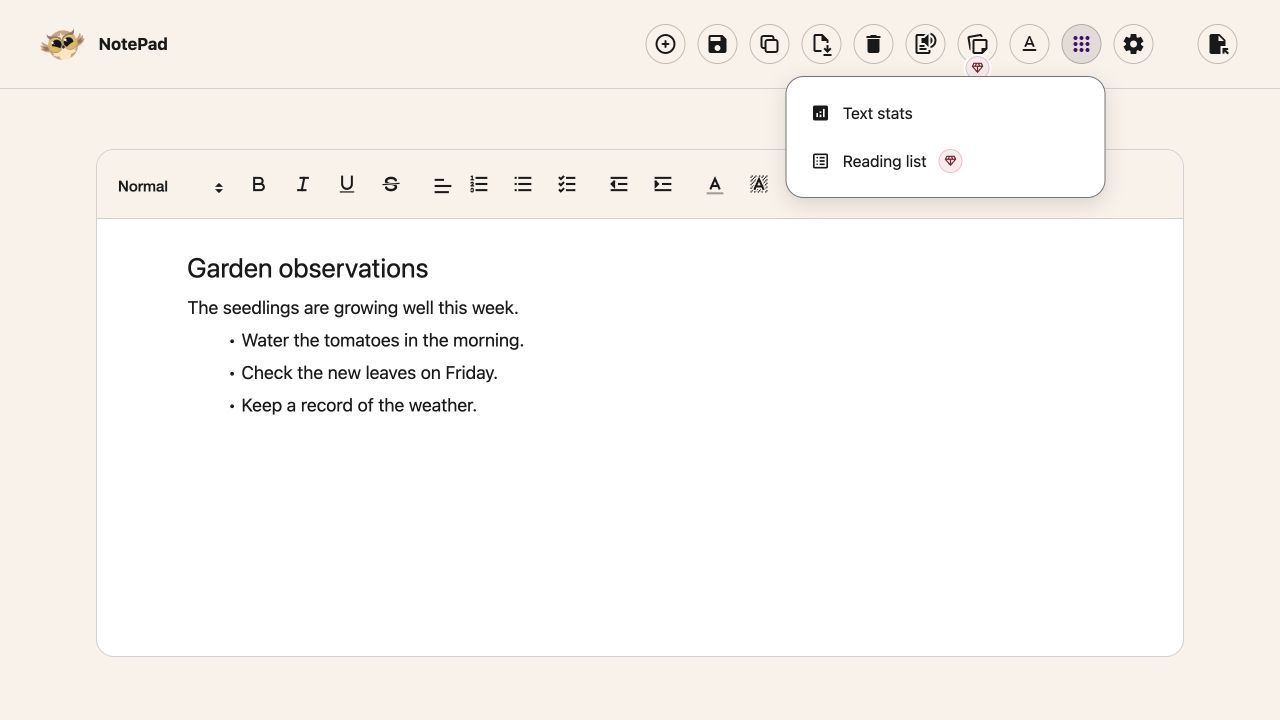
---
## Choose a Comfortable Reading View
**Text settings** changes the font, text size, line height, word spacing and letter spacing. These
are reading preferences. They do not replace the formatting you save in a document.
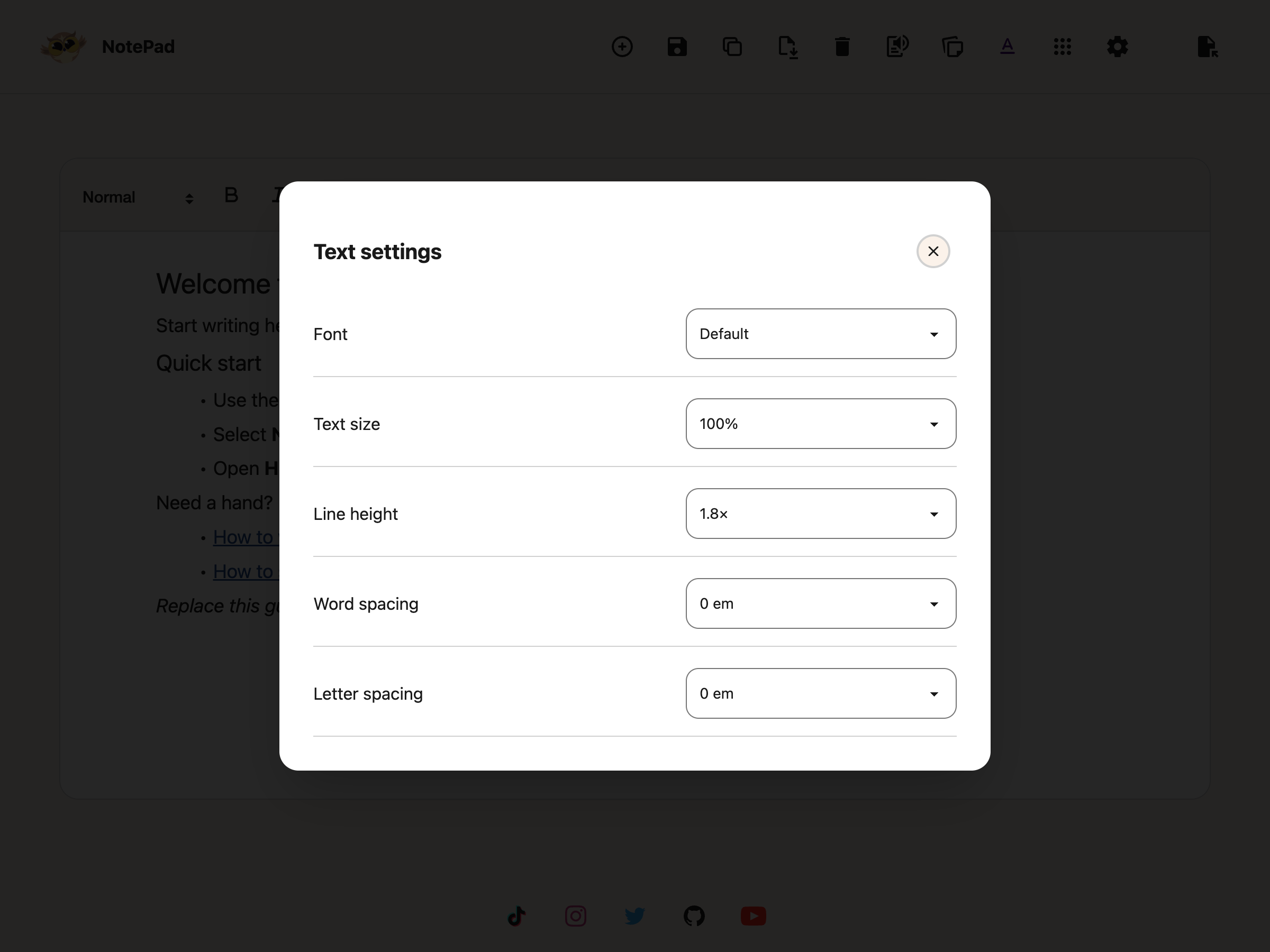
Open **Settings** for reading width, light or dark mode, and keyboard shortcuts. Use the **Reset**
beside **Reset text settings** for font and spacing, or the one beside **Reset layout** for width
and theme. Neither deletes your document.

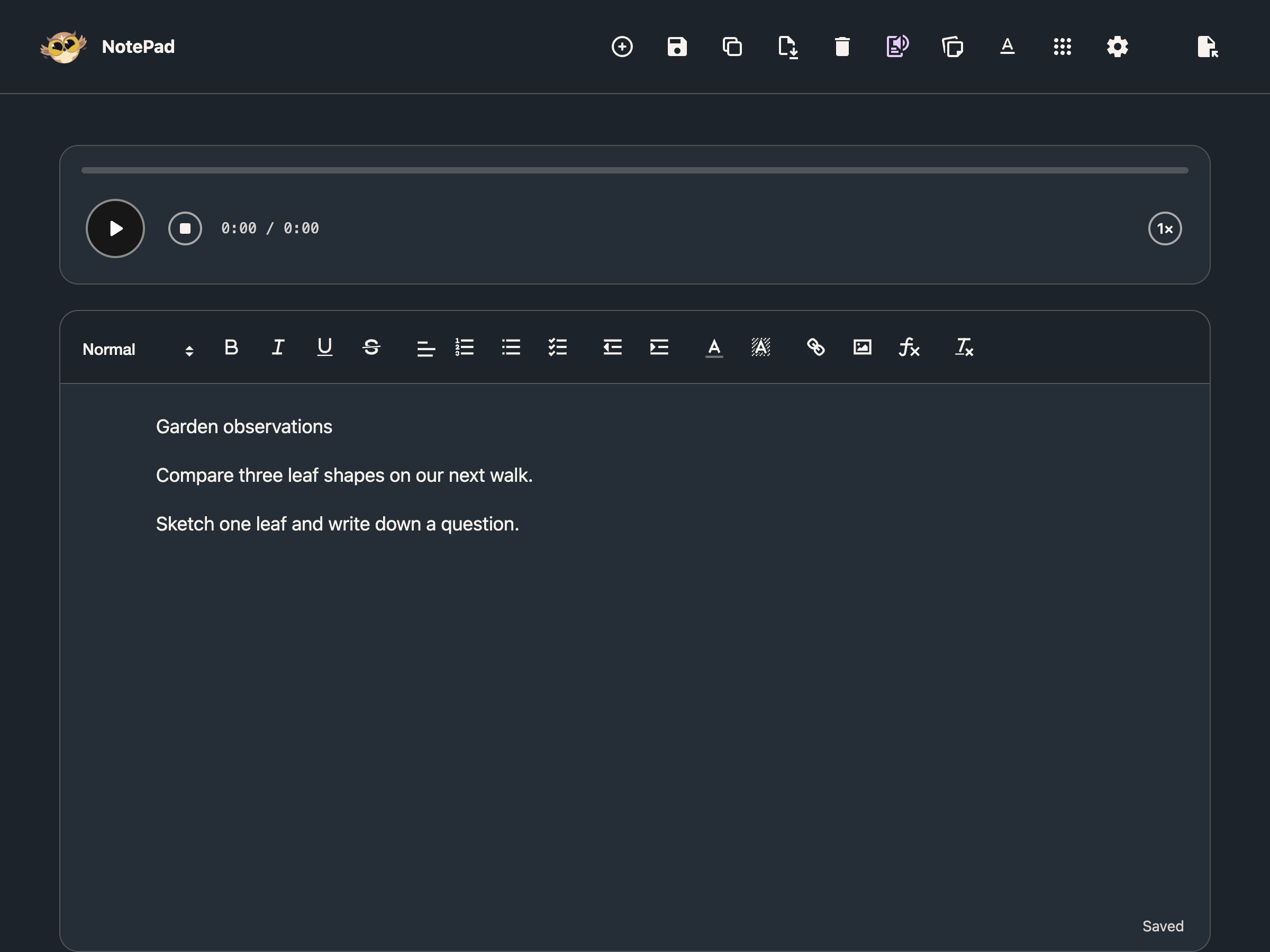
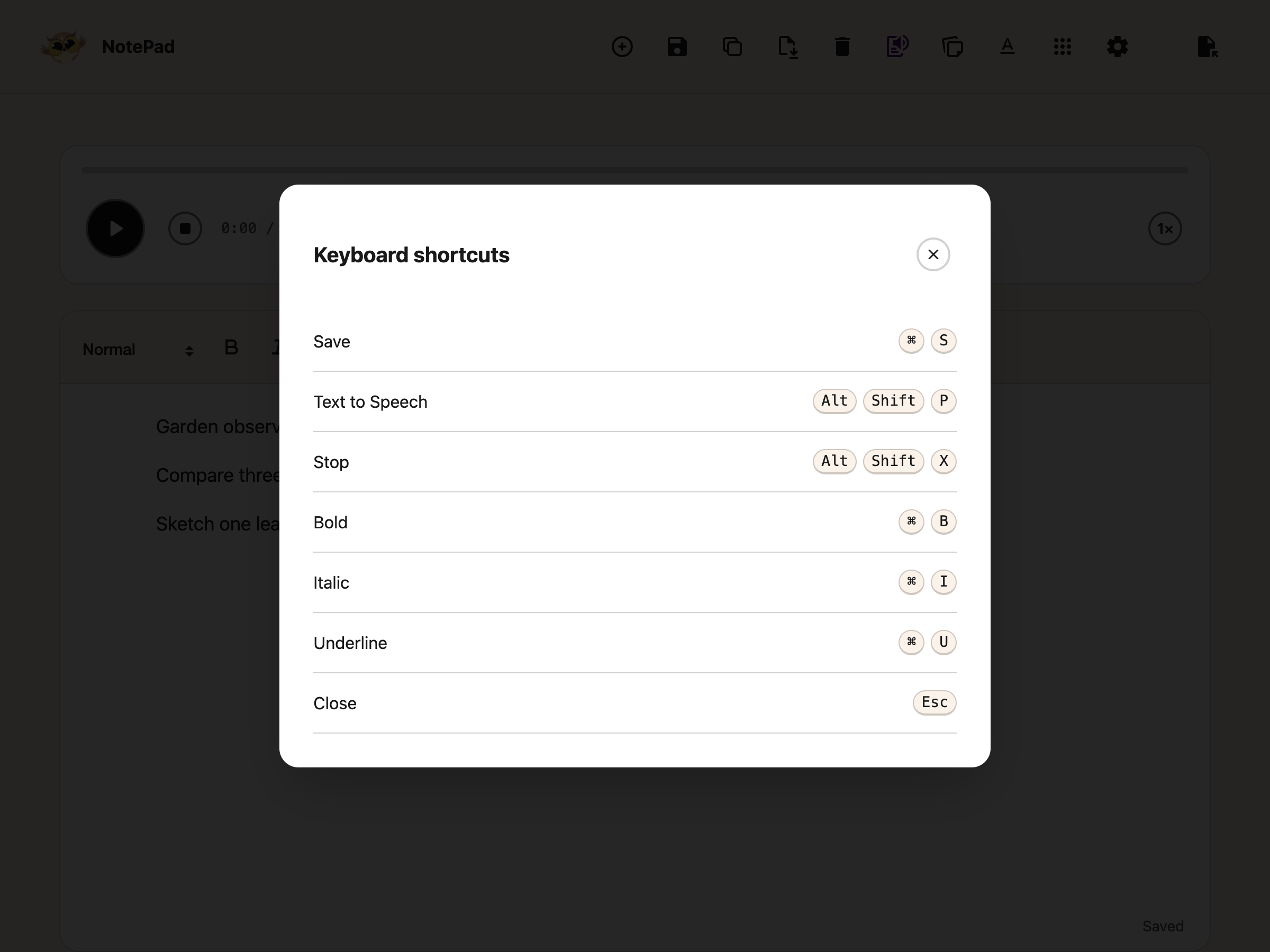
Your choices save for your next visit to NotePad. See
[reading preferences across Helperbird apps](/help/how-to-change-your-reading-view-in-helperbird-apps/).
## Keep Notes Beside Your Writing
Choose **Highlights & Notes** to open its card above the document. An empty library offers **New
note**. Once you have saved items, the filters and search help you find them.

Open a card to edit it or insert it into NotePad. Close the library when you want more space to
write. Closing the library does not delete its contents.
[Manage your notes and highlights](/help/how-to-manage-sticky-notes-and-highlights-in-helperbird/).
---
## Autosave and the Save Button
The Notepad autosaves changes as you write. **Save** remains available when you want to save
explicitly. Switching documents also settles pending edits, but you should keep downloaded copies of
important work.
Notepad writing and all document actions are free. Notes/Highlights and Reading List remain Pro
features. Your browser's storage mode determines whether documents stay on this device or use
supported account sync. Avoid editing the same saved collection in several Notepad tabs at once;
autosave does not resolve conflicting edits.
Where your documents are kept, and what to do when a long one will not save, are covered in
[saving a document](/help/how-to-save-a-document-in-the-helperbird-notepad/).
---
## Add an Equation
Choose **Insert equation** in the text formatting toolbar to add maths at your cursor. Build it with
your keyboard or the full-width math keyboard, then choose **Insert**. Click an inserted equation,
or focus it and press Enter, to edit it later.
Adding and editing equations in the standalone Notepad is free. The
[side Notepad in the PDF Reader](/help/how-to-use-pdf-reader-in-helperbird/#take-notes-beside-the-pdf)
has free typing, formatting and insertion; its equation, voice and grammar tools still need Pro.
---
## A Guide for Each Part
- [Listen to your document](/help/how-to-listen-to-your-notepad-document/)
- [Choose a reading view](/help/how-to-change-your-reading-view-in-helperbird-apps/)
- [Add and edit equations](/help/how-to-add-equations-to-pdfs-and-notepad/)
- [Open the Notepad](/help/how-to-open-the-helperbird-notepad/)
- [Write and format text](/help/how-to-write-and-format-text-in-the-helperbird-notepad/)
- [Save a document](/help/how-to-save-a-document-in-the-helperbird-notepad/)
- [Start a new document](/help/how-to-start-a-new-document-in-the-helperbird-notepad/)
- [Open a saved document](/help/how-to-open-a-saved-document-in-the-helperbird-notepad/)
- [Copy a document](/help/how-to-copy-a-document-in-the-helperbird-notepad/)
- [Delete a document](/help/how-to-delete-a-document-in-the-helperbird-notepad/)
- [Download your work](/help/how-to-download-your-notepad-document/)
- [Add a saved note](/help/how-to-add-a-saved-note-to-your-notepad-document/)
- [Check your text stats](/help/how-to-use-text-analytics-in-helperbird-editor/)
---
## Need Additional Help?
Ran into a snag while getting started? Reach out to our friendly
[Helperbird support team](/support/), and we will help you sort it out.
---
## How to Use Helperbird on Android with Microsoft Edge
URL: https://www.helperbird.com/help/how-to-use-helperbird-on-android-edge/
Using Firefox on Android instead? Follow [How to use Helperbird on Android with Firefox](/help/how-to-use-helperbird-on-android-firefox/). On a computer? Follow [How to install Helperbird](/help/installing-helperbird/).
---
## Before You Start
- Microsoft Edge from the [Google Play Store](https://play.google.com/store/apps/details?id=com.microsoft.emmx), updated to the newest version.
- Not every build of Edge for Android can run extensions. Step 1 tells you whether yours can.
---
## Step 1: Check That Edge Can Run Extensions
1. Open **Microsoft Edge**
2. Tap the **three-dot menu** at the bottom of the screen
3. Look for **Extensions** in the list
If **Extensions** is there, go to step 2.
If it is missing, update Edge in the Play Store and look again. Still missing? This build cannot install extensions. Use [Firefox for Android](/help/how-to-use-helperbird-on-android-firefox/) instead.
---
## Step 2: Add Helperbird
1. Tap the **three-dot menu**, then **Extensions**
2. Search for **Helperbird**
3. Tap **Get**, then tap **Add** to confirm
Edge installs Helperbird and turns it on. You do not need an account for the free features.
---
## Step 3: Open the Helperbird Menu
1. Open any web page
2. Tap the **three-dot menu**, then **Extensions**
3. Tap **Helperbird**
The Helperbird menu opens on top of the page. Tap a feature to turn it on.
Making that trip for every change is slow on a phone. Turn on the [Floating Toolbar](/help/how-to-use-the-helperbird-accessibility-toolbar/) so your tools stay on the page.
---
## Unlocking Pro on Edge
Edge gives you two ways in. Firefox and Safari hide the sign-in and take a subscription key only.
1. Open the Helperbird menu
2. Tap **Settings**, the gear at the top
3. Tap **Login** to open the Helperbird settings page
4. Tap **Continue with Microsoft Account**, or paste your key into **Subscription key** and tap **Save**
Signing in reads the Microsoft account Edge is already signed into, so Edge needs to be signed in with sync on. See [How to enable and use sync in Chrome or Edge](/help/enable-browser-sync-chrome-and-edge/).
Not sure which to use? Read [Email login vs subscription key](/help/email-login-vs-subscription-key/).
---
## Where to Go Next
- [Helperbird quick start guide](/help/helperbird-quick-start-guide/)
- [Troubleshooting common Helperbird issues](/help/troubleshooting-common-helperbird-issues/)
---
## Need Additional Help?
If you have any questions or run into any issues, please contact the Helperbird support team. You can reach us at [Helperbird support](/support/). We are happy to help you get the most out of Helperbird.
---
## How to Use Helperbird on Android with Firefox
URL: https://www.helperbird.com/help/how-to-use-helperbird-on-android-firefox/
Using Microsoft Edge on Android instead? Follow [How to use Helperbird on Android with Microsoft Edge](/help/how-to-use-helperbird-on-android-edge/). On a computer? Follow [How to install Helperbird](/help/installing-helperbird/).
---
## Before You Start
- Firefox from the [Google Play Store](https://play.google.com/store/apps/details?id=org.mozilla.firefox), version **128 or later**. Helperbird will not install on anything older.
- Your subscription key, if you have Helperbird Pro. It is the only way in here.
---
## Step 1: Add Helperbird from the Add-ons Menu
1. Open **Firefox**
2. Tap the **three-dot menu** in the top-right corner
3. Tap **Add-ons**
4. Tap **Find more add-ons**
5. Search for **Helperbird**
6. Tap **Add to Firefox**, then tap **Add** to confirm
Firefox installs Helperbird and turns it on.
---
## Step 2: Open the Helperbird Menu
1. Open any web page
2. Tap the **three-dot menu**, then **Add-ons**
3. Tap **Helperbird**
The Helperbird menu opens on top of the page.
---
## Unlocking Pro on Firefox
Firefox hides the browser sign-in that Chrome and Edge offer, so the settings page shows the **Subscription key** box on its own.
1. Open the Helperbird menu
2. Tap **Settings**, the gear at the top
3. Tap **Login** to open the Helperbird settings page
4. Paste your key into **Subscription key** and tap **Save**
The same key works on your computer. Full walkthrough: [How to use your subscription key](/help/how-to-use-my-subscription-key/).
---
## One Feature Is Missing on Firefox
**Screenshot**, which saves a picture of the page to your downloads, is hidden in the Firefox build, on Android and on a computer.
**Screenshot Reader** is a different feature and it does work in Firefox. It reads the text out of a picture and picks up any maths in the same capture, with no mode to pick. It is part of Helperbird Pro. See [How to extract text from any image, PDF or website](/help/how-to-extract-text-from-any-image-pdf-or-website/).
---
## Where to Go Next
- [Helperbird quick start guide](/help/helperbird-quick-start-guide/)
- [How to use the Helperbird accessibility toolbar](/help/how-to-use-the-helperbird-accessibility-toolbar/), so you stop reopening the Add-ons menu
- [Troubleshooting common Helperbird issues](/help/troubleshooting-common-helperbird-issues/)
---
## Need Additional Help?
If you have any questions or run into any issues, please contact the Helperbird support team. You can reach us at [Helperbird support](/support/). We are happy to help you get the most out of Helperbird.
---
## How to Use Helperbird on iPad in the Classroom
URL: https://www.helperbird.com/help/how-to-use-helperbird-on-ipad-in-the-classroom/
## Before You Start
Helperbird needs to be installed and enabled in Safari on the iPad before students can use it. If your school uses managed iPads through Jamf or Apple School Manager, your IT admin can deploy Helperbird to all devices at once. For individual setup, see our guides on [how to download Helperbird for iPad](/help/how-to-download-helperbird-for-ipad/) and [how to enable Helperbird in Safari](/help/how-to-enable-helperbird-in-safari-on-ios/).
---
## Managed Settings for iPad and iPhone
For step-by-step IT setup, follow the [iPhone and iPad managed app configuration guide](/help/helperbird-iphone-ipad-managed-app-configuration/). Fleets using ManagedApp on iOS or iPadOS 18.4 and later can use the [declarative MDM guide](/help/helperbird-iphone-ipad-declarative-management/).
This section is for your school's IT administrator. Use a signed Helperbird Apple build with the 2026.9.6 managed-configuration support and test it on enrolled devices before rolling it out. App installation, Safari extension permissions, and Helperbird settings are separate tasks.
The [policy builder](/help/json-policy-validator/) creates the files for both supported delivery routes. Safari accepts the same Helperbird policy keys as Chrome and Edge, including subscription keys, disabled features, excluded sites, toolbar defaults, and read-aloud highlighting. Features unavailable on iOS remain unavailable.
**Managed App Configuration:** Distribute Helperbird as a managed app through your MDM. In the builder, choose the iPhone/iPad App Configuration plist and apply it to the containing app, **`com.helperbird.Helperbird`**. Use its flat dictionary, without Google's `Value` wrappers or an extra `com.apple.configuration.managed` wrapper.
Open the Helperbird app after the configuration arrives, then open its Safari extension. Repeat this after a policy update or removal: opening only the Safari popup does not forward legacy App Configuration changes. This route's snapshot expires after seven days without the app refreshing it, so plan for the app to be opened periodically.
**Declarative management on iOS/iPadOS 18.4 or later:** If your MDM supports ManagedApp extension configuration, use the builder's advanced DDM output with a privately hosted plist data asset. The generated JSON is an **ExtensionConfigs fragment**, not an installable profile or complete declaration. It must be incorporated into your managed-app deployment, targeting **`com.helperbird.Helperbird.Extension (LR6Z77X624)`** for the Helperbird release build. This route delivers configuration to the extension without the legacy app-opening step. Follow [Jamf's ManagedApp setup guidance](https://developer.jamf.com/jamf-pro/docs/test-apps-with-managedapp-and-blueprints) and verify the signing identifier for your build.
Use one delivery route per deployment. A Mac `.mobileconfig` is not a substitute for either iOS route, and sending an App Configuration plist to a phone as a file does not apply managed app settings.
Set `isAdminControl` to the boolean `true` to apply policy. Set it to `false` to release management. A missing or empty `subKey` releases managed licensing only, while other policy settings remain active. Subscription keys still require validation. `floatingButton` is a default users can change; to block the toolbar, enable `disableFeatures` and include `FloatingButton`.
After deployment, check Billing and a configured restriction in Safari, then test a policy change and removal. Keep files containing your subscription key private. See [managed deployment troubleshooting](/help/verify-helperbird-managed-deployment/) if a configuration does not arrive.
---
## Opening Helperbird on iPad
1. Open **Safari** and go to any website or online assignment
2. Tap the **puzzle piece icon** in the address bar at the top of the screen
3. Tap **Helperbird** from the list of extensions
4. The Helperbird panel will open, make sure the main toggle is turned **on** (green)
Students will see all available features listed in the panel. Settings are saved automatically, so students only need to set up their preferences once.
---
## Features That Work Great in the Classroom
Here are the most useful features for students on classroom iPads:
**Text-to-Speech**: Reads any text on the page aloud. Helpful for students with reading difficulties, visual impairments, or anyone who learns better by listening. Students can select text and have it read to them while following along.
**Dyslexia Fonts**: Switches the page font to OpenDyslexic or other dyslexia-friendly fonts. Makes reading easier for students with dyslexia without changing the page content.
**Reading Mode**: Strips away ads, sidebars, and distractions so students can focus on the main content. Especially useful when reading articles or online textbooks.
**Immersive Reader**: Opens text in Microsoft Immersive Reader with syllable breaks, line focus, and picture dictionary. Great for younger readers or English language learners.
**Translate**: Translates page text into any of 64 languages. Helpful for multilingual classrooms and ELL students.
**Overlay Tint**: Adds a colored overlay to the screen to reduce visual stress. Students can choose the color that works best for them.
**Font Size and Spacing**: Increases text size, line height, word spacing, and letter spacing to make content easier to read on the iPad screen.
---
## Using Helperbird in Split View
iPads support Split View, which lets students have two apps open side by side. This is useful for:
- Having Safari with Helperbird open on one side and a note-taking app on the other
- Reading an article with accessibility features on one side while writing an assignment on the other
- Comparing two web pages with Helperbird features active on both
To use Split View, swipe up from the bottom of the screen to open the Dock, then drag a second app to the left or right edge of the screen.
---
## Tips for Teachers
- **Set it up once** - Have students configure their preferred settings during a dedicated setup time. Settings save automatically and persist across sessions.
- **Start simple** - Introduce one or two features at a time, like text-to-speech and reading mode, before showing students the full feature set.
- **Encourage customization** - Every student's needs are different. Let students explore and find the combination of features that helps them most.
- **Use with Google Classroom** - Helperbird works on Google Classroom, Google Docs, and other web-based tools students use in Safari.
- **Check the admin options** - If your school has a Helperbird Unlimited license, administrators can pre-configure features and lock certain settings across all devices. See our [admin deployment guide](/help/how-to-deploy-helperbird-to-your-school-or-business/) for details.
---
## Need Additional Help?
If you have questions about using Helperbird on iPads in your classroom or school, reach out to our [Helperbird support team](/support/). We are happy to help with setup, deployment, and getting students started.
---
## Helperbird Running Slow - How to Fix Performance Issues
URL: https://www.helperbird.com/help/helperbird-running-slow/
If Helperbird feels slow or is causing pages to lag, here are some ways to speed things up.
---
## Step 1: Disable Unused Features
Having many features enabled at once can slow things down. Open Helperbird and turn off any features you're not actively using.
Focus on keeping only the features you need for your current task. You can always turn others back on when needed.
---
## Step 2: Refresh the Page
If Helperbird has been running on a page for a while, refreshing can help. Press F5 or click the refresh button in your browser to reload the page with a fresh start.
---
## Step 3: Check Other Extensions
Other browser extensions can conflict with Helperbird or use up resources.
Try disabling other extensions temporarily to see if performance improves. If it does, re-enable them one by one to find the culprit.
---
## Step 4: Close Unused Tabs
Having many tabs open uses memory and can slow down extensions. Close tabs you're not using to free up resources for Helperbird.
---
## Step 5: Clear Browser Cache
A cluttered cache can slow down your browser. Clear your browser's cache and cookies:
**Chrome:** Settings > Privacy and security > Clear browsing data
**Edge:** Settings > Privacy, search, and services > Clear browsing data
**Firefox:** Settings > Privacy & Security > Clear Data
---
## Step 6: Update Your Browser
Older browser versions can have performance issues. Make sure you're running the latest version of your browser.
**Chrome:** Menu > Help > About Google Chrome
**Edge:** Menu > Help and feedback > About Microsoft Edge
**Firefox:** Menu > Help > About Firefox
---
## Step 7: Update Helperbird
Make sure you have the latest version of Helperbird installed. Updates often include performance improvements.
Check your browser's extension page to see if an update is available.
---
## Step 8: Restart Your Browser
If you've had your browser open for a long time, restarting it can clear memory and improve performance. Close all browser windows and reopen your browser.
---
## Step 9: Check the Website
Some websites are heavy and slow regardless of Helperbird. If Helperbird works fine on other sites but struggles on one particular site, the issue might be with that website.
Try disabling Helperbird on that specific site if needed.
---
## Need Additional Help?
Still experiencing slow performance? Reach out to our [Helperbird support team](/support/) with details about your browser, device, and the sites where you notice issues!
---
## How to Hide Your Highlights Without Deleting Them
URL: https://www.helperbird.com/help/how-to-hide-your-highlights-without-deleting-them/
## What This Does
Highlights are useful while you are working and distracting when you are not. This switch takes them
off the page without deleting anything, so you can read the page clean and bring them back whenever
you want.
---
## Who is This For?
This is helpful for:
- Anyone re-reading a page they have already marked up heavily
- Students testing themselves without the answers highlighted in front of them
- Anyone who finds a page of color hard to read
- People about to share their screen who would rather not show their notes
---
## Step 1: Open All Features
Open Helperbird and go to **All Features**. Scroll to the **Highlighter** row.
The row needs Helperbird Pro. On the free plan the toggle is replaced by a **Pro feature** badge
that links to the upgrade page. It is not there at all on iPad or iPhone.
---
## Step 2: Turn Highlights Off
Turn **Highlighter** off. Saved marks and the color palette disappear, and a toast confirms the
change after it is saved. The separate Highlight Menu stays available if its own toggle is on.

Nothing has been deleted. Every highlight is still saved, still attached to the page it was made on,
and still listed in your notes.
---
## Getting Them Back
Turn **Highlighter** back on. A toast confirms the change and your saved marks reappear. Select text
to use the color palette again. If saving fails, the toggle returns to its previous state and an
error message appears.

If you actually want a highlight gone for good, that is a different job. See
[how to manage sticky notes and highlights](/help/how-to-manage-sticky-notes-and-highlights-in-helperbird/).
See also
[how to highlight words and paragraphs](/help/how-to-highlight-words-and-paragraphs-on-any-website/).
---
## Need Additional Help?
If you have any questions or run into any issues, please contact the Helperbird support team. You
can reach us at [Helperbird support](/support/). We are happy to help you get the most out of
Helperbird.
---
## How to Use Helperbird's High Contrast Themes
URL: https://www.helperbird.com/help/how-to-use-helperbirds-high-contrast-features/
## What High Contrast Does
Some websites put pale grey text on a white background.
**High contrast** recolors the page so the text stands out. You pick one of five themes and the page
changes straight away.
The theme stays on until you turn it off, so the next page you open looks the same way.
Turning it on is free.
---
## Who is This For?
This is helpful for:
- People with low vision
- Anyone who finds bright pages painful to look at
- Anyone who reads better with the color taken off the page
- Anyone reading in strong light, where pale text washes out
---
## Turn On High Contrast
High contrast lives in the **Display** panel, under **All Features** in the Helperbird menu. Turn on
the **High contrast** toggle, then open the box under it and choose a theme.

The box shows **Increased Contrast** before you choose, but the page uses **Greyscale**. Choose a
theme yourself, even the one already showing.
For the same steps with a screenshot at every stage, see
[how to enable high contrast mode](/help/how-to-use-helperbirds-high-contrast-features/).
### Keyboard shortcut
Press **Option + 7** on a Mac. On Windows, Linux and Chromebook, press **Alt + Shift + 7**. Either
one switches High contrast on and off.
The shortcut changes the page you are on. It does not change the saved setting, so the next page you
open follows the toggle in the menu.
You need [Helperbird Pro](/help/what-is-helperbird-pro/) for the shortcut, and
[keyboard shortcuts](/help/what-are-the-helperbird-shortcuts/) turned on.
---
## The Five Themes
Table: The five high contrast themes and what each one looks like.
| Theme | What you see |
| ------------------ | -------------------------------------------------------------------------------------------------------- |
| Increased Contrast | Colors stay, but go deeper. Text stands out more against a light background. |
| Greyscale | Color comes off. The page is black, white and grey. |
| Inverted Color | Every color flips to its opposite. A white page turns dark, and a page that is already dark turns light. |
| Inverted Greyscale | Color comes off and then flips. You get light text on a dark background. |
| Yellow on Black | Yellow text on a black background. |
If you are not sure where to start, try **Increased Contrast** first. It keeps the colors the page
already has, so the page still looks like itself.
---
## High Contrast or Dark Reader?
**Dark Reader** paints pages dark, with its own dark themes and brightness controls. It flips
nothing, so a page that is already dark stays dark. See
[how to turn on Dark Reader](/help/how-to-turn-on-dark-mode-in-helperbird/).
**High contrast** changes the colors that are already on the page instead. It can take color off,
flip color, or push the colors further apart.
So use Dark Reader to read at night. Use High contrast when you want the color gone, the contrast
pushed up, or yellow on black.
**Dark mode** is a third, separate setting. It changes the colors of Helperbird's own windows, not
the websites you visit.
---
## What It Does Not Change
You cannot apply the theme to the text only. Menus, buttons and ads change with it.
Greyscale, Inverted Greyscale and Yellow on Black recolor photos and videos too. Increased Contrast
and Inverted Color leave most photos and videos close to their own colors.
---
## Video Tutorial
Coming soon
---
## Need Additional Help?
If you have any questions or run into any issues, please contact the Helperbird support team. You
can reach us at [Helperbird support](/support/). We are happy to help you get the most out of
Helperbird.
---
## How to Change the Highlight Color on Any Website
URL: https://www.helperbird.com/help/how-to-change-the-highlight-color-of-a-website/
## Choose a Highlight Color
1. Open Helperbird and expand **All Features**.
2. Turn **Highlighter** on. Creating highlights requires Helperbird Pro.
3. Select text on a web page.
4. Choose Blue, Green, Red, Yellow, Gray or Purple from the palette below your selection.

Each highlight keeps the color you choose. Select more text to make another mark in the same or a
different color. Your highlights are saved to Notes and appear when you return to the same page.
The separate **Highlight Menu** provides reading tools. If both are on, the reading menu appears
above the text and the color palette below it. Near the window edge, the menus move to fit.

## Show or Hide Highlights
Turn **Highlighter** off to hide the palette and saved marks. Turn it on to show them again. A toast
confirms each saved change. Hiding highlights does not delete them.
## Where the Old Control Went
Highlighter in All Features replaces the old **Highlights** toggle and **Colors → Highlight color**
control. Your saved marks and their colors are preserved. The Colors panel now contains text, link
and background settings.
## Need Additional Help?
See [how to highlight text](/help/how-to-highlight-words-and-paragraphs-on-any-website/) or
[contact Helperbird support](/support/).
---
## How to Highlight Links on Any Website
URL: https://www.helperbird.com/help/how-to-emphasize-links-on-any-website/
## What is Highlight Links?
Many websites strip the underline from their links, which leaves color as the only thing marking
them. That is hard to spot, and impossible if you cannot distinguish the color.
**Highlight links** puts a striped bar under every link instead, in grey, yellow, red and teal. It
is deliberately not a plain underline: a four-color stripe is recognisable whatever your color
vision.
---
## Who is This For?
This feature is helpful for:
- People who have difficulty distinguishing links from regular text
- Anyone with low vision who needs clearer visual cues
- People who prefer consistent link styling across all websites
- Anyone who finds it frustrating when links are hard to identify
- People with cognitive differences who benefit from clear navigation
---
## Step 1: Open Helperbird
Click the Helperbird icon in your browser toolbar. It looks like a small owl and is usually in the
top-right corner of your browser.
This will open the Helperbird menu.
---
## Step 2: Go to the All Features Section
Scroll down to the bottom of the Helperbird menu. You will see a section called **All Features**.
Click the arrow next to **All Features** to expand it and show all available features.
---
## Step 3: Find Display
Look through the list of features until you see **Display**. Highlight links lives inside this
panel, alongside the other display settings.
---
## Step 4: Open Display
Click **Open** on the **Display** row. The panel holds **High contrast**, **Highlight links**,
**Saturation**, **Cursor size** and **Magnifier**.
---
## Step 5: Turn on Highlight Links
Click the toggle switch next to **Highlight links** to turn it **on**. The toggle will turn blue
when it is enabled.
All links on the page will immediately become more visible with clear underline styling.
**Tip:** Combine this feature with the Link Color feature to make links stand out even more with a
custom color.
---
## What It Looks Like
Highlight links has no settings. It is a single switch in the **Display** panel, alongside High
contrast, Saturation, Cursor size and Magnifier.

The style it applies is fixed: a 2 pixel striped bar under each link, in grey, yellow, red and teal.
Any underline the site had is replaced by it.
That matters for anyone who cannot rely on color alone to spot a link, which is why there is nothing
to configure. If you want to change how links look more generally, use
[link color](/help/how-to-change-the-link-color-of-a-website/) instead.
---
## Video Tutorial
Coming soon
---
## Need Additional Help?
If you have any questions or run into any issues, please contact the Helperbird support team. You
can reach us at [Helperbird support](/support/). We are happy to help you get the most out of
Helperbird.
---
## How to Use the Highlight Menu in Helperbird
URL: https://www.helperbird.com/help/how-to-use-the-highlight-menu-in-helperbird/
## What is the Highlight Menu?
The Highlight Menu is a toolbar that appears when you select text on any webpage. It gives you quick
access to Helperbird's most useful tools without having to open the main extension panel.
Select some text and a small menu appears above your selection.
---
## Who is This For?
This feature is helpful for:
- Anyone who wants quick access to reading tools
- People who frequently use text-to-speech on selected text
- Students who need to look up words while reading
- Anyone who translates text often
---
## Step 1: Open Helperbird
Click the Helperbird icon in your browser toolbar. It looks like a small owl and is usually in the
top-right corner of your browser.
This will open the Helperbird menu.
---
## Step 2: Go to the All Features Section
Open **All Features** in Helperbird.
---
## Step 3: Find Highlight Menu
Look through the list of features until you see **Highlight Menu**.
---
## Step 4: Turn on Highlight Menu
Click the toggle switch next to **Highlight Menu** to turn it **on**. The switch shows a check when
it is enabled.

---
## Step 5: Select Text on a Webpage
Go to any webpage and use your mouse to select some text. Click and drag to highlight a word,
sentence, or paragraph.
A small toolbar will appear above your selected text.

---
## Step 6: Use the Menu Tools
Click any button in the toolbar to use that tool on your selected text. The action happens
immediately.
---
## Available Tools
The Highlight Menu includes these tools:
- **Play** - Reads the selected text aloud using
[Text to Speech](/help/how-to-use-text-to-speech-on-any-website/)
- **Stop** - Stops the text-to-speech playback
- **Dictionary** - Opens a definition for the selected word
- **Search Web** - Searches the web for the selected text
- **Immersive** - Opens the selected text in Microsoft Immersive Reader
- **Translate** - Translates the highlighted text to your chosen language
To save colored highlights, turn on **Highlighter** separately in All Features. Its color palette
appears below the selection while this reading menu stays above it. Near a window edge, both menus
move to fit. Each toggle works independently. See
[how to highlight text](/help/how-to-highlight-words-and-paragraphs-on-any-website/).
**Tip:** The Highlight Menu works on almost any text on the web, making it easy to quickly access
Helperbird's tools without opening the main extension panel.
---
## Video Tutorial
This video shows an older combined menu. Highlighter now has its own toggle and palette.
Coming soon
---
## Need Additional Help?
If you have any questions or run into any issues, please contact the Helperbird support team. You
can reach us at [Helperbird support](/support/). We are happy to help you get the most out of
Helperbird.
---
## How to Highlight Text on Any Website
URL: https://www.helperbird.com/help/how-to-highlight-words-and-paragraphs-on-any-website/
## What This Does
Select text, pick a color, and the text stays marked.
Every highlight you make is saved. Come back to the same page next week and your marks are still
there.
---
## Who is This For?
This feature helps if:
- You study from web pages and need to find the important lines again
- You research across many pages and want the useful parts in one place
- You read better when you mark up the text
- You sort information by color
- You return to the same reference pages often
---
## How to Turn On the Highlighter
1. Click the Helperbird icon in your browser toolbar.
2. Scroll to the bottom of the menu and open **All Features**.
3. Find **Highlighter** in the list.
4. Turn its toggle on.

Turning Highlighter on shows your saved highlights and makes the color palette available when you
select text. A confirmation appears after the setting is saved.
The separate **Highlight Menu** contains the reading tools. If both are on, the reading menu appears
above your selection and the color palette below it. Near the edge of the window, the menus move to
fit without covering each other. You can use either menu on its own.
---
## How to Highlight Text
1. Select the words you want to mark.
2. Choose a color directly from the palette below the selection: Blue, Green, Red, Yellow, Gray or
Purple.

The text takes that color straight away. Select more text to add another highlight.

Making highlights requires Helperbird Pro. Free users can still view previously saved highlights
when Highlighter is on, but do not see the creation palette.
Each highlight keeps the color you chose. The Colors panel is for page text, links and backgrounds;
Highlighter has its own control in All Features.
---
## Where Your Highlights Go
Every highlight is saved to Notes as well as painted on the page.
Click a highlight, or press Enter or Space when it has focus, and Notes opens in a new tab. From
Notes you can export what you have gathered as a PDF or as plain text.
Clicking a highlight does not remove it. You delete a highlight in Notes.
Your saved highlights keep appearing even when the **Highlight Menu** toggle is off. The reading
menu is independent. To hide both the saved marks and the color palette without deleting anything,
turn **Highlighter** off. That toggle is a Helperbird Pro feature. See
[how to hide your highlights](/help/how-to-hide-your-highlights-without-deleting-them/).
---
## Limits and Browser Support
Your highlights come back when you open the same web address. Links that carry extra text after a
question mark, such as tracking links and search result links, can count as a different address.
When that happens the marks do not appear.
By default your highlights follow you to the browsers you are signed in to. If you have turned
**Sync** off in Helperbird's settings, they stay on this device. See
[how to sync your Helperbird settings](/help/how-to-sync-your-helperbird-settings/).
Storage space can run out. If it fills up, Helperbird saves to this device instead. If that is full
too, the highlight is not saved.
The web selection menus are not available inside Helperbird’s PDF Reader. Use its
[drawing tools](/help/how-to-use-drawing-tools-on-pdfs-with-helperbird/) or
[text boxes](/help/how-to-add-text-boxes-to-pdf-with-helperbird/) to annotate a PDF.
Table: Where the Highlight Menu and the Highlighter toggle are available.
| Where | Highlight Menu | Highlighter toggle |
| ----------------------------- | -------------- | ------------------ |
| Chrome, Edge, Firefox, Safari | Yes | Yes |
| Helperbird PDF Reader | No | No |
| Google Docs | No | No |
| iPad and iPhone | No | No |
---
## Video Tutorial
This video shows an older combined menu. Use the separate **Highlighter** toggle and palette
described above in the current version.
Coming soon
---
## Related Guides
- [Word spotlight](/help/how-to-highlight-words-on-hover/) - A yellow highlight that follows your
mouse and saves nothing.
- [The Highlight Menu](/help/how-to-use-the-highlight-menu-in-helperbird/) - Read aloud, look up
words, search and translate selected text.
- [Highlight words as they are read aloud](/help/how-to-highlight-words-as-they-are-read-aloud/) -
Word highlighting that follows the voice.
- [Notes](/help/how-to-manage-sticky-notes-and-highlights-in-helperbird/) - Where your highlights
collect and how to export them.
- [Hide your highlights](/help/how-to-hide-your-highlights-without-deleting-them/) - Clear the color
from the screen without deleting it.
---
## Need Additional Help?
If you have any questions or run into any issues, please contact the Helperbird support team. You
can reach us at [Helperbird support](/support/). We are happy to help you get the most out of
Helperbird.
---
## How to Highlight Words as They Are Read Aloud
URL: https://www.helperbird.com/help/how-to-highlight-words-as-they-are-read-aloud/
## What This Does
With this on, each word lights up as it is spoken. Instead of listening and reading separately, your
eye is pulled along by the voice.
This is a beta feature, so it is still being worked on.
---
## Who is This For?
This is helpful for:
- Anyone who loses their place when listening and reading at the same time
- Readers with dyslexia, where pairing the sound with the word helps it stick
- Students learning to read, or reading in a second language
- Anyone who drifts off partway through a paragraph
---
## Step 1: Turn It On
Beta features live on the settings page. Open Helperbird, open **Options**, choose **Settings**, and
scroll to **Beta features**. See
[how to use beta features](/help/how-to-use-beta-features-in-helperbird/) for the full route.
Highlight spoken words with its preview sentence and color choices.
**Highlight spoken words** starts on. Turn it on if you previously switched it off.
---
## Step 2: Pick a Color
Underneath the switch there is a row of colors and a preview sentence showing how the highlight will
look. Yellow is chosen to start with.
Pick one you can see but that does not drown out the text. If you use a color overlay or dark mode,
check the preview, because a highlight that works on white may disappear on a tinted page.
---
## Where It Works
Highlighting appears in **Reading Mode** and when you have **selected some text** and had it read.
It does not highlight when reading a whole page you have not selected.
---
## If Nothing Highlights
**Word highlighting only works with your computer's own voices.** If you have chosen one of the
Natural voices, the words will not light up, because those voices do not report their position as
they speak.
Switch to a local voice in your
[text to speech settings](/help/how-to-use-text-to-speech-on-any-website/) and it will start
working. Voice availability depends on your browser and device.
---
---
## Need Additional Help?
If you have any questions or run into any issues, please contact the Helperbird support team. You
can reach us at [Helperbird support](/support/). We are happy to help you get the most out of
Helperbird.
---
## How to Cancel Your Helperbird Pro Subscription
URL: https://www.helperbird.com/help/how-to-cancel-my-helperbird-pro-subscription/
Here is how to end your Pro subscription, and what happens after you do.
---
## Before You Cancel
If something is not working, talk to us first. We would rather fix it.
Bought Helperbird in the last 30 days? A refund may suit you better than a cancellation. See [how to request a refund](/help/how-to-request-a-refund/).
Keeping Pro but paying with a different card? Do not cancel. See [how to update your credit card](/help/how-to-update-my-credit-card/) instead.
If your school or workplace pays for Helperbird, the **Manage** row in your settings reads **Managed by your organization**. There is nothing for you to cancel. Your admin owns the billing.
---
## Cancel Your Plan
1. Open your billing portal. See [managing your Helperbird billing](/help/how-to-manage-your-helperbird-billing/) for both ways in.
2. Click **Cancel plan**.
3. Confirm.
That is the whole cancellation. Nothing to uninstall, nobody to email.
---
## What Happens After You Cancel
Your subscription runs to the end of the period you have already paid for. Nothing stops working on the day you cancel, and you are not charged again.
Until that date the **Billing** section still shows **Plan: Pro** and **Status: Subscription active**. That is correct. Your subscription has not ended yet.
After that date your plan goes back to Free, and the free features keep working. Helperbird rechecks about every eight hours, so press **Check** in the **Billing** section if you want it to catch up sooner.
Your account and your settings are not deleted. Your fonts, colors, profiles and saved options are all where you left them if you subscribe again later.
---
## Need Additional Help?
Questions about cancelling, or about what you keep afterwards? Reach out to the [Helperbird support team](/support/) and we will help.
---
## How to Enable and Use Sync in Chrome or Edge
URL: https://www.helperbird.com/help/enable-browser-sync-chrome-and-edge/
Chrome and Edge have their own sync switch. This page turns it on and off.
---
## What Browser Sync Does for Helperbird
Helperbird saves your settings in your browser's extension storage. The browser's sync switch decides whether that storage is copied to the other computers signed in to the same profile.
The switch is free and does not need Helperbird Pro. Whether Helperbird writes to synced storage at all is a separate setting inside Helperbird: see [Sync or Store Data Locally in Helperbird](/help/sync-data-locally-or-remote-helperbird/).
---
## Turn On Sync in Chrome
### Step 1: Open Chrome settings
Click the three dots in the top-right corner of Chrome, then click **Settings**.
---
### Step 2: Turn on sync
Open **You and Google**, then click **Turn on sync**. Sign in to your Google Account if Chrome asks you to.
---
### Step 3: Include extensions
Open **Sync and Google services**, then **Manage what you sync**. Choose **Customize sync** and turn on **Extensions**.
Chrome then shows **Sync is on**. Menu wording moves between Chrome versions, so look for the sync section rather than the exact label.
---
## Turn On Sync in Edge
### Step 1: Open Edge settings
Click the three dots in the top-right corner of Edge, then click **Settings**.
---
### Step 2: Turn on sync
Open **Profiles**, then **Sync**, then click **Turn on sync**. Sign in to your Microsoft account if Edge asks you to.
---
### Step 3: Include extensions
On the same **Sync** page, turn on **Extensions**.
Edge gives each kind of data its own toggle, so **Extensions** can sit off while sync itself is on.
---
## Turn Off Sync
In Chrome, go to **Settings > You and Google** and click **Turn off**. In Edge, go to **Settings > Profiles > Sync** and click **Turn off sync**.
Your browser may offer to clear the synced data from this computer at the same time. Leave that option unticked to keep your Helperbird settings here.
Changes you make after that stay on the computer you make them on. Nothing is deleted from your Google or Microsoft account.
---
## What Browser Sync Does Not Do
- **It does not send your settings to Helperbird.** They travel through your Google or Microsoft account. [Where Helperbird Stores Your Data](/help/helperbird-data-hosting/) covers what Helperbird itself holds.
- **It does not hand Helperbird your email address.** Helperbird asks for that permission separately when you sign in, and you can refuse it.
- **It does not decide whether Helperbird uses sync.** That is the setting in [Sync or Store Data Locally in Helperbird](/help/sync-data-locally-or-remote-helperbird/).
Sync on and settings still not arriving? [Helperbird Settings Not Syncing Between Devices](/help/helperbird-settings-not-syncing/) is the checklist for that.
---
## Need Additional Help?
Ran into a snag while getting started? No worries at all. Reach out to our friendly [Helperbird support team](/support/), and we'll help you smooth things out in no time.
---
## How to Login to Helperbird
URL: https://www.helperbird.com/help/how-to-login-to-helperbird/
Have a Pro plan? Log in with your email or a key.
**Not sure which one to pick, or want to use Helperbird on more than one browser?** See
[Email Login vs Subscription Key](/help/email-login-vs-subscription-key/) for a side-by-side
comparison.
---
## Log in with Email
**Works on Chrome and Edge** Make sure
[browser sync is enabled](/help/enable-browser-sync-chrome-and-edge/) before you start.
### Step 1: Open Helperbird Settings
Open Helperbird, choose the gear icon, then choose **Settings** at the bottom of the Options list.
The settings page opens in a new tab.
---
### Step 2: Click Login and Grant Permission
Find **Account**, then choose the button for your browser:
- Chrome: **Continue with Google Account**.
- Edge: **Continue with Microsoft Account**.
Allow Helperbird to read your email address so it can check your plan.

---
### Step 3: Access Your Pro Features
Helperbird will check your email for an active subscription.
If your plan is active, Pro tools unlock. If they stay locked, try your
[subscription key](/help/how-to-use-my-subscription-key/).
Use the email linked to your plan. Log in once in each browser you use. A login on one device does
not unlock your other browsers.
---
## Log in with Subscription Key
**Works on Chrome, Edge, Firefox, iPhone, and iPad**
[Learn more about subscription keys](/help/how-to-use-my-subscription-key/).
### Step 1: Open Helperbird Settings
Open Helperbird, choose the gear icon, then **Settings**. On iPhone or iPad, follow the
[Safari subscription-key steps](/help/how-to-unlock-helperbird-pro-on-ios/) to reach Helperbird
first.
---
### Step 2: Find the Subscription Section
Find **Account**, then the **Subscription key** field.
---
### Step 3: Enter Your Key and Save
Paste your key into the field and click **Save**. If it matches an active plan, Pro unlocks.
**Tip:** Keep your subscription key somewhere safe. You'll need it if you switch browsers or
devices, or if you use Firefox, iPhone, or iPad!
---
## Video Tutorial
Coming soon
---
## Need Additional Help?
Still unable to log in? [Contact support](/support/) with the message you see and the browser you
use.
---
## How to Manage Your Helperbird Pro Subscription
URL: https://www.helperbird.com/help/manage-my-helperbird-pro-subscription/
Your subscription answers two questions: which plan you are on, and whether it is running.
Helperbird shows both in the **Billing** section of the settings page. This page explains what it is
telling you.
To change your card, download an invoice or open the portal, see
[managing your Helperbird billing](/help/how-to-manage-your-helperbird-billing/).
---
## Where Helperbird Shows Your Plan
Open the Helperbird settings page and scroll to **Billing**, below **Account**. See
[how to open the settings page](/help/how-to-open-the-helperbird-settings-page/) if you cannot find
it.

**Plan** and **Status** tell you where you stand, and they are the subject of this page. **Check**
asks Helperbird to look your subscription up again. **Manage** is the way into your billing portal,
covered in [managing your Helperbird billing](/help/how-to-manage-your-helperbird-billing/).
---
## What Your Plan Says
**Plan** has three answers.
- **Free**. Helperbird found no paid subscription for you on this browser. See
[what Helperbird Free includes](/help/what-is-helperbird-free/).
- **Pro**. You have a paid subscription, or a trial that has not ended yet.
- **Unlimited**. Your school or workplace covers everyone on your email domain. See
[what Helperbird Pro Unlimited is](/help/what-is-helperbird-unlimited/).
On an Unlimited account the **Manage** row reads **Managed by your organization** in place of a
button, because an administrator owns the billing. There is nothing for you to change there.
---
## What Your Status Says
**Status** is the answer Helperbird got the last time it checked. Only an active subscription and a
running trial unlock Pro features. A trial’s end date comes from your account and displays in
your local date format. It is not a fixed number of days counted from when you opened Helperbird.
Table: every status the Billing section can show, what it means, and what to do next.
| Status | What it means | What to do |
| ------------------------------------ | --------------------------------------------------------------- | ------------------------------------------------------------------------------------------------------ |
| Trial ends, with a date | Your trial is running and Pro is unlocked until that date | Make sure a card is on file if you want Pro to continue |
| Subscription active | You are paid up | Nothing |
| Payment overdue | A payment was tried and failed | [Update your card](/help/how-to-update-my-credit-card/), then pay the open invoice |
| Payment method required | Your trial ended or a payment could not complete | Review your billing details and complete any outstanding payment |
| Payment issue | Your first payment has not gone through yet | Finish the payment in your billing portal |
| Subscription expired | The first payment never completed, so the subscription lapsed | Subscribe again on the [pricing page](/pricing/) |
| Subscription paused | Billing is paused, so Pro is off for now | [Talk to support](/support/) to start it again |
| Subscription canceled | The subscription has ended | Subscribe again on the [pricing page](/pricing/) |
| No active subscription | Helperbird knows your account but found no running subscription | Check you paid with this email address |
| No subscription found | Your email address and key matched nothing | See [email login vs subscription key](/help/email-login-vs-subscription-key/) |
| Login or enter your subscription key | Helperbird has no email and no key to check with | [Log in](/help/how-to-login-to-helperbird/) or [enter your key](/help/how-to-use-my-subscription-key/) |
| Connection problem. Try again | Helperbird could not reach us | Press **Check** again, then see [firewall issues](/help/helperbird-pro-firewall-issue/) |
| Something went wrong. Try again | The check failed on our side | Press **Check** again, then [contact support](/support/) |
| Subscription status unknown | Helperbird got an answer it did not recognize | Press **Check** again, then [contact support](/support/) |
---
## Changing Your Plan
- **Free to Pro.** Subscribe on the [pricing page](/pricing/), then press **Check** so this browser
picks it up.
- **Pro to Unlimited.** Unlimited is sold per organization, so [talk to support](/support/) for a
quote.
- **Pro to Free.** Cancel your subscription. See
[how to cancel](/help/how-to-cancel-my-helperbird-pro-subscription/).
---
## What Happens When You Cancel
Nothing stops working on the day you cancel. Your subscription runs to the end of the period you
have paid for, you keep every Pro feature until then, and you are not charged again.
After that date, **Plan** goes back to Free and Helperbird keeps working with the free features.
Your account and your settings are not deleted, so everything is where you left it if you subscribe
again later.
Within 30 days of buying you can ask for a refund instead of waiting the period out. See
[how to request a refund](/help/how-to-request-a-refund/). Cancelling because something is not
working? Talk to support first.
---
## If Your Status Looks Wrong
Paid, but **Plan** still reads Free? Press **Check** in the **Billing** section. It looks your
subscription up again and usually unlocks Pro in a few seconds. If it stays wrong, see
[how to resync your subscription](/help/how-to-resync-your-helperbird-subscription/) and
[why a subscription is not activating](/help/helperbird-subscription-not-activating/).
If **Check** shows a connection problem, your previous account details stay visible. The message
means the new check did not finish. Try again when your connection is working.
Unlocked on one browser but not another? See
[email login vs subscription key](/help/email-login-vs-subscription-key/).
---
## Need Additional Help?
If you have any questions or run into any issues, please contact the Helperbird support team. You
can reach us at [Helperbird support](/support/). We are happy to help you get the most out of
Helperbird.
---
## How to turn Helperbird on and off
URL: https://www.helperbird.com/help/how-to-turn-helperbird-on/
Installed the extension and cannot find it? Here is where to look.
---
## Find the Helperbird Icon
Once the extension is installed, a small owl icon sits in your browser toolbar.
Once you open a website, the icon shows whether Helperbird is running:
- Green **on**: Helperbird is running.
- Red **off**: Helperbird is switched off.
- Blue **||**: you have [turned Helperbird off for this website](/help/how-to-disable-helperbird-on-specific-websites/).
---
## Pin Helperbird to Your Toolbar
Chrome, Edge and Firefox hide new extensions in a menu until you pin them. Pin it once and the owl stays on your toolbar.
On Safari you turn Helperbird on in Safari's extension settings instead.
Our [guide to pinning the Helperbird extension](/help/how-to-pin-a-chrome-extension/) has the steps for Chrome, Edge, Firefox and Safari.
---
## Turn Helperbird On
Click the owl icon. The Helperbird popup opens.
On Firefox the owl opens [Helperbird in the Firefox sidebar](/help/how-to-open-helperbird-in-firefox-sidebar/) instead.
A new install starts switched off. The switch in the top right shows an X.

Click the switch. It shows a check mark, and the features you have set up start working on the page.

---
## Turn Helperbird Off Again
Click the same switch. The page goes back to how it normally looks.
Nothing is lost. Your fonts, colors, spacing and everything else are still set when you switch it back on.
[Turning Helperbird on and off](/help/how-to-turn-helperbird-on/) explains what that one switch controls.
---
## If You Cannot See the Icon
Two ways in do not need the owl icon.
**The side panel.** Chrome and Edge can hold Helperbird open beside the page you are reading. See [opening Helperbird in the Chrome or Edge side panel](/help/how-to-open-helperbird-in-chrome-or-edge-side-panel/). On Firefox the owl already does this.
**The right-click menu.** Right-click a web page and choose **Helperbird**. The menu has Play, Stop, Define, Immersive Reader and Translate. It is not there on Safari, iPhone or iPad.
---
## More Ways In Once Helperbird Is Open
You turn both of these on from inside the popup, so you need the icon or the side panel at least once.
**The Floating Toolbar.** Click **Floating Toolbar** in the popup header. An owl button then appears on the websites you visit, and it works while Helperbird is switched off.
The Floating Toolbar does not appear on browser pages or on Helperbird's own pages, such as the PDF reader. Five of its buttons need Helperbird Pro: Dictionary, Immersive, Word prediction, Voice typing and Screenshot Reader. See [how to use the floating Helperbird button](/help/how-to-use-the-helperbird-accessibility-toolbar/).
**The keyboard.** Click **Settings** in the popup header. In the **Options** list, turn on **Shortcuts**.
Shortcuts adds a key combination for switching Helperbird on and off. Press **Option + .** on a Mac, or **Alt + Shift + .** on Windows and Linux.
Click the page first. The shortcut works on websites, not on browser tabs like your settings or a new tab. See [every Helperbird keyboard shortcut](/help/what-are-the-helperbird-shortcuts/).
Helperbird does not come with a shortcut that opens the popup.
---
## Video Tutorial
Coming soon
---
## Need Additional Help?
If you run into issues or want to learn more about Helperbird's features, visit our [Help Center](/help/) or reach out to our support team. We're always happy to help.
---
## How to Update Your Credit Card Information
URL: https://www.helperbird.com/help/how-to-update-my-credit-card/
Your card expired, or you have a new one. Here is how to swap it, and what to do when a payment has already bounced.
---
## Update Your Card
1. Open your billing portal. See [managing your Helperbird billing](/help/how-to-manage-your-helperbird-billing/) for both ways in.
2. Find **Payment method**. Click **Add payment method**, or **Update** beside the card that is already there.
3. Enter the new card and save.
The next payment uses the new card. Your card details go to our payment provider. Helperbird never sees or stores your card number.
Want to stop paying rather than change the card? See [how to cancel your Helperbird Pro subscription](/help/how-to-cancel-my-helperbird-pro-subscription/).
---
## If a Payment Has Already Failed
A failed payment locks your Pro features. The **Status** row in the **Billing** section tells you which stage you are at. For every other status, see [managing your Helperbird Pro subscription](/help/manage-my-helperbird-pro-subscription/).
Table: What the Status row says after a failed payment
| Status | What it means |
| --- | --- |
| Payment overdue | A charge failed and the card is still being retried. Pro is locked until one goes through. |
| Payment method required | The retries have run out. The invoice is still open, and Pro stays locked until it is paid. |
Update the card using the steps above. Then look for the option to pay the open invoice in the portal. That charges the new card now, instead of waiting for the next automatic attempt.
Once the payment goes through, Helperbird unlocks Pro at its next check, which runs about every eight hours. To unlock it sooner, press **Check** in the **Billing** section. If Pro stays locked after a successful payment, see [why a subscription is not activating](/help/helperbird-subscription-not-activating/).
---
## Need Additional Help?
Card still being declined, or the payment will not go through? Reach out to the [Helperbird support team](/support/) and we will sort it out with you.
---
## How to Use Your Subscription Key for Helperbird
URL: https://www.helperbird.com/help/how-to-use-my-subscription-key/
Your subscription key unlocks Helperbird Pro. It arrives in the second email we send after you
subscribe. Check your spam folder if it is missing.
- **On an iPhone or iPad?** The route to the key box is different. See
[How to Unlock Helperbird Pro on iPhone and iPad](/help/how-to-unlock-helperbird-pro-on-ios/).
- **Key or email sign-in?** See
[Email Login vs Subscription Key](/help/email-login-vs-subscription-key/).
---
## Open Your Account Page
1. Click the Helperbird icon in your browser toolbar.
2. Click the **gear icon** at the top left of the popup. The **Options** list opens.
3. Click **Login**. The settings page opens in a new tab, with **Account** as the first section.
Once a key is saved that row says **Account**, and opens the same page.
If you click a paid feature while using Helperbird Free, a small **Unlock Helperbird Pro** dialog opens.
Choose **Login or enter your subscription key** to open this same Account section. Use your existing
subscription; you do not need to buy another one. **Start my free trial** opens checkout in a
new tab; opening checkout does not start a subscription. **Learn more** opens the plans and feature
details. The dialog explains the tools, the free trial and annual price, and premium support.
Close the dialog with **Close** or **Escape** to return to the feature you clicked.
---
## Enter Your Key
1. Paste your key into the box under **Subscription key**.
2. Click **Save**. The button stays greyed out while the box is empty.
Helperbird checks your subscription as you save. The first time, a welcome page opens in a
background tab.

---
## Check That It Worked
When the key is accepted:
- A green tick appears beside the **Subscription key** heading.
- The line under the **Account** heading changes to "Helperbird Pro is unlocked."
- **Billing**, the next section down, shows **Pro**, or **Unlimited** on a school or workplace
subscription.
If nothing changes, the key was not accepted and Billing still shows **Free**. A space copied with
the key is the usual cause.
[Helperbird Subscription Not Activating](/help/helperbird-subscription-not-activating/) covers the
rest in order.
---
## Change or Remove a Key
**Remove** sits next to Save whenever the box has a key. It clears the key and rechecks your
subscription, so Pro features lock again. To swap keys, select everything in the box, paste the new
key, then click **Save**.
If your school or workplace manages Helperbird for you there is no key box. The Account section
reads "Managed by your organization", and
[your administrator holds the key](/help/setting-chrome-storage-managed-keys/).
---
## Need Additional Help?
[Contact support](/support/) and we will look up your subscription and send a fresh key.
---
## How to Hide Images and GIFs on Any Website
URL: https://www.helperbird.com/help/how-to-hide-images-and-gifs-on-every-website/
## What is Hide Images?
**Hide images & GIFs** takes every picture off a web page and leaves the text. Animated images go
with them, so nothing on the page moves.
This helps you focus on reading the actual content without being distracted by pictures or moving
images.
---
## Who is This For?
This feature is helpful for:
- People who are distracted by images when trying to read
- Anyone sensitive to motion or flashing images
- People with slow internet connections who want pages to load faster
- Students who want to focus on text content
- Anyone who finds animated GIFs overwhelming
---
## Step 1: Open Helperbird
Click the Helperbird icon in your browser toolbar. It looks like a small owl and is usually in the
top-right corner of your browser.
This will open the Helperbird menu.

---
## Step 2: Go to the All Features Section
Scroll down to the bottom of the Helperbird menu. You will see a section called **All Features**.
Click the arrow next to **All Features** to expand it and show all available features.
---
## Step 3: Find Hide Images & GIFs
Look through the list of features until you see **Hide images & GIFs**.
This used to be two separate rows. It is now one, so there is a single toggle to find rather than a
pair.
---
## Step 4: Turn It On
Click the toggle switch next to the feature you want to use:
Click the toggle. Every image on the page disappears, animated ones included, and the text stays
exactly where it was.
The toggles will turn green when enabled. The changes apply immediately to the current page.
There is no longer a way to hide only the animated images and keep the still ones. If movement is
the problem rather than the pictures, use
[Reduce motion](/help/how-to-stop-animations-on-any-websites/) instead, which stops animation
without taking the images away.
---
## Video Tutorial
Coming soon
---
## Need Additional Help?
If you have any questions or run into any issues, please contact the Helperbird support team. You
can reach us at [Helperbird support](/support/). We are happy to help you get the most out of
Helperbird.
---
## How to Use Immersive Reader on Any Website
URL: https://www.helperbird.com/help/how-to-use-immersive-reader-on-any-website/
## What is Immersive Reader?
Immersive Reader is a reading tool made by Microsoft. It takes the text from a webpage and shows it
in a clean, simple view without any distractions like ads, menus, or sidebars.
Immersive Reader also includes helpful features like text-to-speech, syllable breaking, parts of
speech highlighting, and adjustable text size and spacing.
---
## Who is This For?
This feature is helpful for:
- People with dyslexia who benefit from a simplified reading view
- Anyone who is distracted by busy webpage layouts
- Students who want to focus on the content they are reading
- People learning to read or learning a new language
- Anyone who wants text-to-speech with word highlighting
---
## Step 1: Open Helperbird
Click the Helperbird icon in your browser toolbar. It looks like a small owl and is usually in the
top-right corner of your browser.
This will open the Helperbird menu.
---
## Step 2: Go to the All Features Section
Scroll down to the bottom of the Helperbird menu. You will see a section called **All Features**.
Click the arrow next to **All Features** to expand it and show all available features.
---
## Step 3: Find Immersive Reader
Look through the list of features until you see **Immersive Reader**.
It has a book icon next to it.
---
## Step 4: Click Immersive Reader
Click on **Immersive Reader**.
The webpage will transform into a clean reading view. You will see just the text and images from the
page, without any of the extra elements like navigation menus, ads, or sidebars.
---
## Step 5: Use Immersive Reader Features
Immersive Reader opens with the text reflowed, spaced out and stripped of everything else on the
page.

Three buttons in the top-right corner hold every setting, and each has its own guide:
- **[Text Preferences](/help/how-to-change-the-text-and-style-in-immersive-reader/)**, marked AA,
for text size, spacing, font and background color.
- **[Grammar Options](/help/how-to-use-grammar-options-in-immersive-reader/)** for splitting words
into syllables and colouring nouns, verbs, adjectives and adverbs.
- **[Reading Preferences](/help/how-to-use-reading-preferences-in-immersive-reader/)** for line
focus and the picture dictionary. [Translation](/help/how-to-translate-in-immersive-reader/) lives
here too.
At the bottom, **Play** reads the text aloud and highlights each word as it goes. The speaker beside
it opens the voice settings, where you choose the voice and how fast it reads.

To leave, press the back arrow in the top-left corner.
---
## Reading Selected Text
If you only want to read part of a webpage:
1. First, highlight the text you want to read by clicking and dragging your mouse over it
2. Then open Helperbird and click the Immersive Reader button
3. Immersive Reader will open with only your selected text
This is useful when you want to focus on a specific section of a long article.
**Tip:** Immersive Reader is especially helpful for long articles or academic content. The clean
view removes distractions and the read aloud feature lets you listen while following along.
---
## Frequently Asked Questions
**Is Immersive Reader free?** Yes! Immersive Reader is included in Helperbird Free. No Pro
subscription required.
**Does Immersive Reader work on all websites?** It works on most websites with readable text
content. Some complex web apps or sites with unusual layouts may not work perfectly.
**Can I use Immersive Reader on PDFs?** Yes! Open the PDF in Helperbird's PDF reader and use
Immersive Reader from there.
**What languages does Immersive Reader support?** Immersive Reader supports over 60 languages for
text-to-speech and translation features.
**Can I save my Immersive Reader settings?** Yes, your preferences (text size, colors, etc.) are
saved automatically and will apply the next time you use Immersive Reader.
---
## Related Guides
- [How to Use Text to Speech](/help/how-to-use-text-to-speech-on-any-website/)
- [How to Use Reading Mode](/help/how-to-use-reading-mode-and-remove-ads-on-any-website/)
- [How to Use Dyslexia Fonts](/help/how-to-change-the-font-on-any-page/)
---
## Using Immersive Reader in the PDF Reader
Immersive Reader is also built into Helperbird's PDF Reader, so you do not have to leave your
document to use it.
Open your PDF, then choose **Tools**, the dots-grid button in the toolbar.

Choose **Immersive Reader** from the menu and the page you are reading, or just the text you have
highlighted, opens in Immersive Reader.
It behaves exactly the same way there as it does on a website, and it uses the same settings, so
anything you have chosen here carries over. See
[how to use the Tools menu in the PDF Reader](/help/how-to-use-the-tools-menu-in-the-pdf-reader/).
---
## Video Tutorial
Coming soon
---
If Immersive Reader is still opening, wait for that request to finish. Clicking again reuses the
same opening request. After closing the reader or seeing an error, you can try again.
For the new PDF translation tabs, see
[translating the current PDF page](/help/how-to-translate-pdfs-with-helperbird/). Translation inside
Immersive Reader remains a separate option.
## Need Additional Help?
If you have any questions or run into any issues, please contact the Helperbird support team. You
can reach us at [Helperbird support](/support/). We are happy to help you get the most out of
Helperbird.
---
## How to Import Your Helperbird Settings
URL: https://www.helperbird.com/help/how-to-import-your-helperbird-settings/
## Why Import Your Settings?
If you previously exported your Helperbird settings, you can import that file to restore all your
preferences in one step. This is useful when you are setting up Helperbird on a new computer or
browser, restoring your settings after a reset, or applying a shared configuration, for example a
teacher distributing a recommended setup to students.
You need a settings file that was exported from Helperbird using the
[Export Settings](/help/how-to-export-your-helperbird-settings/) feature.
---
## Step 1: Open Helperbird
Click the Helperbird icon in your browser toolbar. It looks like a small owl and is usually in the
top-right corner of your browser.
This will open the Helperbird menu.

---
## Step 2: Open the Settings Page
Click the **gear icon** in the top-left corner of the Helperbird menu. This will open the Settings
page.
---
## Step 3: Click Import Next to Settings
Choose **Data** in the section menu and find **Import**. You will see a **Settings** row with an
**Import** button next to it.
Click the **Import** button.
---
## Step 4: Select Your .helperbird File
A file picker will open. It only accepts **.helperbird** files, the same format that Helperbird
exports. Navigate to where you saved your exported settings file and select it.
---
## Step 5: Confirm the Import
Review the backup summary, then choose **Import** to apply it. If the import fails, the preview
stays open so you can try again.
When you see **Imported successfully**, select **Continue** to reload Settings with the imported
values. The result stays open until you are ready.
**Important:** Import replaces the settings and saved collections included in the file. Notes,
highlights, NotePad documents and reading-list pages can be replaced too; collections are not
merged. Anything absent from the backup is left alone.
[Export your current data](/help/how-to-export-your-helperbird-settings/) first if you want to keep
it.
Your subscription key and storage mode are not imported. A full Settings export can contain saved
personal content, so review a shared backup before applying it.
The same Import button also accepts content-only backups from **Helperbird Notes**. Follow
[restore notes and your reading list](/help/how-to-restore-notes-and-reading-list-from-backup/) for
that walkthrough.
---
Choose Continue when the import is complete.
---
## Need Additional Help?
If you have any questions or run into any issues, please contact the Helperbird support team. You
can reach us at [Helperbird support](/support/). We are happy to help you get the most out of
Helperbird.
---
## How to Install the Helperbird Add-on for Google Docs and Slides
URL: https://www.helperbird.com/help/how-to-install-helperbird-google-docs-slides-addon/
Your reading tools should be where the document is.
The Google Workspace add-on puts a Helperbird sidebar inside Google Docs, Google Slides and Google Sheets.
---
## How to Install the Add-on
1. Open a Google Doc, a Slides presentation or a Sheet.
2. Click **Extensions** in the top menu.
3. Choose **Add-ons**, then **Get add-ons**.
4. Search for **Helperbird**.
5. Click **Install** and accept the permissions.
You can also start from the [Helperbird listing on the Google Workspace Marketplace](https://workspace.google.com/marketplace/app/helperbird/844716805038).
---
## What the Add-on Asks For
The add-on asks for two things:
- Access to the file you have open, and no other file.
- Permission to show the Helperbird sidebar inside the editor.
It cannot open, read or change anything else in your Google account.
---
## How to Open the Helperbird Sidebar
1. Click **Extensions** in the top menu.
2. Choose **Helperbird**.
3. Choose **Open Helperbird**.
The Helperbird sidebar opens beside your file, with a tile for each tool.
What you get inside depends on the file. See [what the Google Docs sidebar does](/help/helperbird-for-google-docs-addon/), [what the Google Slides sidebar does](/help/helperbird-for-google-slides-addon/) and [what the Google Sheets sidebar does](/help/helperbird-for-google-sheets-addon/).
There is no account to sign in to. If you have a subscription key, open the **Pro** tile, paste your key into the **Subscription key** box and click **Save**.
---
## What the Add-on Does Not Do
- It does not open PDFs. [PDFs in Drive, Classroom or Gmail](/help/open-pdfs-with-helperbird-though-google-products/) need a different route.
- There is no separate Google Drive add-on. See [what works with the files in your Google Drive](/help/helperbird-for-google-drive-addon/).
- Your add-on settings do not carry over to the Helperbird browser extension.
- It is **not** the same as the Helperbird browser extension, and installing one does not install the other. Administrators deploying both should read [how to deploy the Google add-on to your domain](/help/deploy-helperbird-google-workspace-add-on/).
---
## Video Tutorial
Coming soon
---
## Need Additional Help?
Having trouble installing the add-on? Reach out to our [Helperbird support team](/support/) and we'll help you get set up!
---
## Install Helperbird for Specific Users
URL: https://www.helperbird.com/help/installing-helperbird-to-certain-users/
Not everyone needs Helperbird. This page is about deciding who gets it and
making the policy stop there.
---
## Force Install or Let People Choose
Two settings do different jobs.
Table: What each installation policy does for the people it covers.
| Installation policy | What happens |
| --- | --- |
| Force install | Helperbird installs on its own. Nobody has to act, and nobody can remove it. |
| Allow install | Helperbird becomes available to install. Nothing happens until the user installs it. |
Pick **allow install** when Helperbird is for the students or staff who ask for
it, and **force install** when it should be there for everyone in that group.
See [force install Helperbird](/help/forcing-the-installation-of-the-helperbird-extension/)
for what force install covers and the extension ID for each browser.
Allow install and force install both read the same subscription key policy. If
you set `subKey` and `isAdminControl` on the group, Helperbird Pro turns on for
anyone in it as soon as they have the extension.
---
## Scope It in the Google Admin Console
Chrome policy follows organizational units, so the usual pattern is a dedicated
unit for the people who need Helperbird. Move those accounts in, then set the
installation policy on that unit only.
- To build the unit: [set up a child organizational unit](/help/how-to-set-up-a-child-organizational-unit-for-helperbird/).
- To add Helperbird and set the policy on it: [install through the Google Admin console](/help/installing-helperbird-extension-through-the-g-suite-admin-panel/).
---
## Scope It on Windows and macOS
Outside the Google Admin console, the targeting is done by whichever tool
delivers the policy. Helperbird has no per-user setting of its own.
- **Microsoft Intune:** assign the configuration profile to a group rather than
to all devices. See [deploy using Microsoft Intune](/help/helperbird-intune-deployment/).
- **Windows Group Policy:** link the GPO to one organizational unit, or use
security filtering. See [deploy with Windows Group Policy](/help/deploy-helperbird-with-windows-group-policy/).
- **Jamf Pro:** scope the configuration profile to a smart group. See
[deploy with Jamf Pro](/help/deploy-helperbird-with-jamf-macos/).
---
## Run a Pilot First
Point the policy at a handful of real accounts before you widen it. Check the
install arrived and Pro is active with
[verify and troubleshoot a managed deployment](/help/verify-helperbird-managed-deployment/),
ask that group what they think, then move more people into the unit or group.
Widening later is a membership change. You do not have to rebuild the policy.
---
## Need Additional Help?
Ran into a snag while getting started? No worries at all. Reach out to our friendly [Helperbird support team](/support/), and we'll help you smooth things out in no time.
---
## How to Install Helperbird Through the G Suite Admin Panel
URL: https://www.helperbird.com/help/installing-helperbird-extension-through-the-g-suite-admin-panel/
Managing Chrome or ChromeOS from the Google Admin console? This is your route.
---
## Before You Start
You need administrator access to the Google Admin console, and Helperbird's
Chrome extension ID:
```
ahmapmilbkfamljbpgphfndeemhnajme
```
That ID is for Chrome only. Edge and Firefox use different ones, listed on
[force install Helperbird](/help/forcing-the-installation-of-the-helperbird-extension/).
---
## Add Helperbird to an Organizational Unit
1. Sign in at [admin.google.com](https://admin.google.com).
2. Go to **Devices** → **Chrome** → **Apps & extensions** → **Users & browsers**.
3. Pick the organizational unit you want to cover.
4. Click **+**, then choose **Add from Chrome Web Store**.
5. Search for Helperbird, or paste the extension ID above.
Settings apply to the unit you picked. A child unit can override its parent, so
check you are on the right one. See
[how to set up a child organizational unit](/help/how-to-set-up-a-child-organizational-unit-for-helperbird/)
if you want a smaller group to get different settings.
---
## Set the Installation Policy
Click the Helperbird tile, then set **Installation policy**:
- **Force install** installs it for everyone in the unit, and they cannot remove it.
- **Force install + pin to browser toolbar** does the same and puts the icon in
the toolbar. See [how to force pin Helperbird](/help/pinning-helperbird-for-all-users/).
- **Allow install** makes Helperbird available without installing it. See
[install Helperbird for specific users](/help/installing-helperbird-to-certain-users/).
Click **Save**.
**Tip:** Try it on a test organizational unit with a handful of accounts before
you roll it out to everyone.
---
## Push Your Subscription Key
Force install gives everyone Helperbird Free. To turn on Pro, stay in the
Helperbird tile and find **Policy for extensions**. Paste your policy there and
save:
```json
{
"subKey": { "Value": "YOUR SUBSCRIPTION KEY" },
"isAdminControl": { "Value": true }
}
```
`isAdminControl` has to be `true` or the rest of the policy is ignored, your key
included. You can also turn features off, keep Helperbird off certain sites and
show the Floating Toolbar from here. Every key is listed on
[setting Chrome storage managed keys](/help/setting-chrome-storage-managed-keys/).
---
## Check It Reached a Device
Sign in to Chrome on a device in that organizational unit. Helperbird should be
in the extensions list, marked as installed by your organization.
Policy changes are not instant. If it is not there yet, open `chrome://policy`
and click **Reload policies**, or sign out and back in on ChromeOS. When it
still will not appear, work through
[verify and troubleshoot a managed deployment](/help/verify-helperbird-managed-deployment/).
---
## Need Additional Help?
Ran into a snag while getting started? No worries at all. Reach out to our friendly [Helperbird support team](/support/), and we'll help you smooth things out in no time.
---
## How to Install the Helperbird Google Docs Add-on for Your School
URL: https://www.helperbird.com/help/deploy-helperbird-google-workspace-add-on/
This guide shows administrators how to put Helperbird inside Google Docs, Slides and
Sheets for everyone in their school or district.
It takes about five minutes.
---
## It Is One App for Docs, Slides and Sheets
There is **one** Helperbird add-on, and installing it covers all three editors.
You do not install a Docs version, then a Slides version, then a Sheets version. Install it
once and Helperbird appears in all of them. What shows in the sidebar simply adapts to the
file the user has open.
---
## It Is Not the Browser Extension
This is the part that catches people out, so it is worth being clear.
Helperbird comes in two separate pieces. You need both, and they are installed in two
different places.
Table: The two Helperbird installs and where each one is set up.
| | Browser extension | Google add-on |
| --- | --- | --- |
| **Where it works** | Websites and PDFs | Inside Google Docs, Slides and Sheets |
| **Comes from** | Chrome Web Store | Google Workspace Marketplace |
| **Installed from** | Devices → Chrome → Apps & extensions | Apps → Google Workspace Marketplace apps |
> **Installing one does not install the other.** They are separate products from separate
> stores. Force installing the extension does nothing for Google Docs, and your
> subscription key does not bring the add-on across either.
If your extension rollout is stuck for some users, that does not hold this up. The two are
completely independent, so you can install the add-on today regardless.
---
## How to Install It
### Step 1
Go to [admin.google.com](https://admin.google.com) and open
**Apps** → **Google Workspace Marketplace apps** → **Apps list**.
This is a different section from **Devices → Chrome → Apps & extensions**. If you are in
the Chrome section, you are in the wrong place.
### Step 2
Click **Add app**, then **Google Workspace Marketplace**.
### Step 3
Search for **Helperbird** and click the listing.
### Step 4
Click **Admin install**.
**Not Individual install.** Individual install only covers your own account. Admin install
is what covers your users.
### Step 5
Choose who gets it. Either **Everyone at your organization**, or **Certain organizational
units or groups** and pick your units.
Select your staff and student units both, if you want both to have it.
### Step 6
Tick the agreement box and click **Finish**, then **Done**.
That is it. It usually reaches users within minutes, though Google allows up to 24 hours.
---
## What Your Users Do Next
Nothing. There is nothing for them to install, and no account to create.
To open it, they:
1. Open a Google Doc, Slides presentation or Sheet
2. Click **Extensions** in the top menu
3. Choose **Helperbird**, then **Open Helperbird**
The Helperbird sidebar opens beside their file.
---
## About Your Subscription Key
The add-on is free to install, and the core tools work without a subscription.
For the Pro tools inside the sidebar, the key is entered in the sidebar itself. Open
Helperbird, open the **Pro** tile, paste the key in and click **Save**.
> **The add-on cannot read your Chrome policy.** A `subKey` pushed through
> **Devices → Chrome → Apps & extensions** applies to the browser extension only. The
> add-on is a Google Workspace app and has no access to that policy.
For a school rollout, the easiest route is a single link carrying your key so nobody has to
type anything. [Contact us](/support/) and we will set one up for your domain.
---
## If Something Is Not Working
### Helperbird is not in the Extensions menu
Check you clicked **Admin install** rather than Individual install, and that the user's
organizational unit was included. Then have them reload the editor tab. Allow up to 24
hours for a new Marketplace app to reach everyone.
### Students see an "18 and over" or blocked message
Google Workspace for Education blocks Marketplace apps for users designated as under 18
until an administrator installs them. Admin installing, as above, clears it. Full
explanation: [Helperbird blocked for students under 18](/help/helperbird-blocked-for-users-under-18/)
### The extension works but Google Docs does not
That is expected if you have only installed the extension. Follow the steps above.
### Our domain only allows approved Marketplace apps
Helperbird needs adding to that allowlist first. The setting is under
**Apps** → **Google Workspace Marketplace apps** → **Settings**.
### Settings are not carrying between the extension and the add-on
They never do. The two store their settings separately, by design.
---
## Related Guides
- [Helperbird Blocked for Students Under 18](/help/helperbird-blocked-for-users-under-18/)
- [How to Install the Helperbird Add-on for Google Docs and Slides](/help/how-to-install-helperbird-google-docs-slides-addon/)
- [How to Use the Helperbird Add-on for Google Docs](/help/helperbird-for-google-docs-addon/)
- [How to Install and Use the Helperbird Add-on for Google Slides](/help/helperbird-for-google-slides-addon/)
- [How to Use the Helperbird Add-on for Google Sheets](/help/helperbird-for-google-sheets-addon/)
- [How to Set Helperbird JSON Policy in Google Admin](/help/set-helperbird-json-policy-in-google-admin/)
- [How to Verify and Troubleshoot a Helperbird Managed Deployment](/help/verify-helperbird-managed-deployment/)
---
## Need Additional Help?
If the add-on is not appearing for your users, contact the
[Helperbird support team](/support/). We are happy to jump on a call and go through the
Admin console with you.
---
## How to Install Helperbird on a Child's iPhone or iPad with Screen Time On
URL: https://www.helperbird.com/help/family-sharing-helperbird-installation-guide/
Screen Time can block the App Store and hide Safari extensions, so an install that works on your own
phone does nothing on your child's. This guide is for the parent or guardian who holds the Screen
Time passcode. You turn the restrictions off, install Helperbird, turn the extension on, then put
the restrictions back.
If the device belongs to a school and you do not have the passcode, the block is a different one.
Read
[why Helperbird is greyed out on a managed iPad](/help/helperbird-safari-extension-greyed-out-ipad-jamf/)
instead.
---
## Step 1: Turn Off Screen Time Restrictions
On your child's device, open **Settings** and tap **Screen Time**. Enter your Screen Time passcode.
Tap **Content & Privacy Restrictions**, then turn the switch **off**.
This is temporary. You turn it back on in Step 4.
---
## Step 2: Install Helperbird from the App Store
Open the **App Store** on your child's device and search for **Helperbird for Safari**. Tap **Get**.
If **Ask to Buy** is on for your child's account, the download pauses and sends a request to the
family organiser's device. Approve it there and the install continues. Helperbird for Safari is a
free download, and Ask to Buy asks for approval on free apps too.
---
## Step 3: Turn On the Safari Extension
Installing the app does not switch on the Safari extension. The app includes a free
[native PDF Reader](/help/how-to-use-helperbird-pdf-reader-on-iphone-ipad-and-mac/) and Safari setup
help. Turn on the extension separately in the Settings app.
Follow
[how to enable Helperbird in Safari on iPhone and iPad](/help/how-to-enable-helperbird-in-safari-on-ios/),
then come back here for Step 4.
---
## Step 4: Turn Screen Time Back On
Open **Settings > Screen Time**, enter your passcode, tap **Content & Privacy Restrictions**, and
turn the switch back **on**.
Now open Safari with your child and use Helperbird once, while the restrictions are live. If
Helperbird has vanished from the extensions list, the **Web Content** setting under **Content &
Privacy Restrictions** is the usual cause. Set **Web Content** back to **Unrestricted** and leave
your other restrictions on.
---
## Does Family Sharing Share Helperbird Pro?
No, and there is nothing for you to approve. Helperbird Pro is not sold through the App Store, so no
Apple subscription exists for Family Sharing to pass on.
Pro is unlocked by entering a subscription key in Helperbird's settings in Safari, on each device.
See [how to unlock Helperbird Pro on iPhone and iPad](/help/how-to-unlock-helperbird-pro-on-ios/).
---
## Need Additional Help?
If you run into any issues setting Helperbird up on your child's device, our support team is here to
help. Visit our [Help Center](/help/) or reach out to our [Helperbird support team](/support/)
directly.
---
## How to Install Helperbird
URL: https://www.helperbird.com/help/installing-helperbird/
Helperbird installs from your browser's own extension store. Pick your browser below.
---
## Google Chrome
1. Open the [Helperbird page on the Chrome Web Store](https://chrome.google.com/webstore/detail/helperbird/ahmapmilbkfamljbpgphfndeemhnajme).
2. Click **Add to Chrome**.
3. Click **Add extension** in the box that appears.
The Helperbird owl icon appears in the top right of Chrome.
---
## Microsoft Edge
1. Open the [Helperbird page in the Microsoft Edge Add-ons store](https://microsoftedge.microsoft.com/addons/detail/helperbird/bkibfggdahioahpokehoiimdmdjefjmd).
2. Click **Get**.
3. Click **Add extension** in the box that appears.
The Helperbird owl icon appears in the top right of Edge.
---
## Mozilla Firefox
1. Open the [Helperbird page in the Firefox Add-ons store](https://addons.mozilla.org/en-US/firefox/addon/helperbird/).
2. Click **Add to Firefox**.
3. Click **Add** in the box that appears.
Helperbird needs **Firefox 128 or later**.
Firefox works differently from the other browsers: the owl icon opens Helperbird in the Firefox sidebar rather than a popup. See [how to open Helperbird in the Firefox sidebar](/help/how-to-open-helperbird-in-firefox-sidebar/).
---
## Safari on Mac
Safari does not have an extension store. Helperbird comes from the App Store as an app that carries the Safari extension.
1. Open [Helperbird for Safari in the App Store](https://apps.apple.com/us/app/helperbird-for-safari/id1589138053).
2. Click **Get**, then install it.
3. Open Safari, then **Settings**, then the **Extensions** tab. Older versions of macOS call this **Preferences**.
4. Tick the box next to **Helperbird**.
Helperbird needs **macOS 11 or later**. Nothing appears in Safari until you tick that box.
To let Helperbird work on your websites, open a webpage and click the Helperbird icon in Safari’s toolbar. Use Safari’s access prompt to allow it on that website or on all websites. You can review website access in **Safari → Settings → Websites → Helperbird**. See [Apple’s extension guide](https://support.apple.com/guide/safari/get-extensions-sfri32508/mac).
On iPhone or iPad, follow [the Safari setup and website access steps](/help/how-to-enable-helperbird-in-safari-on-ios/#step-3-allow-helperbird-on-websites).
---
## Google Docs, Slides and Sheets
The Google Workspace add-on is a separate product from the browser extension, with its own settings and its own install. It comes from the Google Workspace Marketplace, not from a browser store.
See [how to install the Helperbird add-on for Google Docs and Slides](/help/how-to-install-helperbird-google-docs-slides-addon/).
---
## iPhone, iPad and Android
- [How to download the Helperbird app on iPad](/help/how-to-download-helperbird-for-ipad/)
- [How to download the Helperbird app on iPhone](/help/how-to-download-helperbird-for-iphone/)
- [How to enable Helperbird in Safari on iPhone and iPad](/help/how-to-enable-helperbird-in-safari-on-ios/)
- [How to use Helperbird on Android with Firefox](/help/how-to-use-helperbird-on-android-firefox/)
- [How to use Helperbird on Android with Edge](/help/how-to-use-helperbird-on-android-edge/)
---
## After You Install
Chrome, Edge and Firefox hide new extensions in a menu until you pin them, and Helperbird arrives switched off.
- [How to pin the Helperbird extension](/help/how-to-pin-a-chrome-extension/)
- [How to turn Helperbird on and off](/help/how-to-turn-helperbird-on/)
- [How to open Helperbird in the Chrome or Edge side panel](/help/how-to-open-helperbird-in-chrome-or-edge-side-panel/)
- [Helperbird quick start guide](/help/helperbird-quick-start-guide/)
---
## Video Tutorial
Coming soon
---
## Need Additional Help?
Having trouble installing Helperbird? Reach out to our [Helperbird support team](/support/) and we'll help you get set up!
---
## Helperbird iOS vs Desktop - What's Different?
URL: https://www.helperbird.com/help/helperbird-ios-vs-desktop-differences/
Helperbird works on both iOS (iPhone and iPad) and desktop browsers, but there are some differences
due to platform limitations. Here's what you need to know.
---
## Features Available on Both Platforms
These core features work on iOS and desktop:
- Text to Speech
- Dyslexia Fonts
- Reading Mode
- Immersive Reader by Microsoft
- Font Customization
- Letter and Word Spacing
- Line Height Adjustments
- Color Overlays
- Translation
- Picture Dictionary
- Magnifier
- Voice Typing
- Word Prediction
- Extract Text from Images (OCR)
- Auto Scroll
- Reading Guide
---
## Desktop-Only Features
Some features are only available on Chrome, Edge, and Firefox due to iOS Safari limitations:
**Screenshot Tools** - Browser screenshot capture is desktop-only.
**Some Keyboard Shortcuts** - Desktop has more keyboard shortcut options.
---
## The Native PDF Reader
The installed Helperbird app on iPhone, iPad, and Mac includes a free native PDF Reader. It uses
installed Apple voices, keeps local notes, and exports annotated PDFs. Its translation, dictation,
and Apple Intelligence requirements differ from the browser extension. Follow the
[native PDF Reader guide](/help/how-to-use-helperbird-pdf-reader-on-iphone-ipad-and-mac/) for
details.
## iOS-Specific Notes
**Accessing Helperbird** On iOS, open Safari's page menu or extensions button and choose Helperbird.
On desktop, use the Helperbird button in your browser toolbar. Follow
[the iPhone and iPad guide](/help/how-to-use-helperbird-on-ios/) for the current controls.
**Performance** Some features may run slightly differently on iOS due to Safari's extension
architecture. If you notice any issues, try refreshing the page.
**Settings Sync** Set up your preferences on each device. Helperbird does not automatically sync
desktop browser settings into Safari on iPhone or iPad. Choosing the same Apple Account does not
connect your Helperbird settings across different browsers.
**Pro Features** You can use your existing Helperbird Pro subscription key on iPhone and iPad. Enter
it in Helperbird's settings on each device. Safari on iOS does not use Google or Microsoft sign-in.
See [how to use your subscription key](/help/how-to-use-my-subscription-key/).
---
## Why Are Some Features Desktop-Only?
Apple's Safari extension system has different capabilities than Chrome, Edge, and Firefox
extensions. Some features require APIs that aren't available on iOS, which is why they're limited to
desktop browsers.
We're always working to bring more features to iOS as Apple expands what Safari extensions can do.
---
## Need Additional Help?
Have questions about feature availability? Reach out to our [Helperbird support team](/support/) and
we'll help you out!
---
## Configure Helperbird on iPhone and iPad with MDM
URL: https://www.helperbird.com/help/helperbird-iphone-ipad-managed-app-configuration/
Use managed app configuration to supply Helperbird settings to school or work iPhones and iPads.
This can activate an organization subscription and control selected features without asking every
user to enter a key.
**Looking for an iPad `.mobileconfig`?** Helperbird's Mac profile uses managed preferences. On
iPhone and iPad, deliver a configuration dictionary to the managed app through your MDM instead.
Installing the Mac profile on an iPad will not set these values.
## Before You Start
- An enrolled iPhone or iPad running iOS or iPadOS 17.4 or later for the current Helperbird app.
- An MDM that supports managed app configuration, such as Jamf Pro or Jamf School.
- Helperbird installed as a **managed app**, using a signed build with the **2026.9.6
managed-settings support** and its app-sharing entitlement.
- An organization subscription key if you want to supply Pro access.
Confirm the supported build with your deployment contact and test on an enrolled device first.
Installing a configuration does not update the app or enable its Safari extension.
This guide covers the legacy AppConfig delivery route. It needs the Helperbird app to open
periodically. For eligible fleets that need configuration delivered directly to the extension, use
the [declarative management guide](/help/helperbird-iphone-ipad-declarative-management/).
## Step 1: Create the App Configuration
1. Open the [Helperbird policy builder](/help/json-policy-validator/).
2. Choose **Safari on iPhone & iPad**.
3. Under **Configuration format**, select **Managed App Configuration (.plist)**.
4. Enable organization control, then set your subscription key and any feature policies.
5. Select **Download file**.
For a simple policy without a managed subscription, use this complete plist. It enables management
and blocks Word Prediction:
```xml
isAdminControldisableFeaturesdisabledFeaturesWordPrediction
```
To supply a subscription, add the string field `subKey` using the builder. A missing or empty key
leaves feature management active and allows an existing personal subscription to be used.
Apple values are flat. Do not add Google Admin's `Value` wrappers or an outer
`com.apple.configuration.managed` dictionary. iOS creates the managed configuration container
itself.
The [supported Apple settings table](/help/helperbird-macos-mobileconfig/#settings-you-can-manage)
also applies to this route, including website exclusions, toolbar defaults and read-aloud
highlighting.
## Step 2: Deliver It to Helperbird
Open Helperbird's managed app record in your MDM and find its app configuration settings. Target the
containing app's bundle ID:
```text
com.helperbird.Helperbird
```
In Jamf School, follow its
[managed app configuration workflow](https://learn.jamf.com/r/en-US/jamf-school-documentation/Creating_Managed_Configurations_for_Apps).
In another MDM, use its equivalent managed application configuration screen.
Upload the plist, paste its dictionary, or enter typed fields according to the format your MDM
expects. A field expecting a dictionary should receive the contents of ``, not the whole XML
document. Preserve booleans as booleans and feature lists as arrays.
Scope the app and configuration to one test device. Deliver the app configuration, then confirm that
the MDM reports successful delivery. Keep any files containing your organization's key private.
## Step 3: Open the App and Check Safari
1. Open the **Helperbird app from the Home Screen** once after configuration arrives.
2. Enable the Safari extension using the
[iPhone and iPad setup guide](/help/how-to-enable-helperbird-in-safari-on-ios/).
3. Open an ordinary website in Safari and open Helperbird.
4. Check one managed feature, such as the Word Prediction restriction.
5. If you supplied a key, check the subscription status with an internet connection.
The containing app passes the managed settings to its Safari extension. Opening only the Safari
popup does not refresh this legacy handoff.
**Open the Helperbird app at least once within each seven-day period.** Its managed snapshot expires
after seven days without a refresh, so managed Pro access needs the app to be opened again. This is
separate from the subscription service's online validation.
## Update or Remove Managed Settings
Deliver the changed app configuration, open the Helperbird app, then reopen its Safari extension.
Follow that sequence for key rotation, feature changes and removal.
To release all organization settings, deliver this dictionary through the same managed app
configuration route:
```xml
isAdminControl
```
Open the containing app after delivery. Removing the configuration also releases management once
that change reaches the app and its handoff refreshes. Personal settings and subscriptions are not
erased by releasing the policy.
An offline or unopened app may still have the previous snapshot. Do not treat MDM removal as instant
revocation on every device.
## Troubleshooting
**Settings arrived but Safari has not changed:** open the Helperbird Home Screen app, then try
Safari again.
**The Mac profile did nothing:** use managed app configuration targeted to
`com.helperbird.Helperbird`. The Safari extension's Mac preference domain is a different route.
**Pro stopped after a week:** open the containing app to refresh the managed snapshot, then check
connectivity and the subscription key.
**The floating button can still be changed:** `floatingButton` is a starting preference. To block
it, enable `disableFeatures` and add `FloatingButton` to `disabledFeatures`.
**A previously declarative-managed device ignores this configuration:** do not layer the two
delivery routes. See the
[declarative management guide](/help/helperbird-iphone-ipad-declarative-management/#change-or-remove-a-declaration)
before switching back.
## Need Additional Help?
Contact [Helperbird support](/support/) with your MDM, iOS or iPadOS version, and Helperbird
version. For classroom reading setup, see
[Helperbird on iPad in the classroom](/help/how-to-use-helperbird-on-ipad-in-the-classroom/).
---
## How to Enable and Use Keyboard Shortcuts in Helperbird
URL: https://www.helperbird.com/help/what-are-the-helperbird-shortcuts/
## What are Keyboard Shortcuts?
Keyboard shortcuts let you quickly activate Helperbird features by pressing key combinations instead of opening the menu and clicking. For example, you could press a few keys to instantly start text-to-speech or turn on Reading Mode.
Shortcuts are disabled by default because some websites have their own keyboard shortcuts that might conflict with Helperbird's.
---
## Who is This For?
This feature is helpful for:
- People who want faster access to features
- Anyone who prefers using the keyboard over the mouse
- Power users who use Helperbird features frequently
- People with motor difficulties who find keyboard navigation easier
- Anyone who wants to be more efficient
---
## Step 1: Open Helperbird
Click the Helperbird icon in your browser toolbar. It looks like a small owl and is usually in the top-right corner of your browser.
This will open the Helperbird menu.

---
## Step 2: Open the Options Menu
Click the **gear icon** in the top-left corner of the Helperbird menu.
This will open the Options panel with various settings and options.

---
## Step 3: Enable Shortcuts
In the Options panel, look for **Shortcuts** with a toggle switch next to it.
Click the toggle switch to turn it **on**. A check mark shows that it is enabled.
You can now use keyboard combinations to quickly access Helperbird features.


---
## Step 4: Find the Shortcut You Want
**Shortcuts** in the Options panel is a switch, not a list. Clicking it again turns shortcuts back off, so leave it alone once it is on.
The full list is the table below on this page. There is no list inside the extension.
**Important:** On **Mac**, shortcuts use **Option (⌥) + key**. On **Windows and Linux**, shortcuts use **Alt + Shift + key**.
---
## All Keyboard Shortcuts
Here is the complete list of every keyboard shortcut available in Helperbird.
Table: Every keyboard shortcut, on Mac and on Windows or Linux.
| Feature | Mac | Windows / Linux |
|---|---|---|
| **General** | | |
| Turn Helperbird On/Off | Option + . | Alt + Shift + . |
| **Notes & Annotations** | | |
| Create a Sticky Note | Option + S | Alt + Shift + S |
| **Reading** | | |
| Reader Mode | Option + R | Alt + Shift + R |
| Immersive Reader | Option + I | Alt + Shift + I |
| Auto Scroll | Option + A | Alt + Shift + A |
| **Colors & Tints** | | |
| Overlay Tint | Option + O | Alt + Shift + O |
| Text Color | Option + T | Alt + Shift + T |
| Link Color | Option + L | Alt + Shift + L |
| Background Color | Option + B | Alt + Shift + B |
| Paragraph Background | Option + G | Alt + Shift + G |
| **Text & Paragraphs** | | |
| Paragraph Width | Option + X | Alt + Shift + X |
| Highlight Paragraphs | Option + Z | Alt + Shift + Z |
| Word Spacing | Option + F | Alt + Shift + F |
| Font Size | Option + U | Alt + Shift + U |
| Text Alignment | Option + J | Alt + Shift + J |
| Line Height | Option + K | Alt + Shift + K |
| Letter Spacing | Option + Q | Alt + Shift + Q |
| Custom Font | Option + N | Alt + Shift + N |
| **Images & Visuals** | | |
| Magnifier (Zoom) | Option + 1 | Alt + Shift + 1 |
| Tooltip Descriptions | Option + 2 | Alt + Shift + 2 |
| Hide Images | Option + 3 | Alt + Shift + 3 |
| Hide GIFs | Option + 4 | Alt + Shift + 4 |
| Saturation Control | Option + 6 | Alt + Shift + 6 |
| **Accessibility** | | |
| High Contrast Mode | Option + 7 | Alt + Shift + 7 |
| Dark Reader | Option + W | Alt + Shift + W |
| Emphasize Links | Option + 8 | Alt + Shift + 8 |
| Cursor Size | Option + 9 | Alt + Shift + 9 |
| Spell Check | Option + 0 | Alt + Shift + 0 |
| Reduce Motion | Option + M | Alt + Shift + M |
| Dyslexia Ruler | Option + D | Alt + Shift + D |
| **Tools** | | |
| Extract Text | Option + E | Alt + Shift + E |
| Translate | Option + C | Alt + Shift + C |
| Screenshot | Option + V | Alt + Shift + V |
**Tip:** Start with two or three shortcuts you use often. Bookmark this guide to return to the full list.
---
## Need Additional Help?
If you have any questions or run into any issues, please contact the Helperbird support team. You can reach us at [Helperbird support](/support/). We are happy to help you get the most out of Helperbird.
---
## How to Change Letter Spacing on Any Website
URL: https://www.helperbird.com/help/how-to-change-the-letter-spacing-on-any-website/
## What is Letter Spacing?
Letter spacing adds extra space between each letter in the text. Instead of letters being close
together, they are spread out more.
For example, the word "hello" with increased letter spacing would look like "h e l l o" with small
gaps between each letter.
This can make text much easier to read because the letters do not blend together.
---
## Who is This For?
This feature is helpful for:
- People with dyslexia who find tightly spaced letters hard to read
- Anyone who experiences visual crowding when reading
- People with visual stress or eye strain
- Students who struggle to distinguish between similar letters like "b" and "d"
- Anyone who finds spread-out text easier to read
---
## Step 1: Open Helperbird
Click the Helperbird icon in your browser toolbar. It looks like a small owl and is usually in the
top-right corner of your browser.
This will open the Helperbird menu.
---
## Step 2: Open the All Features Section
Scroll down to the bottom of the Helperbird menu. You will see a section called **All Features**.
Click the arrow next to **All Features** to expand it and show all available features.
---
## Step 3: Find Text Settings
Look through the list of features until you see **Text settings**.
It has a yellow icon with the letter "T" on it.
---
## Step 4: Open Text Settings
Click the arrow button next to **Text settings** to open it.
A panel will appear with all of the text options in a single scrollable list, including font, text
size, word spacing, and letter spacing.
---
## Step 5: Turn on Letter Spacing
In the panel, scroll down until you see **Letter spacing**.
Click the toggle switch next to it to turn it **on**. The toggle will turn blue when it is enabled.

---
## Step 6: Adjust the Spacing
Once Letter spacing is turned on, a slider will appear below the toggle, with a minus button on the
left and a plus button on the right.
Drag the slider to the right to increase the space between letters. Drag it to the left to decrease
the spacing. You can also click the minus and plus buttons to change the spacing one step at a time.
The changes will apply to the website immediately, so you can see the effect as you adjust the
slider.
**Tip:** Start with a small increase. Even a little extra space between letters can make a big
difference in readability. Too much spacing can make words harder to recognize, so find the balance
that works best for you.
---
## Video Tutorial
Coming soon
---
## Need Additional Help?
If you have any questions or run into any issues, please contact the Helperbird support team. You
can reach us at [Helperbird support](/support/). We are happy to help you get the most out of
Helperbird.
---
## How to Use the Line Focus on Any Website
URL: https://www.helperbird.com/help/how-to-use-a-line-focus-on-any-website/
## What is Line Focus?
Line Focus (also called Focus Ruler) creates a spotlight effect on the line you are reading. It dims
everything on the page except for one strip of text, making it much easier to concentrate.
Think of it like shining a flashlight on just one line while the rest of the page fades into the
background. This helps reduce visual clutter and keeps your attention on the text you are reading.
---
## Who is This For?
This feature is helpful for:
- People with dyslexia who get distracted by surrounding text
- Anyone with ADHD or attention difficulties
- People who find busy web pages overwhelming
- Students who need to focus while studying
- Anyone who wants to reduce visual distractions while reading
---
## Step 1: Open Helperbird
Click the Helperbird icon in your browser toolbar. It looks like a small owl and is usually in the
top-right corner of your browser.
This will open the Helperbird menu.
---
## Step 2: Open the All Features Section
Scroll down to the bottom of the Helperbird menu. You will see a section called **All Features**.
Click the arrow next to **All Features** to expand it and show all available features.
---
## Step 3: Find Dyslexia Support
Look through the list of features until you see **Dyslexia support**.
It has a purple icon with a brain symbol on it.
---
## Step 4: Open Dyslexia Support
Click on **Dyslexia support** to open it.
A panel will appear with three toggles: **Dyslexia ruler**, **Focus ruler** and **Reading guide**,
with a **Settings** section below them.
The **Focus ruler** toggle is the one you need for Line Focus.
---
## Step 5: Turn on Line Focus
In the panel, look for **Focus ruler** (also called Line Focus).
Click the toggle switch next to it to turn it **on**. The toggle will turn green when it is enabled.
The page will immediately dim except for a strip of text where you can focus.
---
## Step 6: Customize the Focus
To adjust how the line focus looks, scroll to the **Settings** section below the toggles in the same
panel.
Here you can change the size, color, and opacity of the focus area.

---
## Focus Settings
In the Settings section, you can customize the following:
- **Height** - Adjust how tall the focused reading area is. Make it taller to see more lines or
shorter to focus on just one line.
- **Color** - Choose the color of the dimmed area around your focus strip. Darker colors create more
contrast.
- **Opacity** - Adjust how dark the dimmed area is. Higher opacity makes the surrounding area
darker.
**Tip:** For the best reading experience, use a dark mask color with a higher opacity. The focus
area follows your mouse automatically, creating a spotlight effect as you read down the page.
---
## Video Tutorial
Coming soon
---
## Need Additional Help?
If you have any questions or run into any issues, please contact the Helperbird support team. You
can reach us at [Helperbird support](/support/). We are happy to help you get the most out of
Helperbird.
---
## How to Change Line Height on Any Website
URL: https://www.helperbird.com/help/how-to-change-the-line-height-on-any-website/
## What is Line Height?
Line height is the vertical space between each line of text. When you increase line height, the
lines spread apart more, giving text more breathing room.
For example, a paragraph with increased line height will have larger gaps between each row of text,
making it easier to follow from one line to the next without accidentally skipping or rereading
lines.
---
## Who is This For?
This feature is helpful for:
- People with dyslexia who lose their place between lines
- Anyone who finds tightly packed text difficult to read
- People with visual stress or eye strain
- Students reading long articles or documents
- Anyone who wants text to feel less crowded
---
## Step 1: Open Helperbird
Click the Helperbird icon in your browser toolbar. It looks like a small owl and is usually in the
top-right corner of your browser.
This will open the Helperbird menu.
---
## Step 2: Open the All Features Section
Scroll down to the bottom of the Helperbird menu. You will see a section called **All Features**.
Click the arrow next to **All Features** to expand it and show all available features.
---
## Step 3: Find Text Settings
Look through the list of features until you see **Text settings**.
It has a yellow icon with the letter "T" on it.
---
## Step 4: Open Text Settings
Click the arrow button next to **Text settings** to open it.
A panel will appear with all of the text options in one scrollable list. This is where you will find
the line height option.
---
## Step 5: Turn on Line Height
In the Text settings panel, scroll down until you see **Line spacing**.
Click the toggle switch next to it to turn it **on**. The toggle will turn blue when it is enabled.

---
## Step 6: Adjust the Height
Once Line height is turned on, a slider will appear below the toggle.
Drag the slider to the right to increase the space between lines. Drag it to the left to decrease
the spacing.
The changes will apply to the website immediately, so you can see the effect as you adjust the
slider.
**Tip:** Line height works great together with letter spacing and word spacing. If text still feels
cramped after adjusting line height, try increasing the other spacing options too.
---
## Video Tutorial
Coming soon
---
## Need Additional Help?
If you have any questions or run into any issues, please contact the Helperbird support team. You
can reach us at [Helperbird support](/support/). We are happy to help you get the most out of
Helperbird.
---
## How to Change Link Color on Any Website
URL: https://www.helperbird.com/help/how-to-change-the-link-color-of-a-website/
## What is Link Color?
The link color feature lets you change the color of all clickable links on a website. Links are the
text you click to go to other pages.
By default, links are often blue, but some websites use colors that are hard to see or do not stand
out enough. With Helperbird, you can choose any color that makes links easier to find and read.
---
## Who is This For?
This feature is helpful for:
- People who have trouble seeing blue or other default link colors
- Anyone with color blindness who needs links to stand out more
- People who find it hard to distinguish links from regular text
- Anyone who wants links to match their custom color scheme
- People who read pages with poor link visibility
---
## Step 1: Open Helperbird
Click the Helperbird icon in your browser toolbar. It looks like a small owl and is usually in the
top-right corner of your browser.
This will open the Helperbird menu.
---
## Step 2: Open the All Features Section
Scroll down to the bottom of the Helperbird menu. You will see a section called **All Features**.
Click the arrow next to **All Features** to expand it and show all available features.
---
## Step 3: Find Colors
Look through the list of features until you see **Colors**.
It has a yellow icon with a paint palette on it.
---
## Step 4: Open Colors
Click the open panel arrow next to **Colors** to open it.
A panel will appear with color settings for **Text**, **Links**, **Background**, and **Highlight**.
---
## Step 5: Find the Links Section
Scroll through the Colors panel until you see the **Links** section.
This is where you will find the link color option.
---
## Step 6: Turn on Links
In the Colors panel, look for **Links**.
Click the toggle switch next to it to turn it **on**. The toggle will turn green when it is enabled.
---
## Step 7: Choose Your Color
Once Links is turned on, a color palette will appear below the toggle.
Click on any color to select it. All links on the website will change to your chosen color
immediately.
You will also see a **Visited link color** palette below it, so you can pick a separate color for
links you have already clicked.
**Tip:** Choose a color that contrasts well with both the background and regular text. Bright or
bold colors like orange, green, or purple often work well for making links stand out.

---
## Video Tutorial
Coming soon
---
## Need Additional Help?
If you have any questions or run into any issues, please contact the Helperbird support team. You
can reach us at [Helperbird support](/support/). We are happy to help you get the most out of
Helperbird.
---
## How to Listen to Your Notepad Document
URL: https://www.helperbird.com/help/how-to-listen-to-your-notepad-document/
## What This Does
NotePad's [Text to Speech](/help/how-to-use-text-to-speech-on-any-website/) player reads your
document aloud. Use it to check how a sentence sounds or follow your writing while you listen.
The player sits above your writing. Opening or hiding it does not change the document. NotePad
writing, document actions and this speech player are free. Notes/Highlights and Reading List remain
Pro features.
## Who is This For?
Use it to review a draft or listen while you read.
## Step 1: Open Your Document
[Open NotePad](/help/how-to-open-the-helperbird-notepad/) and write a few sentences. To continue
earlier work, choose **Open document** in the top toolbar and open a saved document.
Make sure the document contains text. The player cannot read an empty document as a passage.
## Step 2: Show the Player
Choose **Text to Speech** in the top toolbar. The player opens above the document. It waits for you
to choose Play; it does not start speaking as soon as you open it.

## Step 3: Play, Pause or Stop
Choose **Play** to read the document. The button becomes **Pause** while speech is playing. Pause
keeps your place so you can continue listening. **Stop** ends the reading.
The time display helps you follow progress. Total reading time is an estimate, so it may differ from
the voice's actual duration.
Choose the speed button, such as **1×**, to cycle through the available speeds. Try a slower pace
for unfamiliar material. The
[voice settings guide](/help/how-to-change-voice-settings-in-helperbird/) explains how to choose a
voice in Helperbird.
## Step 4: Continue Writing
Stop playback before making a large edit or opening another document. This helps you keep track of
which version you are hearing. Choose **Text to Speech** again when you want to hide the player.
To change the font, spacing, width or theme, see
[adjust your reading view](/help/how-to-change-your-reading-view-in-helperbird-apps/). These choices
do not change the document's saved formatting.
## Troubleshooting
If you cannot hear speech, check your device volume and selected voice. Confirm that the document
contains readable text. If the voice is unavailable, choose another voice and try again.
The player does not create an audio download. To keep a document copy, use
[Download](/help/how-to-download-your-notepad-document/).
## Need Additional Help?
Return to [the NotePad guide](/help/how-to-use-the-helperbird-editor/) or
[contact Helperbird support](/support/).
---
## Email Login vs Subscription Key - Which Should You Use?
URL: https://www.helperbird.com/help/email-login-vs-subscription-key/
Helperbird Pro unlocks two ways: log in with your email, or enter a subscription key. Both unlock
the same Pro features, and you only need one of them.
This page helps you choose, and answers the question we get most: one subscription covers every
browser and device you use.
---
## Which One to Pick
Table: The activation method to use in each situation.
| Your situation | Use this |
| ---------------------------------------- | ---------------------------------------- |
| Chrome or Edge, one browser, one person | Email login |
| You use Chrome **and** Edge | Subscription key, the same key in both |
| You use Firefox or Safari | Subscription key |
| You use an iPhone or iPad | Subscription key |
| You would rather not sign in to anything | Subscription key |
| A school, college or workplace rollout | Subscription key, deployed by your admin |
If you are unsure, pick the subscription key. It works everywhere.
---
## Side by Side
Table: Email login and subscription keys compared point by point.
| | Email login | Subscription key |
| ---------------------------------- | ------------------------------------- | ------------------------------------------- |
| **Works on** | Chrome, Edge | Chrome, Edge, Firefox, Safari, iPhone, iPad |
| **What you give Helperbird** | Permission to read your email address | A key we email you |
| **Needs browser sync on** | Yes | No |
| **Moves to a new device** | Sign in to the same browser profile | Paste the key again |
| **An admin can deploy it for you** | No | Yes, through a managed policy |
| **Best for** | One person on Chrome or Edge | Several browsers, Firefox, iPad, schools |
---
## Email Login
You give Helperbird permission to read your email address, and it checks that address against your
subscription.
- **Chrome and Edge only.** On Firefox and Safari the login button is not shown at all.
- **Browser sync has to be on** before you sign in.
[How to turn on browser sync](/help/enable-browser-sync-chrome-and-edge/)
- Helperbird asks for one permission: your email address. It is used to find your subscription and
nothing else.
- On Chrome the button reads **Continue with Google Account**. On Edge it reads **Continue with
Microsoft Account**.
- Sign in to the same browser profile on another computer and Pro unlocks there too.
Step by step: [How to Login to Helperbird](/help/how-to-login-to-helperbird/)

---
## Subscription Key
A subscription key is a long string of letters and numbers we email you after you subscribe. You
paste it into the **Subscription key** box on Helperbird's settings page.
- **Works everywhere**: Chrome, Edge, Firefox, Safari, iPhone and iPad.
- **You never sign in to anything.** No Google or Microsoft account, and no browser sync.
- A personal key carries the email address it was made for, scrambled inside the key. A school or
organization key carries the domain instead, so it is not tied to one person.
- You enter it once in each browser. It does not travel between browsers on its own.
- The **Remove** button clears it, so you can put a different key in.
Step by step: [How to Use Your Subscription Key](/help/how-to-use-my-subscription-key/)

---
## One Subscription, Every Browser
One subscription covers every browser and device you use. There is no per-browser limit and nothing
extra to buy.
What you do have to do is activate Helperbird once in each browser. Chrome and Edge store their
settings separately, so unlocking Pro in Chrome does not unlock it in Edge.
- **Same key, both browsers.** One subscription key can go into as many browsers as you like.
- **Or sign in to each.** Your Google account in Chrome, your Microsoft account in Edge. Both have
to be the address your subscription is under.
- **Firefox, Safari, iPhone and iPad take the key only.**
After the first time in a browser, you do not have to think about it again.
---
## If Pro Does Not Unlock
Neither method is more reliable than the other, and both are covered by the same two guides.
- **Still showing Free right after you activated?** Ask Helperbird to look your subscription up now:
[how to resync your Helperbird subscription](/help/how-to-resync-your-helperbird-subscription/).
- **Rechecked and still stuck?** Work through
[Helperbird subscription not activating](/help/helperbird-subscription-not-activating/), which
covers the five causes one by one.
---
## Related Guides
- [How to Login to Helperbird](/help/how-to-login-to-helperbird/)
- [How to Use Your Subscription Key](/help/how-to-use-my-subscription-key/)
- [Helperbird Subscription Not Activating](/help/helperbird-subscription-not-activating/)
- [How to Resync Your Helperbird Subscription](/help/how-to-resync-your-helperbird-subscription/)
- [Enable Browser Sync in Chrome and Edge](/help/enable-browser-sync-chrome-and-edge/)
- [How to Manage Your Helperbird Subscription](/help/manage-my-helperbird-pro-subscription/)
- [Setting Chrome Storage Managed Keys (for admins)](/help/setting-chrome-storage-managed-keys/)
---
## Need Additional Help?
If you have any questions or run into any issues, please contact the Helperbird support team. You
can reach us at [Helperbird support](/support/). We are happy to help you get the most out of
Helperbird.
---
## How to Look Up a Word from the Floating Toolbar
URL: https://www.helperbird.com/help/how-to-look-up-a-word-from-the-floating-toolbar/
## What This Does
Select a word you do not know and press **Dictionary**. Helperbird looks it up for you.
---
## Who is This For?
This is helpful for:
- Students meeting new vocabulary while reading
- Anyone reading something written above their usual level
- People learning English
- Anyone who would otherwise open a new tab and lose their place
---
## Step 1: Open the Toolbar
If the toolbar is closed, it sits in the bottom-left corner as a single round button. Click it to open the row of tools.

If you do not see it at all, it needs turning on first. See [how to turn on the floating toolbar](/help/how-to-use-the-helperbird-accessibility-toolbar/).
---
## Step 2: Use It
Drag across one word, then press **Dictionary** on the toolbar. The Dictionary opens in a new tab with the word already looked up.

For definitions, examples and similar words in a fuller view, see [the Helperbird Dictionary](/help/how-to-open-the-helperbird-dictionary/).
---
## Need Additional Help?
If you have any questions or run into any issues, please contact the Helperbird support team. You can reach us at [Helperbird support](/support/). We are happy to help you get the most out of Helperbird.
---
## How to Look Up a Word in the Helperbird Dictionary
URL: https://www.helperbird.com/help/how-to-look-up-a-word-in-the-helperbird-dictionary/
## What This Does
You type a word into the Helperbird Dictionary and it shows you what the word means, how it is used
in a sentence, and other words close to it in meaning.
---
## Who is This For?
This is helpful for:
- Students meeting a word they do not know in a reading
- Anyone who wants a definition in plain language
- People learning English
- Anyone who finds a full page of search results overwhelming
---
## Step 1: Open the Dictionary
See [how to open the Helperbird Dictionary](/help/how-to-open-the-helperbird-dictionary/) if it is
not open yet. It starts with an empty search box and the message **Look up any word**.

---
## Step 2: Type Your Word
Click the box at the top and type a word or short phrase, up to six words or 120 characters. The
example below looks up **curiosity**. Lookups require Helperbird Pro and an internet connection.
Press **Ctrl+K** (**⌘K** on Mac) to focus and select the search. The clear button inside the field
clears it.
---
## Step 3: Press Enter
Press **Enter** to look the word up. You can also click the magnifying glass to the right of the
box, which does the same thing.

---
## Reading the Result
The word appears at the top with a speaker button beside it. Each example has its own speaker
button. **Learn more on Wikipedia** appears below the result, beside **Source: Helperbird**.
Helperbird provides AI-generated definitions, which can contain mistakes. The Wikipedia link is
further reading, not the source of the definition.
Underneath, the meanings are grouped by **part of speech**, so all the noun meanings sit together
under a **Nouns** heading, all the verb meanings under **Verbs**, and so on. This separates
different uses of the same word.
Within each group you get:
- **Definition** - what the word means
- **Example** - a sentence using the word that way
A word with several meanings gets several Definition and Example pairs, one after another.
---
## If a Section is Missing
The Dictionary only shows what it has. **Pronunciation** and **Opposite words** appear for words
that have them and are left out for words that do not. Some words have no opposite, so no Opposite
words section appears. That is normal and not an error.
If a word is not found, check the spelling or try a shorter search. If a request fails, select **Try
Again**. Loading placeholders show while the lookup is running; they are not an empty result.
The Dictionary is English only, and the Wikipedia link goes to the English Wikipedia.
---
## Need Additional Help?
If you have any questions or run into any issues, please contact the Helperbird support team. You
can reach us at [Helperbird support](/support/). We are happy to help you get the most out of
Helperbird.
---
## Configure Helperbird on Mac with a mobileconfig Profile
URL: https://www.helperbird.com/help/helperbird-macos-mobileconfig/
A `.mobileconfig` profile lets your organization supply Helperbird settings to Safari on managed Macs. You can provide a subscription key, restrict features, exclude websites, and set reading preferences.
For iPhone and iPad, use [managed app configuration](/help/helperbird-iphone-ipad-managed-app-configuration/) or [declarative app management](/help/helperbird-iphone-ipad-declarative-management/). The Mac profile below does not configure the iOS app.
## Before You Start
- Enroll the Mac in your mobile device management service, such as Jamf Pro.
- Install a signed Helperbird Apple build containing the **2026.9.6 managed-settings support**. Confirm the version with your deployment contact; a profile cannot add support to an older app.
- Enable Helperbird's Safari extension separately. This profile configures settings; it does not install the app or enable the extension.
- Have an organization subscription key if you want to supply Pro access. You can manage features without a key.
These steps describe Helperbird's implemented configuration format. Test the signed build on an enrolled Mac before deploying to your whole organization.
## Step 1: Build Your Profile
1. Open the [Helperbird policy builder](/help/json-policy-validator/).
2. Choose **Safari on Mac**.
3. Select **Mac configuration profile (.mobileconfig)** under **Configuration format**.
4. Enable organization control and choose the settings you need.
5. Select **Download file**.
Start with a small policy. For example, enable organization control, disable Word Prediction, and choose a read-aloud highlight color. Leave the subscription field empty if you only want to manage features.
The profile targets preference domain `com.helperbird.Helperbird.Extension`. Its payload type is `com.apple.ManagedClient.preferences`, with Helperbird values inside `Forced` and `mcx_preference_settings`. The builder creates this structure and its profile UUIDs for you.
Use real booleans, arrays, and strings. Apple profiles do not use Google Admin's `Value` wrappers.
### Settings You Can Manage
Table: Helperbird settings supported by the Apple managed configuration.
| Key | Type | What it controls |
| --- | --- | --- |
| `isAdminControl` | Boolean | Set to `true` to apply organization settings. |
| `subKey` | String | An optional organization subscription key, validated by Helperbird. |
| `disableFeatures` | Boolean | Turns on the feature restriction list. |
| `disabledFeatures` | String array | Case-sensitive feature codes, such as `WordPrediction` or `FloatingButton`. |
| `excludedDomains` | Boolean | Turns on website exclusions. |
| `excludedDomainsList` | String array | Up to ten hostnames, including their subdomains. A non-empty list also enables exclusions. |
| `floatingButton` | Boolean | Sets the initial on/off choice. Users can change it. |
| `floatingButtonPosition` | String | Sets the position to `left` or `right`. |
| `enableTtsWordHighlight` | Boolean | Controls word highlighting during read aloud. |
| `ttsWordHighlightColor` | String | Sets a hex color, such as `#fde68a`. |
To block the floating button entirely, set `disableFeatures` to `true` and add `FloatingButton` to `disabledFeatures`. Setting `floatingButton` to `false` only supplies a starting preference.
## Step 2: Deploy to a Test Mac
In Jamf Pro, create or upload a **computer configuration profile** and scope it to a test Mac. Follow your MDM's profile upload and signing process.
If you use **Application & Custom Settings** instead, select **Jamf custom preferences (.plist)** in the builder. Upload that preferences file and enter `com.helperbird.Helperbird.Extension` as the preference domain. Do not paste a complete `.mobileconfig` into a field expecting a preferences dictionary.
Keep profiles containing subscription keys within your organization's deployment system. The builder generates files locally, but downloaded files still contain any key you entered.
For Chrome or Edge on Mac, use the browser-specific domains in the [Jamf deployment guide](/help/deploy-helperbird-with-jamf-macos/). They differ from the Safari domain.
## Step 3: Check the Settings
1. Confirm that your MDM reports the profile as installed on the test Mac.
2. Open Safari on an ordinary website, then open Helperbird.
3. Check that one configured feature restriction takes effect.
4. If you supplied a subscription key, check Helperbird's subscription status while the Mac is online.
5. Change one feature setting, deliver the update, and verify it again.
Helperbird checks for policy changes at startup and periodically while its background is active. Sleeping devices and suspended browsers can delay updates. A subscription key must validate successfully; a profile cannot grant Pro by setting `paid: true`.
## Change or Remove Settings
Update the existing profile in your MDM to rotate a key or change a feature. Keep that profile's identity stable so the update replaces the intended configuration.
An empty or omitted `subKey` releases managed licensing while other supplied feature settings remain active. To release all organization settings, set `isAdminControl` to `false` or remove the profile. Personal settings and any personal subscription can then apply again.
Verify removal online and after a Safari restart before widening the deployment.
## Troubleshooting
**Nothing changes:** check the app version, installed profile, boolean `isAdminControl`, and preference domain. `com.helperbird.Helperbird` is the containing app, not the Mac Safari extension.
**A Terminal preference has no effect:** ordinary `defaults write` values are deliberately ignored. Helperbird reads forced managed preferences on Mac.
**A feature stays available:** enable `disableFeatures` and check the exact feature code in the builder. The list uses codes, not translated display names.
**Pro does not unlock:** check the subscription key and [required network domains](/help/domains-to-whitelist-for-helperbird/). Feature management and subscription validation are separate.
## Need Additional Help?
Contact [Helperbird support](/support/) with the platform, app version, MDM, and the setting that failed. Remove subscription keys from screenshots and exported files before sharing them.
For platform details, see [Apple's configuration profile planning guide](https://support.apple.com/guide/deployment/plan-your-configuration-profiles-dep9a318a393/web) and [Jamf's Application & Custom Settings guide](https://developer.jamf.com/jamf-pro/docs/application-custom-settings).
---
## How to Zoom In and Magnify Any Website
URL: https://www.helperbird.com/help/how-to-adjust-zoom-magnifying-for-any-website/
## What is the Magnifier?
The **Magnifier** makes a whole web page larger. Text, images and buttons all grow together, so the
page keeps its shape rather than reflowing.
It can also make a page smaller, which is useful when a site is designed for a bigger screen than
yours.
In the extension this control is called **Magnifier**. If you have been looking for something called
Zoom, this is it.
---
## Who is This For?
This feature is helpful for:
- People with low vision who need larger text and images
- Anyone who finds website text too small to read
- People using small screens or sitting far from their monitor
- Anyone who experiences eye strain from squinting at small content
- People who want more control over how websites appear
---
## Step 1: Open Helperbird
Click the Helperbird icon in your browser toolbar. It looks like a small owl and is usually in the
top-right corner of your browser.
This will open the Helperbird menu.
---
## Step 2: Open the All Features Section
Scroll down to the bottom of the Helperbird menu. You will see a section called **All Features**.
Click the arrow next to **All Features** to expand it and show all available features.
---
## Step 3: Find Display
Look through the list of features until you see **Display**.
---
## Step 4: Open Display
Click **Open** on the **Display** row.
A panel will appear showing various display settings you can adjust.
---
## Step 5: Turn on the Magnifier
In the Display panel, look for **Magnifier**. It sits below High contrast, Highlight links,
Saturation and Cursor size.
Click the toggle switch next to it to turn it **on**. The toggle will turn green when it is enabled.
---
## Step 6: Adjust How Much
Once the Magnifier is on, a slider appears below the toggle.
Drag the slider to the right to zoom in and make the page larger. Drag it to the left to zoom out
and make the page smaller.
The number beside it shows how much bigger or smaller the page is than normal, not an absolute zoom
level.
- **0%** is normal size, and is where the slider starts
- **+100%** is the largest, one and a half times normal
- **-100%** is the smallest, half normal size
It moves in steps of 10%. There is no 150% or 200% here: +100% is as large as it goes.
The zoom applies immediately so you can see the change right away.
**Tip:** Somewhere between +20% and +50% suits most people for everyday reading. Go further if you
need it.

---
## Video Tutorial
Coming soon
---
## Need Additional Help?
If you have any questions or run into any issues, please contact the Helperbird support team. You
can reach us at [Helperbird support](/support/). We are happy to help you get the most out of
Helperbird.
---
## How to Manage Your Sticky Notes and Highlights in Helperbird
URL: https://www.helperbird.com/help/how-to-manage-sticky-notes-and-highlights-in-helperbird/
## What This Guide Covers
The Notes app in Helperbird keeps what you have saved in one place. That means your sticky notes,
your highlights, and any text you saved from a
[Screenshot Reader](/help/how-to-extract-text-from-any-image-pdf-or-website/) capture. Screenshot
Reader needs Helperbird Pro.
This guide shows you how to manage that saved content. You will learn how to create new notes from
the Notes app, edit your notes and highlights, delete items you no longer need, visit the original
page where you created them, search, and export.
---
## Who This Is For
- Students collecting quotes from several pages
- Readers who highlight as they go
- Anyone who saves text from a Screenshot Reader capture
---
## Step 1: Open the Notes App
Click the **Helperbird icon** in your browser toolbar to open the Helperbird menu. Scroll down to
the **All Features** section and click the arrow to expand it. Find the **View notes** row and click
its open button.
This opens **NotePad** with the **Highlights & Notes** card above your document. You can also show
or hide this card with the **Highlights & Notes** button in NotePad's top toolbar.
On Safari a **Notes** tile is already pinned in **Quick actions**. On other browsers you can pin one
there yourself.
Clicking a highlight on a web page opens Notes as well. See
[How to Highlight Text on Any Website](/help/how-to-highlight-words-and-paragraphs-on-any-website/).
If you have no saved items, the card explains how to get started and shows one **New note** button.
Search, filters and Export appear once you save something.

---
## Step 2: Create a New Note
You do not need to be on a website to create a note. You can create one right from the Notes app:
1. Click **New note** in the card header, or in the empty card if you have no saved items
2. Write your note in the **Note** field
3. Add a **Title** if you want one
4. Pick a **Color**
5. Click **Create note**

**Create note** stays greyed out until the **Note** field has something in it. A title is optional
and holds up to 120 characters. A note with no title shows on its card as **Helperbird Note**.
Notes created this way are stored in a **General** group, since they are not attached to any web
page. This is a good way to write down quick ideas, to-do lists, or study notes that do not belong
to a specific website.
Putting a sticky note on the web page itself is a different feature, and it needs Helperbird Pro.
See [How to Add Sticky Notes to Websites](/help/how-to-annotate-any-website-with-sticky-notes/).
---
## Step 3: Filter by Notes or Highlights
Once you have saved an item, filter tabs appear below the card header:
- **All** - Shows all your saved items
- **Notes** - Shows your sticky notes and any text you saved from a capture
- **Highlights** - Shows the passages you marked on a page
Click a tab to narrow down what you see. If that category has no items, the tabs and search stay
available so you can change the filter.

---
## Step 4: Edit a Note
You can change a note at any time without leaving the Notes app:
1. Find the note you want to change
2. Click the note's card, or focus it with Tab and press Enter
3. Update the **Title**, the **Note** text, or the **Color**
4. Click **Save changes**
Your changes are saved right away, so the note is updated everywhere it appears.
---
## Step 5: Edit a Highlight
Highlights can be edited too:
1. Find the highlight you want to change
2. Click the highlight's card, or focus it with Tab and press Enter
3. Update the **Title**, the **Description**, or the **Color**
4. Click **Save changes**
**Note:** The text you captured from the web page is shown at the top of the box and cannot be
changed. This keeps your highlight a true record of what the page said. You can only edit the
details around it, like the title and description.
Changing the color here also changes the color on the web page, the next time you load that page.
---
## Step 6: Visit the Original Page
Open a note or highlight to find its source link. Follow that link to return to the original website
in a new tab.
**Note:** Notes created directly in NotePad are not linked to a website.
---
## Step 7: Delete a Note or Highlight
To delete a single sticky note or highlight:
1. Find the note or highlight you want to remove in the Notes app
2. Click the **✕** button in the top right corner of the card, labelled **Delete note**
3. Choose **Delete note** in the confirmation, or **Cancel** to keep it
Export anything you want to keep before confirming deletion.
Deleting a highlight card also removes the color from the web page. A page you already have open
keeps showing the color until you reload it.
---
## Step 8: Delete Several Notes
The Notes app does not have a bulk delete option. Notes and highlights are removed one card at a
time. If you want to clean up several notes or highlights:
1. Use the filter tabs or the search box to narrow down what you see
2. Click the **Delete note** button on each note or highlight you want to remove
**Tip:** If you want to keep a copy of anything before deleting it, export it first (see Step 10).
---
## Step 9: Search Your Notes
Use **Search notes and highlights…** beside the filters. Your cards are filtered as you type. Search
matches text, titles, categories and source websites within the selected tab.
If nothing matches, the search field stays visible. Use its **Clear** button to remove the query, or
select **All** to search every category.
---
## Step 10: Export or Print Your Notes
Before deleting notes, you may want to save a copy:
1. Open **Export** in the card header, then choose **Export as PDF** or **Export as Text**
2. Click each note or highlight you want to include. A bar appears above your cards showing how many
you have picked
3. Click the button in that bar to finish. It stays greyed out until you pick at least one card
Choose **Cancel** in the selection bar to leave the export without downloading.
Choosing **Export as PDF** opens your browser's print dialog, where you can save the notes as a PDF
file or print a hard copy. If no window opens, check your popup blocker.
The exported PDF is built to be read and shared. It has a Helperbird header, and your notes are
grouped by the website they came from. Each note shows a category badge and the date it was saved.
Choosing **Export as Text** downloads a plain text file. Every note is listed with its title, its
category, where it came from, and its text.
To back up your notes in one file instead, see
[How to Export Your Helperbird Notes](/help/how-to-export-your-helperbird-notes/). That backup
includes highlights, sticky notes, NotePad documents and reading-list pages. Use
[restore notes and your reading list](/help/how-to-restore-notes-and-reading-list-from-backup/) to
import it later. PDF and text exports of selected cards cannot be imported as a backup.
**Tip:** Export important highlights and notes before cleaning up your Notebook, so you always have
a backup of your research and ideas.
---
## Good to Know
- Your notes move between your devices when your browser's own sync is turned on. The **Sync**
setting in Helperbird has to be on as well.
- Cards do not show a date. The date you saved a note appears in the PDF export.
- Note colors come from a fixed set of thirteen. You cannot enter a color of your own.
- Your notes live in your browser's storage. If it runs out of room for synced data, new notes stay
on that device and stop reaching your others. Nothing tells you this has happened.
---
## Video Tutorial
Coming soon
---
## Need Additional Help?
If you have any questions or run into any issues, please contact the Helperbird support team. You
can reach us at [Helperbird support](/support/). We are happy to help you get the most out of
Helperbird.
---
## How to Deploy Helperbird in a Managed Guest Session
URL: https://www.helperbird.com/help/deploy-helperbird-in-a-managed-guest-session/
This guide is for school IT administrators setting up shared Chromebooks that students use for exams without signing in to a personal account.
If you tried to add Helperbird under **Kiosks** and got **"Selected app is not enabled for kiosk mode"**, this is the guide you need.
---
## Why You Cannot Add Helperbird Under Kiosks
The **Kiosks** tab only accepts items whose manifest declares **`kiosk_enabled`**, a key that belongs to **Chrome Apps** rather than browser extensions. Helperbird is a standard MV3 browser extension, so the console rejects it with "Selected app is not enabled for kiosk mode". Every ordinary extension behaves the same way.
There is a narrow exception: you can attach a **companion extension** to a **web-app kiosk** from that kiosk entry's own Extensions panel. But it will not help here, because **a kiosk session has no browser toolbar and no extension icons**. Google's guidance for kiosk extensions states plainly that they must work without any direct user interaction with a popup or options page. Helperbird is opened from its toolbar icon and panel, so in a kiosk session a student would have no way to reach it.
For a shared, no-sign-in Chromebook where students actually need to **open** Helperbird, use a **Managed Guest Session**.
> **In short:** kiosk hides the browser UI. Managed Guest Session keeps it. If a student needs to click something, you need a Managed Guest Session.
More detail: [How to Deploy Helperbird in ChromeOS Kiosk Mode](/help/how-to-deploy-helperbird-in-chromeos-kiosk-mode/)
---
## What a Managed Guest Session Is
A Managed Guest Session (MGS) is a shared ChromeOS session that anyone can start from the login screen without entering credentials. Everything about it is controlled by your Admin console policies.
For exams it gives you exactly what a kiosk gives you, plus extensions:
- **No sign-in required.** Students click one button at the sign-in screen and they are in.
- **Policies are device-level.** They follow the Chromebook's organizational unit, not the student, so it does not matter which device a student picks up.
- **Extensions can be force-installed.** Helperbird installs automatically and cannot be removed.
- **Managed JSON policy works.** Your subscription key, admin controls and feature restrictions all apply.
- **Everything is wiped at sign-out.** Browsing data, downloads and cookies are cleared when the session ends, so nothing carries between students.
---
## Which Option Do I Need?
Table: Where to set up each thing you may want on a shared device.
| What you want | Where to set it up |
| --- | --- |
| Students sign in, assessments in Google Forms locked mode | **[Users & browsers, locked mode guide](/help/how-to-use-helperbird-in-locked-mode-on-chromebooks/)** |
| Students sign in with their school Google account, general use | **[Users & browsers](/help/setting-chrome-storage-managed-keys/)** |
| Shared exam device, **no sign-in at all** | **Managed guest sessions** (this guide) |
| Device runs one single app, no student-facing extension UI | **Kiosks**, where extensions can only run headless |
> **Check this first.** If your students sign in to their own school accounts and you only need Helperbird available during assessments, you do **not** need a managed guest session. Force-install Helperbird for the student OU and it stays available during Google Forms locked mode quizzes. See [How to Use Helperbird in Locked Mode on Chromebooks](/help/how-to-use-helperbird-in-locked-mode-on-chromebooks/).
>
> Managed guest sessions are for the case where **nobody signs in at all**.
---
## Before You Start
> ### Check your license first
>
> Managed Guest Sessions require an **Enterprise Upgrade** or **Education Upgrade**.
>
> A **Kiosk & Signage Upgrade does not support Managed Guest Sessions.** If your exam Chromebooks are on Kiosk & Signage licenses, you will need to upgrade them before any of this works. This catches a lot of schools out, so it is worth confirming before you start.
Make sure that:
- Your Chromebooks are **enrolled** in Google Admin as managed devices
- Your exam Chromebooks sit in their own **organizational unit**
- You have **administrator access** to [admin.google.com](https://admin.google.com)
- You have your Helperbird **subscription key** ready
- You know the Helperbird extension ID: **ahmapmilbkfamljbpgphfndeemhnajme**
If you have not created an OU for exam devices yet, see [How to Set Up a Child Organizational Unit for Helperbird](/help/how-to-set-up-a-child-organizational-unit-for-helperbird/).
---
## Step-by-Step Setup
### Step 1: Turn On Managed Guest Sessions
1. Go to **Devices** → **Chrome** → **Settings** → **Device settings**.
2. Select the organizational unit holding your exam Chromebooks.
3. Find **Sign-in settings** → **Managed guest session**.
4. Set it to **Allow managed guest sessions** (or **Auto-launch managed guest session** if you want devices to drop straight into it on boot).
5. Click **Save**.
### Step 2: Add Helperbird to the Managed Guest Session
1. Go to **Devices** → **Chrome** → **Apps & extensions** → **Managed guest sessions**.
2. Select the same organizational unit.
3. Click the **+** button and choose **Add from Chrome Web Store**.
4. Search for **Helperbird**, or paste the extension ID **ahmapmilbkfamljbpgphfndeemhnajme**.
5. Click Helperbird to add it.
This is the tab that accepts extensions. Helperbird will be added without any error.
### Step 3: Force Install
Set **Installation policy** to **Force install**.
Helperbird now installs automatically on every device in that OU, and students cannot remove it.
If you also want the Helperbird icon visible in the toolbar, choose **Force install + pin to browser toolbar** instead. Both options are available in Managed guest sessions, and this is one of the things a kiosk cannot do.
> **Note:** apps and extensions whose Chrome Web Store listing is **restricted to your domain** cannot be installed in a Managed Guest Session, because nobody signs in. Helperbird is a public listing, so this does not affect it, but it is worth knowing if you deploy private extensions too.
### Step 4: Add Your JSON Policy
In the Helperbird settings panel, find **Policy for extensions** and paste:
```json
{
"subKey": {
"Value": "YOUR-SUBSCRIPTION-KEY-HERE"
},
"isAdminControl": {
"Value": true
},
"floatingButton": {
"Value": true
}
}
```
Replace `YOUR-SUBSCRIPTION-KEY-HERE` with your actual key.
`floatingButton` matters here. In a locked-down session the browser toolbar is often hidden, so students cannot see the Helperbird icon. The floating button puts a Helperbird button on every page instead. See [How to Enable the Helperbird Floating Button](/help/how-to-enable-the-helperbird-floating-button/).
### Step 5: Save and Reboot
Click **Save**, then reboot one of the Chromebooks to pull the policy immediately. ChromeOS otherwise checks for policy updates roughly every 3 hours.
You do not have to reboot. On a device, open `chrome://policy` and press
**Reload policies** to pull the new policy straight away, which is quicker
when you are testing one change.
To confirm it arrived, open `chrome://policy` in the session and look for the Helperbird extension ID and your `subKey` value.
---
## Exam Settings Worth Adding
### Turn Off Features Students Should Not Have
```json
{
"subKey": { "Value": "YOUR-SUBSCRIPTION-KEY-HERE" },
"isAdminControl": { "Value": true },
"floatingButton": { "Value": true },
"disableFeatures": { "Value": true },
"disabledFeatures": {
"Value": [
"EditorReader",
"VoiceTypingOptions",
"ScreenshotOptions"
]
}
}
```
Feature codes are case-sensitive. Full list: [How to Disable Helperbird Features Using JSON Policy](/help/how-to-disable-helperbird-features-though-json-policy/).
### Turn Helperbird Off on the Testing Platform
```json
{
"subKey": { "Value": "YOUR-SUBSCRIPTION-KEY-HERE" },
"isAdminControl": { "Value": true },
"excludedDomains": { "Value": true },
"excludedDomainsList": {
"Value": ["testplatform.com"]
}
}
```
The floating button still appears on excluded domains, so students always have a way to open Helperbird. Full guide: [How to Disable Helperbird on Specific Websites](/help/how-to-disable-helperbird-on-specific-websites-using-json-policy/).
### Validate Before Exam Day
Run your policy through the [JSON Policy Validator](/help/json-policy-validator/) first. A single misplaced comma stops the whole policy applying.
---
## How It Works on Exam Day
1. The Chromebook boots to the sign-in screen.
2. The student clicks the managed guest session button. No username, no password.
3. Helperbird is already installed and already licensed, because the subscription key came through the device policy.
4. The student opens Helperbird from the toolbar, or from the floating button if the toolbar is hidden, and uses their accommodations.
5. At sign-out everything is wiped and the next student starts clean.
No student ever enters a subscription key or signs in to Helperbird.
---
## Troubleshooting
### "Selected app is not enabled for kiosk mode"
You are on the **Kiosks** tab. Extensions cannot be added there. Switch to **Managed guest sessions** and add Helperbird again, as shown in Step 2 above.
### Helperbird is not appearing in the session
- Confirm you added it under **Managed guest sessions**, not Users & browsers or Kiosks. Policies do not carry between these tabs.
- Check the Chromebook is in the right OU under **Devices** → **Chrome** → **Devices**.
- Confirm **Installation policy** is set to **Force install**, not Allow install.
- Reboot the device to force a policy sync.
### The subscription key is not applying
- Open `chrome://policy` in the session and check the `subKey` value is present and correct.
- Validate your JSON with the [JSON Policy Validator](/help/json-policy-validator/).
- Check nothing is blocking us: visit [https://engine.helperbird.app/firewall/](https://engine.helperbird.app/firewall/). If it reports blocked, allowlist **engine.helperbird.app** on your network.
### Students cannot find Helperbird
The toolbar is likely hidden. Add `"floatingButton": { "Value": true }` to your policy.
### The managed guest session button is not on the sign-in screen
Two things to check:
1. **License.** Managed Guest Sessions need an Enterprise or Education Upgrade. A Kiosk & Signage Upgrade will not offer the option at all.
2. **Device settings.** Managed guest sessions must be enabled under **Devices → Chrome → Settings → Device settings → Sign-in settings**, and the setting applies per organizational unit. Go back to Step 1.
### We are on Chrome App kiosks and something just broke
**ChromeOS 150 is the last release supporting Chrome Apps in kiosk sessions.** From ChromeOS 151 they stop working. The LTS channel extends this to April 2027.
Chrome Apps force-installed for **Managed Guest Sessions and user sessions are unaffected**. If an assessment platform you rely on ships as a Chrome App kiosk, speak to that vendor about their migration plan. See [End of support for Chrome apps](https://support.google.com/chrome/a/answer/15950395).
---
## Related Guides
- [How to Use Helperbird in Locked Mode on Chromebooks](/help/how-to-use-helperbird-in-locked-mode-on-chromebooks/)
- [How to Deploy Helperbird in ChromeOS Kiosk Mode](/help/how-to-deploy-helperbird-in-chromeos-kiosk-mode/)
- [How to Enable the Helperbird Floating Button](/help/how-to-enable-the-helperbird-floating-button/)
- [Setting Chrome Storage Managed Keys for Helperbird](/help/setting-chrome-storage-managed-keys/)
- [How to Set Up a Child Organizational Unit for Helperbird](/help/how-to-set-up-a-child-organizational-unit-for-helperbird/)
- [How to Disable Helperbird Features Using JSON Policy](/help/how-to-disable-helperbird-features-though-json-policy/)
- [How to Disable Helperbird on Specific Websites Using JSON Policy](/help/how-to-disable-helperbird-on-specific-websites-using-json-policy/)
- [Verify Your Helperbird Managed Deployment](/help/verify-helperbird-managed-deployment/)
---
## References
- [Managed guest session devices - Google Help](https://support.google.com/chrome/a/answer/3017014?hl=en)
- [Use Chromebooks for student assessments - Google Help](https://support.google.com/chrome/a/answer/3273084)
- [End of support for Chrome apps - Google Help](https://support.google.com/chrome/a/answer/15950395)
- [Connecting an Extension from a Kiosk PWA - ChromeOS.dev](https://chromeos.dev/en/kiosk/connecting-an-extension-from-a-kiosk-pwa)
- [Automatically install apps and extensions - Google Help](https://support.google.com/chrome/a/answer/6306504?hl=en)
- [Manage Chrome kiosk app settings - Google Help](https://support.google.com/chrome/a/answer/9273974?hl=en)
- [Add web apps to Chrome kiosks - Google Help](https://support.google.com/chrome/a/answer/9781496?hl=en)
- [View and configure apps and extensions - Google Help](https://support.google.com/chrome/a/answer/6177447?hl=en)
---
## Need Additional Help?
If you have any questions or run into any issues, please contact the Helperbird support team. You can reach us at [Helperbird support](/support/). We are happy to help you get the most out of Helperbird.
---
## Setting Chrome Storage Managed Keys for Helperbird
URL: https://www.helperbird.com/help/setting-chrome-storage-managed-keys/
You have a subscription key and a fleet of managed devices. A managed policy is how that key reaches
them.
Where you paste the policy depends on the tool you manage with. Pick yours from
[the tool list on force install Helperbird](/help/forcing-the-installation-of-the-helperbird-extension/).
---
## Where Managed Keys Work
Table: Which browsers read a Helperbird managed policy.
| Browser | Reads a managed policy |
| ------------------------- | -------------------------------------------------------------------------------------------------- |
| Chrome | Yes |
| Edge | Yes |
| Firefox | Yes, from the `3rdparty` block of `policies.json` |
| Safari on Mac | Yes, using forced preferences for `com.helperbird.Helperbird.Extension` in a supported Apple build |
| Safari on iPad and iPhone | Yes, using managed App Configuration or supported ManagedApp/DDM delivery |
For Apple devices, use the [policy builder](/help/json-policy-validator/),
[Mac deployment guide](/help/deploy-helperbird-with-jamf-macos/#safari-on-mac), or
[iPhone/iPad setup](/help/how-to-use-helperbird-on-ipad-in-the-classroom/#managed-settings-for-ipad-and-iphone).
A Chrome policy is not directly installable in Safari.
The Google Workspace add-ons for Docs, Slides and Sheets do not read a policy either.
---
## The Smallest Policy That Works
This is the whole policy for a school or business that wants Pro for everyone. Replace the key with
your own.
```json
{
"subKey": { "Value": "YOUR SUBSCRIPTION KEY" },
"isAdminControl": { "Value": true }
}
```
The `{"Value": …}` wrapper belongs to the Google Admin console's **Policy for extensions** field and
nowhere else. Everywhere else you set the values on their own, with no wrapper around them.
---
## What isAdminControl Does
It decides whether Helperbird reads the rest of your policy.
- Set it to `true` and every other key in your policy applies.
- Set it to `false` and the whole block is ignored, `subKey` included.
- Leave it out and none of it takes effect.
Turning it from `true` back to `false` removes your subscription key, your disabled-feature list and
your excluded sites. People fall back to their own subscription, or to Free.
For Safari, a false gate or policy removal releases the managed overlay and restores personal
settings. An empty key releases managed licensing only; feature settings can remain active. Optional
settings omitted from a Safari policy do not override personal values.
**It is not a permission setting.** `subKey` is the only key it takes out of people's hands. Other
controls lock when your policy includes that key:
- The Floating Toolbar is an exception: `floatingButton` sets a default, and the user's explicit
on/off choice wins. To block it, enable `disableFeatures` and include `FloatingButton` in
`disabledFeatures`.
- The read-aloud word highlight toggle, when your policy names it.
- The highlight color, when your policy names it.
- The sites you exclude, shown read-only above the list people keep themselves.
Everything else stays theirs to change.
---
## Every Key You Can Set
Table: Every key a Helperbird managed policy can contain, with its type and default.
| Key | Type | Default | What it does |
| ------------------------ | ----------------- | --------- | ------------------------------------------------------------------------------------------------------------ |
| `isAdminControl` | boolean | `false` | The switch above. Nothing else applies without it |
| `subKey` | text | empty | Your organization subscription key |
| `disableFeatures` | boolean | `false` | Turns on the list below |
| `disabledFeatures` | list of text | empty | [Feature codes to hide](/help/how-to-disable-helperbird-features-though-json-policy/) |
| `excludedDomains` | boolean | `false` | Turns on the list below |
| `excludedDomainsList` | list of text | empty | [Sites to keep Helperbird off](/help/how-to-disable-helperbird-on-specific-websites-using-json-policy/) |
| `floatingButton` | boolean | `false` | Sets a user-editable default for the [Floating Toolbar](/help/how-to-enable-the-helperbird-floating-button/) |
| `floatingButtonPosition` | `left` or `right` | `left` | Which side that toolbar sits on |
| `enableTtsWordHighlight` | boolean | `true` | Highlights each word as read aloud speaks it |
| `ttsWordHighlightColor` | hex color | `#fde68a` | The color of that highlight |
Word highlighting works with supported local browser voices. It does not run with **Natural
voices**.
The toolbar appears for everyone, but five of its actions need Helperbird Pro: Dictionary, Immersive
Reader, Word prediction, Voice typing and Screenshot Reader. Push `subKey` as well if you want those
to work.
---
## Limits to Know About
- From Helperbird 2026.9.29, `excludedDomainsList` holds 20 sites in Chrome, Edge and Firefox.
Anything after the twentieth is dropped. Safari's native MDM list remains limited to 10 sites.
- Your list does not replace the sites people exclude themselves. They keep a personal list of up to
20 sites from 2026.9.29, and both apply.
- A domain matches that site and its subdomains. `www.` is ignored on both sides. There are no
wildcards and no paths.
- Listing sites without setting `excludedDomains` to `true` switches exclusion on the next time
Helperbird loads. Set it to `true` yourself if you want it to take effect right away.
- `floatingButtonPosition` takes `left` or `right`. Anything else becomes `left`.
- A feature code Helperbird does not recognize is ignored, with no warning.
- Setting `subKey` to an empty string clears it the next time Helperbird loads, and people drop back
to Free. Deleting the key from your policy clears it right away.
- A policy change takes a few minutes to reach a device. It applies the next time Helperbird loads,
usually the next page someone opens. If it has not arrived, work through
[how to verify a managed deployment](/help/verify-helperbird-managed-deployment/).
---
## Validate Your Policy
Paste your JSON into the [Helperbird JSON Policy Validator](/help/json-policy-validator/) before you
push it. It checks that your JSON is well formed. It does not check your feature codes.
---
## Need Additional Help?
Ran into a snag while getting started? No worries at all. Reach out to our friendly
[Helperbird support team](/support/), and we'll help you smooth things out in no time.
---
## How to Manage Your Helperbird Billing
URL: https://www.helperbird.com/help/how-to-manage-your-helperbird-billing/
## What the Billing Portal Is
The billing portal is where the money side of Helperbird lives: your card, your past invoices and your plan. It is run by our payment provider, so Helperbird never sees or stores your card number.
Open billing from Helperbird when your account has a billing link. If you pay through our website,
you can also open the web billing portal with an email code.
Looking for which plan you are on, or what your status means instead? See [managing your Helperbird Pro subscription](/help/manage-my-helperbird-pro-subscription/). This page is only about the portal.
---
## Open it From Helperbird
In Helperbird Settings, find **Billing** and choose **Open** on the **Manage** row. Your account’s
billing login page opens in a new tab. Enter your subscription email and follow the email
verification prompt to open your account. This works on any supported browser when Helperbird
has a billing link, including accounts activated with a subscription key.
For a picture of the **Billing** section, how to reach it, and what its other rows do, see [managing your Helperbird Pro subscription](/help/manage-my-helperbird-pro-subscription/).
If you bought through the App Store, manage that subscription through Apple. A school or workplace
subscription shows **Managed by your organization** instead of a personal billing button.
For a website purchase, you can also use the email-code route below if the account link is unavailable.
---
## Open it With an Email Code
This route works on any browser for a subscription bought through the Helperbird website. App
Store purchases use Apple’s subscription settings instead.
1. Go to the [Helperbird billing portal](https://payments.coffeeandfun.com/p/login/cN214adE29toci4bII).
2. Enter the email address you signed up with.
3. Enter the code sent to that inbox.
Your billing portal opens. If the code does not arrive, ask for a new one and check your spam folder.
Use the email address used for the purchase, even if you activate Helperbird with a subscription
key. The key does not replace email verification for billing.
If invoices or subscriptions are missing, contact [support](/support/). More than one billing
account can share an email address, and Stripe's email login may open only the newest account
with an active subscription. We can help you find the right billing record.
---
## What You Can Do in the Portal
- **Update your card.** See [how to update your credit card](/help/how-to-update-my-credit-card/).
- **Change your billing email.** Contact support for this change. The email login portal keeps your address protected. See [how to change your email](/help/how-to-change-my-email/).
- **Cancel your subscription.** See [how to cancel](/help/how-to-cancel-my-helperbird-pro-subscription/).
- **Download invoices and receipts.** Covered below.
Refunds are not handled in the portal. Email support instead. See [how to request a refund](/help/how-to-request-a-refund/).
---
## Download an Invoice or Receipt
Open the portal, then find the list of past payments, labelled **Invoice history**. Each row has a download link.
An invoice shows the date, the amount and the plan, which is what most schools and employers want for an expense claim. If you need your school or company name and address on it, add them to your billing information first, then download.
---
## If You Cannot Find Open
The **Manage** row appears when Helperbird has a billing link for your account. Press **Check** in
**Billing** to refresh your details. If that check shows a connection problem, your previous
details stay visible until a check succeeds.
For a website purchase, use the email-code route above if the link is still unavailable. See
[why a subscription is not activating](/help/helperbird-subscription-not-activating/) if Helperbird
cannot find your account.
On a school or workplace account there is no personal portal to open. See [what Helperbird Pro Unlimited is](/help/what-is-helperbird-unlimited/).
---
## Need Additional Help?
If you have any questions or run into any issues, please contact the Helperbird support team. You can reach us at [Helperbird support](/support/). We are happy to help you get the most out of Helperbird.
---
## How to Use Speech to Math (Math Mode) in Helperbird
URL: https://www.helperbird.com/help/how-to-use-speech-to-math-in-helperbird/
Math Mode lets you speak equations and have Helperbird write them as proper math notation. Say "x
squared plus three x" and get x² + 3x, which suits anyone who finds typing maths slow or difficult.
---
## What is Math Mode?
Math Mode is one of Helperbird's voice typing modes. With it on, your dictation is converted from
spoken English into formatted mathematical notation as you talk. It covers a huge vocabulary: Greek
letters, fractions, exponents, roots, integrals, derivatives, and more.
---
## How to Turn On Math Mode
### Step 1: Start voice typing
Open **Voice typing** in Helperbird. Leave the microphone stopped while you choose a mode.

The screenshot shows **Options** open in the Voice typing panel. Choose the mode here before you
start speaking.
### Step 2: Open the options menu
Open **Options** beside the microphone.
### Step 3: Choose Math under "Mode"
Choose **Math mode** from the **Mode** dropdown. A **π** badge appears on the **Options** button.
The mode stays selected until you change it. Pick your mode before recording; changes apply to your
next recording.
### Step 4: Speak
Press the microphone and dictate. Your words are converted as you go.
---
## What You Can Say
Table: What to say, and the maths you get.
| You say | You get |
| -------------------------------------------- | ------- |
| "x squared plus three x" | x² + 3x |
| "square root of 72" | √72 |
| "alpha equals pi r squared" | α = πr² |
| "the integral from zero to one of x squared" | ∫₀¹ x² |
| "a over b" | a/b |
| "x is greater than or equal to y" | x ≥ y |
Tip: you can drop the word "of", so "square root seventy two" works the same as "square root of 72".
---
## Where It Works
Math Mode is available wherever Helperbird offers voice typing:
- **The popup**: dictate into Helperbird's draft box, then copy the result into your work.
- **The PDF reader**: dictate maths into your notes.
- **The Equation Editor**: dictate equations straight into the math field.
For chemistry and physics dictation, switch to **Chemistry** or **Physics** mode instead. See the
related guide below. Voice typing is a Helperbird Pro feature.
---
## Related Guides
- [How to Use Chemistry and Physics Voice Typing in Helperbird](/help/how-to-use-chemistry-and-physics-voice-typing-in-helperbird/)
- [How to Use the Maths Reader in Helperbird](/help/how-to-use-the-maths-reader-in-helperbird/)
- [How to Use Word Prediction in Helperbird](/help/how-to-use-word-prediction-on-any-website-or-google-docs/)
---
## Need Additional Help?
If you have any questions or run into any issues, please contact the Helperbird support team. You
can reach us at [Helperbird support](/support/). We are happy to help you get the most out of
Helperbird.
---
## What Happened to the Math Reader
URL: https://www.helperbird.com/help/how-to-use-the-maths-reader-in-helperbird/
> **Changed in Helperbird 2026.7.28:** The Math Reader is now automatic inside the [Screenshot Reader](/help/how-to-extract-text-from-any-image-pdf-or-website/). There is no mode to pick. One capture handles a page that mixes writing and equations, and returns both in reading order.
## There is No Math Reader to Find
If you are looking for **Math Reader** in the list of features, it is not there any more, and you do not need it.
Reading maths is now part of the [Screenshot Reader](/help/how-to-extract-text-from-any-image-pdf-or-website/). One capture works out for itself what it is looking at. Draw a box around words and you get the words. Draw a box around equations and you get the equations. Draw a box around a page that has both and you get both, in the order they appear.
There is nothing to switch on, and nothing to choose between.
---
## Why It Changed
The old Math Reader made you say what you were looking at before you had seen the result. You picked words or you picked maths. A worksheet page is usually both, so whichever one you picked threw the other half away.
One capture now reads the whole region and hands back the writing and the equations together.
---
## What to Use Instead
Open Helperbird, expand **All Features**, open **Screenshot Reader**, then press **Start** and draw a box around the maths. You can include the words around the equations.
- [How Helperbird reads equations from a screenshot](/help/how-helperbird-reads-equations-from-a-screenshot/) has the steps, and what arrives at each destination.
- [How to use the Screenshot Reader](/help/how-to-extract-text-from-any-image-pdf-or-website/) covers captures of every kind, not only maths.
- [The Equation Editor](/help/how-to-open-the-helperbird-equation-editor/) is for writing maths rather than capturing it.
Screenshot Reader is a Helperbird Pro feature. On the free plan the **Start** button stays greyed out.
---
## Need Additional Help?
If you have any questions or run into any issues, please contact the Helperbird support team. You can reach us at [Helperbird support](/support/). We are happy to help you get the most out of Helperbird.
---
## How to Use Helperbird's Media Controls
URL: https://www.helperbird.com/help/how-to-use-helperbird-media-features/
## What Media Controls Does
**Media controls** is the Helperbird panel for video. It holds two settings.
Both of them change every video on the page at once. You do not have to open each player and set it yourself.
There are only two controls here, and each one has its own guide.
---
## Who is This For?
This is helpful for:
- Anyone who finds videos too fast to follow
- Anyone who wants more time to read the subtitles
- Anyone who wants to get through a long video faster
- Anyone who needs a page to be quiet
- Anyone startled by video that starts playing on its own
---
## The Two Controls
Table: Each media control, what it does, and its guide.
| Control | What it does | Guide |
| --- | --- | --- |
| Playback speed | Sets how fast every video plays, from 10% to 200% of normal speed. | [Change video playback speed](/help/how-to-change-video-playback-speed-on-any-website/) |
| Video volume | Sets how loud every video is, from 0% to 100%. 0% mutes them. | [Mute all videos on a page](/help/how-to-mute-all-videos-on-any-page/) |
Turn a control on with its toggle. A slider then appears underneath it.
Helperbird remembers what each video was set to before you changed it. When you switch a control off, it puts each video back.
---
## What These Controls Cannot Do
- **Video volume cannot go above 100%.** It is not a booster. Browsers cap video volume at normal, so there is no headroom above it.
- **Video volume sets the volume, it does not stop the video.** At 0% a video keeps playing, silently.
- **Both controls affect video only.** Separate audio players are not video, so they are not changed.
- **Neither one changes Helperbird's own reading voice.** That has its own volume, covered in [text to speech](/help/how-to-use-text-to-speech-on-any-website/).
---
## Related Guides
- [Reading Mode](/help/how-to-use-reading-mode-and-remove-ads-on-any-website/) - Strip a page back to its text, media included.
- [Reduce motion](/help/how-to-stop-animations-on-any-websites/) - Stop animations that make a page hard to read.
- [Hide images and GIFs](/help/how-to-hide-images-and-gifs-on-every-website/) - Remove moving pictures as well as sound.
---
## Need Additional Help?
If you have any questions or run into any issues, please contact the Helperbird support team. You can reach us at [Helperbird support](/support/). We are happy to help you get the most out of Helperbird.
---
## How to Use Microsoft 365 Single Sign-On (SSO) with Helperbird
URL: https://www.helperbird.com/help/how-to-use-microsoft-365-single-sign-on-with-helperbird/
## What is Microsoft 365 SSO with Helperbird?
Helperbird integrates with your school's Microsoft 365 environment so students and staff can access
Helperbird without creating a separate account or remembering another password.
With a school key, students do not need to sign in. To use email instead, they choose the Microsoft
account button in Edge and allow access to their email.
---
## Who is This For?
This guide is for:
- IT administrators deploying Helperbird across a school board or district
- Schools using Microsoft 365 and Microsoft Intune for device management
- Organizations that want a simple, secure way to give students access to Helperbird
---
## Two Authentication Methods
Helperbird supports two ways to authenticate users in a Microsoft 365 environment. Both methods mean
students never need a separate Helperbird username or password.
---
## Method 1: Subscription Key (Recommended)
This is the simplest and most private method. A single subscription key is added to the extension
configuration during deployment. Every user on a managed device gets access automatically.
### How It Works
1. Your IT team deploys Helperbird as a managed extension through Microsoft Intune.
2. The subscription key is included in the extension policy configuration.
3. When a student or staff member logs into their managed device with their Microsoft 365 account,
the browser opens with Helperbird already installed and activated.
4. No sign-in to Helperbird is needed. The extension is ready to use.
### Why We Recommend This Method
- **No student data collected** - A school key identifies your domain, not the student. Helperbird
does not need to know who the user is.
- **No extra permissions required** - The extension does not need access to the user's email or
identity.
- **No student sign-in** - The managed key activates Helperbird after the policy arrives and the
subscription is verified.
- **Best for privacy** - No personally identifiable information is shared with Helperbird.
---
## Method 2: School Email Sign-In
If your organization prefers user-level authentication, Helperbird can identify users by the school
email address they are signed into their browser with.
### How It Works
1. The student or staff member opens Helperbird's settings page and clicks the sign-in button. This
method needs Edge, where the button reads **Continue with Microsoft Account** and Helperbird
reads the Microsoft 365 account the browser profile is signed in with. On Chrome the button reads
**Continue with Google Account** and reads the Google account the profile is signed in with
instead.
2. Helperbird asks the browser for permission to see the email address the user is signed in with.
3. The user approves the permission. Helperbird reads their school email address from the browser
session.
4. Helperbird activates their license based on their email.
### What This Looks Like for the User
- No separate password is needed. Helperbird uses the email from the Microsoft 365 account they are
already signed into.
- A permission prompt asks to share the browser profile's email address. It may appear again if
permissions are removed or the browser profile changes.
### When to Use This Method
- When you need to track usage per individual user
- When your licensing model requires user-level identification
- When your organization prefers explicit user authentication
---
## Which Method Should I Use?
Table: Subscription keys and school email sign-in compared.
| | Subscription Key | School Email Sign-In |
| ---------------------- | ------------------------------------- | --------------------------------------- |
| Setup effort | Minimal, one key in the policy | Minimal, users approve once |
| User action needed | None | One-time permission approval |
| Student data collected | None | Email address only |
| Best for | Boardwide deployment, maximum privacy | Per-user tracking, user-level licensing |
| Recommended | **Yes** | When user-level tracking is needed |
For most school boards, we recommend the **subscription key method**. It is simpler to deploy,
requires no action from students, and collects no personally identifiable information.
---
## Need Additional Help?
If you have any questions or run into any issues, please contact the Helperbird support team. You
can reach us at [Helperbird support](/support/). We are happy to help you get the most out of
Helperbird.
---
## How to Use Helperbird Offline
URL: https://www.helperbird.com/help/how-to-use-helperbird-offline/
## Does Helperbird Work Offline?
Yes. Helperbird is a browser extension that runs locally on your device. Most features work without
an internet connection. Once the extension is installed and activated, it does not need to contact a
server to apply your settings or run most tools.
---
## Features That Work Offline
These features work fully offline because they run directly in your browser:
- Dyslexia-friendly fonts (OpenDyslexic, Atkinson Hyperlegible, Andika, Lexend)
- Font size, letter spacing, line height, and word spacing adjustments
- Background color, font color, and link color changes
- High contrast themes
- Reading ruler and reading guide
- Overlay and tint
- Text alignment
- Cursor size and color changes
- Hide images and GIFs
- Paragraph spacing and margins
- Auto-scroll
- Zoom and magnification
- Accessibility profiles
- Word prediction
Text-to-speech keeps working offline using your device's built-in voices. The Natural voices are a
Pro feature and come from Microsoft Azure, so they need a connection. Helperbird switches to your
device's voices on its own when you go offline.
---
## Features That Need Internet
A small number of features send text or images to a processor and need a connection:
- Translation. Translating a whole page opens Google Translate in a new tab. Translating text opens
Google Translate on the free plan; with Pro, Helperbird translates it in the popup through OpenAI.
- AI text simplification and summarization, a Pro feature (OpenAI)
- Screenshot Reader, a Pro feature that reads text and equations out of an image (OpenAI)
- Immersive Reader, including its read-aloud and picture dictionary (Microsoft Azure)
- Dictionary lookups (dictionaryapi.dev, with an OpenAI fallback)
- Voice typing, also called speech to text, a Pro feature (Microsoft Azure)
Any of these features can be disabled by your school admin through Google Admin Console using
managed JSON policy. For details, see
[How to Disable Helperbird Features Using JSON Policy](/help/how-to-disable-helperbird-features-though-json-policy/).
If you lose your connection while using one of these features, the rest of Helperbird continues to
work normally. When your connection returns, these features become available again automatically.
---
## How It Works
Helperbird is cloud-based for deployment and licensing, but the extension itself runs locally in the
browser. Your settings are stored in the browser and applied on every page load without needing to
contact a server.
When the extension is force-installed via Google Admin or Microsoft Intune with a managed
subscription key, the license is cached locally. Students do not need to be online to have their
Helperbird settings applied.
---
## Related Guides
- [How to Use Text to Speech on Any Website](/help/how-to-use-text-to-speech-on-any-website/)
- [How to Use Speech to Text on Any Website](/help/how-to-use-speech-to-text-or-dictation-on-any-website/)
- [How to Translate a Page or Selected Text](/help/how-to-translate-a-webpage-with-helperbird/)
- [How to Extract Text from Any Image, PDF, or Website](/help/how-to-extract-text-from-any-image-pdf-or-website/)
- [How to Use Accessibility Profiles in Helperbird](/help/how-to-use-accessibility-profiles-in-helperbird/)
- [Where Helperbird Stores Your Data](/help/helperbird-data-hosting/)
- [Sync or Store Data Locally in Helperbird](/help/sync-data-locally-or-remote-helperbird/)
---
## Need Additional Help?
If you have any questions or run into any issues, please contact the Helperbird support team. You
can reach us at [Helperbird support](/support/). We are happy to help you get the most out of
Helperbird.
---
## How to Open Helperbird in the Chrome or Edge Side Panel
URL: https://www.helperbird.com/help/how-to-open-helperbird-in-chrome-or-edge-side-panel/
The Helperbird popup closes the moment you click back on the page. The side panel does not. It holds Helperbird open in a column beside whatever you are reading.
---
## What You Need
- **Chrome 114 or later**, or **Edge 114 or later**. Older versions have no side panel for extensions.
- Helperbird installed. See [how to install Helperbird](/help/installing-helperbird/).
---
## Open It From the Browser
**Chrome.** Click the side panel icon in the top right of the toolbar. If you cannot see it, open the three dots menu and choose **Side panel**. The panel may open on your reading list or bookmarks, so open the dropdown at the top of the panel and pick **Helperbird**.
**Edge.** Click the sidebar icon in the top right of the toolbar, or press **Ctrl + Shift + /**. Then pick **Helperbird**.
---
## Open It From the Floating Toolbar
Open Helperbird and click **Floating Toolbar** in the popup header. An owl button then sits on the web page itself. Click it, then click **Settings**. The side panel opens. Click **Settings** again to close it.
That **Settings** button is on Chrome and Edge only, because it drives the side panel. The Floating Toolbar is drawn on the page rather than in the browser toolbar, so you do not need the toolbar to reach it. See [how to use the floating Helperbird button](/help/how-to-use-the-helperbird-accessibility-toolbar/).
Admins can push the Floating Toolbar on for a whole group. See [how to enable the Helperbird floating button](/help/how-to-enable-the-helperbird-floating-button/).
---
## What Is in the Panel
The panel holds the same Helperbird menu as the popup: the same features, the same search box, the same settings.
- Drag the panel's inner edge to make it wider or narrower.
- It stays open while you move from page to page.
- Your browser remembers the panel you picked, so Helperbird is still there next time.
The owl icon in your toolbar is a separate way in. See [how to turn Helperbird on and off](/help/how-to-turn-helperbird-on/).
---
## On Firefox and Safari
Firefox has a sidebar rather than a side panel. It is a different browser feature and it opens a different way, starting with the owl icon. See [how to open Helperbird in the Firefox sidebar](/help/how-to-open-helperbird-in-firefox-sidebar/).
Safari has no side panel. Open Helperbird from the owl icon instead.
---
## Need Additional Help?
Having trouble opening Helperbird in the side panel? Reach out to our [Helperbird support team](/support/) and we'll walk you through it!
---
## How to Open Helperbird in the Firefox Sidebar
URL: https://www.helperbird.com/help/how-to-open-helperbird-in-firefox-sidebar/
Firefox is the one browser where Helperbird lives in the sidebar. The owl icon opens the sidebar instead of a popup.
---
## Click the Owl Icon
Click the Helperbird owl in your Firefox toolbar. The sidebar opens beside the page with the full Helperbird menu inside.
Clicking the owl a second time does not close the sidebar. The owl only opens it. To close it, use one of the ways below.
---
## Other Ways to Open the Sidebar
- Press **Ctrl + B** on Windows and Linux, or **Cmd + B** on a Mac.
- Click the sidebar icon in the Firefox toolbar.
- Go to **View**, then **Sidebar**, in the menu bar.
All three toggle whichever panel you had last, so you may get **Bookmarks** or **History**. Use the dropdown at the top of the sidebar to pick **Helperbird**.
---
## What to Expect
- The sidebar holds the full Helperbird menu: every feature, the search box and the settings.
- Helperbird does not open the sidebar for you after you install it. You open it the first time.
- Drag the sidebar's inner edge to make it wider or narrower.
- Firefox remembers the panel you picked, so Helperbird is still there next time.
- The Floating Toolbar cannot open the sidebar. Its **Settings** button is on Chrome and Edge only.
---
## If the Owl Does Nothing
- Helperbird needs **Firefox 128 or later**. Open the Firefox menu, then **Help**, then **About Firefox** to check yours.
- If there is no owl on your toolbar, it is hiding in the extensions menu. See [how to pin the Helperbird extension](/help/how-to-pin-a-chrome-extension/).
- Not installed yet? See [how to install Helperbird](/help/installing-helperbird/).
---
## On Chrome, Edge and Safari
Chrome and Edge use a side panel instead of a sidebar. It is a different browser feature and it opens a different way. See [how to open Helperbird in the Chrome or Edge side panel](/help/how-to-open-helperbird-in-chrome-or-edge-side-panel/).
Safari has neither. On Safari the owl icon opens the Helperbird popup.
---
## Need Additional Help?
Having trouble opening Helperbird in the Firefox sidebar? Reach out to our [Helperbird support team](/support/) and we'll walk you through it!
---
## How to Open PDFs with Helperbird in Google Drive, Classroom or Gmail,
URL: https://www.helperbird.com/help/open-pdfs-with-helperbird-though-google-products/
Your PDF is in Drive, Classroom or Gmail. Download it first, then open it in the Helperbird PDF
Reader.
---
## Open the PDF From Your Computer
1. Download the PDF from Drive, Classroom or Gmail. Find the saved file in your browser’s download
folder. If downloading is disabled, ask the owner or teacher for a downloadable copy.
2. Open the Helperbird popup. Choose **Search** and type **pdf**.
3. Choose **Open PDF Reader** beside **PDF Reader**. It opens in a new tab.
Search for pdf and open the reader.
4. Choose **Open PDF**, then select the file you downloaded.
Select your downloaded PDF from your device.
The file stays on your computer. Nothing is uploaded to open it.
[How to open the PDF Reader](/help/how-to-open-the-pdf-reader-in-helperbird/) shows these steps with
screenshots.
The reader reads the current page aloud. Moving to another page stops it.
Natural voices need Helperbird Pro. They send the page text to Microsoft Azure to be spoken.
You can also
[annotate a PDF and download a copy](/help/how-to-annotate-and-export-a-pdf-with-helperbird/).
---
## Why Drive, Classroom and Gmail Are Different
Helperbird offers to open a PDF when the address of the page ends in .pdf. Drive, Classroom and
Gmail addresses do not, so the offer never appears.
[Helperbird in Google Drive](/help/helperbird-for-google-drive-addon/) and
[Helperbird in Google Classroom](/help/helperbird-for-google-classroom/) cover what does work in
each one.
---
## What This Does Not Do
- Helperbird is not one of the apps in Google’s **Open with** menu.
- The
[Google Docs, Slides and Sheets add-on](/help/how-to-install-helperbird-google-docs-slides-addon/)
does not open PDFs. It works inside those three editors only.
- The website offer depends on an address ending in **.pdf** and browser access to that page.
Opening **PDF Reader → Open PDF** avoids relying on that message.
- Password-protected PDFs cannot be opened. You get **Couldn't open PDF**.
---
## Video Tutorial
This video is an earlier walkthrough. Google menus and Helperbird controls may look different. Use
the download-first steps above for the current workflow.
Coming soon.
---
## Need Additional Help?
If you have any questions or run into any issues, please contact the Helperbird support team. You
can reach us at [Helperbird support](/support/). We are happy to help you get the most out of
Helperbird.
---
---
## How to Open a Saved Document in the Helperbird Notepad
URL: https://www.helperbird.com/help/how-to-open-a-saved-document-in-the-helperbird-notepad/
## What This Does
**Open document** shows the documents you have saved in the Notepad, so you can pick one up again.
---
## Who is This For?
This is helpful for:
- Anyone returning to a draft from a previous session
- Students moving between several pieces of work
- Anyone checking what they have saved
---
## Step 1: Open Documents
Click **Open document** in the toolbar. It is the pink button on the far right, on its own away from
the others.
---
## Step 2: Choose a Document
The **Documents** window lists everything you have saved. Click one to open it.

The document loads with your text and formatting as you left them.
If the list is empty, nothing has been saved yet. See
[how to save a document](/help/how-to-save-a-document-in-the-helperbird-notepad/).
---
## Need Additional Help?
If you have any questions or run into any issues, please contact the Helperbird support team. You
can reach us at [Helperbird support](/support/). We are happy to help you get the most out of
Helperbird.
---
## How to Open a Page from Your Helperbird Reading List
URL: https://www.helperbird.com/help/how-to-open-a-page-from-your-helperbird-reading-list/
## What This Does
Opens one of your saved pages so you can read it.
---
## Who is This For?
This is helpful for:
- Anyone coming back to something they saved earlier
- Students working through a set of sources one at a time
---
## Step 1: Open Your List
Open your Reading list from the Helperbird popup. See
[how to open your reading list](/help/how-to-open-your-helperbird-reading-list/).
---
## Step 2: Click the Page
Click anywhere on a row and that page opens.

The whole row is the link, so you do not need to aim at the title. If you are using a keyboard, tab
to the row and press Enter.
There is no separate button to open a page. The only other control on a row is **Remove**, and that
appears only when you hover over the row or move to it with the keyboard.
---
## Reading It with Helperbird
Once the page opens, all of Helperbird's website tools work on it as normal. If you saved it because
it looked like hard going, this is the moment for:
- **[Text to speech](/help/how-to-use-text-to-speech-on-any-website/)** to have it read aloud
- **[Immersive Reader](/help/how-to-use-immersive-reader-on-any-website/)** for a clean, calm page
- **[A dyslexia font](/help/how-to-change-the-font-on-any-page-to-a-dyslexic-font/)** or a
[reading guide](/help/how-to-use-a-reading-guide-on-any-website/)
---
## Need Additional Help?
If you have any questions or run into any issues, please contact the Helperbird support team. You
can reach us at [Helperbird support](/support/). We are happy to help you get the most out of
Helperbird.
---
## How to Open a Word on Wikipedia from Helperbird
URL: https://www.helperbird.com/help/how-to-open-a-word-on-wikipedia-from-helperbird/
## What This Does
A dictionary definition tells you what a word means in a sentence or two. Sometimes that is not enough, and you want the fuller picture. The **Learn more on Wikipedia** link takes you from the word to its English Wikipedia page.
---
## Who is This For?
This is helpful for:
- Students researching a topic rather than just a word
- Anyone who has met a term, a place or a name they want background on
- People who find an article with pictures easier than a dictionary entry
---
## Opening Wikipedia
Look up a word, then select **Learn more on Wikipedia** at the bottom of the result, beside **Source: Helperbird**.
Wikipedia opens with that word's page.
Once you are there, all of Helperbird's website tools work as normal, so you can turn on [text to speech](/help/how-to-use-text-to-speech-on-any-website/), a [dyslexia font](/help/how-to-change-the-font-on-any-page-to-a-dyslexic-font/) or [Immersive Reader](/help/how-to-use-immersive-reader-on-any-website/) to make the article easier to read.
---
## When This Helps
This is most useful for nouns that are also topics, such as a plant, a place, a person, or a piece of technology. For everyday words like "run" or "quickly", the definition and examples in the Dictionary will usually tell you more than the article does.
The link goes to the English Wikipedia. Some words may lead to a disambiguation page or have no matching article. Helperbird's definitions are AI-generated; the link does not mean the definition was taken from Wikipedia.
---
## Need Additional Help?
If you have any questions or run into any issues, please contact the Helperbird support team. You can reach us at [Helperbird support](/support/). We are happy to help you get the most out of Helperbird.
---
## How to Open Immersive Reader from the Floating Toolbar
URL: https://www.helperbird.com/help/how-to-open-immersive-reader-from-the-floating-toolbar/
## What This Does
**Immersive Reader** reopens the text in a reading view of its own, where you can change the size, spacing and font, focus on one line at a time, and have it read aloud.
---
## Who is This For?
This is helpful for:
- Anyone who needs bigger text or wider spacing to read comfortably
- Students who use line focus or syllable breaks
- People reading in a second language
- Anyone who finds the original page too busy
---
## Step 1: Open the Toolbar
If the toolbar is closed, it sits in the bottom-left corner as a single round button. Click it to open the row of tools.

If you do not see it at all, it needs turning on first. See [how to turn on the floating toolbar](/help/how-to-use-the-helperbird-accessibility-toolbar/).
---
## Step 2: Use It
**To send one part**, select the text first, then press **Immersive**.
**To send the whole page**, press it without selecting anything.

For everything you can change once you are in there, see [how to use Immersive Reader](/help/how-to-use-immersive-reader-on-any-website/).
---
## Need Additional Help?
If you have any questions or run into any issues, please contact the Helperbird support team. You can reach us at [Helperbird support](/support/). We are happy to help you get the most out of Helperbird.
---
## How to Open Reading Mode from the Floating Toolbar
URL: https://www.helperbird.com/help/how-to-open-reading-mode-from-the-floating-toolbar/
## What This Does
**Reading Mode** takes away the menus, adverts and sidebars and leaves the article, on a clean background, with an estimate of how long it will take to read.
---
## Who is This For?
This is helpful for:
- Anyone trying to read an article buried in adverts
- People who find movement and clutter distracting
- Students reading on a busy news or reference site
- Anyone who wants to know how long a page will take before starting
---
## Step 1: Open the Toolbar
If the toolbar is closed, it sits in the bottom-left corner as a single round button. Click it to open the row of tools.

If you do not see it at all, it needs turning on first. See [how to turn on the floating toolbar](/help/how-to-use-the-helperbird-accessibility-toolbar/).
---
## Step 2: Use It
Press **Reading Mode** on the toolbar. The page is rebuilt as a clean article.
Close it with the X in the top corner to go back to the normal page.

Inside Reading Mode you also get buttons to have it read aloud, translate it, and go full screen.
---
## Need Additional Help?
If you have any questions or run into any issues, please contact the Helperbird support team. You can reach us at [Helperbird support](/support/). We are happy to help you get the most out of Helperbird.
---
## How to Open the Helperbird Settings Page
URL: https://www.helperbird.com/help/how-to-open-the-helperbird-settings-page/
## What is the Settings Page?
The settings page is a full page that opens in its own browser tab. It holds everything that does
not fit in the popup: accessibility profiles, importing and exporting your settings, syncing, and
the debug information you send to support.
The popup is for using Helperbird day to day. The settings page is for setting it up.
---
## Who is This For?
This is helpful for:
- Anyone setting Helperbird up for the first time
- People who want to save or move their settings between computers
- Anyone choosing an accessibility profile
- People reporting an issue who need their debug information
---
## Step 1: Open Helperbird
Click the Helperbird icon in your browser toolbar. It looks like a small owl and is usually in the
top-right corner of your browser.
---
## Step 2: Open Options
Choose the **Settings** gear in the top-left corner of the Helperbird menu. The **Options** panel
opens.

---
## Step 3: Click Settings
Choose **Settings** at the bottom of Options. The Settings page opens in a new tab. Use the section
navigation to jump to Account, Billing, Profiles, Disabled sites, Beta features, Data or Settings.
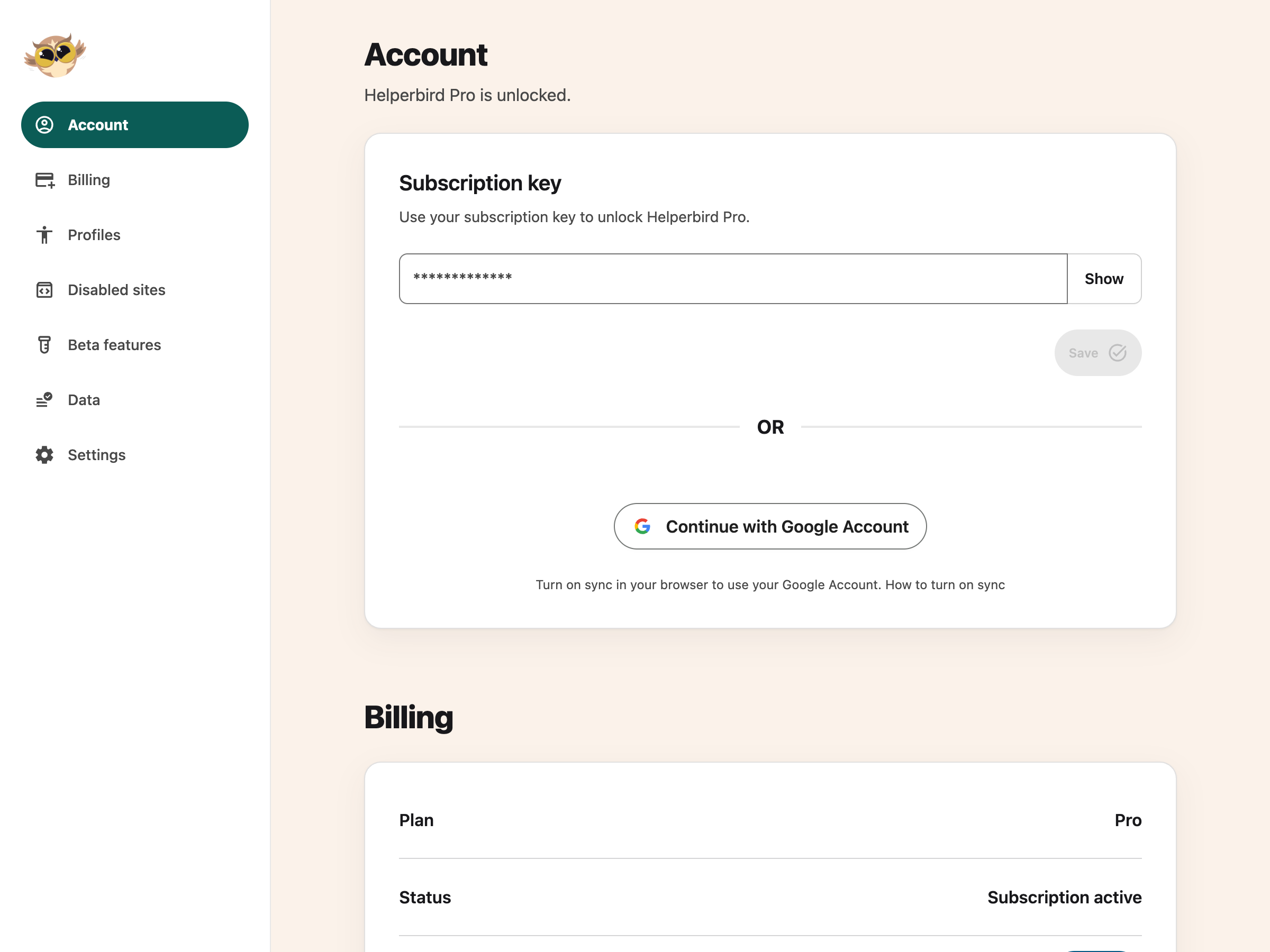
---
## What You Will Find There
The settings page is where you can:
- Choose an [accessibility profile](/help/how-to-use-accessibility-profiles-in-helperbird/)
- [Export your settings](/help/how-to-export-your-helperbird-settings/) to a file
- [Import settings](/help/how-to-import-your-helperbird-settings/) from another computer
- [Sync your settings](/help/how-to-sync-your-helperbird-settings/) across browsers
- Choose where page notifications appear
- Try [Reading tools and other Beta features](/help/how-to-use-beta-features-in-helperbird/)
- Find the debug information you need when
[reporting an issue](/help/how-to-report-an-issue-with-helperbird/)
---
## Move Page Notifications
If a message such as **Click to open PDF in Helperbird** covers something you need, you can move
these prompts to another part of the bottom edge.
1. Open the settings page and choose **Settings** in its section menu.
2. In **General**, find **Page notifications** below **Sync** and choose **Left**, **Middle** or
**Right**. All three positions are at the bottom of the page.
3. Click **Preview** to see a message in that position.
Your choice saves automatically and applies to new page notifications, including in tabs that are
already open. **Middle** is the default. This setting moves page prompts; the floating toolbar has
its own position controls.
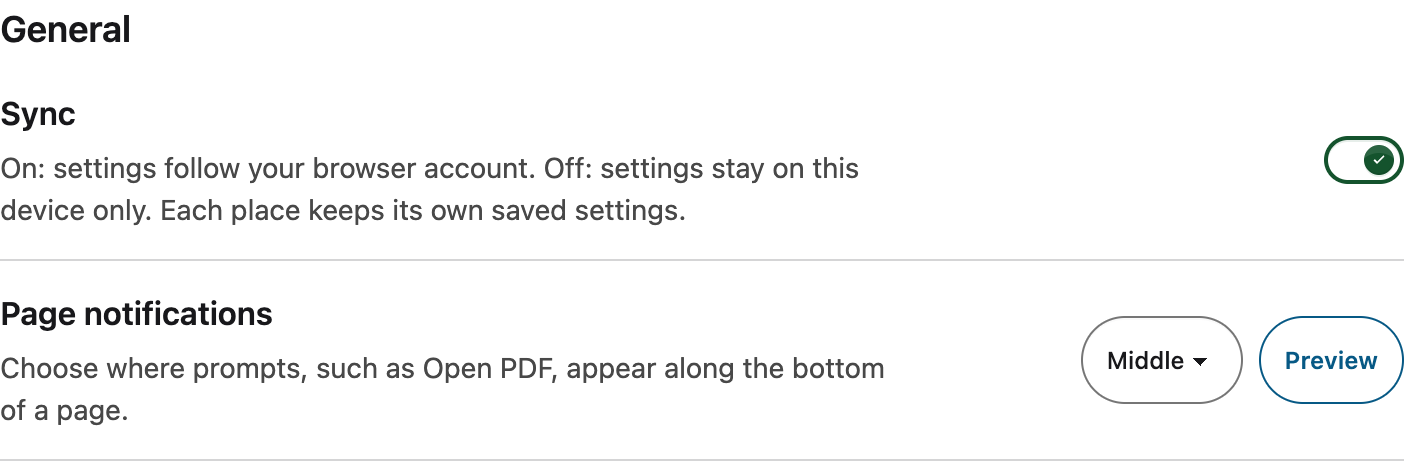
---
## Make Settings Easier to Read
Use your browser's zoom controls to make the Settings page larger. Press Tab to move through its
links and controls. **Skip to main content** bypasses the section navigation.
To change the Helperbird interface theme, open the extension's **Options** and use **Dark mode**.
The Settings page follows that theme. There is no separate Text settings panel on this page.

Save and error messages use the floating Helperbird toaster. After a successful import or deletion,
the result stays open until you select **Continue**. You choose when Settings reloads.

---
## Need Additional Help?
If you have any questions or run into any issues, please contact the Helperbird support team. You
can reach us at [Helperbird support](/support/). We are happy to help you get the most out of
Helperbird.
---
## How to Open the Helperbird Dictionary
URL: https://www.helperbird.com/help/how-to-open-the-helperbird-dictionary/
## What is the Dictionary?
[Dictionary](/help/how-to-use-the-helperbird-dictionary/) opens in its own browser tab.
Look up meanings, hear words aloud and find similar words.
---
## Who is This For?
Use it when you meet an unfamiliar word or want to hear its pronunciation.
---
## Step 1: Open Helperbird
Click the Helperbird icon in your browser toolbar. It looks like a small owl and is usually in the
top-right corner.
---
## Step 2: Open All Features
Scroll to the bottom of the Helperbird menu and open **All Features**.
---
## Step 3: Find Dictionary
Look through the list until you see **Dictionary**.
If you use it often, [favourite it](/help/how-to-favorite-a-feature-in-helperbird/) so it also
appears in Quick Actions at the top of the menu.
---
## Step 4: Open It
Click the button on the Dictionary row. The Dictionary opens in a new browser tab, showing **Look up
any word** and the search box.

If you had text selected on the page when you opened it, that word is looked up straight away.
---
## Other Ways to Open a Word
You do not have to open the app first. Each of these opens the Dictionary in a new tab with the word
already looked up:
- Select the word on the page and use the
[highlight menu](/help/how-to-use-the-highlight-menu-in-helperbird/)
- Select the word, right-click, open **Helperbird** and choose **Define**
- Use the lookup on the [Floating Toolbar](/help/how-to-look-up-a-word-from-the-floating-toolbar/)
The right-click menu is not added on iPhone, iPad or Safari, so use one of the other routes there.
---
## Need Additional Help?
[Contact Helperbird support](/support/) if you need a hand.
---
## How to Open the Helperbird Equation Editor
URL: https://www.helperbird.com/help/how-to-open-the-helperbird-equation-editor/
## What is the Equation Editor?
The Helperbird Equation Editor is a place to write a maths equation and get it back properly
typeset, read aloud, or copied into whatever you are working on. It opens in its own browser tab.
---
## Who is This For?
This is helpful for:
- Students writing up maths or science homework
- Anyone who needs an equation in a document and cannot face a formula editor
- People who find it easier to hear an equation than to read it
- Teachers preparing worked examples
---
## Step 1: Open Helperbird
Click the Helperbird icon in your browser toolbar, then open **All Features** at the bottom of the
menu.
---
## Step 2: Find Equations
Scroll the list until you see **Equations**.
---
## Step 3: Start Writing
Click the button on the row. The Equation Editor opens in a new tab with an empty box.

---
## What the Toolbar Does

- **[Read aloud](/help/how-to-hear-an-equation-read-aloud-in-helperbird/)** speaks the equation
- **[Copy](/help/how-to-copy-an-equation-from-helperbird/)** puts it on your clipboard in the format
you choose
- **[Download as image](/help/how-to-download-an-equation-as-an-image/)** saves it as a picture
- **[Voice typing](/help/how-to-dictate-an-equation-with-your-voice/)** lets you say the equation
instead of typing it
- **[The maths keyboard](/help/how-to-write-an-equation-in-helperbird/)** gives you symbols you
cannot type
- **Clear** empties the box and starts again
---
## Need Additional Help?
If you have any questions or run into any issues, please contact the Helperbird support team. You
can reach us at [Helperbird support](/support/). We are happy to help you get the most out of
Helperbird.
---
## How to Open the Helperbird Notepad
URL: https://www.helperbird.com/help/how-to-open-the-helperbird-notepad/
## What is the Notepad?
The Helperbird Notepad is a writing space that opens in its own browser tab. You get a page to type
on, a formatting toolbar, and buttons for saving, exporting and checking your writing, without
leaving your browser.
This page is about getting it open. For what each toolbar button does, see
[the Notepad toolbar](/help/how-to-use-the-helperbird-editor/).
---
## Who is This For?
This is helpful for:
- Students drafting an answer or an essay
- Anyone who wants somewhere to write without opening a separate app
- People collecting notes while researching in the browser
- Anyone who finds a busy word processor distracting
---
## Step 1: Open Helperbird
Click the Helperbird icon in your browser toolbar. It looks like a small owl and is usually in the
top-right corner.
---
## Step 2: Open All Features
Scroll to the bottom of the Helperbird menu and open **All Features**.
---
## Step 3: Find Open Notepad
Look through the list for **Open Notepad**. The row is named for the action, not the feature, so you
are looking for "Open Notepad" rather than "Notepad".
If you write often, [favourite it](/help/how-to-favorite-a-feature-in-helperbird/) so it also
appears in Quick Actions at the top of the menu.
---
## Step 4: Start Writing
Click the button on the row. The Notepad opens in a new tab with the toolbar across the top and the
writing area below it.

The first time you open it, a short welcome guide explains the workspace. Replace it with your own
text when you are ready. Existing documents are not replaced by the guide.
Then [format what you have written](/help/how-to-write-and-format-text-in-the-helperbird-notepad/).
Notepad writing, saving, downloads and equations are free. Notes/Highlights and Reading List remain
Pro features. Changes autosave, and you can also
[select Save](/help/how-to-save-a-document-in-the-helperbird-notepad/) explicitly.
The **Notepad**, **Notes**, and **Reading List** quick actions open the same workspace. Your
captured items are under **Highlights & notes**; saved pages open in the Reading List panel.
---
## Need Additional Help?
If you have any questions or run into any issues, please contact the Helperbird support team. You
can reach us at [Helperbird support](/support/). We are happy to help you get the most out of
Helperbird.
---
## How to Open the PDF Reader in Helperbird
URL: https://www.helperbird.com/help/how-to-open-the-pdf-reader-in-helperbird/
There are two ways to get a document into the Helperbird PDF Reader: open the reader from the popup
and pick a file, or click the message that appears on a PDF you are already looking at.
Opening PDFs, reading them aloud with your device's voices, and adding text boxes are free. The
advanced PDF tools need Helperbird Pro.
---
## Step 1: Open Helperbird
Click the Helperbird icon in your browser toolbar.
---
## Step 2: Search for PDF
Click the **Search** button at the top of the popup and type **pdf**.
You can also scroll down, open **All Features**, and find **PDF Reader** in the list.
Search for pdf, then choose the open button beside PDF Reader.
---
## Step 3: Find PDF Reader
Find **PDF Reader** in the list and click **Open PDF Reader**. The reader opens in a new browser
tab.
---
## Step 4: Open a PDF
If a recovery copy is available, the reader restores your last PDF. Otherwise, it starts with an
**Open PDF** button.
Choose Open PDF to select a file from your device.
Click **Open PDF** and choose a file from your computer. The document appears with its toolbar above
it. Use the **Page** field, arrows or **Page thumbnails** to move between pages.
The same **Open PDF** button stays in the top right. If you have unexported changes, the reader asks
before replacing the current file. Download your changes first if you need to keep them.
The reader can restore its last local session when you reopen it. Opening another PDF replaces that
single recovery copy; it is not a permanent document library.

---
## Open a PDF You Are Already Viewing
If the page you are on is a PDF, you do not need the popup. A green message appears at the bottom
saying **Click to open PDF in Helperbird**. Click it and the reader opens in a new tab with that PDF
loaded.
A few things to know about the message:
- You can move it to the bottom left, middle or right in **Settings → Page notifications**. See
[moving page notifications](/help/how-to-open-the-helperbird-settings-page/#move-page-notifications).
- It clears itself after about six seconds. If you miss it, reload the page or use the steps above.
- It only appears when the web address ends in **.pdf**. A PDF held in Google Drive, Classroom or
Gmail does not, so download it first. See
[opening PDFs from Google products](/help/open-pdfs-with-helperbird-though-google-products/).
---
## When a PDF Will Not Open
**"Only PDF files supported"** means the file you picked is not a PDF. Check the file ending and try
again.
**"Couldn't open PDF"** means Helperbird could read the file but not the document inside it. A
password-protected PDF gives this, and so does a damaged one, or a very large file that takes more
than twenty seconds to load. Whatever you already had open stays where it is, so a bad file will not
lose your work.
**The reader is empty after a reload.** Recovery may be unavailable if browser storage was cleared,
full or unable to save. Open your last downloaded copy with **Open PDF**.
To restore saved work, reopen **PDF Reader** in the same browser profile without choosing another
PDF. Recovery keeps one document on this device. Opening another PDF replaces that copy.
[Download your work](/help/how-to-save-and-download-annotated-pdfs/) before switching files.
---
## Where to Go Next
- [Read a PDF and take notes](/help/how-to-use-pdf-reader-in-helperbird/) - Move through pages,
listen to them, write beside them.
- [Using the PDF Reader](/help/how-to-use-the-helperbird-pdf-support/) - What every button in the
toolbar does.
- [The Tools menu](/help/how-to-use-the-tools-menu-in-the-pdf-reader/) - Immersive Reader,
Translate, Summarize and Screenshot Reader.
- [Save and download PDFs](/help/how-to-save-and-download-annotated-pdfs/) - Keep the changes you
made.
---
## Need Additional Help?
If you have any questions or run into any issues, contact the [Helperbird support team](/support/).
We are happy to help you get the most out of Helperbird.
---
## How to Open Your Helperbird Reading List
URL: https://www.helperbird.com/help/how-to-open-your-helperbird-reading-list/
## What is the Reading List?
The Helperbird Reading list is somewhere to put pages you want to come back to. You save a page
while you are on it, and it waits for you in a tidy list rather than in a pile of open tabs.
Reading List requires Helperbird Pro. You can also open it from **Tools → Reading List** in the
Notepad. Free accounts see the Helperbird Pro dialog when they try to open the list. Use its login or
subscription key link if you already subscribe.
This page is about getting the list open. For how the list page is laid out, and which of the two
popup rows does what, see
[the Reading list tour](/help/how-to-use-helperbirds-reading-list-feature/).
---
## Who is This For?
This is helpful for:
- Students collecting sources for an assignment
- Anyone who finds a long article and would rather read it properly later
- People who end up with dozens of tabs open
- Anyone gathering pages to read with Helperbird's reading tools
---
## Step 1: Open Helperbird
Click the Helperbird icon in your browser toolbar. It looks like a small owl and is usually in the
top-right corner.

---
## Step 2: Find the View Reading List Row
Open **All Features** at the bottom of the menu and look for **View reading list**. The list is
alphabetical, so that row sits near the bottom.

A second row, **Add to reading list**, sits near the top. If you are not sure which one you want,
see [the two reading list rows](/help/how-to-use-helperbirds-reading-list-feature/).
If you save pages often, [favourite it](/help/how-to-favorite-a-feature-in-helperbird/) so it also
appears in Quick Actions, labelled **Reading list**.
---
## Step 3: Open the List
Click the button on the **View reading list** row. A new NotePad tab opens with the **Reading list**
dialog.
The first time you open it, you see two welcome links. Your own saved pages appear alongside them.

Once you have [saved some pages](/help/how-to-save-a-page-to-your-helperbird-reading-list/), they
appear grouped by the day you saved them.
---
## Need Additional Help?
If you have any questions or run into any issues, please contact the Helperbird support team. You
can reach us at [Helperbird support](/support/). We are happy to help you get the most out of
Helperbird.
---
## How to Add a Color Overlay to Any Website
URL: https://www.helperbird.com/help/how-to-add-a-overlay-to-any-website/
## What is a Color Overlay?
A color overlay adds a transparent colored layer on top of the entire webpage. It is like looking
through a sheet of colored plastic or glass.
Many people find that a tinted overlay reduces the harsh contrast of black text on white
backgrounds. This can make text appear calmer and easier to read.
---
## Who is This For?
This feature is helpful for:
- People with dyslexia who benefit from colored overlays
- Anyone with Irlen Syndrome or visual stress
- People who find bright white screens uncomfortable
- Anyone who experiences eye strain or headaches when reading online
- Students who need to read for long periods
---
## Step 1: Open Helperbird
Click the Helperbird icon in your browser toolbar. It looks like a small owl and is usually in the
top-right corner of your browser.
This will open the Helperbird menu.
---
## Step 2: Open the All Features Section
Scroll down to the bottom of the Helperbird menu. You will see a section called **All Features**.
Click the arrow next to **All Features** to expand it and show all available features.
---
## Step 3: Find Color Overlay
Look through the list of features until you see **Color overlay**.
It has a red icon with a layers symbol on it.
---
## Step 4: Open Color Overlay
Click the **Open** button next to **Color overlay** to open it.
A panel will appear with the overlay toggle at the top and a **Settings** section below it.
---
## Step 5: Turn on Overlay
At the top of the panel, look for the **Color overlay** toggle.
Click the toggle switch to turn it **on**.
A colored tint will immediately appear over the entire webpage, and a green **Active** badge will
show next to the feature in the list.
---
## Step 6: Customize the Overlay
To adjust the overlay color and intensity, scroll down to the **Settings** section in the same
panel.
Here you can choose different colors and adjust how strong the overlay appears.

---
## Overlay Settings
In the Settings section, you can customize the following:
- **Color** - Choose a color for the overlay from the color grid. Popular choices include yellow,
blue, pink, and green. Different colors work better for different people, so try a few to find
what is most comfortable for you.
- **Opacity** - Adjust how strong the overlay is using the slider or the minus and plus buttons. A
lower opacity makes the overlay more transparent, while a higher opacity makes the color more
intense.
- **Blend mode** - Control how the tint mixes with the page. It is on by default, which keeps text
sharp under the color. Turn it off to see the exact color you picked on every page. Read the guide
to [Blend mode in the color overlay](/help/how-to-use-blend-mode-in-the-colour-overlay/) for when
to use each setting.
The overlay's color and opacity are separate from the reading ruler settings, so you can adjust each
one independently.
**Tip:** Many people with dyslexia or Irlen Syndrome find that certain specific colors work best for
them. If you have worked with a specialist who recommended a particular overlay color, you can match
it here. Try different colors and opacity levels to find what feels most comfortable for your eyes.
---
## Video Tutorial
Coming soon
---
## Need Additional Help?
If you have any questions or run into any issues, please contact the Helperbird support team. You
can reach us at [Helperbird support](/support/). We are happy to help you get the most out of
Helperbird.
---
## How to Change the Paragraph Background Color on Any Website
URL: https://www.helperbird.com/help/how-to-change-paragraph-background-color-on-any-website/
## What is Paragraph Background Color?
The Paragraph Background Color feature adds a colored background behind each paragraph on a webpage.
This makes it easier to visually separate blocks of text and helps you keep your place while
reading.
It works differently from the text highlighter. Instead of highlighting selected words, it
automatically shades entire paragraphs across the page.
---
## Who is This For?
This feature is helpful for:
- People with dyslexia who lose their place between paragraphs
- Students reading long articles or textbooks online
- Anyone who finds walls of text hard to follow
- People with visual processing difficulties
- Anyone who wants clearer visual separation between paragraphs
---
## Step 1: Open Helperbird
Click the Helperbird icon in your browser toolbar. It looks like a small owl and is usually in the
top-right corner of your browser.
This will open the Helperbird menu.
---
## Step 2: Go to the All Features Section
Scroll down to the bottom of the Helperbird menu. You will see a section called **All Features**.
Click the arrow next to **All Features** to expand it and show all available features.
---
## Step 3: Find Paragraphs
Look through the list of features until you see **Paragraphs**.
---
## Step 4: Open the Paragraphs Panel
Click **Open** on the **Paragraphs** row. The panel has three settings: **Border**, **Background**
and **Width**.
---
## Step 5: Turn on Background
Click the toggle switch next to **Background** to turn it **on**. The toggle will turn green when it
is enabled.
Every paragraph on the current page will now have a colored background applied to it.
---
## Step 6: Choose a Color
A grid of color swatches appears under **Color**. Click any swatch to set the background color, or
use the color wheel at the end of the grid to pick your own.
Lighter colors like pale yellow, light blue, or soft green tend to work well for reading without
straining your eyes.
**Tip:** Try combining this with the Paragraph Border feature for even clearer paragraph separation.
You can also use it alongside custom fonts and line height adjustments for the most comfortable
reading experience.

---
## Need Additional Help?
If you have any questions or run into any issues, please contact the Helperbird support team. You
can reach us at [Helperbird support](/support/). We are happy to help you get the most out of
Helperbird.
---
## How to Put a Border Around Every Paragraph on Any Website
URL: https://www.helperbird.com/help/how-to-highlight-paragraphs-on-any-page/
## What are Paragraph Borders?
This page is about borders, not highlighting. Paragraph Borders draws a colored outline around the
edge of every paragraph on a page. It does not fill the paragraph with color.
The outline shows you where one paragraph ends and the next one starts, so it is harder to lose your
place while you read.
**Looking for the shaded version?** The feature that fills each paragraph with color is the
**Background** row, one row down in the same **Paragraphs** panel. Helperbird calls it Paragraph
highlight when you search for it. It has its own guide:
[How to Change the Paragraph Background Color on Any Website](/help/how-to-change-paragraph-background-color-on-any-website/).
You can turn on Border, Background, or both.
You can choose any border color you like.
---
## Who is This For?
This feature is helpful for:
- People who lose their place while reading long text
- Anyone who finds walls of text hard to navigate
- Students reading dense articles or essays
- People with dyslexia or attention difficulties
- Anyone who wants clearer visual separation between paragraphs
---
## Step 1: Open Helperbird
Click the Helperbird icon in your browser toolbar. It looks like a small owl and is usually in the
top-right corner of your browser.
This will open the Helperbird menu.
---
## Step 2: Open the All Features Section
Scroll down to the bottom of the Helperbird menu. You will see a section called **All Features**.
Click the arrow next to **All Features** to expand it and show all available features.
---
## Step 3: Find Paragraphs
Look through the list of features until you see **Paragraphs**.
---
## Step 4: Open the Paragraphs Panel
Click the arrow button next to **Paragraphs** to open it.
A panel will appear with the paragraph settings, starting with **Border**.
---
## Step 5: Turn on Border
In the Paragraphs panel, find **Border** with a toggle switch next to it.
Click the toggle to turn it **on**. The toggle will turn green when it is enabled.
All paragraphs on the page will now have colored borders around them.
---
## Step 6: Choose a Color
After turning on Border, a **Color** heading and a grid of swatches appear below the toggle.
Click any swatch to change the border color. You can also set your own color instead of using a
swatch.
Your choice is saved automatically.
**Tip:** Use a contrasting color that stands out against the page background for the best
visibility.

---
## Video Tutorial
Coming soon
---
## Need Additional Help?
If you have any questions or run into any issues, please contact the Helperbird support team. You
can reach us at [Helperbird support](/support/). We are happy to help you get the most out of
Helperbird.
---
## Helperbird Paragraph Features and What Each One Does
URL: https://www.helperbird.com/help/how-to-use-helperbird-paragraph-features/
## What This Does
The **Paragraphs** panel changes the shape of a block of text. It does not change the letters inside it. Font, size and spacing are separate settings.
These three controls decide how wide a block of text runs, and what marks it out from the block above it.
**Width** is the one most people notice. Narrower paragraphs mean shorter lines. A shorter line is easier to track back to the start of, so you lose your place less often.
All three controls are free. Border used to need Pro. It does not any more.
---
## Who is This For?
This is helpful for:
- Anyone who loses their place at the end of a long line
- Anyone reading a wide screen of text that runs edge to edge
- Anyone who cannot see where one paragraph stops and the next starts
- Anyone who reads better with a color behind the text
---
## The Three Controls
They appear in the panel in this order. All three affect headings as well as paragraphs.
Table: Each paragraph control, what it does, and its guide.
| Control | What it does | Guide |
| --- | --- | --- |
| Border | Draws a colored outline around every paragraph, so each one becomes its own box. Turn it on and a **Color** picker appears below it. | [Paragraph borders](/help/how-to-highlight-paragraphs-on-any-page/) |
| Background | Puts a color behind every paragraph. Turn it on and a **Color** picker appears below it. | [Paragraph background](/help/how-to-change-paragraph-background-color-on-any-website/) |
| Width | Limits how wide a block of text runs, which makes every line shorter. Turn it on to get a slider, with **Narrower** and **Wider** buttons either side of it. | [Paragraph width](/help/how-to-adjust-paragraph-width-on-any-website/) |
---
## Which One Should You Try First?
Try them in this order. Stop when the page reads well for you.
1. **Width.** Move the slider down until the lines feel short enough. This helps most on wide screens.
2. **Background.** Use this if the paragraphs blur into one another, or if a color behind the text is easier on your eyes.
3. **Border.** Use this if you want a hard edge around each block rather than a color fill.
You can leave all three on at once. They are separate settings.
---
## Related Guides
- [Line focus](/help/how-to-use-a-line-focus-on-any-website/) - Dim the page around the line you are reading.
- [Letter spacing](/help/how-to-change-the-letter-spacing-on-any-website/) - Change the letters rather than the block.
---
## Need Additional Help?
If you have any questions or run into any issues, please contact the Helperbird support team. You can reach us at [Helperbird support](/support/). We are happy to help you get the most out of Helperbird.
---
## How to Adjust Paragraph Width on Any Website
URL: https://www.helperbird.com/help/how-to-adjust-paragraph-width-on-any-website/
## What is Paragraph Width?
Paragraph Width lets you control how wide text paragraphs appear on any website. Narrower text
columns can be easier to read because your eyes don't have to travel as far across the screen.
This is a Helperbird Pro feature.
---
## Who is This For?
Paragraph Width is helpful for people who find wide text columns hard to follow, readers on large
monitors where text stretches too wide, anyone with reading difficulties like dyslexia, people who
prefer a book-like reading experience, and users who want to reduce eye strain from long lines of
text.
---
## How to Adjust Paragraph Width
### Step 1: Open Helperbird
Click the Helperbird icon in the top right corner of your browser to open the extension menu.
---
### Step 2: Go to the All Features Section
Scroll down to the **All Features** section and expand it to see all available features.
---
### Step 3: Find Paragraphs
Look through the list of features until you see **Paragraphs**.
---
### Step 4: Open the Paragraphs Panel
Click **Open** on the **Paragraphs** row. The panel has three settings: **Border**, **Background**
and **Width**. Paragraph width is the one labeled **Width**. If you use the search bar instead, it
appears as **Line width**.
---
### Step 5: Turn on Width
Click the toggle switch next to **Width** to turn it **on**. The toggle will turn green when it is
enabled.

---
### Step 6: Adjust the Width
Use the slider to set your preferred paragraph width. Moving the slider left makes paragraphs
narrower, while moving it right makes them wider.
**Tip:** A width of 60-80 characters per line is often considered optimal for comfortable reading.
---
## Finding Your Ideal Width
Start by narrowing the text slightly and reading a few paragraphs. If it feels cramped, widen it a
bit. The goal is to find a width where your eyes can follow from the end of one line to the
beginning of the next without losing your place.
---
## Related Guides
- [How to Adjust Line Height](/help/how-to-change-the-line-height-on-any-website/)
- [How to Adjust Letter Spacing](/help/how-to-change-the-letter-spacing-on-any-website/)
- [How to Use Reading Mode](/help/how-to-use-reading-mode-and-remove-ads-on-any-website/)
---
## Need Additional Help?
If you have questions about Paragraph Width, reach out to our [Helperbird support team](/support/)
and we'll help you out!
---
## How to Paste Text and Images onto a PDF
URL: https://www.helperbird.com/help/how-to-paste-text-and-images-onto-a-pdf/
## What This Does
Paste copied text, a link or an image onto the current PDF page to create a new box. You can move or
resize it before downloading your work. Pasting and typing into PDF boxes are free.
## Step 1: Open Your PDF
[Open a PDF in Helperbird](/help/how-to-open-the-pdf-reader-in-helperbird/) and go to the page where
you want to add the content.
Copy your text or image. To add a picture, copy the image itself; copying its web address adds a
link as text.
## Step 2: Paste onto the Page
Close any open dialog and click outside the text boxes, Notepad and search field. Press **Ctrl + V**
on Windows or **Command + V** on Mac.
Text or a link becomes a new editable text box. A copied image becomes an image box. Supported text
formatting and links are kept; pasted web content does not recreate a whole webpage.
A text box in the browser PDF Reader, with formatting, move, and resize controls.
If a text box already has focus, paste goes into that box instead. This also lets you paste into the
side Notepad without making a new PDF box.
## Step 3: Place and Edit the Box
Use the move handle in the attached bar to position the box. Drag the corner handle to resize it.
For text, click inside the box to type and use its formatting toolbar.
To remove a box, choose its remove button. Your original PDF text remains underneath; these boxes do
not replace or edit that text.
You can also
[write in the side Notepad](/help/how-to-use-pdf-reader-in-helperbird/#take-notes-beside-the-pdf)
and choose **Add Textbox to PDF**. Notes with pictures or equations become separate text and image
boxes in the same order.
## Step 4: Download Your Changes
For each pasted picture, open **Annotation options** on its attached toolbar and add an **Image
description**. Mark **This image is decorative** only if it adds no information. See
[add image descriptions to a PDF](/help/how-to-add-image-descriptions-to-a-pdf/) for examples.
Choose **Download**, then **With my changes**. If a picture needs a description, Helperbird opens
its controls and waits for you to add it before trying the download again. The downloaded PDF
includes your text and image boxes.
Boxes become part of the downloaded page. Keep your Helperbird workspace if you need to move or edit
them later. See [saving an annotated PDF](/help/how-to-save-and-download-annotated-pdfs/).
## Troubleshooting
**No new box appeared:** Check whether Notepad, a text box, search or a dialog has focus. Click
outside it and paste again.
**An image could not be added:** Try copying the image again, or use a smaller PNG or JPEG.
Unsupported or very large images may not load.
**Notepad content will not fit:** Shorten the note or add it in smaller parts. If the full transfer
cannot finish, Helperbird keeps your note and PDF unchanged.
## Need Additional Help?
For maths, see
[adding equations to PDFs and Notepad](/help/how-to-add-equations-to-pdfs-and-notepad/). You can
also contact [Helperbird support](/support/).
---
## How to Pause and Resume Helperbird
URL: https://www.helperbird.com/help/how-to-pause-helperbird/
## What is Pause?
Pausing Helperbird turns off all features temporarily without losing any of your settings. When you resume, all your customizations come back exactly as they were.
This is useful when you want to see a website in its original format or need to take screenshots without any Helperbird changes applied.
---
## Who is This For?
This feature is helpful for:
- Anyone who needs to temporarily see a website without customizations
- People who want to take screenshots of the original webpage
- Users who need to troubleshoot website issues
- Anyone who wants a quick break from Helperbird features
- People who want to compare before and after views
---
## Step 1: Open Helperbird
Click the Helperbird icon in your browser toolbar. It looks like a small owl and is usually in the top-right corner of your browser.
This will open the Helperbird menu.
---
## Step 2: Find the On/Off Toggle
At the very top of the Helperbird panel, you will see a toggle button. It says either **Helperbird is on** or **Helperbird is off**.
This toggle controls whether Helperbird features are active.
---
## Step 3: Pause or Resume Helperbird
Click the toggle to turn Helperbird off or back on:
- **To pause** - Click the toggle when it says "Helperbird is on". It will switch to "Helperbird is off" and all features will be temporarily disabled.
- **To resume** - Click the toggle when it says "Helperbird is off". It will switch back to "Helperbird is on" and all your features will be active again.
Your settings are preserved when Helperbird is paused. Nothing is lost.
**Tip:** Pausing Helperbird is perfect when you need to see a website in its original format or want to take screenshots without customizations.
---
## Video Tutorial
Coming soon
---
## Need Additional Help?
If you have any questions or run into any issues, please contact the Helperbird support team. You can reach us at [Helperbird support](/support/). We are happy to help you get the most out of Helperbird.
---
## How to Add Text Boxes to PDFs in Helperbird
URL: https://www.helperbird.com/help/how-to-add-text-boxes-to-pdf-with-helperbird/
## What are PDF Annotations?
PDF Annotations let you add text boxes directly onto PDF documents. You can write notes, add
comments, or fill in forms. Download **With my changes** to embed your answer text in a copy you can
save and share. These steps are for the browser extension; the
[native Apple app has its own guide](/help/how-to-use-helperbird-pdf-reader-on-iphone-ipad-and-mac/).
A PDF text box with a cream Page bar, formatting controls, and two corner handles.
---
## Who is This For?
This feature is helpful for:
- Students who want to add notes to study materials
- Anyone who needs to fill out PDF forms
- People who want to add comments to documents for review
- Researchers who need to annotate academic papers
- Anyone who wants to mark up PDF documents
---
## Step 1: Open a PDF in Helperbird
[Open the PDF Reader](/help/how-to-open-the-pdf-reader-in-helperbird/), choose **Open PDF**, and
select a file from your device. The page appears with its reading controls above it.

---
## Step 2: Add a Text Box
In the toolbar at the top of the PDF Reader, click the **Add Textbox** button (the document icon
with a plus sign).
The browser PDF Reader toolbar and a sample form with an answer box.
A text box will appear on the current page. You can drag it to any position and resize it by pulling
the handle at the bottom-right corner.
Click the **Add Textbox** button again to add more text boxes. Each new text box is slightly offset
from the previous one so they don't stack on top of each other.
---
You can also [paste text, links or an image](/help/how-to-paste-text-and-images-onto-a-pdf/) with no
field or dialog focused to make a new box. Pasting into an existing text box keeps editing that box.
## Step 3: Type and Format Your Text
Click inside a text box and start typing. The text box will expand as you type.
Click inside the text box to reveal its formatting toolbar. Use it to:
- Make text **bold**, _italic_, or underlined
- Change text colors and font sizes
- Add bulleted or numbered lists
If your answer covers too much of a worksheet, follow
[how to make PDF text boxes smaller](/help/how-to-make-pdf-text-boxes-smaller/). It shows how to
select your text, choose a smaller size, and shrink the box with the corner handle.
When the box contains text, **click away to hide the toolbar**. Click back into the text to show it
again. It hides after about three seconds, but stays while you use toolbar controls or an open
size/color menu. Empty boxes keep their controls visible.
Your answer remains on the page when the editing toolbar hides.
Drag the **Page bar** or the **lower-left move handle** to reposition the box. Use the **lower-right
handle** to resize it. The Page bar also has the remove button. Press **Escape** to leave text
editing, then use **Tab** to reach the box controls. Maths boxes have an **Edit equation** button.
The text-box controls follow the reader’s light or dark appearance.
---
## Step 4: Add Text from the Notepad
You can also write text in the Notepad and insert it as a text box on the PDF.
Click the **NotePad** button in the toolbar to open the split view. Type your notes in the Notepad
panel, then click **Add Textbox to PDF** below the editor to place them on the current page. Both
typing and inserting notes are free. The voice typing, grammar and equation tools need Helperbird
Pro.

The Notepad also has a **Download note** button. It opens your browser's print dialog with your
notes in it, so you can print them or choose **Save as PDF** to keep a copy.
---
Notes with images or [equations](/help/how-to-add-equations-to-pdfs-and-notepad/) become separate
text and image boxes in the order you wrote them. If the full note will not fit or an image cannot
load, Helperbird leaves the note and PDF unchanged.
## Step 5: Download Your Annotated PDF
When you are finished adding your annotations, click the **Download** button (download icon with
arrow) in the toolbar.
An options menu will appear with two choices:
- **Original only** - Download the original PDF without any annotations
- **With my changes** - Download the PDF with all your text boxes and formatting included

Click **With my changes**. A green notification saying "Downloaded with notes" will confirm your
download. Your annotated PDF will have all text boxes permanently embedded, so anyone who opens it
in any PDF reader will see them.
---
## Tips
- Your annotations are saved as part of the PDF, so they are visible in any standard PDF reader.
- Combine text boxes with the
[Drawing Tools](/help/how-to-use-drawing-tools-on-pdfs-with-helperbird/) for detailed markup. Add
a text box next to an arrow for context.
- Use the Notepad for longer notes and the direct text box for quick annotations on specific spots.
---
## Related Guides
- [How to Annotate and Export a PDF with Helperbird](/help/how-to-annotate-and-export-a-pdf-with-helperbird/)
- [How to Use Drawing Tools on PDFs](/help/how-to-use-drawing-tools-on-pdfs-with-helperbird/)
- [How to Save and Download Annotated PDFs](/help/how-to-save-and-download-annotated-pdfs/)
- [How to Share and Export PDFs with Helperbird](/help/how-to-share-pdfs-with-helperbird/)
- [How to Use the PDF Reader in Helperbird](/help/how-to-use-pdf-reader-in-helperbird/)
- [How to Use Helperbird for Reading Long PDFs](/help/how-to-use-helperbird-for-reading-long-pdfs/)
---
## Doing This Without a Mouse
Every part of a text box can be done from the keyboard, including positioning it one pixel at a time
so the text sits on a form line rather than near it. See
[how to move and resize PDF text boxes with the keyboard](/help/how-to-move-and-resize-pdf-text-boxes-with-the-keyboard/).
---
## Need Additional Help?
If you have any questions or run into any issues, please contact the Helperbird support team. You
can reach us at [Helperbird support](/support/). We are happy to help you get the most out of
Helperbird.
---
## How to Use Drawing Tools on PDFs in Helperbird
URL: https://www.helperbird.com/help/how-to-use-drawing-tools-on-pdfs-with-helperbird/
PDF drawing is free. Open a PDF and choose **Draw** to begin.
## What are PDF Drawing Tools?
PDF Drawing Tools let you draw directly on any PDF document in Helperbird's PDF Reader. You can use
a freehand pen, draw rectangles, ovals, straight lines, and arrows. You can choose from multiple
colors, adjust the line thickness, and move or delete individual drawings.
Your drawings stay visible even when you close the drawing toolbar, and you can download the PDF
with all your drawings included.

---
## Who is This For?
This feature is helpful for:
- Students who want to circle, underline, or annotate study materials
- Teachers providing visual feedback on assignments
- Researchers marking up papers and highlighting key data
- Professionals reviewing documents, designs, or reports
- Anyone who prefers visual annotation over typed notes
---
## Step 1: Open a PDF in Helperbird
[Open the PDF Reader](/help/how-to-open-the-pdf-reader-in-helperbird/), choose **Open PDF**, and
select a file from your device. The page appears with its reading controls above it.

---
## Step 2: Open the Drawing Toolbar
In the toolbar at the top of the PDF Reader, click the **Draw** button (the pencil icon).
A drawing toolbar will appear below the main toolbar. This bar contains all your drawing tools,
color options, and stroke controls.

---
## Step 3: Choose a Tool
The drawing toolbar gives you six tools to work with:
- **Select / Move** - Click on existing drawings to select, move, or delete them
- **Pen** - Draw freehand lines and shapes with your mouse or finger
- **Rectangle** - Click and drag to draw a rectangle
- **Oval** - Click and drag to draw an oval or circle
- **Line** - Click and drag to draw a straight line
- **Arrow** - Click and drag to draw a line with an arrowhead at the end

Click on a tool to activate it. The active tool is highlighted so you can always see which one is
selected.
---
## Step 4: Pick a Color and Stroke Width
**Colors:** Choose from nine colors in the toolbar: red, orange, yellow, green, blue, purple, pink,
black, and white. Click a color swatch to select it. The active color has a visible ring around it.

**Stroke width:** Click the stroke width button to cycle through four sizes: thin (2px), medium
(4px), thick (6px), and extra-thick (8px). The button shows the current width so you always know
what you're working with.
---
## Step 5: Draw on the PDF
With your tool and color selected, click and drag on the PDF page to draw.
- For the **pen tool**, hold down the mouse button and move to draw freehand.
- For **shapes, lines, and arrows**, click where you want to start, drag to set the size and
direction, then release.
Your drawing appears immediately on the page.

---
## Step 6: Select, Move, and Delete Drawings
Switch to the **Select / Move** tool to interact with existing drawings.
**To select:** Click on any drawing. A dashed blue outline will appear around it, and a small red
delete button will show at the corner.
**To move:** Click and drag a selected drawing to reposition it anywhere on the page.
**To delete:** Click the red delete button on a selected drawing, or press the **Delete** or
**Backspace** key on your keyboard.

---
## Step 7: Undo or Clear Drawings
**Undo:** Click the **Undo** button in the drawing toolbar to remove the last drawing you made on
the current page.
**Clear all:** Click **Clear All**. A confirmation explains that every drawing on this page will be
removed. Choose **Cancel** to keep them, or confirm to clear them. Clearing cannot be undone.

---
## Step 8: Close the Toolbar
Click the **Draw** button again in the main toolbar to close the drawing toolbar.
Your drawings stay visible on the PDF. You can continue reading, navigating pages, or using other
Helperbird features. Your marks remain exactly where you placed them.
To make changes, just open the drawing toolbar again.
---
## Step 9: Download Your Marked-Up PDF
When you are finished, click the **Download** button (the download icon) in the toolbar.
A dialog will appear with two options. Choose **With my changes** to save the PDF with your
drawings. Choosing **Original only** downloads the PDF without them.
Your PDF will be downloaded with all drawings and text annotations permanently embedded. The file
works in any standard PDF reader.

---
## Keyboard Shortcuts
When the drawing canvas is focused, you can use these keyboard shortcuts:
- **Tab** - Cycle through shapes on the current page to select them
- **Arrow keys** - Move a selected shape by a small amount
- **Shift + Arrow keys** - Move a selected shape by a larger amount
- **Delete / Backspace** - Delete the selected shape
- **Escape** - Deselect the current shape
---
## Tips
- Use **arrows** to point reviewers to specific issues in a document.
- Use **rectangles** or **ovals** to frame sections that need attention.
- Combine **text boxes** and **drawings** for detailed annotations. Add a text box next to an arrow
for context.
- Your drawings are saved per page, so each page keeps its own set of marks.
- If you open drawing mode while a text box is being added, drawing mode will close automatically to
avoid conflicts.
---
## Related Features
- [Draw on a PDF with Your Keyboard](/help/how-to-draw-on-a-pdf-with-your-keyboard/) - Place, move,
resize and delete shapes without a mouse.
- [Annotate and Export a PDF](/help/how-to-annotate-and-export-a-pdf-with-helperbird/) - The full
start-to-finish walkthrough
- [PDF Reader](/features/pdfs/) - Open and read PDFs with all of Helperbird's accessibility tools
- [Add Text Boxes to PDFs](/help/how-to-add-text-boxes-to-pdf-with-helperbird/) - Type annotations
directly onto PDF pages
- [Text to Speech on PDFs](/features/text-to-speech/) - Have PDF content read aloud
- [Extract Text from PDFs](/features/optical-character-recognition/) - Use OCR to pull text from
scanned PDFs
- [Immersive Reader](/features/immersive-reader-for-chrome/) - Read PDF text in a distraction-free
format
- [Highlight PDFs](/features/web-highlighter-and-pdfs/) - Mark text with color-coded highlights
- [PDF Drawing Tools Feature Page](/features/pdf-drawing/) - Overview of all drawing capabilities
- [Save and Download Annotated PDFs](/help/how-to-save-and-download-annotated-pdfs/) - Save your
annotated PDF to your device
- [Share and Export PDFs](/help/how-to-share-pdfs-with-helperbird/) - Share annotated PDFs through
Google Drive, email, or Classroom
---
## Video Tutorial
Coming soon
---
## Need Additional Help?
If you have any questions or run into any issues, please contact the Helperbird support team. You
can reach us at [Helperbird support](/support/). We are happy to help you get the most out of
Helperbird.
---
## How to Use Helperbird PDF Reader on iPhone, iPad, and Mac
URL: https://www.helperbird.com/help/how-to-use-helperbird-pdf-reader-on-iphone-ipad-and-mac/
## Open a PDF in the Helperbird App
Open the **Helperbird app** on iPhone, iPad, or Mac. Choose **Open PDF**, the document-with-plus
button, and select a file from your device or iCloud Drive. You can also start with the included
**Welcome PDF**.
The app needs iOS or iPadOS 17.4 or later, or macOS 15.6 or later. **All native PDF reader tools are
free** and do not need a Helperbird account. Some Apple features need a supported device, language,
or newer operating system.
Helperbird keeps a local working copy. Your original file is not overwritten. Open **Tools → Recent
PDFs** to return to an imported document and its notes.
This guide is for the installed Apple app. For a PDF open in your browser extension, use the
[browser PDF Reader guide](/help/how-to-use-the-helperbird-pdf-support/).
## Listen and Choose a Voice
Choose **Listen** to read the current page aloud. Select a passage first to read just that text. The
player lets you pause, resume, stop, seek, and change speed. Spoken words are highlighted as you
listen. The time display is an estimate.
Open **Voice and speed**, the sliders control in the player, to choose an installed Apple voice.
Search the voice chooser by name, language, or country. Available voices depend on your device.
These are separate from the browser extension's Natural voices.
View full-size image (opens in a new tab)The native player keeps reading controls close to the page. Shown paused on iPhone.
If Listen cannot find text, the page may be a scan. Use **Extract text** first.
## Keep Notes Beside the PDF
Choose **Notepad**, the note icon. On a wide iPad or Mac window, notes sit beside the PDF. On an
iPhone or a narrow window, they open in a sheet.
Write and format your notes with the text controls. You can paste images or insert an equation.
Choose **Add to PDF** to place selected note text on the page; without a selection, the whole note
is used. Notes belong to the current document and are saved locally.
View full-size image (opens in a new tab)A wide iPad window keeps the PDF and Notepad visible together.
For voice typing, use the **microphone** in the Notepad. Allow microphone and speech-recognition
access when asked. Dictation needs on-device support for your language. On Mac, Dictation must also
be enabled in **System Settings → Keyboard**. If setup is incomplete, Helperbird shows instructions
and a **Try again** option; you can keep typing while you resolve it.
System **Writing Tools** is available only on eligible devices with Apple Intelligence enabled.
## Add Text, Highlights, and Drawings
Open **Markup**, the pen-tip button. Choose **Add text box**, **Paste text or image**, **Insert
equation**, or **Draw**. To highlight words, select them on the PDF first, then choose **Highlight
selection**.
View full-size image (opens in a new tab)Markup groups the tools for writing on a PDF.
Double-tap a text box on iPhone or iPad, or double-click it on Mac, to edit it. Save your edit when
finished. Drag a box to move it and use its corner handle to resize it. The annotation editor also
provides position and size controls. **Edit annotations** lets you return to annotations already on
the page.
Use **Undo** and **Redo** in Markup for supported annotation changes. Some PDFs restrict commenting;
the app respects those document permissions.
## Extract or Translate Text
Open **Tools**, the three-dots button, then choose:
- **Extract text:** recognize the text on a scanned page. Review the result, then listen, translate,
copy, or share it. Clear printed text usually works better than handwriting or blurry scans.
- **Translate page:** open Apple's translation sheet for the page text. Language availability and
downloads are managed by the operating system. If you use its replacement action, Helperbird opens
a translated-text reading tab.
For a scan without selectable text, extract it before translating. The native app uses Apple's text
recognition and translation tools; its route is different from Screenshot Reader and Immersive
Reader in the browser extension.
## Summarize or Explain
On supported systems, **Tools → Summarize** and **Tools → Explain** work with selected text or the
current page. These tools run on-device and need iOS, iPadOS, or macOS 26 or later, an eligible
Apple Intelligence device, and the required model to be available.
If the tool is unavailable, Helperbird explains the requirement. The rest of the reader still works.
For a long passage, select a shorter section and try again. Review generated summaries and
explanations against the original PDF.
## Save and Export
Your working copy, notes, and page position are saved locally. To create a file you can share,
choose **Tools → Export PDF**. Use the share sheet on iPhone or iPad, or the save/share controls on
Mac. The export keeps PDF annotations. Temporary spoken-word highlighting is not exported.
Export notes separately from the Notepad's options. Text notes use RTF; notes containing images use
an RTFD package. Exporting the PDF does not automatically include notes you have not added to its
pages.
Do not assume the local Recent PDFs library syncs between devices. Export a copy when you need it
somewhere else. If saving fails, keep the document open and use Export PDF to keep a copy of your
work.
## Appearance and Safari Setup
The reader supports light and dark appearance. Its controls use cream tones in light mode and dark
surfaces in dark mode; PDF pages keep their original colors.
The **puzzle-piece button** opens Safari-extension setup. The Safari extension adds tools to
webpages and has its own feature availability and Pro options. Installing the app does not enable
the extension on every website automatically.
## Need Additional Help?
[Contact Helperbird support](/support/) with your device, operating system, and the step you were
trying. Do not send a private PDF unless it is needed and you are comfortable sharing it.
---
## How to Search and Zoom a PDF in Helperbird
URL: https://www.helperbird.com/help/how-to-search-and-zoom-a-pdf/
## What This Does
Find a word on the PDF page you are reading, or make the page a comfortable size. Search, zoom,
**Fit width** and **Fit page** are free.
Search checks one page at a time. It does not search every page in the document or recognize text
inside a scan.
## Step 1: Open PDF Tools
[Open your PDF in Helperbird](/help/how-to-open-the-pdf-reader-in-helperbird/). Choose **Zoom and
search** in the header to show the bar above the document.
Choose the same button again to hide the bar. Hiding it keeps your search state.

## Step 2: Search the Current Page
Choose **Search** in the PDF Tools bar and type a word or phrase. Search replaces the zoom controls
while it is open.
Matches are highlighted on the current page. Use the next and previous match buttons to move through
them. The counter shows your place among the matches on this page.
You can also press **Enter** for the next match or **Shift + Enter** for the previous one. Press
**Escape** to close search and return focus to its button.

Turn to another page to search there. Your query stays in the search box, and the matches and count
update for that page.
## Step 3: Adjust the View
Close search to return to the zoom controls.
- Drag the zoom slider, or use **minus** and **plus**, to change the page size.
- Choose **Fit width** to fill the available reading width.
- Choose **Fit page** to see the page within the available space.
Zoom changes your view. It does not change the page size in a downloaded PDF.
## Troubleshooting
**No matches:** Check the spelling and current page number. For a scan, use
[Screenshot Reader](/help/how-to-extract-text-from-any-image-pdf-or-website/) to extract the text.
**The zoom buttons are missing:** Close search, or show **Zoom and search** again.
**You are viewing a translation:** PDF search and view controls return you to the original PDF. Use
the [translation tabs](/help/how-to-translate-pdfs-with-helperbird/) to compare the two views.
## Need Additional Help?
See the [PDF Reader guide](/help/how-to-use-the-helperbird-pdf-support/) or contact
[Helperbird support](/support/).
---
## Helperbird PHIPA and MFIPPA Compliance
URL: https://www.helperbird.com/help/helperbird-phipa-and-mfippa-compliance/
## Overview
Helperbird is designed with privacy at its core. We comply with the **Personal Health Information Protection Act (PHIPA)** and the **Municipal Freedom of Information and Protection of Privacy Act (MFIPPA)** as required by Ontario school boards and public sector organizations.
Helperbird is also compliant with the **Accessibility for Ontarians with Disabilities Act (AODA)**.
---
## What Data Helperbird Collects
Helperbird collects the minimum amount of data needed to operate:
### Subscription Key
Used to validate the license. This is set by the admin through Google Admin or Microsoft Intune.
### Email Address (Only If the User Signs In)
Used to verify the user belongs to a licensed organization. This is the same email the user is already signed into their browser with.
### Usage Data
Aggregated, anonymous data about which features are used and how often. This helps administrators track adoption and is visible in the admin dashboard.
---
## What Data Helperbird Does Not Collect
Helperbird does not collect, store, or process:
- Student names, dates of birth, or Ontario Education Numbers (OEN)
- Personal addresses or parent/guardian contact information
- Health information or special education designations
- Page content, browsing history, or website URLs
- Text that is read aloud, translated, or simplified
- Voice recordings from speech-to-text
- Student images, likeness, or any biometric data
Some features do send content to a processor in order to work: the natural
text-to-speech voices, voice typing, Immersive Reader, the Screenshot Reader,
Translate, Simplify, Summarize and Grammar. Nothing is retained after the
request finishes. Which feature sends what, and where, is set out in full in
[Helperbird data hosting](/help/helperbird-data-hosting/). Every other feature
runs entirely on the device.
---
## How Data Is Stored and Processed
### User Settings
User settings (font preferences, color choices, feature toggles) are stored by
the browser itself, using `chrome.storage.sync` by default. That means they
travel with the browser profile the user is signed in to, in the same way their
bookmarks do, and they are held in that user's own Google, Microsoft or Apple
account. Helperbird runs no server of its own for this and never sees them.
A user or an admin can switch this to `chrome.storage.local`, which keeps the
settings on one device only. See
[sync data locally or remotely](/help/sync-data-locally-or-remote-helperbird/).
### Admin-Managed Settings
When admin-managed settings are used, the subscription key and feature policies are delivered through `chrome.storage.managed` via Google Admin or Microsoft Intune. This stays on the device.
### Usage Analytics
There are none. Helperbird collects no usage analytics, and the extension
contains no analytics or telemetry code of any kind.
### Cookies and Tracking
Helperbird does not use cookies or third-party tracking scripts.
---
## PHIPA Compliance
PHIPA governs the collection, use, and disclosure of personal health information in Ontario. Helperbird complies with PHIPA because:
- We do not collect any personal health information.
- We do not collect special education designations or health records.
- No student data is shared with third parties.
- Data processing is limited to what is necessary for the extension to function.
---
## MFIPPA Compliance
MFIPPA governs how Ontario public institutions, including school boards, collect, use, and disclose personal information. Helperbird complies with MFIPPA because:
- We collect only the minimum personal information necessary (email address for sign-in, if used).
- Data collection is directly related to the operation of the extension.
- We do not disclose personal information to third parties.
- We support data deletion requests. Administrators can request the removal of all data associated with their organization at any time.
- We are willing to participate in a Privacy Impact Assessment (PIA) with the Board.
---
## AODA Compliance
Helperbird is compliant with the **Accessibility for Ontarians with Disabilities Act (AODA)** and the **Ontario Human Rights Code**. The extension is itself an accessibility tool, designed to remove barriers to reading, writing, and communication for students with disabilities.
---
## Data Retention and Deletion
- Usage data is retained for the duration of the subscription.
- When a subscription ends or an organization requests deletion, all associated data is removed.
- Administrators can request a full data export or deletion at any time by contacting Helperbird support.
---
## Related Guides
- [Where Helperbird Stores Your Data](/help/helperbird-data-hosting/)
- [Sync Data Locally or Remotely in Helperbird](/help/sync-data-locally-or-remote-helperbird/)
- [How to Deploy Helperbird to Your School or Business](/help/how-to-deploy-helperbird-to-your-school-or-business/)
- [How to Set Helperbird JSON Policy in Google Admin](/help/set-helperbird-json-policy-in-google-admin/)
---
## Need Additional Help?
If you have any questions about privacy, compliance, or data handling, please contact the Helperbird support team. You can reach us at [Helperbird support](/support/). We are happy to provide additional documentation or participate in privacy assessments as needed.
---
## How to Pin the Helperbird Extension
URL: https://www.helperbird.com/help/how-to-pin-a-chrome-extension/
Pinning Helperbird to your browser's toolbar gives you instant access whenever you need it. No more hunting through menus. Here's how to pin it in your browser.
---
## Google Chrome
### Step 1: Open the Extensions Menu
Open Chrome and look for the **puzzle piece icon** in the top right corner of your browser. Click on it to open your extensions menu.
---
### Step 2: Find Helperbird
You'll see a list of all your installed extensions. Scroll through and find **Helperbird** in the list.
---
### Step 3: Pin Helperbird
Click the **pin icon** next to Helperbird. The icon will turn blue when it's pinned. The Helperbird icon will now appear in your Chrome toolbar for easy access.
---
## Microsoft Edge
### Step 1: Open the Extensions Menu
Open Edge and click the **three dots** (•••) in the top right corner of your browser. A dropdown menu will appear.
---
### Step 2: Go to Extensions
From the dropdown menu, select **Extensions**. This will show you all your installed extensions.
---
### Step 3: Find and Pin Helperbird
Find **Helperbird** in your list of extensions. Click the **pin icon** next to it. The Helperbird icon will now appear in your Edge toolbar.
---
## Mozilla Firefox
### Step 1: Open the Firefox Menu
Open Firefox and click the **hamburger menu** (three horizontal lines) in the top right corner of your browser.
---
### Step 2: Go to Add-ons and Themes
From the menu, select **Add-ons and Themes**. This will open a new tab with your add-ons.
---
### Step 3: Find the Extensions Tab
In the add-ons page, click on the **Extensions** tab on the left side. You'll see all your installed extensions here.
---
### Step 4: Pin Helperbird
Find **Helperbird** in the list and click the **pin icon** next to it. Helperbird will now be pinned to your Firefox toolbar.
---
## Safari
### Step 1: Open Safari Preferences
Open Safari and click **Safari** in the top menu bar. From the dropdown, select **Preferences**.
---
### Step 2: Go to Extensions
In the Preferences window, click on the **Extensions** tab at the top.
---
### Step 3: Enable Helperbird
Find **Helperbird** in the list of extensions on the left side. Check the box next to Helperbird to enable it in your toolbar. The Helperbird icon will now appear in your Safari toolbar.
**Tip:** After pinning, you can click and drag the Helperbird icon to rearrange it anywhere you want in your toolbar!
---
## Video Tutorial
Coming soon
---
## Need Additional Help?
Having trouble pinning Helperbird? Reach out to our [Helperbird support team](/support/) and we'll walk you through it!
---
## How to Print a Webpage with Helperbird
URL: https://www.helperbird.com/help/how-to-print-a-webpage-with-helperbird/
## What Happened to the Print Feature?
Helperbird used to have a Print button in its menu. That button has been removed.
Here is the good news: you have not lost anything. The button only ever did one thing. It opened your browser's own print dialog. Pressing **Ctrl+P** (or **Cmd+P** on Mac) opens the exact same dialog. Everything you could print before, you can still print now.
You also do not need to turn Helperbird off before printing. Helperbird hides its overlays, like the color overlay and reading ruler, for the printout only. The page prints in its own colors, even if Dark Reader or High Contrast is on, and your on-screen settings stay exactly as they are.
---
## What to Use Instead
- **Your browser's print shortcut.** Press **Ctrl+P** on Windows or **Cmd+P** on Mac. It works on every page and does the same job the button did.
- **[Reading Mode](/features/reading-mode-for-chrome-and-firefox/), then print.** Reading Mode strips out ads, menus, and sidebars. Print from there and you get a clean copy of just the article. See our [Reading Mode guide](/help/how-to-use-reading-mode-and-remove-ads-on-any-website/) for full steps.
- **[PDF support](/features/pdfs/)** if you save pages instead of printing them. Choose "Save as PDF" in the print dialog, then open the file in your browser. Helperbird's reading tools work on PDFs too.
---
## How to Print a Webpage Now
For a clean, easy-to-read printout:
1. Open the page you want to print.
2. Click the Helperbird icon in your toolbar and turn on **Reading Mode**. The page becomes simple, clear text with no ads or menus.
3. Press **Ctrl+P** (Windows) or **Cmd+P** (Mac).
4. Choose your printer, or pick **Save as PDF** to save the page as a file.
5. Click **Print** or **Save**.
Want the full page, ads and all? Skip step 2 and just press the shortcut.
---
## Need Additional Help?
If you have any questions or run into any issues, please contact the Helperbird support team. You can reach us at [Helperbird support](/support/). We are happy to help you get the most out of Helperbird.
---
## Helperbird Pro Features Still Locked - How to Fix
URL: https://www.helperbird.com/help/helperbird-pro-features-locked/
Your subscription is fine, but a feature will not open, or it has gone from the menu. This page is about features, not billing.
---
## First Check What Your Plan Says
Open Helperbird. The badge beside the logo names your plan.
- **Helperbird.** Free in this browser, so every Pro feature is locked. Press **Check** first, as described in [how to resync your subscription](/help/how-to-resync-your-helperbird-subscription/). If it stays Free, see [why a subscription is not activating](/help/helperbird-subscription-not-activating/).
- **Helperbird Pro** or **Unlimited.** Pro is on here. Carry on down this page.
---
## What the Badges Mean
A small round badge can sit where a feature's toggle would be. Only one of the three means the feature is locked.
Table: The three badges that replace a feature's toggle, and what each one means.
| Badge | What it means | Where it takes you |
| --- | --- | --- |
| A diamond in a dashed red circle, labelled "Pro feature" | It is a Pro feature and this browser is on Free | Our pricing page. On Safari, iPhone and iPad the Helperbird app opens instead |
| An orange circle with an exclamation mark, labelled "Not available on this page" | The feature works, but not on the page you are on | [A Helperbird feature is not supported](/help/feature-not-supported-on-page/) |
| A pink circle with an information icon, labelled "Better in the Google add-on" | You are on Google Docs, Slides or Sheets, where that feature lives in the Workspace add-on | A panel about the Helperbird Workspace add-on |
---
## The Feature Is Missing Not Locked
Some features are hidden rather than locked.
- **Not available in this browser.** Features that Firefox, Safari or iPad cannot run are hidden there, so those menus are shorter than the Chrome one.
- **Turned off by your school or workplace.** Administrators can switch individual features off. There is no badge to click and no way to bring them back yourself, so ask your administrator.
- **It is further down the popup.** The popup opens on your **Quick actions**, your own shortlist. The rest sit under **All Features** below it. Click the arrow, or use the search box.
- **It moved.** [Speed Reading](/help/how-to-use-speed-reading-in-reading-mode-and-pdf-reader/) is available in All Features, Reading Mode and PDF Reader.
- **We removed it.** Text stroke, Print and Paragraph columns are gone, each with its own page on what to use instead. Zoom and Magnifier are not removed. The Maths Reader is not removed - it is automatic: the [Screenshot Reader](/help/how-to-extract-text-from-any-image-pdf-or-website/) reads equations on its own, in the same capture as the words.
---
## Right After You Unlock Pro
- **The popup holds the old answer.** It reads your plan when it opens, so if you activated on the settings page, close it and open it again.
- **Open tabs do not.** Helperbird spots the change and reloads its features in every open tab about a second later, so no reload is needed.
---
## Need Additional Help?
Still stuck? Tell our [Helperbird support team](/support/) the feature name and the browser you are using.
---
## How to Access the Helperbird Pro Unlimited Usage Dashboard
URL: https://www.helperbird.com/help/how-to-access-usage-dashboard/
The usage dashboard shows how widely Helperbird has been taken up across your
organization. A Helperbird team member sets it up and sends you the link.
This guide covers getting access. For what each panel counts, and what the
numbers cannot tell you, see
[how to use the Helperbird admin dashboard](/help/how-to-use-the-helperbird-admin-dashboard/).
---
## Who Can Get a Dashboard
The usage dashboard is part of **Helperbird Pro Max** and **Pro Max +**, the
whole-organization plans. It is not part of Helperbird Free or a single Pro
subscription. See [pricing](/pricing/) for what each plan covers.
Older agreements call the whole-organization plan Pro Unlimited. That is the
same plan under its previous name, and it includes the dashboard.
Not sure which plan you are on? Ask whoever bought Helperbird for your
organization, or [contact support](/support/).
---
## Step 1: Request Your Link
Email the [Helperbird support team](/support/) and ask for your usage dashboard.
Include your organization name and the email domain your users are on, for
example `yourschool.org`. The dashboard is built around that domain, so getting
it right saves a round trip.
---
## Step 2: Open the Link From Your Email
Your link is sent to the email address on your account. Check your spam folder
if it has not arrived.
Open the link in any browser. There is nothing to install, and the dashboard
updates on its own.
Bookmark the page once it loads. The link is specific to your organization, so
share it only with staff who need the numbers.
---
## If You Lose the Link
Search your inbox for mail from Helperbird first.
If you cannot find it, or the person who received it has left your organization,
[contact support](/support/) and ask us to send it again.
---
## Need Additional Help?
Ran into a snag while getting started? No worries at all. Reach out to our friendly [Helperbird support team](/support/), and we'll help you smooth things out in no time.
---
## How to Provision Helperbird with SDS, SFTP, or Clever
URL: https://www.helperbird.com/help/how-to-provision-helperbird-with-sds-sftp-or-clever/
## How Helperbird Provisioning Works
Helperbird is a browser extension. It does not require a separate login portal, student database, or
manual account creation. There are two ways to activate Helperbird for your users, and both work
seamlessly with existing school rostering systems.
---
## Option 1: Managed Subscription Key
The simplest way to deploy Helperbird is by pushing your subscription key to all devices through
your management platform.
**Google Admin Console:**
1. Open the Google Admin Console.
2. Go to **Devices** > **Chrome** > **Apps & extensions**.
3. Select the organizational unit (OU) for your students or staff.
4. Find Helperbird and open the **Policy for extensions** field.
5. Add your subscription key to the JSON policy:
```json
{
"subKey": {
"Value": "YOUR-SUBSCRIPTION-KEY-HERE"
},
"isAdminControl": {
"Value": true
}
}
```
6. Click **Save**. The key syncs automatically to all Chromebooks in that OU.
**Microsoft Intune:**
1. Open the Microsoft Intune admin center.
2. Navigate to your browser extension management policies.
3. Push the Helperbird subscription key as a managed setting to your target devices or user groups.
In both cases, Helperbird picks up the subscription key from `chrome.storage.managed` on every page
load. No student action is needed. The extension activates silently.
---
## Option 2: Sign In with Google or Microsoft
Students can also activate Helperbird by signing in with their Google or Microsoft account directly
within the extension.
1. The student opens **Settings → Account** in Helperbird.
2. In Chrome, they choose **Continue with Google Account**. In Edge, they choose **Continue with
Microsoft Account**.
3. They allow access to their browser profile's email address. Helperbird checks it against the
school's subscription.
In most school environments, the email the student is signed into their browser with is their school
email. This means Helperbird automatically recognizes them as part of your organization and
activates their license.
The school email must be covered by an active subscription. Signing into the device alone does not
activate Helperbird; the student must complete the steps above. See the
[email login guide](/help/how-to-login-to-helperbird/) for supported browsers.
---
## Rostering with SDS, SFTP, or Clever
If your school or district uses **Microsoft School Data Sync (SDS)**, **SFTP**, or **Clever** for
rostering, these systems feed into your identity provider (Google Workspace or Microsoft 365).
Because Helperbird authenticates against those same identity providers, your existing rostering
workflows apply automatically.
Here is how the flow works:
1. Your rostering system (SDS, SFTP, or Clever) syncs student and staff accounts to Google Workspace
or Microsoft 365.
2. Students sign into their device with their school account.
3. Helperbird activates using either the managed subscription key (pushed via Google Admin or
Intune) or by recognizing the signed-in school email.
There is no separate Helperbird roster to manage. When a student is added or removed in your
rostering system, their access to Helperbird follows automatically because it is tied to their
school account and device policy.
---
## How It Works Together
Table: How rostering systems, identity providers and Helperbird activation fit together.
| Rostering System | Identity Provider | Helperbird Activation |
| ---------------- | --------------------------------- | --------------------------------------------------- |
| Microsoft SDS | Microsoft 365 | Managed key via Intune or sign-in with Microsoft |
| SFTP | Google Workspace or Microsoft 365 | Managed key via Google Admin or Intune |
| Clever | Google Workspace or Microsoft 365 | Managed key via Google Admin or sign-in with Google |
The key point is that Helperbird does not require a separate user database. It integrates directly
with the identity providers that your rostering systems already feed into.
---
## Related Guides
- [How to Deploy Helperbird to Your School or Business](/help/how-to-deploy-helperbird-to-your-school-or-business/)
- [Installing Helperbird Through the Google Admin Console](/help/installing-helperbird-extension-through-the-g-suite-admin-panel/)
- [Helperbird Intune Deployment](/help/helperbird-intune-deployment/)
- [How to Set Helperbird JSON Policy in Google Admin](/help/set-helperbird-json-policy-in-google-admin/)
- [How to Set Up a Child Organizational Unit for Helperbird](/help/how-to-set-up-a-child-organizational-unit-for-helperbird/)
- [Helperbird Unlimited License Management](/help/helperbird-unlimited-license-management/)
- [How to Assign Helperbird Accommodations to Students](/help/how-to-assign-helperbird-accommodations-to-students/)
---
## Need Additional Help?
If you have any questions or run into any issues, please contact the Helperbird support team. You
can reach us at [Helperbird support](/support/). We are happy to help you get the most out of
Helperbird.
---
## How to Use the Quick Action Area to Improve Accessibility on the Web
URL: https://www.helperbird.com/help/how-to-use-the-quick-action-area-to-improve-accessibility-on-the-web/
## What are Quick Actions?
Quick Actions are buttons at the top of the Helperbird menu that give you one-click access to your
most-used features. Instead of scrolling through all the features, you can click a Quick Action
button to instantly use a tool.
You can customize which features appear in Quick Actions so you have fast access to the tools you
use most.
---
## Who is This For?
This feature is helpful for:
- Anyone who uses certain Helperbird features frequently
- People who want faster access to their favorite tools
- Users who want a personalized Helperbird experience
- Anyone who wants to simplify the Helperbird interface
- People who want one-click access to specific features
---
## Step 1: Open Helperbird
Click the Helperbird icon in your browser toolbar. It looks like a small owl and is usually in the
top-right corner of your browser.
This will open the Helperbird menu.
---
## Step 2: View Quick Actions
At the top of the Helperbird menu, you will see a row of colorful circular buttons. These are your
Quick Actions.
Each button represents a different feature. Default Quick Actions include Highlight Menu, Reading
Mode, Immersive Reader, Text to Speech, and more.
---
## Step 3: Use a Quick Action
Click any Quick Action button to use that feature immediately.
Some buttons toggle a feature on or off (like Highlight Menu). Other buttons open a panel with more
options (like Text to Speech or Translate).
---
## Step 4: Customize Quick Actions
To add or remove features from Quick Actions:
1. Click the **plus (+)** button in the Quick Actions area
2. A menu will appear showing all available features
3. Features with green checkmarks are currently in your Quick Actions
4. Click any feature to add or remove it from Quick Actions
5. Close the menu when you are done
Your changes are saved automatically.
**[Add note](/help/how-to-annotate-any-website-with-sticky-notes/)** creates a sticky note on the
current page. **[Save page](/help/how-to-save-a-page-to-your-helperbird-reading-list/)** saves the
webpage to your reading list.
A diamond beside a tool means it needs Helperbird Pro. Choosing the diamond opens upgrade options.
The badge sits away from the tool label so you can still see what the action does.
**Tip:** Add the features you use most often to Quick Actions for faster access. You can have as
many or as few tools as you want in your Quick Actions area.
---
## Video Tutorial
Coming soon
---
## Need Additional Help?
If you have any questions or run into any issues, please contact the Helperbird support team. You
can reach us at [Helperbird support](/support/). We are happy to help you get the most out of
Helperbird.
---
## Helperbird Quick Start Guide
URL: https://www.helperbird.com/help/helperbird-quick-start-guide/
## Step 1: Install Helperbird
Go to your browser's extension store and search for **Helperbird**, or use one of these links:
- [Chrome Web Store](https://chrome.google.com/webstore/detail/helperbird/ahmapmilbkfamljbpgphfndeemhnajme) for Google Chrome
- [Microsoft Edge Add-ons](https://microsoftedge.microsoft.com/addons/detail/helperbird/bkibfggdahioahpokehoiimdmdjefjmd) for Microsoft Edge
- [Firefox Add-ons](https://addons.mozilla.org/en-US/firefox/addon/helperbird/) for Mozilla Firefox
Click **Add to browser** and follow the prompts to install.
---
## Step 2: Pin Helperbird to Your Toolbar
After installing, pin the Helperbird icon so it is always visible:
- **Chrome** - Click the puzzle piece icon in the top-right corner, find Helperbird, and click the pin icon
- **Edge** - Click the three dots menu, go to Extensions, and pin Helperbird
- **Firefox** - Click the hamburger menu, go to Add-ons, and pin Helperbird
For detailed steps, see our full [pinning guide](/help/how-to-pin-a-chrome-extension/).
---
## Step 3: Turn Helperbird On
Click the **Helperbird icon** (a small owl) in your toolbar. The Helperbird menu will open. Make sure the main toggle at the top is turned **on**, it will turn green when active.
---
## Step 4: Try Your First Feature
Here are three great features to try first:
**Text-to-Speech**: Select any text on a webpage and have it read aloud to you. Find it in the Helperbird menu or use the Highlight Menu that appears when you select text.
**Reading Mode**: Click Reading Mode in the Helperbird menu to strip away ads and distractions from any article. Just the content, clean and easy to read.
**Font Size**: Increase the text size on any page to make it more comfortable to read. Find it in the Helperbird menu and use the slider to adjust.
---
## Step 5: Explore More Features
Helperbird has over 40 features. To see them all, scroll down in the Helperbird menu and click **All Features** to expand the full list. You can also use the search bar at the top of the menu to find a specific feature by name.
**Tip:** To add a feature to your Quick Actions at the top of the menu, click the **customize** button (a grid icon with a plus) next to the Quick Actions area. In the window that opens, click a feature to add or remove it, a green checkmark shows it has been added.
---
## What's Next?
Now that you are up and running, here are some helpful guides:
- [How to use keyboard shortcuts](/help/what-are-the-helperbird-shortcuts/) - Speed up your workflow with hotkeys
- [How to use the Highlight Menu](/help/how-to-use-the-highlight-menu-in-helperbird/) - Quick access to tools when you select text
- [How to open Helperbird in the side panel](/help/how-to-open-helperbird-in-chrome-or-edge-side-panel/) - Keep Helperbird open while you browse
- [What is Helperbird Pro?](/help/what-is-helperbird-pro/) - See what you get with a Pro subscription
- [Helperbird is available in over 65 languages](/help/how-to-use-helperbird-in-your-language/) - It matches your computer language automatically
---
## Video Tutorial
Coming soon
---
## Need Additional Help?
If you have any questions about getting started, reach out to our [Helperbird support team](/support/). We are happy to walk you through anything!
---
## How to Read Text in Embedded Lessons
URL: https://www.helperbird.com/help/how-to-read-text-in-embedded-lessons/
## What This Does
**Read text in online lessons** lets Helperbird try to read text selected inside an embedded lesson.
This is content displayed in a smaller page within the main website, such as a course activity.
The feature is a beta and is **off by default**. Support depends on how the lesson is built. Turning
it on does not make every learning platform compatible.
## Step 1: Turn On Embedded Reading
1. [Open Helperbird Settings](/help/how-to-open-the-helperbird-settings-page/).
2. Open **Beta features**.
3. Turn on **Read text in online lessons**.
4. Return to the lesson. If it was already open and does not respond, refresh that tab.
Read text in online lessons in the Beta features card, switched off.
You can turn the same switch off at any time. It does not enable voice typing or word prediction
inside every embedded editor.
## Step 2: Select a Passage
Click inside the lesson and highlight a short passage. Choose visible, selectable text rather than
an image of words.
If several activities are open on the page, select the text in the activity you want to hear just
before using Helperbird.
## Step 3: Read the Selection
Open the [floating toolbar](/help/how-to-use-the-helperbird-accessibility-toolbar/) and press
**Play**. It uses your [Text to Speech voice](/help/how-to-use-text-to-speech-on-any-website/).
If Helperbird cannot read the selection, it asks you to select text again. It should not substitute
text from a different activity or the surrounding course page.
Press **Stop**, or collapse the toolbar, to end the reading.
## Troubleshooting
**Nothing can be selected:** The lesson may use a picture or canvas to display its words. This beta
does not perform image recognition. Try
[Screenshot Reader](/help/how-to-extract-text-from-any-image-pdf-or-website/) where available.
**The selected text is not read:** Refresh the lesson, select a shorter visible passage and try
again. Some embedded content restricts extension access and remains unsupported.
**The lesson changed pages:** Make a fresh selection. Selections from a removed or replaced activity
cannot be reused.
**It still does not work:** Turn the beta off and contact support with the platform name and steps
you tried. Support can vary between activities on the same platform.
## Need Additional Help?
See [beta features](/help/how-to-use-beta-features-in-helperbird/) or contact
[Helperbird support](/support/).
---
## How to Read a Page Aloud from the Floating Toolbar
URL: https://www.helperbird.com/help/how-to-read-a-page-aloud-from-the-floating-toolbar/
## What This Does
The **Play** button reads the page to you. Select some text first and it reads only that; select
nothing and it reads the whole page.
---
## Who is This For?
This is helpful for:
- Anyone who takes more in by listening than by reading
- Students working through a long article
- People with dyslexia or tired eyes
- Anyone who wants to follow along while doing something else
---
## Step 1: Open the Toolbar
If the toolbar is closed, it sits in the bottom-left corner as a single round button. Click it to
open the row of tools.

If you do not see it at all, it needs turning on first. See
[how to turn on the floating toolbar](/help/how-to-use-the-helperbird-accessibility-toolbar/).
---
## Step 2: Use It
**To read one part**, drag across the text you want, then press **Play**.
**To read the whole page**, press **Play** without selecting anything.
Press **Stop**, the square next to it, to finish early or cancel a reading that is still loading.
Closing or collapsing the toolbar also stops speech.

It uses the voice and speed from your
[text to speech settings](/help/how-to-use-text-to-speech-on-any-website/), so change them there and
this follows.
---
In Google Docs, highlight a visible passage before pressing **Play**. Your selection stays available
when you move to the toolbar. If it cannot be read, select it again; Helperbird does not read the
whole document instead.
For selected text inside a lesson, try the optional
[Read text in online lessons](/help/how-to-read-text-in-embedded-lessons/).
## Need Additional Help?
If you have any questions or run into any issues, please contact the Helperbird support team. You
can reach us at [Helperbird support](/support/). We are happy to help you get the most out of
Helperbird.
---
## How to Use the PDF Reader in Helperbird
URL: https://www.helperbird.com/help/how-to-use-pdf-reader-in-helperbird/
For the installed iPhone, iPad, or Mac app, use the
[native PDF Reader guide](/help/how-to-use-helperbird-pdf-reader-on-iphone-ipad-and-mac/). These
steps cover the browser extension.
This guide covers reading a document that is already open in the Helperbird PDF Reader: moving
through the pages, listening to them, and writing notes beside them.
If the reader is not open yet, start with
[how to open the PDF Reader](/help/how-to-open-the-pdf-reader-in-helperbird/). For a summary of the
toolbar buttons and available tools, see
[using the PDF Reader](/help/how-to-use-the-helperbird-pdf-support/).
---
## Move Through the Pages
Use the **Page** field above or below the PDF. Type a page number and press Enter. The arrows beside
it move one page at a time.
Choose **Page thumbnails** in the header to see small previews. Select a preview to open that page.
Close the thumbnails when you want the space back.

When you are not typing in a note, text box or another control, Left and Right move between pages.
Open **Settings → Keyboard shortcuts** for the full list.
---
## Listen to the Page
Click **Text to Speech** in the toolbar. A player bar opens above the document with play and pause,
stop, a progress bar, and a speed button.
- Press play with nothing selected and the whole page is read.
- Highlight a sentence or a paragraph first and only that is read.
- The speed button cycles through 0.5x, 0.75x, 0.9x, 1x, 1.25x, 1.5x and 2x. The reader opens at 1x
every time, whatever speed you use elsewhere in Helperbird.
To follow each word as it is read, choose a local voice and press Play with no text selected. The
page scrolls to keep the spoken word in view. With a Natural voice, or with text selected, you hear
the words without a highlight.
Reading stops when you turn the page, so press play again on the new one. The voice itself comes
from your own settings, covered in
[how to use text to speech](/help/how-to-use-text-to-speech-on-any-website/).
---

---
## Read One Word at a Time
Choose **Speed Reading** in the header to open a word-by-word view of the current page. It stays
paused until you choose Play. Turning to another page loads that page's words and pauses playback.

Use **Tools** on the card for playback speed and **Highlight the middle letter for focus**. Read the
[Speed Reading guide](/help/how-to-use-speed-reading-in-reading-mode-and-pdf-reader/) for the
controls and scanned-page limits.
---
## Take Notes Beside the PDF
Click **Notepad** in the toolbar. The view splits, with your PDF on the left and a writing panel on
the right. Click **Notepad** again, or the close button in the panel, to go back to the full-width
document.
Drawing is free. Immersive Reader is also free for passages of up to 1,200 characters; select a
shorter passage if the current page is too long.
Typing and formatting notes are free. Choose **Add Textbox to PDF** below the editor to place them
on the current page, also for free. Voice typing, grammar and equation editing need Helperbird Pro
and show a diamond above their icons.

> **Recovery is not a download.** The current PDF and your notes can be restored from this device
> while its recovery copy is available. Opening a different PDF replaces that copy. Use **Add
> Textbox to PDF**, then [download With my changes](/help/how-to-save-and-download-annotated-pdfs/)
> to keep a portable copy.
---
## What the Notepad Buttons Do
Table: The buttons above the Notepad text and what each one does.
| Button | What it does |
| --------------------- | -------------------------------------------------------------------------------------------------------------------------------------------------------- |
| Microphone (Pro) | Dictates into the panel instead of typing. A **π** badge on the button means maths mode is on, which you set in the popup |
| Grammar (Pro) | Rewrites what you have written with the corrections applied, up to 1,000 words at a time |
| Insert equation (Pro) | Adds maths at your cursor; click the equation later to edit it |
| Add Textbox to PDF | Adds your note to the current page. Text, pictures and equations become separate boxes in their original order |
| Download note | Opens your browser's print dialog with your notes in it. Choose **Save as PDF** as the destination to keep a copy. Check the print preview before saving |
---
If a picture cannot load or the complete note will not fit on the page, the transfer stops with a
message. Your note and PDF stay unchanged. Shorten the note or add it in smaller parts.
Spoken punctuation follows the saved choice in **Voice typing → Options** in the browser extension.
Set it before starting the next recording; in Regular mode it controls whether spoken punctuation
commands become marks or words. See the
[Voice typing guide](/help/how-to-use-speech-to-text-or-dictation-on-any-website/#step-6-use-your-text).
## Related Guides
- [Search and zoom a PDF](/help/how-to-search-and-zoom-a-pdf/)
- [Translate the current PDF page](/help/how-to-translate-pdfs-with-helperbird/)
- [Add and edit equations](/help/how-to-add-equations-to-pdfs-and-notepad/)
- [Open the PDF Reader](/help/how-to-open-the-pdf-reader-in-helperbird/) - Get the reader open and a
file loaded.
- [The Tools menu](/help/how-to-use-the-tools-menu-in-the-pdf-reader/) - Immersive Reader,
Translate, Summarize and Screenshot Reader.
- [Add text boxes to PDFs](/help/how-to-add-text-boxes-to-pdf-with-helperbird/) - Type onto the page
itself.
- [Drawing tools on PDFs](/help/how-to-use-drawing-tools-on-pdfs-with-helperbird/) - Pen, shapes,
lines and arrows.
- [Save and download PDFs](/help/how-to-save-and-download-annotated-pdfs/) - Which of your changes
end up in the file.
- [Reading long PDFs](/help/how-to-use-helperbird-for-reading-long-pdfs/) - A working order for a
long document.
---
## Need Additional Help?
If you have any questions or run into any issues, contact the [Helperbird support team](/support/).
We are happy to help you get the most out of Helperbird.
---
## How to Make Google Slides Readable with Helperbird
URL: https://www.helperbird.com/help/how-to-make-google-slides-readable-in-helperbird/
## The Problem This Solves
The Slides editor draws slide text differently from ordinary webpages. To read that text, use
Screenshot Reader or the Google Workspace add-on. Helperbird’s notice links to **More information**
about these options.
With this on, opening a supported view-only deck switches you to an HTML version of the same deck.
Reading tools work directly in that view, so Helperbird no longer shows the add-on notice.
This is a beta feature, so it is still being worked on.
---
## Who is This For?
This is helpful for:
- Students sent lecture slides as a view-only link
- Anyone who needs slides read aloud or in a different font
- People revising from a deck rather than a document
---
## Step 1: Turn It On
Beta features live on the settings page. Open Helperbird, open **Options**, choose **Settings**, and
scroll to **Beta features**. See
[how to use beta features](/help/how-to-use-beta-features-in-helperbird/) for the full route.
Beta features with the Readable Google Slides setting enabled.
**Readable Google Slides** is on by default for new settings. Turn it on if you previously disabled
it.
---
## Step 2: Open a Deck
Open a view-only Slides link as usual. Helperbird switches you to the readable version, and from
there your fonts, rulers, colors and [read aloud](/help/how-to-use-text-to-speech-on-any-website/)
all work as they do anywhere else.
To get back to the slides as they were designed, press your browser's **Back** button.
---
## Presentation Mode
While Readable Google Slides is on, expand **More options**. Turn on **Also use in presentations**
if you want presentation links to open in the text view too. This extra switch is off by default.
Turn it on and full-screen presentations switch to the readable view too. It is off by default for a
good reason: it changes the deck while you are presenting it, which is rarely what you want in front
of a room.
---
## What It Never Changes
This only affects decks you are **viewing**. A deck you can edit is never touched, so there is no
risk of it altering your own slides while you work on them.
---
Readable Google Slides with More options expanded and Also use in presentations switched off.
---
## Need Additional Help?
If you have any questions or run into any issues, please contact the Helperbird support team. You
can reach us at [Helperbird support](/support/). We are happy to help you get the most out of
Helperbird.
---
## How to Use the Reading Guide on Any Website
URL: https://www.helperbird.com/help/how-to-use-a-reading-guide-on-any-website/
## What is the Reading Guide?
The **Reading guide** is a colored bar that follows your mouse or finger. Move it across a sentence
or down the page to help keep your place.
You can change its height, width, color and opacity. The bar lets clicks and taps through to the
page underneath, and it stays by your pointer as you scroll.
## Who is This For?
Use the guide when you lose your place between lines, want a marker under a passage, or prefer to
read a small section at a time. The Reading guide is free.
## How This Differs From the Dyslexia Ruler
The Reading guide always follows your pointer. The **Dyslexia ruler** can follow your pointer or
stay at a chosen position. The **Focus ruler** dims the page around a reading strip.
Only one runs at a time. Turning on the Reading guide switches the other two off. Its width is saved
separately from the Dyslexia ruler's width; height, color and opacity are shared settings.
See
[the three ruler choices](/help/how-to-use-a-dyslexia-ruler-on-any-website/#choosing-between-the-three-rulers).
## How to Turn On the Reading Guide
1. Open Helperbird and expand **All Features**.
2. Open **Dyslexia support**.
3. Turn on **Reading guide**.
4. Return to the page and move your mouse or finger over the text.
After choosing this ruler, you can bring it back with the
[Reading guide button on the floating toolbar](/help/how-to-turn-on-the-reading-guide-from-the-floating-toolbar/).
## Guide Settings
Find **Settings** below the three ruler switches in the same panel.
- **Height:** Make the bar thinner or taller, from 10 to 100 pixels.
- **Width:** Choose how much of the screen the bar covers. This changes the guide without changing
your Dyslexia ruler's saved width.
- **Color:** Pick a rainbow preset or use **Choose custom color** for another color.
- **Opacity:** Lower it to see more of the page through the bar. Raise it for a more solid marker.
Use a slider or its minus and plus buttons to adjust a value. With keyboard focus on a slider, use
the arrow keys. Changes save as you make them.

The guide always follows your pointer, so it has no **Follow cursor** or **Position** control. To
keep a ruler in one place, use the Dyslexia ruler instead.
## Troubleshooting
**The guide covers too much text:** Reduce Height or Width, or lower Opacity.
**The guide reaches the edge of the screen:** Move your pointer back over the text. The bar can
extend beyond the visible edge without adding extra page scrolling.
**The guide is missing:** Check that Helperbird and **Reading guide** are on. Browser settings pages
and other protected pages do not allow page tools.
## Need Additional Help?
See [color settings](/help/how-to-use-helperbird-color-features/) or contact
[Helperbird support](/support/).
---
## How to Use Helperbird's Reading List Feature
URL: https://www.helperbird.com/help/how-to-use-helperbirds-reading-list-feature/
Helperbird's Reading list holds pages you want to read later. This guide is the map: the two rows in
the popup, and how the list page itself is laid out.
---
## The Two Reading List Rows
**All Features** is in alphabetical order, and it holds two separate reading list rows. Picking the
wrong one is the usual reason people cannot find their saved pages.
Table: The two reading list rows in All Features, and what each one does.
| Row | Where it sits | What it does |
| ----------------------- | --------------- | ------------------------------------------- |
| **Add to reading list** | Near the top | Saves the page you are looking at right now |
| **View reading list** | Near the bottom | Opens your saved pages in a new tab |

**Add to reading list** needs Helperbird Pro. Without it the row is switched off, and removing a
saved page is blocked in the same way.
Step by step: [save a page](/help/how-to-save-a-page-to-your-helperbird-reading-list/) or
[open your list](/help/how-to-open-your-helperbird-reading-list/).
---
## How the List Page is Laid Out
Pages are grouped by when you saved them, newest first, under **Today**, **Yesterday**, **This
week** and **This month**. Anything older is grouped by the month it was saved in, such as **August
2026**.
Each row shows the page title, the website it came from, and the date you saved it. Three things are
worth knowing before you go looking for a button:
- The whole row is the link, so
[click anywhere on it](/help/how-to-open-a-page-from-your-helperbird-reading-list/) to open the
page. There is no separate Visit button.
- **Search** is the magnifying glass in the top right. It
[matches the title and the address](/help/how-to-find-a-page-in-your-helperbird-reading-list/).
- **Remove** stays hidden until you hover over a row or tab to it, so at a glance the rows look like
they have no controls. See
[removing a page](/help/how-to-remove-a-page-from-your-helperbird-reading-list/).
Your list lives in your browser, not on a Helperbird server. Where it is kept, and why it does not
follow you into a different browser, is covered in
[saving a page](/help/how-to-save-a-page-to-your-helperbird-reading-list/).
---
## A Guide for Each Part
- [Open your reading list](/help/how-to-open-your-helperbird-reading-list/)
- [Save a page](/help/how-to-save-a-page-to-your-helperbird-reading-list/)
- [Open a page you saved](/help/how-to-open-a-page-from-your-helperbird-reading-list/)
- [Find a page](/help/how-to-find-a-page-in-your-helperbird-reading-list/)
- [Remove a page](/help/how-to-remove-a-page-from-your-helperbird-reading-list/)
---
## Video Tutorial
Coming soon.
---
## Need Additional Help?
If you have a problem getting started, contact the [Helperbird support team](/support/). We will
help.
---
## How to Use Helperbird for Reading Long PDFs
URL: https://www.helperbird.com/help/how-to-use-helperbird-for-reading-long-pdfs/
Long PDFs are tough. Research papers, textbooks, legal documents, course readings. The text is
small, the pages feel endless, and it is easy to lose your place. Helperbird's PDF Reader gives you
text to speech, a notepad, drawing and text box tools, and a menu of reading tools, so you can get
through a PDF without burning out.
---
## Overview
Helperbird opens PDFs in its own reader inside your browser. The reader is a separate workspace
built for documents, so it has its own set of tools rather than the ones you use on a website.
What you get in the reader is text to speech, a notepad, drawing tools, text boxes, page navigation,
and a Tools menu holding Immersive Reader, Translate, Summarize and Screenshot Reader.
The PDF Reader has its own controls. Web page Highlighter, sticky notes, overlays and reading rulers
do not run inside it. Fonts cannot restyle the PDF's own words. For a different reading layout, use
**Immersive Reader** from **Tools**. It has its own text size, spacing, font and line focus
controls.
You can open PDFs from your computer and supported Google products. Reading, search and translation
need readable text; image-only scans need text extraction first.
---
## Opening PDFs in Helperbird
There are a few ways to open a PDF with Helperbird.
- From Google Drive, Classroom, or Gmail, right-click the PDF and choose **Open with Helperbird**.
Full guide:
[Open PDFs with Helperbird in Google products](/help/open-pdfs-with-helperbird-though-google-products/).
- From your computer, drag the PDF into a browser tab or right-click and open with your browser,
then click the Helperbird icon.
- For the full walkthrough, see
[How to use the Helperbird PDF reader](/help/how-to-use-pdf-reader-in-helperbird/).
Once the PDF is open in Helperbird, everything else in this guide is available.

---
## Listening to PDFs
If you are reading a long PDF, listening is often faster and less tiring than reading silently.
Helperbird can read the text layer of a PDF out loud. For an image-only scan, use **Screenshot
Reader** from **Tools** to extract its text first.
- Highlight a paragraph and click play to hear just that section.
- Or press play with nothing selected to hear the whole page you are on.
Text to speech reads one page at a time, not the whole document. Turning to the next page stops the
read, so press play again on each new page.
See [How to use text to speech in Helperbird](/help/how-to-use-text-to-speech-on-any-website/) for
the details. You can change the voice, speed, and language to whatever feels natural.
Tip: start the text to speech, then walk around. Listening on the move works well for long readings
where you do not need to take notes.

---
## Keeping Your Place
PDFs are where most readers lose their place. The columns, footnotes, and page breaks all make
tracking hard. The reader gives you two ways to stay with the text.
**Search this page.** Show **Zoom and search** from the header, then choose the search icon. Search
is free and looks only through the page you are on. The match counter and arrows move between its
matches; changing pages reruns the query on the new page.
See [search and zoom controls](/help/how-to-search-and-zoom-a-pdf/) for keyboard steps and
troubleshooting.
**Choose a comfortable zoom.** In the same bar, use the zoom slider or minus/plus buttons, or choose
**Fit width** or **Fit page**. All of these view controls are free. Choose **Zoom and search** again
when you want more space.
**Follow the voice.** Press play with nothing selected and Helperbird can highlight each word as it
is spoken, scrolling to keep it on screen so your eye always has something to follow. Word
highlighting needs one of your device's own voices. With a Natural voice, or when you have selected
text first, the page is read without it. See
[how to listen to a PDF](/help/how-to-use-text-to-speech-on-any-website/).
**Read one passage at a time.** Select a sentence or paragraph with your mouse before you press
Play. Helperbird reads only what you selected, instead of the whole page. Immersive Reader and
Summarize also use selected text. **Translate** always uses the current original PDF page, even when
you select a shorter passage.
**Use Immersive Reader for a calmer page.** Open the Tools menu in the toolbar and choose
**Immersive Reader**. It reformats the text in a clean window with its own controls for text size,
spacing, font and line focus, and it can read aloud as well. See
[how to use the Tools menu](/help/how-to-use-the-tools-menu-in-the-pdf-reader/).

---
## Marking Up and Taking Notes
Use **Draw** to mark a PDF with lines and shapes, **Add Textbox** to type on it, or **Notepad** to
write beside it. The web Highlighter palette and Highlight Menu are not available in the PDF Reader.
**The notepad** opens beside your PDF so you can write while you read. Typing, formatting and adding
notes to the page are free. Voice typing and grammar checking need Helperbird Pro.

> **Keep a downloaded copy.** Device-local recovery can restore your current notes and PDF, but
> opening another PDF replaces that copy. Use **Add Textbox to PDF**, then
> [download With my changes](/help/how-to-save-and-download-annotated-pdfs/) before switching
> documents.
Use text boxes for comments that need to appear in your downloaded PDF. The separate
[Web Highlighter](/help/how-to-highlight-words-and-paragraphs-on-any-website/) and
[sticky notes](/help/how-to-annotate-any-website-with-sticky-notes/) are for collecting ideas on web
pages.
---
## Drawing and Text Boxes
For PDFs where you need to fill in a form, mark up a diagram, or add comments, Helperbird has
drawing and text box tools.
- **[Drawing tools on PDFs](/help/how-to-use-drawing-tools-on-pdfs-with-helperbird/)** let you
sketch, underline, or circle anything.
- **[Text boxes on PDFs](/help/how-to-add-text-boxes-to-pdf-with-helperbird/)** let you type
directly onto the page.
You can export the marked-up PDF when you are done.

---
## A Good PDF Reading Flow
If you want a step-by-step approach for working through a long PDF, try this:
1. **Open the PDF in Helperbird.** See
[how to open the PDF Reader](/help/how-to-open-the-pdf-reader-in-helperbird/).
2. **Open the notepad** so you have somewhere to write as you go.
3. **Start text to speech** on the page you are reading, and follow the highlighted word if you are
using one of your device's own voices. Press play again on each new page.
4. **Pause when something matters** and type it into the notepad, or dictate it with voice typing.
5. **Circle or underline it on the page** with the drawing tools, or drop a text box beside it.
6. **If a page is hard going**, open it in Immersive Reader from the Tools menu, or use Summarize to
get the gist first.
7. **Before you finish**, add your notepad text to the page and download the PDF, so nothing is
lost.
Work at your own pace. The reader keeps one device-local recovery session, but download your
annotated PDF before opening another file or handing in your work.
---
## Related Guides
- [How to Use Helperbird for Dyslexia](/help/how-to-use-helperbird-for-dyslexia/)
- [How to Use Helperbird for ADHD and Focus](/help/how-to-use-helperbird-for-adhd-and-focus/)
- [How to Use Helperbird for Writing Essays and Assignments](/help/how-to-use-helperbird-for-writing-essays-and-assignments/)
- [How to Use Helperbird as a Teacher](/help/how-to-use-helperbird-as-a-teacher/)
- [How to Use the Helperbird PDF Reader](/help/how-to-use-pdf-reader-in-helperbird/)
- [How to Open PDFs with Helperbird in Google Products](/help/open-pdfs-with-helperbird-though-google-products/)
- [How to Use Accessibility Profiles in Helperbird](/help/how-to-use-accessibility-profiles-in-helperbird/)
---
For another language, [translate the current PDF page](/help/how-to-translate-pdfs-with-helperbird/)
and compare it with the original. For maths notes,
[insert an equation](/help/how-to-add-equations-to-pdfs-and-notepad/).
## Need Help?
If you are working through a long PDF and want help setting Helperbird up to make it easier, reach
out to our [support team](/support/). We are always happy to help.
---
## How to Use Reading Mode on Any Website
URL: https://www.helperbird.com/help/how-to-use-reading-mode-and-remove-ads-on-any-website/
## What is Reading Mode?
Reading Mode removes distractions from a webpage and shows you just the main content. It gets rid of
ads, navigation menus, sidebars, and other elements that can make reading difficult.
The result is a clean, simple view that looks like a book or document, making it much easier to
focus on reading.
---
## Who is This For?
This feature is helpful for:
- People who are distracted by ads and other page elements
- Anyone with dyslexia who benefits from simplified layouts
- People with ADHD who need fewer distractions
- Students reading articles for research
- Anyone who finds cluttered websites overwhelming
---
## Step 1: Open Helperbird
Click the Helperbird icon in your browser toolbar. It looks like a small owl and is usually in the
top-right corner of your browser.
This will open the Helperbird menu.
---
## Step 2: Go to the All Features Section
Scroll down to the bottom of the Helperbird menu. You will see a section called **All Features**.
Click the arrow next to **All Features** to expand it and show all available features.
---
## Step 3: Find Reading Mode
Look through the list of features until you see **Reading Mode**.
It has a document or page icon next to it.
---
## Step 4: Click Reading Mode
Click on **Reading Mode**.
Helperbird extracts the main article into a focused reading view, away from the surrounding
navigation and advertising. Results depend on how the website structures its content.
You will see just the main text and images from the article.
---
## Step 5: Customize Your View
Use the buttons in the Reading Mode header. On a narrow screen, open **More options** to reach the
controls.
- **Show read-aloud controls** opens the
[Text to Speech](/help/how-to-use-text-to-speech-on-any-website/) player. Opening the player does
not start speech. Choose Play when you are ready.
- **Speed Reading** shows one word at a time. Choose Play, Pause or the word arrows to control your
pace.
- **Reading Width** cycles the article width.
- The **Light** or **Dark** button switches the reading theme.
- **Settings** opens font, text size, line height, word spacing and letter spacing.
- **Translate** opens the article in Google Translate.
- **Close** returns to the webpage.

Reading Mode saves its own appearance choices. Changing these controls does not change the original
webpage or your other Helperbird apps.

Wide tables and code blocks can scroll sideways. Code keeps its formatting and has a Copy control.
For a word-by-word view, follow
[the Speed Reading guide](/help/how-to-use-speed-reading-in-reading-mode-and-pdf-reader/).
---
If the article includes a code block, Reading Mode keeps its spacing and uses syntax colors to
distinguish parts of the code.

## Step 6: Exit Reading Mode
When you are done reading, click the **X** button in the top corner of the Reading Mode view.
This will return you to the normal webpage. You can also press **Escape** to close Reading Mode.
**Tip:** Reading Mode works best on articles, blog posts, and news stories. It may not work well on
pages that are mostly images or interactive content.
---
## Frequently Asked Questions
**Is Reading Mode free?** Yes! Reading Mode is included in Helperbird Free.
**Does Reading Mode work on all websites?** Reading Mode works best on articles, blog posts, and
news sites. Some complex web apps, paywalled content, or image-heavy sites may not work perfectly.
**Where are the font and text-size controls?** Open **Settings** in the Reading Mode header. These
preferences belong to Reading Mode.
[Immersive Reader](/help/how-to-use-immersive-reader-on-any-website/) has its own controls.
**Can I print from Reading Mode?** There is no dedicated print button in the current Reading Mode
toolbar. Your browser's print command may include the underlying webpage, so check its preview
before printing.
**What's the difference between Reading Mode and Immersive Reader?** Reading Mode is Helperbird's
built-in feature for clean reading. Immersive Reader is Microsoft's tool with additional features
like syllable breaking and parts of speech highlighting. Both remove distractions, but Immersive
Reader has more learning-focused tools.
---


---
## Related Guides
- [How to Use Immersive Reader](/help/how-to-use-immersive-reader-on-any-website/)
- [How to Use Text to Speech](/help/how-to-use-text-to-speech-on-any-website/)
- [How to Change Fonts](/help/how-to-change-the-font-on-any-page/)
---
## Video Tutorial
Coming soon
---
## Need Additional Help?
If you have any questions or run into any issues, please contact the Helperbird support team. You
can reach us at [Helperbird support](/support/). We are happy to help you get the most out of
Helperbird.
---
## How to Use Reading Preferences in Immersive Reader
URL: https://www.helperbird.com/help/how-to-use-reading-preferences-in-immersive-reader/
## What This Panel Does
**Reading Preferences** is the third button, the open book. It holds the two settings that help you stay with the text: **Line Focus** and the **Picture Dictionary**. Translation lives here too, and has [its own guide](/help/how-to-translate-in-immersive-reader/).
---
## Who is This For?
This is helpful for:
- Anyone whose eye jumps to the wrong line in a block of text
- Readers who meet words they cannot picture
- Students reading in a second language
- Anyone who reads a paragraph and realises they took none of it in
---
## Open Reading Preferences
Open Immersive Reader first. You can start it from the [floating toolbar](/help/how-to-open-immersive-reader-from-the-floating-toolbar/), from the Helperbird menu, or from the [Tools menu in the PDF Reader](/help/how-to-use-the-tools-menu-in-the-pdf-reader/).
Once it is open, the three buttons in the top-right corner hold every setting.
Click the book button.

---
## Line Focus
Turn on **Line Focus** and everything except the line you are reading is dimmed.
Underneath are three widths: one line, three lines, or five lines. One line is the most focused and the most work, because you move it constantly. Three is a good middle. Five keeps some context around you.
Start at three. If you still lose your place, go to one.
---
## Picture Dictionary
On by default. Click any word while it is on and a picture of that word appears, from the Boardmaker symbol set.
It is most useful for concrete nouns, where a picture is quicker than a definition, and for anyone reading in a second language. It cannot illustrate an abstract word, so nothing will appear for something like "however".
For a full definition rather than a picture, use [the Helperbird Dictionary](/help/how-to-open-the-helperbird-dictionary/).
Next: [Text Preferences](/help/how-to-change-the-text-and-style-in-immersive-reader/) and [Grammar Options](/help/how-to-use-grammar-options-in-immersive-reader/).
---
## Need Additional Help?
If you have any questions or run into any issues, please contact the Helperbird support team. You can reach us at [Helperbird support](/support/). We are happy to help you get the most out of Helperbird.
---
## How to Use Recent Searches in the Helperbird Dictionary
URL: https://www.helperbird.com/help/how-to-use-recent-searches-in-the-helperbird-dictionary/
## What This Does
**From version 2026.9.6, the Dictionary no longer shows or records a separate recent-search list.** Use your browser's **Back** and **Forward** buttons to revisit lookups in the current tab, or enter the word again. This is not a replacement vocabulary list.
The instructions below describe the previous version and are kept for reference.
Previously, the Helperbird Dictionary remembered the words you have looked up and listed them under **Recent searches**, so you could get back to one without retyping it.
---
## Who is This For?
This is helpful for:
- Students building a list of new words from a reading
- Anyone who looked something up, moved on, and wants it back
- People revising vocabulary
- Anyone who finds retyping a long or awkward word slow
---
## Finding Your Recent Words
Recent searches appear on the Dictionary's opening screen, underneath **Look up any word**. You see them when the search box is empty, so open the Dictionary fresh, or clear the box, to get back to them.

---
## Going Back to a Word
Click any word in the list and the Dictionary looks it up again straight away.
---
## Clearing the List
Click **Clear** to the right of the heading. The whole list is removed.
Use this if you share a computer, or if the list has filled up with words you no longer need. There is no undo, so anything you clear has to be looked up again.
---
## Need Additional Help?
If you have any questions or run into any issues, please contact the Helperbird support team. You can reach us at [Helperbird support](/support/). We are happy to help you get the most out of Helperbird.
---
## How to Redeem a Helperbird Pro Voucher
URL: https://www.helperbird.com/help/how-to-redeem-helperbird-pro-voucher/
Got a Helperbird Pro voucher? Great! Let's get it redeemed so you can start using all the Pro features. This process takes just a couple of minutes.
---
## Step 1: Find Your Voucher Code
Your voucher code should be in an email from us or from one of our partners.
It's a unique code that looks something like a series of letters and numbers. Copy this code - you'll need it in the next step.
---
## Step 2: Go to the Redemption Page
Head to our [voucher redemption page](/redeem/). This is a special signup page designed specifically for voucher codes.
---
## Step 3: Apply Your Code and Activate
On the redemption page, look for the **Add promotion code** field.
Paste your voucher code into this field.
The price will automatically update to **$0.00**, which means your voucher is working.
Now enter your email address and click the **Start Trial** button to finish up.
You'll get a confirmation email letting you know your account now has Helperbird Pro benefits.
**Tip:** Keep your confirmation email handy! It contains your subscription details and can be useful if you ever need to contact support.
---
## Need Additional Help?
Having trouble redeeming your voucher? Reach out to our [Helperbird support team](/support/) and we'll get you sorted out right away!
---
## How to Stop Animations on Any Website
URL: https://www.helperbird.com/help/how-to-stop-animations-on-any-websites/
## What is Reduce Motion?
Reduce Motion tells websites to minimize or stop animations and moving effects. This includes things
like sliding menus, bouncing buttons, parallax scrolling, and other animated elements.
When enabled, websites that respect this setting will show simpler, calmer versions of their pages
with less movement.
---
## Who is This For?
This feature is helpful for:
- People with vestibular disorders who get dizzy from motion
- Anyone who experiences motion sickness from screen animations
- People with ADHD who find animations distracting
- Anyone with epilepsy who is sensitive to flashing or moving content
- People who prefer a calmer browsing experience
---
## Step 1: Open Helperbird
Click the Helperbird icon in your browser toolbar. It looks like a small owl and is usually in the
top-right corner of your browser.
This will open the Helperbird menu.

---
## Step 2: Open the All Features Section
Scroll down to the bottom of the Helperbird menu. You will see a section called **All Features**.
Click the arrow next to **All Features** to expand it and show all available features.
---
## Step 3: Find Reduce Motion
Look through the list of features until you see **Reduce motion**. It has its own row in the list,
with a toggle switch right next to it.
---
## Step 4: Turn on Reduce Motion
Click the toggle switch next to **Reduce motion** to turn it **on**. A green check badge will appear
on the row to show the feature is active.
Websites will now show with reduced animations. The effect depends on how each website is built.
Well-designed websites will respect this setting and show calmer versions of their animations.
**Tip:** For even fewer moving elements, turn on **Hide images & GIFs** in the same All Features
list. That takes the pictures away entirely, animated ones included. See
[how to hide images and GIFs](/help/how-to-hide-images-and-gifs-on-every-website/).
---
## Need Additional Help?
If you have any questions or run into any issues, please contact the Helperbird support team. You
can reach us at [Helperbird support](/support/). We are happy to help you get the most out of
Helperbird.
---
## How to Remove Helperbird for Everyone in G Suite
URL: https://www.helperbird.com/help/removing-helperbird-for-everyone/
This guide shows G Suite administrators how to remove the Helperbird extension for all users in an organizational unit. This will uninstall Helperbird from everyone's browser in the selected group.
**Before you start:** You'll need administrator access to the Google Admin Console. Removing Helperbird will uninstall it from all users immediately.
---
## Removing Helperbird for All Users
### Step 1: Access Chrome Management
Log into your Google Admin Console at **[admin.google.com](https://admin.google.com)**. Navigate to **Devices** > **Chrome** > **Apps & Extensions**.
---
### Step 2: Find the Helperbird Extension
Select the Organizational Unit where Helperbird is installed. Look for Helperbird in your list of Apps & Extensions (Extension ID: **ahmapmilbkfamljbpgphfndeemhnajme**).
---
### Step 3: Block the Extension
Click the Helperbird extension to open its settings. In the **Installation policy** dropdown, select **Block**, then click **Save**.
Helperbird is removed from all users' browsers in the selected organizational unit the next time they sign in, and its stored data is cleared. (Removal is policy-based. There is no separate delete/trash button in the current console.)
**Tip:** Let your users know before removing Helperbird, especially if they rely on it for accessibility. Consider moving it to "Allow install" instead of removing it completely, so users who need it can reinstall it themselves.
---
## Need Additional Help?
Ran into a snag while getting started? No worries at all. Reach out to our friendly [Helperbird support team](/support/), and we'll help you smooth things out in no time.
---
## How to Remove a Page from Your Helperbird Reading List
URL: https://www.helperbird.com/help/how-to-remove-a-page-from-your-helperbird-reading-list/
## What This Does
Takes a page off your Reading list. The page itself is not affected in any way, only your saved link
to it.
---
## Who is This For?
This is helpful for:
- Anyone tidying up after finishing an article
- Students clearing out sources from a finished assignment
- Anyone whose list has become too long to be useful
---
## Step 1: Find the Page
Open your Reading list and find the row you want to remove. If the list is long,
[search for it](/help/how-to-find-a-page-in-your-helperbird-reading-list/) first.
---
## Step 2: Find the Remove Button
Each saved page has a **Remove** button, shown as a cross on the right. With a keyboard, press Tab
until that button has focus.

---
## Step 3: Click Remove
Click the button and the page is taken off your list.
Clicking anywhere else on the row opens the page instead, so aim for the small round button on the
right.
There is no undo and no confirmation. If you remove something by mistake, go back to the page and
[save it again](/help/how-to-save-a-page-to-your-helperbird-reading-list/).
---
## Need Additional Help?
If you have any questions or run into any issues, please contact the Helperbird support team. You
can reach us at [Helperbird support](/support/). We are happy to help you get the most out of
Helperbird.
---
## How to Report an Issue with Helperbird
URL: https://www.helperbird.com/help/how-to-report-an-issue-with-helperbird/
## Why Report an Issue?
If something is not working correctly in Helperbird, reporting the issue with your debug information helps the support team diagnose and fix the problem much faster. Debug information includes details about your browser, extension version, and current settings. Review the information before sending it, especially on a shared or managed device.
---
## Step 1: Open Helperbird
Click the Helperbird icon in your browser toolbar. It looks like a small owl and is usually in the top-right corner of your browser.
This will open the Helperbird menu.

---
## Step 2: Open the Settings Page
Click the **Settings** gear at the top left. In the **Options** dialog, choose **Settings** to open the Settings page. Go to **Support**.

---
## Step 3: Click Report an Issue
In the **Support** section of Settings, find the **Report an issue** row and click the **View** button next to it.
A panel will appear showing your debug information.

---
## Step 4: Copy the Debug Information
Click the **Copy** button to copy all the debug information to your clipboard. This includes your browser type, extension version, and current feature settings.
---
## Step 5: Send It to Support
Go to the [Helperbird support page](/support/) and send a message describing your issue. Paste the debug information you copied into your message. Be sure to also include:
- What you were trying to do
- What happened instead
- The website where the issue occurred (if applicable)
The more detail you provide, the faster the support team can help.
**Tip:** If a feature is not working on a specific website, include the website URL in your report. Some websites have restrictions that can affect how Helperbird works.
---
## Need Additional Help?
If you cannot access the debug info or need immediate help, please contact the Helperbird support team directly at [Helperbird support](/support/). We are always happy to help.
---
## How to Request a Refund for Helperbird Pro
URL: https://www.helperbird.com/help/how-to-request-a-refund/
If Helperbird Pro isn't working out for you, we're happy to help with a refund. Here's what you need to know.
---
## Our Refund Policy
We offer refunds within **30 days** of your initial purchase. If you're not satisfied with Helperbird Pro for any reason during this period, just reach out and we'll process your refund.
After 30 days, refunds are handled on a case-by-case basis. We always try to find a solution that works for you.
---
## How to Request a Refund
### Step 1: Contact Our Support Team
Send an email to **support@helperbird.com** with the subject line "Refund Request."
Include the following information:
- The email address associated with your Helperbird account
- Your reason for requesting a refund (optional, but helps us improve)
- The approximate date of your purchase
---
### Step 2: Wait for Confirmation
Our team will review your request and respond within 1-2 business days. We'll confirm your refund and let you know when to expect it.
---
### Step 3: Receive Your Refund
Once approved, refunds are typically processed within 5-10 business days, depending on your payment method and bank.
**Note:** Your Pro access will be deactivated once the refund is processed. You'll still have access to all Helperbird Free features.
---
## Alternative Options
Before requesting a refund, consider these alternatives:
**Having technical issues?** Our support team can often fix problems quickly. Reach out and let us troubleshoot before you cancel.
**Not using it enough?** You can cancel your subscription instead of requesting a refund. Your Pro features will remain active until the end of your billing cycle.
**Need a different plan?** If pricing is an issue, ask about our student discounts or alternative options.
---
## Need Additional Help?
Questions about refunds or your account? Reach out to our [Helperbird support team](/support/) and we'll help you out!
---
## How to Reset All Helperbird Settings
URL: https://www.helperbird.com/help/how-to-reset-all-helperbird-settings/
## Delete and Reset Are Not the Same
The **Data** section of the Helperbird settings page has two buttons, and they do very different
things:
- The **Delete all Helperbird data** row has a red **Delete** button. It removes everything
Helperbird stores in your browser. Your settings, notes, highlights, and sign-in are all deleted.
This cannot be undone.
- The **Turn off enabled features** row has a yellow **Reset** button. It switches off every feature
that is on. Your saved content and sign-in are kept.
If a feature is stuck or a page looks wrong, try **Turn off enabled features** first. Only use
**Delete** when you want a clean slate.
---
## Step 1: Open Helperbird
Click the Helperbird icon in your browser toolbar. It looks like a small owl and is usually in the
top-right corner of your browser.
This will open the Helperbird menu.
---
## Step 2: Open the Options Menu
Click the **gear icon** in the top-left corner of the Helperbird menu.
This will open the Options menu.
---
## Step 3: Find the Data Section
In the Options menu, click **Settings**. The Helperbird settings page will open in a new tab.
Choose **Data** in the Settings section menu and find **Reset or delete**. You will see two rows:
**Delete all Helperbird data** with a red **Delete** button, and **Turn off enabled features** with
a yellow **Reset** button.
The next two sections explain each button. Read the one you need before you click anything.
---
## Turn Off Enabled Features
Click **Reset** beside **Turn off enabled features** to switch off every Helperbird feature at once.
A confirmation dialog opens. Select **Reset** to continue or **Cancel** to keep your features on.
Reset turns features off. It does not delete anything:
- Every feature that is on turns off
- Your custom fonts, colors, and sizes are kept. Turn a feature back on and your choices come back
with it
- Your notes, highlights, and annotations are kept
- You stay signed in
When it finishes, Helperbird shows the message **Settings reset. Refresh to apply**. Reload any open
tabs to see the change.
Use Reset when a feature seems stuck, when a page looks wrong and you are not sure which feature
caused it, or when you want everything off without losing your setup.
---
## The Delete Button: Remove All Your Data
Click the red **Delete** button, on the row labeled **Delete all Helperbird data**, to remove
everything Helperbird stores in your browser.
A confirmation dialog will ask if you are sure you want to delete all your Helperbird data. Click
**Cancel** to keep your data, or **Delete** to go ahead.
After deletion, **All data cleared** stays on screen. Select **Continue** when you are ready to
reload Settings.
Delete removes:
- Every feature setting, including your custom fonts, colors, and sizes
- Your saved notes, highlights, and annotations
- Your sign-in. Your subscription itself is not cancelled, but you will need your subscription key
or login details to activate it again
- Everything else Helperbird stores, in both your browser's local and synced storage. If your
browser syncs extension data across your devices, the data is removed there too
Deleting saved data cannot be undone. Export your content as well as your settings if you need to
keep notes, highlights, or saved pages. If you might want your settings back later,
[export your settings](/help/how-to-export-your-helperbird-settings/) first. You can
[import them](/help/how-to-import-your-helperbird-settings/) again at any time.
An organization policy is not removed by these buttons. Your administrator must release managed
settings; otherwise they can apply again.
Use Delete when turning features off did not fix the problem, when support has asked you for a full
reset, or when you are handing the browser over to someone else.
---
## What Each Button Keeps and Removes
Table: What Reset keeps and Delete removes
| What | Turn off enabled features | Delete |
| ---------------------------------- | ------------------------- | ---------- |
| Features that are on | Turned off | Turned off |
| Custom fonts, colors, and sizes | Kept | Deleted |
| Notes, highlights, and annotations | Kept | Deleted |
| Your sign-in | Kept | Removed |
| Asks you to confirm first? | Yes | Yes |
| Can it be undone? | Turn features back on | No |
**Tip:** If you are resetting because of a specific problem, turn features on one at a time
afterwards to find which one was causing the issue.
---
## Video Tutorial
Coming soon
---
---
## Need Additional Help?
If resetting your settings did not fix the problem, please contact the Helperbird support team. You
can reach us at [Helperbird support](/support/). We are happy to help you troubleshoot.
---
## How to Restore Notes and Reading List Backups
URL: https://www.helperbird.com/help/how-to-restore-notes-and-reading-list-from-backup/
## Before You Import
Use this guide when you have a **.helperbird** backup and want to bring back saved notes or pages.
The file can come from **Export → Helperbird Notes** or **Export → Settings** on Helperbird's
Settings page.
**Import replaces each saved collection included in the file; it does not merge that collection with
your current items.** For example, importing a backup with saved pages replaces your current reading
list with the pages in that backup. Collections missing from the file are left alone. A Settings
backup can also replace your preferences.
First
[export your current settings and saved content](/help/how-to-export-your-helperbird-settings/) if
you want a copy of what you have now. Keep that new backup separate from the older file you are
restoring.
A PDF or text export of selected notes is for reading and sharing. It cannot be imported as a
Helperbird backup. The local recovery copy of an unfinished PDF is separate; see
[recovering and saving PDF work](/help/how-to-save-and-download-annotated-pdfs/#local-recovery-is-not-a-download).
## Step 1 Open the Import Control
Open Helperbird and choose the **Settings** gear. On the Settings page, choose **Data** in the
section menu. Under **Import**, choose the **Import** button beside **Settings**.
Use this same button for a Helperbird Notes backup, even though the row is called Settings.
Use the Import button below the two export choices.
## Step 2 Review the Backup
Choose your **.helperbird** file. The **Import this backup?** window lists the saved collections and
item counts. Depending on the file, you may see **Notes**, **Sticky notes**, **Highlights**, **Saved
pages**, and settings.
Check that these are the collections you want to restore. If you chose the wrong file, close the
window and select the right backup before continuing.
Read the item counts and replacement warning before choosing Import.
A notes-only backup restores saved content without changing your reading preferences. Your
subscription key and storage mode are not imported. Importing a backup does not transfer a Pro
subscription.
## Step 3 Import and Continue
Choose **Import**. Wait for **Imported successfully**, then choose **Continue** to reload Settings.
If an error appears, read it before trying again; do not assume the restore finished.
Continue after the import has finished.
## Step 4 Check Your Restored Content
Open **NotePad** to check your documents and the **Highlights & Notes** card. Open **Reading list**
to check your saved pages. Use the same browser profile where you imported the file.
The sample saved page is back in Reading list after import.
If an item is missing, check whether its collection was present in the preview and whether the
backup was made before that item was created. An older backup cannot restore newer work. Helperbird
cannot recreate deleted content that was never saved in a backup.
## Related Guides
- [Export your notes and saved pages](/help/how-to-export-your-helperbird-notes/)
- [Manage sticky notes and highlights](/help/how-to-manage-sticky-notes-and-highlights-in-helperbird/)
- [Use your reading list](/help/how-to-use-helperbirds-reading-list-feature/)
- [Contact Helperbird support](/support/)
---
## How to Resync Your Helperbird Subscription
URL: https://www.helperbird.com/help/how-to-resync-your-helperbird-subscription/
Paid for Pro, but the extension still shows Free? Ask Helperbird to look your subscription up now.
This page covers that one action and where the button lives on each browser.
---
## Why Pro Can Show as Free
Helperbird checks your subscription about every eight hours, so something you bought, renewed or
fixed a few minutes ago may not have been picked up yet.
If a check cannot get through, Helperbird shows a connection message. Your existing account
details stay visible, but they are not confirmation that the latest check succeeded. A dropped
connection does not cancel your subscription or sign you out.
Rechecking asks Helperbird to look it up now and updates the extension to match.
---
## How to Recheck Your Subscription
Both routes do the same thing, and both start by opening Helperbird.
On a computer, click the Helperbird icon in your browser toolbar. On iPhone, tap the **aA** button
in the address bar. On iPad, tap the **puzzle piece icon**. Then tap **Helperbird**.
Now click **Settings**. The **Options** menu opens.
### From the popup
Available on Chrome, Edge and Firefox.
In the **Options** menu, click **Check subscription**.
### From the settings page
Available on every browser. On Safari, iPhone and iPad this is the only way, because **Check
subscription** is not in the **Options** menu there.
1. In the **Options** menu, click **Settings**. The settings page opens in a new tab.
2. Scroll to the **Billing** section.
3. On the **Check subscription** row, click **Check**.
The **Check** button shows a spinner while the check runs and stays in place for keyboard focus.
After a successful check, **Plan** and **Status** show the result. If the check fails, read the
message and try again; your last displayed details stay visible.

---
## If It Still Shows Free
**Read the Status row first.** It names what Helperbird found, such as "Subscription active",
"Payment overdue" or "No subscription found". Every status and what to do about it is listed in
[managing your Helperbird Pro subscription](/help/manage-my-helperbird-pro-subscription/).
- **A payment is overdue or a card failed.** Fix your card, then press **Check** again. See
[how to manage your Helperbird billing](/help/how-to-manage-your-helperbird-billing/), including
the email code route if no billing link is available.
- **A connection message appears.** Try **Check** again when your connection is working. On a school
or workplace network, follow the [firewall guide](/help/helperbird-pro-firewall-issue/).
- **Still Free or No active subscription.** Work through
[why a subscription is not activating](/help/helperbird-subscription-not-activating/): browsers
you never activated, the wrong email address, blocked networks and school deployments.
- **Plan says Pro but one feature stays locked.** Different problem. See
[Pro features still locked](/help/helperbird-pro-features-locked/).
---
## Need Additional Help?
If you have any questions or run into any issues, please contact the Helperbird support team. You
can reach us at [Helperbird support](/support/). We are happy to help you get the most out of
Helperbird.
---
## How to Rewind and Skip While Text to Speech is Reading
URL: https://www.helperbird.com/help/how-to-rewind-and-skip-in-text-to-speech-with-theater-mode/
Theater mode was removed in the September 2026 release. Use **Play**, **Pause**, **Stop** and the
speed control in [Text to Speech](/help/how-to-use-text-to-speech-on-any-website/). To replay a
sentence, stop the reading, select that sentence and press Play again.
The instructions below describe older versions only.
## What This Does
Normally Helperbird streams speech as it reads, and you can only play, pause and stop. **Theater**
prepares the whole passage first, which gives you a bar you can drag: back to hear a sentence again,
forward to skip, and a readout of how far through you are.
---
## Who is This For?
This is helpful for:
- Anyone who missed a sentence and wants to hear that part again
- Students working through a dense paragraph a few lines at a time
- Anyone who wants to know how much is left before they start
---
## Step 1: Open the Listen Panel
Open Helperbird, go to **All Features**, and open **Text to speech**. The mode button sits in the
row of controls, next to the speed.
---
## Step 2: Choose a Neural Voice
**This is the step people miss.** Theater only works with a neural voice, the higher quality ones
Helperbird provides. It does not work with the voices built into your computer.
Open the voice menu and pick a neural voice first. If you skip this, the mode button stays greyed
out.
---
## Step 3: Switch to Theater
Click the mode button. Once it is on, a draggable bar and a time readout appear while it reads, and
you can pull the bar back to replay.

The first time you press play, there is a wait while the audio is prepared and you will see
**Generating audio**. That pause is normal and is the price of being able to rewind. Nothing has
frozen.
---
## Why the Button is Greyed Out
The screenshot above shows it greyed out, which is how most people first meet it. There are four
reasons, and the message it gives is not always the helpful one:
- **You are on one of your computer's own voices.** This is by far the most common reason. The
message says _"Theater mode needs a neural voice"_. Pick a neural voice from the voice menu and
the button becomes available.
- **It is already reading.** You cannot switch mid-sentence. Press stop, then switch.
- **You are on the free plan.** The button shows _"Unlock Theater Mode"_.
- **You are on iPhone or iPad.** The button is not shown there at all.
There is one more thing worth knowing. If you switch to a computer voice while Theater is on,
Helperbird quietly goes back to streaming and the drag bar disappears without saying anything. If
your rewind bar vanishes, check your voice.
---
## If You Have Seen It Called Buffer Mode
Older versions called this **Buffer Mode** in some of its messages while the button said
**Theater**. They were always the same feature. Everything now says **Theater mode**.
See also [how to use text to speech](/help/how-to-use-text-to-speech-on-any-website/) and
[what to do when text to speech is not working](/help/text-to-speech-not-working/).
---
## Need Additional Help?
If you have any questions or run into any issues, please contact the Helperbird support team. You
can reach us at [Helperbird support](/support/). We are happy to help you get the most out of
Helperbird.
---
## How to Use the Right-Click Context Menu in Helperbird
URL: https://www.helperbird.com/help/how-to-use-the-right-click-context-menu-in-helperbird/
## What is the Context Menu?
The context menu is the menu that appears when you right-click on a webpage. Helperbird adds its own options to this menu so you can quickly use features like text-to-speech, translate, dictionary, and more, without having to open the Helperbird popup first.
---
## Who is This For?
This feature is helpful for:
- Anyone who wants the fastest way to access Helperbird features
- People who prefer right-clicking over opening the extension popup
- Power users who want quick actions on selected text
- Anyone who already uses right-click menus in their browser
---
## Step 1: Select Text on a Webpage
Go to any webpage and use your mouse to highlight the text you want to use a Helperbird feature on. Click and drag to select a word, sentence, or paragraph.
---
## Step 2: Right-Click to Open the Menu
With your text selected, **right-click** on the highlighted text. A context menu will appear. Look for the **Helperbird** option in the menu. It may have a submenu with multiple actions.
---
## Step 3: Choose a Helperbird Action
Click on the Helperbird action you want to use. The feature will run immediately on your selected text.
---
## Available Context Menu Actions
The right-click context menu gives you quick access to features including:
- **Text-to-Speech** - Read the selected text aloud, with a **Stop** option to end playback
- **Translate** - Translate the selected text to another language
- **Dictionary** - Look up the definition of a selected word
- **Immersive Reader** - Open the selected text in Immersive Reader
Looking for **Summarize**, **Simplify**, or **Extract Text**? These features are not in the right-click menu. You can find them in the Helperbird popup, and Extract Text is also available from the accessibility toolbar and the PDF reader's Tools dropdown.
**Tip:** The right-click context menu works alongside the Highlight Menu and the main Helperbird popup. Use whichever method is quickest for how you work. If you prefer a toolbar that appears when you select text, check out the [Highlight Menu](/help/how-to-use-the-highlight-menu-in-helperbird/).
---
## Need Additional Help?
If you have any questions or run into any issues, please contact the Helperbird support team. You can reach us at [Helperbird support](/support/). We are happy to help you get the most out of Helperbird.
---
## How to Adjust Color Saturation on Any Website
URL: https://www.helperbird.com/help/how-to-adjust-color-saturation-on-any-website/
## What is Saturation?
Saturation controls how vivid or muted the colors appear on a website. You can reduce saturation to
make colors less intense, or even turn a page completely grayscale (black and white). This can help
reduce visual distractions and make reading easier.
---
## Who is This For?
This feature is helpful for:
- People who find bright colors distracting or overwhelming
- Anyone with light sensitivity or visual processing difficulties
- People who want to reduce eye strain while reading
- Anyone who prefers a simpler, less colorful display
- People with certain types of color blindness who find grayscale easier
---
## Step 1: Open Helperbird
Click the Helperbird icon in your browser toolbar. It looks like a small owl and is usually in the
top-right corner of your browser.
This will open the Helperbird menu.
---
## Step 2: Go to the All Features Section
Scroll down to the bottom of the Helperbird menu. You will see a section called **All Features**.
Click the arrow next to **All Features** to expand it and show all available features.
---
## Step 3: Find Display
Look through the list of features until you see **Display**. Saturation lives inside this panel,
alongside the other display settings.
---
## Step 4: Open Display
Click **Open** on the **Display** row. The panel holds **High contrast**, **Highlight links**,
**Saturation**, **Cursor size** and **Magnifier**.
---
## Step 5: Turn on Saturation
In the Display options panel, find **Saturation** and click the toggle switch next to it to turn it
**on**.
---
## Step 6: Adjust the Level
Once Saturation is turned on, a slider will appear below the toggle.
Drag the slider to adjust the saturation level:
- Slide to the left to reduce color intensity (more grayscale)
- Slide to the right to increase color vibrancy
You can also use the **-** and **+** buttons beside the slider for small adjustments. The current
value is shown in a bubble above the slider.
The changes apply to the page immediately so you can see the effect in real time.
**Tip:** If you find colorful websites overwhelming, try reducing saturation to around 50% for a
calmer reading experience. Set it to 0% for a fully grayscale page.

---
## Need Additional Help?
If you have any questions or run into any issues, please contact the Helperbird support team. You
can reach us at [Helperbird support](/support/). We are happy to help you get the most out of
Helperbird.
---
## How to Save and Download Annotated PDFs in Helperbird
URL: https://www.helperbird.com/help/how-to-save-and-download-annotated-pdfs/
## Local Recovery Is Not a Download
Helperbird keeps one recovery copy of the current PDF and its editing state on this device, when
browser storage is available. Reopening the PDF Reader can restore that session after a refresh or
browser restart.
To reopen it, use Helperbird's **PDF Reader** launcher in the same browser profile. Open the reader
itself rather than opening a different PDF. Wait for the saved document to load, then check its
pages, text boxes and drawings.
Reopening the reader restored the sample PDF and its editable additions.
This does not overwrite the original PDF, sync the file to other devices, or create a file you can
hand in. Opening another PDF replaces the recovery slot. Download **With my changes** before
switching documents or sharing your work.
The reader warns before replacing unexported work and asks before clearing a page. Browser storage
limits, clearing browser data, and interrupted saves can prevent recovery, so keep a downloaded copy
of important work.
---
## How to Download Your PDF
1. Click **Download** in the toolbar above the PDF. A window called **Options** opens.
2. Pick **Original only** for the file exactly as it arrived, or **With my changes** for a copy with
your text boxes, pasted images, equations and drawings on it.

**With my changes** stays greyed out until you have added a text box, image, equation or drawing.
Before downloading, give each pasted picture an **Image description**, or mark **This image is
decorative** if it adds no information. Describe what the picture shows or means. If a description
is missing, Helperbird opens that picture's controls so you can add it and download again. Your
edits stay in place. Equation images already carry their equation description. Follow
[add image descriptions to a PDF](/help/how-to-add-image-descriptions-to-a-pdf/) for a screenshot
walkthrough.
To get a note from the Notepad into the file, click **Add Textbox to PDF** in the Notepad first.
Typing notes and adding them to the PDF are free. Text becomes text boxes; pictures and equations
become image boxes. All are included in **With my changes**.
---
## What Goes Into the Download
These additions are included:
- **Text boxes** you typed onto the page. Bold, italic, underline, color, text size, and numbered
and bulleted lists all carry over.
- **Images and equations** added to the page, including pictures transferred from Notepad.
- **Drawings**: pen strokes, rectangles, ovals, lines and arrows, in the color and stroke width you
drew them.
A text box in the browser PDF Reader, with formatting, move, and resize controls.

---
## What Does Not Go Into the Download
- **Highlights.** Color you put on the text of the document stays on screen. It is never written
into the saved file.
- **Notepad content you have not inserted.** Use **Add Textbox to PDF** first.
- **Translation.** Download keeps the original PDF text. The Translation tab is a reading view, not
a translated PDF export.
Older saved PDF highlights may appear in Notes without returning to the page. Helperbird cannot
safely place them when their saved record does not identify the PDF and page. You can still read
those notes. New highlights remember the document and page where you made them.
---
## How Your Work Looks in the Saved File
The words already in the PDF are untouched. Your work is painted on top of them. Plan for this
before you download:
- Your text, images, equations and shapes become page content. They are no longer movable Helperbird
boxes or comment threads.
- The editing toolbar, box outline and resize handle are not included. Click away from a filled box
to hide its toolbar while reading nearby form lines. Check the downloaded file before sharing it.
- Text that does not fit inside its box is cut off at the bottom edge. Drag the box bigger before
you download.
- Rectangles and ovals come out as outlines. They are never filled in.
- Text outside the standard PDF font, including other writing systems and emoji, uses fonts from
your device. Check these characters in the saved file; their appearance depends on the fonts
available. If text cannot be rendered, the download fails instead of silently dropping it.
- Check every page, especially if the PDF mixes page sizes or rotated pages. Confirm that text,
images and drawings are in the right places.
Text annotations and image descriptions also include reading information where the source PDF allows
it. This does not repair the original document or guarantee a fully accessible PDF. Dark mode
changes the on-screen colors only; downloaded pages keep their original colors.
---
Equation images in the download do not keep an editable maths object. Keep your Helperbird workspace
to [edit an equation later](/help/how-to-add-equations-to-pdfs-and-notepad/#edit-an-equation).
## Where the File Goes and What It Is Called
The downloaded file goes to your browser's normal download location. Separately, the reader keeps
one device-local recovery session; it is not cloud storage or a permanent document library.
The tools in the **Tools** menu work differently. Summarize, Immersive Reader, Translate and
Screenshot Reader send text or a screenshot from your PDF to OpenAI or Azure so they can do their
work. [Where Helperbird stores your data](/help/helperbird-data-hosting/) covers this in full.
The name comes from the title stored inside the PDF, not from the name of the file you opened. A
copy with your changes gets `_annotated` added to it. When a PDF carries no title of its own, the
file is called `Helperbird PDF_annotated.pdf`.
Some PDFs store a title that already ends in .pdf, so the copy can come out named like
`report.pdf_annotated.pdf`. Rename it after you download.
From there it is an ordinary PDF.
[Sharing and exporting PDFs](/help/how-to-share-pdfs-with-helperbird/) covers sending it on.
---
## Related Guides
- [How to Annotate and Export a PDF with Helperbird](/help/how-to-annotate-and-export-a-pdf-with-helperbird/)
- [How to Open the PDF Reader in Helperbird](/help/how-to-open-the-pdf-reader-in-helperbird/)
- [How to Use the PDF Reader in Helperbird](/help/how-to-use-pdf-reader-in-helperbird/)
- [How to Use Drawing Tools on PDFs](/help/how-to-use-drawing-tools-on-pdfs-with-helperbird/)
- [How to Add Text Boxes to PDFs](/help/how-to-add-text-boxes-to-pdf-with-helperbird/)
- [How to Use Helperbird for Reading Long PDFs](/help/how-to-use-helperbird-for-reading-long-pdfs/)
- [How to Open PDFs with Helperbird in Google Drive, Classroom or Gmail](/help/open-pdfs-with-helperbird-though-google-products/)
- [Where Helperbird Stores Your Data](/help/helperbird-data-hosting/)
---
## Need Additional Help?
If you have any questions or run into any issues, please contact the Helperbird support team. You
can reach us at [Helperbird support](/support/). We are happy to help you get the most out of
Helperbird.
---
## How to Save a Page to Your Helperbird Reading List
URL: https://www.helperbird.com/help/how-to-save-a-page-to-your-helperbird-reading-list/
## What This Does
This saves the page you are looking at to your Reading list, so you can close the tab and still find
it again.
---
## Who is This For?
This is helpful for:
- Anyone who finds something worth reading at the wrong moment
- Students gathering sources as they research
- People who keep tabs open because they are afraid of losing the page
---
## Step 1: Go to the Page
Open the web page you want to save and stay on it. Helperbird saves whichever page you are currently
viewing, so this has to be the tab in front of you.
---
## Step 2: Open Helperbird
Click the Helperbird icon in your browser toolbar.
---
## Step 3: Use the Add to Reading List Row
Open **All Features** at the bottom of the menu and look for **Add to reading list**.
The list is in alphabetical order, so this row sits near the top. The separate **View reading list**
row further down opens your saved pages rather than adding to them.

Click the button on that row. A message appears saying **Added to reading list**, and the page is
saved.
To check it worked, open your list with **View reading list**. See
[how to open your reading list](/help/how-to-open-your-helperbird-reading-list/).
---
## Where Your List is Kept
Your reading list is stored by your browser and synced with your browser profile. If you are signed
into the same browser on another computer, your saved pages follow you there.
It is not stored on a Helperbird server, and it does not move between different browsers. Pages
saved in Chrome will not appear in Firefox.
---
## Need Additional Help?
If you have any questions or run into any issues, please contact the Helperbird support team. You
can reach us at [Helperbird support](/support/). We are happy to help you get the most out of
Helperbird.
---
## How to Download an Equation as an Image
URL: https://www.helperbird.com/help/how-to-download-an-equation-as-an-image/
## What This Does
**Download as image** saves your equation to your computer as a picture, so you can put it anywhere
that takes an image.
---
## Who is This For?
This is helpful for:
- Anyone putting an equation into a slide or a poster
- Students whose software will not accept pasted maths
- Anyone sharing an equation in a chat or an email
---
## How to Do It
Write your equation, then click **Download as image** in the toolbar. It is the downward arrow.

The file goes to your downloads folder like any other download.
---
## When a Picture is the Wrong Choice
A picture of an equation cannot be read by a screen reader, cannot be searched, and cannot be edited
later without starting again. If the equation is going somewhere it will be read by other people,
that matters.
Where you can, [copy it as MathML](/help/how-to-copy-an-equation-from-helperbird/) instead. That
keeps it as real maths, which assistive technology can read out. Use an image when nothing else will
paste, and add a text description alongside it if the place you are putting it allows one.
---
## Need Additional Help?
If you have any questions or run into any issues, please contact the Helperbird support team. You
can reach us at [Helperbird support](/support/). We are happy to help you get the most out of
Helperbird.
---
## How to Save a Document in the Helperbird Notepad
URL: https://www.helperbird.com/help/how-to-save-a-document-in-the-helperbird-notepad/
## What This Does
Saving keeps the document you are writing so you can come back to it later, and so it appears in
your list of saved documents.
---
## Who is This For?
This is helpful for:
- Anyone working on something over more than one sitting
- Students keeping drafts of an assignment
- Anyone who wants their writing available on their other computer
---
## Step 1: Write Something
Type your text into the Notepad.
---
## Step 2: Click Save
The Notepad autosaves changes as you write. You can also click the **Save** disk icon in the toolbar
to save explicitly before switching tasks. Writing, saving and autosave are free.

---
## Where Your Document is Kept
Documents use Helperbird's selected storage mode. With Sync enabled and supported by your browser,
they can follow the same browser account. With Sync off, they stay on this device. Storage limits
can cause data to remain local, so check your setup before relying on another device.
They are not stored on a Helperbird server, and they are not shared with anyone.
---
## If Saving Fails
A save can fail because storage is full or unavailable, or because the browser temporarily limits
writes. Save an external copy before troubleshooting.
- Break a very long document into two
- Remove large pasted images
- Or [download it](/help/how-to-download-your-notepad-document/) as a Word or text file to keep a
copy outside the browser
Avoid editing the same saved collection in multiple Notepad tabs at once. Autosave is not a
guarantee against a browser crash or conflicting edits, so download important work regularly.
---
## Need Additional Help?
If you have any questions or run into any issues, please contact the Helperbird support team. You
can reach us at [Helperbird support](/support/). We are happy to help you get the most out of
Helperbird.
---
## How to Use the Screenshot Reader
URL: https://www.helperbird.com/help/how-to-extract-text-from-any-image-pdf-or-website/
> **Renamed in Helperbird 2026.7.28:** Extract text (OCR) is now called the Screenshot Reader. It
> now reads equations automatically alongside ordinary text in the same capture, so there is no
> separate maths mode to switch on, and each capture goes to a single destination you choose rather
> than to several at once.
## What is the Screenshot Reader?
The Screenshot Reader uses OCR (Optical Character Recognition) to read the text in a picture. Text
that is stuck inside an image becomes real text you can copy, edit, read aloud, or translate.
One capture handles words and equations together. If the area you draw has both in it, you get both,
in the order they appear on the page. There is no maths mode to switch on.
**Listen** opens Helperbird's text to speech, so the voice, speed and other reading settings are
whatever you have chosen there. See
[how to use text to speech](/help/how-to-use-text-to-speech-on-any-website/).
This is useful for text in screenshots, infographics, scanned documents, or any image where you
cannot select the text normally.
Screenshot Reader is a Helperbird Pro feature. On the free plan, choosing it opens **Unlock
Helperbird Pro** with the trial offer and a link for existing subscribers. Enter your subscription
key or log in if you already have Pro. See
[what Helperbird Pro includes](/help/what-is-helperbird-pro/).
---
## Who is This For?
This feature is helpful for:
- People who need to copy text from images or screenshots
- Anyone who wants to listen to text that is in an image
- Students who need to work with text from infographics
- People who want to translate text in images
- Anyone who encounters inaccessible text in pictures
---
## Step 1: Open Helperbird
Click the Helperbird icon in your browser toolbar. It looks like a small owl and is usually in the
top-right corner of your browser.
This will open the Helperbird menu.
---
## Step 2: Find the Screenshot Reader
Scroll down to the bottom of the Helperbird menu. You will see a section called **All Features**.
Click the arrow next to **All Features** to expand it. Look through the list until you see
**Screenshot Reader**, then click **Open** on that row.
If you are looking for the old name, searching the popup for "extract text" or "ocr" still finds it.
A panel will appear with several options you can configure before capturing text.
---
## Step 3: Choose Where the Text Goes
Your capture goes to **one** destination, not several. Turning one on turns the others off, and Copy
to clipboard is the default.
- **Immersive Reader** - Open the text in Immersive Reader for easier reading.
- **Translate** - Open the captured text in Google Translate using your chosen language.
- **Listen** - Have the text read aloud. This opens Helperbird's
[text to speech](/help/how-to-use-text-to-speech-on-any-website/), so it uses the voice and speed
you have chosen there.
- **Save as note** - Save the text as a sticky note on the page.
- **Copy to clipboard** - Copy the text to your clipboard. This is the default.
Under **Settings** there is one more toggle:
- **Explain mode** - Turn this on to get a plain-language explanation of what you capture instead of
the exact text. Good for confusing paragraphs, charts, diagrams, tables, and formulas. The
explanation appears in a card on the page with buttons to listen, copy, or close it.

After choosing your options, click the **Start** button.
---
## Step 4: Select the Area
After clicking Start, your cursor will change to a crosshair.
Click and drag to draw a rectangle around the area of the screen that contains the text you want to
extract.
To select without dragging, press an arrow key to create a rectangle. Use arrow keys to move it,
**Shift + arrow keys** to resize it, and **Enter** to confirm while the selection has focus.
**Escape** cancels. Follow
[use Screenshot Reader with the keyboard](/help/how-to-use-screenshot-reader-with-the-keyboard/) for
screenshots and the complete controls.
Helperbird will show "Extracting text..." while it processes the image.

---
## Step 5: Use the Extracted Text
The text arrives at the one destination you picked in Step 3:
- **Copy to clipboard** puts it on your clipboard, ready to paste anywhere
- **Immersive Reader** opens it there, with any equations laid out as maths rather than flattened
into a line of symbols
- **Listen** reads it aloud
- **Translate** opens it in Google Translate with your chosen language
- **Save as note** puts it in a sticky note on the page
With Explain mode on, a card appears with a plain-language explanation instead of the exact text.

---
## Tips
- For best results, make sure the text in the image is clear and readable. Very small, blurry, or
handwritten text may not be recognized accurately.
- Use Explain mode for charts, diagrams, and formulas. It gives you a plain-English breakdown
instead of raw text.
- You can also open the Screenshot Reader from inside the PDF Reader. See the next section.
---
## Using Screenshot Reader in the PDF Reader
Screenshot Reader is also built into Helperbird's browser PDF Reader. If the current page has no
selectable text, its notice includes a **Screenshot Reader** button. The button sits beside the
message when there is enough room and wraps below it on a narrow screen.
Use Screenshot Reader when a PDF page is an image.
Open your PDF, then click the round button with the dots grid icon in the toolbar. It is the last
button in the group, and it is labelled **Tools**.

Choose **Screenshot Reader** from the menu and you can capture a region of the page and pull the
text out of it.
It behaves exactly the same way there as it does on a website, and it uses the same settings, so
anything you have chosen here carries over. See
[how to use the Tools menu in the PDF Reader](/help/how-to-use-the-tools-menu-in-the-pdf-reader/).
---
## Translate from Google Slides
Open **Translate** in Helperbird while viewing a Google Slides deck. Its **Screenshot Reader**
button starts capture immediately and opens the result in **Immersive Reader**. Use **Reading
Preferences** there to translate it. This one-capture shortcut leaves your saved Screenshot Reader
destination unchanged. See
[reading and translating Slides](/help/how-to-use-text-to-speech-and-immersive-reader-in-google-slides/).
## Guides for Each Part
- [Use Explain mode](/help/how-to-use-explain-mode-in-the-screenshot-reader/) to get a
plain-language explanation instead of the raw text.
- [How equations are handled](/help/how-helperbird-reads-equations-from-a-screenshot/) -
automatically, with no mode to choose.
---
## Video Tutorial
Coming soon
---

---
## Need Additional Help?
If you have any questions or run into any issues, please contact the Helperbird support team. You
can reach us at [Helperbird support](/support/). We are happy to help you get the most out of
Helperbird.
---
## How to Use Screenshot Reader with the Keyboard
URL: https://www.helperbird.com/help/how-to-use-screenshot-reader-with-the-keyboard/
## What This Does
Screenshot Reader can capture text in a picture even when you cannot select the words normally. Use
the keyboard to create, move and resize its capture rectangle without dragging a mouse. Screenshot
Reader requires **Helperbird Pro** and an internet connection to process the capture.
The separate **Screenshot** tool saves an image of the visible page. Choose **Screenshot Reader**
when you want to copy, listen to or translate text from an image.
## Step 1 Choose Where the Text Goes
Bring the text you want to capture into view first. Finish scrolling or adjusting the page zoom
before starting.
Open Helperbird, expand **All Features**, and open **Screenshot Reader**. Choose a destination, such
as **Copy to clipboard**, **Listen** or **Immersive Reader**. Only one destination is used at a
time; Copy to clipboard is the default. Leave **Explain mode** off if you want the original words.
Choose the result you need before starting the capture.
Choose **Start**. If you already have your options set, you can also focus **Screenshot Reader** on
the expanded floating toolbar and press **Enter**. That toolbar button starts capture directly with
your saved options.
## Step 2 Create a Selection
When the selection overlay opens, press an **arrow key**. Helperbird creates a rectangle near the
center of the visible page. You can adjust it before sending anything for recognition.
The first arrow key creates a selection without a mouse drag.
## Step 3 Move and Resize the Rectangle
Use these controls while the capture overlay has focus:
Table: Keyboard controls for Screenshot Reader selection.
| Key | What it does |
| ------------------------------------- | ----------------------------------------------------- |
| **Arrow keys** | Move the whole rectangle one pixel in that direction. |
| **Shift + Left** or **Shift + Right** | Make the rectangle narrower or wider. |
| **Shift + Up** or **Shift + Down** | Make the rectangle shorter or taller. |
| **Enter** | Confirm the rectangle and start recognition. |
| **Escape** | Cancel without processing a capture. |
Resizing changes the right or bottom edge. Move the rectangle as well when you need to adjust its
top or left edge. Hold a key to repeat small adjustments. The selection stays within the visible
page and cannot become smaller than its minimum size.
Include the complete words you need and leave out unrelated text.
## Step 4 Confirm or Cancel
Press **Enter** while the selection overlay has focus to process the selected area. The result goes
to your chosen destination. With Copy to clipboard, paste it into your document to review it. Check
names, numbers and equations against the original image before relying on the extracted text.
Press **Escape** to leave without a capture, or use the **Cancel** button. If you tab to Cancel,
pressing Enter activates that button and cancels; it does not confirm the rectangle.
## If Selection Is Difficult
- **The arrow keys scroll the page:** press Escape and start Screenshot Reader again so the overlay
receives focus.
- **Some text is outside the rectangle:** adjust the selection before pressing Enter. For content
below the screen, cancel, scroll and capture that section separately.
- **The result is an explanation:** turn off Explain mode in Screenshot Reader and try again.
- **Nothing is copied:** check your chosen destination, Pro access and internet connection. Blurry
or very small text can also give poor results.
## Related Guides
- [All Screenshot Reader destinations](/help/how-to-extract-text-from-any-image-pdf-or-website/)
- [Use Explain mode](/help/how-to-use-explain-mode-in-the-screenshot-reader/)
- [Use the floating toolbar](/help/how-to-use-the-helperbird-accessibility-toolbar/)
---
## How to Take a Screenshot with Helperbird
URL: https://www.helperbird.com/help/how-to-take-screenshot-with-helperbird/
## What is the Screenshot Tool?
The Screenshot Tool captures an image of the current webpage. It takes a picture of exactly what you
see on your screen and saves it as a file on your computer.
This is useful for saving information from websites, keeping a record of important pages, or sharing
what you see with others. It captures the visible webpage area, not content below the screen.
To extract words from a picture instead, use
[Screenshot Reader](/help/how-to-extract-text-from-any-image-pdf-or-website/). Its
[keyboard selection controls](/help/how-to-use-screenshot-reader-with-the-keyboard/) belong to that
separate tool.
---
## Who is This For?
This feature is helpful for:
- Students who need to save information for assignments
- Anyone who wants to keep a record of webpage content
- People who need to share what they see online with others
- Researchers who want to document web sources
- Anyone who needs to capture website content quickly
---
## Step 1: Open Helperbird
Click the Helperbird icon in your browser toolbar. It looks like a small owl and is usually in the
top-right corner of your browser.
This will open the Helperbird menu.
---
## Step 2: Open the All Features Section
Scroll down to the bottom of the Helperbird menu. You will see a section called **All Features**.
Click the arrow next to **All Features** to expand it and show all available features.
---
## Step 3: Find Screenshot
Look through the list of features until you see **Screenshot**.
The row has a camera icon beside its name and a lightning-bolt action button on the right.
Use the action button on the Screenshot row.
---
## Step 4: Capture Screenshot
Click the **lightning-bolt action button** next to Screenshot.
Helperbird captures the visible area of the current webpage. Scroll to the area you want before
taking the screenshot.
The screenshot will be saved automatically to your browser's downloads folder as a PNG file. The
filename includes a timestamp so you can organize your captures.
**Tip:** Screenshots are saved directly to your default downloads folder. You can find them in your
file manager or by clicking the downloads icon in your browser.
---
## Video Tutorial
Coming soon
---
## Need Additional Help?
If you have any questions or run into any issues, please contact the Helperbird support team. You
can reach us at [Helperbird support](/support/). We are happy to help you get the most out of
Helperbird.
---
## How to Search and Filter Features in Helperbird
URL: https://www.helperbird.com/help/how-to-search-and-filter-features-in-helperbird/
## What is Search?
The Search feature helps you quickly find any Helperbird tool or setting. Instead of scrolling
through all the features, you can type what you are looking for and see matching results instantly.
---
## Who is This For?
This feature is helpful for:
- Anyone who wants to find features quickly
- People who are new to Helperbird and exploring tools
- Users who cannot remember where a specific feature is located
- Anyone who wants faster access to Helperbird tools
- People who use many different features
---
## Step 1: Open Helperbird
Click the Helperbird icon in your browser toolbar. It looks like a small owl and is usually in the
top-right corner of your browser.
This will open the Helperbird menu.

---
## Step 2: Open Search
In the top right corner of the Helperbird panel, look for the search icon. It looks like a
magnifying glass.
Select **Search** (the magnifying glass). Keyboard users can Tab to it and press Enter.
A search bar opens with the cursor ready for you to type.
---
## Step 3: Search for Features
Type the name of the feature you are looking for. Helperbird will instantly filter the results to
show only matching tools.
You can search by:
- Feature names like "Reading Mode", "Voice Typing", or "Translate"
- Categories like "Reading", "Writing", or "Dyslexia"
- Keywords related to what you want to do
As you type, the results update in real time. Use a feature’s control to open or enable it.
If nothing matches, the message includes your search words. Select **Clear** to see all features and
type another search. Closing search returns keyboard focus to the Search button.
**Tip:** If you do not remember the exact feature name, try searching for what you want to
accomplish. For example, search "read aloud", "highlight", or "fonts" to find related tools.

---
## Video Tutorial
Coming soon
---
## Need Additional Help?
If you have any questions or run into any issues, please contact the Helperbird support team. You
can reach us at [Helperbird support](/support/). We are happy to help you get the most out of
Helperbird.
---
## How to Find a Page in Your Helperbird Reading List
URL: https://www.helperbird.com/help/how-to-find-a-page-in-your-helperbird-reading-list/
## What This Does
Searching narrows your Reading list down to the pages that match what you type, so a long list stops
being a problem.
---
## Who is This For?
This is helpful for:
- Anyone whose list has grown past a screenful
- Students looking for one source among many
- Anyone who remembers a word from the title but not where it came from
---
## Step 1: Open the Search Box
Select the **Search** field at the top of the Reading list. It is already visible when the list
opens.
---
## Step 2: Type What You Remember
Type a word from the page's title or its address. The list narrows as you type.

You do not need the whole title. A distinctive word is usually enough.
---
## Clearing the Search
Select **Clear**, the cross inside the search field, to bring the whole list back. Focus returns to
the field so you can type another search.
Searching only filters what is shown. Nothing is removed from your list, so clearing the box always
brings everything back.
---
## Need Additional Help?
If you have any questions or run into any issues, please contact the Helperbird support team. You
can reach us at [Helperbird support](/support/). We are happy to help you get the most out of
Helperbird.
---
## Set Helperbird JSON Policy for Individual Users
URL: https://www.helperbird.com/help/set-helperbird-json-policy-for-individual-user/
One student has an accommodation. One teacher wants to try Pro before you buy
for the department. Nobody else should notice.
---
## Policy Goes to Units and Groups, Not to People
The left panel in Google Admin lists organizational units and groups. There is
no row for a single person.
So reaching one person means putting them in a container that holds one person.
Both routes below do that, and both take the same policy.
---
## Two Ways to Reach One Person
Table: The two ways to give one person a Helperbird policy.
| Route | Best when | Follow |
| --- | --- | --- |
| A group with one member | A trial, a short-term accommodation, or a pilot you will add people to later | [Set the policy for a user group](/help/set-helperbird-json-policy-for-user-group/) |
| A child unit with one member | You already manage that person's Chrome settings by unit | [Set up a child organizational unit](/help/how-to-set-up-a-child-organizational-unit-for-helperbird/) |
Reach for the group. Moving somebody into a child unit changes every Chrome
policy that applies to them, not only Helperbird's, and you have to move them
back afterwards. Adding them to a group leaves their unit alone.
The policy you paste is the same one everyone else gets. It is on
[set the Helperbird JSON policy in Google Admin](/help/set-helperbird-json-policy-in-google-admin/),
along with where the field lives and every key you can add.
---
## Check It Landed on the Right Person
Ask that person to open
[Helperbird's settings](/help/how-to-open-the-helperbird-settings-page/) and
look at **Account**. Once the policy has reached them it reads **Managed by your
organization**.
Then check somebody outside the group or unit. Their **Account** should say
nothing of the kind and their own plan should be untouched. That second check is
the one that matters here, because the failure this page exists to avoid is a
policy that went wider than you meant.
For the browser-level checks, `chrome://policy` and the rest, see
[verify and troubleshoot a managed deployment](/help/verify-helperbird-managed-deployment/).
---
## Taking It Back
An accommodation ends, or somebody leaves. Take the policy back the way you gave
it.
- **Group route.** Remove the person from the group. Leave the group and its
policy in place for whoever needs it next.
- **Child unit route.** Move them back to the unit they came from.
Helperbird then removes the organization key from their browser, and they fall
back to their own subscription, or to Free. Nobody else in your domain changes.
Do not set `isAdminControl` to `false` to remove one person. That switch belongs
to the whole unit or group, so flipping it takes Pro off everyone inside it.
---
## Validate Your Policy
Check your JSON in the [Helperbird JSON Policy Validator](/help/json-policy-validator/)
before you push it.
---
## Need Additional Help?
Ran into a snag while getting started? No worries at all. Reach out to our friendly [Helperbird support team](/support/), and we'll help you smooth things out in no time.
---
## How to Set Helperbird JSON Policy for a User Group in Google Admin
URL: https://www.helperbird.com/help/set-helperbird-json-policy-for-user-group/
One team needs Pro before everyone else does. A Google group gets it to them
without touching the rest of your domain.
---
## Groups or Organizational Units
Google Admin lets you target either one. A group suits a pilot, a department,
or a set of students spread across several organizational units.
For someone who sits in both, the group setting is the one that applies. Google's
guide to
[Chrome policy management](https://support.google.com/chrome/a/answer/9037717)
covers that ordering.
Covering everyone instead? Follow
[set the Helperbird JSON policy in Google Admin](/help/set-helperbird-json-policy-in-google-admin/).
Covering one person? Follow
[set the policy for an individual user](/help/set-helperbird-json-policy-for-individual-user/).
---
## Point the Console at Your Group
Groups sit outside the organizational unit tree. In **Users & browsers** the
left panel keeps a separate **Groups** list, so select your group there. Add
the group to that list first if it is not showing.
Once the group is selected, two settings do the work:
- **Installation policy.** Set it to **Force install** so nobody in the group
has to install Helperbird themselves. That gets them Helperbird Free. If
Helperbird is not on the list yet, add it the same way you would for a unit:
[install Helperbird through the Google Admin console](/help/installing-helperbird-extension-through-the-g-suite-admin-panel/).
- **Policy for extensions.** Your subscription key goes here, and it is what
turns on Pro. The field, the JSON to paste and what each key does are on
[set the Helperbird JSON policy in Google Admin](/help/set-helperbird-json-policy-in-google-admin/).
---
## Check You Edited the Group
Look at what is selected in the left panel before you save. This is the mistake
groups invite: edit the organizational unit when you meant the group and your
group is untouched, while everyone in that unit gets a policy you did not intend
for them.
To confirm it landed, and for the usual failures, see
[verify a managed deployment](/help/verify-helperbird-managed-deployment/).
---
## When the Pilot Ends
Push `isAdminControl: false` to the group. Helperbird drops your key, everyone
in the group goes back to their own subscription or to Free, and the group
itself stays where it is for the next cohort.
Ending it for one member instead? Take them out of the group. See
[set the policy for an individual user](/help/set-helperbird-json-policy-for-individual-user/).
---
## Validate Your Policy
Check your JSON in the [Helperbird JSON Policy Validator](/help/json-policy-validator/)
before you push it to the group.
---
## Need Additional Help?
Ran into a snag while getting started? No worries at all. Reach out to our friendly [Helperbird support team](/support/), and we'll help you smooth things out in no time.
---
## How to Set Helperbird JSON Policy in Google Admin
URL: https://www.helperbird.com/help/set-helperbird-json-policy-in-google-admin/
Your whole domain needs Helperbird Pro. One policy, set once at the top of your
organizational unit tree, covers everyone.
Helperbird has to be in the Google Admin console before you can give it a
policy. Add it first with
[install Helperbird through the Google Admin console](/help/installing-helperbird-extension-through-the-g-suite-admin-panel/).
---
## Pick the Scope First
Table: Where to set the Helperbird policy, depending on who needs it.
| Who needs it | Where to set it |
| --- | --- |
| Everyone in your domain | Your top organizational unit. This page |
| A team, department or pilot | A group. [Set the policy for a user group](/help/set-helperbird-json-policy-for-user-group/) |
| One person | [Set the policy for an individual user](/help/set-helperbird-json-policy-for-individual-user/) |
| Some units and not others | A child unit. [Set up a child organizational unit](/help/how-to-set-up-a-child-organizational-unit-for-helperbird/) |
Set it wide first. A policy on your top unit reaches everyone, and any unit or
group below it can be given something different later.
---
## Set the Policy on Your Top Organizational Unit
1. Sign in to the [Google Admin console](https://admin.google.com) and go to
**Devices** → **Chrome** → **Apps & extensions** → **Users & browsers**.
2. In the left panel, select the unit at the very top of the tree. It carries
your domain name.
3. Select the Helperbird tile, then find **Policy for extensions**.
Paste this in, with your own key in place of the placeholder, then select
**Save**.
```json
{
"subKey": { "Value": "YOUR SUBSCRIPTION KEY" },
"isAdminControl": { "Value": true }
}
```
`isAdminControl` has to be `true` or Helperbird ignores the whole block, your
key included. Every other key you can add, with its type and default, is on
[setting Chrome storage managed keys](/help/setting-chrome-storage-managed-keys/).
---
## How It Reaches Everyone Else
Every unit below the top one inherits what you set. You do not repeat this on
each one.
Two things override it:
- **A child unit with its own policy.** What you paste there replaces the
inherited policy for that unit and the units under it. See
[how to set up a child organizational unit](/help/how-to-set-up-a-child-organizational-unit-for-helperbird/).
- **A group.** For anyone who sits in a group and a unit at the same time, the
group setting is the one that applies. See
[set the policy for a user group](/help/set-helperbird-json-policy-for-user-group/).
Chrome, Edge and Firefox read the policy. Safari, iPad and iPhone cannot, so
people there enter a [subscription key](/help/how-to-use-my-subscription-key/)
in Helperbird's settings instead.
---
## Changing or Removing It Later
An edit at the top unit reaches everyone who inherits it, so treat any change
here as a change for the whole domain.
- To move everyone off your organization key, set `isAdminControl` to `false`.
Helperbird removes the key and people fall back to their own subscription, or
to Free.
- To hand one unit back without changing the rest, set `isAdminControl` to
`false` on that unit instead of editing the top one.
A change takes a few minutes to reach a device, and applies the next time
Helperbird loads, usually the next page someone opens. When it does not show up,
work through
[verify and troubleshoot a managed deployment](/help/verify-helperbird-managed-deployment/).
---
## Validate Your Policy
Check your JSON in the [Helperbird JSON Policy Validator](/help/json-policy-validator/)
before you push it to everyone.
---
## Need Additional Help?
Ran into a snag while getting started? No worries at all. Reach out to our friendly [Helperbird support team](/support/), and we'll help you smooth things out in no time.
---
## How to Set Up a Child Organizational Unit for Helperbird
URL: https://www.helperbird.com/help/how-to-set-up-a-child-organizational-unit-for-helperbird/
This guide walks school IT administrators through creating a child organizational unit (OU) in the Google Admin Console, moving users into it, and deploying Helperbird with a custom JSON policy - all while keeping inherited settings from your parent OU intact.
This is useful when you want a specific group of students or staff to have Helperbird installed with particular settings, without affecting the rest of your organization.
---
## Before You Start
Make sure that:
* You have **Super Admin** or **Organizational Unit Admin** access to **[admin.google.com](https://admin.google.com)**
* You know which parent OU you want to create the child OU under
* You have your Helperbird subscription key ready (if deploying Helperbird Pro)
* Helperbird's Chrome extension ID: **ahmapmilbkfamljbpgphfndeemhnajme**
> **Good to know:** Google Workspace supports up to **35 levels** of nested child OUs. For most schools, 2–3 levels is plenty. Keeping your OU structure flat makes it easier to troubleshoot inherited settings. If you need to apply policies across groups that don't fit neatly into a hierarchy, consider using **Google Groups** alongside OUs.
---
## Creating a Child Organizational Unit
### Step 1: Open the Admin Console
Log into the Google Admin Console at **[admin.google.com](https://admin.google.com)**. From the left-hand menu, navigate to **Directory** > **Organizational units**.
---
### Step 2: Select the Parent OU
Find the parent OU you want to create a child unit under. For example, if your school has a **Students** OU, you might create a child OU called **Students - Helperbird** beneath it.
Click on the parent OU to select it.
---
### Step 3: Create the Child OU
Click the **Create new organizational unit** button (the **+** icon). Enter a name for the child OU - something descriptive like **Helperbird Users** or **Assistive Tech Group**.
Add an optional description, for example: "Users who receive Helperbird with custom managed settings."
Click **Create** to save.
**Tip:** Keep the OU name clear and consistent with your existing naming conventions. This makes it easier to manage as your organization grows.
---
## Moving Users Into the Child OU
### Step 1: Navigate to Users
From the left-hand menu in the Admin Console, go to **Directory** > **Users**.
---
### Step 2: Select the Users
Find the users you want to move. You can use the search bar or filter by existing OU. Select the users by checking the box next to each name.
**Tip:** To move users in bulk, you can also use a CSV upload. Go to **Directory** > **Users** > **Bulk update users** and specify the new OU path in the CSV file.
---
### Step 3: Move to the Child OU
With the users selected, click the **More options** menu (three dots) and choose **Change organizational unit**. Select the child OU you just created and click **Continue** to confirm the move.
Users will begin receiving the child OU's policies once the change propagates, which typically takes up to 15 minutes.
---
## Confirming Inherited Settings
When you create a child OU, it automatically inherits all settings from its parent OU. This means any Chrome policies, app configurations, or restrictions you've already applied at the parent level will carry over.
### How to Verify Inheritance
1. Go to **Devices** > **Chrome** > **Settings** in the Admin Console
2. Select your new child OU from the left-hand panel
3. Look for the **Inherited** label next to each setting
If a setting shows **Inherited**, it is coming from the parent OU. You only need to configure settings at the child OU level if you want to **override** the parent's configuration.
> **Note:** Any setting you customize at the child OU level will override the parent. Settings you don't touch will remain inherited. This means you can safely add Helperbird-specific policies without affecting other inherited Chrome settings.
---
## Adding Helperbird to the Child OU
### Step 1: Navigate to Apps & Extensions
In the Admin Console, go to **Devices** > **Chrome** > **Apps & Extensions**.
---
### Step 2: Select the Child OU
From the left-hand panel, select the child OU you created.
---
### Step 3: Add Helperbird
Click the **+** icon and choose **Add from Chrome Web Store**. Enter Helperbird's extension ID:
```
ahmapmilbkfamljbpgphfndeemhnajme
```
---
### Step 4: Set the Installation Policy
Once Helperbird appears, set the installation policy. The most common options are:
Table: The installation policies you can set, and what each one does.
| Policy | What It Does |
| ----------------- | ------------------------------------------------------------- |
| **Allow install** | Users can install Helperbird themselves from the Chrome Web Store |
| **Force install** | Helperbird is installed automatically and users cannot remove it |
| **Force install + pin** | Same as force install, but also pins Helperbird to the toolbar |
For most school deployments, **Force install** or **Force install + pin** is recommended so students have Helperbird available without needing to install it themselves.
Click **Save** after choosing your policy.
---
## Applying a Custom JSON Policy
This is where you configure Helperbird's managed settings for your child OU - such as your subscription key, admin control, or feature restrictions.
### Step 1: Open the Policy Editor
Still on the **Apps & Extensions** page with your child OU selected, click on the **Helperbird** entry to open its settings.
Scroll down to the **Policy for extensions** section. You'll see a text box where you can enter custom JSON.
---
### Step 2: Enter Your JSON Configuration
Paste your JSON policy into the text box. Here's a recommended starter template:
```json
{
"subKey": {
"Value": "YOUR SUBSCRIPTION KEY"
},
"isAdminControl": {
"Value": true
}
}
```
Replace `YOUR SUBSCRIPTION KEY` with your actual Helperbird Pro subscription key. Setting `isAdminControl` to `true` tells Helperbird to use the managed subscription key instead of requiring each user to enter their own.
---
### Step 3: Add Feature Controls (Optional)
If you want to disable specific features for this group of users, add the feature disabling settings:
```json
{
"subKey": {
"Value": "YOUR SUBSCRIPTION KEY"
},
"isAdminControl": {
"Value": true
},
"disableFeatures": {
"Value": true
},
"disabledFeatures": {
"Value": [
"EditorReader",
"VoiceTypingOptions"
]
}
}
```
For the full list of feature codes you can disable, see our guide: [How to Disable Helperbird Features Using JSON Policy](/help/how-to-disable-helperbird-features-though-json-policy/).
---
### Step 4: Save the Policy
Click **Save** to apply the JSON policy. The configuration will begin propagating to users in the child OU.
**Tip:** JSON formatting matters. Make sure your JSON is valid before saving - a missing comma or bracket will cause the policy to be ignored. You can use a free tool like [jsonlint.com](https://jsonlint.com) to validate your JSON before pasting it in.
---
## Verifying the Deployment
### Step 1: Check Chrome Policies
On a managed Chromebook or Chrome browser signed into a user account in the child OU, navigate to **chrome://policy** in the address bar. Click **Reload policies**, then look for the Helperbird extension ID (**ahmapmilbkfamljbpgphfndeemhnajme**) in the list.
You should see your JSON policy values listed under it.
---
### Step 2: Open Helperbird
Click the Helperbird icon in the Chrome toolbar. Confirm that the extension opens and shows **Helperbird Pro** if you applied a subscription key.
---
### Step 3: Verify Feature Restrictions
If you disabled any features, confirm they are no longer visible in the Helperbird interface for users in the child OU.
**Tip:** Changes can take up to 15 minutes to propagate. If the policy hasn't taken effect yet, try restarting Chrome or having the user sign out and back in.
---
## Validate Your Policy
Before deploying, use our [JSON Policy Validator](/help/json-policy-validator/) to check for errors, validate feature codes, and see exactly what each setting does.
---
## Need Additional Help?
If you run into any issues setting up your organizational unit or applying Helperbird's JSON policy, reach out to our [Helperbird support team](/support/) and we'll get you sorted out!
---
## Setting Helperbird Policies in Enterprise Environments
URL: https://www.helperbird.com/help/setting-helperbird-policies-in-enterprise-environments/
This guide shows administrators how to configure Helperbird settings across your organization using enterprise policies. You can control subscription keys, the kiosk floating button, and admin permissions on Windows, ChromeOS, and macOS platforms.
**Before you start:** You'll need administrator access to your organization's management tools and Helperbird's extension ID: **ahmapmilbkfamljbpgphfndeemhnajme**
---
## Understanding Policy Settings
Helperbird supports three key policy settings that you can configure for your organization:
**subKey (Subscription Key)**
- Your Helperbird Pro subscription key
- Authenticates and activates Pro features across the enterprise
- Ensures all users have access without individual subscriptions
**isAdminControl (Admin Control)**
- Controls whether settings can be changed by users (true/false)
- When set to true, only admins can modify Helperbird settings
- Helps maintain uniformity and compliance
**floatingButton (Floating Button)**
- Shows a floating Helperbird button on every page, bottom-left by default (true/false)
- Useful in kiosk or exam environments where the browser toolbar is hidden
- Requires `isAdminControl` to be set to `true`
---
## Configuring Policies on Windows
### Step 1: Open Group Policy Editor
Search for **gpedit.msc** in the Start menu and open the Group Policy Editor. Navigate to **User Configuration** → **Administrative Templates** → **Google** → **Google Chrome** → **Extensions**.
---
### Step 2: Configure the Extension Policy
Find **Configure extension installation policy**, right-click, and select **Edit**. Add Helperbird's extension ID: **ahmapmilbkfamljbpgphfndeemhnajme**
---
### Step 3: Apply JSON Configuration
In the **Additional Policies for Chrome** section, paste this JSON configuration (replace **YOUR SUBSCRIPTION KEY** with your actual subscription key):
```json
{
"subKey": "YOUR SUBSCRIPTION KEY",
"isAdminControl": true
}
```
> **Note the shape.** On Windows the values are **flat**, as above. The
> `{"Value": …}` wrapper you may have seen elsewhere belongs only to the Google
> Admin console's "Policy for extensions" field. Using the wrapper here nests
> the value one level too deep, and Helperbird reads nothing. The ChromeOS
> section below uses the wrapper because that one goes through Google Admin.
Refresh the policy across your network to apply the settings to all users.
**Tip:** Set `isAdminControl` to `false` to hand control back to users. This removes all admin-managed values (including `subKey`).
---
## Configuring Policies on ChromeOS
### Step 1: Access Admin Console
Log into **[admin.google.com](https://admin.google.com)** and navigate to **Devices** → **Chrome** → **Apps & extensions** → **Users & browsers**. Select the Organizational Unit where you want to apply Helperbird settings.
---
### Step 2: Add the Extension
In the Extensions section, select **Managed Extensions**. Add Helperbird's extension ID: **ahmapmilbkfamljbpgphfndeemhnajme**
---
### Step 3: Apply JSON Configuration
In the **ExtensionSettings** section, paste this JSON configuration (replace **Your_Pro_Subscription_Key_Here** with your actual subscription key):
```json
{
"subKey": {
"Value": "YOUR SUBSCRIPTION KEY"
},
"isAdminControl": {
"Value": true
}
}
```
Click **Save** to apply the settings to all users in the selected OU.
**Tip:** Note that ChromeOS uses a slightly different JSON structure with `"Value"` fields for each setting.
---
## Configuring Policies on macOS
### Step 1: Access Management Tools
Use Apple's Profile Manager or your organization's Mobile Device Management (MDM) solution. Navigate to the configuration profile creation section.
---
### Step 2: Force-install the extension
In a configuration profile, add a custom settings payload for the preference domain **`com.google.Chrome`** that force-installs Helperbird:
```xml
ExtensionInstallForcelistahmapmilbkfamljbpgphfndeemhnajme;https://clients2.google.com/service/update2/crx
```
---
### Step 3: Apply the managed configuration
On macOS, Chrome reads an extension's managed configuration from a **separate preference domain**: `com.google.Chrome.extensions.`. Add a second custom settings payload for `com.google.Chrome.extensions.ahmapmilbkfamljbpgphfndeemhnajme` (replace the key with your own):
```xml
subKeyYour_Pro_Subscription_Key_HerefloatingButtonisAdminControl
```
Deploy the configuration profile to your macOS devices.
**Tip:** Using **Jamf Pro**? See the step-by-step [Deploy Helperbird with Jamf Pro](/help/deploy-helperbird-with-jamf-macos/) guide. Change `` to `` to hide the floating button or hand control back to users.
---
## Validate Your Policy
Before deploying, use our [JSON Policy Validator](/help/json-policy-validator/) to check for errors, validate feature codes, and see exactly what each setting does.
---
## Need Additional Help?
Ran into a snag while getting started? No worries at all. Reach out to our friendly [Helperbird support team](/support/), and we'll help you smooth things out in no time.
---
## Helperbird Settings Not Syncing Between Devices
URL: https://www.helperbird.com/help/helperbird-settings-not-syncing/
Settings travel only when two switches are both on: your browser's sync switch, and Helperbird's own **Sync** setting. Work through these checks in order.
---
## Check Both Sync Switches
Most reports come down to one of these sitting off.
**Your browser's sync.** It has to be on, with **Extensions** included in what syncs. Extensions sitting off while sync is on is the most common cause. Chrome and Edge steps: [How to Enable and Use Sync in Chrome or Edge](/help/enable-browser-sync-chrome-and-edge/). In Firefox, sign in to your Firefox Account and include **Add-ons**.
**Helperbird's Sync setting.** If it is off, Helperbird is storing everything on that one device on purpose. [Sync or Store Data Locally in Helperbird](/help/sync-data-locally-or-remote-helperbird/) has the toggle and what each choice covers.
Check both switches on **both** devices.
---
## Check Both Devices Use the Same Browser Profile
Synced storage belongs to the browser profile, not to the computer. Two Chrome profiles signed in to different Google Accounts keep separate copies, even on the same machine.
Look at the profile picture in the top-right corner of each browser and confirm the same account is signed in.
---
## Give It a Few Minutes, Then Reopen Helperbird
Browser sync is not instant. Wait a few minutes, then close the Helperbird menu and open it again on the other device.
Helperbird reads your settings when it opens, so a menu that was already open still shows the old values.
---
## Notes and Highlights Stayed Behind
If your fonts and colors arrived but your notes, highlights, PDF annotations or reading list did not, that collection is too big for browser sync. Nothing is lost: it stays on the device that holds it.
Delete older items there. Once the collection fits, Helperbird syncs it again on the next save. [Why Notes and Highlights Can Stop Travelling](/help/sync-data-locally-or-remote-helperbird/#why-notes-and-highlights-can-stop-travelling) explains the limit.
---
## Signing In to Helperbird Is a Different Thing
Your settings sync through your browser, not through your Helperbird account. You do not have to be signed in for settings to travel, and signing in will not make them travel.
If the real problem is Pro features locked on the second device, that is a subscription issue. See [Helperbird Pro Features Still Locked](/help/helperbird-pro-features-locked/) and [How to Resync Your Helperbird Subscription](/help/how-to-resync-your-helperbird-subscription/).
---
## Private Windows and Guest Profiles
Helperbird does not run in a private or incognito window unless you allow it on your browser's extensions page.
A Guest profile does not sync, and it discards everything when you close it.
---
## Still Not Syncing
1. [Export your settings](/help/how-to-export-your-helperbird-settings/) from the device that has them right. That file is your backup.
2. Close both browsers completely, reopen them, and check again.
3. If it still fails, remove and reinstall Helperbird, then [import your settings file](/help/how-to-import-your-helperbird-settings/). Do not count on a reinstall pulling your settings back from sync on its own.
---
## Need Additional Help?
Still having sync issues? Reach out to our [Helperbird support team](/support/) and we'll help you get everything syncing properly!
---
## How to Share and Export PDFs with Helperbird
URL: https://www.helperbird.com/help/how-to-share-pdfs-with-helperbird/
## How Sharing a PDF Works
You share a marked-up PDF the same way you share any file.
There is no share or send button in the PDF Reader. You download the file to your computer first,
then pass it on with whatever you already use.
Some tools in the **Tools** menu send text or a screenshot from your PDF to OpenAI or Azure. See
[where Helperbird stores your data](/help/helperbird-data-hosting/).
---
## Step 1: Download the PDF With Your Changes
Click **Download** in the toolbar. In the **Options** window, choose **With my changes**. You get a
standard PDF that opens in any viewer.
Read [what survives a download](/help/how-to-save-and-download-annotated-pdfs/) before you hand in
work that will be graded.

---
## Step 2: Send the File
The downloaded PDF behaves like any other file on your computer. You can:
- Upload it to Google Drive and share it with a teacher or classmate
- Attach it to an assignment in Google Classroom
- Attach it to an email
- Upload it to OneDrive or hand it in through Microsoft Teams
- Upload it to Canvas, Schoology, Brightspace or whichever platform your school uses
- Print it, with your text boxes and drawings on the page
---
## What the Person Opening It Sees
- An ordinary PDF, with no need for Helperbird at their end
- The original document, unchanged, with your work drawn on top
- Text and shapes that are now part of the page, so they cannot be clicked, moved or replied to
---
## What Sharing Does Not Do
- Highlights are not in the file you send, and neither is anything left in the Notepad.
- Your text boxes and drawings become part of the downloaded page. To change an answer, reopen your
editable recovery session in the same browser, if it is still available, and download again. If
that session has been replaced, start again from the original PDF.
---
## How Students Hand Work Back
Your teacher shares a PDF worksheet through Google Classroom.
You open it in the [Helperbird PDF Reader](/help/how-to-open-the-pdf-reader-in-helperbird/) and fill
it in with text boxes and drawing tools.
Then you download it with your changes and hand the file back the same way it came.
---
## Related Guides
- [How to Annotate and Export a PDF with Helperbird](/help/how-to-annotate-and-export-a-pdf-with-helperbird/)
- [How to Use the PDF Reader in Helperbird](/help/how-to-use-pdf-reader-in-helperbird/)
- [How to Use Drawing Tools on PDFs](/help/how-to-use-drawing-tools-on-pdfs-with-helperbird/)
- [How to Add Text Boxes to PDFs](/help/how-to-add-text-boxes-to-pdf-with-helperbird/)
- [How to Use Helperbird for Reading Long PDFs](/help/how-to-use-helperbird-for-reading-long-pdfs/)
- [How to Open PDFs with Helperbird in Google Drive, Classroom or Gmail](/help/open-pdfs-with-helperbird-though-google-products/)
---
## Need Additional Help?
If you have any questions or run into any issues, please contact the Helperbird support team. You
can reach us at [Helperbird support](/support/). We are happy to help you get the most out of
Helperbird.
---
## How to Show Link and Image Descriptions on Any Website
URL: https://www.helperbird.com/help/how-to-show-link-and-image-descriptions-on-any-website/
> **Changed in Helperbird 2026.7.28:** Show link descriptions and Show image descriptions used to be
> two separate switches. They are now a single **Show descriptions** toggle covering both. The steps
> below still apply. You just turn on one switch instead of two.
## What are Link and Image Descriptions?
Many links carry title text saying where they lead, and images carry alt text describing what they
show. Both are normally invisible. **Show descriptions** puts that text in a tooltip when you hover,
so you can read it.
---
## Who is This For?
This feature is helpful for:
- People who want to know where a link leads before clicking
- Anyone who wants to understand images without seeing them clearly
- People with visual impairments who use screen magnification
- Anyone researching or fact-checking content
- People who want more context about links and images on a page
---
## Step 1: Open Helperbird
Click the Helperbird icon in your browser toolbar. It looks like a small owl and is usually in the
top-right corner of your browser.
This will open the Helperbird menu.

---
## Step 2: Go to the All Features Section
Scroll down to the bottom of the Helperbird menu. You will see a section called **All Features**.
Click the arrow next to **All Features** to expand it and show all available features.
---
## Step 3: Find Show Descriptions
Look through the list of features until you see **Show descriptions**. This one switch covers both
images and links. (Before Helperbird 2026.7.28 these were two separate features, **Show image
titles** and **Show alt text**.)
---
## Step 4: Turn on Show Descriptions
Click the toggle next to **Show descriptions**. It turns green when it is enabled.
That single switch gives you descriptions for both images and links when you hover over them, so you
no longer need to turn on two separate features.
---
## Step 5: Hover Over Links and Images
Move your mouse over any link or image on the page.
A small tooltip will appear showing:
- For links: the title of the link, or where it goes
- For images (with **Show image titles** turned on): The alt text description of the image
This helps you understand what links and images are about before interacting with them.
**Tip:** This feature is especially useful on pages with many links, helping you decide which ones
are worth clicking.
---
## Need Additional Help?
If you have any questions or run into any issues, please contact the Helperbird support team. You
can reach us at [Helperbird support](/support/). We are happy to help you get the most out of
Helperbird.
---
## How to Find Similar and Opposite Words in Helperbird
URL: https://www.helperbird.com/help/how-to-find-similar-and-opposite-words-in-helperbird/
## What This Does
Under the definitions, the Helperbird Dictionary lists **Similar words**, which mean roughly the same thing, and **Opposite words**, which mean the reverse. Each one is a button you can click.
---
## Who is This For?
This is helpful for:
- Anyone writing who keeps reaching for the same word
- Students asked to use more varied vocabulary
- People learning English who want to see a word's neighbours
- Anyone who half-remembers a word and is trying to find it
---
## Finding Similar Words
Look up a word, choose **Full entry**, and scroll down past the definitions. **Similar words** appears as a row of buttons.

---
## Looking One Up
Click any of those words and the Dictionary looks it up immediately, replacing the result on screen. You do not have to retype it.

This is a quick way to follow a chain of related words until you find the one you actually want. Your browser's back button returns you to the previous word.
---
## Opposite Words
**Opposite words** works exactly the same way, and appears underneath.
Not every lookup returns similar or opposite words. If a list is missing, first check that **Full entry** is selected. **Definitions only** hides both lists and the examples.
---
## Need Additional Help?
If you have any questions or run into any issues, please contact the Helperbird support team. You can reach us at [Helperbird support](/support/). We are happy to help you get the most out of Helperbird.
---
## How to Simplify Text on Any Website with Helperbird
URL: https://www.helperbird.com/help/how-to-simplify-text-on-any-website/
## What is Simplify?
Simplify rewrites text with short sentences and common words. Choose a reading level for your
rewrite. Check it against the original before you use it.
You need Helperbird Pro to use Simplify. On the free plan, you can open the panel but cannot start a
rewrite.
If you want the key points of a long passage rather than a rewrite, try
[Summarize](/help/how-to-summarize-text-on-any-website/) instead.
---
## Who is This For?
This feature is helpful for:
- People with reading difficulties or dyslexia
- English language learners who find complex text hard to understand
- Students reading academic or technical content above their reading level
- Seniors who prefer plain language
- Anyone who finds jargon-heavy websites confusing
- People with cognitive disabilities who benefit from simpler text
---
## Step 1: Open Simplify
Click the Helperbird icon in your browser toolbar. Find **Simplify** in the feature list and click
the open button beside it. If you have added it to your quick actions, it appears there as
**Simplify text**.
The Simplify window opens.
---
## Step 2: Add Your Text
There are two ways to give Simplify text to work on.
**Highlight text on the page.** Before you open Helperbird, select the text you want with your
mouse. Leave the box in the Simplify window empty.
**Type or paste into the box.** The Simplify window has a text box. Paste or type anything into it,
even text from another app.
If the box has text in it, Helperbird uses that text and ignores anything highlighted on the page.
Two limits apply:
- The box holds up to **1,000 characters**. A counter below the box shows how much you have used,
and it turns red as you get close. A longer paste is cut off at 1,000 characters. There is no
pop-up when that happens, so check the counter after a big paste.
- Simplify handles up to **250 words** at a time, whether the text is typed or highlighted. Longer
text shows a "Text too long" message that tells you how many words to remove.
---
## Step 3: Pick a Reading Level
Use the **Reading level** menu near the bottom of the window. There are four levels:
- **Simple**
- **Elementary**
- **Middle school**
- **High school**
**Simple** is the plainest and is the default. Helperbird remembers your choice, so the next time
you open Simplify your level is already set.
---
## Step 4: Click Simplify
Click **Simplify**. Wait for the new text to appear.
---
## Step 5: Read the Result
The rewrite appears in the window on the **Simplified** tab. Your text is not changed on the page
itself.
Click the **Original** tab to see your text exactly as you gave it. Switch between the two tabs as
often as you like to compare them.
---
## Listen, Start Over, and Copy
Three buttons sit under the result:
- **Listen** opens [text to speech](/help/how-to-use-text-to-speech-on-any-website/) with your text
loaded. Press **Play** to hear it.
- **Start over** clears the result and your text so you can begin again.
- **Copy** puts the text on your clipboard. You see "Copied" when it works.
**Listen** and **Copy** act on the tab you are viewing. If you are on the **Original** tab, they
speak or copy your original text, not the rewrite.
---
## Troubleshooting
**"Select some text first."** The box was empty and nothing was highlighted on the page. Add text
one of the two ways above.
**"Text too long. Remove X words."** Your text is over the 250 word limit. The message tells you how
many words to cut.
**"Something went wrong. Please try again."** The rewrite failed on our end. If you typed or pasted
your text, it is kept in the box, so press **Simplify** again. If you highlighted text on the page,
highlight it again first.
**Your pasted text got shorter.** Pastes are cut at 1,000 characters with no message. The counter
under the box shows the cut-off.
**Closing the window clears everything**, including text you typed and the result. Use **Copy**
first if you want to keep the rewrite.
---
## Video Tutorial
Coming soon
---

---
## Need Additional Help?
If you have any questions or run into any issues, please contact the Helperbird support team. You
can reach us at [Helperbird support](/support/). We are happy to help you get the most out of
Helperbird.
---
## How to Make PDF Text Boxes Smaller
URL: https://www.helperbird.com/help/how-to-make-pdf-text-boxes-smaller/
## Fit an Answer on Your Worksheet
In the browser PDF Reader, text size and box size are separate controls. Select the answer, choose a
smaller text size, then resize the box. Text boxes have a minimum width and height, so a very narrow
answer space may still be too small.
If you need a box first, follow
[adding text boxes](/help/how-to-add-text-boxes-to-pdf-with-helperbird/). The examples below use a
sample registration form.
## Step 1 Select Your Answer Text
Click inside the box, then select the words you want to resize. For the whole answer, press **Ctrl +
A** on Windows or Chromebook, or **Command + A** on Mac, while the text editor is focused.
## Step 2 Choose a Smaller Text Size
Open the **size menu** on the left of the formatting toolbar. Choose **Small** or **Normal**. The
menu also offers **Medium**, **Large**, and **X-Large**. The label shows the size of the current
selection, so it may be different in your box.
Select your answer text, then choose a size from the formatting toolbar.
## Step 3 Shrink the Text Box
Drag the **lower-right corner handle** inward: up for less height, left for less width. Stop at the
size you need or the minimum size. Keep all words visible; make the box larger if text wraps or gets
cut off.
The corner handles move and resize the box independently of its text formatting.
## Step 4 Move Your Answer into Place
Drag the **lower-left move handle**, or the **Page bar** with the arrows icon, until the answer sits
above its form line. Align the text with the answer space.
Click away from a filled text box to hide its toolbar. The answer stays where you placed it. Click
back in the text to reveal the toolbar again. It hides after about three seconds unless you are
using the toolbar or an open size/color menu. Empty boxes keep their controls visible so you can
start writing.
Clicking away hides the toolbar without removing the answer.
## If the Box Still Gets in the Way
- **The box stops shrinking:** it has reached its minimum size. Smaller letters do not remove that
limit.
- **The toolbar covers a question:** click outside the filled box to hide the toolbar. It can appear
below the text when there is not enough room above it.
- **Only some words changed size:** select the whole answer before choosing the size.
- **The box grows as you type:** finish writing, resize it, and check that every word fits.
- **Dragging is difficult:** use the
[keyboard controls](/help/how-to-move-and-resize-pdf-text-boxes-with-the-keyboard/).
## Save Your Finished Worksheet
Choose **Download → With my changes**. Open the downloaded PDF and check your answers before sharing
it. Text is flattened into the exported page; the editing toolbar, box outline, and corner handles
are not included.
See [saving an annotated PDF](/help/how-to-save-and-download-annotated-pdfs/) for export details.
## Related Guides
- [Add text boxes to PDFs](/help/how-to-add-text-boxes-to-pdf-with-helperbird/)
- [Move and resize boxes with the keyboard](/help/how-to-move-and-resize-pdf-text-boxes-with-the-keyboard/)
- [Use the native iPhone, iPad, or Mac reader](/help/how-to-use-helperbird-pdf-reader-on-iphone-ipad-and-mac/)
---
## How to Use Helperbird Speed Reading
URL: https://www.helperbird.com/help/how-to-use-speed-reading-in-reading-mode-and-pdf-reader/
## What This Does
Speed Reading shows one word at a time above the original article or PDF. You choose when it starts
and how quickly the words change. You can pause, step back or move forward without starting
automatic playback.
This is a visual reading tool. To hear the words instead, use
[Text to Speech](/help/how-to-use-text-to-speech-on-any-website/).
## Who is This For?
Use it when you want to focus on a short passage, read at a steady pace, or review words one at a
time. Choose a pace that lets you understand the text. You do not need to read faster to use this
feature.
## Step 1: Open Your Reading View
Open **All Features** in Helperbird and select **Speed Reading**. On a web article, Reading Mode
opens with the Speed Reading card already visible. In Helperbird's PDF Reader, the shortcut opens
the PDF's own card. Open a PDF first and choose the page you want to read.

You can also select **Speed Reading** in either reader's header. In Reading Mode on a narrow screen,
open **More options** to reach the header controls.
Speed Reading is free. If your organization disables Reader Mode, the Speed Reading shortcut is also
hidden and cannot launch either reader. It can also be restricted separately by your admin.

Opening the card does not start playback. The original text stays below it so you can check the
surrounding sentence.
## Step 2: Set Your Pace
Open **More options** on the Speed Reading card. Choose **Playback speed**, measured in words per
minute. Start slowly and adjust after trying a few sentences.
Turn **Highlight the middle letter for focus** on if the colored letter helps you follow each word.
Turn it off if you prefer plain text. **Start over** returns to the first word.

## Step 3: Read and Pause
Choose **Play** to start. Choose **Pause** whenever you need time to think. The previous and next
word buttons move one word at a time and leave playback paused. Choose **Stop** to return to the
first word without playing.
Use Tab to reach the controls and Enter or Space to activate buttons. The word count shows your
position in the passage. Choose **Speed Reading** in the header again to hide the card.
Speed Reading always opens paused with **Play** and **Stop** visible, including when Reduce Motion
is enabled. Choose **Play** when you are ready, or use the previous and next word controls to read
at your own pace. Turning Reduce Motion on during playback pauses it until you choose Play again.
## Reading a PDF

The PDF card reads the current page only. Turning to another page loads its words and pauses
playback. Check the **Page … only** label before starting again.

A scanned page may have no readable text. Use **Tools → Screenshot Reader** to extract its text, or
use a PDF with a text layer. An empty page cannot supply words to this card.
## Need Additional Help?
See the [PDF Reader guide](/help/how-to-use-the-helperbird-pdf-support/) or
[contact Helperbird support](/support/).
---
## How to Turn On Spell Check on Any Website
URL: https://www.helperbird.com/help/how-to-enable-spell-check-on-any-website-or-app/
## What is Spell Check?
Spell check turns your browser's own spell checker on for the whole page. Once it is on, misspelled words get the familiar red wavy underline as you type, and you can right-click any underlined word to see suggestions.
Spell check sets the attribute on the page body, so every text box that does not set its own value picks it up. Comment fields, forums and ticket systems often leave it unset, and those start underlining. A box where the site explicitly switched spell checking off keeps its own setting and stays off.
This is your browser's spell checker, not Helperbird's. Nothing you type is sent anywhere.
---
## Who is This For?
This is helpful for:
- Anyone with dyslexia typing into a site that has spell checking switched off
- People filling in forms, comment boxes or support tickets
- Anyone writing in a language they are still learning
- People who want the red underline everywhere, without thinking about it
---
## Two Ways to Switch It On
Spell check is not in the All features list, and the popup search will not find it. There are two ways to reach it.
**A Quick actions tile.** Pin Spell check to the Quick actions grid and you get a button you can click. No keyboard needed. The setting is saved, so it stays on for every page until you switch it off. The steps below cover this route. See [how to use the Quick actions area](/help/how-to-use-the-quick-action-area-to-improve-accessibility-on-the-web/) for more on pinning.
**The keyboard shortcut.** It applies to the page you press it on and is not saved. It is covered further down this guide.
**Spell check is a Pro feature.** On the free plan the tile shows a diamond **Pro feature** badge and does nothing when clicked, and the shortcut shows an upgrade message.
---
## Step 1: Pin Spell Check to Quick Actions
Open Helperbird from your browser's toolbar. The Quick actions grid is the first thing on the home screen.
Click the **Quick actions** button in the bar at the top of the popup. A window opens listing every feature you can pin, in alphabetical order.
Find **Spell check** in the list and click it. A green check mark appears beside it. Close the window with the **Close** button in the corner, or press Escape.
---
## Step 2: Turn the Tile On
A new round button appears in the Quick actions grid. Look for the spell check icon. Hover over the button, or move to it with a screen reader, and it announces **Spell check**.
The caption under the button reads Grammar in the current version. That is a labeling bug, not a different feature. Trust the icon and the hover label.
Click the button to turn spell check on. It stays highlighted while spell check is running.
This setting is saved. Spell check stays on for every page you visit until you turn it off.
---
## Step 3: Check That It Worked
Click into a text box on the page and type a word that is definitely wrong, something like `teh`.
If spell check is on, the word gets a red wavy underline. Right-click it and your browser offers corrections.
---
## Turning It Off Again
Click the **Spell check** tile in the Quick actions grid a second time. The highlight clears and the underlines go away.
---
## Using the Keyboard Shortcut
If you prefer keys, spell check also has a shortcut. It only works when Helperbird's shortcuts are switched on, so check that first. Open Helperbird, click the gear icon to open the **Options** menu, and make sure the **Shortcuts** toggle is on. See [how to use Helperbird's keyboard shortcuts](/help/what-are-the-helperbird-shortcuts/) for the full list.
Click on the web page first so the page has focus, not the Helperbird menu or your browser's address bar. Then press:
- **Mac:** Option + 0
- **Windows, Linux and Chromebook:** Alt + Shift + 0
Use the **0** along the top of the keyboard. The 0 on the number pad is a different key and will not work.
The shortcut works as a toggle. Press it again to switch spell check back off.
Two things make the shortcut different from the tile:
- It applies to the page you press it on and is not saved. A new tab needs the shortcut again.
- On the free plan it shows an upgrade message rather than turning anything on.
---
## Spell Check or Grammar: Which One?
These are two different tools and they solve different problems.
Table: Spell check and grammar compared.
| | Spell check | [Grammar](/help/how-to-use-the-grammar-checker-in-helperbird/) |
| --- | --- | --- |
| What it does | Underlines misspelled words as you type | Corrects the grammar, spelling and punctuation in a passage |
| Where it works | Text boxes on the page that do not switch it off | A panel in the Helperbird menu |
| When it runs | Live, while you type | When you press Check |
| Who does the work | Your browser | OpenAI, through Helperbird |
Use spell check when you are typing into a site and only want the underlines. Use Grammar when you have written a passage and want the whole thing checked over, not one word at a time.
---
## Troubleshooting
**I see two tiles with the caption Grammar.** One of them is Spell check with the wrong caption, a known bug. Hover over each tile. The real Spell check tile announces Spell check and carries the spell check icon.
**The tile shows a Pro feature badge, or I get an upgrade message.** Spell check is a Pro feature. See [Helperbird pricing](/pricing/).
**Nothing happens when I press the shortcut.** Check that the **Shortcuts** toggle is on in Settings, and that you clicked on the page first. If the focus is in the address bar or the Helperbird menu, the page never receives the key press.
**I still get no underlines in one particular box.** A few sites use their own editor that draws text rather than using a normal text box. Those cannot be spell checked by the browser at all. [Word prediction](/help/how-to-use-word-prediction-on-any-website-or-google-docs/) and [Grammar](/help/how-to-use-the-grammar-checker-in-helperbird/) both work there instead.
**The underlines are in the wrong language.** The browser decides which dictionary to use, not Helperbird. Change it in your browser's own language settings.
---
## Related Features
- [Grammar](/help/how-to-use-the-grammar-checker-in-helperbird/) - Check and correct a whole passage.
- [Word prediction](/help/how-to-use-word-prediction-on-any-website-or-google-docs/) - Suggested words as you type, with phonetic spelling help.
- [Voice typing](/help/how-to-use-speech-to-text-or-dictation-on-any-website/) - Dictate instead of typing.
- [Keyboard shortcuts](/help/what-are-the-helperbird-shortcuts/) - The full list of Helperbird shortcuts.
---
## Need Additional Help?
If you have any questions or run into any issues, please contact the Helperbird support team. You can reach us at [Helperbird support](/support/). We are happy to help you get the most out of Helperbird.
---
## Troubleshooting Common Helperbird Issues
URL: https://www.helperbird.com/help/troubleshooting-common-helperbird-issues/
Something not working? Run the three checks below first. They clear up most problems. If they do not, pick the guide that matches what you are seeing.
---
## Check These First
**1. Check the page.** Browsers block every extension from their own pages. Nothing will happen on an address starting with `chrome://`, `edge://` or `about:`. Open a normal website and try again. See [why Helperbird does not work on certain pages](/help/why-helperbird-and-other-extensions-dont-work-on-certain-pages/).
**2. Check the switch, then refresh.** Click the owl icon in your toolbar and look at the switch in the top right of the popup. A red cross means Helperbird is off. Click it so it shows a green tick, then reload the page. No owl icon at all? Open your browser's extensions page and check Helperbird is switched on there. See [how to turn Helperbird on and off](/help/how-to-turn-helperbird-on/).
**3. Recheck your subscription.** Helperbird looks your subscription up about every eight hours, so a Pro feature can still show as locked hours after you pay. Rechecking asks it to look now. See [how to resync your Helperbird subscription](/help/how-to-resync-your-helperbird-subscription/).
---
## Find the Guide for Your Problem
Each problem below has its own guide with the full steps.
Table: What you are seeing, and the guide that covers it.
| What you are seeing | Guide |
| --- | --- |
| No owl icon in your toolbar | [How to pin the Helperbird extension](/help/how-to-pin-a-chrome-extension/) |
| Nothing happens on a page | [Why Helperbird does not work on certain pages](/help/why-helperbird-and-other-extensions-dont-work-on-certain-pages/) |
| A "Feature Not Supported" message | [A Helperbird feature is not supported](/help/feature-not-supported-on-page/) |
| Read aloud stays silent | [Text to speech not working](/help/text-to-speech-not-working/) |
| Pro features stay locked | [Helperbird Pro features still locked](/help/helperbird-pro-features-locked/) |
| You are not sure how to sign in on your browser | [How to log in to Helperbird](/help/how-to-login-to-helperbird/) |
| Email login on Chrome or Edge will not go through | [How to enable sync in Chrome or Edge](/help/enable-browser-sync-chrome-and-edge/) |
| Your key or login will not activate | [Helperbird subscription not activating](/help/helperbird-subscription-not-activating/) |
| You are on a school or work network | [How to check if your network or firewall is blocking Helperbird](/help/helperbird-pro-firewall-issue/) |
| Settings do not save, or do not follow you to your other device | [Helperbird settings not syncing between devices](/help/helperbird-settings-not-syncing/) |
| Pages feel slow, or Helperbird freezes or crashes | [Helperbird running slow](/help/helperbird-running-slow/) |
| An Edge menu covers the Helperbird toolbar when you select text | [How to disable the Edge mini menu](/help/disable-edge-mini-menu/) |
| The Safari extension is greyed out on a managed iPad | [Safari extension greyed out on iPad](/help/helperbird-safari-extension-greyed-out-ipad-jamf/) |
See the [full list of troubleshooting guides](/help/troubleshooting/) for anything not covered here.
---
## If Nothing Above Fixes It
**Reset Helperbird.** A reset clears settings that have got stuck. It also deletes your notes, highlights and annotations and signs you out, so have your subscription key or login details ready before you start. See [how to reset all Helperbird settings](/help/how-to-reset-all-helperbird-settings/).
**Send us your debug information.** Helperbird can copy your browser, version and settings to your clipboard in one click. Pasting that into your message saves a round of questions. See [how to report an issue with Helperbird](/help/how-to-report-an-issue-with-helperbird/).
---
## Need Additional Help?
Still stuck? Tell the [Helperbird support team](/support/) what you were trying to do, what happened instead, and which website you were on. We will take it from there.
---
## How to Start a New Document in the Helperbird Notepad
URL: https://www.helperbird.com/help/how-to-start-a-new-document-in-the-helperbird-notepad/
## What This Does
**New document** clears the page and starts you on a fresh one, so you can keep separate pieces of
writing apart instead of piling everything into one.
---
## Who is This For?
This is helpful for:
- Students with more than one assignment on the go
- Anyone who keeps a separate page per subject, per class or per day
- Anyone who has finished one thing and wants to start the next
---
## Step 1: Save What You Have
If you want to keep what is on the page,
[save it first](/help/how-to-save-a-document-in-the-helperbird-notepad/). Starting a new document
clears the page.
---
## Step 2: Click New Document
Click **New document** in the toolbar. It is the circled plus in the top toolbar.

The page clears and you can start typing.
Everything you saved before is still there. Open it again from
**[Open document](/help/how-to-open-a-saved-document-in-the-helperbird-notepad/)** whenever you need
it.
---
## Need Additional Help?
If you have any questions or run into any issues, please contact the Helperbird support team. You
can reach us at [Helperbird support](/support/). We are happy to help you get the most out of
Helperbird.
---
## How to Add Sticky Notes to Websites
URL: https://www.helperbird.com/help/how-to-annotate-any-website-with-sticky-notes/
## What are Sticky Notes?
Sticky Notes let you add digital notes to web pages. They work just like real sticky notes that you
would put on a document, except they stay attached to the webpage.
You can add titles, write content, and use different colors to organize your notes.
---
## Who is This For?
This feature is helpful for:
- Students who want to take notes while reading online
- Researchers who need to annotate web articles
- Anyone who wants to save reminders on specific web pages
- People who learn better by writing things down
- Anyone who needs to organize information from websites
---
## Step 1: Open Helperbird
Click the Helperbird icon in your browser toolbar. It looks like a small owl and is usually in the
top-right corner of your browser.
This will open the Helperbird menu.
---
## Step 2: Go to the All Features Section
Open **All Features** in Helperbird.
---
## Step 3: Find Sticky Note
Look through the list of features until you see **Sticky note**.
It has a note icon next to it.
---
## Step 4: Create a Sticky Note
Click the **plus (+)** button next to **Sticky note**, labelled **Create a new note**.
If you do not see a plus button, sticky notes needs Helperbird Pro. On the free plan the row shows a
Pro badge in place of the button. See [what is Helperbird Pro](/help/what-is-helperbird-pro/).
A new sticky note appears on the page. Use **Drag to move** at the top to reposition it. With the
handle focused, arrow keys move the note, Shift + arrow moves it farther, and Escape cancels a move.
---
## Step 5: Customize Your Note
On your sticky note:
1. Click the **Title** field at the top and add a title for your note
2. Click in the text area below to write your note content
3. Choose a **color** from the palette at the bottom to change the note's appearance
4. Use **Delete note** (the X) only when you want to remove the note
You can create multiple sticky notes on the same page. Use different colors to organize them by
category or priority.

**Tip:** Your sticky notes save as you type and appear again when you revisit the same webpage. Open
[Highlights & Notes](/help/how-to-manage-sticky-notes-and-highlights-in-helperbird/) to search your
saved notes. If browser sync storage fills up, new notes remain on the current device.
Web sticky notes do not appear inside PDF Reader. Use
[PDF text boxes](/help/how-to-add-text-boxes-to-pdf-with-helperbird/) for comments in a PDF.
---
## Video Tutorial
Coming soon
---
## Need Additional Help?
If you have any questions or run into any issues, please contact the Helperbird support team. You
can reach us at [Helperbird support](/support/). We are happy to help you get the most out of
Helperbird.
---
## How to Keep Sticky Notes Visible on Your Desktop
URL: https://www.helperbird.com/help/how-to-keep-sticky-notes-visible-on-your-desktop/
## What This Guide Covers
Helperbird's sticky notes work inside your browser. This guide shows you how to add a shortcut to your desktop so you can open your notes with one click.
---
## Who is This For?
This feature is helpful for:
- Students who need reminders to stay on track
- Anyone who wants fast access to their notes
- Teachers and therapists looking for executive function tools
- People who like visual reminders on their screen
---
## Option 1: Desktop Shortcut in Chrome
1. Click the **Helperbird icon** in your browser toolbar
2. Scroll to **All Features** and expand it
3. Click **View notes** to open it in a new tab
4. Click the **three-dot menu** in the top-right corner of Chrome
5. Click **Save and share** then **Create shortcut**
6. Check **Open as window** and click **Create**
A shortcut will appear on your desktop. Double-click it to open your notes.
---
## Option 2: Desktop Shortcut in Edge
1. Click the **Helperbird icon** in your browser toolbar
2. Scroll to **All Features** and expand it
3. Click **View notes** to open it in a new tab
4. Click the **three-dot menu** in the top-right corner of Edge
5. Click **Apps** then **Install this site as an app**
6. Click **Install**
A shortcut will appear on your desktop and Start menu.
---
## Option 3: Pin to Taskbar or Dock
After creating a shortcut, you can pin it for faster access.
**On Windows:**
1. Right-click the shortcut on your desktop
2. Click **Pin to taskbar**
**On macOS:**
1. Open the notes shortcut so it appears in your Dock
2. Right-click the icon in the Dock
3. Click **Options** then **Keep in Dock**
---
## Option 4: Chromebook Shelf Shortcut
1. Click the **Helperbird icon** in your browser toolbar
2. Open the **Notes** app in a new tab
3. Click the **three-dot menu** in the top-right corner of Chrome
4. Click **Save and share** then **Create shortcut**
5. Check **Open as window** and click **Create**
6. Right-click the app in your launcher and select **Pin to shelf**
Your notes are now on the Chromebook shelf, ready to open with one click.
---
## Tips for Using Sticky Notes as an Executive Function Tool
Here are some ways to use sticky notes to stay organized:
- **Color code by priority** - Red for urgent, yellow for today, green for later
- **One task per note** - Keep each note focused on one thing
- **Daily checklist** - Write your top three tasks each morning
- **Open as a window** - Your notes sit beside your other apps instead of getting lost in tabs
- **Pair with a timer** - Work through tasks one at a time
---
## Video Tutorial
Coming soon
---
## Need Additional Help?
If you have any questions or run into any issues, please contact the Helperbird support team. You can reach us at [Helperbird support](/support/). We are happy to help you get the most out of Helperbird.
---
## Sync or Store Data Locally in Helperbird
URL: https://www.helperbird.com/help/sync-data-locally-or-remote-helperbird/
This page is for deciding whether Helperbird should keep its data on one device. The **Sync** toggle that does it lives in the **Settings** card on the Helperbird settings page, in the **Info** list. [How to Sync Your Helperbird Settings Across Devices](/help/how-to-sync-your-helperbird-settings/) has the steps for turning it on.
---
## Reasons to Keep Data on One Device
- A shared or public computer, where your setup should not follow the next person.
- A school or library machine that several students sign in to.
- You want a different setup at work and at home.
- You keep a lot of notes or highlights and would rather they stayed put than half travelled.
- Your school or workplace has turned browser sync off, so Helperbird's sync has nothing to write to.
---
## What Stays on the Device
With **Sync** off, everything Helperbird saves for you is written to that one computer:
- Fonts, colors, spacing and feature toggles.
- Highlights, sticky notes, notes and the reading list.
Nothing you change reaches your other computers, and nothing from them reaches here.
---
## What Sync Off Does Not Affect
**Your subscription.** Turning **Sync** off does not drop you to Free. Helperbird still checks synced storage for your license key when it is not on the device.
**Settings pushed by your school or workplace.** Managed settings are read whichever way the toggle is set, so an admin deployment works in either mode.
---
## Switching Does Not Move Your Data
Switching the toggle changes where Helperbird reads and writes. It does not copy anything across.
Your old settings stay in the place you switched away from, untouched. Switch back and they return. In between, Helperbird can look like a fresh install. That is the empty side of the switch, not lost data.
---
## Moving Settings Without Sync
To carry a setup to another computer with **Sync** off, [export your settings](/help/how-to-export-your-helperbird-settings/) on one device and [import them](/help/how-to-import-your-helperbird-settings/) on the other.
An export file never holds your subscription key, your subscription details, this storage choice, or your managed policy. Import strips the same list. So a file from a school machine cannot change a personal one's storage mode, its license, or its admin lock.
---
## Why Notes and Highlights Can Stop Travelling
This one applies with **Sync** on. Browser sync caps how big a single stored item can be, at 8 KB. Helperbird splits your highlights, sticky notes, notes and reading list into smaller pieces so they fit.
When one of those collections outgrows what sync will hold, Helperbird saves it to this device instead, so nothing is lost. Your other settings keep syncing, and that collection stops travelling while it is over the limit.
If that has happened to you, [Helperbird Settings Not Syncing Between Devices](/help/helperbird-settings-not-syncing/) has the fix.
---
## Video Tutorial
Coming soon.
---
## Need Additional Help?
Not sure which setting suits your situation? Reach out to our [Helperbird support team](/support/) and we will help you pick.
---
## Related Guides
- [How to Sync Your Helperbird Settings Across Devices](/help/how-to-sync-your-helperbird-settings/)
- [Helperbird Settings Not Syncing Between Devices](/help/helperbird-settings-not-syncing/)
- [Where Helperbird Stores Your Data](/help/helperbird-data-hosting/)
- [How to Use Helperbird Offline](/help/how-to-use-helperbird-offline/)
---
## How to Assign Helperbird Accommodations to Students for Testing
URL: https://www.helperbird.com/help/how-to-assign-helperbird-accommodations-to-students/
Students on an IEP or a 504 plan do not all need the same tools. This page is for the admin deciding which Helperbird features each group of students gets, and pushing that decision from the Google Admin Console.
It assumes Helperbird already runs on the devices. If your question is whether Helperbird survives a locked quiz at all, that is [how to use Helperbird in locked mode on Chromebooks](/help/how-to-use-helperbird-in-locked-mode-on-chromebooks/).
---
## Before You Start
- Super Admin or Organizational Unit Admin access to [admin.google.com](https://admin.google.com).
- Helperbird force-installed for those students. See [force install Helperbird](/help/forcing-the-installation-of-the-helperbird-extension/).
- Your subscription key pushed as `subKey` with `isAdminControl` set to `true`. See [how to set Helperbird JSON policy in Google Admin](/help/set-helperbird-json-policy-in-google-admin/).
A group with no subscription key is on Helperbird Free, which changes what you can promise. Word prediction, Voice typing, Spell check and Screenshot Reader are Pro. Text to speech, Dictionary, Translate and Immersive Reader work on Free, though Immersive Reader stops at 2,000 characters.
---
## Group by Accommodation, Not by Student
Policy is set per organizational unit, so the unit of work is the group, not the child. Create one child OU per accommodation pattern, move students into it, and give that OU its own JSON policy.
1. Create a child OU for each pattern, for example Reading Support, ELL Support, Writing Support. See [how to set up a child organizational unit for Helperbird](/help/how-to-set-up-a-child-organizational-unit-for-helperbird/).
2. Move students in based on their plan.
3. Set that OU's JSON policy.
Three or four groups covers most schools. One OU per student is possible and becomes a maintenance problem long before it becomes useful. If a handful of students do not fit the pattern, target them directly instead: [set the policy for a user group](/help/set-helperbird-json-policy-for-user-group/) or [for an individual user](/help/set-helperbird-json-policy-for-individual-user/).
---
## The Two Keys That Decide What a Group Sees
Helperbird's policy does not list what to switch on. It lists what to take away. Everything the student's license allows is available unless you name it.
Table: The two policy keys that control which features a group sees.
| Key | Type | What it does |
| --- | --- | --- |
| `disableFeatures` | `true` or `false` | The master switch. While it is `false`, nothing is disabled no matter how long your list is. |
| `disabledFeatures` | List of feature codes | The features removed for this organizational unit. |
Both are ignored unless `isAdminControl` is `true`. What that key does, and what turning it off costs you, is on [how to use Helperbird in locked mode on Chromebooks](/help/how-to-use-helperbird-in-locked-mode-on-chromebooks/).
The codes themselves live on [how to disable Helperbird features using JSON policy](/help/how-to-disable-helperbird-features-though-json-policy/), which owns the full tables. Feature names below are the names a student sees in the popup. The policy takes the code, never the name.
---
## Example Accommodation Groups
Starting points, not a standard. The plan is the standard.
### Reading Support
Leave available: Text to speech, Font, one of the rulers, Immersive Reader, Color overlay. Of the 32 fonts that ship, OpenDyslexic, Atkinson Hyperlegible and Andika are the three schools ask for most.
Worth removing during assessments: Word prediction, Voice typing, Translate. Each helps with reading tasks and gets awkward when the task is being assessed.
### ELL and Translation Support
Leave available: Translate, Dictionary, Immersive Reader, Text to speech.
One decision to make deliberately. **Translate page** opens Google Translate in a new tab, which navigates the student off the paper. Translating selected text stays inside Helperbird.
### Writing Support
Leave available: Word prediction, Voice typing, Spell check, Text to speech.
### Assessment Only
A minimal set for standardized testing: Text to speech, one ruler, Color overlay. Everything else goes in `disabledFeatures`.
---
## Codes That Cover More Than Their Name
A few codes are broader or narrower than they read, and these are the ones support tickets come from.
Table: Policy codes that do not match what their name suggests.
| Code | What it actually covers |
| --- | --- |
| `DyslexiaRulers` | All three rulers: Dyslexia ruler, Focus ruler and Reading guide. There is no code for one of them on its own, and a student runs one ruler at a time regardless. |
| `HideImages` | The single Hide images and GIFs toggle. Those were two features once and are one now. |
| `ExtractTextOptions` | Screenshot Reader, the OCR feature. Maths reading is part of it and is automatic, so there is nothing separate to disable. |
| `ScreenshotOptions` | The plain screenshot tool. This is **not** Screenshot Reader. Naming it here does not disable OCR. |
Do not spend time on `SpeedReadingOptions`, `TextStroke`, `PrintTool` or `ParagraphColumns`. The original syllable-based Speed Reading tool, Text stroke, Print and Paragraph columns were removed, so those codes have nothing left to switch off. Zoom and Magnifier have not been removed and still respond to policy.
The current **Speed Reading** shortcut uses `SpeedReading`. It also inherits the `ReadingModeTool`
restriction, so disabling Reader Mode hides the shortcut and blocks its direct launch on web pages
and in PDF Reader. The old `SpeedReadingOptions` code does not control the new shortcut.
---
## Policy Decides What Exists, Students Still Turn It On
Your policy sets what a student is allowed to have. Somebody still has to press the toggles.
Helperbird has profiles for that. A student opens the Helperbird settings page, picks a profile such as Dyslexia, ADHD & Focus or Low Vision, and the whole set turns on at once. Anything you disabled stays gone, and on a free account the Pro parts are stripped out of the profile rather than shown locked. See [how to use accessibility profiles in Helperbird](/help/how-to-use-accessibility-profiles-in-helperbird/).
Getting students to set their profile in the week before an assessment is worth more than any policy you write. The steps they follow on the day are on [how to use Helperbird during Google Forms locked quizzes](/help/how-to-use-helperbird-during-google-forms-locked-quizzes/).
---
## Troubleshooting
**A student has features nobody assigned them.** Child OUs inherit the parent policy unless you override it. Check what the parent pushes.
**Nothing on your list is disabled.** `disableFeatures` is almost certainly `false`, or `isAdminControl` is.
**A student in the right OU has none of their features.** The device probably has no subscription key. That is the licensing path, not the feature path. See [how to resync your Helperbird subscription](/help/how-to-resync-your-helperbird-subscription/).
**You disabled something and it is still there.** The code is likely wrong or misspelled. Codes are case sensitive.
---
## Validate Your Policy
Before you push it, run it through the [JSON Policy Validator](/help/json-policy-validator/) to check the syntax and confirm every feature code is real.
---
## Related Guides
- [How to Use Helperbird in Locked Mode on Chromebooks](/help/how-to-use-helperbird-in-locked-mode-on-chromebooks/)
- [How to Use Helperbird During Google Forms Locked Quizzes](/help/how-to-use-helperbird-during-google-forms-locked-quizzes/)
- [How to Disable Helperbird Features Using JSON Policy](/help/how-to-disable-helperbird-features-though-json-policy/)
- [How to Set Up a Child Organizational Unit for Helperbird](/help/how-to-set-up-a-child-organizational-unit-for-helperbird/)
- [Set Helperbird JSON Policy for a User Group](/help/set-helperbird-json-policy-for-user-group/)
- [Set Helperbird JSON Policy for an Individual User](/help/set-helperbird-json-policy-for-individual-user/)
- [How to Use Accessibility Profiles in Helperbird](/help/how-to-use-accessibility-profiles-in-helperbird/)
- [How to Deploy Helperbird to Your School](/help/how-to-deploy-helperbird-to-your-school-or-business/)
---
## Helperbird Subscription Not Activating - How to Fix
URL: https://www.helperbird.com/help/helperbird-subscription-not-activating/
Helperbird shows Free, or "No active subscription", and you hold a valid subscription key or login.
Something is stopping the lookup.
**Press Check before anything else.** A purchase from ten minutes ago may not have been picked up
yet. [How to resync your subscription](/help/how-to-resync-your-helperbird-subscription/) has that
button on each browser, why the delay happens, and what each Status means. Come back here if it
still says Free.
Helperbird asks our server one question: is there a running subscription for this email address or
this key? Each section below is one reason it cannot get a yes. The first two cover most cases.
If Helperbird already says Pro and it is one feature that stays locked, see
[Pro features still locked](/help/helperbird-pro-features-locked/) instead.
---
## Activate This Browser
Every browser needs activating once. Doing it in Chrome does not do it in Edge or Firefox, because
each stores its data separately.
Open the Helperbird settings page and look at the **Account** section. If the **Subscription key**
box is empty and no email address is shown, this browser has nothing to check with.
- **Enter your key.** See [how to use your subscription key](/help/how-to-use-my-subscription-key/).
- **Or sign in.** Chrome and Edge only. See
[how to log in to Helperbird](/help/how-to-login-to-helperbird/).
On Firefox, Safari, iPhone and iPad there is no sign-in button, so a key is the only way. Not sure
which suits you? See [email login vs subscription key](/help/email-login-vs-subscription-key/).
One thing to watch: copying a key out of an email often picks up a space at either end. Delete any
blank space before you save.

---
## Check Which Email Helperbird Reads
This applies only if you signed in rather than using a key.
Helperbird reads the address your browser profile is signed in with. You never type it in, so a
profile signed into a different account from the one that paid sends us the wrong address, and we
find nothing.
That address sits in the read-only box under **Google Account** on Chrome, or **Microsoft Account**
on Edge. If it is not the address you subscribed with, either sign the browser into the right
account and press **Check**, or use your subscription key, which does not depend on the browser
account at all.
Moved to a new email address since you subscribed? That address is how we find your subscription.
See [how to change your email](/help/how-to-change-my-email/).
---
## Check Your Network
School and workplace networks sometimes block our server. Helperbird then shows a connection
message instead of confirming your subscription. Your last account details may still be visible;
they do not mean that the new check succeeded.
Try **Check** again when your connection is working. You do not need to remove your key or delete
your saved work because a check lost its connection. For network checks and wording to send your
IT team, use [the firewall guide](/help/helperbird-pro-firewall-issue/).
---
## Clear Stuck Data
If your key is right and your network is clear, the copy of your subscription stored on this device
can be stuck from an earlier update. Clearing it gives Helperbird a fresh start. Afterwards, enter
your key or log in again, then press **Check**. The steps are in
[how to reset all Helperbird settings](/help/how-to-reset-all-helperbird-settings/).
Read this first. A reset clears your settings, notes and highlights, and signs you out. A settings
backup will not bring your key back either, because Helperbird strips the subscription key out of
exported files on purpose. Keep the email it arrived in.
---
## If Your Organization Manages Helperbird
If the **Account** section reads "Managed by your organization", your administrator sets the key
through a policy. There is no key box and no sign-in button there, which is expected, and nothing on
that page is yours to fix.
Send your administrator one thing to check first: the policy has an `isAdminControl` switch, and the
pushed settings apply only when it is `true`. Set to `false`, the whole block is ignored, including
the key, so everyone on that policy drops to Free while the policy still looks correct.
Their guides are [setting Chrome storage managed keys](/help/setting-chrome-storage-managed-keys/),
[setting a JSON policy for a user group](/help/set-helperbird-json-policy-for-user-group/) and
[how to verify a managed deployment](/help/verify-helperbird-managed-deployment/).
---
## Need Additional Help?
Still not activating? Write to our [Helperbird support team](/support/) with three things, and we
can look your subscription up straight away:
- the browser and device you are on
- what the **Status** row says, word for word
- whether you use a subscription key or email login
---
## How to Summarize Text on Any Website with Helperbird
URL: https://www.helperbird.com/help/how-to-summarize-text-on-any-website/
## What is Summarize?
The Summarize feature takes long blocks of text and turns them into a short list of key points.
Instead of reading an entire article or page, you get the main ideas in a few lines.
Summarize is a Pro feature. You need a Helperbird Pro subscription to use it.
---
## Who is This For?
This feature is helpful for:
- Students who need to understand long articles or textbook passages
- Researchers who want to scan content faster
- Anyone who finds long text overwhelming or difficult to process
- People with ADHD or reading difficulties who benefit from shorter text
- Anyone who wants to save time while browsing
---
## Step 1: Open the Summarize Panel
Click the Helperbird icon in your browser toolbar. It looks like a small owl and is usually in the
top-right corner of your browser.
In the Helperbird menu, find **Summarize** and click the **Open** button beside it. The Summarize
panel appears with a text box and a **Summarize** button.
Summarize is not available in the popup on Google Docs or on PDF files. For PDFs, use
[Helperbird's PDF Reader](#using-summarize-in-the-pdf-reader) instead.
---
## Step 2: Choose What to Summarize
You have three ways to give Helperbird the text:
- **Highlight text on the page.** Click and drag to select a paragraph, a section, or the full
article, then leave the text box empty.
- **Type or paste your own text.** Put the text straight into the box in the Summarize panel. It can
come from anywhere, an email, a document, or another app.
- **Use the page text.** Leave the box empty with no text selected. Helperbird uses the page's main
content, skipping menus and ads where it can.
The text box holds up to 1,000 characters. A counter under the box shows how much you have used, for
example 250 / 1000. The counter turns red when you get close to the limit, and the box stops
accepting text once you reach it. If your text is longer, summarize it in parts.
If you typed or pasted text, Helperbird uses that first, even if you also have text selected on the
page.
---
## Step 3: Click Summarize
Click **Summarize**. A gray placeholder appears while Helperbird works. When the summary is ready, a
list of key points replaces the text box.
A few things can stop the summary:
- On the free plan the **Summarize** button is greyed out and does nothing. The feature row in the
popup shows a diamond **Pro feature** badge.
- If the page has no readable text and you gave Helperbird nothing to work with, you see "Select
some text first". Highlight some text or paste it into the box, then try again.
- If the summary fails, you see "Can't summarize this page". Try again with a smaller piece of text.
---
## Step 4: Read the Summary
The summary replaces the text box. Each key point appears on its own line, so you can read them one
at a time.
Three buttons appear under the summary: **Listen**, **Start over**, and **Copy**.
---
## Listen, Start Over, and Copy
- **Listen** sends the summary to Helperbird's
[text to speech](/help/how-to-use-text-to-speech-on-any-website/), so you can hear the key points
read aloud.
- **Start over** clears the summary and the text box, so you can run a new one without closing the
panel.
- **Copy** puts the whole summary on your clipboard. You see a "Copied" message when it works.
Hover over each button to see its name. When you are done, close the panel or press Escape.
---
## Using Summarize in the PDF Reader
Summarize is also built into Helperbird's PDF Reader, so you do not have to leave your document to
use it.
Open your PDF, then choose **Tools**, the dots-grid button in the toolbar.

Choose **Summarize** from the menu. A panel called **Summary** opens with one **Summarize** button.
Select a passage before opening it to summarize that passage, or leave the page unselected to
summarize the whole page.
The PDF version is smaller than the one in the popup. It shows the summary as a list of points, but
it does not have the **Listen**, **Start over**, or **Copy** buttons, and there is no box for typing
your own text. See
[how to use the Tools menu in the PDF Reader](/help/how-to-use-the-tools-menu-in-the-pdf-reader/).
---
## Video Tutorial
Coming soon
---

---
## Need Additional Help?
If you have any questions or run into any issues, please contact the Helperbird support team. You
can reach us at [Helperbird support](/support/). We are happy to help you get the most out of
Helperbird.
---
## How to Use Helperbird in Your Language
URL: https://www.helperbird.com/help/how-to-use-helperbird-in-your-language/
## How It Works
Helperbird is translated into over 65 languages. You do not need to change any settings inside the extension: Helperbird automatically detects the language your computer or browser is set to and displays all menus, labels, and feature names in that language.
If your computer is set to French, Helperbird will appear in French. If your computer is set to Japanese, Helperbird will appear in Japanese. It is that simple.
---
## Supported Languages
Helperbird currently supports the following languages:
- **Afrikaans** (af)
- **Amharic** (am)
- **Arabic** (ar)
- **Azerbaijani** (az)
- **Bulgarian** (bg)
- **Bengali** (bn)
- **Bosnian** (bs)
- **Catalan** (ca)
- **Czech** (cs)
- **Welsh** (cy)
- **Danish** (da)
- **German** (de)
- **Greek** (el)
- **English** (en)
- **Spanish** (es)
- **Estonian** (et)
- **Persian** (fa)
- **Finnish** (fi)
- **Filipino** (fil)
- **French** (fr)
- **Irish** (ga)
- **Gujarati** (gu)
- **Hebrew** (he)
- **Hindi** (hi)
- **Croatian** (hr)
- **Hungarian** (hu)
- **Armenian** (hy)
- **Indonesian** (id)
- **Icelandic** (is)
- **Italian** (it)
- **Japanese** (ja)
- **Georgian** (ka)
- **Khmer** (km)
- **Kannada** (kn)
- **Korean** (ko)
- **Lao** (lo)
- **Lithuanian** (lt)
- **Latvian** (lv)
- **Macedonian** (mk)
- **Malayalam** (ml)
- **Marathi** (mr)
- **Malay** (ms)
- **Burmese** (my)
- **Norwegian Bokmål** (nb)
- **Nepali** (ne)
- **Dutch** (nl)
- **Norwegian** (no)
- **Polish** (pl)
- **Portuguese: Brazil** (pt)
- **Portuguese: Portugal** (pt-PT)
- **Romanian** (ro)
- **Russian** (ru)
- **Sinhala** (si)
- **Slovak** (sk)
- **Slovenian** (sl)
- **Albanian** (sq)
- **Serbian** (sr)
- **Swedish** (sv)
- **Swahili** (sw)
- **Tamil** (ta)
- **Telugu** (te)
- **Thai** (th)
- **Turkish** (tr)
- **Ukrainian** (uk)
- **Urdu** (ur)
- **Uzbek** (uz)
- **Vietnamese** (vi)
- **Chinese** (zh)
- **Zulu** (zu)
---
## How to Change Your Language
Since Helperbird follows your computer or browser language, you can change the language Helperbird displays in by changing your system or browser language settings.
### On Windows
1. Open **Settings** and go to **Time & Language**
2. Click **Language & Region**
3. Set your preferred language as the display language
4. Restart your browser for the change to take effect
### On Mac
1. Open **System Settings** and go to **General**
2. Click **Language & Region**
3. Drag your preferred language to the top of the list
4. Restart your browser for the change to take effect
### On Chrome (browser language only)
1. Open Chrome and go to **Settings**
2. Click **Languages** in the left sidebar
3. Add or move your preferred language to the top of the list
4. Restart Chrome for the change to take effect
After restarting your browser, Helperbird will automatically display in the new language.
---
## Need Additional Help?
If Helperbird is not showing in your preferred language, or if you would like to help translate Helperbird into a new language, reach out to our [Helperbird support team](/support/). We would love to hear from you!
---
## Switching from Read&Write to Helperbird
URL: https://www.helperbird.com/help/switching-from-read-and-write-to-helperbird/
Welcome! If you are coming from Read&Write by Texthelp, you will feel right at home with Helperbird. Most of the features you know and love are here, sometimes with a different name. This guide will help you find everything quickly.
> **A note on accuracy:** We used AI to help generate this comparison guide. We have done our best to make sure everything is correct, but if you notice a mistake or something that needs updating, please contact us at [support@helperbird.com](mailto:support@helperbird.com) and we will get it corrected straight away.
---
## Feature Comparison
Here is where to find your Read&Write features in Helperbird. We have linked to the help guide for each feature so you can get started right away.
### Reading and Listening
Table: Read&Write reading and listening features, and what to use in Helperbird.
| Read&Write Feature | Helperbird Feature | Guide |
| --- | --- | --- |
| Text to Speech | Text to Speech | [How to use Text to Speech](/help/how-to-use-text-to-speech-on-any-website/) |
| Screen Masking | Dyslexia Ruler / Line Focus | [How to use the Dyslexia Ruler](/help/how-to-use-a-dyslexia-ruler-on-any-website/) |
| Reading Ruler | Reading Guide | [How to use the Reading Guide](/help/how-to-use-a-reading-guide-on-any-website/) |
| Immersive Reader | Immersive Reader | [How to use Immersive Reader](/help/how-to-use-immersive-reader-on-any-website/) |
| Simplify | Simplify Text | [How to Simplify Text](/help/how-to-use-reading-mode-and-remove-ads-on-any-website/) |
| Reading Mode | Reading Mode | [How to use Reading Mode](/help/how-to-use-reading-mode-and-remove-ads-on-any-website/) |
### Writing and Typing
Table: Read&Write writing and typing features, and what to use in Helperbird.
| Read&Write Feature | Helperbird Feature | Guide |
| --- | --- | --- |
| Word Prediction | Word Prediction | [How to use Word Prediction](/help/how-to-use-word-prediction-on-any-website-or-google-docs/) |
| Talk and Type (Dictation) | Voice Typing | [How to use Voice Typing](/help/how-to-use-speech-to-text-or-dictation-on-any-website/) |
| Check It (Grammar) | Spelling and Grammar Checker | [How to use Spell Check](/help/how-to-enable-spell-check-on-any-website-or-app/) |
### Dictionary and Vocabulary
Table: Read&Write dictionary features, and what to use in Helperbird.
| Read&Write Feature | Helperbird Feature | Guide |
| --- | --- | --- |
| Text Dictionary | Dictionary | [How to use the Dictionary](/help/how-to-use-the-helperbird-dictionary/) |
| Picture Dictionary | Immersive Reader (includes picture dictionary) | [How to use Immersive Reader](/help/how-to-use-immersive-reader-on-any-website/) |
| Vocabulary List | Highlight Menu (select and look up words) | [How to use the Highlight Menu](/help/how-to-use-the-highlight-menu-in-helperbird/) |
### Highlighting and Notes
Table: Read&Write highlighting and note features, and what to use in Helperbird.
| Read&Write Feature | Helperbird Feature | Guide |
| --- | --- | --- |
| Collect Highlights | Web Highlighter | [How to Highlight Text](/help/how-to-highlight-words-and-paragraphs-on-any-website/) |
| Annotations | Sticky Notes | [How to use Sticky Notes](/help/how-to-annotate-any-website-with-sticky-notes/) |
| Voice Notes | Sticky Notes | [How to use Sticky Notes](/help/how-to-annotate-any-website-with-sticky-notes/) |
### Translation
Table: Read&Write translation, and what to use in Helperbird.
| Read&Write Feature | Helperbird Feature | Guide |
| --- | --- | --- |
| Translator | Translate | [How to Translate a Page](/help/how-to-translate-a-webpage-with-helperbird/) |
### OCR and Text Extraction
Table: Read&Write text extraction, and what to use in Helperbird.
| Read&Write Feature | Helperbird Feature | Guide |
| --- | --- | --- |
| Screenshot Reader | OCR / Extract Text | [How to use OCR](/help/how-to-extract-text-from-any-image-pdf-or-website/) |
### PDF Support
Table: Read&Write PDF features, and what to use in Helperbird.
| Read&Write Feature | Helperbird Feature | Guide |
| --- | --- | --- |
| PDF Reader | PDF Reader | [How to use the PDF Reader](/help/how-to-use-pdf-reader-in-helperbird/) |
---
## Read&Write Features Not in Helperbird
We want to be upfront. There are a few Read&Write features that Helperbird does not currently have:
Table: Read&Write features that Helperbird does not have.
| Read&Write Feature | Notes |
| --- | --- |
| Audio Maker | Read&Write can export text as audio files. Helperbird does not have this feature yet. |
---
## Extra Features in Helperbird
Helperbird also has tools that are not in Read&Write. Here are some you might find useful:
Table: Helperbird features that Read&Write does not have.
| Feature | What it Does | Guide |
| --- | --- | --- |
| Color Overlay | Tinted overlay for the whole page to reduce eye strain | [Color Overlay](/help/how-to-add-a-overlay-to-any-website/) |
| Dyslexia Fonts | Switch any website to OpenDyslexic, Lexend, or other dyslexia-friendly fonts | [Dyslexia Fonts](/help/how-to-change-the-font-on-any-page-to-a-dyslexic-font/) |
| High Contrast Mode | Switch to high contrast themes for better visibility | [High Contrast](/help/how-to-use-helperbirds-high-contrast-features/) |
| Custom Colors | Change text, background, and link colors on any website | [Custom Colors](/help/how-to-change-the-font-color-of-a-website/) |
| Word and Letter Spacing | Adjust spacing between words and letters for easier reading | [Word Spacing](/help/how-to-change-the-word-spacing-on-any-website/) |
| Hide Images and GIFs | Remove distracting visuals from any page | [Hide Images](/help/how-to-hide-images-and-gifs-on-every-website/) |
| Volume Booster | Increase volume beyond the normal max | [Volume Booster](/help/how-to-use-volume-booster-on-any-website/) |
| Paragraph Borders | Add visual borders around paragraphs for easier tracking | [Paragraph Borders](/help/how-to-highlight-paragraphs-on-any-page/) |
| Cursor Size | Make the mouse cursor bigger and easier to see | [Cursor Size](/help/how-to-change-the-cursor-size-in-google-chrome-firefox-or-edge/) |
| Math Reader | Read maths equations with Immersive Reader | [Screenshot Reader](/help/how-to-extract-text-from-any-image-pdf-or-website/) - it reads equations automatically, no maths mode to switch on |
| Screenshot Tool | Capture any part of a webpage | [Screenshot](/help/how-to-take-screenshot-with-helperbird/) |
| Auto Scroll | Hands-free scrolling through any page | [Auto Scroll](/help/how-to-auto-scroll-on-any-website-or-app/) |
---
## Getting Started
Ready to try Helperbird? Here are the quickest ways to get going:
1. **Install Helperbird**: [Download from the Chrome Web Store](https://chrome.google.com/webstore/detail/helperbird/ahmapmilbkfamljbpgphfndeemhnajme) or visit [add it from helperbird.com](/extension/)
2. **Log in**: Follow our [Login Guide](/help/how-to-login-to-helperbird/)
3. **For schools**: Have your admin deploy it via [Google Admin Console](/help/how-to-deploy-helperbird-to-your-school-or-business/) and set the [subscription key with JSON policy](/help/set-helperbird-json-policy-in-google-admin/)
If you are a school or district switching from Read&Write, we are happy to help with the transition. We can jump on a call to walk your team through everything.
---
## Need Help?
If you cannot find something or need help getting set up, just reach out to our [support team](/support/). We are always happy to help, especially if you are new to Helperbird.
You can also book a demo with us to see Helperbird in action: [Book a Demo](https://calendar.google.com/calendar/u/0/appointments/schedules/AcZssZ14zsXiZhSDc2CtFWQDNO9F3UI8gb-ZA77zvS4ODU9tt7T0100tFu0PQkTNZDiAERRESy_bAYRr)
---
## How to Use the Speed Reading Feature in Helperbird with Syllables
URL: https://www.helperbird.com/help/how-to-use-the-speed-reading-feature-in-helperbird-with-syllables/
## What happened to Speed Reading?
The original Speed Reading tool was removed in July 2026. It showed one word at a time in the middle
of your screen, with an option to break words into syllables. That older syllable-based tool is no
longer in the extension.
A new **Speed Reading** card is now available in Reading Mode and the PDF Reader. It has Play and
Pause, previous and next word controls, a pace setting and an optional middle-letter highlight. It
does not split words into syllables.
Follow
[the current Speed Reading guide](/help/how-to-use-speed-reading-in-reading-mode-and-pdf-reader/).
---
## What to use instead
Helperbird still has strong tools for focused, faster reading:
- **[Reading Mode](/features/reading-mode-for-chrome-and-firefox/)** - clears away ads, sidebars,
and clutter. You get one clean column of text, so your eyes stay on the words.
- **[Text to Speech](/help/how-to-use-text-to-speech-on-any-website/)** - reads any page out loud.
Turn up the voice speed to move through text quickly while you listen and follow along.
- **[Focus Ruler](/features/focus-ruler/)** - a reading guide that follows your cursor. It shades
the rest of the page so you see one line at a time.
---
## How to read with focus now
1. Open the page you want to read.
2. Click the Helperbird icon in your browser toolbar.
3. Turn on **Reading Mode** to strip the page down to just the text.
4. Turn on **Text to Speech** and pick a faster voice speed if you want a quick pace. See
[how to change voice settings](/help/how-to-change-voice-settings-in-helperbird/) for the steps.
5. Add the **Focus Ruler** if you want help keeping your place, line by line.
You can mix and match these tools. Many people use Reading Mode and Text to Speech together to get
what Speed Reading offered, a steady pace with fewer distractions.
---
## Need Additional Help?
If you have any questions or run into any issues, please contact the Helperbird support team. You
can reach us at [Helperbird support](/support/). We are happy to help you find the reading setup
that works best for you.
---
## How to Sync Your Helperbird Settings Across Devices
URL: https://www.helperbird.com/help/how-to-sync-your-helperbird-settings/
## What Sync Does
One setting decides it, called **Sync**, on the Helperbird settings page.
With **Sync** on, Helperbird writes to your browser's synced storage. Every computer signed in to the same browser profile reads the same settings.
With **Sync** off, Helperbird writes to the computer you are using. Changes you make here do not reach your other computers.
---
## Step 1: Open Helperbird
Click the Helperbird icon in your browser toolbar. It looks like a small owl and is usually in the top-right corner of your browser.
---
## Step 2: Open the Settings Page
Click the **gear icon** in the top left of the Helperbird menu, then click **Settings** at the bottom of the Options list. The settings page opens in a new tab.
[How to Open the Helperbird Settings Page](/help/how-to-open-the-helperbird-settings-page/) has this with screenshots.
---
## Step 3: Turn On Sync
Scroll to the **Settings** card. In the **Info** list, find the **Sync** row and turn the toggle on.
Helperbird shows **Settings saved**.
Do this on every computer you want your settings on.
---
## Turn On Your Browser Sync Too
Helperbird uses your browser's own sync, so that has to be on as well, with extensions included in what it syncs. Chrome and Edge steps: [How to Enable and Use Sync in Chrome or Edge](/help/enable-browser-sync-chrome-and-edge/). In Firefox, sign in to your Firefox Account and include **Add-ons**.
Signing in to Helperbird is a separate thing. Your settings travel through your browser, not through your Helperbird account.
---
## What Gets Synced
Your fonts, colors, spacing, feature toggles and every other setting you change in Helperbird.
Your highlights, sticky notes, notes and reading list travel too, for as long as they fit. Browser sync limits how much it will hold, and a collection that outgrows it stays on the computer that holds it. Nothing is lost, and your other settings keep syncing. [Why Notes and Highlights Can Stop Travelling](/help/sync-data-locally-or-remote-helperbird/#why-notes-and-highlights-can-stop-travelling) explains the limit.
If settings are not arriving, work through [Helperbird Settings Not Syncing Between Devices](/help/helperbird-settings-not-syncing/).
---
## If You Want Your Data on One Device Only
Shared computers, school machines and a deliberately different setup at work and at home are all reasons to leave **Sync** off. [Sync or Store Data Locally in Helperbird](/help/sync-data-locally-or-remote-helperbird/) covers that choice and what changes when you make it.
---
## Video Tutorial
Coming soon
---
## Need Additional Help?
If your settings are not syncing as expected, try signing out and back into your browser account, then toggling sync off and on again. If you still need help, reach out to our [Helperbird support team](/support/).
---
## How to Change Text Alignment on Any Website
URL: https://www.helperbird.com/help/how-to-change-the-text-alignment-on-any-website/
## What is Text Alignment?
Text alignment controls how text is positioned horizontally on the page. You can align text to the
left edge, center it, align it to the right edge, or justify it so both edges are even.
Different alignment styles can make reading easier depending on your preferences and the type of
content you are reading.
---
## Who is This For?
This feature is helpful for:
- People who find left-aligned text easier to track
- Anyone who prefers a specific text layout
- People with dyslexia who may find certain alignments easier to read
- Students who want consistent formatting across different websites
- Anyone who finds justified text creates uneven spacing that is hard to read
---
## Step 1: Open Helperbird
Click the Helperbird icon in your browser toolbar. It looks like a small owl and is usually in the
top-right corner of your browser.
This will open the Helperbird menu.
---
## Step 2: Open the All Features Section
Scroll down to the bottom of the Helperbird menu. You will see a section called **All Features**.
Click the arrow next to **All Features** to expand it and show all available features.
---
## Step 3: Find Text Settings
Look through the list of features until you see **Text settings**.
It has a yellow icon with the letter "T" on it.
---
## Step 4: Open Text Settings
Click the arrow button next to **Text settings** to open it.
A panel will appear with all of the text options in a single scrollable list, including font, text
size, spacing, and line height.
Scroll down to the bottom of the list. This is where you will find the text alignment option.
---
## Step 5: Turn on Text Alignment
Scroll down until you see **Text alignment**. It is the last option in the panel.
Click the toggle switch next to it to turn it **on**. The toggle will turn blue when it is enabled.

---
## Step 6: Choose Your Alignment
Once Text alignment is turned on, four alignment buttons will appear below the toggle.
Click on the alignment style you prefer. The text on the website will immediately change to match
your selection.
---
## Alignment Options
Helperbird offers four text alignment options:
- **Left** - Text aligns to the left edge. This is the most common and often easiest to read because
your eye always returns to the same starting point.
- **Center** - Text is centered in the middle. This works well for headings or short text but can be
harder to read for long paragraphs.
- **Right** - Text aligns to the right edge. This is less common for reading but can be useful for
certain layouts.
- **Justify** - Text stretches to align with both the left and right edges. This creates clean
margins but can cause uneven spacing between words that some people find distracting.
**Tip:** Most people find left-aligned text easiest to read because each line starts at the same
place. If you have dyslexia, avoid justified text as the uneven word spacing can make reading
harder.
---
## Need Additional Help?
If you have any questions or run into any issues, please contact the Helperbird support team. You
can reach us at [Helperbird support](/support/). We are happy to help you get the most out of
Helperbird.
---
## How to Change the Text and Style in Immersive Reader
URL: https://www.helperbird.com/help/how-to-change-the-text-and-style-in-immersive-reader/
## What This Panel Does
**Text Preferences** is the first of the three buttons, marked **AA**. It controls how the words look: how big, how spaced out, in what font, and on what color.
---
## Who is This For?
This is helpful for:
- Anyone who needs larger text than a website gives them
- Readers with dyslexia, who often read more with wider spacing
- People who find black on white harsh or glaring
- Anyone reading for a long stretch
---
## Open Text Preferences
Open Immersive Reader first. You can start it from the [floating toolbar](/help/how-to-open-immersive-reader-from-the-floating-toolbar/), from the Helperbird menu, or from the [Tools menu in the PDF Reader](/help/how-to-use-the-tools-menu-in-the-pdf-reader/).
Once it is open, the three buttons in the top-right corner hold every setting.
Click **AA**.

---
## Text Size
Drag the slider. The text resizes as you drag, so you can stop when it feels right rather than guessing at a number.
Go larger than you think you need. Immersive Reader reflows the text to fit, so nothing is cut off, and larger text is one of the cheapest ways to read for longer without tiring.
---
## Increase Spacing
This widens the gaps between letters, words and lines together.
It is worth turning on even if the text looks fine to you. Crowded letters are a common reason words seem to swim or swap places, and spacing them out is often more effective than making them bigger.
---
## Font
Three choices: **Calibri**, **Sitka** and **Comic Sans**.
Comic Sans is there for a reason, whatever its reputation. Its letters are less symmetrical than most, so b, d, p and q are harder to confuse, which some readers with dyslexia find genuinely easier.
If none of the three suits you, Helperbird has [a much wider set of fonts](/help/how-to-change-the-font-on-any-page-to-a-dyslexic-font/) for ordinary web pages.
---
## Themes
The color swatches change the page and text color together. **More colors** opens the full set.
A cream or soft color instead of white reduces glare, which helps if you get visual stress or find white pages uncomfortable. Black is there for reading in the dark.
---
## Show Source Formatting
On by default. It keeps the bold, italics and headings from the original page.
Turn it off if you want every word to look identical, which some readers find calmer.
Next: [Grammar Options](/help/how-to-use-grammar-options-in-immersive-reader/) and [Reading Preferences](/help/how-to-use-reading-preferences-in-immersive-reader/).
---
## Need Additional Help?
If you have any questions or run into any issues, please contact the Helperbird support team. You can reach us at [Helperbird support](/support/). We are happy to help you get the most out of Helperbird.
---
## How to Move and Resize PDF Text Boxes with the Keyboard
URL: https://www.helperbird.com/help/how-to-move-and-resize-pdf-text-boxes-with-the-keyboard/
## Why Use the Keyboard?
Filling in a PDF usually means dragging a box to exactly the right spot on a line. That is fiddly
with a mouse and hard for anyone who cannot hold a pointer steady.
Every part of a Helperbird text box can be done from the keyboard instead. You move it with the
arrow keys, one pixel at a time if you need to, and resize it the same way.
---
## Who is This For?
This is helpful for:
- Anyone filling in a form who needs the text to land on the line
- People with tremor, limited hand movement, or joint pain
- Screen reader and keyboard-only users
- Anyone who finds precise dragging slow or frustrating
---
## Step 1: Add a Text Box
Open your PDF, then press **Add Textbox** in the toolbar.
The browser PDF Reader with its Add Textbox button above the page.
A new box appears on the page. Each one you add is offset slightly from the last, so they do not
stack on top of each other.
---
## Step 2: Type Your Text
The box opens ready for typing. Type what you need, and use the formatting bar if you want to change
the size, weight or color.
An answer box with a move handle at the lower left and a resize handle at the lower right.
When you have finished typing, press **Escape**. That leaves the editor without deleting anything,
and lets you Tab to the box's own controls.
---
## Step 3: Move the Box
Tab to the box's **drag grip** at the lower-left corner, then use the **arrow keys**. Focusing a box
control reveals its toolbar again. The Page bar also supports dragging with a pointer.
- **Arrow key** moves the box 1 pixel
- **Shift + arrow key** moves it 10 pixels
One pixel at a time is deliberately fine. It is what lets you sit text neatly on a form line rather
than near it. Use Shift to cover distance, then tap the arrow keys on their own for the last few
pixels.
---
## Step 4: Resize the Box
Tab to the box's **resize handle** at the lower-right corner, then use the **arrow keys**.
- **Arrow key** resizes by 5 pixels
- **Shift + arrow key** resizes by 20 pixels
Make the box wider if your text is wrapping when you do not want it to, or narrower to fit a column.
To reduce the text size as well, see
[how to make PDF text boxes smaller](/help/how-to-make-pdf-text-boxes-smaller/), with screenshots of
the size menu and corner handle. Boxes have a minimum size, so they may not fit every answer space.
---
## Step 5: Delete the Box
With the **drag grip** focused, press **Delete** or **Backspace**. The box and its text are removed.
There is also a delete button on the box itself, which you can reach with Tab.
---
## All the Keys
Table: Every key for moving and resizing a text box, by where you are.
| Where you are | Key | What it does |
| ------------- | ------------------- | ----------------------------------- |
| In the text | Escape | Finish editing and leave the editor |
| Drag grip | Arrow key | Move 1 pixel |
| Drag grip | Shift + arrow key | Move 10 pixels |
| Drag grip | Delete or Backspace | Remove the box |
| Resize handle | Arrow key | Resize by 5 pixels |
| Resize handle | Shift + arrow key | Resize by 20 pixels |
Once everything is where you want it,
[download the PDF with your changes](/help/how-to-save-and-download-annotated-pdfs/) to keep them.
---
## Need Additional Help?
If you have any questions or run into any issues, please contact the Helperbird support team. You
can reach us at [Helperbird support](/support/). We are happy to help you get the most out of
Helperbird.
---
## How to Add a Text Outline on Any Website
URL: https://www.helperbird.com/help/how-to-add-text-outline-with-helperbird/
## What Happened to Text Outline?
Text Outline (also called Text Stroke) drew a colored line around each letter on a web page. This feature has been removed from Helperbird.
If you look for Text Stroke in the Display section, you will not find it anymore. Nothing is wrong on your end. The feature is gone for everyone.
The good news: other Helperbird tools solve the same problem, text that is hard to tell apart from the background, and they often do it better.
---
## What to Use Instead
- **[High Contrast](/features/high-contrast/)** - the closest match. It changes the text and background colors so words stand out sharply on any website. If Text Outline helped you see letters more clearly, start here.
- **[Dyslexia-friendly fonts](/features/specialised-dyslexic-fonts/)** - switch any website to fonts like OpenDyslexic or Lexend. Their clear, weighted letter shapes are easier to tell apart at a glance.
- **[Color overlays](/features/overlay/)** - place a soft tint over the whole page. This cuts glare and can make text feel calmer and clearer, much like a colored reading strip.
---
## How to Make Text Stand Out Now
High Contrast covers the same need as Text Outline. Here is how to turn it on:
1. Click the Helperbird icon in your browser toolbar.
2. Scroll down and open **All Features**.
3. Open **Display**.
4. Turn on **High contrast** and pick the style that reads best for you.
You can also mix tools. Try a dyslexia-friendly font together with High Contrast, or add a color overlay on bright pages.
**Tip:** Change one thing at a time. That way you can tell which setting helps you most.
You can browse everything Helperbird offers today on the [features page](/features/).
---
## Need Additional Help?
If you have any questions or run into any issues, please contact the Helperbird support team. You can reach us at [Helperbird support](/support/). We are happy to help you get the most out of Helperbird.
---
## How to Use the Text Settings in Helperbird
URL: https://www.helperbird.com/help/how-to-use-helperbird-text-settings/
## What This Does
**Text settings** changes how text looks on the websites you read. There are six controls in this
panel.
All six are free. Each one stays on until you turn it off, so a setting you pick today applies to
the pages you open tomorrow.
You can use one control on its own, or combine several. These settings also apply to the article in
Reading Mode, including changes you make while it is open. Turning a setting off restores the reader
default for that setting.
---
## Who is This For?
This is helpful for:
- Anyone who finds dense blocks of text hard to read
- Readers with dyslexia
- Anyone who loses their place at the end of a line
- Anyone who wants bigger text without zooming the whole page
---
## Start Here: Spacing Before Fonts
Most people change the font first. The research points the other way.
Spacing is worth trying before fonts. Extra room between letters, words and lines helps a lot of
people read more comfortably, and it costs nothing to test. Fonts matter too, but they are more a
matter of personal preference than most people expect.
So try the controls in this order:
1. **Letter spacing.** Push the letters apart.
2. **Word spacing.** Make the gaps between words clearer.
3. **Line spacing.** Give each line more room, so your eye finds the next one.
4. **Font size.** Make the text bigger.
Change one thing at a time. Read a paragraph after each change. Stop when the page feels
comfortable.
---
## A Guide for Each Control
Table: Each text control, what it does, and its guide.
| Control | What it does | Guide |
| -------------- | --------------------------------------- | ------------------------------------------------------------------------------- |
| Font | Sets the typeface used on the page. | [Change the font](/help/how-to-change-the-font-on-any-page/) |
| Font size | Makes the text bigger or smaller. | [Change the font size](/help/how-to-change-the-font-size-on-any-website/) |
| Letter spacing | Adds space between individual letters. | [Change letter spacing](/help/how-to-change-the-letter-spacing-on-any-website/) |
| Word spacing | Adds space between words. | [Change word spacing](/help/how-to-change-the-word-spacing-on-any-website/) |
| Line spacing | Adds space between lines of text. | [Change line spacing](/help/how-to-change-the-line-height-on-any-website/) |
| Text alignment | Sets how the text lines up on the page. | [Change text alignment](/help/how-to-change-the-text-alignment-on-any-website/) |
---
## If You Want a Dyslexia Font
Helperbird includes OpenDyslexic, Atkinson Hyperlegible, Andika and the Lexend fonts. Some readers
prefer them. Pick one from the **Font** control.
See
[how to use dyslexia friendly fonts](/help/how-to-change-the-font-on-any-page-to-a-dyslexic-font/)
for the full list and the steps.
---
## Where These Settings Do Not Apply
These six controls change websites. They do not change **Google Docs** or **PDF files**. On those
pages the controls are turned off.
---
Your enabled font, text size, spacing and alignment also apply inside
[Reading Mode](/help/how-to-use-reading-mode-and-remove-ads-on-any-website/). You can adjust them
while it is open; the article updates without resetting your reading position.
## Need Additional Help?
If you have any questions or run into any issues, please contact the Helperbird support team. You
can reach us at [Helperbird support](/support/). We are happy to help you get the most out of
Helperbird.
---
## How to Use Text to Speech on Any Website
URL: https://www.helperbird.com/help/how-to-use-text-to-speech-on-any-website/
## What is Text to Speech?
Text to Speech reads text out loud using a computer voice. Instead of reading text with your eyes,
you can listen to it being spoken.
Helperbird can read an entire webpage, just the text you have highlighted, or custom text that you
type or paste.
---
## Who is This For?
This feature is helpful for:
- People with dyslexia who find listening easier than reading
- Anyone who wants to multitask while consuming content
- People with visual impairments
- Students who learn better by listening
- Anyone who prefers auditory learning
---
## Step 1: Open Helperbird
Click the Helperbird icon in your browser toolbar. It looks like a small owl and is usually in the
top-right corner of your browser.
This will open the Helperbird menu.
---
## Step 2: Go to the All Features Section
Scroll down to the bottom of the Helperbird menu. You will see a section called **All Features**.
Click the arrow next to **All Features** to expand it and show all available features.
---
## Step 3: Find Text to Speech
Look through the list of features until you see **Text to Speech**.
Click on **Text to Speech** to open it.
A panel will appear with a text area and playback controls.
Read Aloud with a sample passage, voice choice, and playback controls.
---
## Step 4: Play the Text
There are several ways to use Text to Speech:
- **Read the whole page** - If you have not highlighted any text, click the play button. Helperbird
will read all the text on the current page.
- **Read selected text** - First, highlight the text you want to hear by clicking and dragging your
mouse over it. Then click the play button. Helperbird will read only the highlighted text.
- **Read custom text** - Type or paste text into the text box in the panel. Click the play button to
hear that text read aloud.
Use **Pause** to pause a reading, or **Stop** to end it. Stop also cancels a reading that is still
loading. Press **Play** when you want to listen again.
---
## Step 5: Customize Settings
You can adjust how the text is read directly in the panel:
- **Voice** - Use the voice dropdown in the panel to choose from different voices. You can select
male or female voices in various accents.
- **Speed** - Click the speed button (for example, **1x**) in the player controls to cycle through
playback speeds. A slower speed is good for learning, while a faster speed helps you get through
content quickly.
**Standard Voices** use your browser or device's speech system. Voices that run locally can work
offline. **Natural voices** need Helperbird Pro and an internet connection.
Flags beside voices identify their language or region. They are included as images, so they also
display on Windows. Read the voice name and language when choosing; the flag is only an extra visual
cue.
There is one set of playback controls. Theater mode and its seek bar are no longer available. To
hear a passage again, stop, select that text and press Play.
**Tip:** You can also highlight text on any webpage, then use the Highlight Menu that appears to
quickly access Text to Speech for that selected text.
The September 2026 update makes a one-time change for people upgrading from an earlier version: Text
to Speech selects the first available voice under **Standard Voices**. This clears natural-voice
selections left over from trials or promotions. Your speed and pitch stay the same. You can choose
another voice at any time; natural voices need Helperbird Pro. Later updates keep your choice.
The voice menu with Standard Voices and Natural voices.
---
If the browser popup is short or your text is enlarged, scroll inside the panel to reach the voice
and playback controls. The **Close** button remains available at the top.
The premium voice group is now called **Natural voices**. It is the same group previously called
Neural Voices. See [voice settings](/help/how-to-change-voice-settings-in-helperbird/) for
availability.
## Frequently Asked Questions
**Why isn't Text to Speech working?** First, check that your device volume is not muted. Also check
that the browser tab isn't muted (look for a speaker icon in the tab). If it still doesn't work, try
refreshing the page or restarting your browser.
**Can I use Text to Speech offline?** Some voices require an internet connection to work. If you're
offline, only local system voices will be available.
**How do I change the voice language?** In the voice dropdown in the panel, look through the
available voices. Voices are named by language and accent (e.g., "English (US)", "English (UK)",
"Spanish").
**Does Text to Speech work on PDFs?** Yes! Open the PDF in Helperbird's PDF reader and you can use
Text to Speech on the document content.
**How do I read selected text in Google Docs?** Select the words in your document, then click
**Play** in Helperbird's floating toolbar. You can drag over the text or hold **Shift** and use the
arrow keys. There is no need to copy and paste.
If Helperbird cannot read the selection, refresh the Google Docs tab and select the words again. Try
a shorter section that is visible on screen. Google Docs selections play without Helperbird's
word-by-word highlighting. If a selection cannot be read, Helperbird asks you to select text instead
of switching to the whole document.
**Can I read text inside an embedded lesson?** Try
[Read text in online lessons](/help/how-to-read-text-in-embedded-lessons/), an optional beta that is
off by default. It works with supported selectable text inside a lesson. Support varies by platform.
**Why did speech stop when I closed the floating toolbar?** Closing or collapsing the toolbar stops
its read-aloud and voice-typing sessions. Reopen it when you are ready to continue.
**Can I use keyboard shortcuts?** Yes, you can use keyboard shortcuts to control playback. Check the
Helperbird settings for the available shortcuts.
---
## Related Guides
- [How to Use Immersive Reader](/help/how-to-use-immersive-reader-on-any-website/)
- [How to Use Reading Mode](/help/how-to-use-reading-mode-and-remove-ads-on-any-website/)
- [Text to Speech Not Working - Troubleshooting](/help/text-to-speech-not-working/)
---
## Video Tutorial
Coming soon
---
## Need Additional Help?
If you have any questions or run into any issues, please contact the Helperbird support team. You
can reach us at [Helperbird support](/support/). We are happy to help you get the most out of
Helperbird.
---
## How to Use Text to Speech and Immersive Reader in Google Slides
URL: https://www.helperbird.com/help/how-to-use-text-to-speech-and-immersive-reader-in-google-slides/
## Read or Translate Google Slides
Slide text is not always available to a browser extension. Use **Screenshot Reader** to capture
visible slide text, or use the **Helperbird Google Workspace add-on** to work with selected text
inside Slides. These are separate routes.
## Step 1: Open Your Slides
Open the deck in Google Slides and display the slide you want to read. Make the text large enough to
see clearly.
## Step 2: Open Helperbird
Click the Helperbird owl in your browser toolbar. Open **Translate** to see the two Slides options.
The Screenshot Reader shortcut opens captured text in Immersive Reader.
## Step 3: Use Screenshot Reader
From this **Translate** dialog, click **Screenshot Reader**. Selection starts immediately: draw a
box around the slide text. When extraction finishes, the text opens in **Immersive Reader**.
In Immersive Reader, open **Reading Preferences**, choose a translation language, and select the
translation option you want. You can also use its reading controls to listen to the text.
This shortcut does not change your usual Screenshot Reader destination. It requires Helperbird Pro
and remains subject to your school's feature and network permissions.
## Choose a Different Reading Destination
For read-aloud without the translation shortcut, open **Screenshot Reader** from Helperbird's **All
Features** list. Choose **Listen** or **Immersive Reader**, then **Start**, and draw your box. Only
the selected destination receives the capture; copying to the clipboard is a separate choice.
See the [Screenshot Reader guide](/help/how-to-extract-text-from-any-image-pdf-or-website/) for all
destinations and [keyboard selection](/help/how-to-use-screenshot-reader-with-the-keyboard/).
## Use the Google Workspace Add-on
1. Install the free
[Helperbird Google Workspace add-on](https://workspace.google.com/marketplace/app/helperbird/844716805038)
if your organization allows it.
2. In Google Slides, choose **Extensions → Helperbird → Open Helperbird**.
3. Select the slide text, choose **Translate** in the Helperbird sidebar, then pick a language.
The browser extension and Workspace add-on are separate installations. If the add-on is blocked by
your organization, ask your Google Workspace administrator about approval. See
[Helperbird for Google Slides](/help/helperbird-for-google-slides-addon/) for more add-on tools.
## Open View-only Slides as Text
The **Readable Google Slides** Beta setting can open supported view-only decks in a text view. It
leaves editable decks alone. Read the
[readable Slides guide](/help/how-to-make-google-slides-readable-in-helperbird/) for setup and
presentation options.
## Troubleshooting
**The capture missed words:** enlarge the slide and capture a smaller, clearer area. Check the
extracted text before relying on the translation.
**Translate is blocked:** a Pro lock, a setting managed by your organization, and a network block
are different problems. Check the message. Sign in or enter your subscription key for Pro access;
ask your administrator about managed settings or blocked services.
## Need Additional Help?
[Contact Helperbird support](/support/) with the message you see and your browser version.
---
## How to Use Text to Speech in Microsoft Word Online
URL: https://www.helperbird.com/help/how-to-use-text-to-speech-in-microsoft-word-online/
## What is Text to Speech in Word Online?
Text to Speech reads your Microsoft Word Online documents out loud using a computer voice. Instead of reading with your eyes, you can listen to your document being spoken while following along with word highlighting.
Helperbird works directly in Microsoft Word Online. You can have the entire document read aloud, listen to just the text you highlight, or copy and paste text into the Text to Speech panel.
---
## Who is This For?
This feature is helpful for:
- People with dyslexia who find listening easier than reading
- Students who want to proofread their writing by hearing it
- People with visual impairments who use Word Online
- Anyone who learns better by listening
- Educators who want to review student work by listening
---
## Step 1: Open Your Document
Go to Microsoft Word Online and open the document you want to listen to.
You can access Word Online at [office.com](https://www.office.com) or through your school's Microsoft 365 account.
---
## Step 2: Open Helperbird
Click the Helperbird icon in your browser toolbar. It looks like a small owl and is usually in the top-right corner of your browser.
This will open the Helperbird menu.
---
## Step 3: Find Text to Speech
Scroll down to the bottom of the Helperbird menu. You will see a section called **All Features**.
Click the arrow next to **All Features** to expand it and show all available features.
Look through the list until you see **Text to Speech**. Click on it to open it.
A panel will appear with a text area and playback controls.
---
## Step 4: Play the Text
There are several ways to use Text to Speech in Word Online:
- **Read selected text** - Highlight the text you want to hear in your Word document by clicking and dragging your mouse over it. Then click the play button. Helperbird will read the highlighted text.
- **Read custom text** - Copy text from your Word document and paste it into the text box in the panel. Click the play button to hear it read aloud.
To stop the audio, click the pause or stop button.
---
## Step 5: Customize Settings
You can adjust how the text is read directly in the Text to Speech panel:
- **Voice** - Use the voice dropdown at the top of the panel to choose from different voices. You can select male or female voices in various accents.
- **Speed** - Click the speed button (for example, **1x**) next to the play controls to cycle through speeds from 0.5x to 2x. A slower speed is good for learning, while a faster speed helps you get through content quickly.
As your text is read aloud, Helperbird highlights each word so you can follow along.
---
## Need Additional Help?
If you have any questions or run into any issues, please contact the Helperbird support team. You can reach us at [Helperbird support](/support/). We are happy to help you get the most out of Helperbird.
---
## Text to Speech Not Working in Helperbird
URL: https://www.helperbird.com/help/text-to-speech-not-working/
If Text to Speech isn't working in Helperbird, here are the most common fixes.
---
## Step 1: Check Your Volume
Check your device volume and any in-app volume controls. Make sure neither is muted.
On desktop, also check that your browser tab isn't muted. Look for a speaker icon in the tab - if it
has a line through it, right-click the tab and select "Unmute."
---
## Step 2: Check Browser Permissions
Your browser might be blocking audio from playing.
**Chrome/Edge:** Look for a speaker or blocked icon in the address bar. Click it and allow audio for
the site.
**Firefox:** Check the permissions icon (usually a lock) in the address bar and ensure autoplay is
allowed.
**Safari:** Go to Safari > Settings > Websites > Auto-Play and make sure it's set to allow audio.
---
## Step 3: Try a Different Voice
Sometimes a specific voice fails to load. Open Helperbird, go to Text to Speech settings, and try
selecting a different voice. If another voice works, the original voice may have a temporary issue.
---
## Step 4: Select Text First
Some Text to Speech modes require you to select text before clicking play. Try highlighting the text
you want read, then click the play button.
---
## Step 5: Refresh the Page
Text to Speech can sometimes stop working if a page has been open for a long time. Refresh the page
and try again.
---
## Step 6: Check Your Internet Connection
Some premium voices require an internet connection to work. Make sure you're connected to the
internet and try again.
---
## Step 7: Restart Your Browser
If audio still does not play, save your work, close the browser, and reopen it. Then try reading a
short selection again.
---
## Step 8: Update Helperbird
Make sure you're running the latest version of Helperbird. Updates often fix audio-related bugs.
Check your browser's extension page for updates.
---
## Need Additional Help?
Still having Text to Speech issues? Reach out to our [Helperbird support team](/support/) with
details about your browser and the problem, and we'll help you fix it!
---
## How to Use the Tools Menu in the PDF Reader
URL: https://www.helperbird.com/help/how-to-use-the-tools-menu-in-the-pdf-reader/
The **Tools** menu brings reading tools and equations into your PDF. Immersive Reader is free for up
to 1,200 characters per launch. Translate, Summarize, Screenshot Reader and Insert equation need
Helperbird Pro. Opening a PDF, searching it, changing zoom, drawing and typing notes are free.
## What the Tools Menu Is
Choose the round dots-grid button labelled **Tools** in the main PDF toolbar. It is separate from
**Zoom and search**, which shows or hides the search and zoom bar.
## Choose the Whole Page or One Passage
The tools use different parts of the document:
- **Immersive Reader** and **Summarize** use selected text when you have a selection. Otherwise,
they use the current page. On the Translation tab, they use the translated text.
- **Translate** always translates the current original PDF page, even if you selected a shorter
passage.
- **Screenshot Reader** uses the area you capture on the original PDF.
- **Insert equation** adds a new equation image to the original PDF page.
## Open the Menu
1. [Open a PDF](/help/how-to-open-the-pdf-reader-in-helperbird/) and go to the page you want.
2. Select a passage first if you want to use only that text with Immersive Reader or Summarize.
3. Open **Tools** and choose a tool.

## What Each Tool Does
**[Immersive Reader](/help/how-to-use-immersive-reader-on-any-website/)** opens a reading view with
read aloud, text settings, a picture dictionary and learning tools.
**[Translate](/help/how-to-translate-pdfs-with-helperbird/)** asks for a language, then translates
the current page. When it finishes, the dialog closes and **Original PDF** and **Translation** tabs
appear. Use the main reading tools with the translated text.
**[Summarize](/help/how-to-summarize-text-on-any-website/)** produces a shorter version of the
selected text or current page. Check the source for details that a summary may leave out.
**[Screenshot Reader](/help/how-to-extract-text-from-any-image-pdf-or-website/)** extracts words and
equations from an area you capture. Use it when a PDF page is a scan and its text cannot be
selected.
**[Insert equation](/help/how-to-add-equations-to-pdfs-and-notepad/)** opens an equation field with
a math keyboard. Insert the result as a movable image. Equation rendering happens on your device.
## When a Tool Will Not Run
**No document is open:** Choose **Open PDF** first.
**No selectable text:** Use Screenshot Reader for a scan. You can also use the **Screenshot Reader**
button in the image-page notice.
A scanned-page notice with an inline Screenshot Reader button.
PDF Translate does not run image recognition automatically.
**A tool has a diamond:** It needs Pro. In this menu, the diamond sits on the tool’s icon;
navigation buttons show it directly below the button. On the free plan, choosing a paid tool opens
**Unlock Helperbird Pro**. Search, zoom, drawing and typed notes remain free.
**Immersive Reader says the text is too long:** Select a shorter passage of up to 1,200 characters
or use Helperbird Pro for longer passages.
**Translation fails:** Stay on the same page and try again. Selecting a shorter passage does not
limit PDF Translate to that passage.
## Related Guides
- [Search and zoom a PDF](/help/how-to-search-and-zoom-a-pdf/)
- [Read a PDF and take notes](/help/how-to-use-pdf-reader-in-helperbird/)
- [Save your changes](/help/how-to-save-and-download-annotated-pdfs/)
## Need Additional Help?
Contact [Helperbird support](/support/) with the tool name and what happened.
---
## How to Use Topic Dictionaries in Word Prediction
URL: https://www.helperbird.com/help/how-to-use-topic-dictionaries-in-word-prediction/
## What are Topic Dictionaries?
[Word prediction](/help/how-to-use-word-prediction-on-any-website-or-google-docs/) normally draws on
everyday English. A topic dictionary adds the vocabulary of one subject on top: Science, History,
Geography, Space, Animals, or the page you are on. Pick Science and words like "photosynthesis"
start appearing after a few letters, instead of never being offered at all.
Each subject list holds between about 150 and 200 words, and they are built into Helperbird. Nothing
is downloaded, so topics work offline.
Topic words are added to your suggestions, never swapped in for them. Everyday words still appear as
normal. Topic words also count as correctly spelled, so **Spelling corrections** will not flag them.
Topic dictionaries are English only.
---
## Who is This For?
This is helpful for:
- Students writing about one subject for a term or a project
- Anyone whose subject words are long, technical, and hard to spell
- People writing about the article or assignment in front of them
- Anyone setting up a shared computer for a class unit
---
## Step 1: Open Word Prediction Options
Open Helperbird, go to **All Features**, find **Word prediction** and open its options. Scroll down
to **Settings**.
Check that **Language** is set to **English**. The **Topic** picker only appears when the language
is English.
---
## Step 2: Pick a Topic
Click **Topic** and choose a subject: **This page**, **Science**, **History**, **Geography**,
**Space**, or **Animals**.

The change applies straight away, including in tabs you already have open. Start typing and the
subject's words appear alongside your usual suggestions.
To turn topics off, pick **None**.
---
## The This Page Topic
**This page** is different from the other topics. Instead of a fixed subject list, Helperbird reads
the page you are writing on and builds a word list from its most distinctive words. Writing a reply
about an article? The article's own vocabulary shows up in your predictions.
Everything happens on your computer. The page text never leaves the tab, and the word list is thrown
away when you leave the page. Nothing is saved.
Two limits to know about:
- Short pages do not give Helperbird enough text to work with, so on a thin page this topic does
nothing.
- In Google Docs there is no page text for Helperbird to read, so **This page** stays quiet there.
The other topics work in Google Docs as normal.
---
## Troubleshooting
**There is no Topic picker.** Your **Language** is not set to English. Topic dictionaries are
English only, and the picker is hidden for other languages.
**This page is not adding anything.** The page may be too short, or you are in Google Docs. Pick one
of the subject topics instead.
**Subject words are not appearing.** Check that a topic is chosen and does not say **None**. Then
type the first three or four letters of a subject word and watch the bar.
See also [how to clear learned words](/help/how-to-clear-learned-words-in-word-prediction/).
---
## Need Additional Help?
If you have any questions or run into any issues, please contact the Helperbird support team. You
can reach us at [Helperbird support](/support/). We are happy to help you get the most out of
Helperbird.
---
## How to Translate Any Website to Another Language
URL: https://www.helperbird.com/help/how-to-translate-a-webpage-with-helperbird/
## What is Translate?
The Translate feature converts text on a website from one language to another. You can translate an
entire webpage or just the text you select.
Helperbird uses Google Translate for free translations in many different languages. For Pro
subscribers, selected-text translations appear inside Helperbird. Whole webpages open in Google
Translate.
---
## Who is This For?
This feature is helpful for:
- People reading websites in foreign languages
- Students researching content from other countries
- Anyone who wants to access information not available in their language
- People learning a new language who want to understand content
- Travelers looking up information in local languages
---
## Step 1: Open Helperbird
Click the Helperbird icon in your browser toolbar. It looks like a small owl and is usually in the
top-right corner of your browser.
This will open the Helperbird menu.
---
## Step 2: Go to the All Features Section
Scroll down to the bottom of the Helperbird menu. You will see a section called **All Features**.
Click the arrow next to **All Features** to expand it and show all available features.
---
## Step 3: Find Translate
Look through the list of features until you see **Translate**.
Click the open (arrow) button next to **Translate**.
The Translate window opens with a language dropdown and one **Translate** button. There is no custom
text box.
---
## Step 4: Choose Your Language
Click the **Translate to** dropdown and choose the language you want to translate the page into.
Helperbird saves your choice, so it will already be selected the next time you open the Translate
window.
---
## Step 5: Translate the Page
Choose your language, then press **Translate**.
**To translate the whole webpage**, leave the page without a text selection. Helperbird opens it in
Google Translate.
**To translate one passage**, highlight that passage on the webpage before opening Helperbird. The
same **Translate** button uses your selection. Pro subscribers see the result inside Helperbird;
free users see it in Google Translate.
Use the **Close** icon or press Escape to dismiss the window.
---
**Tip:** You can also highlight text on a webpage first, then use the Highlight Menu that appears to
quickly translate just the selected text.
---
## Translate Google Slides
On a Google Slides deck, **Translate** shows two choices: the Google Workspace add-on and Screenshot
Reader. From this dialog, **Screenshot Reader** starts selection immediately and sends the captured
text to **Immersive Reader**. Open **Reading Preferences** there to translate.
Translation guidance for Google Slides with add-on instructions and a Screenshot Reader shortcut.
For installation, capture steps, and help with blocked access, follow
[reading and translating Google Slides](/help/how-to-use-text-to-speech-and-immersive-reader-in-google-slides/).
## Using Translate in the PDF Reader
Translate is also built into Helperbird's PDF Reader, so you do not have to leave your document to
use it.
Open your PDF, then choose **Tools**, the dots-grid button in the toolbar.

Choose **Translate**, pick a language, and press **Translate**. This translates only the current PDF
page. Once it finishes, switch between **Original PDF** and **Translation** above the page. Use
Helperbird's existing reading tools with the translated text.
See [how to translate the current PDF page](/help/how-to-translate-pdfs-with-helperbird/).
---
## Troubleshooting
**The whole page opened in Google Translate:** Select the passage before opening Helperbird if you
only want to translate those words.
**The selected passage is too long:** Free selected-text translation passes up to 5,000 characters
to Google Translate. Select a shorter passage to check the complete result.
**The PDF translation looks different:** PDF Translate creates a reading view with the structure it
can detect. It does not reproduce complex tables, columns or exact page layout.
## Video Tutorial
Coming soon
---

---
## Need Additional Help?
If you have any questions or run into any issues, please contact the Helperbird support team. You
can reach us at [Helperbird support](/support/). We are happy to help you get the most out of
Helperbird.
---
## How to translate PDFs with Helperbird
URL: https://www.helperbird.com/help/how-to-translate-pdfs-with-helperbird/
Translate turns the text on the current PDF page into your chosen language. It is a Helperbird Pro
feature. Your source PDF, drawings and text boxes stay unchanged.
## Translate the current page
1. Open a PDF in Helperbird and go to the page you want to translate.
2. Open **Tools** in the PDF toolbar and choose **Translate**.
3. The dialog title shows the page number. Choose a language under **Translate to**.
4. Press **Translate**. Loading placeholders appear while Helperbird translates the page. You can
use the **Close** icon or press Escape to stop waiting.
5. When it finishes, the dialog closes and the **Translation** tab opens beside **Original PDF**.
Only the current page is translated. Highlighting a passage does not change the scope, and other
pages are not translated automatically. Helperbird remembers your chosen language for next time.

## Read and compare
Switch between **Original PDF** and **Translation** to compare them. You can also focus either tab
and use the arrow keys to switch.
The translated page uses the existing reading tools. Open **Text to Speech** in the main toolbar to
listen, or select translated words before using a reading tool. The translated view has no separate
copy or speech toolbar.

Changing pages clears the previous translation and returns to the original PDF. Choose **Translate**
again when you want to translate the new page. To change languages on the same page, open
**Translate** again. Cancelling that dialog keeps the translation you already have.
PDF drawing, text boxes and page-layout tools work on the original PDF. Downloading the PDF
preserves the original document and your annotations; it does not replace the source text with the
translation.
## Formatting and indentation
The translation is a reading view. Where the PDF exposes enough structure, it keeps headings,
paragraphs, lists, bold and italic text, and indentation. Wrapped lines reflow so the translated
text fits the available width.
First-line and hanging indents can carry over too. Their accuracy depends on the page structure and
the translation keeping the same paragraph breaks. Compare with **Original PDF** when layout affects
the meaning.
Complex columns, tables, pictures and exact page positioning are not recreated. Translation does not
create a replacement PDF or translate your annotation boxes.
## Troubleshooting
**No selectable text:** The page may be a scan or an image. Use **Screenshot Reader** to extract its
text first. This dialog does not automatically run image recognition.
**Translation could not finish:** The dialog stays open so you can try again. A partial translation
is never shown as a finished page.
**Wrong language:** Reopen **Translate**, select a different language and press **Translate** again.
**A result disappeared:** Moving to another page or opening another PDF clears the translation.
Comparing the two tabs on the same page preserves it.
## Related features
- [Open the PDF Reader](/help/how-to-open-the-pdf-reader-in-helperbird/)
- [Use the PDF Tools menu](/help/how-to-use-the-tools-menu-in-the-pdf-reader/)
- [Screenshot Reader](/help/how-to-extract-text-from-any-image-pdf-or-website/)
- [Helperbird support](/support/)
---
## How to Translate in Immersive Reader
URL: https://www.helperbird.com/help/how-to-translate-in-immersive-reader/
## What This Does
Immersive Reader can translate what you are reading into your own language. You can have the whole thing translated, or just tap the words you get stuck on.
---
## Who is This For?
This is helpful for:
- Students studying in a language that is not their first
- Anyone sent a document in a language they read slowly
- Families reading a school letter written in another language
- Language learners who want to check themselves word by word
---
## Step 1: Open Reading Preferences
Open Immersive Reader first. You can start it from the [floating toolbar](/help/how-to-open-immersive-reader-from-the-floating-toolbar/), from the Helperbird menu, or from the [Tools menu in the PDF Reader](/help/how-to-use-the-tools-menu-in-the-pdf-reader/).
Once it is open, the three buttons in the top-right corner hold every setting.
Click the book button.

---
## Step 2: Choose a Language
Under **Translate**, open **Choose a language** and pick yours.
Nothing happens yet. The two switches underneath stay greyed out until a language is chosen, which is the usual reason people think translation is broken.
---
## By Word, or the Whole Document
Once a language is set, two switches become available:
- **By word** translates a single word when you click it, leaving everything else as it was.
- **Document** translates the whole thing at once.
---
## Which Should You Use?
**By word** if you can mostly read the text and only stumble on some of it. You stay in the original language, which is how you improve, and get help exactly where you need it.
**Document** if the text is beyond you, or you need to understand it quickly rather than work through it.
You can turn both on. Then the page is in your language and clicking a word shows you that word on its own.
To translate an ordinary web page without opening Immersive Reader, see [how to translate a webpage](/help/how-to-translate-a-webpage-with-helperbird/).
---
## Need Additional Help?
If you have any questions or run into any issues, please contact the Helperbird support team. You can reach us at [Helperbird support](/support/). We are happy to help you get the most out of Helperbird.
---
## How to Turn On the Reading Guide from the Floating Toolbar
URL: https://www.helperbird.com/help/how-to-turn-on-the-reading-guide-from-the-floating-toolbar/
## What This Does
The **Reading guide** button brings back the ruler you last chose in **Dyslexia support**. This may
be the Reading guide, Dyslexia ruler or Focus ruler.
---
## Who is This For?
This is helpful for:
- Anyone who loses their line in a wall of text
- People with dyslexia or visual stress
- Students working through long passages
- Anyone reading a page with narrow columns or small type
---
## Step 1: Open the Toolbar
If the toolbar is closed, it sits in the bottom-left corner as a single round button. Click it to
open the row of tools.

If you do not see it at all, it needs turning on first. See
[how to turn on the floating toolbar](/help/how-to-use-the-helperbird-accessibility-toolbar/).
---
## Step 2: Use It
Press **Reading guide** on the toolbar. Your chosen ruler appears with its saved settings.
For new users, the Dyslexia ruler follows the cursor by default. If yours stays still, open
**Dyslexia support** and turn on **Follow cursor**. An earlier saved choice to keep it fixed is
preserved. See [ruler settings](/help/how-to-use-a-dyslexia-ruler-on-any-website/#ruler-settings).
Press it again to turn it off.

---
To change the Reading guide's height, width, color or opacity, open **Dyslexia support** in the
popup. Its width is independent of the Dyslexia ruler. See
[Reading guide settings](/help/how-to-use-a-reading-guide-on-any-website/#guide-settings).
## Need Additional Help?
If you have any questions or run into any issues, please contact the Helperbird support team. You
can reach us at [Helperbird support](/support/). We are happy to help you get the most out of
Helperbird.
---
## How to Turn On Word Prediction from the Floating Toolbar
URL: https://www.helperbird.com/help/how-to-turn-on-word-prediction-from-the-floating-toolbar/
## What This Does
**Word prediction** suggests words while you type, so you can pick the one you want instead of spelling it out.
---
## Who is This For?
This is helpful for:
- Anyone who knows the word but not the spelling
- People with dyslexia writing into a form or a comment box
- Students typing answers online
- Anyone who types slowly and wants fewer keystrokes
---
## Step 1: Open the Toolbar
If the toolbar is closed, it sits in the bottom-left corner as a single round button. Click it to open the row of tools.

If you do not see it at all, it needs turning on first. See [how to turn on the floating toolbar](/help/how-to-use-the-helperbird-accessibility-toolbar/).
---
## Step 2: Use It
Press **Word prediction** on the toolbar, then click into any box on the page and start typing. Suggestions appear as you go.

For the settings behind it, including [clearing words it has learned](/help/how-to-clear-learned-words-in-word-prediction/) and [hearing your sentence read back](/help/how-to-hear-your-sentence-read-back-as-you-type/), see [how to use word prediction](/help/how-to-use-word-prediction-on-any-website-or-google-docs/).
---
## Need Additional Help?
If you have any questions or run into any issues, please contact the Helperbird support team. You can reach us at [Helperbird support](/support/). We are happy to help you get the most out of Helperbird.
---
## Helperbird Unlimited License Management for Schools
URL: https://www.helperbird.com/help/helperbird-unlimited-license-management/
Helperbird Unlimited gives your entire school access to all Pro features. Here's how to set it up and manage your license.
---
## Activating Your License
### Step 1: Receive Your License Key
After purchasing Helperbird Unlimited, you'll receive a license key via email. This key activates Pro features for all users in your organization.
---
### Step 2: Set Up via Google Admin Console
Log into your Google Admin Console at **[admin.google.com](https://admin.google.com)**. Navigate to **Devices > Chrome > Apps & Extensions** and find the Helperbird extension.
---
### Step 3: Add Your License Key
In the extension settings, add your subscription key using the JSON policy:
```json
{
"subKey": {
"Value": "YOUR-LICENSE-KEY"
},
"isAdminControl": {
"Value": true
}
}
```
This activates Pro features for everyone in your selected Organizational Unit.
---
## Distributing to Users
### Automatic Activation
Once configured in Google Admin, all users in your Organizational Unit will automatically have Pro features when they use Helperbird. No individual login required.
---
### Multiple Organizational Units
If you have different schools or departments, you can apply the license to multiple OUs. Just add the same JSON policy to each OU where you want Pro features enabled.
---
### New Users
When new students or staff join your organization and are added to a licensed OU, they automatically get Pro access. No additional setup needed.
---
## Monitoring Usage
### Access the Dashboard
Visit the [Helperbird Usage Dashboard](/help/how-to-access-usage-dashboard/) to monitor how your license is being used.
---
### What You Can See
The dashboard shows:
- Total active users
- Most-used features
- Usage trends over time
This helps you understand how Helperbird is being used and demonstrate value to stakeholders.
---
## Renewing Your License
Helperbird Unlimited licenses are annual. You'll receive a renewal reminder before your license expires. Contact our team to renew and maintain uninterrupted access for your users.
---
## Need Additional Help?
---
## Related Guides
- [How to Deploy Helperbird to an Entire School District](/help/how-to-deploy-helperbird-to-an-entire-school-district/)
- [How to Deploy Helperbird to Your School or Business](/help/how-to-deploy-helperbird-to-your-school-or-business/)
- [How to Set Helperbird JSON Policy in Google Admin](/help/set-helperbird-json-policy-in-google-admin/)
- [How to Deploy Helperbird Using Microsoft Intune](/help/helperbird-intune-deployment/)
- [How to Use the Helperbird Admin Dashboard](/help/how-to-use-the-helperbird-admin-dashboard/)
---
Questions about your Unlimited license? Reach out to our [Helperbird support team](/support/) and we'll help you out!
---
## How to Unlock Helperbird Pro on iPhone and iPad
URL: https://www.helperbird.com/help/how-to-unlock-helperbird-pro-on-ios/
Pro on iPhone and iPad uses the same subscription key as any browser. This page covers only what is
different on iOS.
---
## Buy on the Web, Not in the App
The app lets you
[read and write on PDFs for free](/help/how-to-use-helperbird-pdf-reader-on-iphone-ipad-and-mac/).
It also helps you set up Helperbird in Safari.
For Pro tools in Safari, choose a plan on the [pricing page](/pricing/) or use a key from your
school or workplace.
---
## Reach the Key Box in Safari
Open Helperbird from Safari's page or extensions menu:
1. [Enable Helperbird in Safari](/help/how-to-enable-helperbird-in-safari-on-ios/) if you have not
already.
2. Open a webpage in **Safari**. Open the page menu or extensions menu near the address bar, then
choose **Helperbird**. The icon varies by Safari version; older versions show **aA**.
Helperbird is now open, and from here the route is the same as any browser.
[How to Use Your Subscription Key](/help/how-to-use-my-subscription-key/) takes it from the gear
icon onward.
---
## What Looks Different on iOS
Four things you will not find on iPhone and iPad, so nothing here is broken:
- **No Google or Microsoft sign-in button.** A subscription key is the only way to unlock Pro in
Safari.
- **The Options list keeps saying Login**, even after your key works. Check the Account section
instead.
- **No Check subscription row in Options.** Recheck from the settings page instead: go to
**Billing**, then press **Check**.
- **No Manage button in Billing.**
[Manage your subscription](/help/manage-my-helperbird-pro-subscription/) on the web.
---
## Each Device Needs the Key
For a personal setup, enter your key in Safari on each device. School-managed devices may receive it
through MDM. [One subscription covers your devices](/help/email-login-vs-subscription-key/).
---
## Schools and Managed iPads
Your IT team can send a key to a school iPhone or iPad. They can use the
[MDM setup guide](/help/helperbird-iphone-ipad-managed-app-configuration/) or, on supported devices,
[declarative setup](/help/helperbird-iphone-ipad-declarative-management/).
Chrome's JSON policy does not set up Safari. Use one of the Apple guides above.
A greyed out Helperbird toggle on a managed iPad is an Apple restriction: see
[Safari Extension Greyed Out on iPad](/help/helperbird-safari-extension-greyed-out-ipad-jamf/). For
bulk licensing, [contact our sales team](/sales/).
---
## Need Additional Help?
If your key will not activate, [contact support](/support/) and tell us which device you are on.
---
## How to Use Helperbird at Home
URL: https://www.helperbird.com/help/how-to-use-helperbird-at-home/
If a student uses Helperbird at school and wants to use it at home too, there are a few ways to make that happen. This guide covers the options for parents and students.
---
## Overview
Helperbird works on Chrome, Edge, Firefox, and Safari. It can be used on any personal computer, laptop, or tablet that supports one of these browsers. The student does not need a school-issued device to use Helperbird at home.
---
## Option 1: Log in with a School Google Account
If the student's school provides Helperbird through a district Google account, the student may be able to use it at home by logging into Chrome with their school Google account on a personal computer.
Here is how:
1. Open Google Chrome on the home computer.
2. Click the profile icon in the top right corner of Chrome.
3. Click **Add** to add a new profile.
4. Sign in with the student's **school Google account** (for example, student@schooldistrict.org).
5. Chrome will sync the student's extensions, including Helperbird.
6. Helperbird should appear in the toolbar and be ready to use.
**Note:** This only works if the school's Google Admin allows Chrome sync and extension syncing for student accounts. If it does not work, check with the school's IT department or try Option 2.
---
## Option 2: Use a Subscription Key
If the school or Helperbird support provides a subscription key, the student can install Helperbird on any browser and enter the key to activate Pro features.
Here is how:
1. Install Helperbird from the [Chrome Web Store](https://chrome.google.com/webstore/detail/helperbird/ahmapmilbkfamljbpgphfndeemhnajme), [Edge Add-ons](https://microsoftedge.microsoft.com/addons/detail/helperbird/bkibfggdahioahpokehoiimdmdjefjmd), or [Firefox Add-ons](https://addons.mozilla.org/en-US/firefox/addon/helperbird/).
2. Click the Helperbird icon in the browser toolbar.
3. Go to **Settings** (gear icon).
4. Find the **Subscription Key** section.
5. Enter the subscription key provided by the school or Helperbird support.
6. Click **Save** and Helperbird Pro features will activate.
For a full walkthrough, see our guide: [How to Use Your Subscription Key](/help/how-to-use-my-subscription-key/)
**Tip:** Ask the school's IT admin or Helperbird support for a subscription key that can be used on home devices. They can create one specifically for students using Helperbird outside of school.
---
## Option 3: Get a Personal Subscription
If the student or parent wants their own Helperbird Pro subscription for use at home, they can purchase one directly.
1. Visit [helperbird.com/pricing](/pricing/) to see the available plans.
2. Individual Pro subscriptions are $ per year.
3. After subscribing, follow the [Login Guide](/help/how-to-login-to-helperbird/) to activate your account.
---
## iPad and iPhone
Helperbird is also available on iPad and iPhone through the App Store. If the student wants to use Helperbird on an iPad at home:
1. Download Helperbird from the [App Store](https://apps.apple.com/us/app/helperbird-for-safari/id1589138053).
2. Enable Helperbird in Safari by going to **Settings** > **Safari** > **Extensions** > **Helperbird** and turning it on.
3. Enter a subscription key or log in to activate Pro features.
For more details, see: [How to Download Helperbird on iPad](/help/how-to-download-helperbird-for-ipad/)
---
## Need Help?
If you are a parent or student and need help getting Helperbird set up at home, reach out to our [support team](/support/). We are always happy to help.
You can also ask the school's IT department or assistive technology coordinator for a subscription key or guidance on using the school account at home.
---
## How to Use Helperbird on iPhone and iPad
URL: https://www.helperbird.com/help/how-to-use-helperbird-on-ios/
Helperbird adds reading tools to webpages in Safari on your iPhone or iPad. This guide helps you
find the tools and adjust them. Some features require Helperbird Pro.
[Install and enable Helperbird in Safari](/help/how-to-enable-helperbird-in-safari-on-ios/) before
you start.
## Step 1: Open Helperbird in Safari
Open **Safari** and visit a webpage. Tap the **page menu** or **extensions button** beside the
address bar, then choose **Helperbird**. On older versions of Safari, the page menu is labeled
**aA**.
## Step 2: Turn Helperbird On
Turn on the main switch at the top right of Helperbird. A checkmark appears when it is on. Tap the
switch again whenever you want to pause Helperbird.
Open a shortcut or expand All Features. Helperbird Pro is shown.
## Step 3: Use Helperbird Features
Tap a shortcut to open a tool. Expand **All Features** to find the full list.
- **[Text to speech](/help/how-to-use-text-to-speech-on-any-website/)** reads text aloud. Voices
depend on your device.
- **Reading Mode** opens an article in a simpler reading layout.
- **Immersive Reader** opens Microsoft's reader with read aloud and reading preferences.
- **Text settings** holds the font, text size, spacing, and alignment controls.
- **Dyslexia support** holds the dyslexia ruler, focus ruler, and reading guide.
- **Color overlay** adds a tint over the webpage.
Tools with options open in a panel. Use its **Close** button to return to the menu. Page tools, such
as text settings, continue to apply after you close their panel.
## Step 4: Customize Your Settings
Open **All Features → Text settings**. Turn on the setting you want to change. For example, enable
**Word spacing**, then use its slider or minus and plus buttons.
Enable **Font** to choose a typeface. The list includes Lexend, OpenDyslexic, Andika, and Atkinson
Hyperlegible. You can also change text size, letter spacing, line spacing, and text alignment.
Turn on a setting to show its controls.
To mark the line you are reading, open **All Features → Dyslexia support** and turn on **Reading
guide**. Adjust its height, width, color, and opacity. Return to the webpage and move your finger
over the text. Only one of the three rulers runs at a time.
The reading guide controls, shown through the color choices. Scroll down for Opacity.
For a page tint, open **Color overlay** and turn it on. Pick a preset or custom color. Adjust
**Opacity** to change its strength and **Blend mode** to change how it mixes with the page.
Choose a color and adjust the strength of the overlay.
Changes save as you make them. Set up your preferences separately on each device; desktop browser
settings do not automatically appear in Safari on iOS.
## Step 5: Use the Helperbird App
Open the **Helperbird app** from your home screen to use the free native PDF Reader. Open a PDF,
listen, annotate, and keep notes. Follow the
[native PDF Reader guide](/help/how-to-use-helperbird-pdf-reader-on-iphone-ipad-and-mac/) for steps
and screenshots. The puzzle-piece button in the app opens Safari setup.
For reading tools on webpages, continue to open the extension inside Safari.
## A Guide for Each Part
- [Enable Helperbird in Safari](/help/how-to-enable-helperbird-in-safari-on-ios/)
- [Use text to speech](/help/how-to-use-text-to-speech-on-any-website/)
- [Adjust line spacing](/help/how-to-change-the-line-height-on-any-website/)
- [Use the reading guide](/help/how-to-use-a-reading-guide-on-any-website/)
- [Choose a color overlay](/help/how-to-add-a-overlay-to-any-website/)
- [Use your subscription key](/help/how-to-use-my-subscription-key/)
- [Understand the iOS and desktop differences](/help/helperbird-ios-vs-desktop-differences/)
## Troubleshooting
**Helperbird does not appear in Safari:** Check that it is enabled under Safari's Extensions
settings. If you use Safari profiles, enable it for the profile you are using.
**The webpage does not change:** Check website permissions and Helperbird's main switch, then
refresh the webpage. Font and spacing tools change page text, not words inside an image.
**A school iPad will not let you enable it:** Ask your administrator to review the Safari extension
restrictions. See
[Helperbird greyed out on a managed iPad](/help/helperbird-safari-extension-greyed-out-ipad-jamf/).
## Need Additional Help?
[Contact Helperbird support](/support/) and tell us which device and webpage you are using.
---
## How to Use the Helperbird PDF Reader
URL: https://www.helperbird.com/help/how-to-use-the-helperbird-pdf-support/
For the installed iPhone, iPad, or Mac app, use the
[native PDF Reader guide](/help/how-to-use-helperbird-pdf-reader-on-iphone-ipad-and-mac/). These
steps cover the browser extension.
This page is the map of the Helperbird PDF Reader. It covers what the reader is, what each button in
the toolbar does, and which guide takes over from here.
---
## What the PDF Reader Is
The PDF Reader is a separate Helperbird app that opens in its own browser tab. It draws the PDF
itself and puts a toolbar above it, so a document you could not type into or listen to in your
browser becomes one you can.
Your file stays on your computer. Nothing is uploaded to open a PDF.
Opening PDFs, page search, zoom, drawing, typing and inserting Notepad content are free. Your
device’s text-to-speech voices are free too. Natural voices, dictation, grammar, translation and
equation editing need Helperbird Pro.
The browser PDF Reader showing a sample form and its main toolbar.
---
## What Each Toolbar Button Does
The header contains the main document tools. Choose **Zoom and search** to show or hide the
page-search and zoom controls.
Table: The buttons in the PDF Reader toolbar and the guide that covers each one.
| Button | What it does | Full guide |
| --------------- | ----------------------------------------------------------------------------------- | -------------------------------------------------------------------------------- |
| Text to Speech | Opens a player bar and reads the page you are on, or the text you highlighted | [Read a PDF and take notes](/help/how-to-use-pdf-reader-in-helperbird/) |
| Add Textbox | Puts a box on the page that you can type in, format and move | [Add text boxes to PDFs](/help/how-to-add-text-boxes-to-pdf-with-helperbird/) |
| Draw | Freehand pen, shapes, lines and arrows over the page | [Drawing tools on PDFs](/help/how-to-use-drawing-tools-on-pdfs-with-helperbird/) |
| Download | Saves the file, with or without the changes you made | [Save and download PDFs](/help/how-to-save-and-download-annotated-pdfs/) |
| Notepad | Opens a writing panel beside the PDF, with dictation and a grammar check | [Read a PDF and take notes](/help/how-to-use-pdf-reader-in-helperbird/) |
| Tools | Holds Immersive Reader, Translate, Summarize, Screenshot Reader and Insert equation | [The Tools menu](/help/how-to-use-the-tools-menu-in-the-pdf-reader/) |
| Zoom and search | Shows or hides the bar for page search, zoom, Fit width, and Fit page | [Read long PDFs](/help/how-to-use-helperbird-for-reading-long-pdfs/) |
| Open PDF | Loads a file from your computer | [Open the PDF Reader](/help/how-to-open-the-pdf-reader-in-helperbird/) |
---

## Reading and Layout Controls
Choose **Speed Reading** for a word-by-word view of the current page. It has its own pace control
and a middle-letter highlight.
[Use Speed Reading](/help/how-to-use-speed-reading-in-reading-mode-and-pdf-reader/).
**Settings** contains **PDF Reader Width**, light or dark mode, and **Keyboard shortcuts**. The
theme changes the reader interface and the on-screen page colors. Pictures and diagrams may look
different in dark mode. Switch back to light mode when the exact colors matter. Your original PDF
and downloaded copy keep their original colors.
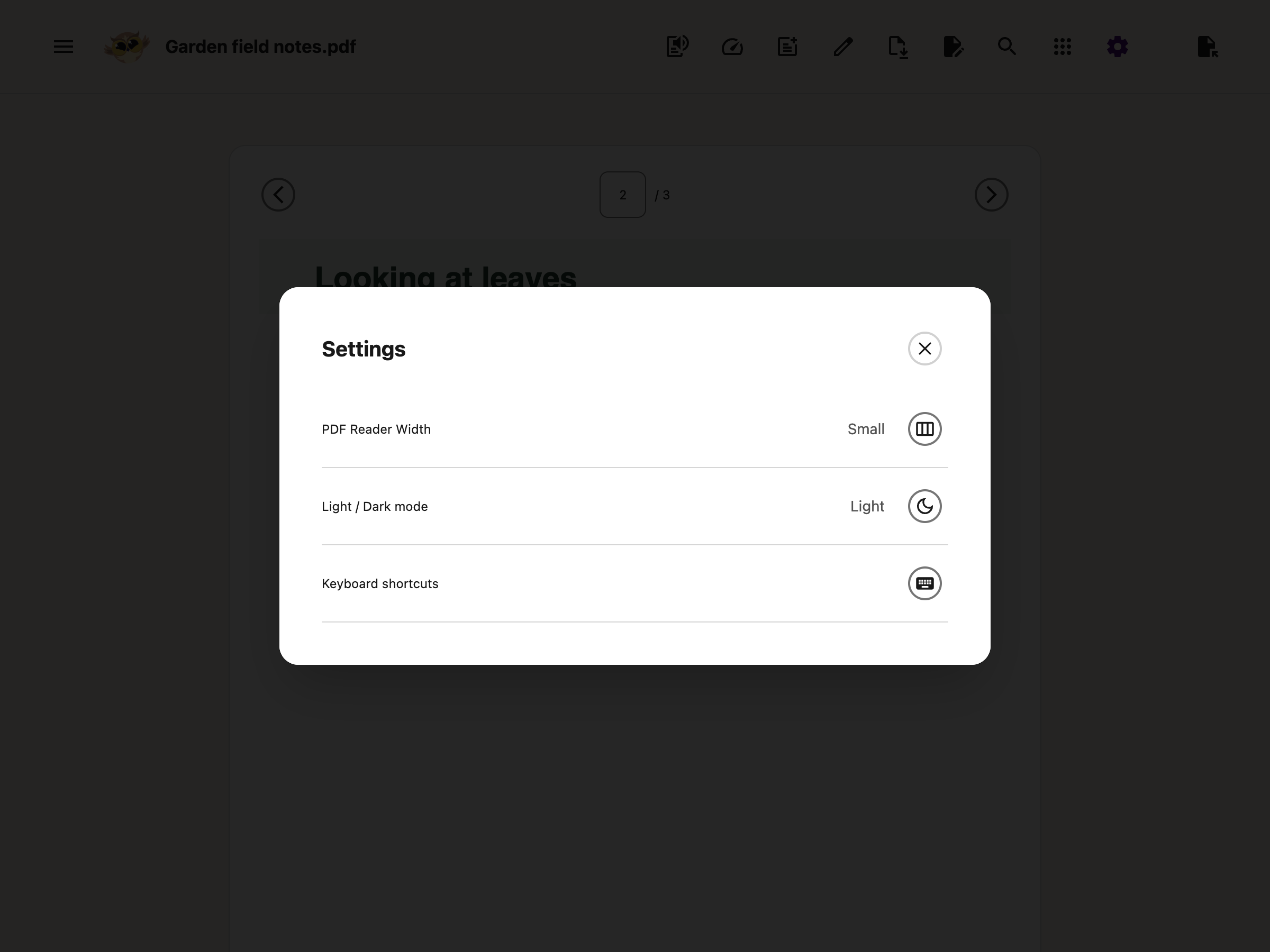
**Page thumbnails** opens page previews. The **Page** number field above and below the document also
lets you jump directly to a page.
---
Text-box editing controls and the PDF page in the browser reader’s dark appearance.
---
## What the Reader Cannot Do
- It shows one page at a time. There is no continuous scroll.
- The web **Highlighter** palette and **Highlight Menu** do not appear in the PDF Reader. Use
**Draw** or **Add Textbox** to annotate the page.
- Search looks only through the current page, not the whole document. It is free.
- Use the **Page** field or **Page thumbnails** to jump to another page.
- You cannot change the words already in the PDF. Anything you add sits on top of the page.
- If the PDF has its own fill-in boxes, what you type into them is lost when you download. Put a
text box on top instead.
- Local recovery keeps one current PDF session, not a library. Opening another PDF replaces that
recovery copy. [Download your changes](/help/how-to-save-and-download-annotated-pdfs/) before
moving on.
---
## Where to Go Next
- [Read one word at a time](/help/how-to-use-speed-reading-in-reading-mode-and-pdf-reader/)
- [Choose a reading view](/help/how-to-change-your-reading-view-in-helperbird-apps/)
- [Search and zoom](/help/how-to-search-and-zoom-a-pdf/) - Find text on the current page and adjust
the view.
- [Translate a PDF page](/help/how-to-translate-pdfs-with-helperbird/) - Compare the translation
with the original.
- [Paste text, links and images](/help/how-to-paste-text-and-images-onto-a-pdf/) - Create boxes from
your clipboard.
- [Add equations](/help/how-to-add-equations-to-pdfs-and-notepad/) - Insert maths and edit it later.
- [Open the PDF Reader](/help/how-to-open-the-pdf-reader-in-helperbird/) - Get the reader open and a
file loaded.
- [Read a PDF and take notes](/help/how-to-use-pdf-reader-in-helperbird/) - Move through pages,
listen to them, write beside them.
- [The Tools menu](/help/how-to-use-the-tools-menu-in-the-pdf-reader/) - Immersive Reader,
Translate, Summarize and Screenshot Reader.
- [Add text boxes](/help/how-to-add-text-boxes-to-pdf-with-helperbird/) - Type onto a worksheet or a
handout.
- [Fit answers on form lines](/help/how-to-make-pdf-text-boxes-smaller/) - Change text size, shrink
the box and understand why editing controls can cover nearby lines.
- [Drawing tools](/help/how-to-use-drawing-tools-on-pdfs-with-helperbird/) - Circle, underline and
sketch on the page.
- [Save and download](/help/how-to-save-and-download-annotated-pdfs/) - Which of your changes end up
in the file.
- [Share and export PDFs](/help/how-to-share-pdfs-with-helperbird/) - Send a marked-up PDF to
someone else.
- [Reading long PDFs](/help/how-to-use-helperbird-for-reading-long-pdfs/) - A working order for a
long document.
---
## Video Tutorial
Watch the PDF Reader overview below. For a specific task, follow the written guides above. Older
recordings may show different button names or layouts.
For drawing, watch [how to draw on a PDF](https://www.youtube.com/watch?v=Q8wa2GDHIyk).
Coming soon
---
## Need Additional Help?
Ran into a snag while using the PDF Reader? Reach out to our [Helperbird support team](/support/)
and we will help you sort it out.
---
## How to Verify and Troubleshoot a Helperbird Managed Deployment
URL: https://www.helperbird.com/help/verify-helperbird-managed-deployment/
After deploying Helperbird with Intune, Group Policy, Jamf, or the Google Admin console, use this guide to confirm it worked, and to fix it if it didn't.
---
## Step 1: Confirm the policies reached the browser
On a managed device, open the browser's policy page and click **Reload policies**:
- **Chrome:** `chrome://policy`
- **Edge:** `edge://policy`
- **Firefox:** `about:policies` → **Active** tab
You should see:
1. **ExtensionInstallForcelist** (Chrome/Edge) or **ExtensionSettings** (Firefox) listing the Helperbird ID, confirms the **force-install** policy arrived.
2. Helperbird's managed values (`subKey`, `isAdminControl`, and any optional keys) listed under its 3rd-party / extension policies, confirms the **configuration** arrived.
If the policy page shows nothing, the policy hasn't reached the device yet, force a sync (Intune) or run `gpupdate /force` (Group Policy), then reload.
---
## Step 2: Confirm the subscription key activated
1. Open the extensions page (`chrome://extensions`, `edge://extensions`, or `about:addons`). Helperbird should be present and marked **"Installed by your organization"**, users can't remove it.
2. Open Helperbird's Settings page and check **Billing**. Pro requires a valid subscription key, not only `isAdminControl: true`. Test one configured restriction as well as the plan status. The toolbar's on/off setting is a user-editable default, so being able to change it is expected.
**Safari:** There is no Chrome-style policy page. Confirm delivery in your MDM, then check Helperbird's Billing and the configured controls. A managed key is not copied into the personal subscription-key field. That field is not a reliable way to check whether the native policy arrived.
---
## Troubleshooting
### Helperbird isn't installing
- **Policy not synced yet** - allow up to 8 hours (Intune) or force a sync / `gpupdate /force`.
- **Wrong ID for the browser** - Chrome uses `ahmapmilbkfamljbpgphfndeemhnajme`; Edge uses `bkibfggdahioahpokehoiimdmdjefjmd`; Firefox uses `firefox@helperbird.com`. They are not interchangeable.
- **Missing update URL (Chrome)** - Chrome force-install entries must end with `;https://clients2.google.com/service/update2/crx`. (Edge from the Edge store needs only the ID.)
- **Network blocked** - the device must reach `clients2.google.com` (Chrome), `edge.microsoft.com` (Edge), or `addons.mozilla.org` (Firefox) to download the extension.
- **A blanket block is winning** - if extensions are blocked org-wide (`ExtensionInstallBlocklist: *`), force-install still works, but see [Allowlist Helperbird when extensions are blocked](/help/allowlist-helperbird-when-extensions-blocked/).
### The policy installs but Pro isn't active
- **`isAdminControl` isn't set to true/1** - it is the master switch; without it, `subKey` and every other admin value are ignored.
- **The `subKey` value is wrong or empty** - re-check the value against your enterprise key.
- **`Value` wrapper used in the wrong place** - the `{"Value": …}` wrapper is **only** for the Google Admin console "Policy for extensions" field. In the Windows registry, macOS plist, and Firefox `3rdparty`, values are **flat** (e.g. a `subKey` string and an `isAdminControl` DWORD/boolean).
### Settings aren't locked / users can still change them
- Check `isAdminControl`. With it enabled, configured restrictions apply. With it disabled, personal settings are restored. `floatingButton` is intentionally user-editable; blocking the toolbar requires `disableFeatures: true` and `FloatingButton` in `disabledFeatures`.
### Safari configuration is missing or stale
- **Check the build:** The native app and Safari extension must both include the new managed-configuration support. An older App Store build will not gain it from a profile alone.
- **Mac:** Use forced preferences in `com.helperbird.Helperbird.Extension`. Ordinary defaults and the containing app's preference domain are not the Mac delivery route.
- **iPhone/iPad App Configuration:** Target the managed containing app, `com.helperbird.Helperbird`, and open it after delivery or changes. This forwards settings to Safari. Its snapshot expires after seven days without refresh.
- **iPhone/iPad DDM:** Target the Safari extension through `ExtensionConfigs`, use the correct signed extension identifier, and supply the referenced private plist data asset. A JSON fragment alone is incomplete.
- **Types:** Use plist `` or ``, not strings. Google Admin's `Value` wrappers do not belong in Apple plists.
- **Removal:** A false gate releases all managed settings. Removing the key alone leaves feature management enabled. For the legacy iOS route, reopen the containing app to forward removal.
See [Safari on Mac](/help/deploy-helperbird-with-jamf-macos/#safari-on-mac), [iPad and iPhone setup](/help/how-to-use-helperbird-on-ipad-in-the-classroom/#managed-settings-for-ipad-and-iphone), and the [policy builder](/help/json-policy-validator/).
---
## References
- [Chrome Enterprise – Understand Chrome policy management](https://support.google.com/chrome/a/answer/9037717)
- [Chromium – Configuring policy for extensions](https://www.chromium.org/administrators/configuring-policy-for-extensions/)
- [Mozilla – Customizing Firefox using policies.json](https://support.mozilla.org/en-US/kb/customizing-firefox-using-policiesjson)
---
## Need Additional Help?
Still stuck? Contact [Helperbird support](/support/) with your browser, app version, delivery route, and the failing setting. Redact subscription keys and personal information from screenshots or configuration files before sharing them.
---
## How to Change Video Playback Speed on Any Website
URL: https://www.helperbird.com/help/how-to-change-video-playback-speed-on-any-website/
## What is Video Playback Speed?
The Video Playback Speed feature lets you control how fast or slow videos play on any website. You
can slow videos down to 0.1x speed for detailed viewing, or speed them up to 2x to get through
content faster. It works on any website that uses HTML5 video, including YouTube, Vimeo, and most
modern video players.
---
## Who is This For?
This feature is helpful for:
- Students watching lectures or tutorials who want to speed up or slow down content
- Anyone who finds videos too fast and needs to slow them down for comprehension
- People learning a new language who want to slow down spoken dialogue
- Anyone who wants to get through video content faster
- People with auditory processing difficulties who benefit from slower playback
---
## Step 1: Open Helperbird
Click the Helperbird icon in your browser toolbar. It looks like a small owl and is usually in the
top-right corner of your browser.
This will open the Helperbird menu.
---
## Step 2: Go to the All Features Section
Scroll down to the bottom of the Helperbird menu. You will see a section called **All Features**.
Click the arrow next to **All Features** to expand it and show all available features.
---
## Step 3: Find Media Controls
Look through the list of features until you see **Media controls**. The playback speed controls live
inside this panel, along with Volume boost.
---
## Step 4: Open Media Controls
Click **Open** on the **Media controls** row. The panel holds **Playback speed** and **Volume
boost**.
---
## Step 5: Turn on Playback Speed
In the Media controls panel, click the toggle switch next to **Playback speed** to turn it **on**.
The toggle will turn blue when it is enabled.
---
## Step 6: Adjust the Speed
Use the **slider** to set your preferred playback speed. You can also use the **minus (-)** and
**plus (+)** buttons to adjust the speed in small increments of 0.1x.
- **Below 1x** - Slows the video down (for example, 0.5x plays at half speed)
- **1x** - Normal speed
- **Above 1x** - Speeds the video up (for example, 1.5x plays at one and a half times normal speed)
- **2x** - Maximum speed, plays at double speed
The speed change applies to all HTML5 videos on the current page immediately.
**Tip:** Pair this with the Volume Booster feature if you find that speeding up videos makes the
audio harder to hear. You can also combine it with text-to-speech subtitles for the best learning
experience.

---
## Need Additional Help?
If you have any questions or run into any issues, please contact the Helperbird support team. You
can reach us at [Helperbird support](/support/). We are happy to help you get the most out of
Helperbird.
---
## How to Mute All Videos on Any Page
URL: https://www.helperbird.com/help/how-to-mute-all-videos-on-any-page/
## What is Video Volume?
**Video volume** sets the volume of every video on the page at the same time. One slider, from 0% to 100%.
At 0% every video is silent. At 50% they all play at half volume. At 100% they play normally.
It saves you hunting for each player's own volume control, which every website hides in a different place.
---
## Who is This For?
This is helpful for:
- Anyone who finds sudden loud sound painful or startling
- People with sensory sensitivity, including autistic people and people with misophonia
- Anyone reading in a quiet room, a library or a classroom
- Anyone on a page with several videos that all want to be heard at once
---
## Step 1: Open Helperbird
Click the Helperbird icon in your browser toolbar, then open **All Features** at the bottom of the menu.
---
## Step 2: Open Media Controls
Find **Media controls** in the list and open it.
The panel holds two controls: **Playback speed** and **Video volume**.
---
## Step 3: Turn on Video Volume
Switch **Video volume** on. The slider appears underneath it.
---
## Step 4: Slide to 0% to Mute
Drag the slider all the way to the left, to **0%**. Every video on the page goes silent.
You can use the minus and plus buttons on either side instead of dragging, which is easier if a pointer is hard to control.
Any level between works too. 30% is often enough to keep a video listenable without it dominating the room.
---
## Turning It Off Again
Switch **Video volume** off.
Helperbird remembers what volume each video had before it changed anything, and puts each one back. If you adjusted a video yourself using the site's own controls while Helperbird was on, your choice is kept.
---
## What It Does Not Do
Two things to know before you rely on this:
- **It works on videos, not on separate audio players.** If a page plays sound through an audio player rather than a video, this will not silence it.
- **It sets the volume. It does not stop the video playing.** The video still runs. At 0% it makes no sound.
If a page keeps playing something you cannot silence, [Reading Mode](/help/how-to-use-reading-mode-and-remove-ads-on-any-website/) strips the page back to its text instead.
---
## Related Guides
- [Change video playback speed](/help/how-to-change-video-playback-speed-on-any-website/) - The other control in the same panel.
- [Hide images and GIFs](/help/how-to-hide-images-and-gifs-on-every-website/) - Remove moving pictures as well as sound.
- [Reduce motion](/help/how-to-stop-animations-on-any-websites/) - Stop animations that make a page hard to read.
---
## Need Additional Help?
If you have any questions or run into any issues, please contact the Helperbird support team. You can reach us at [Helperbird support](/support/). We are happy to help you get the most out of Helperbird.
---
## How to View the Helperbird Roadmap
URL: https://www.helperbird.com/help/how-to-view-the-helperbird-roadmap/
## What is the Roadmap?
The Helperbird roadmap is a public page where you can see what features are being worked on, what is planned next, and what has recently been released. It gives you a window into the development of Helperbird so you always know what is coming.
---
## Step 1: Open Helperbird
Click the Helperbird icon in your browser toolbar. It looks like a small owl and is usually in the top-right corner of your browser.
This will open the Helperbird menu.
---
## Step 2: Open the Settings Page
Click the **gear icon** in the top-left corner of the Helperbird menu. This will open the Settings page.
---
## Step 3: Click Visit Next to Roadmap
On the Settings page, look for the **Info** section. You will see a **Roadmap** row with a **Visit** button next to it.
Click **Visit** to open the Helperbird roadmap in a new browser tab.
---
## What You Can Do on the Roadmap
The roadmap lets you see what the Helperbird team is working on and what is coming next. You can browse planned features, see what is currently in development, and check out recently completed updates.
If you have an idea for a new feature or want to let the team know what matters most to you, the roadmap is the place to do it. Your feedback directly helps shape what gets built next.
**Tip:** Bookmark the roadmap page so you can check back any time without opening the extension. You can also access it directly from the Settings page whenever you want.
---
## Need Additional Help?
If you have any questions or run into any issues, please contact the Helperbird support team. You can reach us at [Helperbird support](/support/). We are happy to help you get the most out of Helperbird.
---
## How to Change Voice and Language Settings in Helperbird
URL: https://www.helperbird.com/help/how-to-change-voice-settings-in-helperbird/
## What are Voice and Language Settings?
Helperbird lets you customize the voice used for Text to Speech and the language used for Voice
Typing. You can choose from over 60 languages and a wide range of natural-sounding voices.
These settings let you control how text sounds when read aloud, including the voice and speed. For
Voice Typing, you can select which language you are speaking so Helperbird recognizes your words
correctly.
---
## Who is This For?
This feature is helpful for:
- Multilingual learners who need content read in their first language
- Students in French Immersion or ESL programs
- People who prefer a specific voice style or speed
- Anyone who finds the default voice too fast or too slow
- Educators working with diverse language groups
---
## Changing Text to Speech Voice Settings
### Step 1: Open Helperbird
Click the Helperbird icon in your browser toolbar. It looks like a small owl and is usually in the
top-right corner of your browser.
This will open the Helperbird menu.
---
### Step 2: Open Text to Speech
Scroll down to the bottom of the Helperbird menu. You will see a section called **All Features**.
Click the arrow next to **All Features** to expand it and show all available features.
Look through the list until you see **Text to Speech**. Click on it to open it.
---
### Step 3: Find the Voice Dropdown
In the Text to Speech panel, the **Voice** dropdown is at the top of the panel, just below the text
area.
There is no separate settings screen to open. All the voice options are right there in the panel.
---
### Step 4: Choose a Voice
Use the **Voice** dropdown to browse available voices. Voices are grouped into two sections:
- **Standard Voices** - Free voices built into your browser.
- **Natural voices** - Premium, natural-sounding voices. These need an internet connection and
Helperbird Pro. A **Pro** label appears when they are locked on a free account. Availability
differs by browser and platform.
Each voice is shown with a country flag and a short, easy-to-read name, so you can quickly spot the
language and accent you want.
Select a voice, enter a short passage, and click **Play** to hear it. The same voice group
previously called “Neural Voices” is now labeled **Natural voices**.
Voice names vary by browser and device. Natural voices appear below Standard Voices.
---
### Step 5: Adjust the Reading Speed
Look for the speed button in the player bar. It shows the current speed, such as **1x**.
Click the button to cycle through the available speeds. A slower speed is helpful for learning or
following along. A faster speed is good for getting through content quickly.
Your settings are saved automatically and will apply the next time you use Text to Speech.
---
## Changing Voice Typing Language
When using Voice Typing (Speech to Text), you can change the language Helperbird listens for.
1. Open **Voice Typing** from the All Features section.
2. Look for the **language dropdown** below the text area. It will show your current language, such
as "English (United States)."
3. Click the dropdown and select the language you want to speak in.
4. Click the microphone button and start speaking. Helperbird will recognize your speech in the
selected language.
---
## Supported Languages
Helperbird supports over 60 languages for Text to Speech and Voice Typing, including:
- English (US, UK, Australia, Canada, India)
- French (France, Canada)
- Spanish (Spain, Mexico, US)
- German
- Italian
- Portuguese (Brazil, Portugal)
- Chinese (Mandarin, Cantonese)
- Japanese
- Korean
- Arabic
- Hindi
- Dutch
- Polish
- Russian
- Turkish
- Vietnamese
- And many more
The exact voices available depend on your browser and operating system. If you do not see a voice,
check the voices available on that browser and device.
---
## Need Additional Help?
If you have any questions or run into any issues, please contact the Helperbird support team. You
can reach us at [Helperbird support](/support/). We are happy to help you get the most out of
Helperbird.
---
## How to Use Voice Typing (Speech to Text) on Any Website
URL: https://www.helperbird.com/help/how-to-use-speech-to-text-or-dictation-on-any-website/
## What is Voice Typing?
Speak into your microphone and collect a draft in Helperbird's text box. You can edit it, copy it,
listen to it, or print it. Voice typing in the browser extension needs Helperbird Pro, microphone
permission, and an internet connection.
## Step 1: Open Helperbird
Click the Helperbird owl in your browser toolbar.
## Step 2: Go to the All Features Section
Expand **All Features** and find **Voice typing**. You can also search for it in Helperbird.
## Step 3: Find Voice Typing
Open **Voice typing**. Its panel contains a text box, language selector, and three controls:
**Grammar**, **Start recording**, and **Options**. Opening the panel does not start the microphone.
Your draft stays in the text box until you choose an action.
## Step 4: Select Your Language
Choose the language and regional variant you will speak from the language selector below the text.
Stop recording before changing it.
## Step 5: Start Speaking
Click the pink **microphone** and allow microphone access if your browser asks. Speak clearly; your
words appear in the text box. Click the microphone again when you are finished.
Recording also stops after **10 seconds without recognized speech**. Your draft stays in place.
Press the microphone again to continue.
## Step 6: Use Your Text
Open **Options**, the sliders button beside the microphone. It contains:
- **Mode:** Regular, Math, Chemistry, or Physics. Choose before you start recording.
- **Spoken punctuation:** in Regular mode, turn this on to convert supported spoken punctuation
commands into punctuation marks. Turn it off if you want those words kept as words. Language
support varies. This choice is saved for your next recording.
- **Copy:** copy your draft so you can paste it into a document or form.
- **Listen:** open the draft in Read Aloud.
- **Print:** open a printable version of the draft.
- **Clear:** remove the draft from the panel.
Spoken punctuation lives inside Options, along with the draft actions.
Spoken punctuation is unavailable while recording or preparing a recording, and in Math, Chemistry,
and Physics modes. Those modes handle symbols separately. The Grammar button beside the microphone
checks the draft for writing errors.
With a keyboard, focus **Options** and press **Enter** or **Space**. Press **Tab** to move through
its controls. **Escape** closes Options first; press Escape again to close Voice typing.
## Type Directly into a Field
To put words straight into a webpage or Google Docs, enable **Voice typing into the page** in
**Settings → Beta features**, then use Voice typing from the **floating toolbar**. This is still a
Beta feature. The panel opened from the Helperbird menu continues to collect a draft in its own text
box.
Follow [dictating into the page](/help/how-to-type-dictation-straight-into-the-page/) for the full
steps. For notes beside a PDF, use its
[Notepad](/help/how-to-use-pdf-reader-in-helperbird/#take-notes-beside-the-pdf).
## Troubleshooting
**No words appear:** check your microphone permission, selected language, internet connection, and
Helperbird Pro access. Stop and start the microphone after changing a permission.
**Recording stopped during a pause:** the 10-second silence limit has been reached. Start again when
you are ready.
**A setting cannot be changed:** finish recording first. Spoken punctuation is only available in
Regular mode.
**You need to keep the draft:** copy it into your document before closing the browser or leaving the
page. The panel is not a document-saving service.
## Need Additional Help?
[Contact Helperbird support](/support/) with your browser, Helperbird version, and what happened.
---
## How to Use Volume Booster on Any Website
URL: https://www.helperbird.com/help/how-to-use-volume-booster-on-any-website/
## What is Volume Booster?
Volume Booster lets you set the volume of every video on a webpage at once, from 10% up to 100%,
using one simple slider. If a video starts off quiet or a site's own volume controls are fiddly to
reach, Volume Booster brings every video up to full volume in one place so you can hear it clearly.
---
## Who is This For?
Volume Booster is helpful for people with hearing difficulties who need videos at full volume,
anyone watching videos that start off too quiet, users in noisy environments, people who find small
in-player volume controls hard to use, and anyone who finds certain websites have quieter videos
than others.
---
## How to Enable Volume Booster
### Step 1: Open Helperbird
Click the Helperbird icon in the top right corner of your browser to open the extension menu.
---
### Step 2: Go to the All Features Section
Scroll down to the **All Features** section and expand it to see all available features.
---
### Step 3: Find Media Controls
Look through the list of features until you see **Media controls**. Volume boost lives inside this
panel, alongside Playback speed.
---
### Step 4: Open Media Controls
Click **Open** on the **Media controls** row. The panel holds **Playback speed** and **Volume
boost**.
---
### Step 5: Turn on Volume Boost
Click the toggle switch next to **Volume boost** to turn it **on**. The toggle will turn green when
it is enabled.
---
### Step 6: Adjust the Volume
Use the slider, or the **-** and **+** buttons beside it, to set the volume anywhere from 10% to
100%. The bubble above the slider shows the current level.
**Tip:** The level you choose applies to every video on the page at once, so you don't need to
adjust each player separately.

---
## Using Volume Booster
Once enabled, your chosen volume applies to all videos on the current page. If you navigate to a new
page, the same volume will continue to apply.
To return to full volume, move the slider back to 100%. You can also turn off the Volume Booster
toggle to stop Helperbird from managing video volume.
---
## Important Notes
**Videos Only:** Volume Booster controls video players on the page. Standalone audio-only players
are not affected.
**Maximum is 100%:** Volume Booster sets each video to its own full volume. It does not amplify
audio beyond that. If everything is still too quiet at 100%, turn up your device or speaker volume
as well.
---
## Related Guides
- [How to Use Text to Speech](/help/how-to-use-text-to-speech-on-any-website/)
- [How to Mute Auto-Playing Videos](/help/how-to-mute-all-videos-on-any-page/)
---
## Need Additional Help?
If you have questions about Volume Booster, reach out to our [Helperbird support team](/support/)
and we'll help you out!
---
## What is Helperbird Free?
URL: https://www.helperbird.com/help/what-is-helperbird-free/
Helperbird Free gives you access to essential accessibility features without any cost. You can use
it for work, school, or personal browsing - no payment required. Here's what you get.
---
## What's Included in Helperbird Free?
**Reading Mode** Strip away ads and distractions so you can focus on what matters. Just the content
you need, nothing else.
**Immersive Reader by Microsoft** The popup offers up to 2,000 characters per launch on the free
plan. The PDF Reader allows up to 1,200 characters per free launch; the floating toolbar needs Pro.
See [Immersive Reader](/help/how-to-use-immersive-reader-on-any-website/) for details.
**Text to Speech** Choose a browser voice and press Play to hear text aloud.
**Dyslexia Fonts** Choose a font such as OpenDyslexic or Lexend and see which feels comfortable to
read.
**Letter Spacing** Adjusts spacing between letters to make reading easier and more comfortable.
**Magnifier** Zoom in on text to make it bigger and clearer.
**Font Changer** Switch to fonts that work better for you. Pick what feels right.
**Picture Dictionary** Shows images related to words you're reading, which helps with understanding
and memory.
**Screenshot** Capture what is on your screen and save it. (Reading the text out of a capture is the
Screenshot Reader, which is a [Pro feature](/help/what-is-helperbird-pro/).)
**Translation** Open a webpage or selected text in Google Translate. Pro adds selected-text results
inside Helperbird and [current-page PDF translation](/help/how-to-translate-pdfs-with-helperbird/).
**Emphasize Links** Makes links stand out so you can spot them faster.
**Color Blindness Tools** Adjusts colors on pages to make them easier to see if you have color
blindness.
**Reading colors** Change page text, links, and backgrounds. Creating saved text highlights needs
[Helperbird Pro](/help/how-to-highlight-words-and-paragraphs-on-any-website/).
---
## Free PDF Tools
You can [open PDFs](/help/how-to-open-the-pdf-reader-in-helperbird/),
[search the current page and change zoom](/help/how-to-search-and-zoom-a-pdf/), read with Standard
Voices, and add text or pasted images for free.
The side Notepad lets you type, format and choose **Add Textbox to PDF** without Pro. Download
**With my changes** to keep a copy. Drawing is also free. Natural voices, dictation, grammar,
equation insertion, translation, summarization, and Screenshot Reader need Pro.
The [standalone Notepad](/help/how-to-use-the-helperbird-editor/) lets you write, save, and download
documents for free. The
[native Apple PDF reader](/help/how-to-use-helperbird-pdf-reader-on-iphone-ipad-and-mac/) is also
free and has its own tools.
## Video Tutorial
Coming soon
---
## Need Additional Help?
Have questions about what's free or what's in Pro? Reach out to our
[Helperbird support team](/support/) and we'll explain everything!
---
## What is Helperbird Pro Unlimited?
URL: https://www.helperbird.com/help/what-is-helperbird-unlimited/
Helperbird Pro Unlimited is built for schools, districts, and businesses that want to give everyone access to Helperbird Pro. Instead of paying per user, you pay one price and everyone in your organization gets full access. It's simple and cost-effective.
---
## What's Included?
You get everything from Helperbird Pro, but for unlimited users within your organization. Everyone with an email address from your domain can use all the Pro features. No per-seat pricing, no user limits.
**Pricing:** $1,500 per year for schools. Enterprise and district pricing is available on request - just contact us for a custom quote.
---
## What's a Domain?
A domain is the part of your email address after the @ symbol. For example, if your email is **user@helperbird.com**, your domain is **helperbird.com**. With Pro Unlimited, anyone with an email ending in your domain gets access. People outside your domain won't have access.
**Example:** If your school's domain is **@yourschool.edu**, every student and staff member with a **@yourschool.edu** email can use Helperbird Pro.
---
## Need Coverage for Multiple Organizations?
If you're managing multiple schools, districts, or businesses, we offer discounts for bulk licenses. Just reach out to us and we'll work out a plan that fits your needs.
---
## Video Tutorial
Coming soon
---
## Need Additional Help?
Interested in Pro Unlimited for your school or business? Have questions about pricing or setup? Reach out to our [Helperbird support team](/support/) and we'll walk you through everything!
---
## What is Helperbird Pro?
URL: https://www.helperbird.com/help/what-is-helperbird-pro/
Need tools such as Voice typing, Natural voices, or Screenshot Reader? Helperbird Pro adds these to
the free reading and writing tools. This guide explains what needs a subscription.
---
## How Much Does Helperbird Pro Cost?
Helperbird Pro is **$.00 per year**. See the [pricing page](/pricing/) for
current plan details.
---
## What's Included in Helperbird Pro?
Pro includes the free tools plus the features below. Availability can differ between the browser
popup, floating toolbar, PDF Reader, and native Apple app.
### Reading
**Natural voices** Use premium online voices for text to speech. Free users can choose from the
voices supplied by their browser. Word highlighting needs a supported local voice.
### Writing
**Voice typing** Speak to create a draft in Helperbird, then review and copy it. The floating
toolbar also supports
[optional direct dictation](/help/how-to-type-dictation-straight-into-the-page/) in supported
fields.
**Word prediction** Choose from suggested words as you type.
**Spell check** Enable your browser's spelling checker in supported fields. The browser supplies its
dictionary and corrections.
**Grammar** Check a passage and review suggested changes before copying the result back.
**Sticky notes** Save notes attached to supported webpages.
### Tools
**Summarize** Get the key points from a passage or page.
**Simplify text** Request a rewrite at a chosen reading level, then compare it with the original.
**Highlighter** Mark selected webpage text in Blue, Green, Red, Yellow, Gray, or Purple.
**Screenshot Reader** Capture text and equations from part of the screen, then send the result to
your chosen reading tool.
**Equation Editor** Write, hear, and copy equations in the standalone equation app.
**Text statistics** Check text length and reading-time estimates from the extension. Text stats in
the standalone Notepad is free.
### Accessibility
**Word spotlight** Color the word under your mouse pointer yellow as you move across the page.
### Apps
**Reading list and saved web notes** Keep pages, sticky notes, and highlights for later.
**Advanced browser PDF tools** Use Natural voices, Voice typing, Grammar, Translate, Summarize,
Screenshot Reader, and Insert equation in the PDF Reader.
Opening PDFs, typing notes, adding text boxes, drawing, and downloading your edits are free. The
[standalone Notepad](/help/how-to-use-the-helperbird-editor/) also has free writing, saving, and
document downloads. Pro adds access to its saved web notes, highlights, and Reading List.
The
[native PDF reader for iPhone, iPad, and Mac](/help/how-to-use-helperbird-pdf-reader-on-iphone-ipad-and-mac/)
is free and does not need a Helperbird subscription.
### Support
**Priority support** Get priority help with your subscription and tools.
## Video Tutorial
Coming soon
---
## Need Additional Help?
Want to know more about upgrading to Pro or have questions about pricing? Reach out to our
[Helperbird support team](/support/) and we'll help you out!
---
## How to Use Word Spotlight to Highlight Words on Hover with Helperbird
URL: https://www.helperbird.com/help/how-to-highlight-words-on-hover/
## How Word Spotlight Behaves
**Word spotlight** paints the single word under your mouse pointer yellow. One word at a time, always the word you are pointing at.
It waits for you to stop moving. The yellow appears about 80 milliseconds after the pointer settles, so nothing lights up mid-sweep. The word stays lit until you land on a different word.
Helperbird paints over the page rather than editing it. Your text is never rewritten, nothing is saved, and turning the feature off leaves the page exactly as it was.
New to it? Start with [what Word spotlight is and how to turn it on](/help/how-to-use-word-spotlight-on-any-website/).
---
## Where It Works
Table: Where Word spotlight works and what it needs there.
| Where | Works |
| --- | --- |
| Chrome, Edge, Firefox, Safari | Yes |
| Normal websites | Yes |
| Helperbird's own pages, such as the PDF reader and Notes | No |
| iPad and iPhone | Only with a mouse or trackpad attached |
Helperbird's own switch, at the top right of the menu, has to be on. When Helperbird is off, Word spotlight is off with it.
---
## What It Does Not Do
**It does not dim the rest of the page.** There is no torch beam and no shaded area around the pointer. One word is colored; everything else stays exactly as it was.
**The color is fixed.** It is always the same marker yellow. Nothing in Helperbird changes it, including the colors you pick for the highlighter pen.
**It needs a pointer.** Word spotlight follows mouse movement and nothing else. Touch does not trigger it, and neither does the keyboard.
**It skips text you can edit.** Text boxes, search fields and rich text editors are left alone, so it will not follow you while you type.
**It splits words at apostrophes and hyphens.** In "don't" it highlights **don** or **t**, not the whole word. Same with "well-known".
**It splits at accented letters too.** In "café" it highlights **caf**. On text that does not use the Latin alphabet, such as Greek, Arabic or Japanese, nothing highlights at all.
---
## What a Screen Reader Hears
Each time the yellow moves to a new word, Helperbird announces "Highlighted word", followed by the word.
The announcement is polite, so it waits for your screen reader to finish what it is saying rather than cutting in. It only fires when the word changes, so sweeping the pointer across a line does not read the whole line out.
The yellow itself is invisible to a screen reader. It is paint, not content.
---
## Three Ways Helperbird Highlights
Helperbird has three highlighting features that people mix up. Here is the difference.
Table: The three Helperbird highlighting features, what each one colors, and whether it is saved.
| Feature | What it colors | What moves it | Is it saved? |
| --- | --- | --- | --- |
| Word spotlight | One word | Your mouse pointer | No |
| [Read aloud word highlighting](/help/how-to-highlight-words-as-they-are-read-aloud/) | One word | The voice reading the page | No |
| [Highlighter](/help/how-to-highlight-words-and-paragraphs-on-any-website/) | The text you select, across paragraphs if you want | You, when you pick a color | Yes, and it returns on your next visit |
---
## Related Guides
These mark a whole line rather than one word, and they respond to touch as well as to a mouse:
- [Reading guide](/help/how-to-use-a-reading-guide-on-any-website/) - A solid colored bar that shows which line you are on.
- [Line focus](/help/how-to-use-a-line-focus-on-any-website/) - Dims the page so only a strip of text stays clear.
- [Dyslexia ruler](/help/how-to-use-a-dyslexia-ruler-on-any-website/) - A colored bar that follows your pointer or stays in a fixed position.
---
## Need Additional Help?
If you have any questions or run into any issues, please contact the Helperbird support team. You can reach us at [Helperbird support](/support/). We are happy to help you get the most out of Helperbird.
---
## Why Helperbird (and Other Extensions) Don't Work on Certain Pages
URL: https://www.helperbird.com/help/why-helperbird-and-other-extensions-dont-work-on-certain-pages/
You open Helperbird and nothing on the page changes, or you turn a feature on and see **Refresh the page and try again**. On some page addresses no browser extension can run at all.
This article is about the whole of Helperbird being absent. If Helperbird is running and one button is greyed out with a warning badge, read [A Helperbird Feature is Not Supported](/help/feature-not-supported-on-page/) instead.
---
## Which Pages Browsers Block
Your browser will not let any extension run on its own internal pages. It applies to every extension you have installed, not only Helperbird, and there is no setting that turns it off.
Table: Page addresses where no extension can run
| Address starts with | Example | Browser |
| --- | --- | --- |
| `chrome://` | `chrome://settings/` | Chrome |
| `edge://` | `edge://extensions/` | Edge |
| `about:` | `about:addons` | Firefox |
| Your browser's extension store | Chrome Web Store, Firefox Add-ons | All |
---
## How to Tell if This Is Your Problem
Look at the address bar.
- It starts with `chrome://`, `edge://` or `about:`. Nothing will work here. Open what you want to read in a normal tab.
- It starts with `http://` or `https://`. Helperbird should run, so read the next section.
---
## Pages Helperbird Skips for Other Reasons
Three more cases look the same but are not your browser blocking you.
**A file opened from your computer.** Helperbird loads on addresses starting with `http://` or `https://`. A file from your hard drive starts with `file:///`, so Helperbird is not there. For a PDF, open the [Helperbird PDF Reader](/help/how-to-open-the-pdf-reader-in-helperbird/) and pick the file from your computer.
**A tab you already had open.** Helperbird loads into a page while the page loads, so tabs open before you installed or updated it do not have it yet. Refresh the tab.
**A site on your exclusion list.** Helperbird turns itself off on sites you added to that list. See [How to Disable Helperbird on Specific Websites](/help/how-to-disable-helperbird-on-specific-websites/) to check it.
Still nothing on an ordinary website? Work through [Troubleshooting Common Helperbird Issues](/help/troubleshooting-common-helperbird-issues/).
---
## Need Additional Help?
Tell us the site you were on and the feature you wanted on our [feedback page](/feedback/), or contact [Helperbird support](/support/).
---
## Safari Extension Greyed Out on iPad - Jamf & MDM
URL: https://www.helperbird.com/help/helperbird-safari-extension-greyed-out-ipad-jamf/
A greyed-out Safari extensions toggle on a managed iPad is a restriction, not a fault: nothing is broken in Helperbird, and it is rarely a Jamf misconfiguration. Apple decides how much control an MDM has over Safari extensions, and on iPadOS 17 and earlier the answer is none.
This page is for the admin or teacher looking after managed iPads. If this is a family device and you hold the Screen Time passcode, use [installing Helperbird with Screen Time on](/help/family-sharing-helperbird-installation-guide/) instead.
---
## Find What Is Blocking It
Three things cause this. Check them on the iPad itself, in this order.
1. **The iPadOS version.** Open **Settings > General > About** and read the software version. On iPadOS 17 and earlier, no MDM can turn a Safari extension on, so an inert toggle is expected and no MDM change will help.
2. **A configuration profile.** Open **Settings > General > VPN & Device Management** and read what the profile listed there restricts. This tells you whether the block came from your MDM.
3. **Screen Time.** Open **Settings > Screen Time > Content & Privacy Restrictions**. If this is on, and **Web Content** is set to anything other than **Unrestricted**, that is your blocker. It is the most common one on school and business iPads.
If the Screen Time passcode and the profile are both outside your control, the extension cannot be turned on. There is no script or hidden setting that works around it.
---
## What Your MDM Can and Cannot Do
Table: MDM control over Safari extensions on managed iPads, by iPadOS version
| Task | iPadOS 17 and earlier | iPadOS 18 and later |
| --- | --- | --- |
| Install the Helperbird app | Yes | Yes |
| Turn the Safari extension on | No | Supervised devices only |
| Override a Screen Time restriction | No | No |
| Push a Helperbird Pro key | No | No |
The iPadOS 18 column comes with conditions. The iPad has to be supervised and enrolled through Automated Device Enrollment, your MDM has to allow the Helperbird extension rather than leave it off, and Screen Time can still block it on top. Check your MDM vendor's documentation for the payload it expects.
---
## Helperbird Pro Keys Are Not Pushed to iPad
On Chrome, Edge and Firefox, Helperbird reads admin policy from the browser's managed storage. A pushed `subKey` unlocks Pro with nothing for the user to do, but only when `isAdminControl` is `true` as well. Set it to `false` and Helperbird ignores the whole block, `subKey` included. See [every managed key you can set](/help/setting-chrome-storage-managed-keys/).
Safari does not provide managed storage, so Helperbird reads an empty policy on iPad. Those keys have no effect there, however you push them.
On a managed iPad the subscription key is entered per device, in Helperbird's settings in Safari. See [how to unlock Helperbird Pro on iPhone and iPad](/help/how-to-unlock-helperbird-pro-on-ios/). For Macs, where policy does apply, see [how to deploy Helperbird with Jamf Pro](/help/deploy-helperbird-with-jamf-macos/).
---
## After You Unblock It
Once the toggle is available, turning Helperbird on is the same as on any other iPad: follow [how to enable Helperbird in Safari on iPhone and iPad](/help/how-to-enable-helperbird-in-safari-on-ios/).
On shared classroom iPads, choose **Allow** for **All Websites** so students are not prompted for permission on every site they open.
---
## Related Helperbird Guides
- [How to Use Helperbird on iPad in the Classroom](/help/how-to-use-helperbird-on-ipad-in-the-classroom/)
- [How to Allowlist Helperbird When Extensions Are Blocked](/help/allowlist-helperbird-when-extensions-blocked/)
- [Helperbird iOS vs Desktop - What's Different?](/help/helperbird-ios-vs-desktop-differences/)
---
## References
- [Jamf Community - Forcing Extensions on Safari](https://community.jamf.com/general-discussions-2/forcing-extensions-on-safari-34921)
- [Jamf Community - How do I enable Safari extension?](https://community.jamf.com/t5/jamf-pro/how-do-i-enable-safari-extension/td-p/321587)
- [Apple Community - How can one enable a Safari extension](https://discussions.apple.com/thread/256177271)
- [Apple Community - Safari extensions are greyed out on iPhone](https://discussions.apple.com/thread/254245316)
- [Managing Safari extensions on macOS Sequoia using Blueprints in Jamf Pro](https://derflounder.wordpress.com/2025/09/06/managing-safari-extensions-on-macos-sequoia-using-blueprints-in-jamf-pro/)
---
## Need Additional Help?
If you're unsure which restriction is blocking Helperbird, reach out to our [Helperbird support team](/support/) and we'll help!
---
## Why Immersive Reader Does Not Work on Some Websites
URL: https://www.helperbird.com/help/why-immersive-reader-does-not-work-on-some-websites/
## What is Happening?
You opened Immersive Reader on a website like **National Geographic** and instead of seeing the clean reading view, you saw a white screen, a loading spinner that never finished, or an error message.
The good news is your Helperbird is working fine. The website itself is blocking Immersive Reader from loading.
---
## Why it Happens
Immersive Reader is built by Microsoft. To show you the clean reading view, it needs to load a small Microsoft window inside the webpage you are on.
Some websites, like National Geographic, have strict security rules that do not allow any outside windows to load inside their pages. These rules are there to protect the website and its visitors. Unfortunately, those same rules also block helpful tools like Immersive Reader.
This is decided by the website, not by your browser or by Helperbird. There is no setting we can change to get around it.
---
## How to Tell if it is This Issue
You will usually see one of these signs:
- A white or blank screen when Immersive Reader opens
- A loading spinner that keeps spinning and never finishes
- An error message in Immersive Reader
- It works fine on other websites, but not on this one
If Immersive Reader works on most websites but not on a specific one, that website is most likely blocking it.
---
## What You Can Do
You have a few easy options to keep reading the page in a comfortable way.
### Option 1: Use Reading Mode instead
Helperbird has its own built-in **Reading Mode**. It also gives you a clean, distraction-free reading view, and it works on websites that block Immersive Reader.
1. Open Helperbird from your browser toolbar
2. Find **Reading Mode** in the features list
3. Turn it on
You can read more in our guide: [How to Use Reading Mode](/help/how-to-use-reading-mode-and-remove-ads-on-any-website/).
### Option 2: Use Text to Speech
If you mainly wanted Immersive Reader to read the page out loud, you can use Helperbird's **Text to Speech** feature instead. It works on almost every website.
1. Highlight the text you want read aloud
2. Open Helperbird and click **Text to Speech**
3. Press play
You can read more in our guide: [How to Use Text to Speech](/help/how-to-use-text-to-speech-on-any-website/).
### Option 3: Copy the text and use Immersive Reader on a different page
If you really want the Immersive Reader experience:
1. Highlight the article text on the page
2. Copy it
3. Open a new browser tab and go to a page that allows Immersive Reader, like a blank document or Helperbird's Notes page
4. Paste the text
5. Open Immersive Reader there
This way you still get all the Immersive Reader features, just on a different page.
---
## Is This a Bug in Helperbird?
No. Helperbird is working as expected. The website is making the choice to block outside tools. We cannot change a website's security rules.
If a website that used to work suddenly stops working with Immersive Reader, it usually means that website has updated its security rules.
---
## Need Additional Help?
If Immersive Reader is not working on a website and the steps above did not help, please contact the Helperbird support team. You can reach us at [Helperbird support](/support/). Let us know which website you were on and we will do our best to help.
---
## How to Count Words and Characters in the Helperbird Notepad
URL: https://www.helperbird.com/help/how-to-use-text-analytics-in-helperbird-editor/
## What Text Stats Shows You
The Helperbird Notepad counts your writing for you. Open the **Text stats** window and you get your
word count and character count, plus twelve more figures.
Those include sentences, unique words, lines, paragraphs, and estimates of how long your text takes
to read, to say out loud, and to write by hand.
The Notepad does not show a running count while you type. You open Text stats when you want the
numbers.
---
## Who is This For?
This feature is helpful for:
- Students writing essays with word count requirements
- Writers who need to track document length
- Content creators who need specific word counts
- Anyone who wants to estimate reading time
- People preparing speeches who need timing information
---
## Step 1: Open Helperbird
Click the Helperbird icon in your browser toolbar. It looks like a small owl and is usually in the
top-right corner of your browser.
This will open the Helperbird menu.
---
## Step 2: Open the All Features Section
Scroll down to the bottom of the Helperbird menu. You will see a section called **All Features**.
Click the arrow next to **All Features** to expand it and show all available features.
---
## Step 3: Find Notepad
Look through the list of features until you see **Notepad**.
---
## Step 4: Open the Notepad
Click the button on the **Notepad** row to open the Helperbird text editor.
A new tab will open with the Notepad where you can write or paste your text.
---
## Step 5: Open Text Stats
Once you have text in your Notepad, open **Tools** in the top toolbar, then choose **Text stats**.
A window opens with fourteen figures about your writing.

- **Words** - how many words you have written
- **Characters** - every character, spaces included
- **Sentences** - how many sentences there are
- **Reading time** - roughly how long it would take to read, in minutes
- **Speaking time** - roughly how long it would take to read aloud, in minutes
- **Writing time** - roughly how long it would take to write out by hand, in minutes
The remaining figures show:
- **Unique words** - how many different words you used
- **Avg. characters** - the average number of characters in a sentence
- **Longest sentence** - the word count of your longest one
- **Shortest sentence** - the word count of your shortest one
- **Lines** - how many lines there are
- **Paragraphs** - how many paragraphs there are
- **Avg. words** - the average number of words per sentence
- **Word length** - the average length of a word
All three times are estimates worked out from your word count, not measurements of what you actually
did. Reading assumes 250 words a minute, speaking 150, and writing by hand 20. Time estimates are
shown in minutes.
**Tip:** Use this to check a word limit before handing something in, or to see whether your
sentences are running long. A high **Avg. words** with a big **Longest sentence** usually means a
sentence is worth breaking up.
---
## Need Additional Help?
If you have any questions or run into any issues, please contact the Helperbird support team. You
can reach us at [Helperbird support](/support/). We are happy to help you get the most out of
Helperbird.
---
## How to Use Word Prediction on Any Website or Google Docs
URL: https://www.helperbird.com/help/how-to-use-word-prediction-on-any-website-or-google-docs/
## What is Word Prediction?
Word Prediction suggests words as you type. When you start typing a word, Helperbird shows you a
list of words that you might be trying to write. You can click on a suggestion to insert it instead
of typing the whole word.
This helps you write faster and also helps with spelling, since you can see the correct spelling
before you finish typing.
---
## Who is This For?
This feature is helpful for:
- People with dyslexia who struggle with spelling
- Anyone who wants to type faster
- People with motor difficulties who want to reduce keystrokes
- Students writing essays or assignments
- Anyone learning to spell in a new language
---
## Step 1: Open Helperbird
Click the Helperbird icon in your browser toolbar. It looks like a small owl and is usually in the
top-right corner of your browser.
This will open the Helperbird menu.
---
## Step 2: Go to the All Features Section
Scroll down to the bottom of the Helperbird menu. You will see a section called **All Features**.
Click the arrow next to **All Features** to expand it and show all available features.
---
## Step 3: Find Word Prediction
Look through the list of features until you see **Word prediction**.
---
## Step 4: Open Word Prediction
Click **Open** on the **Word prediction** row to open its panel.

---
## Step 5: Turn on Word Prediction
In the Word Prediction panel, you will see a toggle switch at the top.
Click the toggle switch to turn Word Prediction **on**. The toggle will turn purple when it is
enabled. Word prediction is a Pro feature: on the free plan the toggle is greyed out and clicking it
shows an upgrade message.
---
## Step 6: Adjust Settings
You can customize Word Prediction with these options:
**Suggestions** – Use the slider or the **-** and **+** buttons to choose how many word suggestions
appear as you type. You can choose between 2 and 8 suggestions.
**Size** – Use the slider or the **-** and **+** buttons to change how big the whole suggestion bar
appears. Choose between **Small**, **Regular**, **Large**, and **Extra large**. Bigger sizes can
make suggestions easier to read at a glance.
**Read sentence** – Turn this on to hear each sentence read aloud as soon as you finish it with a
full stop, question mark, or exclamation point. Hearing your writing read back helps you catch
mistakes and check that it says what you meant. This works on websites and in Google Docs, and it
uses the same voice as your text to speech settings.
**Spelling corrections** – Suggested spelling fixes appear in the suggestion bar as amber chips when
a word looks misspelled. Turn this off if you would rather see predictions only.
**Language** – Pick the language you will be typing in from the dropdown. Options include English,
French, German, Spanish, and Portuguese.
**Topic** – When your language is English, you can also pick a topic: **This page**, Science,
History, Geography, Space, or Animals. **This page** builds the word list from the page you are on,
so the suggestions match whatever you are reading. Each topic adds between about 150 and 200 subject
words to your predictions, so words like "photosynthesis" or "archaeology" appear as you start
typing them. Pick **None** to turn this off. Everything works offline, because the topic word lists
are built into Helperbird. Read the full guide to
[topic dictionaries](/help/how-to-use-topic-dictionaries-in-word-prediction/).
**Layout** – Choose **Across** for the original horizontal bar or **Stacked** for one suggestion per
row. Your choice is saved. See
[how to change the prediction layout](/help/how-to-change-word-prediction-layout/).
**Bar theme** – Choose how the suggestion bar looks: **Light**, **Dark**, or **Auto**. Auto follows
whatever your browser is set to, so the bar matches the rest of your screen.
**Clear learned words** – Word prediction learns the words you use often so it can suggest them
sooner. This button empties that list and starts it again. Useful if you have been typing something
one-off, or if you are handing the computer to someone else.
---
## Step 7: Start Typing
Now go to any text field on a website or in Google Docs and start typing.
A bar will appear showing word suggestions. On websites the bar sits under the text you are typing
in; in Google Docs it docks under your cursor. You can drag it anywhere on the screen if you prefer
a different spot. These are words that match what you have typed so far.
To use a suggestion:
- Click on any word to insert it into your text
- Click the speaker icon next to a word to hear how it is pronounced
You can also use the keyboard:
- Press **Alt + Left Arrow** or **Alt + Right Arrow** to move between suggestions
- Press **Alt + Enter** to insert the highlighted suggestion
- Press **Alt + 1** through **Alt + 9** to insert a suggestion by its position. In Firefox, use **Ctrl + Alt + 1–9**. On a Mac, Alt is labelled **Option**. The number pad works too.
- Press **Escape** to close the suggestion bar
Each suggestion shows its keyboard shortcut. Number keys on their own still type numbers.
There is no countdown while you choose a word: you can pause for 10 seconds or longer. Suggestions update when you type, move the writing cursor, or select a word. Background Google Docs updates do not replace your choices. Moving away from the editor or closing the bar can dismiss it.
## Editing Earlier Text in Google Docs
Click within a sentence, or use the arrow keys to move back to an earlier word. The suggestions
follow your cursor and use the text before it. You can continue writing in the middle of a sentence
or return to an earlier paragraph.
If you move inside a word, choosing a suggestion replaces that word while keeping the surrounding
text. For example, placing the cursor after **ca** in **cats** and choosing **cattle** gives you
**cattle**, with the next sentence preserved.
For word prediction, place the cursor where you want to write rather than highlighting a passage.
Suggestions pause while a passage is selected or Docs cannot provide the cursor position. Click in
the document to continue. If Docs has just loaded or the cursor is outside the visible text, bring
that paragraph into view and place the cursor again.
To listen to a passage you have already written, select it and use
[Text to Speech](/help/how-to-use-text-to-speech-on-any-website/). To dictate at your cursor, see
[direct-to-page dictation](/help/how-to-type-dictation-straight-into-the-page/).
Word Prediction automatically learns from what you type. On Google Docs, it will also learn from the
existing text in your document to provide better suggestions.
Helperbird can also detect and correct misspellings. If you type a misspelled word and press space,
corrections may appear highlighted in the suggestion bar.
**Tip:** You do not need to finish typing a word. As soon as you see the word you want in the
suggestions, click it. This saves time and helps with correct spelling.
---
## Video Tutorial
Coming soon
---
## Google Docs and Slides
Google Docs supports tools such as Text to Speech, word prediction and voice typing. Features that
change webpage fonts or spacing cannot change every part of the Docs editing canvas.
Open the information button in the Workspace banner for the options available on that page. Google
Slides has different limits; use Screenshot Reader or the Workspace add-on when needed.

---
## Need Additional Help?
If you have any questions or run into any issues, please contact the Helperbird support team. You
can reach us at [Helperbird support](/support/). We are happy to help you get the most out of
Helperbird.
---
## How to Change the Word Prediction Layout
URL: https://www.helperbird.com/help/how-to-change-word-prediction-layout/
## Choose a layout
1. Open Helperbird and expand **All Features**.
2. Open **Word prediction**.
3. Under **Layout**, choose **Across** or **Stacked** from the dropdown.
**Across** is the original horizontal bar. **Stacked** shows one suggestion per row. Helperbird
remembers your choice. You can switch back at any time.
## Use your suggestions
Click a word to insert it, or its speaker button to hear it with
[Text to Speech](/help/how-to-use-text-to-speech-on-any-website/). In Stacked view, use **Alt +
Down** and **Alt + Up** to move between suggestions, then **Alt + Enter** to insert the selected
word. The existing **Alt + Left**, **Alt + Right** and numbered shortcuts still work.

You can still change the text size, theme and number of suggestions. Drag the panel using its move
handle. If the list is taller than the available space, scroll inside it to see more suggestions.
In Google Docs, the panel follows the cursor until you drag it to your preferred spot. Changing the
layout keeps the same predictions, spelling corrections and read-aloud tools.
See the [Word prediction guide](/help/how-to-use-word-prediction-on-any-website-or-google-docs/) for
setup and the other controls.
---
## How to Change Word Spacing on Any Website
URL: https://www.helperbird.com/help/how-to-change-the-word-spacing-on-any-website/
## What is Word Spacing?
Word spacing adds extra space between each word in the text. Instead of words being close together,
they are spread out more.
For example, "The quick brown fox" with increased word spacing would have larger gaps between each
word, making it easier to see where one word ends and the next begins.
---
## Who is This For?
This feature is helpful for:
- People with dyslexia who find words blending together
- Anyone who loses their place while reading
- People with visual processing difficulties
- Students reading dense paragraphs of text
- Anyone who finds it hard to distinguish between words
---
## Step 1: Open Helperbird
Click the Helperbird icon in your browser toolbar. It looks like a small owl and is usually in the
top-right corner of your browser.
This will open the Helperbird menu.
---
## Step 2: Open the All Features Section
Scroll down to the bottom of the Helperbird menu. You will see a section called **All Features**.
Click the arrow next to **All Features** to expand it and show all available features.
---
## Step 3: Find Text Settings
Look through the list of features until you see **Text settings**.
It has a yellow icon with the letter "T" on it.
---
## Step 4: Open Text Settings
Click the arrow button next to **Text settings** to open it.
A panel will appear with all of the text options in a single list that you can scroll through. This
is where you will find the word spacing option.
---
## Step 5: Turn on Word Spacing
In the panel, scroll down until you see **Word spacing**.
Click the toggle switch next to it to turn it **on**. The toggle will turn blue when it is enabled.

---
## Step 6: Adjust the Spacing
Once Word spacing is turned on, a slider will appear below the toggle.
Drag the slider to the right to increase the space between words. Drag it to the left to decrease
the spacing. You can also use the minus and plus buttons on either side of the slider to change the
spacing one step at a time.
The changes will apply to the website immediately, so you can see the effect as you adjust the
slider.
**Tip:** Word spacing works well when combined with letter spacing and line height. Try adjusting
all three together to find your perfect reading setup.
---
## Video Tutorial
Coming soon
---
## Need Additional Help?
If you have any questions or run into any issues, please contact the Helperbird support team. You
can reach us at [Helperbird support](/support/). We are happy to help you get the most out of
Helperbird.
---
## How to Use Word Spotlight on Any Website
URL: https://www.helperbird.com/help/how-to-use-word-spotlight-on-any-website/
## What is Word spotlight?
Lost track of which word you were on?
**Word spotlight** colors the word your mouse pointer is on. Stop the pointer on a word and that
word turns yellow. Move to another word and the yellow follows.
Nothing is saved. The page's own text is never changed, and the yellow goes when you turn it off.
Word spotlight is a Helperbird Pro feature. See
[what is Helperbird Pro](/help/what-is-helperbird-pro/).
To mark text on purpose and keep it, use the
[Highlighter](/help/how-to-highlight-words-and-paragraphs-on-any-website/) instead.
---
## Who is This For?
- You lose your place partway through a line.
- Your eyes skip a line or read the same one twice.
- You track text with your finger on paper and want the same thing on screen.
---
## How to Turn On Word Spotlight
1. Click the Helperbird icon in your browser toolbar.
2. Open **All Features** at the bottom of the menu.
3. Scroll to **Word spotlight**. The list runs A to Z, so it sits near the bottom. You can also type
"spotlight" into the search box at the top of the menu.
4. Turn its toggle on.

Point at a word in the text you are reading. It turns yellow when the pointer stops.
The toggle only appears with Helperbird Pro. On the free plan the row shows a **Pro feature** badge
where the toggle would be, and it opens the upgrade screen.
Word spotlight has no keyboard shortcut. If you use it a lot, add it to **Quick actions** from the
grid icon at the top of the menu. It then gets its own button there, one tap on and off.
---
## If Nothing Turns Yellow
- Helperbird's own switch, at the top right of the menu, has to be on.
- Word spotlight follows a mouse pointer. Without a mouse or trackpad there is nothing for it to
follow, so touch alone highlights nothing on an iPad or iPhone.
- It skips text you can type into, and it does not highlight every word in every alphabet.
Read [how Word spotlight behaves](/help/how-to-highlight-words-on-hover/) for the full list of where
it works and what it will not highlight.
---
## Need Additional Help?
If you have any questions or run into any issues, please contact the Helperbird support team. You
can reach us at [Helperbird support](/support/). We are happy to help you get the most out of
Helperbird.
---
## How to Write an Equation in Helperbird
URL: https://www.helperbird.com/help/how-to-write-an-equation-in-helperbird/
## What This Does
You write your equation in the box at the top, and Helperbird draws it out properly underneath as
you go, so you can see whether it looks right before you use it.
The Equation Editor is part of Helperbird Pro. Without it the box is read-only and typing does
nothing. To get the editor open, see
[opening the Equation Editor](/help/how-to-open-the-helperbird-equation-editor/).
---
## Who is This For?
This is helpful for:
- Anyone writing maths who wants to see it typeset as they type
- Students who know roughly what they want but not the symbol for it
- People who find a traditional formula editor slow
---
## Step 1: Type Into the Box
Click into **Your equation** and start typing. Ordinary maths works as you would expect: `E = mc^2`
gives you E equals m c squared. You can also choose an example below the box, such as the fractions
shown here.

The editor understands LaTeX, the standard way of writing maths as plain text. A few that cover most
of what you need:
- `x^2` for a power, `x_1` for a subscript
- `\frac{1}{2}` for a fraction
- `\sqrt{16}` for a square root
- `\pm` for plus-or-minus, `\times` for a multiplication sign
---
## Step 2: Use the Math Keyboard
For anything you cannot type, click **Show math keyboard** in the toolbar and pick the symbol.

This is the quicker route for Greek letters, integrals and set notation, and it means you do not
have to remember the LaTeX name for a symbol you need once.
---
## A Note on Brackets
The editor closes curly brackets for you. When you type `{`, the matching `}` appears on its own, so
**do not type the closing bracket as well** or you will end up with two and the equation will come
out wrong: a fraction can end up with its bottom half sitting outside it.
If an equation looks scrambled, that is usually why. Clear it and let the editor close the brackets
for you.
Once it looks right, the rest of the toolbar takes it further. See
[what each Equation Editor button does](/help/how-to-use-the-equation-editor-in-helperbird/).
---
To put maths directly into your work, use
[Insert equation in a PDF or Notepad](/help/how-to-add-equations-to-pdfs-and-notepad/). That dialog
keeps the editor above a full-width math keyboard and includes a **More options** menu.
## Need Additional Help?
If you have any questions or run into any issues, please contact the Helperbird support team. You
can reach us at [Helperbird support](/support/). We are happy to help you get the most out of
Helperbird.
---
## How to Write and Format Text in the Helperbird Notepad
URL: https://www.helperbird.com/help/how-to-write-and-format-text-in-the-helperbird-notepad/
## What This Does
The Notepad is a rich text editor. You type onto the page and use the toolbar above it to change how
the writing looks, in the same way you would in a word processor.
---
## Who is This For?
This is helpful for:
- Anyone drafting something that needs structure, like headings and lists
- Students formatting an assignment before handing it in
- People who find a plain wall of text hard to read back
- Anyone who wants to color-code parts of their own notes
---
## Step 1: Type Your Text
Click anywhere on the page and start typing.

---
## Step 2: Select What to Change
Highlight the words you want to change, then use the toolbar. Formatting applies to whatever is
selected.

---
## What the Formatting Toolbar Has
Reading the toolbar from left to right:
- A **style menu** that starts on **Normal**, for turning a line into a heading
- **Bold**, **italic**, **underline** and **strikethrough**
- Four **alignment** buttons: left, centre, right and justified
- **Quote** and **code block**
- **Numbered**, **bulleted** and **checklist** lists
- **Indent** and **outdent**
- **Text color** and **highlight color**
- **Link**, **image** and **video**
- **Insert equation**, beside the image button, to add maths at your cursor
- **Clear formatting**, which strips everything back to plain text
If a piece of text ends up looking wrong and you cannot work out why, select it and press clear
formatting to start again.
For maths, [add an equation](/help/how-to-add-equations-to-pdfs-and-notepad/) and click it later to
edit. The equation appears as an image while you write, with its source kept in your saved note.
Once you have it how you want it,
[save the document](/help/how-to-save-a-document-in-the-helperbird-notepad/) so your work is kept.
---
## Need Additional Help?
If you have any questions or run into any issues, please contact the Helperbird support team. You
can reach us at [Helperbird support](/support/). We are happy to help you get the most out of
Helperbird.
---
## How to Use Helperbird for Writing Essays and Assignments
URL: https://www.helperbird.com/help/how-to-use-helperbird-for-writing-essays-and-assignments/
Writing an essay is a stack of small tasks. Getting ideas out of your head. Finding the right word.
Spelling it. Checking it reads well. If any of those steps are harder for you than they should be,
Helperbird has a tool that helps. This guide walks through how to use Helperbird to draft, polish,
and proofread a piece of writing.
---
## Overview
Use Helperbird while writing in Google Docs, Microsoft Word Online, or a supported webpage. Some
tools work in your writing field. Others, such as Grammar and the Voice typing panel, return text
for you to review and copy back.
The tools in this guide can all be turned on together, or one at a time. Most students find that two
or three of them cover what they need.
---
## Voice Typing
If typing is slow or tiring, voice typing lets you dictate instead. You speak, Helperbird types.
See
[How to use voice typing in Helperbird](/help/how-to-use-speech-to-text-or-dictation-on-any-website/)
for the full walkthrough.
Voice typing is especially useful for first drafts. It is easier to fix a messy draft than to stare
at a blank page, and speaking your ideas out loud often gets them out faster than typing them.
Tip: dictate one paragraph at a time. It is much easier to fix short chunks than a whole essay.
---
## Word Prediction
If you know what you want to say but spelling or word-finding slows you down, word prediction shows
you suggestions as you type. You type a few letters, Helperbird predicts the full word.
See
[How to use word prediction in Helperbird](/help/how-to-use-word-prediction-on-any-website-or-google-docs/)
for the walkthrough.
Word prediction is a huge support for students with dyslexia. It takes the pressure off spelling
every word perfectly, and it suggests words you might not have remembered on your own.
---
## Spelling and Grammar
Helperbird has two separate tools here, and both are Pro features.
**Spell check** switches on the spell checker already built into your browser, for the whole page.
Misspelt words get the red wavy underline as you type, and you right-click one to see your browser's
corrections. Helperbird supplies no dictionary and no suggestions of its own. See
[how to turn on spell check on any website](/help/how-to-enable-spell-check-on-any-website-or-app/).
**Grammar** checks a whole passage. Paste or select your writing, then press **Check**. Review the
suggested changes before copying the result back. Grammar does not change the text on the page for
you. See [how to use the grammar checker](/help/how-to-use-the-grammar-checker-in-helperbird/).
---
## Dictionary
If you are not sure about a word, you can look it up without leaving the page.
See [How to use the dictionary in Helperbird](/help/how-to-use-the-helperbird-dictionary/) for the
full guide.
The dictionary also works the other way. If you are searching for a word and it is on the tip of
your tongue, typing what you mean into the dictionary or using word prediction can help you find it.
---
## Proofreading by Listening
The single most useful proofreading trick for anyone who writes: have your essay read aloud to you.
Your ears catch things your eyes miss, especially awkward sentences, missing words, and lines that
do not flow.
Use Helperbird's [text to speech](/help/how-to-use-text-to-speech-on-any-website/) to read your
essay out loud. Highlight a paragraph and listen, then highlight the next one. You will catch
mistakes in minutes that you would miss on a silent read.
For a final proof, try playing the whole essay while you follow along with your eyes. If something
sounds wrong, pause and rewrite.
---
## Staying Focused While Writing
Writing is half focus. If the page is distracting, or you keep jumping between tabs, Helperbird can
help.
- **[Line focus](/help/how-to-use-a-line-focus-on-any-website/)** dims everything except the line
you are on.
- **[Reading mode](/help/how-to-use-reading-mode-and-remove-ads-on-any-website/)** strips your
research pages down to just the text.
- **[Hide images and GIFs](/help/how-to-hide-images-and-gifs-on-every-website/)** removes visual
clutter while you work.
- **[Notepad](/help/how-to-use-the-helperbird-editor/)** gives you a simple side-panel to drop ideas
without leaving the page you are on.
For more focus tips, see
[How to Use Helperbird for ADHD and Focus](/help/how-to-use-helperbird-for-adhd-and-focus/).
---
## A Good Writing Workflow
If you want a step-by-step writing flow using Helperbird, try this:
1. **Draft with voice typing.** Get your ideas out first. Do not worry about grammar.
2. **Tidy with word prediction and spellcheck.** Go back and fix the draft.
3. **Look up anything fuzzy with the dictionary.**
4. **Proof by listening.** Read it out loud with text to speech and fix anything that sounds off.
5. **Read once more with the eyes.** Now that the sound is right, give it one final visual pass.
---
## Related Guides
- [How to Use Helperbird for Dyslexia](/help/how-to-use-helperbird-for-dyslexia/)
- [How to Use Helperbird for ADHD and Focus](/help/how-to-use-helperbird-for-adhd-and-focus/)
- [How to Use Helperbird for Reading Long PDFs](/help/how-to-use-helperbird-for-reading-long-pdfs/)
- [How to Use Helperbird as a Teacher](/help/how-to-use-helperbird-as-a-teacher/)
- [How to Use the Helperbird Add-on for Google Docs and Slides](/help/how-to-install-helperbird-google-docs-slides-addon/)
- [How to Use Accessibility Profiles in Helperbird](/help/how-to-use-accessibility-profiles-in-helperbird/)
---
## Need Help?
If you are writing an essay and want help getting the right Helperbird setup for your writing style,
reach out to our [support team](/support/). Helperbird was founded by someone with dyslexia who has
written many essays the hard way, and we love helping students find a setup that makes writing
easier.
# Blog
---
## Helperbird 2026.9.28: more room to read and write
URL: https://www.helperbird.com/blog/whats-new-helperbird-2026-9-28/
Your tools should stay out of your way. When you move from a PDF to your notes,
you should recognize the buttons and know what happens next.
A few parts of Helperbird had started to feel like separate apps. A button looked
one way in the PDF Reader and another way in Dictionary. Some tools opened before
you were ready. Others gave you very little feedback when something was missing.
For **Helperbird 2026.9.28, planned for September 28**, we have worked through those
moments. NotePad document tools are free, the PDF workspace has more room, and the
readers share familiar controls. There are also changes to highlighting, word
prediction, speech, settings, and the way we explain Pro features.
This post brings together the September work since the September 6 release.
The [complete September 28 release notes](/updates/#2026.9.28) include the smaller
fixes too. Here is what changes, and why we spent time on it.
## Write and save in NotePad for free
You can write, format, save and download a document without a Pro subscription.
That includes autosave, opening and copying documents, standard read aloud,
equations, and Word, Markdown or plain text downloads.
We wanted the writing space to be useful from the moment you open it. You can
start a draft, listen back to it, and keep a copy without interrupting that flow.
Your font, spacing, theme and page width stay with NotePad, separate from your
other readers.
**Notes/Highlights and Reading List remain Pro features.** They collect the work
you save from around the web. The document you are writing has its own free tools.
The controls show that difference before you choose them.
Keep a copy in the format you need. NotePad’s document downloads are free.
There is a practical fix behind this work too. If a save fails, your draft stays
put. Retrying should not create duplicate notes, and unreadable saved data should
not be overwritten. Our [NotePad guide](/help/how-to-use-the-helperbird-editor/)
walks through writing, saving and reopening your work.
## A PDF workspace that makes room for your notes
The PDF Reader now separates the document, its view controls and the tools you
open as you need them. Open the side NotePad and the workspace expands. Close it
and your previous width returns, unless you chose a new width yourself.
On a narrow screen, the notes move below the PDF. Formatting stays within reach
while you write. You can type and format those notes for free, then choose
**Add Textbox to PDF** to place them on the page.
Search, zoom and drawing are free too. Use Fit width or Fit page, search the
current page, or mark up a passage. Turning Draw off leaves your marks visible.
The [PDF drawing guide](/help/how-to-use-drawing-tools-on-pdfs-with-helperbird/)
explains how to include them in your download.
Your document and notes have their own space, without hiding the writing tools.
You can also draw rectangles, ovals, lines and arrows with the keyboard, then move
or resize them. Freehand drawing still needs a pointer, pen or touch input.
Immersive Reader in PDFs now allows free passages up to **1,200 characters per
launch**. Longer passages remain part of Pro.
## Put more of your work onto the page
Paste text, a link or a picture onto a PDF to create a box you can move and resize.
Paste inside a text box to continue editing it. Supported formatting carries over,
and the annotated download includes your additions.
Equations work in both PDFs and NotePad. Build one with the full-width math
keyboard, preview it, then insert it. You can reopen the equation to make a change
in your saved Helperbird work.
The download format decides how it travels. PDFs contain equation images. NotePad
Word files include images and descriptions, plain text uses descriptions, and
Markdown keeps the LaTeX. The [equation guide](/help/how-to-add-equations-to-pdfs-and-notepad/)
shows the editing and download options.
We also fixed a frustrating transfer problem. Pictures beside equations, and
notes containing only a picture, now transfer into the PDF. If the whole note
will not fit, you get an explanation and your work stays unchanged.
Downloads now keep the PDF and its edits together if you open a different file
while the download prepares. Choosing the original file does not dismiss the
reminder to export your annotations. And if you keep typing while grammar checks
your PDF notes, its older response cannot replace your new words.
## Translate a PDF without losing the original
With Pro, you can translate the current page and switch between **Original PDF**
and **Translation**. Headings, lists, emphasis and indentation carry into the
reading view where they can be detected. Complex page layouts can still differ.
Long translations now keep their line breaks where passages join. Separate list
items stay separate, and words split in the middle rejoin without an extra space.
Changing pages clears the previous translation, so it does not sit beside a
different page.
On websites, translation has one clear action: choose a language and press
**Translate**. Your selected text is used when you have a selection; otherwise,
Helperbird uses the page. The [PDF translation guide](/help/how-to-translate-pdfs-with-helperbird/)
explains the page and language controls.
## Settle into Reading Mode before you press Play
Reading Mode now remembers its own font, size, spacing, theme and page width.
You can reset the text settings or the layout separately. Changes keep your place
and selection, and code examples retain their spacing and syntax colors.
Speed reading is in **All features**, so you can find it through search or pin it
to Quick Actions. On a webpage, it opens Reading Mode with the speed reader ready.
Inside a PDF, it opens the PDF speed reader.
**It opens paused.** Play and Stop are visible from the start. Choose when to
begin; Stop returns to the beginning without starting again. We wanted you to
have time to settle into the view before the words began changing.
Open the reader first. Start the words when you are ready.
Double spacing now gives paragraphs more room too. Dictionary, NotePad and
Equation Editor follow changes to your reduced-motion preference while open.
The [speed reading guide](/help/how-to-use-speed-reading-in-reading-mode-and-pdf-reader/)
covers both readers and their controls.
## Familiar controls across your readers
PDF Reader, Reading Mode, NotePad, Dictionary and Equation Editor now share more
of the same visual language. Header buttons have subtle circular outlines. An
open panel or active tool has a grey background, without an extra underline.
Pro diamonds sit close to their buttons, slightly below navigation controls.
In the PDF Tools menu, they sit directly after each feature name. The diamonds
in All Features use smaller circles while keeping the full click area. Text
buttons keep their rounded shape, and the floating toolbar’s buttons match in
size again.
Reading Mode’s header controls also keep the same size as your other readers.
Dictionary adds **Full entry** and **Definitions only** views. Copy and read aloud
follow the view you choose. Both stay responsive before a lookup: they explain
that you need a word and bring you back to search. Copy and standard speech are
free; Dictionary lookup retains its Pro requirement. An invalid search now stops
the old speech and clears the previous result, so you cannot mistake it for a new answer.
The same header controls follow you into Dictionary, with a choice of a full entry or definitions only.
Equation Editor gains the same appearance controls, saved width, readable settings
and themed keyboard. Your display preferences do not change the equation you export. Paid actions also
wait for your subscription check, avoiding an upgrade prompt while your account loads.
## Highlighting has a place of its own
Selecting text can mean two different things. You might want to listen to it, or
you might want to mark it for later. We have given those actions separate space.
The reading toolbar appears above your selection. When Highlighter is on, its
color palette appears below. Highlighter also controls whether your saved
highlights are visible, and switching it gives you a short confirmation.
Read above the selection, highlight below it. Each menu has one job.
The duplicate Highlights switch in Colors is gone. Your saved highlights and
pinned choices stay with you. The [Highlighter guide](/help/how-to-use-the-highlight-menu-in-helperbird/)
shows how the two menus work together.
Sticky notes have a quieter layout, and you can drag from the whole header except
Close. You can also move a note with the keyboard and cancel a move with Escape.
The Notes/Highlights library has clearer New note and Export actions. It shows
24 items at a time, while search, selection and export still cover your whole collection.
## Prediction that keeps up with your writing
Word Prediction now offers **Across** and **Stacked** layouts. Choose the shape
that leaves room beside your work, and it stays selected for next time. Light,
dark and automatic themes sit in compact controls.
Dragging is smoother. The window follows your pointer while larger suggestion
updates wait until you finish moving it. Suggestions wrap inside narrower spaces
instead of pushing the window wider.
Stack your suggestions when a horizontal row takes up too much room.
Google Docs predictions also keep up after a space or an accepted word. They
follow your cursor into earlier sentences. Choosing a suggestion from the middle
of a word replaces the whole word, preserving nearby text and punctuation.
Suggestions pause while you select text or when your cursor cannot be found.
## Speech stops when you expect it to
Read aloud now uses one set of Play, Pause, Stop, speed and progress controls.
The Theater toggle and seek controls are gone. Standard voices still use your
device, and natural voices still use Microsoft.
Closing or collapsing the floating toolbar stops its speech and dictation,
including a session that is still starting. Tools cannot reopen themselves when
a late response arrives. If opening a tool or saving its switch fails, you get
a message and the control returns to its saved state. Natural-voice access checks stop
when listening stops too. Repeated clicks no longer open extra Immersive Reader sessions. In PDFs, moving
to another page also prevents an old passage from opening after its text arrives.
Voice typing stops after **12 seconds without recognized speech**. Your last
phrase stays in the text. With direct input on, toolbar clicks keep your chosen
field; if that field disappears, your transcript remains available to copy.
We also improved microphone startup on restricted pages and added bundled flags
for voice menus on Windows. In Google Docs, read aloud keeps the passage you
selected instead of losing it when you move to the toolbar.
## Settings that tell you what changed
Settings has clearer sections and aligned controls. When an import or deletion
needs a refresh, **Continue** lets you decide when to move on. Failed saves keep
your draft, and failed imports leave the dialog available to retry.
You can undo removing a subscription key or excluded site without racing a
countdown. The feature reset explains that it turns enabled features off while
preserving your saved content. Delete and reset confirmations use a compact
Helperbird illustration, clear wording and grouped actions.
If the browser cannot save a reset, the confirmation stays open and explains
the failure so you can retry.
A confirmation should tell you what will happen before you choose it.
A few smaller choices give you more control over the page:
- Put page notifications at the bottom left, middle or right, then preview the position.
- Set the Reading guide’s width and opacity independently of the Dyslexia ruler.
- Choose from seven rainbow color presets, or keep your own saved color through Custom.
- Hide the compact Google Workspace prompt until tomorrow when you need the space.
- Try selected text in embedded lessons with an optional beta that starts off.
The [Settings guide](/help/how-to-open-the-helperbird-settings-page/)
explains these choices. Embedded reading remains a beta, and support varies by
lesson platform.
## A clear explanation when a feature needs Pro
Choosing a paid feature now opens one compact **Unlock Helperbird Pro** dialog
across the app. It explains all-feature access, the trial and annual price, and
premium support. Existing subscribers have a separate login or subscription-key link.
**Start my free trial** opens checkout in a new tab. Opening that tab does not
start a subscription by itself. You can review the offer there, or close the
dialog and return to your work.
The benefit list uses larger text, and the dialog follows your light or dark
theme. It also stays in front when opened
from a paid keyboard shortcut in Reading Mode, so you can close it and carry on
reading.
The offer and existing-subscriber link are together, without taking you away from your work.
We wanted this to answer the question a paid button raises: what do I get, and
how do I continue if I already subscribe? The [subscription-key guide](/help/how-to-use-my-subscription-key/)
explains that route, and the [plan comparison](/pricing/) lists what each plan includes.
We checked the account messages around it too. Trial notices use your actual dates,
including expired trials, instead of assuming a seven-day offer. If a subscription
check loses its connection, it explains the failure while keeping your account
details visible. Billing links now open the intended account page.
If you replace a subscription key while a check is running, the result follows
your new key rather than the one you removed.
Trial, overdue and Unlimited messages now agree across the popup, readers and
Settings. Their banners share the same colors in light and dark themes. An
overdue Pro subscription is shown with its payment status, rather than asking
you to sign in again. Pro tools still require active access.
## The fixes you may notice less often
Scanned PDFs, gradients and some PDF forms render more reliably. Opening a file
no longer waits for voices to initialize. An older recovery attempt cannot
replace a PDF you have opened.
Buttons in an empty PDF Reader explain that you need to open a document.
Annotation controls stay within the page. Firefox’s popup opens reliably when
tabs are closing or no current tab is available. Touch scrolling cancels a button press,
and tooltips can be hovered over or dismissed with Escape.
There is work on focus, contrast, translated labels and narrow layouts throughout
the app. Saved text preferences survive unsupported pages. Managed restrictions
also apply to Speed reading, and old pins no longer leave unusable shortcuts.
We have updated the help guides and screenshots alongside the app. If you prefer
to learn one change at a time, start with
[free writing in NotePad](/help/how-to-use-the-helperbird-editor/) or
[reading and annotating a PDF](/help/how-to-use-pdf-reader-in-helperbird/).
Thank you for pointing out the small things that get in your way. If something
still feels awkward, [tell us what happened](/support/). That feedback is how
this release took shape.
---
## Is Assistive Technology Cheating?
URL: https://www.helperbird.com/blog/is-assistive-technology-cheating/
This is the one we get asked most, and it is almost always a teacher asking. Usually a good one:
> "Isn't that cheating? They're not really learning if the computer does it for them."
It is worth taking seriously, because the person saying it is not being unkind. They are protecting something — the belief that the work should be the student's own. That instinct is right. It is being aimed at the wrong thing.
This post is the general answer. Three more go into the specific objections we hear most: [voice typing and learning to write](/blog/does-voice-typing-stop-students-learning-to-write/), [AI summaries and doing the thinking](/blog/is-ai-summarizing-doing-the-work-for-students/), and [text to speech and learning to read](/blog/does-text-to-speech-stop-students-learning-to-read/).
## One question settles most of it
Before you argue about the tool, ask about the task:
> **What is this assignment actually measuring?**
That is the whole thing. Everything else follows from it.
If a history essay is measuring whether a student understands the causes of a war, then spelling is not what is being measured. A tool that fixes spelling has not touched the thing you are grading.
If a spelling test is measuring spelling, then a spellchecker has replaced the task. That is not an accommodation. That is a different assignment.
The same tool can be either, depending on the lesson. Nobody needs a policy on spellcheck. They need a clear answer to what is being assessed today.
This is not a soft framing. It is the principle behind accommodation law: an assessment should measure the skill or knowledge it intends to measure, rather than the impact of a disability unrelated to that purpose.
## Access is not the same as advantage
The strongest version of the worry is that assistive technology gives some students a leg up others do not get.
But an accommodation is designed to promote **access**, not success. It removes a barrier that sits between a student and the work. It does not do the work, and it does not guarantee a good grade. A student with text to speech can still misunderstand the passage. A student with voice typing can still write a weak argument.
If a tool genuinely made the work easy, every student would want it, and the honest response would be to give it to everyone. That is more or less what Universal Design for Learning argues, and in practice it is what happens: the spellchecker stopped being an accommodation and became a word processor feature.
## The analogy that does the work
When a teacher is stuck on this, the Braille comparison usually lands:
> Nobody has ever called Braille cheating. Nobody has ever said a Deaf student using an interpreter did not really do the assignment.
The format changed. The work did not.
We accept this instantly when the disability is visible. It gets harder when the disability is invisible, and harder still when the tool looks like something any student might want. But the logic does not change based on whether you can see the barrier.
## Equality and fairness are not the same thing
A lot of the pushback comes from a genuine commitment to treating students the same.
Giving every student precisely the same thing feels fair. It is the instinct most of us were trained into. But identical treatment is only fair when students start from the same place, and in a real classroom they do not.
The question worth asking a colleague is not "why does she get that?" It is: **"what is she able to show me now that she could not show me before?"** If the answer is "her actual understanding of the topic", the tool is doing its job.
## What the research actually says
The evidence is genuinely supportive. Studies of speech-to-text find students produce longer writing with fewer mechanical errors. Studies of text to speech find improved comprehension for students with reading difficulties, and reduced cognitive effort even where comprehension scores stay level.
It is also not uniform, and admitting that is what makes the rest credible. Effects vary by student, by tool and by how the tool was introduced, so anyone telling you assistive technology always works is overselling it. The honest claim is narrower and considerably stronger: for the students it fits, it removes a barrier that was stopping them showing what they already know.
Two free, credible places to send a sceptical colleague:
- The [IRIS Center at Vanderbilt](https://iris.peabody.vanderbilt.edu/module/at/) has a free assistive technology module written for teachers.
- The [NCEO Accommodations Toolkit](https://publications.ici.umn.edu/nceo/accommodations-toolkit/speech-to-text-research) summarises the research by accommodation type, including speech-to-text.
## What this looks like: one department, one term
The clearest way to settle this is usually not an argument. It is a term of watching what happens.
A Year 9 English department turns Helperbird on for everyone rather than for a named list of students. That decision is the whole experiment, and three things tend to follow.
**The tools stop being a label.** When everyone has [dyslexia-friendly fonts](/features/specialised-dyslexic-fonts/), [color overlays](/features/overlay/) and [text to speech](/features/text-to-speech/) available, using one stops being a public statement about your diagnosis. The students who need it most are the ones most likely to refuse it when it marks them out — so removing the label is not a soft benefit, it is the thing that gets the tool used at all.
**Students nobody flagged start using it.** Predictably, the ones with paperwork use it. Less predictably, so do students who read fine but think better with the page quiet, students reading in a second language, and one who turns out to have an undiagnosed visual stress problem nobody had spotted. Universal Design for Learning argues this will happen. It is more persuasive watching it happen in your own class.
**Teachers stop policing and start assigning.** Once the tools are ambient, the question changes from "is she allowed this?" to "what am I assessing today?" — which is the question that was worth asking all along. Mechanics lesson: tools off, and say so. Ideas lesson: use whatever gets the ideas out.
The reason we suggest starting this way is practical, not ideological. The everyday tools are [free forever](/pricing/) with no account needed, so a department can run this term without a purchase order, a rollout, or anyone's permission. If it works, [Helperbird for Education](/edu/) covers the school under one price. If it does not, you have lost nothing.
A pilot you can abandon is much easier to get agreed than a pilot you have paid for.
## The part that gets missed
There is a cost to getting this wrong, and it is not academic.
Students know when a tool is treated as suspicious. A student who has to justify using text to speech, in front of a class, will often stop using it — not because it was not helping, but because the social price got too high. The accommodation is still on the paperwork. It has quietly stopped being used.
That is the failure mode worth guarding against. Not students getting an unearned advantage. Students abandoning support they need in order to look like everyone else.
## Talking points to share with a team
Lift these directly if it helps.
- **"What is this task measuring?"** If the tool does not touch the thing being assessed, it is not cheating.
- **Access, not advantage.** Accommodations remove barriers. They do not do the work or guarantee the grade.
- **Nobody calls Braille cheating.** The format changed, the work did not.
- **Same is not fair.** Identical treatment is only fair from identical starting points.
- **If it were really that easy,** every student would want it — and then we should give it to everyone.
- **Watch for the quiet opt-out.** A student who stops using a tool to avoid standing out has lost twice.
## Why Helperbird for this
Four things matter specifically for the cheating conversation, and the first is the one people underrate.
The student turns it on themselves. A [reading ruler](/features/ruler/) or a [dyslexia font](/features/specialised-dyslexic-fonts/) is a setting, like screen brightness, rather than something an adult grants in front of the class. Stigma is the main reason accommodations go unused, and this is the part of the design that addresses it directly.
The setup also travels. Because Helperbird is a browser extension, the same configuration works on the lesson, the exam board site, a PDF and a news article. Tools that live inside one platform stop at its edge, and a student hits that edge several times a day. An [accessibility profile](/features/accessibility-profiles/) keeps that setup to one click rather than thirty, saving font, spacing, overlay and voice and applying them everywhere.
Finally, you can make it universal cheaply. The everyday tools are [free forever](/pricing/), so "give it to everyone" is an actual option rather than a budget conversation. That is what turns Universal Design for Learning from a principle into something a head of department can try this term.
Works in [Chrome, Edge, Firefox and Safari](/products/chrome/), and on [iPad and iPhone](/products/ipad/). Schools and districts cover everyone under one price with [Helperbird for Education](/edu/) rather than per seat, and teachers and trainers can [get Pro free](/partners/).
Next: [does voice typing stop students learning to write?](/blog/does-voice-typing-stop-students-learning-to-write/)
---
## Is AI Summarizing Doing the Work For Students?
URL: https://www.helperbird.com/blog/is-ai-summarizing-doing-the-work-for-students/
Of the three questions we get asked most, this is the one where the teacher might be right.
[Text to speech](/blog/does-text-to-speech-stop-students-learning-to-read/) and [voice typing](/blog/does-voice-typing-stop-students-learning-to-write/) change the format of a task. AI summarizing can change the task itself. Those are different, and pretending otherwise would make the rest of the argument weaker.
So this post does not defend it across the board. It gives you a test.
## The test
> **Does the tool remove a barrier to the work, or does it remove the work?**
Run any AI feature through that question and the answer is usually obvious.
A student who can read the chapter but loses the thread across twelve pages is facing a **barrier**. A summary gives them the shape of the argument so they can go back and read it with a map. The reading still happens.
A student who reads the summary instead of the chapter, and writes about the summary, has had the **work removed**. They did not engage with the source. Whatever the assignment was measuring, it did not measure it.
Same feature. Different outcome. The difference is in how it was used, which means the answer is a teaching decision, not a software setting.
## Where summarizing genuinely helps
There are four situations where it is clearly doing accommodation work rather than task avoidance, and they are worth knowing by name.
The first is orientation. A student with working-memory difficulties reads a dense chapter and, by page nine, has lost what the argument was. Reading a summary *first* and then the chapter gives them a structure to hang the detail on. This is not new, and it is not AI-specific. Advance organisers have been a standard reading-comprehension strategy for decades, and nobody called them cheating when they were printed at the front of a textbook.
The second is checking understanding afterwards. Read it, summarise it yourself, then compare the two. That loop is a genuine piece of self-assessment, and it is more useful than most comprehension worksheets.
The third is triage. A student researching an essay across fifteen pages needs to know which three are worth reading properly. Adults do this constantly and call it skimming, but skimming depends on fast, low-cost decoding — which is exactly what a student with a reading difficulty does not have. Without a tool they cannot triage at all, so they read the first two sources and stop.
The fourth is the least comfortable. Sometimes a student with a reading difficulty has been assigned four hours of reading for a one-hour task, and the accommodation is quietly fixing something the assignment got wrong.
## What this looks like: Priya, Year 10 research task
Priya has ADHD. She has been asked to write about the causes of the Industrial Revolution using at least three sources, and has been given a list of twelve pages to work from.
The barrier here is not decoding. She can read any one of those pages. The barrier is that twelve pages is a triage problem, and triage normally depends on skimming — which depends on fast, low-effort reading that holds attention across a page. That is exactly what she does not have.
Without a tool, she reads pages one and two properly, runs out of attention, and writes the essay from those two. Not because she chose to. Because she never got to the others.
**1. Triage the twelve.** She runs [Summarize](/features/summarizing-tool/) across each page to see what it actually argues. Four of them turn out to be about the same three facts. Three are about a different period entirely. Five are worth reading. Twenty minutes, and now she knows where to spend her afternoon.
**2. Read the five properly.** This is the part that has to stay. She reads them, and the summaries are closed.
**3. One source is written for undergraduates.** [Simplify](/features/reword-and-simplify-websites/) rewrites it at a more accessible reading level without cutting content — she still meets every idea and still has to follow the argument, but the sentence complexity is no longer the obstacle.
**4. Keep track of what she found.** She highlights the key passages with the [web highlighter](/features/web-highlighter-and-pdfs/) and pulls quotes into [Notes](/features/notes/) as she goes. The essay then gets built from her own collected evidence, not from her memory of what she read an hour ago.
**5. Check her own understanding.** Before writing, she summarises one source in her own words and compares it to the tool's summary. Where they differ, she goes back and rereads. That is the loop that turns a shortcut into a study skill.
Priya read five sources instead of two. She did not read fewer words because of AI — she read more of the right ones.
Step 5 is what a teacher should ask for. "Use the summary to decide what to read, then write your own and compare" turns the same feature from a way around the task into a way through it.
## Where the worry is correct
Be straight about this part, because a teacher who has watched it happen will not trust anything else you say otherwise.
The clearest case is when comprehension itself is the objective. If you are teaching students to extract a main idea from a text, then a tool that extracts the main idea has done the lesson — that is substitution, not accommodation. Closely related is the student who never opens the source at all: whatever they hand in, they have not done the assignment.
Subtler, and more damaging over a term, is when a summary hides a gap you needed to see. A student struggling to comprehend can be smoothed over so effectively that nobody notices until the exam. The struggle was diagnostic information, and it has been lost.
The last one is a judgement call rather than a rule. Reading being unpleasant and reading being inaccessible are different things, and only the second is what accommodations exist for. Telling them apart requires knowing the particular student in front of you, which is exactly the kind of call teachers are good at and software is not.
## Simplify is a different tool
Worth separating, because they get lumped together.
[Summarize](/features/summarizing-tool/) shortens — it gives you less text. [Simplify](/features/reword-and-simplify-websites/) rewrites at a more accessible reading level, keeping the content.
Simplify is much closer to a straightforward accommodation. The student still reads the whole thing, still meets every idea, still has to follow the argument. What changed is the sentence complexity and the vocabulary, which for an English language learner or a student with a language disorder is the actual barrier.
If a teacher is uneasy about summarizing but the student needs help with dense text, simplify is usually the better fit and the easier conversation.
## What to do about it
Most misuse comes from unclear instructions rather than bad faith, so the first move is to say what the tool is for on this particular task. "Use the summary to orient yourself, then read it properly" is a completely different instruction from silence, and students are not mind readers about where the line falls.
From there, ask them to show their working: have them write their own summary and compare it to the tool's. You will see immediately whether they read the source, and the comparison teaches something on its own. Used that way round — read first, summarise second, compare third — it is a check rather than a substitute.
And some lessons should be tool-free. If comprehension is the point of the session, say the tools are off today. That is not being anti-technology, it is being clear about what you are teaching.
## Talking points to share with a team
- **The test: does it remove a barrier, or remove the work?** Everything follows from that.
- **Summarizing before reading is an advance organiser** — a strategy that predates AI by decades.
- **Summarize shortens, simplify rewrites.** Simplify keeps the whole text, so it is closer to a plain accommodation.
- **The worry is legitimate when comprehension is the objective.** If the lesson is "find the main idea", a tool that finds the main idea is the lesson.
- **Skimming is a reading skill that requires fast decoding** — students who cannot decode fast cannot triage sources without help.
- **Tell students what the tool is for on this task.** Most misuse is unclear instructions, not bad faith.
## Why this one deserves the care
The reason to be careful here is not that AI is dangerous. It is that overclaiming on this feature costs you credibility on the others.
Tell a sceptical teacher that every AI tool is a neutral accommodation. Then let them watch a student hand in an essay about a summary they never read past. You have now lost the argument about text to speech as well, and that is the one with the strongest evidence behind it.
Concede this one honestly and the rest of the case gets stronger.
## Why Helperbird for this
Having both tools is what lets you pick the lighter one. [Summarize](/features/summarizing-tool/) shortens; [Simplify](/features/reword-and-simplify-websites/) rewrites at an accessible level with nothing removed. A teacher uneasy about summarizing still has an answer for the student in front of them, rather than an all-or-nothing choice between AI and no help at all.
That principle extends downwards. Often the student is stuck on a single word rather than the structure, and the [dictionary](/features/dictionary/) clears that without touching the text at all. A toolkit lets you reach for the smallest thing that removes the barrier and escalate only if it does not; a single AI button offers no such gradient.
Research is also a workflow rather than one click, which is why [Highlighter](/features/web-highlighter-and-pdfs/) and [Notes](/features/notes/) matter here as much as the AI does. They turn a summary into collected evidence the student can write from, which is the difference between using AI to think with and using it to avoid thinking. And because twelve pages on twelve different sites is the normal shape of a research task, a browser extension covers all of them where a single-site tool covers one.
Summarize and Simplify are in Helperbird Pro. Schools cover every student under one price with [Helperbird for Education](/edu/), and teachers can [get Pro free](/partners/).
Next: [does text to speech stop students learning to read?](/blog/does-text-to-speech-stop-students-learning-to-read/)
---
## Helperbird Never Gives Students the Answer
URL: https://www.helperbird.com/blog/helperbird-never-gives-students-the-answer/
We spoke at a conference recently, and afterwards a teacher came over with the question we get more than any other. It arrived in three parts, fast, the way a question does when someone has been chewing on it for a while.
> Are they still learning to write if they use voice typing? Is the AI not doing it for them when it summarises? Are they working on reading at all if it reads to them?
Then the part that makes it worth writing about. They already knew the tools were needed. They used the same things themselves, every day, without a second thought. What they could not settle was why it felt different when a child did it.
**Adults use these tools all the time. They often have a harder time with children using them.**
Here are the short answers, and then the thing sitting underneath all three.
## The three quick answers
**Voice typing.** Writing is two jobs at once — working out what to say, and getting it onto the page. Voice typing removes the second and leaves the first completely intact. Studies of speech-to-text with students who have learning disabilities find dictated work is longer, has fewer mechanical errors, *and is rated higher in quality*. If it were a shortcut, quality would not go up. [The longer answer](/blog/does-voice-typing-stop-students-learning-to-write/).
**Immersive Reader.** Reading is decoding plus comprehension. Immersive Reader and [text to speech](/features/text-to-speech/) bypass decoding and leave comprehension untouched — and comprehension is what a science or history lesson is actually teaching. A student following word-by-word highlighting is looking at the words. [The longer answer](/blog/does-text-to-speech-stop-students-learning-to-read/).
**Summarizing.** This is the one where the worry is sometimes right, and we say so. The test is whether the tool removes a barrier to the work or removes the work. [The longer answer](/blog/is-ai-summarizing-doing-the-work-for-students/).
But there is something the three questions share, and naming it settles more than answering them one at a time.
## The real fear is not the tool. It is the chatbot.
When a teacher says "the computer is doing it for them", they are almost never picturing a reading ruler. They are picturing a student pasting an essay question into a chatbot and handing back what comes out.
That fear is completely reasonable. It is also about an entirely different piece of software.
So here is the line, and it is a hard one:
> **Every AI feature in Helperbird points at the source material the student is already looking at. None of them point at the question they have been asked.**
That is not a policy or a promise about how we hope it gets used. It is what the tools structurally do.
Table: What each Helperbird tool acts on, and what it gives back.
| The tool | What it acts on | What it gives back |
| --- | --- | --- |
| [Text to speech](/features/text-to-speech/) | The page in front of you | The same words, read aloud |
| [Immersive Reader](/features/immersive-reader-for-chrome/) | The page in front of you | The same words, laid out for easier reading |
| [Voice typing](/features/speech-to-text/) | **The student's own speech** | Their words, typed |
| [Word prediction](/features/word-prediction/) | What the student is typing | The word they were reaching for |
| [Summarize](/features/summarizing-tool/) | A source document | A shorter version of **that source** |
| [Simplify](/features/reword-and-simplify-websites/) | A source document | The same content, plainer language |
| [Dictionary](/features/dictionary/) | One selected word | That word's meaning |
| [Screenshot Reader](/features/optical-character-recognition/) | An image or scanned PDF | The text that was trapped in it |
| [Translate](/features/google-translate/) | The page in front of you | The same page, another language |
Read down the middle column. Every single one is the student's own words, or a document their teacher gave them.
**Nothing in that list has any idea what the assignment is.** Ask Helperbird to summarise a chapter and it summarises the chapter. It does not know there is an essay question, cannot see it, and would not answer it if it could. There is no box to type "write my essay on the Industrial Revolution" into, because that is not what any of these tools are.
## Why that distinction is worth defending
A teacher who has been burned by chatbot essays is right to be suspicious of anything with "AI" attached to it. The useful move is not to argue that all AI is fine, because that argument loses the room. It is to show where the line falls.
Changing the format of a source is access. Reading a chapter aloud, laying it out for easier reading, pulling text out of a scanned worksheet, translating it, defining a word — none of these change *what the student has to understand*, only whether the student can get at it. Generating new content that answers the task is a different thing entirely, and that is what deserves rules. Being precise about the difference is how those rules land on the right software instead of on a reading ruler.
Helperbird sits entirely on the first side of that line. That is a deliberate product decision, not an accident, and it is why we are comfortable being in a district where chatbots are restricted.
## What this looks like: Daniel, Year 11 mock exam paper
Daniel has dyslexia. His mock paper is a scanned PDF of a past paper, which is the format that defeats most reading support outright — it is an image, so there is no text to read aloud.
**1. He gets the text out.** [Screenshot Reader](/features/optical-character-recognition/) pulls the text out of the scan, picking up the equations alongside the prose automatically.
**2. He has the question read to him.** [Text to speech](/features/text-to-speech/) reads the question aloud, with word highlighting, twice. He is now on level terms with every other student in the room, which he was not two minutes ago.
**3. He checks one word.** "Infer" — [dictionary](/features/dictionary/). He knows the concept; he did not know that word meant that.
**4. He answers it himself.** [Voice typing](/features/speech-to-text/) turns what he says into text. Helperbird has typed his sentences. It has not supplied one.
**5. He proofreads by ear.** Text to speech reads his own answer back, and he catches a misheard word that spellcheck would never flag.
At no point did Helperbird know what the question was asking or have any view about the right answer. It read him the paper and wrote down what he said.
That is the whole thing. **If Daniel does not know the answer, he gets it wrong** — exactly like everyone else in the room. What changed is that he is now being assessed on whether he understands the subject, rather than on whether he can decode a photocopy under time pressure.
## The part about adapting to the future
That second half of the question deserves a section of its own.
> Adults use these AT resources all the time. They often have a hard time with kids using them.
Think about how the adults in that staffroom actually work. Dictating messages while driving. Listening to documents and podcasts on a commute. Asking a device to read something aloud while cooking. Skimming an abstract to decide whether to read the paper. Autocomplete, spellcheck and predictive text on every device they own.
None of them think they have stopped reading or writing. They have adopted the tools that make reading and writing work in a busy life.
The students in front of them will enter workplaces where dictation is standard, where documents are routinely read aloud, and where the ability to use these tools *well* is an ordinary professional skill. A student who leaves school fluent in assistive technology has an advantage. A student who was told it was cheating has to learn it later, on their own, with no one teaching them how to do it properly.
**That is the cost of getting this wrong.** Not an unearned grade. A student who needed a tool, was made to feel dishonest for using it, and quietly stopped — and then had to rediscover it at twenty-two, in a job, with nobody showing them how.
Spellcheck was controversial once. So were calculators. Both are now so ordinary that nobody can remember the argument. These tools are on the same path, and schools get to decide whether they are ahead of it or behind it.
## Talking points to share with a team
- **Helperbird never sees the assignment.** Every tool acts on the source or on the student's own words.
- **There is no "write my essay" box.** Structurally, these tools cannot answer a question they cannot see.
- **The chatbot fear is legitimate — and it is about different software.** Be precise so the rules land in the right place.
- **Changing the format of a source is access.** Generating content that answers the task is not. Helperbird is entirely on the first side.
- **If the student does not know it, they still get it wrong.** The tool does not rescue them.
- **We all already work this way.** Dictation, listening, autocomplete, skimming.
- **Fluency in these tools is a workplace skill.** Banning it does not delay the skill, it removes the teaching.
## Where to start
The tools that cause the most anxiety are usually the ones a department has never actually watched a student use.
Text to speech, [dyslexia-friendly fonts](/features/specialised-dyslexic-fonts/), [color overlays](/features/overlay/), the [reading ruler](/features/ruler/) and Reading Mode are [free forever](/pricing/), with no account needed. A teacher can add Helperbird, use it on their own reading for a week, and reach their own conclusion before any student is involved. That tends to end the argument faster than any document.
Works in [Chrome, Edge, Firefox and Safari](/products/chrome/), and on [iPad and iPhone](/products/ipad/). Schools and districts cover every student under one price with [Helperbird for Education](/edu/) rather than paying per seat, and teachers, therapists and trainers can [get Pro free](/partners/).
If you are building the case internally, the rest of the series goes deeper: [is assistive technology cheating?](/blog/is-assistive-technology-cheating/), [voice typing](/blog/does-voice-typing-stop-students-learning-to-write/), [AI summarizing](/blog/is-ai-summarizing-doing-the-work-for-students/) and [text to speech](/blog/does-text-to-speech-stop-students-learning-to-read/).
---
## Does Voice Typing Replace Learning to Write?
URL: https://www.helperbird.com/blog/does-voice-typing-stop-students-learning-to-write/
Of everything we get asked, this is the most common version, and the most reasonable:
> "If she dictates it, she is not learning to write."
It sounds obviously true. It is worth unpicking, because the answer changes how you use the tool, not only whether you allow it.
This is part of a series on assistive technology pushback. Start with [is assistive technology cheating?](/blog/is-assistive-technology-cheating/) for the general frame.
## Writing is two jobs, not one
When an adult writes, two things happen at the same time:
1. **Composition** — working out what you think, choosing words, ordering ideas, building an argument.
2. **Transcription** — getting it onto the page. Handwriting or typing, spelling, punctuation, capitals.
For a fluent writer, transcription is nearly automatic, so both fit in your head at once. You think about the argument while your hands deal with the letters.
For a student with dysgraphia, dyspraxia or a spelling difficulty, transcription is not automatic at all. It takes most of the available attention. And attention is finite — what goes into spelling a word does not go into the sentence it belongs to.
That is why their writing often reads as thin. Not because the thinking is thin. Because the thinking never made it out.
## What the research found
Studies of speech-to-text with students who have learning disabilities converge on the same result. Compared with handwritten work, dictated work tends to be:
- **Longer**
- **Lower in mechanical errors** — spelling in particular
- **Higher in rated writing quality**
That last one is the interesting one. If dictation were only a shortcut, you would expect more words and no improvement in quality. Instead quality goes up.
The explanation researchers give is the one above: reducing transcription demands frees cognitive resources for composition. Speech-to-text separates thinking from typing, so the student is not carrying both at once.
The [NCEO Accommodations Toolkit](https://publications.ici.umn.edu/nceo/accommodations-toolkit/speech-to-text-research) has a research summary on speech-to-text if you want something citable to hand a colleague.
## What this looks like: Maya, Year 9 history essay
Maya has dysgraphia. She can talk about the causes of the First World War for twenty minutes and hold her own in a class discussion. Her essays come back at half a page.
Here is her afternoon with Helperbird, start to finish.
**1. She reads the source first.** The essay is based on a chapter on the school platform. She turns on [Reading Mode](/features/reading-mode-for-chrome-and-firefox/) to strip out the navigation and the sidebar, then [text to speech](/features/text-to-speech/) reads it aloud with each word highlighted as it goes. She follows along. Reading was never the problem, but doing it in half the time leaves her with energy for the writing.
**2. She looks up two words.** She selects "armistice" and the [dictionary](/features/dictionary/) gives her the definition in place. No new tab, no losing her spot.
**3. She dictates the draft.** In the essay box, she turns on [voice typing](/features/speech-to-text/) and talks. Two hundred words in about four minutes — roughly what she would have produced in forty minutes of handwriting, and it reads like her.
**4. She tidies up with word prediction.** Switching back to the keyboard for edits, [word prediction](/features/word-prediction/) offers completions as she types, so the words she avoids because she cannot spell them are now available to her. That is a real change in what she can say, not only how fast she says it.
**5. She proofreads by ear.** This is the step that matters most and the one students skip. She runs text to speech back over her own draft. Voice typing had heard "trench warfare" as "trench welfare" — spelled correctly, so [spell check](/features/spell-check/) would never flag it. Hearing it read aloud, she catches it immediately.
The essay comes in at 600 words, in her voice, with an argument in it. The history has not changed. What changed is that it can now get out of her head and onto the page.
That last step is why we think of Helperbird as one toolkit rather than a set of separate features. Text to speech is what makes voice typing safe to use — it is the proofreading tool for the errors dictation creates.
## But dictating is not effortless
Here is the part that usually surprises people on both sides of the argument, and it is worth saying out loud because it is what makes the case credible.
Speech-to-text is not "no work". It swaps one set of demands for another:
- You have to **speak in composed sentences**, which is harder than it sounds.
- You have to **say the punctuation** out loud.
- You have to **proofread against misrecognition** — and these errors are nastier than typos, because a misheard word is usually spelled correctly. A spellchecker will not flag it.
- You have to **edit by voice or by hand**, which is its own skill.
So a student dictating an essay is still doing careful, effortful language work. They are doing different work, not less of it.
This matters for the classroom conversation. If a teacher's fear is "she is getting out of the hard part", the accurate answer is that she is doing a different hard part — and the one she is now doing is the one you were trying to teach.
## What it does not do
Being straight about the limits is what makes the rest believable, so here they are.
Voice typing does not teach spelling. If your objective is spelling, dictation has removed the task rather than opened it up, and that is a different assignment instead of an accommodation. It does not teach handwriting either, so a student with a handwriting goal in their IEP still needs handwriting work — though both can be true in the same week, with dictation for the history essay and explicit handwriting practice in its own session.
It also does not fix composition. A student who cannot structure a paragraph will dictate an unstructured paragraph, and no amount of clean transcription hides that. Sometimes this turns out to be the useful part: once the effort of getting words down stops masking the problem, you can finally see what needs teaching.
## How to use it well
The difference between a tool that helps and a tool that quietly gets abandoned usually comes down to how it was introduced.
Decide before the task which skill you are assessing, and say so. If it is the ideas, let the transcription be whatever gets the ideas out; if it is the mechanics, that is a mechanics lesson and it deserves to be its own thing. Ambiguity here is what makes students feel they are getting away with something.
Then teach the tool properly. Students need to learn dictation the way they were taught typing — composed sentences, spoken punctuation, proofreading for misheard words — and handing over a microphone without any of that is the most common reason it ends up unused. Expect the first few attempts to be worse than handwriting, because they almost always are. That is the learning curve, not evidence the tool failed.
Finally, let them revise on the keyboard. Dictate the draft, edit by hand. Most adults who use dictation work exactly this way, and there is no reason students should not.
## Talking points to share with a team
- **Writing is composition plus transcription.** Voice typing removes transcription, not composition.
- **Research finds dictated work is longer, cleaner and rated higher in quality.** If it were a shortcut, quality would not improve.
- **Dictating is not effortless.** Composed speech, spoken punctuation, and proofreading for misrecognition are real work.
- **A misheard word is spelled correctly** — so it survives a spellchecker. Students must be taught to proofread for it.
- **If the objective is spelling, it is not an accommodation.** Match the tool to what you are assessing.
- **Thin writing is often hidden thinking.** Remove the transcription load and see what is actually there.
## Why Helperbird for this
Three things make the difference in a classroom, and the first is coverage. Voice typing in Helperbird runs wherever the student is writing — the school platform, a Google Doc, an exam-practice site, a form — because it lives in the browser rather than inside one editor. Tools that only work in one place fail the moment the lesson moves somewhere else, and across a real school week it always does.
The second is that proofreading is built in. Dictation creates misheard words that are spelled correctly and therefore survive a spellchecker, and most dictation tools leave that gap wide open. Because Helperbird also does [text to speech](/features/text-to-speech/), the student can hear their own draft read back and catch them — the tool that creates the problem and the tool that solves it are the same purchase.
The third is that the student turns it on themselves, with no adult granting it in front of the class. For a teenager weighing up whether support is worth the attention it draws, that is frequently the whole decision.
Voice typing, word prediction and spell check are part of Helperbird Pro, across [Chrome, Edge, Firefox and Safari](/products/chrome/). Schools and districts cover every student under one price with [Helperbird for Education](/edu/) rather than paying per seat, and teachers can [get Pro free](/partners/).
Not ready to dictate out loud in a busy room? Start with [word prediction](/features/word-prediction/) — same barrier, quieter tool.
Next: [is AI summarizing doing the work for them?](/blog/is-ai-summarizing-doing-the-work-for-students/)
---
## Does Text to Speech Replace Learning to Read?
URL: https://www.helperbird.com/blog/does-text-to-speech-stop-students-learning-to-read/
The third thing we get asked, and the one with the most research behind the answer:
> "If it reads to her, she is not working on her reading."
Like the others, it contains something true. It applies to a narrower slice of reading than the person saying it usually means.
This is part of a series on assistive technology pushback, starting with [is assistive technology cheating?](/blog/is-assistive-technology-cheating/)
## Reading is decoding plus comprehension
Reading research splits reading into two strands that develop separately:
1. **Decoding** — turning marks on a page into words. Phonics, blending, recognising words on sight.
2. **Comprehension** — understanding what those words mean together. Vocabulary, inference, background knowledge, following an argument.
You need both. But they are not the same skill, they are taught differently, and a student can be strong at one and weak at the other.
That is the whole situation with dyslexia. Decoding is effortful and slow. Comprehension is frequently fine or excellent — sometimes well above grade level. The student can understand a text far more complex than the one they can decode.
**Text to speech bypasses decoding. It leaves comprehension completely intact.**
A student listening to a chapter still has to hold the argument in their head, follow the sequence, infer what is not stated, connect it to what they already know. Every part of comprehension is still being exercised. Nothing has been done for them except the part they were already spending all their effort on.
## What the evidence shows
Research on text to speech with students who have reading difficulties finds:
- **Improved comprehension** for many students with reading and language difficulties.
- **Reduced reading time and reduced cognitive effort**, while comprehension holds at least level with silent reading.
- **The largest benefits for students with the weakest decoding**, which is what you would expect if the mechanism is bypassing decoding.
That second finding is worth sitting with. Even where comprehension scores do not rise, students get to the same understanding for less effort. For a student who arrives at period five already exhausted from reading, that is not a small result. Stamina is a real constraint on a school day.
**The evidence is not uniform**, and saying so makes the case stronger. Some studies find clear comprehension gains, others find the benefit is mainly in effort and speed, and results vary by the type of reading difficulty. Anyone claiming text to speech always raises comprehension is going beyond the research.
If you want something citable for a colleague, the [IRIS Center at Vanderbilt](https://iris.peabody.vanderbilt.edu/module/at/) has a free teacher-facing module on assistive technology.
## What this looks like: Josh, Year 8 science
Josh reads at roughly two years below his year group. His science comprehension is fine — ask him about photosynthesis and he will explain it. Getting through the chapter is the problem, and by the time he has decoded it he has nothing left for the questions at the end.
His lesson with Helperbird:
**1. Clear the page.** The textbook is on a publisher site wrapped in menus, a cookie banner and a related-articles rail. [Reading Mode](/features/reading-mode-for-chrome-and-firefox/) reduces it to the chapter text. For a student who is already spending everything on decoding, removing the visual noise is not cosmetic.
**2. Set the page up for his eyes.** He has a saved [accessibility profile](/features/accessibility-profiles/) — OpenDyslexic at his spacing, with a soft yellow [color overlay](/features/overlay/). One click, every page, no fiddling. The [reading ruler](/features/ruler/) tracks the line he is on so he stops losing his place mid-paragraph.
**3. Listen and follow.** [Text to speech](/features/text-to-speech/) reads the chapter with each word highlighted as it is spoken. He is looking at the words the whole time. He gets through it in eleven minutes instead of forty, and still has attention left for the questions.
**4. Hit a hard paragraph.** The section on the light-dependent reaction does not land. He opens it in [Immersive Reader](/features/immersive-reader-for-chrome/), which adds line focus and syllable breaks, and reads that paragraph slowly. Helperbird brings Immersive Reader to every browser, not only Microsoft apps, so it is available on the publisher's site too.
**5. The worksheet is a scanned PDF.** His teacher shares a photocopied worksheet — an image, so text to speech has nothing to read. He uses the [Screenshot Reader](/features/optical-character-recognition/) to pull the text out of it, and it picks up the equations automatically alongside the prose. Now the worksheet can be read aloud like anything else.
Josh did the same science lesson as everyone else. What changed is that he arrived at the questions with something left in the tank.
Step 5 is the one worth flagging to a SENCO or AT team. Scanned worksheets and photographed textbook pages defeat most reading tools completely, and they are everywhere in schools. A reader that cannot handle them leaves a gap the student falls into every week.
## The word-highlighting detail matters
One thing worth knowing, because it changes how you set the tool up.
Text to speech that **highlights each word as it speaks** is not the same as an audiobook. The student sees the word and hears it at the same moment, repeatedly, across everything they read.
That is a pairing of print and sound — which is, structurally, what a lot of decoding instruction is trying to build. It is not a replacement for phonics teaching and nobody should claim it is. But "listening instead of reading" is not an accurate description of what is happening on screen when the words are lit up in front of the student as they go.
A student following highlighted text is looking at the words.
## What it does not do
It does not teach decoding. If a student has a decoding goal, they need explicit, structured instruction to meet it — text to speech is not that and will never become that. Nor should it replace decoding practice. Both things belong in the same week: structured decoding work in its own session, and text to speech for the science chapter so that science does not stop while reading catches up.
That second point is the one that resolves most of this argument. The choice is not "learn to read" or "use text to speech". A student who cannot yet decode a grade-level text still has to learn science, history and geography, and those subjects do not pause. Text to speech is how they keep learning everything else while decoding instruction continues.
Blocking it does not produce more decoding practice. It produces a student falling behind in science.
## The bit teachers often have not considered
Ask a sceptical colleague how they get through professional reading.
Podcasts on the commute. A document read aloud while driving. Skimming an abstract before deciding whether to read the paper. Listening to an article at 1.5x.
Adults use these constantly and do not consider themselves to have stopped reading. It is the contradiction we hear most at events: the same people who rely on assistive technology every day find it much harder to accept children using it.
That is worth naming gently in a staff meeting. Not as a gotcha — as a genuine prompt to notice the double standard.
## Talking points to share with a team
- **Reading is decoding plus comprehension.** Text to speech bypasses decoding and leaves comprehension fully in play.
- **Comprehension is usually what you are teaching** in a content lesson. It is untouched.
- **Dyslexia is frequently a decoding difficulty with intact comprehension** — the student can understand far more than they can decode.
- **Research finds better comprehension for many students, and less effort for almost all of them.** Stamina counts across a school day.
- **Word highlighting means the student is looking at the words.** It is not an audiobook.
- **Both belong in the week.** Structured decoding instruction *and* text to speech for content subjects.
- **Blocking it does not create decoding practice.** It creates a student behind in science.
- **We do this ourselves.** Podcasts, documents read aloud, skimmed abstracts.
## Why Helperbird for this
The thing that usually decides whether a reading tool survives contact with a school week is whether it can read what the week actually contains. Scanned worksheets, photographed textbook pages and locked PDFs are everywhere, and most tools stop dead at all three because there is no text to read. Helperbird's [Screenshot Reader](/features/optical-character-recognition/) pulls the text out of an image and picks up equations automatically alongside the prose, so those stop being the weekly dead end they usually are.
Coverage matters in the same way. Microsoft's Immersive Reader is excellent and normally lives inside Microsoft apps; Helperbird brings it to the publisher site, the exam board and the news article, which is where the reading actually is. And because an [accessibility profile](/features/accessibility-profiles/) saves a student's font, spacing, overlay and voice and applies it everywhere in one click, there is no reconfiguring per site — which is the quiet reason students give up on tools that otherwise worked.
Most of this costs nothing. Text to speech, [dyslexia-friendly fonts](/features/specialised-dyslexic-fonts/), [color overlays](/features/overlay/), the [reading ruler](/features/ruler/) and Reading Mode are [free forever](/pricing/), with no account needed, so a student can try the whole setup in the next lesson without anything being purchased or approved first.
Text to speech, dyslexia fonts, color overlays and reading mode are [free forever](/pricing/), so a student can try them today without anything being procured. Schools can cover everyone through [Helperbird for Education](/edu/), and teachers can [get Pro free](/partners/).
Back to the start of the series: [is assistive technology cheating?](/blog/is-assistive-technology-cheating/)
---
## How Virtual Learning College Uses Helperbird
URL: https://www.helperbird.com/blog/how-virtual-learning-college-uses-helperbird/
Most schools think about accessibility as something you add to a classroom. [Virtual Learning College](https://www.virtuallearningcollege.org.uk/) does not have a classroom. Every lesson they teach happens in a browser tab.
That changes where accessibility has to live. If a learner needs text read aloud, a cleaner page, or a different font, no amount of classroom adjustment reaches them. It has to happen in the browser, on whatever page the lesson is on, at the moment they need it.
We have gifted Virtual Learning College Helperbird licenses for their learners. Here is what they do, and why a browser extension turned out to be the right shape of tool for it.
---
## Who Virtual Learning College is
Virtual Learning College is a registered charity based in Birmingham, UK ([charity number 1213091](https://register-of-charities.charitycommission.gov.uk/charity-details/?regId=1213091&subId=0), registered April 2025). They are registered as a CIO, and their charitable objects are direct about who they exist for:
> "The advancement of education through the provision of online education for secondary school aged students... who are unable to attend mainstream school by way of behavioural challenges, special educational needs, mental and or physical ill health needs."
In practice that means live online lessons leading to GCSEs in English, Maths and Science, plus Functional Skills and Entry Level qualifications. They are a Pearson Approved Exam Centre, and they work alongside schools, local authorities, hospitals and care providers.
Their learners include neurodivergent students, young people with SEND, students experiencing EBSA and anxiety, young people in care, learners with medical needs, and teenage parents. These are students for whom the mainstream route has not worked, for a wide range of reasons.
---
## The challenge
An online school inherits a problem that a physical school does not have.
In a classroom, a teaching assistant can sit beside a student. A worksheet can be printed on cream paper at 18pt. A reading pen can be handed across a desk. The adjustment is physical, and someone can make it on the spot.
Online, every one of those adjustments has to be something the learner can do themselves, on their own device, in the moment. And it has to work everywhere — not only inside the school's own platform, but on the exam board's site, on a research page, on a PDF, on whatever the lesson happens to point at that day.
That is a hard problem to solve with a platform feature. A platform can only change its own pages.
---
## Why a browser extension fits
This is the specific reason a browser extension suits alternative provision better than most software.
Helperbird is not a place learners go. It is a layer that travels with them across every tab. The same reading ruler works on the lesson, the past paper and the Wikipedia article. The same voice reads all three. A learner sets it up once and it follows them.
For a school whose entire delivery is online, that coverage is the whole point. There is no "our platform" versus "the rest of the web" — it is all one web, and it all needs to work.
---
## In their own words
Virtual Learning College described the fit like this:
> "At Virtual Learning College, many of our learners are neurodivergent, including students with autism, ADHD, dyslexia, dyspraxia, and other additional learning needs. By using the Helperbird Chrome extension, we can provide students with a range of accessibility tools that help remove barriers to learning and support greater independence.
>
> Features such as text-to-speech, reading support, translation, dictation, and customisation options enable learners to access content in ways that suit their individual needs.
>
> As an online education provider, we are always looking for innovative solutions that improve accessibility, engagement, and achievement, and Helperbird is helping us create a more inclusive learning environment where every student has the opportunity to succeed."
The phrase worth pulling out is **greater independence**. Not "we can support them more" — "they can do more themselves." That is the difference between an adjustment someone makes for you and a tool you control.
---
## The tools their learners use
Virtual Learning College named five things. Here is what each one does day to day.
### Text to speech
[Text to speech](/features/text-to-speech/) reads any page aloud in a natural voice, highlighting each word as it goes. For a learner with dyslexia, hearing and seeing the same sentence together is often the difference between decoding a passage and understanding it.
It works on the lesson, on a past paper, and on a PDF — not only inside one app.
### Reading support
Several tools sit under this heading. [Reading Mode](/features/reading-mode-for-chrome-and-firefox/) strips a page back to its text, which matters enormously for a student with ADHD trying to work on a page surrounded by navigation and adverts. [Immersive Reader](/features/immersive-reader-for-chrome/) adds line focus, syllable breaks and a picture dictionary. The [reading ruler](/features/ruler/) tracks the line you are on, and [color overlays](/features/overlay/) take the glare off the page for learners with visual stress.
### Translation
[Translation](/features/google-translate/) covers learners for whom English is an additional language, and it works on the page in front of them rather than requiring them to copy text into another tab.
### Dictation
[Voice typing](/features/speech-to-text/) lets a learner speak their answer instead of typing it. For students with dyspraxia, or anyone for whom the physical act of writing is the bottleneck rather than the thinking, this removes the barrier between having an idea and getting it down. [Word prediction](/features/word-prediction/) helps finish the rest.
### Customization
[Dyslexia-friendly fonts](/features/specialised-dyslexic-fonts/) such as OpenDyslexic and Lexend, plus letter, word and line spacing controls. There is no single setting that works for every learner, which is exactly why it is adjustable rather than preset.
---
## Why this matters for alternative provision
Alternative provision serves students who have already had an experience of education not working for them. Many arrive having been told, implicitly or explicitly, that the problem was them.
A tool that a learner controls themselves sends the opposite message. Turning on a dyslexia font is not a concession granted by an adult. It is a setting, like screen brightness. The student decides. That framing matters as much as the feature does.
It also scales in a way that one-to-one support cannot. A small charity cannot put a teaching assistant beside every learner in every lesson. It can give every learner a toolkit that travels with them.
---
## Supporting the work
We have gifted Virtual Learning College their Helperbird licenses. They are a small registered charity doing work that is difficult, unglamorous and genuinely needed, for students the system has struggled to reach.
If you run a school, college or alternative provision setting, [Helperbird for Education](/edu/) covers your whole organization under one price rather than per seat. Trainers and teachers can also [get Helperbird Pro free](/partners/).
---
## Get started
The everyday tools — dyslexia fonts, color overlays, reading mode, text to speech — are [free forever](/pricing/), with no account needed. Add Helperbird to your browser and they work on the next page you open.
If you are supporting learners who cannot attend mainstream school, that matters: there is nothing to procure and nothing to wait for before a student can try it.
[See everything Helperbird does](/features/) or [talk to us about your setting](/sales/).
---
## What's new in Helperbird 2026.9.6: a closer look
URL: https://www.helperbird.com/blog/whats-new-helperbird-2026-9-6/
Finding a word in a PDF. Looking up something you do not understand. Getting a page comfortable
enough to read. These are small tasks, but they are the things you do over and over.
For **Helperbird 2026.9.6**, we have spent time making those everyday moments simpler. There are
clearer PDF controls, a search-first Dictionary, a refreshed Reading Mode, and more deliberate
profile settings. There is also a big update for schools and workplaces managing Apple devices.
Here is a tour of the changes you can see and try. You can open each screenshot at its original
size, or jump straight to the [full release notes](/updates/#2026.9.6).
## Your PDF, at a comfortable size
The PDF Reader now gives search and zoom their own full-width toolbar. Open **PDF Tools** in the
header to show it, and hide it again when you want fewer controls on screen.
The zoom slider works like the sliders elsewhere in Helperbird. Drag it to adjust the size, use
minus and plus for smaller changes, or choose **Width** or **Page** to fit the document to your
reading area. The percentage stays visible, so you know where you are.
The zoom slider, percentage, and fit controls stay together above the document. Select the image to enlarge it.
### Find a word on the page you are reading
Choose the search icon and type a word. The bar switches to a search field, with a match counter
and arrows to move through the results. Close search to return to the zoom controls.
**PDF search is a Pro tool and searches the current page, not the whole document.** When you move
to another page, it runs the same search there. In the example below, searching for “Sample” finds
the word in the page heading.
A real search result in the sample PDF: one match on the current page.
Opening a PDF, reading it with device voices, adding text boxes, and downloading are available
without Pro. Drawing and page search require Pro. Translate and Immersive Reader inside the PDF
Reader also require Pro in this release.
The reader now keeps a device-local recovery session for your current PDF and editing state, too.
It can help you pick up where you left off, but it is not a permanent document library or a
synced backup. **Download important changes before switching files.**
[See the PDF reading guide](/help/how-to-use-helperbird-for-reading-long-pdfs/).
## Look up a word, without the extra clutter
The Dictionary now starts with the search box. Type a word and press Enter, or choose the search
icon, to see its definitions, examples, and similar words in one clear layout.
Read-aloud buttons sit beside the word and its examples. Choose a similar word to look that up
next. We have removed the separate recent-search list; your browser's Back and Forward buttons
still let you revisit lookups in the current tab.
A lookup for “curiosity,” with definitions, examples, and listening controls together.
The welcome, loading, and retry screens now feel like the rest of Helperbird, too. The owl greets
you before your first search, and the loading placeholders follow the shape of the results.
[Try the Dictionary walkthrough](/help/how-to-use-the-helperbird-dictionary/).
## A quieter place to read
Reading Mode has a refreshed article layout with a header that stays within reach. You can show
the listening controls when you want them and hide them when you want to read.
The read-aloud bar brings playback, progress, and speed together. Translation and an expanded
view are still close by, and wide tables can scroll without stretching the whole article.
The article from the opening screenshot, now in Reading Mode with listening controls visible.
To try it, open Helperbird on an article and choose **Reading Mode**. Then choose the read-aloud
button in its header to show the player.
[Explore Reading Mode](/features/reading-mode-for-chrome-and-firefox/).
## Profiles are starting points, not rules
We reviewed all eight profiles so each one makes more focused changes. Low Vision uses increased
contrast rather than inverted colors. Focus and sensory profiles keep still images. Motion
Sensitivity adds no font or spacing overrides.
In **Settings → Profiles**, choose a card to see what it includes before you apply it.
Eight starting points, each with a short description of what it changes.
Applying a profile replaces your current reading settings. You can adjust the individual tools
afterwards, or undo the last profile while the Settings page remains open. You do not have to
keep a setting because it is part of a preset.
See the Motion Sensitivity preview
This is a preview only. No profile was applied to take the screenshot.
[Read the profile setup guide](/help/how-to-use-accessibility-profiles-in-helperbird/).
## For schools: managed settings on Apple devices
The new Apple build supports Helperbird managed settings for Safari on Mac, iPhone, and iPad.
Administrators can deploy subscription keys, feature restrictions, excluded sites, toolbar
defaults, and word-highlighting settings using supported Apple MDM configurations.
Our [Policy Builder](/help/json-policy-validator/) now creates the matching Apple files alongside
the Chrome and Edge formats. Choose **Safari on Mac** for a Mac configuration profile, or
**Safari on iPhone & iPad** for a managed app configuration. These are different deployment
formats, not interchangeable files.
The configuration does not install Helperbird or grant Safari permissions for you. iPhone and
iPad deployment needs a managed app through your MDM; opening a Mac profile on a phone
does not configure the extension. The [Apple deployment guide](/help/deploy-helperbird-with-jamf-macos/)
covers the setup and testing steps.
There is a useful change for managed users, too: an administrator can set the floating toolbar
to start on without locking its switch. Your own on/off choice survives later policy refreshes.
Administrators can still block the toolbar through the disabled-features policy.
## A few more things you will notice
- **Notepad:** a clearer writing area, word and character counts, autosave alongside Save, and
downloads as Word, Markdown, or text.
- **Equation Editor:** clearer input and preview areas, with example equations to help you get
started.
- **Settings:** more consistent switches and color choices, and clearer wording that separates
turning off enabled features from deleting saved data.
- **Behind the scenes:** fixes for lost edits, stale speech and screenshot results, and settings
changes that unnecessarily rebuilt page effects.
## Give the update a try
Check **Settings → Settings → Version** for **2026.9.6**. If your browser or device has not
received it yet, store rollout times can differ.
Start with one thing you already do: open a PDF, look up a word, or read an article. That is where
we hope you feel the difference.
Thank you for the feedback that helps us keep improving Helperbird. If something is not working
the way you expect, [let us know](/support/).
[Read everything in the 2026.9.6 release notes](/updates/#2026.9.6).
---
## Introducing Helperbird Academy
URL: https://www.helperbird.com/blog/announcing-helperbird-academy/
Reading about a tool is not the same as using one. You can finish a help article about reading
rulers and still not have moved one down a paragraph.
So we built [Helperbird Academy](/academy/): free, hands-on training where the work happens on a
real page, and the page checks it as you go. It takes about half an hour, and at the end you can
print a certificate.
## The page checks your own work
Turn on learn mode and a small progress bar follows you across the site. Then the challenges begin.
One of them asks you to switch the font to OpenDyslexic or Lexend and open up the letter spacing.
When you do that, Helperbird changes the page you are reading — and because the Academy **is** a
page, it can watch its own text change. The challenge ticks itself while you are looking at it.
No screenshots to paste, no box to check saying you promise you did it.
It also checks that you did something rather than nothing. The letter-spacing half only counts if
you move the value, so a reader who already runs wide spacing every day does not get it for free.
And if you had [dyslexia-friendly fonts](/features/specialised-dyslexic-fonts/) switched on before
you arrived, the page marks it **Already on** instead of claiming it watched you do it. You still
get the credit. It is honest about how you earned it.
Another challenge deliberately sends you away: open Reading Mode on the help article that explains
Reading Mode. The progress bar travels with you, so the challenge completes over there and you come
back with it already done.
## When the page cannot see something, it says so
Read aloud happens in audio, and a web page cannot hear. So that challenge asks you to name one word
the voice got wrong, and your certificate prints it as **Self-reported** rather than pretending we
observed it.
Every line on the certificate carries how it was earned — detected, already on, witnessed,
self-reported, or observed. A certificate that overstates what happened is worth nothing to the
person holding it, and worth less to whoever reads it.
## Two levels, and no dead ends
Level 1 covers the free tools: [color overlays](/features/overlay/),
[text to speech](/features/text-to-speech/), the reading ruler, the
[Screenshot Reader](/features/optical-character-recognition/) and the help documentation itself.
Level 2 covers [Helperbird Pro](/pricing/) — [word prediction](/features/word-prediction/),
[voice typing](/features/speech-to-text/), annotation and the
[Immersive Reader](/features/immersive-reader-for-chrome/).
Nobody hits a wall. Every Pro challenge can also be completed by watching how the feature works
instead of running it, for half the points and a stamp that says **Observed**. A reader on the free
plan can finish the whole thing.
## Everything stays in your browser
This matters most for the schools using it. There is no account, no sign-up and no upload. Your
name, your answers and your progress are saved in your own browser on your own device, and are never
sent to us or to anyone else. We hold no record of anybody's training.
The certificate is printed by your own browser, so you can send it to a printer or save it as a PDF.
That is also why it works on a locked-down school Chromebook.
## For educators running it as training
There is an educator mode. It swaps the wording for professional language, adds a facilitator line
to the certificate, and turns the reflection questions into ones worth discussing in a room. If you
run professional development for a district or a school, you can take a group through it in a
session and everyone leaves with something printed.
If you are looking at Helperbird across a school or district, [Helperbird for education](/edu/) has
the deployment side.
## Where this came from
The Academy is not our idea. Elisa Wern, Lead Occupational Therapist and AT Specialist at Alachua
County Public Schools, sent us a scavenger hunt she had built on paper for her students, along with
a professional development module.
Her paper version asked students to paste in screenshots as evidence, because paper cannot check
anything by itself. That constraint is what gave us the whole design: a web page **can** check, so
the challenges verify themselves and nobody has to prove anything twice. The challenges in the
Academy are hers.
## Start
[Helperbird Academy](/academy/) is live and free. Turn on learn mode and do the first challenge —
it takes about a minute, and you will see the page notice.
If you would rather read first, the [help guides](/help/) are still there. But the Academy is the
faster way to find out what the tools actually do.
---
## Helperbird Was Proud to Sponsor the 2026 CESA 7 Paraprofessional Summit
URL: https://www.helperbird.com/blog/helperbird-sponsors-cesa-7-paraprofessional-summit/
> **TL;DR:** Helperbird was one of two sponsors of the 2026 CESA 7 Paraprofessional Summit in northeastern Wisconsin. It is a rare thing: a full professional learning event built for paraeducators rather than for the people above them. This post is a thank you, a look at what the summit is, and an open invitation to organisers running events like it.
*Written by Robert James, founder of Helperbird and a dyslexic developer. Helperbird is used by schools, libraries and workplaces in over 100 countries.*
Paraprofessionals are the people who sit beside the student. Not at the front of the room, not in the district office — beside the student, all day, every day. They read the question again. They break the task into three steps. They notice the moment a child stops coping and quietly step in before anyone else in the room has clocked it.
So when CESA 7 built a two-day summit entirely around them, we said yes to sponsoring it without much deliberation.
---

## What is the CESA 7 Paraprofessional Summit?
The CESA 7 Paraprofessional Summit is a multi-day professional learning event for paraeducators, teaching assistants and instructional aides, run by Wisconsin's Cooperative Educational Service Agency 7 and hosted at Luxemburg-Casco High School. Sessions cover behavior support, literacy and maths strategies, student independence, and the practical realities of working alongside a classroom teacher.
CESA 7 is one of Wisconsin's twelve regional service agencies. It supports [38 school districts and 209 public schools](https://www.cesa7.org/) across the northeast of the state from its base in Green Bay, covering everything from special education and early childhood through to school safety and assessment. A summit like this is exactly the kind of thing a regional agency can do that a single district usually cannot — pool the paras from dozens of schools into one room and give them two days that are genuinely theirs.
## Why paraprofessionals deserve their own summit
There are around [1.4 million teacher assistants employed in the United States](https://www.bls.gov/ooh/education-training-and-library/teacher-assistants.htm), according to the US Bureau of Labor Statistics. They are one of the largest workforces in education and one of the least likely to be sent to a conference.
The pattern is familiar. Professional development budgets flow to teachers and administrators. Paras get a handout, a twenty-minute briefing before the school year, and an expectation that they will pick the rest up as they go. Meanwhile they are the adult implementing the accommodation, running the intervention, and holding the relationship with the student who needs the most support in the building.
CESA 7 marks Paraprofessional Appreciation Day every April, calling paras "the superheroes behind the scenes." The summit is what that sentiment looks like when it comes with a budget and two days on the calendar.

## Why we sponsored it
I am dyslexic. I built Helperbird because reading on a screen was hard for me and the tools that existed were expensive, clunky, or made you announce your diagnosis to the room in order to use them. What I remember most clearly from school is not a piece of software — it is the handful of adults who quietly adjusted things so I could keep up. In a lot of classrooms, that adult is a paraprofessional. Backing an event for them felt less like marketing and more like paying something back.
There is also a practical reason. Accessibility tools fail when the person holding them has not been shown what they can do. A district can license the best assistive technology available and see almost no change in outcomes, because the adult sitting next to the student was never trained on it. Paras are the last mile of accessibility. Investing in their learning does more for students than another line item ever will.
## What paraprofessionals actually use Helperbird for
For paras who came across us at the summit, or who are hearing about Helperbird for the first time here, this is the short version of what it does in a classroom:
- **Read anything aloud.** [Text to speech works on any website](/help/how-to-use-text-to-speech-on-any-website/), including worksheets, PDFs, Google Docs and district portals — so a student can listen to a passage while you support the next one.
- **Strip a page back.** [Immersive Reader](/help/how-to-use-immersive-reader-on-any-website/) removes the clutter, enlarges the text, and adds line focus for students who lose their place.
- **Change how text looks.** Dyslexia-friendly fonts, letter spacing, color overlays and rulers, set once per student and remembered.
- **Support writing.** Voice typing and dictation for students who know the answer but stall at the keyboard.
- **Work on Chromebooks.** It lives in the browser, so there is nothing for a para to install or troubleshoot on a managed device. Our [teacher's guide to accessibility tools on school Chromebooks](/blog/teachers-guide-accessibility-tools-school-chromebooks/) walks through the setup.
If your district wants to look at it properly, [Helperbird for Education](/edu/) covers deployment through Google Admin and Microsoft, and we are happy to run a session for support staff rather than just for teachers.

## Thank you
Thank you to the CESA 7 team for organising it, for the care that went into the room — the signage, the flowers on every table, the fact that it felt like an event people were welcomed to rather than processed through. That detail matters when the audience is a group who are rarely the guests of honour.
Thanks also to [MagicSchool](https://www.magicschool.ai/), our fellow sponsor, for backing the same room.
And mostly, thank you to the paras who spent two days of their own late summer learning how to do a hard job better.

## If you are running an event like this
We want to sponsor more of these. If you are a CESA, a district, or an association running professional learning for paraeducators, support staff or special education teams, [get in touch](/contact/). Sponsorship, licenses for attendees, or someone to run an accessibility session — whatever is actually useful to you.
## FAQ
### What is CESA 7?
CESA 7 is Wisconsin's Cooperative Educational Service Agency No. 7, based in Green Bay. It provides shared services — special education, curriculum, technology, professional learning and more — to 38 school districts across northeastern Wisconsin.
### Who is the Paraprofessional Summit for?
Paraeducators, teaching assistants, instructional aides and special education support staff working in CESA 7 districts. It is registered through CESA 7 and usually runs over two days in early August, before the school year starts.
### Was Helperbird at the summit in person?
No. We sponsored the 2026 summit remotely and were one of two sponsors alongside MagicSchool. We would like to attend a future one.
### Is Helperbird free for paraprofessionals?
Helperbird has a free tier with core features including text to speech, reading mode and font changes. Schools and districts can license the full version for staff and students — see [Helperbird for Education](/edu/) for details.
### How do paraprofessionals get started with Helperbird?
Install the extension in Chrome, Edge, Firefox or Safari and it works on any website straight away. If your district manages devices, IT can push it out centrally so nothing needs installing on individual Chromebooks.
*Last updated: August 2026*
---
## How to Translate and Read Any Website in Another Language: A Step-by-Step Guide
URL: https://www.helperbird.com/blog/how-to-translate-and-read-any-website-in-another-language/
Most of the web is written in a handful of languages, but most of the people reading it are not native speakers of those languages. If a page is in a language you're still learning, or simply isn't your first one, you shouldn't have to give up on it.
This step-by-step guide shows you how to translate any website into your own language and, just as importantly, have it read aloud. Translating and listening together is one of the fastest ways to understand a page and to improve a language you're learning.
---
## Can you translate any website into your own language?
Yes. You can translate a whole web page, or just the part you've selected, into your chosen language directly in the browser, without copying text into a separate translation site. It works on news, official forms, shopping pages, and articles alike.
Here's how to [translate a whole page or selected text on any website](/help/how-to-translate-a-webpage-with-helperbird/) in a couple of clicks.
## Step 1: Set your language
Start by telling the tool which language you want to read in. Once that's set, it becomes your default, so pages translate into the right language every time without you choosing again.
Follow our guide to [using Helperbird in your language](/help/how-to-use-helperbird-in-your-language/) to pick yours.
## Step 2: Translate the whole page
When you land on a page in another language, translate the entire thing in one step. The page keeps its layout and images, but the words appear in your language, so you can read it as you normally would.
This is the quickest option for news articles, official notices, and anything you want to read top to bottom.
## Step 3: Translate just a selection when you only need part
Sometimes you understand most of a page and only one paragraph or phrase is unclear. In that case, select just that text and translate the selection. It's faster and lets you keep practising with the original where you can.
This is especially useful if you're learning the language and want to check a tricky sentence without translating everything.
## Step 4: Have the page read aloud
Reading and listening at the same time helps in two ways. It makes the meaning clearer, and it teaches you how the words are pronounced. After translating, use read-aloud to hear the page in your language while each word is highlighted.
Here's how to [use text-to-speech on any website](/help/how-to-use-text-to-speech-on-any-website/). You can change the voice and slow the speed down, which is a real help when you're learning. Our full [guide to having any website or PDF read aloud](/blog/how-to-get-any-website-or-pdf-read-aloud-to-you/) covers every setting.
## Step 5: Listen in the original language to learn pronunciation
If your goal is to learn the language, not just understand the page, try the reverse. Keep the page in its original language and have it read aloud so you can hear how it's meant to sound, then translate to check your understanding.
Switching between the two builds reading and listening skills at the same time.
## Make a difficult page easier before you translate
If the original is dense or formal, it can be hard to translate cleanly. Two tools help here.
Immersive reader presents the page with comfortable spacing, syllable breaks, and built-in read-aloud, which makes long text far easier to work through. You can [use immersive reader on any website](/help/how-to-use-immersive-reader-on-any-website/).
Simplifying rewrites complicated language into plainer words, so the meaning is clearer before or after you translate. Here's how to [simplify text on any website](/help/how-to-simplify-text-on-any-website/).
And if the page is cluttered with ads and pop-ups, [reading mode](/help/how-to-use-reading-mode-and-remove-ads-on-any-website/) clears everything away so only the text you want to translate remains.
## Tip for writing back in another language
Reading is only half of it. If you need to reply, comment, or fill in a form in a language you're still learning, word prediction suggests the word you're reaching for as you type the first few letters, which takes the spelling worry away. Learn how to [use word prediction on any website or in Google Docs](/help/how-to-use-word-prediction-on-any-website-or-google-docs/).
## A simple routine that works
For everyday browsing, this is all you need:
- Set your language once.
- Translate the whole page when you want to read it all.
- Select and translate a phrase when you only need part.
- Turn on read-aloud to hear it and check your understanding.
For learning, flip step four: keep the original, listen first, then translate to check.
## Who this helps
This workflow is built for anyone reading across languages. If you're an English language learner, our roundup of [browser tools for English language learners](/blog/browser-tools-for-english-language-learners/) goes further with vocabulary and reading support. If you're helping an older relative who's more comfortable in their first language, our guide to the [best free accessibility tools for seniors browsing the web](/blog/best-free-accessibility-tools-for-seniors-browsing-the-web/) pairs translation with larger text and read-aloud.
## The short version
You can read any website in your own language, and hear it too. Set your language, translate the page or a selection, and turn on read-aloud to understand it and learn from it at the same time. Try it on the next page you can't quite follow, and it stops being a barrier.
---
## Best Free Accessibility Tools for Seniors Browsing the Web in 2026
URL: https://www.helperbird.com/blog/best-free-accessibility-tools-for-seniors-browsing-the-web/
The web wasn't built with older eyes in mind. Tiny text, low-contrast grey on white, cluttered pages, and a cursor that's easy to lose can turn a simple task like reading the news or paying a bill into a frustrating one.
The good news is that you don't need new glasses or a new computer to fix this. A handful of free browser tools can make any website larger, clearer, and easier to use. Here are the best free accessibility tools for seniors browsing the web in 2026, and how to turn each one on.
---
## What makes a good accessibility tool for seniors?
The tools that help most do one of three simple things: they make text and controls bigger, they raise contrast so words stand out, or they offer a second way to take in a page, like listening instead of reading. You don't need all of them. Most people pick two or three that match where they struggle and leave the rest.
Every tool below has a free tier and works on any website, in Chrome, Edge, or Firefox.
## 1. Make the text bigger on any website
The simplest fix is also the most useful. Many sites use small print that's hard to read at arm's length. Increasing the font size makes the words comfortable again without changing anything else on the page.
Here's how to [change the font size on any website](/help/how-to-change-the-font-size-on-any-website/) so you're never squinting at small print.
## 2. Zoom in to see the whole page clearly
Sometimes it isn't just the text, it's the buttons, menus, and images too. Zoom enlarges the entire page at once, which is ideal when a layout is cramped or a form is fiddly to tap.
You can [zoom and magnify any website](/help/how-to-adjust-zoom-magnifying-for-any-website/) to bring everything up to a comfortable size in one step.
## 3. A bigger, easier-to-see cursor
Losing track of the mouse pointer is a common and quietly tiring problem. A larger cursor is simply easier to follow across the screen, which makes clicking the right link or button far less stressful.
Learn how to [change the cursor size in Chrome, Firefox, or Edge](/help/how-to-change-the-cursor-size-in-google-chrome-firefox-or-edge/) so the pointer is always easy to find.
## 4. Have any page read aloud to you
On days when reading is tiring, listening is a real alternative. Read-aloud speaks any page out loud while highlighting each word, so you can rest your eyes and still follow along with the news, an email, or a long article.
You can [use text-to-speech on any website](/help/how-to-use-text-to-speech-on-any-website/) for free, and our full [guide to having any website or PDF read aloud](/blog/how-to-get-any-website-or-pdf-read-aloud-to-you/) walks through every option, including changing the voice and speed.
## 5. Turn up the volume when sound is too quiet
If videos or read-aloud are too soft even at full volume, a volume booster lifts the sound above the browser's normal limit. It's a small thing that makes a real difference when hearing is part of the challenge.
Here's how to [use the volume booster on any website](/help/how-to-use-volume-booster-on-any-website/).
## 6. High contrast for tired or sensitive eyes
A lot of websites use pale grey text that's hard to read. High contrast mode darkens the background and brightens the text so words stand out sharply, which reduces strain and makes long reading sessions easier.
You can [use high contrast mode on any website](/help/how-to-use-helperbirds-high-contrast-features/) and find the look that's most comfortable for you.
## 7. Clear away the clutter with reading mode
Busy pages full of ads, pop-ups, and flashing boxes are exhausting and distracting. Reading mode strips all of that away and leaves only the article on a calm, clean page, often with larger text built in.
Learn how to [use reading mode and remove ads on any website](/help/how-to-use-reading-mode-and-remove-ads-on-any-website/) for a quieter, simpler read.
## 8. Simplify wordy or confusing text
Some pages are written in dense, formal language that's hard to follow. Simplifying rewrites the text into plainer words without losing the meaning, which is helpful for medical pages, legal notices, or official letters.
You can [simplify text on any website](/help/how-to-simplify-text-on-any-website/) and read the easier version instead.
## 9. Read websites in your first language
If English isn't your first language, or you're more comfortable reading in your mother tongue, translation makes any page readable in seconds. Many seniors find official websites far easier to deal with in the language they grew up with.
You can [translate a whole page or selected text on any website](/help/how-to-translate-a-webpage-with-helperbird/), and our [step-by-step guide to translating and reading any website in another language](/blog/how-to-translate-and-read-any-website-in-another-language/) shows you how to combine translation with read-aloud.
## 10. Save your settings and switch them on in one click
The best part is that you only have to set this up once. You can save your favourite font size, contrast, and cursor settings as a profile and switch them all on together whenever you sit down at the computer.
Here's how to [use accessibility profiles in Helperbird](/help/how-to-use-accessibility-profiles-in-helperbird/) so your comfortable setup is always one click away.
## How to put it together
You don't need all ten tools. A comfortable senior-friendly setup is usually just three or four running quietly in the background:
- Larger text plus zoom for everyday reading.
- A bigger cursor so you never lose the pointer.
- Read-aloud for tired-eye days.
- High contrast or reading mode for cleaner pages.
Save that combination as a profile and you can switch it on every time with a single tap.
## A note for family helping a parent or grandparent
If you're setting this up for someone else, you can turn on the tools they need, save them as a profile, and leave it ready to use. For more on the everyday browsing side of things, see our guide on [Helperbird for seniors and everyday web browsing](/blog/helperbird-for-seniors-everyday-web-browsing/). And if low vision is the main concern, our roundup of the [best free tools for low vision browsing](/blog/best-free-tools-for-low-vision-browsing/) goes deeper on magnification, contrast, and color.
## The short version
Browsing the web shouldn't get harder with age. The right free tools make text bigger, pages clearer, and reading optional when your eyes need a rest. Pick the one that fixes your biggest frustration, try it on the next site you visit, and add others as you go.
---
## How to Extract Text From Images and Scanned PDFs for Free
URL: https://www.helperbird.com/blog/how-to-extract-text-from-images-and-scanned-pdfs/
You've got a photo of a worksheet, a screenshot of a slide, or a scanned PDF that's really just a picture of a page. You try to select the words and nothing happens, because there's no text there to select, only an image of text.
This guide shows you how to extract text from any image or scanned PDF for free, using OCR right in your browser. Once the text is out, you can copy it, edit it, search it, translate it, or have it read aloud.
---
## What is OCR, and why would I need it?
OCR stands for optical character recognition. It looks at a picture of text, recognises the letters and words, and turns them into real, selectable text you can use anywhere.
You need it whenever the words are locked inside an image: a photo you took of a page, a screenshot, a scanned handout, or a PDF that was scanned rather than typed. Without OCR, those words can't be copied, searched, or read aloud. With it, they behave like any other text on the web.
## How do I know if a PDF is scanned?
There's a quick test. Try to select a few words with your mouse or highlight them. If a clean text selection appears, the PDF already has real text and you don't need OCR. If you can only draw a box over the page and nothing highlights as words, it's a scanned image and OCR is what you need.
The same is true for anything you screenshot or photograph. If it's a picture, the text inside it needs extracting first.
## How to extract text from any image, PDF, or website
The simplest free way is to let your browser do the recognition for you. With Helperbird you can [extract text from any image, PDF, or website](/help/how-to-extract-text-from-any-image-pdf-or-website/) in a few steps:
1. Open the image or scanned PDF, or have it ready to upload.
2. Run the extract-text (OCR) tool on it.
3. Let it recognize the words and return them as plain, editable text.
4. Copy the text, or send it straight to read-aloud.
That's the whole process. No retyping, no specialist software, and it works on photos, screenshots, and scanned documents alike.
## What can I do with the text once it's out?
This is where OCR really pays off, because extracted text plugs into every other reading and writing tool.
**Have it read aloud.** Once the words are real text, you can [use text-to-speech on any website](/help/how-to-use-text-to-speech-on-any-website/) to listen to a scanned handout instead of squinting at a blurry photo of it. Our full [guide to having any website or PDF read aloud](/blog/how-to-get-any-website-or-pdf-read-aloud-to-you/) covers every option.
**Open it in a clean reading view.** Strip away the clutter and read the extracted text in a calm, adjustable layout with [immersive reader on any website](/help/how-to-use-immersive-reader-on-any-website/).
**Translate it.** If the document isn't in your first language, you can [translate a whole page or selected text](/help/how-to-translate-a-webpage-with-helperbird/) once the words are extracted.
**Simplify or summarise it.** Dense text becomes easier to follow when you [simplify text on any website](/help/how-to-simplify-text-on-any-website/) or [summarise text on any website](/help/how-to-summarize-text-on-any-website/) to get the key points first.
## Working with scanned PDFs directly
If you're dealing with a full scanned document rather than a single image, it helps to open it in a proper reader. Helperbird's [PDF support](/help/how-to-use-the-helperbird-pdf-support/) lets you open the file, extract its text, and read it aloud in one place, and our [guide to reading long PDFs](/help/how-to-use-helperbird-for-reading-long-pdfs/) is worth a read if the document runs to many pages.
Making scanned material usable is one of the most practical accessibility wins there is. Our post on [how to make scans and copies accessible](/blog/how-to-make-scans-and-copies-accessible/) walks through it for teachers and parents preparing materials for students.
## Tips for better OCR results
A few small things make recognition more accurate:
- **Use the clearest source you have.** A sharp, well-lit photo beats a dark or blurry one every time.
- **Keep the page straight.** Text that's tilted or curved is harder to recognize, so flatten the page and line it up squarely.
- **Crop to the text.** If you only need one paragraph, capture just that part rather than the whole page.
- **Check the result.** OCR is very good but not perfect, so glance over the extracted text and fix the odd stray character before you rely on it.
## Who benefits most from OCR?
Just about everyone, but a few groups especially. Students handed photocopied or scanned worksheets can finally have them read aloud. People with dyslexia or low vision can move text out of fixed images and into a format they can resize, recolour, and listen to. Anyone learning a new language can extract text and translate it on the spot.
If reading is the hard part for you, pairing OCR with read-aloud is a powerful combination. Our roundup of [free ways to make reading online easier](/blog/free-ways-to-make-reading-online-easier/) and our [best free writing support tools in your browser](/blog/best-free-writing-support-tools-in-your-browser/) guide show how the pieces fit together.
## The short version
If you can't select the words, they're trapped in an image, and OCR sets them free. Extract the text once, then read it aloud, translate it, simplify it, or drop it into your own document. Try it on the next photo or scanned PDF that won't let you copy a single word.
---
## Best Free Writing Support Tools in Your Browser for 2026
URL: https://www.helperbird.com/blog/best-free-writing-support-tools-in-your-browser/
Getting words onto the page is hard enough without fighting your own tools. If spelling slows you down, if you know what you want to say but can't quite find the word, or if a blank box makes your mind go blank too, the right support changes everything.
These are the best free writing support tools you can use in any browser in 2026. They help with the bits that trip people up most, especially if you have dyslexia or ADHD, and they work on emails, documents, forms, and Google Docs alike.
---
## What makes a good writing support tool?
The best writing tools don't write for you, they clear the obstacles so you can. They suggest the word you're reaching for, catch spelling and grammar slips, let you speak instead of type, and make your own draft easier to read back. You don't need every tool here. Most people pick the three or four that match where they get stuck.
Every tool below has a free tier and works on any website.
## 1. Word prediction
When the spelling of a word is the barrier, word prediction removes it. As you type the first few letters, it offers the most likely words, so you can pick one instead of guessing the spelling. It speeds up writing and quietly builds confidence.
Learn how to [use word prediction on any website or in Google Docs](/help/how-to-use-word-prediction-on-any-website-or-google-docs/) to keep your writing flowing.
## 2. Spell check that works everywhere
Plenty of sites have no spell check at all, or a weak one. A browser-wide spell checker underlines mistakes on every text box you type into, from a quick comment to a long form.
Here's how to [enable spell check on any website or app](/help/how-to-enable-spell-check-on-any-website-or-app/) so you're never caught out by a box that doesn't check your spelling.
## 3. A grammar checker for clearer sentences
Spelling is only half the story. A grammar checker reads a whole passage and hands it back with the grammar, spelling and punctuation corrected, catching the missing words and slips that a word-by-word check walks past. It corrects mistakes; it does not rewrite your meaning or your tone.
You can [use the grammar checker in Helperbird](/help/how-to-use-the-grammar-checker-in-helperbird/) to tidy a draft before you send it.
## 4. Voice typing and dictation
Some days, speaking is far easier than typing. Voice typing turns your spoken words into text, which is a huge help if writing by hand or keyboard is slow or tiring.
You can [use speech-to-text or dictation on any website](/help/how-to-use-speech-to-text-or-dictation-on-any-website/), and our full [guide to voice typing on any website](/blog/how-to-use-voice-typing-on-any-website-guide/) walks through setting it up and getting accurate results.
## 5. A built-in dictionary
Stopping to look up a word in another tab breaks your focus. A built-in dictionary lets you check a meaning without leaving the page, so you can use the right word and keep going.
Here's how to [use the dictionary app in Helperbird](/help/how-to-use-the-helperbird-dictionary/) while you write.
## 6. A distraction-free editor
A clean writing space helps when the page around you is busy or cluttered. A simple editor gives you somewhere calm to draft, free of the noise of the website you're on.
You can [use the editor app in Helperbird](/help/how-to-use-the-helperbird-editor/) as a quiet place to get your first draft down.
## 7. Read your draft back aloud
The fastest way to catch mistakes is to hear them. Reading your own writing aloud reveals missing words, awkward sentences, and repetition that your eyes skip over.
Use [text-to-speech on any website](/help/how-to-use-text-to-speech-on-any-website/) to listen back to what you've written before you hit send.
## 8. Simplify text to understand the prompt
Writing often starts with reading: an assignment brief, an email, a set of instructions. If that's dense, you can [simplify text on any website](/help/how-to-simplify-text-on-any-website/) so you're clear on what's being asked before you start writing your reply.
## Putting it together for essays and assignments
For longer pieces of writing, these tools work best as a team. Predict the tricky words, dictate when typing slows you, check spelling and grammar as you go, then read the whole thing back aloud to catch anything left.
Our guide to [using Helperbird for writing essays and assignments](/help/how-to-use-helperbird-for-writing-essays-and-assignments/) pulls these together into a workflow, and because so much writing now happens in Google Docs, it's worth knowing [how Helperbird works on Google Docs, Slides and Classroom](/blog/how-helperbird-works-on-google-docs-slides-and-classroom/).
## Which tools should I start with?
It depends on where you get stuck:
- **Spelling slows you down:** start with word prediction and spell check.
- **Typing is tiring:** start with voice typing.
- **Sentences come out muddled:** start with the grammar checker and read-aloud.
- **You lose focus on busy pages:** start with the editor.
If you're a student, pair these with our [best free study tools for students with ADHD](/blog/best-free-study-tools-for-students-with-adhd/) and our roundup of the [best Chrome extensions for students with dyslexia](/blog/best-chrome-extensions-for-students-with-dyslexia/). And if some of what you need to write about is locked inside a photo or scan, our guide on [how to extract text from images and scanned PDFs](/blog/how-to-extract-text-from-images-and-scanned-pdfs/) shows you how to pull it out first.
## The short version
Writing support tools aren't about doing the work for you. They take away the friction, the spelling worries, the slow typing, the muddled sentences, so the ideas in your head reach the page. Pick one that matches your biggest barrier, try it on the next thing you write, and add others as you go.
---
## Assistive Technology Should Be Free — World Day for Assistive Technology
URL: https://www.helperbird.com/blog/assistive-technology-should-be-free-world-day/
## Assistive Technology Should Be Free — World Day for Assistive Technology
Today is World Day for Assistive Technology. And today, I need to talk about something that makes me angry and hopeful at the same time.
The numbers are staggering. According to the WHO, **2.5 billion people need assistive technology**. That's roughly one in three people on Earth. They need tools to work, to learn, to access information, to participate in their own lives.
But here's the part that breaks my heart: **only 1 in 10 have access to the tools they need**.
One in ten.
That's not a supply problem. That's not a technology problem. That's an access problem. And it's solvable.
## The Assistive Technology Gap
Assistive technology is expensive. A good screen reader costs thousands of dollars. Text-to-speech software? Hundreds of dollars. Specialized fonts? Dyslexia fonts? Grammar checking? Reading tools? All of it comes with a price tag.
And when you're a student who's struggling to read, a parent who can't afford expensive software, a teacher in an underfunded school, or anyone whose brain works differently than the "default"—that price tag becomes a wall.
I think about this a lot. I'm dyslexic. I was lucky. My family could afford to help me find tools. I got access to the resources I needed. But what about the kid in a rural area? What about the student in a country where a month's salary wouldn't cover the cost of a good screen reader? What about the person who just needs one tool to do their job but can't justify the expense?
They're locked out.
## Why Helperbird Is Free
When I started building Helperbird in college, I made a decision: the core tools would be free. Not a limited version. Not a "free tier with features locked behind a paywall." Free tools that actually work.
Because accessibility shouldn't depend on your bank account.
Right now, Helperbird has 40+ tools in the free tier. Not "basic" tools. Not "lite" versions. The real deal:
**For Reading:**
- Reading mode that strips away distractions
- Text-to-speech that actually sounds natural
- Dyslexia-friendly fonts (Open Dyslexic, Atkinson Hyperlegible, and more)
- Immersive Reader integration
- Line focus to reduce visual overwhelm
**For Writing:**
- Grammar checking
- Spelling assistance
- Writing suggestions
- Dictionary and thesaurus
**For Comfort:**
- Color overlays and filters (for visual stress, light sensitivity, color blindness)
- Font size and spacing adjustments
- High contrast modes
- Dark mode
**For Navigation:**
- Simplified reading mode
- Focus tools
- Custom keyboard shortcuts
**And more.** Audio descriptions. Language tools. Customization options. All of it, free.
## What Free Actually Means
I want to be clear about what we mean by "free." We're not asking you to sign up for newsletters. We're not serving you ads. We're not selling your data. We're not limiting you to a time trial or asking you to pay for features.
You download Helperbird. It works. Forever. On every website.
The free tools are where we put our energy. Because free tools help the people who need them most.
## Who Benefits?
Let's talk about who this matters for:
**Students.** The kid who's been labeled "bad at reading" because they're dyslexic. The student who has test anxiety and needs text-to-speech. The learner with ADHD who needs focus tools. They shouldn't have to ask their school for thousands of dollars. The tools should just be there.
**Teachers.** Teachers are already underpaid and undersupported. They shouldn't have to fight budget battles to get accessibility tools for their students. They should be able to say, "Download Helperbird," and everyone has access.
**Professionals.** The person with low vision who needs text-to-speech to do their job. The employee with dyslexia who needs font changes. The worker with motor differences who needs keyboard accessibility. They shouldn't have to convince their employer to spend thousands on software.
**Parents.** The mom or dad who realizes their kid learns differently and needs tools. The parent juggling finances, trying to give their child every advantage. They shouldn't have to choose between rent and accessibility.
**Everyone else.** Honestly? Accessibility tools help everyone. Text-to-speech isn't just for blind people—it helps when you're tired. Dark mode isn't just for people with migraines—it's nice to have at night. Reading mode helps anyone who's drowning in web clutter.
Free tools mean everyone can access them. And that's the point.
## The Cost of the Status Quo
Here's what happens when assistive technology is expensive:
- Students struggle and fall behind because they don't have the tools they need.
- Teachers can't deliver on IEPs and 504 plans because the tools are too costly.
- Employees can't do their jobs well because they can't afford the software that would make them productive.
- Entire countries are locked out because the cost is impossible for local economies.
And everyone loses. The student who could have been brilliant. The teacher who could have reached everyone in their class. The worker who could have contributed fully. The society that loses their potential.
That's what expensive assistive technology costs us.
## But There's Another Way
Helperbird exists because I decided there was another way.
What if assistive technology was free? What if 1 million people could access 40+ tools instead of being locked out by cost? What if a teacher could help their entire class instead of trying to pick and choose?
What if accessibility wasn't a luxury for the wealthy?
It's possible. We're doing it. And we're not the only ones. There are free screen readers. Free text-to-speech tools. Free accessibility browsers. Free resources.
The question isn't, "Can assistive technology be free?" It's, "Why isn't all of it?"
## What Needs to Change
On World Day for Assistive Technology, here's what I want to say:
**To software companies:** Price your tools to be accessible to the people who need them. Or better—make them free. The profit margins on software can absorb this. The human benefit is immeasurable.
**To governments:** Invest in free, open-source assistive technology. Don't lock your citizens out of essential tools. Accessibility is a public health issue.
**To schools:** Don't accept expensive software as the only option. There are free alternatives. Use them. Demand more.
**To everyone:** If you have the ability to build or support free assistive technology, do it. This is where you can actually change lives.
## My Personal Commitment
I started Helperbird because I needed to. Because a dyslexic kid in college couldn't read the web the way his brain needed to read it.
Eleven years later, I'm still here. Still building. Still committed to the principle that accessibility shouldn't depend on your bank account.
We're adding new tools. We're improving what we have. We're listening to the community. And we're keeping everything free.
Because that's what assistive technology should be.
## Join Us
If you're on this journey with us—thank you. Whether you're using Helperbird, supporting free accessibility tools, or just caring about this issue—you're part of making the web more accessible.
And if you haven't explored Helperbird yet? Download it. Try it. Share it with someone who needs it. Because on World Day for Assistive Technology, the best thing we can do is put tools in people's hands. Free. No barriers. No excuses.
Everyone deserves to access the web the way their brain works best.
---
*Helperbird is completely free. 40+ accessibility tools. Works on Chrome, Firefox, Edge, Safari, and iPad. Because assistive technology should be accessible to everyone.*
---
## Are You Ready for WCAG 2.1 AA? A Plain-English Guide to ADA Title II
URL: https://www.helperbird.com/blog/are-you-ready-for-wcag-2-1-aa-ada-title-ii-guide/
If you work in a school, college, or public body, you've probably seen the question popping up everywhere: are you ready for WCAG 2.1 AA? It sounds like a lot of technical jargon, and the looming deadlines can make it feel stressful.
The good news is that the core idea is simple, and getting started is more manageable than it looks. This guide explains what WCAG 2.1 AA and the ADA Title II rule actually mean, when you really need to be ready, and the practical steps you can take now.
---
## What is WCAG 2.1 AA, in plain English?
WCAG stands for the Web Content Accessibility Guidelines. They're an internationally agreed set of rules for making digital content usable by people with disabilities, including those with low vision, dyslexia, motor difficulties, and people who use screen readers.
WCAG has three levels: A, AA, and AAA. Level AA is the middle, practical standard that most laws point to. It covers things like having enough color contrast, text that can be resized, content that works with a keyboard, captions on video, and clear, predictable navigation.
"2.1" is simply the version of the guidelines. So "WCAG 2.1 Level AA" means: meet the version-2.1 guidelines up to the AA level. That's the bar the law is setting.
## What is ADA Title II, and who does it apply to?
Title II of the Americans with Disabilities Act covers state and local government bodies in the US. In April 2024, the Department of Justice finalised a rule that spells out exactly what digital accessibility means for those bodies: their websites and mobile apps must meet WCAG 2.1 Level AA.
That includes a lot of organizations: public school districts, state colleges and universities, public libraries, courts, parks and recreation services, and utility or billing portals run by local government. If your institution is part of state or local government, the rule almost certainly applies to you.
## When is the real deadline?
This is where there's been some confusion, because the dates recently changed.
The original rule set two compliance dates based on population size. But in April 2026, the Department of Justice issued an interim final rule that extended both deadlines by about a year. The current dates are:
- **Larger entities** (serving a population of 50,000 or more): **26 April 2027**.
- **Smaller entities** (population under 50,000) and special district governments: **26 April 2028**.
So if you saw "April 2026" quoted somewhere, that figure is now out of date. You have a little more breathing room than you may have thought, but the standard itself, WCAG 2.1 AA, hasn't changed. It's worth confirming your exact category and date, because the extension was recent.
## Does this affect bodies outside the US?
Yes, similar duties exist elsewhere. In Ontario, the AODA sets accessibility requirements for public and many private organizations. In the UK, the Public Sector Bodies Accessibility Regulations already require public sector websites and apps to meet WCAG 2.1 AA. The exact wording differs, but the technical target, WCAG 2.1 AA, is remarkably consistent across all of them, so getting ready for one helps with the others.
## Where most of the work happens
Most WCAG 2.1 AA work is server-side: things your web and content teams fix in the site itself. The most common gaps are:
- **Color contrast** that's too low between text and background.
- **Missing alt text** on images.
- **Keyboard traps**, where you can't navigate without a mouse.
- **Unlabelled form fields** that screen readers can't announce.
- **Videos without captions** or transcripts.
- **Poor heading structure** that makes pages hard to navigate.
A WCAG audit will surface these, and a remediation plan works through them in priority order. If you want the longer view on how compliance fits into a broader accessibility strategy, our guide on [how Helperbird helps organizations meet web accessibility standards](/blog/helperbird-wcag-accessibility-compliance/) walks through it, and it's worth understanding [the difference between Section 504 and Section 508](/blog/section-504-vs-section-508-whats-the-difference/) while you're at it.
## Practical tips to get ready
You don't have to fix everything at once. Here's a sensible order to work in.
**1. Find out your exact deadline.** Confirm whether you're a larger or smaller entity, and note the matching date. That tells you how much time you really have.
**2. Run an audit first.** You can't fix what you haven't measured. Audit your most-used pages first: the homepage, enrolment or admissions, login portals, and anything students or the public rely on weekly.
**3. Fix the high-impact basics.** Color contrast, alt text, form labels, and heading structure tend to deliver the biggest accessibility gains for the least effort. Start there.
**4. Don't forget documents.** PDFs, worksheets, and scanned handouts are part of "digital content" too. If yours are scanned images, learn [how to extract text from images and scanned PDFs](/blog/how-to-extract-text-from-images-and-scanned-pdfs/) so the content is real, selectable text rather than a picture.
**5. Add a user-side layer.** WCAG 2.1 AA is the floor, not the ceiling. Even a fully compliant site won't suit every reader, so giving people tools to adapt pages themselves closes the remaining gap.
**6. Keep a record.** Many bodies publish an accessibility statement and an accessibility roadmap showing what they've fixed and what's planned. It demonstrates good faith and keeps your team accountable.
## How user-side tools help you go beyond the floor
WCAG compliance prevents discrimination, but it sets minimums. Someone with severe dyslexia can still struggle with the fonts on a compliant page. Someone with low vision may still need bigger text than the default. This is the gap user-side tools fill.
With Helperbird, students and staff can adapt any page to their own needs: [use text-to-speech on any website](/help/how-to-use-text-to-speech-on-any-website/) to listen instead of read, [change the font size on any website](/help/how-to-change-the-font-size-on-any-website/), turn on [high contrast mode](/help/how-to-use-helperbirds-high-contrast-features/), add a [colored overlay](/help/how-to-add-a-overlay-to-any-website/) to ease visual stress, open a clean [immersive reader view](/help/how-to-use-immersive-reader-on-any-website/), or [simplify dense text](/help/how-to-simplify-text-on-any-website/). None of these are WCAG requirements, but together they make content genuinely usable for far more people.
For a wider look at the toolkit, see our roundup of [10 essential assistive technology tools for web accessibility](/blog/10-essential-assistive-technology-tools-web-accessibility/).
## Rolling it out across a school or district
If you're responsible for a whole school or organization, you can deploy these tools centrally rather than asking everyone to set them up themselves. [Helperbird Unlimited](/help/what-is-helperbird-unlimited/) gives administrators deployment and accommodation controls, and our guides cover [how to deploy Helperbird to your school or business](/help/how-to-deploy-helperbird-to-your-school-or-business/) and [how to deploy across an entire district](/help/how-to-deploy-helperbird-to-an-entire-school-district/). For classroom-level rollout, the [teacher's guide to accessibility tools on school Chromebooks](/blog/teachers-guide-accessibility-tools-school-chromebooks/) is a good starting point, and if you support students on plans, see [Helperbird for students with IEPs and 504 plans](/blog/helperbird-for-students-with-ieps-and-504-plans/).
## The short version
WCAG 2.1 AA is the accessibility standard the law now points to, and the ADA Title II rule makes it a requirement for US public bodies, with deadlines in April 2027 and April 2028. Audit your key pages, fix the high-impact basics first, make your documents real text, and add user-side tools so everyone can adapt content to suit them. Start with one page this week, and the deadline will feel a lot less daunting.
*This guide is for general information and isn't legal advice. For your organization's specific obligations and dates, check the current [ADA.gov](https://www.ada.gov) guidance or your legal team.*
---
## How to Use Voice Typing on Any Website - A Complete Guide
URL: https://www.helperbird.com/blog/how-to-use-voice-typing-on-any-website-guide/
Typing isn't the only way to get your thoughts onto a page. If writing feels slow, tiring, or just gets in the way of what you want to say, voice typing lets you speak into any website and watch the words appear. It's faster than typing for most people, it's free to try, and it's one of the most underused accessibility tools in your browser.
This guide walks you through what voice typing is, where it works, and how to start using it on any site, whether you're drafting an email, writing an essay, or filling in a form.
---
## What is voice typing?
Voice typing, also called dictation or speech-to-text, listens to what you say and turns it into written text in real time. You speak, your browser writes, and you edit only what you need to.
Modern voice typing has become remarkably accurate. With a decent microphone and a normal speaking voice, you can produce a usable first draft in a fraction of the time it would take to type one.
## Who voice typing helps
Voice typing is genuinely useful for almost everyone, but it makes the biggest difference if you:
- Have dyslexia and find that spelling slows your thoughts down.
- Have ADHD and freeze in front of a blank page.
- Live with RSI, arthritis, or any condition that makes typing tiring.
- Write in a second language and find speaking easier than spelling.
- Simply think faster than you type.
It's also brilliant for anyone who does a lot of long-form writing. Speaking a first draft and then tidying it up is often quicker than typing the same draft from scratch.
## How to use voice typing on any website
The simplest way to dictate into any site is with a browser tool that adds voice typing to every text field you click on. Once it's set up, the steps are the same everywhere:
1. Click into the field you want to type in (an email body, a doc, a form).
2. Start voice typing.
3. Speak naturally. Your words appear as you go.
4. Stop when you're done and edit anything you want to change.
With Helperbird, you can [use speech-to-text or dictation on any website](/help/how-to-use-speech-to-text-or-dictation-on-any-website/) without copying and pasting from a separate app. That means Gmail, Google Docs, Microsoft Word online, your school's learning platform, comment boxes, search bars - anywhere you can normally type.
## Punctuation and formatting by voice
The trick that makes voice typing feel professional is dictating punctuation. Most tools understand commands like:
- "Comma," "full stop" or "period," "question mark," "exclamation mark"
- "New line" and "new paragraph"
- "Open quote" and "close quote"
After a few minutes of practice, you'll dictate full paragraphs with proper sentences and breaks. It feels strange for the first day and natural after that.
## Voice typing for specialist subjects
General dictation is great for everyday writing, but it can stumble on technical vocabulary. If you study or work in STEM, you can [use speech-to-math in Helperbird](/help/how-to-use-speech-to-math-in-helperbird/) to dictate equations, and [use chemistry and physics voice typing](/help/how-to-use-chemistry-and-physics-voice-typing-in-helperbird/) for formulas and scientific terms. These are tuned for the vocabulary general voice typing tends to mangle.
## Getting the best accuracy
A few small habits make a big difference:
- Use a decent microphone. Built-in laptop mics work, but a headset or USB mic transforms accuracy.
- Find a quiet spot. Voice typing struggles with background chatter.
- Speak at a normal pace. Slower isn't better, and rushing breaks the flow.
- Re-read the result. Catch any homophones (their / there / they're) before you send.
If you'd like the voice that reads things back to you to sound a particular way, you can also [change voice settings in Helperbird](/help/how-to-change-voice-settings-in-helperbird/) to tweak speed, pitch, and accent.
## Using voice typing for essays and assignments
Voice typing pairs especially well with longer writing. Speak a brain dump first, then go back and edit. This bypasses the "blank page" freeze that traps so many students.
For a deeper workflow, our help guide on [using Helperbird for writing essays and assignments](/help/how-to-use-helperbird-for-writing-essays-and-assignments/) walks through how voice typing combines with dictionaries, predictive text, and proofreading tools to take a piece of writing from idea to final draft.
## Voice typing for accessibility
For many users, voice typing isn't a productivity hack. It's the difference between being able to write and not. If holding a pen is painful, if typing flares up your wrists, or if dyslexia makes spelling feel like a maths problem, dictation removes the barrier between what you want to say and what ends up on the page.
It pairs perfectly with our other free tools. If you're already exploring focus-friendly setups, our roundup of the [best free study tools for students with ADHD](/blog/best-free-study-tools-for-students-with-adhd/) covers reading and writing aids that work alongside voice typing.
## Getting started today
Voice typing is one of the [free features in Helperbird](/blog/free-features-in-helperbird-guide-for-parents-and-families/), so you can try it on your next email or essay without paying for anything. Open a doc, click in the text field, hit start, and say what you want to write. Edit afterwards.
A lot of people who try voice typing for the first time don't go back to plain keyboarding. It's quicker, kinder on your hands, and a much friendlier way to get the words out of your head and onto the page.
---
## How to Reduce Visual Stress When Reading on Screens
URL: https://www.helperbird.com/blog/how-to-reduce-visual-stress-when-reading-on-screens/
If reading on a screen leaves your eyes aching, the words seeming to shimmer or swim, or a headache building after a few paragraphs, you might be experiencing visual stress. It's common, it's not a sign that you're a poor reader, and the good news is that small changes can make a big difference.
This guide explains what visual stress is, how to tell if you have it, and how to use free colored overlays and reading aids to make any website easier on your eyes.
---
## What is visual stress?
Visual stress, sometimes called Meares-Irlen syndrome, is discomfort or distortion when reading, usually triggered by the high contrast of dark text on a bright white background.
It can show up as words that appear to move, blur, or double, glare coming off the page, rivers of white running through the text, sore or watering eyes, or losing your place over and over. It often sits alongside dyslexia and migraine, but plenty of people have it without either.
## How do I know if I have visual stress?
There's no need to diagnose yourself. A simple test is to notice how you feel after reading. If a white page is tiring but the same text feels calmer on a colored or dimmed background, that's a strong hint that softening the page will help.
The fix is the same either way: reduce the harsh contrast and find the colors and spacing that suit your eyes.
## 1. Add a colored overlay
The single most effective tool for visual stress is a colored overlay. It places a soft tint across the whole page, taking the edge off bright white and steadying the text for many readers.
You can [add an overlay to any website](/help/how-to-add-a-overlay-to-any-website/) and try different colors until the page feels comfortable. There's no single "correct" color. Soft yellows, blues, greens, and pinks all help different people, so experiment until the text settles.
## 2. Change the background color
If you'd rather change the page itself than lay a tint over it, you can replace a website's stark white background with a softer shade. Cream and pale pastel backgrounds are far gentler than pure white.
Here's how to [change the background color of a website](/help/how-to-change-the-background-color-of-a-website/). For longer text, you can also [change the paragraph background color](/help/how-to-change-paragraph-background-color-on-any-website/) to highlight just the block you're reading.
## 3. Soften the contrast between text and page
High contrast is the usual trigger, so easing it often helps. Instead of black on white, try a dark grey on cream, or pick a text color that's clear without being harsh.
You can [change the font color of a website](/help/how-to-change-the-font-color-of-a-website/) to fine-tune the contrast. The aim is text you can read clearly that doesn't glare back at you.
## 4. Reduce color intensity on busy pages
Some pages aren't just bright, they're loud, packed with saturated colors and imagery that pull your eyes everywhere. Lowering the color saturation calms the whole page down.
You can [adjust color saturation on any website](/help/how-to-adjust-color-saturation-on-any-website/) to take the intensity out of a busy site.
## 5. Use a tinted ruler or reading guide
Even with the right colors, long lines of text can be hard to track. A tinted ruler follows your reading down the page and keeps a colored strip under the current line, which both reduces glare and helps you keep your place.
Try the [dyslexia ruler on any website](/help/how-to-use-a-dyslexia-ruler-on-any-website/), or for a stronger focus effect, [use line focus](/help/how-to-use-a-line-focus-on-any-website/) to dim everything except the line you're reading.
## 6. Give the text room to breathe
Cramped text makes visual stress worse. Adding space between lines opens the page up and stops the words from crowding together.
You can [change the line height on any website](/help/how-to-change-the-line-height-on-any-website/) to add comfortable spacing. A little extra room often does as much as a color change.
## 7. Rest your eyes with read-aloud
When your eyes have had enough, the kindest thing you can do is stop reading and start listening. Text-to-speech reads the page aloud while highlighting each word, so you can follow along without the strain.
You can [use text-to-speech on any website](/help/how-to-use-text-to-speech-on-any-website/) and switch between reading and listening as your eyes need.
## Putting it together
A good anti-visual-stress setup is usually a tint plus a little space:
- A colored overlay or softer background to cut the glare.
- A touch more line height so the text isn't cramped.
- A tinted ruler or line focus to keep your place.
- Read-aloud on standby for when your eyes are tired.
Save the combination that works as a profile so you don't have to set it up each time. Our guide to [one-click accessibility setup](/blog/accessibility-profiles-one-click-setup/) shows how, and if you have dyslexia, the [Helperbird for dyslexia guide](/help/how-to-use-helperbird-for-dyslexia/) bundles these reading aids together.
For more ways to make screens kinder, see our roundup of the [best free tools for low vision browsing](/blog/best-free-tools-for-low-vision-browsing/) and our guide to [free ways to make reading online easier](/blog/free-ways-to-make-reading-online-easier/). If bright or flashing content is part of the problem, our [accessibility tips for epilepsy](/blog/accessibility-tips-for-epilepsy/) may help too.
Visual stress is real, and it's fixable. Try one change on the page you're reading now, and notice how much calmer it feels.
---
## How to Get Any Website or PDF Read Aloud to You (Free Text-to-Speech Guide)
URL: https://www.helperbird.com/blog/how-to-get-any-website-or-pdf-read-aloud-to-you/
Reading isn't always the easiest way to take in information. Maybe your eyes are tired after a long day, maybe a webpage is dense and overwhelming, or maybe you simply absorb more when you can listen instead of read. Whatever the reason, you can have almost any text on your computer read aloud to you, and you can do it for free.
This guide walks you through what text-to-speech is, who it helps, and exactly how to start listening to websites, PDFs, and even images in just a few minutes.
---
## What is text-to-speech?
Text-to-speech (often shortened to TTS) is technology that turns written words into spoken audio. Instead of reading an article, you press play and a natural-sounding voice reads it to you.
Modern text-to-speech has come a long way from the robotic voices of the past. Today's voices sound smooth and human, and many tools highlight each word as it's spoken, so your eyes can follow along while your ears do the work. That combination of seeing and hearing is one of the most effective ways to improve focus and comprehension.
## Who benefits from having text read aloud?
Text-to-speech is genuinely useful for almost everyone, but it's especially helpful if you:
- Have dyslexia and find that hearing words alongside reading them makes text far easier to process.
- Have ADHD and struggle to stay focused on long passages of text.
- Are learning a new language and want to hear correct pronunciation.
- Experience eye strain or visual fatigue from screens.
- Simply prefer to listen while doing other things, like commuting or tidying up.
There's no special skill required. If you can highlight text and click a button, you can use text-to-speech.
## How to have any website read aloud
The quickest way to listen to a webpage is with a browser extension that adds text-to-speech to every site you visit. Once it's installed, the process is simple:
1. Open the article or page you want to listen to.
2. Highlight the text you'd like read, or choose to read the whole page.
3. Press play, and the voice begins reading while highlighting each word.
With Helperbird, this works on any website without copying and pasting anything. You can [use text-to-speech on any website](/help/how-to-use-text-to-speech-on-any-website/) directly from the page, and the [highlight menu](/help/how-to-use-the-highlight-menu-in-helperbird/) lets you start listening to a selection with a single click.
If a page is cluttered with ads and distractions, [immersive reader](/help/how-to-use-immersive-reader-on-any-website/) strips it back to clean, readable text and reads it aloud with word-by-word highlighting and syllable support.
## How to have a PDF read aloud
PDFs are everywhere, from study notes to bills to research papers, and they're often the hardest documents to read comfortably. The good news is you don't need special software to listen to them.
Open your document in the [PDF reader](/help/how-to-use-pdf-reader-in-helperbird/) and you can have the whole file, or just the section you select, read aloud. This is a popular approach for students working through long readings, since you can listen and follow along instead of staring at dense pages for hours.
## How to read text trapped inside an image
Sometimes the text you need isn't selectable at all, like a scanned worksheet or a photo of a page. In that case, you can [extract text from any image, PDF, or website](/help/how-to-extract-text-from-any-image-pdf-or-website/) using optical character recognition (OCR), and then have that recovered text read aloud just like anything else.
## Make the voice sound right for you
The voice that works best is personal. Some people like a faster pace, others a slower one. Some prefer a particular accent. You can adjust all of this in your [voice settings](/help/how-to-change-voice-settings-in-helperbird/), including speed, pitch, and which voice reads to you. It's worth spending a minute here, because the right voice makes listening for long stretches much more comfortable.
## Why listening can improve comprehension
This isn't just about convenience. Hearing text while seeing it activates two senses at once, which helps your brain encode and remember information more effectively. We've written more about how [text-to-speech improves reading comprehension for kids](/blog/text-to-speech-improves-reading-comprehension-for-kids/), and the same principle applies to adults working through reports, study material, or long articles.
## Getting started
You can start listening today without paying anything. Text-to-speech is one of the [free features in Helperbird](/blog/free-features-in-helperbird-guide-for-parents-and-families/), so you can try it on your next article or PDF and see how it feels.
Once you're comfortable listening, it's worth exploring the other small changes that make reading online easier on your eyes. Our guide to [free ways to make reading online easier](/blog/free-ways-to-make-reading-online-easier/) covers simple settings, like fonts, spacing, and overlays, that pair perfectly with text-to-speech.
Give your eyes a rest and let your browser do the reading.
---
## 10 Free Ways to Make Reading Online Easier in 2026
URL: https://www.helperbird.com/blog/free-ways-to-make-reading-online-easier/
Most websites aren't designed with comfortable reading in mind. Text is often too small, lines run too long, colors clash, and ads fight for your attention. If you find reading online tiring or hard to focus on, it isn't you. The web just wasn't built for everyone's eyes.
The good news is that you can change almost all of it, for free, in seconds. Here are ten practical ways to make any website easier to read, whether you have dyslexia, ADHD, tired eyes, or simply want a calmer reading experience.
---
## 1. Switch to a dyslexia-friendly font
Standard fonts like Arial and Times New Roman can make letters blur together. Dyslexia-friendly typefaces such as OpenDyslexic and Lexend add extra spacing and weighted baselines so words stay distinct and your eyes track more easily across each line. You can [change the font on any page to a dyslexic font](/help/how-to-change-the-font-on-any-page-to-a-dyslexic-font/) without touching the website itself.
## 2. Turn on reading mode to remove clutter
Ads, pop-ups, sidebars, and auto-playing videos pull your focus away from the words. Reading mode strips all of that away and presents just the article on a clean page. Learn how to [use reading mode and remove ads on any website](/help/how-to-use-reading-mode-and-remove-ads-on-any-website/) and you'll cut visual noise dramatically.
## 3. Add a color overlay
For many people, reading black text on a bright white background causes glare and fatigue. A soft color overlay, such as blue, yellow, or green, can make text noticeably easier to read. Experiment to find your color by learning how to [add an overlay to any website](/help/how-to-add-a-overlay-to-any-website/).
## 4. Increase line height and spacing
Cramped lines are hard to follow. Giving text more breathing room makes a real difference. You can [change the line height on any website](/help/how-to-change-the-line-height-on-any-website/) to open up the spacing between lines, and [adjust the letter spacing](/help/how-to-change-the-letter-spacing-on-any-website/) so individual letters don't crowd each other.
## 5. Use a reading guide or ruler
If you lose your place easily, a reading guide acts like a digital ruler that follows your cursor down the page. It keeps your eyes anchored to the right line. Here's how to [use a reading guide on any website](/help/how-to-use-a-reading-guide-on-any-website/).
## 6. Try line focus for deep concentration
When even a clean page feels overwhelming, line focus highlights only the line you're reading and dims everything else. It's one of the most effective tools for staying focused on dense text. You can [use line focus on any website](/help/how-to-use-a-line-focus-on-any-website/) to read one line at a time.
## 7. Listen instead of reading
Sometimes the easiest way to "read" is to listen. Text-to-speech reads any page aloud while highlighting each word, which is great for tired eyes or long articles. You can [use text-to-speech on any website](/help/how-to-use-text-to-speech-on-any-website/), and our full [guide to having any website or PDF read aloud](/blog/how-to-get-any-website-or-pdf-read-aloud-to-you/) walks you through every option.
## 8. Change the background color to reduce glare
Beyond overlays, you can change a page's background color entirely for a gentler contrast. A cream or muted background is far kinder on the eyes than stark white during long reading sessions. Here's how to [change the background color of a website](/help/how-to-change-the-background-color-of-a-website/).
## 9. Simplify or summarise dense text
Some pages are simply written in a complicated way. Rather than wrestle with them, you can [simplify the text on any website](/help/how-to-simplify-text-on-any-website/) to get a clearer version, or [summarise text on any website](/help/how-to-summarize-text-on-any-website/) to pull out the key points quickly. Both are a lifesaver for research and study.
## 10. Read in your own language
If English isn't your first language, reading speed and comfort drop sharply. You can [translate a whole page or selected text on any website](/help/how-to-translate-a-webpage-with-helperbird/) so you read in the language you think in.
## Putting it together
You don't need all ten changes at once. Start with one or two that match your biggest frustration, whether that's glare, losing your place, or dense text, and build from there. Many people combine a dyslexia-friendly font, a gentle overlay, and text-to-speech into a setup that becomes their default everywhere.
If you'd like the bigger picture, our roundup of the [best free accessibility features in Helperbird](/blog/best-free-accessibility-features-in-helperbird/) shows everything you can adjust, and our guide to [making websites easier to read with ADHD](/blog/how-to-make-websites-easier-to-read-with-adhd/) focuses on staying focused specifically.
Reading online should feel comfortable. With a few free tweaks, it can.
---
## Best Free Tools for Low Vision Browsing in 2026
URL: https://www.helperbird.com/blog/best-free-tools-for-low-vision-browsing/
The web isn't built with low vision in mind. Tiny grey text on white, thin fonts, low-contrast buttons, and a cursor you lose every time you look away. If you find yourself leaning into the screen or zooming in on every page, the problem isn't your eyes. It's the design.
The good news is that you can fix most of it for free, right in your browser, without changing the site you're on. Here are the best free tools for low vision browsing in 2026, and how to combine them into a setup that works on any website.
---
## What makes a good low vision tool?
The tools that genuinely help with low vision tend to do one of a few things: make text and images bigger, increase contrast so edges are clearer, cut down glare, or give you a second way to take in the content by listening instead of reading.
You don't need all of them. Most people land on three or four favourites and switch them on together. Every tool below has a free tier and works on any site.
## 1. Magnify and zoom any website
The first and biggest win is simply making everything larger. Browser zoom helps, but it can break page layouts and only goes so far. A dedicated magnifier lets you enlarge a specific area, or scale up the whole page cleanly.
You can [adjust zoom and magnify any website](/help/how-to-adjust-zoom-magnifying-for-any-website/) so the part you're reading is comfortably large without the page falling apart.
## 2. Larger, clearer fonts
Small text is the most common barrier, and the easiest to fix. Increasing the font size across a page makes reading less of a strain immediately.
Learn how to [change the font size on any website](/help/how-to-change-the-font-size-on-any-website/), and if thin or decorative fonts are the issue, you can also [change the font on any page](/help/how-to-change-the-font-on-any-page/) to a heavier, clearer typeface.
## 3. High contrast mode
When pale text on a pale background disappears, high contrast mode rebuilds the page with strong, bold colors so every word and button stands out. It's one of the most effective changes you can make for low vision.
You can [use high contrast mode on any website](/help/how-to-use-helperbirds-high-contrast-features/), and explore the full set of [high contrast features in Helperbird](/help/how-to-use-helperbirds-high-contrast-features/) to find the combination that suits your eyes.
## 4. Dark mode to cut glare
Bright white pages are tiring, especially in the evening or after a long day. Dark mode flips pages to a dark background with light text, which many people with low vision find far more comfortable.
Here's how to [turn on dark mode in Helperbird](/help/how-to-turn-on-dark-mode-in-helperbird/) and apply it to any site, even ones that don't offer their own dark theme.
## 5. A bigger, easier-to-find cursor
Losing your cursor on a busy page is a small thing that wastes a lot of energy. Increasing the cursor size makes it easy to spot and track as you move around.
You can [change the cursor size in Chrome, Firefox or Edge](/help/how-to-change-the-cursor-size-in-google-chrome-firefox-or-edge/) in a few seconds.
## 6. Custom colors for text and background
Sometimes the fix isn't bigger or darker, it's the right color combination for your eyes. Adjusting the text and background colors independently lets you build a palette that's easiest for you to read.
You can [change the font color of a website](/help/how-to-change-the-font-color-of-a-website/) and [change the background color of a website](/help/how-to-change-the-background-color-of-a-website/) to find your most comfortable contrast.
## 7. A colored overlay to reduce glare
A tinted overlay sits over the whole page and softens harsh white backgrounds, which can ease eye strain and visual fatigue. It's a favourite for people who find bright screens overwhelming.
You can [add an overlay to any website](/help/how-to-add-a-overlay-to-any-website/) and dial in a tint that calms the page. Our companion guide on [how to reduce visual stress when reading on screens](/blog/how-to-reduce-visual-stress-when-reading-on-screens/) goes deeper on choosing the right color.
## 8. Word spotlight to keep your place
When text is large, it's easy to lose your line as you read. Word spotlight highlights the word or line you're on so your eyes always know where to land.
Learn how to [use word spotlight on any website](/help/how-to-use-word-spotlight-on-any-website/) for steadier, less tiring reading.
## 9. Text-to-speech for when reading is too much
On hard days, listening beats reading. Text-to-speech reads any page aloud while highlighting each word, so you can rest your eyes and still take everything in.
You can [use text-to-speech on any website](/help/how-to-use-text-to-speech-on-any-website/) for free, and our full [guide to having any website or PDF read aloud](/blog/how-to-get-any-website-or-pdf-read-aloud-to-you/) covers every option. It also handles [long PDFs](/help/how-to-use-helperbird-for-reading-long-pdfs/), which are often the hardest thing to read with low vision.
## 10. Save your setup as a one-click profile
Once you've found the combination that works, you shouldn't have to rebuild it every time. Save your magnification, font, contrast, and colors as a profile and switch it on with a single tap.
Helperbird's [accessibility profiles](/help/how-to-use-accessibility-profiles-in-helperbird/) make this easy, and our guide to [one-click accessibility setup](/blog/accessibility-profiles-one-click-setup/) shows how to build a profile you can use everywhere.
## How to put it together
You don't need all ten. A solid low vision setup is usually three or four tools working together:
- Magnification plus larger fonts for everyday reading.
- High contrast or dark mode to cut glare.
- A bigger cursor so you never lose your place.
- Text-to-speech for tired-eye days.
If you're setting this up for an older relative, our guide to [Helperbird for seniors and everyday web browsing](/blog/helperbird-for-seniors-everyday-web-browsing/) is a gentle place to start. And for a broader look at what's free, see the [best free accessibility features in Helperbird](/blog/best-free-accessibility-features-in-helperbird/).
Low vision shouldn't mean squinting at every page. Pick one tool from this list, try it on the site you read most, and build your setup from there.
---
## Best Free Study Tools for Students with ADHD in 2026
URL: https://www.helperbird.com/blog/best-free-study-tools-for-students-with-adhd/
Studying with ADHD isn't a willpower problem. It's an attention problem, and the modern web makes it worse. Bright pages, endless scroll, dense paragraphs, and ten tabs of "I'll get to that next" all pull focus away from the work in front of you.
The good news is that you don't need an expensive subscription to fix this. A handful of free browser tools can quietly remove distractions, break reading into smaller pieces, and help you finish what you started. Here are the best free study tools for students with ADHD in 2026, and how to use them together.
---
## What makes a good study tool for ADHD?
Before the list, it helps to know what we're looking for. The tools that actually work for ADHD tend to do one of three things:
- Reduce visual noise so your brain can settle on one thing.
- Offer a second channel (like listening) when your eyes drift.
- Break long tasks into smaller, finishable chunks.
Every tool below does at least one of those well, and they all have a free tier.
## 1. Reading mode for distraction-free articles
The single biggest win for ADHD studying is removing visual clutter. Reading mode strips ads, sidebars, pop-ups, and auto-playing video, leaving only the article text on a calm page. It's the difference between studying in a noisy cafeteria and studying in a quiet room.
You can [use reading mode and remove ads on any website](/help/how-to-use-reading-mode-and-remove-ads-on-any-website/) with one click. Pair it with a soft background color and you have an instant focus zone for any reading.
## 2. Line focus for dense paragraphs
When even a clean article feels like too many words at once, line focus highlights only the line you're reading and dims everything else. For a lot of ADHD readers, this is the moment dense text suddenly becomes possible.
Learn how to [use line focus on any website](/help/how-to-use-a-line-focus-on-any-website/), then try it on a chapter you'd usually skim. Most people read more carefully on the first try.
## 3. A reading guide to stop losing your place
If your eyes keep jumping ahead or skipping lines, a reading guide acts like a digital ruler that follows your cursor down the page. It's a small tool that solves a very specific ADHD problem: re-reading the same sentence three times because you keep losing your spot.
Here's how to [use a reading guide on any website](/help/how-to-use-a-reading-guide-on-any-website/).
## 4. Text-to-speech for when your eyes won't cooperate
There are days when reading just isn't going to happen. On those days, listening is a real alternative, not a cheat. Text-to-speech reads any page aloud while highlighting each word, so you stay engaged even if your eyes wander.
You can [use text-to-speech on any website](/help/how-to-use-text-to-speech-on-any-website/) for free, and our full [guide to having any website or PDF read aloud](/blog/how-to-get-any-website-or-pdf-read-aloud-to-you/) walks you through every option. A lot of ADHD students do their best work by reading and listening at the same time.
## 5. Immersive reader for textbook-style pages
Some pages are technically clean but still feel impossible: long sentences, complex vocabulary, no pauses. Immersive reader takes any article and presents it with adjustable spacing, syllable breaks, parts-of-speech highlighting, and built-in read-aloud.
You can [use immersive reader on any website](/help/how-to-use-immersive-reader-on-any-website/) and turn a wall of text into a study-friendly page in seconds.
## 6. Summarise to find the point
Sometimes you don't need the whole article. You just need to know what it says. Summarising compresses a long page into a short version so you can decide whether to dive in or move on. It's an honest time-saver for research projects and any reading you're skim-mode anyway.
Try [summarising text on any website](/help/how-to-summarize-text-on-any-website/) before you commit to a long read.
## 7. Simplify dense language
When the words themselves are the barrier, simplifying rewrites the text into clearer language without losing the meaning. This is especially helpful for academic articles, legal pages, or anything written in stiff, formal English.
You can [simplify text on any website](/help/how-to-simplify-text-on-any-website/) and re-read the easier version side by side.
## 8. Speech-to-text for writing without freezing up
Starting an essay is often harder than writing one, and the blank page is a known ADHD trap. Speaking your thoughts is much faster than typing them, and you can clean them up afterwards.
Learn how to [use speech-to-text or dictation on any website](/help/how-to-use-speech-to-text-or-dictation-on-any-website/) and you can talk your way through a first draft in minutes. If you want a deeper dive, our [voice typing guide](/blog/how-to-use-voice-typing-on-any-website-guide/) walks through every option.
## 9. Sticky notes and highlights for active reading
Passive reading rarely sticks. Active reading, where you mark up what matters as you go, is far easier to remember and review later. You can [annotate any website with sticky notes](/help/how-to-annotate-any-website-with-sticky-notes/) and [highlight words and paragraphs on any website](/help/how-to-highlight-words-and-paragraphs-on-any-website/). Reviewing your own highlights later is a low-effort study hack.
## 10. A focus profile you can switch on in one click
The best part is you don't have to set this up every time. You can save your favourite settings as a profile and switch into "study mode" instantly. Helperbird's [ADHD and focus features](/help/how-to-use-helperbird-for-adhd-and-focus/) bundle reading mode, line focus, and a clean background into a setup you can turn on in a single tap.
## How to put it together
Don't try to use all ten at once. A good ADHD study setup is usually three or four tools running quietly in the background:
- Reading mode plus line focus for dense readings.
- Text-to-speech for tired-eye days.
- Speech-to-text for first drafts.
- Sticky notes for anything you'll review later.
If you want more ADHD-specific tactics, our guide to [making websites easier to read with ADHD](/blog/how-to-make-websites-easier-to-read-with-adhd/) goes deeper, and our [8 productivity tips to help you stay focused](/blog/stay-on-task-8-productivity-tips-to-help-you-stay-focused-at-work/) covers the habits around the tools.
Studying with ADHD is hard enough. The tools should make it easier, not add another thing to manage. Pick one from this list, try it on your next reading, and build from there.
---
## Global Accessibility Awareness Day 2026 — 11 Years of Building for Everyone
URL: https://www.helperbird.com/blog/global-accessibility-awareness-day-2026/
## Global Accessibility Awareness Day 2026 — 11 Years of Building for Everyone
Today is Global Accessibility Awareness Day. It's May 21st, and around the world, people are talking about web accessibility, digital inclusion, and building a more equitable internet.
And honestly? It feels surreal to be marking this day as Helperbird turns 10+ years old.
This week, I've been thinking a lot about where we started, where we are, and where we're going. Because GAAD isn't just a day for us—it's a reminder of why we do this work every single day.
## How Helperbird Started
It was 2015. I was in college. I'm dyslexic, and the web was making my life harder, not easier. I'd sit down to read an article and hit a wall—tiny fonts, low contrast, dense blocks of text. Nothing was working for my brain.
So I built something. A simple browser extension with tools that helped *me*. Dyslexia-friendly fonts. Text-to-speech. Reading mode. Basic stuff, really. But it changed how I experienced the internet.
I shared it with friends. They shared it with others. And somehow, this little college project became something bigger.
## Where We Are Now
Today, over 1 million people use Helperbird, and it holds a 4.7 star rating on the Chrome Web Store. The extension works on Chrome, Firefox, Edge, Safari, and iPad. We've built 40+ tools—everything from grammar checking to immersive reading to color overlays.
But here's what really gets me: we're trusted by institutions like Harvard. Teachers use Helperbird in their classrooms. Students use it to do their homework. People use it to navigate the web in the way their brain needs them to.
That's not "built a business." That's "helped people access the internet the way it should have been accessible all along."
## The Problem We're Still Facing
But let me be honest. The problem is massive.
According to the WebAIM Million study, **96% of websites have accessibility issues**. Ninety-six percent. That's not a niche problem. That's the default state of the web.
Think about that for a second. If you have dyslexia, a visual impairment, motor differences, cognitive differences, hearing loss, or any neurodiverse brain—the web is *actively working against you* most of the time.
We built Helperbird as a band-aid. A really good band-aid. But a band-aid nonetheless. The real solution is websites building accessibility in from the start. And honestly? That's not happening fast enough.
## What Makes Helperbird Different
So why does Helperbird matter in a world where the real fix is "websites should be accessible"?
**It's free.** The core tools—the ones that genuinely help people—aren't locked behind a paywall. We believe accessibility shouldn't be a luxury feature.
**It's personal.** I built this because I needed it. Every feature we add comes from real people, real needs. We listen when someone says, "I need this." And we build it.
**It's user-driven.** We're not guessing at what accessibility looks like. We're asking the community. The people using Helperbird—the ones with dyslexia, the ones with visual processing differences, the ones with ADHD, the ones who are just trying to exist on the internet comfortably—they're telling us what matters.
**It works where you are.** You don't need your school to approve it. You don't need your company to buy a license. You download it and it works. On Chromebooks, in Google Docs, on any website. That matters.
## What We've Learned in 11 Years
A few things stick with me:
**1. Accessibility is personal.** There's no one-size-fits-all solution. The dyslexic student needs different tools than the person with low vision. Both of them have different needs than someone with motor differences. We've tried to build tools that let people customize their experience, because accessibility looks different for every person.
**2. Cost is a massive barrier.** We meet people every day who say, "I wish I could afford a screen reader" or "I need these tools but my school can't pay for them." That's heartbreaking. And it's fixable. Free accessibility tools exist. They should be the default.
**3. Community matters.** The people using Helperbird aren't just users—they're collaborators. They tell us what's broken. They suggest features. They test new tools. They become advocates. That's what's kept us going for 11 years.
**4. This work is ongoing.** We're not "done" with accessibility. We'll never be done. The web keeps changing. New barriers appear. New needs emerge. And we keep building.
## What Accessibility Really Means
On days like today, people talk about accessibility in big, abstract ways. But let me tell you what it actually means:
It means a student with dyslexia can read an article without getting a headache.
It means a person who's hard of hearing can watch a video and still get the content.
It means someone with motor differences can navigate a website with their voice.
It means a kid with ADHD can focus on reading with a color overlay.
It means the internet works for *everyone*, not just people whose brains fit the default template.
That's accessibility. Not a nice feature. Not a legal checkbox. A human right.
## What's Next
The work doesn't stop on May 22nd. We're still building. Still listening. Still asking, "How can we make the web work better for the people using Helperbird?"
But more importantly, we need the entire web to care about this. We need websites to build accessibility in from day one. We need companies to stop treating it as an afterthought. We need designers and developers to think about different brains from the first pixel.
That's the future I'm building toward.
## You Can Help
If you're reading this and you care about accessibility—you can help:
- **Try Helperbird.** See what it does. Test it on your favorite websites. See what a more accessible web could feel like.
- **Test your own website's accessibility.** Use a tool like Axe or Wave. See where you're failing. Then fix it.
- **Share an accessibility tip.** If you know something that helps you navigate the web better—a tool, a technique, a browser setting—tell someone. Accessibility knowledge compounds.
- **Advocate.** Tell your school, your company, your favorite website: "This matters. Build it accessibly."
- **Listen to people with disabilities.** We don't need more people guessing about what accessibility should be. We need more people listening to the experts—the people whose lives depend on accessibility actually working.
## Eleven Years and Counting
I'm grateful. Grateful for the people who've used Helperbird. Grateful for the team that's helped build it. Grateful for the accessibility community that's pushing the web to be better.
And grateful for the work ahead. Because accessibility isn't solved. It's just getting started.
So today, on Global Accessibility Awareness Day, let's commit to something: let's make the web work better for everyone. Not just on May 21st. Every single day.
That's the real work.
---
*Helperbird is free and works on Chrome, Firefox, Edge, Safari, and iPad. Join 1M+ people building a more accessible web, one browser extension at a time.*
---
## Thank You, Teachers — How Educators Use Helperbird
URL: https://www.helperbird.com/blog/thank-you-teachers-how-educators-use-helperbird/
## Thank You, Teachers — How Educators Use Helperbird
This week, we're celebrating teachers. And I mean really celebrating them. You're the ones who see students struggling to read, who notice when a kid is squinting at the screen, who understand that accessibility in the classroom isn't a nice-to-have—it's essential.
Over the past few years, we've heard from so many educators about how Helperbird is helping their students thrive. Today, I want to share some of their stories and show you how teachers are using Helperbird every single day.
## Real Teachers, Real Impact
One educator put it perfectly: "Helperbird helps students with different learning differences succeed." That's the whole point, right? Another teacher told us it's a "game changer for students with diverse needs." Those words mean everything to us.
When a teacher reaches out to say Helperbird is making a difference, it reminds us why we built this in the first place. Because classrooms are full of learners with different brains—dyslexic brains, ADHD brains, visual processing differences, language barriers. Every brain deserves tools that work *for them*, not against them.
## How Teachers Are Using Helperbird
### On Chromebooks (The Classroom Workhorse)
Most schools run Chromebooks now. They're affordable, they're manageable, and they work. But the built-in accessibility features? Not always enough. That's where Helperbird comes in.
Teachers are installing Helperbird through the Google Admin Console—a few clicks and suddenly their entire classroom has access to 40+ tools. No complicated setup. No per-student licensing nightmares. Just real accessibility.
### In Google Docs
We've seen teachers use Helperbird's tools right inside Google Docs. A student with dyslexia can use our dyslexia-friendly fonts while working on an assignment. Text-to-speech lets them hear their work read back to them. Color overlays reduce visual stress. All within the tools they're already using.
### For IEP and 504 Compliance
Here's something that doesn't always get talked about: Helperbird helps teachers *deliver* on IEPs and 504 plans. If a student's accommodations call for text-to-speech, larger fonts, or color overlays—Helperbird has them. Ready to go. Free.
That matters. It means teachers aren't scrambling to find solutions or waiting months for approvals. The tools are there.
## The Free Tier Changes Everything
I want to be really clear about this: the barrier to accessibility should never be cost.
Helperbird has over 40 tools in the free tier. Not a limited version. Not "just the basics." Full-featured tools like:
- Dyslexia-friendly fonts
- Text-to-speech
- Reading mode
- Color overlays and filters
- Grammar checking
- Writing tools
- Immersive Reader integration
- And so much more
In education, budgets are tight. Schools shouldn't have to choose between accessibility and paying their teachers. So we made our core tools free. Period.
## Getting Started as a Teacher
If you're a teacher and you haven't explored Helperbird yet, here's how to get started:
1. **Install the extension** for your students' Chromebooks through the Google Admin Console (seriously, it's a few clicks)
2. **Show your students the tools** they have available—reading mode, text-to-speech, fonts, all of it
3. **Let them experiment** and find what works for their brain
4. **Use Helperbird yourself** when you're creating materials, sharing PDFs, or reviewing student work
5. **Don't assume you know who needs what**—the student with dyslexia might not be the one who asks; the shy kid who's been struggling in the corner might need a font change to transform their experience
## Teachers We Trust
We're honored that institutions like Harvard use and recommend Helperbird. But honestly? The teachers I'm most proud of are the ones in classrooms right now, working with students every day, quietly making sure nobody gets left behind.
You don't need to work at Harvard for Helperbird to work for you and your students.
## Thank You
Teachers, thank you. Thank you for noticing when something isn't working for a student. Thank you for advocating for accessibility. Thank you for understanding that every learner deserves tools that fit their brain.
If Helperbird is helping your classroom, we want to hear about it. And if you haven't tried it yet—it's free. Your students are waiting.
---
*Helperbird is free for educators and students. Install it on your Chromebooks, use it in Google Docs, or just explore it yourself. It's built for classrooms and it's built for you.*
---
## Mental Health and Your Screen — Tips for Digital Wellbeing
URL: https://www.helperbird.com/blog/mental-health-digital-wellbeing-tips/
## Mental Health and Your Screen — Tips for Digital Wellbeing
May is Mental Health Awareness Month. It's a time we talk about stress, anxiety, depression, and the importance of taking care of our mental wellbeing.
But there's something we don't talk about enough: how much your screen time impacts your mental health.
We spend hours every day looking at screens—work, school, social media, email, entertainment. And with that comes eye strain, digital fatigue, information overload, and a kind of mental exhaustion that's hard to describe but easy to feel.
If you're struggling with your mental health, your screen habits might be part of the picture. Let's talk about that.
## The Screen-Mental Health Connection
Here's what research tells us: excessive screen time is linked to increased anxiety, depression, and sleep problems. Digital fatigue—that fog at the end of a long day of staring at a screen—is real. And it gets worse when your digital experience is inaccessible.
Think about it. If you're reading text that's too small, colors that hurt your eyes, or information presented in a visually chaotic way, your brain is working *hard*. You're not just processing information—you're fighting your environment.
That exhaustion builds. It stacks on top of regular stress. It bleeds into your mental health.
Studies show that **65% of digital workers** experience screen fatigue. **80% report eye strain** at the end of their workday. And for people with visual processing issues, dyslexia, or ADHD? Those numbers are even higher.
The good news: you can change this. A lot of it is in your control.
## How Inaccessible Websites Stress You Out
Think about the last time you tried to read an article on a poorly designed website. The text was tiny. The background was bright white. There were auto-playing videos and ads everywhere. You had to squint. You lost your place. You felt frustrated before you even finished.
That's not just annoying. That's stress.
Every time you struggle with a digital interface, your nervous system responds. Your cortisol levels spike. Your eyes strain. Your attention fragments. All of this is taxing on your mental health.
Accessible design isn't just about helping people with disabilities. It's about creating calm, manageable digital experiences for *everyone*. And that benefits your mental health.
## Practical Tips for Digital Wellbeing (Using Helperbird)
**1. Enable Dark Mode**
Bright screens at night disrupt your sleep, which tanks your mental health. Dark mode reduces blue light and eye strain. It also signals to your brain that it's time to wind down. We've integrated dark mode into Helperbird for any website.
**2. Use Color Overlays**
Sometimes the brightness of a page is just overwhelming. Color overlays—sepia tones, blues, warm tints—create a calmer visual experience. They also reduce the emotional weight of certain content.
**3. Enable Reading Mode**
Information overload is a real stressor. When you strip away distractions and leave just the content you're trying to consume, your cognitive load drops. You feel less overwhelmed.
**4. Reduce Motion**
Animations and moving elements catch your attention whether you want them to or not. They're a source of low-level stress. Helperbird can disable GIFs and animations, creating a more stable, less jarring digital environment.
**5. Use Text-to-Speech**
There's something calming about hearing content read to you. It engages a different part of your brain. It gives your eyes a break. And for many people, it improves comprehension, which reduces stress about understanding what you're reading.
**6. Hide Auto-Playing Content**
Nothing ruins mental peace like a video suddenly blaring at you. Helperbird can hide auto-playing videos and muted content, giving you control over what you consume and when.
## The Self-Care Angle
Digital wellbeing isn't separate from mental health. It's part of it.
When you take time to adjust your digital environment—to make it calming, accessible, and pleasant—you're doing something important: you're taking care of yourself.
We talk a lot about meditation, exercise, and sleep. Those matter. But so does the 8+ hours a day you spend looking at a screen. If that environment is stressful, you're sabotaging your own wellbeing.
Adjusting your screen settings, enabling accessibility features, and being intentional about your digital time is *self-care*.
## Real Talk: Digital Fatigue is Real
I experience this myself. As someone who works on screens all day, I know what burnout feels like. The afternoon eye strain. The mental fog. The feeling that you've been working all day but have nothing to show for it.
A lot of that comes from poor digital design.
When I enabled dark mode, adjusted my font sizes, and turned on text-to-speech for articles, something shifted. I wasn't as drained by the end of the day. My brain had more energy left. I felt more like myself.
That's what digital wellbeing can do.
## Small Changes, Big Impact
You don't have to overhaul your entire digital life. Start small:
- **Tomorrow morning**, enable dark mode for one website you visit every day.
- **This week**, try reading mode on one article that normally feels overwhelming.
- **Next week**, experiment with color overlays and see if any feel calming to you.
Notice how you feel. Does your eye strain improve? Do you feel less mentally taxed? Small wins compound.
## Your Mental Health Matters
This Mental Health Awareness Month, I want to remind you: your wellbeing includes how you spend your digital time. If your screen experience is stressful, painful, or overwhelming, that's worth paying attention to.
Tools exist to make your digital life more accessible, calmer, and more pleasant. Helperbird is one of them. But the bigger point is this: you don't have to accept a stressful digital environment. You can change it.
Visit [helperbird.com](/) and explore the features we've built specifically to reduce screen fatigue. Enable the Reading Comfort Profile. Experiment with dark mode and color overlays. Find the settings that make your screen time feel less like work and more like something you actually want to do.
Your eyes will thank you. Your brain will thank you. Your mental health will thank you.
---
*How does your screen time impact your mental health? What changes have made the biggest difference for you? Share your experience with us—your insights might help someone else take a step toward better digital wellbeing.*
---
## Section 504 vs Section 508 — What Is the Difference?
URL: https://www.helperbird.com/blog/section-504-vs-section-508-whats-the-difference/
If you work in a school, you have probably heard of Section 504 plans. They come up all the time when supporting students with disabilities. But what about Section 508? The names sound almost the same, and that causes a lot of confusion.
Both come from the same law — the Rehabilitation Act of 1973 — but they cover very different things. Here is a simple breakdown.
---
## What Is Section 504?
Section 504 is part of the Rehabilitation Act that protects people with disabilities from discrimination in any program that receives federal funding. In schools, this means students with a disability are entitled to accommodations that give them equal access to learning.
A 504 plan is less formal than an IEP (Individualized Education Program) under IDEA. It does not require a special education classification. It simply says that the school will make reasonable changes so the student can participate fully.
### Examples of Section 504 Accommodations
These are the kinds of things you would see in a 504 plan:
### Extra Time on Tests
Students get additional time to complete exams and assignments.
### Preferential Seating
A student sits closer to the teacher or away from distractions.
### Modified Assignments
Reduced homework, shortened tests, or alternative formats.
### Use of Assistive Technology
Permission to use tools like text-to-speech, speech-to-text, or reading overlays.
### Breaks During Testing
Scheduled breaks to help with focus and fatigue.
### Large Print Materials
Printed materials in a larger font size for students with low vision.
### Quiet Testing Environment
A separate room for tests to reduce distractions.
If you are a teacher, counselor, or occupational therapist, this is the Section you probably deal with every day.
---
## What Is Section 508?
Section 508 is a different part of the same law. It was added as an amendment in 1998 and focuses on technology. Specifically, it requires that electronic and information technology used by federal agencies is accessible to people with disabilities.
Over time, Section 508 has become the standard that schools, government agencies, and organizations use to make sure their websites, apps, documents, and digital tools work for everyone — including people who use screen readers, keyboard navigation, or other assistive technology.
### Examples of Section 508 Requirements
These are the kinds of things Section 508 covers:
### Screen Reader Compatibility
Websites and apps must work with screen readers so people with visual impairments can hear the content.
### Keyboard Navigation
Everything on a website must be usable without a mouse, using only the keyboard.
### Color Contrast
Text must have enough contrast against the background so it is readable by people with low vision.
### Captions on Videos
Videos must include captions for people who are deaf or hard of hearing.
### Alt Text on Images
Images must have descriptive alt text so screen readers can describe them.
### Accessible Documents
PDFs and other documents must be structured so assistive technology can read them properly.
### Accessible Forms
Online forms must be navigable and usable with assistive technology.
---
## The Simple Way to Remember It
**Section 504** is about the person. It makes sure people with disabilities get the accommodations they need to participate equally.
**Section 508** is about the technology. It makes sure digital tools and content are built in a way that everyone can use them.
They work together. A student might have a 504 plan that says they can use assistive technology (Section 504). And the technology they use should be built to be accessible in the first place (Section 508).
---
## What This Means in Helperbird
In Helperbird, we have accessibility profiles that let users quickly apply a set of recommended settings based on their needs. One of those profiles is called **Section 508**.
The Section 508 profile applies settings that help users interact with web content that may not be fully accessible on its own. This includes things like high contrast mode, text resizing, enhanced link visibility, and other adjustments that bring web content closer to meeting accessibility standards.
It is named Section 508 because it is focused on making the technology and content more accessible — which is exactly what Section 508 is about.
Our other profiles — like Dyslexia, ADHD & Focus, Low Vision, Reading Comfort, and Motor Accessibility — are designed around specific needs and conditions. The Section 508 profile is designed around the accessibility standard itself.
---
## Related Resources
- [How to Use Accessibility Profiles in Helperbird](/help/how-to-use-accessibility-profiles-in-helperbird/)
- [How to Use Helperbird for Reading](/help/how-to-use-helperbird-for-reading-long-pdfs/)
- [All Helperbird Features](/features/)
---
## Need Help?
If you have any questions about Helperbird's accessibility profiles or how to use them with your students, please contact us at [Helperbird support](/support/). We are always happy to help.
---
## World Book Day — Reading Should Be for Everyone
URL: https://www.helperbird.com/blog/world-book-day-reading-for-everyone/
## World Book Day — Reading Should Be for Everyone
Today is World Book Day. It's a day to celebrate the magic of reading, to remind ourselves why books matter, and to get excited about stories that transport us to different worlds.
But here's something I've never been comfortable with: not everyone gets to experience that magic.
## The Reading Gap
One in five people have dyslexia. That's roughly 20% of the population. For them, reading isn't just about settling in with a good book. It's a daily struggle against a system that wasn't built with them in mind.
Add in people with visual processing issues, ADHD, low vision, or fatigue-related reading challenges, and the number grows even larger.
These aren't edge cases. These are real people who love stories, who want to learn, who want to read the news or catch up on emails without everything feeling like climbing a mountain. And yet, so many of them have been left out of the reading conversation.
I know this personally. I have dyslexia. For me, reading used to be *hard*. Not the thinking part—that's fine. But the mechanics of moving my eyes across a line of text, keeping my place, fighting visual confusion? That was exhausting.
## My Story with Reading
Growing up, I watched my classmates flip through novels while I was still on page one. Teachers thought I wasn't trying hard enough. I thought I was broken. Neither was true. My brain just processes text differently.
Then I discovered tools that made reading easier: fonts designed for dyslexia, line highlighting, text-to-speech. Suddenly, the barrier came down. I wasn't magically "cured," but I wasn't fighting the system anymore.
I realized something important that day: *the barrier wasn't my dyslexia. The barrier was inaccessible reading tools.*
That's why I built Helperbird.
## How Helperbird Makes Reading Accessible
**Dyslexia-Friendly Fonts**
We've integrated fonts specifically designed for people with dyslexia. These fonts use heavier letter weights, unique letter shapes, and spacing that reduces letter confusion. They're not a cure, but they're a game-changer for reading fluency.
**Text-to-Speech**
Audio processing works differently than visual processing. For many people, hearing text while reading it creates two pathways to understanding. Our text-to-speech feature lets you hear any text on any website, with adjustable speed and voice options.
**Line Focus & Reading Ruler**
Too much text on a page is overwhelming. Our reading ruler highlights just one or two lines at a time, keeping your focus where it needs to be. It's like having a physical ruler that moves with you as you read.
**Reading Mode**
Websites are designed for ads, sidebars, and visual chaos. Reading Mode strips all that away, leaving just the text you came to read. Clean. Simple. Focused.
**Auto Scroll**
Want to control your reading pace? Auto Scroll moves the page for you at a speed you set, so you can read along without stopping to scroll.
**Background Colors & Contrast**
Visual comfort matters. You can adjust background colors, text colors, and contrast levels to create the reading environment that works best for your eyes and brain.
## Tips for Making Reading More Accessible (For Everyone)
Whether you have dyslexia or not, these tips can make digital reading more pleasant:
**1. Use a Reading Ruler**
Even people without dyslexia benefit from focusing on one line at a time. It reduces cognitive load and keeps you from losing your place.
**2. Adjust Line Height and Letter Spacing**
Text packed tightly together is harder to read. Giving letters and lines room to breathe makes a huge difference. You don't need dyslexia to appreciate that.
**3. Use a Reading Comforting Font**
Sans-serif fonts are easier on the eyes than some serif fonts. Fonts like Arial, Verdana, or Open Sans are classics for a reason.
**4. Enable Dark Mode or Color Overlays**
Bright white backgrounds create eye strain. A softer background—whether dark mode or a light overlay in blue or sepia—reduces fatigue.
**5. Use Text-to-Speech**
Audio is powerful. Listening while you read engages different parts of your brain and can improve comprehension.
**6. Take Breaks**
Reading is work. Your eyes and brain need rest. Step away, refocus, come back refreshed.
## The Joy of Reading Shouldn't Depend on How Your Brain Works
This is what gets me about World Book Day. We celebrate books, we celebrate reading, we celebrate the power of stories. And yet, we design digital reading experiences that lock out a huge portion of the population.
That's not acceptable.
Your brain doesn't determine whether you deserve to enjoy a good book. Your eyes don't decide whether you're allowed to learn online. The way you process information shouldn't be a barrier to accessing information.
Technology should level the playing field. That's what Helperbird exists to do.
## Celebrate Reading with Accessibility in Mind
This World Book Day, I want to ask you something: if you know someone who struggles with reading, consider pointing them toward accessible tools. Not as charity. Not as accommodation. Just as a normal, natural part of how we read in 2026.
And if you're someone who's struggled with reading yourself, know that the problem isn't you. It's the tools. Better tools exist. You deserve access to reading without fighting for it.
Visit [helperbird.com](/) and explore our reading accessibility features. Try the Dyslexia Profile. Enable text-to-speech. Experiment with colors and fonts. Find what works for you.
Because reading is for everyone. Not just some people. *Everyone.*
---
*What accessibility features have helped *your* reading? I'd love to hear your story. Share it with us—your experience might help someone else discover that reading can be joyful again.*
---
## Accessibility Profiles — One Click Setup
URL: https://www.helperbird.com/blog/accessibility-profiles-one-click-setup/
## Accessibility Profiles — One Click Setup
We've always believed that accessibility should be *simple*. Not complicated. Not buried under dozens of settings. Just simple.
That's why I'm thrilled to share something we've been working on: **Accessibility Profiles**.
## What Are Accessibility Profiles?
Think of them as preset configurations for Helperbird. One click, and you get everything you need for your specific accessibility needs. Whether you have dyslexia, ADHD, low vision, or just want to make reading more comfortable, there's a profile for you.
No hunting through menus. No guessing which settings to enable. Just click, and you're good to go.
## The Profiles We've Built
**Dyslexia Profile**
This one's close to my heart. It enables our dyslexia-friendly font, adds background colors to help with visual tracking, turns on a reading ruler to keep your focus on one line at a time, and enables text-to-speech. It also adjusts letter spacing and line height for easier reading.
**ADHD Profile**
Helps with focus and reduced cognitive load. We enable reading mode to strip away distractions, turn on line focus so you see only what you need, add a reading ruler, and enable text-to-speech for audio processing.
**Low Vision Profile**
Increases text size, boosts contrast, enables our color overlay feature to reduce brightness, and turns on reading mode to minimize visual clutter. Everything's designed to make text easier to see.
**Reading Comfort Profile**
Sometimes you just want a more pleasant reading experience. This profile creates a calm environment with a reading ruler, optimized line height and spacing, text-to-speech, and a comfortable background color.
**Motor Accessibility Profile**
For users with motor accessibility needs, we focus on reducing the need for precise clicking. We enable voice control support, increase button sizes, and streamline the interface to minimize repetitive actions.
**Section 508 Profile**
Built for compliance. This profile ensures your setup meets accessibility standards including keyboard navigation, screen reader optimization, proper color contrast, and focus indicators.
## Why This Matters
Before Accessibility Profiles, setting up Helperbird meant going into preferences, finding each setting, and turning on what you needed. It might take ten minutes. For some people, that's ten minutes of struggling with an inaccessible interface just to access accessibility tools. That's backwards.
We wanted to flip the script: accessibility should be *immediate*. You shouldn't have to work for your accommodations.
## Real-World Scenarios
**Meet Alex, a high school student**
Alex has dyslexia. On her first day using Helperbird, she clicks the Dyslexia Profile. Instantly, her fonts change, colors adjust, and her reading ruler appears. She goes from struggling with online assignments to actually getting through them. One click changed her school day.
**Meet James, a software engineer**
James has ADHD. His job involves reading documentation and code all day. The visual noise is overwhelming. He activates the ADHD Profile during his morning standup. Suddenly, everything's focused. He can concentrate. His productivity shoots up.
**Meet Maria, a parent**
Maria's daughter struggles with low vision. Instead of downloading separate tools or hunting for settings, Maria opens Helperbird, clicks the Low Vision Profile, and her daughter's entire digital world becomes clearer. It takes seconds.
## How to Get Started
It's honestly simple. If you're using Helperbird, look for the Accessibility Profiles in the main menu. You'll see all six profiles displayed clearly. Click the one that fits your needs. Your settings update instantly.
Want to customize further? You can. But most people find that the profile does exactly what they need right out of the box.
## Building for Everyone
This feature came from listening to you. Our users told us that setup was a barrier. They told us they wanted faster access to their accommodations. They wanted to focus on their work or studies, not on configuring tools.
So we built Accessibility Profiles with that feedback in mind.
## Try It Yourself
Head over to [helperbird.com](/) and check out the profiles. Whether you're looking to make reading more accessible, reduce screen fatigue, or just explore what Helperbird can do, we think you'll be pleasantly surprised at how much one click can change.
Because here's the truth: accessibility isn't a luxury. It's a necessity. And it shouldn't be complicated.
---
*Have feedback on Accessibility Profiles? We'd love to hear from you. Drop us a line or let us know how the profiles are working for you.*
---
## How to Draw on PDFs — Pen, Shapes, Arrows and More
URL: https://www.helperbird.com/blog/draw-on-pdfs-with-helperbird/
Sometimes you need to circle something on a PDF. Or draw an arrow pointing to the one line that matters. Or just scribble a quick note in the margin because you know you'll forget later.
That's exactly why we built drawing tools into Helperbird's PDF Reader. No extra apps, no downloading and re-uploading files. You open the PDF, pick up a pen, and draw.
## What you can actually do
When you open any PDF in Helperbird, there's a Draw button in the toolbar. Click it and you get access to everything you'd expect from a proper drawing tool.
There's a freehand pen for when you just need to scribble or underline something quickly. Rectangles and ovals for highlighting sections. Lines for connecting ideas. And arrows for pointing at the thing you need someone else to look at.
You can pick your color from a full palette, adjust the stroke width, and switch between tools without losing your work. Everything stays on the page exactly where you put it.
## Move it, delete it, undo it
We've all drawn a circle in the wrong spot. With the Select tool, you can click any drawing, drag it somewhere else, or just delete it. Keyboard shortcuts work too — arrow keys to nudge things around and Delete to remove them.
There's also an undo button if you just need to step back. No stress.
## It saves when you download
This was important to get right. When you download the annotated PDF, all your drawings are baked into the file. You can share it with someone else and they'll see everything you marked up. No special software needed on their end.
## Who is this for
Honestly, it's for anyone who works with PDFs. Students marking up lecture slides. Teachers annotating assignments. Researchers circling data in papers. Professionals reviewing contracts or proposals.
If you've ever printed a PDF just so you could draw on it with a pen, this is for you.
## Works with everything else in Helperbird
The drawing tools sit alongside all the other PDF features you might already be using. [Text-to-speech](/features/text-to-speech/) still works while you're marking things up. You can add [sticky notes and annotations](/features/annotation/) alongside your drawings. The [Immersive Reader](/features/immersive-reader-for-chrome/) is right there if you need it. And if you need to pull text out of a scanned document, [OCR and extract text](/features/pdfs/) handles that.
It all works together in the same PDF Reader, which was the whole point.
## Accessibility built in
Every drawing tool, color swatch, and action button has proper labels for screen readers. You can tab through the toolbar, use arrow keys to move shapes, and delete with the keyboard. We made sure the drawing tools are accessible from the start, not as an afterthought.
## Give it a try
The drawing tools are live now in the latest version of Helperbird. Open any PDF, click Draw, and start marking things up. If you want a full walkthrough, we've got a [step-by-step guide](/help/how-to-use-drawing-tools-on-pdfs-with-helperbird/) that covers everything including keyboard shortcuts.
And if you haven't tried the [PDF Reader](/features/pdfs/) yet, now's a great time. It's come a long way.
---
## The Best Way to Mark Up PDFs Without Installing Anything
URL: https://www.helperbird.com/blog/best-pdf-markup-tools-in-your-browser/
Someone sends you a PDF and you need to circle one paragraph.
The [PDF Reader](/features/pdfs/) opens the file in a browser tab and gives you two
markup tools. The file never leaves your device.
## Two ways to mark up a page
**[Add Textbox](/features/write-on-pdfs/)** drops a box on the page. Type in it and it
grows to fit. You get five text sizes, bold, italic, underline, bullet and numbered
lists, and a color picker. Leave a box empty and it removes itself.
**[Draw](/features/pdf-drawing/)** opens a second toolbar with a pen, rectangle, oval,
line and arrow, plus a Select / Move pointer. There are nine colors and four stroke
widths. Undo removes the last shape on the page you are looking at. Clear All empties
that page only.
Drawing switches off when you open Text to Speech, the Notepad, Summarize, Download,
Open PDF or Add Textbox.
## What the download contains
The Download button opens a panel called **Options** with two choices. **Original only**
hands back the file exactly as it arrived. **With my changes** paints your text boxes
and shapes onto the pages and saves a second copy.
[Saving and downloading an annotated PDF](/help/how-to-save-and-download-annotated-pdfs/)
covers both choices.
Three things to know about that copy:
- Highlights are not in it. Those come from the separate
[Highlight Menu](/features/highlight-menu/), and making one needs Helperbird Pro.
- Your marks are painted onto the page rather than attached as PDF comments. Nobody can
click one in Acrobat to edit it or reply to it.
- Text boxes are written in a Latin alphabet only. Any part of a box holding emoji,
Greek, Cyrillic or Chinese characters is dropped with no warning. Text taller than its
box is cut off at the bottom.
The file name comes from the PDF's own title, not the file you opened. A document with
no title saves as `Helperbird PDF_annotated.pdf`.
## Nothing is saved until you download
Your boxes and shapes live in the open tab. Close it, reload it, or open a second PDF,
and they are gone. There is no autosave and no draft.
Download before you walk away.
## Reading tools in the same window
You turn pages with the arrows or the numbered page buttons. Text to Speech reads the
page you are on, and turning to the next page stops it.
The **More options** menu holds four tools: Immersive Reader, Translate, Summarize and
Screenshot Reader. Summarize and Screenshot Reader need Helperbird Pro.
Immersive Reader and Translate use the text you selected, or the whole page if you
selected nothing. In the browser extension, Helperbird Free stops both at 2,000
characters.
Summarize uses the passage you selected, or the whole page when nothing is selected.
## What it does not do
- There is no zoom control and no box to type a page number into.
- One page shows at a time. There is no continuous scroll.
- No search inside the document, no thumbnails, no bookmarks panel, no page rotation,
no merge, no split and no signature tool.
- You cannot change the PDF's own text.
- Password-protected files will not open.
- There is no share button.
## Where to go next
Open a PDF in the reader and press Draw. The
[drawing tools guide](/help/how-to-use-drawing-tools-on-pdfs-with-helperbird/) covers
every tool, and
[drawing on a PDF with your keyboard](/help/how-to-draw-on-a-pdf-with-your-keyboard/)
covers marking up without a mouse.
Helperbird is free to try.
---
## Why Every University Disability Services Office Should Know About Helperbird
URL: https://www.helperbird.com/blog/why-university-disability-services-should-know-about-helperbird/
University disability services offices work within complicated constraints. They're tasked with providing legally required accommodations while managing limited budgets, diverse student needs, and rapid technological change. Many offices still rely on specialized software from the early 2000s that students don't want to use, that's expensive to license and maintain, and that doesn't integrate with modern learning platforms. At the same time, students are increasingly asking for accommodations that didn't even exist five years ago. Disability services coordinators are caught between institutional inertia and student expectations.
Helperbird represents a modern alternative that solves several of these problems simultaneously. It's not about replacing existing services—it's about modernizing and supplementing what disability services already provide. Students actually want to use Helperbird because it's convenient, works everywhere, and doesn't make them feel like they're using "special" software.
## The Problem With Traditional Accommodations
Many universities provide accommodations through a combination of specialized software and custom services. A student might get text-to-speech through a dedicated TTS application, separate reading support through proprietary software, OCR capabilities through another tool, and special exam accommodations administered by the disability office. Each tool requires separate installation, separate training, and often a separate license.
The friction is real. Students have to remember which tool to use for which task. Faculty need guidance on how to implement accommodations. IT departments struggle to manage multiple specialty applications across campus computers and VPNs. And many of these tools feel outdated—they don't integrate with how students actually work in 2026, which increasingly means cloud-based documents, web-based learning management systems, and browser-based applications.
Beyond the operational challenges, there's a psychological one. When a student uses obviously specialized software to get accommodations, it signals disability in a way that's sometimes unwelcome. Helperbird, by contrast, is a mainstream browser extension. Other students might use it for convenience, accessibility, or learning preference. A student using Helperbird isn't visibly marked as having a disability.
## Text-to-Speech: A Core Accommodation Made Modern
Text-to-speech is one of the most common accommodations that disability services provides. Many universities maintain expensive TTS software licenses or contract with professional readers. Helperbird's [text-to-speech feature](/help/how-to-use-text-to-speech-on-any-website/) accomplishes the same goal through the browser, without requiring specialized applications or institutional management.
A student with dyslexia or processing disorder can listen to lectures, readings, and course materials. A deaf student learning to read text can use TTS to hear pronunciation. A student with low vision can have any content read aloud. Because it's in the browser, it works with course documents, library databases, news articles, and any online content—not just institutional materials.
Universities can recommend Helperbird Pro as the TTS solution for students who need audio reading support, eliminating the need to maintain separate TTS licenses. Students immediately have the tool available on any device, including personal laptops, without needing IT to install or configure anything.
## Reading Support That Actually Works With Modern Learning
Today's course materials exist in countless formats: PDFs, web pages, learning management system content, Google Docs, Microsoft Word Online, and cloud-based applications. Students need reading support that works across all of these. Helperbird's [immersive reader](/help/how-to-use-immersive-reader-on-any-website/) and [reading mode](/features/reading-mode-for-chrome-and-firefox/) features create distraction-free reading experiences on any web-based content.
This is substantially more flexible than traditional reading accommodations, which often apply only to official course materials prepared by disability services. Modern students need reading support that works with the actual content they encounter—which increasingly means online sources, databases, and real-world documents.
## OCR and Text Extraction for Visual Content
Students with low vision, blindness, or certain learning disabilities need the ability to extract text from images, diagrams, and scanned documents. Institutional OCR solutions exist, but they're often slow, require sending content to disability services, and don't integrate with how students actually work.
Helperbird's [OCR feature](/features/optical-character-recognition/) lets students instantly extract text from any image they encounter on the web or in their documents. A student can photograph a whiteboard during class and immediately extract the text. They can read text overlaid on images. They can extract information from charts, diagrams, and infographics. This happens instantly, without leaving their workflow, and without needing to request help from the disability office.
## Translate for International and Multilingual Students
Universities are increasingly diverse, serving international students and students from immigrant families. A significant population of students benefit from the ability to read content in their native language or from having access to translation support. Helperbird's [translate feature](/help/how-to-translate-a-webpage-with-helperbird/) works seamlessly on course materials, supporting students who are bilingual, learning English as a second language, or simply learning better in their native language.
This is an accommodation that many disability services offices don't currently provide, despite its value. Helperbird makes it simple to offer—students can translate their course materials in real time as they study.
## Simplify and Summarize for Cognitive Accommodations
Some students benefit from academic accommodations related to cognitive processing. They might need extended time, reduced workload, or modified assignments. Helperbird's [simplify and summarize features](/help/how-to-simplify-text-on-any-website/) provide modern tools that support cognitive accessibility.
A student struggling with dense academic writing can simplify text to more accessible language. A student trying to understand long articles can get automatic summaries. These tools don't replace academic standards—they provide support to help students access content and demonstrate learning at appropriate academic levels.
## Admin Deployment for Campus-Wide Access
Perhaps the most practical advantage of Helperbird for universities is that it can be [deployed campus-wide](/help/schools-and-it/) without complex IT management. Disability services coordinators can work with IT to install Helperbird on all campus computers using the admin configuration tools, ensuring that any student who needs accommodations immediately has access without requesting individual support.
Additionally, students can use Helperbird on personal computers via the browser extension. They're not limited to campus resources or specific computers. Accommodations follow them wherever they study.
For institutions serious about inclusive technology, Helperbird offers [institutional licensing](/pricing/) that makes premium features available to all students who need them. Universities can enable text-to-speech, immersive reader, OCR, translate, and other Pro features for students with disability accommodations, all managed through a single institutional account. This eliminates the need to manage multiple specialty software licenses while providing comprehensive support.
## The Strategic Advantage for Disability Services
From an institutional perspective, Helperbird offers several strategic advantages. First, it reduces costs compared to maintaining multiple specialty software licenses. Second, it eliminates IT friction—there's no complex application to install or maintain. Third, it's intuitive—students learn to use it immediately without training. Fourth, it covers multiple accommodations through a single tool, simplifying the accommodation process for coordinators.
Perhaps most importantly, Helperbird addresses a real student preference. Modern students don't want specialized, separate tools. They want accommodations that integrate seamlessly into their workflow. They want tools that feel modern and useful, not like they're using assistive technology from 1995. Helperbird meets that expectation.
## A Conversation Worth Having
If you work in disability services at a university, Helperbird is worth a serious conversation with your team. How many of your current accommodations could be supplemented or replaced with browser-based tools? How much could you reduce IT complexity and licensing costs? How much more inclusive could your accommodations be if they were integrated into modern workflows rather than separated into specialized applications?
The goal isn't to eliminate disability services—universities will always need coordinators, advisors, and specialized support. The goal is to modernize the technical infrastructure so that accommodations actually work with how students learn, study, and work today. Helperbird is a tool that makes that modernization possible.
If you'd like to discuss Helperbird deployment for your institution, the team is ready to work with you. Universities have successfully integrated Helperbird into their disability support infrastructure, and they're seeing real benefits in student satisfaction, staff efficiency, and inclusive access.
---
## 5 Ways Text-to-Speech Can Improve Reading Comprehension for Kids
URL: https://www.helperbird.com/blog/text-to-speech-improves-reading-comprehension-for-kids/
Reading is one of the most fundamental skills children develop in school, yet for many kids, the process of decoding words while simultaneously understanding meaning creates a mental bottleneck. Text-to-speech technology offers a powerful solution that goes far beyond simply "reading aloud to struggling students." When implemented thoughtfully, TTS becomes a comprehensive learning tool that strengthens reading skills while building confidence and engagement. Here's how text-to-speech can dramatically improve reading comprehension for kids.
## Hearing Words While Seeing Them Builds Decoding Skills
The brain learns to recognize words through multiple sensory channels. When children hear a word pronounced correctly while watching it appear on the screen, they create stronger neural connections between the written symbol and its sound. This multisensory approach is particularly powerful for building phonetic awareness and decoding ability. Kids naturally begin to recognize common letter patterns, understand how sounds combine to form words, and develop faster word recognition skills.
Helperbird's [text-to-speech feature](/help/how-to-use-text-to-speech-on-any-website/) lets students listen to any web content while reading along. As they hear the natural pronunciation of difficult or unfamiliar words, they're simultaneously training their brains to recognize these words independently in future reading. This dual-input method accelerates the progression from struggling readers to independent readers.
## Reduced Cognitive Load Lets Kids Focus on Meaning
Reading involves two simultaneous cognitive processes: decoding (figuring out what the words say) and comprehension (understanding what they mean). When children struggle with decoding, they exhaust their mental energy on pronunciation and miss the bigger picture of what they're reading. Text-to-speech removes the decoding bottleneck, freeing up working memory so kids can concentrate on comprehension and critical thinking.
With Helperbird, when TTS handles the pronunciation, students have mental resources available to follow complex plots, understand character motivations, make predictions, and engage with the material at a deeper level. Teachers and parents consistently report that students who use TTS demonstrate better retention and understanding compared to struggling readers who rely solely on silent reading.
## Pronunciation Exposure Builds Vocabulary Naturally
Vocabulary growth is deeply tied to exposure. Children who read widely encounter new words in context, and hearing them pronounced correctly accelerates both recognition and retention. Many struggling readers avoid challenging texts entirely because the unknown words feel insurmountable. Text-to-speech removes this barrier by providing immediate, accurate pronunciation.
When students encounter an unfamiliar word and simultaneously hear its correct pronunciation through Helperbird's TTS feature, they build a complete neural representation of that word. They understand not just how it looks on the page, but how it sounds, which helps them recognize it in conversations and future reading. Over time, this consistent exposure to properly pronounced words expands vocabulary at a pace that matches their peers.
## Supporting Struggling Readers Without Singling Them Out
One of the most underestimated benefits of digital accessibility tools is their normalizing effect. When text-to-speech is built into the browser as a standard feature available to anyone, struggling readers no longer feel singled out using a special device or tool. They're simply using a feature that anyone might use for convenience.
This psychological shift is enormous. Students who might resist a specialized reading device are often comfortable using Helperbird because it feels like a modern, mainstream technology. Peers may use the same tool for different reasons (reading faster, multitasking, listening while doing homework), which creates a more inclusive classroom environment where accessibility feels natural rather than remedial.
## Screen-Based Reading Becomes More Engaging
Today's kids learn increasingly through screens, but web content is often filled with distracting elements, poor formatting, and overwhelming amounts of text. Helperbird's [reading mode](/features/reading-mode-for-chrome-and-firefox/) removes distractions and reformats content into a clean, focused reading experience. When combined with text-to-speech, this creates an immersive reading environment that's far more engaging than struggling through cluttered web pages.
The combination of seeing well-formatted text, hearing natural pronunciation, and eliminating visual distractions transforms reading from a frustrating chore into something that actually feels manageable and even enjoyable. Students are more likely to engage deeply with material when the reading experience itself isn't adding extra cognitive friction.
## Making Accessibility Work Across All Devices
The beauty of Helperbird is that these benefits work consistently across all platforms. Whether students are using Chromebooks at school, iPads at home, or traditional computers, the same powerful text-to-speech and reading support features are available. This consistency means kids build reading skills that transfer seamlessly between environments.
Schools and families appreciate that Helperbird works everywhere without requiring special software installations or expensive hardware. The browser extension is simple to set up, invisible to manage, and immediately effective. When accessibility tools work this smoothly, students actually use them consistently, which means the learning benefits compound over time.
Text-to-speech isn't a shortcut around reading; it's a bridge that helps struggling readers develop the skills and confidence they need to become independent, engaged learners. By combining Helperbird's text-to-speech capabilities with thoughtful reading instruction, parents and educators can help every child discover that reading is possible, valuable, and worth their effort.
---
## A Teacher's Guide to Setting Up Accessibility Tools on School Chromebooks
URL: https://www.helperbird.com/blog/teachers-guide-accessibility-tools-school-chromebooks/
You see it in your classroom every year. Some students struggle to read at grade level. Others have difficulty organizing their thoughts on paper. Some lose focus when reading online articles or research papers. You know they're intelligent and engaged, but the tools they're using—traditional websites, standard fonts, plain text documents—aren't working with how their brains process information.
As a teacher, you want to help, but you're not sure what tools exist, whether they're effective, or how to actually deploy them to thirty student devices. If your school uses Chromebooks, the good news is that you're working with one of the most flexible and supportive platforms for accessibility. Modern Chromebooks come with built-in accessibility features, and with the right extensions, you can dramatically expand what's possible for your struggling readers and writers.
## Why Chromebooks Are Becoming the Accessibility Standard
Over the past decade, most U.S. schools have adopted Chromebooks as their primary computing device. This shift happened for practical reasons—Chromebooks are affordable, manageable, and durable—but it's turned out to be excellent for accessibility too. Chrome's extension ecosystem is deep and mature, and Google's own accessibility investments have made Chromebooks surprisingly powerful platforms for students with learning differences.
## The Accessibility Gap Every School Faces
Here's the reality: students with dyslexia, ADHD, language processing differences, or visual processing challenges need support, but most school websites and online materials aren't designed with them in mind. The textbook website has tiny fonts and overwhelming ads. The research database has a confusing interface. The document your student needs to read is in a standard font with tight spacing that makes it impossible to focus.
Built-in Chromebook accessibility features help. But they're limited. That's where extensions come in. They give you the ability to adapt any website, any document, any online resource to meet individual student needs without waiting for the developer to redesign their platform.
## Understanding Your School's Device Management
Before you can deploy accessibility tools to student devices, you need to understand how your school manages Chromebooks. Most schools use Google Admin Console, which allows IT administrators to push settings, extensions, and policies to student devices automatically. This means you don't need to install tools on thirty Chromebooks one at a time. Instead, the IT team can deploy them once, and every student device receives them.
Talk to your IT administrator. Tell them which accessibility tools you need and why. They can then use Google Admin to deploy extensions to your classroom devices, lock them in place, and even configure specific settings. This is called managed device deployment, and it's one of the most powerful features of school Chromebooks.
## Essential Accessibility Tools to Request
Beyond built-in features like text-to-speech and Chromebook magnification, ask your IT team to deploy these extensions to student devices:
Helperbird is the most comprehensive accessibility extension available for students. It includes text-to-speech with word highlighting, dyslexia-friendly fonts, reading mode that strips away distractions, overlay tints that reduce visual noise, line focus that prevents losing your place, and much more. For students with dyslexia, ADHD, visual processing differences, or reading difficulties, Helperbird transforms how they interact with online content.
Natural Reader is essential if your students use a lot of PDF documents. It reads documents aloud with high-quality voices, which is crucial for students with dyslexia or visual processing challenges. Many school materials are distributed as PDFs, so this extension ensures students can access that content in multiple formats.
Mercury Reader cleans up news articles and web content, removing ads and distractions so students can focus on reading. It's perfect for research assignments where students need to find reliable information in a sea of web noise.
Google's built-in Read Aloud feature in Chrome is simple and effective. It reads any webpage aloud with controls for speed and voices. It's less feature-rich than Helperbird, but many students find it straightforward and easy to use.
## Deploying Tools Through Google Admin
Your IT administrator will access Google Admin Console, navigate to Device Management, and follow the managed extension deployment process. Here's what they'll do:
First, they'll identify which Chromebooks or organizational units need the extensions. This might be all student devices, just devices in special education, or specific classrooms. Next, they'll enter the extension IDs for the tools you've selected. For Helperbird, this means adding the official extension from the Chrome Web Store. They can then configure settings like locked mode, which prevents students from disabling the extension, and assignment of accommodations, which prepopulates specific feature settings for individual students.
Locked mode is particularly important. Some students, especially younger ones, might disable the extension if they feel it makes them look different or if they're embarrassed about needing support. Locked mode ensures the extension stays available and active, giving them consistent support throughout the day.
## Customizing Tools for Individual Students
Once extensions are deployed, you and your special education coordinator can customize settings for individual students based on their learning profiles. A student with severe dyslexia might need OpenDyslexic font, large font size, overlay tint, and text-to-speech all enabled by default. A student with ADHD might need reading mode, line focus, and auto scroll. These settings can be pre-configured so students open their device and find their ideal reading environment already waiting.
Helperbird's admin features support this customization. Teachers and coordinators can assign specific feature combinations to individual students, ensuring each person gets exactly the support they need without having to manually configure settings every single day.
## Classroom Integration Tips
Once your tools are deployed, integrate them into your teaching workflow. During reading assignments, explicitly tell students to enable reading mode and text-to-speech. During research projects, teach them how to use Mercury Reader to find clean article text. When students are struggling with comprehension, remind them about overlay tints and line focus. These tools work best when students understand why they exist and feel comfortable using them.
Some teachers create a quick reference guide for their classroom, showing each tool and when to use it. Others do a brief five-minute demo at the beginning of the year showing how to activate text-to-speech or reading mode. The investment in helping students discover these tools pays enormous dividends in their engagement and success.
## Supporting Students Who Feel Resistant
Some students, especially older ones, feel self-conscious about using accessibility tools. They might not want classmates to see that they're using text-to-speech or a different font. Here's the truth worth sharing: every student's brain works differently, and every successful person uses tools that work with how their brain functions. Engineers use calculators. Writers use spell check. Programmers use IDE features. Using the right tool isn't a sign of weakness; it's professional maturity.
Many teachers find that when tools are deployed school-wide rather than only to students with identified disabilities, the stigma disappears. If everyone has access to Helperbird and other extensions, then using them feels like a normal choice rather than a special accommodation.
## Getting Started This Year
The conversation starts with your IT administrator. Tell them about students in your classroom who struggle with reading and writing. Ask them about the extension deployment process. Request that Helperbird be deployed to your classroom devices, along with Natural Reader, Mercury Reader, and other tools your students need.
The [Helperbird admin documentation](/help/schools-and-it/) walks through the deployment process step by step. Share this with your IT team. It includes information about using locked mode, configuring settings via JSON policy, and assigning accommodations to individual students.
Within weeks, your struggling readers might transform into engaged learners. That student who avoided reading? Now they're using text-to-speech and actually finishing articles. The student who lost their place constantly? Now they're using line focus and staying focused. The student frustrated by tiny fonts? Now they're reading at their ideal size. These aren't miraculous transformations. They're what happens when you give students tools that work with their brains instead of against them.
---
## How to Reduce Screen Fatigue While Working from Home
URL: https://www.helperbird.com/blog/reduce-screen-fatigue-while-working-from-home/
The shift to remote work has transformed how we live and labor, but it's brought an unexpected cost for many workers: screen fatigue. Unlike office work where you might move between meetings, files, and conversations, remote work often means eight or more hours staring at a single monitor. Your eyes aren't designed for that, and your body sends signals—headaches, blurred vision, dry eyes, neck pain, and a bone-deep exhaustion that sleep doesn't quite fix. The good news is that screen fatigue isn't inevitable. With thoughtful adjustments to how content appears on your screen and how you work throughout the day, you can reclaim comfort and productivity.
## Understanding Screen Fatigue
Screen fatigue, also called digital eye strain or computer vision syndrome, happens when your eyes work overtime. Several factors combine to create the problem. First, web content is often poorly designed. Text is too small, lines are too long, contrast is poor, and the background is aggressively bright white. Second, many websites feature animations, auto-playing videos, and moving elements that create constant visual competition for your attention. Third, when you're focused on work, you blink less, which means your eyes dry out. Finally, the 24/7 nature of remote work removes natural breaks and transitions that office environments provide.
The result is that by 3 PM, your eyes feel scratchy, your head aches, and you're not actually thinking clearly anymore—you're just pushing through. That's not sustainable, and it's not necessary.
## Using Overlay Tints to Reduce Glare and Strain
One of the most effective immediate remedies is an overlay tint. Helperbird's [overlay tint feature](/help/how-to-add-a-overlay-to-any-website/) places a gentle colored wash across your screen, which reduces the harsh brightness that causes eye strain. If you've ever noticed how much better you feel reading with blue light glasses or how a dim lamp feels more comfortable than bright overhead lighting, you understand the principle. An overlay tint works similarly—it softens the aggressive brightness of your monitor.
Many users find that adding an amber or blue tint makes an enormous difference within minutes. The screen feels less harsh, your eyes relax, and fatigue begins to ease. You can adjust the intensity of the tint to find the perfect balance between brightness reduction and readability. Experiment with different colors and opacity levels—what works perfectly for morning work might need adjustment for evening sessions.
## Switching to Dark Mode for Evening Work
As the day progresses and natural light fades, bright white backgrounds become increasingly uncomfortable. Helperbird's [dark mode](/help/how-to-turn-on-dark-mode-in-helperbird/) inverts the colors of websites, converting them to light text on dark backgrounds. This isn't just about preference—it's about physiology. In low-light environments, looking at a bright screen creates contrast that forces your pupils to constantly adjust, which causes fatigue and discomfort.
Dark mode is particularly valuable for evening work, weekend catch-up sessions, or if you work in a dim office. By matching your screen brightness to your environment, you reduce the strain that comes from contrast between a bright monitor and dim surroundings. Many remote workers keep dark mode enabled all day because the reduced brightness simply feels better on the eyes.
## Adjusting Font Size and Spacing for Comfortable Reading
One reason web work is so fatiguing is that websites often use tiny fonts. You find yourself leaning closer to the screen or squinting, which creates neck strain and further stresses your eyes. Helperbird lets you [increase text size](/help/how-to-change-the-font-size-on-any-website/) to readable levels. You're not zooming the whole page (which breaks layouts)—you're adjusting font size specifically, so text becomes readable while the page structure remains intact.
Beyond size, [line height](/help/how-to-change-the-line-height-on-any-website/) and [word spacing](/help/how-to-change-the-word-spacing-on-any-website/) matter significantly. Dense text with lines crammed together creates a visual wall that's exhausting to parse. Adding space between lines makes scanning and reading fluid and effortless. Similarly, [letter spacing](/help/how-to-change-the-letter-spacing-on-any-website/) spreads out individual characters, which reduces the cognitive effort required to recognize words. These adjustments sound subtle, but the cumulative effect on fatigue is dramatic.
## Using Reading Mode to Declutter Distracting Content
Many work websites—email, project management tools, documentation—are cluttered with sidebars, ads, notifications, and visual noise. Your eyes jump from the core content to surrounding distractions, which creates cognitive fatigue even if you're not consciously noticing it. Helperbird's [reading mode](/features/reading-mode-for-chrome-and-firefox/) strips away all distractions and presents a clean, focused view of the actual content you need.
When you enter reading mode, sidebars disappear, the text reflows to a comfortable line length, spacing becomes balanced, and your eyes can follow a natural reading path. This is particularly valuable for deep work sessions where you're reading documentation, long emails, or articles. By removing the constant visual competition, you can focus more effectively while using far less mental energy.
## Reducing Motion to Minimize Visual Distraction
The web is increasingly animated. Sidebars slide, elements fade in and out, carousels auto-rotate, and ads perform attention-grabbing tricks. If you're sensitive to motion or simply trying to maintain focus, these animations create constant low-grade visual stress. Helperbird's [reduce motion feature](/help/how-to-stop-animations-on-any-websites/) removes or slows these animations across websites.
The effect is remarkable. Pages feel calmer. You're not subconsciously tracking movement in your peripheral vision. Your brain can focus on actual content instead of processing constant motion. For anyone who finds themselves distracted by animations or who has mild vestibular sensitivity, this feature alone can cut fatigue substantially.
## Controlling Saturation to Soften Harsh Colors
Web designers sometimes use bright, saturated colors that feel aggressive and tiring. Desaturating these slightly—using Helperbird's saturation controls—maintains visual distinction while creating a softer, less stressful appearance. Colors become more muted and natural-looking, which feels more restful to look at for hours.
This is especially valuable if you work with colorful dashboards, data visualizations, or design tools. By softening the color intensity without removing information, you reduce visual fatigue while maintaining clarity.
## Auto-Scroll to Reduce Repetitive Movement
Scrolling is a repetitive motion you probably don't think about, but if you're doing it constantly throughout the day, it becomes another source of strain. Helperbird's auto-scroll feature can reduce the repetitive scrolling necessary to read long documents or social media feeds. Instead of constant manual scrolling, you can set a comfortable scroll speed and let the page move automatically. This reduces hand and arm fatigue and keeps your focus on the content.
## Beyond the Software: Holistic Screen Fatigue Relief
While Helperbird provides powerful tools, the most effective approach combines software solutions with physical practices. The 20-20-20 rule is simple but effective: every 20 minutes, look at something 20 feet away for 20 seconds. This gives your eyes a break from close-range focus and helps prevent the muscle fatigue that comes from sustained near vision.
Additionally, adjust your monitor brightness to match your environment. Your eyes shouldn't be bombarded by contrast between a bright screen and dim surroundings. Position your monitor at arm's length and slightly below eye level to reduce neck and shoulder strain. Take actual breaks—not just looking away from the screen, but stepping away, moving your body, and genuinely resting your eyes.
Ensure your workspace has adequate lighting so you're not relying entirely on screen light. Consider a monitor light that reduces blue light without completely changing the appearance of your work. Stay hydrated—dehydration worsens dry eyes. And if you're still experiencing significant eye strain after making these adjustments, talk to your optometrist. You might benefit from computer glasses or other professional support.
## Creating Your Comfortable Remote Work Setup
Screen fatigue isn't a personality trait or something you just have to endure. It's a solvable problem that results from poor screen setup and unsustainable work practices. By using Helperbird's customization features to optimize how content appears on your screen, combined with sensible physical practices and regular breaks, you can work a full day from home and actually feel okay when it ends.
Start with one adjustment—maybe an overlay tint or dark mode. Notice how it feels. Then add another. Within a few days, you'll find a configuration that feels natural and comfortable. Your eyes will thank you, your productivity will improve, and remote work will feel less like endurance and more like work you can actually sustain long-term.
---
## How to Set Up Helperbird for Your Child at Home
URL: https://www.helperbird.com/blog/how-to-set-up-helperbird-for-your-child-at-home/
Many children struggle to read online content comfortably. Whether it's homework assignments, research articles, digital textbooks, or even casual browsing, the default web experience can be exhausting or frustrating for kids with dyslexia, ADHD, visual processing challenges, or simply slower reading speeds. As a parent, you've probably watched your child squint at a screen, lose focus halfway through a paragraph, or avoid reading tasks altogether. The good news is that Helperbird, the same accessibility tool used in thousands of schools, is easy to set up at home and can transform how your child engages with online content.
## Why Your Child Needs Accessibility Support at Home
Schools increasingly rely on digital content. Your child might need to research topics online, complete homework in Google Classroom, read articles for assignments, or access digital textbooks. Without reading support, these tasks become significantly harder. Reading support tools aren't just helpful—they're confidence builders. When your child can read comfortably, they're more likely to complete work independently, enjoy learning, and develop better study habits. Helperbird gives your child the same support in your home that they might get at school, creating consistent help across all their digital spaces.
## Getting Started: Installation and Pinning
Start by installing Helperbird from your browser's extension store. If you're on Chrome or Edge, search for "Helperbird" in the Chrome Web Store or Microsoft Edge Add-ons. Firefox and Safari users can find it in their respective extension marketplaces. Installation takes less than a minute and doesn't require any account setup—your child can start using it immediately.
Once installed, you'll want to make Helperbird easy to access. Follow the [guide to pinning a Chrome extension](/help/how-to-pin-a-chrome-extension/) so the Helperbird icon appears in your browser's toolbar. This makes it visible and clickable at all times, helping your child remember to use it and reducing friction. A single click gets them into Helperbird's main interface. If your child is on Firefox or Safari, the same principle applies—make the extension easily accessible so your child doesn't have to hunt for it.
## Choosing the Right Features for Your Child
Helperbird has over 40 features, and it's worth taking time to identify which ones matter most for your child's situation. Rather than turning everything on at once, start with the features that address your child's specific challenges.
If your child has dyslexia, [changing the font to a dyslexia-friendly option](/help/how-to-change-the-font-on-any-page-to-a-dyslexic-font/) like Lexend or OpenDyslexic is often the first priority. Dyslexia fonts are designed to reduce visual confusion by making each letter more distinct, which helps with letter reversals and overall reading fluency. Start with one font and let your child tell you if it helps. You might also increase the font size slightly—many children benefit from slightly larger text without it feeling childish or obvious to peers.
Beyond fonts, overlay tints are powerful. Some children find a yellow or blue tint overlaid on the page reduces visual stress. Others prefer no tint at all. Experiment with what your child responds to, and remember that preferences can change—what works in third grade might not work in sixth grade.
[Text-to-speech](/help/how-to-use-text-to-speech-on-any-website/) is another game-changer. Your child can select any text on a webpage and have Helperbird read it aloud. This is invaluable for homework checking, research reading, and building confidence with longer articles. Many children find that hearing their own writing read back helps them catch mistakes they'd miss silently, making it a powerful proofreading tool as well.
## Setting Up Reading Mode
[Reading mode removes ads and distracting elements](/help/how-to-use-reading-mode-and-remove-ads-on-any-website/), creating a clean, focused view of just the content your child needs. Websites often have sidebars, auto-playing videos, pop-ups, and other distractions that scatter attention. Reading mode strips all that away, leaving only the article or assignment your child is trying to read. For children with ADHD or visual processing challenges, this focused experience can be transformative. Enable reading mode for your child when they're tackling assignments or research, and watch how much more engaged they become.
## Teaching Your Child to Use Keyboard Shortcuts
Rather than having your child click into Helperbird's interface every time, teach them [Helperbird's keyboard shortcuts](/help/what-are-the-helperbird-shortcuts/). These can be customized, so if your child has a preferred key combination, you can set it up. For example, you might assign "Alt+T" for text-to-speech or "Alt+R" for reading mode. Keyboard shortcuts make accessibility feel fast and natural, and they put your child in control. Instead of needing to ask you for help, they can press a key and activate the support they need.
This independence is important. As your child gets older, you want them to recognize which tools help them and confidently use them without parental intervention.
## Understanding Free vs Pro
Helperbird's [free tier](/help/what-is-helperbird-free/) includes text-to-speech with natural-sounding voices, dyslexia fonts, reading mode, overlay tints, paragraph controls, and many other features. Most children will find the free version more than sufficient for everyday use.
The [Pro tier](/help/what-is-helperbird-pro/) adds the immersive reader (an advanced reading interface with additional customization), advanced translation features, and some premium customization options. For most home use, free is excellent. If your child wants the immersive reader specifically or if translation features would help, Pro is worth considering. But start with free and upgrade only if a specific feature becomes important.
## Device Coverage: Chromebooks, Tablets, and More
Helperbird works on Chromebooks, which is important since many schools issue Chromebooks. It also works on laptops and desktops running Chrome, Edge, Firefox, or Safari. If your child has an iPad or iPhone, Helperbird works there too through Safari. This means your child gets consistent support whether they're on a school-issued Chromebook, the family laptop, a personal tablet, or even browsing on a phone. That consistency reinforces learning and builds confidence across all devices.
## Avoiding Common Setup Mistakes
One mistake parents make is enabling too many features at once. Your child ends up overwhelmed by options and confused about which setting does what. Start simple: perhaps just the dyslexia font and text-to-speech. Let your child get comfortable, then gradually add other features if they want them.
Another mistake is treating Helperbird as a last resort rather than a normal study tool. Reframe it positively: "Helperbird helps you read faster and understand better. Let's use it." Your child is more likely to embrace a tool that feels like a positive advantage rather than a crutch.
## Creating a Supportive Reading Environment
Helperbird is powerful, but it works best alongside other supportive practices. Ensure your child has a quiet study space with good lighting and minimal distractions. Break reading tasks into chunks rather than asking them to read for hours at a time. Celebrate effort and progress, not just accuracy.
## Start Today
Setting up Helperbird for your child takes just a few minutes, but the impact can last for years. Your child develops better reading habits, gains confidence with digital content, and learns that they can modify their environment to work better for them. That's a lesson that extends far beyond reading. Follow the [Helperbird quick-start guide](/help/helperbird-quick-start-guide/) to get installed and configured, and don't hesitate to explore Helperbird's full feature set as your child grows and their needs evolve. Reading should be accessible, and with Helperbird, it is.
---
## How to Make Any Website Easier to Read When You Have ADHD
URL: https://www.helperbird.com/blog/how-to-make-websites-easier-to-read-with-adhd/
If you have ADHD, the internet can feel like your worst enemy. You open an article to read for work or school, and suddenly you're distracted by ads, sidebar recommendations, chat notifications, autoplaying videos, and flashing banners. Five minutes later, you've read three paragraphs and retained almost nothing.
The problem isn't your intelligence or your effort. Your brain works differently, and most websites aren't designed for how you think. They're designed to capture your attention in every direction at once, which is precisely what makes them impossible for you to focus on.
The good news is that your browser can be reconfigured to work with your ADHD brain instead of against it. With the right tools, you can eliminate distractions, anchor your attention, and actually finish reading what you started.
## The ADHD Reading Challenge
When you sit down to read online with ADHD, several things happen simultaneously. Your eyes see the main article, but they also catch the flashing ad in the corner, the notification badge on the sidebar, the animated image three paragraphs down. Each of these is a competing stimulus, and your ADHD brain—which is wired to notice novelty and shift focus quickly—pulls toward all of them at once.
Even when you try to focus, you might lose your place mid-paragraph. You reread the same line three times without absorbing it. You scroll past important information, then have to scroll back up to find it. The cognitive load of managing these distractions exhausts you before you finish a single article.
This isn't laziness. This is your brain struggling against an environment designed to overstimulate it.
## Helperbird: Redesign the Web for Your Brain
Helperbird brings together a collection of features specifically designed to eliminate the chaos and create a reading environment where your ADHD brain can actually focus.
The foundation is [reading mode](/features/reading-mode-for-chrome-and-firefox/), which removes everything from a webpage except the article text itself. Ads vanish. Sidebars disappear. Recommendation lists get hidden. Animations stop. What remains is just the content you actually wanted to read, centered on a clean page with plenty of whitespace. For many people with ADHD, this single feature is transformative. It's the difference between chaos and calm.
[Overlay tints](/help/how-to-add-a-overlay-to-any-website/) reduce visual noise even further. By applying a colored overlay to the entire page—whether blue, yellow, green, or beige—you create a slightly different visual context that helps your brain filter out unnecessary details. It's similar to how some people with ADHD benefit from tinted glasses in real life. You can adjust the opacity to find what feels most grounding for you.
Once you're settled into reading, [line focus](/help/how-to-use-a-line-focus-on-any-website/) keeps your attention anchored to exactly one line at a time. It dims everything above and below the line you're reading, making it nearly impossible to lose your place or jump ahead. This feature alone prevents the frustrating experience of rereading the same paragraph because you lost track of where you were.
Now that you've eliminated visual distractions and anchored your attention, you need to maintain momentum. [Auto scroll](/help/how-to-auto-scroll-on-any-website-or-app/) takes this a step further by automatically scrolling the page at a pace you set. You don't have to make the decision to scroll or fight the urge to jump ahead. The page moves at a consistent rhythm, and you simply read along. Many people with ADHD report that this steady, predictable motion helps them stay in a flow state.
Websites are filled with animations—things move, spin, fade in and out. These animations are designed to grab your attention, and they succeed spectacularly for ADHD brains. [Reduce motion](/help/how-to-stop-animations-on-any-websites/) turns off these animations site-wide. The page stops twitching and demanding your attention. Everything becomes still and stable, which paradoxically makes it easier to focus on the actual content.
Finally, [font size and spacing adjustments](/help/how-to-change-the-font-size-on-any-website/) give you control over how text is displayed. Larger text means fewer words per line, which reduces the cognitive load of each line. Extra spacing between lines and words creates breathing room on the page, making it feel less dense and overwhelming. These small adjustments accumulate into a much more readable experience.
## A Practical Reading Workflow
Here's how to set up your ideal ADHD-friendly reading environment. Start by enabling reading mode on any article. Immediately, the chaos stops. Next, apply an overlay tint—try blue or green first, as these are calming colors. If the page feels too visually busy even with the overlay, increase the opacity.
Enable line focus. Now only the line you're reading is visible, with everything else faded. This prevents your eyes from wandering. Set auto scroll to a comfortable speed—faster than your natural reading speed, so you feel gently guided forward rather than controlling the pace yourself.
If you notice animations still distracting you, toggle reduce motion. Watch how the page becomes utterly still and stable. Finally, adjust your font size and line spacing until the text feels visually comfortable—usually this means making text slightly larger than the site default and adding more breathing room between lines.
With all these adjustments enabled, you're reading an article that looks completely different from what other people see. It's still the same content, but it's been transformed into a format your brain can actually engage with.
## Building Your Reading Habit
The deeper benefit of these tools is that they make reading feel sustainable. Instead of white-knuckling your way through an article and feeling exhausted afterward, you might actually feel engaged. You might finish reading and realize you absorbed most of what you read. You might even want to read another article.
This is the real power of accessibility tools. They're not crutches or workarounds. They're the difference between an environment that fights you and an environment that supports you.
## Getting Started
If you have ADHD and struggle to read online, start with Helperbird's [quick start guide](/help/helperbird-quick-start-guide/). Install the extension, open a challenging article, enable reading mode, and add line focus. Experience how dramatically different the web can become.
From there, experiment with the other features. Everyone's brain is different, so what works perfectly for one person with ADHD might not work for another. But somewhere in this collection of tools is a combination that will finally make reading online feel manageable again.
---
## How Public Libraries Are Using Helperbird to Make Digital Resources Accessible
URL: https://www.helperbird.com/blog/how-public-libraries-use-helperbird-for-accessibility/
Public libraries have always been community anchors committed to serving everyone, regardless of ability, income, or background. Today, that mission extends into the digital world. Libraries provide access to online job applications, government services, educational resources, and information that many patrons can only reach through the computers in their buildings. Yet many library websites and digital resources weren't built with accessibility in mind, creating barriers for patrons with disabilities, seniors with vision changes, and non-native English speakers trying to navigate complex government forms.
The challenge is real and increasingly urgent. A single library system might serve patrons with dyslexia, low vision, cognitive disabilities, hearing loss, and motor impairments. Some patrons are trying to complete essential government applications on library computers. Others are learning English and need support understanding complex text. Installing specialized software on dozens of public computers is prohibitively expensive and creates IT maintenance nightmares. The answer many libraries are embracing is Helperbird, a browser-based accessibility solution that works immediately without complex installation or per-user licensing.
## The Challenge: Accessibility Needs Are Diverse and Unpredictable
Public library computers serve an incredibly diverse population. On any given day, the computer workstation might be used by a teenager with dyslexia, followed by a senior citizen struggling to read small text, then a job seeker applying for employment with vision loss. Each of these patrons has different accessibility needs. Traditional approaches require either installing multiple specialized programs (expensive, complex, hard to maintain) or hoping that websites are accessible by default (they often aren't).
Library staff can't predict in advance what disabilities patrons will have, and they can't ethically ask patrons to disclose disabilities to gain basic computer access. The solution needs to be transparent, immediate, and comprehensive. It needs to work for any patron, on any public computer, without needing to log into an account or request staff assistance.
## How Libraries Deploy Helperbird for Universal Access
Many forward-thinking libraries have begun installing Helperbird on all public computers. The deployment process is straightforward using Helperbird's [admin deployment tools](/help/schools-and-it/), allowing IT staff to configure the extension once and have it instantly available on every public computer in the system.
Patrons sit down at any library computer and immediately have access to powerful accessibility features without needing to do anything special. A patron with dyslexia can enable the dyslexia-friendly font and overlay tint. A senior citizen can enlarge text and increase line spacing. Someone with low vision can switch to dark mode or high contrast. A non-native English speaker can use the [translate feature](/help/how-to-translate-a-webpage-with-helperbird/) to read web pages in their native language. Someone recovering from eye surgery can enable [overlay tints](/help/how-to-add-a-overlay-to-any-website/) to reduce glare. All of this happens within the browser, transparently, with no disruption to the patron or other users.
## Text-to-Speech for Independent Library Access
One of the most powerful features libraries deploy is [text-to-speech](/help/how-to-use-text-to-speech-on-any-website/). For patrons with dyslexia or low vision, TTS makes library resources, government websites, and online job applications accessible. A patron can listen to a housing application while reading it, ensuring they understand all requirements. Another patron can have a library guide read aloud while they focus on following the instructions.
Because Helperbird's TTS works consistently across all websites and applications, patrons gain confidence using online resources they might otherwise avoid. Libraries report that this builds independence and reduces the need for staff assistance with every task.
## Reading Mode and Simplified Content Access
Many library websites and online databases present dense, cluttered layouts that are overwhelming for anyone with cognitive disabilities or attention challenges. Helperbird's [reading mode](/features/reading-mode-for-chrome-and-firefox/) automatically reformats web pages into clean, focused reading experiences. Text becomes larger and properly spaced, sidebars and ads disappear, and patrons can focus on the actual content they came to find.
This is especially valuable when patrons are trying to access government services, job applications, or educational content that requires sustained concentration. The simplified, distraction-free format helps patrons complete important tasks successfully.
## Admin Control Without Requiring User Accounts
What makes Helperbird ideal for libraries is that it can be deployed and configured without requiring patrons to create accounts or log in. Library IT staff can use JSON policy configuration to lock certain settings, ensuring consistent accessibility across all public computers while still allowing patrons to personalize their experience.
This approach respects patron privacy (no login required), maintains IT security (consistent configuration, no user-specific data), and ensures accessibility (everyone benefits automatically). Some libraries choose to unlock certain features so returning patrons can customize their preferences, while locking others to ensure baseline accessibility for everyone.
## Support for Multiple Languages
Many libraries serve diverse immigrant and non-native English speaker communities. Helperbird's [translate feature](/help/how-to-translate-a-webpage-with-helperbird/) makes library resources and online services accessible across language barriers. A patron trying to access government resources can translate pages into Spanish, Chinese, Vietnamese, or dozens of other languages. This removes a significant barrier to library service access.
## Chromebook-Friendly Deployment
Many libraries have invested in Chromebooks for their public computers because of lower costs and easier management. Helperbird works seamlessly on Chromebooks, making it the perfect accessibility solution for library systems using these devices. The extension installs and manages identically to traditional computers, so libraries don't need separate deployment strategies.
## Real-World Impact
Libraries that have deployed Helperbird report tangible improvements in patron experience. Patrons with disabilities use public computers more confidently. Job seekers complete applications more successfully. Seniors access online services more easily. Immigrant families navigate government websites in their own languages. The extension becomes invisible to most patrons, but its impact on accessibility and inclusion is profound.
The investment in Helperbird represents a modern approach to the library's foundational mission: providing free, equitable access to information and resources for everyone in the community. By ensuring that digital resources are truly accessible, libraries expand their reach and strengthen their role as essential community institutions.
If you work in library administration or technology, Helperbird offers a modern, cost-effective solution to a challenging accessibility problem. Contact the Helperbird team to discuss deployment options for your library system.
---
## How Helperbird Works on Google Docs, Slides, and Classroom
URL: https://www.helperbird.com/blog/how-helperbird-works-on-google-docs-slides-and-classroom/
Google Workspace has become central to how millions of students learn and professionals work. Whether it's collaborating on documents, presenting to audiences, or managing classroom assignments, Google's ecosystem is woven into daily workflows. Yet for many people with dyslexia, ADHD, visual processing difficulties, or other learning differences, navigating Google Docs, Slides, and Classroom without support can feel like an uphill battle. Helperbird helps in two separate ways, and it is worth knowing which one does what.
## Two Ways Helperbird Supports Google Workspace
The Helperbird browser extension runs on Google pages the same way it runs on any other website, so a Classroom page gets text-to-speech, reading mode, overlay tints and paragraph controls with no extra setup. What it cannot do there: on `docs.google.com` the extension turns off its font, text size, line height, letter spacing, word spacing, text alignment, highlighter, highlight menu and page summarize controls, so Docs, Slides and Sheets keep their own formatting. Read aloud is off in the Slides editor too.
The second way is the Google Workspace add-on. It puts a Helperbird sidebar inside Google Docs, Google Slides and Google Sheets, and it is the only one of the two that can restyle the document itself.
This means you get accessibility support the moment you install the extension, and you can add the sidebar on top if you work in Workspace files every day.
## Reading an Essay with Text-to-Speech
Imagine you're a student who struggles with proofreading. You've just finished an essay in Google Docs, and you know it needs a careful review, but staring at the text on screen exhausts you. With Helperbird's browser extension active, you can select your essay text and activate [text-to-speech](/help/how-to-use-text-to-speech-on-any-website/). Helperbird's natural-sounding voice reads your words aloud while highlighting each sentence as it goes. Many students find that hearing their work read back helps them catch awkward phrasing, missing words, and repetition they'd otherwise miss. The combination of visual highlighting and audio feedback engages multiple senses, making proofreading faster and more accurate.
You can adjust the speech speed, pause whenever you need to make edits, and even copy-paste sections into the Helperbird interface if you want to hear them in isolation. All of this happens right in your Google Doc without leaving the document to use a separate tool.
## Navigating a Classroom Assignment with Reading Mode
Teachers in Google Classroom often post assignment descriptions, reading materials, and instructions as documents or within Classroom itself. For a student with visual processing challenges, dense text can be overwhelming. Helperbird's [reading mode and ad-removal feature](/help/how-to-use-reading-mode-and-remove-ads-on-any-website/) strips away distractions, reflows the text for comfortable reading, and lets you focus on just the assignment details. The simplified layout removes sidebars, ads, and background elements that can scatter focus, leaving you with a clean, distraction-free view of what matters.
You can also pair reading mode with font adjustments on the Classroom page itself: switch to a dyslexia-friendly font like Lexend or OpenDyslexic, increase the font size, adjust line height and apply overlay tints. Inside a Google Doc, use the add-on sidebar's **Dyslexia** and **Readable** buttons instead. These features work together to turn a confusing page into something readable and approachable.
## Presenting with Immersive Reader on Google Slides
Presenters often use speaker notes and slide content to guide their delivery, but quickly scanning your slides during a presentation is stressful. With Helperbird's [immersive reader feature](/help/how-to-use-immersive-reader-on-any-website/), you can activate a more reader-friendly view of your Slides presentation. The immersive reader enlarges text, adjusts spacing, and can read content aloud, making it easier to reference your notes without breaking your train of thought in front of an audience. Some presenters use it during rehearsal to ensure their slide text is genuinely readable from a distance.
## Deeper Integration with Google Docs and Slides Add-ons
While the browser extension handles most everyday needs, the [Google Workspace add-on](/help/helperbird-for-google-docs-addon/) works inside the file. It opens as a sidebar in Google Docs, Google Slides and Google Sheets, with buttons for translation, read aloud, a Lexend Deca font button and text size. Docs and Slides add Microsoft Immersive Reader and line spacing; Sheets swaps those for column width, row height and text wrapping. Google Docs also gets an accessibility check, and Docs and Sheets both get word statistics. Your voice and speed choices are saved for next time, though they stay inside the add-on and do not carry over to the browser extension.
To get started, read the [installation guide](/help/how-to-install-helperbird-google-docs-slides-addon/), which walks through finding it in the Google Workspace Marketplace. Once installed, open it from **Extensions**, then **Helperbird**, then **Open Helperbird**. There is no Helperbird icon inside the document itself.
## Helperbird in Google Classroom
Teachers and administrators who deploy Helperbird across their schools often see immediate benefits in Classroom. Students can use text-to-speech to engage with assignment instructions, read course materials more comfortably, and submit work with confidence that their reading support is available. The [Helperbird for Google Classroom guide](/help/helperbird-for-google-classroom/) covers what works where, including why a PDF posted in Classroom has to be downloaded before the Helperbird PDF Reader can open it.
## Start Supporting Your Classroom or Workspace Today
If your school or workplace relies on Google Workspace, Helperbird is the accessible companion you've been looking for. Whether you install the browser extension, add the Google Workspace add-on, or both, you get accessibility features that make reading, writing and presenting easier. Start with the [Helperbird quick-start guide](/help/helperbird-quick-start-guide/), then read the guide for the product you need. Accessibility should not be an afterthought. It should be built into the tools you use every day, and with Helperbird on Google Workspace, it is.
---
## How Helperbird Helps Organizations Meet Web Accessibility Standards
URL: https://www.helperbird.com/blog/helperbird-wcag-accessibility-compliance/
If you work in web development, digital publishing, or organizational IT, you've heard about WCAG compliance. The Web Content Accessibility Guidelines set the standard for making websites accessible to people with disabilities. WCAG 2.1 Level AA is increasingly becoming a legal and ethical baseline. Many organizations have launched accessibility initiatives to audit their websites, fix contrast issues, add alt text to images, and implement keyboard navigation.
This work matters. It genuinely improves digital access. But here's the uncomfortable truth that few organizations acknowledge openly: even after you've done everything right—even after achieving WCAG 2.1 AA compliance—your website still won't be fully accessible to everyone who needs it. Someone with severe dyslexia will still struggle with your fonts. Someone with ADHD will still get distracted by your layout. Someone with low vision will still struggle with your text size. Someone learning English will still find your vocabulary challenging.
This isn't because WCAG compliance is worthless. It's because WCAG compliance has inherent limitations. It establishes minimum standards that websites must meet to prevent discrimination. But accessibility isn't binary. It exists on a spectrum, and many people need support that goes beyond what WCAG compliance guarantees.
This is where user-side accessibility tools come in. While your organization works to meet WCAG standards, Helperbird meets users where they actually are, giving them the tools to adapt any website to their specific needs.
## Understanding the WCAG Compliance Gap
WCAG compliance focuses on server-side accessibility—things the website owner can control directly. Does the page have proper semantic HTML? Are images alt-texted? Does the site work with keyboard navigation? Can people with screen readers use the interface? These are all valid and important questions.
But WCAG compliance doesn't address many accessibility needs that real people have. It doesn't say anything about font choice. It doesn't address reading flow or visual overload. It doesn't provide text-to-speech, which helps people with dyslexia and low vision. It doesn't simplify complex language, which helps people learning the language or people with cognitive disabilities. It doesn't provide overlay tints or reduce animations, which help people with visual processing differences.
These are real accessibility needs. But they're not WCAG requirements. This gap exists because WCAG was designed to address certain categories of disability while leaving others to the user's operating system or browser defaults. For people whose needs fall into this gap, a non-accessible website remains a barrier even after it achieves WCAG compliance.
## How Helperbird Maps to WCAG Principles
WCAG is organized around four principles: Perceivable, Operable, Understandable, and Robust. Understanding how Helperbird addresses each principle helps explain why user-side tools are essential.
### Perceivable: Making Content Visible and Understandable
WCAG's perceivable principle requires that information be presented in ways people can perceive. This includes things like sufficient color contrast and text alternatives for images. Helperbird extends perceivability by giving users direct control over how content is perceived.
[Font size adjustments](/help/how-to-change-the-font-size-on-any-website/) and [font changes](/help/how-to-change-the-font-on-any-page-to-a-dyslexic-font/) help people with low vision and dyslexia perceive text more clearly. [Overlay tints](/help/how-to-add-a-overlay-to-any-website/) reduce visual noise and improve visual clarity for people with visual processing differences. [Line focus](/help/how-to-use-a-line-focus-on-any-website/) makes text perceivable by highlighting just the line being read and dimming everything else. Someone with low vision might achieve perceivability of a website at a smaller zoom level after using Helperbird's font size increase, line focus, and overlay tint.
### Operable: Making Interfaces Navigable
WCAG's operable principle requires that interfaces be navigable using keyboards and assistive devices. Helperbird doesn't add keyboard navigation that a website lacks, but it does add operable features that give users more control.
[Auto scroll](/help/how-to-auto-scroll-on-any-website-or-app/) makes reading more operable by removing the need to manually scroll, which is helpful for people with motor disabilities. [Reduce motion](/help/how-to-stop-animations-on-any-websites/) removes animations that interfere with operation for people with vestibular disorders or ADHD. These features go beyond WCAG compliance to create interfaces that are more operable for users with specific needs.
### Understandable: Making Content Comprehensible
This is where Helperbird has the most dramatic impact. WCAG's understandable principle requires clear language and predictable navigation, but it sets no specific standard for text complexity. A website can be WCAG AA compliant and still use vocabulary and sentence structures that are incomprehensible to someone learning English, someone with cognitive disabilities, or someone with dyslexia.
[Simplify text](/help/how-to-simplify-text-on-any-website/) directly addresses comprehensibility by rewriting complex content into simpler language. [Text-to-speech](/help/how-to-use-text-to-speech-on-any-website/) improves comprehension by allowing users to hear content while reading it. [Translate](/help/how-to-translate-a-webpage-with-helperbird/) in 65+ languages makes content understandable to people whose native language isn't English. [Immersive reader](/help/how-to-use-immersive-reader-on-any-website/) with syllable breaks and grammar information helps people understand how words are constructed and used.
None of these features are WCAG requirements. But all of them make content genuinely more understandable for people with specific disabilities and learning differences.
### Robust: Working Across Browsers and Devices
WCAG's robust principle requires that content work across different browsers and assistive technology. Helperbird itself is a form of assistive technology that works robustly across different websites. Because Helperbird operates at the browser level, it works on any website, regardless of whether that website is WCAG compliant.
A website could have perfect WCAG compliance but fail accessibility for specific users anyway. Helperbird ensures that those users still have access by providing tools they can activate across any website they visit.
## The User-Side Accessibility Strategy
Forward-thinking organizations are recognizing that true accessibility requires both server-side and user-side approaches. Server-side work ensures baseline accessibility and prevents discrimination. User-side tools ensure that users with specific needs have support available.
For organizations with internal teams, providing Helperbird access helps employees and customers with disabilities do their jobs and access services more effectively. For educational institutions, deploying Helperbird ensures students with learning disabilities have consistent support across all the websites they use for learning.
The enterprise solution is [Helperbird Unlimited](/help/what-is-helperbird-unlimited/), which provides administrators with deployment tools, analytics, and the ability to configure accommodations for individual users. Organizations can ensure that specific users get specific features automatically activated, without those users having to manually configure settings every time.
## WCAG Compliance AND User-Side Tools
The best organizations approach accessibility comprehensively. They invest in WCAG compliance because it's a legal and ethical requirement. But they also recognize that WCAG compliance alone isn't sufficient. They also provide user-side tools like Helperbird to ensure that people with needs beyond WCAG scope still have access and support.
This dual approach accomplishes several things. First, it meets legal requirements. WCAG compliance is increasingly mandated by legislation like the Americans with Disabilities Act. Second, it ensures genuine access. Users with a wide range of disabilities and learning differences can access the organization's services effectively. Third, it demonstrates commitment to inclusion. When an organization provides both compliant websites and user-side tools, users see genuine commitment to accessibility.
## Getting Started with a Comprehensive Strategy
If you're responsible for digital accessibility at your organization, start with a WCAG audit. Identify compliance gaps and create a remediation plan. This work is valuable and necessary.
Simultaneously, begin conversations about user-side accessibility. How do your employees or users with disabilities currently manage accessibility? What tools are they using? What barriers are they still facing? Then explore how Helperbird and similar tools could fill those gaps.
For organizations with students or employees, consider Helperbird Unlimited. The [admin deployment guide](/help/schools-and-it/) walks through how to deploy Helperbird across your organization and configure accommodations for individual users. This ensures consistency—every user gets support, not just the ones who discover tools on their own.
Real accessibility means more than compliance. It means recognizing that people's needs are diverse and providing support for that diversity. WCAG compliance is the floor. User-side tools help you build higher.
---
## How Helperbird Helps Students with IEPs and 504 Plans
URL: https://www.helperbird.com/blog/helperbird-for-students-with-ieps-and-504-plans/
## Understanding Accommodations and Accessible Technology
In the United States, students with Individualized Education Programs (IEPs) and 504 Plans receive legally mandated accommodations that help level the playing field. These accommodations might include extended time on tests, text read aloud, large print, reduced visual clutter, or the ability to use translation tools. While traditional accommodations often require special software or modified materials, modern browsers and browser extensions have made it possible to provide many of these accommodations on any website, automatically and instantly.
Helperbird is uniquely positioned to support IEP and 504 Plan accommodations because it works on the entire web. Rather than requiring specific software or paper-based materials, Helperbird allows schools to deploy a single extension across all student devices, automatically providing access to accommodations wherever students read, learn, and write online.
## Text Read Aloud: Bringing Words to Life
One of the most common IEP and 504 Plan accommodations is having text read aloud. Students with visual processing difficulties, dyslexia, or auditory learning preferences benefit enormously from hearing content while reading it. Helperbird's text-to-speech feature converts any text on any webpage into natural, clear audio that students can listen to at their own pace.
By clicking [how to use text-to-speech on any website](/help/how-to-use-text-to-speech-on-any-website/), you'll find that this feature works seamlessly across educational platforms, Google Classroom, research databases, and virtually any content your students encounter. The combination of reading and listening engages multiple sensory channels, improving comprehension and retention. Schools can configure text-to-speech to be available to all students who need it through a single deployment, rather than licensing individual software products for each student.
## Modified Presentation of Materials: Fonts, Size, and Spacing
Students with dyslexia or visual processing difficulties often need materials presented with specific font choices, larger text, adjusted line height, or modified word spacing. These small adjustments can mean the difference between struggling to read and reading fluently. Helperbird provides comprehensive control over how text appears on any webpage.
Helperbird includes [dyslexia-friendly font options](/help/how-to-change-the-font-on-any-page-to-a-dyslexic-font/) specifically designed to reduce letter confusion and improve reading speed for students with dyslexia. Students can also [adjust font size](/help/how-to-change-the-font-size-on-any-website/) to whatever level works best for their vision and comfort, [control line height](/help/how-to-change-the-line-height-on-any-website/) to give text room to breathe, and adjust word spacing for maximum clarity. These accommodations work automatically on every website, every time, meaning students never have to request special materials or wait for documents to be reformatted.
## Reduced Visual Clutter: Focused Reading Environments
Many students are overwhelmed by cluttered web pages filled with ads, sidebars, animations, and endless scrolling. This visual chaos makes reading difficult and concentration nearly impossible. Helperbird's reading mode and related features create a clean, focused reading environment that eliminates distractions.
[Reading mode](/help/how-to-use-reading-mode-and-remove-ads-on-any-website/) removes ads, sidebars, and unnecessary elements, leaving only the core content. For students who are particularly sensitive to visual stimulation, Helperbird also offers the ability to [hide images and GIFs](/help/how-to-hide-images-and-gifs-on-every-website/) and [stop animations](/help/how-to-stop-animations-on-any-websites/) on any website. These features allow students with ADHD, sensory processing difficulties, or attention-related challenges to reduce cognitive load and focus on learning. A clean, simple reading space can transform how quickly and thoroughly a student absorbs material.
## Extended Time and Self-Paced Learning: Control Your Reading Speed
Accommodations for extended time recognize that some students need more time to process information, whether due to processing speed differences, attention challenges, or language barriers. While traditional extended time applies to tests, Helperbird enables self-paced learning across the entire web. Features like auto scroll allow students to move through content at their own comfortable pace, while [video playback speed control](/help/how-to-change-video-playback-speed-on-any-website/) lets students slow down educational videos to match their comprehension speed or speed them up when reviewing familiar material. This flexibility means students aren't held back by the pacing of others and can engage with material in whatever timeframe works for their learning style.
## Language Support: Accessibility for ELL Students
Many students learning English as a second language benefit from translation support and simplified text. Helperbird's [translate feature](/help/how-to-translate-a-webpage-with-helperbird/) works on any webpage, instantly translating content into over 65 languages. This is invaluable for ELL students who need to understand content in both English and their home language, as well as for students learning a foreign language in class.
Beyond translation, Helperbird's [simplify feature](/help/how-to-simplify-text-on-any-website/) rewrites complex academic or technical language into clearer, more straightforward prose. This helps ELL students and students with language-based learning disabilities access academic content without losing meaning. Rather than requiring teachers to create simplified versions of every text, Helperbird delivers this accommodation instantly on any content.
## Alternative Assessment Formats: Multiple Ways to Demonstrate Learning
IEPs and 504 Plans often include accommodations for alternative assessment formats, recognizing that different students demonstrate knowledge in different ways. Helperbird's [immersive reader](/help/how-to-use-immersive-reader-on-any-website/) transforms any webpage into a focused reading experience with enhanced typography, syllable breaks, and part-of-speech highlighting, making it easier for students to understand and analyze written content. For students who need to create written work, Helperbird's notepad provides a distraction-free writing environment where students can focus on composing without the visual complexity of standard web pages.
## Deploying Helperbird at Your School
The real power of Helperbird emerges when schools deploy it across all student devices. Rather than individual licensing for each accommodation tool, Helperbird provides a unified platform that works everywhere students learn online. Using Google Admin, schools can [deploy Helperbird to all student devices](/help/how-to-deploy-helperbird-to-your-school-or-business/) with a single installation, ensuring that every student who needs accommodations has instant access.
For schools that want even more control, Helperbird allows administrators to configure which features are available to different students using JSON policies. This means administrators can [customize which Helperbird features are enabled or disabled](/help/how-to-disable-helperbird-features-though-json-policy/) on a per-student basis, ensuring that accommodations align exactly with what each student's IEP or 504 Plan specifies. A student who needs text-to-speech and dyslexia fonts can have those features enabled, while a student with different needs can have different features turned on.
## Helperbird Unlimited: Institutional Support at Scale
For schools seeking comprehensive management and support, Helperbird Unlimited provides institutional licensing with advanced admin controls. This includes the ability to manage user permissions, configure default settings across your school, and receive priority support from our team. Schools using Helperbird Unlimited can be confident that their deployment aligns with legal requirements and accessibility best practices.
## Making Accommodations Automatic and Equitable
The traditional model of accommodations often places the burden on students to request them, on teachers to provide them, and on administrators to coordinate them. This approach is slow, sometimes stigmatizing, and inconsistent. Helperbird inverts this model by making accommodations automatic and universal. When a student logs into any computer at school, their accommodations are immediately available without any special request or coordination.
This universality also creates a more equitable classroom environment. When accessible features are available to everyone, students with IEPs and 504 Plans blend seamlessly into the broader student population. A student using text-to-speech or a dyslexia font is simply using a feature available to all, not receiving special treatment. This reduces stigma and creates a more inclusive learning environment where accessibility is the default, not the exception.
## Moving Forward
If you're an educator or administrator wondering how to better support students with IEPs and 504 Plans, Helperbird is worth exploring. The combination of powerful accessibility features, easy deployment, and flexible configuration makes it an ideal tool for schools committed to inclusive education. Your students deserve to learn in ways that work for them, and Helperbird makes that possible across every website, every day.
---
## How English Language Learners Can Use Browser Tools to Read Any Website
URL: https://www.helperbird.com/blog/browser-tools-for-english-language-learners/
As an English language learner, you face a challenge that goes beyond typical reading difficulty. You're not just trying to understand content; you're simultaneously learning the language that content is written in. When you read an article about history, you're learning history facts and English vocabulary and grammar rules all at the same time. Your brain is working much harder than a native English speaker's brain for the same task.
This double load is real, and it's exhausting. But here's what many ELL students don't realize: your browser can become a powerful language learning partner. With the right tools installed, you can instantly translate unfamiliar words, hear native pronunciations, simplify complex text into more manageable language, and see how words break into syllables. These tools don't just make reading easier; they accelerate your language learning.
## The Double Challenge of Being an ELL
When you read in English, multiple cognitive processes happen simultaneously. You recognize letters and sounds. You recall the meaning of individual words. You parse the grammar and sentence structure. You assemble everything into understanding the overall meaning. For native English speakers, much of this happens automatically. For ELL students, each step requires conscious effort.
On top of that cognitive load, many English websites assume readers have advanced vocabulary and cultural knowledge. The writing is dense. Idioms and figure-of-speech appear without explanation. The font is small. The layout is confusing. What would be a five-minute read for a native speaker becomes a thirty-minute struggle for an ELL student, and half of that time is spent looking up words or trying to reparse sentences.
This isn't because you're not smart enough. It's because the tools and the environment aren't designed for language learning. They're designed for people who already know the language.
## Helperbird: Designed for Language Learners Worldwide
Helperbird approaches language learning from a practical perspective. Instead of waiting for websites to become more accessible, Helperbird adapts any website to support language learning.
The [translate feature](/help/how-to-translate-a-webpage-with-helperbird/) handles the immediate vocabulary gap. As you read, you can instantly translate individual words or entire sentences into your native language. Helperbird supports 65+ languages, so whether your first language is Spanish, Mandarin, Arabic, French, or any other language, you can get immediate support. This removes the friction of opening a dictionary, looking up a word, and losing your place in the text. You can hover over or select a word, and the translation appears instantly. Many ELL students report that this single feature changes their reading from frustrating to manageable.
But translation alone isn't enough for learning. You also need to understand not just what words mean, but how to use them and pronounce them. [Text-to-speech](/help/how-to-use-text-to-speech-on-any-website/) reads the article aloud while highlighting each word as it's spoken. This serves multiple purposes. First, you hear native pronunciation, which trains your ear to recognize English sounds and stress patterns. Second, hearing and reading simultaneously reinforces both comprehension and memory. Third, you can slow down the speech or increase the reading speed to match your listening comprehension level.
For particularly difficult passages, [immersive reader](/help/how-to-use-immersive-reader-on-any-website/) adds learning-focused features. It shows syllable breaks within words, which helps you understand how words are pronounced and structured. It offers a picture dictionary, so when you encounter a concrete noun you don't recognize, you see an image along with the word. This visual connection makes the word much more memorable than a translation alone. You also get grammar information that explains whether a word is a noun, verb, adjective, or other part of speech.
Many English websites are written at an advanced level, assuming the reader's native language proficiency. [Simplify text](/help/how-to-simplify-text-on-any-website/) rewrites content in simpler, more direct language. Long sentences become shorter. Advanced vocabulary becomes more common vocabulary. Passive voice becomes active. The meaning stays the same, but the language becomes much more manageable. For research projects and academic reading, this feature can mean the difference between understanding an article and giving up in frustration.
Even beyond the content, Helperbird itself is translated into 65+ languages. This means the extension's buttons, settings, and explanations appear in your native language. You're not learning English while simultaneously trying to understand instructions in English. This small detail dramatically reduces the cognitive load of using the extension.
## Building a Personalized Language-Learning Environment
Here's a practical workflow for ELL reading: start by enabling [simplify text](/help/how-to-simplify-text-on-any-website/). This rewrites the article into more manageable language, which immediately makes the whole task feel less overwhelming. Next, increase [font size](/help/how-to-change-the-font-size-on-any-website/) so that text is easy to read and takes up more of your visual space. Add extra [line spacing](/help/how-to-change-the-line-height-on-any-website/) so the page feels less dense.
Enable [text-to-speech](/help/how-to-use-text-to-speech-on-any-website/) and set it to slow the speech rate slightly below your natural reading speed. As you read, let the audio guide you, but keep reading with your eyes. This dual input strengthens your learning. When you encounter a word you don't recognize, use [translate](/help/how-to-translate-a-webpage-with-helperbird/) to get the meaning instantly. When you see a phrase you want to understand more deeply, use [immersive reader](/help/how-to-use-immersive-reader-on-any-website/) to see the syllables, grammar, and any available images.
For academic research, use [reading mode](/features/reading-mode-for-chrome-and-firefox/) first to strip away ads and distractions. Then layer on the other tools. This ensures you're focusing entirely on the educational content, not on deciphering a confusing website layout.
## Supporting Long-Term Language Development
These tools address the immediate challenge of reading English text, but they also support your deeper language development. When you hear native pronunciation consistently, your ear becomes trained to recognize English sounds and stress patterns. When you see thousands of words simplified into common vocabulary, you learn which English words are most essential. When you see syllable breaks, you develop intuition for English word structure.
Over time, as your English proficiency grows, you might find yourself needing these tools less. But that's not a failure of the tools. That's success of language learning. The tools enabled you to read complex material while you were still learning, which accelerated your learning dramatically.
## A Note on Accessibility Features
Helperbird's features were developed to help people with dyslexia, ADHD, visual processing differences, and other learning differences. But these features work equally well for language learners. Text-to-speech helps people with dyslexia and language learners alike. Simplification helps people with cognitive disabilities and people learning a language. This is by design. Good accessibility design serves multiple communities simultaneously.
## Getting Started as an ELL Student
Start with Helperbird's [quick start guide](/help/helperbird-quick-start-guide/). Install the extension and open a challenging English article. Enable simplify text first to see how much it helps. Then add text-to-speech and listen while you read. When you encounter unfamiliar words, hover over them to see translations. Experiment with font size and spacing until the page feels comfortable to read.
Try immersive reader on a difficult passage to see how syllable breaks and grammar information help you understand word structure. Notice which features help you most, and keep those enabled while you read.
The goal isn't to rely on these tools forever. The goal is to bridge the gap while you're learning, so that you can read complex English material now instead of waiting years until your English is advanced enough. Use these tools as actively as you can. They're not cheating. They're accelerating your language learning by giving you access to far more English text than you could read without support. Every additional article you read teaches your brain more about English patterns, vocabulary, and structure. These tools multiply your learning by expanding what you can read.
---
## The Best Free Accessibility Features in Helperbird You Can Use Right Now
URL: https://www.helperbird.com/blog/best-free-accessibility-features-in-helperbird/
Many people assume that accessibility tools require expensive subscriptions or specialized software. The truth is that Helperbird offers an impressive collection of powerful accessibility features completely free. Whether you're struggling with reading, experiencing eye strain, managing attention challenges, or simply wanting to customize how web content looks and feels, Helperbird's free features are probably more comprehensive than you realize.
## Font and Typography Customization
One of the most fundamental accessibility needs is the ability to change how text appears on the screen. Helperbird's [font adjustment features](/help/how-to-change-the-font-on-any-page/) give you complete control over typography. You can choose from multiple font families, including dyslexia-friendly options specifically designed to improve readability for people with dyslexia. The difference can be dramatic—a font optimized for visual clarity removes the letter reversals and ambiguities that make reading exhausting for dyslexic readers.
Beyond choosing a font, you control everything about how text appears. You can increase [text size](/help/how-to-change-the-font-size-on-any-website/) to make small website text readable, whether you have low vision or simply prefer larger text. [Line height](/help/how-to-change-the-line-height-on-any-website/) adjustments create breathing room between lines, making dense paragraphs feel less overwhelming. [Word spacing](/help/how-to-change-the-word-spacing-on-any-website/) increases the gap between words, which helps readers with attention challenges and those learning English as a second language. [Letter spacing](/help/how-to-change-the-letter-spacing-on-any-website/) adjusts the space between individual characters, which benefits readers with certain types of dyslexia and those with low vision.
## Text and Background Color Customization
Web designers often make poor color choices that create contrast issues or cause eye strain. Helperbird gives you complete control. You can change [text color](/help/how-to-change-the-font-color-of-a-website/) to any shade you prefer, set a [background color](/help/how-to-change-the-background-color-of-a-website/) to reduce glare, and customize [link color](/help/how-to-change-the-link-color-of-a-website/) to make navigation clearer. These aren't cosmetic changes—they're accessibility fundamentals that can mean the difference between a website being readable or unusable.
## Text Alignment Control
Dense, left-aligned text can feel chaotic and overwhelming, especially for readers with dyslexia or attention challenges. Helperbird's [text alignment feature](/help/how-to-change-the-text-alignment-on-any-website/) lets you center text, right-align it, or justify it, giving you control over the visual flow of paragraphs. The ability to adjust this across all websites means you can optimize any page for your reading style.
## Overlay Tints for Reduced Glare
One of Helperbird's most popular free features is the [overlay tint](/help/how-to-add-a-overlay-to-any-website/), which places a colored overlay across the screen to reduce glare and eye strain. Whether you're sensitive to bright white backgrounds or simply want to soften harsh lighting, overlay tints let you add a subtle color wash (blue, amber, green, or custom colors) that makes screen reading more comfortable. Many users find that adding a tint dramatically reduces eye fatigue, especially during long reading sessions or in low-light environments.
## Dark Mode for Low-Light Environments
For users who prefer dark interfaces or work in dim lighting, Helperbird's [dark mode](/help/how-to-turn-on-dark-mode-in-helperbird/) feature inverts colors across websites. Instead of dark text on white backgrounds, you see light text on dark backgrounds. This is particularly valuable for evening reading, users with light sensitivity, and anyone working in low-light conditions. The dark mode applies consistently across the web, making the entire browsing experience easier on the eyes.
## High Contrast for Low Vision Users
Users with low vision or color blindness often need increased contrast to distinguish elements on the page. Helperbird's [high contrast feature](/help/how-to-use-helperbirds-high-contrast-features/) increases the visual distinction between text and background, between links and regular text, and between different page elements. This makes the page more scannable and reduces the cognitive effort required to navigate and read.
## Reducing Motion and Distracting Animations
The web is full of animations, auto-playing videos, and moving elements designed to capture attention. For users with attention challenges, vestibular disorders, or photosensitive epilepsy, these animations can be distracting or even dangerous. Helperbird's [reduce motion feature](/help/how-to-stop-animations-on-any-websites/) removes or slows animations and transitions across websites, creating a calmer, more stable visual environment. Users can focus on content instead of being distracted by movement.
## Hiding Images and GIFs
Sometimes the quickest way to improve reading comprehension and reduce distractions is simply removing images. Helperbird lets you [hide images](/help/how-to-hide-images-and-gifs-on-every-website/) across websites, which can improve page load times, reduce distraction, and declutter the visual environment. If GIFs are particularly problematic, you can [hide GIFs](/help/how-to-hide-images-and-gifs-on-every-website/) specifically while keeping static images, or remove everything visual and focus purely on text.
## Built-In Spell Check
Helperbird includes a [spell check feature](/help/how-to-enable-spell-check-on-any-website-or-app/) that works across all websites. If you're dyslexic, learning English, or simply want to catch typos in your writing, the spell checker highlights potential errors and suggests corrections. This is particularly valuable when filling out forms or writing emails on websites that don't have built-in spell checking.
## The Pro Advantage: When You're Ready to Go Deeper
While Helperbird's free features are genuinely powerful, many users find that upgrading to Helperbird Pro opens up an entirely new level of reading and learning support. [Helperbird Pro](/pricing/) adds text-to-speech, which narrates any webpage while you read along, building reading skills through multisensory input. The [immersive reader](/help/how-to-use-immersive-reader-on-any-website/) creates a distraction-free reading environment optimized for comprehension. [Instant translate](/help/how-to-translate-a-webpage-with-helperbird/) converts any website to your preferred language, breaking down language barriers. OCR technology lets you [extract text from images](/features/optical-character-recognition/), which is invaluable for reading content that exists only as pictures. The [grammar checker](/help/how-to-use-the-grammar-checker-in-helperbird/) helps with writing, and [simplify and summarize](/help/how-to-simplify-text-on-any-website/) features help with comprehension.
## Getting Started
The best part is that you can experience Helperbird's free features immediately. Install the extension from the Chrome Web Store, and all of these accessibility options are available right away. Start with whatever feature addresses your immediate need—maybe it's font size, or overlay tint, or dark mode. Then explore the other features as you discover how they improve your web experience.
Accessibility shouldn't require expensive subscriptions or specialized knowledge. Helperbird believes that everyone deserves the ability to customize how they experience the web. Whether you use one free feature or combine several, the goal is the same: helping you read, learn, and navigate the internet more comfortably and successfully.
---
## 10 Chrome Extensions Every Student with Dyslexia Needs in 2026
URL: https://www.helperbird.com/blog/best-chrome-extensions-for-students-with-dyslexia/
Reading on the web can feel like climbing a mountain when you have dyslexia. The fonts blur together, the lines seem to shift, and distractions pull your attention in every direction. But here's the good news: Chrome extensions have evolved dramatically over the past few years, and there are now powerful tools that can transform how you read online.
Whether you're a high school student tackling research papers, a college student managing course materials, or someone learning to read better, the right browser extension can make an enormous difference in your speed, comprehension, and confidence. We've researched the most effective options available right now, and we're sharing our top 10 picks.
## 1. Helperbird: The All-in-One Dyslexia Solution
Helperbird stands out as the most comprehensive tool for students with dyslexia. It combines every feature you need into one seamless browser extension, making it feel less like you're using an accessibility tool and more like you're finally reading the way your brain works best.
Helperbird starts with [dyslexia fonts](/help/how-to-change-the-font-on-any-page-to-a-dyslexic-font/) that have been specifically designed to reduce letter confusion. Instead of standard Arial or Times New Roman, fonts like Lexend and OpenDyslexic add extra letter spacing and weighted baselines so words don't blur together. You'll notice immediately how much easier it is to track across the line.
When you encounter a difficult word or passage, [text-to-speech](/help/how-to-use-text-to-speech-on-any-website/) reads the words aloud while highlighting them word by word. This creates a powerful combination: your eyes see the text, your ears hear the pronunciation, and your brain reinforces what's being read. Many students with dyslexia report that hearing the text while reading dramatically improves comprehension.
The [reading mode](/features/reading-mode-for-chrome-and-firefox/) feature strips away all the noise from websites. Ads disappear. Sidebars vanish. Only the article text remains, centered and perfectly formatted. It's like having someone extract just the content you need and present it on a clean page. For research projects and academic reading, this alone can cut your reading time in half.
Helperbird's [overlay tints](/help/how-to-add-a-overlay-to-any-website/) let you apply colored overlays to the entire webpage. Some students with dyslexia see text more clearly with a blue overlay, others prefer yellow or green. You can experiment and find your ideal color. The extension also includes [line focus](/help/how-to-use-a-line-focus-on-any-website/), which highlights just the line you're reading and dims everything else, making it nearly impossible to lose your place.
For particularly challenging texts, [immersive reader](/help/how-to-use-immersive-reader-on-any-website/) offers grammar support and syllable breaks, so you can see exactly where words separate when you're sounding them out. It's like having a reading tutor built into your browser.
## 2. Natural Reader: Professional-Grade Text-to-Speech
While Helperbird's text-to-speech is excellent, Natural Reader specializes in high-quality voice synthesis. If you spend hours reading course materials and prefer a more natural-sounding voice, Natural Reader delivers professional narration that won't fatigue your ears.
## 3. Mercury Reader: Clean Reading Interface
Mercury Reader excels at extracting article content and presenting it in a distraction-free format. If you primarily read news and blog articles, this extension creates a newspaper-like reading experience that many students find calming and easy to follow.
## 4. Beeline Reader: Intelligent Line Guiding
Beeline Reader uses color gradients on each line to guide your eye from one line to the next. The gradient shifts from warm to cool colors, creating a visual path that helps you return to the correct line. It's particularly helpful when reading academic papers with dense text.
## 5. OpenDyslexic Font Extension: Font Swap Utility
This lightweight extension simply replaces fonts across all websites with OpenDyslexic, a typeface specifically designed for people with dyslexia. If font is your primary struggle, this is a quick and easy solution that doesn't require managing complex settings.
## 6. Google Dictionary: Instant Word Lookup
Hover over any word and Google Dictionary shows you the definition, pronunciation, and examples. For students learning vocabulary or encountering unfamiliar terms, this removes the friction of opening a separate dictionary tab.
## 7. Read Aloud: Simplified Text-to-Speech
Read Aloud offers straightforward voice-over functionality with a clean interface. It's less feature-rich than Natural Reader or Helperbird's text-to-speech, but that simplicity appeals to students who want to avoid complexity.
## 8. Kami: Annotation and PDF Tools
Kami transforms how you interact with PDFs and documents. You can highlight, annotate, draw, and use built-in text-to-speech on PDFs directly. For students who read a lot of course materials in PDF format, Kami becomes essential to your study workflow.
## 9. Grammarly: Writing and Reading Support
While Grammarly is known for writing assistance, it also helps you read your own writing more carefully. It catches grammar and spelling errors as you type, and many users find that seeing these corrections in real-time improves their understanding of language rules.
## 10. Dark Reader: Reduce Eye Strain
Dark Reader doesn't specifically target dyslexia, but it addresses a related issue: eye strain from bright screens. By inverting colors and applying dark backgrounds, it reduces the visual stress that compounds reading difficulty. Many students with dyslexia report that dark mode, combined with other tools, significantly improves their reading endurance.
## Getting Started with Your Reading Tools
The best approach is to start with Helperbird and layer in additional tools as you discover your personal needs. Install it, explore the dyslexia fonts, enable reading mode on your next research session, and turn on text-to-speech for challenging passages. Notice what makes the biggest difference for you.
Then, if you find you need specialized features—like Mercury Reader's article extraction or Natural Reader's voice quality—add those extensions one at a time. You want enough support to read comfortably, but not so many tools that you're managing a dozen browser buttons.
Remember that every student with dyslexia reads differently. What works perfectly for your classmate might not work for you. The beauty of these extensions is that you can mix and match until you find your ideal combination. The goal isn't to change how your brain works. It's to give your brain the tools it needs to read the way it does work best.
---
## How Libraries and Community Centers Use Helperbird to Support Senior Visitors
URL: https://www.helperbird.com/blog/helperbird-for-seniors-libraries-community-centers/
Someone sits down at your public computer and cannot read the screen.
You have two minutes and no idea what the next visitor will need. This guide is
for the person on your side of the desk.
## What you can set once for every machine
Installing the extension across a fleet is the browser's job. Use the Google
Admin console for Chrome and ChromeOS, or group policy on Windows. There is a
guide to
[force installing the Helperbird extension](/help/forcing-the-installation-of-the-helperbird-extension/)
and a separate one for
[deploying Helperbird on Mozilla Firefox](/help/helperbird-firefox-enterprise-deployment/).
Safari on a Mac reads no admin policy, so you set those machines up one at a
time.
After that you can push nine settings, plus admin control, the switch that turns
them on. The ones that earn their keep in a public space are:
- The organization subscription key, which turns on Helperbird Pro on every machine that takes the policy.
- A list of features to remove from Helperbird's menu. It needs its own switch as well as admin control.
- Up to ten sites where Helperbird stays off. Visitors keep their own list of ten alongside yours.
- The Floating Toolbar, forced on for every page and set to the left or right edge. A visitor can drag it elsewhere, and that drag wins until settings are reset.
- The word highlight during read aloud, on or off, and its color. It paints on a text selection and in Reading Mode, and only with the browser's own voices.
The Floating Toolbar stays on excluded sites.
None of these apply until you also switch admin control on. All ten settings,
admin control included, are listed in
[setting Chrome storage managed keys](/help/setting-chrome-storage-managed-keys/).
## What policy cannot preset
This is where deployment plans go wrong.
You cannot push a default font, font size, page color or overlay. None of the
reading preferences are in the list, so there is no house default for a visitor
to fall back to.
Admin control does not lock the interface either. Three things lock, and only
three.
- The Floating Toolbar button, once you have forced it on.
- The read aloud word highlight, when your policy names it.
- Your own list of excluded sites, which visitors can see but cannot change.
Everything else stays editable, so the next visitor can change it.
## Two minutes at the desk
Ask what is hard to see, then change one thing at a time.
1. Words too small: open **Text settings** and move **Font size** to Maximum.
2. Still too small: turn on **Magnifier** in **Display**. It zooms much further than Font size can.
3. Page too pale or too bright: pick one **High contrast** theme, or turn on **Dark Reader**. One or the other, not both.
4. Pointer keeps getting lost: turn on **Cursor size**.
5. Reading is too tiring: select a paragraph, then open **Text to speech** and press **Play**. With nothing selected it reads the article it finds on the page, and some pages have none.
Pin whatever worked to **Quick actions** so the visitor can find it again. None
of those five needs Helperbird Pro, and none of them asks a visitor to sign in.
Why each one helps is in the companion piece on
[everyday web browsing for seniors](/blog/helperbird-for-seniors-everyday-web-browsing/).
## What the Floating Toolbar gives a visitor
If you push one setting, push this one. The Floating Toolbar puts a Helperbird
logo on the page, and clicking it expands a bar of actions.
Play, Stop, Reading guide and Reading Mode are free. Dictionary, Immersive, Word
prediction, Voice typing and Screenshot Reader need Helperbird Pro. Chrome and
Edge get one more button, Settings, which opens Helperbird in the side panel.
Firefox and Safari do not.
Without Pro, the toolbar's Play button stops after 5,000 characters, whether the
visitor selected text first or not.
## What carries over to the next person
Helperbird saves settings in the browser, not per visitor, so whatever one
person turns on is still on for the next. Yellow on Black is a gift to the
person who chose it and a problem for whoever sits down after.
You have two ways to handle that. Use **Reset all data** on Helperbird's
settings page between visitors. Or, on a Chromebook, run the machine as a
[managed guest session](/help/deploy-helperbird-in-a-managed-guest-session/),
where everything is wiped at sign-out.
For the wider picture, see
[how public libraries make digital resources accessible](/blog/how-public-libraries-use-helperbird-for-accessibility/).
## Grant-friendly pricing
Helperbird offers annual pricing that works with grant-funded budgets. There are no per-seat fees for public-access machines, and multi-year commitments are not required. Organizations can renew year by year as funding allows.
## Getting started
Start with the two minutes at the desk, then decide what to push by policy.
[Contact the Helperbird team](/support/) about deployment for your organization,
or [see what Helperbird Pro includes](/pricing/).
---
## How Helperbird Supports Senior Citizens at Legal Aid Kiosks
URL: https://www.helperbird.com/blog/helperbird-for-seniors-legal-aid-kiosks/
## The Challenge
Across the United States, legal aid organizations are setting up self-service kiosks in courthouses, libraries, and community centers to help people access legal resources. These kiosks serve a wide range of visitors, but one group faces unique barriers: senior citizens.
For many older adults, navigating dense legal websites on a kiosk can be overwhelming. Small text, complex language, cluttered layouts, and unfamiliar technology all create friction. When someone is already stressed about a legal matter, these barriers can stop them from getting the help they need.
---
## The Solution
Legal aid organizations like those in Texas and Minnesota have turned to Helperbird to make their kiosks more accessible for everyone, including seniors. Helperbird runs as a browser extension on the kiosk's Chrome browser, giving visitors instant access to accessibility tools without needing to install anything or create an account.
Here is how seniors benefit from Helperbird on legal aid kiosks.
---
## Use Case 1: Reading Legal Documents Aloud
### The Problem
Legal forms and informational pages are filled with dense text. For seniors with low vision, reading fatigue, or cognitive changes, reading long documents on a screen can be exhausting or impossible.
### How Helperbird Helps
With **Text-to-Speech**, a senior visitor can highlight any text on the screen and have it read aloud in a clear, natural voice. They can adjust the speed to be slower and choose from a range of voices that are easy to understand.
**Features used:** Text-to-Speech, Voice Speed Control, Voice Selection
---
## Use Case 2: Making Text Larger and Easier to Read
### The Problem
Default font sizes on most websites are too small for many seniors. Squinting at a screen in a busy courthouse lobby is not a comfortable experience.
### How Helperbird Helps
With a single toggle, Helperbird can **increase the font size** across the entire page. Seniors can also switch to a clearer font like **Lexend** or **Open Sans**, adjust **letter spacing** and **line height**, and change **text color** for better contrast. Everything becomes more readable immediately.
**Features used:** Font Size, Custom Fonts, Letter Spacing, Line Height, Text Color
---
## Use Case 3: Simplifying Complex Legal Language
### The Problem
Legal websites often use formal language that can be confusing for anyone, especially for seniors who may not be familiar with legal terminology.
### How Helperbird Helps
The **Simplify** feature rewrites selected text at a simpler reading level. A paragraph full of legal jargon becomes clear, plain language that is easier to understand and act on.
**Features used:** Simplify Text, Summarize
---
## Use Case 4: Reducing Distractions and Clutter
### The Problem
Many legal aid websites have sidebars, banners, navigation menus, and advertisements that make it hard to focus on the content that matters.
### How Helperbird Helps
**Reading Mode** strips away everything except the main content, presenting it in a clean, distraction-free layout. Seniors can focus on the information they came for without being overwhelmed by a busy page.
**Features used:** Reading Mode, Hide Images, Reduce Motion
---
## Use Case 5: Navigating Forms and Applications
### The Problem
Filling out online legal applications involves reading instructions carefully and entering personal information. For seniors with tremors, arthritis, or unfamiliarity with keyboards, this can be a slow and frustrating process.
### How Helperbird Helps
**Voice Typing** allows seniors to dictate their responses instead of typing them. The **Dyslexia Ruler** and **Line Focus** tools help track which line they are reading. The **Color Overlay** feature can reduce glare from bright white screens.
**Features used:** Voice Typing, Dyslexia Ruler, Line Focus, Color Overlay
---
## Use Case 6: Understanding Content in Another Language
### The Problem
Many seniors in diverse communities are more comfortable reading in their first language. Legal information is often only available in English.
### How Helperbird Helps
The **Translate** feature can translate entire pages or selected text into dozens of languages. Combined with text-to-speech, a senior can both read and hear the content in their preferred language.
**Features used:** Translate, Text-to-Speech
---
## Why Helperbird Works Well on Kiosks
Helperbird is a strong fit for public kiosks because it requires no user accounts or personal data. There is nothing to log into and nothing is stored between sessions. The extension is pre-installed on the kiosk browser and is ready to use the moment someone walks up.
For IT administrators, Helperbird supports **managed deployment** through the Google Admin Console or browser group policy. Settings can be locked, specific features can be enabled or disabled, and excluded domains can be configured centrally. This means the kiosk always behaves consistently.
---
## The Impact
When seniors can read, understand, and interact with legal aid resources independently, it changes outcomes. They can complete applications they would have otherwise abandoned. They can understand their rights without needing someone to read the screen for them. They feel more confident navigating a system that was not originally designed with them in mind.
Helperbird does not replace human support, but it fills a gap that makes self-service kiosks genuinely accessible for older adults.
---
## Get Started
If your organization operates legal kiosks, library terminals, or public-access computers that serve senior populations, Helperbird can help. We offer affordable annual pricing for organizations and can work with grant-funded budgets.
[Learn more about Helperbird for organizations](/pricing/) or [contact us](/support/) to discuss your needs.
---
## How Helperbird Makes Everyday Web Browsing Easier for Seniors
URL: https://www.helperbird.com/blog/helperbird-for-seniors-everyday-web-browsing/
The text on most websites is smaller than it needs to be.
Bank pages, news sites and health portals each pick their own text size, their
own grey and their own cramped layout. You do not have to accept any of it.
## Two ways to make things bigger
Both of these zoom the whole page, so buttons, photos and form boxes grow along
with the words. What separates them is how far each one goes.
**Font size** sits in the **Text settings** panel. It has six steps: Extra
small, Small, Medium, Large, Extra large and Maximum. Extra small leaves the
page exactly as it was, and Maximum is a tenth bigger. See
[how to change the font size on any website](/help/how-to-change-the-font-size-on-any-website/).
**Magnifier** sits in the **Display** panel and moves on a slider instead of
steps. It reaches far past what Font size can do. See
[how to zoom in and magnify any website](/help/how-to-adjust-zoom-magnifying-for-any-website/).
## Make the page easier to see
**High contrast** gives you five looks to choose from: Increased Contrast,
Greyscale, Inverted Color, Inverted Greyscale and Yellow on Black. Increased
Contrast is the gentlest place to start.
**Dark Reader** is a separate control. It paints a dark palette over the page in
one of four themes: Dark, Dim, Midnight or Slate. You also get sliders for
brightness, contrast, sepia and grayscale. Use one or the other, not both.
**Cursor size** makes the pointer bigger, so you can find it again after you
look away. **Highlight links** draws a colored bar under every link, which
helps on sites that print links in the same grey as the text.
**Font** swaps a site's lettering for one of 32 fonts, including Atkinson
Hyperlegible and Lexend Deca. On iPad and iPhone you get 29 of them. Whichever
you pick, the lines are spaced further apart at the same time.
## Listen instead of reading
On a tired-eye day, listening is a real alternative. Open **Text to speech** and
press **Play**. Select a paragraph first and it reads only that. With nothing
selected it reads the article it finds on the page. Where there is no article,
it cannot get text at all.
The same panel holds the voice list and the playback speed. Standard Voices come
from your own browser and cost nothing. Neural Voices are marked Pro. The steps
are in
[how to use text to speech on any website](/help/how-to-use-text-to-speech-on-any-website/).
## Cut the clutter, the glare and the movement
**Reading Mode** rebuilds an article on a clean page with the sidebars and
adverts gone. See
[how to use Reading Mode on any website](/help/how-to-use-reading-mode-and-remove-ads-on-any-website/).
**Color overlay** lays a color you pick over the page and lets you set how
strong it is. If white pages feel like glare to you, start there.
**Reduce motion** cuts most of the sliding and fading, so the page settles
instead of moving while you read.
## A comfortable starting point
Set **Font size** to Large, turn on **Cursor size** and pick one **High
contrast** theme. If Large is still too small, add **Magnifier**. Then pin what
worked to **Quick actions**, so it is waiting for you when you sit down
tomorrow.
For a wider list, see the roundup of
[free accessibility tools for seniors browsing the web](/blog/best-free-accessibility-tools-for-seniors-browsing-the-web/).
## What needs Helperbird Pro
Neural Voices need Helperbird Pro. So do the keyboard shortcuts for High
contrast and Color overlay, though both toggles are free.
Everything else named on this page is free, and free needs no account and no
password.
## What it does not do
- Reading Mode cannot rebuild every page. Where it finds no article it says **Not supported on this page**.
- Reading Mode, Font and Font size do not run on PDFs or on Google Docs.
- Font leaves icons alone, so some buttons keep their own symbols.
- High contrast changes the colors of most pictures too, not only the text.
- Dark Reader does not work in Helperbird's PDF Reader.
- Reduce motion cannot stop every kind of movement. Some picture carousels keep sliding.
## Get Helperbird
The everyday tools are free. Helperbird Pro adds the rest. You turn it on with
[email login or a subscription key](/help/email-login-vs-subscription-key/).
[See the Helperbird browser extension](/extension/) or
[compare the Helperbird plans](/pricing/).
---
## Free Features in Helperbird - A Guide for Parents and Families
URL: https://www.helperbird.com/blog/free-features-in-helperbird-guide-for-parents-and-families/
Good news for families. Helperbird offers a wide range of free features that can help your child read, learn, and browse the web more easily. No subscription or payment needed.
Whether your child has dyslexia, ADHD, or simply prefers a different reading experience, these tools are ready to use right away.
---
## Reading Support Features
### Text to Speech
Let your child listen to any text on a webpage. Simply highlight the text and Helperbird will read it aloud. This helps with reading comprehension and reduces eye strain.
[Learn how to use text to speech](/help/how-to-use-text-to-speech-on-any-website/)
### Immersive Reader
A distraction-free reading mode that removes ads and clutter. It shows just the text in a clean format. Works on most websites and PDFs.
[Learn how to use Immersive Reader](/help/how-to-use-immersive-reader-on-any-website/)
### Reading Mode
Strips away distractions from any webpage. Shows only the main content in a simple, clean layout.
[Learn how to use Reading Mode](/help/how-to-use-reading-mode-and-remove-ads-on-any-website/)
### Dyslexia Ruler
A reading ruler that follows along as your child reads. It helps keep focus on the current line of text.
[Learn how to use the dyslexia ruler](/help/how-to-use-a-dyslexia-ruler-on-any-website/)
### Reading Guide and Line Focus
Highlights the line being read. Makes it easier to track text across the screen.
### Page Magnifier
Zoom in on any part of a webpage. Helpful for small text or detailed images.
[Learn how to use the magnifier](/help/how-to-adjust-zoom-magnifying-for-any-website/)
---
## Text and Font Features
### Dyslexia-Friendly Fonts
Change any webpage to use fonts designed for readers with dyslexia. Options include OpenDyslexic, Lexend, and more.
[Learn how to use dyslexia fonts](/help/how-to-change-the-font-on-any-page-to-a-dyslexic-font/)
### Custom Fonts
Choose from many different fonts to find what works best for your child.
[Learn how to change fonts](/help/how-to-change-the-font-on-any-page/)
### Font Size
Make text bigger or smaller on any webpage. Adjust to whatever size is most comfortable for your child to read.
[Learn how to change font size](/help/how-to-change-the-font-size-on-any-website/)
### Letter Spacing
Increase or decrease the space between letters. Wider spacing can help readers distinguish individual letters more easily.
[Learn how to change letter spacing](/help/how-to-change-the-letter-spacing-on-any-website/)
### Line Height
Adjust the space between lines of text. More space between lines makes it easier to move from one line to the next without losing your place.
[Learn how to change line height](/help/how-to-change-the-line-height-on-any-website/)
### Word Spacing
Adjust the space between words. More space can make text easier to read for some children.
[Learn how to change word spacing](/help/how-to-change-the-word-spacing-on-any-website/)
---
## Display and Color Features
### Color Overlay
Add a colored tint over any webpage. Many people with dyslexia find certain colors reduce visual stress and make reading easier.
[Learn how to add a color overlay](/help/how-to-add-a-overlay-to-any-website/)
### Highlight Color
Change the color that appears when text is selected. This can make it easier to see what is highlighted.
[Learn how to change highlight colors](/help/how-to-change-the-highlight-color-of-a-website/)
### Link Highlighting
Makes all links on a page stand out more clearly. Helps your child find clickable content.
[Learn how to highlight links](/help/how-to-emphasize-links-on-any-website/)
### Grayscale Mode
Removes all color from a webpage. Can reduce distractions for some readers.
### Reduce Motion
Stops animations and moving content. Helpful for children who find movement distracting or uncomfortable.
### Color Blindness Support
Adjusts colors on webpages to be easier to see for people with different types of color blindness.
[Learn about color blindness features](/help/how-to-use-helperbirds-color-blind-features-on-websites/)
---
## Helpful Tools
### Translate
Translate selected text or entire pages into different languages. Great for language learners.
[Learn how to translate](/help/how-to-translate-a-webpage-with-helperbird/)
### Dictionary
Look up word definitions instantly. Just highlight a word to see what it means.
[Learn how to use the dictionary](/help/how-to-use-the-helperbird-dictionary/)
### Screenshot
Take pictures of any webpage to save for later.
### Print
Print any webpage in a clean, readable format.
### Mute Videos
Automatically mute videos on webpages. Reduces unexpected noise and distractions.
---
## Accessibility Features
### Show Image Alt Text
Displays descriptions of images on webpages. Helps understand what pictures show.
### Show Link Descriptions
Shows where links will take you before clicking. Useful for understanding webpage navigation.
---
## PDF Support
### PDF Reader
Open and read PDF files directly in Helperbird. All the reading tools work with PDFs too.
---
## Google Workspace Support
### Google Docs Add-on
Use Helperbird features right inside Google Docs. Great for school assignments.
### Google Slides Add-on
Use Helperbird features in Google Slides presentations.
---
## Works Everywhere
Helperbird is free to install and use on:
- Google Chrome
- Microsoft Edge
- Mozilla Firefox
- Apple Safari
- iPad and iPhone
---
## Getting Started
1. Install Helperbird from your browser's extension store
2. Click the Helperbird icon in your browser
3. Start using any of the free features listed above
No account needed. No payment required.
---
## Questions?
If you have questions about which features are free or need help getting started, visit our [help center](/help/) or [contact us](/support/). We are happy to help.
For a full comparison of free and Pro features, check out our [pricing page](/pricing/).
---
## Share with Other Parents
Know other parents who might find this helpful? Feel free to share this page with them. Every child deserves tools that make learning easier.
---
## How the University of Alaska Champions Accessibility - March 25th
URL: https://www.helperbird.com/blog/championing-accessibility-university-alaska-webinar/
On March 25, 2025, Helperbird had the privilege of collaborating with the University of Alaska for an interactive webinar - and it truly set a new benchmark for accessibility in action.
## Hands On Helperbird Training
I joined the University of Alaska'seducators and staff live to showcase Helperbird’s suite of tools: text-to-speech, dyslexia-friendly fonts, translation services, color overlays, and more. Together, we explored real-time demonstrations, adjusted settings on the fly, and celebrated those **aha** moments when small tweaks reveal their big impact on learning.
## A Surprise in Real Time
Just when I thought things couldn’t get more inclusive, the University of Alaska surprised everyone by splitting the screen to introduce **the interpreter**, who provided live sign-language translation of every word I spoke. This wasn’t a separate stream or delayed captions it was seamless, immediate, and heartfelt.
## Extending Accessibility Beyond the Live Event
The University of Alaska's commitment didn't end when the webinar wrapped up. They promptly uploaded the recording to YouTube complete with full captions, ensuring that anyone who missed the live session - or prefers reading - can still engage with the material.
Why this matters:
- **True Engagement:** Deaf or hard-of-hearing participants could follow along, ask questions, and contribute in real time.
- **Best-Practice Demonstration**: UA didn’t just discuss accessibility; they embodied it from planning through post-production.
- **Dignity and Respect**: This goes far beyond ticking compliance boxes - it’s about honoring everyone’s right to learn and participate.
## Salute to the University of Alaska
A heartfelt thank you to the University of Alaska for raising the standard of digital inclusion. To learn more about their ongoing accessibility initiatives, visit [alaska.edu](https://www.alaska.edu/).
---
## Looking Ahead: The Future of Accessible Webinars
Inspired by the University of Alaska'sleadership, we’re enhancing our own webinars with:
- Live captions blending automated and human-generated transcripts
- Multi-language support for a global audience
- Accessible Q&A formats to welcome every voice
Stay connected as we continue to innovate and ensure that no one is left out of the digital conversation.
---
A huge thank you to the University of Alaska and the interpreter for setting a powerful example. Here’s to a future where every webinar - and every digital experience - is truly accessible.
---
## How to Make Scans and Copies Accessible for Students
URL: https://www.helperbird.com/blog/how-to-make-scans-and-copies-accessible/
## How to Make Scans and Copies Accessible for Students
Making scanned or copied documents accessible is simple and can make a huge difference for students using tools like Helperbird. Here’s how you can do it:
---
### 1. Enable OCR (Optical Character Recognition)
OCR makes scanned text readable and searchable by accessibility software.
#### **On a Scanner:**
1. Place the document flat on the scanner.
2. Select the **OCR** or **Make Searchable PDF** option.
3. Save the document as a PDF or Word file.
#### **On a Phone App:**
1. Use apps like Adobe Scan, Microsoft Lens, or Google Drive.
2. Enable the OCR option during or after scanning.
3. Save the file with text recognition enabled.
---
### 2. Keep Scans Straight
A straight scan ensures the text is clear and easy to read.
#### **On a Scanner:**
1. Align the document with the scanner edges.
2. Preview the scan and adjust if needed before saving.
#### **On a Phone App:**
1. Hold your phone steady and parallel to the document.
2. Use the app’s auto-straighten tool if available.
---
### 3. Test Your File
After scanning, test the document with accessibility tools like Helperbird to ensure:
- Text is selectable and searchable.
- The layout is clear and straight.
- Text-to-speech or other tools work as expected.
---
## Need Help Getting Started?
To make this process easier, we've created a **printable guide** to walk you through the steps.
You can find it here: [Printable Guide](https://drive.google.com/file/d/1U4OfhsUvCiA4VjaTnCGu_I8OTPE78O60/view?usp=drive_link).
By enabling OCR and keeping documents straight, you ensure students have equal access to learning materials. A small effort on your part can make a big difference in their success!
---
## Helperbird Featured on Icelandic National Radio
URL: https://www.helperbird.com/blog/helperbird-featured-on-icelandic-radio/
We’re excited to share that Helperbird was recently mentioned on Iceland’s national radio station, **RÚV**, in a segment by **Bergmann Guðmundsson**. Bergmann is a fantastic person, a friend of Helperbird, and someone who truly understands the importance of accessibility in technology.
The discussion focused on how systems sometimes don’t work well together, creating challenges for people who need extra support. Bergmann highlighted how Helperbird helps solve this problem by giving users tools that make reading, writing, and focusing easier - whether they’re in school, at work, or just browsing online.
## Why This Matters
Hearing Helperbird being talked about on such a big platform is an incredible moment for us. It shows that our mission to make the web more accessible is making a real difference.
We’re so grateful to Bergmann and **[RÚV](https://www.ruv.is/frettir/menning-og-daegurmal/2024-11-29-kerfin-tala-ekki-saman-429044)** for bringing attention to the importance of accessibility. With tools like Helperbird, we can help everyone feel included in today’s digital world.
---
## Creating Accessible At-Home Learning Environments - Tips and Tools
URL: https://www.helperbird.com/blog/creating-accessible-at-home-learning-environments-tips-tools/
## Creating Accessible At-Home Learning Environments: Tips and Tools
Learning from home is easier now than ever before. Students can make use of a variety of supportive apps and digital learning resources while receiving quality tuition from highly regarded tutors and teachers. That’s why, in England alone, 126,000 children are home-schooled every year.
It’s not just home-schoolers who benefit from the rise in remote learning technology. Students with big academic aspirations spend dozens of hours completing homework and studying for exams every week during the school year.
Creating an accessible at-home learning environment is crucial to support your student or child’s needs. Even simple alterations - like adjusting the lighting or installing focus-enhancing decor - can meaningfully enhance students’ learning and help them achieve their aspirations.
---
## Decor and Design
Creating a productive home learning environment can help students focus on the task at hand when studying from home. Many children are easily distracted by video games, TV, and social media. Students without a dedicated study space may also be distracted by siblings or overstimulated by noises and lights throughout the house.
Start by choosing a room away from areas that receive heavy foot traffic. Consider converting a spare bedroom or an ancillary space, like a garage, into an at-home classroom. Once you’ve selected a space, install lighting to stimulate creativity, such as:
- **Dim lighting** for inspiration, calm, and problem-solving;
- **Natural lighting** for clarity of thought and sustained focus;
- **Warm lighting** for stress relief after a busy day of learning.
Lighting adjustments are crucial for learners sensitive to light levels. Kids with autism, ADHD, SPD, or other developmental delays may benefit from adjustable lighting to aid focus.
Other considerations for accessible adjustments include:
- **Temperature:** Work with your student to determine what suits them best.
- **Noise:** Use noise-cancelling foam or invest in noise-cancelling headphones.
Decor can make learning more engaging. For instance, if your student is passionate about mathematics or physics, decorate the space with quotes from Euclid, Turing, or Ada Lovelace, or add themed decorations like globes or astrolabes to spark their interest.
---
## Home Learning Resources
Creating an at-home learning environment is about more than decor. To support students' development, invest in learning resources like:
- Screen Readers
- Magnification Tools
- Color Contrast Analyzers
- Speech Recognition Software
- Braille Displays
These tools empower learners with diverse educational needs, giving everyone a fair chance to achieve their goals. Ensure learners know how to use the tools effectively, such as teaching them to use consistent zoom settings on magnifiers.
Students learning from home also benefit from remote learning platforms, such as:
- [Google Classroom](https://classroom.google.com/)
- [Flipgrid](https://info.flipgrid.com/)
- [Canva](https://www.canva.com/)
- [Zoom](https://zoom.us/)
- [Helperbird](/)
- [Class Dojo](https://www.classdojo.com/)
- [Habyts](https://habyts.com/)
These tools connect learners with peers and provide adaptive features designed to improve accessibility.
---
## Fostering Study Skills
Even with the right environment and tools, students need strong study habits. Encourage:
1. Setting achievable daily goals.
2. Prioritising homework over distractions like social media or video games.
3. Blocking out distractions.
4. Using a calendar to track progress.
Learning doesn’t always have to be indoors. Consider taking lessons outside, but ensure the area is childproof. Secure hazardous materials, remove sharp objects, and lock away dangerous equipment to create a safe outdoor learning environment.
---
## Conclusion
Creating the perfect at-home learning environment can be challenging, especially for students with specific accessibility needs. Fortunately, supportive technology and adaptive tools can help students with big aspirations. Focus on elements like lighting, noise, and decor to limit distractions and support focus. Researching and implementing the right digital tools - such as screen readers and magnifiers - can make a significant difference for students with unique learning needs.
---
## Creating Safe and Supportive Digital Learning Environments In The Age of AI
URL: https://www.helperbird.com/blog/creating-safe-and-supportive-digital-learning-environments-in-the-age-of-ai/
## Creating Safe and Supportive Digital Learning Environments In The Age of AI
Digital learning is a powerful educational tool. It expands the variety of options available to students with differing learning needs. It can also give access to resources that some students may not get from traditional schools alone. One of the current developments that can impact digital learning is artificial intelligence (AI).
Platforms driven by these systems can provide teachers and students with greater learning support tools and even enhanced digital safety measures. At the same time, there are risks to student well-being and learning quality associated with AI-driven education. Let’s take a look at some of the elements to be mindful of so that you and your students can engage effectively and safely.
## Prioritizing Communication
Digital learning environments in the age of AI can be a positive tool for helping students thrive even if they have unique needs. No matter the subject matter or student, one of the keys to the success of this type of education is good communication.
In terms of maintaining safety and support, it is vital to emphasize the importance of asking for help. Normalizing the idea that seeking assistance is a strength and not a weakness opens up opportunities for learning growth and positive connections for everyone.
Importantly, it helps to safeguard students’ mental well-being, as knowing help is available can minimize the stress of facing challenges in isolation. Particularly when working online, which can present safety risks, recognizing the importance of asking for help when students are uncertain how to behave also leads to more informed decision-making.
You can strengthen your digital classroom by ensuring your students know which communication channels are available to ask for help. Make this as easy as possible for them but with options that suit different preferences. This could include instant messaging directly to you or another member of the teaching or welfare staff.
It might also incorporate a calendar system for students to book video calls with you. It’s vital not to overlook peer support too. Chat groups where learners can ask one another for help and share experiences can be invaluable support while teaching them to collaborate.
Additionally, in the age of AI, chatbots are increasingly accessible. One option is to set up bots that can be another source of basic assistance for your students. They could ask questions regarding the curriculum or the subjects you’re teaching. You could also make chatbots available to inform students about the learning program and the tools they’re using or address any concerns. Remember though, to review data on what students are asking chatbots so you or other staff can follow up on queries, particularly with respect to safety, security, or welfare.
## Encouraging Media Literacy
With the growing importance of AI, it will continue to [affect media literacy](https://join1440.com/newsliteracy/media-literacy-in-the-age-of-ai) by making the subject more essential for education. While AI’s ability to provide personalized content can make for more relevant experiences, this also has the potential to lock users into an echo chamber of limited ideas and perspectives.
This is especially hazardous when misinformation comes into play. One of the risks with AI is that many platforms will still produce results with incorrect information or based on biases. When combined with virtual reality (VR), AI and its content can make the experience more impactful and engaging, which influences decision-making based on these items.
As a digital educator, cultivating a variety of critical thinking can help your students navigate these tools and their risks with open eyes.
### What can you do to encourage greater media literacy?
1. **Provide technical literacy sessions**: Invite experts from the AI and VR industries to give talks to your students. These professionals can help your students gain insights into the difficulties of AI and help them understand signs of unreliable content.
2. **Activities to enhance critical thinking skills**: These activities might include debates over video classes with other students and presenting and countering evidence-based arguments. The curriculum doesn’t have to strictly be about AI, but all learning content should require students to consider different viewpoints and the veracity of evidence. Even project-based learning focusing on engineering or coding can help students think more critically and analytically.
Above all else, it is important to encourage students to ask questions. Emphasize the value of questioning the accuracy and origin of the media and data they receive. Teach them how to check for credible sources of information. In AI-supported VR, invite them to question the conscious and subconscious effects of the perspectives they’re exposed to. The stronger the critical faculties they can develop, the more media literate and safe they’re likely to be in the AI age.
## Providing a Tailored Learning Experience
One of the great things about AI in ed-tech is that it can provide personalized [learning plans to students](/blog/7-steps-to-create-personalised-learning-plans-for-students/).
In essence, AI education platforms use machine learning algorithms to assess the curriculum alongside each student’s learning records and preferences. It then provides materials and lessons most suited to each student. This isn’t just a good method of educational support because it offers the most relevant resources. AI’s personalized learning paths also help students by enhancing [online safety](https://www.checkstep.com/educational-content-enhancing-online-safety-with-ai/), preventing students from accidentally finding inappropriate materials while searching online for resources themselves.
That said, it’s equally important to discuss with students about safely engaging with these platforms. The functioning of these tools is dependent on personal data. Talk to students about what data is collected, how it’s collected, and how the software uses it.
Wherever possible, give not just parents but students control over what data related to their learning and personal preferences they share. This can get them into good habits for making informed decisions about data privacy that will serve them well as they engage with AI and other digital tools in their personal lives.
## Conclusion
Creating a safe and supportive digital learning environment involves leveraging and being mindful of AI. Alongside incorporating the personalized learning paths, preparing students to develop critical mindsets around bias, misinformation, and other issues is equally vital.
As we’re still in the early days of AI in education, embracing it effectively will continue to be a learning experience in itself. Keep having discussions with students, their parents, and fellow educators about experiences with these platforms. Be open about the challenges and explore best practices that help everyone to gain from positive outcomes.
---
## Why Internet Access is Crucial for Educational Equity and Innovation
URL: https://www.helperbird.com/blog/why-internet-access-is-crucial-for-educational-equity-and-innovation/
Less than a decade ago, high-speed reliable internet access was considered a luxury. Today, that
paradigm has completely shifted as access to the web is now crucial for students and teachers alike.
Unfortunately, huge disparities exist among communities and their ability to access the web. This is
a serious issue as
[1.7 million households](https://publications.parliament.uk/pa/ld5803/ldselect/ldcomm/219/219.pdf)
have no broadband or Wi-Fi access in the UK. Similarly, 5 million Brits still lack the basic
computer skills they need to operate computers connected to the internet.
Addressing inequity in internet access should be a priority for educators. Providing fast reliable
access empowers students who are searching for resources and ensures that all children can access
high-quality learning materials. This is particularly important for children with learning
disabilities who may need access to
[adaptive lessons](/features/optical-character-recognition/) that are
available online.
## Bridging the Digital Divide
The recent House of Lords report titled “Digital Exclusion” noted that addressing the digital divide
and “improving basic digital skills in schools could help address educational inequalities as
technology and online research become more embedded in the education system.” This sentiment was
echoed by Dr. Jake Anders, Deputy Director at the Centre for Education Policy and Equalising
Opportunities at University College London, who explained that lower internet access resulted in
students being “less able to engage with their learning.”
Clearly, equitable access is a crucial issue that requires the attention of policymakers. While this
has been subject to the proposed “levelling up” schemes, it appears that progress has been slow.
While this can be frustrating, educators and parents can take matters into their own hands and
[bridge the digital divide](https://www.compareinternet.com/blog/bridging-the-digital-divide/) by:
- Establishing what level of internet access is required (how many people will be using the web?
What minimum speeds are required?)
- Determining which pieces of hardware are the most important to secure (will folks need cameras to
engage with online learning? Or screen readers for adaptive needs?)
- Understanding the different options available in order to choose the right type of connection
(fibre, DSL, satellite, or cable)
- Assessing the barriers to access and the solutions that other communities use to overcome them.
Working collaboratively with local councils may help educators and parents secure reliable access
for their children. This is particularly important for folks who are currently receiving benefits
and struggle to afford broadband. Help may be available in the form of social tariffs that cover or
reduce the monthly bill.
Students can also find reliable access to the internet via their local library. The COVID-19
pandemic did shut some public libraries for good, but others have prospered recently due to the
increased use of e-visits. Showing support for local libraries benefits public programs and
convinces councils to keep their public institutions open. This benefits future learners too, who
will likely rely on the same public PCs to gain access to STEM classes and online tuition.
## Internet Access and STEM Education
Reliable internet access is particularly important for students who want to pursue a STEM career.
STEM requires access to high-quality educational materials that may not always be available through
schooling. This is a serious issue in impoverished areas where Wi-Fi access is not readily available
for students who take an interest in STEM and may form a barrier to educational access in STEM
education.
Schools can boost diversity in STEM by increasing internet access to students who show an interest
in subjects like science and maths. This can
[aid efforts to overcome underrepresentation in STEM](https://www.4btengines.com/why-diversity-in-stem-matters-and-how-to-boost-participation-in-schools/)
by:
- Helping students learn from diverse role models who reflect their own background.
- Increasing access to project-based learning, which engages students and helps them get hands-on
experience with things like coding and automotive engineering.
- Providing access to educators who can answer tricky open-ended questions that have captured a
student’s imagination.
Increasing interest in STEM is crucial as poor representation undermines efforts to produce programs
and algorithms that authentically represent society’s needs. Providing equitable access to the web
can also improve efforts to engage students with learning disabilities who want to pursue STEM. By
accessing adaptive materials via online classes, these students can find ways to learn that suit
them, which will ensure that everyone is properly represented.
## Connectivity and the Arts
Access to high-speed internet is also important for students who take an interest in the liberal
arts. While all schools should be able to put on plays and offer drama classes, students with
learning disabilities may struggle to connect with in-person classes. However, students who do have
access to the internet can connect with supportive resources like:
- [The Globe’s “Learn” program](https://www.shakespearesglobe.com/learn/)
- [Travelling Light Theatre Company](https://www.travellinglighttheatre.org.uk/)
- [The Writing for Pleasure Centre](https://writing4pleasure.com/)
- [Music of Life](https://www.musicoflife.org.uk/)
These supportive resources can be adapted to suit students’ needs and give them an opportunity to
learn at their own pace. This can be transformative for students who have an interest in the arts
but struggle to connect with their school’s curriculums. Some of these programs provide online
adaptive services for students who may benefit from an approach that differs from the national
curriculum. By offering reliable internet access, students can connect with these resources and
ignite a passion for the arts that lasts a lifetime.
## Conclusion
Internet access is increasingly important in today’s digital world. Students who do not have
reliable access to high-speed broadband are at a distinct disadvantage to their well-connected
peers. Parents and educators can bridge the digital divide by exploring budget-friendly access
options that may be supported by local councils. This is particularly important for students with
learning disabilities who may benefit greatly from adaptive online lessons.
---
## Key Skills for First-Time Jobseekers with Learning Disorders
URL: https://www.helperbird.com/blog/transforming-challenges-into-strengths/
## Transforming Challenges into Strengths: Key Skills for First-Time Jobseekers with Learning Disorders
Employment plays a role in maintaining a secure lifestyle and enriching our personal experiences and
professional ambitions. One of the great things for many people living with learning disorders today
is that there is increasing recognition of how important fostering inclusivity in workplaces is. But
what about when you haven’t quite entered the workplace yet?
There are various key skills that can empower people with learning disorders to embark on a
successful journey from applying for jobs to thriving in their first professional roles. Let’s take
a look at some of these.
[Read more about fostering inclusivity at work](/blog/fostering-inclusivity-at-work/)
## Gaining In-Demand Practical Skills
In all likelihood, your career journey has seen you gain specific qualifications and experiences
related to your professional goals. You may have already found ways to navigate the challenges of
living with a learning disability throughout this. Nevertheless, there are also some key skills that
are in demand with employers that are worth focusing on.
### Teamwork
Many of today’s workplaces expect a collaborative spirit. This can be challenging for some people
living with learning disorders. It may come from the perspective of not feeling as though you can
process information as quickly or in the same ways as your colleagues. This can be a confidence
knock, and some people find they’re less keen to engage in team experiences.
One approach is to seek out group experiences with people who have diverse skills, challenges, and
needs. This might be through organizations at university, hobbies - like sports and role-playing
games - and charity projects. The key is to identify specifically the aspects of teamwork you find
difficult. From here, you can start to verbalize your challenges with group members and also
encourage them to share their own hurdles. These types of discussions transform challenges into
strengths through engaging in finding mutually beneficial solutions and a sense of cooperation that
will set you up well for the workplace.
### Communication
Being able to communicate effectively is essential for almost every workplace. However, it’s not
unusual for learning disorders to present challenges in this area. It may be conditions like
dyslexia that make reading handwritten notes or emails difficult. Some people find conversations
challenging due to difficulties with reading non-verbal cues.
One of the keys to developing skills in this area can include seeking out tools related to
addressing specific communication challenges. For instance, learning how to make adjustments to the
color of screen backgrounds and adjusting fonts may help you to better understand text
communications from co-workers and managers. If you live with an auditory processing disorder,
utilizing assistive listening devices or earplugs that reduce noise distortions - like those made by
[Loop](https://www.loopquiet.com) or [Flare Audio](https://www.flareaudio.com) - can make things
easier.
## Knowing and Communicating Your Needs
More businesses today are recognizing and taking their duty to provide workers with reasonable
accommodations seriously. However, not all employers will automatically understand how best to
support you through your challenges. Therefore, a major workplace skill you can develop is
clarifying what your needs are and communicating these effectively.
[Read more about earplugs for sound sensitivity](https://www.wired.com/story/earplugs-sound-sensitivity/)
### Identifying Challenges and Solutions
Having lived with a learning disorder for some time, you may already have a good sense of the types
of workplace tasks you find particularly challenging. It’s wise to look through job descriptions of
roles you intend to apply for and highlight tasks that could prove difficult. This shouldn’t
dissuade you from applying but rather empowers you to make informed decisions.
From here, you can start to identify some of the accommodation requests you can raise with
employers. Some of these will be day-to-day operational elements, such as text-to-speech translators
to aid reading comprehension. Others will be more industry-specific.
For instance, when working with hazardous equipment or chemicals, people-centric labeling and
signage can help create a safer workplace for you. This involves employers ensuring labels have
inclusive and accessible designs. For instance, there should be clear printed text, rather than
handwritten notes. There should also be culturally relevant symbols and diagrams to assist clarity.
[Read more about people-centric labeling solutions](https://www.bradyid.com/resources/people-centric-labeling-solutions)
### Communicating Needs
Being able to communicate the need for accommodations to potential and current employers can
definitely be daunting, but necessary. Remember that according to the Americans with Disabilities
Act, employers are required to provide reasonable accommodations throughout the entire job process -
from when you first apply to the position to when you are actually on the job.
Referring employers or the human resources (HR) department to this legislation in a meeting can be a
good first step. Wherever possible, though, also bring suggestions for the types of tools that can
empower you to be a practical, productive, and innovative member of the team.
[Read more about accommodations for employees with disabilities](https://www.dol.gov/agencies/odep/program-areas/employers/accommodations)
## Preparing and Applying for Jobs
Making preparations for applying for a job can be daunting for a lot of people. One of the skills
it’s worth building is how to take a strategic approach to applications with mindfulness to your
learning disorder.
Digital tools can certainly help when you’re strategizing applying for your first job or internship.
Platforms such as LinkedIn and Handshake are often useful for recent university graduates. From
here, your resume is one of your most powerful assets for representing yourself. Many graphic design
software platforms offer templates for you to fill in your information and present it in a
professional-looking way.
You may also find it useful to couple these platforms with assistive apps, like
[Helperbird](/features/) that automatically adjust text sizes, contrast,
and other components. This can help make job listings, resume writing, and cover letter creation
more accessible.
[Read more about applying for your first job or internship](https://www.adobe.com/express/learn/blog/how-to-apply-for-your-first-job-or-internship)
Another point of focus is preparing for interviews. It can be good to rehearse how you’ll discuss
your learning disorder during the meeting. Aim to provide examples of how you’ve not just overcome
challenges but use your unique perspective as a strength. Your resilience and problem-solving
abilities make you a valuable asset for any employer, so own your experiences.
## Conclusion
By developing a range of key skills, first-time jobseekers with learning disorders can truly thrive
in the workplace. Some of these are geared toward day-to-day requirements like teamwork, while
others are geared toward leveraging accommodations. Once you’ve been hired, you may also find it
positive to share your experiences and solutions with other people. They may benefit from your
insights so they can adapt and apply your strategies to their own career paths.
---
## Celebrating 10 Years of Helperbird - Exciting Updates and Plans for the Future!
URL: https://www.helperbird.com/blog/celebrating-10-years-of-helperbird/
As we gear up to celebrate our 10th anniversary, we’re thrilled to share some amazing updates and
plans for Helperbird. Founded in January 2015 by Robert James Gabriel, Helperbird has always been
about making the web accessible for everyone. As we approach this milestone, here’s what we’re
focusing on in the next six months:
## App Updates
### Smoother, Lighter, and Faster
We’re diving deep into our code to make Helperbird run like a dream. These tweaks will make
everything quicker and smoother, giving you a seamless experience every time you use it.
### Boosting Accessibility and Usability
Making the web accessible to everyone is our top priority. We’re rolling out updates that will make
Helperbird even easier to use, ensuring that everyone, no matter their abilities, can enjoy all our
features without any hassle.
### Adding More Languages
We’re expanding our language support, so more people around the world can use Helperbird in their
native language. This means more inclusivity and a better experience for everyone.
### Introducing Math Support
We’re making math easier with new features designed to help you with everything from solving
equations to understanding complex concepts. Learning and studying math will be more accessible and
enjoyable.
### New Word Prediction Feature
We’re excited to introduce a new word prediction feature, integrating seamlessly with our apps. This
will help you write more efficiently and accurately, making your experience even better.
### Squashing Bugs
We’re committed to giving you the best experience possible, which means fixing bugs and making
continuous improvements. Regular updates will keep Helperbird running smoothly.
### ARC Support
We're excited to announce that we’ll be adding support for the new ARC browser. This means even more
flexibility and options for our users, ensuring that Helperbird is accessible no matter what browser
you prefer.
## Redesign and Usability Improvements
### Fresh Look for Our Website and Guides
We’re revamping our website and guides to be more user-friendly and easier to navigate. With clearer
instructions and a cleaner design, finding what you need and making the most of Helperbird will be a
breeze.
### Better Onboarding Experience
Starting with Helperbird will be easier than ever. We’re improving our onboarding process to guide
you through setup and make sure you’re comfortable using all our features from day one.
## Pricing and Features
### Affordable Pricing and More Free Features
We believe accessibility should be available to everyone, which is why we’re lowering our prices and
adding more free features. Now, even more people can benefit from Helperbird without worrying about
cost.
## Update Schedule
### Major Updates Every 10 Weeks & Bi-Weekly Updates
We’re committed to keeping Helperbird at the cutting edge of accessibility technology. That’s why
we’ll be rolling out major updates every 10 weeks, packed with new features and improvements. Plus,
you can look forward to bi-weekly updates to ensure everything runs smoothly and any minor issues
are quickly addressed.
## Thank You for Your Support
As our 10-year anniversary approaches, we want to thank everyone who has supported us along the way.
Your feedback and encouragement drive us to keep improving. Over the next few months, we’re adding
new tools and features to make Helperbird even better and easier for everyone to jump in and start
using.
Stay tuned for these exciting updates, and thank you for being a part of the Helperbird community.
Together, we’re making the web a more accessible and enjoyable place for everyone.
---
Feel free to reach out if you have any feedback or questions. We’re here for you!
---
## How Extracurriculars Boost Self-Esteem in Dyslexic Learners
URL: https://www.helperbird.com/blog/how-extracurriculars-boost-self-esteem-in-dyslexic-learners/
Image Source:
[pixabay.com](https://www.pexels.com/photo/low-angle-shot-of-girl-playing-tennis-8224688/)
## How Extracurriculars Boost Self-Esteem in Dyslexic Learners
Extracurricular activities are beneficial for almost every child and teen. They help teach essential
life skills like time management, teamwork, and leadership. For students with dyslexia, however,
extracurriculars can provide even greater benefits, boosting self-esteem and social skills, and
helping those children feel more confident about other areas of their lives.
Whether your child gravitates toward sports, arts, or other special interest clubs, getting them
involved in extracurricular activities can help them thrive outside of the classroom while preparing
them for the “real world” from a very early age.
When parents and educators work together to support a student’s involvement in extracurriculars,
that student is likely to reap even greater rewards.
## Confidence Issues in Dyslexic Learners
A 2022 survey by the
[All-Party Parliamentary Group for Dyslexia and Other Specific Learning Difficulties](https://onlinelibrary.wiley.com/doi/full/10.1002/dys.1722#:~:text=The%20UK's%20All%2DParty%20Parliamentary,%2Desteem%2C%2084%25%20said%20that)
found that 88% of parents who have children with dyslexia suggested that their child struggled with
self-esteem issues. Students with dyslexia can experience a variety of issues that could impact
their confidence, including difficulty expressing their knowledge of certain subjects, lower reading
and writing skills, and more.
Thankfully, there are many ways to
[support dyslexic students’ self-confidence](https://www.thedyslexiaclassroom.com/blog/how-to-support-dyslexic-students-self-confidence),
starting with understanding their strengths, which often include:
- High creativity
- Great spatial knowledge
- Big picture ways of thinking
- Strong reasoning skills
- Out-of-the-box problem-solving abilities
These strengths can be utilized not only in a classroom setting but in sports, clubs, music lessons,
and beyond.
## Fostering Skills for the Future
The best way to get your student involved in extracurriculars is simply to cater to their interests.
If your child loves watching sports on television or playing in the backyard, consider signing them
up for a team. Whether your child plays basketball, baseball, or runs on the track team, there are
[countless benefits they can pick up from sports](https://dyslexia.yale.edu/resources/parents/school-strategies/sports-strengthening-self-confidence-and-school-skills/),
including better focus and organizational skills that they can also use to succeed academically.
Maybe your child doesn’t want to be an athlete, but they’re interested in art or music. According to
the
[British Dyslexia Association](https://www.bdadyslexia.org.uk/advice/adults/music-and-dyslexia-1),
Involvement in music can boost a child’s self-esteem and help them develop skills that they might
otherwise find challenging, including memory, concentration, and organization. You could help your
child pursue these interests and help them gain valuable experience by enrolling them in an
[online graphic design course](https://www.agitraining.com/graphic-design-classes). They can learn
about the principles of color, type, and design during summer courses that don’t interfere with
their regular schoolwork.
The more confident your child becomes in the extracurricular of their choice, the more you’re likely
to see that self-esteem carry over into the classroom and into other interests. They might start
sharpening their skills on specific things as they think about the future and who they might want to
be. Some of the
[best careers for dyslexic learners](/blog/best-careers-for-people-with-dyslexia/)
include:
- Graphic design
- Marketing
- Culinary arts
- Landscape architecture
These are all career paths that can stem from hobbies and extracurricular activities. By the time
your child is ready to step out into the world on their own, they could be so self-assured about
these specific areas of interest that they excel in their career and their personal life without
feeling held back in any way.
## Striking a Healthy Balance
Pursuing extracurriculars and hobbies can not only boost self-esteem and social skills for dyslexic
students but can become something your child looks forward to every day. Of course, there are still
academic and personal demands they’ll need to keep up with. It’s another learning opportunity, as
they have to figure out how to balance those responsibilities with their interests.
As a parent, caregiver, or educator, you can help a child with dyslexia learn how to strike a
healthy balance between their hobbies and responsibilities by teaching them how to assess their
priorities. Extracurriculars can be fun, exciting, and beneficial, but they can only be tackled
after academics and personal responsibilities are taken care of. Other
[strategies that can help balance hobbies](https://alansfactoryoutlet.com/blog/how-to-balance-hobbies/)
include:
- Helping them let go of activities they’re not interested in
- Scheduling dedicated time for hobbies and extracurriculars
- Focusing on one hobby at a time
- Setting realistic goals
- Keeping special equipment and gear organized
Even if you have to be the one taking charge of that balance now, you’re teaching your child how to
manage their time and keep themselves on a schedule and routine. Again, those are skills they can
carry with them into the future – with confidence.
It might take a bit of encouragement to get your child involved in extracurriculars, especially if
they already struggle with self-esteem issues. Don’t hesitate to inform them about some of the
benefits they might experience, and how certain extracurriculars could help them find their passion.
Additionally, consider reminding them of some
[successful individuals with dyslexia](/blog/6-famous-people-with-dyslexia/)
who made their passions work for them, including John Lennon, Pablo Picasso, and Steven Spielberg.
There’s no doubt that these individuals and others, took extra time away from their schoolwork to
focus on their extracurricular passions, and the world changed for the better because of it. Your
child could be the next person to change the world.
---
## 4 Key Strategies for Communicating Your Child's Needs to Schools
URL: https://www.helperbird.com/blog/4-key-strategies-for-communicating-your-child-needs-to-school/
Advocating for your child’s needs should be your top priority as a parent or caregiver. Without
adequate advocacy, you may find that your kid is overlooked and is not given the support and
attention that they need.
This is particularly important today as the CDC states that
[17% of children have a developmental disability](https://www.cdc.gov/ncbddd/developmentaldisabilities/about.html),
but that many do not have access to adequate care and are often misunderstood.
Communicating your child’s needs to the school can help you learn about the services available to
them and help them get the services they need. By making first contact, you can get to know key
stakeholders in your child’s education and steer your kid’s learning in more productive directions.
## Crafting Persuasive Messages
Reaching out to your school’s administrators and teachers can be intimidating. However, there’s no
reason why advocating for your child should lead to arguments or conflict. Instead, take a rational,
respectful approach when crafting persuasive messages.
- You can start
[advocating for your kid's needs at school](https://www.childrenscolorado.org/conditions-and-advice/parenting/parenting-articles/advocating-for-your-child/)
by taking some responsibility as a parent. Reach out to their teachers and ask what you can do to
improve behavior and enhance learning at home. Just be aware that many teachers are responsible
for hundreds of children and may take a few days to respond to email queries and voicemails.
- You can also touch base with administrators and the local school district. This will keep you
abreast of changes to the curriculum and will ensure that you know what services are available to
your child. Getting in touch with your district is particularly important if you believe that your
child would benefit from being at a school that has increased access to supportive services.
## Safety
Every child deserves to learn in a safe, supportive environment. However, many children with
disabilities may be inadvertently exposed to harm in the form of bullying and inadequate support. As
a parent or caregiver, it’s your job to follow up on any potential safety hazards that you notice.
Before the semester starts, get in touch with administrators to learn how decision-makers handle the
[top safety concerns in schools today](https://www.emciwireless.com/top-5-school-communications-safety-priorities/).
These include:
- **Emergency Response:** Your kid’s school must have an emergency plan in place to respond to
fires, lockdowns, and floods. As an advocate for your kid, you can ask about the procedures that
are in place to ensure children with disabilities are also kept safe from harm.
- **Transport:** Getting to and from school requires a secure, reliable communication system.
Inquire about steps that have been taken to further protect and support kids with a disability
while they are on school buses and make sure drivers are aware of your child’s needs.
- **Training:** How are educators and administrators trained to handle a safety breach? If they do
receive regular training, does it cover the exact needs of your child too?
## Learning
Educators should be familiar with the needs of every student. This is crucial as children with
disabilities may require a different approach to learning than the rest of the classroom. Teachers
who are familiar with differences like neurodiversity can help children fit in with their peers and
receive proper care.
When communicating with educators, check that they
[understand neurodiversity](https://www.zocdoc.com/blog/what-does-it-mean-to-be-neurodivergent/) and
how it may impact your child. At a minimum, teachers should be familiar with common types of
neurodiversity like ADHD, autism, and dyslexia. Ideally, teachers will understand the challenges
that your neurodiverse child may face and should be equipped to step in and protect them against
bullying or provide appropriate learning materials.
When speaking with teachers and administrators, push back against the idea that disability or
neurodiversity is innately “bad”. Instead, consider advocating for a strength-based approach to
neurodiversity when communicating with educational stakeholders. This approach preserves your
child’s dignity and helps them receive the care that they deserve. This is crucial, as teachers who
understand your child’s specific strengths and challenges will be able to suggest the best path
forward for your kid. In general, this means teachers will pursue either an
[Individualized Educational Plan or a 504 plan](https://www.washington.edu/accesscomputing/what-difference-between-iep-and-504-plan).
This involves:
- **IEP:** A bespoke plan tailored to the specific needs of your child. The accommodations your
child receives are determined by the Individuals with Disabilities Education Act (IDEA) and will
require serious engagement from everyone involved with your child’s education.
- **504 Plan:** 504 plans are perfect for children who have a disability that is recognized legally.
It ensures your child receives the accommodations they deserve and is put in a position to
succeed. 504 plans are usually used when a child does not require specialized instruction, but
would still benefit from effective accommodations.
These plans are designed to empower children, parents, and teachers alike. They give you a path
forward and can help you navigate conditions like ADHD or autism. IEP and 504 plans help your child
receive established, effective accommodations that make their life at school that much more
accessible.
## Accessibility
Modern schools should be equipped with
[software that improves accessibility](/blog/enhancing-inclusivity-role-of-accessibility-software-in-modern-classrooms-with-helperbird/).
Accessible tools improve communication and enhance focus in education. Some tools do this by
streamlining the note-taking process, while others offer a customizable web experience to reduce
visual stress and help with conditions like dyslexia.
If your school does not offer accessible tools, it's worth asking why. This doesn’t need to be
confrontational, but you should receive a clear answer as to why your school has not invested in
accessibility. If you are unsatisfied with the response, it may be worth raising the concern with
the district to highlight the issue and its impact on your child.
When working with a school that has fallen behind on accessibility, consider bringing forward your
own research and insights. This can be particularly helpful if administrators are overwhelmed with
their workload and have little time to
[discover accessible tools](/blog/helping-students-thrive-with-helperbirds-accessibility-tools/).
Taking the initiative is never a bad thing, and it helps you effectively communicate your child’s
needs to key stakeholders at your child’s school.
## Conclusion
As a parent, you have every right to advocate for your child and their specific needs. Rather than
approaching the conversation abrasively, take a persuasive approach to build rapport and learn more
about the services on offer. This will strengthen your connection with the school and help you build
a reciprocal relationship with teachers. If you do find that your child’s needs are not being met,
consider raising the issue with the district to receive a quick response from the school.
---
## How Helperbird Can Support Homebound Learning for Recovering Students
URL: https://www.helperbird.com/blog/how-helperbird-can-support-homebound-learning-for-recovering-students/
Image Source: [pixabay.com](https://pixabay.com/photos/injury-foul-free-kick-soccer-4211129/)
## How Helperbird Can Support Homebound Learning for Recovering Students
Injuries are never something that any parent wants their child to have to suffer through. For severe
injuries, kids have to stay at home to recover. This can be especially challenging for kids. Not
only do they have to deal with the pain and hassle involved in recovery, but they are also likely
dealing with temporary social isolation and missing a substantial amount of school.
Fortunately, there are several powerful tools out there today that can help alleviate some of these
concerns for students. They can help students focus on getting better without falling behind in
school — academically or socially. Assistive learning technology can be utilized to make
learning feasible through most injuries and personalized learning tools can help to make the
transition fun and especially productive. In addition, there are actions you can do as a parent to
make recovery as painless as possible.
## A Personalized Approach
Students stay home for their health for a variety of reasons. It’s
[relatively common for young athletes](https://www.barnesjewish.org/Health-Library/View-Content?contentTypeId%3D6%26contentId%3D1659479745&sa=D&source=editors&ust=1709272238847909&usg=AOvVaw1CdHTxp2dTy6XcAEZxlvsu)
to obtain an injury on the field like broken bones or concussions, that require them to complete
their studies at home. Others may have a contagious virus that requires them to stay home to avoid
spreading it to other students.Some injuries may only result in a couple of days at home until
everything is stable or recovered enough to endure leaving the house. While others may result in
weeks or months away from a brick-and-mortar schooling environment.
Personalized tools like[Helperbird](/about/) work to ensure that
regardless of what the injury is, students are still able to get the most out of their online
schooling and access their education information without accessibility issues. It is a powerful way
to keep students engaged and the tech tools place particular emphasis on finding unique and creative
ways to help students reach their full potential regardless of the situation.
One of the ways that this is done is through smart goal setting, which
entails[designing personalized learning](/blog/7-steps-to-create-personalised-learning-plans-for-students/)
for the student in a given situation. It also focuses on using technology mindfully so that students
don’t get bored staring at a screen all day. The personalized learning features also build in
breaks that are essential for body movement and retaining information long-term.
## Adaptive Tools for Every Situation
A wide variety of
[adaptive learning tools](/blog/10-essential-assistive-technology-tools-web-accessibility/)
are offered so that there is something that can be used in every situation. For instance, students
who are recovering from a severe concussion may have a difficult time focusing on a screen for long
periods. In this situation, it may be beneficial to incorporate a screen reader, alt text
generators, or other readability tools that help reduce the amount of effort that must be put in to
read and understand words on a screen.
Likewise, other tools can help if students are unable to type due to their injury. For example,
speech recognition software, voice typing, or text-to-speech tools can help ensure that thoughts can
be transcribed and communicated even if typing or writing isn’t an option. All of these tools
can interface to help students meet their learning needs without much difficulty.
Often in recovery, students stuck at home will spend a lot of sedentary time not getting around as
much as they really should. Depending on where and how they are sitting and how much time they are
spending looking at a screen, they may be causing additional
[strain due to poor ergonomics](https://www.protrainings.com/blog/6-ways-to-avoid-injury-with-ergonomics).
Small things can help avoid additional injuries such as looking away from the computer for a while
periodically. If possible, getting up and moving around a bit can do wonders, but if not, even
stretching can make a big positive difference.
## Boosting Mental Health
Being stuck at home and unable to interact with friends can have a very real and significant impact
on kids and young adults. Plenty of research from the COVID-19 stay-at-home era suggests that
lockdowns and remote learning substantially
[increased rates of anxiety, stress, and depression](https://www.nytimes.com/2020/11/12/health/covid-teenagers-mental-health.html)
in young adults. As a parent, you should be aware of the potential impacts of being homebound and
take steps to mitigate them.
One way tohelp alleviate mental health concernsis to encourage your kid to participate in physical
therapy exercises that will build strength and help them feel as though they are taking an active
role in their slow but steady recovery. Slow movement exercises and mindfulness meditation exercises
can also help maintain mental health and build strength. Encouraging kids to accept their emotions
and find creative outlets can also be a great way to help them process some of the difficulties they
are facing.
Of course, one of the other major things that can be done is helping your child engage socially.
This can occur in a variety of ways. As soon as you’re able, invite their friends over. This
is probably the best strategy and can help them feel as though they aren’t completely missing
out on all of the social on-goings at school. If friends physically visiting isn’t an option,
consider online hangouts or virtual support groups. This can help your child work through some of
the difficulties associated with their current situation.
Injuries are never fun and can be particularly difficult for kids who are forced to miss school
because of them. Fortunately, there is a wide variety of tools that can help students keep pace with
their schooling online regardless of what their current limitations are. Fears of falling behind in
school and missing out on social events can be huge stressors for young adults, but many new
technologies can help.
---
## Heads Up, Helperbird's Got Immersive Reader Too!
URL: https://www.helperbird.com/blog/heads-up-helperbirds-got-immersive-reader-too-extension-free/
## Greetings, Helperbird Family!
As the founder of Helperbird, I've been deeply engaged in the conversations about the challenges
faced by many of you with the
["Use Immersive Reader on Website" Chrome extension.](https://chromewebstore.google.com/detail/use-immersive-reader-on-w/fmidkjgknpkbmninbmklhcgaalfalbdh)
This extension, is amazing but this error is appearing. The error message
**"newselaimmersivereader.cognitiveservices.azure.com’s server IP address could not be found,"**
suggesting the extension may no longer be under active development.
## Addressing the Challenge: The Solution with Helperbird
In light of this, I want to reach out directly, especially to those who might discover this post
through forums like Reddit, and introduce the solution we've crafted at Helperbird. We have
developed our own Immersive Reader feature not just as an alternative, but as an enhancement,
supporting a wide range of platforms including Chrome, Edge, Firefox, and iOS.
---
## Helperbird's Immersive Reader: Features and Accessibility
Most importantly, we are excited to announce that the Immersive Reader feature in Helperbird is
accessible **for free on any website or PDF's**. This commitment to accessibility ensures that, when
you need it most, our free version supports text highlights of up to 2,000 characters. To use it,
simply highlight your desired text and click the Immersive Reader button.
---
## YouTube Tutorial
---
## We Want to Hear From You!
Your stories and feedback are incredibly valuable to us. We look forward to hearing about your
experiences with Helperbird and how it has impacted your online interactions. Our mission is to
transform your browsing experience, filling any voids left by other extensions and creating a more
inclusive, accessible web for everyone.
---
## Reminder to Our Users
As we continue to innovate and expand the capabilities of Helperbird, we encourage you to stay
connected with us. Explore the full range of features Helperbird offers and join us in creating a
more accessible digital world. Your insights and experiences are the driving force behind our
continuous improvement and dedication to accessibility.
---
## Thank You for Being Part of the Helperbird Family
Together, we can make a significant difference in making the web a more accessible place for all.
Try out the Immersive Reader in Helperbird today and join us in this journey towards a more
inclusive digital experience.
Looking forward to your stories, feedback, and the positive changes we can make together. Happy
browsing!
---
## 7 Steps to Create Personalized Learning Plans for Students
URL: https://www.helperbird.com/blog/7-steps-to-create-personalised-learning-plans-for-students/
Many teaching methods are a one-size-fits-all approach, but not every student will benefit from
these methods. Each student is different and often requires varied ways to learn that are unique to
their individual needs.
Expecting different kinds of learners to all benefit from one standard method of teaching can
significantly diminish a student’s potential and the experience they have in the classroom.
Personalized learning, however, has the power to vastly improve learning outcomes by enabling
teachers to tailor their methods so each student can learn in a manner that is best for them and
better
[reach their full potential](/blog/teacher-appreciation-week-2020-dyslexia-story/).
## What is Personalized Learning and Why is It Important?
Personalized learning is a process that involves finding what each student needs to help them become
more proficient. This not only offers more opportunities for students to learn and increase their
knowledge but it also creates opportunities for teachers to better understand their students. This
is particularly beneficial when dealing with a diverse classroom full of students.
[Personalized learning methods are inherently more inclusive](/blog/enhancing-inclusivity-role-of-accessibility-software-in-modern-classrooms-with-helperbird/)
as they take individual needs into account. In the long run, this can help increase awareness of the
varied needs and abilities of students, significantly improving outcomes by fostering more inclusive
environments.
Additional benefits that personalized learning offers include:
- Enabling students to take initiative in their education.
- Allowing students to learn and move at their own pace.
- Improving learning proficiencies and learning outcomes.
- Preparing students for life outside the classroom.
- Helping teachers connect more with their students.
Personalized learning gives students the ability to pursue paths that they perhaps never thought
possible. It can excite and challenge them, which is inherently motivating.
## 7 Steps to Create Personalized Learning Plans
While personalized learning is all about the teacher finding the ways that are best suited to their
students, there are steps or strategies to follow that can help.
### 1. SMART Goal-Setting
To start, it helps to sit down and do a bit of goal-setting to ensure the personalized learning
plans are specific, measurable, achievable, relevant, and time-bound for optimal student
development. This is called
[SMART goal setting](https://lucidspark.com/blog/how-to-write-smart-goals). Setting goals in this
way can help teachers make sure their strategy is worthwhile and will have a more desirable outcome
that is beneficial to the student.
### 2. Use Ed Tech MIndfully
Technology plays a critical role in personalized learning. The tools that we have been given thanks
to advances in technology make it easier and more convenient for teachers to create plans that are
more centred around each student’s individual needs.
For example,
[iPads can enhance the classroom](/blog/benefits-of-ipads-in-the-classroom/)
by enabling teachers to develop more interactive and engaging lessons for students who struggle with
learning simply from textbooks or listening to lectures. Certain personalized learning technologies
can also help spark creativity and innovation.
Technology can also be used to make learning more inclusive, such as technologies that help those
with certain disabilities, like specialized keyboards and text-to-speech software. However, there
are also some things to
[keep in mind](https://knowledgeworks.org/resources/personalized-learning-role-technology/) when
using tech for personalized learning.
Technology should be additive, meaning it should be used to complement or enhance but not replace
teaching in the classroom. Too much technology can not only hinder learning but it can also have
serious health side-effects, such as
[computer vision syndrome](https://www.zocdoc.com/blog/what-is-computer-vision-syndrome-symptoms-and-relief-strategies/),
which develops as a result of excessive screen time.
### 3. Include Break Time
Part of personalized learning isn’t just about the lesson plans, but about the environment as a
whole. Classrooms can feel restricting for many students, so as part of creating more personalized
plans, give students more freedom to take breaks and move their bodies.
These kinds of “brain breaks” actually help students remain more focused when it is time to sit down
and learn. Signs that it might be time to give your students a break can include excessive
fidgeting, slouching, and appearing tired or checked out.
### 4. Prioritize Variety
With personalized learning, offering students a range of ways to learn is best. Each student learns
in a unique way. For example, if one student loves oral presentations but another doesn’t, you can
offer them the option to write an essay instead.
Many students also do not do well with testing, but that doesn’t mean they haven’t learned what they
need to. Consider alternatives when creating lesson plans, such as projects, experiments,
educational games, oral presentations, essays, and even artwork.
### 5. Let Your Students Become the Teacher
Teaching is a great way to actually digest information versus simply sitting and reading about it.
So instead of you always being the one standing in front of the classroom, give your students the
opportunity to take over as teacher for the day.
This can improve understanding of topics for students and give them more confidence. It can also
strengthen the bonds in the classroom by minimizing the gap that separates students from their
teachers.
### 6. Consider Alternative, Flexible Seating Arrangements
Forcing students to sit in rigid arrangements, such as the standard rows of desks all facing the
front of the classroom, can be boring and restrictive. To help students learn in a way that works
best for them, provide alternative or flexible classroom arrangements.
Some ideas can include:
- Creating clusters of desks.
- Forming the desks into a circle.
- Creating a horseshoe pattern with desks.
- Allowing students to stand if desired.
- Providing more comforting seating areas with pillows and bean bag chairs.
Giving students more variety and flexibility with their space in the classroom can help them unlock
their creativity, which can improve their ability to learn and absorb new information.
### 7. Reverse Work Time and Lecture Time
Some students actually learn better at home when they are on their own time and have more freedom to
think in a space that potentially feels more comfortable for them. So it’s worth considering
flipping lecture time and work time.
For example, instead of lecturing in the classroom, have students watch lectures and instructional
or educational videos at home and then complete the assignments while they are in the classroom.
By recording lectures, teachers can spend more time editing them to enhance quality and reusing
them. This also allows students to pause and rewind lectures as needed in their own time to improve
learning.
Having students do their assignments in the classroom also allows them to ask questions and receive
more direct feedback if they are struggling to understand anything they are working on.
## In Summary
There is no one right way to create personalized learning plans. If you aren’t sure where to start,
don’t be afraid to ask the students for their input on what would help them learn better in the
classroom. In many ways, personalized learning works best when there is collaboration between the
teacher and the students.
---
## How to Use Immersive Reader in Google Docs, Step-by-Step Guide
URL: https://www.helperbird.com/blog/how-to-use-immersive-reader-in-google-docs/
## 1. Install the Helperbird Google Docs Addon
If you haven't already you will need to install the
[Helperbird Google Docs & Google Slides Add-on](/products/google-addon/).
This can be done by following this link to the
[Google Workspace Marketplace](https://workspace.google.com/marketplace/app/helperbird/844716805038).
---
## 2. How to Open the Helperbird Addon
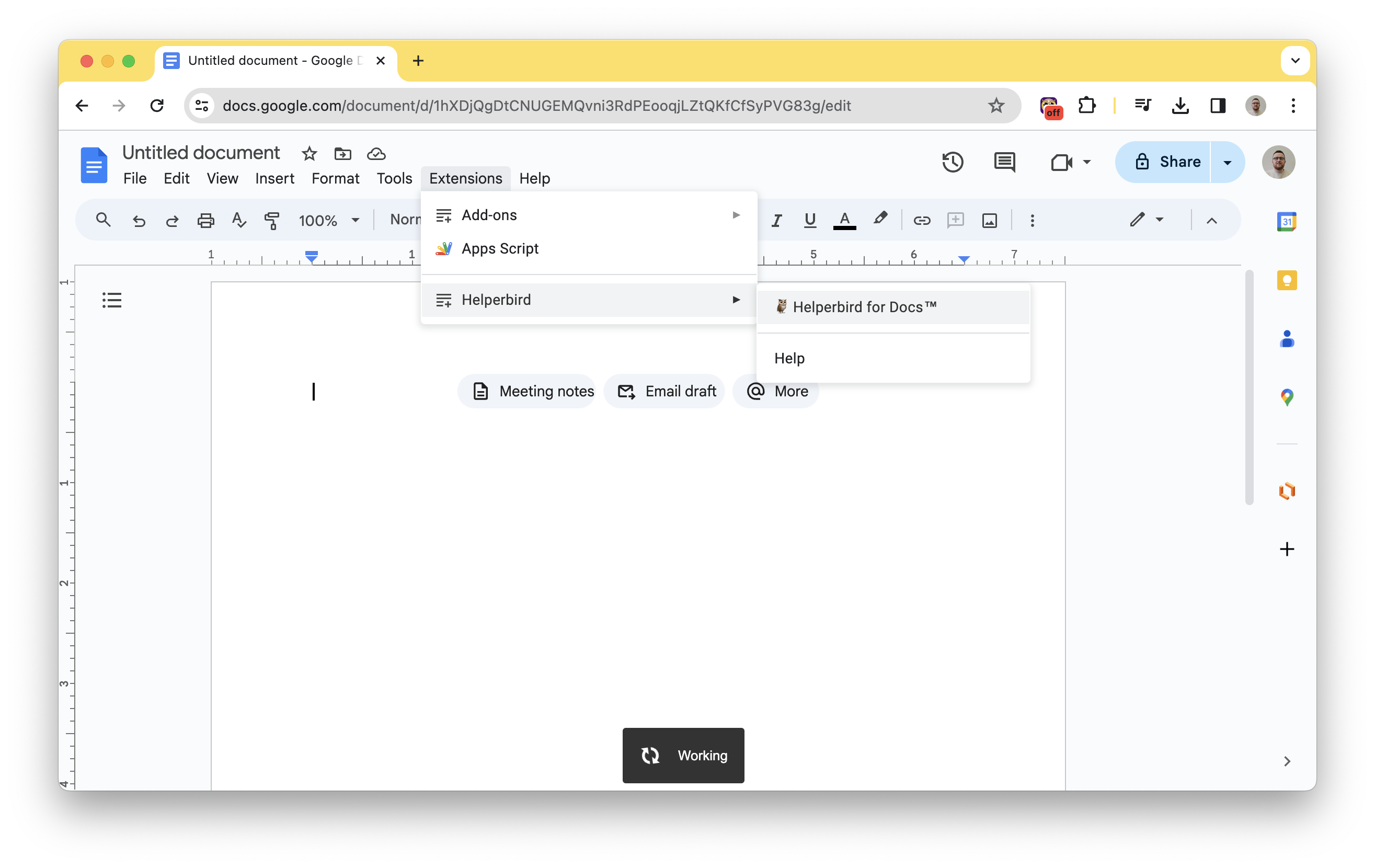
- Go to the **Extensions** menu at the top of the Google Docs.
- In the dropdown menu, navigate to **Helperbird**.
- Click on **Helperbird for Docs™** to expand it if it's not already expanded.
- Within the expanded 'Helperbird for Docs™' section, you can then click on 'Help' or any other
available options to interact with the addon as needed.
---
## 3. Using Immersive Reader in Google Docs
- Now that Helperbird Google Docs add-on is open.
- Highlight the text in your document that you want the Immersive Reader to read.
- Look at the Helperbird sidebar on the right side of your screen.
- In the **Quick actions** section of the Helperbird sidebar, find the **Use immersive reader**
button, which is represented by an icon with a book and a speaker.
- Click on the 'Use immersive reader' icon to activate the Immersive reader for the selected text.
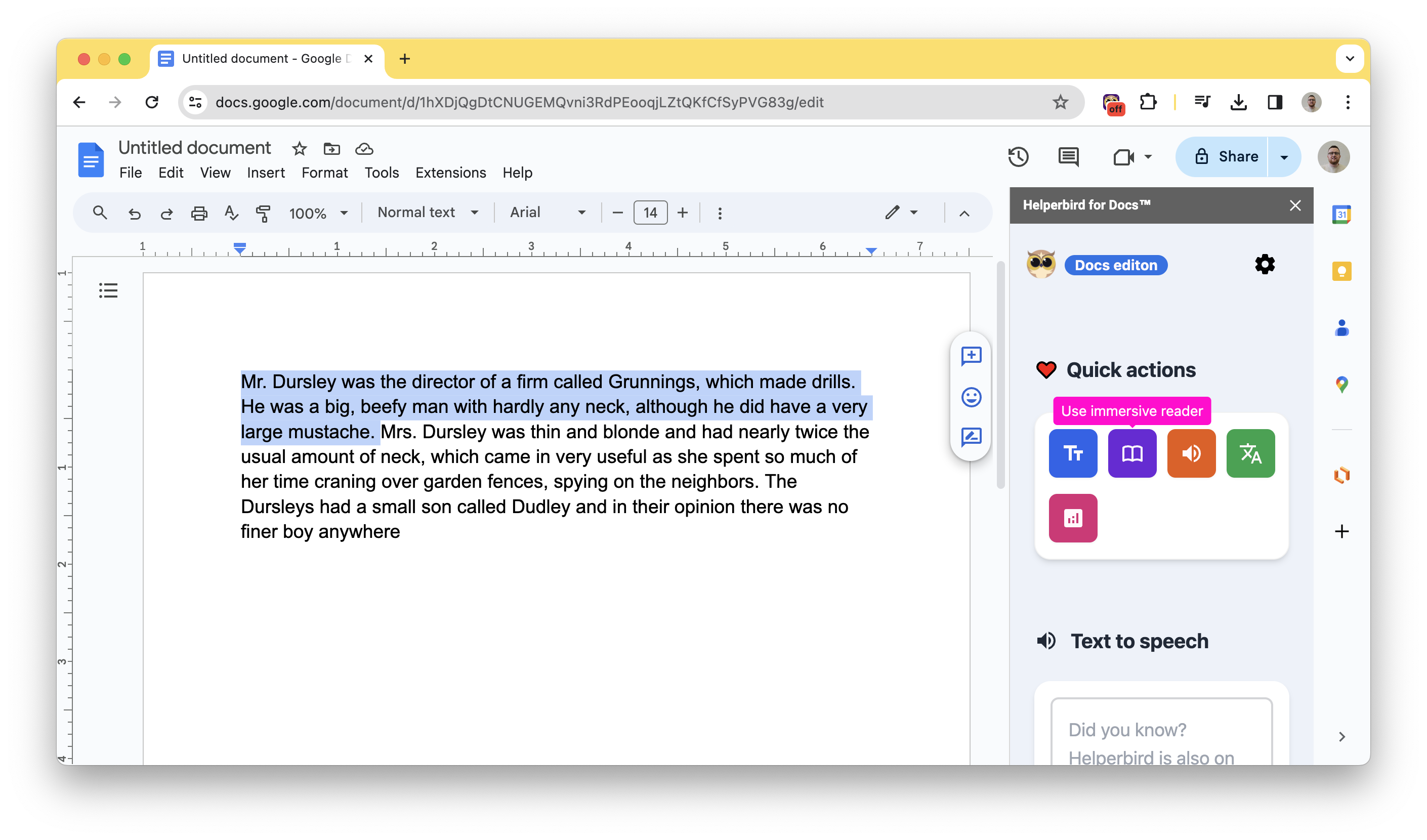
---
## 4. Immersive Reader is open
- The selected text will now appear in the **Immersive Reader** within the Helperbird sidebar.
- You can customize your reading experience using the options available at the top of the Immersive
Reader.
- To begin listening to the text being read aloud, click the **Play** button at the bottom of the
Immersive Reader panel.
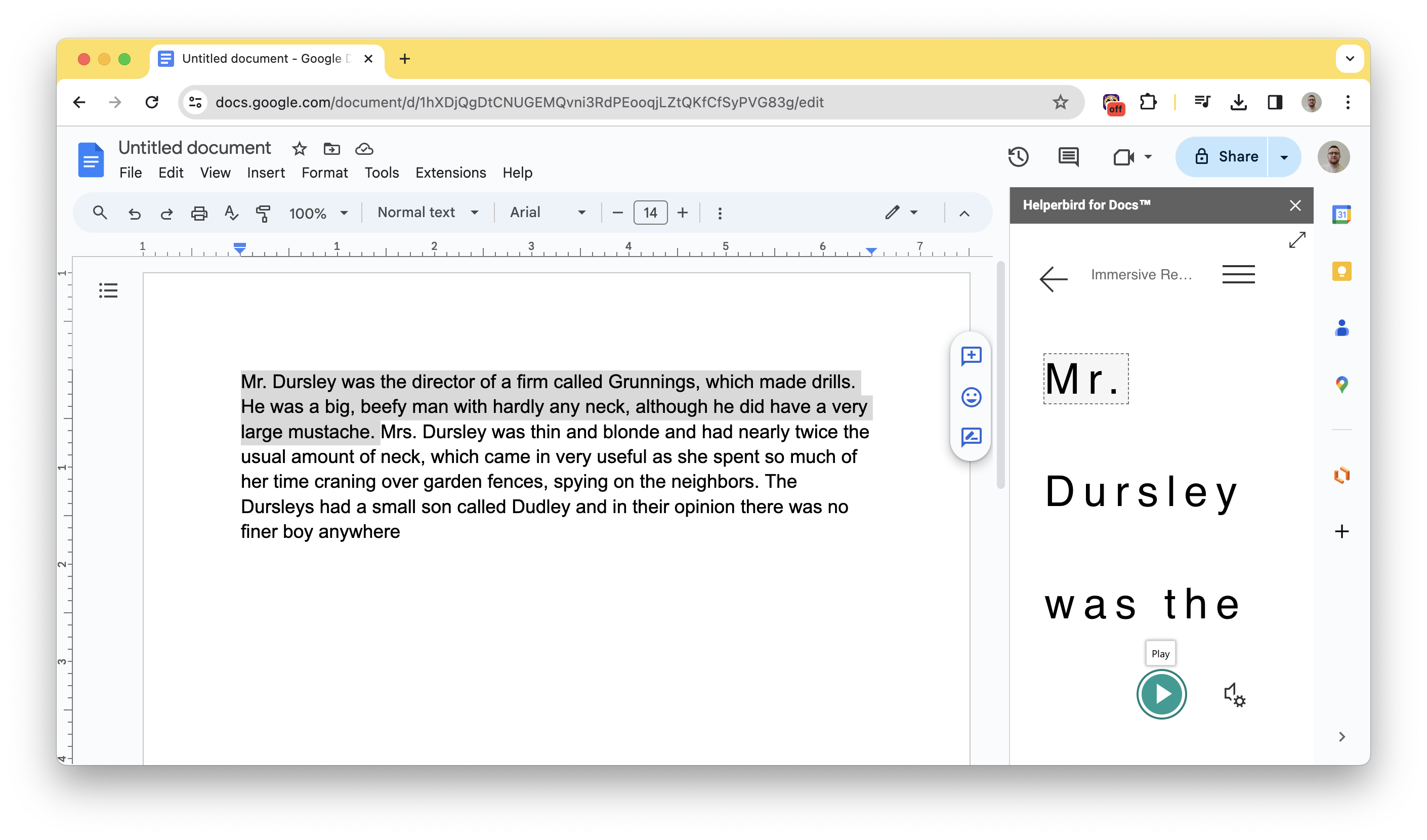
---
## How Positive Thoughts Might Benefit Dyslexic Students
URL: https://www.helperbird.com/blog/positive-thoughts-might-benefit-dyslexic-students/
## TODAY WILL BE A GOOD DAY
How positive thoughts might benefit dyslexic students.

## Positive thoughts
The words we tell ourselves can have a HUGE impact and having a positive outlook can benefit our
lives in many proven ways.
Did you know that even though dyslexia does not cause anxiety, students with dyslexia tend to
struggle with anxiety as well? One study shows that dyslexic students, when compared to their peers,
show higher levels of anxiety. The study proposes that when assessments of dyslexic students are
performed, the emotional well-being of the student should also be considered.
A separate study, performed by Kings College in London, took over 100 subjects diagnosed with
anxiety and had them focus on positive outcomes from the topics that caused the subject's worry.
The exercise actually showed significant reductions in anxiety, suggesting that positive thinking
can, perhaps even in small ways, help lessen the toll that negativity takes on our lives.
So on this Monday, as we begin a new week of challenges to face, take a moment to tell yourself some
encouraging words, and imagine a positive outcome for the obstacles ahead.
---
## Top 6 Chrome Extensions for Teachers
URL: https://www.helperbird.com/blog/top-6-chrome-extensions-for-teachers/
What do you need to be a successful teacher? Knowledge and experience? Of course. A good memory?
Sure is impressive! Nice handwriting? Not necessarily but nice to have. However, as more teachers
are doing most of their work online, the ability to stay up to date with the latest teaching
technologies is critical, especially in today's world with so many things competing for your
attention.
Whether you're a seasoned teacher or a newbie, there are several tools that make your job of
teaching easier. Just take our word, when we say chrome extensions are a live saver! These tools can
help create and deliver class content, make lesson planning easier, and teach students at home
through an online classroom.
without further ado, below, we are sharing with you six different Chrome extensions that can help
any teacher be more efficient and even save them some time in the long run.
## Google Classroom
This is a great way to keep track of your student's assignments and grades. It provides an easy way
to communicate with parents about their child's progress at school. It is also cloud-based, meaning
tasks aren’t lost and all you have to have is an internet connection to open or access the
documents. And to keep things convenient, it has a mobile app you can download to stay updated with
notifications.
## Kami
This extension allows you to annotate PDFs with ease using the stylus on your Chromebook or tablet
device (such as a Wacom). You can also edit text directly within documents without having access to
Microsoft Word on your computer!
## Mote
This extension lets you create voice memos that can then be sent via email or shared on social media
sites like Facebook Twitter LinkedIn etc. It's great if you want someone else to hear what you're
saying without having them physically present in front of you!
## EquateIO
EquateIO is an easy-to-use Chrome extension that allows you to input math expressions into Google
Docs by typing and writing, or by using voice dictation. It also allows you to create quizzes right
in the same document, and input student responses in real-time. You can even dictate chemical
formulas that are automatically converted into proper chemical notation.
If you're a student in a STEM program, this extension will help you learn math fast.
## Custom Cursor
Teachers can use this extension to add some personality and fun to the classroom or work
environment. The extension has a collection of over 100 different cursors that are distributed by
category and by style. Some categories include Minecraft, Lightsaber, Pizza, Animals, Food, and many
more! If you're having trouble finding what you're looking for, they have also divided these into
bright cursor collections. There are general collections like Starters, Holidays, Color, Life Style,
Sport, and Food. And there are also more specific collections like Job, Space, and Transportation.
To make things even better, this extension is customizable so you can change the color of your
cursor as well!
## Helperbird
Whether you're a student or teacher, it can be tough to adjust to online learning. Plus, for
students who have difficulty reading, the struggle can be even more magnified.
That's where Helperbird comes in. With a delightfully intuitive and easy-to-use design, Helperbird
is your all-in-one extension that provides personalized support to make web pages, PDFs, and even
documents more accessible and productive to an individual's needs.
It includes a range of tools you can use to customize the internet content you view to fit your
requirements for accessibility, reading, writing, studying, and productivity.
It seems that practically everyone uses the Chrome Browser. From students and teachers to business
people and professionals, its simplicity and versatility have helped it overtake competitors and
emerge as the web browser of choice.
We also believe that digital content tools like chrome will only become more common and widespread
in the years to come. There are many new developments and innovations in this field, and it will be
exciting to see how it all unfolds in the future. Here we have presented what we believe to be the 6
best Chrome extensions for educators going forward. Hopefully, you will find one that offers an edge
over your existing workflow or will help introduce or add a useful new feature.
### Sources:
1. Google Classroom
https://chrome.google.com/webstore/detail/loom-%E2%80%93-free-screen-and-ca/liecbddmkiiihnedobmlmillhodjkdmb
2. Kami
https://chrome.google.com/webstore/detail/kami-for-google-chrome/ecnphlgnajanjnkcmbpancdjoidceilk?hl=en
3. Mote
https://chrome.google.com/webstore/detail/mote-voice-notes-feedback/ajphlblkfpppdpkgokiejbjfohfohhmk
4. EquateIO
https://chrome.google.com/webstore/detail/equatio-math-made-digital/hjngolefdpdnooamgdldlkjgmdcmcjnc
5. Custom Cursor
https://chrome.google.com/webstore/detail/custom-cursor-for-chrome/ogdlpmhglpejoiomcodnpjnfgcpmgale?hl=en
6. Helperbird
https://chrome.google.com/webstore/detail/helperbird-for-chrome/ahmapmilbkfamljbpgphfndeemhnajme
---
## Interview with Helperbird Founder, Robert James Gabriel
URL: https://www.helperbird.com/blog/interview-with-dyslexic-founder-of-helperbird/
## What made you develop Helperbird?
At my first week Teamwork, I was encourage to build anything I wanted. I decided to make a simple
extension for the font OpenDyslexic to help Dyslexic readers like myself have a font option on
webpages that were hard to read.

## When were you diagnosed?
People suspected I was dyslexic when I was around 8, but I was officially diagnosed at 15 when I was
struggling in school. One of my teachers told my parents that I should just drop out of school and
my Mom pursued getting me tested to help find a solution for me. Only 8 months after being diagnosed
and starting to get the help I needed, I ended up winning my first technology award.
That teacher didn’t sound very encouraging.
She wasn't hahaha
## Did you have any teachers that left a positive impact?
Sean Foley was my Physics teacher and he was super encouraging and even helped me get my first
internship. Definitely was someone who saw something in me and that was very reassuring at that time
in my life.
## How did you come up with the name Helperbird?
I had a previous website called ProjectBird and ended up liking the bird theme I guess haha. And
obviously the helper part came from how the app is designed to help people.
## Do you feel like there’s a stigma attached to dyslexia?
I think there still is unfortunately. Everyone’s different and has different abilities, if there is
an area in life that you struggle with, whether it’s dyslexia or not, I don’t think you should feel
ashamed for seeking help. Everyone does the best that they can with what they are given, no matter
who you are we’re all in the same boat just trying to do our best.
## Looking back, any advice you’d give to your younger self?
Bet on Fulham to get promoted haha. No but really I’d prob give myself the same advice I’d give to
any younger person, if you’re struggling with something don’t stay quiet about it. I’d let them know
that it’s okay to ask for help and it’s okay to even need help. Everyone needs help sometimes.
---
## 10 Essential assistive technology tools for web accessibility
URL: https://www.helperbird.com/blog/10-essential-assistive-technology-tools-web-accessibility/
In today's digital age, web accessibility is of paramount importance. It ensures that individuals
with disabilities can navigate websites and online content with ease, providing equal access to
information and services. One of the key ways to enhance web accessibility is through the use of
assistive technology tools. These tools empower individuals with disabilities to overcome barriers
and interact with digital platforms more effectively. In this blog post, we will explore ten
essential assistive technology tools, including [Helperbird](/), a
comprehensive accessibility solution that significantly improves web accessibility.
## 1. Screen Readers
Screen readers are vital assistive technology tools for individuals with visual impairments. They
convert on-screen text into synthesized speech or braille output, enabling users to hear or read the
content. Popular screen readers include
[JAWS](https://www.freedomscientific.com/products/software/jaws/),
[NVDA (NonVisual Desktop Access)](https://www.nvaccess.org/), and
[VoiceOver](https://www.apple.com/accessibility/mac/vision/) (for macOS and iOS devices).
[Helperbird](/) provides additional features and customization options,
making it a valuable companion for screen reader users.
## 2. Magnification Tools
Magnification tools help users with low vision by enlarging on-screen content. These tools allow
individuals to adjust the size of text, images, and other elements to suit their visual needs.
Examples include [ZoomText](https://www.zoomtext.com/),
[Windows Magnifier](https://support.microsoft.com/windows/magnify-your-screen-82e36d06-9ec3-5ba9-6d63-3f9a8b2c3cc4),
and [macOS Zoom](https://support.apple.com/guide/mac-help/zoom-the-screen-mh14155/mac).
[Helperbird](/) offers magnification features that enhance the usability
of websites for users with low vision.
## 3. Color Contrast Analyzers
Color contrast analyzers assist in ensuring sufficient contrast between text and background colors.
They help identify accessibility issues related to readability for individuals with visual
impairments or color blindness. Tools like
[WebAIM's Contrast Checker](https://webaim.org/resources/contrastchecker/) and
[Color Contrast Analyzer](https://www.paciellogroup.com/resources/contrastanalyser/) help web
designers assess and improve color contrast to meet accessibility guidelines.
[Helperbird](/) allows users to customize color contrast settings,
providing a personalized viewing experience.
## 4. Alternative Text (Alt Text) Generators
Alternative text, or alt text, is used to describe images for users who cannot see them. Alt text
generators automatically generate descriptive text for images based on their content. This helps
individuals using screen readers or those with visual impairments to understand the context of the
image. Plugins like [Yoast SEO](https://yoast.com/wordpress/plugins/seo/) and
[Alt Text Tools](https://www.alt-text-tools.com/) can facilitate the creation of alt text for images
on websites. [Helperbird](/) can automatically generate and manage alt
text for images, saving time and effort for content creators.
## 5. Captioning and Transcription Tools
Captioning and transcription tools are crucial for making audio and video content accessible to
individuals with hearing impairments. These tools automatically generate captions or transcriptions
for multimedia content, allowing users to follow along. Services like
[YouTube's automatic captioning](https://support.google.com/youtube/answer/2734796?hl=en) or
third-party transcription tools like [Rev](https://www.rev.com/) or
[3Play Media](https://www.3playmedia.com/) can enhance accessibility for deaf or hard-of-hearing
users. [Helperbird](/) offers built-in captioning features that ensure
multimedia content is accessible and inclusive.
## 6. Keyboard Navigation Enhancements
Keyboard navigation is essential for individuals with motor disabilities who rely on keyboards or
alternative input devices. Web developers can implement keyboard navigation enhancements such as
skip links, focus indicators, and logical tab order to ensure smooth navigation without requiring a
mouse. [Helperbird](/features/shortcuts/) improves keyboard accessibility
by providing shortcuts and optimizing navigation for users who prefer keyboard-based interactions.
## 7. Readability Tools
Readability tools help enhance the legibility of web content, benefiting users with cognitive or
learning disabilities. These tools simplify complex text, adjust font styles, and provide
customizable reading experiences. Browser extensions like
[Readability](https://www.readability.com/), [BeeLine Reader](https://www.beelinereader.com/), or
[Helperbird](/features/) can make text more accessible and easier to
comprehend. [Helperbird](/) offers customizable font styles, text spacing,
and background colors, improving readability for all users.
## 8. Speech Recognition Software
Speech recognition software allows users to interact with websites and applications using their
voice. This technology is particularly beneficial for individuals with mobility impairments or those
who prefer voice commands. Popular examples include
[Dragon NaturallySpeaking](https://www.nuance.com/dragon.html),
[Google Assistant](https://assistant.google.com/), or Apple's [Siri](https://www.apple.com/siri/).
[Helperbird](/) integrates with speech recognition software, enabling
hands-free browsing and interaction.
## 9. Braille Displays
Braille displays convert on-screen content into tactile braille output, enabling individuals with
visual impairments to read digital information. These devices feature a series of raised pins that
dynamically change to represent text. Web developers can optimize their websites to be compatible
with braille displays, ensuring that braille readers can access their content effectively.
[Helperbird](/) supports braille displays, providing a seamless reading
experience for braille users.
## 10. Accessibility Evaluation Tools
Accessibility evaluation tools help assess and identify potential accessibility issues on websites.
These tools scan web pages and generate reports with recommendations for improvements. Popular
options include [WebAIM's WAVE](https://wave.webaim.org/),
[Axe by Deque](https://www.deque.com/axe/), and
[Google Lighthouse](https://developers.google.com/web/tools/lighthouse). By regularly evaluating and
addressing accessibility concerns, websites can provide a more inclusive online experience.
[Helperbird](/) can be used in conjunction with these tools to address
accessibility issues and ensure compliance with accessibility standards.
Incorporating these essential assistive technology tools, including
[Helperbird](/), a comprehensive accessibility solution, is crucial for
achieving web accessibility and ensuring equal access to digital content. By implementing these
tools and following inclusive design principles, websites can create a more inclusive and accessible
online experience for all users.
---
## Top Productivity Extensions for Safari
URL: https://www.helperbird.com/blog/top-productivity-extensions-for-safari/
As a business owner, you already know that the key to success is efficiency. You need to be able to
get the job done quickly and accurately, in order to maximize your time and resources. So it makes
sense that you'd want extensions in your web browser that can help you accomplish this goal.
Here are our top three Safari extensions for boosting productivity:
## Harakirimail
This extension lets you save emails as drafts, view unread messages, and reply to messages with a
single click. It also has an optional feature that tracks your email habits, so you can see what
times of day or days of the week are best for sending emails.
## Punchtime
If you're a freelancer or work from home, Punchtime is what you need! It keeps track of how much
time it takes for you to complete tasks and projects so that you can bill clients accurately - or just
keep track of how much time you spend on things so that next time around it'll be easier. If you're
not sure where all your time goes, this one will help keep track of it all so that no matter how
busy things get, at least there won't be any surprises when it comes time for payment!
## BlueCanoe Dictionary Extension
This extension adds an online dictionary to your Safari browser so that you can look up definitions
on the fly without having to leave the page. It's perfect if you're doing research or writing an
essay because it keeps your research materials close at hand so that you don't have to leave what
you're working on for any reason.
## Helperbird
Helperbird is an accessibility tool for people with learning disabilities or visual impairments. The
extension lets you add text descriptions and audio descriptions of images, videos, and websites so
that people with visual impairments can still use them in their browsers and get the most out of
their internet experience.
### Sources:
#### Top Productivity Extensions for Safari
1. [Harakirimail](https://harakirimail.com/)
2. [Punchtime](https://www.punchti.me/)
3. [BlueCanoe Dictionary Extension](https://bluecanoelearning.com/blue-canoe-dictionary-extension/)
4. [Helperbird](/)
---
## Creating an Inclusive Online Experience, The Importance of Dyslexia-Friendly Design
URL: https://www.helperbird.com/blog/importance-dyslexia-friendly-design-websites-apps/
## Introduction
In today's digital age, accessibility is a crucial aspect of web design. One particular group that
often faces challenges when navigating online content is individuals with dyslexia. Dyslexia is a
learning difference that affects how people process language, making it difficult for them to read,
write, and spell. To ensure inclusivity and equal access to information, it is vital to prioritize
dyslexia-friendly design in websites and apps. In this blog post, we will explore the importance of
dyslexia-friendly design and how it can benefit users with dyslexia. We will also highlight the role
of [Helperbird.com](/) in creating a more accessible online experience for
individuals with dyslexia.
## Understanding the Challenges Faced by Individuals with Dyslexia
To create dyslexia-friendly design, it is essential to understand the challenges faced by
individuals with dyslexia. These may include difficulties with reading fluency, decoding words, and
distinguishing between similar letters or characters. By gaining insight into these challenges,
designers can implement strategies to alleviate them and improve the overall user experience for
individuals with dyslexia.
## Clear and Readable Typography
Choosing the right typography is crucial for dyslexia-friendly design. Opt for clear, sans-serif
fonts with adequate spacing between letters and words. Additionally, consider using larger font
sizes to enhance readability. Helperbird.com offers
[dyslexia-friendly fonts](/features/specialised-dyslexic-fonts/) and customizable typography
options that make reading easier for individuals with dyslexia.
## Contrast and Color
Color contrast plays a significant role in dyslexia-friendly design. Ensure sufficient contrast
between text and background colors to improve legibility. Avoid using color combinations that may
cause visual distortions or make it challenging to distinguish between different elements on the
page. Helperbird.com provides
[color contrast adjustment features](/features/high-contrast/), allowing users
to customize the color scheme according to their preferences and needs.
## Simplify Layout and Navigation
A cluttered and complex layout can be overwhelming for individuals with dyslexia. Simplify the
design by organizing content into clear sections and using consistent navigation elements.
Incorporate intuitive icons and labels to aid understanding and ease navigation. Helperbird.com
offers layout customization options, allowing users to personalize the appearance of websites
according to their preferences.
## Provide Text-to-Speech Capabilities
Text-to-speech functionality can significantly benefit individuals with dyslexia. By incorporating
this feature, users can have the text on a webpage read aloud to them. This can enhance
comprehension and help overcome reading difficulties. Helperbird.com offers a built-in
[text-to-speech feature](/features/text-to-speech/) that allows users to
listen to webpage content in a dyslexia-friendly manner.
## Implement Dyslexia-friendly Tools and Extensions
Dyslexia-friendly tools and browser extensions can greatly assist individuals with dyslexia in their
online interactions. Helperbird.com offers a comprehensive accessibility solution specifically
designed for dyslexia support. It includes features like
[text customization](/features/styles/), color adjustments,
reading rulers, and more. By integrating these tools and extensions, websites and apps can ensure a
dyslexia-friendly experience for their users.
## Conclusion
Designing dyslexia-friendly websites and apps is crucial to promote equal access to information for
individuals with dyslexia. By implementing clear typography, appropriate color contrast, simplified
layouts, and dyslexia-friendly tools, designers can create a more inclusive digital environment.
[Helperbird.com](/) plays a significant role in
---
## Engaging and Motivating WFH Employees, Strategies for Success
URL: https://www.helperbird.com/blog/how-to-keep-wfh-employees-engaged-and-motivated/
These days, working remotely is no longer uncharted territory. That's why Upwork estimated that more
than [26% of the American workforce](https://www.apollotechnical.com/statistics-on-remote-workers/)
would work from home by 2021.
Meanwhile, adopting a work-from-home business model allows your company to reap these benefits:
**Save Thousands of Dollars**
According to
[Global Workplace Statistics](https://globalworkplaceanalytics.com/telecommuting-statistics) ,
employers can save $11,000 per employee annually. That's because you do not need to pay for office
space.
**Save the Environment**
The Environmental Protection Agency reveals that transportation accounts for
[28% of greenhouse gas emissions.](https://www.epa.gov/transportation-air-pollution-and-climate-change/carbon-pollution-transportation)
However, telecommuting means fewer cars on the road. And that could also mean you do not have to
shell out transportation allowance to your employees.
## How to Keep Your Work-From-Home Employees Motivated
Adopting a work-from-home model is more than just ensuring that your employees have set up their
tech tools. They are susceptible to distractions, and staying indoors for too long can get boring.
Hence, you will need to look for a way to encourage their productivity.
**Provide the Right Tools**
There is more to remote working than having a laptop and stable internet.
As an employer, your responsibility is to provide the right tools to your employees. It can be a
project management tool or plagiarism and grammar checker.
Doing so allows your employees to do their job correctly. As such, they become productive, which is
beneficial for your business.
If you are wary about the expenses, remember that you do not have to get the most expensive
[productivity tool](/blog/stay-on-task-8-productivity-tips-to-help-you-stay-focused-at-work/).
And you can start with a device that everyone in the company needs the most.
**Promote Inclusivity**
The great thing about letting employees work from home is that people with disabilities can now have
employment opportunities. However, there is more to inclusivity than hiring disabled
people.
That said, consider providing an [accessibility tool](/) for your
employees with disabilities. Doing so can help them work and be productive despite their conditions.
## Recognize Your Employees
Just because you do not see each other in person does not mean that there is no need to recognize
your employees' efforts.
Keep in mind that they are the backbone of your business' success. So, it only makes sense to give
credit where credit is due. And doing so will make your employees feel that they are part of a team
that recognizes and rewards hard work.
Other than that, employees stay in a company, contribute more, and become more productive when
recognized.
Whether you want to host a virtual awarding ceremony or share the news through group email, remember
to give your employees a pat on the back.

## Have Fun Every Once in a While
They say that "all work and no play makes Jack a dull boy." As such, please schedule a game night
once in a while.
Luckily, there are now various ways to schedule a virtual team-building event. You can choose to
play online escape rooms or have a watch-and-learn event.
At Maid Sailors [Maid Service NYC](https://cleaningexec.com/), we often have a show-and-tell wherein
we showcase different parts of our house. Often, we reward our employees with the cleanliest or most
organized. This is something you can do with your employees as well.
Game nights are not just fun and allow your employees to have a break. It also allows you to know
them better.
## Keep the Communication Lines Open
Often, it is not the bells and whistles that we incorporate into the company that motivates our
employees. Sometimes it is in the environment we build within our company.
That said, it is imperative to have an open line of communication with your employees.
It can be as simple as allowing your employees to send you a private message anytime. Another is to
host regular town hall meetings and individual video calls via Skype, Zoom, or Google Meet.
After all, it is essential to have an ongoing communication thread when you do not get to meet your
employees in person.
## Foster a Growth Mindset
A growth mindset is realizing that there is more room for your employees to grow, regardless of
where they are in their careers.
What you can do, as an employer, is to focus on your employees' capacity. This includes encouraging
them to keep on learning and upgrade their skills.
Building a learning culture allows you to have innovative employees who are willing to take risks
and accept failure. These are the characteristics you need to propel your business forward.
## Provide Regular Feedback
We believe that the key to productivity is providing regular feedback. That's because it allows your
employees to improve and do better.
Moreover, constructive feedback can be motivating. That's because it makes them feel involved in a
company.
Feedback also ensures that you and your employees are on the same page. As a result, your employees
can get things done correctly and more efficiently.
## Measure Your Employees' Motivation
In case you do not know, there are various ways you can measure your employees' motivation.
You can create a questionnaire using online survey tools. Ask probing questions that can give you an
insight into what is working well for your employees and what changes you need to implement.
There are also other indicators that you can monitor to know whether your employees' motivation is
dwindling.
Number of absences. When more and more employees ask for a leave of absence, it indicates an ailing
atmosphere in your company.
Shorter workdays. Are your employees logging in fewer hours or days as expected?
Lack of socialization. When your employees become detached, it can hurt other people's motivation
and productivity.
Carelessness. Motivated people have keen attention to details, which is the opposite for those who
are not.
When you see these signs, that means you need to take action.
## Conclusion: Remote Work is Here to Stay
It is undeniable that remote working will only grow in popularity in the future. After all, people
who work from home are more productive.
Meanwhile, adopting such a business model is also beneficial for your company. So, we will not be
surprised that around 40 million Americans will work from home by 2025. That will be an 87% increase
from 2019 before COVID-19 happened.
That said, there is no better time to incorporate remote employee wellbeing into your company but
now.
---
## Top 5 features of Helperbird to help your students in 2021
URL: https://www.helperbird.com/blog/top-five-features-of-helperbird-to-help-your-students-in-2021/

## Specialised Fonts for reading & Dyslexia
Change the font to any specialized web fonts for dyslexics and others. Convert the font on websites
to use OpenDyslexic, Lexend and more.
[More about specialised dyslexic fonts](/features/specialised-dyslexic-fonts/).
## Annotations and notes on any website
Highlight or annotate web pages documents, PDFs, ebooks and more content to improve engagement and
study.
[More about annotation](/features/annotation/).
## Listen to any part of your Webpages and Google Docs
Sit back, press play, and have your news, emails, or news read aloud to you.
[More about text to speech](/features/text-to-speech/).
## Word prediction
This is a new feature from us, but wow did it make a huge splash, our word prediction works on every
input on a page and even Google doc files. It currently supports English but Germen, French and
Spanish is coming soon.
## Immersive reader on Google docs and every website
[Immersive Reader](/features/immersive-reader-for-chrome/ 'More information on Helperbirds immersive reader features')
is a free tool that implements proven techniques to improve reading and writing for people,
regardless of their age or ability. Immersive Reader can improve reading comprehension and increase
fluency for English language learners.
All the other features of Helperbird and you can learn more here. You can always try out Helperbird
for free and even think about upgrading to Helperbird Pro and supporting us in helping the world.
---
## How to Deploy Helperbird through the G Suite Console
URL: https://www.helperbird.com/blog/how-to-deploy-apps-and-extensions-through-the-google-admin-console/
Click Device management in the Google Admin Console.
## Step one of how to install Helperbird on G Suite
Select Chrome management.
## Step two of how to install Helperbird on G Suite
In Chrome Management, select User & browser settings.
## Step three of how to install Helperbird on G Suite
Under Organizations choose the OU (Organizational Unit) you would like to deploy extensions to.
Scroll down to Apps and Extensions and locate Force-installed Apps and Extensions.
Click the Manage force-installed apps link.
## Step four of how to install Helperbird on G Suite
In Force-installed Apps and Extensions, click the Chrome Web Store button.
## Step five of how to install Helperbird on G Suite
Type the extension or app name (Ie Helperbird) that you're deploying into the search box and press
Enter. The app or extension listing will appear immediately below the search box.
Click on the Add link to add the app or extension to the force-install list.
## Step six of how to install Helperbird on G Suite
## Step seven of how to install Helperbird on G Suite
## Step eight of how to install Helperbird on G Suite
Click SAVE.
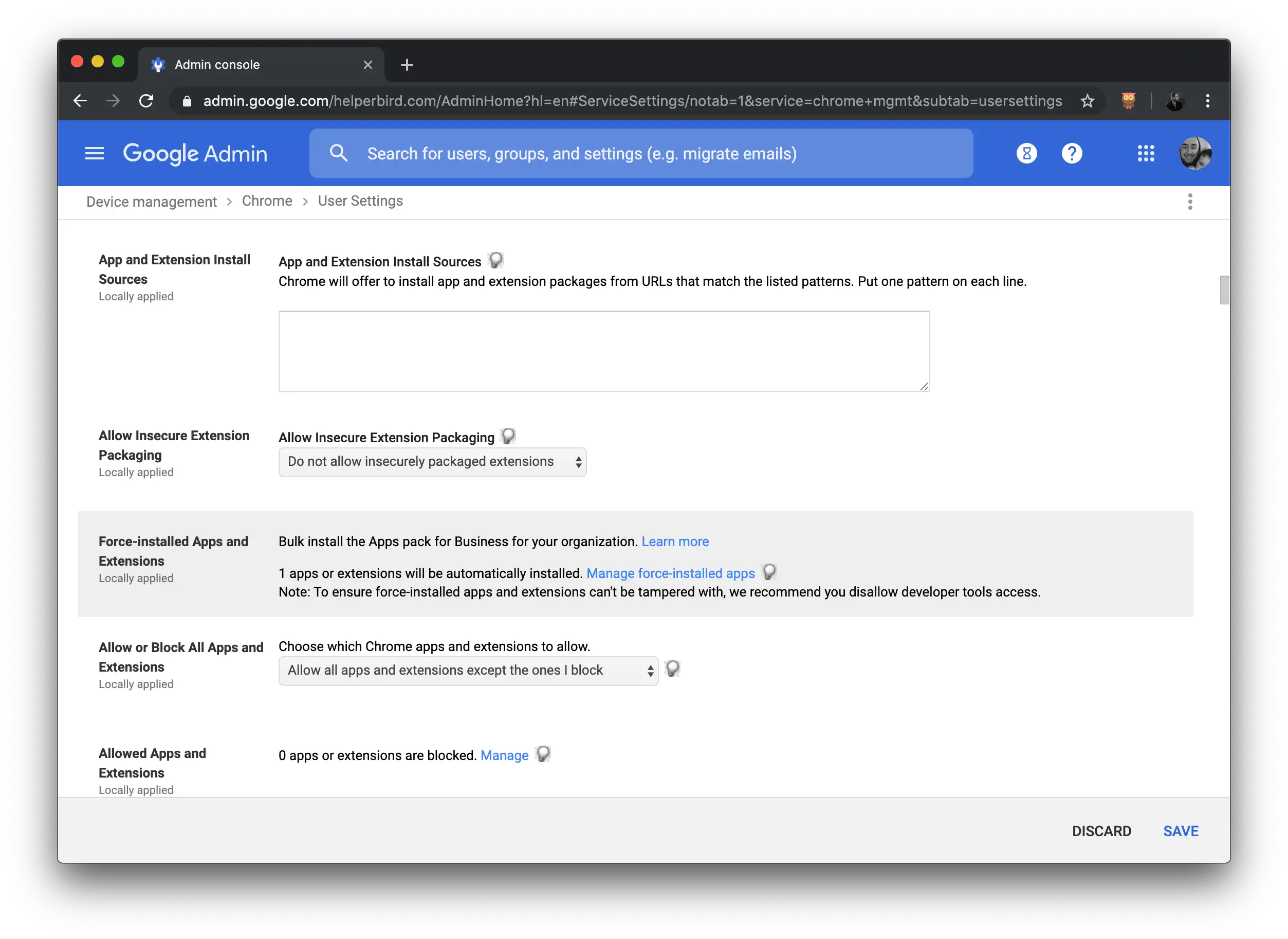
## Step nine of how to install Helperbird on G Suite
After the force-install window has closed, click SAVE at the bottom of the page to publish the app
or extension to all of your selected users. The app or extension will now be deployed to your users.
---
## Introducing the Next Big Release of Helperbird
URL: https://www.helperbird.com/blog/see-the-future-of-helperbird-2023-2024/
We're excited to announce the next big release of [Helperbird](/), the
popular accessibility extension that helps users customize their browsing experience to meet their
unique needs. This release, set to launch on June 4th, includes a host of new features and
improvements that make Helperbird even more versatile and user-friendly than ever before. Let's take
a closer look at what's in store.
## Bottom Navigation: Split into Writing, Reading, and Accessibility
One of the most significant changes in this release is the new bottom navigation, which has been
split into three distinct categories: Writing, Reading, and Accessibility. This makes it easier for
users to quickly find the tools they need based on the task they're working on, whether that's
writing a document, reading an article, or customizing their browsing experience for accessibility.
## Maths Solving Support and Immersive Reader Support for Maths
Another major addition to Helperbird is maths solving support, which allows users to input equations
and have them solved instantly. This is a game-changer for students, teachers, and anyone who needs
to work with mathematical equations regularly. Additionally, Helperbird now includes Immersive
Reader support for maths, which can help users better understand and visualize complex equations by
breaking them down step-by-step.
## Epub Support and Offline Support
Helperbird now also includes support for Epub files, which means users can read Epub documents
directly within the extension. This is a welcome addition for anyone who frequently works with Epub
files, whether for personal or professional reasons. Plus, Helperbird now offers offline support,
which means users can access all their customized settings and tools even when they don't have an
internet connection.
## Better UI for Getting Used to Helperbird
To make it easier for new users to get started with Helperbird, we've also added a new onboarding UI
that guides them through the various features and settings available. This ensures that users can
start customizing their browsing experience right away, without feeling overwhelmed or confused.
## Over 30 Major Fixes and Improvements
Finally, this release includes over 30 major fixes and improvements, including better compatibility
with PDF files, enhanced color contrast options, and improved keyboard navigation. These changes are
designed to make Helperbird more stable, reliable, and user-friendly than ever before.
We can't wait for our users to try out the new and improved Helperbird, set to launch on June 4th.
Whether you're a student, teacher, professional, or anyone who wants to customize their browsing
experience, Helperbird has something to offer. Try it out for yourself and see how it can transform
the way you browse the web.
---
## How to Avoid WFH Burnout and Maximize Productivity
URL: https://www.helperbird.com/blog/how-to-avoid-wfh-burnout-and-maximize-productivity/
## Build a Comfortable Workspace
A comfortable workspace requires three things: a sense of privacy, an ergonomic desk, and a
comfortable chair. After all, this is where you'll be spending the majority of your day.
Aside from the work equipment, you should also make sure to maintain the cleanliness of the
workspace. At Planet Maids Maid Service NYC, we believe that a clean and organized workspace can
impact your productivity. If there is too much clutter and dirt around, it can make you
uncomfortable, and it can even distract you.
By maintaining a clean home office, you can be more comfortable moving around, and you will have
fewer distractions.
## Set Realistic Goals and Track Your Progress
Don't expect to be productive if you don't have a direction to steer yourself towards each workday.
That's why it's ideal when you're working from home.
You set some daily goals for yourself, both short-term and long-term, and then track your progress.
That way, you have a visual of how good you're doing while you're working from home.
You should take the time to schedule and plan out your day the night before so that you can have a
plan of action the moment your day starts. It will help you align yourself and figure out what you
need to do so that you don't fumble around and do tasks that are not a priority.
## Create a Routine and Stick to It
What's most appealing about working from home is that you can be more flexible with how you work,
unlike when you're in the office.
However, some people can go way beyond this and not have any discipline regarding their workday.
Instead of falling for this frequent trap that people working from home fall into, try to create a
routine.
By establishing a work routine, you ensure that you get, at the very least, the prioritized tasks
done for the day. Once you get the hang of your routine, it can be easy to do your tasks even if you
feel unmotivated.
## Use Productivity-Enhancing Methods
If you're not sure about your work style, you might want to try out productivity methods that people
have tried and tested themselves.
There are plenty of routines and procedures surrounding productivity that people have applied. Just
because one thing works for another does not mean that it will work for you, so it'd be best to test
your methods first.
A popular productivity method that you could try out would be the time blocking approach.
The time blocking method is when you schedule a block of time where you do specific things, and
that's the only time you're allowed to do them.
For example, you schedule an hour at the start and end of the workday, and that's the only time you
can answer an email. That way, you don't find yourself going back and forth in your email throughout
the day.
You can also use productivity tools that accommodate your needs, which will help you focus more
while working.
## Schedule Breaks
Even if you love working and are a self-proclaimed workaholic, you are still prone to get burnt out,
even with a job you enjoy. A common reason why even workaholics burn out in a job they want is that
they don't take the time to schedule breaks throughout the workday.
Aside from your lunch break and the end of your workday, which you should follow through on, you
should also have small breaks in-between tasks. These small breaks allow you to recuperate and let
your mind rest for a bit before going back to work again.
Aside from that, don't forget to schedule vacations or holidays as well. These can help with your
motivation and productivity in the long run.
## Improve Focus with Exercise and Meditation
Another productivity-enhancing habit you should incorporate would have wellness activities.
Wellness activities include both fitness activities and practices that help you focus on your mental
state. By incorporating more wellness activities in your off time, you will have a better time when
you go back to work.
Having a balance between exercise and meditation can help improve your focus in the workplace. Yoga
is a perfect example of incorporating exercise and meditation in one, so you might want to try and
pick that up.
You can also separate exercise and meditation. What's important is that you do both of them for your
physical and mental well-being.
## Keep Socializing
You can't live your life focusing only on your career and your work life.
When you're working from home, it's much harder to carve time to socialize because you're at home.
That's why it would be best to keep in touch with your colleagues even if you are working from home.
Your colleagues aren't just there to chit-chat with you. They can also help keep you accountable.
Aside from socializing with your work colleagues, it is also a good idea to get in touch with
friends and family. Your private social network is going to help you realize that you have a life
outside of work.
The happier you are outside of work, the easier it is for you to be more productive once you get
back to your job.
## Devote Time to Self-Care
Self-care has increased attention over the past few years, but it doesn't mean that everyone has a
good self-care regimen.
Having a solid self-care regimen is another excellent way to avoid work from home burnout and
maximize your productivity. Self-care is more than just using skincare products and having a spa
day. It's all about focusing on things that will positively impact your life in one way or another.
If you have time to do activities that aren't necessarily good for you, then you have the time to
devote to self-care, so don't skip this step.

## Conclusion: Beat Burnout by Being Proactive
Applying the tips listed above can help reduce your likelihood of getting burnt out while working
from home. It can also help increase your productivity.
The key here is taking a productive approach to beat burnout and maximize your productivity. Hence,
starting building habits and routines that can get you in the mood to work.
---
## 8 Productivity Tips to Help You Stay Focused at Work
URL: https://www.helperbird.com/blog/stay-on-task-8-productivity-tips-to-help-you-stay-focused-at-work/
Focus is integral in ensuring that we get things done. But every now and then, there is something
that is sure to take away your attention.
There is nothing wrong with that. In fact, we encourage you to take breaks from time to time.
However, getting distracted for hours can hinder your productivity. That's why you should do
something to keep your focus. Otherwise, it will take you a while to finish your work.
Keep on reading to know how you can stay focused and productive at work:
## Keep Yourself Hydrated
They say that it's rude to eat in front of the computer. And we do not encourage it, either.
However, always have a cup of water within reach.
In case you do not know, our body is made of 73% water. Hence, it needs to be hydrated to function
properly.
When our brain functions properly, it can impact our cognitive performance. And focusing on your
work and getting things done requires brainpower - even if your job involves physical labor.
In addition, proper hydration allows us to sustain our energy, have clarity, and stay alert
throughout the day.

## Ensure Your Comfort
Just because you are sitting in front of the computer for hours does not mean your life is easy.
Discomfort can distract you.
That said, we suggest that you buy the best and most comfortable work desk and office chair that you
can afford. You should also consider the ergonomics and the space you have.
This means that your office table should be well structured while your chair must have support.
Doing so can help you work for hours without having sore shoulders, strained eyes, and backache.
Hence, you can be extra productive while working.
## Organize Your Work Station
Aside from having a well-structured office table and chair, you also need to ensure a clutter-free
workspace.
At Maid Sailors
[NYC Office Cleaning Services](https://maidsailors.com/office-cleaning-services-nyc/), we always
tell our clients that cleaning your workstation is a cost-effective way to boost productivity. More
so if you want to reduce distractions and maximize your productivity but do not have the budget to
remodel your workstation.
Begin by getting rid of all the non-work-related stuff. Next is to designate zones where you do
computer-related work, document organization, and all. Doing so also prevents you from multitasking,
which often gets your brain toasted.
## Have a Distraction-free Desktop
The secret to staying focused at work is to get rid of as many distractions as possible. So, aside
from cleaning your office table, you might want to consider having a distraction-free computer.
Some apps prevent you from opening other websites that have nothing to do with your work. There are
also apps like [Helperbird](/pricing/), which lets you view clutter-free websites (i.e., ad-free
blog posts).
But if you cannot be bothered with that, ensure you do not save any files on your desktop. Please
place them in a designated or relevant folder.
Aside from having a well-structured office table and chair, you also need to ensure a clutter-free
workspace.
## Set Your Phone on DND Mode
In case you are unaware, phone notifications have caused Pavlovian conditioning to many smartphone
users. Whenever we hear a "ding!" sound, we unconsciously reach out to our phones to check who
texted us.
The next thing we know, we are aimlessly scrolling through our Facebook feed.
Other than your PC or laptop, you should also make use of your phone's Do Not Disturb (DND) mode.
Doing so prevents you from receiving calls unless the number is on your whitelist.
Another thing you can do is put your phone on silent and place it somewhere else. That way, you are
not hearing or seeing any notifications.
## Prioritize Your Tasks
So, you have your water beside you. You have a clean and comfortable workspace and a
distraction-free website. Now what?
It is time to do your tasks.
You can choose to have your to-do list on paper, while some prefer to use a task management app.
Regardless, you cannot get things done unless you know what tasks to do first.
Hence, it would be best to prioritize your tasks. There are two ways you can do this:
- Which of your tasks require less effort but have a high impact?
- Which of your tasks, that once done, can help you finish other tasks?
These are the tasks that you should prioritize. Otherwise, you can do them later, delegate them, or
consider scratching them off your to-do list. Most likely, you don't need to do such tasks.
## Organize Your Email
Similar to prioritizing tasks, you should also organize your email.
And we are not just talking about making your inbox clean. It also has something to do with checking
and responding to emails.
Instead of checking your email from time to time, we suggest that you dedicate an hour or two to
checking and replying to emails. As for how you should deal with your email, you can follow the
[Inbox Zero method](https://www.youtube.com/watch?v=rfFrOO2N_vU) .
## Let People Know and Respect Your Boundaries
Whether in an office or a work-from-home setup, setting boundaries are essential.
This could mean letting people know whether you can prioritize other work or not. After all, you
have a deadline to meet.
Another example is if you are working from home. Let your family know that they cannot disturb you
during particular hours unless the house is on fire. That way, you can get more things done.
Lastly, establish your rest days. If you are an office employee, your rest days are often Saturday
and Sunday. Use these days to unwind and not think of work. Otherwise, you will experience burnout
and dread coming to the office.
## Conclusion
Here's the thing: You are surrounded by people and events that can hinder your productivity. What
more if you have a learning disorder like Dyslexia?
Staying focused at work while
[creating your career with Dyslexia](https://www.youtube.com/watch?v=rfFrOO2N_vU) can be
challenging. But what's important is that you know how to get your mojo back. If not, you can always
refer to the tips listed above.
If you want to boost your productivity, all you need to do is eliminate the distractions and find
your focus.
Exclusively written for [helperbird.com](/) by Raymond Chiu
## Meet Raymond Chiu
Raymond Chiu is the Director of Operations for Maid Sailors, a trusted provider of office cleaning
service NYC.
Maid Sailors offers its customers unrivalled office cleaning services that can address even the
toughest cleaning needs. Matched with affordable prices, Maid Sailors is your best partner in
helping you turn your office into a work-friendly workplace.
You can contact her at raymondchiu.ms@gmail.com
---
## How to Add Extensions to Safari
URL: https://www.helperbird.com/blog/how-to-add-extensions-to-safari/
Yes, Safari has extensions, and you add them from the App Store. On a Mac you install one and then
tick it in Safari's settings. On an iPhone or iPad you install an app from the App Store and then
switch its extension on in the Settings app. That second step is the one most people miss, which is
why an extension can look like it never installed.
Here is the whole process for both, and what to check when an extension does not appear.
## Does Safari have extensions?
It does. Safari supports the same kind of web extensions that Chrome, Edge and Firefox use, and they
run on Mac, iPhone and iPad.
What you need:
- **Mac:** Safari 14 or later.
- **iPhone and iPad:** iOS 15 or iPadOS 15 or later. Extensions arrived on the phone and tablet in
2021, so anything older will not have the option.
One thing to know before you start: a Safari extension is never a standalone download. Every
extension is wrapped inside an app. You install the app, and the app hands the extension to Safari.
Safari then waits for you to turn it on. Nothing happens until you do.
## Where is the Safari extension store?
There is no separate Safari extension store. Safari extensions live in the App Store, in a category
called Safari Extensions.
Three ways to get there:
- **On a Mac:** Safari menu, then Settings, then the Extensions tab, then the **More Extensions**
button. The App Store opens on the Safari Extensions page.
- **On an iPhone or iPad:** Settings app, then Safari, then Extensions, then **More Extensions**.
- **Either device:** open the App Store and search for the extension by name.
Some extensions never show up in that category because they ship inside a larger app, such as a
password manager or a note taking app. Install the app and its extension appears in Safari's
extension list alongside the rest.
## How to add an extension to Safari on a Mac
1. Open Safari.
2. In the menu bar, choose **Safari**, then **Settings**. On macOS 12 Monterey and earlier this is
called **Preferences**. The keyboard shortcut is Command and comma.
3. Click the **Extensions** tab.
4. Click **More Extensions** at the bottom of the window. The App Store opens on the Safari
Extensions page.
5. Pick an extension and click **Get**, or the price if it is a paid one, then **Install**. You may
be asked for your Apple Account password or Touch ID.
6. Go back to Safari, then Settings, then Extensions. The new extension is now in the list on the
left.
7. **Tick the checkbox next to its name.** This is the step that turns it on.
## How to turn on a Safari extension on a Mac
Ticking the box is half of it. Safari also asks which websites the extension is allowed to read, and
an extension with no permission does nothing at all.
Select the extension in Safari, then Settings, then Extensions, and set its website permission.
**Always Allow on Every Website** is what most extensions need to work everywhere. If you pick a
narrower option, the extension will look broken on every site you did not approve. You can also set
this from the page itself: click the extension's button in the toolbar and Safari offers the
permission choices for the site you are on.
Two more settings on that same screen are worth a look:
- **Allow in Private Browsing** is off by default. Tick it if you want the extension to work in
private windows.
- If you cannot see the extension's button in the toolbar, choose **View**, then **Customize
Toolbar**, and drag the button up into place.
## How to add an extension to Safari on iPhone and iPad
This route works differently from the Mac, and it is where most people get stuck. You install an app
from the App Store, then enable its extension in the Settings app.
1. Open the **Settings** app.
2. Scroll down and tap **Safari**. On iOS 18 and later, Safari sits under **Apps**, so the path is
Settings, then Apps, then Safari.
3. Tap **Extensions**.
4. Tap **More Extensions**. The App Store opens on the Safari Extensions page.
5. Tap **Get**, or the price, and install it like any other app.
6. Go back to Settings, then Safari, then Extensions. The extension is now in the list.
7. Tap its name and turn the switch **on**. On some versions the switch sits in the list itself.
8. Set its permissions on the same screen. Setting **All Websites** to **Allow** lets it work on
every site. **Ask** means you are prompted the first time you visit each new site.
If you already installed the app from the App Store, start at step 6. The extension is on your
device already, waiting to be switched on.
## How to use an extension in Safari on iPhone and iPad
Open Safari and go to any page. Tap the page settings button at the side of the address bar. It is
marked **aA**, and on iPad it can show as a puzzle piece instead. Your enabled extensions are listed
in that menu, and tapping one runs it on the page you are reading. **Manage Extensions** in the same
menu is a shortcut back to the on and off switches.
## Why your extension is not showing
Work down this list. The first two account for most cases.
1. **It is installed but not switched on.** On a Mac, Safari, Settings, Extensions, tick the box. On
an iPhone or iPad, Settings, Safari, Extensions, tap it, turn the switch on.
2. **It has no permission for the site.** The extension is on, but it does nothing on the page. Set
it to allow on every website.
3. **Safari was open while you installed.** Quit Safari fully (Command and Q on a Mac) and open it
again.
4. **The toolbar button is hidden on a Mac.** View, then Customize Toolbar, then drag the button in.
5. **You are in Private Browsing.** Extensions stay off in private windows until you allow them.
6. **You use Safari profiles.** Extensions are switched on per profile, so one you enabled in
Personal can be off in Work.
7. **The app was deleted.** Deleting the app removes its extension, and the extension disappears
from the list with it.
8. **The device is managed by a school or workplace.** A configuration profile can block extensions.
The switch is greyed out and will not move, and no amount of reinstalling fixes it. Ask whoever
manages the device.
9. **Safari is too old.** Update on a Mac in System Settings, then General, then Software Update. On
an iPhone or iPad, Settings, then General, then Software Update.
If none of that helps, contact the people who make the extension. They can see version and crash
details that you cannot.
## How to turn off or remove a Safari extension
**On a Mac:** Safari, Settings, Extensions, then untick the box to turn it off. To remove it for
good, click **Uninstall**. Safari shows you the app that contains the extension in the Finder, and
moving that app to the Trash removes the extension too.
**On an iPhone or iPad:** Settings, Safari, Extensions, tap the extension, and turn the switch off.
To remove it, delete its app from the Home Screen or App Library.
## One extension worth a look: Helperbird
If you are here because you want Safari to be easier to read, this is the extension we make, so
treat it as a recommendation with an interest in it.
Helperbird adds over 40 reading and writing features to any web page: dyslexia fonts including
OpenDyslexic, text to speech, a reading mode that strips ads and sidebars, color overlays and a
reading ruler. The free version needs no account. Pro is a paid tier.
It installs the way this article describes, from a single App Store listing that covers Mac, iPad
and iPhone, and you switch it on in Safari the same way as any other extension.
- [Helperbird for Safari on Mac](/products/safari/)
- [Helperbird for iPad and iPhone](/products/ipad/)
---
## How a Teacher Changed My Life - A Story
URL: https://www.helperbird.com/blog/teacher-appreciation-week-2020-dyslexia-story/
For anyone who stumbled across this blog post, my name is Robert James. I'm the founder of
Helperbird. I also have dyslexia. It was one of the reasons I started Helperbird in 2015.
To help others, so they can achieve their full potential in the classroom and not struggle as I did.
As its teacher's appreciation and at the age of 27. It made me think about how one teacher changed
my life and how I'm super appreciative of looking back at everything she did for me. As I know, I
wouldn't be here without her and my parents.
I speak a lot on how I was undiagnosed with dyslexia until the age of 15 where a teacher told my
parents I should drop out of school as I would struggle and not achieve anything.
After my mother became "Mother bear" as I like to describe, she pressed the school to get me tested
and with thanks to Ms. Meade (I'm going to keep it the last name only in case she doesn't want her
name posted). She helped my parents fill out the forms to get me tested and make a case to the local
government on why I needed help and what support system I needed to take my end of Highschool exams.
After I got tested and started getting the support I needed thanks to my parents and Ms. Meade. My
schoolwork greatly improved, I even took higher level or AP English and better yet won the school
8,000 euro in Science competition. The teacher who told my parents I should drop out, later
apologized to me for it instead of looking into it more.
Thanks to Ms.Meade. I was able to take my exams in a private room, with a reader and on a computer.
She also took me for 3 to 4 years would take me for exams in English classes. As I write this I
can't thank her enough. Not only being there and helping me through high school but also caring
about how I did.
I don't know how my life would have turned out if she hadn't been a teacher and helped me. Would I
have gone to college? Would I have started Helperbird? Would I have to travel? I don't like to think
where I would have been if it wasn't for Teachers like Ms. Meade.
That's why as Helperbird grows, Teachers inspire us to become better and I look at them on how we
can improve Helperbird.
From Myself and everyone at Helperbird, thank you for going far beyond every day and changing the
lives of their students even when they might not really appreciate it until they look back at it
later in life.
Thank you Ms. Meade and thank you to every teacher across the world on this special week.
---
## Helping Students Succeed with Helperbird’s Accessibility Tools
URL: https://www.helperbird.com/blog/helping-students-thrive-with-helperbirds-accessibility-tools/
## Respecting Privacy While Sharing Success
At Helperbird, we’re dedicated to protecting the privacy of our users. While the stories we share are real, we change names to safeguard their identities. This story introduces Patricia and how Helperbird transformed her classroom into an inclusive learning space.
---
## Patricia's Journey to Inclusive Education with Helperbird
### The Challenge
As a teacher in a diverse classroom, Patricia faced the challenge of meeting the unique needs of each student. Traditional teaching methods often fell short, making it difficult to create an inclusive learning environment.
### Discovering Helperbird
Looking for a solution, Patricia discovered Helperbird - a suite of accessibility tools designed to support all learners. With guidance from Robert, a Helperbird representative, Patricia integrated these tools into her teaching and changed the way her classroom worked.
### How Helperbird Made a Difference
Helperbird provided Patricia with tools to address the diverse needs of her students:
**Read Aloud:** Helped students who struggled with reading by turning text into spoken words.
**Voice Typing:** Allowed students to express their thoughts without needing to type.
**Translate:** Made content accessible in multiple languages, bridging language gaps.
**Customizable Fonts and Colors:** Enabled personalized reading experiences for better engagement.
**Adjustable Text and Line Spacing:** Simplified reading layouts, making text more approachable.
### The Results
With Helperbird, Patricia saw incredible changes in her classroom:
**Improved Learning:** Students who struggled began excelling in their studies.
**Increased Confidence:** Tools like Voice Typing and Translate helped students feel more independent.
**True Inclusivity:** Patricia’s classroom became a space where every student’s needs were met.
---
## A New Chapter in Education
Patricia’s story shows the impact of accessibility tools in education. By adopting Helperbird, her students gained the tools they needed to learn confidently and independently. This transformation highlights our mission to make education accessible to all.
---
## Celebrating Every Story
Stories like Patricia’s remind us why we do what we do. While we protect our users’ privacy, we proudly share the positive changes Helperbird brings to classrooms, workplaces, and lives everywhere.
---
## Thanksgiving Day Message from Helperbird
URL: https://www.helperbird.com/blog/thanksgiving-message-from-helperbird/
## On the day before Thanksgiving
On the day before Thanksgiving, Helperbird wants to give thanks for what we're most grateful for
this year. Give Thanks for our Uniqueness!
## Give Thanks for Teachers!
No two humans are alike! Our differences make us who we are and we think that's awesome!! This is
why we want the internet to be an accessible place for each unique individual so no matter your
needs or preferences, you can keep being you online! 'Give Thanks for Teachers!
## Give Thanks for Community!
This year teachers have had to adapt and overcome numerous global challenges and we are so thankful
for your hard work and dedication. We have teachers writing to us every day looking for solutions
for their students and your passion does not go unnoticed! So we're giving a big thanks to all our
teachers out there! Give Thanks for Community!
## GiveThanks
With so many of us transitioning our work, school, and social lives online, we're so thankful for
this terrific Helperbird community that's striving to make the web friendlier and more accessible
for all.
We hope that our app this year has, in some small way, made it easier for you to connect and
contribute to your online communities in meaningful ways.
---
## Winner of Our Chromebook Giveaway
URL: https://www.helperbird.com/blog/helperbirds-winner-of-the-2021-chromebook/
## Helperbird chromebook giveaway official rules
I don't know about you. We hate when companies don't show the winner receiving her prize. So we
wrote this blog to say, Congrats to Debbie for being our winner. We love your dog.
We will be running more competitions throughout the year, including Helperbird Pro for free, iPads
and more Chromebooks.
Be sure to follow our Twitter, Instagram & Facebook to learn more on how you can enter and win
future competitions.
---
## The 5 Must-Have Accessibility Tools for Students in 2021
URL: https://www.helperbird.com/blog/the-5-must-have-accessibility-tools-for-students-in-2021/
## Welcome
With online learning and increased online activity, it's important that every student feels
empowered and comfortable when working online. There are hundreds of tools out there but here are
our top 5 tools to use in 2021.
There are hundreds of tools out there to boost the accessibility of online content. I have shortened
this list down to the favourites from us at Helperbird and our users.
## Toucan
Learn a new language just by browsing the internet with Toucan.The ultimate multitasking flex. We’ll
show you words and phrases in the language you want to learn as you browse. You’ll pick up
vocabulary faster when you see it in context.
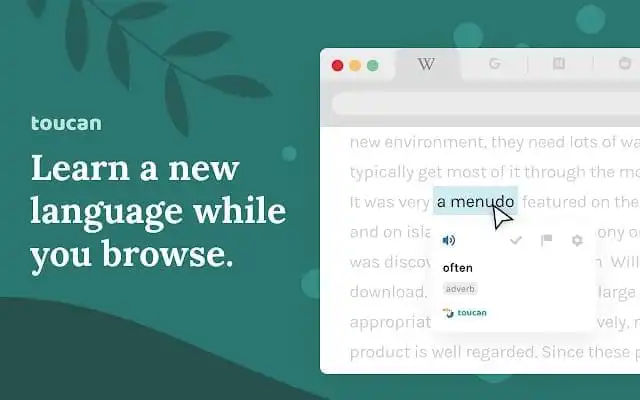
Screenshot of Toucan in use.
[Visit Kapwing](https://jointoucan.com)
## Kapwing
Content creation made easy, accessible, and collaborative. Kapwing is a modern editor for videos,
GIFs, and images. Try our free, online tools including Studio, meme maker, resizer, subtitle maker,
filters, and more.
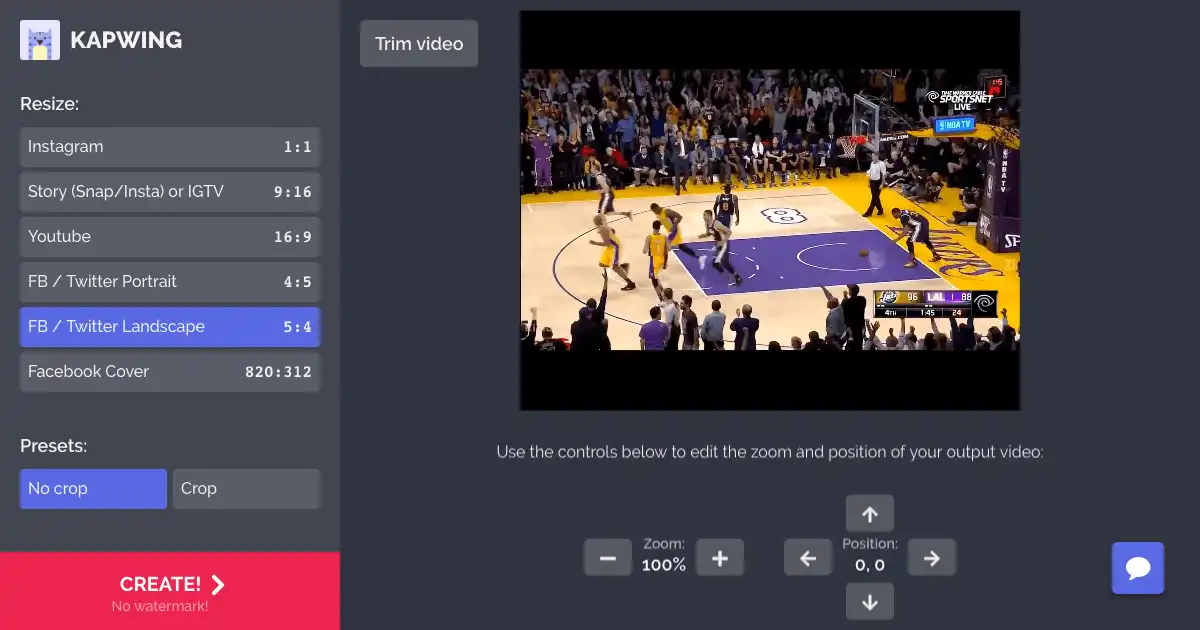
Screenshot of Kapwing in use.
[Visit Kapwing](https://www.kapwing.com)
## Helperbird
Helperbird is your all in one extension, that gives you the features to make the web more accessible
and productive. Providing you text to speech, OCR, dyslexia support, dictation, immersive reader,
overlays, annotate any website,picture dictionary,Reading Mode, and more.
Screenshot of Helperbird in use.
[Visit Helperbird](/pricing/)
## Google Meet
Real-time meetings by Google. Using your browser, share your video, desktop, and presentations with
teammates and customers.

Screenshot of Google Meet in use.
[Visit Google meet](https://www.google.com/meet)
---
## Making PDFs Easier with Helperbird's PDF Reader
URL: https://www.helperbird.com/blog/helperbird-pdf-reader-rorys-story/
## Protecting Privacy While Sharing Success
At Helperbird, we respect the privacy of everyone who shares their stories with us. Names are changed to keep our users safe, but the experiences and successes are real.
---
## How Rory Made Work Easier with Helperbird’s PDF Reader
### The Problem
Rory’s job required managing a large number of PDF documents daily. His old PDF reader made the process slow and frustrating, leaving him overwhelmed.
### Discovering Helperbird’s PDF Reader
When a friend recommended Helperbird, Rory decided to try its PDF Reader to see if it could simplify his workflow.
### What Made the Difference
**Listening to Text with Text-to-Speech:** Rory could listen to PDF content when reading became tiring, making long documents easier to handle.
**Quick Summaries with Summarize:** The Summarize feature gave him concise summaries of lengthy documents, saving him valuable time.
**Improved Focus with Overlays and Dyslexia Rulers:** These tools helped Rory stay focused and made reading more comfortable.
**Sticky Notes for Quick Thoughts:** Rory could jot down ideas or important points directly on the PDFs, streamlining his review process.
**Translation and OCR Support:** Translation made documents in other languages easier to understand, while Screenshot Reader pulled the text out of scanned pages so he could read and listen to it. The PDF itself is unchanged, so a scan does not become searchable.
**Immersive Reader for Quiet Reading:** Immersive Reader created a distraction-free reading space, making it easier to stay engaged with the text.
### The Outcome
With Helperbird’s PDF Reader, managing PDFs became faster and less stressful for Rory. He saved time, improved his workflow, and found his tasks more enjoyable.
---
## Our Commitment
While names are changed, our mission remains the same: to help users overcome challenges and share their success while keeping their privacy safe.
---
## 3 Facts about Dyslexia and 1 Fact about Cats
URL: https://www.helperbird.com/blog/three-facts-about-dyslexia/
## Fact one
Despite popular belief, dyslexics do not see letters backwards. They often have difficulty naming
and writing letters, and in fact, writing letters backwards is something that many kids do when
they’re first learning to write, whether they have dyslexia or not.
## Fact two
Most dyslexics often have a better use of their right brain.
## Fact three
Dyslexics score significantly higher on test when they are given the test orally.
## Bonus cat fact
There are over 500 million domestic cats in the world. And and estimated 700 million Dyslexics. So
if you ever are feeling alone just know that there’s at least 6 million 9 hundred thousand nine
hundred and ninety nine other people like you and plenty of kitties to cuddle.
---
## Improving Marketing Workflows with Helperbird’s Immersive Reader
URL: https://www.helperbird.com/blog/helperbird-immersive-reader-marketing-alexs-story/
## Protecting Privacy, Celebrating Success
At Helperbird, we’re committed to protecting our users’ identities while sharing their achievements. In this story, the name has been changed to Alex to respect his privacy, while highlighting his inspiring journey.
---
## How Helperbird Transformed Alex’s Marketing Workflow
### The Challenge
As a busy marketing professional, Alex spent countless hours reviewing, editing, and approving content for campaigns. The sheer volume of text, tight deadlines, and fear of missing errors made his job increasingly overwhelming. The strain on his eyes and the repetitive tasks were taking a toll on his productivity and focus.
### Discovering Helperbird’s Immersive Reader
One day, a colleague recommended Helperbird, specifically highlighting the Immersive Reader feature. Curious, Alex gave it a try and quickly realized how much easier managing large amounts of text could be.
### Read Aloud: A Game-Changer for Multitasking
Immersive Reader’s Read Aloud feature allowed Alex to listen to content while organizing his workspace or planning campaigns. It saved him time, reduced eye strain, and made multitasking more efficient.
### Text Spacing: A Break for the Eyes
The Text Spacing feature was another standout for Alex. By adjusting the spacing between words and lines, text became easier to read and less cluttered. Reviewing and editing documents felt less tedious, giving his eyes a much-needed break.
### The Result
With Helperbird, Alex streamlined his workflow and significantly reduced the time spent on text-heavy tasks. The Read Aloud and Text Spacing features helped him stay focused, manage campaigns more efficiently, and even enjoy the process. The reduced eye strain and improved multitasking meant he could dedicate more energy to creative and strategic work.
Campaigns launched smoothly and on time, and Alex felt a renewed sense of control and satisfaction in his work.
---
## Our Commitment
Every user’s story is unique, and we’re proud to share them while respecting their privacy. Stories like Alex’s show how Helperbird empowers professionals to work smarter, not harder, in their fields.
---
## TV and Movie Characters with Dyslexia
URL: https://www.helperbird.com/blog/tv-and-movie-characters-with-dyslexia/
## CeCe Jones in Shake It Up
CeCe dream is to become a famous dancer and nothing was going to stop her. That includes dyslexia.
Actess Bella Thorne, who plays Cece can probably identify. Reading issues haven’t kept Bella Thorne
from achieving her own stardom . A successful actress, singer, model, and dancer, she’s also a
spokesperson for the Dyslexia Foundation.
## Cristina Yang in Grey’s Anatomy
Dr. Cristina Yang played by actess Sandra Oh was diagnosed with dyslexia at age 6. That’s years
before she landed at Seattle Grace Hospital. After four seasons, viewers learn that Cristina Yang
got straight A’s all through medical school. Her success - in school and as a doctor - reflects the
perseverance she shows in each episode.
## Cassandra Cain aka Bat Girl (Marvel)
Cassandra Cain also known as Bat Girl! She was trained from birth to become the perfect warrior.
Brought up by her father and powerful assassin, David Cain, she had been trained to not speak but
instead use those parts of her brain to predict her opponent’s next crucial move. Having neglected
those parts of her brain, it developed differently to most, growing into a form of dyslexia.
## Percy Jackson in Percy Jackson and the Olympians
He is the son of mortal Sally Jackson and great Greek god of the sea, Poseidon. Rick Riordan who
wrote the books, based the character Percy on his own son, Haley Riordan who has dyslexia and ADHD.
Percys struggles in the classroom are presented as qualities that will contribute to his greatness
as a “demigod”.
## Captain Rafe McCawley in Pearl Harbourn
Lieutenant Rafe McCawley who struggled with his dyslexia but found ways to work around it. Rafe and
his best friend Danny had grown up wanting to experience flying ever since they were young. He has
one barrier to get past if he’s going to become a pilot though and that’s passing his medical exam,
despite the low score on his written test.
---
## How Helperbird Transformed a Student's Academic Experience
URL: https://www.helperbird.com/blog/helperbird-dyslexia-solutions-jamies-story/
## Protecting Privacy, Respecting Stories
At Helperbird, we value the privacy and well-being of our users. When sharing inspiring stories, we take care to protect personal details. In this story, the name has been changed to respect the user’s identity, while keeping the heart of their journey true.
---
## Jamie's Journey to Graduation with Helperbird
### The Challenge
Jamie, a hardworking high school senior, faced ongoing challenges with dyslexia. Reading and comprehension were difficult, and the increasing demands of coursework made graduation feel overwhelming.
### Discovering Helperbird
A friend introduced Jamie to Helperbird, a tool designed to support unique learning needs. Curious, Jamie decided to try it out and explore its features.
### Dyslexia Ruler: A Game-Changer
The dyslexia ruler quickly became one of Jamie’s favorite tools. It acted as a guiding line, helping them focus on the text and reducing distractions. Losing their place while reading became a thing of the past.
### Finding Confidence with the Lexend Font
The Lexend font, designed for easier readability, gave Jamie newfound confidence. Its carefully spaced letters and thoughtful design made reading smoother and comprehension easier.
### The Result
With Helperbird, Jamie kept up with coursework, participated in class discussions, and understood material more deeply. By the end of the school year, Jamie graduated with honors, crediting the dyslexia ruler and Lexend font for helping them achieve success.
---
## Our Commitment
Every user’s journey is unique, and we’re proud to be part of their success stories. While names may be changed, our dedication to supporting and respecting our users remains unwavering.
---
## Top 5 Productivity Microsoft Edge Extensions
URL: https://www.helperbird.com/blog/top-5-productivity-microsoft-edge-extensions/
If you're like a lot of people, you're probably thinking about ways you can become more productive
in 2022. There's no better place to start than by making sure your computer is set up for
productivity, in absolutely every way possible.
Microsoft Edge is a great web browser, but it's even better when you add extensions to personalize
the experience. You can customize your Edge homepage and new tab page and add features that help you
be more productive or have a little fun.
To help get you there, we've put together a list of our favorite productivity extensions for
Microsoft Edge.
## Microsoft Editor
The built-in productivity extension for the Microsoft Edge browser. It works basically just like
Grammarly (you know, that popular writing app assistant), but it's even more comprehensive in its
suggestions. Not only does it provide advanced writing assistance with grammar and spelling, but it
also gives you style suggestions so you can confidently write clear concise posts and emails.
## Momentum
If you're trying to focus on one specific task and don't want to waste time clicking through all of
these tabs to find the one you need, consider installing Momentum. It takes over the new tab page in
Microsoft Edge to give you a moment of calm and inspiration. It features a daily photo and quote to
get you through your day and help you prioritize your tasks. You can also set your own daily focus
and track your to-dos so you can stay organized and keep yourself on task.
## Awesome Screenshot and Screen Recorder
Another great option for staying organized is Awesome Screenshot & Screen Recorder. This extension
lets you take screenshots or record videos of whatever is on your screen so you can easily share
them with other people. It's especially useful for cases like reporting technical issues, making
product demos or how-to tutorials, or just sharing funny things you see online with people who might
not otherwise have access to it.
## Ghostery
Ghostery is a super-powerful privacy extension that blocks ads, stops trackers, and speeds up
websites. This powerful extension helps you increase page performance and page speeds without having
to do any real work - just install it and get back to surfing the web!
## Helperbird
Helperbird offers a range of powerful tools to customize your web browsing experience. It's easy to
improve accessibility, reading, writing, studying, and productivity. It can help you block
distracting content, translate text into multiple languages, and even read text aloud using natural
voices. Whether you're on an English-language site or an international one, Helperbird has your
back!
Productivity extensions can be valuable tools when it comes to streamlining your workflow and
getting more things done with the computer you spend so much time on.
Microsoft is working hard to make Microsoft Edge more powerful and robust than ever, and these
extensions will only help with their mission. They provide access to a lot of useful functions that
were previously only available in other browsers, and some of the additional features can make your
day-to-day experience a good bit easier. Download one or two, and see for yourself!
Having a productive day just got slightly easier. We hope these five extensions are a great addition
to your arsenal of productivity tools, and we look forward to seeing what new ones become available
for the Edge browser in the future.
### Sources:
1. Microsoft Editor (aka free Grammarly)
https://microsoftedge.microsoft.com/addons/detail/microsoft-editor-spellin/hokifickgkhplphjiodbggjmoafhignh
2. Momentum
https://microsoftedge.microsoft.com/addons/detail/momentum/jdoanlopeanabgejgmdncljhkdplcfed
3. Awesome Screenshot & Screen Recorder
https://microsoftedge.microsoft.com/addons/detail/awesome-screenshot-and-sc/gpmljinohlbfgmeoaeceoajachkabijo
4. Ghostery
https://microsoftedge.microsoft.com/addons/detail/ghostery-%E2%80%93-privacy-ad-blo/fclbdkbhjlgkbpfldjodgjncejkkjcme
5. Helperbird
https://microsoftedge.microsoft.com/addons/detail/helperbird-for-edge/bkibfggdahioahpokehoiimdmdjefjmd
---
## Fostering Inclusivity at Work - The Role of Helperbird in Modern Workplaces
URL: https://www.helperbird.com/blog/fostering-inclusivity-at-work/
Workplace dynamics have evolved significantly in the last few years. Companies are now more aware of
the importance of creating an inclusive environment that values every employee's unique strengths
and abilities. One area that often goes overlooked, though, is the support for employees who may
struggle with learning difficulties or visual impairments. That's where tools like Helperbird come
into play.
## Making the Workplace More Accessible with Helperbird
Helperbird is a robust suite of tools specifically designed to augment accessibility and
productivity. By offering a wide array of features that can be personalized to meet each
individual's needs, Helperbird is leading the way in fostering inclusivity at workplaces. Here's
how:
## Customizable Web Experience
Workplaces often require employees to work with digital content. However, not everyone finds the
default settings on digital platforms comfortable. Helperbird allows users to customize their web
experience to suit their preferences, including changing background color, font type, and size. This
can make reading online documents and webpages significantly easier for those with visual stress or
dyslexia.
## Boosting Communication
Effective communication is crucial in any workplace, and Helperbird offers features that assist with
both comprehension and expression. Its text-to-speech functionality can read out loud any text on
screen, which is particularly beneficial for individuals with dyslexia or visual impairments. On the
other hand, the predictive text and spell-check features can help users with written communication,
ensuring their ideas are conveyed clearly and accurately.
## Enhancing Focus and Productivity
Workplace productivity often hinges on an individual's ability to focus. Helperbird's immersive
reader feature can help enhance concentration by minimizing on-screen distractions, allowing users
to concentrate on the task at hand. The tool also includes a note-taking feature, enabling users to
jot down important points directly in the browser, eliminating the need to switch between
applications and improving productivity.
## Language Support
With workplaces becoming increasingly global, having language support can be invaluable.
Helperbird's translation feature allows users to translate web pages into a variety of languages,
making it easier for non-native English speakers to comprehend and engage with the content.
## The Bottom Line
As workplaces strive to be more inclusive and diverse, it's crucial that they consider all aspects
of accessibility. With [ tools like Helperbird](/) ., companies can ensure
that all employees, regardless of their learning abilities or disabilities, can thrive and
contribute their unique strengths to the team.
Helperbird has proven to be a game-changer for many organizations, supporting a more inclusive and
productive work environment. So, why not bring Helperbird to your workplace? Let's pave the way for
a more accessible future, together.
Discover more about Helperbird and how it can support your workplace accessibility
[tools](/products/ipad/).
---
## Accessibility Software & Inclusive Classrooms
URL: https://www.helperbird.com/blog/enhancing-inclusivity-role-of-accessibility-software-in-modern-classrooms-with-helperbird/
Thirty students in your room, thirty different reading speeds.
A browser extension will not close that gap on its own. What it can do is let your
students change how a page looks and sounds. No hand up required.
## What students can switch on without you
Your students get these without a subscription:
- **Text to speech.** Plays a page or a selection using the voices already on the
device. The higher quality neural voices come from Microsoft Azure and need
Helperbird Pro.
- **[Font](/features/specialised-dyslexic-fonts/).** 32 typefaces in the picker,
including OpenDyslexic, Atkinson Hyperlegible, Andika and six Lexend widths. On iPad
and iPhone the list is 29.
- **High contrast** and **Dark Reader.** Five contrast themes and four dark themes, for
pages your students find hard to look at.
- **[Immersive Reader](/features/immersive-reader-for-chrome/)** and **Reading Mode**,
which strip a page back to its text. Immersive Reader sends that text to Microsoft
Azure. In the browser extension, Helperbird Free stops it at 2,000 characters.
## What needs Helperbird Pro
- Summarize, Simplify and Screenshot Reader
- Equations
- Spell check, Grammar and Word prediction
- Voice typing
- Reading list
- Sticky note on a page, and creating a highlight
- Showing and hiding saved Highlights
- Word spotlight, and the Dictionary inside the Highlight Menu
Grammar runs when your student selects text and presses **Check**. That text goes to
OpenAI.
The full list is in [what Helperbird Pro includes](/help/what-is-helperbird-pro/).
## Putting it on every device
You push Helperbird out from wherever you manage the browser: Google Admin, Microsoft
Edge management, or a Firefox policy file. Installing that way gives every student
Helperbird Free. Pro arrives separately, from your organization's subscription key set
in the same policy.
There is no managed policy on Safari, iPad or iPhone. Those students enter a
subscription key themselves.
Two policy settings are worth deciding before your term starts:
- **Sites to keep Helperbird off.** Up to ten domains. A domain matches itself and its
subdomains. Your students keep their own list of ten alongside yours.
- **The Floating Toolbar.** Switch this on and every website carries a Helperbird logo
that expands into a bar of actions. Forced on, a student can move it but cannot
switch it off. Five of its buttons need Pro: Dictionary, Immersive Reader, Word
prediction, Voice typing and Screenshot Reader. On Free, Play stops at 5,000
characters.
Neither takes effect unless your policy also switches admin control on. You will find
the steps in
[setting Chrome storage managed keys](/help/setting-chrome-storage-managed-keys/) and
[Helperbird Firefox enterprise deployment](/help/helperbird-firefox-enterprise-deployment/).
## What it does not do
- Fonts, text size, spacing, Immersive Reader and Reading Mode do not apply inside
Google Docs or PDFs.
- Grammar does not check as you type and it underlines nothing.
- Spell check supplies no dictionary and no suggestions of its own, only the browser's.
- The High contrast keyboard shortcut needs Pro.
- Notes and highlights do not always sync. They sit in the browser's own storage. If
that storage runs out, they stay on that one device and nothing tells your student.
## Where to go next
[How to use Helperbird as a teacher](/help/how-to-use-helperbird-as-a-teacher/) covers
the features teachers reach for most, and how to run Helperbird during a quiz or test.
If your school runs Chromebooks, start with
[setting up accessibility tools on school Chromebooks](/blog/teachers-guide-accessibility-tools-school-chromebooks/).
---
## An 8-Step Guide to Creating Accessible Emails for Those with Dyslexia
URL: https://www.helperbird.com/blog/creating-accessible-emails-a-step-by-step-guide/
When it comes to dyslexia, emails can be a real challenge. From getting the layout just right to
knowing how to make the content dyslexia-friendly, it’s important to understand how dyslexic people
interact with emails differently.
Being dyslexic can make
[reading emails difficult](https://www.google.com/url?q=https://www.bdadyslexia.org.uk/dyslexia/neurodiversity-and-co-occurring-differences/visual-difficulties&sa=D&source=editors&ust=1674076110412857&usg=AOvVaw3YIZamyb7iqQND21DMQ08y) due
to the way that words and phrases are presented in a text. Emails often contain complex syntax, with
multiple clauses and sentences strung together, making it difficult for dyslexics to understand what
is being conveyed. They may also have difficulty due to the small fonts and lack of font variety
used in many emails. Furthermore, emails often contain long paragraphs of text which can prove
confusing and overwhelming for those with dyslexia, making it hard for them to stay focused when
reading through an email.
This article will give you an understanding of the importance of accessibility for those with
dyslexia, as well as a step-by-step guide on how to improve readability:
**Step One**: Understand dyslexic people’s experience with emails.
Dyslexics can often struggle to read emails, especially if the
[font is small](https://www.google.com/url?q=/features/font-sizes/) or
difficult to distinguish from each other. Additionally, they may have some difficulty understanding
certain words or phrases, so using dyslexia-friendly language is essential.
**Step Two**: Think about color contrast.
People who are dyslexic are more likely to struggle with emails that have a high contrast between
text and background colors, so it’s important to choose colors that will be comfortable and
[improve readability](https://www.google.com/url?q=https://instiller.co.uk/blog/how-accessible-are-the-emails-you-send&sa=D&source=editors&ust=1674076110414261&usg=AOvVaw0NAOm0RSYI4LHtiCEjzABO).
Additionally, dyslexic people may find it helpful to increase the text size or use a
dyslexia-friendly font.
**Step Three**: Use dyslexia-friendly language.
Dyslexic readers may not be able to understand certain words or phrases, so it’s important to choose
dyslexia-friendly language when writing emails. Avoiding jargon and using simple language can help
dyslexic readers understand what you’re trying to say more easily.
**Step Four**: Listen to dyslexic feedback.
It’s important to actively listen to dyslexic users when it comes to emails, as they may be able to
provide valuable insight into what dyslexic readers need to be able to understand emails.
**Step Five**: Test emails for dyslexic users.
Finally, make sure to test your emails with dyslexic users before sending them out. This will help
ensure that they are dyslexia-friendly and that dyslexic readers can understand them easily.
**Step Six**: Use dyslexia-friendly fonts.
When creating emails, it’s important to use dyslexia-friendly fonts that are easy to read and
distinguish from one another. This will make the text easier for dyslexics to understand and follow.
Some examples of
[dyslexia-friendly fonts](https://www.google.com/url?q=/help/how-to-change-the-font-on-any-page/) are
Open Dyslexic, Dyslexie, and Comic Sans.
**Step Seven**: Break the text into smaller chunks.
Long paragraphs of text can be confusing and overwhelming for dyslexics, so it’s best to break the
content up into shorter sentences and paragraphs. Doing this will make the email easier to
understand and follow for dyslexic readers.
**Step Eight**: Include images.
If appropriate,
[include visuals and/or graphics](https://www.google.com/url?q=/features/alt-tool-tip-highlighter/) to
supplement your email content. This can make it easier for dyslexics to understand what you’re
trying to convey, as they may not be able to process large amounts of text at once.
By following these steps and understanding dyslexia accessibility, you can improve the readability
of emails for dyslexics. This will not only help dyslexics to understand emails better but also show
them that their needs are being recognized and considered.
Remember, dyslexic people have the same right to access emails as everyone else, so it’s important
to make sure that your emails are dyslexia-friendly and accessible for all. With these tips in mind,
you can ensure that your emails are dyslexia friendly and accessible to everyone.
This blog was writen by Hanah Walters.¸
---
## Boosting Classroom Accessibility - Discover the Magic of Helperbird
URL: https://www.helperbird.com/blog/boosting-classroom-accessibility/
## Understanding the Power of Helperbird
Helperbird, a browser extension, offers a comprehensive set of features specifically designed to aid
students with dyslexia, ADHD, and low vision, among other learning challenges. But what truly sets
Helperbird apart is its multifaceted approach to addressing students' diverse needs, ensuring a more
inclusive and engaging learning experience for all. Let's explore some of the key ways Helperbird is
revolutionizing classroom accessibility.
## Customizable User Experience
Helperbird's features are customizable to each student's unique needs. From altering the website's
background color and font type to suit individual visual preferences to adjusting text size for
easier reading, Helperbird ensures that the digital learning environment is tailored to each
student's requirements.
## Supporting Reading and Comprehension
With Helperbird's text-to-speech feature, students can have any on-screen text read aloud to them.
This assists students with dyslexia and other reading challenges, providing them an alternative way
to consume information. Additionally, the immersive reader feature minimizes distractions on the
page, allowing students to focus on the material better.
## Boosting Writing Skills
Helperbird's features are not just limited to reading and comprehension; they also support students
in enhancing their writing skills. The built-in spell-check and word prediction tool can improve
spelling accuracy and assist with sentence construction, aiding students in effectively
communicating their thoughts.
## Promoting Visual Comfort
For students with low vision or visual stress, Helperbird offers overlays that can make it easier to
read text on screen. Students can choose the color and opacity of the overlay that best suits their
visual comfort, reducing strain and making the learning experience more enjoyable.
## Enhanced Note Taking
Helperbird's note-taking feature enables students to jot down their thoughts right in the browser.
This is particularly helpful for students who may struggle with shifting their focus between
resources while studying, offering them a seamless way to capture and review key points.
## The Takeaway
Technological advancements like Helperbird are transforming the way we approach education, making
classrooms more inclusive and accessible. By offering tools that cater to individual learning needs,
we can ensure that every student, irrespective of their challenges, can achieve their full academic
potential.
Used in schools and districts around the world, Helperbird brings accessibility and productivity tools to all
devices, including iPads and iPhones. This includes the immersive reader, dyslexia support, text to
speech, and much more.
Discover more about Helperbird and how it can support your classroom's accessibility needs here:
[helperbird.com/products/ipad](/products/ipad/).
---
## Best Careers for People with Dyslexia
URL: https://www.helperbird.com/blog/best-careers-for-people-with-dyslexia/
Dyslexia isn’t a career sentence or a limitation. In fact, there are several career paths that
people with dyslexia may excel in.
## Culinary Arts
Possibly because of dyslexics’ difficulties with written and numeracy skills, the creative (right)
side of their brain overcompensates, says spokeswoman for the Dyslexia Institute, Stephanie
Langheim. Creativity is a forte for a lot of dyslexic people, so it’s only natural for them to
gravitate towards cooking where they can develop recipes and play with different flavour profiles.
Indeed, several of the biggest names in the culinary world like Jamie Oliver and Marco Pierre White
are dyslexic.
There are tons of cooking lessons available, but people with dyslexia would benefit greatly from
[culinary courses with practical demonstrations](https://www.finedininglovers.com/article/free-online-courses-for-chefs),
since they learn better with visual cues. Learning how to cook helps them sharpen their sequencing
skills. Additionally, culinary skills open up several possibilities for income: they could work with
restaurants or operate small food businesses from their own kitchens.
## Graphic Designer
We previously talked about how people with dyslexia have well-developed creativity. This makes them
the ideal candidates for jobs in visual arts, such as graphic design! Graphic designers can work in
a myriad of different fields ranging from advertising and publishing, to small ma and pa shops.
There are several design tools that can be used to create graphic visuals, and there are
[online design certification programs](https://www.usnews.com/education/learn-graphic-design-guide)
that teach the basics. These programs can also assist in building a client base that aspiring
designers can start working with, expanding their professional portfolio.

## Marketing
Arguably the most prized ability in marketing is thinking outside the box. And who better to do that
than people with dyslexia whose minds are wired differently, and this is according to science.
Although disability support coordinator at Northwestern Michigan College, Leanne Baumeler says that
people with dyslexia
[tend to have social anxiety](https://www.traverseticker.com/news/deafness-adhd-physical-disabilities-ptsd-and-more-all-leannes-award-winning-work-at-nmc/),
this can lead them to think in unique ways and come up with more creative, unconventional
communication solutions. These are all valuable skills in marketing.
Plus, as several marketing courses are now offered online due to the pandemic, Baumeler explains
that students with learning difficulties really appreciated the move to virtual learning. In
addition to teaching marketing fundamentals, these
[online marketing degrees](https://online.maryville.edu/online-bachelors-degrees/marketing/) focus
on blending technology, strategy, and creativity - skills that dyslexic individuals will have no
problem mastering. What's more, since marketing is moving away from traditional practices and into
creative and digital practices, people with dyslexia will have more opportunity to showcase their
talents.
## Landscape Architect
Designing outdoor spaces requires a lot of visual-spatial thinking and material reasoning skills
(the ability to mentally visualize a 3D perspective of physical objects and spaces); these are
abilities that are often innate in dyslexics. This
[big-picture thinking](/blog/three-facts-about-dyslexia/) allows them to thrive in this challenging
field. A career in landscape architecture requires a lot of investment since it requires a
bachelor’s degree before one can take the Landscape Architecture Registration Examination, to obtain
a license.

However, Cambridge researcher Helen Taylor noted that those with “divergent thinking” patterns such
as people with dyslexia may find it easier to meld ideas from several different disciplines,
allowing them to look
[beyond the rigid](https://www.designweek.co.uk/issues/16-22-september-2019/designing-with-dyslexia-is-a-cognitive-plus/)
boundaries of extremely structured fields. This allows them to come up with multiple solutions and
alternatives to each architectural problem.
Gone are the days when people with dyslexia lag behind their peers. With a better understanding of
what dyslexia is, and with the [new technologies available](/products/chrome/) to help them navigate through
everyday life, dyslexics are very likely to succeed in their chosen careers.
Exclusively written for [helperbird.com](/) by Jerrica Borrell
---
## Benefits of iPads in the Classroom 2023
URL: https://www.helperbird.com/blog/benefits-of-ipads-in-the-classroom/
## Benefits of iPads in the Classroom
For many years, educators have felt the pressure to make learning more than a singular experience.
As technology becomes more popular, classrooms have gradually evolved away from the chalk and
blackboard combination. The old ways of learning are now being replaced with newer, better
technology, and students are required to learn a multitude of skills in a short amount of time.
Teachers and schools desire to generate social and creative learners who excel in the 21st century.
In order for schools to be successful with this, we need to change the way we approach teaching.
iPads in the classroom are changing the way we learn by bringing excitement, engagement, and
exploration into learning experiences. And we are here to discuss them one by one.
### Learning Becomes an Active and Social Process
Allowing students, the opportunity to use iPads in their schools, classrooms, and at home cultivates
a culture of learning. iPads inspire curiosity and creativity in the classroom, which engage
students and make learning fun. The use of apps and mobile technology promotes a sense of
accomplishment and pride as students compete with each other to earn badges and unlock achievements.
Working together with peers to achieve goals is also a valuable skill that can be learned through
the use of iPads.
### iPad Apps Support 21st Century Learning Skills
As we move deeper into the digital age, it's more important than ever that schools integrate new
technologies such as iPads into their classroom environment. Mobile technology empowers students to
learn whenever they want and wherever they are, which encourages students to take ownership of their
education. Students who use iPads in school tend to develop better critical thinking skills,
higher-order reasoning skills, increased creativity, improved writing abilities, stronger
communication skills, enhanced collaboration skills, a greater focus on tasks at hand, and improved
organizational skills. Using iPad apps for education fosters innovation in the classroom like never
before.
## Better interaction with teacher, classmates, and materials
One of the best things about iPads is that they allow kids to interact with their material and their
classmates in a completely new way. For example, if you're teaching an art class and the students
have to draw something from memory, the iPad can allow them to see that drawing from different
angles so they can work on their perspective skills. Another example: If you're discussing an
article with your class and want to assign different sections of the article to different students
for in-depth analysis, the iPad allows you to do that easily.
### iPads encourage creativity and spark learning
Most kids and students love technology, so when you give them access to iPads in the classroom,
they'll be more likely to engage with it. When they are engaged with what they're doing, they learn
at a much faster rate than when they're not engaged. They will have the opportunity to create and
discover more ideas that can improve their understanding of the things around them.
### Increased Opportunities for Collaboration
With iPads, students have an opportunity to change the way they interact with each other and their
teachers. No longer do they need to be seated at desks facing the front of the room listening to a
lecture given by their teacher - with iPads, students can work together on projects, share ideas in
real-time, and present their thoughts to each other. In fact, research shows that collaborative
learning leads to higher levels of retention than more traditional methods of learning.
iPads can also help make visual collaboration easier, where students can work together on projects
while using apps like Google Drive and Microsoft OneNote.
### Personalize Learning Experience
One of the most exciting things about incorporating iPads into your classroom is that you can now
personalize each student's learning experience. Gone are the days where one-size-fits-all lectures
were the only way to teach - how you can tailor your lessons based on student understanding, provide
more difficult material for advanced learners, and give extra help to those who need it.
### Portable and Easy to Carry Around
One of the major benefits of using iPads in your classroom is that they are incredibly portable. You
can easily move them around a classroom as your students work collaboratively or individually on
projects, so you don't need to worry about heavy desks or chairs being moved around as well - students
can just pick up an iPad and go!
Plus, they're also simple to use - most people already know how to navigate an iPad, so it's easy for
teachers to explain how to use the learning software and apps.
### Less Paper Used
Another benefit of using iPads in your classroom is that they use far less paper than traditional
methods. There's no need for paper copies of textbooks or notes - everything is available on one
device. If your students have access to tons of online resources, they won't need quite as many
physical copies of texts, which means less time printing out assignments and more time getting right
down to business. And most importantly, reduces the overall amount of waste produced by schools,
which benefits both the environment and school budgets.
## The Takeaway
There is no doubt that the iPad can be a powerful tool for learning. There are many benefits of
iPads in a classroom environment. However, it is important to note that not every class or situation
is suitable for digital devices. In fact, some tasks may work much better on a traditional textbook
than on an iPad. The point here is that the iPad is one more tool that teachers and students have
available to them in the classroom and beyond. While it has its own set of limitations, the iPad
provides a modern way to learn and interact with the world around us, which has become increasingly
visual and interactive.
Will iPads replace the traditional books in classrooms? No, iPads will never replace books in the
classroom as they don't have physical properties as books do. Instead, they will serve as another
tool to improve learning.
Helperbird is used in schools and districts around the world. Helperbird for iPad and iPhone brings all the
accessibility and productivity tools to iOs. Including Immersive reader, dyslexia support, text to
speech, and much more.
Helperbird for iPad: [helperbird.com/products/ipad](/products/ipad/)
---
## Top iPad apps for Accessibility
URL: https://www.helperbird.com/blog/top-ipad-apps-for-accessibility/
The Internet is a vast resource of information. But what happens when you can't access that
information? There are many websites and applications available to help assist those with
disabilities - especially those with visual and hearing impairments - access the information they need.
iPads have been an amazing tool for people with disabilities. There are countless apps that enable
users to do incredible things, and we have compiled a list of four of the best iPad apps for
accessibility.
## Voice Dream Reader
Voice Dream Reader is an app designed to help people who have learning difficulties or have trouble
reading. This app can help those with dyslexia, ADHD, visual impairments, and more. It has the
text-to-speech capability and can read everything from PDF documents to ebooks from the iTunes
bookstore. It's also compatible with Dropbox and Google Drive, so you can read anything that you
have saved on your cloud storage accounts.
Voice Dream Reader has dozens of voices in 27 languages. The app also allows users to create their
own bookmarks, footnotes, and highlights. You can even adjust the reading speed or skip over words
or sentences.
## Texthelp
There's no denying how difficult it can be to remember everything at once - especially if you're
trying to overcome a disability! Texthelp makes life easier by letting you highlight specific parts
of your screen so that the important information stands out. Plus, it lets users easily translate
certain words or phrases (like if you're visiting a website in another language). The app also
provides definitions for words from your native language as well. This is great for people who want
to write a blog post but may struggle with reading back their own work.
## SignUp for Disney+
We all want to get in on the Disney+ craze, but not everyone can get by without captions - and not
every movie and TV show is captioned properly. Enter SignUp: an app that lets users customize their
captions by setting font type, size, color, and background color. They can also add timestamps to
keep track of how far along they are in a show, bold or italicize words, center their captions, and
even adjust the opacity of their captions to make sure they don't interfere with other elements
onscreen. With options like these, SignUp is an app that should be in every captioner's library!
## Helperbird for Safari
If you need help reading what's on the screen, Helperbird is the app for you. It will magnify
anything you want and make it easier to read text. It also has some other cool features like the
ability to change text color and highlight important points on web pages.
Have you ever noticed how there's a lot of text online, but not all of it is organized in an
accessible way? Helperbird is a great extension that helps you make sense of web pages in terms of
accessibility. It makes it easy to toggle between fonts, contrast, and screen readability.
The iPad is quickly becoming a very important tool for the education and entertainment of students,
teachers, and children alike. As more people discover this useful device, it is important to
consider that these iPad users may be disabled.
All of the apps listed here are great resources for those seeking to customize their iPad
experience. They offer the possibility of greater independence and ease of use. While each app
accomplishes its goals in slightly different ways, they all provide valuable accessibility features
that benefit users with autism, dyslexia, and other disabilities.
### Sources:
1. Voice Dream Reader https://apps.apple.com/us/app/voice-dream-reader/id496177674
2. Texthelp
https://support.texthelp.com/help/readwrite-for-ipad-dc6c1fb-new-to-the-producthow-to-use-it
3. SignUp for Disney+ https://www.signupcaptions.com/
4. Helperbird for Safari https://apps.apple.com/ca/app/helperbird-for-safari/id1589138053
---
## What is COPPA and FERPA?
URL: https://www.helperbird.com/blog/what-is-coppa-and-ferpa/
The Children's Online Privacy Protection Act (COPPA) and Family Educational Rights and Privacy Act
(FERPA) are two similar pieces of legislation that protect the privacy of student data.
**COPPA**, or the Children's Online Privacy Protection Act, was passed in 1998 by Congress. It
regulates how companies that collect information from children under the age of 13 can use that
data. It also requires those companies to provide parents with notice of what information they
collect and how they use it, as well as an opportunity to opt-out of some uses of the data.
**FERPA** stands for Family Educational Rights and Privacy Act and was passed by Congress in 1974.
It governs how educational institutions may disclose student information - including personally
identifiable information (PII) like name and social security number - to third parties. The law also
affords students certain rights with respect to their education records, including the right to
inspect them and request corrections.
These laws are important because they're meant to protect students' privacy by making sure that any
information collected about them is kept safe. If a site doesn't follow these laws, it could put
students at risk of identity theft, stalking, or other types of harassment online.
## Sources:
### COPPA
[Information on COPPA](https://www.ftc.gov/business-guidance/resources/complying-coppa-frequently-asked-questions?msclkid=dac21fc7ce5511ecbca94bf6327c3826)
### FERPA
[Information on FERPA](https://www.cdc.gov/phlp/publications/topic/ferpa.html?msclkid=13232553ce5611ec8741a253c1f3c01a)
---
## Web Accessibility Tips for People with Epilepsy
URL: https://www.helperbird.com/blog/accessibility-tips-for-epilepsy/
One of those challenging disability conditions is epilepsy. Epilepsy is one of humanity's oldest
recognized diseases, which affects roughly 50 million people worldwide (diagnosed in nearly 1
percent of the world's population). Each individual has his or her own story of what it is to live
with epilepsy. Some are fortunate enough to only have the occasional seizure while others live under
the constant threat of developing severe (status epilepticus) life-threatening seizures. And despite
increased research into the causes and treatments for epileptic seizures, many forms of epilepsy
can't be cured. The varying levels of severity of the disease mean that different individuals will
face very different challenges when accessing websites.
Online accessibility, on the other hand, is a concern for everyone but often doesn't get the
attention it deserves. Even when designers are aware of their users' needs, they can have trouble
implementing those needs into their work.
Here, we'll go over some tips and tricks for making your site or app more accessible to someone with
epilepsy.
## Aesthetics
Consider the following things when you're thinking about the aesthetics of your website or app:
- Make sure not to use too many colors or patterns. While having color in your design is important,
remember that too much can be overwhelming for someone with epilepsy. Try to keep your color
palette (and a number of colors) simple and consistent throughout the design.
- Use complementary colors in your color palette to create a soothing, balanced look without being
overpowering - like how blue and orange, if used consistently and carefully, can create a calming
visual experience.
## Labeling
Make sure that all buttons are clearly labeled and that links are clearly formatted so they're easy
to distinguish from regular text. This will not only make your site more accessible for people with
vision problems, but also for people who rely on assistive technology like screen readers to
navigate your site!
For instance, instead of "click here," a link should say something like "read our most recent blog
post here."
## Contrast and color
Lighting can have a huge effect on your ability to read something, whether you have epilepsy or not.
It's important to make sure you have enough light to be able to see easily, but not too much. On top
of that, you want to make sure there's a good amount of contrast between the background color and
the text color. For example, if your background is white, the text should be black. If the
background is black, the text should be white. This is because it takes longer for our eyes to
process colors when they're similar, so it's easier for us to see when they're very different from
each other.
## Readability
When it comes to readability, epilepsy has some unique challenges. Some people with epilepsy can't
read in patterns or on a white background, for example. Others have trouble reading when the text is
too close together. It's important to find out what your friend needs. They might be able to tell
you what colors and fonts are easiest for them to read. Additionally, you can make sure that you
don't write more than one idea into a single sentence. This way your sentences are easier to parse.
Finally, try using bullets or numbered lists whenever possible so that your content isn't
overcrowded.
## Navigation
Another important consideration for people with epilepsy is navigation. The most important thing you
can do here is to keep your layout consistent from page to page so that it's easy for readers to
understand how to navigate your site. You should also use clear headings and subheadings so that
readers can scan through the piece quickly if they want to find something specific. Finally, make
sure that links are easy to identify by using colors that stand out from other elements on the page
(e.g., red text surrounded by blue background).
## Movement, Flash, and Animation
While having a little bit of movement on your site can communicate information to the user - like
highlighting a button that you want them to click - too much can cause seizures for people with
photosensitive epilepsy (A type of epilepsy in which flickering or flashing light (natural or
artificial), overexposure to video games, high contrast patterns like stripes or checks that can
trigger seizures).
Using blinking or flashing elements is another no-no for the same reason, so make sure that nothing
on your site blinks more than three times per second! Also, if your site uses moving content that
isn't essential to the user experience, make sure you offer a way for users to turn it off.
## Status Messages
And finally, status messages or “toast messages” shouldn't flash more than once per second. This can
also cause seizures for people with photosensitive epilepsy. They pop up and then fade away after a
little bit of time. You should include options for people with epilepsy to disable them!
## Final thoughts
We've tried to lay out everything you can do to make your site accessible for people with
epilepsy - no matter the level of complexity. Ultimately, accessibility isn't something that you can
"set and forget," but it's an ongoing process that needs your attention and consideration. You never
know how much difference your small efforts could make to someone else's enjoyment of the web.
There are a lot of myths and misconceptions surrounding epilepsy, and even more when it comes to
living with the condition. It's easy to fall into base assumptions about what an epilepsy sufferer
can do, or can't do. But if we take a minute to see things from their perspective, we may be
surprised at how much there is to gain for us all.
One last thing. Here at Helperbird, we dedicate our time to making your browsing experience as
smooth as possible. If you find that some of the web features are a bit too stimulating, our “Hide
Image” feature tool helps remove potentially harmful and distracting photos, gifs, and flashing
images from web pages. It is a tool designed for Epileptic and highly sensitive users when using the
web.
---
## Helping Students with Helperbird’s Reword Feature
URL: https://www.helperbird.com/blog/reword-function-student-success-story/
## Supporting Student Success with Helperbird
At Helperbird, our focus is on empowering every user to succeed. We know how the right tools can make a difference, and it’s inspiring to hear how our features help individuals overcome challenges.
---
## How Helperbird Helped a Student Overcome Academic Challenges
### The Challenge
In one high school class, a student struggled to complete her assignments. The tasks felt overwhelming, leading to frustration and avoidance.
### The Solution: Helperbird’s Reword Function
A determined teacher, looking for a way to help, introduced the class to Helperbird. The Reword function stood out - it simplifies complex text, offering alternative phrasing to make reading and comprehension easier.
### What Happened Next
When the student tried the Reword function, everything changed. Assignments that once felt impossible were suddenly manageable. With simplified explanations, she was able to understand the material and complete her work with confidence.
### The Result
The transformation was incredible. The student went from avoiding assignments to actively engaging with her schoolwork. Her teacher, thrilled to see such progress, shared the story to highlight the impact Helperbird had on her success.
---
## Why It Matters
Stories like these remind us why we do what we do. At Helperbird, we’re committed to helping students, educators, and anyone else who needs support. Every success, big or small, fuels our mission to create tools that truly make a difference.
---
## 6 Famous People with Dyslexia
URL: https://www.helperbird.com/blog/6-famous-people-with-dyslexia/
One might stumble upon a word from a book they’re reading and miscomprehend it. Maybe they see the
word, world as “worlb” or “bants” instead of pants. This could also be in a similar situation in
writing, where the person misspells words frequently. These are common signs for people with a
learning disability called Dyslexia. Dyslexia is a genetic derived learning disability that causes
difficulty in reading comprehension and writing. People that have this condition perceive and learn
things differently which is often misunderstood by society.
Even though it is a challenge, a lot of dyslexics still manage to live normal lives in which most of
them became successful in their own path of careers. In fact, many of them we already know but don’t
have any idea they have it.
## Here are the six famous people with Dyslexia:
### John Lennon
> “I got… lost in being at high school. I used to say to my auntie “you throw my poetry out, and you
> will regret it when I am famous.”
The musical genius John Lennon was known to be the founder of the Beatles band. It wasn’t until in
his later adulthood that he discovered he has dyslexia. He couldn’t spell right nor remember other
people’s compositions, but he could write his own effortlessly.
Despite his poor grades at school, he is exceptionally good at art which he later tried pursuing by
attending Liverpool College of Art, in England. He said in his 1971 Rolling Stone interview that he
has always been aware that he is different from others. His mind works differently which is the
reason why he’s terrible in other subjects that don’t interest him. His giftedness to influence
others with his music and life’s beliefs is proof that his condition is not something to be fixed
rather be valued.
### Kiera Knightley
> “I am a slow reader. I always loved words, which is a strange thing given that I couldn’t actually
> read them.”
A lot of people know her as Elizabeth Swann from the hit film series Pirates of the Caribbean. Keira
Knightley was diagnosed with dyslexia as early as age six. She convinced her parents that if she
learned how to read, they would find her a way to pursue her dream of being an actress. Her mother
told her that if she could memorize Emma Thompson’s screenplay of Sense and Sensibility her favor
will be granted.
This made Keira more immersed to push herself on learning and improving herself of dealing with
dyslexia. Now, she is one of the most sought-after Hollywood actresses who starred in different
movies such as Joan Clarke from The Imitation Game and Elizabeth Bennet from the classic Jane Austen
novel, Pride and Prejudice.
### Steven Spielberg
> “You are not alone, while you have dyslexia for the rest of your life, you can dart between the
> raindrops to get where you want to go. It will not hold you back.”
The renowned Academy Award-winning director, producer, and screenplay writer, Steven Spielberg was
not diagnosed with dyslexia until he was 60 years old. During his younger years, he always felt out
of place and wanted somewhere else but school. It took a wide span of years for him to finally
figure out behind his struggle with reading and understanding words.
Regardless, this didn’t impede his ability to craft blockbuster films like E.T., Indiana Jones,
Jurassic Park, and The Color Purple.
### Whoopi Goldberg
> “I am where I am because I believe in all possibilities.” Before becoming a famous actress, TV
> host, comedian, and author, Goldberg was once bullied for being different and slow to learn things
> in school. She also suffered drug addiction at age 17.
What made her get out of that situation is her mother’s motivation and persistence. Her mother
believed in her daughter’s abilities to be a successful woman, and so she did. Today, she remained a
supporter of dyslexia campaigns spreading awareness that thinking differently is an advantage to
uphold.
### Pablo Picasso
> "I paint objects as I think them, not as I see them." The man behind the famous paintings, The
> Young Ladies of Avignon and Guernica is a well-known dyslexic. He saw words in jumbled forms with
> unique patterns. Known for being a mischievous student, Picasso took the opportunity to make art
> on the times he was sent out from the classroom. Although he had finished school at Barcelona’s
> School of Fine Arts, he always had a mind of his own.
He spent most of his days, traveling to different parts of the city, sketching scenes that inspire
him. Instead of feeling entrapped by dyslexia, he used it to his advantage to produce his life’s
greatest master art pieces.
### Cherilyn Sarkisian (Cher)
> “All of us invent ourselves. Some of us just have more imagination than others.” It was not until
> in her thirties that Cher found out she has dyslexia. All those dragging days at school finally
> made sense to her of why it was difficult for her to process all information. She dropped out of
> school at age 16 and began her acting journey, but it was her musical prowess that made her famous
> in the entertainment industry. She sold millions of records and won a film Academy award for her
> movie Moonstruck. It was a tough battle for Cher knowing she has to do a lot of memorizations but
> she managed to do it by embracing her own pace and accepting the fact she is different from how
> other people learn. These famous personas opened doors for discussions towards Dyslexia.
They are examples that dyslexia is manageable and nothing to be felt pity about. People’s brains may
have been wired differently but their capacity to learn and understand things are not something to
be judged but should be encouraged to their highest potentials.
---
## Web Accessibility & Dyslexia-Friendly Fonts
URL: https://www.helperbird.com/blog/research-into-web-accessibility-for-dyslexics-and-dyslexia-focused-fonts-such-as-opendyslexia/
There are few published papers about usability testing with dyslexia focused fonts, but there is a
considerable collection of knowledge on dyslexia as well as many suggestions for authoring dyslexia
friendly interfaces.Existing accessibility guidelines for dyslexic and non-dyslexic users suggest
that dyslexic-accessible practices may redress difficulties encountered by all Internet users.
This paper reviews two existing papers about dyslexia focused fonts (OpenDyslexia font) and
accessibility. It will examine the font itself, as well as how the use of the font affects the visual
perception, readability, and comprehension of the website and text with general web
accessibility.The report is interested in the effects the font has, if any, for people with
dyslexia, in comparison with those of Comic Sans or Times New Roman, and on improving human-computer
interactions.
## Typography
There are few published papers about usability testing with dyslexia focused fonts, but there is a
considerable collection of knowledge on dyslexia as well as many suggestions for authoring dyslexia
friendly interfaces.Existing accessibility guidelines for dyslexic and non-dyslexic users suggest
that dyslexic-accessible practices may redress difficulties encountered by all Internet users.
This paper reviews two existing papers about dyslexia focused fonts (OpenDyslexia font) and
accessibility. It will examine the font itself, as well as how the use of the font affects the visual
perception, readability, and comprehension of the website and text with general web
accessibility.The report is interested in the effects the font has, if any, for people with
dyslexia, in comparison with those of Comic Sans or Times New Roman, and on improving human-computer
interactions.
It is necessary to be familiar with the particulars of typography in order to understand the
importance of font use in web accessibility.Typography is the technique of arranging text for print
or on screens for aesthetics and readability. It involves the use of different font types, faces,
sizes and layout restrictions such as line height, column width and spacing between characters and
colors.
Typography has been around for thousands of years, from stone tablets right through history up to
the GUI (graphical user interface).In the context of human-computer interaction, typography has
critical importance in some applications.
The primary purpose of a significant proportion of websites and web applications (web apps) is to
display/render textual content.Included in this are instructions, labels, and navigation for the web
app which can be presented in text (web icons or symbols are in fact a font), and must be readable
for users to have fruitful and efficient interactions with the application.
## Key Typography Terms
Font face describes the overall letter form, for example, Comic Sans or Times New Roman. Font faces
may have serifs (a slight projection finishing off a stroke of a letter in certain typefaces such as
Times New Roman) or may be sans serif (Don’t use serifs which are small lines at the tips of
characters such as in Comic Sans). Fonts may be display fonts, designed for headlines, or text
fonts, designed for large bodies of smaller text. When measuring font size, there are two key areas
to focus on: The body size: Measures the full height of letters, from the bottom of the descenders
(the part of the character that lies below the baseline) to the top of the ascenders (the part of
the character that lies above the baseline) and three additional gutter spaces above and below .
X-Height: The top of the main body height of lowercase letters excluding the spacing or ascenders or
descenders.X-Height is a huge factor in typeface regarding readability. The following graphic
summarizes the key parts:
## What is OpenDyslexia
OpenDyslexia is a free font face designed to mitigate some of the common reading errors caused by
dyslexia. It was made with the goal of helping with some of the symptoms of dyslexia. The font is
based on the concept that the letters have heavily weighted bottoms to indicate direction.This aids
in recognizing the correct letter and which part of the letter is down as it helps your brain from
rotating them.Consistently weighted bottoms can also contribute to reinforcing the line of text. The
unique shape of each letter in the OpenDyslexia font can help prevent confusion through flipping and
swapping as the font is unlike that of other fonts the brain is has seen before. As you can see
below.
History of OpenDyslexic
## The History of OpenDyslexia’s Development
The font was created by a dyslexic and software developer Abelardo Gonzalez, who released it under
an open-source license.The design for the font is based on that of DejaVu Sans, also open-source.
Like many dyslexia-intervention font-faces, most notably Dyslexia or even DejaVu Sans, OpenDyslexia
furthers the research of Dyslexia. It is more of a reading aid, but it is to be noted that this is
not a cure for dyslexia even though it is very popular.The typeface includes regular, bold, italic,
bold-italic, and monospaced font styles. In 2012, Gonzalez explained his motivation to the BBC: “I
had seen similar fonts, but at the time they were completely unaffordable and so impractical as far
as costs go.
## The Theory on OpenDyslexia
The OpenDyslexia font uses heavy weighted bottoms to the font, this, in theory, will figure out fast
which part of the letter is down.This helps in spotting the correct letter and sometimes contributes
to keeping the users brain from rotating them around.Consistently weighted bottoms can also
contribute to reinforcing the line of text.The unique shapes of each letter can help prevent
confusion through flipping and swapping.
## Pre-existing Studies on OpenDyslexia
There are many reports of the positive impacts of using OpenDyslexia in both traditional media and
the within online forms and schools.Currently, as of 7 February 2016, there is no research paper or
text-based paper on the effect of the OpenDyslexia that shows OpenDyslexia to be effective with
English readers with dyslexia. One study by Boyarski in 1998 examined the varying features of legacy
fonts and modern typefaces designed for digital displays.This study wasn’t planned to determine
which fonts were better than others regarding readability. It did offer a scientific way to discern
which features of new typefaces affect readability.This scientific method has been used by other
researchers in their investigations of the links between typography and readability for dyslexics.
Currently, two major studies have investigated the effect of specialized fonts with students with
dyslexia.One paper by Rello and Baeza-Yates written in 2013 titled Good Fonts for Dyslexia, examined
the effects of fonts, namely OpenDyslexia, Arial, Times New Roman and Comic Sans on the reading time
and eye fixation (i)e.squinting and returning to particular points on a page to double check) of a
group of dyslexic subjects from the ages of 12–59.\[2\] They found that OpenDyslexia did not hugely
improve reading time nor reduce eye fixation when reading and processing text.
## Fonts for Dyslexia - Rello and Baeza-Yates’ Paper
In the paper co-authored by Rello, Rello noted that dyslexia is a visual reading disability. It is
characterized by having difficulties with fluent word recognition and commonly having poor
spelling.Also, in the paper it is estimated to affect 10% of the population in the US has dyselxia.
During her research for the paper, Rello looked into how different algorithms could be used to
replace words with more common synonyms that are hard or confusing for dyslexics.
Rello also investigated the possibility of using eye tracking and facial expression analysis to
discover problem areas on the internet for dyslexics and to test the impact of key interface design
elements on sample groups of people with dyslexia. The list of variables stated in Rello’s
experiments was very complete: paragraph spacing, character spacing, line spacing, font size, type,
column width, gray scales color pairs. A summarized version of Rello’s findings is presented in an
upcoming paper in which Rello details visual details that make reading online much easier for
dyslexics, for example, Rello learned that the larger the font size, the better, up to a point.“’14
pt.\` seemed to be the optimal setting” Rello stated.Another significant highlight from the paper
was font types;
Rello concluded that italics tended to have an enormous negative impact.Rello noticed that sans
serif, monospaced and Roman font styles significantly improved the reading performance of those with
dyslexia. Rello stated in the report, that the use of the fonts Helvetica, OpenDyslexia ,Courier and
Computer Modern Unicode are excellent typefaces to make sure your website is dyslexia- friendly,
because they are sans serif and their simple, clean design is very easy for the dyslexic eye to
process, as it doesn’t have the curves at the end of the tips of the font to cause confusion of
processing the text on a webpage. Despite the fact that there were already dozens of available fonts
claiming to be dyslexia- friendly, none of them had the backing of scientific proof.Rello’s study
was one of the first times that HCI techniques were used to investigate the effects of key aspects
of type design on readability for dyslexics, thus providing the basis for designing a font which
could potentially make the internet a dyslexia-friendly space.
## Special Fonts for Dyslexia - RenskeDe Leeuws
In the second paper, masters student Renske de Leeuw (2010) compared Arial with the font Dyslexie
(Dyslexie is a typeface/font designed to mitigate some of the issues that dyslexics experience when
reading. It was developed by Dutch graphic designer Christian Boer while in college to help combat
her own dyslexia.Rello took 21 Dutch students with dyslexia as her sample group, gave them texts to
read in both fonts and monitored the differences in reading speed and accuracy the fonts produced.
Rello found that Dyslexie did not lead to quicker reading, however it did help some students make
less dyslexia-related errors, another inserting aspect was from the questionnaires.Renske found that
users wouldn’t use the font, because other people, who would have to read their work, would not like
the font. This gives the impression that dyslectics are adapting to others, instead of ask for
understanding of the use of an adapted font, so that a dyslectic can cope with his/her handicap.
Overall the dyslectics read fewer errors while reading the words printed in the font “Dyslexie”.
## Results of the Papers
While there is currently a lack of definite evidence that a dyslexia-friendly font can make a
difference to reading rate and accuracy for students with dyslexia, the results of the papers do
suggest that these fonts might improve accuracy for dyslexic students if not reading times: further
research is needed to determine whether this is actually the case.
However, it is clear that the variable design elements of fonts impact dyslexic students in some
way, therefore the creation of an effective dyslexia-friendly font should be possible, if there were
enough research to indicate which elements have negative or positive effects.
## The Effect of Optimal colors on Readability
Another important area in web accessibility is color.This is dealt with in the research report by
the W3C communities (Web developers who make the W3C specifications).
In the study, they analyze how the aspects of text customization, text and background colors can
improve readability for people with dyslexia, through different color mixes and brightness levels.In
previous studies, it came to light that particular text and background color combinations can be
beneficial for reading on the screen for those with dyslexia. Several text customization suggestions
agree that users with dyslexia prefer lower brightness color differences between the text and the
background compared to the average user (British Dyslexia Association, 2012).It must be noted that
no studies have been carried out upon the relationship between this preference and the minimum color
luminosity ratio which the W3C suggested would be suitable for dyslexic users.
## W3C Study
In the study taken by the W3C, they got 200 people and showed them several pieces of text with
different color combinations and asked them which they preferred to read along with reading time.
They then tested previous recommendations and compared them with the W3C algorithm (The W3C
algorithm suggests avoidance of brightness differences less than 125 and color differences less than
500).
The user performance and preferences from the tests, among the different color values across people
with and without dyslexia are shown in the chart below.
In the report, the areas of focus were broken down as follows
## In the report, the areas of focus were broken down as follows:
The performance, measured in reading time Preferences, represented by the percentage of participants
who chose certain colors
## Eye movement (Performance)
Shorter fixations are preferred to longer ones, as according to other studies, readers pause longer
at points where processing loads are larger. In their results, it was evident the greatest difference
among groups is on the black and white pair, as seen in the chart.Most of the users tested who
didn’t have dyslexia (32.5%) preferred a color mixture and only 13.5% of people with dyslexia choose
black text on white background in terms of text.
## Accessibility needs and Personal Preferences and Testing
The testing approach is designed so that accessibility needs and personal preferences can be studied
separately, rather than being mixed up as they frequently are in recommendations regarding colors
and readability. The tests were composed of two parts: Set of texts to be read with the use of the
eye-tracking to study the reading performance. A survey to collect the user’s preferences.
Shorter fixations are preferred to longer ones, as according to other studies, readers pause longer
at points where processing loads are larger. In their results, it was evident the greatest difference
among groups is on the black and white pair, as seen in the chart.Most of the users tested who
didn’t have dyslexia (32.5%) preferred a color mixture and only 13.5% of people with dyslexia choose
black text on white background in terms of text. The benefit of this separation is that they could
see whether there was a difference in reading speed and accuracy before and after color
customization, which in turn allowed them to determine trends in color choice.
It must also be noted that during these experiments, the color pairs were displayed randomly rather
than in order of brightest to darkest or vice versa, because that would have allowed the subjects’
eyes to adjust to each setting and it they would not have been able to make a judgment as to which
colors are most advantageous to their reading.
## Possible problems with the tests include:
The texts used are too small to draw firm conclusions. The texts were alone on the screen. Thus, the
researchers couldn’t predict the effect of color differences in other reading contexts such as web
browsing, where there are multiple color schemes on the page.
## Results of Study
The outcome of the results from the paper (see figure 1) did not match the WC3 algorithm. Brown and
Dark presented high fixation for both groups; that was second and third highest for people without
and with dyslexia.
These colors were also hardly selected by the users, with only 4.55% without dyslexia and 0.99% of
the users with dyslexia. However, one surprising outcome of the study was that the pairing of dark
brown and light green, which is very similar to the brown and dark green pair in terms of the color
hue but different in terms of brightness and color contrast, presented the lowest and second lowest
fixations duration for people with dyslexia and without dyslexia.
The results suggest that text customization preferences need to be complemented by measured data
from actual reading performance since there is no correlation observed between the reading
performance and the personal choices of users with dyslexia. In the research it was also reported
that the use of colors should be taken into consideration by UX developers.
It was even noted that if the users with dyslexia seem to be reading more quickly using lower color
contrasts than the control group of users these are not below the W3C algorithm, which is to avoid
brightness differences less than 125 and color differences less than 500.
## My Research
Shorter fixations are preferred to longer ones, as according to other studies, readers pause longer
at points where processing loads are larger. In their results, it was evident the greatest difference
among groups is on the black and white pair, as seen in the chart.Most of the users tested who
didn’t have dyslexia (32.5%) preferred a color mixture and only 13.5% of people with dyslexia choose
black text on white background in terms of text. In my own research, I followed the methods used in
the other papers, in order to discover if my results might back up their findings.
I developed a survey, which consisted of 12 questions ranging from details such as age to the color
combinations they preferred to use.
I also showed them samples of Ariel and Comic Sans alongside samples of OpenDyslexia and asked them
to pick the one they preferred, similar to the method from Renske De Leeuw’s paper. In total, I got
43 people to take the survey by posting the link on Reddit sub categories for both dyslexia and web
design.I allowed for a section for personal comments so that I could get a better understanding of
what the user thought of the fonts.One user wrote “ I don’t like using OpenDyslexia all the time
because I feel like It’s not very discreet, using it would be immediately obvious to everyone that I
was ‘different.\` For the most part, the results followed the same patterns as that of the papers
cited, with the exception of the W3C study, where the results were mixed, as dyslexia is different
from person to person.
The people who were surveyed did not stick to the standard 12px body but preferred the 14px body
size which was inline with the recommendation of that from Rellos paper.
## Conclusion
The results of the existing research and the research of this paper into dyslexic focused fonts in
terms of web accessibility for dyslexics can be put into effect by developers to improve the
readability of their applications in both software, website or web application for those with
dyslexia.
## Web accessibility recommendations
### Some recommendations from the above mentioned papers include:
Choose a common font with recognizable letter forms for large bodies of text, such the OpenDyslexia
font, comic sans or Arial.
Include the option for different fonts Allow the user to choose between color combinations Set the
body text size to least 14px, instead of the existing 12px.
Present blocks of texts in columns; don’t let text span the entire length of the screen on a
widescreen display, allowing for better use of whitespace.
Choose text and background colors with a high luminance contrast, or better yet allow the user to
select the combination. Use lower case letters.
Avoid the use of capital letters.Using all capital letters make it harder to read for people with
dyslexia.
Double spacing after periods. Avoid pure black text on a pure white background (Many dyslexic users
can be sensitive to the brightness the high contrast colors cause, as stated in the W3C report as
well.
Avoid Serif fonts ( A sans-serif font would allow dyslexic users to see the shapes of letters more
clearly.This is because of the lack of hooks increases the spacing between letters and makes them
more distinguishable.
As is evident from the suggestions, there are multiple possible avenues for future studies on
typography for dyslexic users, and in fact, such research is desperately needed in order to create a
web which is universally accessible.
Despite the fact that the research papers cited and lack of existing research do not offer concrete
evidence of a correlation between readability for dyslexic users and the use of dyslexia-focused
fonts, there are so many dyslexic people and even more having trouble reading on the
web, that web designers and developers should feel obliged to make their websites accessible to
everyone by fixing bad practices or at least considering the above mentioned suggestions.
Aside from developing more user friendly fonts, true web accessibility entails always providing
users with several options so that they can customize the website to suit their needs. This report
should offer an insight into the way dyslexic users experience the web and demonstrate how dyslexic
focus fonts try to fix some of their problems and improve web accessibility in general.
## Bibliography
1. [K. O'Connor, "Ascender," Typography Deconstructed. Accessed 21 April 2016.](http://www.typographydeconstructed.com/ascender/)
2. [L. Rello and R. Baeza-Yates, "Good Fonts for Dyslexia," Web Research Group, Barcelona, Spain, 2013.](https://dl.acm.org/doi/10.1145/2513383.2513447)
3. [A. Gonzalez, "FAQ," OpenDyslexic. Accessed 1 April 2016.](https://opendyslexic.org/faq/)
4. [A. Gonzalez, "About," OpenDyslexic. Accessed 12 January 2016.](https://opendyslexic.org/)
5. J. Wery and J. A. Diliberto, "The effect of a specialized dyslexia font, OpenDyslexic, on reading rate and accuracy," 15 October 2015.
6. R. de Leeuw, "Special Font For Dyslexia?", University of Twente, 5 December 2010.
7. R. Gabriel, "Research essay on the OpenDyslexic font," Project Bird, 22 February 2016.
8. D. Scotwest, "Website accessibility for dyslexia," April 2016.
9. [Anthony, "6 Surprising Bad Practices That Hurt Dyslexic Users," UX Movement, 23 January 2011.](https://uxmovement.com/content/6-surprising-bad-practices-that-hurt-dyslexic-users/)
10. [W3C, "Text Customization for Readability," 11 November 2012.](https://www.w3.org/WAI/RD/2012/text-customization/r11)
11. V. F. de Santana, "Web accessibility and people with dyslexia: a survey on techniques and guidelines," University of Campinas, 23 June 2012.
---
## 4 Ways to Make Social Media More Accessible in 2022
URL: https://www.helperbird.com/blog/4-ways-to-be-more-accessible-on-social-media/
Social media is a massive space of information sources and connections. People are often glued to
their phones because they always want to get the latest trending topics. Others simply would want to
be entertained by memes or discover and learn new things.
The vast majority of people don’t have any problem keeping up but for those people with
disabilities, it can take more time and effort for them to get access and absorb each information
they got on their screens.
Fortunately, there are ways to make internet consumption easier by the use of accessibility tools.
These tools serve as an aid to guide mostly vision-impaired or hard of hearing individuals in
knowing the right information and remove the fear of missing out, enabling them to experience as
close as what the actual media content is in reality.
## Use Image Descriptions
Image description also known as alternative text is an accessibility tool that describes what the
picture looks like by an AI narrating aloud. This is perfect for people with vision or reading
impairment such as dyslexia, blindness as well as other cognitive dysfunctions.
To get the best idea about the image, it is necessary to include details like the type of image post
(real-life, edited pictures, painting, memes, image with texts and etcetera.), colors or patterns,
people or animals, and what are the things or actions that are present, as it can help people grasp
not only the visible imagery but the sense of feeling involved.
## Use Captions for Videos
Captions are the written texts in video posts. People of low hearing to none can utilize this to
their advantage. It is important to include detailed and close to accurate descriptions of the video
they are watching.
Although this is a common way for deaf people to use, blind people can also benefit from it through
screen readers provided that it is compatible with the embedded software. However, it is crucial to
remember that captions should undergo thorough tests since there are instances it can produce some
inaccuracy in texts.
## Write Hashtags in Camel case
In simple terms camel case is the style of writing text that uses upper or lower case letters at the
start of each word. Words like FedEx and iPhone are popular examples. Even though it isn’t widely
used in social media platforms to write hashtags, it is a practical method among many internet
citizens especially for those who have vision impairment.
Screen readers that are often utilized by blind people can easily read and recognize words faster
since each of them already starts with an upper case letter.
Let’s say, #socialmediaislife may not be reader-friendly to some but when you incorporate camel case
it will become, #SocialMediaIsLife, which is a whole lot better and easier to understand. Most
importantly, it will eliminate the confusion about the whole message that the person wants to convey
to the audience.
## Use Emojis Sparingly
There is no denying that emojis add so much life to social media posts. They are cute and colorful
cartoony representations of people, animals, places, and objects that are placed either at the
front, last, or in between words or sentences.
For a laughing emoji, screen readers may read it aloud as “laughing face.” Even though it is
recognizable, it is essential to note that bombarding the post with emojis will only create
information misunderstanding and delay for people with vision disabilities.
It is advised to limit its use as much as possible as they serve to only accent the idea of the
post.
## Wrap up
These accessibility tools are a huge benefit not only for people with vision or hearing disorders
but also for everyone who wants more convenience in their day-to-day social media or digital
browsing.
Without even realizing it, they create awareness that the world is not one-sided and everyone
deserves to have access to all sorts of information may it be via the internet or other sources.
Additionally, every human being has the capacity to contribute to society, regardless of what their
status or condition is. One day, these inventions will change and end digital literacy
discrimination and embrace the unique differences everyone navigates through them.
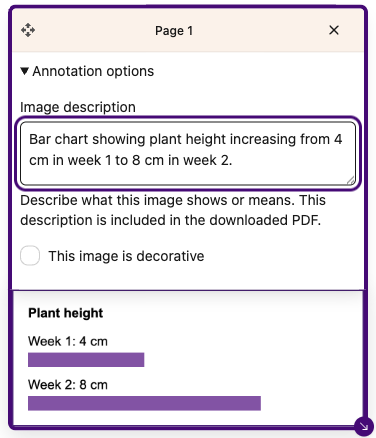
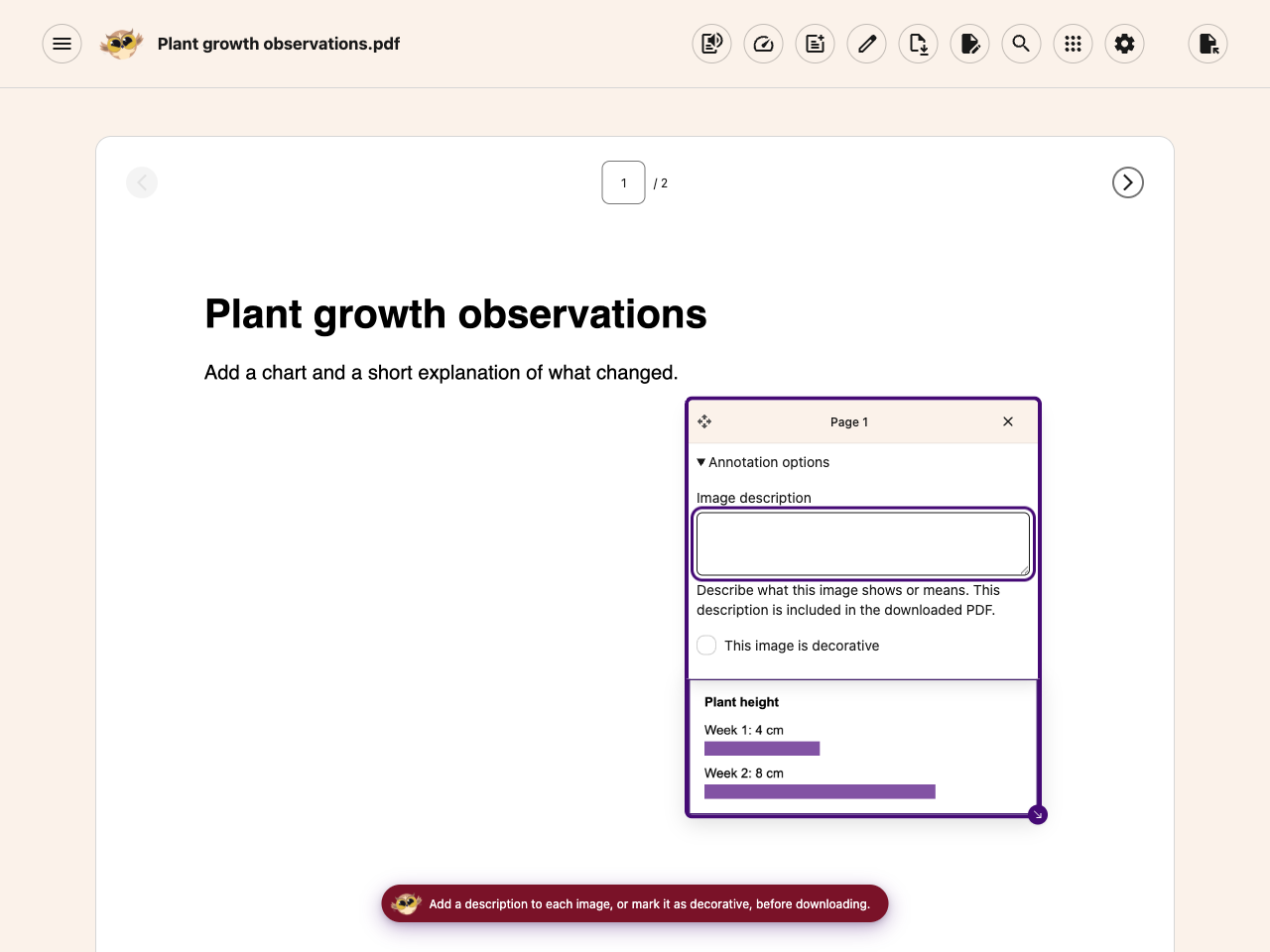
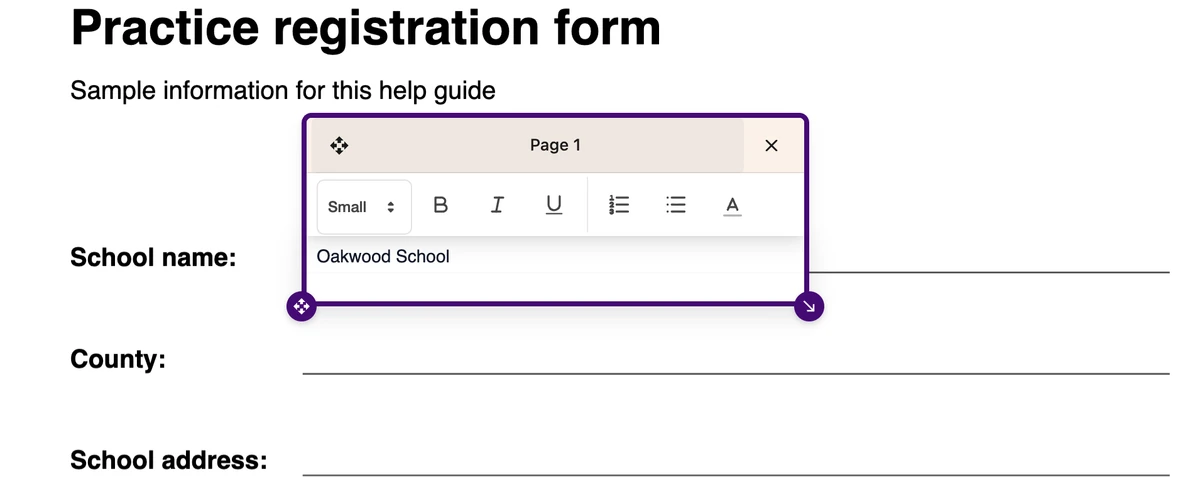
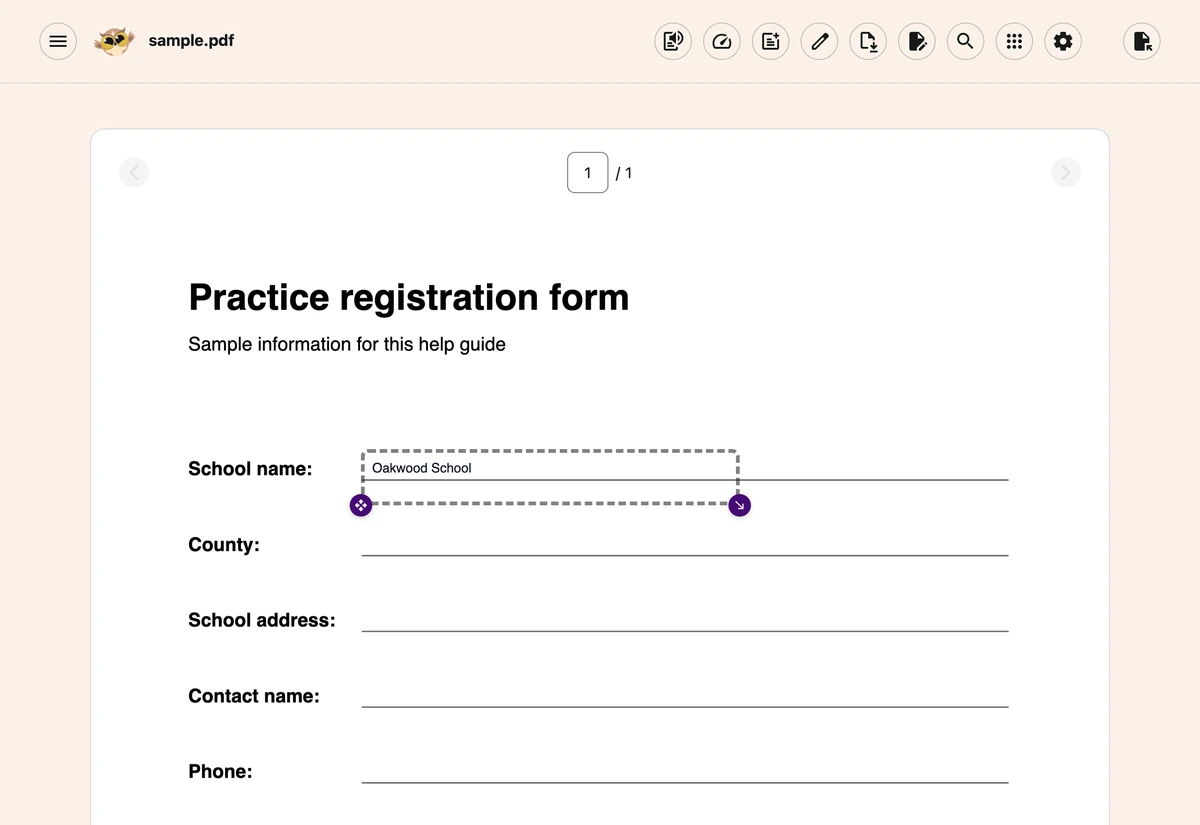
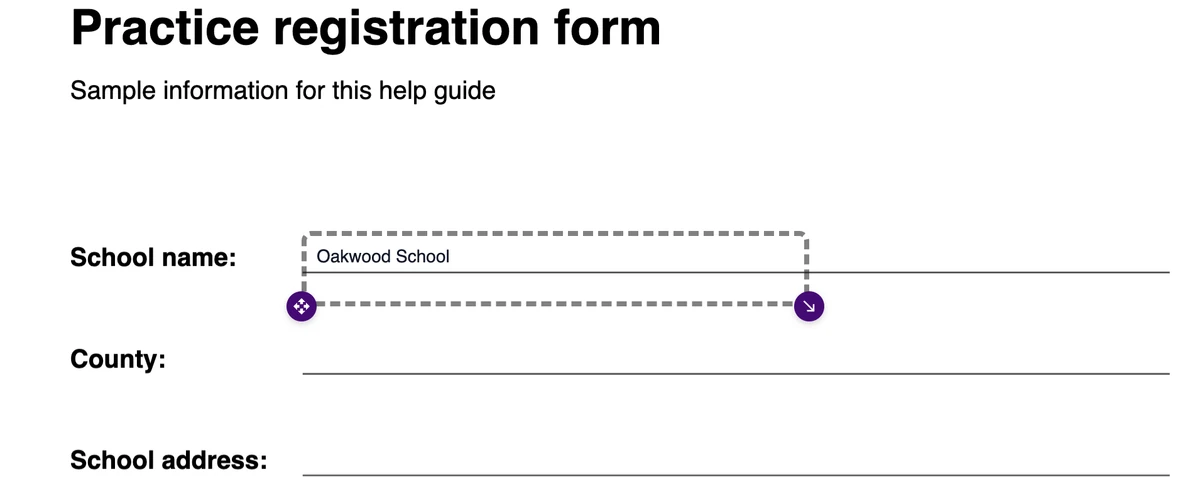
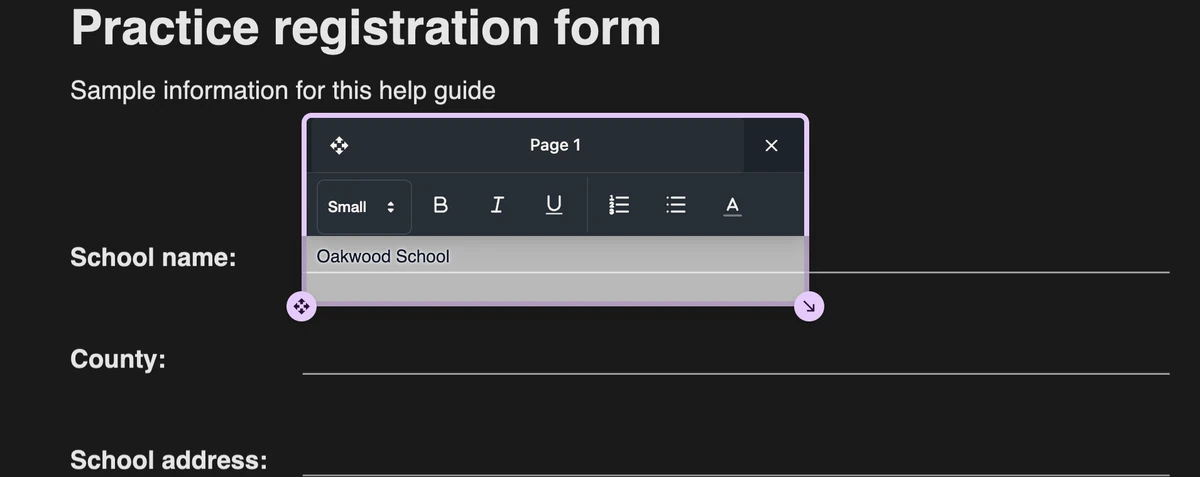
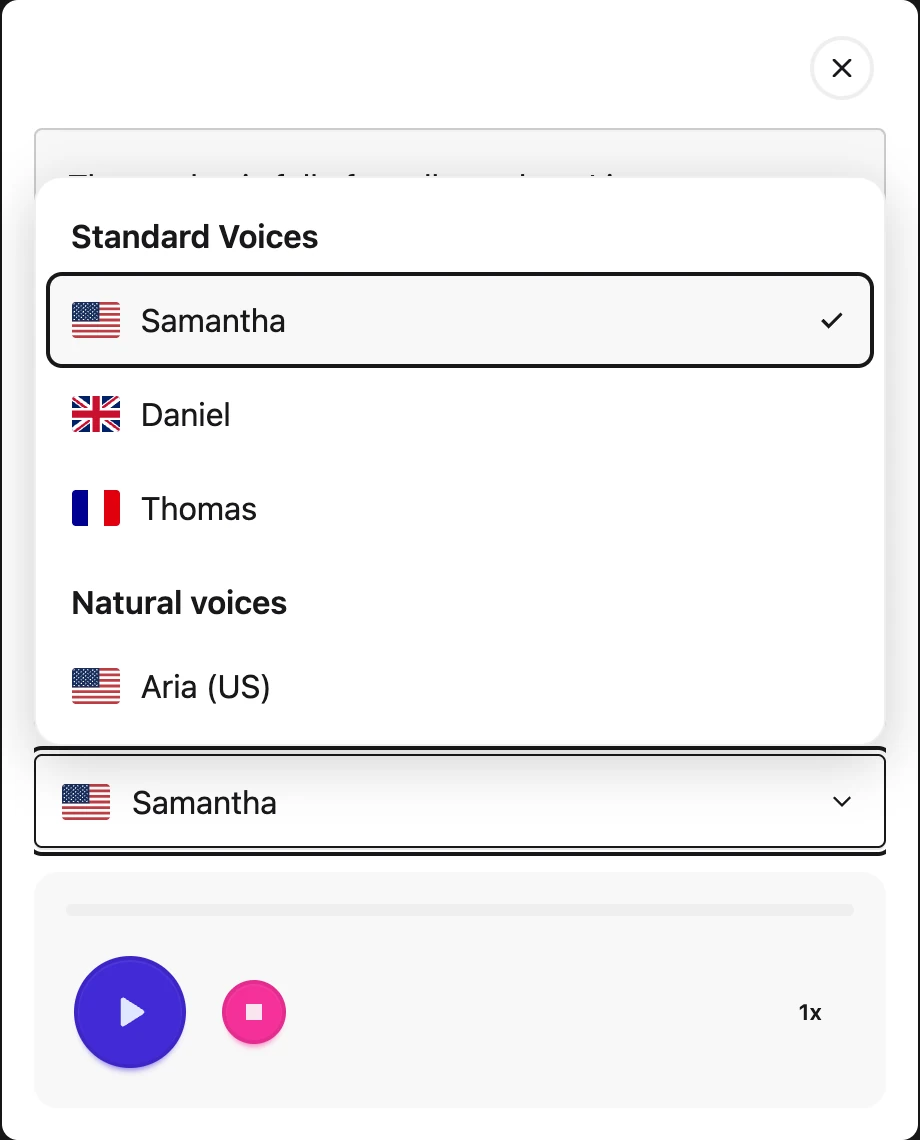
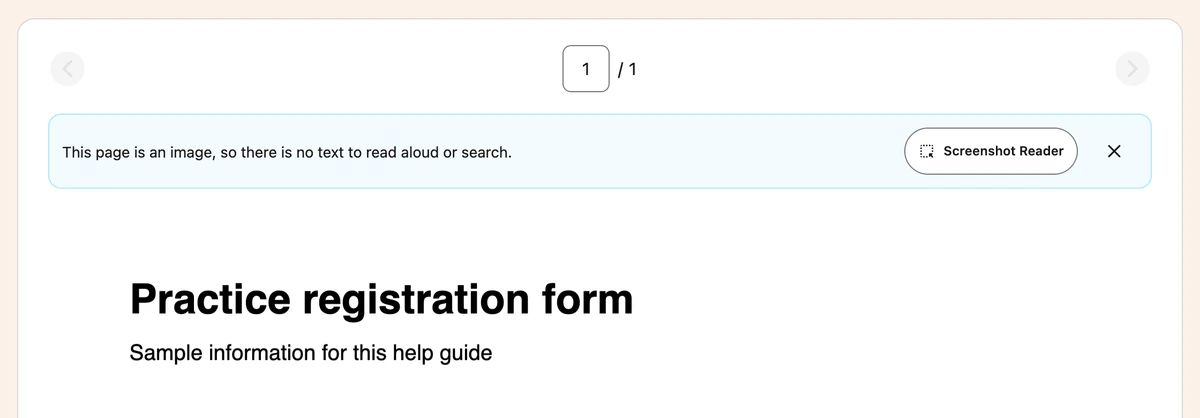
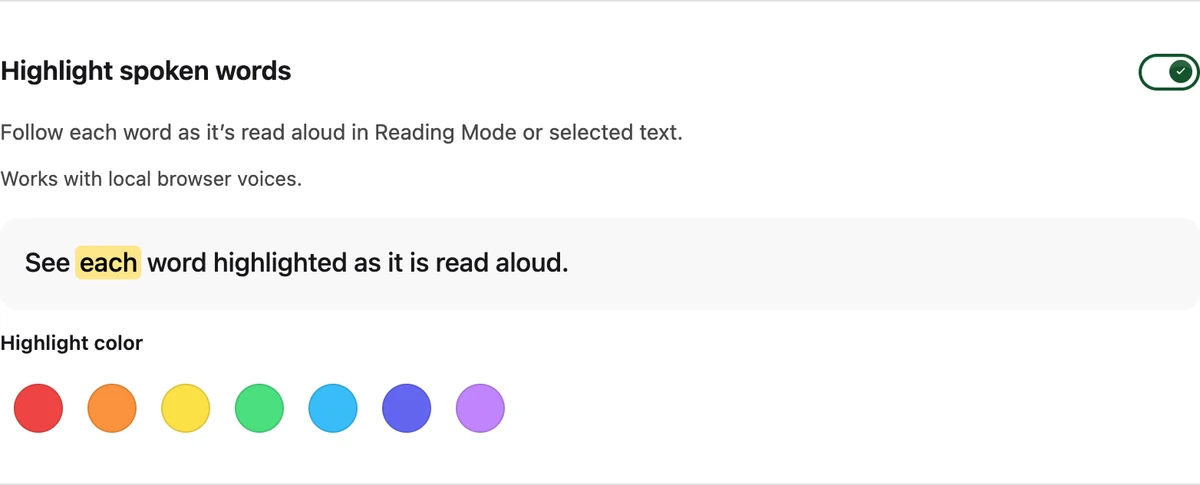
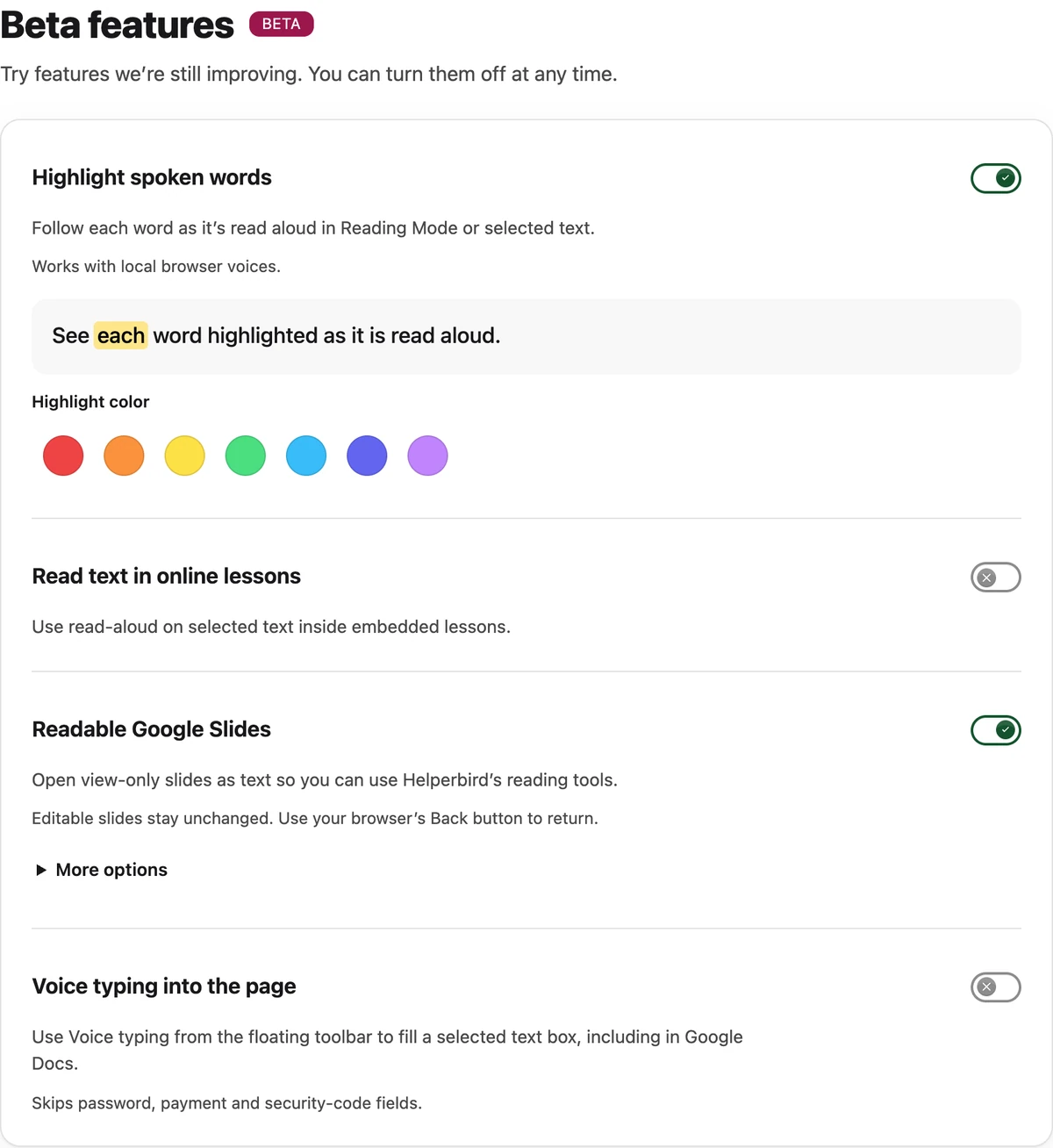
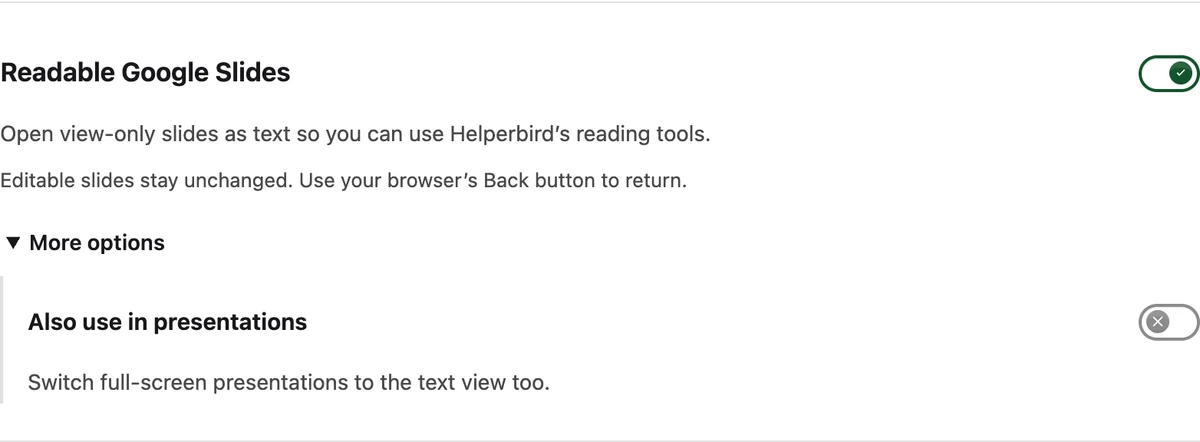
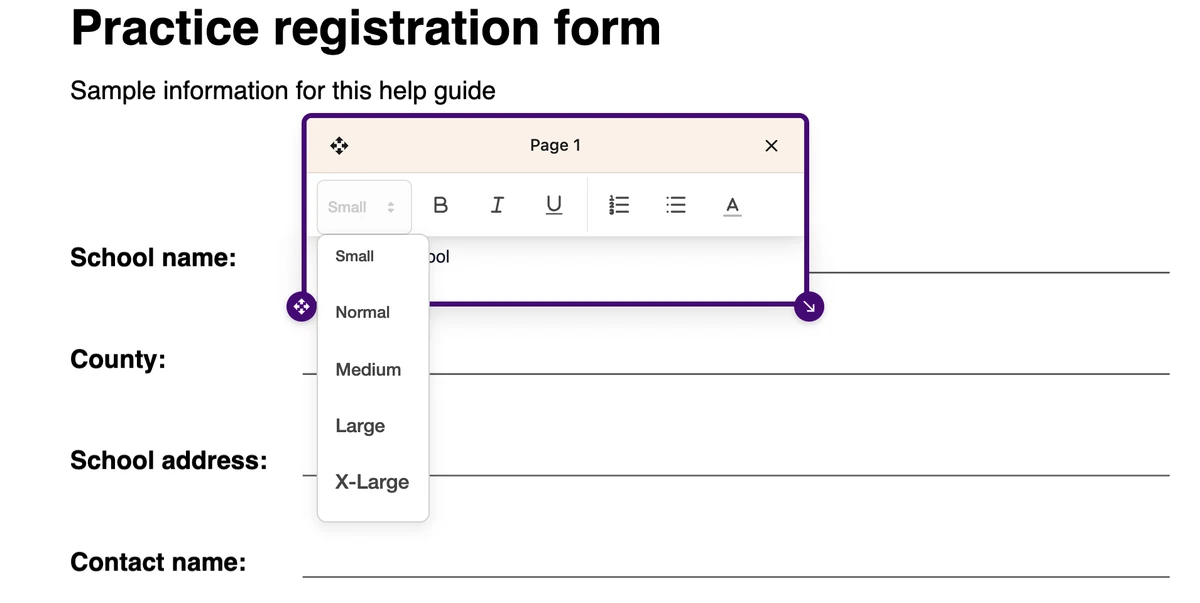
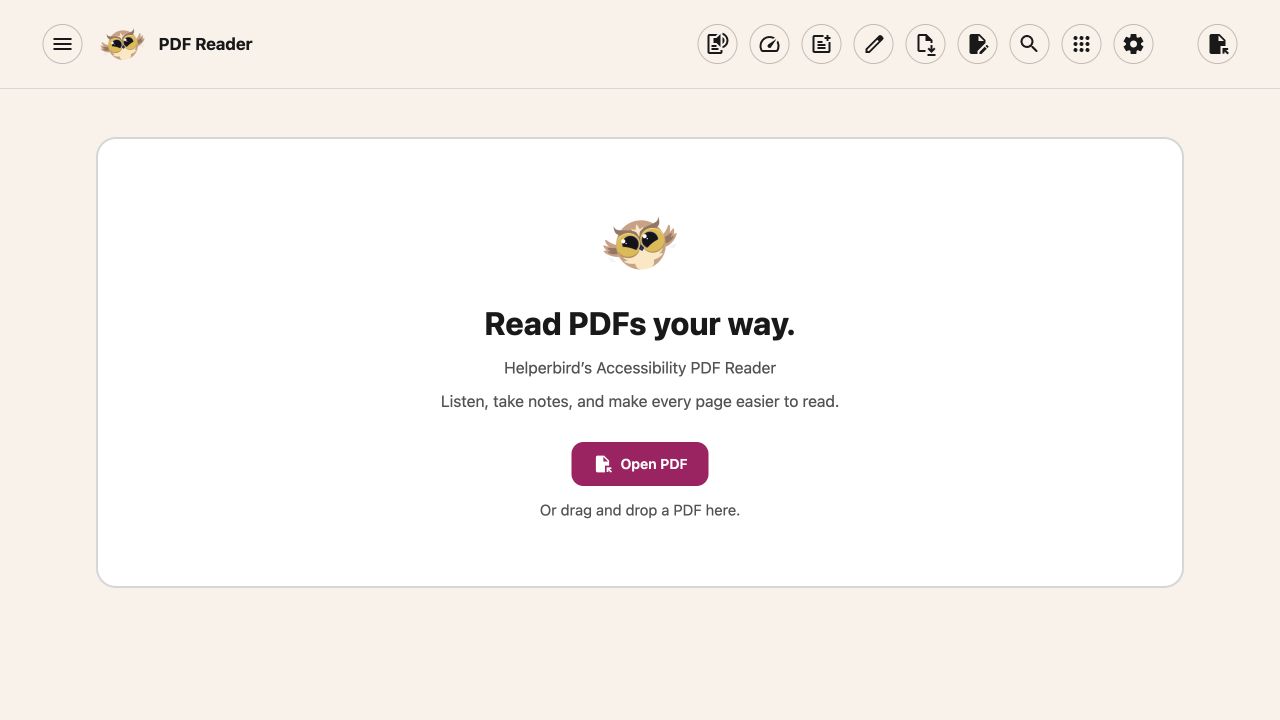

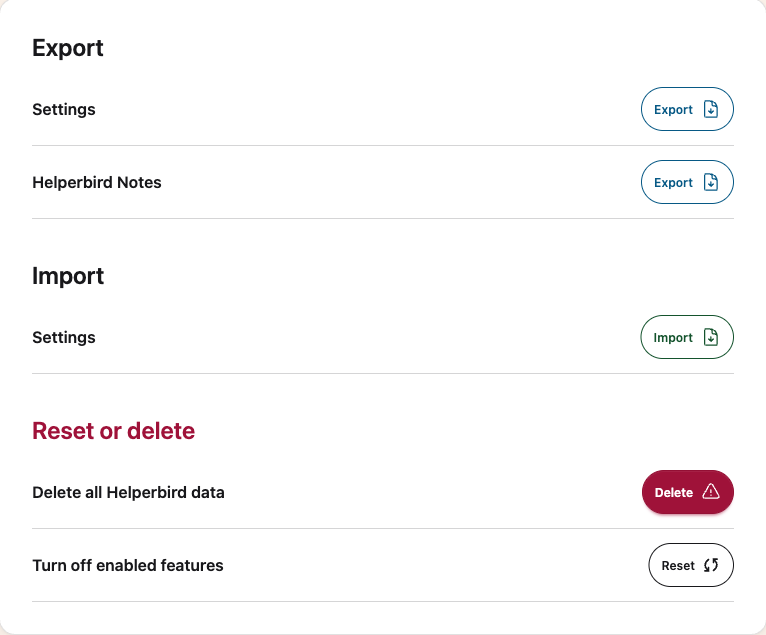
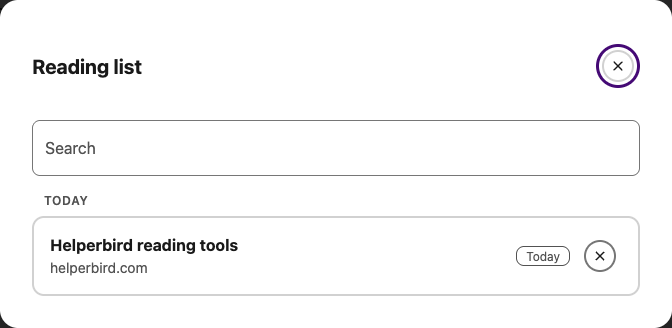
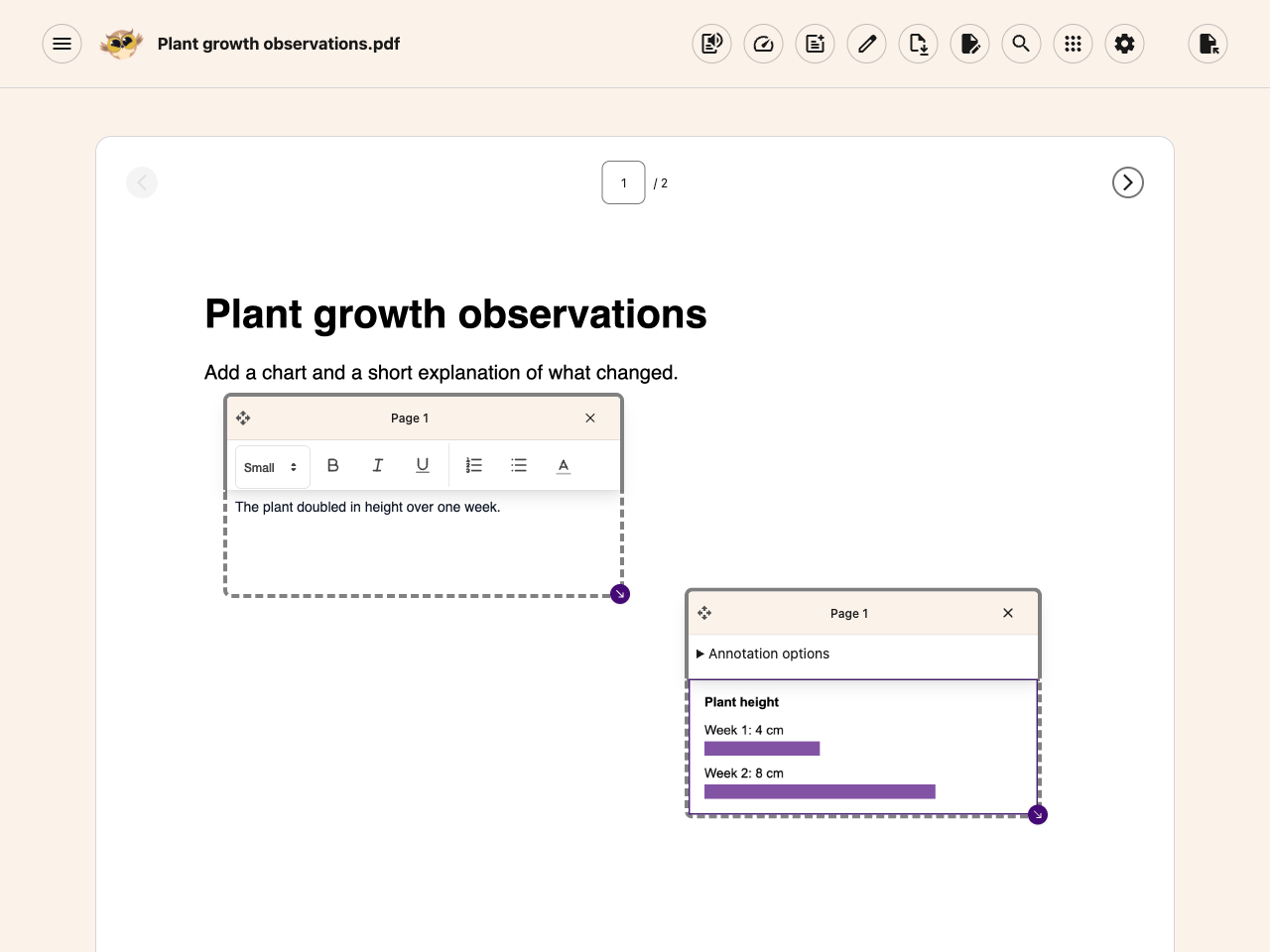

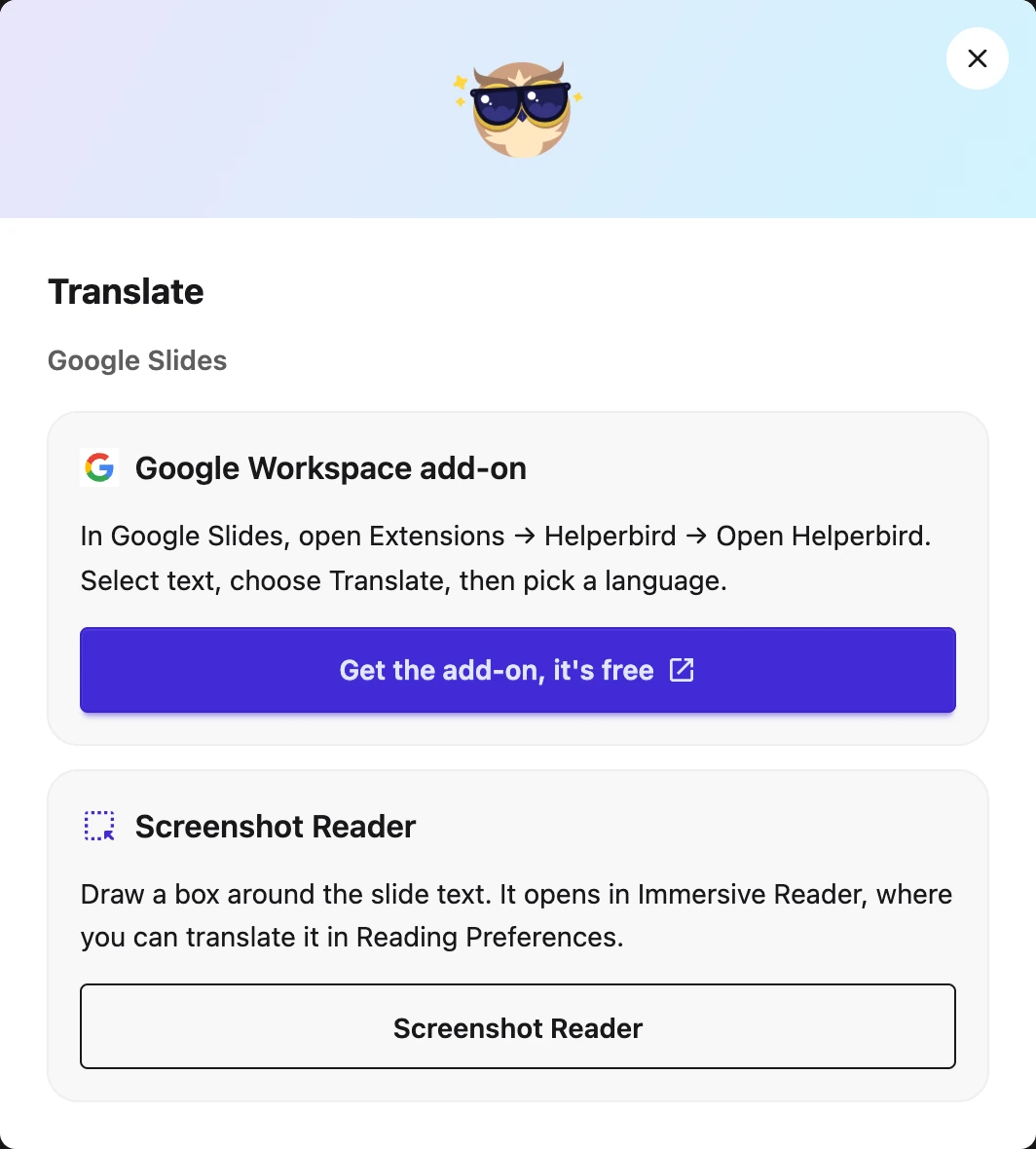
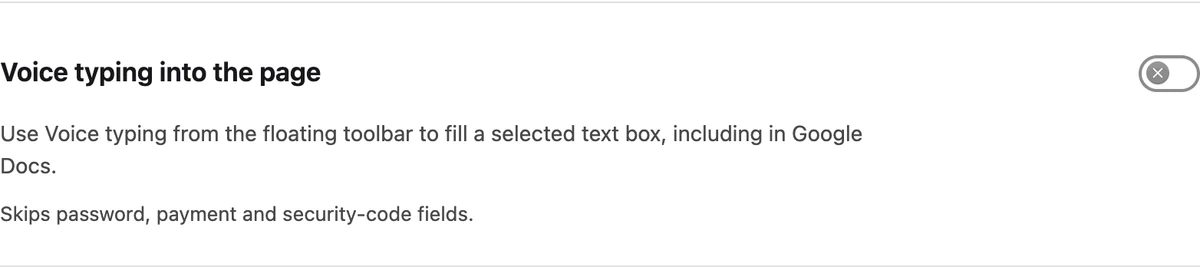
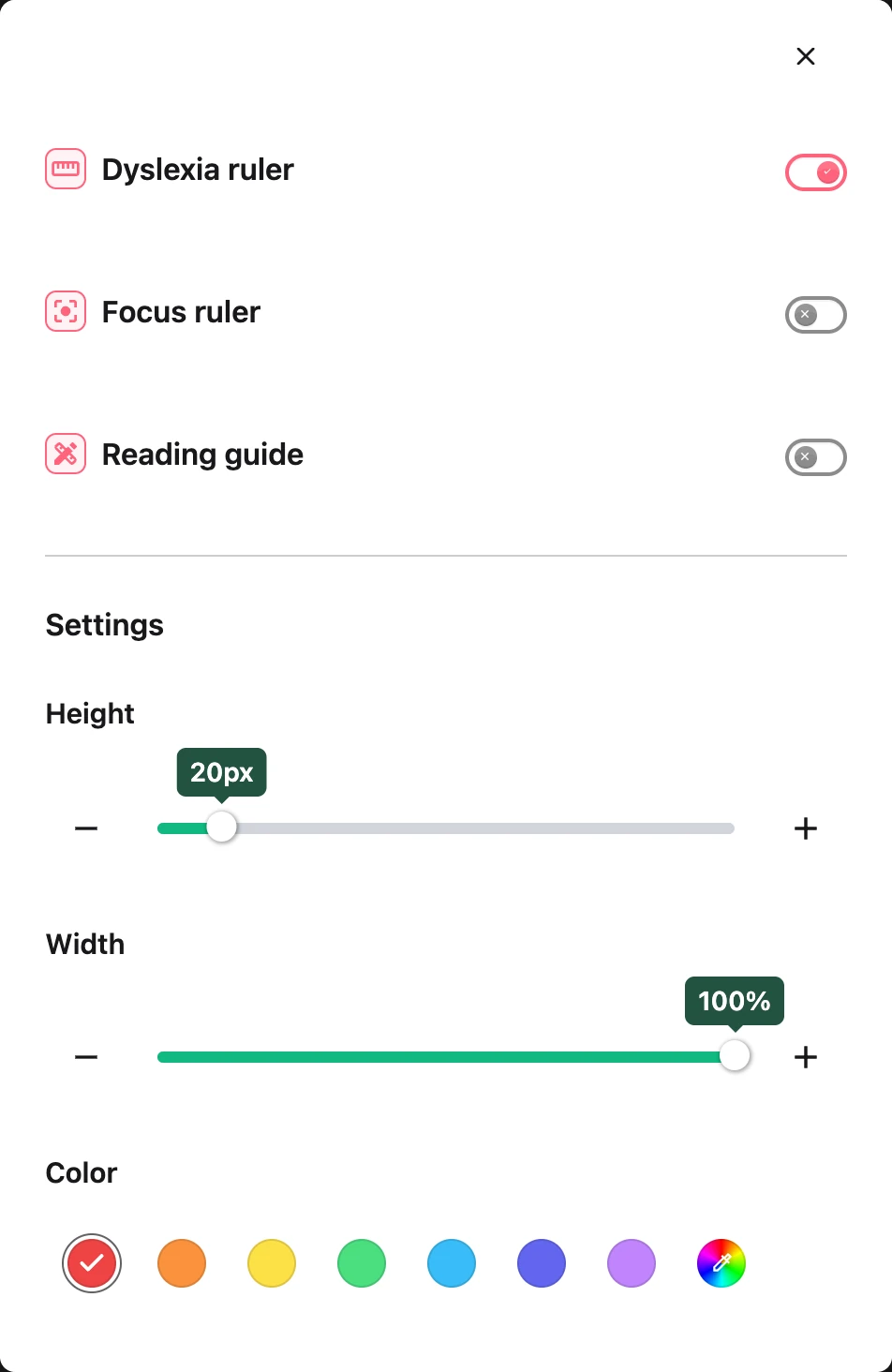
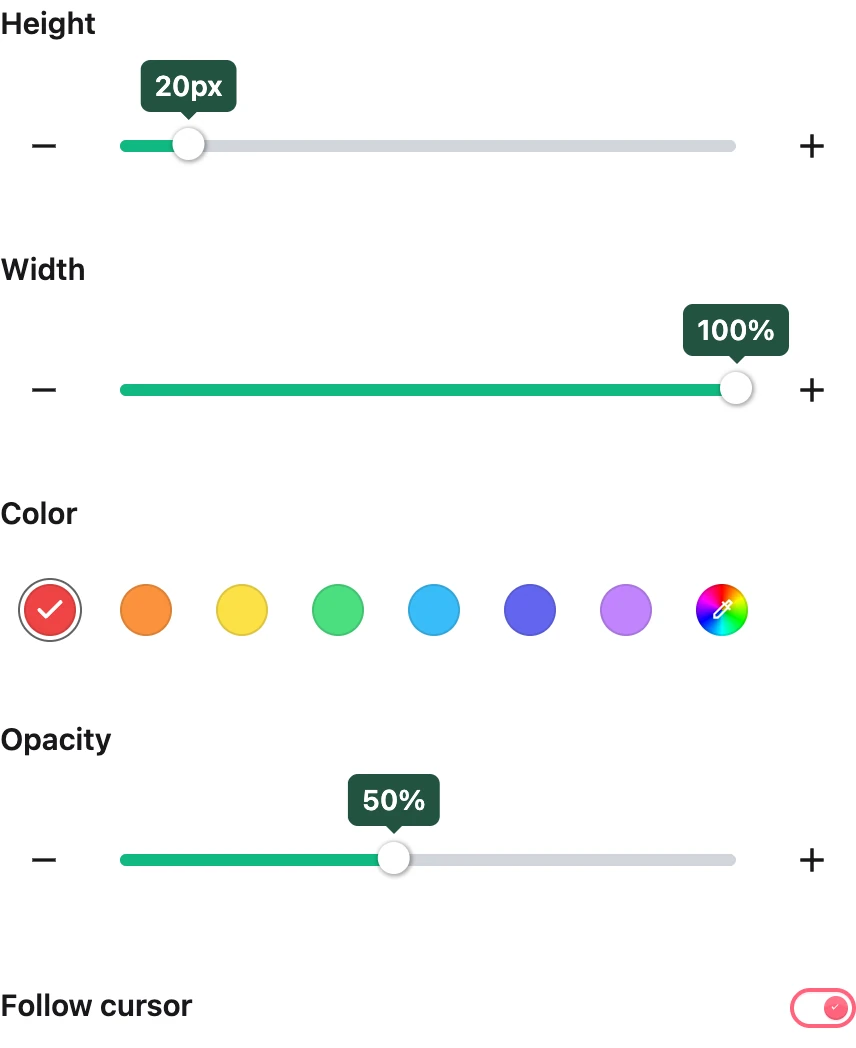
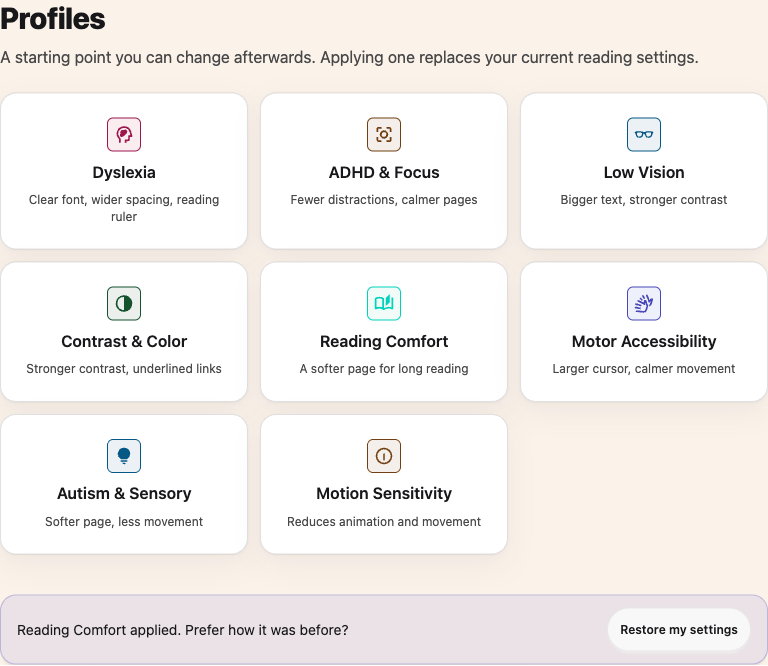
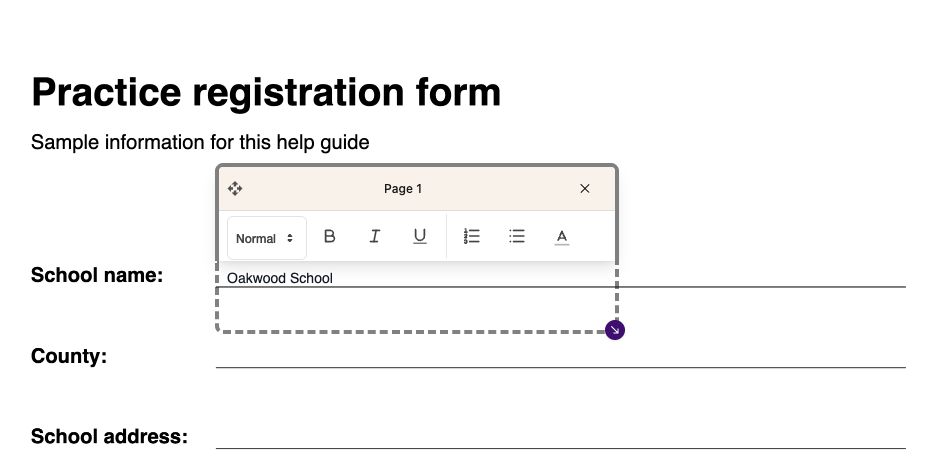
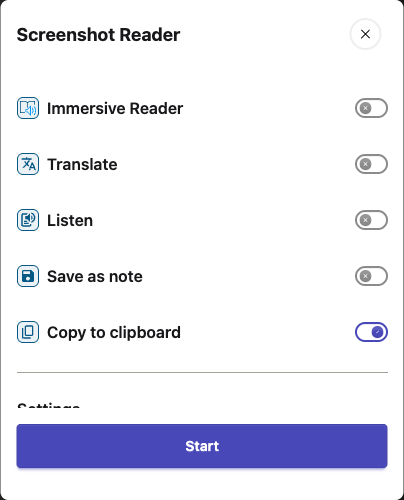
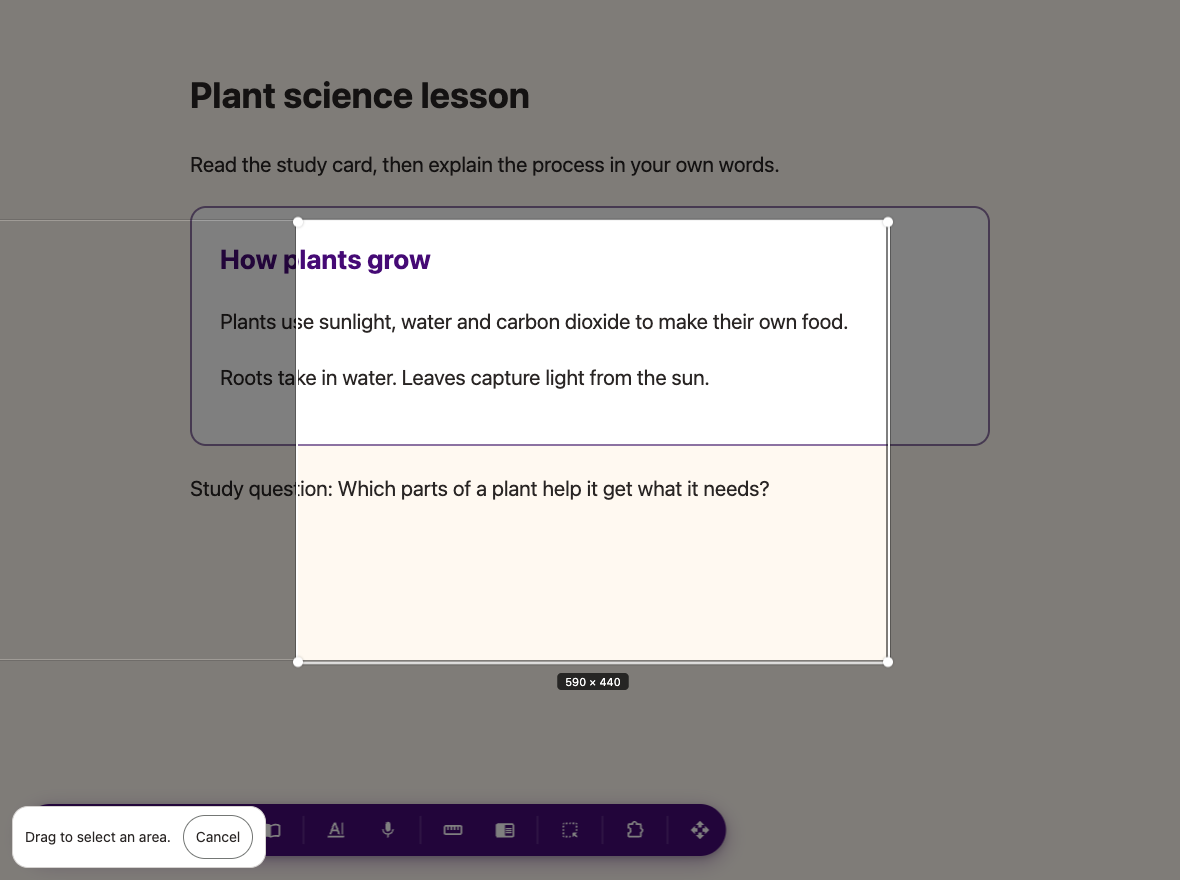
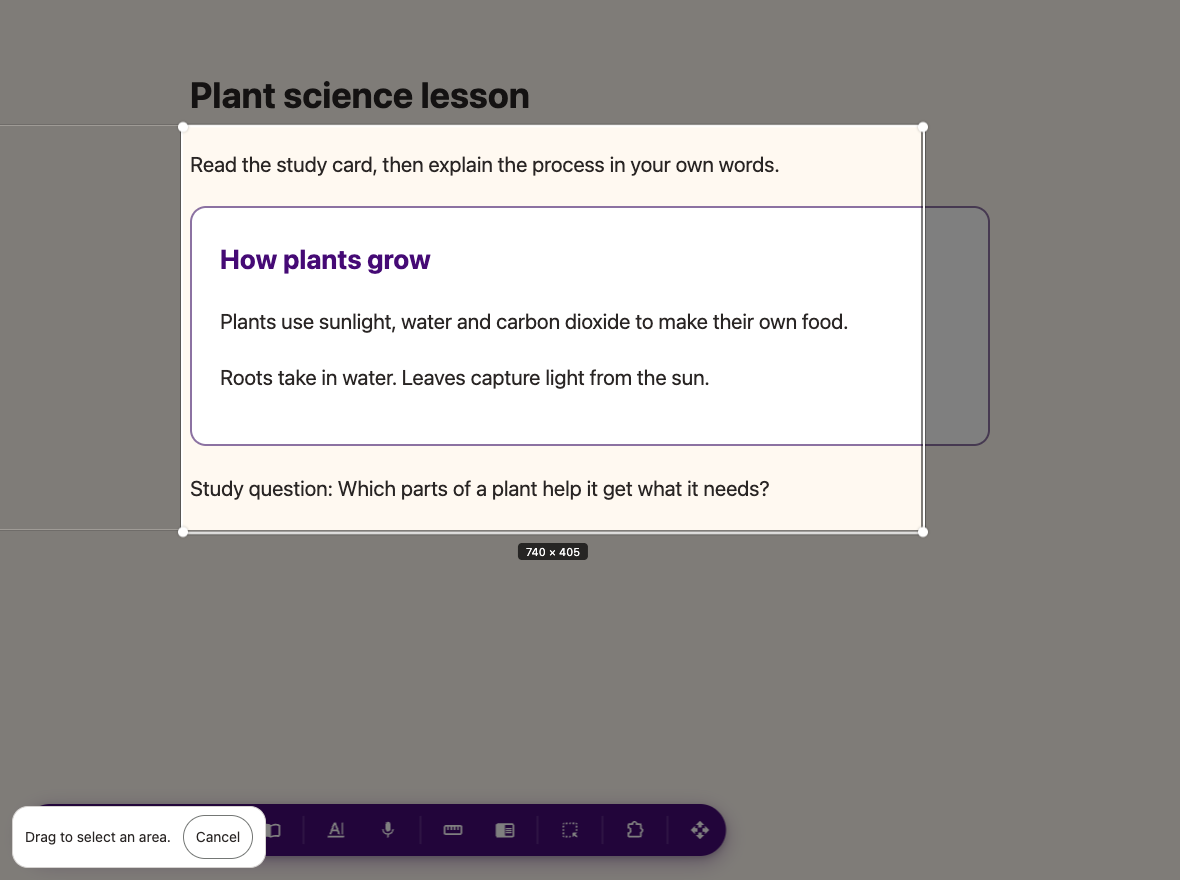
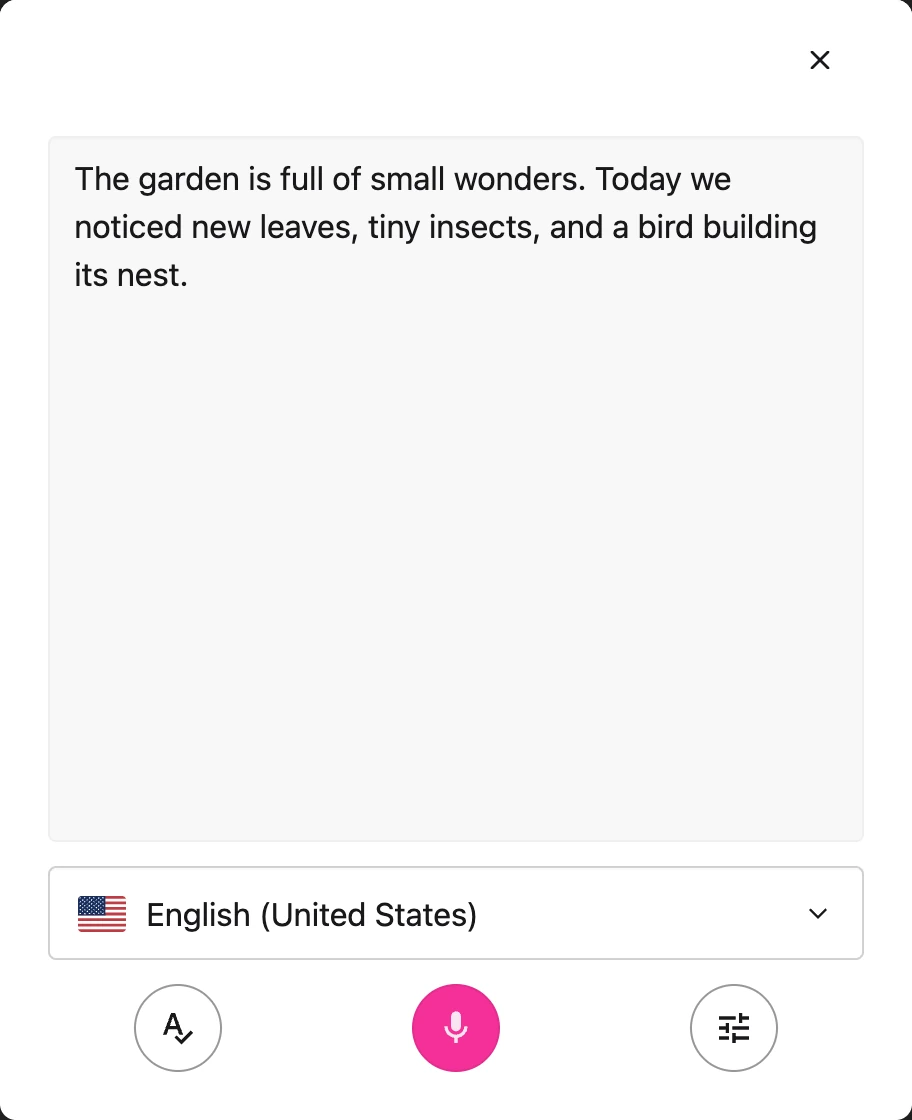

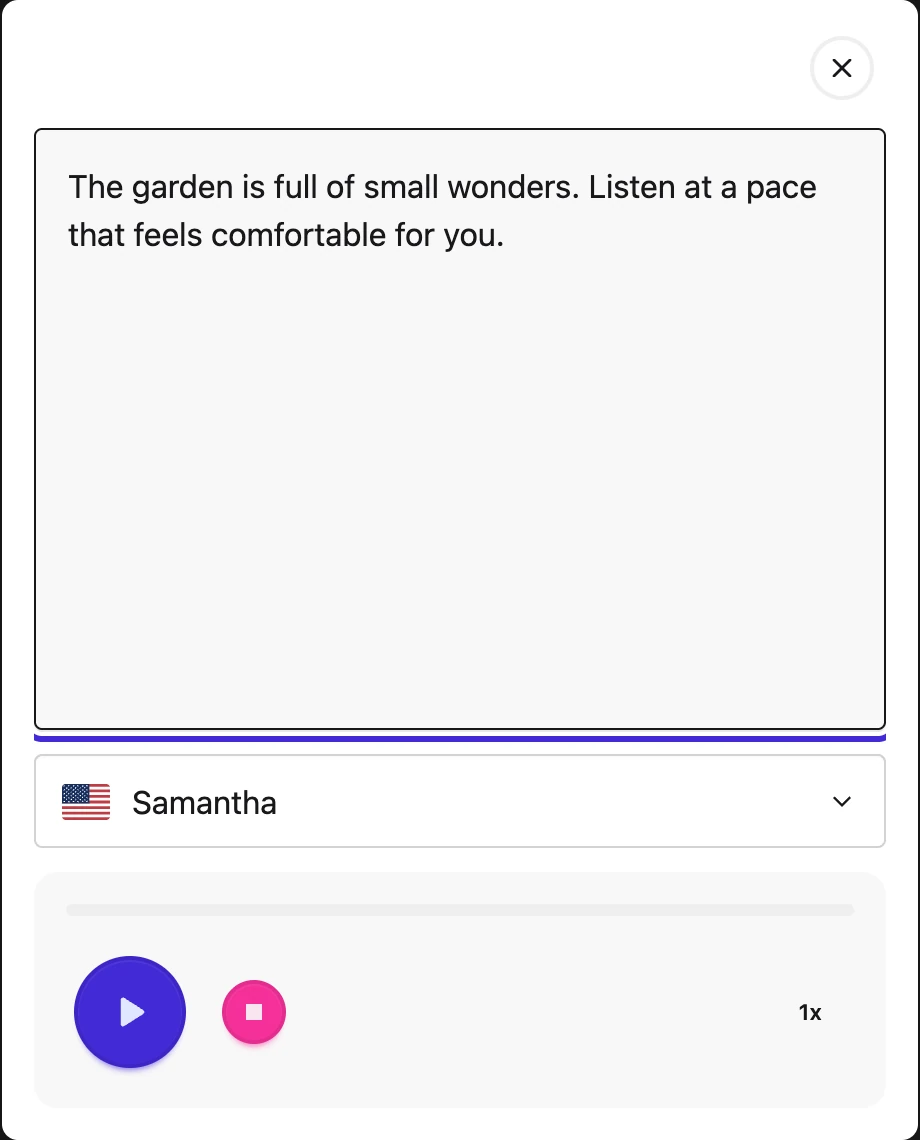
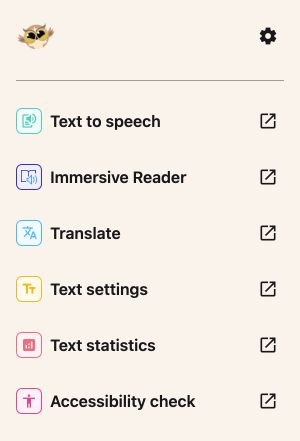
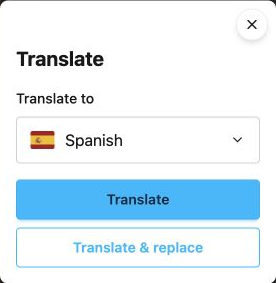
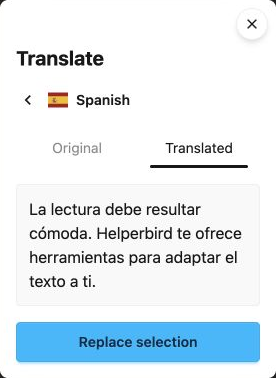
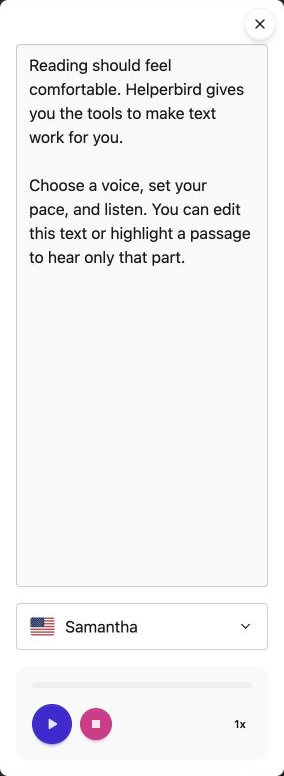
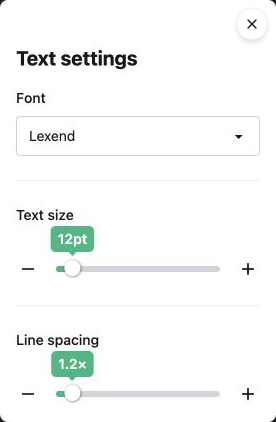
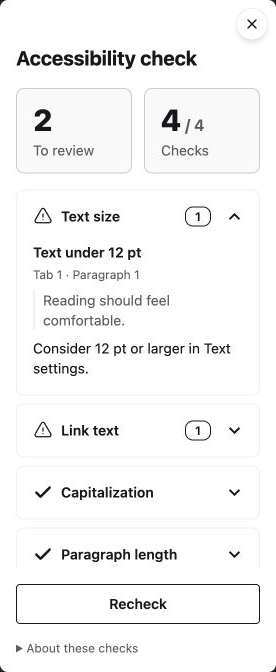
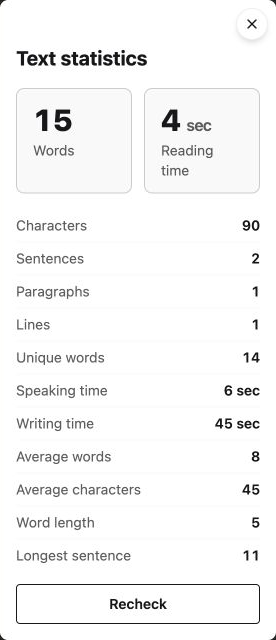
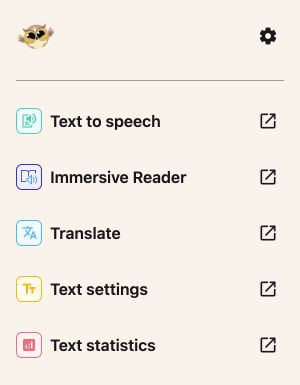
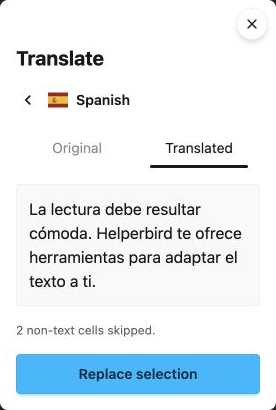
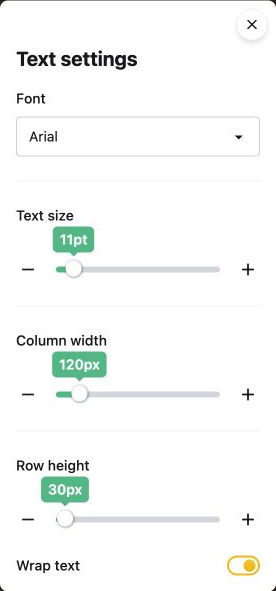
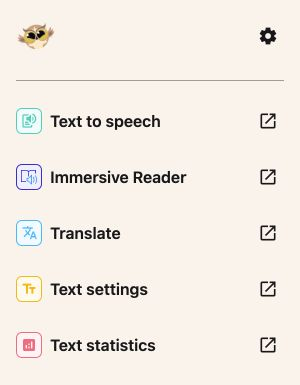
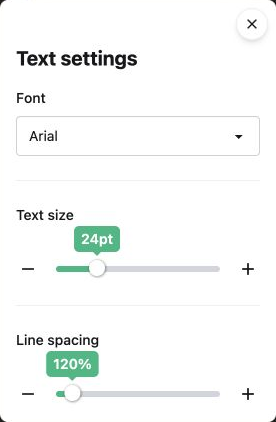
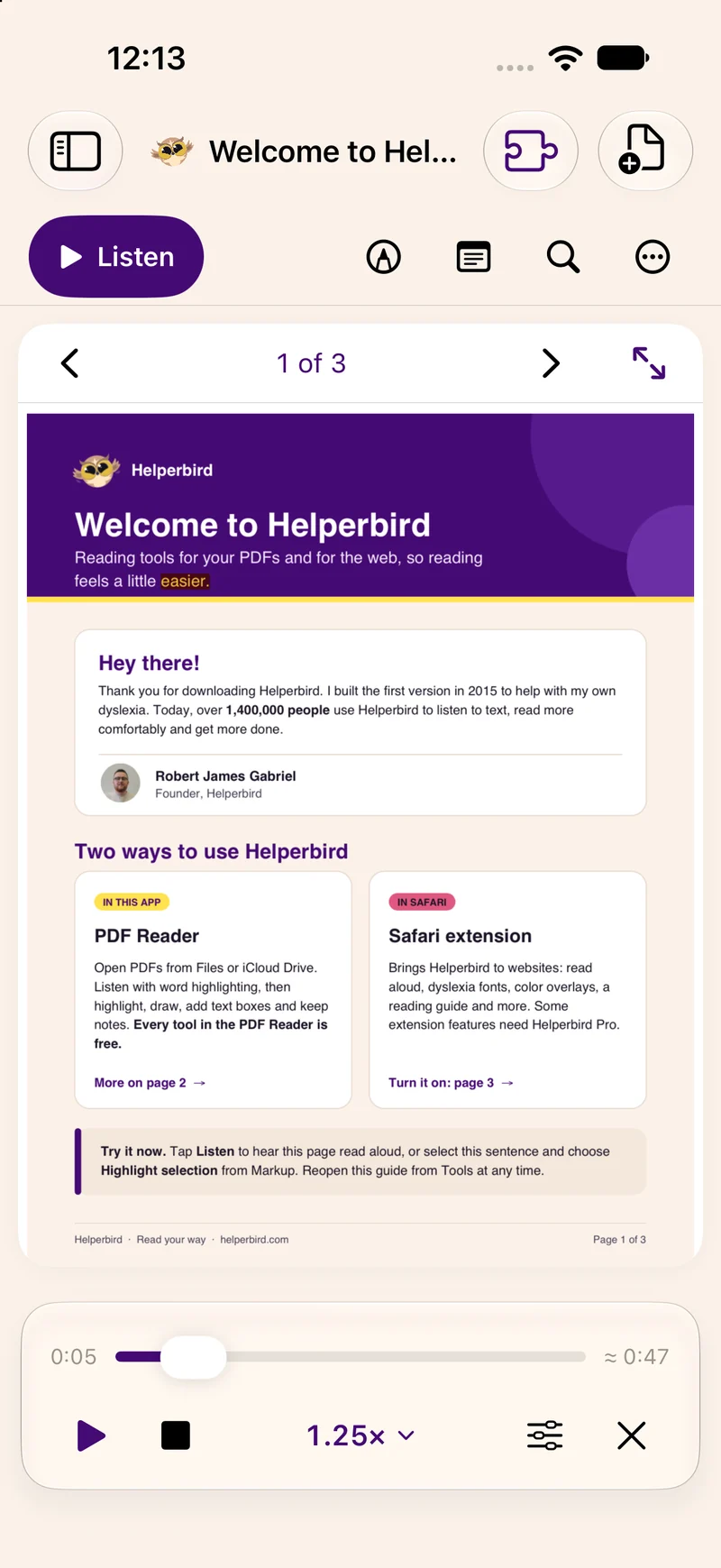 View full-size image (opens in a new tab)
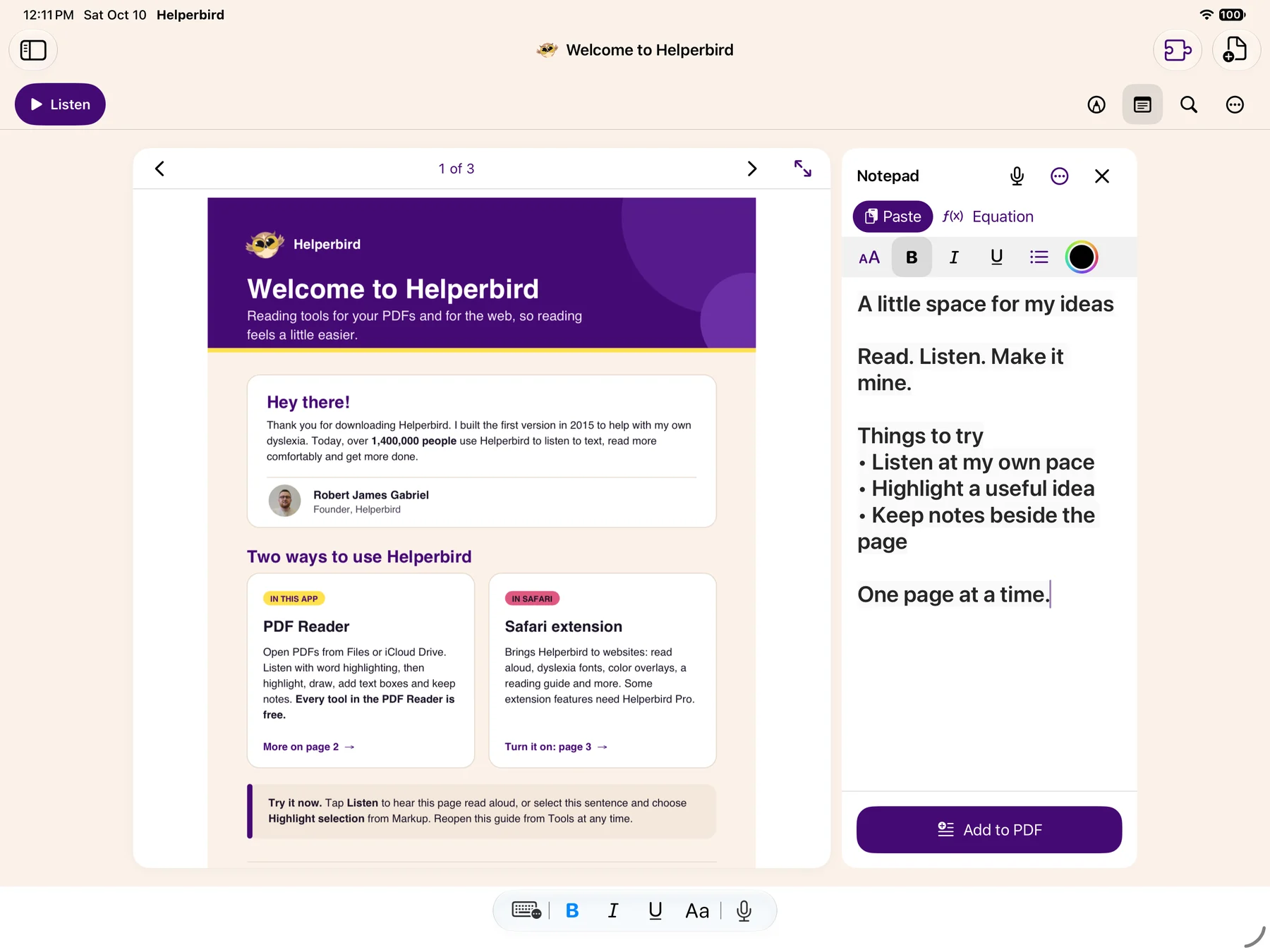 View full-size image (opens in a new tab)
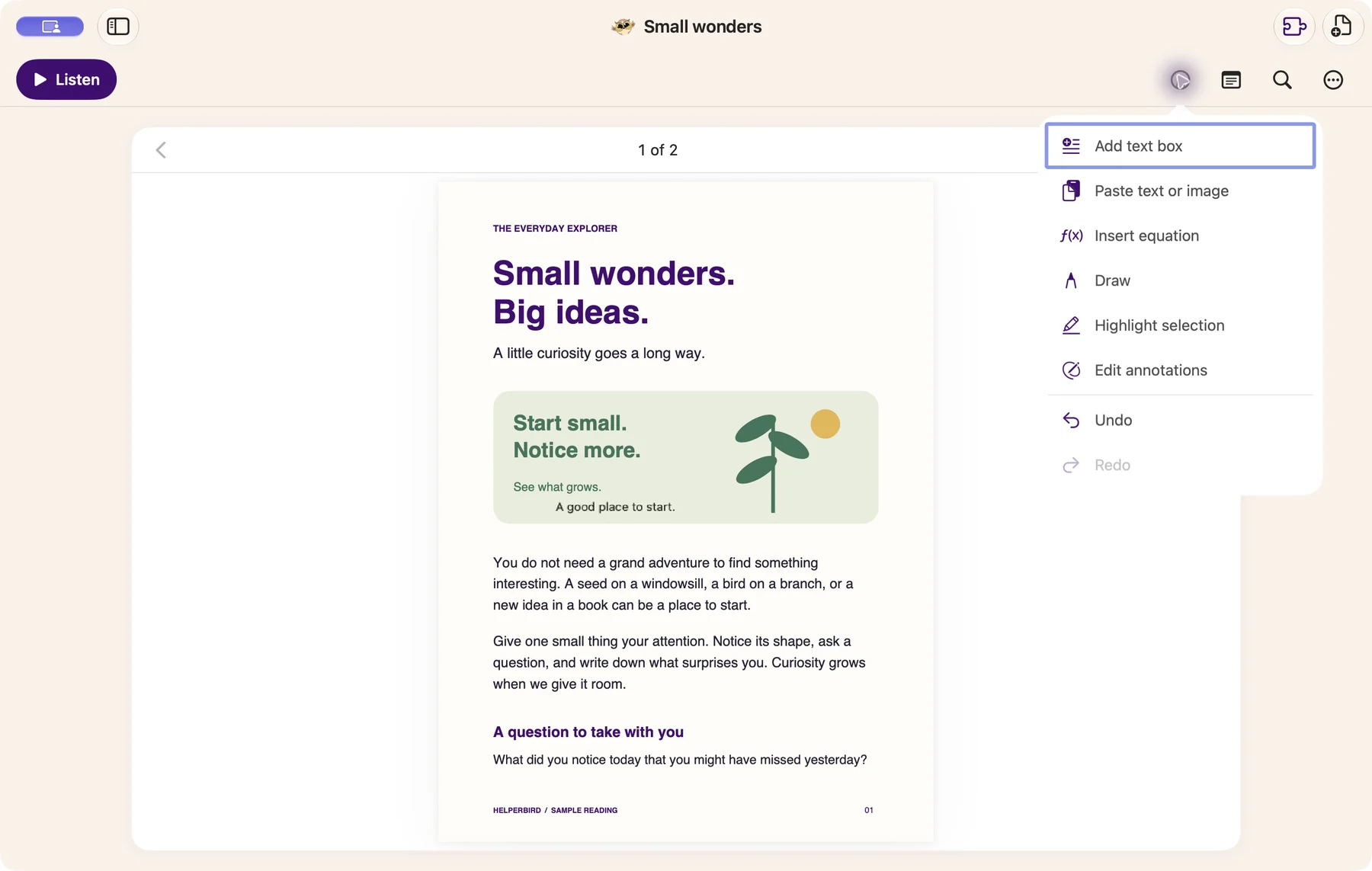 View full-size image (opens in a new tab)
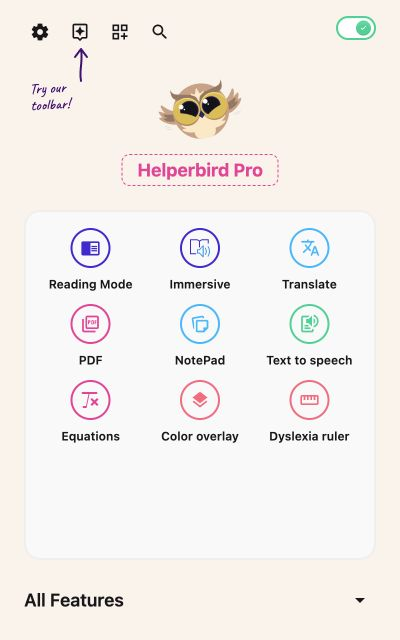
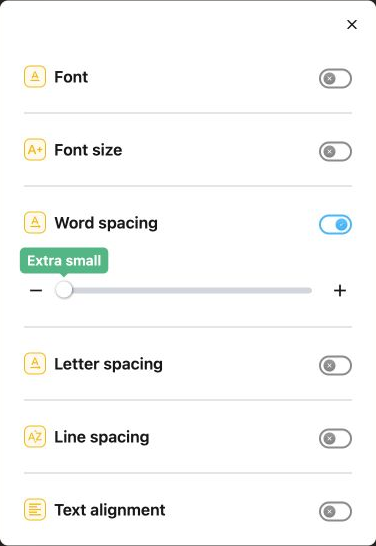
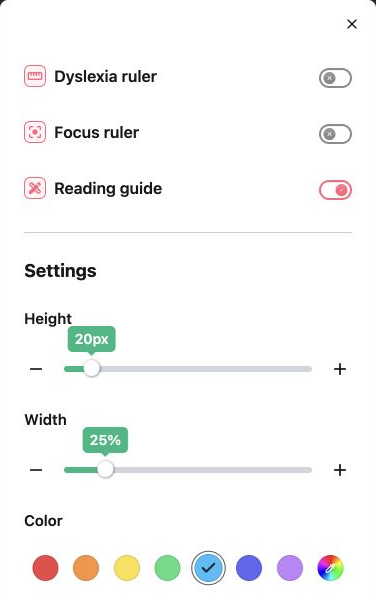
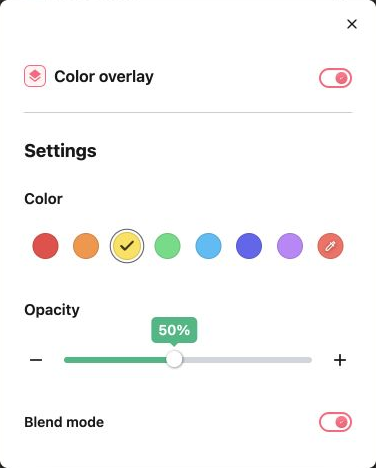
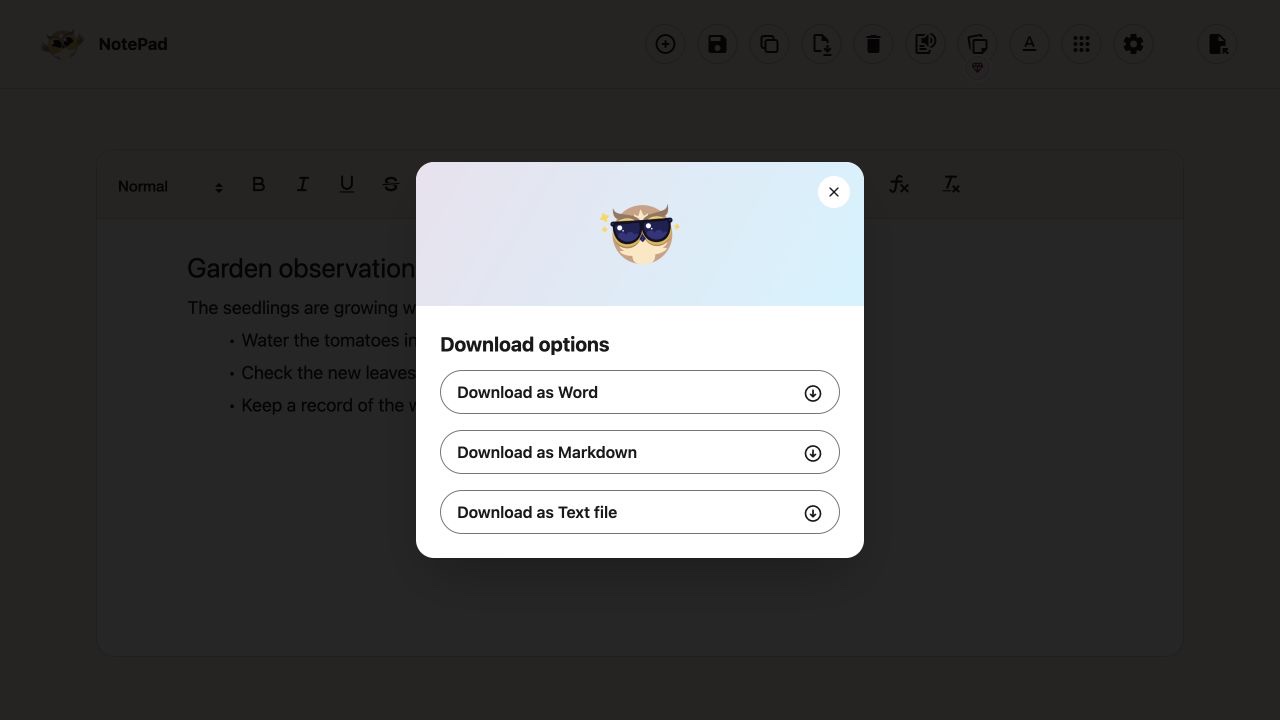
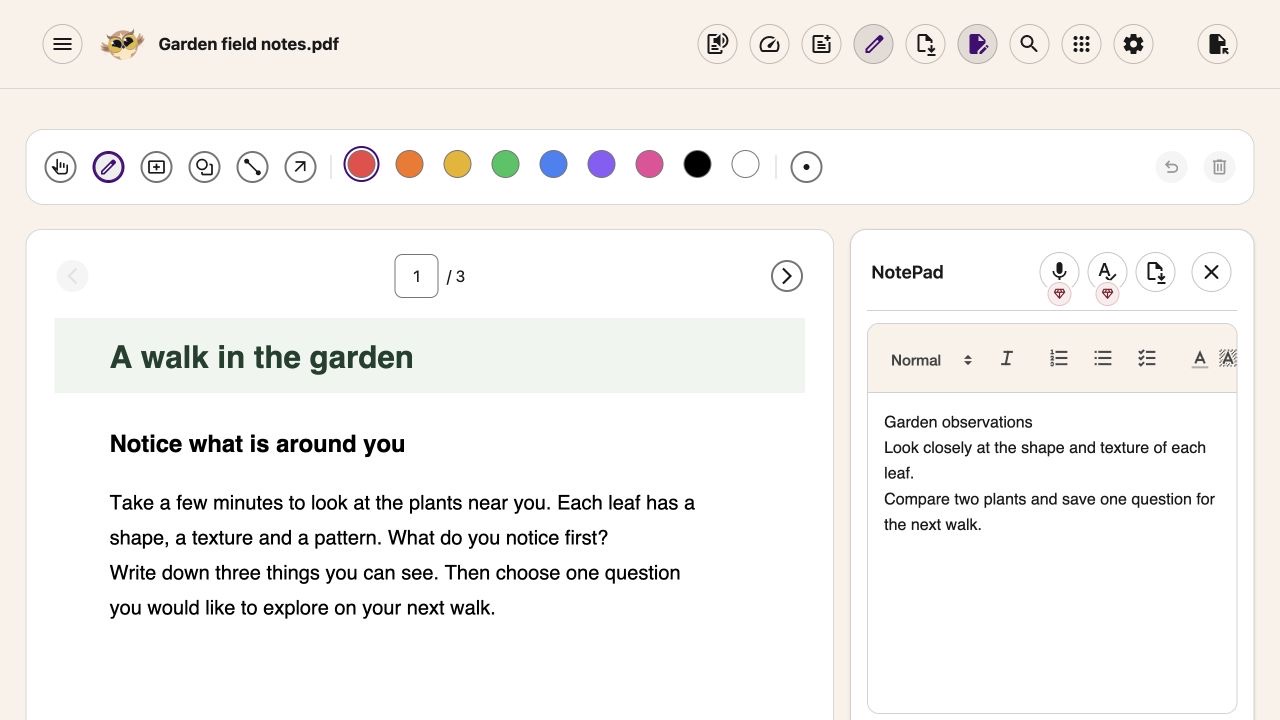
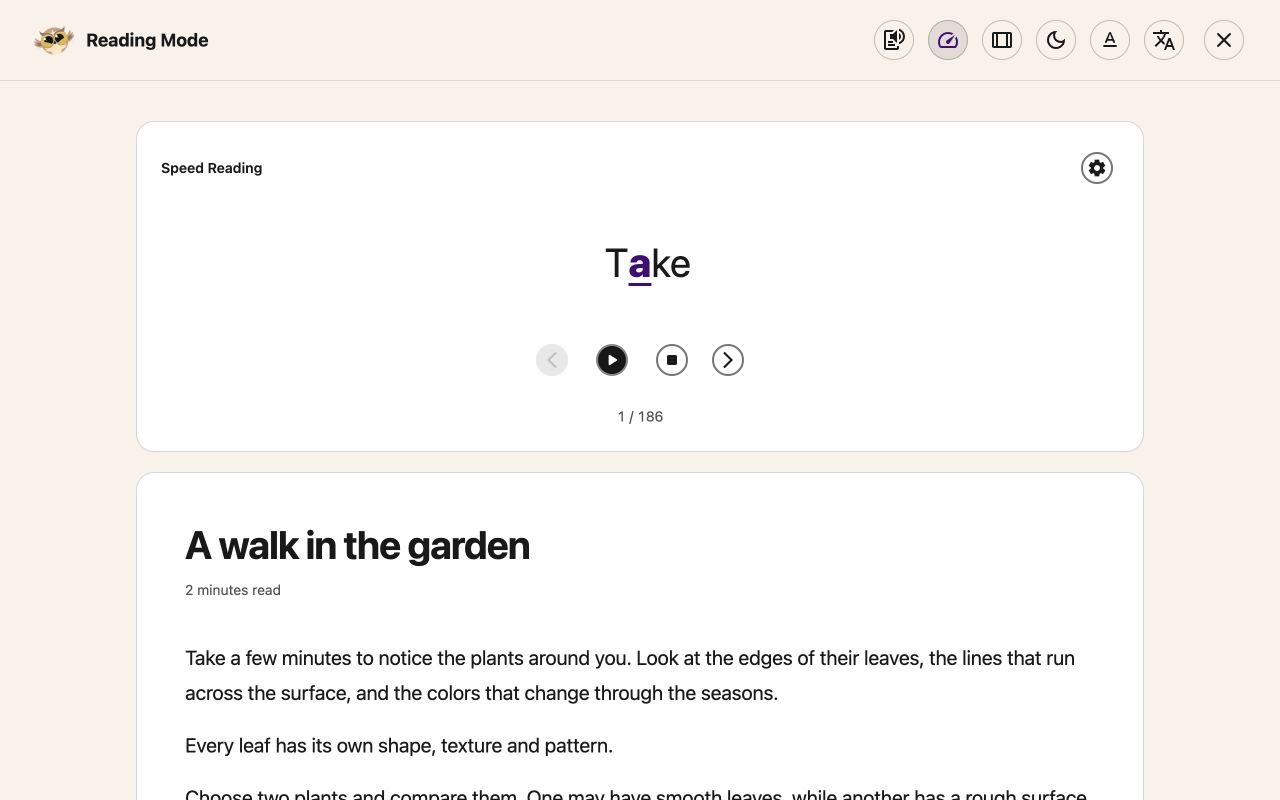
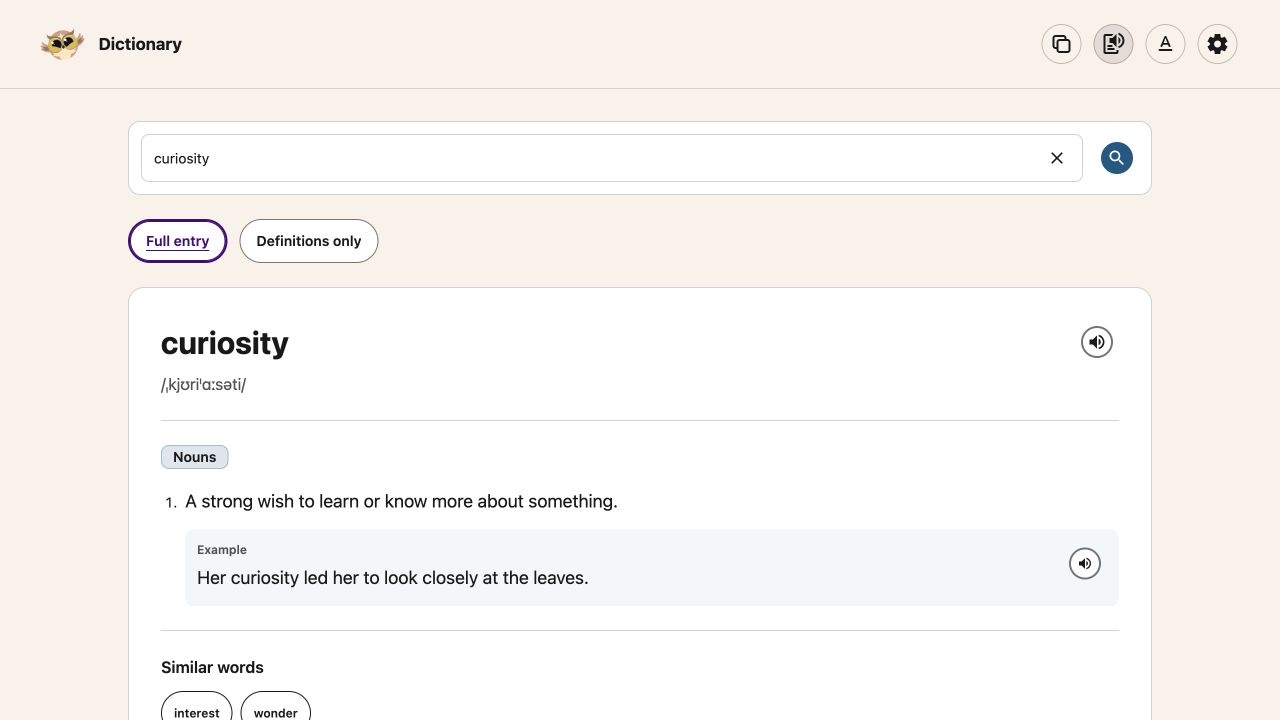
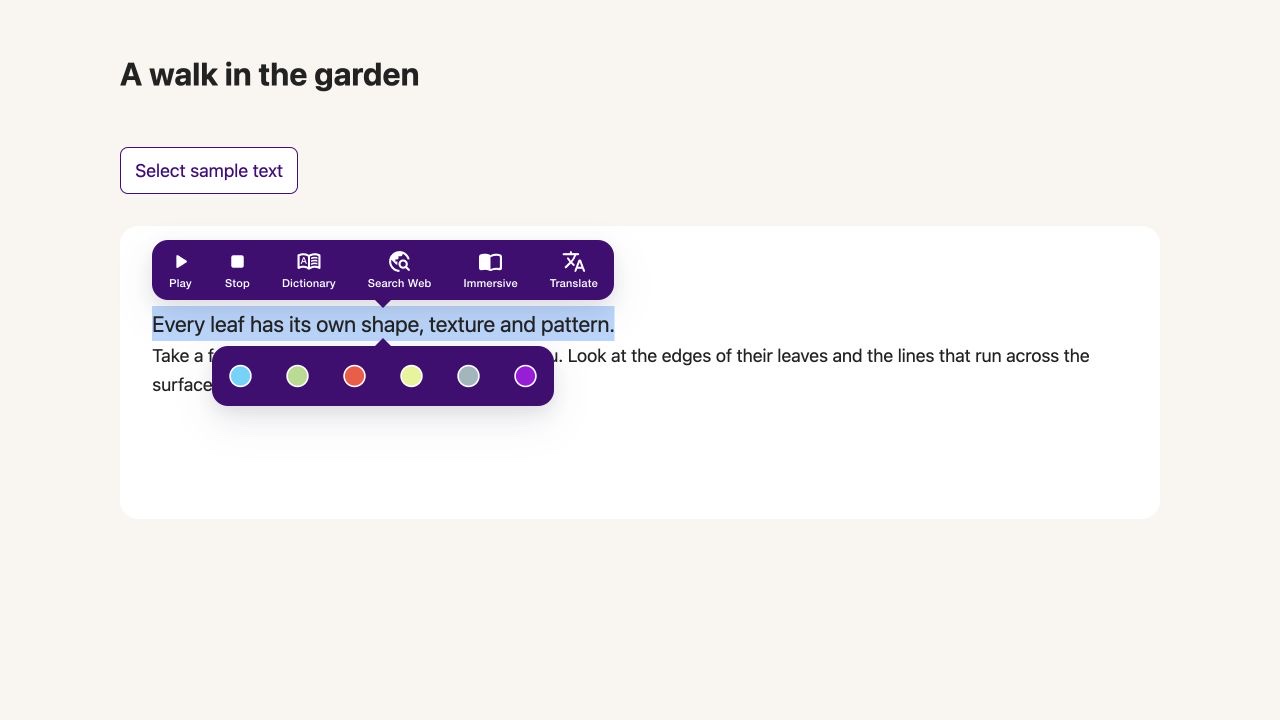
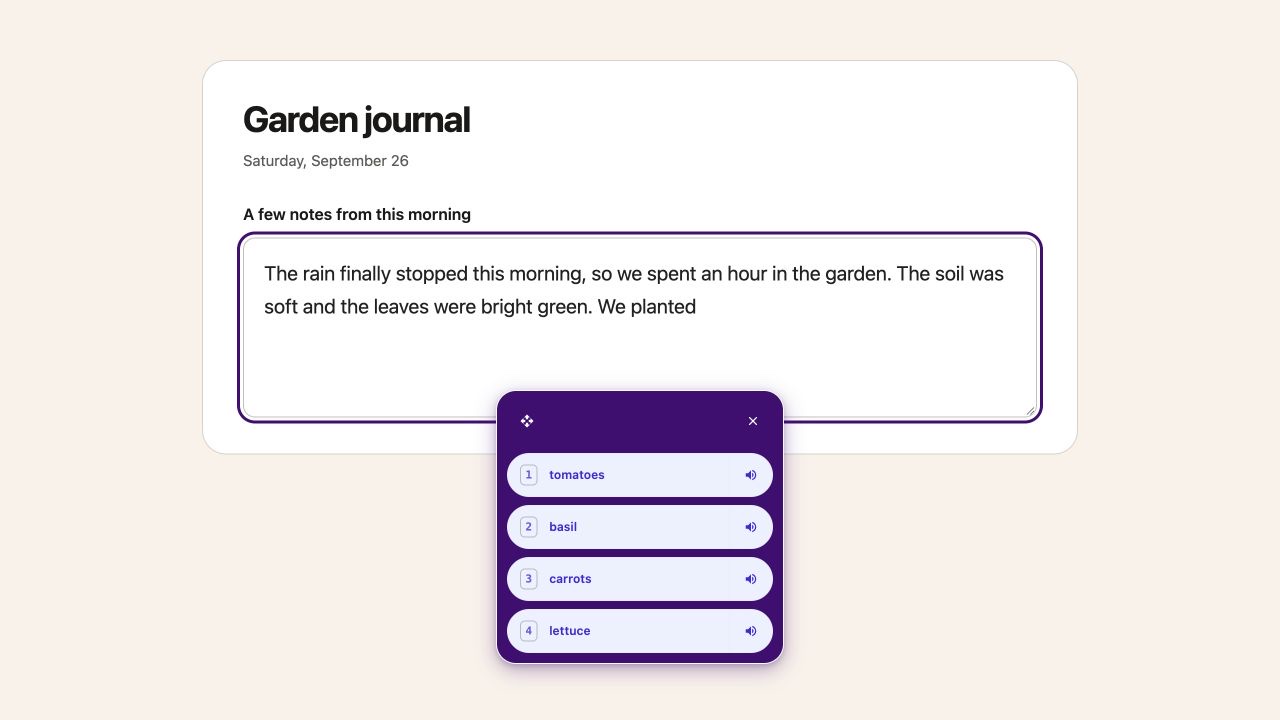
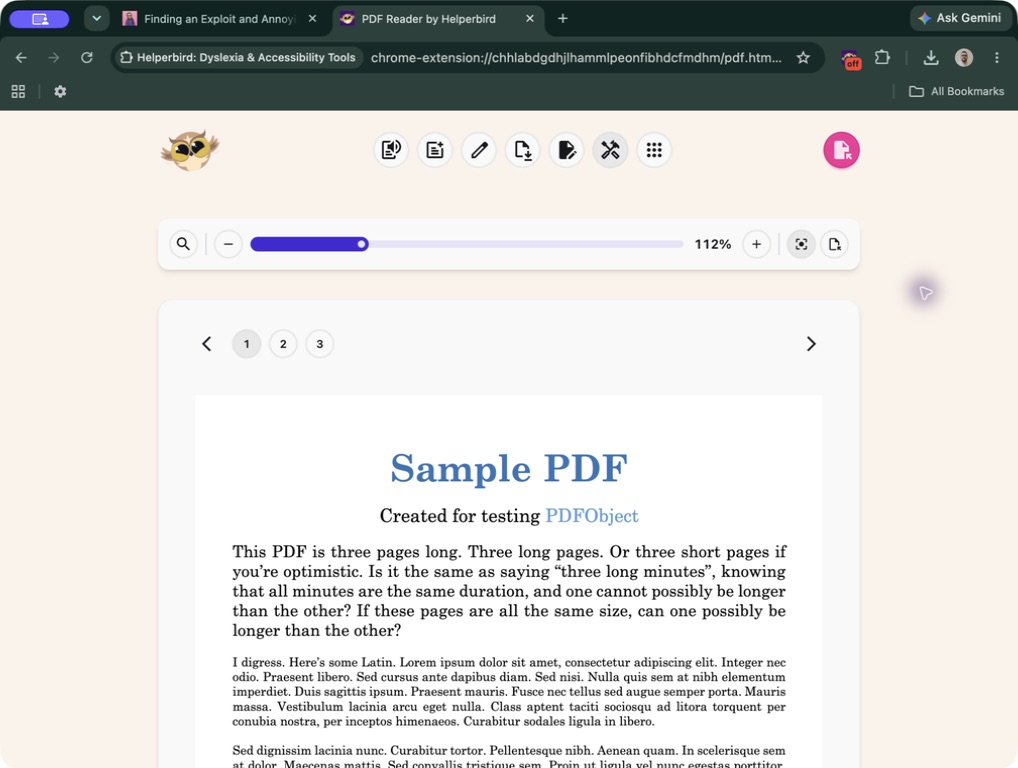
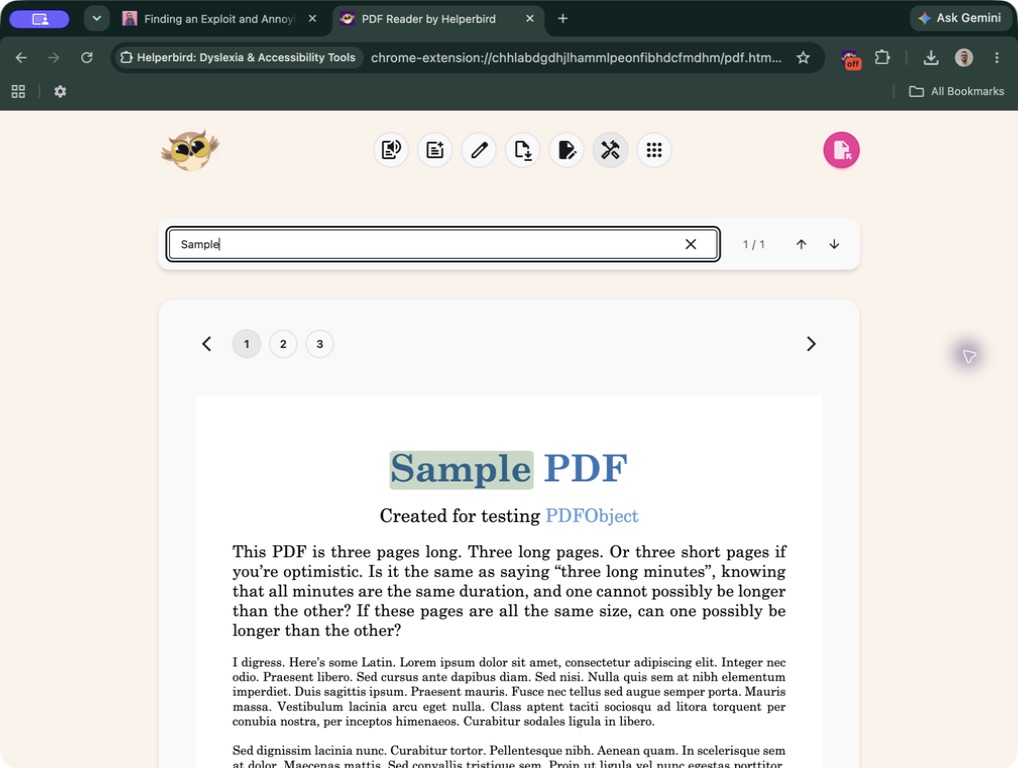
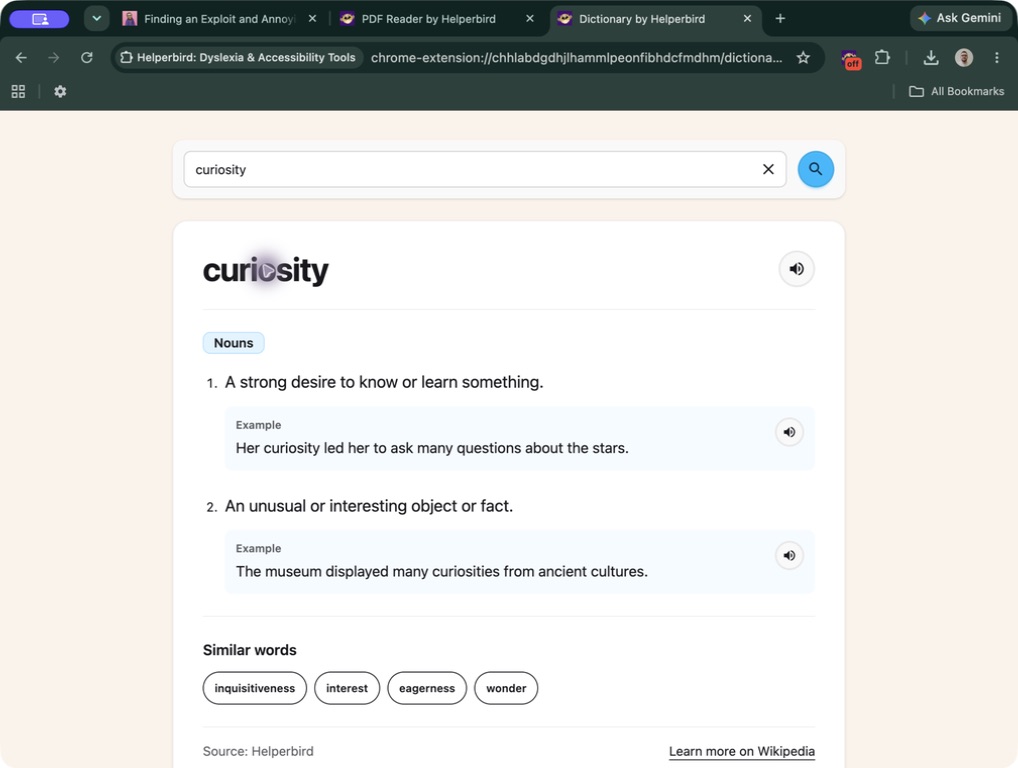
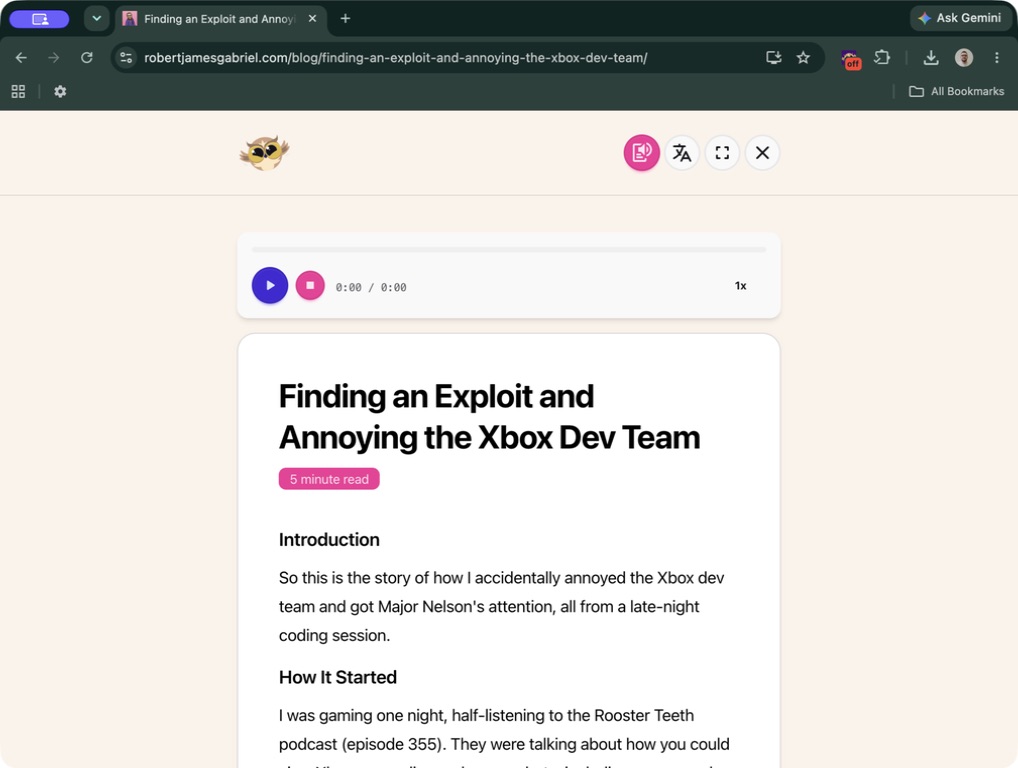
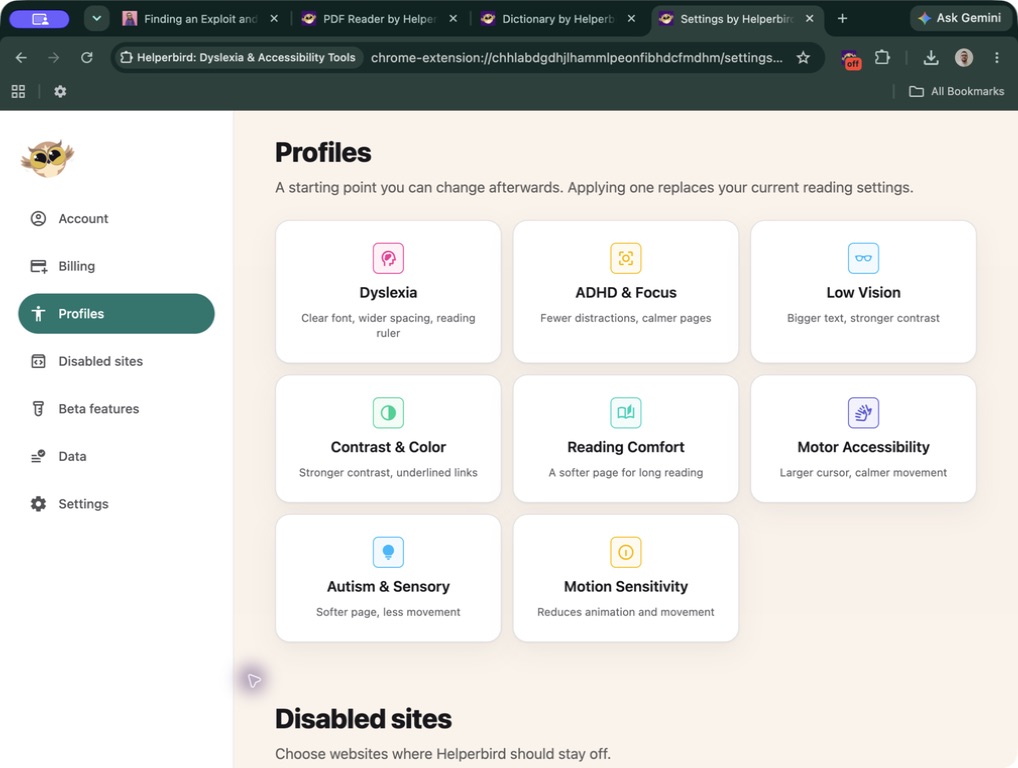
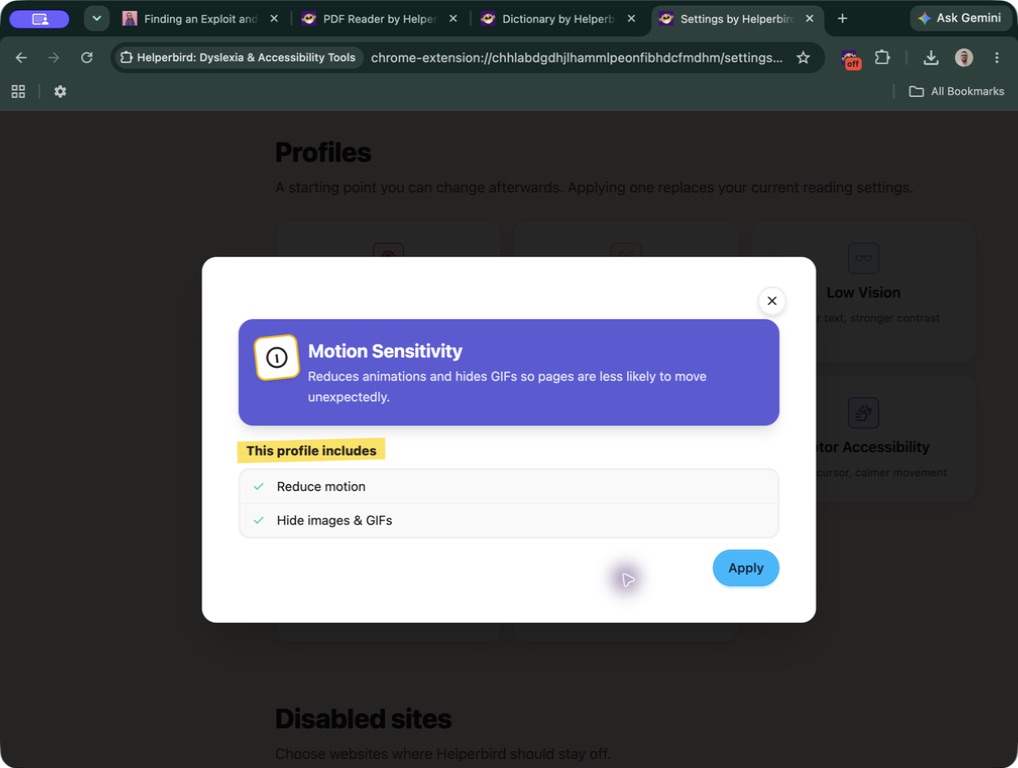
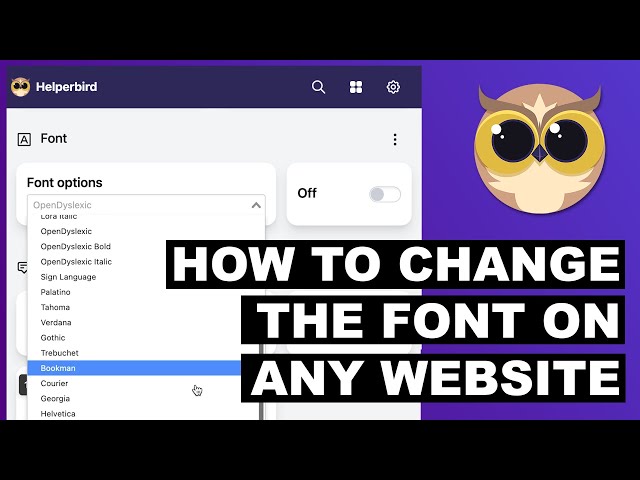 ## Annotations and notes on any website
Highlight or annotate web pages documents, PDFs, ebooks and more content to improve engagement and
study.
[More about annotation](/features/annotation/).
## Annotations and notes on any website
Highlight or annotate web pages documents, PDFs, ebooks and more content to improve engagement and
study.
[More about annotation](/features/annotation/).
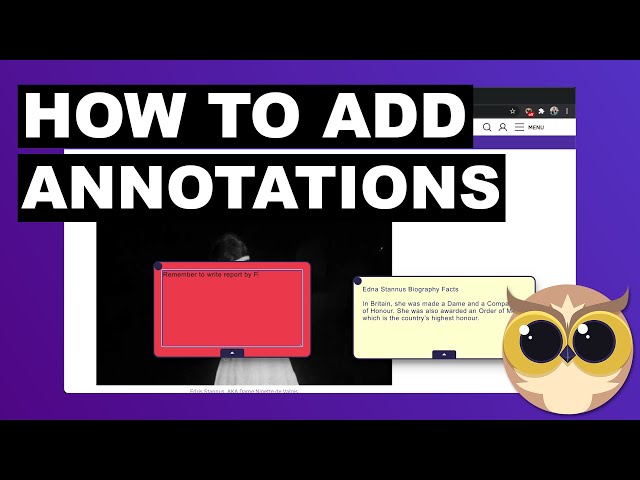 ## Listen to any part of your Webpages and Google Docs
Sit back, press play, and have your news, emails, or news read aloud to you.
[More about text to speech](/features/text-to-speech/).
## Listen to any part of your Webpages and Google Docs
Sit back, press play, and have your news, emails, or news read aloud to you.
[More about text to speech](/features/text-to-speech/).
 ## Word prediction
This is a new feature from us, but wow did it make a huge splash, our word prediction works on every
input on a page and even Google doc files. It currently supports English but Germen, French and
Spanish is coming soon.
## Immersive reader on Google docs and every website
[Immersive Reader](/features/immersive-reader-for-chrome/ 'More information on Helperbirds immersive reader features')
is a free tool that implements proven techniques to improve reading and writing for people,
regardless of their age or ability. Immersive Reader can improve reading comprehension and increase
fluency for English language learners.
## Word prediction
This is a new feature from us, but wow did it make a huge splash, our word prediction works on every
input on a page and even Google doc files. It currently supports English but Germen, French and
Spanish is coming soon.
## Immersive reader on Google docs and every website
[Immersive Reader](/features/immersive-reader-for-chrome/ 'More information on Helperbirds immersive reader features')
is a free tool that implements proven techniques to improve reading and writing for people,
regardless of their age or ability. Immersive Reader can improve reading comprehension and increase
fluency for English language learners.
 All the other features of Helperbird and you can learn more here. You can always try out Helperbird
for free and even think about upgrading to Helperbird Pro and supporting us in helping the world.
---
## How to Deploy Helperbird through the G Suite Console
URL: https://www.helperbird.com/blog/how-to-deploy-apps-and-extensions-through-the-google-admin-console/
Click Device management in the Google Admin Console.

## Step one of how to install Helperbird on G Suite
Select Chrome management.

## Step two of how to install Helperbird on G Suite
In Chrome Management, select User & browser settings.

## Step three of how to install Helperbird on G Suite
Under Organizations choose the OU (Organizational Unit) you would like to deploy extensions to.
Scroll down to Apps and Extensions and locate Force-installed Apps and Extensions.
Click the Manage force-installed apps link.

## Step four of how to install Helperbird on G Suite
In Force-installed Apps and Extensions, click the Chrome Web Store button.

## Step five of how to install Helperbird on G Suite
Type the extension or app name (Ie Helperbird) that you're deploying into the search box and press
Enter. The app or extension listing will appear immediately below the search box.
Click on the Add link to add the app or extension to the force-install list.

## Step six of how to install Helperbird on G Suite

## Step seven of how to install Helperbird on G Suite

## Step eight of how to install Helperbird on G Suite
Click SAVE.

## Step nine of how to install Helperbird on G Suite
After the force-install window has closed, click SAVE at the bottom of the page to publish the app
or extension to all of your selected users. The app or extension will now be deployed to your users.
---
## Introducing the Next Big Release of Helperbird
URL: https://www.helperbird.com/blog/see-the-future-of-helperbird-2023-2024/
We're excited to announce the next big release of [Helperbird](/), the
popular accessibility extension that helps users customize their browsing experience to meet their
unique needs. This release, set to launch on June 4th, includes a host of new features and
improvements that make Helperbird even more versatile and user-friendly than ever before. Let's take
a closer look at what's in store.
## Bottom Navigation: Split into Writing, Reading, and Accessibility
One of the most significant changes in this release is the new bottom navigation, which has been
split into three distinct categories: Writing, Reading, and Accessibility. This makes it easier for
users to quickly find the tools they need based on the task they're working on, whether that's
writing a document, reading an article, or customizing their browsing experience for accessibility.
## Maths Solving Support and Immersive Reader Support for Maths
Another major addition to Helperbird is maths solving support, which allows users to input equations
and have them solved instantly. This is a game-changer for students, teachers, and anyone who needs
to work with mathematical equations regularly. Additionally, Helperbird now includes Immersive
Reader support for maths, which can help users better understand and visualize complex equations by
breaking them down step-by-step.
## Epub Support and Offline Support
Helperbird now also includes support for Epub files, which means users can read Epub documents
directly within the extension. This is a welcome addition for anyone who frequently works with Epub
files, whether for personal or professional reasons. Plus, Helperbird now offers offline support,
which means users can access all their customized settings and tools even when they don't have an
internet connection.
## Better UI for Getting Used to Helperbird
To make it easier for new users to get started with Helperbird, we've also added a new onboarding UI
that guides them through the various features and settings available. This ensures that users can
start customizing their browsing experience right away, without feeling overwhelmed or confused.
## Over 30 Major Fixes and Improvements
Finally, this release includes over 30 major fixes and improvements, including better compatibility
with PDF files, enhanced color contrast options, and improved keyboard navigation. These changes are
designed to make Helperbird more stable, reliable, and user-friendly than ever before.
We can't wait for our users to try out the new and improved Helperbird, set to launch on June 4th.
Whether you're a student, teacher, professional, or anyone who wants to customize their browsing
experience, Helperbird has something to offer. Try it out for yourself and see how it can transform
the way you browse the web.
---
## How to Avoid WFH Burnout and Maximize Productivity
URL: https://www.helperbird.com/blog/how-to-avoid-wfh-burnout-and-maximize-productivity/
## Build a Comfortable Workspace
A comfortable workspace requires three things: a sense of privacy, an ergonomic desk, and a
comfortable chair. After all, this is where you'll be spending the majority of your day.
Aside from the work equipment, you should also make sure to maintain the cleanliness of the
workspace. At Planet Maids Maid Service NYC, we believe that a clean and organized workspace can
impact your productivity. If there is too much clutter and dirt around, it can make you
uncomfortable, and it can even distract you.
By maintaining a clean home office, you can be more comfortable moving around, and you will have
fewer distractions.
## Set Realistic Goals and Track Your Progress
Don't expect to be productive if you don't have a direction to steer yourself towards each workday.
That's why it's ideal when you're working from home.
You set some daily goals for yourself, both short-term and long-term, and then track your progress.
That way, you have a visual of how good you're doing while you're working from home.
You should take the time to schedule and plan out your day the night before so that you can have a
plan of action the moment your day starts. It will help you align yourself and figure out what you
need to do so that you don't fumble around and do tasks that are not a priority.
## Create a Routine and Stick to It
What's most appealing about working from home is that you can be more flexible with how you work,
unlike when you're in the office.
However, some people can go way beyond this and not have any discipline regarding their workday.
Instead of falling for this frequent trap that people working from home fall into, try to create a
routine.
By establishing a work routine, you ensure that you get, at the very least, the prioritized tasks
done for the day. Once you get the hang of your routine, it can be easy to do your tasks even if you
feel unmotivated.
## Use Productivity-Enhancing Methods
If you're not sure about your work style, you might want to try out productivity methods that people
have tried and tested themselves.
There are plenty of routines and procedures surrounding productivity that people have applied. Just
because one thing works for another does not mean that it will work for you, so it'd be best to test
your methods first.
A popular productivity method that you could try out would be the time blocking approach.
The time blocking method is when you schedule a block of time where you do specific things, and
that's the only time you're allowed to do them.
For example, you schedule an hour at the start and end of the workday, and that's the only time you
can answer an email. That way, you don't find yourself going back and forth in your email throughout
the day.
You can also use productivity tools that accommodate your needs, which will help you focus more
while working.
## Schedule Breaks
Even if you love working and are a self-proclaimed workaholic, you are still prone to get burnt out,
even with a job you enjoy. A common reason why even workaholics burn out in a job they want is that
they don't take the time to schedule breaks throughout the workday.
Aside from your lunch break and the end of your workday, which you should follow through on, you
should also have small breaks in-between tasks. These small breaks allow you to recuperate and let
your mind rest for a bit before going back to work again.
Aside from that, don't forget to schedule vacations or holidays as well. These can help with your
motivation and productivity in the long run.
## Improve Focus with Exercise and Meditation
Another productivity-enhancing habit you should incorporate would have wellness activities.
Wellness activities include both fitness activities and practices that help you focus on your mental
state. By incorporating more wellness activities in your off time, you will have a better time when
you go back to work.
Having a balance between exercise and meditation can help improve your focus in the workplace. Yoga
is a perfect example of incorporating exercise and meditation in one, so you might want to try and
pick that up.
You can also separate exercise and meditation. What's important is that you do both of them for your
physical and mental well-being.
## Keep Socializing
You can't live your life focusing only on your career and your work life.
When you're working from home, it's much harder to carve time to socialize because you're at home.
That's why it would be best to keep in touch with your colleagues even if you are working from home.
Your colleagues aren't just there to chit-chat with you. They can also help keep you accountable.
Aside from socializing with your work colleagues, it is also a good idea to get in touch with
friends and family. Your private social network is going to help you realize that you have a life
outside of work.
The happier you are outside of work, the easier it is for you to be more productive once you get
back to your job.
## Devote Time to Self-Care
Self-care has increased attention over the past few years, but it doesn't mean that everyone has a
good self-care regimen.
Having a solid self-care regimen is another excellent way to avoid work from home burnout and
maximize your productivity. Self-care is more than just using skincare products and having a spa
day. It's all about focusing on things that will positively impact your life in one way or another.
If you have time to do activities that aren't necessarily good for you, then you have the time to
devote to self-care, so don't skip this step.

## Conclusion: Beat Burnout by Being Proactive
Applying the tips listed above can help reduce your likelihood of getting burnt out while working
from home. It can also help increase your productivity.
The key here is taking a productive approach to beat burnout and maximize your productivity. Hence,
starting building habits and routines that can get you in the mood to work.
---
## 8 Productivity Tips to Help You Stay Focused at Work
URL: https://www.helperbird.com/blog/stay-on-task-8-productivity-tips-to-help-you-stay-focused-at-work/
Focus is integral in ensuring that we get things done. But every now and then, there is something
that is sure to take away your attention.
There is nothing wrong with that. In fact, we encourage you to take breaks from time to time.
However, getting distracted for hours can hinder your productivity. That's why you should do
something to keep your focus. Otherwise, it will take you a while to finish your work.
Keep on reading to know how you can stay focused and productive at work:
## Keep Yourself Hydrated
They say that it's rude to eat in front of the computer. And we do not encourage it, either.
However, always have a cup of water within reach.
In case you do not know, our body is made of 73% water. Hence, it needs to be hydrated to function
properly.
When our brain functions properly, it can impact our cognitive performance. And focusing on your
work and getting things done requires brainpower - even if your job involves physical labor.
In addition, proper hydration allows us to sustain our energy, have clarity, and stay alert
throughout the day.

## Ensure Your Comfort
Just because you are sitting in front of the computer for hours does not mean your life is easy.
Discomfort can distract you.
That said, we suggest that you buy the best and most comfortable work desk and office chair that you
can afford. You should also consider the ergonomics and the space you have.
This means that your office table should be well structured while your chair must have support.
Doing so can help you work for hours without having sore shoulders, strained eyes, and backache.
Hence, you can be extra productive while working.
## Organize Your Work Station
Aside from having a well-structured office table and chair, you also need to ensure a clutter-free
workspace.
At Maid Sailors
[NYC Office Cleaning Services](https://maidsailors.com/office-cleaning-services-nyc/), we always
tell our clients that cleaning your workstation is a cost-effective way to boost productivity. More
so if you want to reduce distractions and maximize your productivity but do not have the budget to
remodel your workstation.
Begin by getting rid of all the non-work-related stuff. Next is to designate zones where you do
computer-related work, document organization, and all. Doing so also prevents you from multitasking,
which often gets your brain toasted.
## Have a Distraction-free Desktop
The secret to staying focused at work is to get rid of as many distractions as possible. So, aside
from cleaning your office table, you might want to consider having a distraction-free computer.
Some apps prevent you from opening other websites that have nothing to do with your work. There are
also apps like [Helperbird](/pricing/), which lets you view clutter-free websites (i.e., ad-free
blog posts).
But if you cannot be bothered with that, ensure you do not save any files on your desktop. Please
place them in a designated or relevant folder.
Aside from having a well-structured office table and chair, you also need to ensure a clutter-free
workspace.
## Set Your Phone on DND Mode
In case you are unaware, phone notifications have caused Pavlovian conditioning to many smartphone
users. Whenever we hear a "ding!" sound, we unconsciously reach out to our phones to check who
texted us.
The next thing we know, we are aimlessly scrolling through our Facebook feed.
Other than your PC or laptop, you should also make use of your phone's Do Not Disturb (DND) mode.
Doing so prevents you from receiving calls unless the number is on your whitelist.
Another thing you can do is put your phone on silent and place it somewhere else. That way, you are
not hearing or seeing any notifications.
## Prioritize Your Tasks
So, you have your water beside you. You have a clean and comfortable workspace and a
distraction-free website. Now what?
It is time to do your tasks.
You can choose to have your to-do list on paper, while some prefer to use a task management app.
Regardless, you cannot get things done unless you know what tasks to do first.
Hence, it would be best to prioritize your tasks. There are two ways you can do this:
- Which of your tasks require less effort but have a high impact?
- Which of your tasks, that once done, can help you finish other tasks?
These are the tasks that you should prioritize. Otherwise, you can do them later, delegate them, or
consider scratching them off your to-do list. Most likely, you don't need to do such tasks.
## Organize Your Email
Similar to prioritizing tasks, you should also organize your email.
And we are not just talking about making your inbox clean. It also has something to do with checking
and responding to emails.
Instead of checking your email from time to time, we suggest that you dedicate an hour or two to
checking and replying to emails. As for how you should deal with your email, you can follow the
[Inbox Zero method](https://www.youtube.com/watch?v=rfFrOO2N_vU) .
## Let People Know and Respect Your Boundaries
Whether in an office or a work-from-home setup, setting boundaries are essential.
This could mean letting people know whether you can prioritize other work or not. After all, you
have a deadline to meet.
Another example is if you are working from home. Let your family know that they cannot disturb you
during particular hours unless the house is on fire. That way, you can get more things done.
Lastly, establish your rest days. If you are an office employee, your rest days are often Saturday
and Sunday. Use these days to unwind and not think of work. Otherwise, you will experience burnout
and dread coming to the office.
## Conclusion
Here's the thing: You are surrounded by people and events that can hinder your productivity. What
more if you have a learning disorder like Dyslexia?
Staying focused at work while
[creating your career with Dyslexia](https://www.youtube.com/watch?v=rfFrOO2N_vU) can be
challenging. But what's important is that you know how to get your mojo back. If not, you can always
refer to the tips listed above.
If you want to boost your productivity, all you need to do is eliminate the distractions and find
your focus.
Exclusively written for [helperbird.com](/) by Raymond Chiu
## Meet Raymond Chiu
Raymond Chiu is the Director of Operations for Maid Sailors, a trusted provider of office cleaning
service NYC.
Maid Sailors offers its customers unrivalled office cleaning services that can address even the
toughest cleaning needs. Matched with affordable prices, Maid Sailors is your best partner in
helping you turn your office into a work-friendly workplace.
You can contact her at raymondchiu.ms@gmail.com
---
## How to Add Extensions to Safari
URL: https://www.helperbird.com/blog/how-to-add-extensions-to-safari/
Yes, Safari has extensions, and you add them from the App Store. On a Mac you install one and then
tick it in Safari's settings. On an iPhone or iPad you install an app from the App Store and then
switch its extension on in the Settings app. That second step is the one most people miss, which is
why an extension can look like it never installed.
Here is the whole process for both, and what to check when an extension does not appear.
## Does Safari have extensions?
It does. Safari supports the same kind of web extensions that Chrome, Edge and Firefox use, and they
run on Mac, iPhone and iPad.
What you need:
- **Mac:** Safari 14 or later.
- **iPhone and iPad:** iOS 15 or iPadOS 15 or later. Extensions arrived on the phone and tablet in
2021, so anything older will not have the option.
One thing to know before you start: a Safari extension is never a standalone download. Every
extension is wrapped inside an app. You install the app, and the app hands the extension to Safari.
Safari then waits for you to turn it on. Nothing happens until you do.
## Where is the Safari extension store?
There is no separate Safari extension store. Safari extensions live in the App Store, in a category
called Safari Extensions.
Three ways to get there:
- **On a Mac:** Safari menu, then Settings, then the Extensions tab, then the **More Extensions**
button. The App Store opens on the Safari Extensions page.
- **On an iPhone or iPad:** Settings app, then Safari, then Extensions, then **More Extensions**.
- **Either device:** open the App Store and search for the extension by name.
Some extensions never show up in that category because they ship inside a larger app, such as a
password manager or a note taking app. Install the app and its extension appears in Safari's
extension list alongside the rest.
## How to add an extension to Safari on a Mac
1. Open Safari.
2. In the menu bar, choose **Safari**, then **Settings**. On macOS 12 Monterey and earlier this is
called **Preferences**. The keyboard shortcut is Command and comma.
3. Click the **Extensions** tab.
4. Click **More Extensions** at the bottom of the window. The App Store opens on the Safari
Extensions page.
5. Pick an extension and click **Get**, or the price if it is a paid one, then **Install**. You may
be asked for your Apple Account password or Touch ID.
6. Go back to Safari, then Settings, then Extensions. The new extension is now in the list on the
left.
7. **Tick the checkbox next to its name.** This is the step that turns it on.
## How to turn on a Safari extension on a Mac
Ticking the box is half of it. Safari also asks which websites the extension is allowed to read, and
an extension with no permission does nothing at all.
Select the extension in Safari, then Settings, then Extensions, and set its website permission.
**Always Allow on Every Website** is what most extensions need to work everywhere. If you pick a
narrower option, the extension will look broken on every site you did not approve. You can also set
this from the page itself: click the extension's button in the toolbar and Safari offers the
permission choices for the site you are on.
Two more settings on that same screen are worth a look:
- **Allow in Private Browsing** is off by default. Tick it if you want the extension to work in
private windows.
- If you cannot see the extension's button in the toolbar, choose **View**, then **Customize
Toolbar**, and drag the button up into place.
## How to add an extension to Safari on iPhone and iPad
This route works differently from the Mac, and it is where most people get stuck. You install an app
from the App Store, then enable its extension in the Settings app.
1. Open the **Settings** app.
2. Scroll down and tap **Safari**. On iOS 18 and later, Safari sits under **Apps**, so the path is
Settings, then Apps, then Safari.
3. Tap **Extensions**.
4. Tap **More Extensions**. The App Store opens on the Safari Extensions page.
5. Tap **Get**, or the price, and install it like any other app.
6. Go back to Settings, then Safari, then Extensions. The extension is now in the list.
7. Tap its name and turn the switch **on**. On some versions the switch sits in the list itself.
8. Set its permissions on the same screen. Setting **All Websites** to **Allow** lets it work on
every site. **Ask** means you are prompted the first time you visit each new site.
If you already installed the app from the App Store, start at step 6. The extension is on your
device already, waiting to be switched on.
## How to use an extension in Safari on iPhone and iPad
Open Safari and go to any page. Tap the page settings button at the side of the address bar. It is
marked **aA**, and on iPad it can show as a puzzle piece instead. Your enabled extensions are listed
in that menu, and tapping one runs it on the page you are reading. **Manage Extensions** in the same
menu is a shortcut back to the on and off switches.
## Why your extension is not showing
Work down this list. The first two account for most cases.
1. **It is installed but not switched on.** On a Mac, Safari, Settings, Extensions, tick the box. On
an iPhone or iPad, Settings, Safari, Extensions, tap it, turn the switch on.
2. **It has no permission for the site.** The extension is on, but it does nothing on the page. Set
it to allow on every website.
3. **Safari was open while you installed.** Quit Safari fully (Command and Q on a Mac) and open it
again.
4. **The toolbar button is hidden on a Mac.** View, then Customize Toolbar, then drag the button in.
5. **You are in Private Browsing.** Extensions stay off in private windows until you allow them.
6. **You use Safari profiles.** Extensions are switched on per profile, so one you enabled in
Personal can be off in Work.
7. **The app was deleted.** Deleting the app removes its extension, and the extension disappears
from the list with it.
8. **The device is managed by a school or workplace.** A configuration profile can block extensions.
The switch is greyed out and will not move, and no amount of reinstalling fixes it. Ask whoever
manages the device.
9. **Safari is too old.** Update on a Mac in System Settings, then General, then Software Update. On
an iPhone or iPad, Settings, then General, then Software Update.
If none of that helps, contact the people who make the extension. They can see version and crash
details that you cannot.
## How to turn off or remove a Safari extension
**On a Mac:** Safari, Settings, Extensions, then untick the box to turn it off. To remove it for
good, click **Uninstall**. Safari shows you the app that contains the extension in the Finder, and
moving that app to the Trash removes the extension too.
**On an iPhone or iPad:** Settings, Safari, Extensions, tap the extension, and turn the switch off.
To remove it, delete its app from the Home Screen or App Library.
## One extension worth a look: Helperbird
If you are here because you want Safari to be easier to read, this is the extension we make, so
treat it as a recommendation with an interest in it.
Helperbird adds over 40 reading and writing features to any web page: dyslexia fonts including
OpenDyslexic, text to speech, a reading mode that strips ads and sidebars, color overlays and a
reading ruler. The free version needs no account. Pro is a paid tier.
It installs the way this article describes, from a single App Store listing that covers Mac, iPad
and iPhone, and you switch it on in Safari the same way as any other extension.
- [Helperbird for Safari on Mac](/products/safari/)
- [Helperbird for iPad and iPhone](/products/ipad/)
---
## How a Teacher Changed My Life - A Story
URL: https://www.helperbird.com/blog/teacher-appreciation-week-2020-dyslexia-story/
For anyone who stumbled across this blog post, my name is Robert James. I'm the founder of
Helperbird. I also have dyslexia. It was one of the reasons I started Helperbird in 2015.
To help others, so they can achieve their full potential in the classroom and not struggle as I did.
As its teacher's appreciation and at the age of 27. It made me think about how one teacher changed
my life and how I'm super appreciative of looking back at everything she did for me. As I know, I
wouldn't be here without her and my parents.
I speak a lot on how I was undiagnosed with dyslexia until the age of 15 where a teacher told my
parents I should drop out of school as I would struggle and not achieve anything.
After my mother became "Mother bear" as I like to describe, she pressed the school to get me tested
and with thanks to Ms. Meade (I'm going to keep it the last name only in case she doesn't want her
name posted). She helped my parents fill out the forms to get me tested and make a case to the local
government on why I needed help and what support system I needed to take my end of Highschool exams.
After I got tested and started getting the support I needed thanks to my parents and Ms. Meade. My
schoolwork greatly improved, I even took higher level or AP English and better yet won the school
8,000 euro in Science competition. The teacher who told my parents I should drop out, later
apologized to me for it instead of looking into it more.
Thanks to Ms.Meade. I was able to take my exams in a private room, with a reader and on a computer.
She also took me for 3 to 4 years would take me for exams in English classes. As I write this I
can't thank her enough. Not only being there and helping me through high school but also caring
about how I did.
I don't know how my life would have turned out if she hadn't been a teacher and helped me. Would I
have gone to college? Would I have started Helperbird? Would I have to travel? I don't like to think
where I would have been if it wasn't for Teachers like Ms. Meade.
That's why as Helperbird grows, Teachers inspire us to become better and I look at them on how we
can improve Helperbird.
From Myself and everyone at Helperbird, thank you for going far beyond every day and changing the
lives of their students even when they might not really appreciate it until they look back at it
later in life.
Thank you Ms. Meade and thank you to every teacher across the world on this special week.
---
## Helping Students Succeed with Helperbird’s Accessibility Tools
URL: https://www.helperbird.com/blog/helping-students-thrive-with-helperbirds-accessibility-tools/
## Respecting Privacy While Sharing Success
At Helperbird, we’re dedicated to protecting the privacy of our users. While the stories we share are real, we change names to safeguard their identities. This story introduces Patricia and how Helperbird transformed her classroom into an inclusive learning space.
---
## Patricia's Journey to Inclusive Education with Helperbird
### The Challenge
As a teacher in a diverse classroom, Patricia faced the challenge of meeting the unique needs of each student. Traditional teaching methods often fell short, making it difficult to create an inclusive learning environment.
### Discovering Helperbird
Looking for a solution, Patricia discovered Helperbird - a suite of accessibility tools designed to support all learners. With guidance from Robert, a Helperbird representative, Patricia integrated these tools into her teaching and changed the way her classroom worked.
### How Helperbird Made a Difference
Helperbird provided Patricia with tools to address the diverse needs of her students:
**Read Aloud:** Helped students who struggled with reading by turning text into spoken words.
**Voice Typing:** Allowed students to express their thoughts without needing to type.
**Translate:** Made content accessible in multiple languages, bridging language gaps.
**Customizable Fonts and Colors:** Enabled personalized reading experiences for better engagement.
**Adjustable Text and Line Spacing:** Simplified reading layouts, making text more approachable.
### The Results
With Helperbird, Patricia saw incredible changes in her classroom:
**Improved Learning:** Students who struggled began excelling in their studies.
**Increased Confidence:** Tools like Voice Typing and Translate helped students feel more independent.
**True Inclusivity:** Patricia’s classroom became a space where every student’s needs were met.
---
## A New Chapter in Education
Patricia’s story shows the impact of accessibility tools in education. By adopting Helperbird, her students gained the tools they needed to learn confidently and independently. This transformation highlights our mission to make education accessible to all.
---
## Celebrating Every Story
Stories like Patricia’s remind us why we do what we do. While we protect our users’ privacy, we proudly share the positive changes Helperbird brings to classrooms, workplaces, and lives everywhere.
---
## Thanksgiving Day Message from Helperbird
URL: https://www.helperbird.com/blog/thanksgiving-message-from-helperbird/
## On the day before Thanksgiving
On the day before Thanksgiving, Helperbird wants to give thanks for what we're most grateful for
this year. Give Thanks for our Uniqueness!

## Give Thanks for Teachers!
No two humans are alike! Our differences make us who we are and we think that's awesome!! This is
why we want the internet to be an accessible place for each unique individual so no matter your
needs or preferences, you can keep being you online! 'Give Thanks for Teachers!
## Give Thanks for Community!
This year teachers have had to adapt and overcome numerous global challenges and we are so thankful
for your hard work and dedication. We have teachers writing to us every day looking for solutions
for their students and your passion does not go unnoticed! So we're giving a big thanks to all our
teachers out there! Give Thanks for Community!
## GiveThanks
With so many of us transitioning our work, school, and social lives online, we're so thankful for
this terrific Helperbird community that's striving to make the web friendlier and more accessible
for all.
We hope that our app this year has, in some small way, made it easier for you to connect and
contribute to your online communities in meaningful ways.
---
## Winner of Our Chromebook Giveaway
URL: https://www.helperbird.com/blog/helperbirds-winner-of-the-2021-chromebook/
## Helperbird chromebook giveaway official rules
I don't know about you. We hate when companies don't show the winner receiving her prize. So we
wrote this blog to say, Congrats to Debbie for being our winner. We love your dog.
We will be running more competitions throughout the year, including Helperbird Pro for free, iPads
and more Chromebooks.
Be sure to follow our Twitter, Instagram & Facebook to learn more on how you can enter and win
future competitions.
---
## The 5 Must-Have Accessibility Tools for Students in 2021
URL: https://www.helperbird.com/blog/the-5-must-have-accessibility-tools-for-students-in-2021/
## Welcome
With online learning and increased online activity, it's important that every student feels
empowered and comfortable when working online. There are hundreds of tools out there but here are
our top 5 tools to use in 2021.
There are hundreds of tools out there to boost the accessibility of online content. I have shortened
this list down to the favourites from us at Helperbird and our users.
## Toucan
Learn a new language just by browsing the internet with Toucan.The ultimate multitasking flex. We’ll
show you words and phrases in the language you want to learn as you browse. You’ll pick up
vocabulary faster when you see it in context.

Screenshot of Toucan in use.
[Visit Kapwing](https://jointoucan.com)
## Kapwing
Content creation made easy, accessible, and collaborative. Kapwing is a modern editor for videos,
GIFs, and images. Try our free, online tools including Studio, meme maker, resizer, subtitle maker,
filters, and more.

Screenshot of Kapwing in use.
[Visit Kapwing](https://www.kapwing.com)
## Helperbird
Helperbird is your all in one extension, that gives you the features to make the web more accessible
and productive. Providing you text to speech, OCR, dyslexia support, dictation, immersive reader,
overlays, annotate any website,picture dictionary,Reading Mode, and more.

Screenshot of Helperbird in use.
[Visit Helperbird](/pricing/)
## Google Meet
Real-time meetings by Google. Using your browser, share your video, desktop, and presentations with
teammates and customers.

Screenshot of Google Meet in use.
[Visit Google meet](https://www.google.com/meet)
---
## Making PDFs Easier with Helperbird's PDF Reader
URL: https://www.helperbird.com/blog/helperbird-pdf-reader-rorys-story/
## Protecting Privacy While Sharing Success
At Helperbird, we respect the privacy of everyone who shares their stories with us. Names are changed to keep our users safe, but the experiences and successes are real.
---
## How Rory Made Work Easier with Helperbird’s PDF Reader
### The Problem
Rory’s job required managing a large number of PDF documents daily. His old PDF reader made the process slow and frustrating, leaving him overwhelmed.
### Discovering Helperbird’s PDF Reader
When a friend recommended Helperbird, Rory decided to try its PDF Reader to see if it could simplify his workflow.
### What Made the Difference
**Listening to Text with Text-to-Speech:** Rory could listen to PDF content when reading became tiring, making long documents easier to handle.
**Quick Summaries with Summarize:** The Summarize feature gave him concise summaries of lengthy documents, saving him valuable time.
**Improved Focus with Overlays and Dyslexia Rulers:** These tools helped Rory stay focused and made reading more comfortable.
**Sticky Notes for Quick Thoughts:** Rory could jot down ideas or important points directly on the PDFs, streamlining his review process.
**Translation and OCR Support:** Translation made documents in other languages easier to understand, while Screenshot Reader pulled the text out of scanned pages so he could read and listen to it. The PDF itself is unchanged, so a scan does not become searchable.
**Immersive Reader for Quiet Reading:** Immersive Reader created a distraction-free reading space, making it easier to stay engaged with the text.
### The Outcome
With Helperbird’s PDF Reader, managing PDFs became faster and less stressful for Rory. He saved time, improved his workflow, and found his tasks more enjoyable.
---
## Our Commitment
While names are changed, our mission remains the same: to help users overcome challenges and share their success while keeping their privacy safe.
---
## 3 Facts about Dyslexia and 1 Fact about Cats
URL: https://www.helperbird.com/blog/three-facts-about-dyslexia/
## Fact one
Despite popular belief, dyslexics do not see letters backwards. They often have difficulty naming
and writing letters, and in fact, writing letters backwards is something that many kids do when
they’re first learning to write, whether they have dyslexia or not.
## Fact two
Most dyslexics often have a better use of their right brain.
## Fact three
Dyslexics score significantly higher on test when they are given the test orally.
## Bonus cat fact
There are over 500 million domestic cats in the world. And and estimated 700 million Dyslexics. So
if you ever are feeling alone just know that there’s at least 6 million 9 hundred thousand nine
hundred and ninety nine other people like you and plenty of kitties to cuddle.
---
## Improving Marketing Workflows with Helperbird’s Immersive Reader
URL: https://www.helperbird.com/blog/helperbird-immersive-reader-marketing-alexs-story/
## Protecting Privacy, Celebrating Success
At Helperbird, we’re committed to protecting our users’ identities while sharing their achievements. In this story, the name has been changed to Alex to respect his privacy, while highlighting his inspiring journey.
---
## How Helperbird Transformed Alex’s Marketing Workflow
### The Challenge
As a busy marketing professional, Alex spent countless hours reviewing, editing, and approving content for campaigns. The sheer volume of text, tight deadlines, and fear of missing errors made his job increasingly overwhelming. The strain on his eyes and the repetitive tasks were taking a toll on his productivity and focus.
### Discovering Helperbird’s Immersive Reader
One day, a colleague recommended Helperbird, specifically highlighting the Immersive Reader feature. Curious, Alex gave it a try and quickly realized how much easier managing large amounts of text could be.
### Read Aloud: A Game-Changer for Multitasking
Immersive Reader’s Read Aloud feature allowed Alex to listen to content while organizing his workspace or planning campaigns. It saved him time, reduced eye strain, and made multitasking more efficient.
### Text Spacing: A Break for the Eyes
The Text Spacing feature was another standout for Alex. By adjusting the spacing between words and lines, text became easier to read and less cluttered. Reviewing and editing documents felt less tedious, giving his eyes a much-needed break.
### The Result
With Helperbird, Alex streamlined his workflow and significantly reduced the time spent on text-heavy tasks. The Read Aloud and Text Spacing features helped him stay focused, manage campaigns more efficiently, and even enjoy the process. The reduced eye strain and improved multitasking meant he could dedicate more energy to creative and strategic work.
Campaigns launched smoothly and on time, and Alex felt a renewed sense of control and satisfaction in his work.
---
## Our Commitment
Every user’s story is unique, and we’re proud to share them while respecting their privacy. Stories like Alex’s show how Helperbird empowers professionals to work smarter, not harder, in their fields.
---
## TV and Movie Characters with Dyslexia
URL: https://www.helperbird.com/blog/tv-and-movie-characters-with-dyslexia/
## CeCe Jones in Shake It Up
CeCe dream is to become a famous dancer and nothing was going to stop her. That includes dyslexia.
Actess Bella Thorne, who plays Cece can probably identify. Reading issues haven’t kept Bella Thorne
from achieving her own stardom . A successful actress, singer, model, and dancer, she’s also a
spokesperson for the Dyslexia Foundation.
## Cristina Yang in Grey’s Anatomy
Dr. Cristina Yang played by actess Sandra Oh was diagnosed with dyslexia at age 6. That’s years
before she landed at Seattle Grace Hospital. After four seasons, viewers learn that Cristina Yang
got straight A’s all through medical school. Her success - in school and as a doctor - reflects the
perseverance she shows in each episode.
## Cassandra Cain aka Bat Girl (Marvel)
Cassandra Cain also known as Bat Girl! She was trained from birth to become the perfect warrior.
Brought up by her father and powerful assassin, David Cain, she had been trained to not speak but
instead use those parts of her brain to predict her opponent’s next crucial move. Having neglected
those parts of her brain, it developed differently to most, growing into a form of dyslexia.
## Percy Jackson in Percy Jackson and the Olympians
He is the son of mortal Sally Jackson and great Greek god of the sea, Poseidon. Rick Riordan who
wrote the books, based the character Percy on his own son, Haley Riordan who has dyslexia and ADHD.
Percys struggles in the classroom are presented as qualities that will contribute to his greatness
as a “demigod”.
## Captain Rafe McCawley in Pearl Harbourn
Lieutenant Rafe McCawley who struggled with his dyslexia but found ways to work around it. Rafe and
his best friend Danny had grown up wanting to experience flying ever since they were young. He has
one barrier to get past if he’s going to become a pilot though and that’s passing his medical exam,
despite the low score on his written test.
---
## How Helperbird Transformed a Student's Academic Experience
URL: https://www.helperbird.com/blog/helperbird-dyslexia-solutions-jamies-story/
## Protecting Privacy, Respecting Stories
At Helperbird, we value the privacy and well-being of our users. When sharing inspiring stories, we take care to protect personal details. In this story, the name has been changed to respect the user’s identity, while keeping the heart of their journey true.
---
## Jamie's Journey to Graduation with Helperbird
### The Challenge
Jamie, a hardworking high school senior, faced ongoing challenges with dyslexia. Reading and comprehension were difficult, and the increasing demands of coursework made graduation feel overwhelming.
### Discovering Helperbird
A friend introduced Jamie to Helperbird, a tool designed to support unique learning needs. Curious, Jamie decided to try it out and explore its features.
### Dyslexia Ruler: A Game-Changer
The dyslexia ruler quickly became one of Jamie’s favorite tools. It acted as a guiding line, helping them focus on the text and reducing distractions. Losing their place while reading became a thing of the past.
### Finding Confidence with the Lexend Font
The Lexend font, designed for easier readability, gave Jamie newfound confidence. Its carefully spaced letters and thoughtful design made reading smoother and comprehension easier.
### The Result
With Helperbird, Jamie kept up with coursework, participated in class discussions, and understood material more deeply. By the end of the school year, Jamie graduated with honors, crediting the dyslexia ruler and Lexend font for helping them achieve success.
---
## Our Commitment
Every user’s journey is unique, and we’re proud to be part of their success stories. While names may be changed, our dedication to supporting and respecting our users remains unwavering.
---
## Top 5 Productivity Microsoft Edge Extensions
URL: https://www.helperbird.com/blog/top-5-productivity-microsoft-edge-extensions/
If you're like a lot of people, you're probably thinking about ways you can become more productive
in 2022. There's no better place to start than by making sure your computer is set up for
productivity, in absolutely every way possible.
Microsoft Edge is a great web browser, but it's even better when you add extensions to personalize
the experience. You can customize your Edge homepage and new tab page and add features that help you
be more productive or have a little fun.
To help get you there, we've put together a list of our favorite productivity extensions for
Microsoft Edge.
## Microsoft Editor
The built-in productivity extension for the Microsoft Edge browser. It works basically just like
Grammarly (you know, that popular writing app assistant), but it's even more comprehensive in its
suggestions. Not only does it provide advanced writing assistance with grammar and spelling, but it
also gives you style suggestions so you can confidently write clear concise posts and emails.
## Momentum
If you're trying to focus on one specific task and don't want to waste time clicking through all of
these tabs to find the one you need, consider installing Momentum. It takes over the new tab page in
Microsoft Edge to give you a moment of calm and inspiration. It features a daily photo and quote to
get you through your day and help you prioritize your tasks. You can also set your own daily focus
and track your to-dos so you can stay organized and keep yourself on task.
## Awesome Screenshot and Screen Recorder
Another great option for staying organized is Awesome Screenshot & Screen Recorder. This extension
lets you take screenshots or record videos of whatever is on your screen so you can easily share
them with other people. It's especially useful for cases like reporting technical issues, making
product demos or how-to tutorials, or just sharing funny things you see online with people who might
not otherwise have access to it.
## Ghostery
Ghostery is a super-powerful privacy extension that blocks ads, stops trackers, and speeds up
websites. This powerful extension helps you increase page performance and page speeds without having
to do any real work - just install it and get back to surfing the web!
## Helperbird
Helperbird offers a range of powerful tools to customize your web browsing experience. It's easy to
improve accessibility, reading, writing, studying, and productivity. It can help you block
distracting content, translate text into multiple languages, and even read text aloud using natural
voices. Whether you're on an English-language site or an international one, Helperbird has your
back!
Productivity extensions can be valuable tools when it comes to streamlining your workflow and
getting more things done with the computer you spend so much time on.
Microsoft is working hard to make Microsoft Edge more powerful and robust than ever, and these
extensions will only help with their mission. They provide access to a lot of useful functions that
were previously only available in other browsers, and some of the additional features can make your
day-to-day experience a good bit easier. Download one or two, and see for yourself!
Having a productive day just got slightly easier. We hope these five extensions are a great addition
to your arsenal of productivity tools, and we look forward to seeing what new ones become available
for the Edge browser in the future.
### Sources:
1. Microsoft Editor (aka free Grammarly)
https://microsoftedge.microsoft.com/addons/detail/microsoft-editor-spellin/hokifickgkhplphjiodbggjmoafhignh
2. Momentum
https://microsoftedge.microsoft.com/addons/detail/momentum/jdoanlopeanabgejgmdncljhkdplcfed
3. Awesome Screenshot & Screen Recorder
https://microsoftedge.microsoft.com/addons/detail/awesome-screenshot-and-sc/gpmljinohlbfgmeoaeceoajachkabijo
4. Ghostery
https://microsoftedge.microsoft.com/addons/detail/ghostery-%E2%80%93-privacy-ad-blo/fclbdkbhjlgkbpfldjodgjncejkkjcme
5. Helperbird
https://microsoftedge.microsoft.com/addons/detail/helperbird-for-edge/bkibfggdahioahpokehoiimdmdjefjmd
---
## Fostering Inclusivity at Work - The Role of Helperbird in Modern Workplaces
URL: https://www.helperbird.com/blog/fostering-inclusivity-at-work/
Workplace dynamics have evolved significantly in the last few years. Companies are now more aware of
the importance of creating an inclusive environment that values every employee's unique strengths
and abilities. One area that often goes overlooked, though, is the support for employees who may
struggle with learning difficulties or visual impairments. That's where tools like Helperbird come
into play.
## Making the Workplace More Accessible with Helperbird
Helperbird is a robust suite of tools specifically designed to augment accessibility and
productivity. By offering a wide array of features that can be personalized to meet each
individual's needs, Helperbird is leading the way in fostering inclusivity at workplaces. Here's
how:
## Customizable Web Experience
Workplaces often require employees to work with digital content. However, not everyone finds the
default settings on digital platforms comfortable. Helperbird allows users to customize their web
experience to suit their preferences, including changing background color, font type, and size. This
can make reading online documents and webpages significantly easier for those with visual stress or
dyslexia.
## Boosting Communication
Effective communication is crucial in any workplace, and Helperbird offers features that assist with
both comprehension and expression. Its text-to-speech functionality can read out loud any text on
screen, which is particularly beneficial for individuals with dyslexia or visual impairments. On the
other hand, the predictive text and spell-check features can help users with written communication,
ensuring their ideas are conveyed clearly and accurately.
## Enhancing Focus and Productivity
Workplace productivity often hinges on an individual's ability to focus. Helperbird's immersive
reader feature can help enhance concentration by minimizing on-screen distractions, allowing users
to concentrate on the task at hand. The tool also includes a note-taking feature, enabling users to
jot down important points directly in the browser, eliminating the need to switch between
applications and improving productivity.
## Language Support
With workplaces becoming increasingly global, having language support can be invaluable.
Helperbird's translation feature allows users to translate web pages into a variety of languages,
making it easier for non-native English speakers to comprehend and engage with the content.
## The Bottom Line
As workplaces strive to be more inclusive and diverse, it's crucial that they consider all aspects
of accessibility. With [ tools like Helperbird](/) ., companies can ensure
that all employees, regardless of their learning abilities or disabilities, can thrive and
contribute their unique strengths to the team.
Helperbird has proven to be a game-changer for many organizations, supporting a more inclusive and
productive work environment. So, why not bring Helperbird to your workplace? Let's pave the way for
a more accessible future, together.
Discover more about Helperbird and how it can support your workplace accessibility
[tools](/products/ipad/).
---
## Accessibility Software & Inclusive Classrooms
URL: https://www.helperbird.com/blog/enhancing-inclusivity-role-of-accessibility-software-in-modern-classrooms-with-helperbird/
Thirty students in your room, thirty different reading speeds.
A browser extension will not close that gap on its own. What it can do is let your
students change how a page looks and sounds. No hand up required.
## What students can switch on without you
Your students get these without a subscription:
- **Text to speech.** Plays a page or a selection using the voices already on the
device. The higher quality neural voices come from Microsoft Azure and need
Helperbird Pro.
- **[Font](/features/specialised-dyslexic-fonts/).** 32 typefaces in the picker,
including OpenDyslexic, Atkinson Hyperlegible, Andika and six Lexend widths. On iPad
and iPhone the list is 29.
- **High contrast** and **Dark Reader.** Five contrast themes and four dark themes, for
pages your students find hard to look at.
- **[Immersive Reader](/features/immersive-reader-for-chrome/)** and **Reading Mode**,
which strip a page back to its text. Immersive Reader sends that text to Microsoft
Azure. In the browser extension, Helperbird Free stops it at 2,000 characters.
## What needs Helperbird Pro
- Summarize, Simplify and Screenshot Reader
- Equations
- Spell check, Grammar and Word prediction
- Voice typing
- Reading list
- Sticky note on a page, and creating a highlight
- Showing and hiding saved Highlights
- Word spotlight, and the Dictionary inside the Highlight Menu
Grammar runs when your student selects text and presses **Check**. That text goes to
OpenAI.
The full list is in [what Helperbird Pro includes](/help/what-is-helperbird-pro/).
## Putting it on every device
You push Helperbird out from wherever you manage the browser: Google Admin, Microsoft
Edge management, or a Firefox policy file. Installing that way gives every student
Helperbird Free. Pro arrives separately, from your organization's subscription key set
in the same policy.
There is no managed policy on Safari, iPad or iPhone. Those students enter a
subscription key themselves.
Two policy settings are worth deciding before your term starts:
- **Sites to keep Helperbird off.** Up to ten domains. A domain matches itself and its
subdomains. Your students keep their own list of ten alongside yours.
- **The Floating Toolbar.** Switch this on and every website carries a Helperbird logo
that expands into a bar of actions. Forced on, a student can move it but cannot
switch it off. Five of its buttons need Pro: Dictionary, Immersive Reader, Word
prediction, Voice typing and Screenshot Reader. On Free, Play stops at 5,000
characters.
Neither takes effect unless your policy also switches admin control on. You will find
the steps in
[setting Chrome storage managed keys](/help/setting-chrome-storage-managed-keys/) and
[Helperbird Firefox enterprise deployment](/help/helperbird-firefox-enterprise-deployment/).
## What it does not do
- Fonts, text size, spacing, Immersive Reader and Reading Mode do not apply inside
Google Docs or PDFs.
- Grammar does not check as you type and it underlines nothing.
- Spell check supplies no dictionary and no suggestions of its own, only the browser's.
- The High contrast keyboard shortcut needs Pro.
- Notes and highlights do not always sync. They sit in the browser's own storage. If
that storage runs out, they stay on that one device and nothing tells your student.
## Where to go next
[How to use Helperbird as a teacher](/help/how-to-use-helperbird-as-a-teacher/) covers
the features teachers reach for most, and how to run Helperbird during a quiz or test.
If your school runs Chromebooks, start with
[setting up accessibility tools on school Chromebooks](/blog/teachers-guide-accessibility-tools-school-chromebooks/).
---
## An 8-Step Guide to Creating Accessible Emails for Those with Dyslexia
URL: https://www.helperbird.com/blog/creating-accessible-emails-a-step-by-step-guide/
When it comes to dyslexia, emails can be a real challenge. From getting the layout just right to
knowing how to make the content dyslexia-friendly, it’s important to understand how dyslexic people
interact with emails differently.
Being dyslexic can make
[reading emails difficult](https://www.google.com/url?q=https://www.bdadyslexia.org.uk/dyslexia/neurodiversity-and-co-occurring-differences/visual-difficulties&sa=D&source=editors&ust=1674076110412857&usg=AOvVaw3YIZamyb7iqQND21DMQ08y) due
to the way that words and phrases are presented in a text. Emails often contain complex syntax, with
multiple clauses and sentences strung together, making it difficult for dyslexics to understand what
is being conveyed. They may also have difficulty due to the small fonts and lack of font variety
used in many emails. Furthermore, emails often contain long paragraphs of text which can prove
confusing and overwhelming for those with dyslexia, making it hard for them to stay focused when
reading through an email.
This article will give you an understanding of the importance of accessibility for those with
dyslexia, as well as a step-by-step guide on how to improve readability:
**Step One**: Understand dyslexic people’s experience with emails.
Dyslexics can often struggle to read emails, especially if the
[font is small](https://www.google.com/url?q=/features/font-sizes/) or
difficult to distinguish from each other. Additionally, they may have some difficulty understanding
certain words or phrases, so using dyslexia-friendly language is essential.
**Step Two**: Think about color contrast.
People who are dyslexic are more likely to struggle with emails that have a high contrast between
text and background colors, so it’s important to choose colors that will be comfortable and
[improve readability](https://www.google.com/url?q=https://instiller.co.uk/blog/how-accessible-are-the-emails-you-send&sa=D&source=editors&ust=1674076110414261&usg=AOvVaw0NAOm0RSYI4LHtiCEjzABO).
Additionally, dyslexic people may find it helpful to increase the text size or use a
dyslexia-friendly font.
**Step Three**: Use dyslexia-friendly language.
Dyslexic readers may not be able to understand certain words or phrases, so it’s important to choose
dyslexia-friendly language when writing emails. Avoiding jargon and using simple language can help
dyslexic readers understand what you’re trying to say more easily.
**Step Four**: Listen to dyslexic feedback.
It’s important to actively listen to dyslexic users when it comes to emails, as they may be able to
provide valuable insight into what dyslexic readers need to be able to understand emails.
**Step Five**: Test emails for dyslexic users.
Finally, make sure to test your emails with dyslexic users before sending them out. This will help
ensure that they are dyslexia-friendly and that dyslexic readers can understand them easily.
**Step Six**: Use dyslexia-friendly fonts.
When creating emails, it’s important to use dyslexia-friendly fonts that are easy to read and
distinguish from one another. This will make the text easier for dyslexics to understand and follow.
Some examples of
[dyslexia-friendly fonts](https://www.google.com/url?q=/help/how-to-change-the-font-on-any-page/) are
Open Dyslexic, Dyslexie, and Comic Sans.
**Step Seven**: Break the text into smaller chunks.
Long paragraphs of text can be confusing and overwhelming for dyslexics, so it’s best to break the
content up into shorter sentences and paragraphs. Doing this will make the email easier to
understand and follow for dyslexic readers.
**Step Eight**: Include images.
If appropriate,
[include visuals and/or graphics](https://www.google.com/url?q=/features/alt-tool-tip-highlighter/) to
supplement your email content. This can make it easier for dyslexics to understand what you’re
trying to convey, as they may not be able to process large amounts of text at once.
By following these steps and understanding dyslexia accessibility, you can improve the readability
of emails for dyslexics. This will not only help dyslexics to understand emails better but also show
them that their needs are being recognized and considered.
Remember, dyslexic people have the same right to access emails as everyone else, so it’s important
to make sure that your emails are dyslexia-friendly and accessible for all. With these tips in mind,
you can ensure that your emails are dyslexia friendly and accessible to everyone.
This blog was writen by Hanah Walters.¸
---
## Boosting Classroom Accessibility - Discover the Magic of Helperbird
URL: https://www.helperbird.com/blog/boosting-classroom-accessibility/
## Understanding the Power of Helperbird
Helperbird, a browser extension, offers a comprehensive set of features specifically designed to aid
students with dyslexia, ADHD, and low vision, among other learning challenges. But what truly sets
Helperbird apart is its multifaceted approach to addressing students' diverse needs, ensuring a more
inclusive and engaging learning experience for all. Let's explore some of the key ways Helperbird is
revolutionizing classroom accessibility.
## Customizable User Experience
Helperbird's features are customizable to each student's unique needs. From altering the website's
background color and font type to suit individual visual preferences to adjusting text size for
easier reading, Helperbird ensures that the digital learning environment is tailored to each
student's requirements.
## Supporting Reading and Comprehension
With Helperbird's text-to-speech feature, students can have any on-screen text read aloud to them.
This assists students with dyslexia and other reading challenges, providing them an alternative way
to consume information. Additionally, the immersive reader feature minimizes distractions on the
page, allowing students to focus on the material better.
## Boosting Writing Skills
Helperbird's features are not just limited to reading and comprehension; they also support students
in enhancing their writing skills. The built-in spell-check and word prediction tool can improve
spelling accuracy and assist with sentence construction, aiding students in effectively
communicating their thoughts.
## Promoting Visual Comfort
For students with low vision or visual stress, Helperbird offers overlays that can make it easier to
read text on screen. Students can choose the color and opacity of the overlay that best suits their
visual comfort, reducing strain and making the learning experience more enjoyable.
## Enhanced Note Taking
Helperbird's note-taking feature enables students to jot down their thoughts right in the browser.
This is particularly helpful for students who may struggle with shifting their focus between
resources while studying, offering them a seamless way to capture and review key points.
## The Takeaway
Technological advancements like Helperbird are transforming the way we approach education, making
classrooms more inclusive and accessible. By offering tools that cater to individual learning needs,
we can ensure that every student, irrespective of their challenges, can achieve their full academic
potential.
Used in schools and districts around the world, Helperbird brings accessibility and productivity tools to all
devices, including iPads and iPhones. This includes the immersive reader, dyslexia support, text to
speech, and much more.
Discover more about Helperbird and how it can support your classroom's accessibility needs here:
[helperbird.com/products/ipad](/products/ipad/).
---
## Best Careers for People with Dyslexia
URL: https://www.helperbird.com/blog/best-careers-for-people-with-dyslexia/
Dyslexia isn’t a career sentence or a limitation. In fact, there are several career paths that
people with dyslexia may excel in.
## Culinary Arts
Possibly because of dyslexics’ difficulties with written and numeracy skills, the creative (right)
side of their brain overcompensates, says spokeswoman for the Dyslexia Institute, Stephanie
Langheim. Creativity is a forte for a lot of dyslexic people, so it’s only natural for them to
gravitate towards cooking where they can develop recipes and play with different flavour profiles.
Indeed, several of the biggest names in the culinary world like Jamie Oliver and Marco Pierre White
are dyslexic.
There are tons of cooking lessons available, but people with dyslexia would benefit greatly from
[culinary courses with practical demonstrations](https://www.finedininglovers.com/article/free-online-courses-for-chefs),
since they learn better with visual cues. Learning how to cook helps them sharpen their sequencing
skills. Additionally, culinary skills open up several possibilities for income: they could work with
restaurants or operate small food businesses from their own kitchens.
## Graphic Designer
We previously talked about how people with dyslexia have well-developed creativity. This makes them
the ideal candidates for jobs in visual arts, such as graphic design! Graphic designers can work in
a myriad of different fields ranging from advertising and publishing, to small ma and pa shops.
There are several design tools that can be used to create graphic visuals, and there are
[online design certification programs](https://www.usnews.com/education/learn-graphic-design-guide)
that teach the basics. These programs can also assist in building a client base that aspiring
designers can start working with, expanding their professional portfolio.

## Marketing
Arguably the most prized ability in marketing is thinking outside the box. And who better to do that
than people with dyslexia whose minds are wired differently, and this is according to science.
Although disability support coordinator at Northwestern Michigan College, Leanne Baumeler says that
people with dyslexia
[tend to have social anxiety](https://www.traverseticker.com/news/deafness-adhd-physical-disabilities-ptsd-and-more-all-leannes-award-winning-work-at-nmc/),
this can lead them to think in unique ways and come up with more creative, unconventional
communication solutions. These are all valuable skills in marketing.
Plus, as several marketing courses are now offered online due to the pandemic, Baumeler explains
that students with learning difficulties really appreciated the move to virtual learning. In
addition to teaching marketing fundamentals, these
[online marketing degrees](https://online.maryville.edu/online-bachelors-degrees/marketing/) focus
on blending technology, strategy, and creativity - skills that dyslexic individuals will have no
problem mastering. What's more, since marketing is moving away from traditional practices and into
creative and digital practices, people with dyslexia will have more opportunity to showcase their
talents.
## Landscape Architect
Designing outdoor spaces requires a lot of visual-spatial thinking and material reasoning skills
(the ability to mentally visualize a 3D perspective of physical objects and spaces); these are
abilities that are often innate in dyslexics. This
[big-picture thinking](/blog/three-facts-about-dyslexia/) allows them to thrive in this challenging
field. A career in landscape architecture requires a lot of investment since it requires a
bachelor’s degree before one can take the Landscape Architecture Registration Examination, to obtain
a license.

However, Cambridge researcher Helen Taylor noted that those with “divergent thinking” patterns such
as people with dyslexia may find it easier to meld ideas from several different disciplines,
allowing them to look
[beyond the rigid](https://www.designweek.co.uk/issues/16-22-september-2019/designing-with-dyslexia-is-a-cognitive-plus/)
boundaries of extremely structured fields. This allows them to come up with multiple solutions and
alternatives to each architectural problem.
Gone are the days when people with dyslexia lag behind their peers. With a better understanding of
what dyslexia is, and with the [new technologies available](/products/chrome/) to help them navigate through
everyday life, dyslexics are very likely to succeed in their chosen careers.
Exclusively written for [helperbird.com](/) by Jerrica Borrell
---
## Benefits of iPads in the Classroom 2023
URL: https://www.helperbird.com/blog/benefits-of-ipads-in-the-classroom/
## Benefits of iPads in the Classroom
For many years, educators have felt the pressure to make learning more than a singular experience.
As technology becomes more popular, classrooms have gradually evolved away from the chalk and
blackboard combination. The old ways of learning are now being replaced with newer, better
technology, and students are required to learn a multitude of skills in a short amount of time.
Teachers and schools desire to generate social and creative learners who excel in the 21st century.
In order for schools to be successful with this, we need to change the way we approach teaching.
iPads in the classroom are changing the way we learn by bringing excitement, engagement, and
exploration into learning experiences. And we are here to discuss them one by one.
### Learning Becomes an Active and Social Process
Allowing students, the opportunity to use iPads in their schools, classrooms, and at home cultivates
a culture of learning. iPads inspire curiosity and creativity in the classroom, which engage
students and make learning fun. The use of apps and mobile technology promotes a sense of
accomplishment and pride as students compete with each other to earn badges and unlock achievements.
Working together with peers to achieve goals is also a valuable skill that can be learned through
the use of iPads.
### iPad Apps Support 21st Century Learning Skills
As we move deeper into the digital age, it's more important than ever that schools integrate new
technologies such as iPads into their classroom environment. Mobile technology empowers students to
learn whenever they want and wherever they are, which encourages students to take ownership of their
education. Students who use iPads in school tend to develop better critical thinking skills,
higher-order reasoning skills, increased creativity, improved writing abilities, stronger
communication skills, enhanced collaboration skills, a greater focus on tasks at hand, and improved
organizational skills. Using iPad apps for education fosters innovation in the classroom like never
before.
## Better interaction with teacher, classmates, and materials
One of the best things about iPads is that they allow kids to interact with their material and their
classmates in a completely new way. For example, if you're teaching an art class and the students
have to draw something from memory, the iPad can allow them to see that drawing from different
angles so they can work on their perspective skills. Another example: If you're discussing an
article with your class and want to assign different sections of the article to different students
for in-depth analysis, the iPad allows you to do that easily.
### iPads encourage creativity and spark learning
Most kids and students love technology, so when you give them access to iPads in the classroom,
they'll be more likely to engage with it. When they are engaged with what they're doing, they learn
at a much faster rate than when they're not engaged. They will have the opportunity to create and
discover more ideas that can improve their understanding of the things around them.
### Increased Opportunities for Collaboration
With iPads, students have an opportunity to change the way they interact with each other and their
teachers. No longer do they need to be seated at desks facing the front of the room listening to a
lecture given by their teacher - with iPads, students can work together on projects, share ideas in
real-time, and present their thoughts to each other. In fact, research shows that collaborative
learning leads to higher levels of retention than more traditional methods of learning.
iPads can also help make visual collaboration easier, where students can work together on projects
while using apps like Google Drive and Microsoft OneNote.
### Personalize Learning Experience
One of the most exciting things about incorporating iPads into your classroom is that you can now
personalize each student's learning experience. Gone are the days where one-size-fits-all lectures
were the only way to teach - how you can tailor your lessons based on student understanding, provide
more difficult material for advanced learners, and give extra help to those who need it.
### Portable and Easy to Carry Around
One of the major benefits of using iPads in your classroom is that they are incredibly portable. You
can easily move them around a classroom as your students work collaboratively or individually on
projects, so you don't need to worry about heavy desks or chairs being moved around as well - students
can just pick up an iPad and go!
Plus, they're also simple to use - most people already know how to navigate an iPad, so it's easy for
teachers to explain how to use the learning software and apps.
### Less Paper Used
Another benefit of using iPads in your classroom is that they use far less paper than traditional
methods. There's no need for paper copies of textbooks or notes - everything is available on one
device. If your students have access to tons of online resources, they won't need quite as many
physical copies of texts, which means less time printing out assignments and more time getting right
down to business. And most importantly, reduces the overall amount of waste produced by schools,
which benefits both the environment and school budgets.
## The Takeaway
There is no doubt that the iPad can be a powerful tool for learning. There are many benefits of
iPads in a classroom environment. However, it is important to note that not every class or situation
is suitable for digital devices. In fact, some tasks may work much better on a traditional textbook
than on an iPad. The point here is that the iPad is one more tool that teachers and students have
available to them in the classroom and beyond. While it has its own set of limitations, the iPad
provides a modern way to learn and interact with the world around us, which has become increasingly
visual and interactive.
Will iPads replace the traditional books in classrooms? No, iPads will never replace books in the
classroom as they don't have physical properties as books do. Instead, they will serve as another
tool to improve learning.
Helperbird is used in schools and districts around the world. Helperbird for iPad and iPhone brings all the
accessibility and productivity tools to iOs. Including Immersive reader, dyslexia support, text to
speech, and much more.
Helperbird for iPad: [helperbird.com/products/ipad](/products/ipad/)
---
## Top iPad apps for Accessibility
URL: https://www.helperbird.com/blog/top-ipad-apps-for-accessibility/
The Internet is a vast resource of information. But what happens when you can't access that
information? There are many websites and applications available to help assist those with
disabilities - especially those with visual and hearing impairments - access the information they need.
iPads have been an amazing tool for people with disabilities. There are countless apps that enable
users to do incredible things, and we have compiled a list of four of the best iPad apps for
accessibility.
## Voice Dream Reader
Voice Dream Reader is an app designed to help people who have learning difficulties or have trouble
reading. This app can help those with dyslexia, ADHD, visual impairments, and more. It has the
text-to-speech capability and can read everything from PDF documents to ebooks from the iTunes
bookstore. It's also compatible with Dropbox and Google Drive, so you can read anything that you
have saved on your cloud storage accounts.
Voice Dream Reader has dozens of voices in 27 languages. The app also allows users to create their
own bookmarks, footnotes, and highlights. You can even adjust the reading speed or skip over words
or sentences.
## Texthelp
There's no denying how difficult it can be to remember everything at once - especially if you're
trying to overcome a disability! Texthelp makes life easier by letting you highlight specific parts
of your screen so that the important information stands out. Plus, it lets users easily translate
certain words or phrases (like if you're visiting a website in another language). The app also
provides definitions for words from your native language as well. This is great for people who want
to write a blog post but may struggle with reading back their own work.
## SignUp for Disney+
We all want to get in on the Disney+ craze, but not everyone can get by without captions - and not
every movie and TV show is captioned properly. Enter SignUp: an app that lets users customize their
captions by setting font type, size, color, and background color. They can also add timestamps to
keep track of how far along they are in a show, bold or italicize words, center their captions, and
even adjust the opacity of their captions to make sure they don't interfere with other elements
onscreen. With options like these, SignUp is an app that should be in every captioner's library!
## Helperbird for Safari
If you need help reading what's on the screen, Helperbird is the app for you. It will magnify
anything you want and make it easier to read text. It also has some other cool features like the
ability to change text color and highlight important points on web pages.
Have you ever noticed how there's a lot of text online, but not all of it is organized in an
accessible way? Helperbird is a great extension that helps you make sense of web pages in terms of
accessibility. It makes it easy to toggle between fonts, contrast, and screen readability.
The iPad is quickly becoming a very important tool for the education and entertainment of students,
teachers, and children alike. As more people discover this useful device, it is important to
consider that these iPad users may be disabled.
All of the apps listed here are great resources for those seeking to customize their iPad
experience. They offer the possibility of greater independence and ease of use. While each app
accomplishes its goals in slightly different ways, they all provide valuable accessibility features
that benefit users with autism, dyslexia, and other disabilities.
### Sources:
1. Voice Dream Reader https://apps.apple.com/us/app/voice-dream-reader/id496177674
2. Texthelp
https://support.texthelp.com/help/readwrite-for-ipad-dc6c1fb-new-to-the-producthow-to-use-it
3. SignUp for Disney+ https://www.signupcaptions.com/
4. Helperbird for Safari https://apps.apple.com/ca/app/helperbird-for-safari/id1589138053
---
## What is COPPA and FERPA?
URL: https://www.helperbird.com/blog/what-is-coppa-and-ferpa/
The Children's Online Privacy Protection Act (COPPA) and Family Educational Rights and Privacy Act
(FERPA) are two similar pieces of legislation that protect the privacy of student data.
**COPPA**, or the Children's Online Privacy Protection Act, was passed in 1998 by Congress. It
regulates how companies that collect information from children under the age of 13 can use that
data. It also requires those companies to provide parents with notice of what information they
collect and how they use it, as well as an opportunity to opt-out of some uses of the data.
**FERPA** stands for Family Educational Rights and Privacy Act and was passed by Congress in 1974.
It governs how educational institutions may disclose student information - including personally
identifiable information (PII) like name and social security number - to third parties. The law also
affords students certain rights with respect to their education records, including the right to
inspect them and request corrections.
These laws are important because they're meant to protect students' privacy by making sure that any
information collected about them is kept safe. If a site doesn't follow these laws, it could put
students at risk of identity theft, stalking, or other types of harassment online.
## Sources:
### COPPA
[Information on COPPA](https://www.ftc.gov/business-guidance/resources/complying-coppa-frequently-asked-questions?msclkid=dac21fc7ce5511ecbca94bf6327c3826)
### FERPA
[Information on FERPA](https://www.cdc.gov/phlp/publications/topic/ferpa.html?msclkid=13232553ce5611ec8741a253c1f3c01a)
---
## Web Accessibility Tips for People with Epilepsy
URL: https://www.helperbird.com/blog/accessibility-tips-for-epilepsy/
One of those challenging disability conditions is epilepsy. Epilepsy is one of humanity's oldest
recognized diseases, which affects roughly 50 million people worldwide (diagnosed in nearly 1
percent of the world's population). Each individual has his or her own story of what it is to live
with epilepsy. Some are fortunate enough to only have the occasional seizure while others live under
the constant threat of developing severe (status epilepticus) life-threatening seizures. And despite
increased research into the causes and treatments for epileptic seizures, many forms of epilepsy
can't be cured. The varying levels of severity of the disease mean that different individuals will
face very different challenges when accessing websites.
Online accessibility, on the other hand, is a concern for everyone but often doesn't get the
attention it deserves. Even when designers are aware of their users' needs, they can have trouble
implementing those needs into their work.
Here, we'll go over some tips and tricks for making your site or app more accessible to someone with
epilepsy.
## Aesthetics
Consider the following things when you're thinking about the aesthetics of your website or app:
- Make sure not to use too many colors or patterns. While having color in your design is important,
remember that too much can be overwhelming for someone with epilepsy. Try to keep your color
palette (and a number of colors) simple and consistent throughout the design.
- Use complementary colors in your color palette to create a soothing, balanced look without being
overpowering - like how blue and orange, if used consistently and carefully, can create a calming
visual experience.
## Labeling
Make sure that all buttons are clearly labeled and that links are clearly formatted so they're easy
to distinguish from regular text. This will not only make your site more accessible for people with
vision problems, but also for people who rely on assistive technology like screen readers to
navigate your site!
For instance, instead of "click here," a link should say something like "read our most recent blog
post here."
## Contrast and color
Lighting can have a huge effect on your ability to read something, whether you have epilepsy or not.
It's important to make sure you have enough light to be able to see easily, but not too much. On top
of that, you want to make sure there's a good amount of contrast between the background color and
the text color. For example, if your background is white, the text should be black. If the
background is black, the text should be white. This is because it takes longer for our eyes to
process colors when they're similar, so it's easier for us to see when they're very different from
each other.
## Readability
When it comes to readability, epilepsy has some unique challenges. Some people with epilepsy can't
read in patterns or on a white background, for example. Others have trouble reading when the text is
too close together. It's important to find out what your friend needs. They might be able to tell
you what colors and fonts are easiest for them to read. Additionally, you can make sure that you
don't write more than one idea into a single sentence. This way your sentences are easier to parse.
Finally, try using bullets or numbered lists whenever possible so that your content isn't
overcrowded.
## Navigation
Another important consideration for people with epilepsy is navigation. The most important thing you
can do here is to keep your layout consistent from page to page so that it's easy for readers to
understand how to navigate your site. You should also use clear headings and subheadings so that
readers can scan through the piece quickly if they want to find something specific. Finally, make
sure that links are easy to identify by using colors that stand out from other elements on the page
(e.g., red text surrounded by blue background).
## Movement, Flash, and Animation
While having a little bit of movement on your site can communicate information to the user - like
highlighting a button that you want them to click - too much can cause seizures for people with
photosensitive epilepsy (A type of epilepsy in which flickering or flashing light (natural or
artificial), overexposure to video games, high contrast patterns like stripes or checks that can
trigger seizures).
Using blinking or flashing elements is another no-no for the same reason, so make sure that nothing
on your site blinks more than three times per second! Also, if your site uses moving content that
isn't essential to the user experience, make sure you offer a way for users to turn it off.
## Status Messages
And finally, status messages or “toast messages” shouldn't flash more than once per second. This can
also cause seizures for people with photosensitive epilepsy. They pop up and then fade away after a
little bit of time. You should include options for people with epilepsy to disable them!
## Final thoughts
We've tried to lay out everything you can do to make your site accessible for people with
epilepsy - no matter the level of complexity. Ultimately, accessibility isn't something that you can
"set and forget," but it's an ongoing process that needs your attention and consideration. You never
know how much difference your small efforts could make to someone else's enjoyment of the web.
There are a lot of myths and misconceptions surrounding epilepsy, and even more when it comes to
living with the condition. It's easy to fall into base assumptions about what an epilepsy sufferer
can do, or can't do. But if we take a minute to see things from their perspective, we may be
surprised at how much there is to gain for us all.
One last thing. Here at Helperbird, we dedicate our time to making your browsing experience as
smooth as possible. If you find that some of the web features are a bit too stimulating, our “Hide
Image” feature tool helps remove potentially harmful and distracting photos, gifs, and flashing
images from web pages. It is a tool designed for Epileptic and highly sensitive users when using the
web.
---
## Helping Students with Helperbird’s Reword Feature
URL: https://www.helperbird.com/blog/reword-function-student-success-story/
## Supporting Student Success with Helperbird
At Helperbird, our focus is on empowering every user to succeed. We know how the right tools can make a difference, and it’s inspiring to hear how our features help individuals overcome challenges.
---
## How Helperbird Helped a Student Overcome Academic Challenges
### The Challenge
In one high school class, a student struggled to complete her assignments. The tasks felt overwhelming, leading to frustration and avoidance.
### The Solution: Helperbird’s Reword Function
A determined teacher, looking for a way to help, introduced the class to Helperbird. The Reword function stood out - it simplifies complex text, offering alternative phrasing to make reading and comprehension easier.
### What Happened Next
When the student tried the Reword function, everything changed. Assignments that once felt impossible were suddenly manageable. With simplified explanations, she was able to understand the material and complete her work with confidence.
### The Result
The transformation was incredible. The student went from avoiding assignments to actively engaging with her schoolwork. Her teacher, thrilled to see such progress, shared the story to highlight the impact Helperbird had on her success.
---
## Why It Matters
Stories like these remind us why we do what we do. At Helperbird, we’re committed to helping students, educators, and anyone else who needs support. Every success, big or small, fuels our mission to create tools that truly make a difference.
---
## 6 Famous People with Dyslexia
URL: https://www.helperbird.com/blog/6-famous-people-with-dyslexia/
One might stumble upon a word from a book they’re reading and miscomprehend it. Maybe they see the
word, world as “worlb” or “bants” instead of pants. This could also be in a similar situation in
writing, where the person misspells words frequently. These are common signs for people with a
learning disability called Dyslexia. Dyslexia is a genetic derived learning disability that causes
difficulty in reading comprehension and writing. People that have this condition perceive and learn
things differently which is often misunderstood by society.
Even though it is a challenge, a lot of dyslexics still manage to live normal lives in which most of
them became successful in their own path of careers. In fact, many of them we already know but don’t
have any idea they have it.
## Here are the six famous people with Dyslexia:
### John Lennon
> “I got… lost in being at high school. I used to say to my auntie “you throw my poetry out, and you
> will regret it when I am famous.”
The musical genius John Lennon was known to be the founder of the Beatles band. It wasn’t until in
his later adulthood that he discovered he has dyslexia. He couldn’t spell right nor remember other
people’s compositions, but he could write his own effortlessly.
Despite his poor grades at school, he is exceptionally good at art which he later tried pursuing by
attending Liverpool College of Art, in England. He said in his 1971 Rolling Stone interview that he
has always been aware that he is different from others. His mind works differently which is the
reason why he’s terrible in other subjects that don’t interest him. His giftedness to influence
others with his music and life’s beliefs is proof that his condition is not something to be fixed
rather be valued.
### Kiera Knightley
> “I am a slow reader. I always loved words, which is a strange thing given that I couldn’t actually
> read them.”
A lot of people know her as Elizabeth Swann from the hit film series Pirates of the Caribbean. Keira
Knightley was diagnosed with dyslexia as early as age six. She convinced her parents that if she
learned how to read, they would find her a way to pursue her dream of being an actress. Her mother
told her that if she could memorize Emma Thompson’s screenplay of Sense and Sensibility her favor
will be granted.
This made Keira more immersed to push herself on learning and improving herself of dealing with
dyslexia. Now, she is one of the most sought-after Hollywood actresses who starred in different
movies such as Joan Clarke from The Imitation Game and Elizabeth Bennet from the classic Jane Austen
novel, Pride and Prejudice.
### Steven Spielberg
> “You are not alone, while you have dyslexia for the rest of your life, you can dart between the
> raindrops to get where you want to go. It will not hold you back.”
The renowned Academy Award-winning director, producer, and screenplay writer, Steven Spielberg was
not diagnosed with dyslexia until he was 60 years old. During his younger years, he always felt out
of place and wanted somewhere else but school. It took a wide span of years for him to finally
figure out behind his struggle with reading and understanding words.
Regardless, this didn’t impede his ability to craft blockbuster films like E.T., Indiana Jones,
Jurassic Park, and The Color Purple.
### Whoopi Goldberg
> “I am where I am because I believe in all possibilities.” Before becoming a famous actress, TV
> host, comedian, and author, Goldberg was once bullied for being different and slow to learn things
> in school. She also suffered drug addiction at age 17.
What made her get out of that situation is her mother’s motivation and persistence. Her mother
believed in her daughter’s abilities to be a successful woman, and so she did. Today, she remained a
supporter of dyslexia campaigns spreading awareness that thinking differently is an advantage to
uphold.
### Pablo Picasso
> "I paint objects as I think them, not as I see them." The man behind the famous paintings, The
> Young Ladies of Avignon and Guernica is a well-known dyslexic. He saw words in jumbled forms with
> unique patterns. Known for being a mischievous student, Picasso took the opportunity to make art
> on the times he was sent out from the classroom. Although he had finished school at Barcelona’s
> School of Fine Arts, he always had a mind of his own.
He spent most of his days, traveling to different parts of the city, sketching scenes that inspire
him. Instead of feeling entrapped by dyslexia, he used it to his advantage to produce his life’s
greatest master art pieces.
### Cherilyn Sarkisian (Cher)
> “All of us invent ourselves. Some of us just have more imagination than others.” It was not until
> in her thirties that Cher found out she has dyslexia. All those dragging days at school finally
> made sense to her of why it was difficult for her to process all information. She dropped out of
> school at age 16 and began her acting journey, but it was her musical prowess that made her famous
> in the entertainment industry. She sold millions of records and won a film Academy award for her
> movie Moonstruck. It was a tough battle for Cher knowing she has to do a lot of memorizations but
> she managed to do it by embracing her own pace and accepting the fact she is different from how
> other people learn. These famous personas opened doors for discussions towards Dyslexia.
They are examples that dyslexia is manageable and nothing to be felt pity about. People’s brains may
have been wired differently but their capacity to learn and understand things are not something to
be judged but should be encouraged to their highest potentials.
---
## Web Accessibility & Dyslexia-Friendly Fonts
URL: https://www.helperbird.com/blog/research-into-web-accessibility-for-dyslexics-and-dyslexia-focused-fonts-such-as-opendyslexia/
There are few published papers about usability testing with dyslexia focused fonts, but there is a
considerable collection of knowledge on dyslexia as well as many suggestions for authoring dyslexia
friendly interfaces.Existing accessibility guidelines for dyslexic and non-dyslexic users suggest
that dyslexic-accessible practices may redress difficulties encountered by all Internet users.
This paper reviews two existing papers about dyslexia focused fonts (OpenDyslexia font) and
accessibility. It will examine the font itself, as well as how the use of the font affects the visual
perception, readability, and comprehension of the website and text with general web
accessibility.The report is interested in the effects the font has, if any, for people with
dyslexia, in comparison with those of Comic Sans or Times New Roman, and on improving human-computer
interactions.
## Typography
There are few published papers about usability testing with dyslexia focused fonts, but there is a
considerable collection of knowledge on dyslexia as well as many suggestions for authoring dyslexia
friendly interfaces.Existing accessibility guidelines for dyslexic and non-dyslexic users suggest
that dyslexic-accessible practices may redress difficulties encountered by all Internet users.
This paper reviews two existing papers about dyslexia focused fonts (OpenDyslexia font) and
accessibility. It will examine the font itself, as well as how the use of the font affects the visual
perception, readability, and comprehension of the website and text with general web
accessibility.The report is interested in the effects the font has, if any, for people with
dyslexia, in comparison with those of Comic Sans or Times New Roman, and on improving human-computer
interactions.
It is necessary to be familiar with the particulars of typography in order to understand the
importance of font use in web accessibility.Typography is the technique of arranging text for print
or on screens for aesthetics and readability. It involves the use of different font types, faces,
sizes and layout restrictions such as line height, column width and spacing between characters and
colors.
Typography has been around for thousands of years, from stone tablets right through history up to
the GUI (graphical user interface).In the context of human-computer interaction, typography has
critical importance in some applications.
The primary purpose of a significant proportion of websites and web applications (web apps) is to
display/render textual content.Included in this are instructions, labels, and navigation for the web
app which can be presented in text (web icons or symbols are in fact a font), and must be readable
for users to have fruitful and efficient interactions with the application.
## Key Typography Terms
Font face describes the overall letter form, for example, Comic Sans or Times New Roman. Font faces
may have serifs (a slight projection finishing off a stroke of a letter in certain typefaces such as
Times New Roman) or may be sans serif (Don’t use serifs which are small lines at the tips of
characters such as in Comic Sans). Fonts may be display fonts, designed for headlines, or text
fonts, designed for large bodies of smaller text. When measuring font size, there are two key areas
to focus on: The body size: Measures the full height of letters, from the bottom of the descenders
(the part of the character that lies below the baseline) to the top of the ascenders (the part of
the character that lies above the baseline) and three additional gutter spaces above and below .
X-Height: The top of the main body height of lowercase letters excluding the spacing or ascenders or
descenders.X-Height is a huge factor in typeface regarding readability. The following graphic
summarizes the key parts:
## What is OpenDyslexia
OpenDyslexia is a free font face designed to mitigate some of the common reading errors caused by
dyslexia. It was made with the goal of helping with some of the symptoms of dyslexia. The font is
based on the concept that the letters have heavily weighted bottoms to indicate direction.This aids
in recognizing the correct letter and which part of the letter is down as it helps your brain from
rotating them.Consistently weighted bottoms can also contribute to reinforcing the line of text. The
unique shape of each letter in the OpenDyslexia font can help prevent confusion through flipping and
swapping as the font is unlike that of other fonts the brain is has seen before. As you can see
below.
All the other features of Helperbird and you can learn more here. You can always try out Helperbird
for free and even think about upgrading to Helperbird Pro and supporting us in helping the world.
---
## How to Deploy Helperbird through the G Suite Console
URL: https://www.helperbird.com/blog/how-to-deploy-apps-and-extensions-through-the-google-admin-console/
Click Device management in the Google Admin Console.

## Step one of how to install Helperbird on G Suite
Select Chrome management.

## Step two of how to install Helperbird on G Suite
In Chrome Management, select User & browser settings.

## Step three of how to install Helperbird on G Suite
Under Organizations choose the OU (Organizational Unit) you would like to deploy extensions to.
Scroll down to Apps and Extensions and locate Force-installed Apps and Extensions.
Click the Manage force-installed apps link.

## Step four of how to install Helperbird on G Suite
In Force-installed Apps and Extensions, click the Chrome Web Store button.

## Step five of how to install Helperbird on G Suite
Type the extension or app name (Ie Helperbird) that you're deploying into the search box and press
Enter. The app or extension listing will appear immediately below the search box.
Click on the Add link to add the app or extension to the force-install list.

## Step six of how to install Helperbird on G Suite

## Step seven of how to install Helperbird on G Suite

## Step eight of how to install Helperbird on G Suite
Click SAVE.

## Step nine of how to install Helperbird on G Suite
After the force-install window has closed, click SAVE at the bottom of the page to publish the app
or extension to all of your selected users. The app or extension will now be deployed to your users.
---
## Introducing the Next Big Release of Helperbird
URL: https://www.helperbird.com/blog/see-the-future-of-helperbird-2023-2024/
We're excited to announce the next big release of [Helperbird](/), the
popular accessibility extension that helps users customize their browsing experience to meet their
unique needs. This release, set to launch on June 4th, includes a host of new features and
improvements that make Helperbird even more versatile and user-friendly than ever before. Let's take
a closer look at what's in store.
## Bottom Navigation: Split into Writing, Reading, and Accessibility
One of the most significant changes in this release is the new bottom navigation, which has been
split into three distinct categories: Writing, Reading, and Accessibility. This makes it easier for
users to quickly find the tools they need based on the task they're working on, whether that's
writing a document, reading an article, or customizing their browsing experience for accessibility.
## Maths Solving Support and Immersive Reader Support for Maths
Another major addition to Helperbird is maths solving support, which allows users to input equations
and have them solved instantly. This is a game-changer for students, teachers, and anyone who needs
to work with mathematical equations regularly. Additionally, Helperbird now includes Immersive
Reader support for maths, which can help users better understand and visualize complex equations by
breaking them down step-by-step.
## Epub Support and Offline Support
Helperbird now also includes support for Epub files, which means users can read Epub documents
directly within the extension. This is a welcome addition for anyone who frequently works with Epub
files, whether for personal or professional reasons. Plus, Helperbird now offers offline support,
which means users can access all their customized settings and tools even when they don't have an
internet connection.
## Better UI for Getting Used to Helperbird
To make it easier for new users to get started with Helperbird, we've also added a new onboarding UI
that guides them through the various features and settings available. This ensures that users can
start customizing their browsing experience right away, without feeling overwhelmed or confused.
## Over 30 Major Fixes and Improvements
Finally, this release includes over 30 major fixes and improvements, including better compatibility
with PDF files, enhanced color contrast options, and improved keyboard navigation. These changes are
designed to make Helperbird more stable, reliable, and user-friendly than ever before.
We can't wait for our users to try out the new and improved Helperbird, set to launch on June 4th.
Whether you're a student, teacher, professional, or anyone who wants to customize their browsing
experience, Helperbird has something to offer. Try it out for yourself and see how it can transform
the way you browse the web.
---
## How to Avoid WFH Burnout and Maximize Productivity
URL: https://www.helperbird.com/blog/how-to-avoid-wfh-burnout-and-maximize-productivity/
## Build a Comfortable Workspace
A comfortable workspace requires three things: a sense of privacy, an ergonomic desk, and a
comfortable chair. After all, this is where you'll be spending the majority of your day.
Aside from the work equipment, you should also make sure to maintain the cleanliness of the
workspace. At Planet Maids Maid Service NYC, we believe that a clean and organized workspace can
impact your productivity. If there is too much clutter and dirt around, it can make you
uncomfortable, and it can even distract you.
By maintaining a clean home office, you can be more comfortable moving around, and you will have
fewer distractions.
## Set Realistic Goals and Track Your Progress
Don't expect to be productive if you don't have a direction to steer yourself towards each workday.
That's why it's ideal when you're working from home.
You set some daily goals for yourself, both short-term and long-term, and then track your progress.
That way, you have a visual of how good you're doing while you're working from home.
You should take the time to schedule and plan out your day the night before so that you can have a
plan of action the moment your day starts. It will help you align yourself and figure out what you
need to do so that you don't fumble around and do tasks that are not a priority.
## Create a Routine and Stick to It
What's most appealing about working from home is that you can be more flexible with how you work,
unlike when you're in the office.
However, some people can go way beyond this and not have any discipline regarding their workday.
Instead of falling for this frequent trap that people working from home fall into, try to create a
routine.
By establishing a work routine, you ensure that you get, at the very least, the prioritized tasks
done for the day. Once you get the hang of your routine, it can be easy to do your tasks even if you
feel unmotivated.
## Use Productivity-Enhancing Methods
If you're not sure about your work style, you might want to try out productivity methods that people
have tried and tested themselves.
There are plenty of routines and procedures surrounding productivity that people have applied. Just
because one thing works for another does not mean that it will work for you, so it'd be best to test
your methods first.
A popular productivity method that you could try out would be the time blocking approach.
The time blocking method is when you schedule a block of time where you do specific things, and
that's the only time you're allowed to do them.
For example, you schedule an hour at the start and end of the workday, and that's the only time you
can answer an email. That way, you don't find yourself going back and forth in your email throughout
the day.
You can also use productivity tools that accommodate your needs, which will help you focus more
while working.
## Schedule Breaks
Even if you love working and are a self-proclaimed workaholic, you are still prone to get burnt out,
even with a job you enjoy. A common reason why even workaholics burn out in a job they want is that
they don't take the time to schedule breaks throughout the workday.
Aside from your lunch break and the end of your workday, which you should follow through on, you
should also have small breaks in-between tasks. These small breaks allow you to recuperate and let
your mind rest for a bit before going back to work again.
Aside from that, don't forget to schedule vacations or holidays as well. These can help with your
motivation and productivity in the long run.
## Improve Focus with Exercise and Meditation
Another productivity-enhancing habit you should incorporate would have wellness activities.
Wellness activities include both fitness activities and practices that help you focus on your mental
state. By incorporating more wellness activities in your off time, you will have a better time when
you go back to work.
Having a balance between exercise and meditation can help improve your focus in the workplace. Yoga
is a perfect example of incorporating exercise and meditation in one, so you might want to try and
pick that up.
You can also separate exercise and meditation. What's important is that you do both of them for your
physical and mental well-being.
## Keep Socializing
You can't live your life focusing only on your career and your work life.
When you're working from home, it's much harder to carve time to socialize because you're at home.
That's why it would be best to keep in touch with your colleagues even if you are working from home.
Your colleagues aren't just there to chit-chat with you. They can also help keep you accountable.
Aside from socializing with your work colleagues, it is also a good idea to get in touch with
friends and family. Your private social network is going to help you realize that you have a life
outside of work.
The happier you are outside of work, the easier it is for you to be more productive once you get
back to your job.
## Devote Time to Self-Care
Self-care has increased attention over the past few years, but it doesn't mean that everyone has a
good self-care regimen.
Having a solid self-care regimen is another excellent way to avoid work from home burnout and
maximize your productivity. Self-care is more than just using skincare products and having a spa
day. It's all about focusing on things that will positively impact your life in one way or another.
If you have time to do activities that aren't necessarily good for you, then you have the time to
devote to self-care, so don't skip this step.

## Conclusion: Beat Burnout by Being Proactive
Applying the tips listed above can help reduce your likelihood of getting burnt out while working
from home. It can also help increase your productivity.
The key here is taking a productive approach to beat burnout and maximize your productivity. Hence,
starting building habits and routines that can get you in the mood to work.
---
## 8 Productivity Tips to Help You Stay Focused at Work
URL: https://www.helperbird.com/blog/stay-on-task-8-productivity-tips-to-help-you-stay-focused-at-work/
Focus is integral in ensuring that we get things done. But every now and then, there is something
that is sure to take away your attention.
There is nothing wrong with that. In fact, we encourage you to take breaks from time to time.
However, getting distracted for hours can hinder your productivity. That's why you should do
something to keep your focus. Otherwise, it will take you a while to finish your work.
Keep on reading to know how you can stay focused and productive at work:
## Keep Yourself Hydrated
They say that it's rude to eat in front of the computer. And we do not encourage it, either.
However, always have a cup of water within reach.
In case you do not know, our body is made of 73% water. Hence, it needs to be hydrated to function
properly.
When our brain functions properly, it can impact our cognitive performance. And focusing on your
work and getting things done requires brainpower - even if your job involves physical labor.
In addition, proper hydration allows us to sustain our energy, have clarity, and stay alert
throughout the day.

## Ensure Your Comfort
Just because you are sitting in front of the computer for hours does not mean your life is easy.
Discomfort can distract you.
That said, we suggest that you buy the best and most comfortable work desk and office chair that you
can afford. You should also consider the ergonomics and the space you have.
This means that your office table should be well structured while your chair must have support.
Doing so can help you work for hours without having sore shoulders, strained eyes, and backache.
Hence, you can be extra productive while working.
## Organize Your Work Station
Aside from having a well-structured office table and chair, you also need to ensure a clutter-free
workspace.
At Maid Sailors
[NYC Office Cleaning Services](https://maidsailors.com/office-cleaning-services-nyc/), we always
tell our clients that cleaning your workstation is a cost-effective way to boost productivity. More
so if you want to reduce distractions and maximize your productivity but do not have the budget to
remodel your workstation.
Begin by getting rid of all the non-work-related stuff. Next is to designate zones where you do
computer-related work, document organization, and all. Doing so also prevents you from multitasking,
which often gets your brain toasted.
## Have a Distraction-free Desktop
The secret to staying focused at work is to get rid of as many distractions as possible. So, aside
from cleaning your office table, you might want to consider having a distraction-free computer.
Some apps prevent you from opening other websites that have nothing to do with your work. There are
also apps like [Helperbird](/pricing/), which lets you view clutter-free websites (i.e., ad-free
blog posts).
But if you cannot be bothered with that, ensure you do not save any files on your desktop. Please
place them in a designated or relevant folder.
Aside from having a well-structured office table and chair, you also need to ensure a clutter-free
workspace.
## Set Your Phone on DND Mode
In case you are unaware, phone notifications have caused Pavlovian conditioning to many smartphone
users. Whenever we hear a "ding!" sound, we unconsciously reach out to our phones to check who
texted us.
The next thing we know, we are aimlessly scrolling through our Facebook feed.
Other than your PC or laptop, you should also make use of your phone's Do Not Disturb (DND) mode.
Doing so prevents you from receiving calls unless the number is on your whitelist.
Another thing you can do is put your phone on silent and place it somewhere else. That way, you are
not hearing or seeing any notifications.
## Prioritize Your Tasks
So, you have your water beside you. You have a clean and comfortable workspace and a
distraction-free website. Now what?
It is time to do your tasks.
You can choose to have your to-do list on paper, while some prefer to use a task management app.
Regardless, you cannot get things done unless you know what tasks to do first.
Hence, it would be best to prioritize your tasks. There are two ways you can do this:
- Which of your tasks require less effort but have a high impact?
- Which of your tasks, that once done, can help you finish other tasks?
These are the tasks that you should prioritize. Otherwise, you can do them later, delegate them, or
consider scratching them off your to-do list. Most likely, you don't need to do such tasks.
## Organize Your Email
Similar to prioritizing tasks, you should also organize your email.
And we are not just talking about making your inbox clean. It also has something to do with checking
and responding to emails.
Instead of checking your email from time to time, we suggest that you dedicate an hour or two to
checking and replying to emails. As for how you should deal with your email, you can follow the
[Inbox Zero method](https://www.youtube.com/watch?v=rfFrOO2N_vU) .
## Let People Know and Respect Your Boundaries
Whether in an office or a work-from-home setup, setting boundaries are essential.
This could mean letting people know whether you can prioritize other work or not. After all, you
have a deadline to meet.
Another example is if you are working from home. Let your family know that they cannot disturb you
during particular hours unless the house is on fire. That way, you can get more things done.
Lastly, establish your rest days. If you are an office employee, your rest days are often Saturday
and Sunday. Use these days to unwind and not think of work. Otherwise, you will experience burnout
and dread coming to the office.
## Conclusion
Here's the thing: You are surrounded by people and events that can hinder your productivity. What
more if you have a learning disorder like Dyslexia?
Staying focused at work while
[creating your career with Dyslexia](https://www.youtube.com/watch?v=rfFrOO2N_vU) can be
challenging. But what's important is that you know how to get your mojo back. If not, you can always
refer to the tips listed above.
If you want to boost your productivity, all you need to do is eliminate the distractions and find
your focus.
Exclusively written for [helperbird.com](/) by Raymond Chiu
## Meet Raymond Chiu
Raymond Chiu is the Director of Operations for Maid Sailors, a trusted provider of office cleaning
service NYC.
Maid Sailors offers its customers unrivalled office cleaning services that can address even the
toughest cleaning needs. Matched with affordable prices, Maid Sailors is your best partner in
helping you turn your office into a work-friendly workplace.
You can contact her at raymondchiu.ms@gmail.com
---
## How to Add Extensions to Safari
URL: https://www.helperbird.com/blog/how-to-add-extensions-to-safari/
Yes, Safari has extensions, and you add them from the App Store. On a Mac you install one and then
tick it in Safari's settings. On an iPhone or iPad you install an app from the App Store and then
switch its extension on in the Settings app. That second step is the one most people miss, which is
why an extension can look like it never installed.
Here is the whole process for both, and what to check when an extension does not appear.
## Does Safari have extensions?
It does. Safari supports the same kind of web extensions that Chrome, Edge and Firefox use, and they
run on Mac, iPhone and iPad.
What you need:
- **Mac:** Safari 14 or later.
- **iPhone and iPad:** iOS 15 or iPadOS 15 or later. Extensions arrived on the phone and tablet in
2021, so anything older will not have the option.
One thing to know before you start: a Safari extension is never a standalone download. Every
extension is wrapped inside an app. You install the app, and the app hands the extension to Safari.
Safari then waits for you to turn it on. Nothing happens until you do.
## Where is the Safari extension store?
There is no separate Safari extension store. Safari extensions live in the App Store, in a category
called Safari Extensions.
Three ways to get there:
- **On a Mac:** Safari menu, then Settings, then the Extensions tab, then the **More Extensions**
button. The App Store opens on the Safari Extensions page.
- **On an iPhone or iPad:** Settings app, then Safari, then Extensions, then **More Extensions**.
- **Either device:** open the App Store and search for the extension by name.
Some extensions never show up in that category because they ship inside a larger app, such as a
password manager or a note taking app. Install the app and its extension appears in Safari's
extension list alongside the rest.
## How to add an extension to Safari on a Mac
1. Open Safari.
2. In the menu bar, choose **Safari**, then **Settings**. On macOS 12 Monterey and earlier this is
called **Preferences**. The keyboard shortcut is Command and comma.
3. Click the **Extensions** tab.
4. Click **More Extensions** at the bottom of the window. The App Store opens on the Safari
Extensions page.
5. Pick an extension and click **Get**, or the price if it is a paid one, then **Install**. You may
be asked for your Apple Account password or Touch ID.
6. Go back to Safari, then Settings, then Extensions. The new extension is now in the list on the
left.
7. **Tick the checkbox next to its name.** This is the step that turns it on.
## How to turn on a Safari extension on a Mac
Ticking the box is half of it. Safari also asks which websites the extension is allowed to read, and
an extension with no permission does nothing at all.
Select the extension in Safari, then Settings, then Extensions, and set its website permission.
**Always Allow on Every Website** is what most extensions need to work everywhere. If you pick a
narrower option, the extension will look broken on every site you did not approve. You can also set
this from the page itself: click the extension's button in the toolbar and Safari offers the
permission choices for the site you are on.
Two more settings on that same screen are worth a look:
- **Allow in Private Browsing** is off by default. Tick it if you want the extension to work in
private windows.
- If you cannot see the extension's button in the toolbar, choose **View**, then **Customize
Toolbar**, and drag the button up into place.
## How to add an extension to Safari on iPhone and iPad
This route works differently from the Mac, and it is where most people get stuck. You install an app
from the App Store, then enable its extension in the Settings app.
1. Open the **Settings** app.
2. Scroll down and tap **Safari**. On iOS 18 and later, Safari sits under **Apps**, so the path is
Settings, then Apps, then Safari.
3. Tap **Extensions**.
4. Tap **More Extensions**. The App Store opens on the Safari Extensions page.
5. Tap **Get**, or the price, and install it like any other app.
6. Go back to Settings, then Safari, then Extensions. The extension is now in the list.
7. Tap its name and turn the switch **on**. On some versions the switch sits in the list itself.
8. Set its permissions on the same screen. Setting **All Websites** to **Allow** lets it work on
every site. **Ask** means you are prompted the first time you visit each new site.
If you already installed the app from the App Store, start at step 6. The extension is on your
device already, waiting to be switched on.
## How to use an extension in Safari on iPhone and iPad
Open Safari and go to any page. Tap the page settings button at the side of the address bar. It is
marked **aA**, and on iPad it can show as a puzzle piece instead. Your enabled extensions are listed
in that menu, and tapping one runs it on the page you are reading. **Manage Extensions** in the same
menu is a shortcut back to the on and off switches.
## Why your extension is not showing
Work down this list. The first two account for most cases.
1. **It is installed but not switched on.** On a Mac, Safari, Settings, Extensions, tick the box. On
an iPhone or iPad, Settings, Safari, Extensions, tap it, turn the switch on.
2. **It has no permission for the site.** The extension is on, but it does nothing on the page. Set
it to allow on every website.
3. **Safari was open while you installed.** Quit Safari fully (Command and Q on a Mac) and open it
again.
4. **The toolbar button is hidden on a Mac.** View, then Customize Toolbar, then drag the button in.
5. **You are in Private Browsing.** Extensions stay off in private windows until you allow them.
6. **You use Safari profiles.** Extensions are switched on per profile, so one you enabled in
Personal can be off in Work.
7. **The app was deleted.** Deleting the app removes its extension, and the extension disappears
from the list with it.
8. **The device is managed by a school or workplace.** A configuration profile can block extensions.
The switch is greyed out and will not move, and no amount of reinstalling fixes it. Ask whoever
manages the device.
9. **Safari is too old.** Update on a Mac in System Settings, then General, then Software Update. On
an iPhone or iPad, Settings, then General, then Software Update.
If none of that helps, contact the people who make the extension. They can see version and crash
details that you cannot.
## How to turn off or remove a Safari extension
**On a Mac:** Safari, Settings, Extensions, then untick the box to turn it off. To remove it for
good, click **Uninstall**. Safari shows you the app that contains the extension in the Finder, and
moving that app to the Trash removes the extension too.
**On an iPhone or iPad:** Settings, Safari, Extensions, tap the extension, and turn the switch off.
To remove it, delete its app from the Home Screen or App Library.
## One extension worth a look: Helperbird
If you are here because you want Safari to be easier to read, this is the extension we make, so
treat it as a recommendation with an interest in it.
Helperbird adds over 40 reading and writing features to any web page: dyslexia fonts including
OpenDyslexic, text to speech, a reading mode that strips ads and sidebars, color overlays and a
reading ruler. The free version needs no account. Pro is a paid tier.
It installs the way this article describes, from a single App Store listing that covers Mac, iPad
and iPhone, and you switch it on in Safari the same way as any other extension.
- [Helperbird for Safari on Mac](/products/safari/)
- [Helperbird for iPad and iPhone](/products/ipad/)
---
## How a Teacher Changed My Life - A Story
URL: https://www.helperbird.com/blog/teacher-appreciation-week-2020-dyslexia-story/
For anyone who stumbled across this blog post, my name is Robert James. I'm the founder of
Helperbird. I also have dyslexia. It was one of the reasons I started Helperbird in 2015.
To help others, so they can achieve their full potential in the classroom and not struggle as I did.
As its teacher's appreciation and at the age of 27. It made me think about how one teacher changed
my life and how I'm super appreciative of looking back at everything she did for me. As I know, I
wouldn't be here without her and my parents.
I speak a lot on how I was undiagnosed with dyslexia until the age of 15 where a teacher told my
parents I should drop out of school as I would struggle and not achieve anything.
After my mother became "Mother bear" as I like to describe, she pressed the school to get me tested
and with thanks to Ms. Meade (I'm going to keep it the last name only in case she doesn't want her
name posted). She helped my parents fill out the forms to get me tested and make a case to the local
government on why I needed help and what support system I needed to take my end of Highschool exams.
After I got tested and started getting the support I needed thanks to my parents and Ms. Meade. My
schoolwork greatly improved, I even took higher level or AP English and better yet won the school
8,000 euro in Science competition. The teacher who told my parents I should drop out, later
apologized to me for it instead of looking into it more.
Thanks to Ms.Meade. I was able to take my exams in a private room, with a reader and on a computer.
She also took me for 3 to 4 years would take me for exams in English classes. As I write this I
can't thank her enough. Not only being there and helping me through high school but also caring
about how I did.
I don't know how my life would have turned out if she hadn't been a teacher and helped me. Would I
have gone to college? Would I have started Helperbird? Would I have to travel? I don't like to think
where I would have been if it wasn't for Teachers like Ms. Meade.
That's why as Helperbird grows, Teachers inspire us to become better and I look at them on how we
can improve Helperbird.
From Myself and everyone at Helperbird, thank you for going far beyond every day and changing the
lives of their students even when they might not really appreciate it until they look back at it
later in life.
Thank you Ms. Meade and thank you to every teacher across the world on this special week.
---
## Helping Students Succeed with Helperbird’s Accessibility Tools
URL: https://www.helperbird.com/blog/helping-students-thrive-with-helperbirds-accessibility-tools/
## Respecting Privacy While Sharing Success
At Helperbird, we’re dedicated to protecting the privacy of our users. While the stories we share are real, we change names to safeguard their identities. This story introduces Patricia and how Helperbird transformed her classroom into an inclusive learning space.
---
## Patricia's Journey to Inclusive Education with Helperbird
### The Challenge
As a teacher in a diverse classroom, Patricia faced the challenge of meeting the unique needs of each student. Traditional teaching methods often fell short, making it difficult to create an inclusive learning environment.
### Discovering Helperbird
Looking for a solution, Patricia discovered Helperbird - a suite of accessibility tools designed to support all learners. With guidance from Robert, a Helperbird representative, Patricia integrated these tools into her teaching and changed the way her classroom worked.
### How Helperbird Made a Difference
Helperbird provided Patricia with tools to address the diverse needs of her students:
**Read Aloud:** Helped students who struggled with reading by turning text into spoken words.
**Voice Typing:** Allowed students to express their thoughts without needing to type.
**Translate:** Made content accessible in multiple languages, bridging language gaps.
**Customizable Fonts and Colors:** Enabled personalized reading experiences for better engagement.
**Adjustable Text and Line Spacing:** Simplified reading layouts, making text more approachable.
### The Results
With Helperbird, Patricia saw incredible changes in her classroom:
**Improved Learning:** Students who struggled began excelling in their studies.
**Increased Confidence:** Tools like Voice Typing and Translate helped students feel more independent.
**True Inclusivity:** Patricia’s classroom became a space where every student’s needs were met.
---
## A New Chapter in Education
Patricia’s story shows the impact of accessibility tools in education. By adopting Helperbird, her students gained the tools they needed to learn confidently and independently. This transformation highlights our mission to make education accessible to all.
---
## Celebrating Every Story
Stories like Patricia’s remind us why we do what we do. While we protect our users’ privacy, we proudly share the positive changes Helperbird brings to classrooms, workplaces, and lives everywhere.
---
## Thanksgiving Day Message from Helperbird
URL: https://www.helperbird.com/blog/thanksgiving-message-from-helperbird/
## On the day before Thanksgiving
On the day before Thanksgiving, Helperbird wants to give thanks for what we're most grateful for
this year. Give Thanks for our Uniqueness!

## Give Thanks for Teachers!
No two humans are alike! Our differences make us who we are and we think that's awesome!! This is
why we want the internet to be an accessible place for each unique individual so no matter your
needs or preferences, you can keep being you online! 'Give Thanks for Teachers!
## Give Thanks for Community!
This year teachers have had to adapt and overcome numerous global challenges and we are so thankful
for your hard work and dedication. We have teachers writing to us every day looking for solutions
for their students and your passion does not go unnoticed! So we're giving a big thanks to all our
teachers out there! Give Thanks for Community!
## GiveThanks
With so many of us transitioning our work, school, and social lives online, we're so thankful for
this terrific Helperbird community that's striving to make the web friendlier and more accessible
for all.
We hope that our app this year has, in some small way, made it easier for you to connect and
contribute to your online communities in meaningful ways.
---
## Winner of Our Chromebook Giveaway
URL: https://www.helperbird.com/blog/helperbirds-winner-of-the-2021-chromebook/
## Helperbird chromebook giveaway official rules
I don't know about you. We hate when companies don't show the winner receiving her prize. So we
wrote this blog to say, Congrats to Debbie for being our winner. We love your dog.
We will be running more competitions throughout the year, including Helperbird Pro for free, iPads
and more Chromebooks.
Be sure to follow our Twitter, Instagram & Facebook to learn more on how you can enter and win
future competitions.
---
## The 5 Must-Have Accessibility Tools for Students in 2021
URL: https://www.helperbird.com/blog/the-5-must-have-accessibility-tools-for-students-in-2021/
## Welcome
With online learning and increased online activity, it's important that every student feels
empowered and comfortable when working online. There are hundreds of tools out there but here are
our top 5 tools to use in 2021.
There are hundreds of tools out there to boost the accessibility of online content. I have shortened
this list down to the favourites from us at Helperbird and our users.
## Toucan
Learn a new language just by browsing the internet with Toucan.The ultimate multitasking flex. We’ll
show you words and phrases in the language you want to learn as you browse. You’ll pick up
vocabulary faster when you see it in context.

Screenshot of Toucan in use.
[Visit Kapwing](https://jointoucan.com)
## Kapwing
Content creation made easy, accessible, and collaborative. Kapwing is a modern editor for videos,
GIFs, and images. Try our free, online tools including Studio, meme maker, resizer, subtitle maker,
filters, and more.

Screenshot of Kapwing in use.
[Visit Kapwing](https://www.kapwing.com)
## Helperbird
Helperbird is your all in one extension, that gives you the features to make the web more accessible
and productive. Providing you text to speech, OCR, dyslexia support, dictation, immersive reader,
overlays, annotate any website,picture dictionary,Reading Mode, and more.

Screenshot of Helperbird in use.
[Visit Helperbird](/pricing/)
## Google Meet
Real-time meetings by Google. Using your browser, share your video, desktop, and presentations with
teammates and customers.

Screenshot of Google Meet in use.
[Visit Google meet](https://www.google.com/meet)
---
## Making PDFs Easier with Helperbird's PDF Reader
URL: https://www.helperbird.com/blog/helperbird-pdf-reader-rorys-story/
## Protecting Privacy While Sharing Success
At Helperbird, we respect the privacy of everyone who shares their stories with us. Names are changed to keep our users safe, but the experiences and successes are real.
---
## How Rory Made Work Easier with Helperbird’s PDF Reader
### The Problem
Rory’s job required managing a large number of PDF documents daily. His old PDF reader made the process slow and frustrating, leaving him overwhelmed.
### Discovering Helperbird’s PDF Reader
When a friend recommended Helperbird, Rory decided to try its PDF Reader to see if it could simplify his workflow.
### What Made the Difference
**Listening to Text with Text-to-Speech:** Rory could listen to PDF content when reading became tiring, making long documents easier to handle.
**Quick Summaries with Summarize:** The Summarize feature gave him concise summaries of lengthy documents, saving him valuable time.
**Improved Focus with Overlays and Dyslexia Rulers:** These tools helped Rory stay focused and made reading more comfortable.
**Sticky Notes for Quick Thoughts:** Rory could jot down ideas or important points directly on the PDFs, streamlining his review process.
**Translation and OCR Support:** Translation made documents in other languages easier to understand, while Screenshot Reader pulled the text out of scanned pages so he could read and listen to it. The PDF itself is unchanged, so a scan does not become searchable.
**Immersive Reader for Quiet Reading:** Immersive Reader created a distraction-free reading space, making it easier to stay engaged with the text.
### The Outcome
With Helperbird’s PDF Reader, managing PDFs became faster and less stressful for Rory. He saved time, improved his workflow, and found his tasks more enjoyable.
---
## Our Commitment
While names are changed, our mission remains the same: to help users overcome challenges and share their success while keeping their privacy safe.
---
## 3 Facts about Dyslexia and 1 Fact about Cats
URL: https://www.helperbird.com/blog/three-facts-about-dyslexia/
## Fact one
Despite popular belief, dyslexics do not see letters backwards. They often have difficulty naming
and writing letters, and in fact, writing letters backwards is something that many kids do when
they’re first learning to write, whether they have dyslexia or not.
## Fact two
Most dyslexics often have a better use of their right brain.
## Fact three
Dyslexics score significantly higher on test when they are given the test orally.
## Bonus cat fact
There are over 500 million domestic cats in the world. And and estimated 700 million Dyslexics. So
if you ever are feeling alone just know that there’s at least 6 million 9 hundred thousand nine
hundred and ninety nine other people like you and plenty of kitties to cuddle.
---
## Improving Marketing Workflows with Helperbird’s Immersive Reader
URL: https://www.helperbird.com/blog/helperbird-immersive-reader-marketing-alexs-story/
## Protecting Privacy, Celebrating Success
At Helperbird, we’re committed to protecting our users’ identities while sharing their achievements. In this story, the name has been changed to Alex to respect his privacy, while highlighting his inspiring journey.
---
## How Helperbird Transformed Alex’s Marketing Workflow
### The Challenge
As a busy marketing professional, Alex spent countless hours reviewing, editing, and approving content for campaigns. The sheer volume of text, tight deadlines, and fear of missing errors made his job increasingly overwhelming. The strain on his eyes and the repetitive tasks were taking a toll on his productivity and focus.
### Discovering Helperbird’s Immersive Reader
One day, a colleague recommended Helperbird, specifically highlighting the Immersive Reader feature. Curious, Alex gave it a try and quickly realized how much easier managing large amounts of text could be.
### Read Aloud: A Game-Changer for Multitasking
Immersive Reader’s Read Aloud feature allowed Alex to listen to content while organizing his workspace or planning campaigns. It saved him time, reduced eye strain, and made multitasking more efficient.
### Text Spacing: A Break for the Eyes
The Text Spacing feature was another standout for Alex. By adjusting the spacing between words and lines, text became easier to read and less cluttered. Reviewing and editing documents felt less tedious, giving his eyes a much-needed break.
### The Result
With Helperbird, Alex streamlined his workflow and significantly reduced the time spent on text-heavy tasks. The Read Aloud and Text Spacing features helped him stay focused, manage campaigns more efficiently, and even enjoy the process. The reduced eye strain and improved multitasking meant he could dedicate more energy to creative and strategic work.
Campaigns launched smoothly and on time, and Alex felt a renewed sense of control and satisfaction in his work.
---
## Our Commitment
Every user’s story is unique, and we’re proud to share them while respecting their privacy. Stories like Alex’s show how Helperbird empowers professionals to work smarter, not harder, in their fields.
---
## TV and Movie Characters with Dyslexia
URL: https://www.helperbird.com/blog/tv-and-movie-characters-with-dyslexia/
## CeCe Jones in Shake It Up
CeCe dream is to become a famous dancer and nothing was going to stop her. That includes dyslexia.
Actess Bella Thorne, who plays Cece can probably identify. Reading issues haven’t kept Bella Thorne
from achieving her own stardom . A successful actress, singer, model, and dancer, she’s also a
spokesperson for the Dyslexia Foundation.
## Cristina Yang in Grey’s Anatomy
Dr. Cristina Yang played by actess Sandra Oh was diagnosed with dyslexia at age 6. That’s years
before she landed at Seattle Grace Hospital. After four seasons, viewers learn that Cristina Yang
got straight A’s all through medical school. Her success - in school and as a doctor - reflects the
perseverance she shows in each episode.
## Cassandra Cain aka Bat Girl (Marvel)
Cassandra Cain also known as Bat Girl! She was trained from birth to become the perfect warrior.
Brought up by her father and powerful assassin, David Cain, she had been trained to not speak but
instead use those parts of her brain to predict her opponent’s next crucial move. Having neglected
those parts of her brain, it developed differently to most, growing into a form of dyslexia.
## Percy Jackson in Percy Jackson and the Olympians
He is the son of mortal Sally Jackson and great Greek god of the sea, Poseidon. Rick Riordan who
wrote the books, based the character Percy on his own son, Haley Riordan who has dyslexia and ADHD.
Percys struggles in the classroom are presented as qualities that will contribute to his greatness
as a “demigod”.
## Captain Rafe McCawley in Pearl Harbourn
Lieutenant Rafe McCawley who struggled with his dyslexia but found ways to work around it. Rafe and
his best friend Danny had grown up wanting to experience flying ever since they were young. He has
one barrier to get past if he’s going to become a pilot though and that’s passing his medical exam,
despite the low score on his written test.
---
## How Helperbird Transformed a Student's Academic Experience
URL: https://www.helperbird.com/blog/helperbird-dyslexia-solutions-jamies-story/
## Protecting Privacy, Respecting Stories
At Helperbird, we value the privacy and well-being of our users. When sharing inspiring stories, we take care to protect personal details. In this story, the name has been changed to respect the user’s identity, while keeping the heart of their journey true.
---
## Jamie's Journey to Graduation with Helperbird
### The Challenge
Jamie, a hardworking high school senior, faced ongoing challenges with dyslexia. Reading and comprehension were difficult, and the increasing demands of coursework made graduation feel overwhelming.
### Discovering Helperbird
A friend introduced Jamie to Helperbird, a tool designed to support unique learning needs. Curious, Jamie decided to try it out and explore its features.
### Dyslexia Ruler: A Game-Changer
The dyslexia ruler quickly became one of Jamie’s favorite tools. It acted as a guiding line, helping them focus on the text and reducing distractions. Losing their place while reading became a thing of the past.
### Finding Confidence with the Lexend Font
The Lexend font, designed for easier readability, gave Jamie newfound confidence. Its carefully spaced letters and thoughtful design made reading smoother and comprehension easier.
### The Result
With Helperbird, Jamie kept up with coursework, participated in class discussions, and understood material more deeply. By the end of the school year, Jamie graduated with honors, crediting the dyslexia ruler and Lexend font for helping them achieve success.
---
## Our Commitment
Every user’s journey is unique, and we’re proud to be part of their success stories. While names may be changed, our dedication to supporting and respecting our users remains unwavering.
---
## Top 5 Productivity Microsoft Edge Extensions
URL: https://www.helperbird.com/blog/top-5-productivity-microsoft-edge-extensions/
If you're like a lot of people, you're probably thinking about ways you can become more productive
in 2022. There's no better place to start than by making sure your computer is set up for
productivity, in absolutely every way possible.
Microsoft Edge is a great web browser, but it's even better when you add extensions to personalize
the experience. You can customize your Edge homepage and new tab page and add features that help you
be more productive or have a little fun.
To help get you there, we've put together a list of our favorite productivity extensions for
Microsoft Edge.
## Microsoft Editor
The built-in productivity extension for the Microsoft Edge browser. It works basically just like
Grammarly (you know, that popular writing app assistant), but it's even more comprehensive in its
suggestions. Not only does it provide advanced writing assistance with grammar and spelling, but it
also gives you style suggestions so you can confidently write clear concise posts and emails.
## Momentum
If you're trying to focus on one specific task and don't want to waste time clicking through all of
these tabs to find the one you need, consider installing Momentum. It takes over the new tab page in
Microsoft Edge to give you a moment of calm and inspiration. It features a daily photo and quote to
get you through your day and help you prioritize your tasks. You can also set your own daily focus
and track your to-dos so you can stay organized and keep yourself on task.
## Awesome Screenshot and Screen Recorder
Another great option for staying organized is Awesome Screenshot & Screen Recorder. This extension
lets you take screenshots or record videos of whatever is on your screen so you can easily share
them with other people. It's especially useful for cases like reporting technical issues, making
product demos or how-to tutorials, or just sharing funny things you see online with people who might
not otherwise have access to it.
## Ghostery
Ghostery is a super-powerful privacy extension that blocks ads, stops trackers, and speeds up
websites. This powerful extension helps you increase page performance and page speeds without having
to do any real work - just install it and get back to surfing the web!
## Helperbird
Helperbird offers a range of powerful tools to customize your web browsing experience. It's easy to
improve accessibility, reading, writing, studying, and productivity. It can help you block
distracting content, translate text into multiple languages, and even read text aloud using natural
voices. Whether you're on an English-language site or an international one, Helperbird has your
back!
Productivity extensions can be valuable tools when it comes to streamlining your workflow and
getting more things done with the computer you spend so much time on.
Microsoft is working hard to make Microsoft Edge more powerful and robust than ever, and these
extensions will only help with their mission. They provide access to a lot of useful functions that
were previously only available in other browsers, and some of the additional features can make your
day-to-day experience a good bit easier. Download one or two, and see for yourself!
Having a productive day just got slightly easier. We hope these five extensions are a great addition
to your arsenal of productivity tools, and we look forward to seeing what new ones become available
for the Edge browser in the future.
### Sources:
1. Microsoft Editor (aka free Grammarly)
https://microsoftedge.microsoft.com/addons/detail/microsoft-editor-spellin/hokifickgkhplphjiodbggjmoafhignh
2. Momentum
https://microsoftedge.microsoft.com/addons/detail/momentum/jdoanlopeanabgejgmdncljhkdplcfed
3. Awesome Screenshot & Screen Recorder
https://microsoftedge.microsoft.com/addons/detail/awesome-screenshot-and-sc/gpmljinohlbfgmeoaeceoajachkabijo
4. Ghostery
https://microsoftedge.microsoft.com/addons/detail/ghostery-%E2%80%93-privacy-ad-blo/fclbdkbhjlgkbpfldjodgjncejkkjcme
5. Helperbird
https://microsoftedge.microsoft.com/addons/detail/helperbird-for-edge/bkibfggdahioahpokehoiimdmdjefjmd
---
## Fostering Inclusivity at Work - The Role of Helperbird in Modern Workplaces
URL: https://www.helperbird.com/blog/fostering-inclusivity-at-work/
Workplace dynamics have evolved significantly in the last few years. Companies are now more aware of
the importance of creating an inclusive environment that values every employee's unique strengths
and abilities. One area that often goes overlooked, though, is the support for employees who may
struggle with learning difficulties or visual impairments. That's where tools like Helperbird come
into play.
## Making the Workplace More Accessible with Helperbird
Helperbird is a robust suite of tools specifically designed to augment accessibility and
productivity. By offering a wide array of features that can be personalized to meet each
individual's needs, Helperbird is leading the way in fostering inclusivity at workplaces. Here's
how:
## Customizable Web Experience
Workplaces often require employees to work with digital content. However, not everyone finds the
default settings on digital platforms comfortable. Helperbird allows users to customize their web
experience to suit their preferences, including changing background color, font type, and size. This
can make reading online documents and webpages significantly easier for those with visual stress or
dyslexia.
## Boosting Communication
Effective communication is crucial in any workplace, and Helperbird offers features that assist with
both comprehension and expression. Its text-to-speech functionality can read out loud any text on
screen, which is particularly beneficial for individuals with dyslexia or visual impairments. On the
other hand, the predictive text and spell-check features can help users with written communication,
ensuring their ideas are conveyed clearly and accurately.
## Enhancing Focus and Productivity
Workplace productivity often hinges on an individual's ability to focus. Helperbird's immersive
reader feature can help enhance concentration by minimizing on-screen distractions, allowing users
to concentrate on the task at hand. The tool also includes a note-taking feature, enabling users to
jot down important points directly in the browser, eliminating the need to switch between
applications and improving productivity.
## Language Support
With workplaces becoming increasingly global, having language support can be invaluable.
Helperbird's translation feature allows users to translate web pages into a variety of languages,
making it easier for non-native English speakers to comprehend and engage with the content.
## The Bottom Line
As workplaces strive to be more inclusive and diverse, it's crucial that they consider all aspects
of accessibility. With [ tools like Helperbird](/) ., companies can ensure
that all employees, regardless of their learning abilities or disabilities, can thrive and
contribute their unique strengths to the team.
Helperbird has proven to be a game-changer for many organizations, supporting a more inclusive and
productive work environment. So, why not bring Helperbird to your workplace? Let's pave the way for
a more accessible future, together.
Discover more about Helperbird and how it can support your workplace accessibility
[tools](/products/ipad/).
---
## Accessibility Software & Inclusive Classrooms
URL: https://www.helperbird.com/blog/enhancing-inclusivity-role-of-accessibility-software-in-modern-classrooms-with-helperbird/
Thirty students in your room, thirty different reading speeds.
A browser extension will not close that gap on its own. What it can do is let your
students change how a page looks and sounds. No hand up required.
## What students can switch on without you
Your students get these without a subscription:
- **Text to speech.** Plays a page or a selection using the voices already on the
device. The higher quality neural voices come from Microsoft Azure and need
Helperbird Pro.
- **[Font](/features/specialised-dyslexic-fonts/).** 32 typefaces in the picker,
including OpenDyslexic, Atkinson Hyperlegible, Andika and six Lexend widths. On iPad
and iPhone the list is 29.
- **High contrast** and **Dark Reader.** Five contrast themes and four dark themes, for
pages your students find hard to look at.
- **[Immersive Reader](/features/immersive-reader-for-chrome/)** and **Reading Mode**,
which strip a page back to its text. Immersive Reader sends that text to Microsoft
Azure. In the browser extension, Helperbird Free stops it at 2,000 characters.
## What needs Helperbird Pro
- Summarize, Simplify and Screenshot Reader
- Equations
- Spell check, Grammar and Word prediction
- Voice typing
- Reading list
- Sticky note on a page, and creating a highlight
- Showing and hiding saved Highlights
- Word spotlight, and the Dictionary inside the Highlight Menu
Grammar runs when your student selects text and presses **Check**. That text goes to
OpenAI.
The full list is in [what Helperbird Pro includes](/help/what-is-helperbird-pro/).
## Putting it on every device
You push Helperbird out from wherever you manage the browser: Google Admin, Microsoft
Edge management, or a Firefox policy file. Installing that way gives every student
Helperbird Free. Pro arrives separately, from your organization's subscription key set
in the same policy.
There is no managed policy on Safari, iPad or iPhone. Those students enter a
subscription key themselves.
Two policy settings are worth deciding before your term starts:
- **Sites to keep Helperbird off.** Up to ten domains. A domain matches itself and its
subdomains. Your students keep their own list of ten alongside yours.
- **The Floating Toolbar.** Switch this on and every website carries a Helperbird logo
that expands into a bar of actions. Forced on, a student can move it but cannot
switch it off. Five of its buttons need Pro: Dictionary, Immersive Reader, Word
prediction, Voice typing and Screenshot Reader. On Free, Play stops at 5,000
characters.
Neither takes effect unless your policy also switches admin control on. You will find
the steps in
[setting Chrome storage managed keys](/help/setting-chrome-storage-managed-keys/) and
[Helperbird Firefox enterprise deployment](/help/helperbird-firefox-enterprise-deployment/).
## What it does not do
- Fonts, text size, spacing, Immersive Reader and Reading Mode do not apply inside
Google Docs or PDFs.
- Grammar does not check as you type and it underlines nothing.
- Spell check supplies no dictionary and no suggestions of its own, only the browser's.
- The High contrast keyboard shortcut needs Pro.
- Notes and highlights do not always sync. They sit in the browser's own storage. If
that storage runs out, they stay on that one device and nothing tells your student.
## Where to go next
[How to use Helperbird as a teacher](/help/how-to-use-helperbird-as-a-teacher/) covers
the features teachers reach for most, and how to run Helperbird during a quiz or test.
If your school runs Chromebooks, start with
[setting up accessibility tools on school Chromebooks](/blog/teachers-guide-accessibility-tools-school-chromebooks/).
---
## An 8-Step Guide to Creating Accessible Emails for Those with Dyslexia
URL: https://www.helperbird.com/blog/creating-accessible-emails-a-step-by-step-guide/
When it comes to dyslexia, emails can be a real challenge. From getting the layout just right to
knowing how to make the content dyslexia-friendly, it’s important to understand how dyslexic people
interact with emails differently.
Being dyslexic can make
[reading emails difficult](https://www.google.com/url?q=https://www.bdadyslexia.org.uk/dyslexia/neurodiversity-and-co-occurring-differences/visual-difficulties&sa=D&source=editors&ust=1674076110412857&usg=AOvVaw3YIZamyb7iqQND21DMQ08y) due
to the way that words and phrases are presented in a text. Emails often contain complex syntax, with
multiple clauses and sentences strung together, making it difficult for dyslexics to understand what
is being conveyed. They may also have difficulty due to the small fonts and lack of font variety
used in many emails. Furthermore, emails often contain long paragraphs of text which can prove
confusing and overwhelming for those with dyslexia, making it hard for them to stay focused when
reading through an email.
This article will give you an understanding of the importance of accessibility for those with
dyslexia, as well as a step-by-step guide on how to improve readability:
**Step One**: Understand dyslexic people’s experience with emails.
Dyslexics can often struggle to read emails, especially if the
[font is small](https://www.google.com/url?q=/features/font-sizes/) or
difficult to distinguish from each other. Additionally, they may have some difficulty understanding
certain words or phrases, so using dyslexia-friendly language is essential.
**Step Two**: Think about color contrast.
People who are dyslexic are more likely to struggle with emails that have a high contrast between
text and background colors, so it’s important to choose colors that will be comfortable and
[improve readability](https://www.google.com/url?q=https://instiller.co.uk/blog/how-accessible-are-the-emails-you-send&sa=D&source=editors&ust=1674076110414261&usg=AOvVaw0NAOm0RSYI4LHtiCEjzABO).
Additionally, dyslexic people may find it helpful to increase the text size or use a
dyslexia-friendly font.
**Step Three**: Use dyslexia-friendly language.
Dyslexic readers may not be able to understand certain words or phrases, so it’s important to choose
dyslexia-friendly language when writing emails. Avoiding jargon and using simple language can help
dyslexic readers understand what you’re trying to say more easily.
**Step Four**: Listen to dyslexic feedback.
It’s important to actively listen to dyslexic users when it comes to emails, as they may be able to
provide valuable insight into what dyslexic readers need to be able to understand emails.
**Step Five**: Test emails for dyslexic users.
Finally, make sure to test your emails with dyslexic users before sending them out. This will help
ensure that they are dyslexia-friendly and that dyslexic readers can understand them easily.
**Step Six**: Use dyslexia-friendly fonts.
When creating emails, it’s important to use dyslexia-friendly fonts that are easy to read and
distinguish from one another. This will make the text easier for dyslexics to understand and follow.
Some examples of
[dyslexia-friendly fonts](https://www.google.com/url?q=/help/how-to-change-the-font-on-any-page/) are
Open Dyslexic, Dyslexie, and Comic Sans.
**Step Seven**: Break the text into smaller chunks.
Long paragraphs of text can be confusing and overwhelming for dyslexics, so it’s best to break the
content up into shorter sentences and paragraphs. Doing this will make the email easier to
understand and follow for dyslexic readers.
**Step Eight**: Include images.
If appropriate,
[include visuals and/or graphics](https://www.google.com/url?q=/features/alt-tool-tip-highlighter/) to
supplement your email content. This can make it easier for dyslexics to understand what you’re
trying to convey, as they may not be able to process large amounts of text at once.
By following these steps and understanding dyslexia accessibility, you can improve the readability
of emails for dyslexics. This will not only help dyslexics to understand emails better but also show
them that their needs are being recognized and considered.
Remember, dyslexic people have the same right to access emails as everyone else, so it’s important
to make sure that your emails are dyslexia-friendly and accessible for all. With these tips in mind,
you can ensure that your emails are dyslexia friendly and accessible to everyone.
This blog was writen by Hanah Walters.¸
---
## Boosting Classroom Accessibility - Discover the Magic of Helperbird
URL: https://www.helperbird.com/blog/boosting-classroom-accessibility/
## Understanding the Power of Helperbird
Helperbird, a browser extension, offers a comprehensive set of features specifically designed to aid
students with dyslexia, ADHD, and low vision, among other learning challenges. But what truly sets
Helperbird apart is its multifaceted approach to addressing students' diverse needs, ensuring a more
inclusive and engaging learning experience for all. Let's explore some of the key ways Helperbird is
revolutionizing classroom accessibility.
## Customizable User Experience
Helperbird's features are customizable to each student's unique needs. From altering the website's
background color and font type to suit individual visual preferences to adjusting text size for
easier reading, Helperbird ensures that the digital learning environment is tailored to each
student's requirements.
## Supporting Reading and Comprehension
With Helperbird's text-to-speech feature, students can have any on-screen text read aloud to them.
This assists students with dyslexia and other reading challenges, providing them an alternative way
to consume information. Additionally, the immersive reader feature minimizes distractions on the
page, allowing students to focus on the material better.
## Boosting Writing Skills
Helperbird's features are not just limited to reading and comprehension; they also support students
in enhancing their writing skills. The built-in spell-check and word prediction tool can improve
spelling accuracy and assist with sentence construction, aiding students in effectively
communicating their thoughts.
## Promoting Visual Comfort
For students with low vision or visual stress, Helperbird offers overlays that can make it easier to
read text on screen. Students can choose the color and opacity of the overlay that best suits their
visual comfort, reducing strain and making the learning experience more enjoyable.
## Enhanced Note Taking
Helperbird's note-taking feature enables students to jot down their thoughts right in the browser.
This is particularly helpful for students who may struggle with shifting their focus between
resources while studying, offering them a seamless way to capture and review key points.
## The Takeaway
Technological advancements like Helperbird are transforming the way we approach education, making
classrooms more inclusive and accessible. By offering tools that cater to individual learning needs,
we can ensure that every student, irrespective of their challenges, can achieve their full academic
potential.
Used in schools and districts around the world, Helperbird brings accessibility and productivity tools to all
devices, including iPads and iPhones. This includes the immersive reader, dyslexia support, text to
speech, and much more.
Discover more about Helperbird and how it can support your classroom's accessibility needs here:
[helperbird.com/products/ipad](/products/ipad/).
---
## Best Careers for People with Dyslexia
URL: https://www.helperbird.com/blog/best-careers-for-people-with-dyslexia/
Dyslexia isn’t a career sentence or a limitation. In fact, there are several career paths that
people with dyslexia may excel in.
## Culinary Arts
Possibly because of dyslexics’ difficulties with written and numeracy skills, the creative (right)
side of their brain overcompensates, says spokeswoman for the Dyslexia Institute, Stephanie
Langheim. Creativity is a forte for a lot of dyslexic people, so it’s only natural for them to
gravitate towards cooking where they can develop recipes and play with different flavour profiles.
Indeed, several of the biggest names in the culinary world like Jamie Oliver and Marco Pierre White
are dyslexic.
There are tons of cooking lessons available, but people with dyslexia would benefit greatly from
[culinary courses with practical demonstrations](https://www.finedininglovers.com/article/free-online-courses-for-chefs),
since they learn better with visual cues. Learning how to cook helps them sharpen their sequencing
skills. Additionally, culinary skills open up several possibilities for income: they could work with
restaurants or operate small food businesses from their own kitchens.
## Graphic Designer
We previously talked about how people with dyslexia have well-developed creativity. This makes them
the ideal candidates for jobs in visual arts, such as graphic design! Graphic designers can work in
a myriad of different fields ranging from advertising and publishing, to small ma and pa shops.
There are several design tools that can be used to create graphic visuals, and there are
[online design certification programs](https://www.usnews.com/education/learn-graphic-design-guide)
that teach the basics. These programs can also assist in building a client base that aspiring
designers can start working with, expanding their professional portfolio.

## Marketing
Arguably the most prized ability in marketing is thinking outside the box. And who better to do that
than people with dyslexia whose minds are wired differently, and this is according to science.
Although disability support coordinator at Northwestern Michigan College, Leanne Baumeler says that
people with dyslexia
[tend to have social anxiety](https://www.traverseticker.com/news/deafness-adhd-physical-disabilities-ptsd-and-more-all-leannes-award-winning-work-at-nmc/),
this can lead them to think in unique ways and come up with more creative, unconventional
communication solutions. These are all valuable skills in marketing.
Plus, as several marketing courses are now offered online due to the pandemic, Baumeler explains
that students with learning difficulties really appreciated the move to virtual learning. In
addition to teaching marketing fundamentals, these
[online marketing degrees](https://online.maryville.edu/online-bachelors-degrees/marketing/) focus
on blending technology, strategy, and creativity - skills that dyslexic individuals will have no
problem mastering. What's more, since marketing is moving away from traditional practices and into
creative and digital practices, people with dyslexia will have more opportunity to showcase their
talents.
## Landscape Architect
Designing outdoor spaces requires a lot of visual-spatial thinking and material reasoning skills
(the ability to mentally visualize a 3D perspective of physical objects and spaces); these are
abilities that are often innate in dyslexics. This
[big-picture thinking](/blog/three-facts-about-dyslexia/) allows them to thrive in this challenging
field. A career in landscape architecture requires a lot of investment since it requires a
bachelor’s degree before one can take the Landscape Architecture Registration Examination, to obtain
a license.

However, Cambridge researcher Helen Taylor noted that those with “divergent thinking” patterns such
as people with dyslexia may find it easier to meld ideas from several different disciplines,
allowing them to look
[beyond the rigid](https://www.designweek.co.uk/issues/16-22-september-2019/designing-with-dyslexia-is-a-cognitive-plus/)
boundaries of extremely structured fields. This allows them to come up with multiple solutions and
alternatives to each architectural problem.
Gone are the days when people with dyslexia lag behind their peers. With a better understanding of
what dyslexia is, and with the [new technologies available](/products/chrome/) to help them navigate through
everyday life, dyslexics are very likely to succeed in their chosen careers.
Exclusively written for [helperbird.com](/) by Jerrica Borrell
---
## Benefits of iPads in the Classroom 2023
URL: https://www.helperbird.com/blog/benefits-of-ipads-in-the-classroom/
## Benefits of iPads in the Classroom
For many years, educators have felt the pressure to make learning more than a singular experience.
As technology becomes more popular, classrooms have gradually evolved away from the chalk and
blackboard combination. The old ways of learning are now being replaced with newer, better
technology, and students are required to learn a multitude of skills in a short amount of time.
Teachers and schools desire to generate social and creative learners who excel in the 21st century.
In order for schools to be successful with this, we need to change the way we approach teaching.
iPads in the classroom are changing the way we learn by bringing excitement, engagement, and
exploration into learning experiences. And we are here to discuss them one by one.
### Learning Becomes an Active and Social Process
Allowing students, the opportunity to use iPads in their schools, classrooms, and at home cultivates
a culture of learning. iPads inspire curiosity and creativity in the classroom, which engage
students and make learning fun. The use of apps and mobile technology promotes a sense of
accomplishment and pride as students compete with each other to earn badges and unlock achievements.
Working together with peers to achieve goals is also a valuable skill that can be learned through
the use of iPads.
### iPad Apps Support 21st Century Learning Skills
As we move deeper into the digital age, it's more important than ever that schools integrate new
technologies such as iPads into their classroom environment. Mobile technology empowers students to
learn whenever they want and wherever they are, which encourages students to take ownership of their
education. Students who use iPads in school tend to develop better critical thinking skills,
higher-order reasoning skills, increased creativity, improved writing abilities, stronger
communication skills, enhanced collaboration skills, a greater focus on tasks at hand, and improved
organizational skills. Using iPad apps for education fosters innovation in the classroom like never
before.
## Better interaction with teacher, classmates, and materials
One of the best things about iPads is that they allow kids to interact with their material and their
classmates in a completely new way. For example, if you're teaching an art class and the students
have to draw something from memory, the iPad can allow them to see that drawing from different
angles so they can work on their perspective skills. Another example: If you're discussing an
article with your class and want to assign different sections of the article to different students
for in-depth analysis, the iPad allows you to do that easily.
### iPads encourage creativity and spark learning
Most kids and students love technology, so when you give them access to iPads in the classroom,
they'll be more likely to engage with it. When they are engaged with what they're doing, they learn
at a much faster rate than when they're not engaged. They will have the opportunity to create and
discover more ideas that can improve their understanding of the things around them.
### Increased Opportunities for Collaboration
With iPads, students have an opportunity to change the way they interact with each other and their
teachers. No longer do they need to be seated at desks facing the front of the room listening to a
lecture given by their teacher - with iPads, students can work together on projects, share ideas in
real-time, and present their thoughts to each other. In fact, research shows that collaborative
learning leads to higher levels of retention than more traditional methods of learning.
iPads can also help make visual collaboration easier, where students can work together on projects
while using apps like Google Drive and Microsoft OneNote.
### Personalize Learning Experience
One of the most exciting things about incorporating iPads into your classroom is that you can now
personalize each student's learning experience. Gone are the days where one-size-fits-all lectures
were the only way to teach - how you can tailor your lessons based on student understanding, provide
more difficult material for advanced learners, and give extra help to those who need it.
### Portable and Easy to Carry Around
One of the major benefits of using iPads in your classroom is that they are incredibly portable. You
can easily move them around a classroom as your students work collaboratively or individually on
projects, so you don't need to worry about heavy desks or chairs being moved around as well - students
can just pick up an iPad and go!
Plus, they're also simple to use - most people already know how to navigate an iPad, so it's easy for
teachers to explain how to use the learning software and apps.
### Less Paper Used
Another benefit of using iPads in your classroom is that they use far less paper than traditional
methods. There's no need for paper copies of textbooks or notes - everything is available on one
device. If your students have access to tons of online resources, they won't need quite as many
physical copies of texts, which means less time printing out assignments and more time getting right
down to business. And most importantly, reduces the overall amount of waste produced by schools,
which benefits both the environment and school budgets.
## The Takeaway
There is no doubt that the iPad can be a powerful tool for learning. There are many benefits of
iPads in a classroom environment. However, it is important to note that not every class or situation
is suitable for digital devices. In fact, some tasks may work much better on a traditional textbook
than on an iPad. The point here is that the iPad is one more tool that teachers and students have
available to them in the classroom and beyond. While it has its own set of limitations, the iPad
provides a modern way to learn and interact with the world around us, which has become increasingly
visual and interactive.
Will iPads replace the traditional books in classrooms? No, iPads will never replace books in the
classroom as they don't have physical properties as books do. Instead, they will serve as another
tool to improve learning.
Helperbird is used in schools and districts around the world. Helperbird for iPad and iPhone brings all the
accessibility and productivity tools to iOs. Including Immersive reader, dyslexia support, text to
speech, and much more.
Helperbird for iPad: [helperbird.com/products/ipad](/products/ipad/)
---
## Top iPad apps for Accessibility
URL: https://www.helperbird.com/blog/top-ipad-apps-for-accessibility/
The Internet is a vast resource of information. But what happens when you can't access that
information? There are many websites and applications available to help assist those with
disabilities - especially those with visual and hearing impairments - access the information they need.
iPads have been an amazing tool for people with disabilities. There are countless apps that enable
users to do incredible things, and we have compiled a list of four of the best iPad apps for
accessibility.
## Voice Dream Reader
Voice Dream Reader is an app designed to help people who have learning difficulties or have trouble
reading. This app can help those with dyslexia, ADHD, visual impairments, and more. It has the
text-to-speech capability and can read everything from PDF documents to ebooks from the iTunes
bookstore. It's also compatible with Dropbox and Google Drive, so you can read anything that you
have saved on your cloud storage accounts.
Voice Dream Reader has dozens of voices in 27 languages. The app also allows users to create their
own bookmarks, footnotes, and highlights. You can even adjust the reading speed or skip over words
or sentences.
## Texthelp
There's no denying how difficult it can be to remember everything at once - especially if you're
trying to overcome a disability! Texthelp makes life easier by letting you highlight specific parts
of your screen so that the important information stands out. Plus, it lets users easily translate
certain words or phrases (like if you're visiting a website in another language). The app also
provides definitions for words from your native language as well. This is great for people who want
to write a blog post but may struggle with reading back their own work.
## SignUp for Disney+
We all want to get in on the Disney+ craze, but not everyone can get by without captions - and not
every movie and TV show is captioned properly. Enter SignUp: an app that lets users customize their
captions by setting font type, size, color, and background color. They can also add timestamps to
keep track of how far along they are in a show, bold or italicize words, center their captions, and
even adjust the opacity of their captions to make sure they don't interfere with other elements
onscreen. With options like these, SignUp is an app that should be in every captioner's library!
## Helperbird for Safari
If you need help reading what's on the screen, Helperbird is the app for you. It will magnify
anything you want and make it easier to read text. It also has some other cool features like the
ability to change text color and highlight important points on web pages.
Have you ever noticed how there's a lot of text online, but not all of it is organized in an
accessible way? Helperbird is a great extension that helps you make sense of web pages in terms of
accessibility. It makes it easy to toggle between fonts, contrast, and screen readability.
The iPad is quickly becoming a very important tool for the education and entertainment of students,
teachers, and children alike. As more people discover this useful device, it is important to
consider that these iPad users may be disabled.
All of the apps listed here are great resources for those seeking to customize their iPad
experience. They offer the possibility of greater independence and ease of use. While each app
accomplishes its goals in slightly different ways, they all provide valuable accessibility features
that benefit users with autism, dyslexia, and other disabilities.
### Sources:
1. Voice Dream Reader https://apps.apple.com/us/app/voice-dream-reader/id496177674
2. Texthelp
https://support.texthelp.com/help/readwrite-for-ipad-dc6c1fb-new-to-the-producthow-to-use-it
3. SignUp for Disney+ https://www.signupcaptions.com/
4. Helperbird for Safari https://apps.apple.com/ca/app/helperbird-for-safari/id1589138053
---
## What is COPPA and FERPA?
URL: https://www.helperbird.com/blog/what-is-coppa-and-ferpa/
The Children's Online Privacy Protection Act (COPPA) and Family Educational Rights and Privacy Act
(FERPA) are two similar pieces of legislation that protect the privacy of student data.
**COPPA**, or the Children's Online Privacy Protection Act, was passed in 1998 by Congress. It
regulates how companies that collect information from children under the age of 13 can use that
data. It also requires those companies to provide parents with notice of what information they
collect and how they use it, as well as an opportunity to opt-out of some uses of the data.
**FERPA** stands for Family Educational Rights and Privacy Act and was passed by Congress in 1974.
It governs how educational institutions may disclose student information - including personally
identifiable information (PII) like name and social security number - to third parties. The law also
affords students certain rights with respect to their education records, including the right to
inspect them and request corrections.
These laws are important because they're meant to protect students' privacy by making sure that any
information collected about them is kept safe. If a site doesn't follow these laws, it could put
students at risk of identity theft, stalking, or other types of harassment online.
## Sources:
### COPPA
[Information on COPPA](https://www.ftc.gov/business-guidance/resources/complying-coppa-frequently-asked-questions?msclkid=dac21fc7ce5511ecbca94bf6327c3826)
### FERPA
[Information on FERPA](https://www.cdc.gov/phlp/publications/topic/ferpa.html?msclkid=13232553ce5611ec8741a253c1f3c01a)
---
## Web Accessibility Tips for People with Epilepsy
URL: https://www.helperbird.com/blog/accessibility-tips-for-epilepsy/
One of those challenging disability conditions is epilepsy. Epilepsy is one of humanity's oldest
recognized diseases, which affects roughly 50 million people worldwide (diagnosed in nearly 1
percent of the world's population). Each individual has his or her own story of what it is to live
with epilepsy. Some are fortunate enough to only have the occasional seizure while others live under
the constant threat of developing severe (status epilepticus) life-threatening seizures. And despite
increased research into the causes and treatments for epileptic seizures, many forms of epilepsy
can't be cured. The varying levels of severity of the disease mean that different individuals will
face very different challenges when accessing websites.
Online accessibility, on the other hand, is a concern for everyone but often doesn't get the
attention it deserves. Even when designers are aware of their users' needs, they can have trouble
implementing those needs into their work.
Here, we'll go over some tips and tricks for making your site or app more accessible to someone with
epilepsy.
## Aesthetics
Consider the following things when you're thinking about the aesthetics of your website or app:
- Make sure not to use too many colors or patterns. While having color in your design is important,
remember that too much can be overwhelming for someone with epilepsy. Try to keep your color
palette (and a number of colors) simple and consistent throughout the design.
- Use complementary colors in your color palette to create a soothing, balanced look without being
overpowering - like how blue and orange, if used consistently and carefully, can create a calming
visual experience.
## Labeling
Make sure that all buttons are clearly labeled and that links are clearly formatted so they're easy
to distinguish from regular text. This will not only make your site more accessible for people with
vision problems, but also for people who rely on assistive technology like screen readers to
navigate your site!
For instance, instead of "click here," a link should say something like "read our most recent blog
post here."
## Contrast and color
Lighting can have a huge effect on your ability to read something, whether you have epilepsy or not.
It's important to make sure you have enough light to be able to see easily, but not too much. On top
of that, you want to make sure there's a good amount of contrast between the background color and
the text color. For example, if your background is white, the text should be black. If the
background is black, the text should be white. This is because it takes longer for our eyes to
process colors when they're similar, so it's easier for us to see when they're very different from
each other.
## Readability
When it comes to readability, epilepsy has some unique challenges. Some people with epilepsy can't
read in patterns or on a white background, for example. Others have trouble reading when the text is
too close together. It's important to find out what your friend needs. They might be able to tell
you what colors and fonts are easiest for them to read. Additionally, you can make sure that you
don't write more than one idea into a single sentence. This way your sentences are easier to parse.
Finally, try using bullets or numbered lists whenever possible so that your content isn't
overcrowded.
## Navigation
Another important consideration for people with epilepsy is navigation. The most important thing you
can do here is to keep your layout consistent from page to page so that it's easy for readers to
understand how to navigate your site. You should also use clear headings and subheadings so that
readers can scan through the piece quickly if they want to find something specific. Finally, make
sure that links are easy to identify by using colors that stand out from other elements on the page
(e.g., red text surrounded by blue background).
## Movement, Flash, and Animation
While having a little bit of movement on your site can communicate information to the user - like
highlighting a button that you want them to click - too much can cause seizures for people with
photosensitive epilepsy (A type of epilepsy in which flickering or flashing light (natural or
artificial), overexposure to video games, high contrast patterns like stripes or checks that can
trigger seizures).
Using blinking or flashing elements is another no-no for the same reason, so make sure that nothing
on your site blinks more than three times per second! Also, if your site uses moving content that
isn't essential to the user experience, make sure you offer a way for users to turn it off.
## Status Messages
And finally, status messages or “toast messages” shouldn't flash more than once per second. This can
also cause seizures for people with photosensitive epilepsy. They pop up and then fade away after a
little bit of time. You should include options for people with epilepsy to disable them!
## Final thoughts
We've tried to lay out everything you can do to make your site accessible for people with
epilepsy - no matter the level of complexity. Ultimately, accessibility isn't something that you can
"set and forget," but it's an ongoing process that needs your attention and consideration. You never
know how much difference your small efforts could make to someone else's enjoyment of the web.
There are a lot of myths and misconceptions surrounding epilepsy, and even more when it comes to
living with the condition. It's easy to fall into base assumptions about what an epilepsy sufferer
can do, or can't do. But if we take a minute to see things from their perspective, we may be
surprised at how much there is to gain for us all.
One last thing. Here at Helperbird, we dedicate our time to making your browsing experience as
smooth as possible. If you find that some of the web features are a bit too stimulating, our “Hide
Image” feature tool helps remove potentially harmful and distracting photos, gifs, and flashing
images from web pages. It is a tool designed for Epileptic and highly sensitive users when using the
web.
---
## Helping Students with Helperbird’s Reword Feature
URL: https://www.helperbird.com/blog/reword-function-student-success-story/
## Supporting Student Success with Helperbird
At Helperbird, our focus is on empowering every user to succeed. We know how the right tools can make a difference, and it’s inspiring to hear how our features help individuals overcome challenges.
---
## How Helperbird Helped a Student Overcome Academic Challenges
### The Challenge
In one high school class, a student struggled to complete her assignments. The tasks felt overwhelming, leading to frustration and avoidance.
### The Solution: Helperbird’s Reword Function
A determined teacher, looking for a way to help, introduced the class to Helperbird. The Reword function stood out - it simplifies complex text, offering alternative phrasing to make reading and comprehension easier.
### What Happened Next
When the student tried the Reword function, everything changed. Assignments that once felt impossible were suddenly manageable. With simplified explanations, she was able to understand the material and complete her work with confidence.
### The Result
The transformation was incredible. The student went from avoiding assignments to actively engaging with her schoolwork. Her teacher, thrilled to see such progress, shared the story to highlight the impact Helperbird had on her success.
---
## Why It Matters
Stories like these remind us why we do what we do. At Helperbird, we’re committed to helping students, educators, and anyone else who needs support. Every success, big or small, fuels our mission to create tools that truly make a difference.
---
## 6 Famous People with Dyslexia
URL: https://www.helperbird.com/blog/6-famous-people-with-dyslexia/
One might stumble upon a word from a book they’re reading and miscomprehend it. Maybe they see the
word, world as “worlb” or “bants” instead of pants. This could also be in a similar situation in
writing, where the person misspells words frequently. These are common signs for people with a
learning disability called Dyslexia. Dyslexia is a genetic derived learning disability that causes
difficulty in reading comprehension and writing. People that have this condition perceive and learn
things differently which is often misunderstood by society.
Even though it is a challenge, a lot of dyslexics still manage to live normal lives in which most of
them became successful in their own path of careers. In fact, many of them we already know but don’t
have any idea they have it.
## Here are the six famous people with Dyslexia:
### John Lennon
> “I got… lost in being at high school. I used to say to my auntie “you throw my poetry out, and you
> will regret it when I am famous.”
The musical genius John Lennon was known to be the founder of the Beatles band. It wasn’t until in
his later adulthood that he discovered he has dyslexia. He couldn’t spell right nor remember other
people’s compositions, but he could write his own effortlessly.
Despite his poor grades at school, he is exceptionally good at art which he later tried pursuing by
attending Liverpool College of Art, in England. He said in his 1971 Rolling Stone interview that he
has always been aware that he is different from others. His mind works differently which is the
reason why he’s terrible in other subjects that don’t interest him. His giftedness to influence
others with his music and life’s beliefs is proof that his condition is not something to be fixed
rather be valued.
### Kiera Knightley
> “I am a slow reader. I always loved words, which is a strange thing given that I couldn’t actually
> read them.”
A lot of people know her as Elizabeth Swann from the hit film series Pirates of the Caribbean. Keira
Knightley was diagnosed with dyslexia as early as age six. She convinced her parents that if she
learned how to read, they would find her a way to pursue her dream of being an actress. Her mother
told her that if she could memorize Emma Thompson’s screenplay of Sense and Sensibility her favor
will be granted.
This made Keira more immersed to push herself on learning and improving herself of dealing with
dyslexia. Now, she is one of the most sought-after Hollywood actresses who starred in different
movies such as Joan Clarke from The Imitation Game and Elizabeth Bennet from the classic Jane Austen
novel, Pride and Prejudice.
### Steven Spielberg
> “You are not alone, while you have dyslexia for the rest of your life, you can dart between the
> raindrops to get where you want to go. It will not hold you back.”
The renowned Academy Award-winning director, producer, and screenplay writer, Steven Spielberg was
not diagnosed with dyslexia until he was 60 years old. During his younger years, he always felt out
of place and wanted somewhere else but school. It took a wide span of years for him to finally
figure out behind his struggle with reading and understanding words.
Regardless, this didn’t impede his ability to craft blockbuster films like E.T., Indiana Jones,
Jurassic Park, and The Color Purple.
### Whoopi Goldberg
> “I am where I am because I believe in all possibilities.” Before becoming a famous actress, TV
> host, comedian, and author, Goldberg was once bullied for being different and slow to learn things
> in school. She also suffered drug addiction at age 17.
What made her get out of that situation is her mother’s motivation and persistence. Her mother
believed in her daughter’s abilities to be a successful woman, and so she did. Today, she remained a
supporter of dyslexia campaigns spreading awareness that thinking differently is an advantage to
uphold.
### Pablo Picasso
> "I paint objects as I think them, not as I see them." The man behind the famous paintings, The
> Young Ladies of Avignon and Guernica is a well-known dyslexic. He saw words in jumbled forms with
> unique patterns. Known for being a mischievous student, Picasso took the opportunity to make art
> on the times he was sent out from the classroom. Although he had finished school at Barcelona’s
> School of Fine Arts, he always had a mind of his own.
He spent most of his days, traveling to different parts of the city, sketching scenes that inspire
him. Instead of feeling entrapped by dyslexia, he used it to his advantage to produce his life’s
greatest master art pieces.
### Cherilyn Sarkisian (Cher)
> “All of us invent ourselves. Some of us just have more imagination than others.” It was not until
> in her thirties that Cher found out she has dyslexia. All those dragging days at school finally
> made sense to her of why it was difficult for her to process all information. She dropped out of
> school at age 16 and began her acting journey, but it was her musical prowess that made her famous
> in the entertainment industry. She sold millions of records and won a film Academy award for her
> movie Moonstruck. It was a tough battle for Cher knowing she has to do a lot of memorizations but
> she managed to do it by embracing her own pace and accepting the fact she is different from how
> other people learn. These famous personas opened doors for discussions towards Dyslexia.
They are examples that dyslexia is manageable and nothing to be felt pity about. People’s brains may
have been wired differently but their capacity to learn and understand things are not something to
be judged but should be encouraged to their highest potentials.
---
## Web Accessibility & Dyslexia-Friendly Fonts
URL: https://www.helperbird.com/blog/research-into-web-accessibility-for-dyslexics-and-dyslexia-focused-fonts-such-as-opendyslexia/
There are few published papers about usability testing with dyslexia focused fonts, but there is a
considerable collection of knowledge on dyslexia as well as many suggestions for authoring dyslexia
friendly interfaces.Existing accessibility guidelines for dyslexic and non-dyslexic users suggest
that dyslexic-accessible practices may redress difficulties encountered by all Internet users.
This paper reviews two existing papers about dyslexia focused fonts (OpenDyslexia font) and
accessibility. It will examine the font itself, as well as how the use of the font affects the visual
perception, readability, and comprehension of the website and text with general web
accessibility.The report is interested in the effects the font has, if any, for people with
dyslexia, in comparison with those of Comic Sans or Times New Roman, and on improving human-computer
interactions.
## Typography
There are few published papers about usability testing with dyslexia focused fonts, but there is a
considerable collection of knowledge on dyslexia as well as many suggestions for authoring dyslexia
friendly interfaces.Existing accessibility guidelines for dyslexic and non-dyslexic users suggest
that dyslexic-accessible practices may redress difficulties encountered by all Internet users.
This paper reviews two existing papers about dyslexia focused fonts (OpenDyslexia font) and
accessibility. It will examine the font itself, as well as how the use of the font affects the visual
perception, readability, and comprehension of the website and text with general web
accessibility.The report is interested in the effects the font has, if any, for people with
dyslexia, in comparison with those of Comic Sans or Times New Roman, and on improving human-computer
interactions.
It is necessary to be familiar with the particulars of typography in order to understand the
importance of font use in web accessibility.Typography is the technique of arranging text for print
or on screens for aesthetics and readability. It involves the use of different font types, faces,
sizes and layout restrictions such as line height, column width and spacing between characters and
colors.
Typography has been around for thousands of years, from stone tablets right through history up to
the GUI (graphical user interface).In the context of human-computer interaction, typography has
critical importance in some applications.
The primary purpose of a significant proportion of websites and web applications (web apps) is to
display/render textual content.Included in this are instructions, labels, and navigation for the web
app which can be presented in text (web icons or symbols are in fact a font), and must be readable
for users to have fruitful and efficient interactions with the application.
## Key Typography Terms
Font face describes the overall letter form, for example, Comic Sans or Times New Roman. Font faces
may have serifs (a slight projection finishing off a stroke of a letter in certain typefaces such as
Times New Roman) or may be sans serif (Don’t use serifs which are small lines at the tips of
characters such as in Comic Sans). Fonts may be display fonts, designed for headlines, or text
fonts, designed for large bodies of smaller text. When measuring font size, there are two key areas
to focus on: The body size: Measures the full height of letters, from the bottom of the descenders
(the part of the character that lies below the baseline) to the top of the ascenders (the part of
the character that lies above the baseline) and three additional gutter spaces above and below .
X-Height: The top of the main body height of lowercase letters excluding the spacing or ascenders or
descenders.X-Height is a huge factor in typeface regarding readability. The following graphic
summarizes the key parts:
## What is OpenDyslexia
OpenDyslexia is a free font face designed to mitigate some of the common reading errors caused by
dyslexia. It was made with the goal of helping with some of the symptoms of dyslexia. The font is
based on the concept that the letters have heavily weighted bottoms to indicate direction.This aids
in recognizing the correct letter and which part of the letter is down as it helps your brain from
rotating them.Consistently weighted bottoms can also contribute to reinforcing the line of text. The
unique shape of each letter in the OpenDyslexia font can help prevent confusion through flipping and
swapping as the font is unlike that of other fonts the brain is has seen before. As you can see
below.
 History of OpenDyslexic
## The History of OpenDyslexia’s Development
The font was created by a dyslexic and software developer Abelardo Gonzalez, who released it under
an open-source license.The design for the font is based on that of DejaVu Sans, also open-source.
Like many dyslexia-intervention font-faces, most notably Dyslexia or even DejaVu Sans, OpenDyslexia
furthers the research of Dyslexia. It is more of a reading aid, but it is to be noted that this is
not a cure for dyslexia even though it is very popular.The typeface includes regular, bold, italic,
bold-italic, and monospaced font styles. In 2012, Gonzalez explained his motivation to the BBC: “I
had seen similar fonts, but at the time they were completely unaffordable and so impractical as far
as costs go.
## The Theory on OpenDyslexia
The OpenDyslexia font uses heavy weighted bottoms to the font, this, in theory, will figure out fast
which part of the letter is down.This helps in spotting the correct letter and sometimes contributes
to keeping the users brain from rotating them around.Consistently weighted bottoms can also
contribute to reinforcing the line of text.The unique shapes of each letter can help prevent
confusion through flipping and swapping.
## Pre-existing Studies on OpenDyslexia
There are many reports of the positive impacts of using OpenDyslexia in both traditional media and
the within online forms and schools.Currently, as of 7 February 2016, there is no research paper or
text-based paper on the effect of the OpenDyslexia that shows OpenDyslexia to be effective with
English readers with dyslexia. One study by Boyarski in 1998 examined the varying features of legacy
fonts and modern typefaces designed for digital displays.This study wasn’t planned to determine
which fonts were better than others regarding readability. It did offer a scientific way to discern
which features of new typefaces affect readability.This scientific method has been used by other
researchers in their investigations of the links between typography and readability for dyslexics.
Currently, two major studies have investigated the effect of specialized fonts with students with
dyslexia.One paper by Rello and Baeza-Yates written in 2013 titled Good Fonts for Dyslexia, examined
the effects of fonts, namely OpenDyslexia, Arial, Times New Roman and Comic Sans on the reading time
and eye fixation (i)e.squinting and returning to particular points on a page to double check) of a
group of dyslexic subjects from the ages of 12–59.\[2\] They found that OpenDyslexia did not hugely
improve reading time nor reduce eye fixation when reading and processing text.
## Fonts for Dyslexia - Rello and Baeza-Yates’ Paper
In the paper co-authored by Rello, Rello noted that dyslexia is a visual reading disability. It is
characterized by having difficulties with fluent word recognition and commonly having poor
spelling.Also, in the paper it is estimated to affect 10% of the population in the US has dyselxia.
During her research for the paper, Rello looked into how different algorithms could be used to
replace words with more common synonyms that are hard or confusing for dyslexics.
Rello also investigated the possibility of using eye tracking and facial expression analysis to
discover problem areas on the internet for dyslexics and to test the impact of key interface design
elements on sample groups of people with dyslexia. The list of variables stated in Rello’s
experiments was very complete: paragraph spacing, character spacing, line spacing, font size, type,
column width, gray scales color pairs. A summarized version of Rello’s findings is presented in an
upcoming paper in which Rello details visual details that make reading online much easier for
dyslexics, for example, Rello learned that the larger the font size, the better, up to a point.“’14
pt.\` seemed to be the optimal setting” Rello stated.Another significant highlight from the paper
was font types;
Rello concluded that italics tended to have an enormous negative impact.Rello noticed that sans
serif, monospaced and Roman font styles significantly improved the reading performance of those with
dyslexia. Rello stated in the report, that the use of the fonts Helvetica, OpenDyslexia ,Courier and
Computer Modern Unicode are excellent typefaces to make sure your website is dyslexia- friendly,
because they are sans serif and their simple, clean design is very easy for the dyslexic eye to
process, as it doesn’t have the curves at the end of the tips of the font to cause confusion of
processing the text on a webpage. Despite the fact that there were already dozens of available fonts
claiming to be dyslexia- friendly, none of them had the backing of scientific proof.Rello’s study
was one of the first times that HCI techniques were used to investigate the effects of key aspects
of type design on readability for dyslexics, thus providing the basis for designing a font which
could potentially make the internet a dyslexia-friendly space.
## Special Fonts for Dyslexia - RenskeDe Leeuws
In the second paper, masters student Renske de Leeuw (2010) compared Arial with the font Dyslexie
(Dyslexie is a typeface/font designed to mitigate some of the issues that dyslexics experience when
reading. It was developed by Dutch graphic designer Christian Boer while in college to help combat
her own dyslexia.Rello took 21 Dutch students with dyslexia as her sample group, gave them texts to
read in both fonts and monitored the differences in reading speed and accuracy the fonts produced.
Rello found that Dyslexie did not lead to quicker reading, however it did help some students make
less dyslexia-related errors, another inserting aspect was from the questionnaires.Renske found that
users wouldn’t use the font, because other people, who would have to read their work, would not like
the font. This gives the impression that dyslectics are adapting to others, instead of ask for
understanding of the use of an adapted font, so that a dyslectic can cope with his/her handicap.
Overall the dyslectics read fewer errors while reading the words printed in the font “Dyslexie”.
## Results of the Papers
While there is currently a lack of definite evidence that a dyslexia-friendly font can make a
difference to reading rate and accuracy for students with dyslexia, the results of the papers do
suggest that these fonts might improve accuracy for dyslexic students if not reading times: further
research is needed to determine whether this is actually the case.
However, it is clear that the variable design elements of fonts impact dyslexic students in some
way, therefore the creation of an effective dyslexia-friendly font should be possible, if there were
enough research to indicate which elements have negative or positive effects.
## The Effect of Optimal colors on Readability
Another important area in web accessibility is color.This is dealt with in the research report by
the W3C communities (Web developers who make the W3C specifications).
In the study, they analyze how the aspects of text customization, text and background colors can
improve readability for people with dyslexia, through different color mixes and brightness levels.In
previous studies, it came to light that particular text and background color combinations can be
beneficial for reading on the screen for those with dyslexia. Several text customization suggestions
agree that users with dyslexia prefer lower brightness color differences between the text and the
background compared to the average user (British Dyslexia Association, 2012).It must be noted that
no studies have been carried out upon the relationship between this preference and the minimum color
luminosity ratio which the W3C suggested would be suitable for dyslexic users.
## W3C Study
In the study taken by the W3C, they got 200 people and showed them several pieces of text with
different color combinations and asked them which they preferred to read along with reading time.
They then tested previous recommendations and compared them with the W3C algorithm (The W3C
algorithm suggests avoidance of brightness differences less than 125 and color differences less than
500).
The user performance and preferences from the tests, among the different color values across people
with and without dyslexia are shown in the chart below.
History of OpenDyslexic
## The History of OpenDyslexia’s Development
The font was created by a dyslexic and software developer Abelardo Gonzalez, who released it under
an open-source license.The design for the font is based on that of DejaVu Sans, also open-source.
Like many dyslexia-intervention font-faces, most notably Dyslexia or even DejaVu Sans, OpenDyslexia
furthers the research of Dyslexia. It is more of a reading aid, but it is to be noted that this is
not a cure for dyslexia even though it is very popular.The typeface includes regular, bold, italic,
bold-italic, and monospaced font styles. In 2012, Gonzalez explained his motivation to the BBC: “I
had seen similar fonts, but at the time they were completely unaffordable and so impractical as far
as costs go.
## The Theory on OpenDyslexia
The OpenDyslexia font uses heavy weighted bottoms to the font, this, in theory, will figure out fast
which part of the letter is down.This helps in spotting the correct letter and sometimes contributes
to keeping the users brain from rotating them around.Consistently weighted bottoms can also
contribute to reinforcing the line of text.The unique shapes of each letter can help prevent
confusion through flipping and swapping.
## Pre-existing Studies on OpenDyslexia
There are many reports of the positive impacts of using OpenDyslexia in both traditional media and
the within online forms and schools.Currently, as of 7 February 2016, there is no research paper or
text-based paper on the effect of the OpenDyslexia that shows OpenDyslexia to be effective with
English readers with dyslexia. One study by Boyarski in 1998 examined the varying features of legacy
fonts and modern typefaces designed for digital displays.This study wasn’t planned to determine
which fonts were better than others regarding readability. It did offer a scientific way to discern
which features of new typefaces affect readability.This scientific method has been used by other
researchers in their investigations of the links between typography and readability for dyslexics.
Currently, two major studies have investigated the effect of specialized fonts with students with
dyslexia.One paper by Rello and Baeza-Yates written in 2013 titled Good Fonts for Dyslexia, examined
the effects of fonts, namely OpenDyslexia, Arial, Times New Roman and Comic Sans on the reading time
and eye fixation (i)e.squinting and returning to particular points on a page to double check) of a
group of dyslexic subjects from the ages of 12–59.\[2\] They found that OpenDyslexia did not hugely
improve reading time nor reduce eye fixation when reading and processing text.
## Fonts for Dyslexia - Rello and Baeza-Yates’ Paper
In the paper co-authored by Rello, Rello noted that dyslexia is a visual reading disability. It is
characterized by having difficulties with fluent word recognition and commonly having poor
spelling.Also, in the paper it is estimated to affect 10% of the population in the US has dyselxia.
During her research for the paper, Rello looked into how different algorithms could be used to
replace words with more common synonyms that are hard or confusing for dyslexics.
Rello also investigated the possibility of using eye tracking and facial expression analysis to
discover problem areas on the internet for dyslexics and to test the impact of key interface design
elements on sample groups of people with dyslexia. The list of variables stated in Rello’s
experiments was very complete: paragraph spacing, character spacing, line spacing, font size, type,
column width, gray scales color pairs. A summarized version of Rello’s findings is presented in an
upcoming paper in which Rello details visual details that make reading online much easier for
dyslexics, for example, Rello learned that the larger the font size, the better, up to a point.“’14
pt.\` seemed to be the optimal setting” Rello stated.Another significant highlight from the paper
was font types;
Rello concluded that italics tended to have an enormous negative impact.Rello noticed that sans
serif, monospaced and Roman font styles significantly improved the reading performance of those with
dyslexia. Rello stated in the report, that the use of the fonts Helvetica, OpenDyslexia ,Courier and
Computer Modern Unicode are excellent typefaces to make sure your website is dyslexia- friendly,
because they are sans serif and their simple, clean design is very easy for the dyslexic eye to
process, as it doesn’t have the curves at the end of the tips of the font to cause confusion of
processing the text on a webpage. Despite the fact that there were already dozens of available fonts
claiming to be dyslexia- friendly, none of them had the backing of scientific proof.Rello’s study
was one of the first times that HCI techniques were used to investigate the effects of key aspects
of type design on readability for dyslexics, thus providing the basis for designing a font which
could potentially make the internet a dyslexia-friendly space.
## Special Fonts for Dyslexia - RenskeDe Leeuws
In the second paper, masters student Renske de Leeuw (2010) compared Arial with the font Dyslexie
(Dyslexie is a typeface/font designed to mitigate some of the issues that dyslexics experience when
reading. It was developed by Dutch graphic designer Christian Boer while in college to help combat
her own dyslexia.Rello took 21 Dutch students with dyslexia as her sample group, gave them texts to
read in both fonts and monitored the differences in reading speed and accuracy the fonts produced.
Rello found that Dyslexie did not lead to quicker reading, however it did help some students make
less dyslexia-related errors, another inserting aspect was from the questionnaires.Renske found that
users wouldn’t use the font, because other people, who would have to read their work, would not like
the font. This gives the impression that dyslectics are adapting to others, instead of ask for
understanding of the use of an adapted font, so that a dyslectic can cope with his/her handicap.
Overall the dyslectics read fewer errors while reading the words printed in the font “Dyslexie”.
## Results of the Papers
While there is currently a lack of definite evidence that a dyslexia-friendly font can make a
difference to reading rate and accuracy for students with dyslexia, the results of the papers do
suggest that these fonts might improve accuracy for dyslexic students if not reading times: further
research is needed to determine whether this is actually the case.
However, it is clear that the variable design elements of fonts impact dyslexic students in some
way, therefore the creation of an effective dyslexia-friendly font should be possible, if there were
enough research to indicate which elements have negative or positive effects.
## The Effect of Optimal colors on Readability
Another important area in web accessibility is color.This is dealt with in the research report by
the W3C communities (Web developers who make the W3C specifications).
In the study, they analyze how the aspects of text customization, text and background colors can
improve readability for people with dyslexia, through different color mixes and brightness levels.In
previous studies, it came to light that particular text and background color combinations can be
beneficial for reading on the screen for those with dyslexia. Several text customization suggestions
agree that users with dyslexia prefer lower brightness color differences between the text and the
background compared to the average user (British Dyslexia Association, 2012).It must be noted that
no studies have been carried out upon the relationship between this preference and the minimum color
luminosity ratio which the W3C suggested would be suitable for dyslexic users.
## W3C Study
In the study taken by the W3C, they got 200 people and showed them several pieces of text with
different color combinations and asked them which they preferred to read along with reading time.
They then tested previous recommendations and compared them with the W3C algorithm (The W3C
algorithm suggests avoidance of brightness differences less than 125 and color differences less than
500).
The user performance and preferences from the tests, among the different color values across people
with and without dyslexia are shown in the chart below.
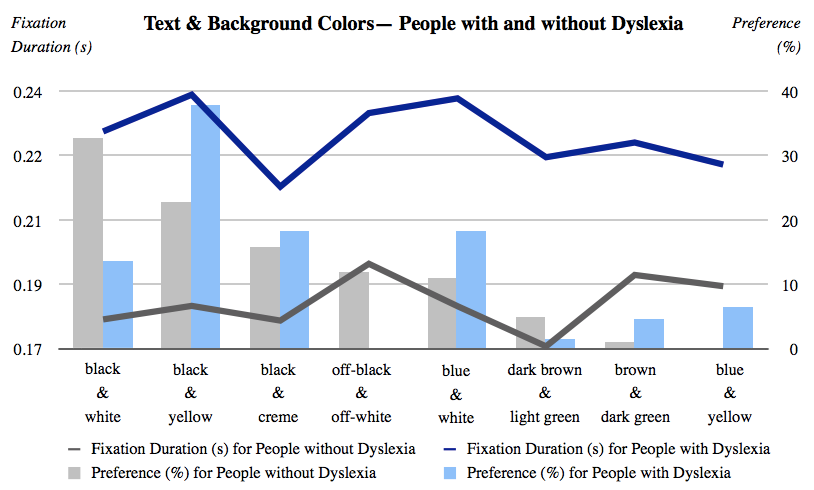 In the report, the areas of focus were broken down as follows
## In the report, the areas of focus were broken down as follows:
The performance, measured in reading time Preferences, represented by the percentage of participants
who chose certain colors
## Eye movement (Performance)
Shorter fixations are preferred to longer ones, as according to other studies, readers pause longer
at points where processing loads are larger. In their results, it was evident the greatest difference
among groups is on the black and white pair, as seen in the chart.Most of the users tested who
didn’t have dyslexia (32.5%) preferred a color mixture and only 13.5% of people with dyslexia choose
black text on white background in terms of text.
## Accessibility needs and Personal Preferences and Testing
The testing approach is designed so that accessibility needs and personal preferences can be studied
separately, rather than being mixed up as they frequently are in recommendations regarding colors
and readability. The tests were composed of two parts: Set of texts to be read with the use of the
eye-tracking to study the reading performance. A survey to collect the user’s preferences.
Shorter fixations are preferred to longer ones, as according to other studies, readers pause longer
at points where processing loads are larger. In their results, it was evident the greatest difference
among groups is on the black and white pair, as seen in the chart.Most of the users tested who
didn’t have dyslexia (32.5%) preferred a color mixture and only 13.5% of people with dyslexia choose
black text on white background in terms of text. The benefit of this separation is that they could
see whether there was a difference in reading speed and accuracy before and after color
customization, which in turn allowed them to determine trends in color choice.
It must also be noted that during these experiments, the color pairs were displayed randomly rather
than in order of brightest to darkest or vice versa, because that would have allowed the subjects’
eyes to adjust to each setting and it they would not have been able to make a judgment as to which
colors are most advantageous to their reading.
## Possible problems with the tests include:
The texts used are too small to draw firm conclusions. The texts were alone on the screen. Thus, the
researchers couldn’t predict the effect of color differences in other reading contexts such as web
browsing, where there are multiple color schemes on the page.
## Results of Study
The outcome of the results from the paper (see figure 1) did not match the WC3 algorithm. Brown and
Dark presented high fixation for both groups; that was second and third highest for people without
and with dyslexia.
These colors were also hardly selected by the users, with only 4.55% without dyslexia and 0.99% of
the users with dyslexia. However, one surprising outcome of the study was that the pairing of dark
brown and light green, which is very similar to the brown and dark green pair in terms of the color
hue but different in terms of brightness and color contrast, presented the lowest and second lowest
fixations duration for people with dyslexia and without dyslexia.
The results suggest that text customization preferences need to be complemented by measured data
from actual reading performance since there is no correlation observed between the reading
performance and the personal choices of users with dyslexia. In the research it was also reported
that the use of colors should be taken into consideration by UX developers.
It was even noted that if the users with dyslexia seem to be reading more quickly using lower color
contrasts than the control group of users these are not below the W3C algorithm, which is to avoid
brightness differences less than 125 and color differences less than 500.
## My Research
Shorter fixations are preferred to longer ones, as according to other studies, readers pause longer
at points where processing loads are larger. In their results, it was evident the greatest difference
among groups is on the black and white pair, as seen in the chart.Most of the users tested who
didn’t have dyslexia (32.5%) preferred a color mixture and only 13.5% of people with dyslexia choose
black text on white background in terms of text. In my own research, I followed the methods used in
the other papers, in order to discover if my results might back up their findings.
I developed a survey, which consisted of 12 questions ranging from details such as age to the color
combinations they preferred to use.
I also showed them samples of Ariel and Comic Sans alongside samples of OpenDyslexia and asked them
to pick the one they preferred, similar to the method from Renske De Leeuw’s paper. In total, I got
43 people to take the survey by posting the link on Reddit sub categories for both dyslexia and web
design.I allowed for a section for personal comments so that I could get a better understanding of
what the user thought of the fonts.One user wrote “ I don’t like using OpenDyslexia all the time
because I feel like It’s not very discreet, using it would be immediately obvious to everyone that I
was ‘different.\` For the most part, the results followed the same patterns as that of the papers
cited, with the exception of the W3C study, where the results were mixed, as dyslexia is different
from person to person.
The people who were surveyed did not stick to the standard 12px body but preferred the 14px body
size which was inline with the recommendation of that from Rellos paper.
## Conclusion
The results of the existing research and the research of this paper into dyslexic focused fonts in
terms of web accessibility for dyslexics can be put into effect by developers to improve the
readability of their applications in both software, website or web application for those with
dyslexia.
## Web accessibility recommendations
### Some recommendations from the above mentioned papers include:
Choose a common font with recognizable letter forms for large bodies of text, such the OpenDyslexia
font, comic sans or Arial.
Include the option for different fonts Allow the user to choose between color combinations Set the
body text size to least 14px, instead of the existing 12px.
Present blocks of texts in columns; don’t let text span the entire length of the screen on a
widescreen display, allowing for better use of whitespace.
Choose text and background colors with a high luminance contrast, or better yet allow the user to
select the combination. Use lower case letters.
Avoid the use of capital letters.Using all capital letters make it harder to read for people with
dyslexia.
Double spacing after periods. Avoid pure black text on a pure white background (Many dyslexic users
can be sensitive to the brightness the high contrast colors cause, as stated in the W3C report as
well.
Avoid Serif fonts ( A sans-serif font would allow dyslexic users to see the shapes of letters more
clearly.This is because of the lack of hooks increases the spacing between letters and makes them
more distinguishable.
As is evident from the suggestions, there are multiple possible avenues for future studies on
typography for dyslexic users, and in fact, such research is desperately needed in order to create a
web which is universally accessible.
Despite the fact that the research papers cited and lack of existing research do not offer concrete
evidence of a correlation between readability for dyslexic users and the use of dyslexia-focused
fonts, there are so many dyslexic people and even more having trouble reading on the
web, that web designers and developers should feel obliged to make their websites accessible to
everyone by fixing bad practices or at least considering the above mentioned suggestions.
Aside from developing more user friendly fonts, true web accessibility entails always providing
users with several options so that they can customize the website to suit their needs. This report
should offer an insight into the way dyslexic users experience the web and demonstrate how dyslexic
focus fonts try to fix some of their problems and improve web accessibility in general.
## Bibliography
1. [K. O'Connor, "Ascender," Typography Deconstructed. Accessed 21 April 2016.](http://www.typographydeconstructed.com/ascender/)
2. [L. Rello and R. Baeza-Yates, "Good Fonts for Dyslexia," Web Research Group, Barcelona, Spain, 2013.](https://dl.acm.org/doi/10.1145/2513383.2513447)
3. [A. Gonzalez, "FAQ," OpenDyslexic. Accessed 1 April 2016.](https://opendyslexic.org/faq/)
4. [A. Gonzalez, "About," OpenDyslexic. Accessed 12 January 2016.](https://opendyslexic.org/)
5. J. Wery and J. A. Diliberto, "The effect of a specialized dyslexia font, OpenDyslexic, on reading rate and accuracy," 15 October 2015.
6. R. de Leeuw, "Special Font For Dyslexia?", University of Twente, 5 December 2010.
7. R. Gabriel, "Research essay on the OpenDyslexic font," Project Bird, 22 February 2016.
8. D. Scotwest, "Website accessibility for dyslexia," April 2016.
9. [Anthony, "6 Surprising Bad Practices That Hurt Dyslexic Users," UX Movement, 23 January 2011.](https://uxmovement.com/content/6-surprising-bad-practices-that-hurt-dyslexic-users/)
10. [W3C, "Text Customization for Readability," 11 November 2012.](https://www.w3.org/WAI/RD/2012/text-customization/r11)
11. V. F. de Santana, "Web accessibility and people with dyslexia: a survey on techniques and guidelines," University of Campinas, 23 June 2012.
---
## 4 Ways to Make Social Media More Accessible in 2022
URL: https://www.helperbird.com/blog/4-ways-to-be-more-accessible-on-social-media/
Social media is a massive space of information sources and connections. People are often glued to
their phones because they always want to get the latest trending topics. Others simply would want to
be entertained by memes or discover and learn new things.
The vast majority of people don’t have any problem keeping up but for those people with
disabilities, it can take more time and effort for them to get access and absorb each information
they got on their screens.
Fortunately, there are ways to make internet consumption easier by the use of accessibility tools.
These tools serve as an aid to guide mostly vision-impaired or hard of hearing individuals in
knowing the right information and remove the fear of missing out, enabling them to experience as
close as what the actual media content is in reality.
## Use Image Descriptions
Image description also known as alternative text is an accessibility tool that describes what the
picture looks like by an AI narrating aloud. This is perfect for people with vision or reading
impairment such as dyslexia, blindness as well as other cognitive dysfunctions.
To get the best idea about the image, it is necessary to include details like the type of image post
(real-life, edited pictures, painting, memes, image with texts and etcetera.), colors or patterns,
people or animals, and what are the things or actions that are present, as it can help people grasp
not only the visible imagery but the sense of feeling involved.
## Use Captions for Videos
Captions are the written texts in video posts. People of low hearing to none can utilize this to
their advantage. It is important to include detailed and close to accurate descriptions of the video
they are watching.
Although this is a common way for deaf people to use, blind people can also benefit from it through
screen readers provided that it is compatible with the embedded software. However, it is crucial to
remember that captions should undergo thorough tests since there are instances it can produce some
inaccuracy in texts.
## Write Hashtags in Camel case
In simple terms camel case is the style of writing text that uses upper or lower case letters at the
start of each word. Words like FedEx and iPhone are popular examples. Even though it isn’t widely
used in social media platforms to write hashtags, it is a practical method among many internet
citizens especially for those who have vision impairment.
Screen readers that are often utilized by blind people can easily read and recognize words faster
since each of them already starts with an upper case letter.
Let’s say, #socialmediaislife may not be reader-friendly to some but when you incorporate camel case
it will become, #SocialMediaIsLife, which is a whole lot better and easier to understand. Most
importantly, it will eliminate the confusion about the whole message that the person wants to convey
to the audience.
## Use Emojis Sparingly
There is no denying that emojis add so much life to social media posts. They are cute and colorful
cartoony representations of people, animals, places, and objects that are placed either at the
front, last, or in between words or sentences.
For a laughing emoji, screen readers may read it aloud as “laughing face.” Even though it is
recognizable, it is essential to note that bombarding the post with emojis will only create
information misunderstanding and delay for people with vision disabilities.
It is advised to limit its use as much as possible as they serve to only accent the idea of the
post.
## Wrap up
These accessibility tools are a huge benefit not only for people with vision or hearing disorders
but also for everyone who wants more convenience in their day-to-day social media or digital
browsing.
Without even realizing it, they create awareness that the world is not one-sided and everyone
deserves to have access to all sorts of information may it be via the internet or other sources.
Additionally, every human being has the capacity to contribute to society, regardless of what their
status or condition is. One day, these inventions will change and end digital literacy
discrimination and embrace the unique differences everyone navigates through them.
In the report, the areas of focus were broken down as follows
## In the report, the areas of focus were broken down as follows:
The performance, measured in reading time Preferences, represented by the percentage of participants
who chose certain colors
## Eye movement (Performance)
Shorter fixations are preferred to longer ones, as according to other studies, readers pause longer
at points where processing loads are larger. In their results, it was evident the greatest difference
among groups is on the black and white pair, as seen in the chart.Most of the users tested who
didn’t have dyslexia (32.5%) preferred a color mixture and only 13.5% of people with dyslexia choose
black text on white background in terms of text.
## Accessibility needs and Personal Preferences and Testing
The testing approach is designed so that accessibility needs and personal preferences can be studied
separately, rather than being mixed up as they frequently are in recommendations regarding colors
and readability. The tests were composed of two parts: Set of texts to be read with the use of the
eye-tracking to study the reading performance. A survey to collect the user’s preferences.
Shorter fixations are preferred to longer ones, as according to other studies, readers pause longer
at points where processing loads are larger. In their results, it was evident the greatest difference
among groups is on the black and white pair, as seen in the chart.Most of the users tested who
didn’t have dyslexia (32.5%) preferred a color mixture and only 13.5% of people with dyslexia choose
black text on white background in terms of text. The benefit of this separation is that they could
see whether there was a difference in reading speed and accuracy before and after color
customization, which in turn allowed them to determine trends in color choice.
It must also be noted that during these experiments, the color pairs were displayed randomly rather
than in order of brightest to darkest or vice versa, because that would have allowed the subjects’
eyes to adjust to each setting and it they would not have been able to make a judgment as to which
colors are most advantageous to their reading.
## Possible problems with the tests include:
The texts used are too small to draw firm conclusions. The texts were alone on the screen. Thus, the
researchers couldn’t predict the effect of color differences in other reading contexts such as web
browsing, where there are multiple color schemes on the page.
## Results of Study
The outcome of the results from the paper (see figure 1) did not match the WC3 algorithm. Brown and
Dark presented high fixation for both groups; that was second and third highest for people without
and with dyslexia.
These colors were also hardly selected by the users, with only 4.55% without dyslexia and 0.99% of
the users with dyslexia. However, one surprising outcome of the study was that the pairing of dark
brown and light green, which is very similar to the brown and dark green pair in terms of the color
hue but different in terms of brightness and color contrast, presented the lowest and second lowest
fixations duration for people with dyslexia and without dyslexia.
The results suggest that text customization preferences need to be complemented by measured data
from actual reading performance since there is no correlation observed between the reading
performance and the personal choices of users with dyslexia. In the research it was also reported
that the use of colors should be taken into consideration by UX developers.
It was even noted that if the users with dyslexia seem to be reading more quickly using lower color
contrasts than the control group of users these are not below the W3C algorithm, which is to avoid
brightness differences less than 125 and color differences less than 500.
## My Research
Shorter fixations are preferred to longer ones, as according to other studies, readers pause longer
at points where processing loads are larger. In their results, it was evident the greatest difference
among groups is on the black and white pair, as seen in the chart.Most of the users tested who
didn’t have dyslexia (32.5%) preferred a color mixture and only 13.5% of people with dyslexia choose
black text on white background in terms of text. In my own research, I followed the methods used in
the other papers, in order to discover if my results might back up their findings.
I developed a survey, which consisted of 12 questions ranging from details such as age to the color
combinations they preferred to use.
I also showed them samples of Ariel and Comic Sans alongside samples of OpenDyslexia and asked them
to pick the one they preferred, similar to the method from Renske De Leeuw’s paper. In total, I got
43 people to take the survey by posting the link on Reddit sub categories for both dyslexia and web
design.I allowed for a section for personal comments so that I could get a better understanding of
what the user thought of the fonts.One user wrote “ I don’t like using OpenDyslexia all the time
because I feel like It’s not very discreet, using it would be immediately obvious to everyone that I
was ‘different.\` For the most part, the results followed the same patterns as that of the papers
cited, with the exception of the W3C study, where the results were mixed, as dyslexia is different
from person to person.
The people who were surveyed did not stick to the standard 12px body but preferred the 14px body
size which was inline with the recommendation of that from Rellos paper.
## Conclusion
The results of the existing research and the research of this paper into dyslexic focused fonts in
terms of web accessibility for dyslexics can be put into effect by developers to improve the
readability of their applications in both software, website or web application for those with
dyslexia.
## Web accessibility recommendations
### Some recommendations from the above mentioned papers include:
Choose a common font with recognizable letter forms for large bodies of text, such the OpenDyslexia
font, comic sans or Arial.
Include the option for different fonts Allow the user to choose between color combinations Set the
body text size to least 14px, instead of the existing 12px.
Present blocks of texts in columns; don’t let text span the entire length of the screen on a
widescreen display, allowing for better use of whitespace.
Choose text and background colors with a high luminance contrast, or better yet allow the user to
select the combination. Use lower case letters.
Avoid the use of capital letters.Using all capital letters make it harder to read for people with
dyslexia.
Double spacing after periods. Avoid pure black text on a pure white background (Many dyslexic users
can be sensitive to the brightness the high contrast colors cause, as stated in the W3C report as
well.
Avoid Serif fonts ( A sans-serif font would allow dyslexic users to see the shapes of letters more
clearly.This is because of the lack of hooks increases the spacing between letters and makes them
more distinguishable.
As is evident from the suggestions, there are multiple possible avenues for future studies on
typography for dyslexic users, and in fact, such research is desperately needed in order to create a
web which is universally accessible.
Despite the fact that the research papers cited and lack of existing research do not offer concrete
evidence of a correlation between readability for dyslexic users and the use of dyslexia-focused
fonts, there are so many dyslexic people and even more having trouble reading on the
web, that web designers and developers should feel obliged to make their websites accessible to
everyone by fixing bad practices or at least considering the above mentioned suggestions.
Aside from developing more user friendly fonts, true web accessibility entails always providing
users with several options so that they can customize the website to suit their needs. This report
should offer an insight into the way dyslexic users experience the web and demonstrate how dyslexic
focus fonts try to fix some of their problems and improve web accessibility in general.
## Bibliography
1. [K. O'Connor, "Ascender," Typography Deconstructed. Accessed 21 April 2016.](http://www.typographydeconstructed.com/ascender/)
2. [L. Rello and R. Baeza-Yates, "Good Fonts for Dyslexia," Web Research Group, Barcelona, Spain, 2013.](https://dl.acm.org/doi/10.1145/2513383.2513447)
3. [A. Gonzalez, "FAQ," OpenDyslexic. Accessed 1 April 2016.](https://opendyslexic.org/faq/)
4. [A. Gonzalez, "About," OpenDyslexic. Accessed 12 January 2016.](https://opendyslexic.org/)
5. J. Wery and J. A. Diliberto, "The effect of a specialized dyslexia font, OpenDyslexic, on reading rate and accuracy," 15 October 2015.
6. R. de Leeuw, "Special Font For Dyslexia?", University of Twente, 5 December 2010.
7. R. Gabriel, "Research essay on the OpenDyslexic font," Project Bird, 22 February 2016.
8. D. Scotwest, "Website accessibility for dyslexia," April 2016.
9. [Anthony, "6 Surprising Bad Practices That Hurt Dyslexic Users," UX Movement, 23 January 2011.](https://uxmovement.com/content/6-surprising-bad-practices-that-hurt-dyslexic-users/)
10. [W3C, "Text Customization for Readability," 11 November 2012.](https://www.w3.org/WAI/RD/2012/text-customization/r11)
11. V. F. de Santana, "Web accessibility and people with dyslexia: a survey on techniques and guidelines," University of Campinas, 23 June 2012.
---
## 4 Ways to Make Social Media More Accessible in 2022
URL: https://www.helperbird.com/blog/4-ways-to-be-more-accessible-on-social-media/
Social media is a massive space of information sources and connections. People are often glued to
their phones because they always want to get the latest trending topics. Others simply would want to
be entertained by memes or discover and learn new things.
The vast majority of people don’t have any problem keeping up but for those people with
disabilities, it can take more time and effort for them to get access and absorb each information
they got on their screens.
Fortunately, there are ways to make internet consumption easier by the use of accessibility tools.
These tools serve as an aid to guide mostly vision-impaired or hard of hearing individuals in
knowing the right information and remove the fear of missing out, enabling them to experience as
close as what the actual media content is in reality.
## Use Image Descriptions
Image description also known as alternative text is an accessibility tool that describes what the
picture looks like by an AI narrating aloud. This is perfect for people with vision or reading
impairment such as dyslexia, blindness as well as other cognitive dysfunctions.
To get the best idea about the image, it is necessary to include details like the type of image post
(real-life, edited pictures, painting, memes, image with texts and etcetera.), colors or patterns,
people or animals, and what are the things or actions that are present, as it can help people grasp
not only the visible imagery but the sense of feeling involved.
## Use Captions for Videos
Captions are the written texts in video posts. People of low hearing to none can utilize this to
their advantage. It is important to include detailed and close to accurate descriptions of the video
they are watching.
Although this is a common way for deaf people to use, blind people can also benefit from it through
screen readers provided that it is compatible with the embedded software. However, it is crucial to
remember that captions should undergo thorough tests since there are instances it can produce some
inaccuracy in texts.
## Write Hashtags in Camel case
In simple terms camel case is the style of writing text that uses upper or lower case letters at the
start of each word. Words like FedEx and iPhone are popular examples. Even though it isn’t widely
used in social media platforms to write hashtags, it is a practical method among many internet
citizens especially for those who have vision impairment.
Screen readers that are often utilized by blind people can easily read and recognize words faster
since each of them already starts with an upper case letter.
Let’s say, #socialmediaislife may not be reader-friendly to some but when you incorporate camel case
it will become, #SocialMediaIsLife, which is a whole lot better and easier to understand. Most
importantly, it will eliminate the confusion about the whole message that the person wants to convey
to the audience.
## Use Emojis Sparingly
There is no denying that emojis add so much life to social media posts. They are cute and colorful
cartoony representations of people, animals, places, and objects that are placed either at the
front, last, or in between words or sentences.
For a laughing emoji, screen readers may read it aloud as “laughing face.” Even though it is
recognizable, it is essential to note that bombarding the post with emojis will only create
information misunderstanding and delay for people with vision disabilities.
It is advised to limit its use as much as possible as they serve to only accent the idea of the
post.
## Wrap up
These accessibility tools are a huge benefit not only for people with vision or hearing disorders
but also for everyone who wants more convenience in their day-to-day social media or digital
browsing.
Without even realizing it, they create awareness that the world is not one-sided and everyone
deserves to have access to all sorts of information may it be via the internet or other sources.
Additionally, every human being has the capacity to contribute to society, regardless of what their
status or condition is. One day, these inventions will change and end digital literacy
discrimination and embrace the unique differences everyone navigates through them.