
How to Install and Use the Helperbird Add-on for Google Slides
Use Helperbird in Google Slides to translate selected text, listen aloud, adjust fonts and spacing, and check text statistics. Follow the illustrated guide.
On this page
Helperbird brings reading tools to Google Slides in a compact sidebar. Most tools open their own modal; Immersive Reader opens directly, so you can work with selected text or text boxes.
How to Add the Add-on to Google Slides
- Open your file in Google Slides.
- Choose Extensions → Add-ons → Get add-ons.
- Search for Helperbird, choose Install, and follow the prompts.
Your school or workplace may need to approve the add-on. See the installation guide for help.
How to Open the Helperbird Sidebar
Choose Extensions → Helperbird → Open Helperbird. Tools open in a modal, except Immersive Reader, which opens directly. Use its close button or press Escape to return to the tool list.
What the Slides Sidebar Gives You
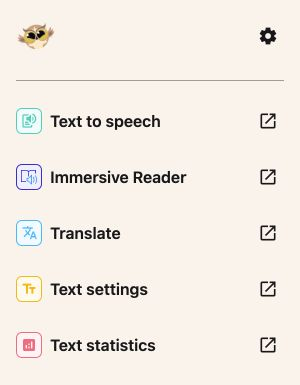
The sidebar has Text to speech, Immersive Reader, Translate, Text settings, and Text statistics. Immersive Reader opens directly; the other tools use modals. Open Settings with the gear button to connect Pro or find help.
Alerts and confirmations appear briefly at the bottom of the sidebar.
Highlight words to use a passage, or select a text box, group, or table cells to use their text. Selecting a group and one of its text boxes does not repeat the text. Merged cells are read once.
Text statistics checks your selected text or text boxes as soon as it opens. It shows 14 statistics, including word count, reading time, characters, sentences, and unique words. Use Recheck after changing the selection. Times are estimates.
 View full-size image (opens in a new tab)
How to Translate Text on a Slide
- Select text or text boxes on your slide.
- Open Translate in Helperbird.
- Choose a language under Translate to. Use the arrow keys or type a language name to find it.
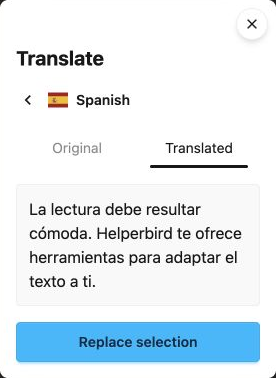
- Choose Translate. Switch between Original and Translated to compare the result.
- Choose Replace selection if you want to apply it.
- After Selection replaced appears, choose Done to close or Translate another to start again.
To apply a translation in one step, choose Translate & replace after choosing the language. Closing the modal before the translation is ready prevents the replacement from starting.
Replacement keeps paragraph layout, but mixed formatting within the translated text may change. Text on other slides stays unchanged.
If the selection includes automatic slide numbers or embedded objects, Helperbird asks you to select the surrounding text instead. This keeps those fields intact. Reading aloud can still read the displayed slide numbers.
If the selection or its text changes after the preview, translate it again before replacing. A failed preview does not change your file.
 View full-size image (opens in a new tab)
How to Change the Font and Spacing
- Select text or shapes you want to change.
- Open Text settings.
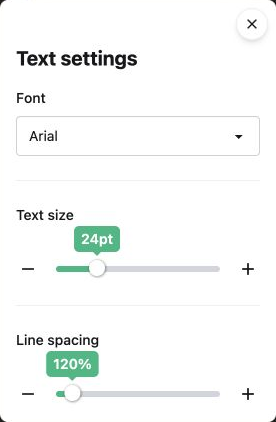
- Choose a Font, then adjust Text size and Line spacing.
Dyslexia and readability options are together in this modal. The font list includes Lexend, Lexend Deca, Atkinson Hyperlegible, Open Sans, Nunito, Arial, Verdana, Georgia, and more. Choose the font that feels easiest for you to read.
Changes apply only to selected text or shapes, including selected groups. Select text or a text box first; an empty selection never changes the slide.
 View full-size image (opens in a new tab)
How to Listen to a Slide
- Highlight text or select text boxes, or leave nothing selected to read the current slide.
- Open Text to speech and choose a voice.
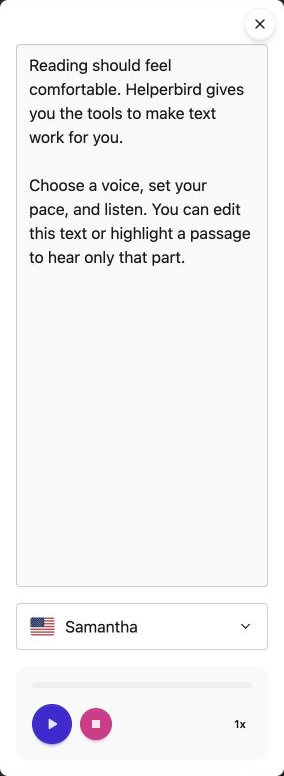
- Press Play. Helperbird loads the text into the box and reads it aloud.
- You can edit, delete, or paste text in the box. Highlight part of it to hear that passage, or leave nothing highlighted to hear the whole box.
Editing stops playback. Clearing the box leaves it empty; pressing Play again loads text from your file. You can pause, resume, stop, and change speed. Changes in the box do not change your slides.
The voice list shows PNG flags and language names. Voices depend on your browser and device. Closing the modal stops playback.
For line focus and reading preferences, select text on your slide and choose Immersive Reader in the sidebar. It opens directly. Exit the reader to return to the tool list.
 View full-size image (opens in a new tab)
How to Turn On Helperbird Pro
Open Settings using the gear button at the top of the sidebar. Enter your subscription key, then choose Connect.
The other sidebar tools work without a Pro key. Immersive Reader supports selections up to 1,200 characters on the free plan; Pro supports longer selections. Text to speech uses browser voices and does not use Helperbird's paid natural voices.
What the Slides Add-on Does Not Do
Text settings changes the selected text or text boxes. It does not redesign the presentation or automatically fix text that overflows a text box. Review your slides after changing fonts, size, or spacing.
Video Tutorial
The video shows an earlier sidebar layout. Use the steps above for the current tool names and modals.
Need Additional Help?
Contact Helperbird support if you need help. Include which Google app you use, the tool name, and what happened.
Printed from the Helperbird Help Center · Updated September 14th, 2026
Questions? We are happy to help — helperbird.com/support