How to Use the Reading Guide on Any Website

Learn how to use Helperbird's use the reading guide. Complete guide for improving web accessibility and reading support.

What is the Reading Guide?

The Reading Guide is a solid colored bar that appears on screen to show you exactly where you are reading. It acts like a ruler that you would place under a line of text in a book.

The guide can follow your mouse cursor as you move down the page, or you can set it to stay in one place. This helps you keep track of which line you are on.


Who is This For?

This feature is helpful for:

  • People with dyslexia who skip lines while reading
  • Anyone who loses their place on the page
  • People with visual tracking difficulties
  • Students reading long documents
  • Anyone who finds a visual guide helpful when reading

Step 1: Open Helperbird

Click the Helperbird icon in your browser toolbar. It looks like a small owl and is usually in the top-right corner of your browser.

This will open the Helperbird menu.


Step 2: Open the All Features Section

Scroll down to the bottom of the Helperbird menu. You will see a section called All Features.

Click the arrow next to All Features to expand it and show all available features.


Step 3: Find Dyslexia Support

Look through the list of features until you see Dyslexia support.

It has a purple icon with a brain symbol on it.


Step 4: Open Dyslexia Support

Click on Dyslexia support to open it.

A panel will appear with two tabs at the top: Tools and Settings.

Make sure the Tools tab is selected. This is where you will find the Reading Guide toggle.


Step 5: Turn on Reading Guide

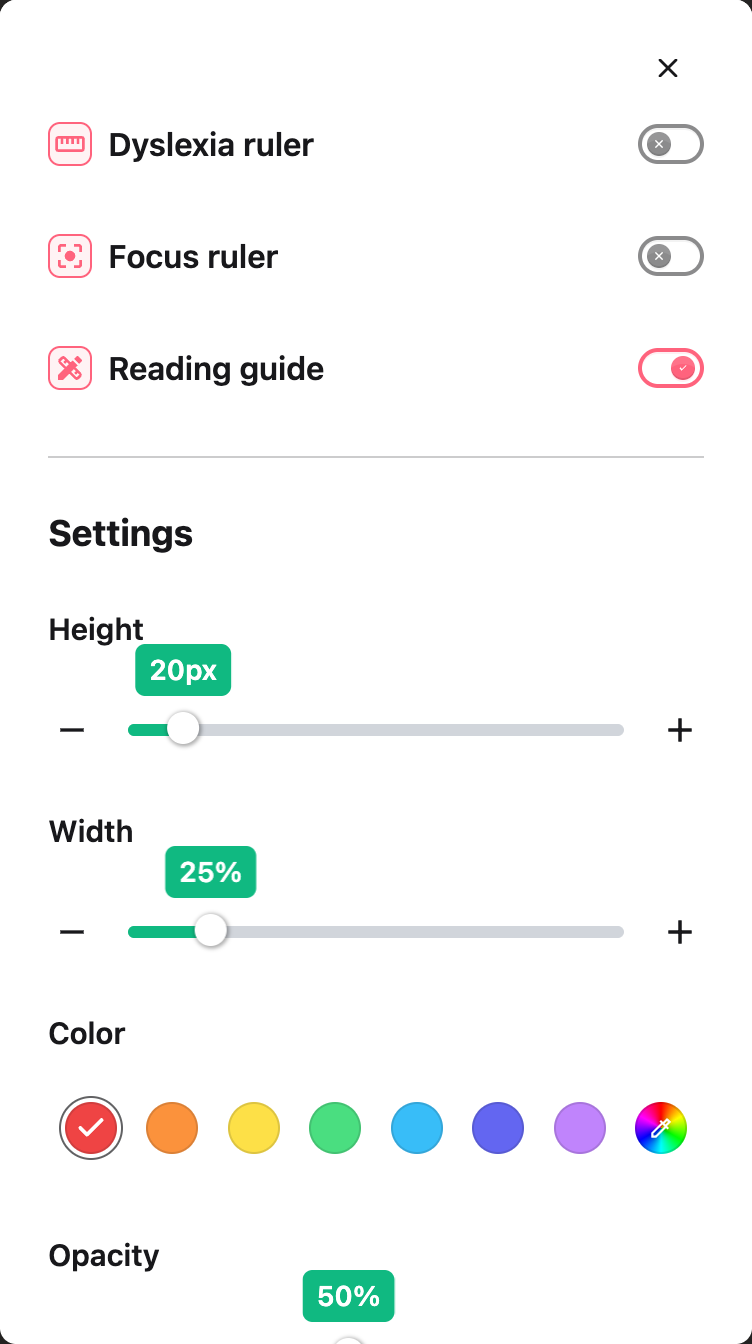
In the Tools tab, look for Reading guide.

Click the toggle switch next to it to turn it on. The toggle will turn green when it is enabled.

A solid colored bar will appear on the screen to guide your reading.


Step 6: Customize the Guide

To adjust how the reading guide looks and behaves, click on the Settings tab at the top of the panel.

Here you can change the size, color, and position of the guide.


Guide Settings

In the Settings tab, you can customize the following:

  • Height – Adjust how tall the guide bar is. A thinner bar points to a specific line, while a thicker bar is easier to see.

  • Width – Control how far the guide extends across the screen.

  • Color – Choose a color for the guide. Pick a color that stands out against the website background.

  • Brightness – Make the guide more or less transparent. A solid guide is easier to see, while a transparent guide lets you see the text underneath.

  • Follow Cursor – When turned on, the guide moves with your mouse cursor. When turned off, the guide stays in one place.

  • Position – When Follow Cursor is off, you can set exactly where the guide appears on the screen.

Tip: Turn on Follow Cursor and choose a bright color like yellow or orange. This makes the guide easy to see and it will automatically move as you read down the page.


Video Tutorial


Need Additional Help?

If you have any questions or run into any issues, please contact the Helperbird support team. You can reach us at Helperbird support. We are happy to help you get the most out of Helperbird.

What People Are Saying

Join over 1,000,000 people who use Helperbird every day.

It an extension that makes reading easy while surfing the internet.

Mohammad F.

Mohammad F.

IT intern

I have to admit, I have tried several other similar products which were awful. Helperbird is truly amazing! The font changes, colours, overlays, notes, text to speech and I love the 50 natural languages! 100% worth updating.

Ciarán Hyland

Ciarán Hyland

Helperbird user

Fantastic! Helperbird is very easy to use, and yet, so powerful!

Anonymous Users

Anonymous Users

Helperbird user

Thank you!! Love the tint feature.

A Google User

A Google User

Helperbird user

This extension has been an absolute lifesaver. I have that fantastic combo of ADHD and Dyslexia while trying to go through college. I have difficulty keeping letters in order, seeing the gaps between words, and with ADHD on top, I lose focus A LOT. The immersive reader has been my new best friend. It drowns out the rest of the content on the page, changes the font to something I can read, and highlights the word as it reads to me. My eyes are forced to keep going in the right direction. I can slow down and pay attention to what I'm reading. I don't even have to go back and read the same paragraph 5 times to understand it! The screen overlay has been outstanding for eye strain and being able to distinguish between words and spaces. The custom font and spacing for research articles have been an enormous advantage! I can actually read the research papers now and not have this daunting 2 column fine print page to squint over.All around, this has been the best purchase I've ever had. I use this every day, with every assignment. I don't even struggle with story-based questions anymore. The immersive reader helps me read, listen, and understand the question all at once. I am still exploring what I can use this with and how it can make my academic career, and I keep getting impressed with every new way I find to use it. Seriously, try it out. You won't regret it at all. Even if you don't have dyslexia or ADHD, just try it out. You might find that it helps you understand the content you're trying to learn even better!

Mason Hunter

Mason Hunter

Helperbird user

love it! I want it on Word and on all my applications now...

Vernon Dickey

Vernon Dickey

Helperbird user

Helperbird logo: Stylized owl with large yellow eyes and a beige face, against a green background.

Download Helperbird

Make browsing easier and more accessible with tools like Text to Speech, Immersive Reader, and more.