
How to Use Text to Speech and Immersive Reader in Google Slides
Capture slide text with Screenshot Reader to hear it read aloud or translate it in Immersive Reader, or use the Helperbird add-on inside Google Slides.
Jump to the stepsOn this page9 sections
Read or Translate Google Slides
Slide text is not always available to a browser extension. Use Screenshot Reader to capture visible slide text, or use the Helperbird Google Workspace add-on to work with selected text inside Slides. These are separate routes.
Step 1: Open Your Slides
Open the deck in Google Slides and display the slide you want to read. Make the text large enough to see clearly.
Step 2: Open Helperbird
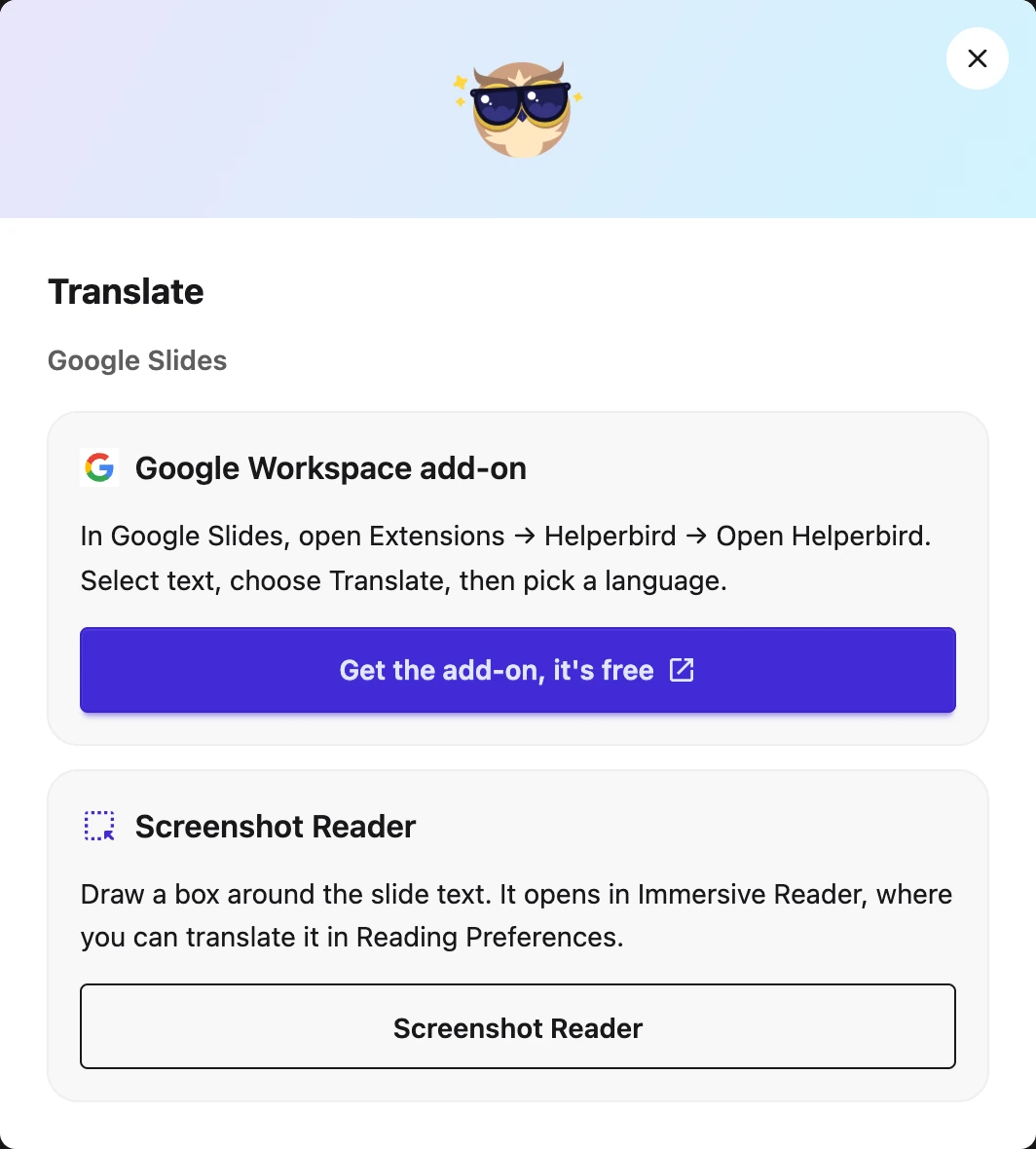
Click the Helperbird owl in your browser toolbar. Open Translate to see the two Slides options.
 View full-size image (opens in a new tab)
Step 3: Use Screenshot Reader
From this Translate dialog, click Screenshot Reader. Selection starts immediately: draw a box around the slide text. When extraction finishes, the text opens in Immersive Reader.
In Immersive Reader, open Reading Preferences, choose a translation language, and select the translation option you want. You can also use its reading controls to listen to the text.
This shortcut does not change your usual Screenshot Reader destination. It requires Helperbird Pro and remains subject to your school's feature and network permissions.
Choose a Different Reading Destination
For read-aloud without the translation shortcut, open Screenshot Reader from Helperbird's All Features list. Choose Listen or Immersive Reader, then Start, and draw your box. Only the selected destination receives the capture; copying to the clipboard is a separate choice.
For Listen, choose Text to speech settings beside the speech controls to change the shared voice and speed. Open the settings guide.
See the Screenshot Reader guide for all destinations and keyboard selection.
Use the Google Workspace Add-on
- Install the free Helperbird Google Workspace add-on (opens in a new tab) if your organization allows it.
- In Google Slides, choose Extensions → Helperbird → Open Helperbird.
- Select the slide text, choose Translate in the Helperbird sidebar, then pick a language.
The browser extension and Workspace add-on are separate installations. If the add-on is blocked by your organization, ask your Google Workspace administrator about approval. See Helperbird for Google Slides for more add-on tools.
Open View-only Slides as Text
The Readable Google Slides Beta setting can open supported view-only decks in a text view. It leaves editable decks alone. Read the readable Slides guide for setup and presentation options.
Troubleshooting
The capture missed words: enlarge the slide and capture a smaller, clearer area. Check the extracted text before relying on the translation.
Translate is blocked: a Pro lock, a setting managed by your organization, and a network block are different problems. Check the message. Sign in or enter your subscription key for Pro access; ask your administrator about managed settings or blocked services.
Need Additional Help?
Contact Helperbird support with the message you see and your browser version.
Printed from the Helperbird Help Center · Updated October 26th, 2026
Questions? We are happy to help — helperbird.com/support