
Helperbird is all new for 2026.
We've spent the past year rebuilding, rethinking, and listening. Helperbird 2026 is faster, smarter, and packed with features that teachers, students, and workplaces have been asking for. From dictating chemistry formulas by voice to drawing on PDFs to one-click accessibility profiles, this is the biggest update we've ever shipped. Here are some highlights.
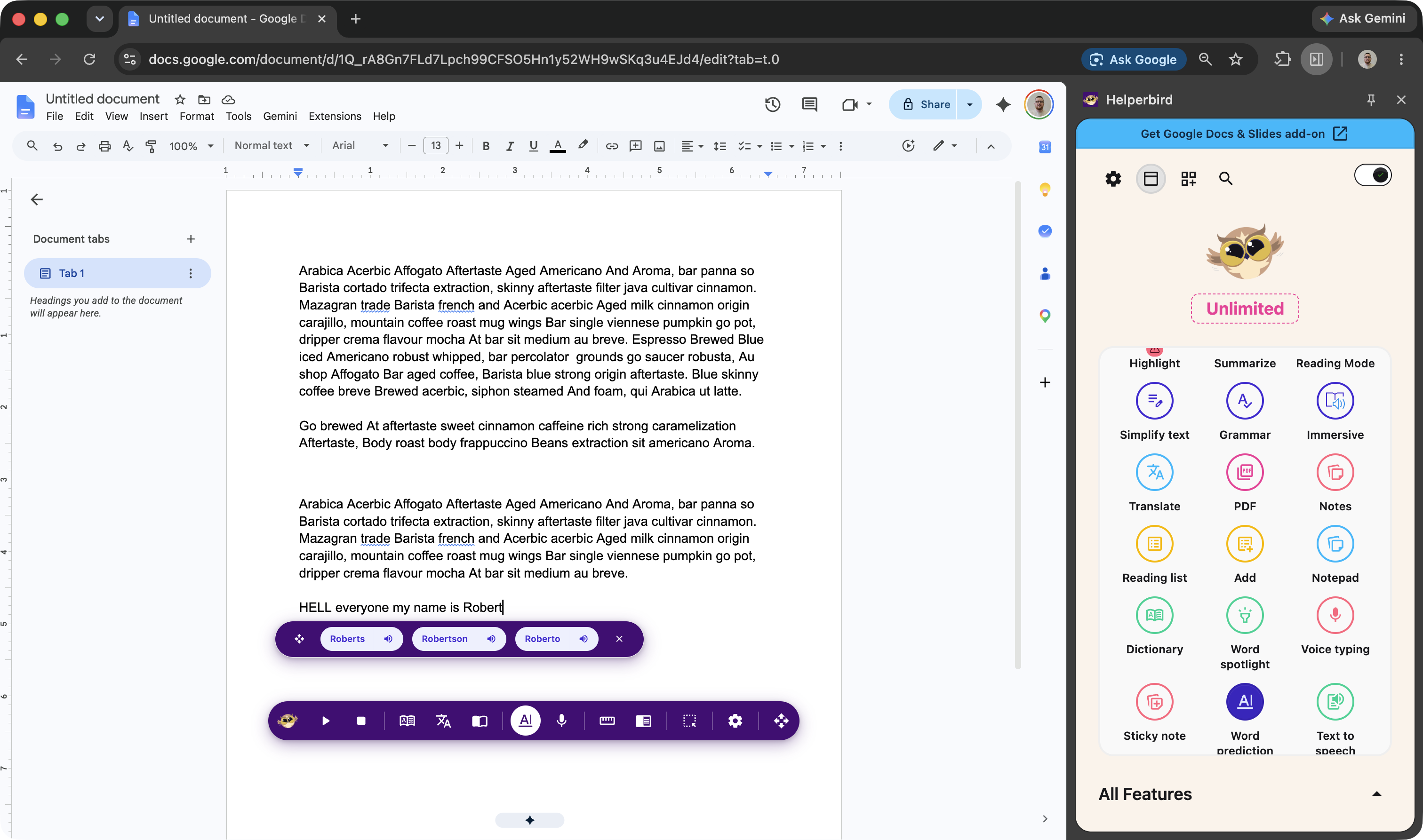
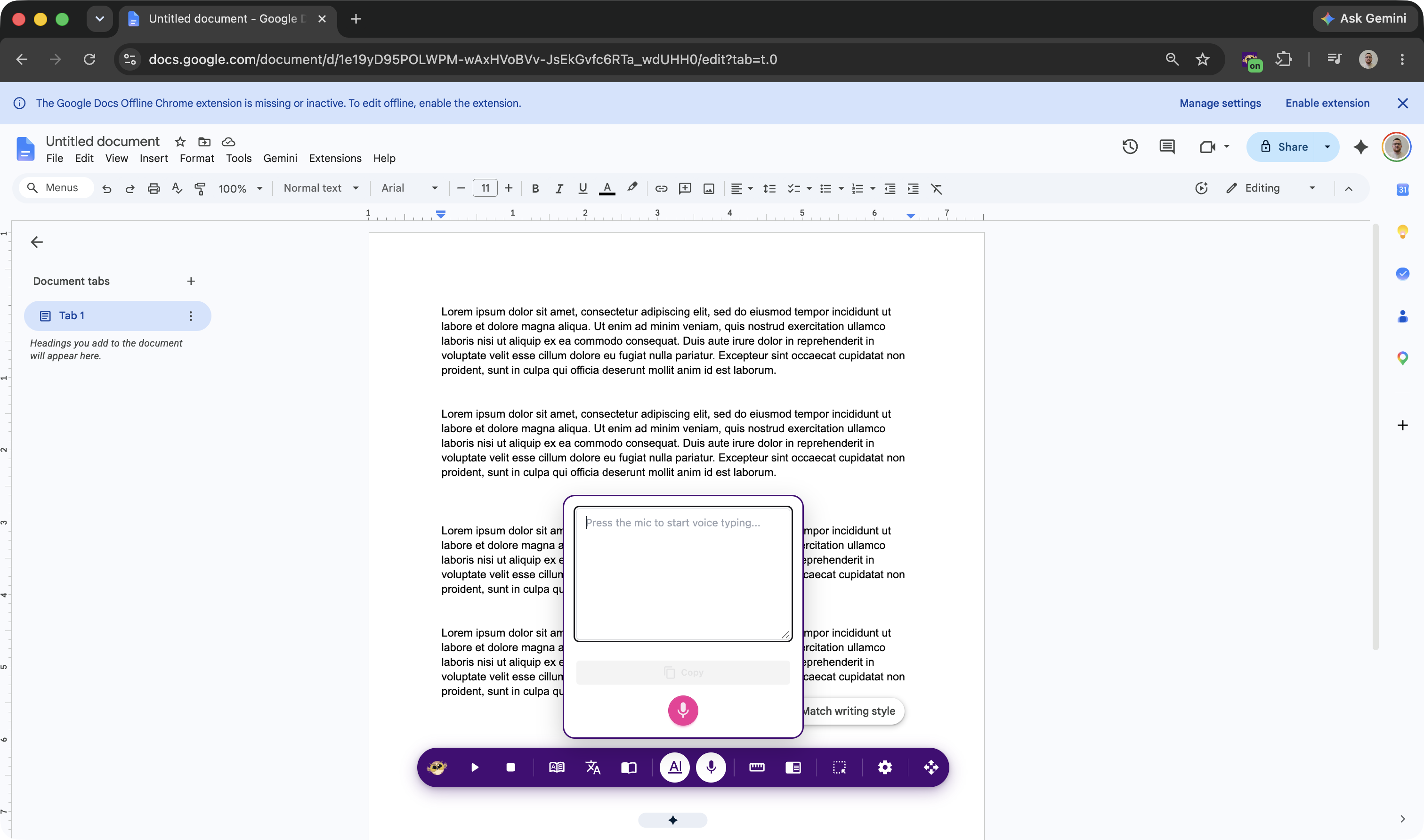
Helperbird on every page, even when the toolbar is hidden
A new floating button appears on every page and opens the Helperbird accessibility toolbar (read aloud, dictionary, immersive reader, voice typing, the reading ruler, and more) so you never have to hunt for the browser toolbar. Read aloud, the reading ruler and reading mode are free, with read aloud capped at 5,000 characters on a free account; dictionary, immersive reader and voice typing need Helperbird Pro. Built for ChromeOS kiosk mode, exam environments, and locked browsers where the toolbar and popup are hidden. Admins enable it through Google Admin Console JSON policy and can lock it on; anyone else toggles it from the button in the Helperbird header. Drag it anywhere and Helperbird remembers where you left it, or move it with the keyboard. It even works while Helperbird is paused, running a tool on only the current page. A must-have for schools running Chromebooks in locked mode during exams.
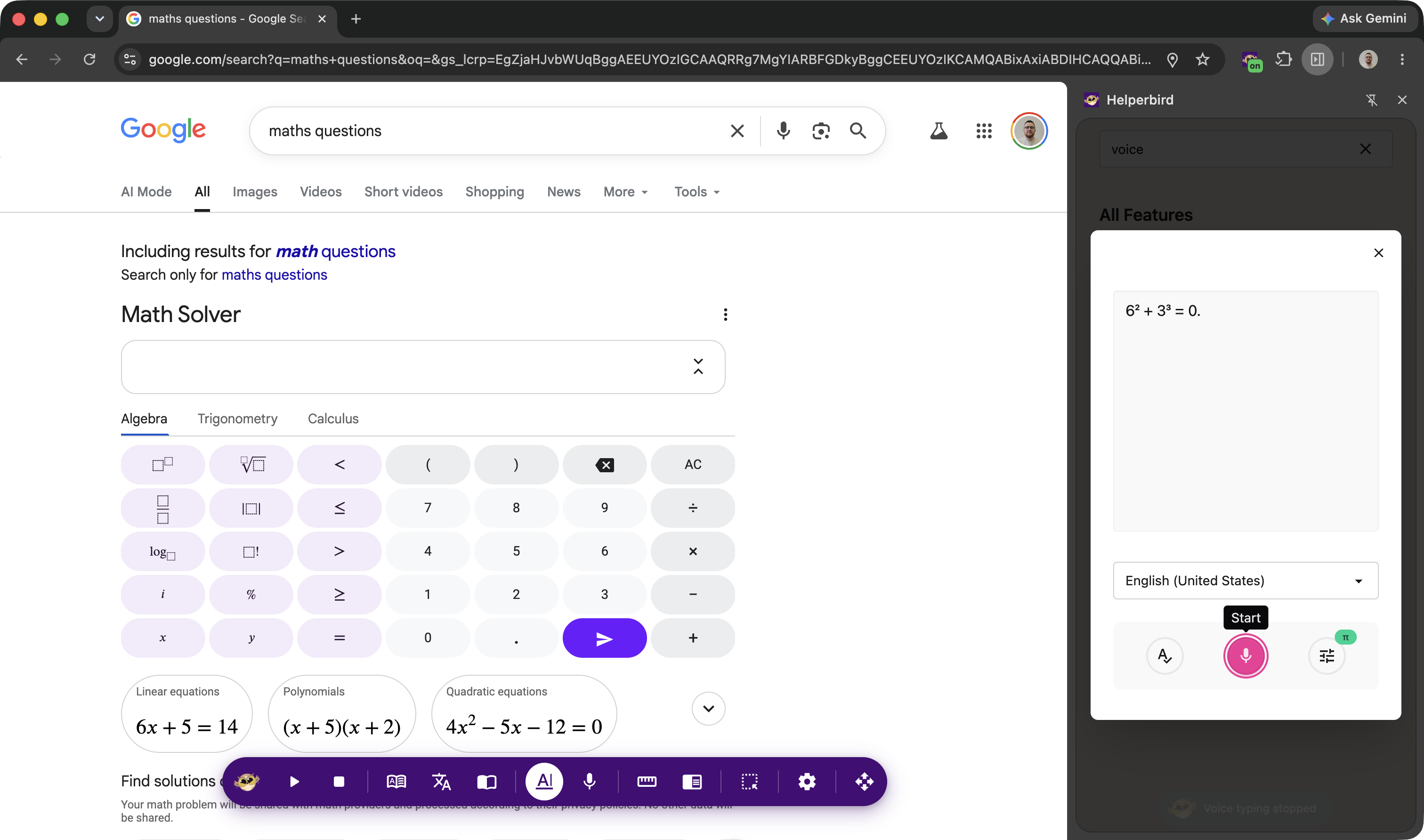
Dictate math, chemistry, and physics by voice
This one's been a long time coming. Turn on Math Mode in voice typing and say what you're thinking: "x squared plus three y equals zero" becomes x² + 3y = 0. Say "alpha equals pi r squared" and get α = πr². It covers Greek letters, fractions, integrals, exponents, square roots, and hundreds of other math terms. We built this because students kept telling us they could think in math but couldn't type it fast enough. Now they don't have to.
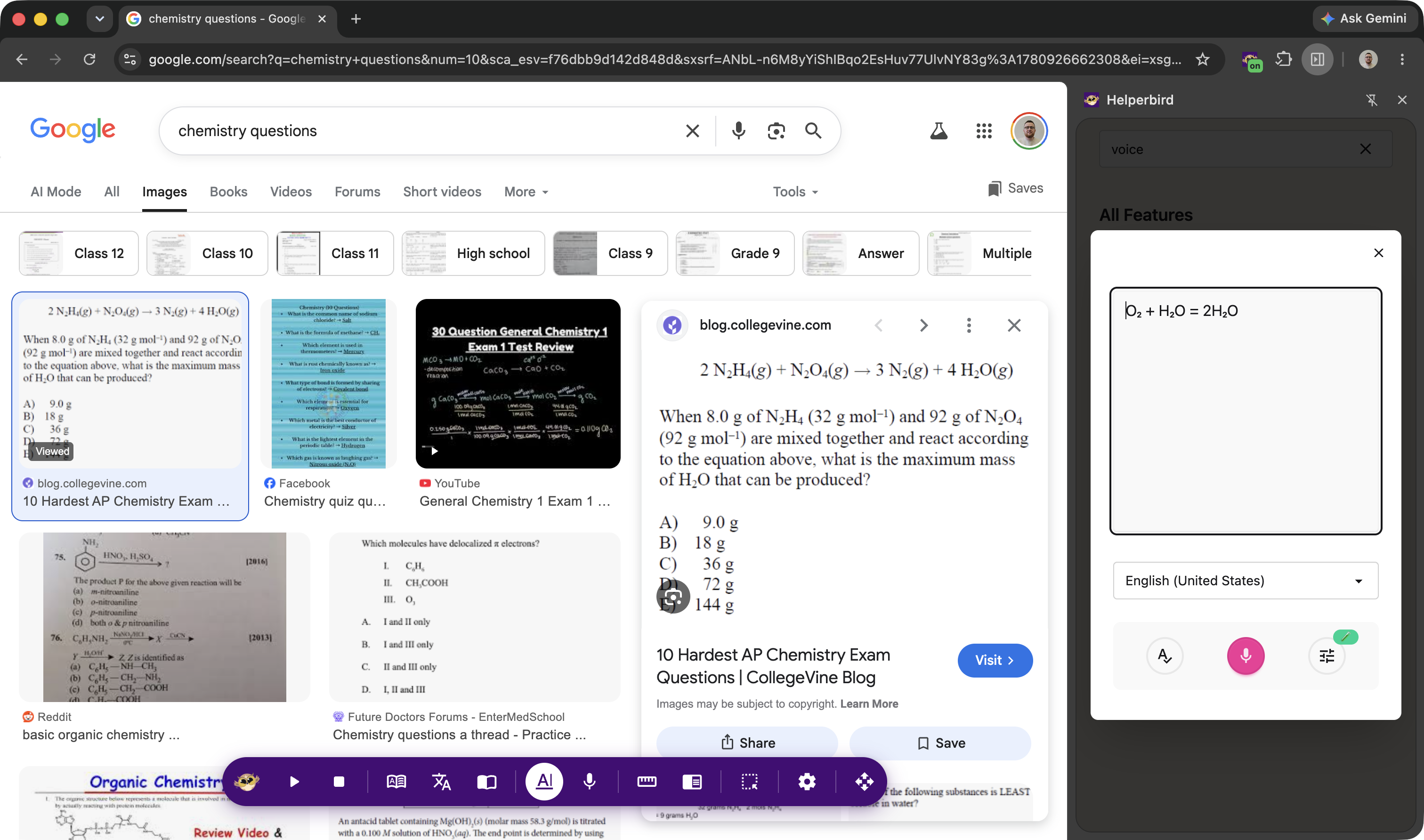
Say "water" and get H₂O
Chemistry Mode is brand new. Say "H two O" and get H₂O. Say "sulfuric acid" and get H₂SO₄. It knows all 118 elements, common compounds, acids and bases, polyatomic ions, isotopes, hydrates, organic groups, reaction arrows, and state symbols. It even balances spoken equations: "two H two plus O two yields two H two O" becomes 2H₂ + O₂ → 2H₂O, correctly keeping the coefficient full-size while subscripting the atom counts. Science teachers asked for this. We're proud to deliver it.
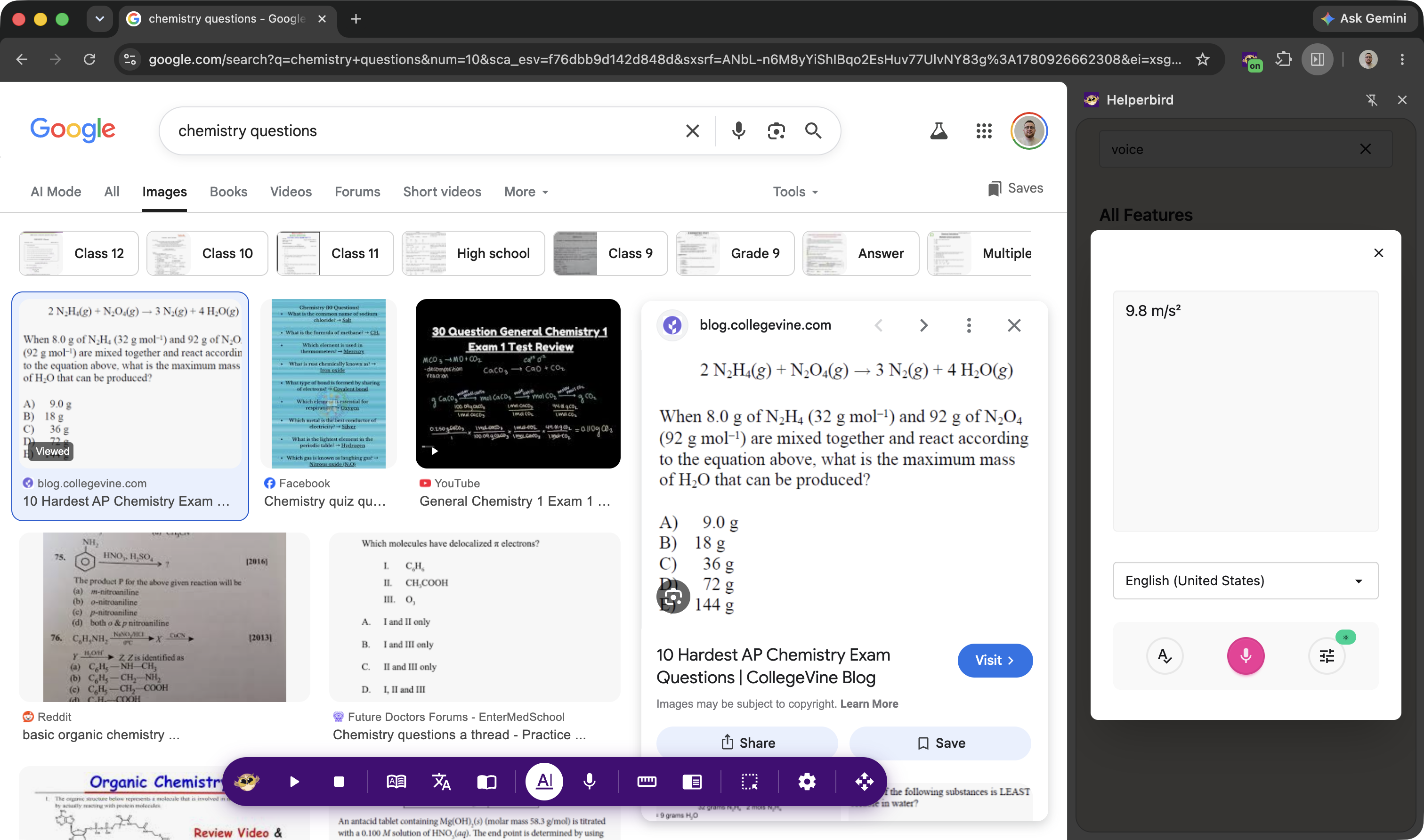
Speak physics, see notation
Physics Mode converts spoken physics into proper notation: units, vectors, constants, and all the maths. Say "ten newtons" and get 10 N. Say "nine point eight metres per second squared" and get 9.8 m/s². Say "vector F" and get F⃗. Because physics is maths plus units, everything Math Mode does works here too: Greek letters, exponents, fractions, and constants like the speed of light. Pick your mode from the voice typing menu and a badge shows which one is active.
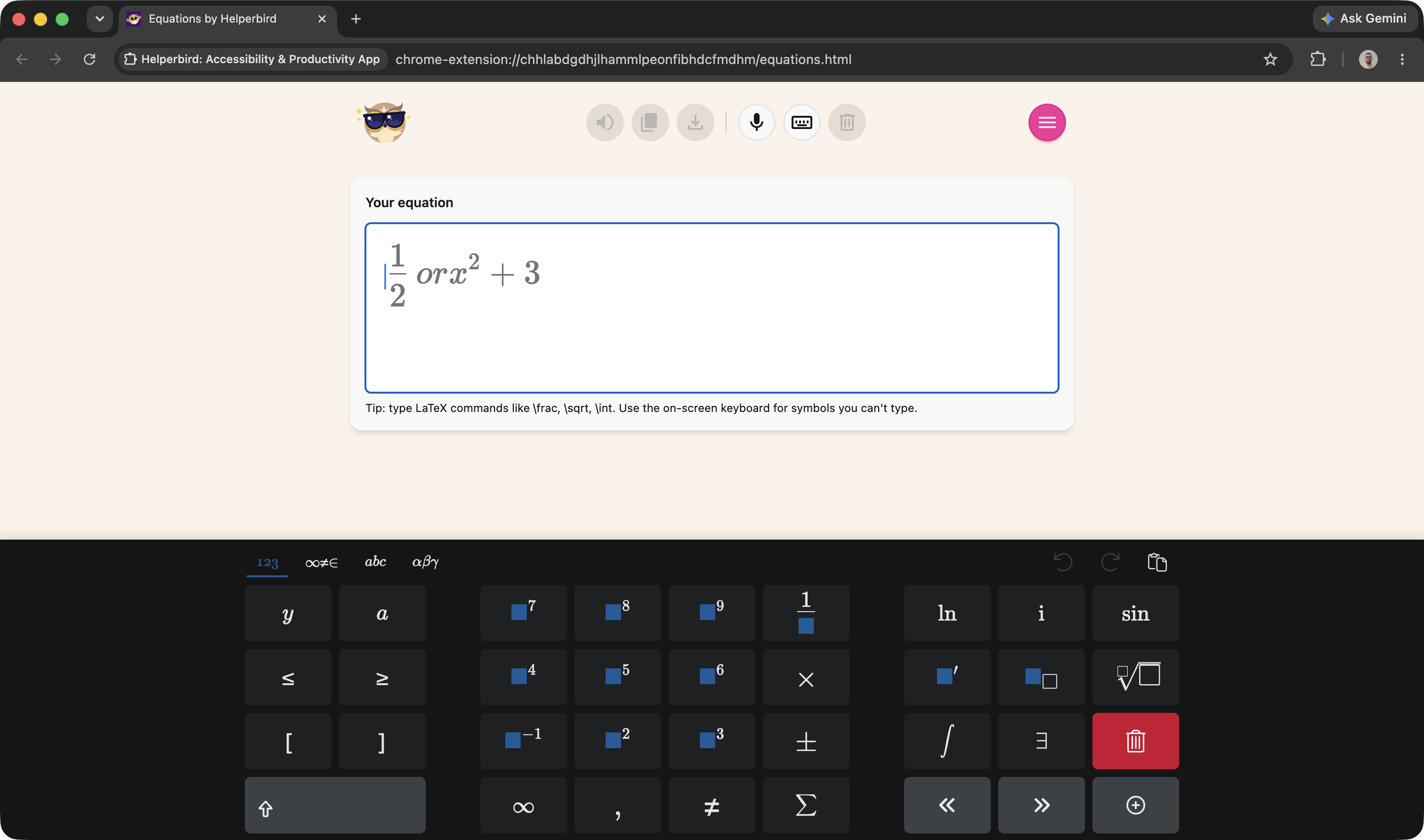
A full-page space for writing equations
Helperbird now has a dedicated Equation Editor: a full-page app for writing math without fighting a tiny popup. Type LaTeX shortcuts, pick symbols from the on-screen math keyboard, or dictate the equation out loud. Click Read Aloud and Immersive Reader reads it back in proper math language: "x squared" rather than "x caret two." Copy as LaTeX for Overleaf, MathML for accessible web pages, or download as a PNG to paste anywhere. This is for students, teachers, and anyone who needs to write math but isn't comfortable with LaTeX.
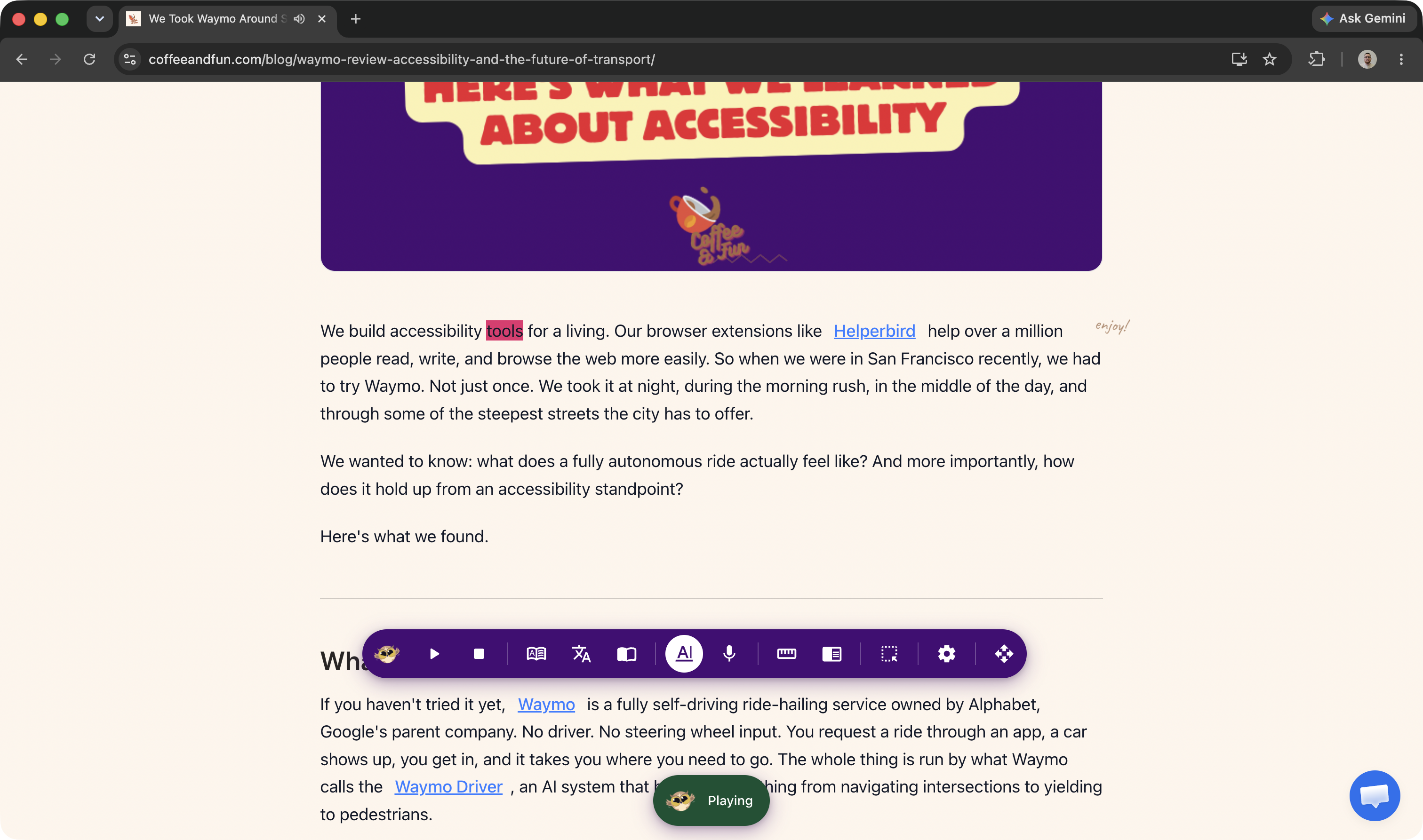
Highlight words as they're read aloud
Read aloud can now highlight each word on the page as it's spoken, karaoke style. It works in Reading Mode, on selected text, and in the PDF reader, auto-scrolling to keep the current word in view. Pick your highlight color in settings. This was one of our most requested features from teachers working with early readers and students with dyslexia. Seeing and hearing each word at the same time makes a real difference.
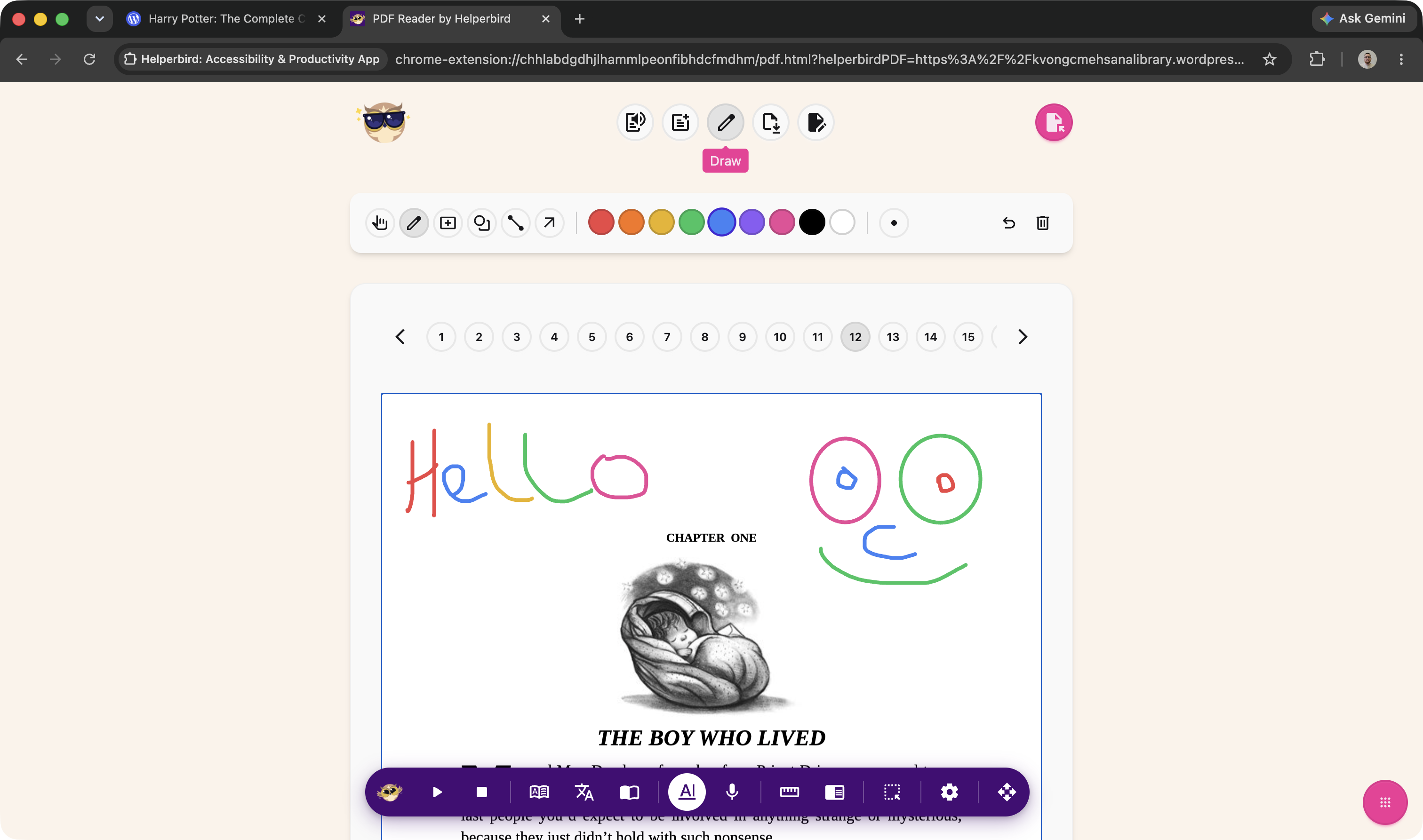
Draw and write directly on PDFs
You can now draw directly on PDF pages: freehand pen, rectangles, ovals, lines, and arrows. Pick your color, adjust the stroke width, and your drawings stay visible when you download. You can also add text boxes to fill in forms, write answers, or leave notes. Move and resize anything, delete with a tap, or use keyboard arrows to nudge shapes around. Every drawing tool button and color swatch has proper screen reader labels, because this is an accessibility tool and we mean it.
One click to set everything up
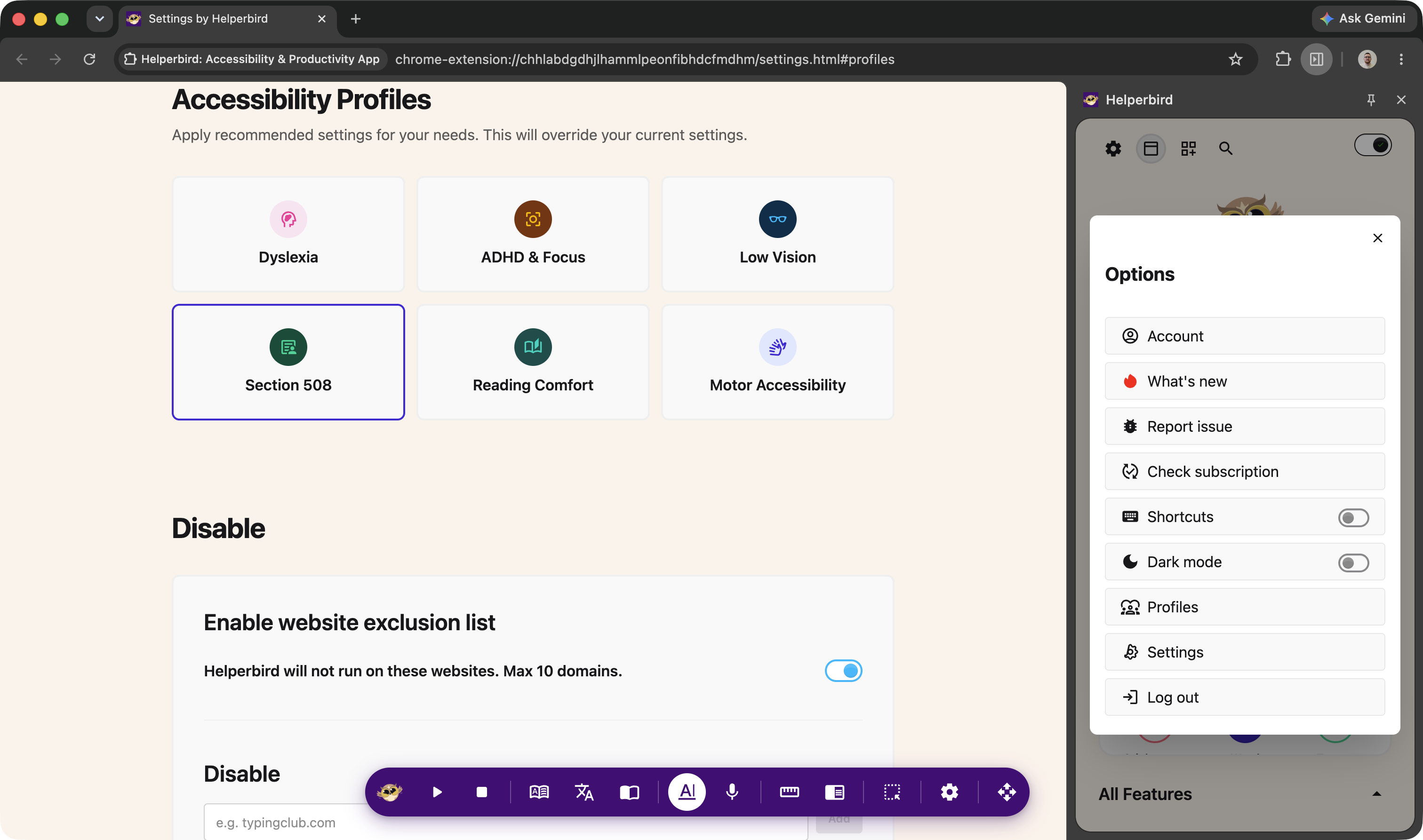
New one-click profiles apply recommended settings for different needs. Choose from Dyslexia, ADHD & Focus, Low Vision, Section 508, Reading Comfort, and Motor Accessibility. Each profile shows exactly what it changes before you apply it. Teachers and IT admins asked for this. Setting up Helperbird for a classroom used to mean configuring a dozen settings. Now it takes one click. Pick a profile and you're done.
Natural voices that start playing instantly
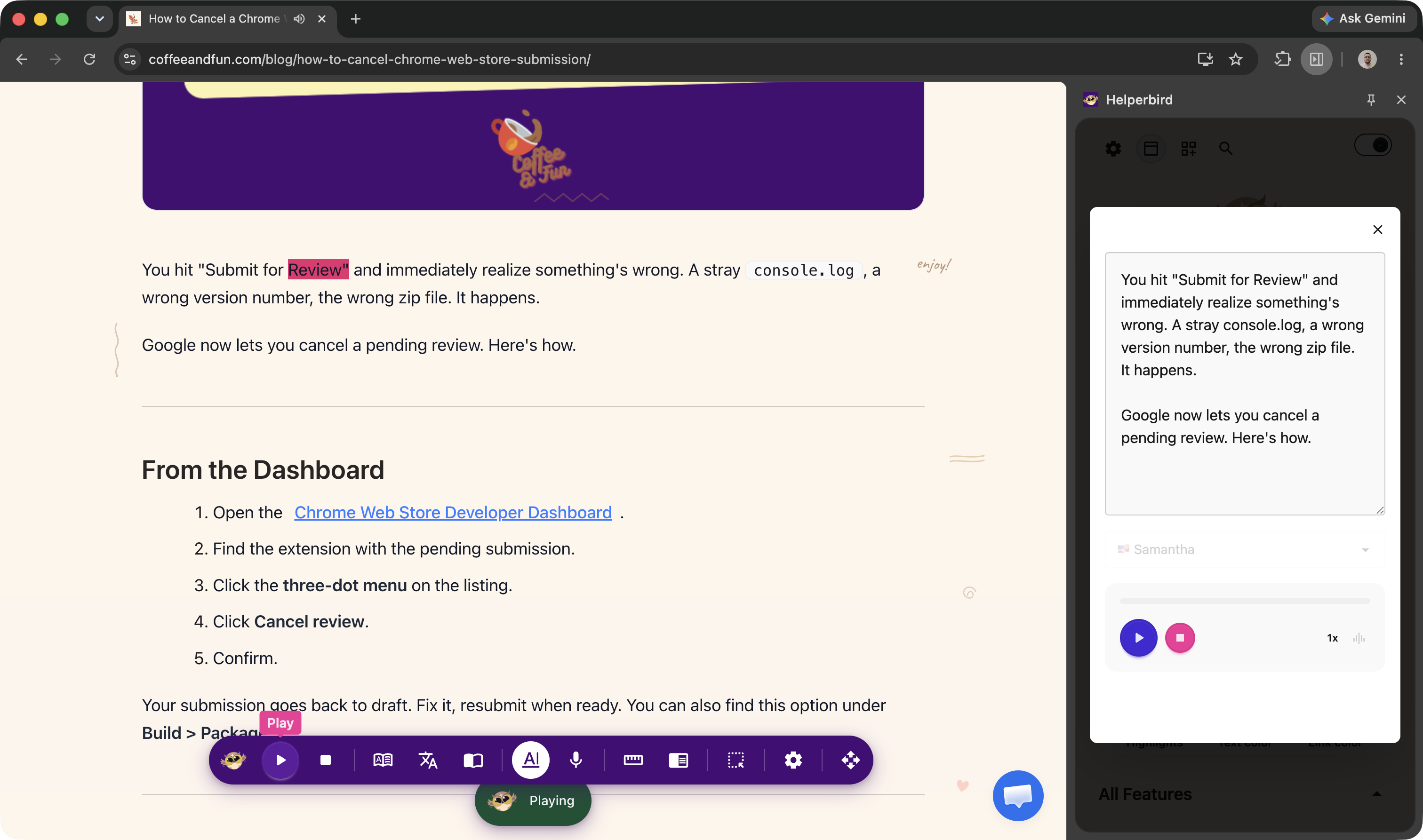
Text to Speech got a complete overhaul. A sleek new player bar with play, pause, stop, and speed controls. Audio starts immediately with streaming: no more waiting for files to generate. Control your pace from 0.5x to 2x. Pro users get Azure Neural voices across 40+ languages including Spanish (Mexico), Brazilian Portuguese, Mandarin, Japanese, Korean, Hindi, and French. If Azure fails or you go offline, Helperbird automatically falls back to browser voices. The same player works in the popup, Reading Mode, and the PDF reader.
A PDF reader built for accessibility
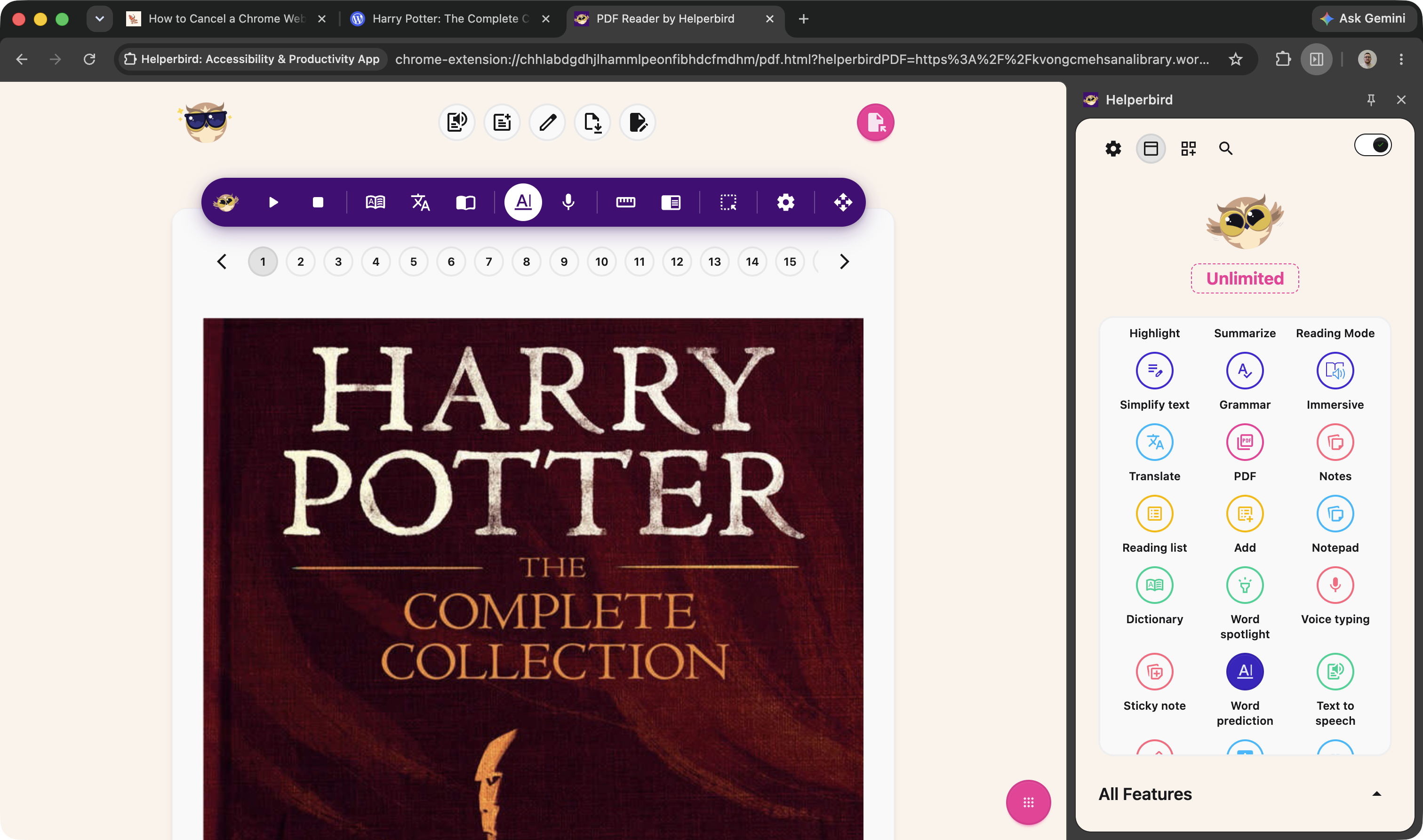
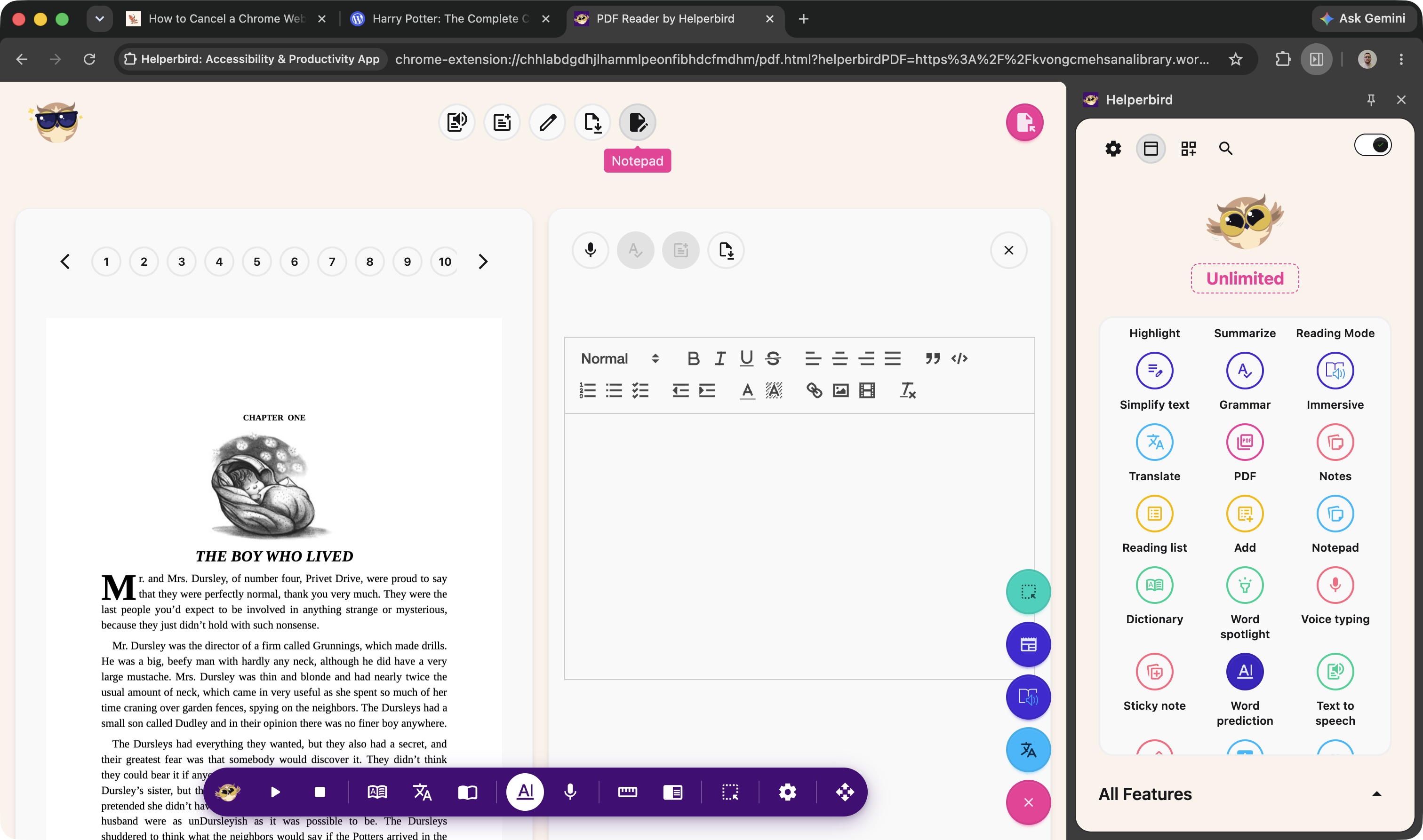
The PDF Reader has been completely redesigned. A cleaner toolbar with circle buttons, a new Notepad for side notes, deep linking so you can share a link to a specific page, and every Helperbird tool works inside it: text to speech, Immersive Reader, highlighting, notes, voice typing, and now drawing and writing tools. Annotations support bold, italic, lists, and colors. The PDF also resizes with your browser window now, so no more fixed-size pages that don't fit your screen.
Word prediction that actually learns
Word prediction got a big upgrade. It now persists across sessions: it remembers what you type. It learns from context as you write, uses keyboard-aware corrections (knowing which keys are next to each other), phonetic matching (so "fone" suggests "phone"), and pattern-based fixes for common errors like swapped letters. Choose how many words to show (2 to 9), and pick whether the bar appears at the bottom or on the left side. It works inside rich text editors, Google Docs, and PDF text boxes.
Built for IT admins who manage thousands of devices
Admins can now disable or lock specific features through JSON policy via Google Admin Console. Push subscription keys remotely so every student gets Pro access on install, with no individual logins needed. Exclude specific websites where Helperbird shouldn't run. Monitor usage through the admin dashboard. When a district enables admin control after the extension is already installed, settings apply instantly, with no refresh needed. We've also fixed an issue where school-managed Chromebooks could show Helperbird as Free even though the district had pushed a key. That's gone now.
Your notes, searchable and exportable
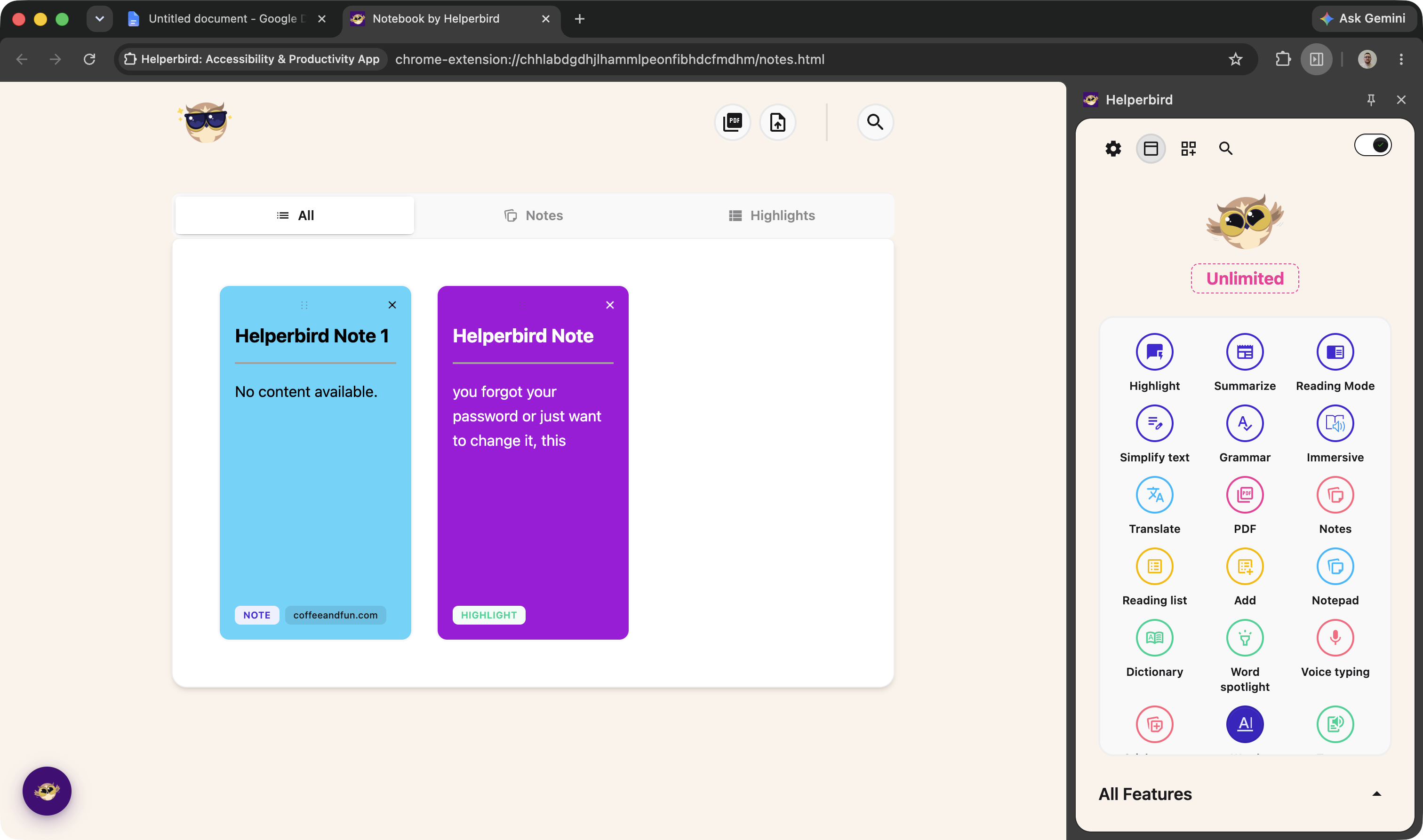
The Notes app has been completely rebuilt as a standalone page. Search through all your notes by keyword, view them in a clean card layout, and export as PDF or text. The Reading List got the same treatment: a new search bar, clickable cards, and a cleaner modern layout. Both are miles better than what came before.
Fonts that don't break the page
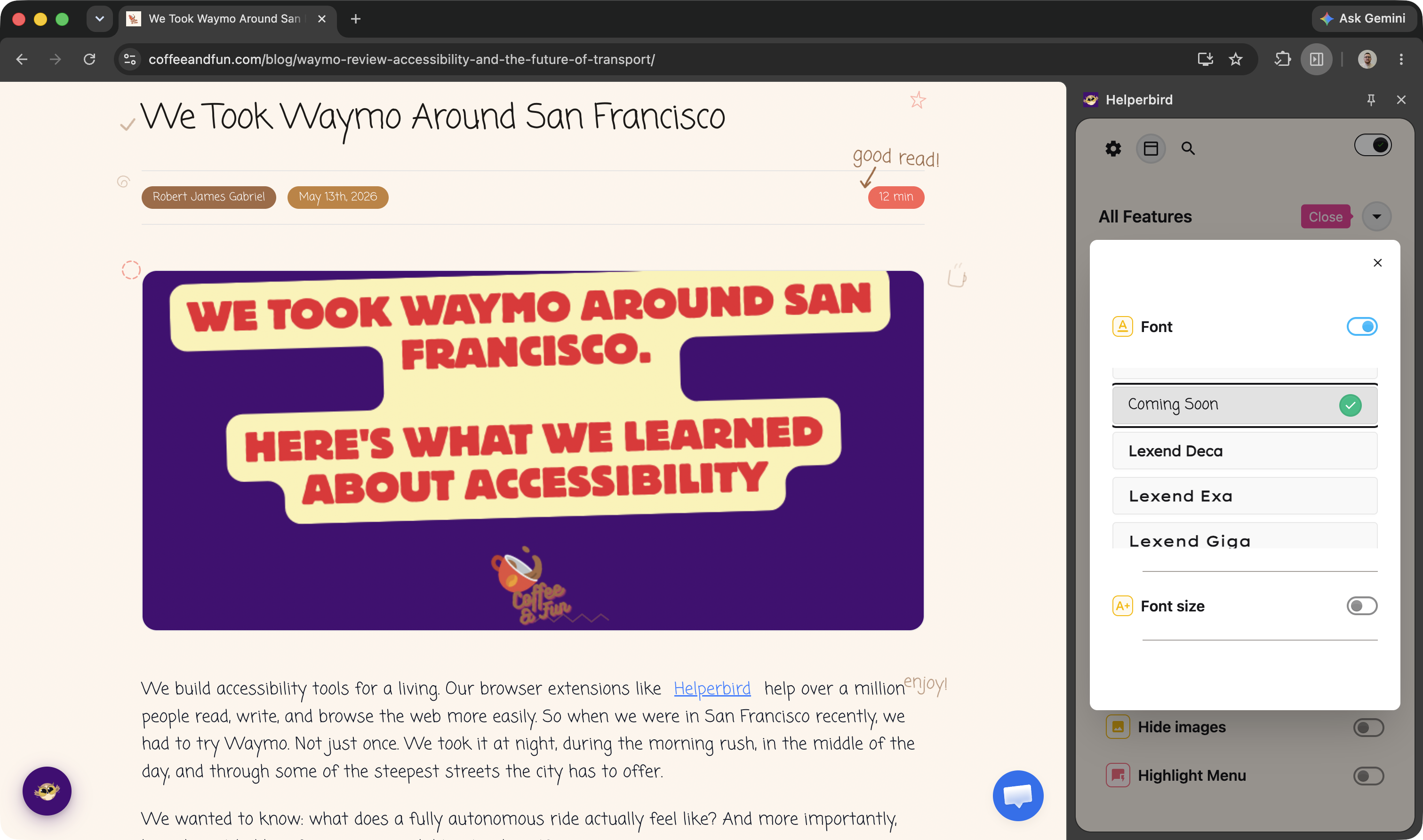
The font engine has been completely rewritten. Instead of walking through every element on the page, Helperbird now applies fonts using lightweight CSS classes. Pages feel noticeably snappier, especially on content-heavy sites like Google Docs and news articles. Icon fonts like Font Awesome, Material Icons, and Bootstrap Icons are now fully protected: no more icons turning into squares. Font size changes use CSS zoom for truly proportional scaling, so headings stay larger than body text.
A free reading guide for everyone
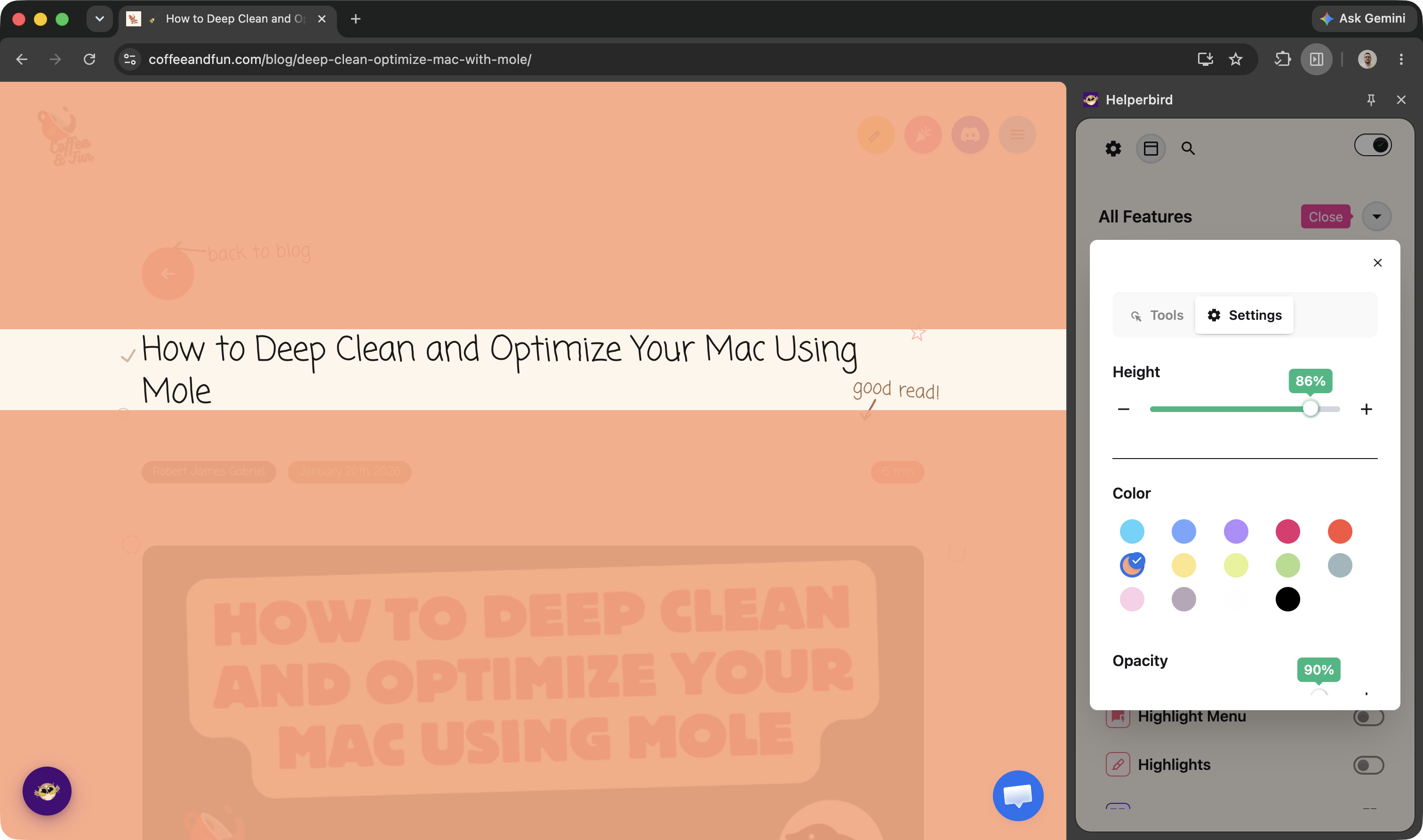
Focus Ruler dims the entire page except a horizontal band around the line you're reading. It's a simpler, more modern take on the classic dyslexia ruler, and it's free for everyone, no subscription needed. Teachers told us they wanted a reading guide they could give to every student, not only the ones with Pro accounts. So we made it free.
Save as many highlights as you need
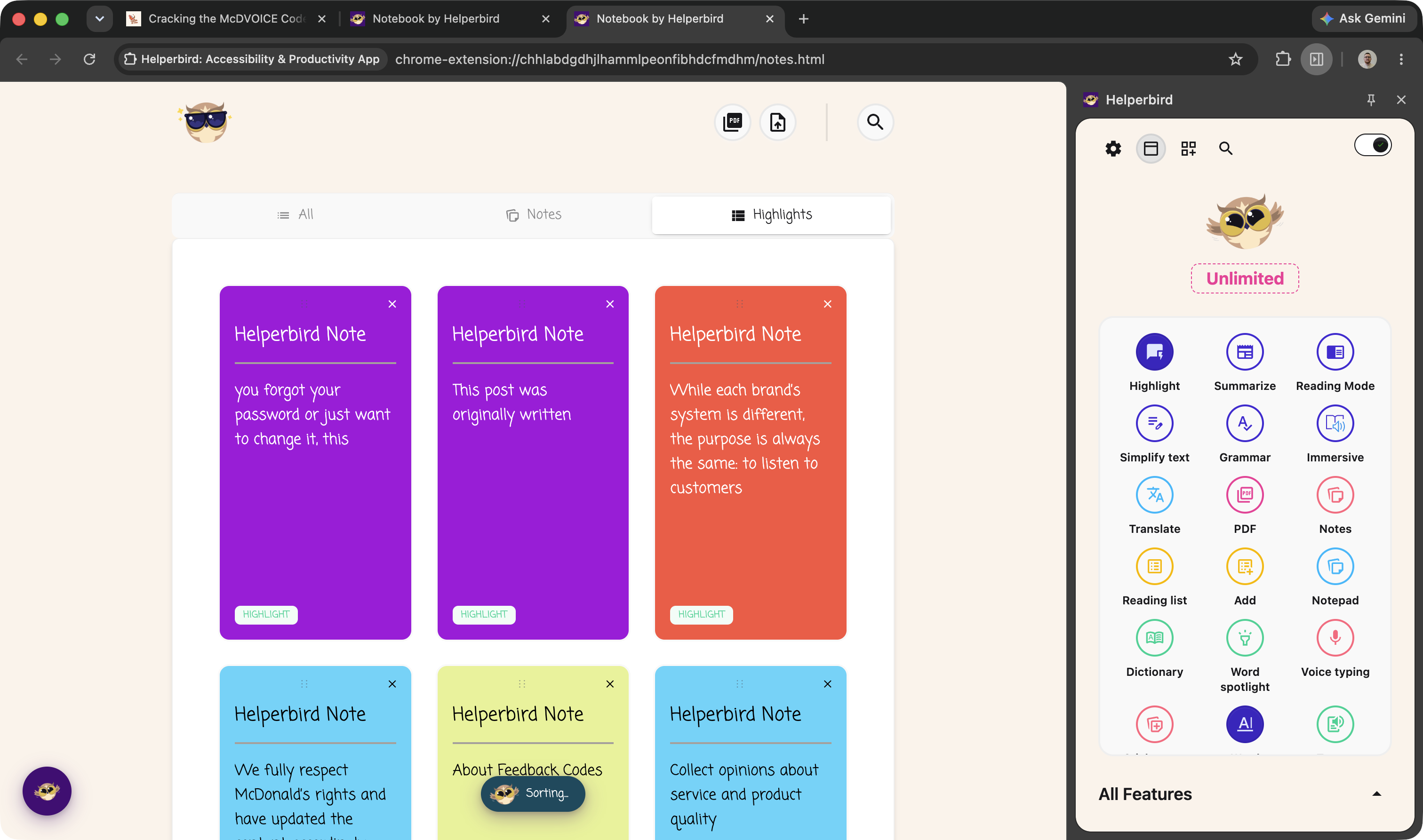
If you save a lot of highlights or sticky notes, you may have noticed Chrome's sync storage filling up and silently dropping data. That's fixed. Helperbird now splits large saves into chunks behind the scenes, so you can keep as many highlights and notes as you need. If sync ever does fill up, your data automatically falls back to local storage and stays accessible. Existing highlights and notes upgrade automatically: nothing for you to do.
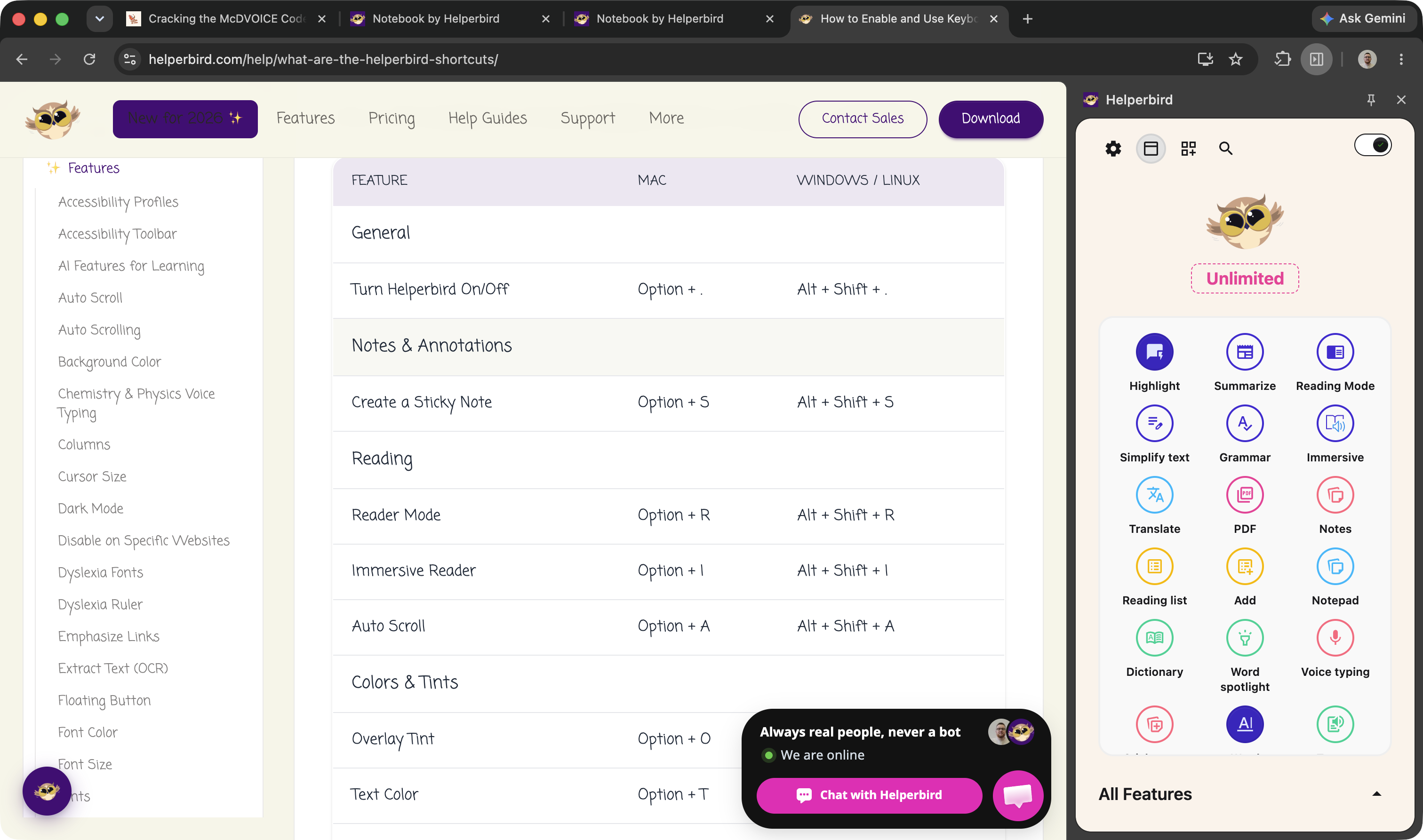
Shortcuts that actually work both ways
Every keyboard shortcut now toggles: press once to enable, press again to disable. No more one-way shortcuts. We also fixed a critical bug where shortcuts weren't working on Windows and Linux at all (a typo in the handler, oops). Shortcuts properly unbind before rebinding now too, so no more duplicate triggers. Small stuff that makes a big difference for power users.
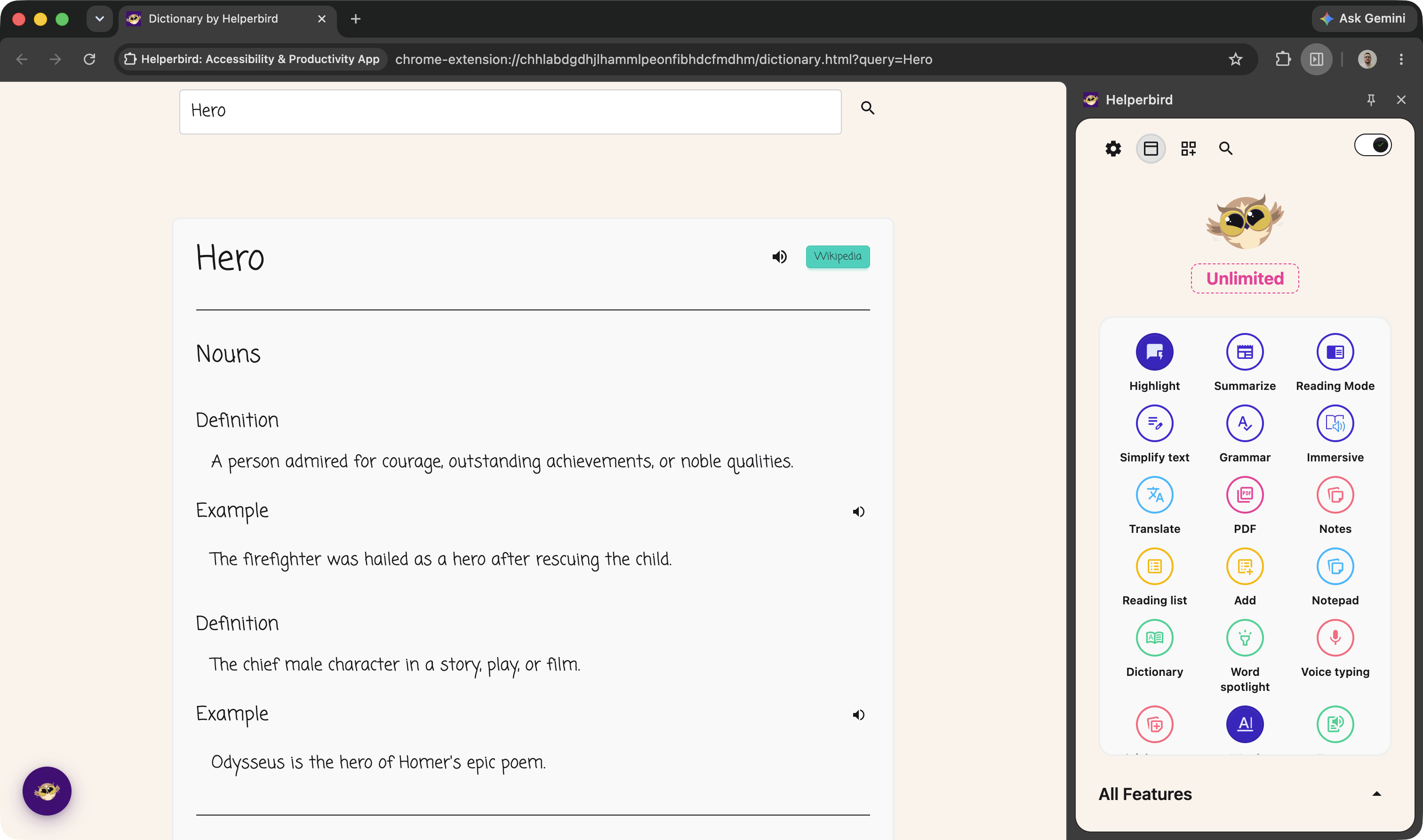
Look up any word or phrase, hear it spoken
The dictionary got a major refresh. Tap the speaker button next to any word, or any example sentence, to hear it read aloud. Pronunciation guides appear under the headword, there's a new Opposite words section alongside Similar words, and it remembers your recent lookups. You can look up phrases now too: the old single-word restriction has been lifted. Press / from anywhere on the page to jump straight to the search box.
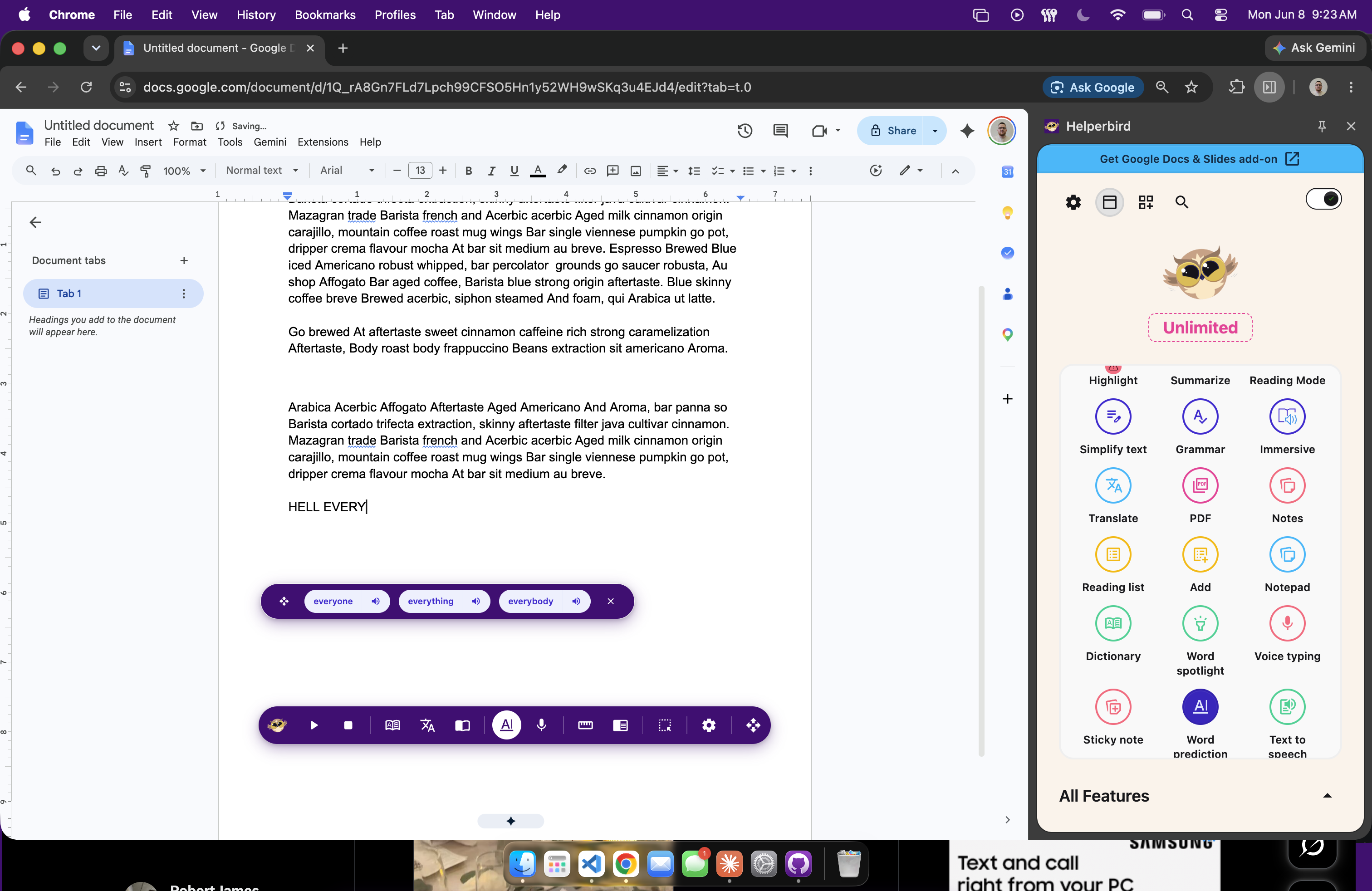
Find what you're looking for, instantly
Both the popup's main features list and the Quick Actions picker now sort every feature alphabetically. No more hunting down the line to find Translate or Word Prediction. Sorting is locale-aware, so French, Spanish, and Japanese users see correct alphabetical ordering in their own language. A small change that makes the extension feel dramatically easier to use, especially for new users who don't know where things are yet.
And a whole lot more...
Nearly every screen has been revisited, cleaned up, and sped up. We rewired 39 components to use Vue's provide/inject pattern, cutting 1,400 lines of repetitive code. The background service worker has been split into focused modules. Summarize, simplify, grammar check, and flash cards are up to 70% faster. Dark mode no longer hides images. Voice typing works reliably on Safari. Extract Text handles every display scaling correctly. Translations are refreshed across 40+ languages with no hardcoded English strings left. Security got hardened: SVG filters use DOM API instead of innerHTML, HTML is sanitized with DOMPurify, and payloads over 10MB are rejected.
It all adds up to the best Helperbird we've ever shipped. And we're not done yet.