
Tools Right Where You Need Them
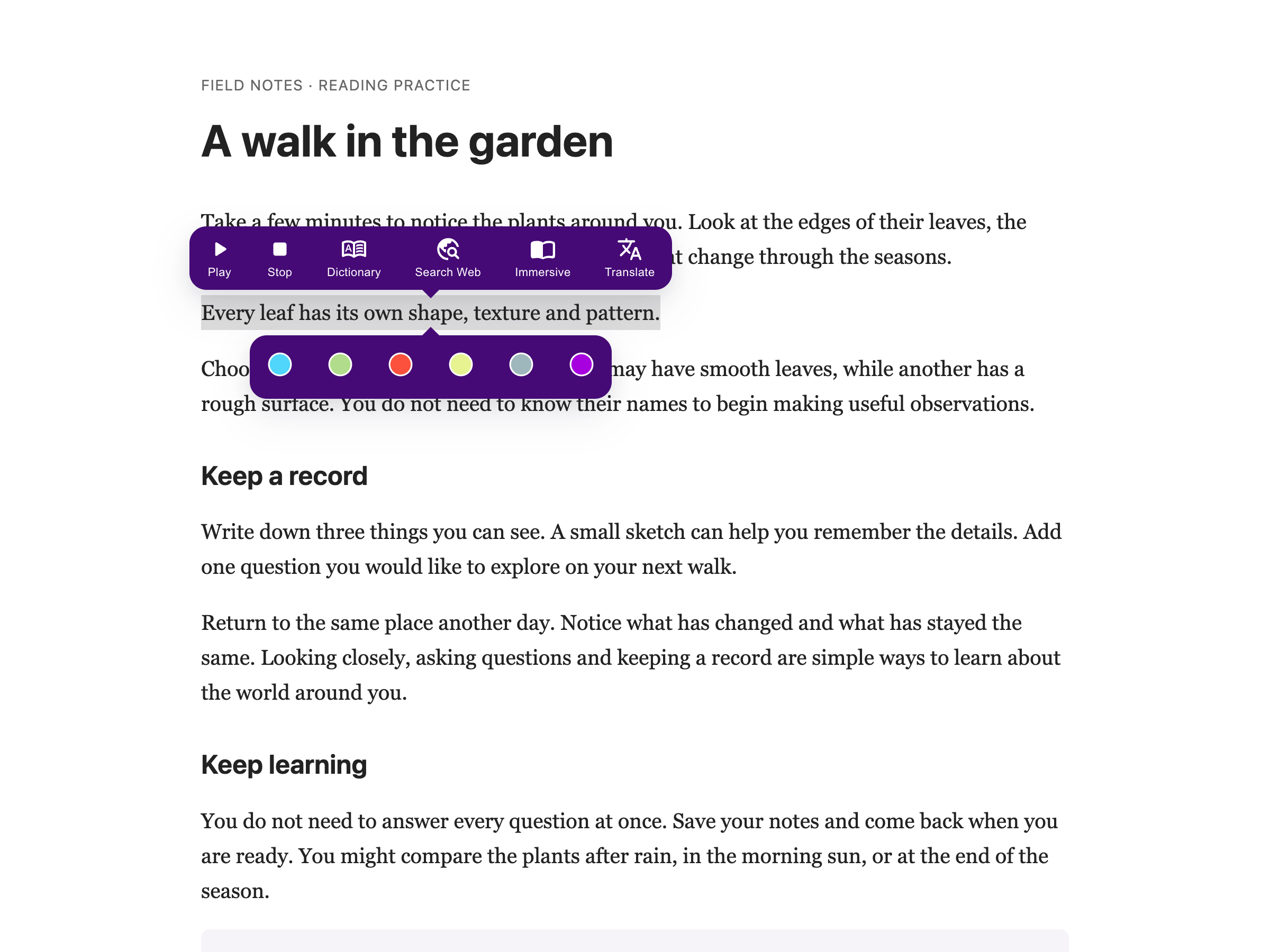
Select any text on a page, and a small menu appears. From that menu, you can read the text aloud, look up a word, translate it, or search for it - all without leaving the page or opening Helperbird.
It's the fastest way to use Helperbird's features.
Learn how to use the highlight menu
Related features
- Web Highlighter - Save your highlighted passages for later review and organization.
- Dictionary - Look up words directly from the highlight menu while reading.
- Text to Speech - Play selected text aloud through the convenient highlight menu.
What's in the Menu
Play: Have the selected text read aloud.
Dictionary: Look up the definition of a word.
Search Web: Search the web for the selected text.
Translate: Translate the text into another language.
Immersive Reader: Open the text in a clean, focused reading view.
Stop: Stop reading aloud.
For colored marks, turn on Highlighter separately in All Features. Its palette appears below your selection while the reading menu stays above. Each menu can run on its own.
Why This Saves Time
Without the highlight menu, you'd have to:
- Select text
- Open Helperbird
- Find the feature you want
- Apply it
With the highlight menu, you select text and click once. Done.
Who Uses This
Students who need to quickly look up words or translate text while studying.
Researchers who want fast access to definitions and searches.
Anyone who reads online and wants quick tools at their fingertips.
Is This Free?
The highlight menu opens on the free plan, and search works from it. Making a highlight needs Helperbird Pro, as do text-to-speech and Immersive Reader. The separate Highlighter palette requires Pro; saved highlights remain readable on the free plan.
