
Skip to content
Contact Sales

Helperbird for Google Slides

Your next idea.
Ready to share.

Reading and text tools, right beside your presentation. Listen to a slide, translate selected words, and find text settings that suit your story.

Free tools for Google Docs, Slides, and Sheets.

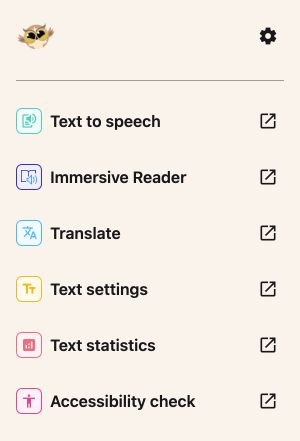
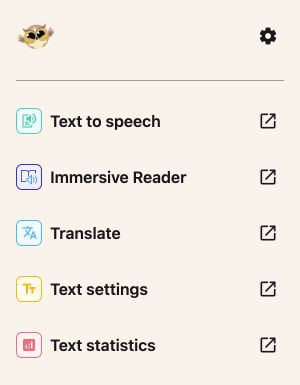
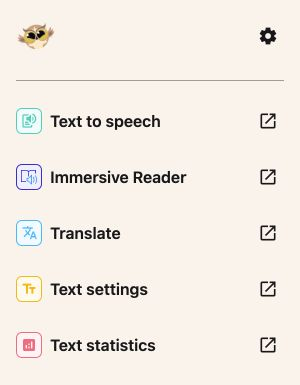
The Google Slides sidebar with Text to speech, Immersive Reader, Translate, Text settings and Text statistics
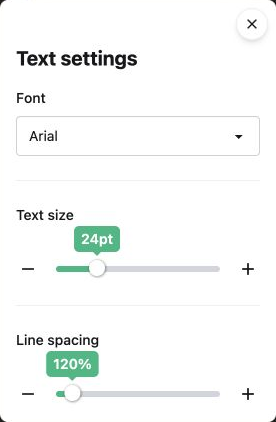
Google Slides Text settings with font, 24-point text and 120 percent line spacing
Your presentation. Your tools. Right beside you.

Reading tools

Take it in.
Your way.

Hear the words on a slide, take a moment with a passage, and find a comfortable pace for your presentation.

Listen with Text to speech

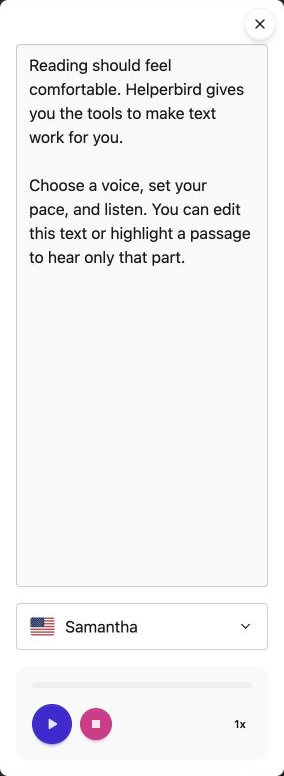
Highlight words or select text boxes to hear their text. Leave nothing selected to read the current slide. Choose a browser voice and adjust the playback speed.

You can edit or highlight the text in the listening box. Those changes do not change your slides. Closing the panel stops playback.

Focus with Immersive Reader

Open selected text in Microsoft’s Immersive Reader for read aloud, line focus, and reading preferences.

Up to 1,200 characters per selection free. Pro supports longer selections.

Explore reading in Google Slides
Helperbird Text to speech with editable text, a voice picker, Play, Stop and playback speed
Choose a voice. Find your pace.

Translate

Another language.
Your same idea.

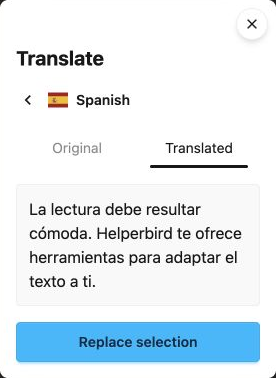
Select text or text boxes, open Translate, and compare the original with a translation. Choose Replace selection when you’re ready, or use Translate & replace in one step.

Text on other slides stays unchanged. Replacement keeps paragraph layout, but mixed formatting may change. Select the surrounding text instead of automatic slide numbers or embedded objects.

See how translation works
Helperbird Translate with Original and Translated tabs, a Spanish preview and Replace selection
Take a look. Then make it yours.

Text settings

Make space for
your message.

Change the font, text size and line spacing for selected words, text boxes or groups. Choose from fonts including Lexend, Nunito and Atkinson Hyperlegible.

Review your slides after making changes. Text settings does not redesign the presentation or automatically fix overflowing text.

Explore text settings in Google Slides
Google Slides Text settings with font, 24-point text and 120 percent line spacing
Find a comfortable fit for your words.

A fresh perspective

Little details.
A clearer picture.

Your words, at a glance.

Check word count, estimated reading time, and other useful measures. Change your selection and choose Recheck to take another look.

Text statistics shows 14 measures for your selection. Reading, speaking and writing times are estimates.

See the Google Slides guide
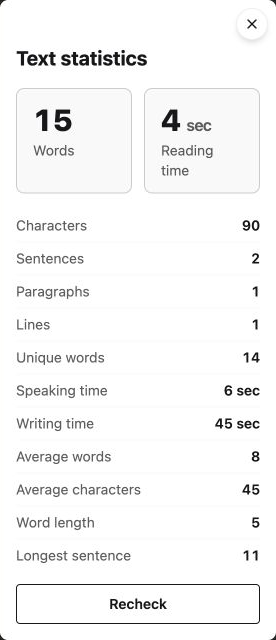

Helperbird Text statistics with word count, estimated reading time and Recheck
The shared Text statistics panel.

Ready when you are

A few clicks.
A little more support.

  1. 1

    Get the add-on

    Install Helperbird from Google Workspace Marketplace. Your school or workplace may need to approve it.

  2. 2

    Open your file

    Head to your file in Google Slides.

  3. 3

    Meet your tools

    Choose Extensions → Helperbird → Open Helperbird.

Questions & answers.

A little more about Helperbird for Google Slides.

Which tools are free?

Text to speech, Translate, Text settings and Text statistics work without a Pro key. Immersive Reader supports up to 1,200 characters per selection for free. Connect Helperbird Pro in Settings for longer selections.

What can I select on a slide?

Highlight words, or select a text box, a group, or table cells to use their text. Selecting a group and one of its text boxes does not repeat the text. Merged cells are read once.

Will changing text settings fix my slide layout?

Text settings changes the selected text or text boxes. It does not redesign the presentation or automatically fix text that overflows a text box. Review your slides after changing fonts, size, or spacing.

Is this the same as the browser extension?

The add-on brings selected Helperbird tools into Google Workspace. Page tools such as reading rulers, color overlays, and auto-scroll are in the Helperbird browser extension. Word prediction and grammar support are also extension features; they are not part of this add-on.

Can I use it with a school or work account?

Your administrator may need to approve or install the add-on. Start with the installation guide, or contact Helperbird support for help.

A little help from a real person? We’re here for you.

Your files. A little Helperbird.

Your next great thought
starts with a little help.

Reading, writing, and accessibility.
At home in Google Docs, Slides, and Sheets.

Get the Google add-on

Install once. Open it from the Extensions menu in your file.

Get Helperbird.

Choose your browser or app.

Browse Helperbird