
Helperbird 2026.9.6: a little less effort, every day
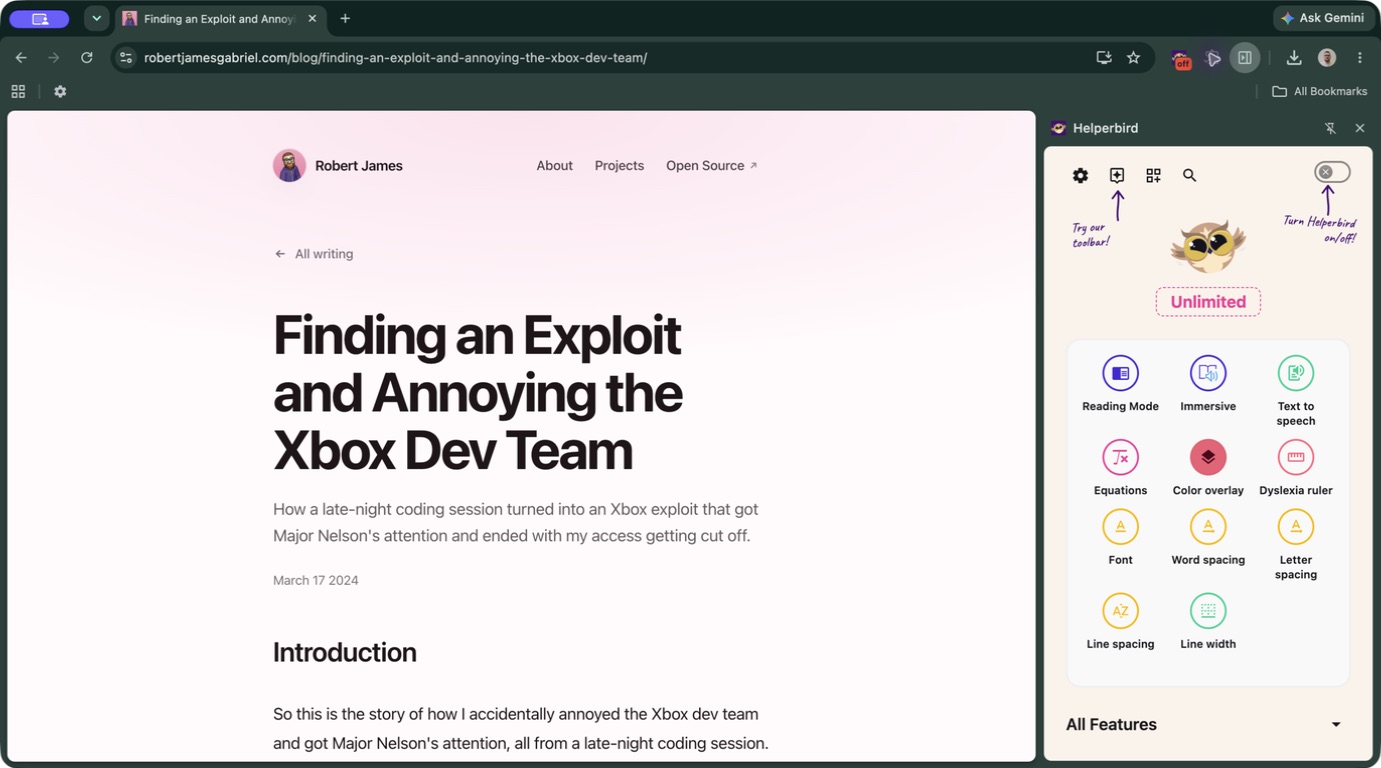
Finding a word in a PDF. Looking up something you do not understand. Getting a page comfortable enough to read. These are small tasks, but they are the things you do over and over.
For Helperbird 2026.9.6, we have spent time making those everyday moments simpler. There are clearer PDF controls, a search-first Dictionary, a refreshed Reading Mode, and more deliberate profile settings. There is also a big update for schools and workplaces managing Apple devices.
Here is a tour of the changes you can see and try. You can open each screenshot at its original size, or jump straight to the full release notes.
Your PDF, at a comfortable size
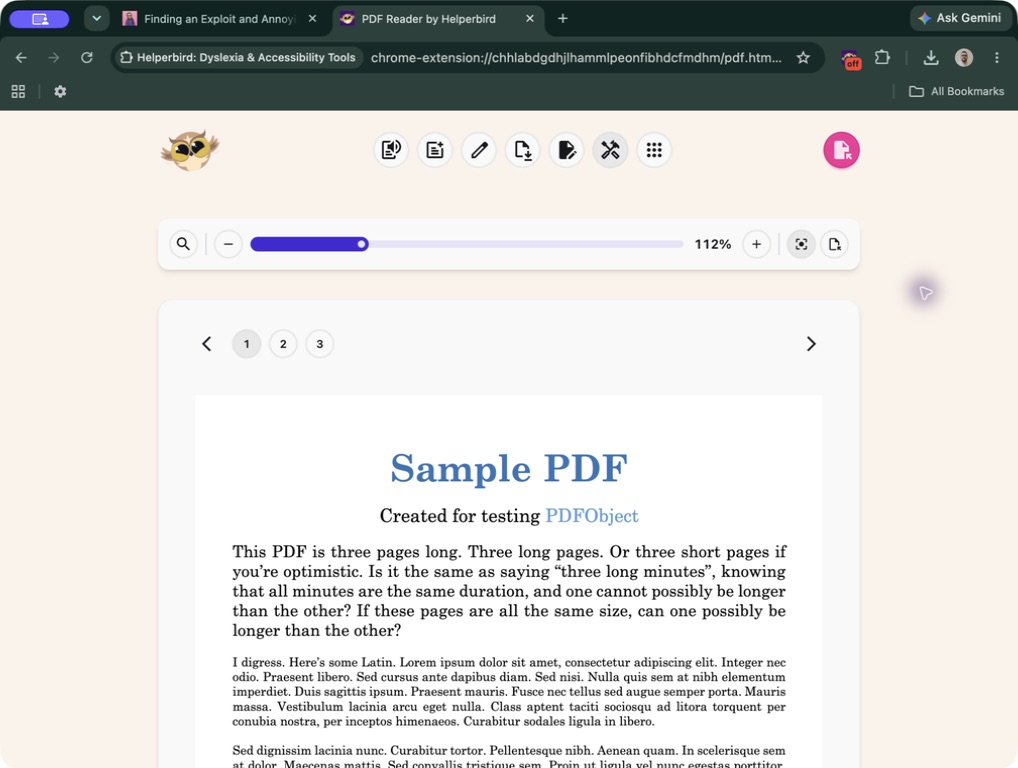
The PDF Reader now gives search and zoom their own full-width toolbar. Open PDF Tools in the header to show it, and hide it again when you want fewer controls on screen.
The zoom slider works like the sliders elsewhere in Helperbird. Drag it to adjust the size, use minus and plus for smaller changes, or choose Width or Page to fit the document to your reading area. The percentage stays visible, so you know where you are.
Find a word on the page you are reading
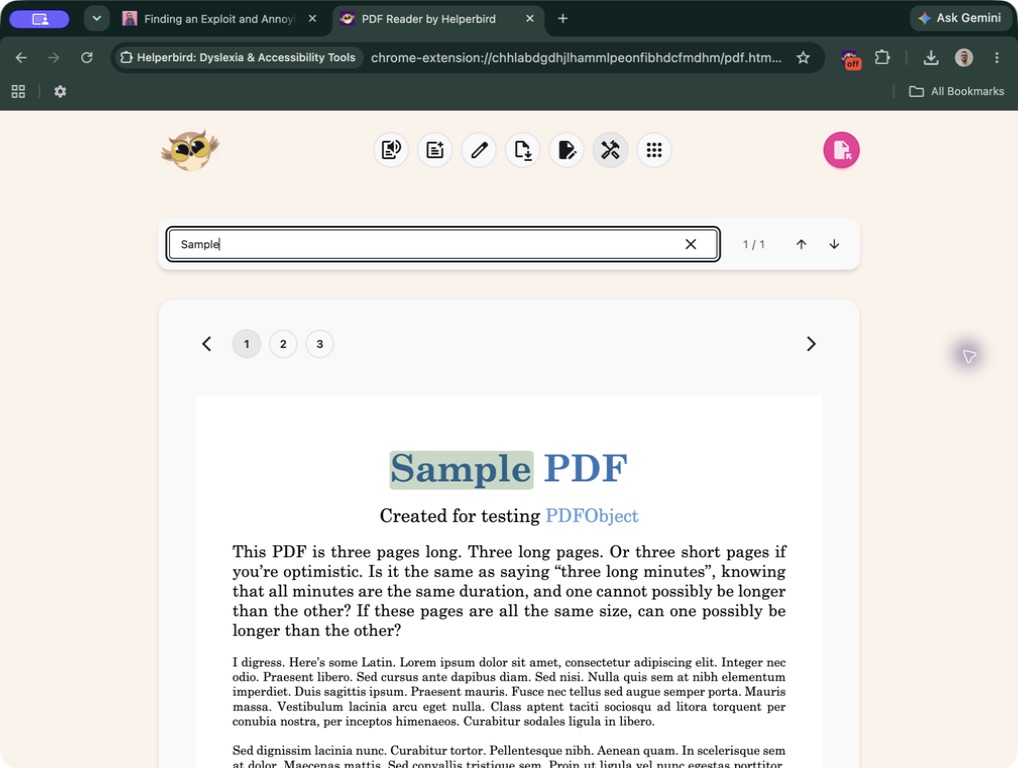
Choose the search icon and type a word. The bar switches to a search field, with a match counter and arrows to move through the results. Close search to return to the zoom controls.
PDF search is a Pro tool and searches the current page, not the whole document. When you move to another page, it runs the same search there. In the example below, searching for “Sample” finds the word in the page heading.
Opening a PDF, reading it with device voices, adding text boxes, and downloading are available without Pro. Drawing and page search require Pro. Translate and Immersive Reader inside the PDF Reader also require Pro in this release.
The reader now keeps a device-local recovery session for your current PDF and editing state, too. It can help you pick up where you left off, but it is not a permanent document library or a synced backup. Download important changes before switching files.
Look up a word, without the extra clutter
The Dictionary now starts with the search box. Type a word and press Enter, or choose the search icon, to see its definitions, examples, and similar words in one clear layout.
Read-aloud buttons sit beside the word and its examples. Choose a similar word to look that up next. We have removed the separate recent-search list; your browser's Back and Forward buttons still let you revisit lookups in the current tab.
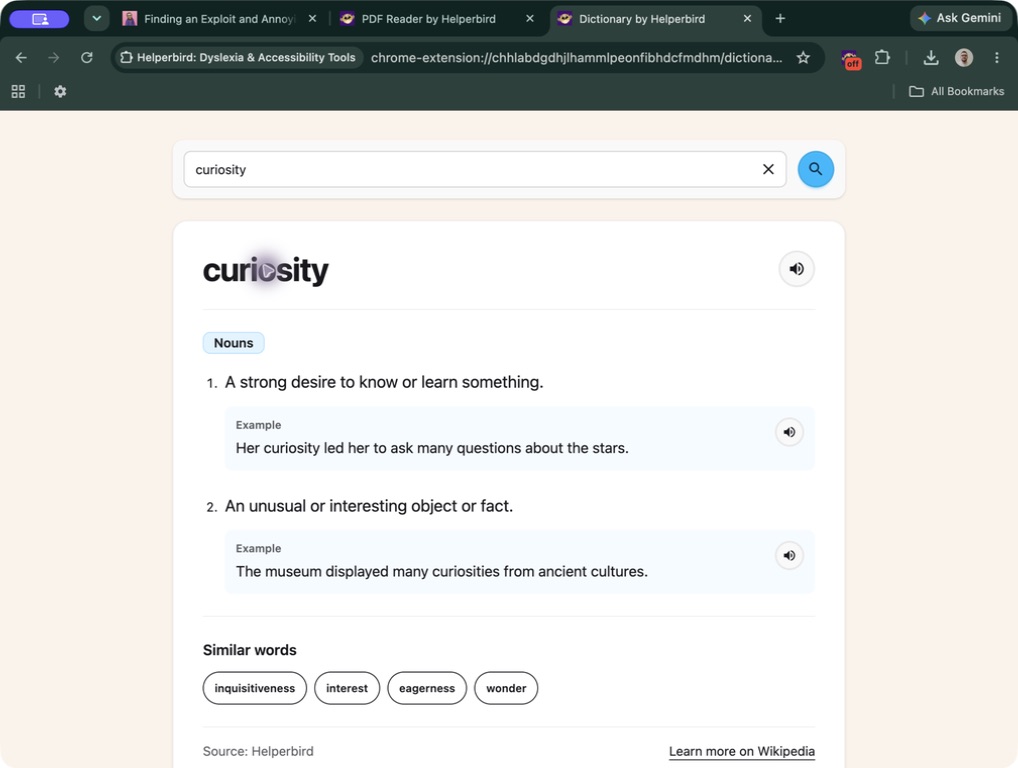
The welcome, loading, and retry screens now feel like the rest of Helperbird, too. The owl greets you before your first search, and the loading placeholders follow the shape of the results.
Try the Dictionary walkthrough.
A quieter place to read
Reading Mode has a refreshed article layout with a header that stays within reach. You can show the listening controls when you want them and hide them when you want to read.
The read-aloud bar brings playback, progress, and speed together. Translation and an expanded view are still close by, and wide tables can scroll without stretching the whole article.
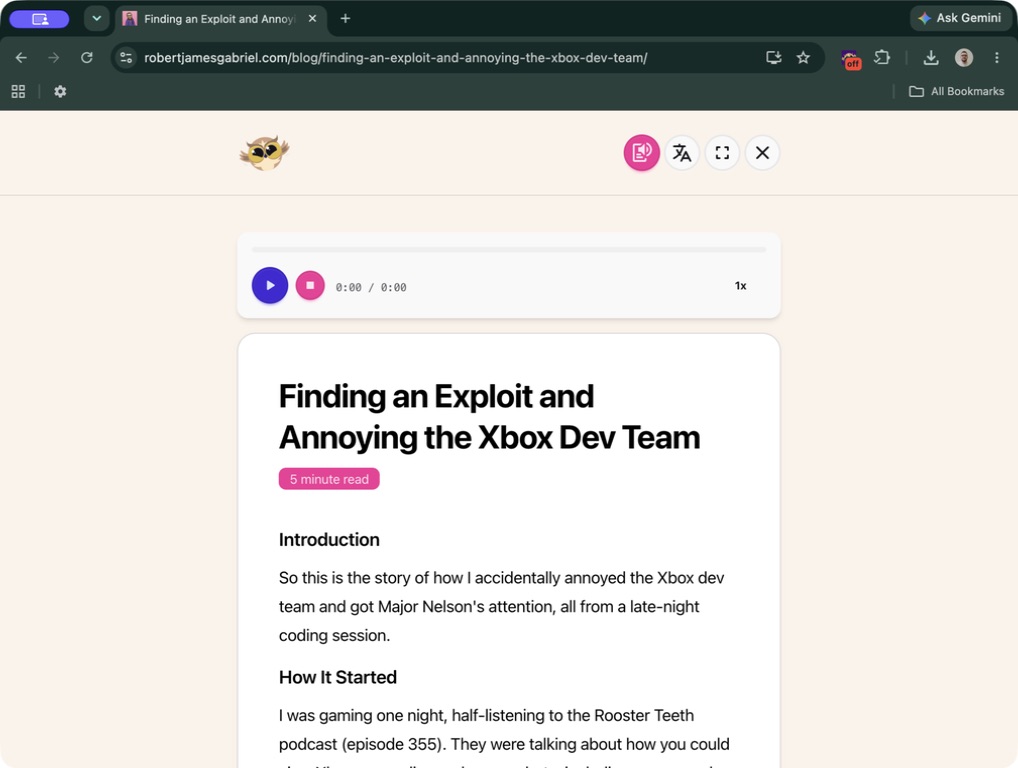
To try it, open Helperbird on an article and choose Reading Mode. Then choose the read-aloud button in its header to show the player.
Profiles are starting points, not rules
We reviewed all eight profiles so each one makes more focused changes. Low Vision uses increased contrast rather than inverted colors. Focus and sensory profiles keep still images. Motion Sensitivity adds no font or spacing overrides.
In Settings → Profiles, choose a card to see what it includes before you apply it.
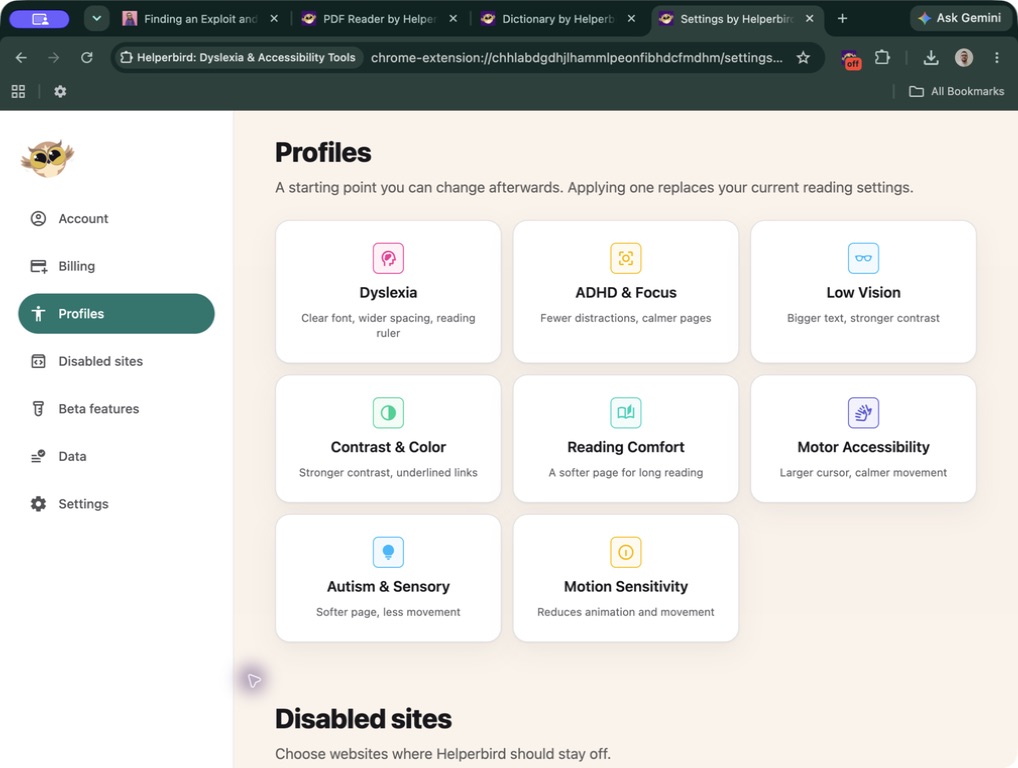
Applying a profile replaces your current reading settings. You can adjust the individual tools afterwards, or undo the last profile while the Settings page remains open. You do not have to keep a setting because it is part of a preset.
See the Motion Sensitivity preview
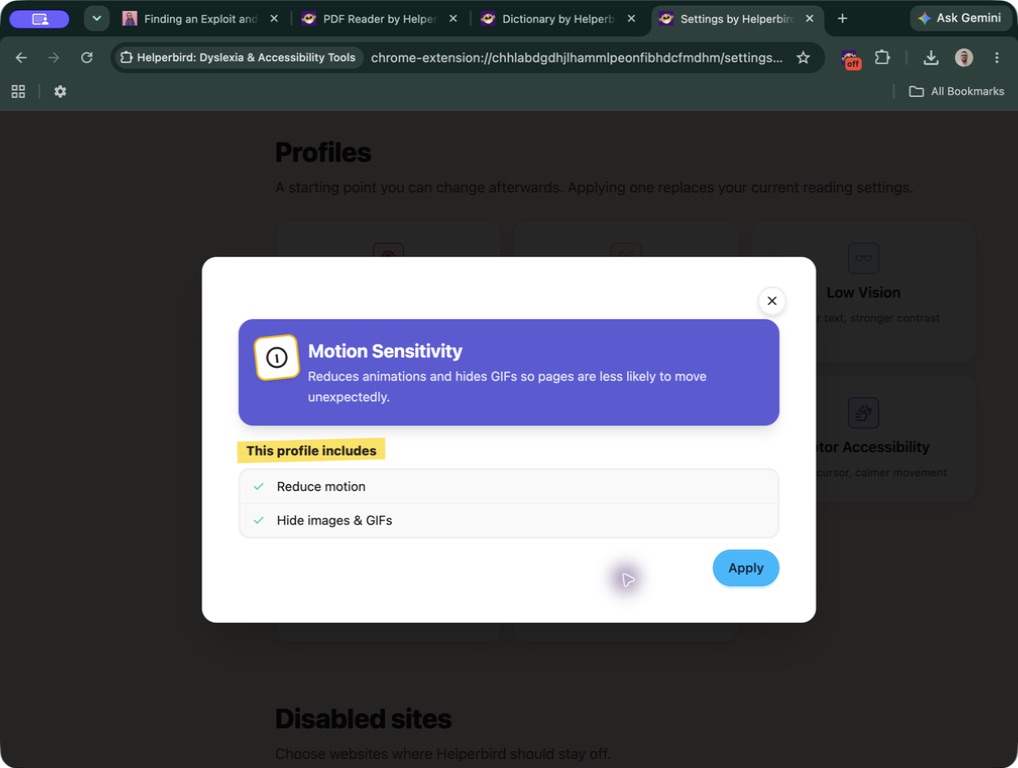
For schools: managed settings on Apple devices
The new Apple build supports Helperbird managed settings for Safari on Mac, iPhone, and iPad. Administrators can deploy subscription keys, feature restrictions, excluded sites, toolbar defaults, and word-highlighting settings using supported Apple MDM configurations.
Our Policy Builder now creates the matching Apple files alongside the Chrome and Edge formats. Choose Safari on Mac for a Mac configuration profile, or Safari on iPhone & iPad for a managed app configuration. These are different deployment formats, not interchangeable files.
The configuration does not install Helperbird or grant Safari permissions for you. iPhone and iPad deployment needs a managed app through your MDM; opening a Mac profile on a phone does not configure the extension. The Apple deployment guide covers the setup and testing steps.
There is a useful change for managed users, too: an administrator can set the floating toolbar to start on without locking its switch. Your own on/off choice survives later policy refreshes. Administrators can still block the toolbar through the disabled-features policy.
A few more things you will notice
- Notepad: a clearer writing area, word and character counts, autosave alongside Save, and downloads as Word, Markdown, or text.
- Equation Editor: clearer input and preview areas, with example equations to help you get started.
- Settings: more consistent switches and color choices, and clearer wording that separates turning off enabled features from deleting saved data.
- Behind the scenes: fixes for lost edits, stale speech and screenshot results, and settings changes that unnecessarily rebuilt page effects.
Give the update a try
Check Settings → Settings → Version for 2026.9.6. If your browser or device has not received it yet, store rollout times can differ.
Start with one thing you already do: open a PDF, look up a word, or read an article. That is where we hope you feel the difference.
Thank you for the feedback that helps us keep improving Helperbird. If something is not working the way you expect, let us know.