
More room for your reading and writing
Your tools should stay out of your way. When you move from a PDF to your notes, you should recognize the buttons and know what happens next.
A few parts of Helperbird had started to feel like separate apps. A button looked one way in the PDF Reader and another way in Dictionary. Some tools opened before you were ready. Others gave you very little feedback when something was missing.
For Helperbird 2026.9.28, planned for September 28, we have worked through those moments. NotePad document tools are free, the PDF workspace has more room, and the readers share familiar controls. There are also changes to highlighting, word prediction, speech, settings, and the way we explain Pro features.
This post brings together the September work since the September 6 release. The complete September 28 release notes include the smaller fixes too. Here is what changes, and why we spent time on it.
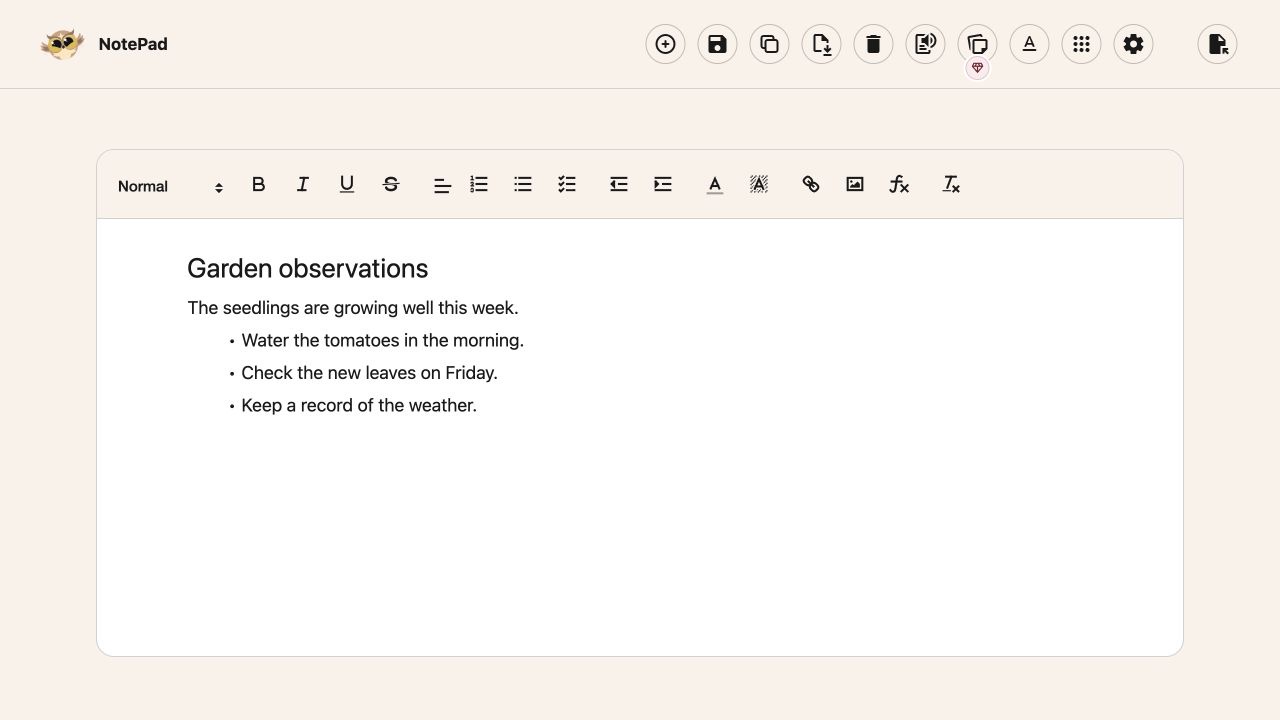
Write and save in NotePad for free
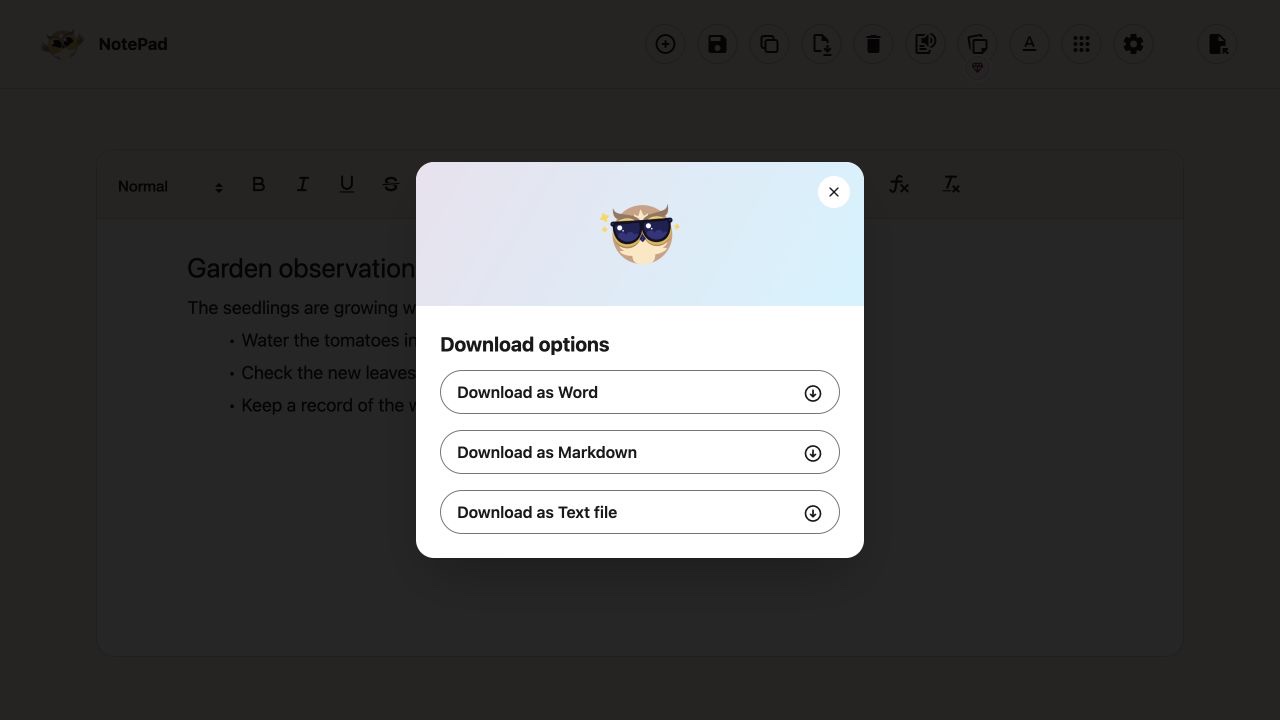
You can write, format, save and download a document without a Pro subscription. That includes autosave, opening and copying documents, standard read aloud, equations, and Word, Markdown or plain text downloads.
We wanted the writing space to be useful from the moment you open it. You can start a draft, listen back to it, and keep a copy without interrupting that flow. Your font, spacing, theme and page width stay with NotePad, separate from your other readers.
Notes/Highlights and Reading List remain Pro features. They collect the work you save from around the web. The document you are writing has its own free tools. The controls show that difference before you choose them.
There is a practical fix behind this work too. If a save fails, your draft stays put. Retrying should not create duplicate notes, and unreadable saved data should not be overwritten. Our NotePad guide walks through writing, saving and reopening your work.
A PDF workspace that makes room for your notes
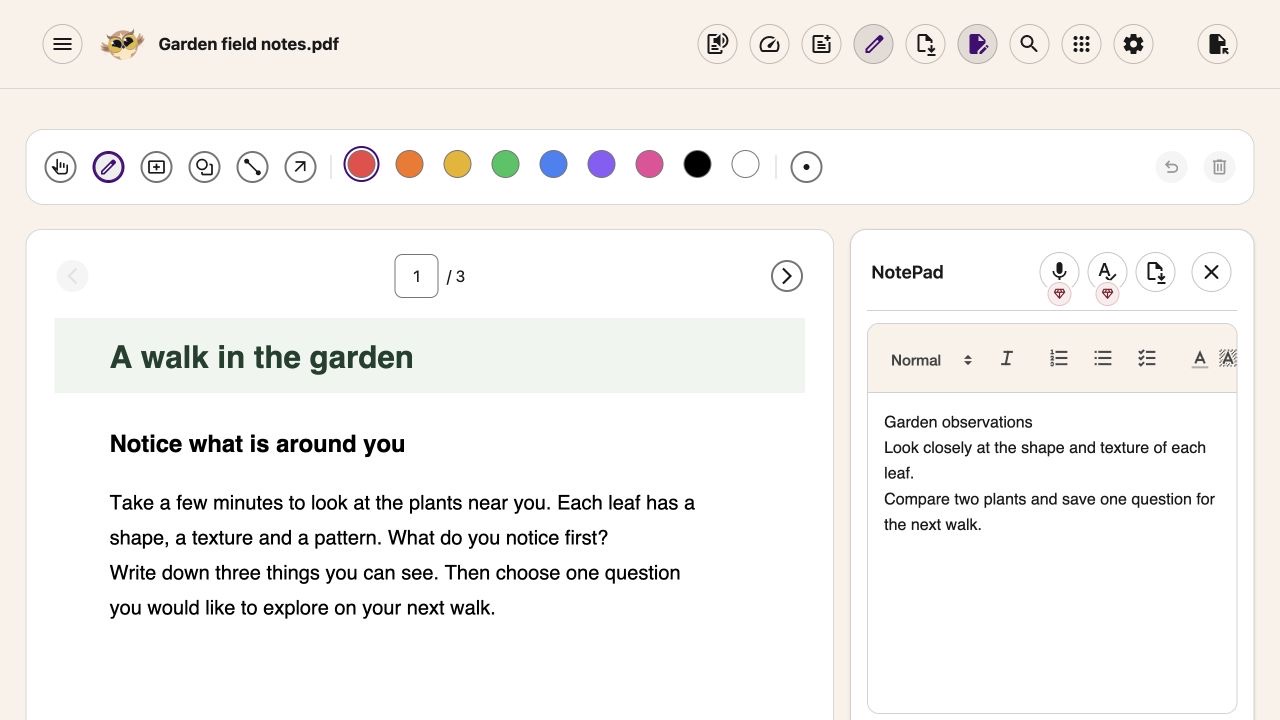
The PDF Reader now separates the document, its view controls and the tools you open as you need them. Open the side NotePad and the workspace expands. Close it and your previous width returns, unless you chose a new width yourself.
On a narrow screen, the notes move below the PDF. Formatting stays within reach while you write. You can type and format those notes for free, then choose Add Textbox to PDF to place them on the page.
Search, zoom and drawing are free too. Use Fit width or Fit page, search the current page, or mark up a passage. Turning Draw off leaves your marks visible. The PDF drawing guide explains how to include them in your download.
You can also draw rectangles, ovals, lines and arrows with the keyboard, then move or resize them. Freehand drawing still needs a pointer, pen or touch input. Immersive Reader in PDFs now allows free passages up to 1,200 characters per launch. Longer passages remain part of Pro.
Put more of your work onto the page
Paste text, a link or a picture onto a PDF to create a box you can move and resize. Paste inside a text box to continue editing it. Supported formatting carries over, and the annotated download includes your additions.
Equations work in both PDFs and NotePad. Build one with the full-width math keyboard, preview it, then insert it. You can reopen the equation to make a change in your saved Helperbird work.
The download format decides how it travels. PDFs contain equation images. NotePad Word files include images and descriptions, plain text uses descriptions, and Markdown keeps the LaTeX. The equation guide shows the editing and download options.
We also fixed a frustrating transfer problem. Pictures beside equations, and notes containing only a picture, now transfer into the PDF. If the whole note will not fit, you get an explanation and your work stays unchanged.
Downloads now keep the PDF and its edits together if you open a different file while the download prepares. Choosing the original file does not dismiss the reminder to export your annotations. And if you keep typing while grammar checks your PDF notes, its older response cannot replace your new words.
Translate a PDF without losing the original
With Pro, you can translate the current page and switch between Original PDF and Translation. Headings, lists, emphasis and indentation carry into the reading view where they can be detected. Complex page layouts can still differ.
Long translations now keep their line breaks where passages join. Separate list items stay separate, and words split in the middle rejoin without an extra space. Changing pages clears the previous translation, so it does not sit beside a different page.
On websites, translation has one clear action: choose a language and press Translate. Your selected text is used when you have a selection; otherwise, Helperbird uses the page. The PDF translation guide explains the page and language controls.
Settle into Reading Mode before you press Play
Reading Mode now remembers its own font, size, spacing, theme and page width. You can reset the text settings or the layout separately. Changes keep your place and selection, and code examples retain their spacing and syntax colors.
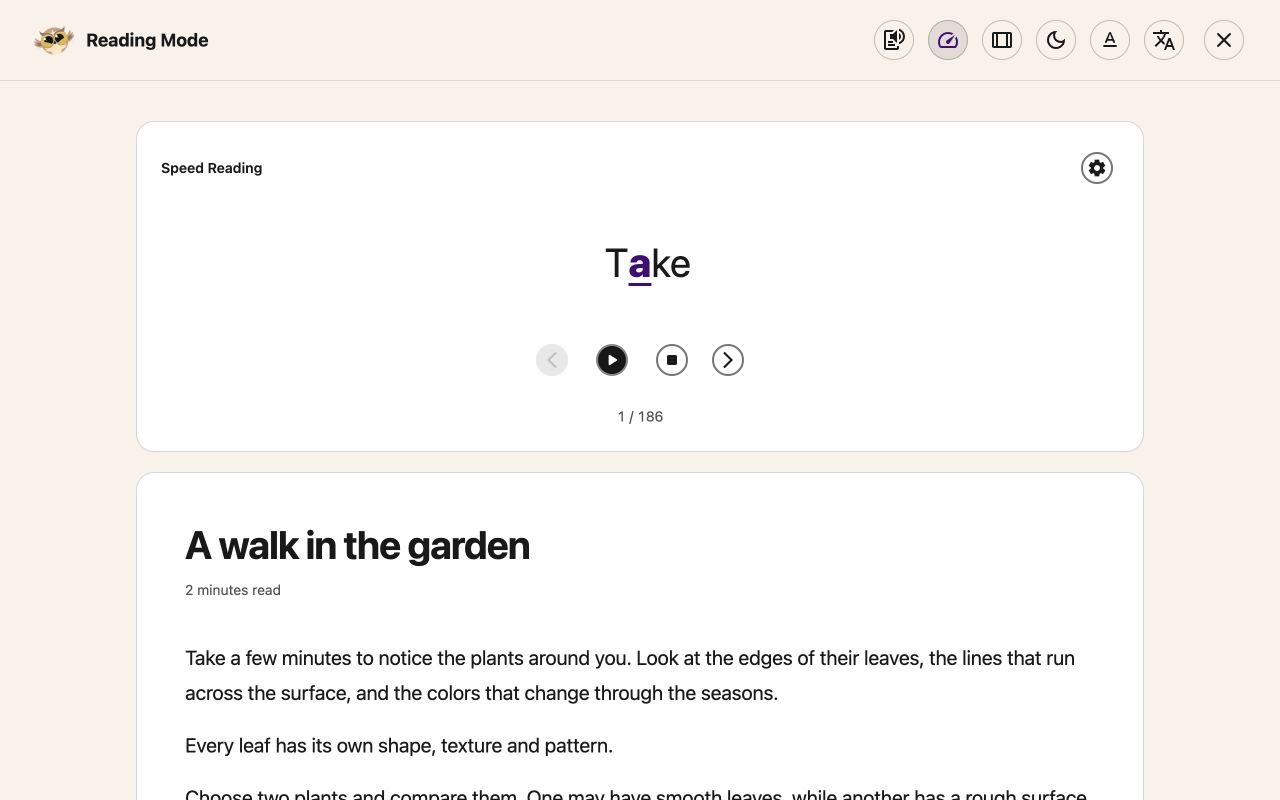
Speed reading is in All features, so you can find it through search or pin it to Quick Actions. On a webpage, it opens Reading Mode with the speed reader ready. Inside a PDF, it opens the PDF speed reader.
It opens paused. Play and Stop are visible from the start. Choose when to begin; Stop returns to the beginning without starting again. We wanted you to have time to settle into the view before the words began changing.
Double spacing now gives paragraphs more room too. Dictionary, NotePad and Equation Editor follow changes to your reduced-motion preference while open. The speed reading guide covers both readers and their controls.
Familiar controls across your readers
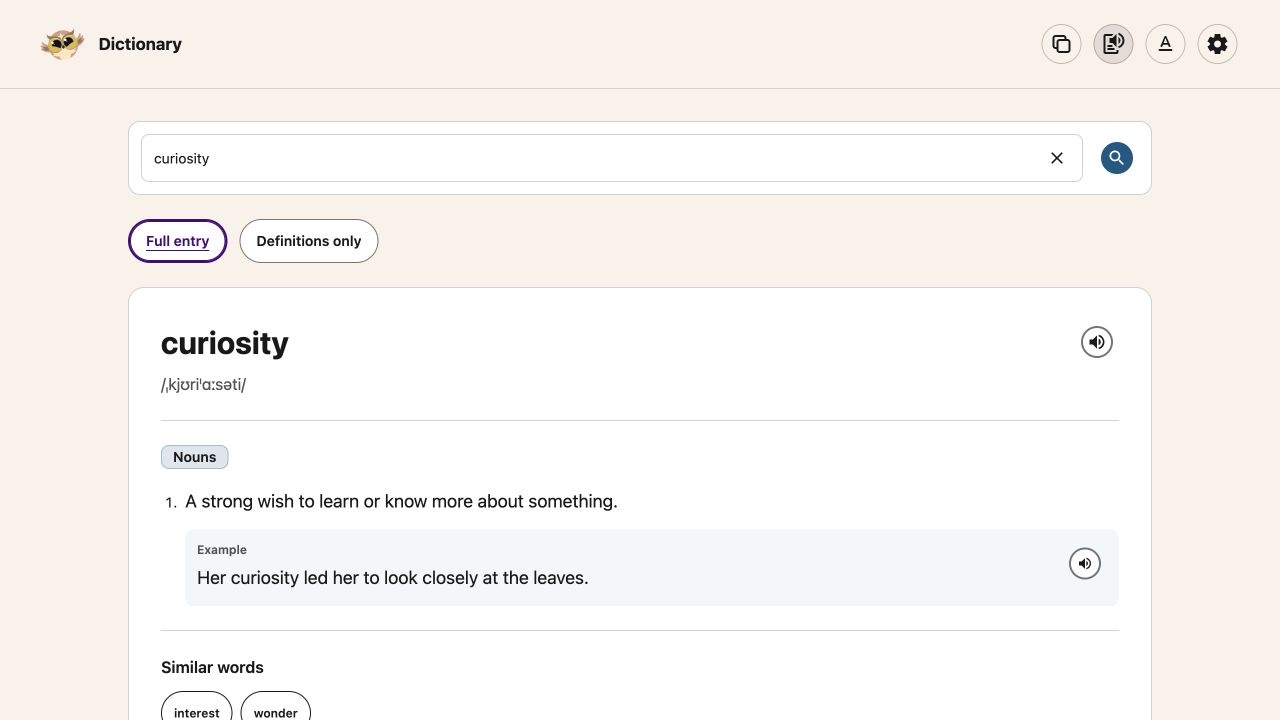
PDF Reader, Reading Mode, NotePad, Dictionary and Equation Editor now share more of the same visual language. Header buttons have subtle circular outlines. An open panel or active tool has a grey background, without an extra underline.
Pro diamonds sit close to their buttons, slightly below navigation controls. In the PDF Tools menu, they sit directly after each feature name. The diamonds in All Features use smaller circles while keeping the full click area. Text buttons keep their rounded shape, and the floating toolbar’s buttons match in size again. Reading Mode’s header controls also keep the same size as your other readers.
Dictionary adds Full entry and Definitions only views. Copy and read aloud follow the view you choose. Both stay responsive before a lookup: they explain that you need a word and bring you back to search. Copy and standard speech are free; Dictionary lookup retains its Pro requirement. An invalid search now stops the old speech and clears the previous result, so you cannot mistake it for a new answer.
Equation Editor gains the same appearance controls, saved width, readable settings and themed keyboard. Your display preferences do not change the equation you export. Paid actions also wait for your subscription check, avoiding an upgrade prompt while your account loads.
Highlighting has a place of its own
Selecting text can mean two different things. You might want to listen to it, or you might want to mark it for later. We have given those actions separate space.
The reading toolbar appears above your selection. When Highlighter is on, its color palette appears below. Highlighter also controls whether your saved highlights are visible, and switching it gives you a short confirmation.
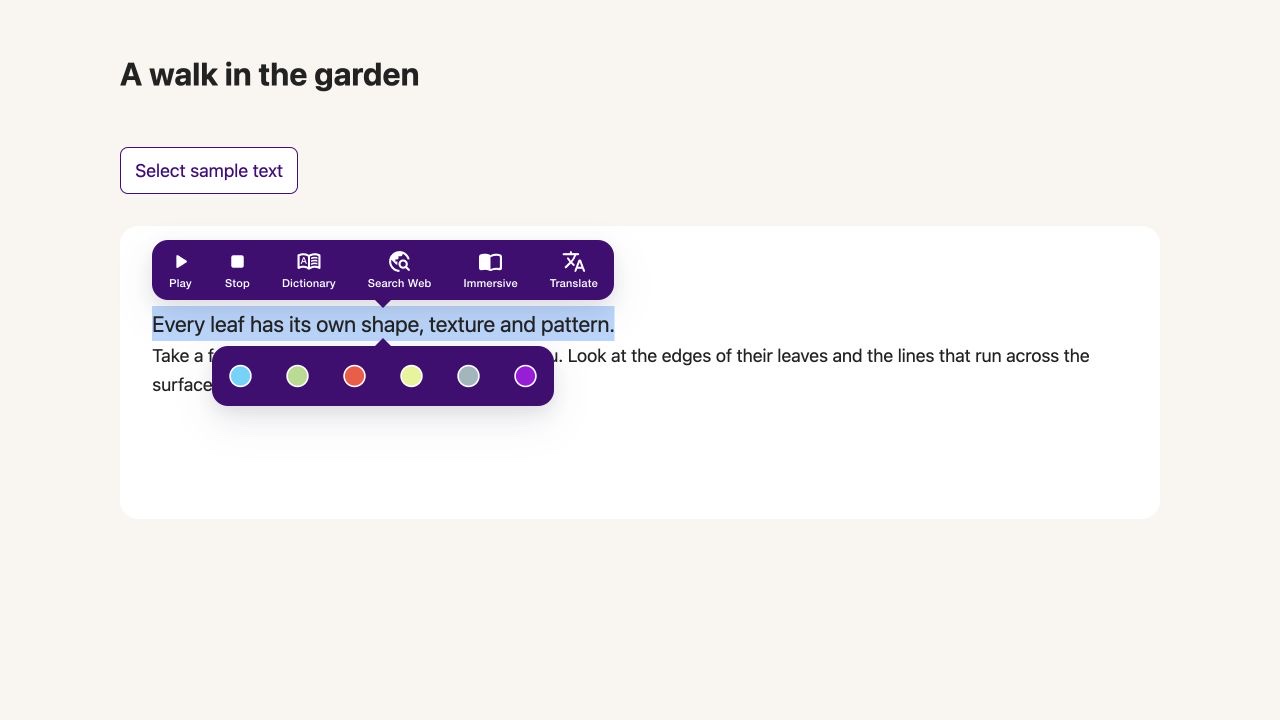
The duplicate Highlights switch in Colors is gone. Your saved highlights and pinned choices stay with you. The Highlighter guide shows how the two menus work together.
Sticky notes have a quieter layout, and you can drag from the whole header except Close. You can also move a note with the keyboard and cancel a move with Escape. The Notes/Highlights library has clearer New note and Export actions. It shows 24 items at a time, while search, selection and export still cover your whole collection.
Prediction that keeps up with your writing
Word Prediction now offers Across and Stacked layouts. Choose the shape that leaves room beside your work, and it stays selected for next time. Light, dark and automatic themes sit in compact controls.
Dragging is smoother. The window follows your pointer while larger suggestion updates wait until you finish moving it. Suggestions wrap inside narrower spaces instead of pushing the window wider.
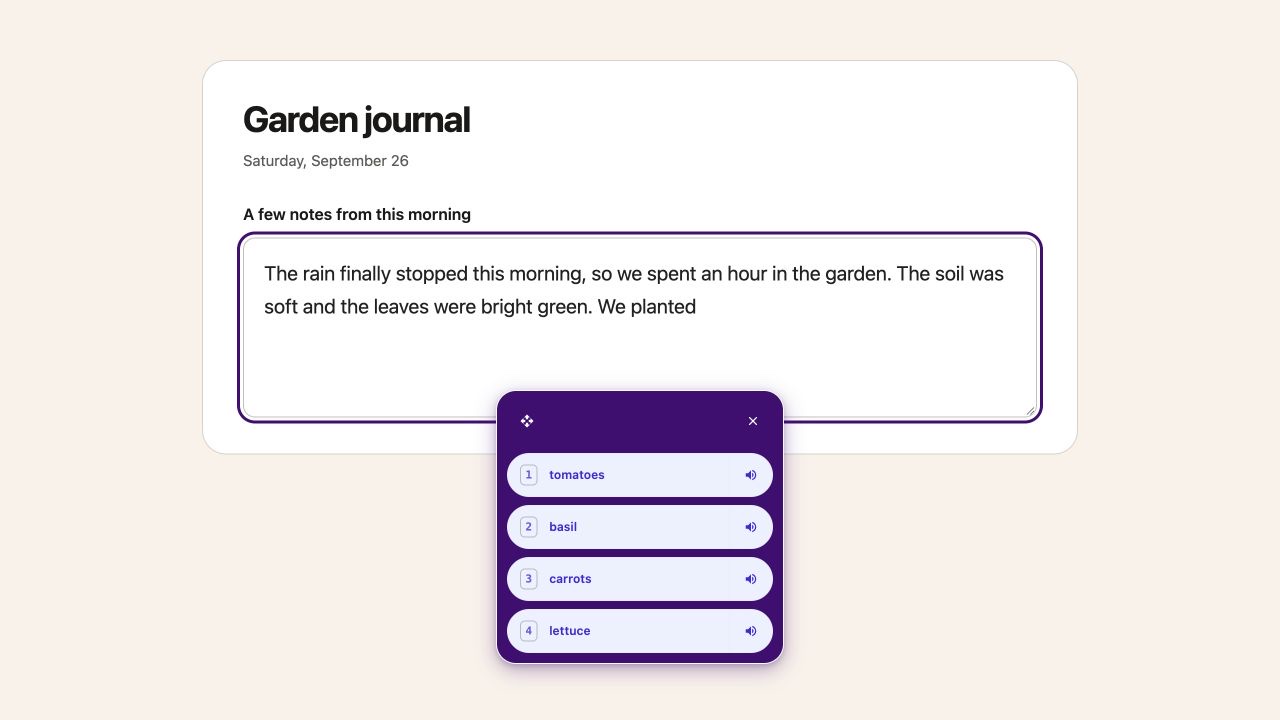
Google Docs predictions also keep up after a space or an accepted word. They follow your cursor into earlier sentences. Choosing a suggestion from the middle of a word replaces the whole word, preserving nearby text and punctuation. Suggestions pause while you select text or when your cursor cannot be found.
Speech stops when you expect it to
Read aloud now uses one set of Play, Pause, Stop, speed and progress controls. The Theater toggle and seek controls are gone. Standard voices still use your device, and natural voices still use Microsoft.
Closing or collapsing the floating toolbar stops its speech and dictation, including a session that is still starting. Tools cannot reopen themselves when a late response arrives. If opening a tool or saving its switch fails, you get a message and the control returns to its saved state. Natural-voice access checks stop when listening stops too. Repeated clicks no longer open extra Immersive Reader sessions. In PDFs, moving to another page also prevents an old passage from opening after its text arrives.
Voice typing stops after 12 seconds without recognized speech. Your last phrase stays in the text. With direct input on, toolbar clicks keep your chosen field; if that field disappears, your transcript remains available to copy.
We also improved microphone startup on restricted pages and added bundled flags for voice menus on Windows. In Google Docs, read aloud keeps the passage you selected instead of losing it when you move to the toolbar.
Settings that tell you what changed
Settings has clearer sections and aligned controls. When an import or deletion needs a refresh, Continue lets you decide when to move on. Failed saves keep your draft, and failed imports leave the dialog available to retry.
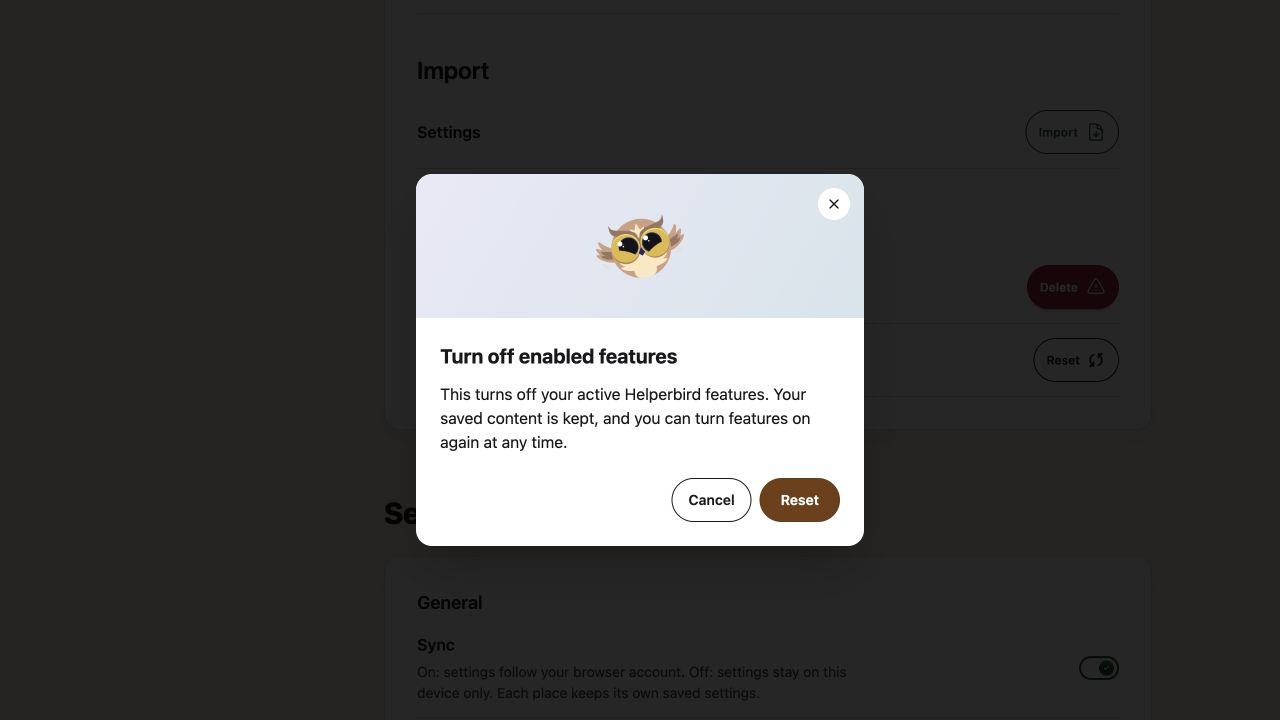
You can undo removing a subscription key or excluded site without racing a countdown. The feature reset explains that it turns enabled features off while preserving your saved content. Delete and reset confirmations use a compact Helperbird illustration, clear wording and grouped actions. If the browser cannot save a reset, the confirmation stays open and explains the failure so you can retry.
A few smaller choices give you more control over the page:
- Put page notifications at the bottom left, middle or right, then preview the position.
- Set the Reading guide’s width and opacity independently of the Dyslexia ruler.
- Choose from seven rainbow color presets, or keep your own saved color through Custom.
- Hide the compact Google Workspace prompt until tomorrow when you need the space.
- Try selected text in embedded lessons with an optional beta that starts off.
The Settings guide explains these choices. Embedded reading remains a beta, and support varies by lesson platform.
A clear explanation when a feature needs Pro
Choosing a paid feature now opens one compact Unlock Helperbird Pro dialog across the app. It explains all-feature access, the trial and annual price, and premium support. Existing subscribers have a separate login or subscription-key link.
Start my free trial opens checkout in a new tab. Opening that tab does not start a subscription by itself. You can review the offer there, or close the dialog and return to your work.
The benefit list uses larger text, and the dialog follows your light or dark theme. It also stays in front when opened from a paid keyboard shortcut in Reading Mode, so you can close it and carry on reading.
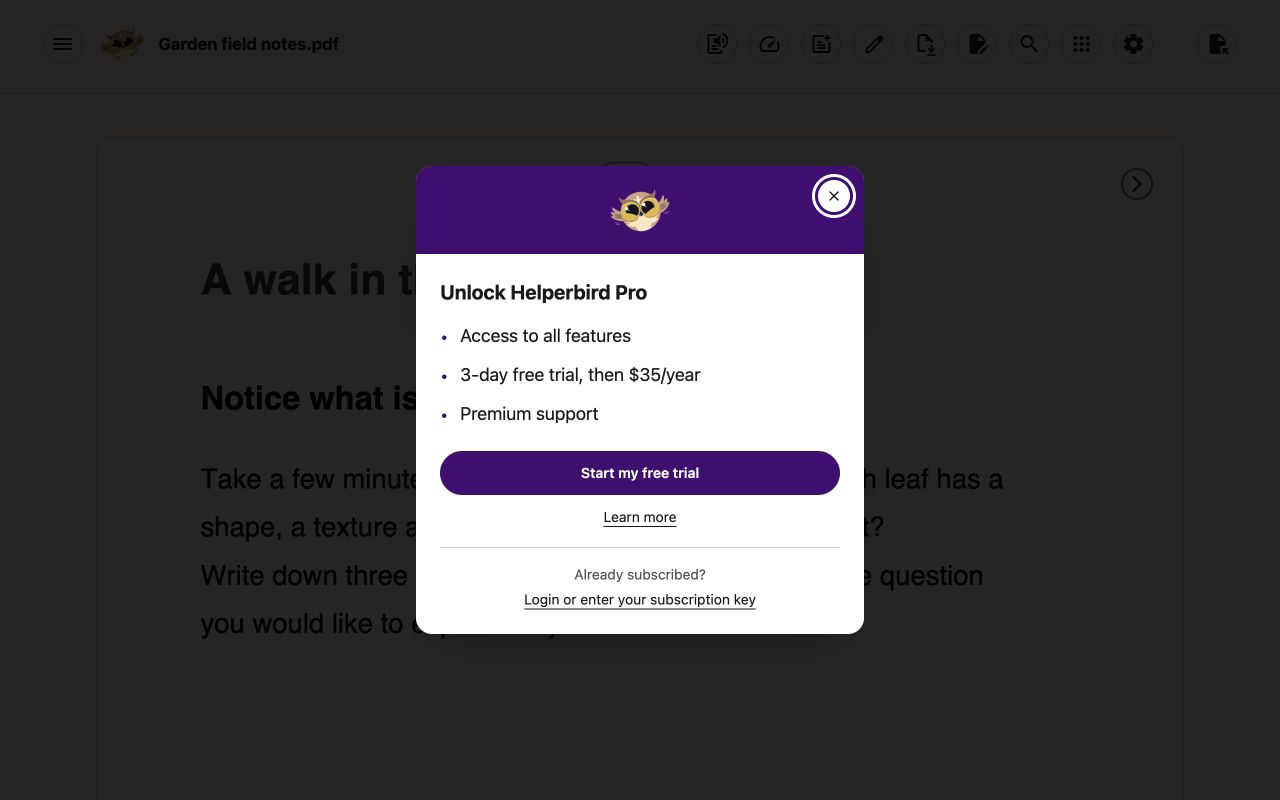
We wanted this to answer the question a paid button raises: what do I get, and how do I continue if I already subscribe? The subscription-key guide explains that route, and the plan comparison lists what each plan includes.
We checked the account messages around it too. Trial notices use your actual dates, including expired trials, instead of assuming a seven-day offer. If a subscription check loses its connection, it explains the failure while keeping your account details visible. Billing links now open the intended account page. If you replace a subscription key while a check is running, the result follows your new key rather than the one you removed.
Trial, overdue and Unlimited messages now agree across the popup, readers and Settings. Their banners share the same colors in light and dark themes. An overdue Pro subscription is shown with its payment status, rather than asking you to sign in again. Pro tools still require active access.
The fixes you may notice less often
Scanned PDFs, gradients and some PDF forms render more reliably. Opening a file no longer waits for voices to initialize. An older recovery attempt cannot replace a PDF you have opened.
Buttons in an empty PDF Reader explain that you need to open a document. Annotation controls stay within the page. Firefox’s popup opens reliably when tabs are closing or no current tab is available. Touch scrolling cancels a button press, and tooltips can be hovered over or dismissed with Escape.
There is work on focus, contrast, translated labels and narrow layouts throughout the app. Saved text preferences survive unsupported pages. Managed restrictions also apply to Speed reading, and old pins no longer leave unusable shortcuts.
We have updated the help guides and screenshots alongside the app. If you prefer to learn one change at a time, start with free writing in NotePad or reading and annotating a PDF.
Thank you for pointing out the small things that get in your way. If something still feels awkward, tell us what happened. That feedback is how this release took shape.