
How to Use Helperbird Speed Reading
Read one word at a time in Reading Mode or PDF Reader. Play, pause, move between sentences and adjust your pace with the same simple controls in both readers.
Jump to the stepsOn this page10 sections
What This Does
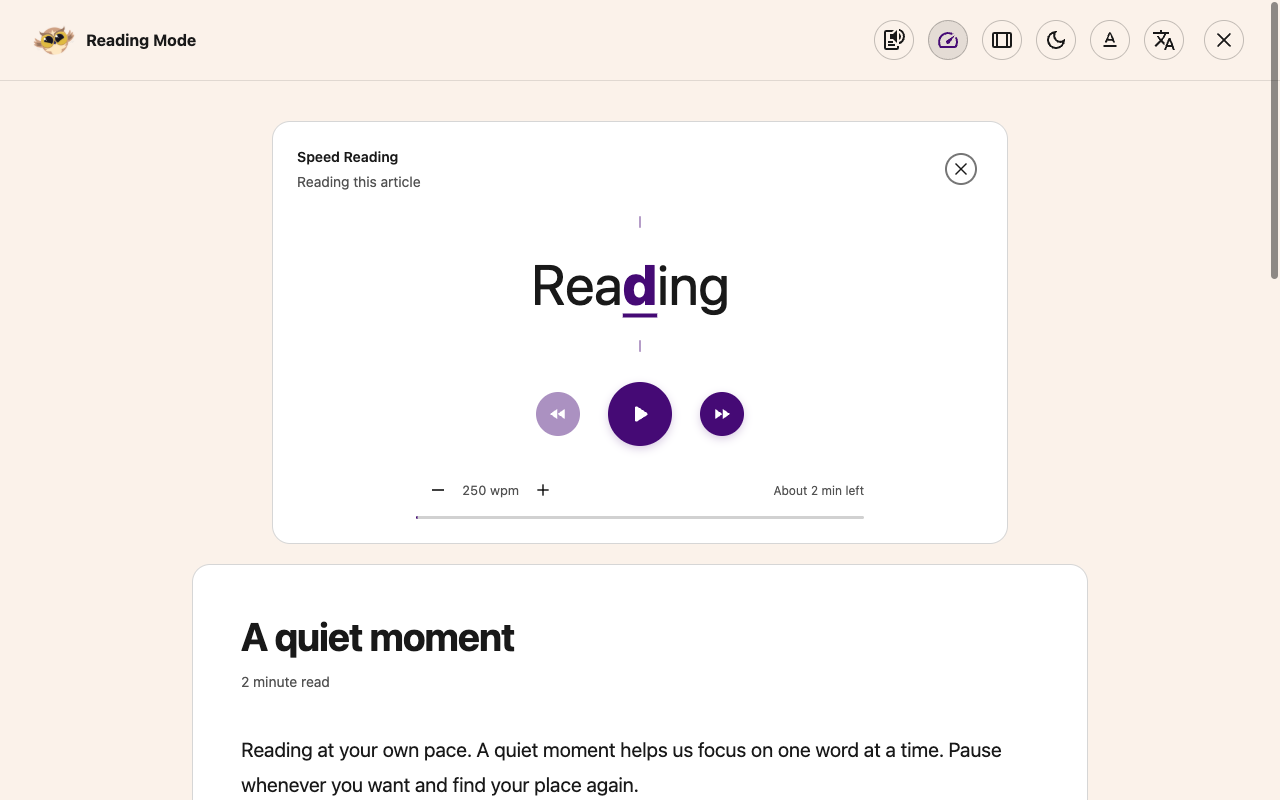
Read one word at a time, at your own pace. Speed Reading uses the same controls in Reading Mode and PDF Reader. The purple focus letter stays lined up with the guides as words change.
This is a visual reading tool. To hear the words instead, use Text to Speech.
Step 1: Open Speed Reading
- Open All Features in Helperbird.
- Select Speed Reading.
On a web article, this opens Reading Mode with Speed Reading ready. You can also select Speed Reading in the reader's header. On a narrow Reading Mode screen, the header controls are under More options.
 View full-size image (opens in a new tab)
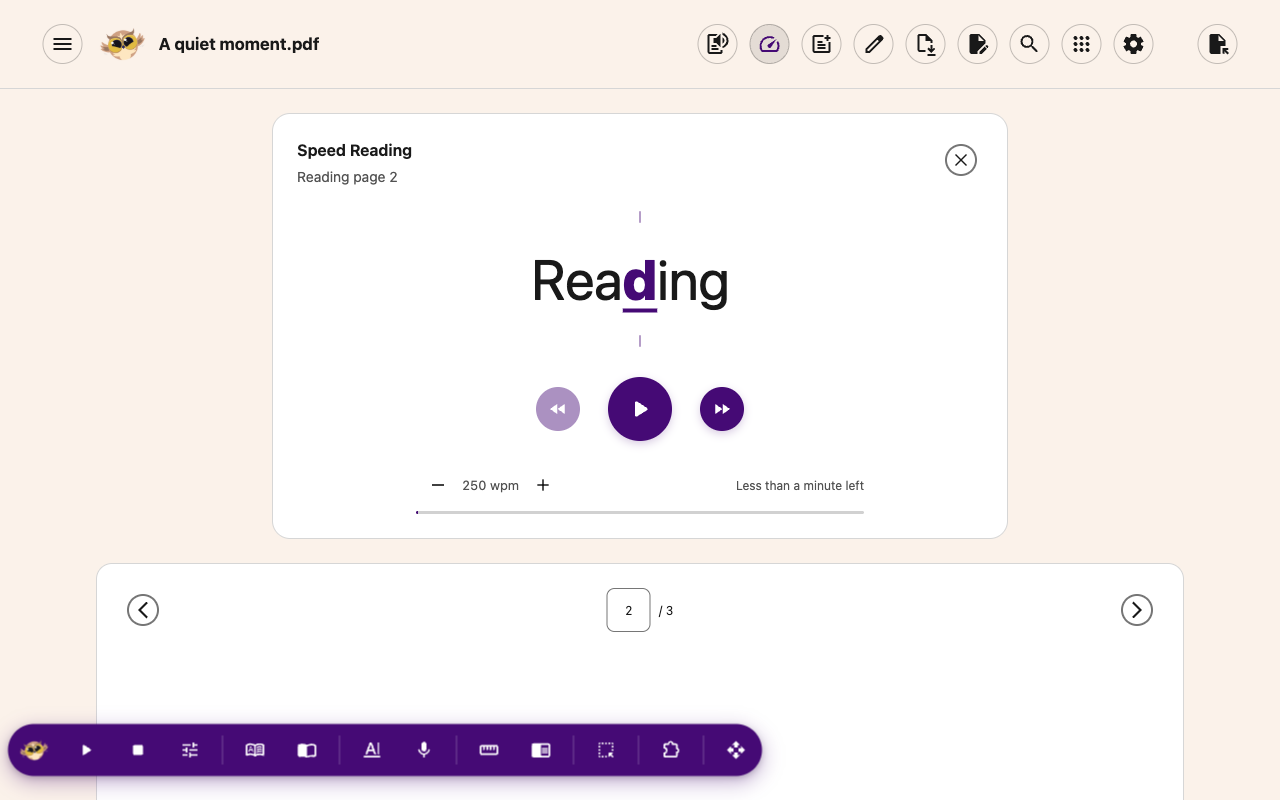
For a PDF, open your document in PDF Reader first. Select Speed Reading in its header. The subtitle, such as Reading page 2, tells you which page it will read.
 View full-size image (opens in a new tab)
Opening Speed Reading does not start playback. The original article or PDF stays below it.
Step 2: Press Play
Press Play, the large middle button.
The words advance at your chosen speed. A thin line shows progress, with an estimate of the time left.
Step 3: Pause to Find Your Place
Press Pause in the same middle button.
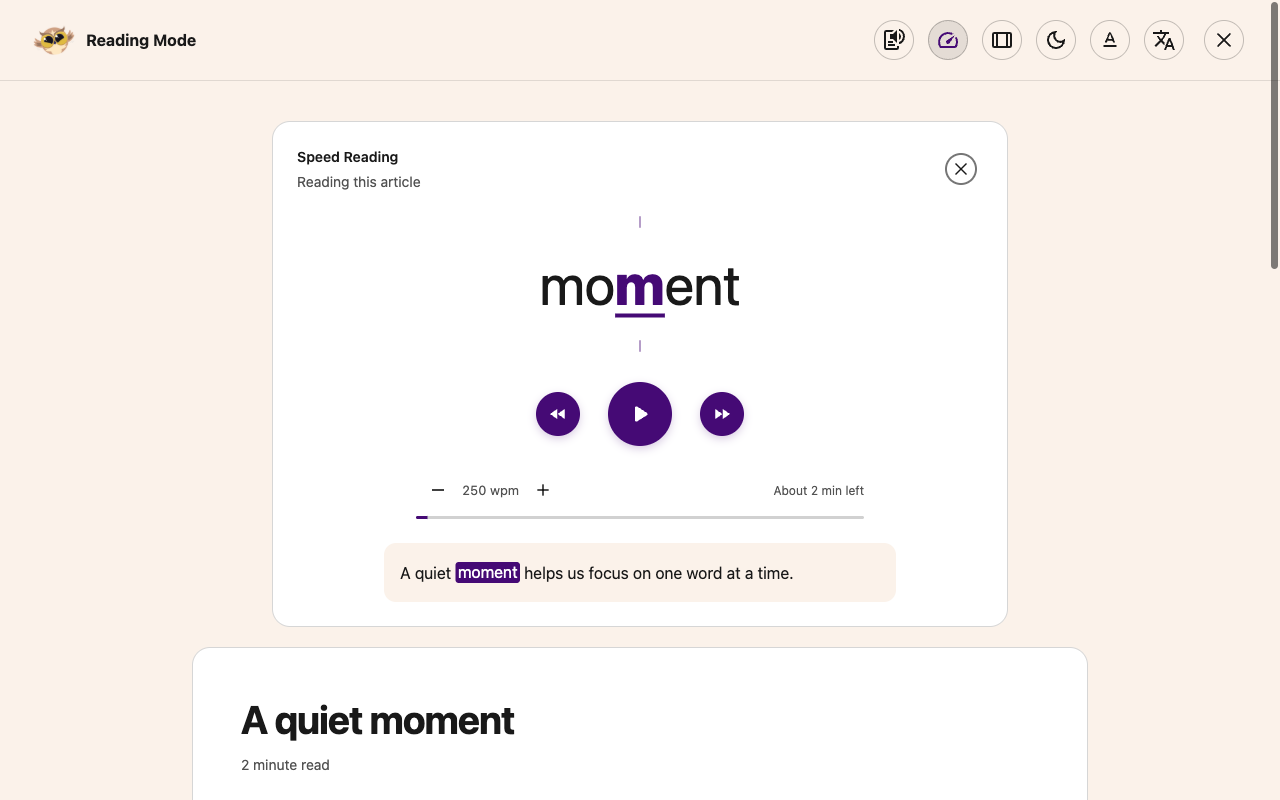
The current sentence appears below the controls, with the current word highlighted. Press Play when you are ready to continue. The sentence hides while the words advance.
Change Your Speed
Press − to slow down or + to speed up. These buttons sit below playback.
The number uses wpm, meaning words per minute. Each press changes it by 25, within a range of 100 to 600. Both readers remember the same speed. The starting speed is 250 if you have not chosen one before.
Move Between Sentences
- Press Previous sentence, the left button, to return to the start of the current sentence. Press it again to go to the previous sentence.
- Press Next sentence, the right button, to reach the next sentence.
Both buttons pause playback and show the sentence. A button is unavailable when there is nowhere further to go in that direction.
Finish or Start Again
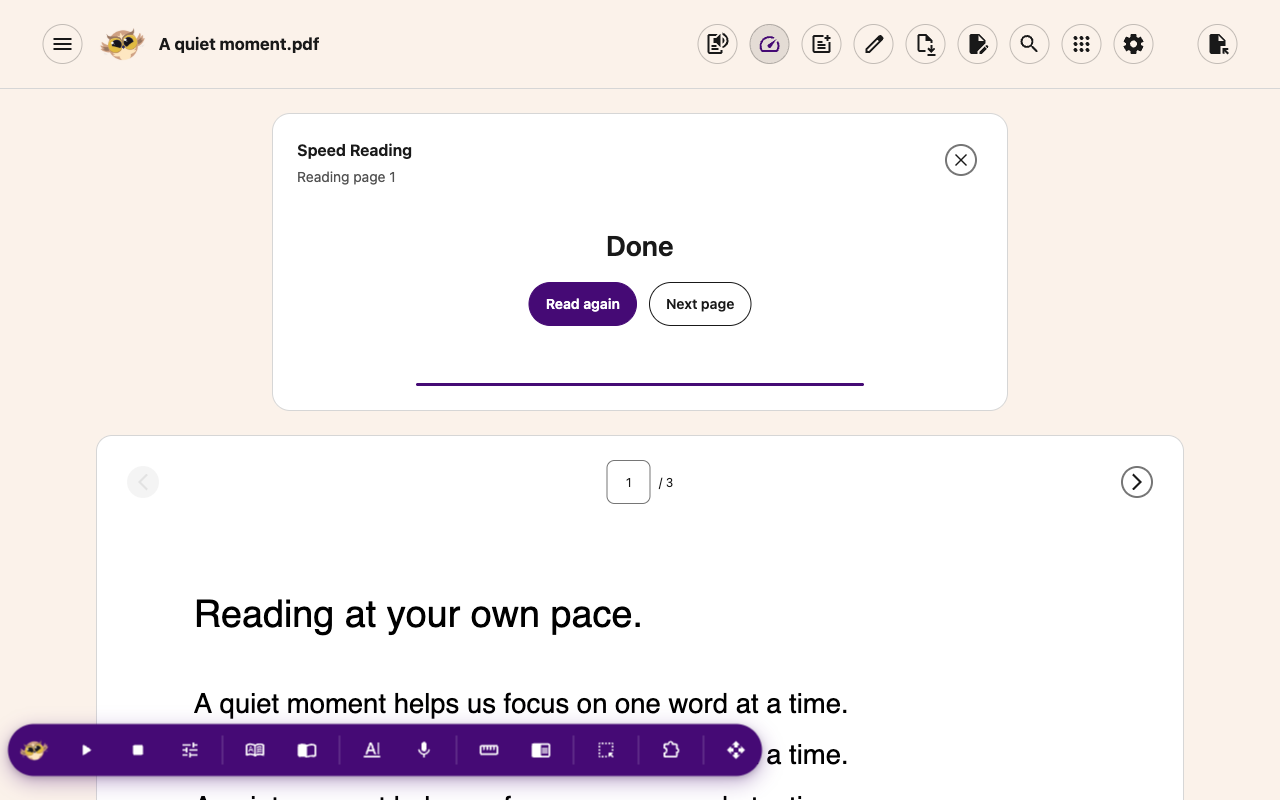
Choose Read again on the finished screen to play from the beginning.
In PDF Reader, Next page opens the next page ready to read. It does not start playing. Speed Reading reads one PDF page at a time.
 View full-size image (opens in a new tab)
To return to the beginning without playing, press Home while focus is inside Speed Reading.
Press Close, the X at the top right of the card, to hide Speed Reading. Playback pauses and your article or PDF stays open.
Keyboard Shortcuts
Keep keyboard focus inside Speed Reading to use its shortcuts.
See Speed Reading keyboard shortcuts for the keys and how to use them while reading.
Troubleshooting
No words on a PDF page: the page may be blank or scanned. See extracting text from a scanned page. The card needs a page with readable text.
Playback paused after turning on Reduce Motion: press Play when you are ready to continue.
Speed Reading is missing: Speed Reading is free, but your school or workplace may restrict it. Disabling Reader Mode also hides the Speed Reading shortcut.
Need Additional Help?
Contact Helperbird support with your browser and what happens when you press Play.
Printed from the Helperbird Help Center · Updated October 25th, 2026
Questions? We are happy to help — helperbird.com/support