
How to Use Topic Dictionaries in Word Prediction
Learn how to use topic dictionaries in Helperbird's word prediction, so subject words for Science, History, Space, or the page you are on appear as you type.
Jump to the stepsOn this page
What are Topic Dictionaries?
Word prediction normally draws on everyday English. A topic dictionary adds the vocabulary of one subject on top: Science, History, Geography, Space, Animals, or the page you are on. Pick Science and words like "photosynthesis" start appearing after a few letters, instead of never being offered at all.
Each subject list holds between about 150 and 200 words, and they are built into Helperbird. Nothing is downloaded, so topics work offline.
Topic words are added to your suggestions, never swapped in for them. Everyday words still appear as normal. Topic words also count as correctly spelled, so Spelling corrections will not flag them.
Topic dictionaries are English only.
Who is This For?
This is helpful for:
- Students writing about one subject for a term or a project
- Anyone whose subject words are long, technical, and hard to spell
- People writing about the article or assignment in front of them
- Anyone setting up a shared computer for a class unit
Step 1: Open Word Prediction Options
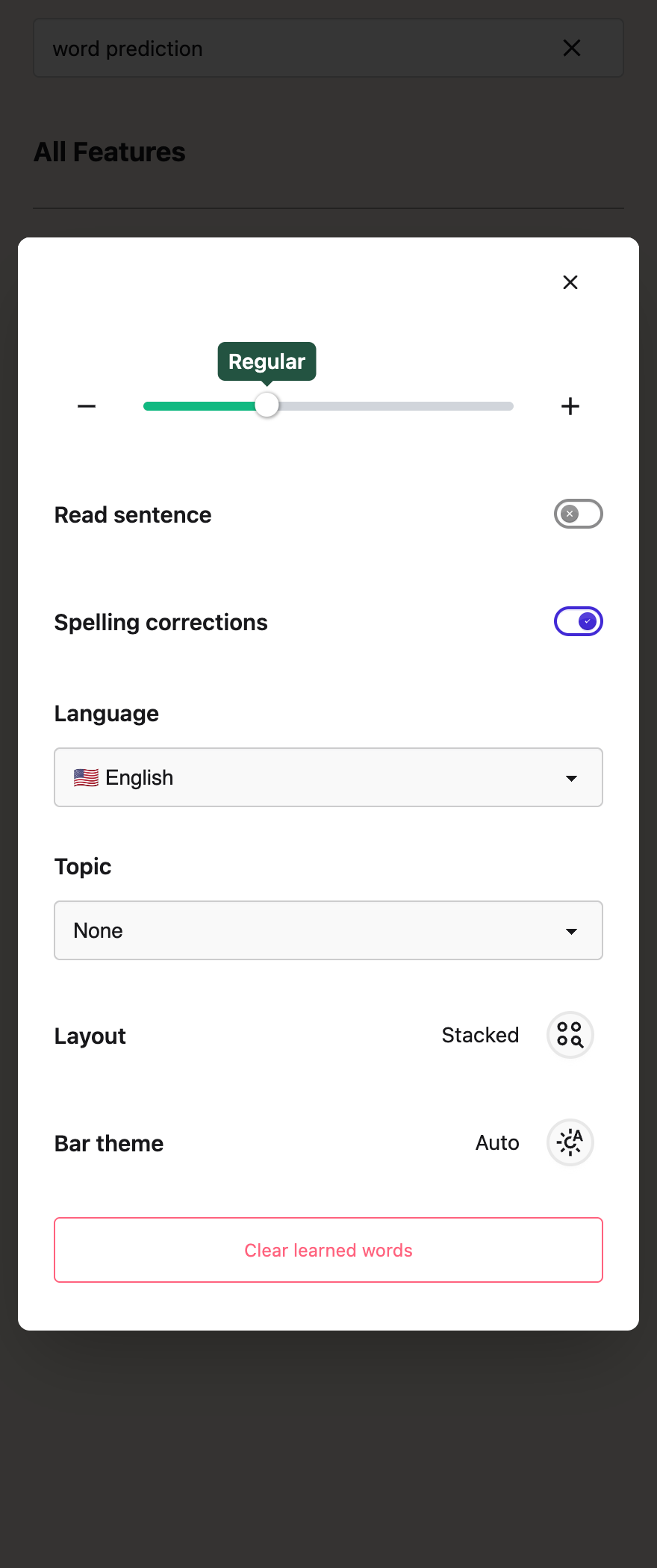
Open Helperbird, go to All Features, find Word prediction and open its options. Scroll down to Settings.
Check that Language is set to English. The Topic picker only appears when the language is English.
Step 2: Pick a Topic
Click Topic and choose a subject: This page, Science, History, Geography, Space, or Animals.
 View full-size image (opens in a new tab)
The change applies straight away, including in tabs you already have open. Start typing and the subject's words appear alongside your usual suggestions.
To turn topics off, pick None.
The This Page Topic
This page is different from the other topics. Instead of a fixed subject list, Helperbird reads the page you are writing on and builds a word list from its most distinctive words. Writing a reply about an article? The article's own vocabulary shows up in your predictions.
Everything happens on your computer. The page text never leaves the tab, and the word list is thrown away when you leave the page. Nothing is saved.
Two limits to know about:
- Short pages do not give Helperbird enough text to work with, so on a thin page this topic does nothing.
- In Google Docs there is no page text for Helperbird to read, so This page stays quiet there. The other topics work in Google Docs as normal.
Troubleshooting
There is no Topic picker. Your Language is not set to English. Topic dictionaries are English only, and the picker is hidden for other languages.
This page is not adding anything. The page may be too short, or you are in Google Docs. Pick one of the subject topics instead.
Subject words are not appearing. Check that a topic is chosen and does not say None. Then type the first three or four letters of a subject word and watch the bar.
See also how to clear learned words.
Need Additional Help?
If you have any questions or run into any issues, please contact the Helperbird support team. You can reach us at Helperbird support. We are happy to help you get the most out of Helperbird.
Printed from the Helperbird Help Center · Updated September 25th, 2026
Questions? We are happy to help — helperbird.com/support