
How to Use Word Spotlight on Any Website
Word spotlight colors the word your mouse pointer is on. What it does, and how to switch it on from the Helperbird menu.
·
- features
What is Word spotlight?
Lost track of which word you were on?
Word spotlight colors the word your mouse pointer is on. Stop the pointer on a word and that word turns yellow. Move to another word and the yellow follows.
Nothing is saved. The page's own text is never changed, and the yellow goes when you turn it off.
Word spotlight is a Helperbird Pro feature. See what is Helperbird Pro.
To mark text on purpose and keep it, use the Highlight Menu highlighter instead.
Who is This For?
- You lose your place partway through a line.
- Your eyes skip a line or read the same one twice.
- You track text with your finger on paper and want the same thing on screen.
How to Turn On Word Spotlight
- Click the Helperbird icon in your browser toolbar.
- Open All Features at the bottom of the menu.
- Scroll to Word spotlight. The list runs A to Z, so it sits near the bottom. You can also type "spotlight" into the search box at the top of the menu.
- Turn its toggle on.
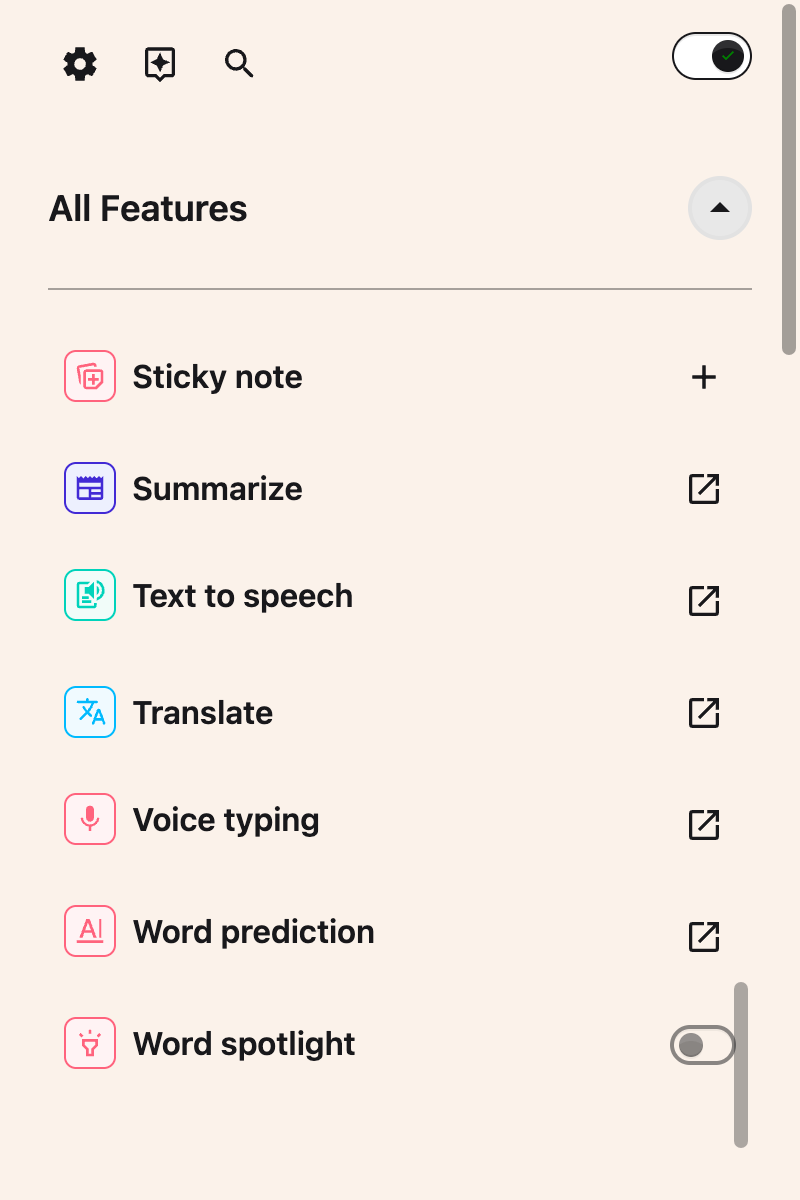
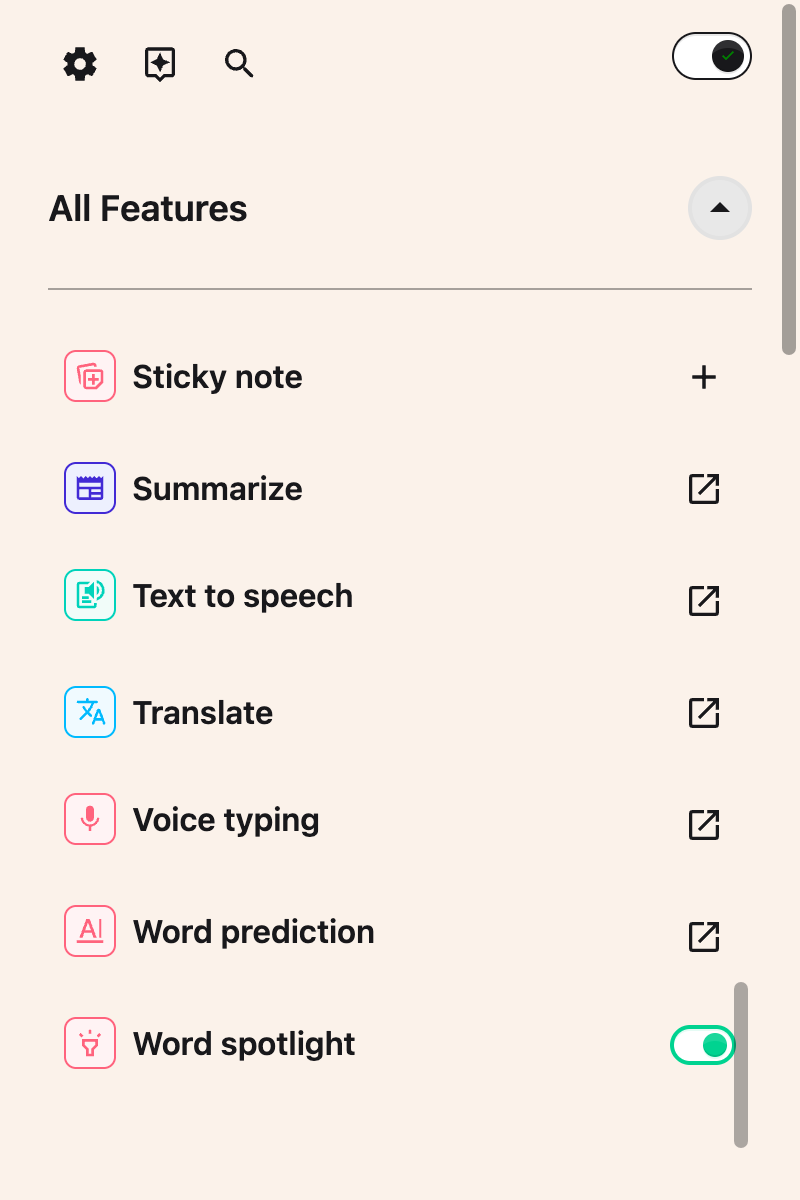
Point at a word in the text you are reading. It turns yellow when the pointer stops.
The toggle only appears with Helperbird Pro. On the free plan the row shows a Pro feature badge where the toggle would be, and it opens the upgrade screen.
Word spotlight has no keyboard shortcut. If you use it a lot, add it to Quick actions from the grid icon at the top of the menu. It then gets its own button there, one tap on and off.
If Nothing Turns Yellow
- Helperbird's own switch, at the top right of the menu, has to be on.
- Word spotlight follows a mouse pointer. Without a mouse or trackpad there is nothing for it to follow, so touch alone highlights nothing on an iPad or iPhone.
- It skips text you can type into, and it does not highlight every word in every alphabet.
Read how Word spotlight behaves for the full list of where it works and what it will not highlight.
Need Additional Help?
If you have any questions or run into any issues, please contact the Helperbird support team. You can reach us at Helperbird support. We are happy to help you get the most out of Helperbird.
Printed from the Helperbird Help Center · Updated August 12th, 2026
Questions? We are happy to help — helperbird.com/support