
How to Save and Download Annotated PDFs in Helperbird
Download a PDF you marked up in Helperbird, and find out exactly which of your text boxes, drawings, notes and highlights end up in the downloaded file.
On this page8 sections
Local Recovery Is Not a Download
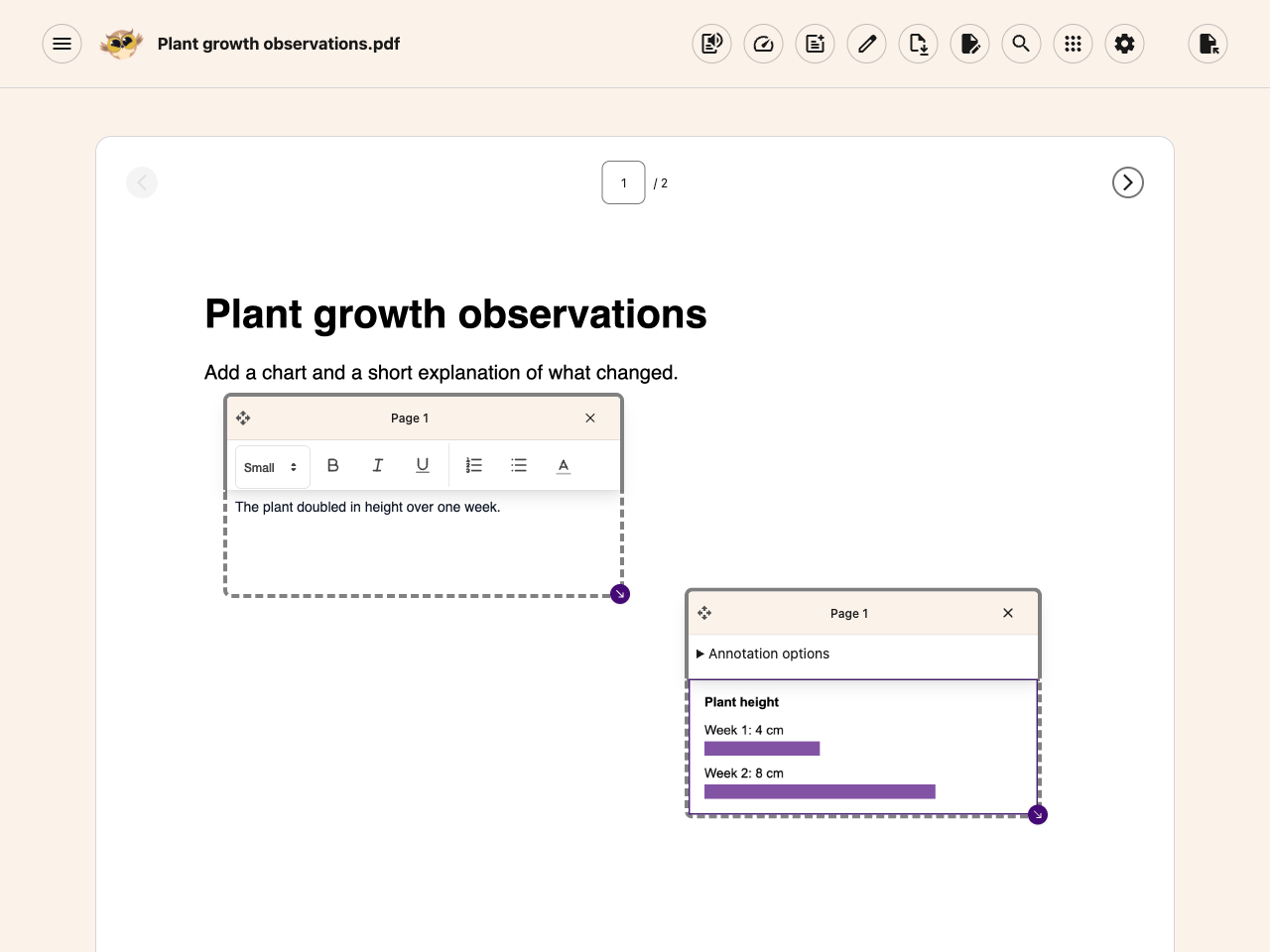
Helperbird keeps one recovery copy of the current PDF and its editing state on this device, when browser storage is available. Reopening the PDF Reader can restore that session after a refresh or browser restart.
To reopen it, use Helperbird's PDF Reader launcher in the same browser profile. Open the reader itself rather than opening a different PDF. Wait for the saved document to load, then check its pages, text boxes and drawings.
 View full-size image (opens in a new tab)
This does not overwrite the original PDF, sync the file to other devices, or create a file you can hand in. Opening another PDF replaces the recovery slot. Download With my changes before switching documents or sharing your work.
The reader warns before replacing unexported work and asks before clearing a page. Browser storage limits, clearing browser data, and interrupted saves can prevent recovery, so keep a downloaded copy of important work.
How to Download Your PDF
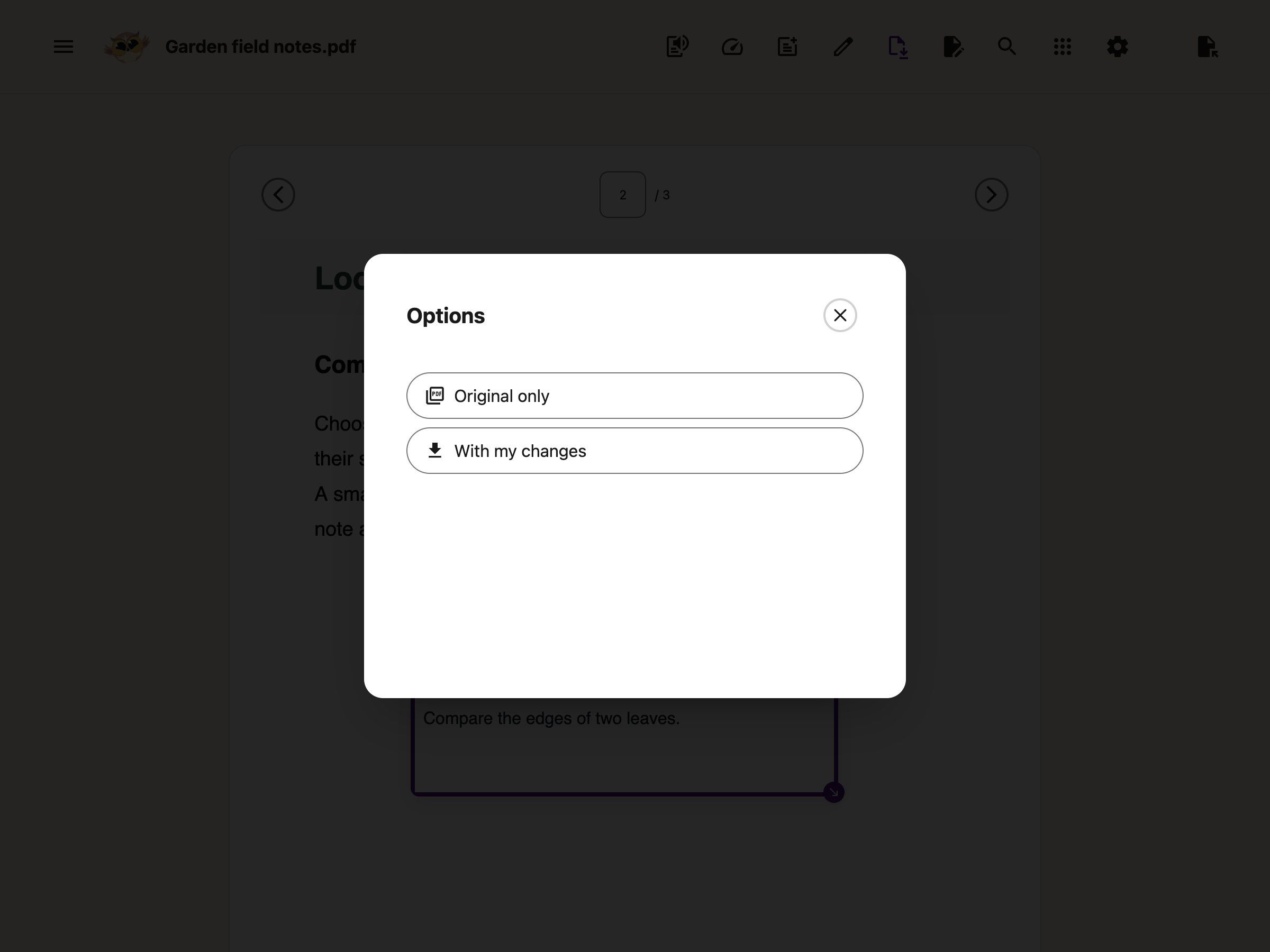
- Click Download in the toolbar above the PDF. A window called Options opens.
- Pick Original only for the file exactly as it arrived, or With my changes for a copy with your text boxes, pasted images, equations and drawings on it.
 View full-size image (opens in a new tab)
With my changes stays greyed out until you have added a text box, image, equation or drawing.
Before downloading, give each pasted picture an Image description, or mark This image is decorative if it adds no information. Describe what the picture shows or means. If a description is missing, Helperbird opens that picture's controls so you can add it and download again. Your edits stay in place. Equation images already carry their equation description. Follow add image descriptions to a PDF for a screenshot walkthrough.
To get a note from the Notepad into the file, click Add Textbox to PDF in the Notepad first. Typing notes and adding them to the PDF are free. Text becomes text boxes; pictures and equations become image boxes. All are included in With my changes.
What Goes Into the Download
These additions are included:
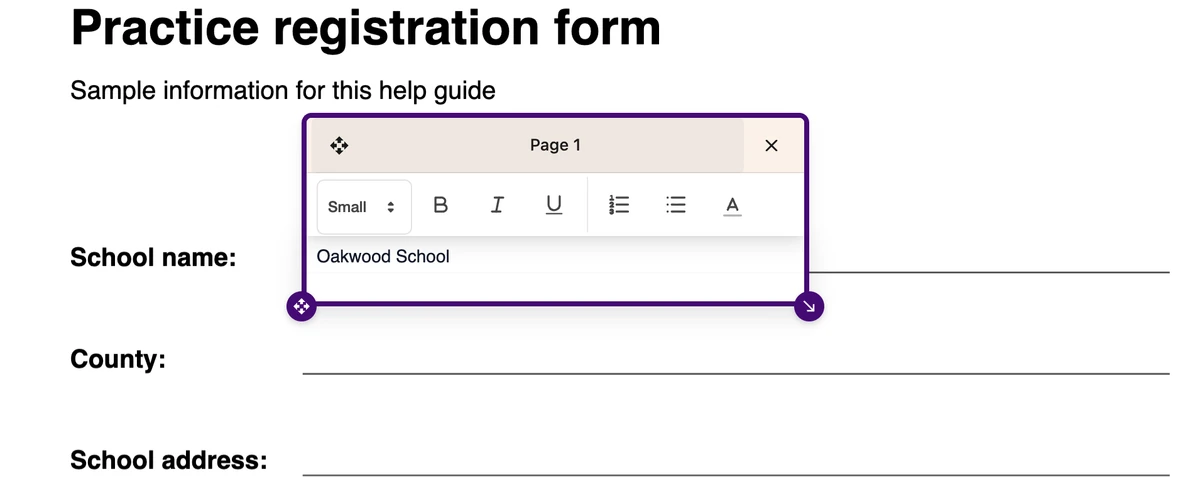
- Text boxes you typed onto the page. Bold, italic, underline, color, text size, and numbered and bulleted lists all carry over.
- Images and equations added to the page, including pictures transferred from Notepad.
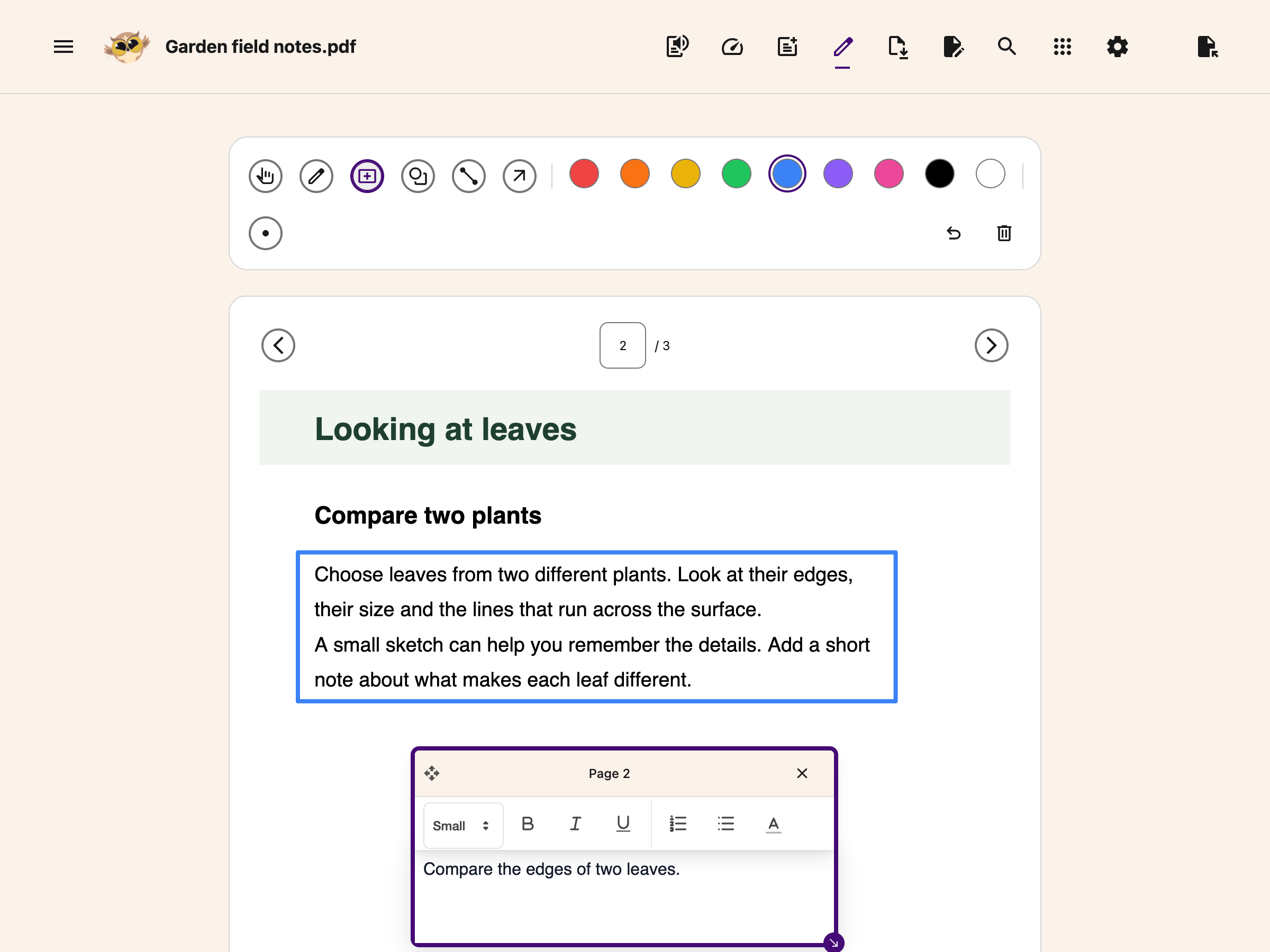
- Drawings: pen strokes, rectangles, ovals, lines and arrows, in the color and stroke width you drew them.
 View full-size image (opens in a new tab)
 View full-size image (opens in a new tab)
What Does Not Go Into the Download
- Highlights. Color you put on the text of the document stays on screen. It is never written into the saved file.
- Notepad content you have not inserted. Use Add Textbox to PDF first.
- Translation. Download keeps the original PDF text. The Translation tab is a reading view, not a translated PDF export.
Older saved PDF highlights may appear in Notes without returning to the page. Helperbird cannot safely place them when their saved record does not identify the PDF and page. You can still read those notes. New highlights remember the document and page where you made them.
How Your Work Looks in the Saved File
The words already in the PDF are untouched. Your work is painted on top of them. Plan for this before you download:
- Your text, images, equations and shapes become page content. They are no longer movable Helperbird boxes or comment threads.
- The editing toolbar, box outline and resize handle are not included. Click away from a filled box to hide its toolbar while reading nearby form lines. Check the downloaded file before sharing it.
- Text that does not fit inside its box is cut off at the bottom edge. Drag the box bigger before you download.
- Rectangles and ovals come out as outlines. They are never filled in.
- Text outside the standard PDF font, including other writing systems and emoji, uses fonts from your device. Check these characters in the saved file; their appearance depends on the fonts available. If text cannot be rendered, the download fails instead of silently dropping it.
- Check every page, especially if the PDF mixes page sizes or rotated pages. Confirm that text, images and drawings are in the right places.
Text annotations and image descriptions also include reading information where the source PDF allows it. This does not repair the original document or guarantee a fully accessible PDF. Dark mode changes the on-screen colors only; downloaded pages keep their original colors.
Equation images in the download do not keep an editable maths object. Keep your Helperbird workspace to edit an equation later.
Where the File Goes and What It Is Called
The downloaded file goes to your browser's normal download location. Separately, the reader keeps one device-local recovery session; it is not cloud storage or a permanent document library.
The tools in the Tools menu work differently. Summarize, Immersive Reader, Translate and Screenshot Reader send text or a screenshot from your PDF to OpenAI or Azure so they can do their work. Where Helperbird stores your data covers this in full.
The name comes from the title stored inside the PDF, not from the name of the file you opened. A copy with your changes gets _annotated added to it. When a PDF carries no title of its own, the file is called Helperbird PDF_annotated.pdf.
Some PDFs store a title that already ends in .pdf, so the copy can come out named like report.pdf_annotated.pdf. Rename it after you download.
From there it is an ordinary PDF. Sharing and exporting PDFs covers sending it on.
Related Guides
- How to Annotate and Export a PDF with Helperbird
- How to Open the PDF Reader in Helperbird
- How to Use the PDF Reader in Helperbird
- How to Use Drawing Tools on PDFs
- How to Add Text Boxes to PDFs
- How to Use Helperbird for Reading Long PDFs
- How to Open PDFs with Helperbird in Google Drive, Classroom or Gmail
- Where Helperbird Stores Your Data
Need Additional Help?
If you have any questions or run into any issues, please contact the Helperbird support team. You can reach us at Helperbird support. We are happy to help you get the most out of Helperbird.
Printed from the Helperbird Help Center · Updated October 26th, 2026
Questions? We are happy to help — helperbird.com/support