
Helperbird Subscription Not Activating - How to Fix
Rechecked and Helperbird still shows Free or No active subscription? Work through the five causes, from a browser you never activated to a blocked network.
On this page6 sections
Helperbird shows Free, or "No active subscription", and you hold a valid subscription key or login. Something is stopping the lookup.
Press Check before anything else. A purchase from ten minutes ago may not have been picked up yet. How to resync your subscription has that button on each browser, why the delay happens, and what each Status means. Come back here if it still says Free.
Helperbird asks our server one question: is there a running subscription for this email address or this key? Each section below is one reason it cannot get a yes. The first two cover most cases.
If Helperbird already says Pro and it is one feature that stays locked, see Pro features still locked instead.
Activate This Browser
Every browser needs activating once. Doing it in Chrome does not do it in Edge or Firefox, because each stores its data separately.
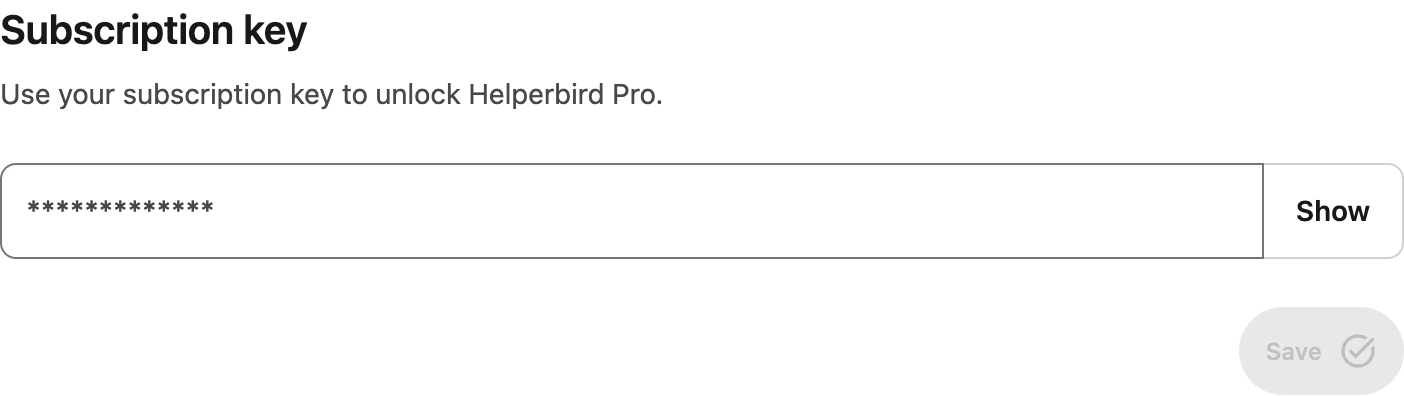
Open the Helperbird settings page and look at the Account section. If the Subscription key box is empty and no email address is shown, this browser has nothing to check with.
- Enter your key. See how to use your subscription key.
- Or sign in. Chrome and Edge only. See how to log in to Helperbird.
On Firefox, Safari, iPhone and iPad there is no sign-in button, so a key is the only way. Not sure which suits you? See email login vs subscription key.
One thing to watch: copying a key out of an email often picks up a space at either end. Delete any blank space before you save.
 View full-size image (opens in a new tab)
Check Which Email Helperbird Reads
This applies only if you signed in rather than using a key.
Helperbird reads the address your browser profile is signed in with. You never type it in, so a profile signed into a different account from the one that paid sends us the wrong address, and we find nothing.
That address sits in the read-only box under Google Account on Chrome, or Microsoft Account on Edge. If it is not the address you subscribed with, either sign the browser into the right account and press Check, or use your subscription key, which does not depend on the browser account at all.
Moved to a new email address since you subscribed? That address is how we find your subscription. See how to change your email.
Check Your Network
School and workplace networks sometimes block our server. Helperbird then shows a connection message instead of confirming your subscription. Your last account details may still be visible; they do not mean that the new check succeeded.
Try Check again when your connection is working. You do not need to remove your key or delete your saved work because a check lost its connection. For network checks and wording to send your IT team, use the firewall guide.
Clear Stuck Data
If your key is right and your network is clear, the copy of your subscription stored on this device can be stuck from an earlier update. Clearing it gives Helperbird a fresh start. Afterwards, enter your key or log in again, then press Check. The steps are in how to reset all Helperbird settings.
Read this first. A reset clears your settings, notes and highlights, and signs you out. A settings backup will not bring your key back either, because Helperbird strips the subscription key out of exported files on purpose. Keep the email it arrived in.
If Your Organization Manages Helperbird
If the Account section reads "Managed by your organization", your administrator sets the key through a policy. There is no key box and no sign-in button there, which is expected, and nothing on that page is yours to fix.
Send your administrator one thing to check first: the policy has an isAdminControl switch, and the pushed settings apply only when it is true. Set to false, the whole block is ignored, including the key, so everyone on that policy drops to Free while the policy still looks correct.
Their guides are setting Chrome storage managed keys, setting a JSON policy for a user group and how to verify a managed deployment.
Need Additional Help?
Still not activating? Write to our Helperbird support team with three things, and we can look your subscription up straight away:
- the browser and device you are on
- what the Status row says, word for word
- whether you use a subscription key or email login
Printed from the Helperbird Help Center · Updated September 28th, 2026
Questions? We are happy to help — helperbird.com/support