
How to Translate in Immersive Reader
Learn how to translate a page in Immersive Reader, either the whole document or one word at a time, so you can read in your own language.
Jump to the stepsOn this page
What This Does
Immersive Reader can translate what you are reading into your own language. You can have the whole thing translated, or just tap the words you get stuck on.
Who is This For?
This is helpful for:
- Students studying in a language that is not their first
- Anyone sent a document in a language they read slowly
- Families reading a school letter written in another language
- Language learners who want to check themselves word by word
Step 1: Open Reading Preferences
Open Immersive Reader first. You can start it from the floating toolbar, from the Helperbird menu, or from the Tools menu in the PDF Reader.
Once it is open, the three buttons in the top-right corner hold every setting.
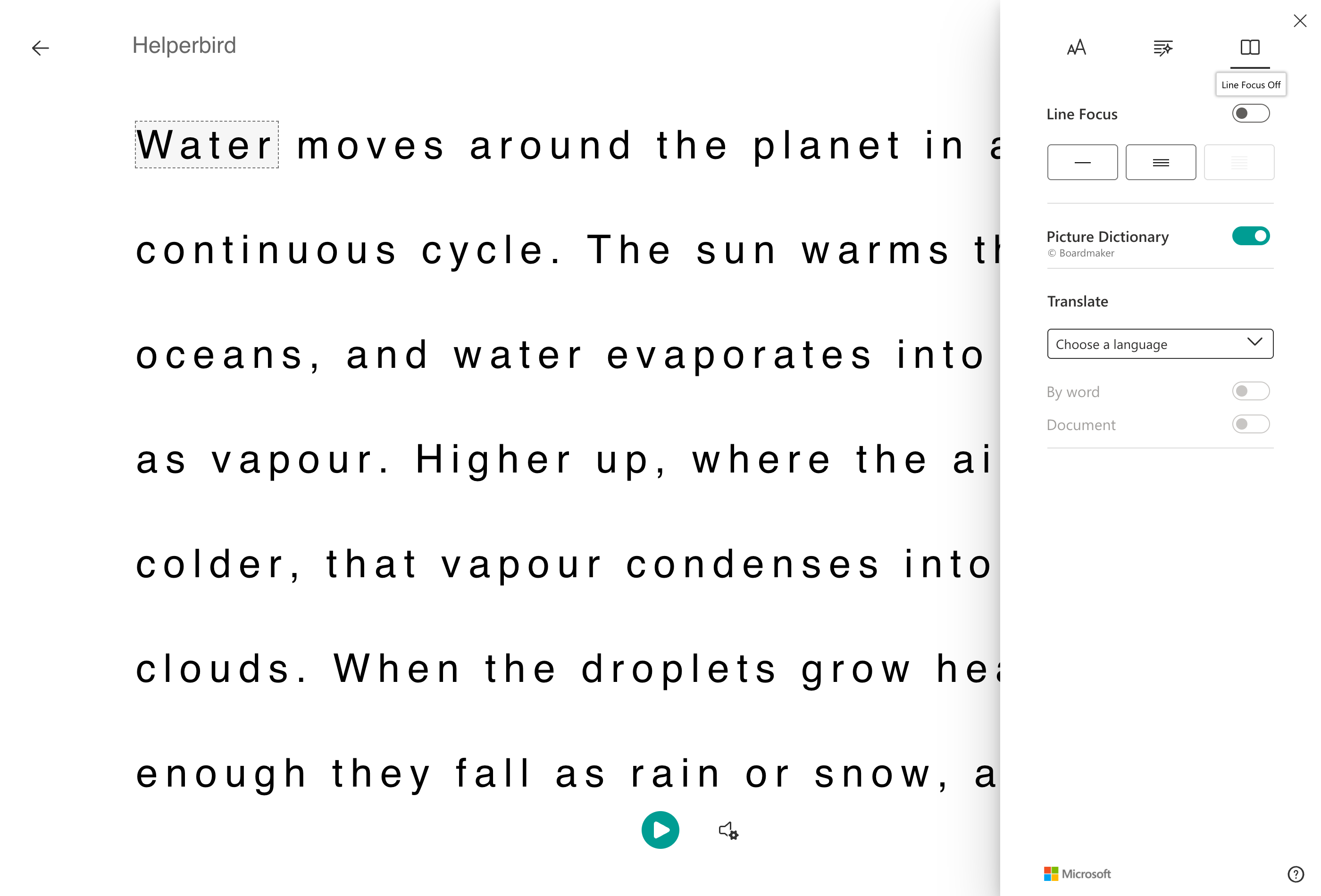
Click the book button.
 View full-size image (opens in a new tab)
Step 2: Choose a Language
Under Translate, open Choose a language and pick yours.
Nothing happens yet. The two switches underneath stay greyed out until a language is chosen, which is the usual reason people think translation is broken.
By Word, or the Whole Document
Once a language is set, two switches become available:
- By word translates a single word when you click it, leaving everything else as it was.
- Document translates the whole thing at once.
Which Should You Use?
By word if you can mostly read the text and only stumble on some of it. You stay in the original language, which is how you improve, and get help exactly where you need it.
Document if the text is beyond you, or you need to understand it quickly rather than work through it.
You can turn both on. Then the page is in your language and clicking a word shows you that word on its own.
To translate an ordinary web page without opening Immersive Reader, see how to translate a webpage.
Need Additional Help?
If you have any questions or run into any issues, please contact the Helperbird support team. You can reach us at Helperbird support. We are happy to help you get the most out of Helperbird.
Printed from the Helperbird Help Center · Updated September 22nd, 2026
Questions? We are happy to help — helperbird.com/support