
How to Adjust Color Saturation on Any Website
Learn how to use Helperbird's adjust color saturation. Complete guide for improving web accessibility and reading support.
·
- features
- accessibility
What is Saturation?
Saturation controls how vivid or muted the colors appear on a website. You can reduce saturation to make colors less intense, or even turn a page completely grayscale (black and white). This can help reduce visual distractions and make reading easier.
Who is This For?
This feature is helpful for:
- People who find bright colors distracting or overwhelming
- Anyone with light sensitivity or visual processing difficulties
- People who want to reduce eye strain while reading
- Anyone who prefers a simpler, less colorful display
- People with certain types of color blindness who find grayscale easier
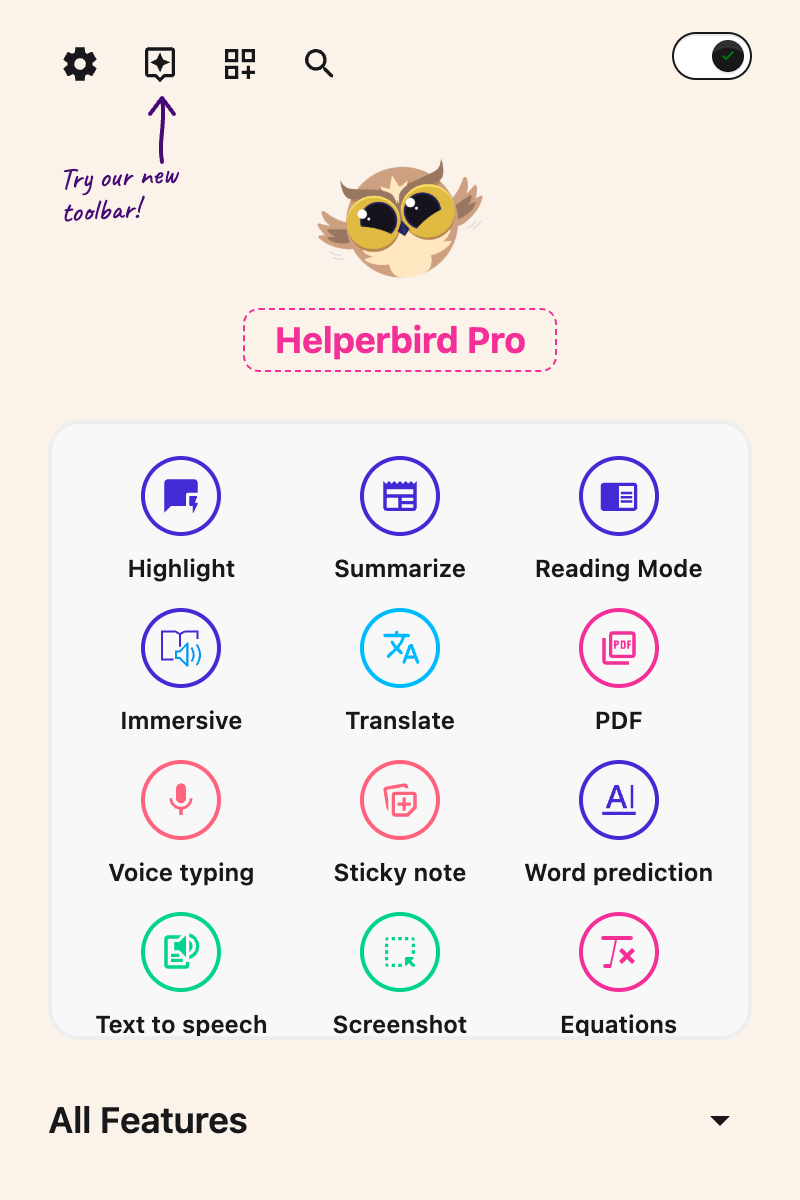
Step 1: Open Helperbird
Click the Helperbird icon in your browser toolbar. It looks like a small owl and is usually in the top-right corner of your browser.
This will open the Helperbird menu.
Step 2: Go to the All Features Section
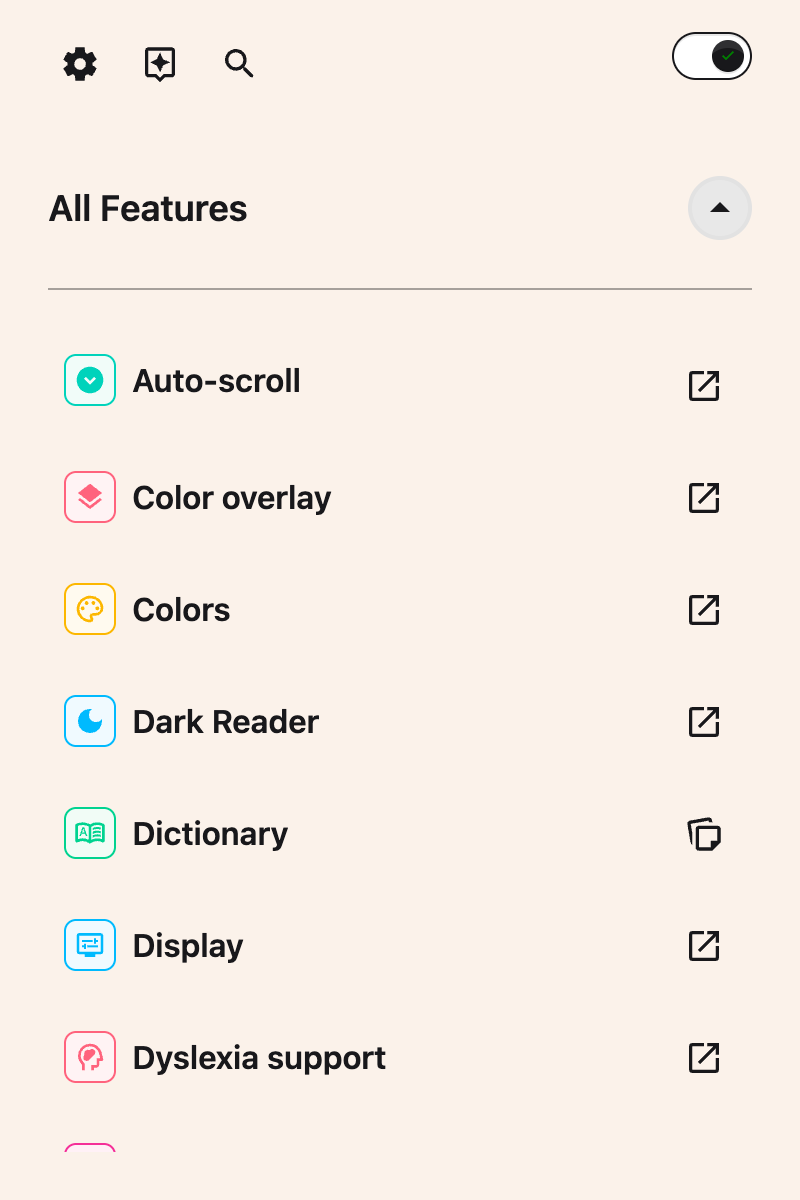
Scroll down to the bottom of the Helperbird menu. You will see a section called All Features.
Click the arrow next to All Features to expand it and show all available features.
Step 3: Find Display
Look through the list of features until you see Display. Saturation lives inside this panel, alongside the other display settings.
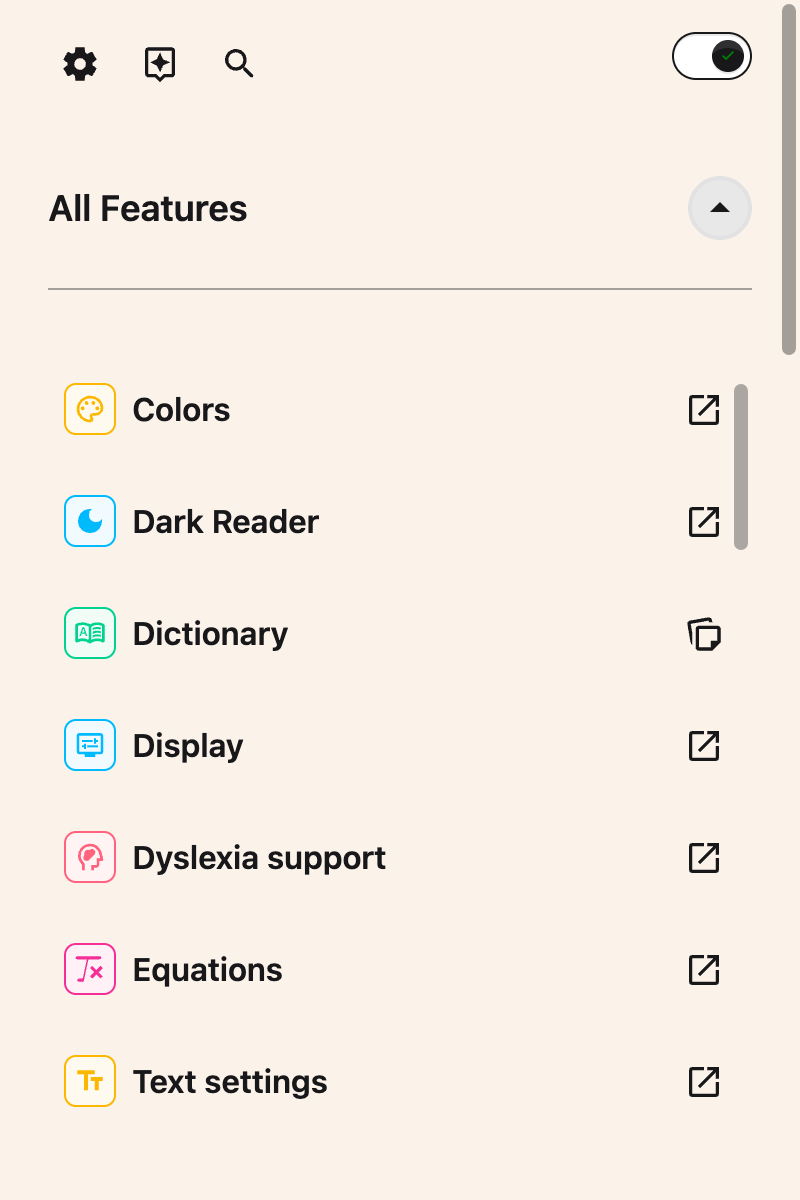
Step 4: Open Display
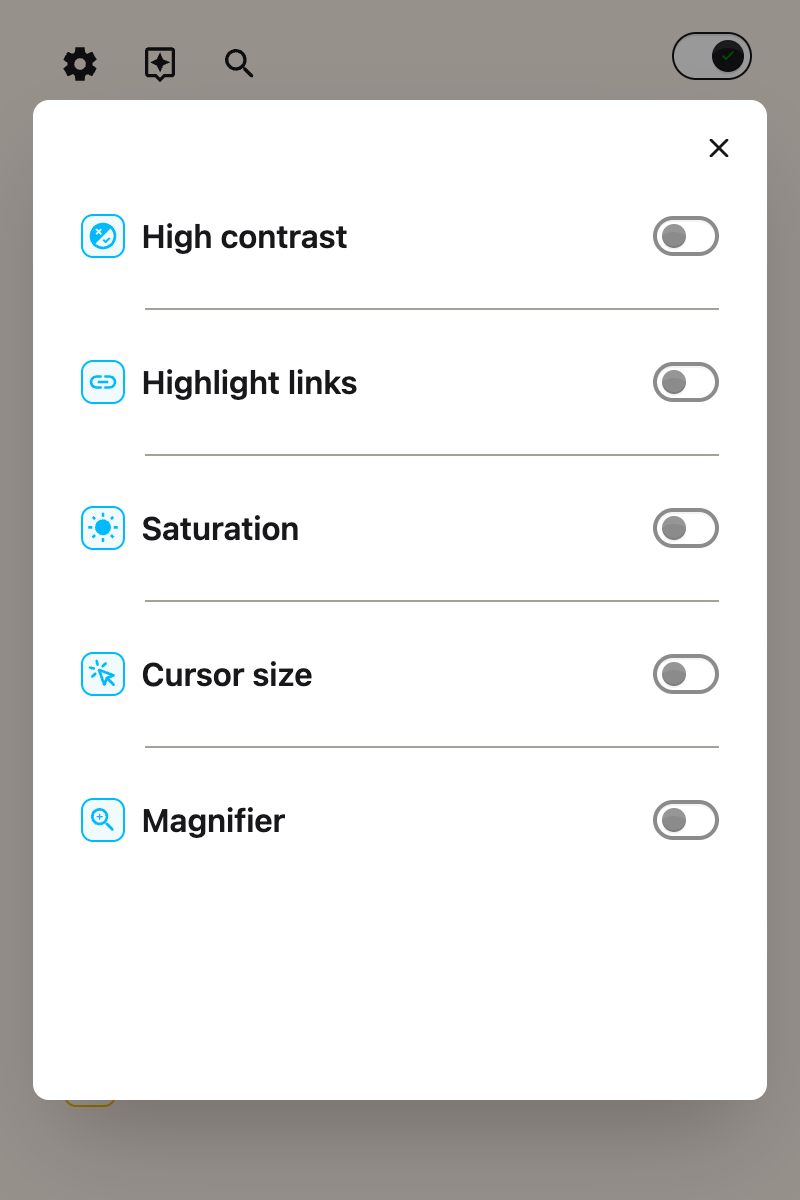
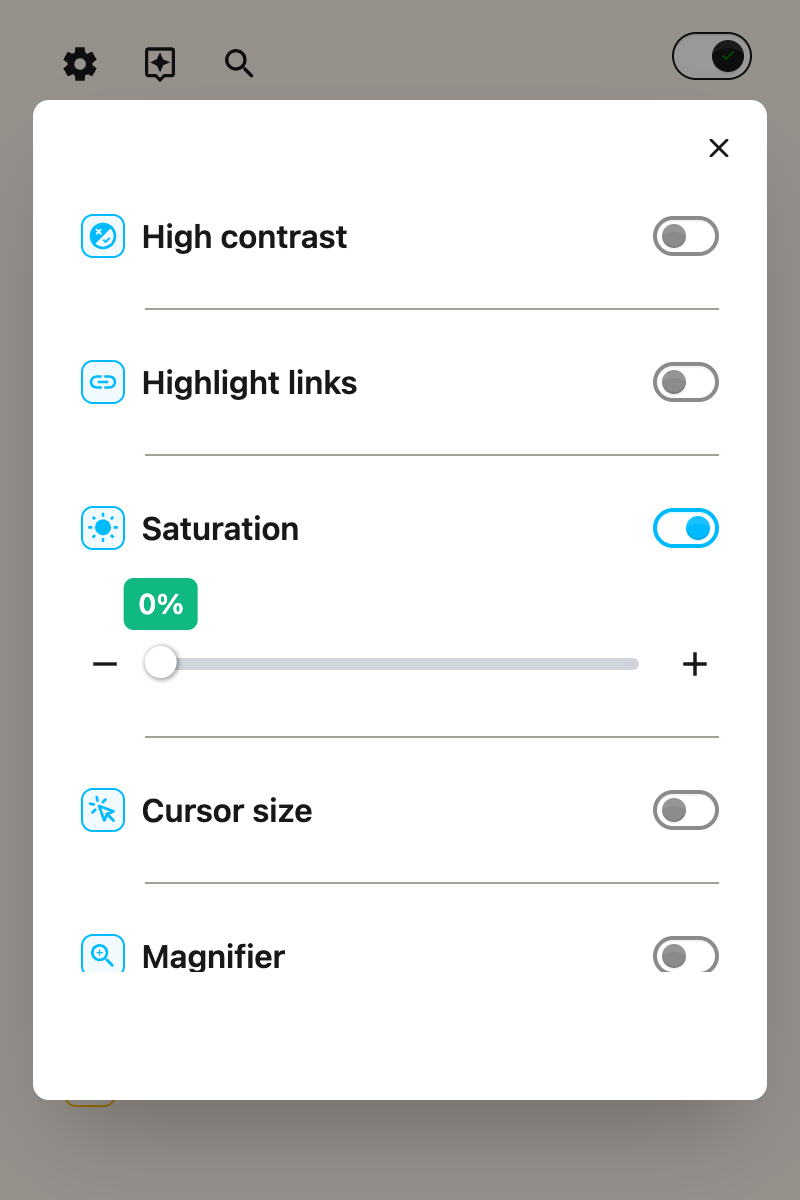
Click Open on the Display row. The panel holds High contrast, Highlight links, Saturation, Cursor size and Magnifier.
Step 5: Turn on Saturation
In the Display options panel, find Saturation and click the toggle switch next to it to turn it on.
Step 6: Adjust the Level
Once Saturation is turned on, a slider will appear below the toggle.
Drag the slider to adjust the saturation level:
- Slide to the left to reduce color intensity (more grayscale)
- Slide to the right to increase color vibrancy
You can also use the - and + buttons beside the slider for small adjustments. The current value is shown in a bubble above the slider.
The changes apply to the page immediately so you can see the effect in real time.
Tip: If you find colorful websites overwhelming, try reducing saturation to around 50% for a calmer reading experience. Set it to 0% for a fully grayscale page.
Need Additional Help?
If you have any questions or run into any issues, please contact the Helperbird support team. You can reach us at Helperbird support. We are happy to help you get the most out of Helperbird.
Printed from the Helperbird Help Center · Updated August 13th, 2026
Questions? We are happy to help — helperbird.com/support