
How to Open the Helperbird Settings Page
Open the Helperbird Settings page to manage your subscription, apply a profile, choose options, import or export a backup, and find help and version details.
Jump to the stepsOn this page
What is the Settings Page?
The settings page is a full page that opens in its own browser tab. It holds everything that does not fit in the popup: accessibility profiles, importing and exporting your settings, syncing, and the debug information you send to support.
The popup is for using Helperbird day to day. The settings page is for setting it up.
Who is This For?
This is helpful for:
- Anyone setting Helperbird up for the first time
- People who want to save or move their settings between computers
- Anyone choosing an accessibility profile
- People reporting an issue who need their debug information
Step 1: Open Helperbird
Click the Helperbird icon in your browser toolbar. It looks like a small owl and is usually in the top-right corner of your browser.
Step 2: Open Options
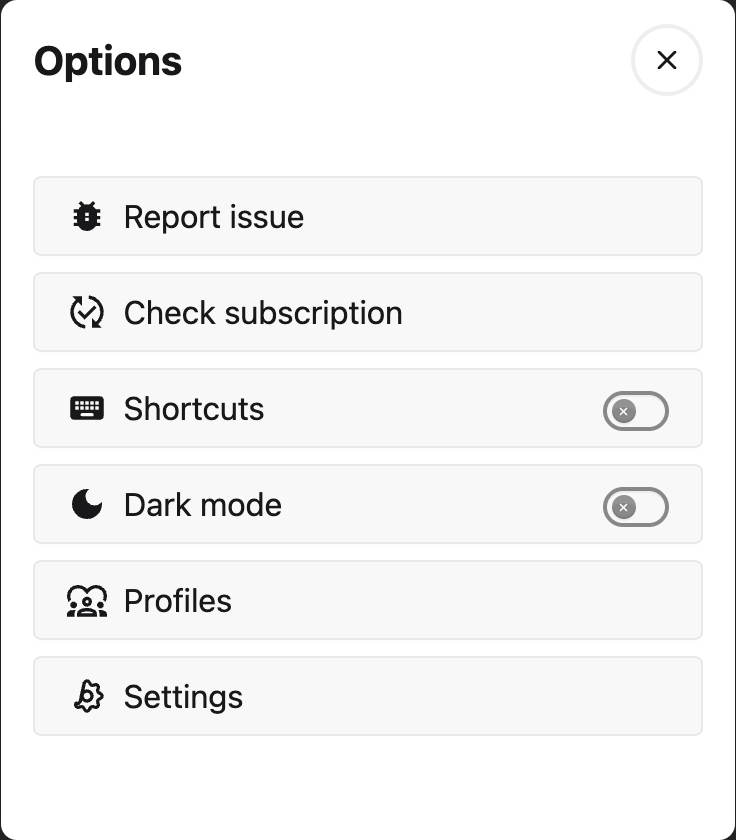
Choose the Settings gear in the top-left corner of the Helperbird menu. The Options panel opens.
 View full-size image (opens in a new tab)
Step 3: Click Settings
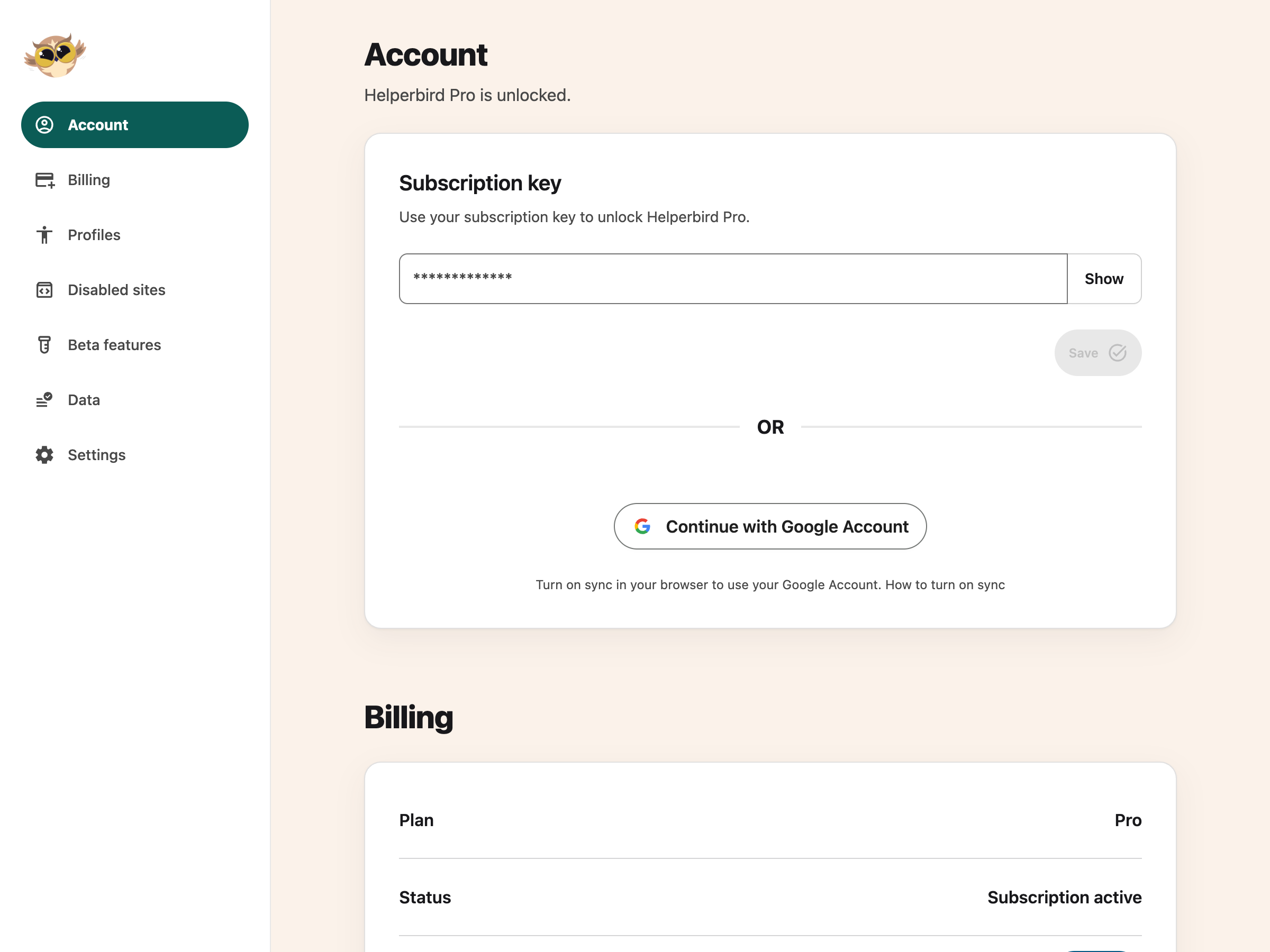
Choose Settings at the bottom of Options. The Settings page opens in a new tab. Use the section navigation to jump to Account, Billing, Profiles, Disabled sites, Beta features, Data or Settings.
 View full-size image (opens in a new tab)
What You Will Find There
The settings page is where you can:
- Choose an accessibility profile
- Export your settings to a file
- Import settings from another computer
- Sync your settings across browsers
- Choose where page notifications appear
- Try Embedded reading and other beta features
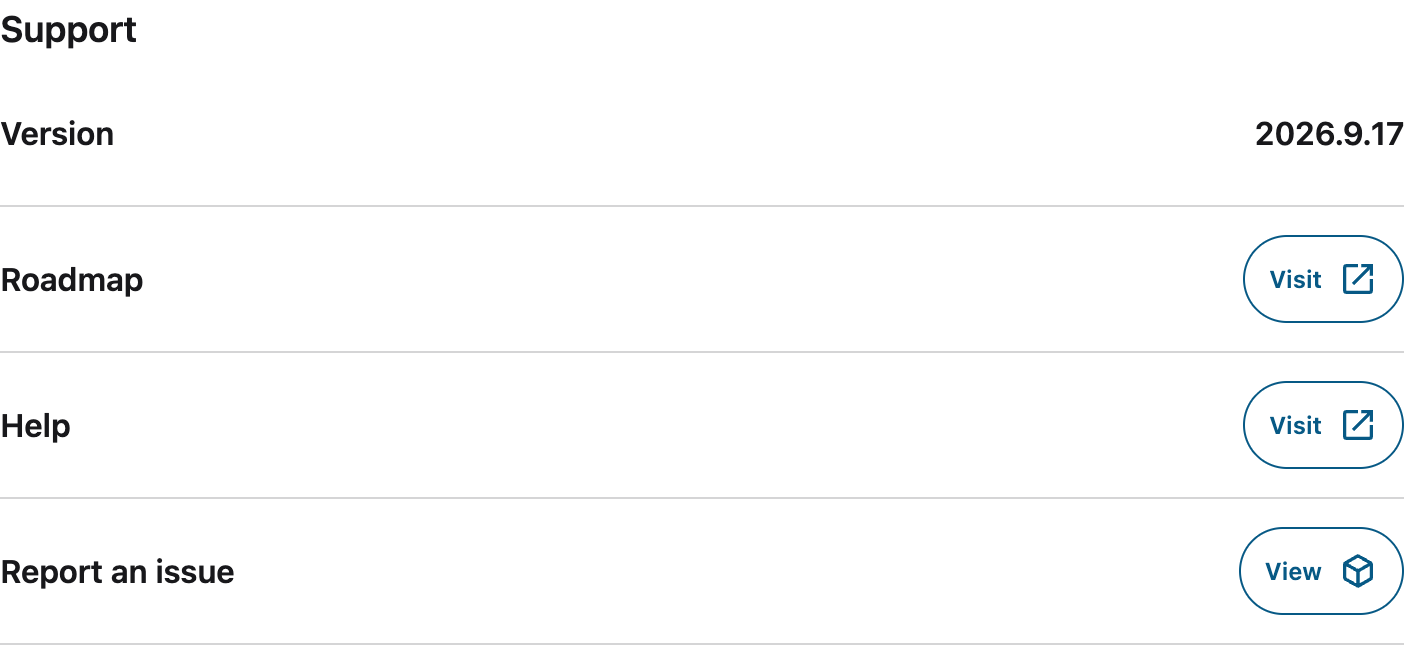
- Find the debug information you need when reporting an issue
Move Page Notifications
If a message such as Click to open PDF in Helperbird covers something you need, you can move these prompts to another part of the bottom edge.
- Open the settings page and choose Settings in its section menu.
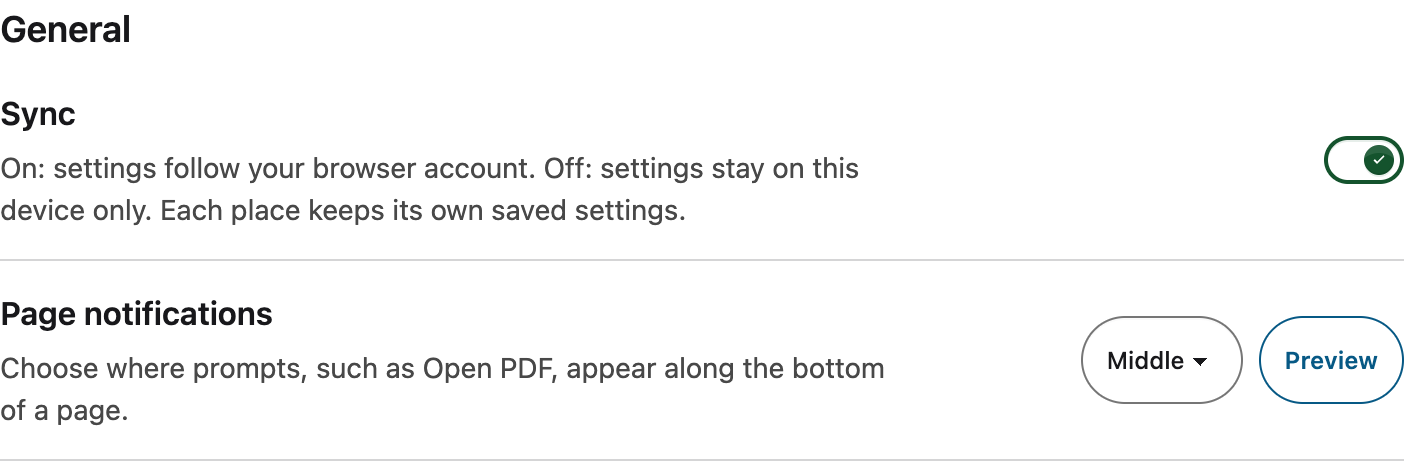
- In General, find Page notifications below Sync and choose Left, Middle or Right. All three positions are at the bottom of the page.
- Click Preview to see a message in that position.
Your choice saves automatically and applies to new page notifications, including in tabs that are already open. Middle is the default. This setting moves page prompts; the floating toolbar has its own position controls.
 View full-size image (opens in a new tab)
Make Settings Easier to Read
Use your browser's zoom controls to make the Settings page larger. Press Tab to move through its links and controls. Skip to main content bypasses the section navigation.
To change the Helperbird interface theme, open the extension's Options and use Dark mode. The Settings page follows that theme. There is no separate Text settings panel on this page.
View full-size image (opens in a new tab)
Save and error messages use the floating Helperbird toaster. After a successful import or deletion, the result stays open until you select Continue. You choose when Settings reloads.
 View full-size image (opens in a new tab)
Need Additional Help?
If you have any questions or run into any issues, please contact the Helperbird support team. You can reach us at Helperbird support. We are happy to help you get the most out of Helperbird.
Printed from the Helperbird Help Center · Updated September 22nd, 2026
Questions? We are happy to help — helperbird.com/support