
How to Open the PDF Reader in Helperbird
Get a PDF into Helperbird. Open the reader from the popup, load a file from your computer, use the message on a PDF page, and fix a file that will not open.
·
- features
There are two ways to get a document into the Helperbird PDF Reader: open the reader from the popup and pick a file, or click the message that appears on a PDF you are already looking at.
Opening PDFs, reading them aloud with your device's voices, and adding text boxes are free. The advanced PDF tools need Helperbird Pro.
Step 1: Open Helperbird
Click the Helperbird icon in your browser toolbar.
Step 2: Open the All Features Section
Scroll to the bottom of the popup and open All Features.
To skip the scrolling, click the search button at the top of the popup and type pdf.
Step 3: Find PDF Reader
Find PDF Reader in the list and click Open PDF Reader. The reader opens in a new browser tab.
Step 4: Open a PDF
The reader starts empty until you load a file.
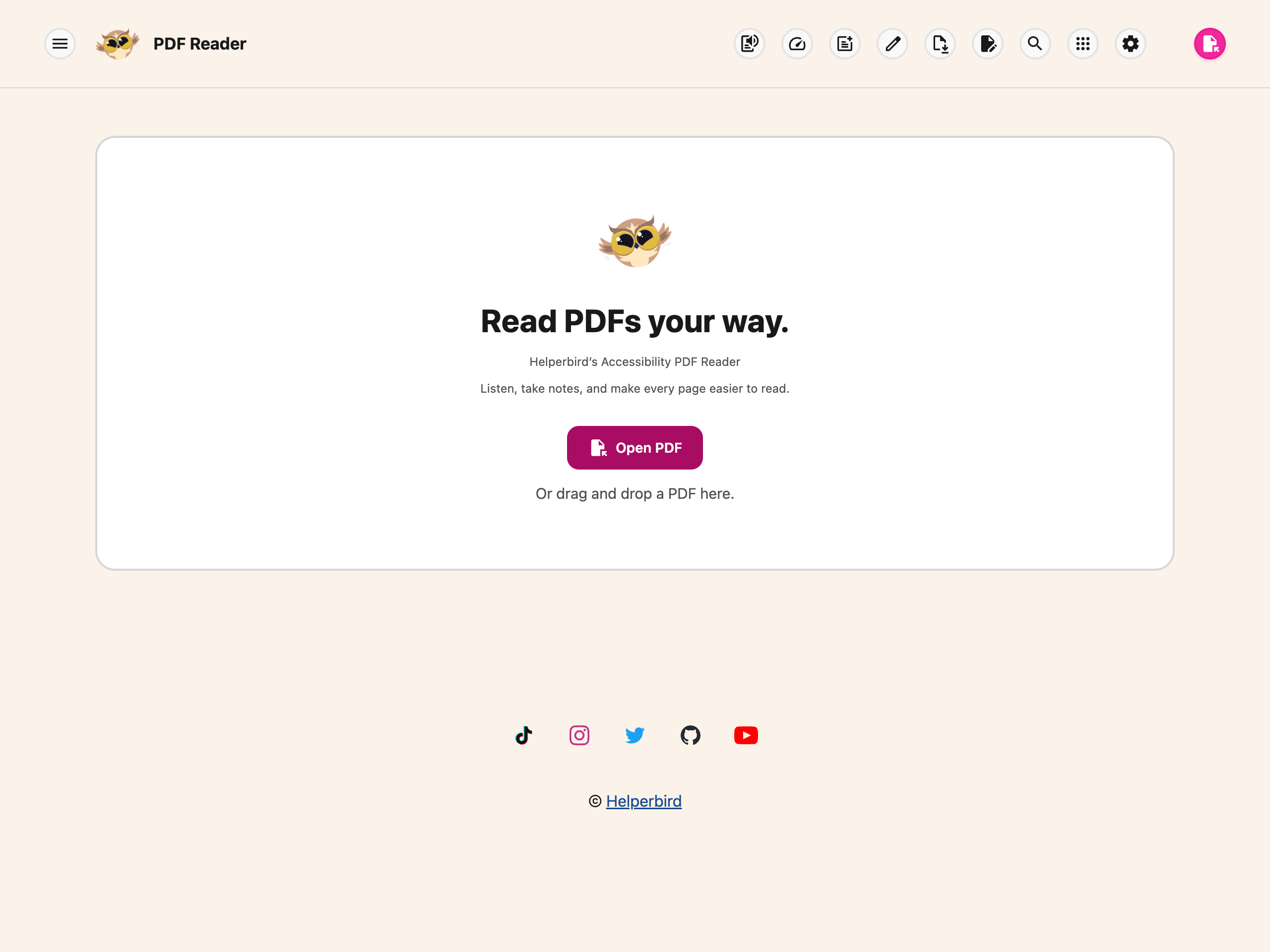
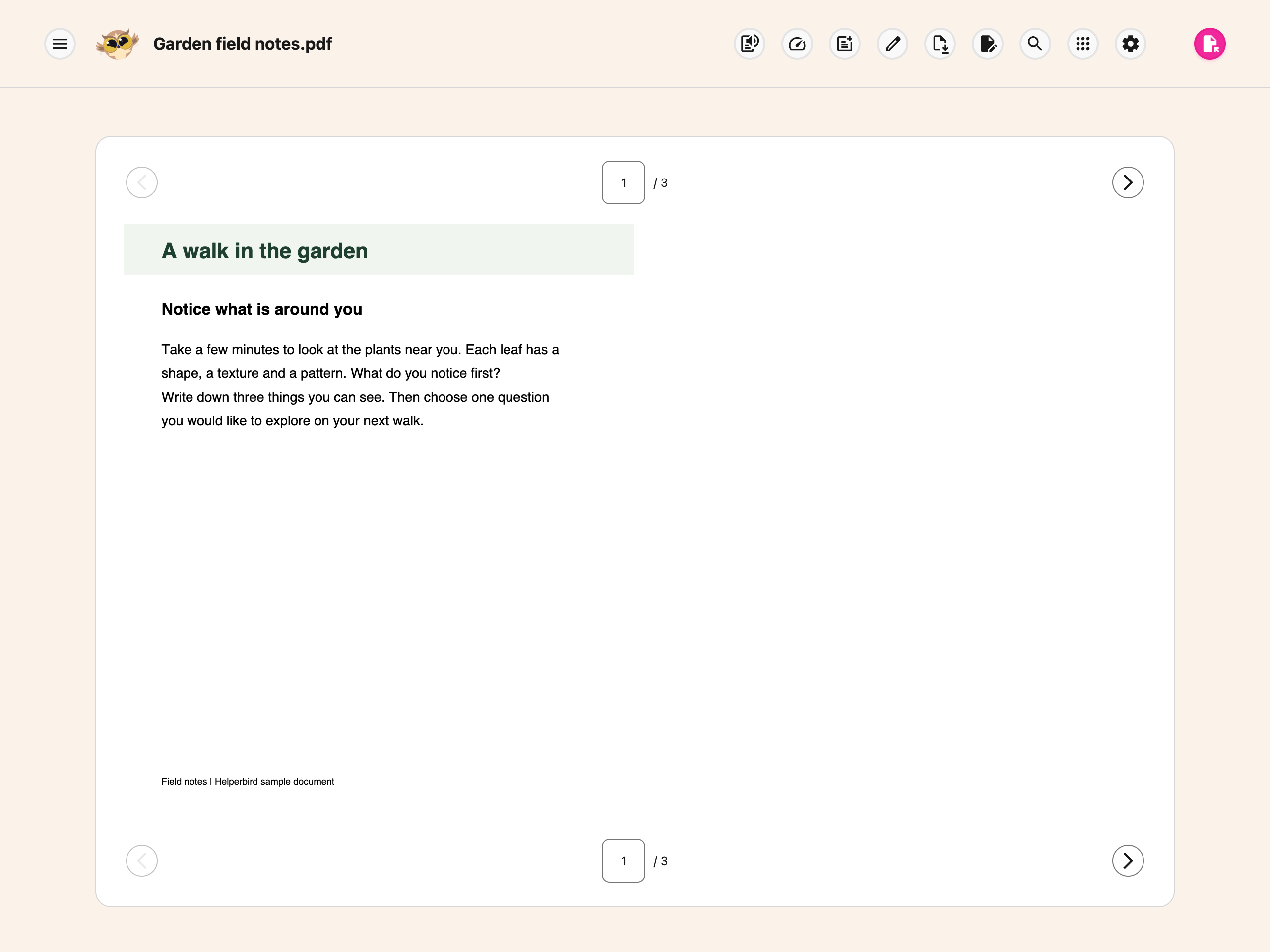
Click Open PDF and choose a file from your computer. The document appears with the toolbar above it and a numbered button for every page.
The same Open PDF button stays in the top right. If you have unexported changes, the reader asks before replacing the current file. Download your changes first if you need to keep them.
The reader can restore its last local session when you reopen it. Opening another PDF replaces that single recovery copy; it is not a permanent document library.
Open a PDF You Are Already Viewing
If the page you are on is a PDF, you do not need the popup. A green message appears at the bottom saying Click to open PDF in Helperbird. Click it and the reader opens in a new tab with that PDF loaded.
A few things to know about the message:
- You can move it to the bottom left, middle or right in Settings → Page notifications. See moving page notifications.
- It clears itself after about six seconds. If you miss it, reload the page or use the steps above.
- It only appears when the web address ends in .pdf. A PDF held in Google Drive, Classroom or Gmail does not, so download it first. See opening PDFs from Google products.
When a PDF Will Not Open
"Only PDF files supported" means the file you picked is not a PDF. Check the file ending and try again.
"Couldn't open PDF" means Helperbird could read the file but not the document inside it. A password-protected PDF gives this, and so does a damaged one, or a very large file that takes more than twenty seconds to load. Whatever you already had open stays where it is, so a bad file will not lose your work.
The reader is empty after a reload. A file you picked from your computer is not remembered. Reloading the tab empties the reader and you need to open the file again. A PDF you opened from the green message reloads on its own and returns you to the page you were on.
Where to Go Next
- Read a PDF and take notes - Move through pages, listen to them, write beside them.
- Using the PDF Reader - What every button in the toolbar does.
- The Tools menu - Immersive Reader, Translate, Summarize and Screenshot Reader.
- Save and download PDFs - Keep the changes you made.
Need Additional Help?
If you have any questions or run into any issues, contact the Helperbird support team. We are happy to help you get the most out of Helperbird.
Printed from the Helperbird Help Center · Updated September 22nd, 2026
Questions? We are happy to help — helperbird.com/support