
How to Use Screenshot Reader with the Keyboard
Select text in an image without dragging a mouse. Start Helperbird Screenshot Reader, move and resize the capture area with arrow keys, then confirm or cancel.
Jump to the stepsOn this page
What This Does
Screenshot Reader can capture text in a picture even when you cannot select the words normally. Use the keyboard to create, move and resize its capture rectangle without dragging a mouse. Screenshot Reader requires Helperbird Pro and an internet connection to process the capture.
The separate Screenshot tool saves an image of the visible page. Choose Screenshot Reader when you want to copy, listen to or translate text from an image.
Step 1 Choose Where the Text Goes
Bring the text you want to capture into view first. Finish scrolling or adjusting the page zoom before starting.
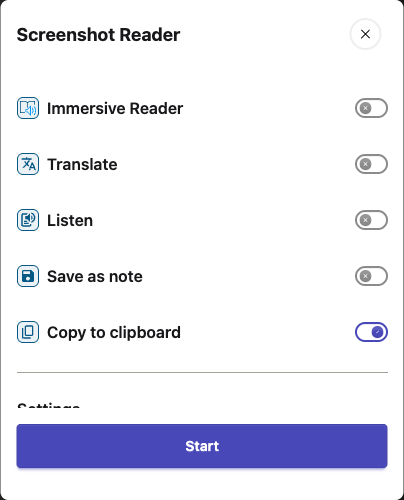
Open Helperbird, expand All Features, and open Screenshot Reader. Choose a destination, such as Copy to clipboard, Listen or Immersive Reader. Only one destination is used at a time; Copy to clipboard is the default. Leave Explain mode off if you want the original words.
 View full-size image (opens in a new tab)
Choose Start. If you already have your options set, you can also focus Screenshot Reader on the expanded floating toolbar and press Enter. That toolbar button starts capture directly with your saved options.
Step 2 Create a Selection
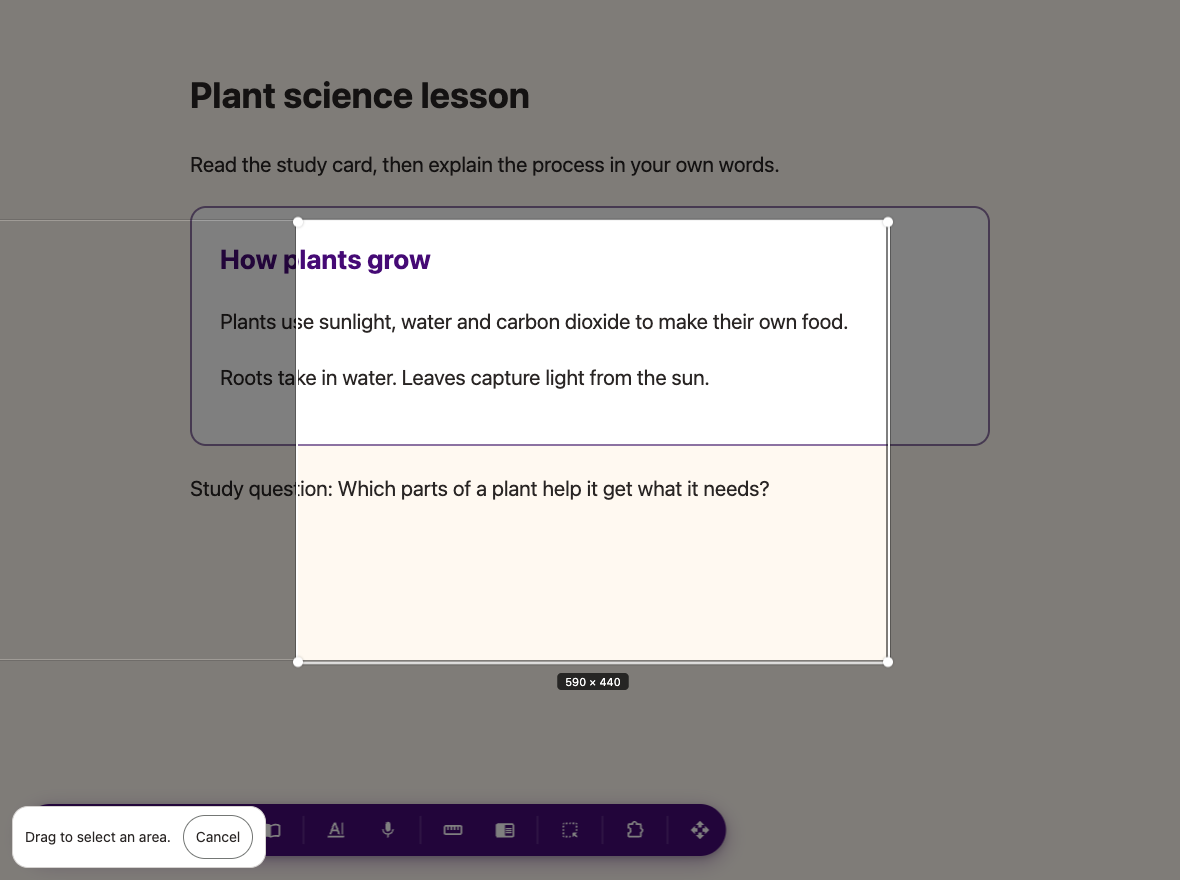
When the selection overlay opens, press an arrow key. Helperbird creates a rectangle near the center of the visible page. You can adjust it before sending anything for recognition.
 View full-size image (opens in a new tab)
Step 3 Move and Resize the Rectangle
Use these controls while the capture overlay has focus:
| Key | What it does |
|---|---|
| Arrow keys | Move the whole rectangle one pixel in that direction. |
| Shift + Left or Shift + Right | Make the rectangle narrower or wider. |
| Shift + Up or Shift + Down | Make the rectangle shorter or taller. |
| Enter | Confirm the rectangle and start recognition. |
| Escape | Cancel without processing a capture. |
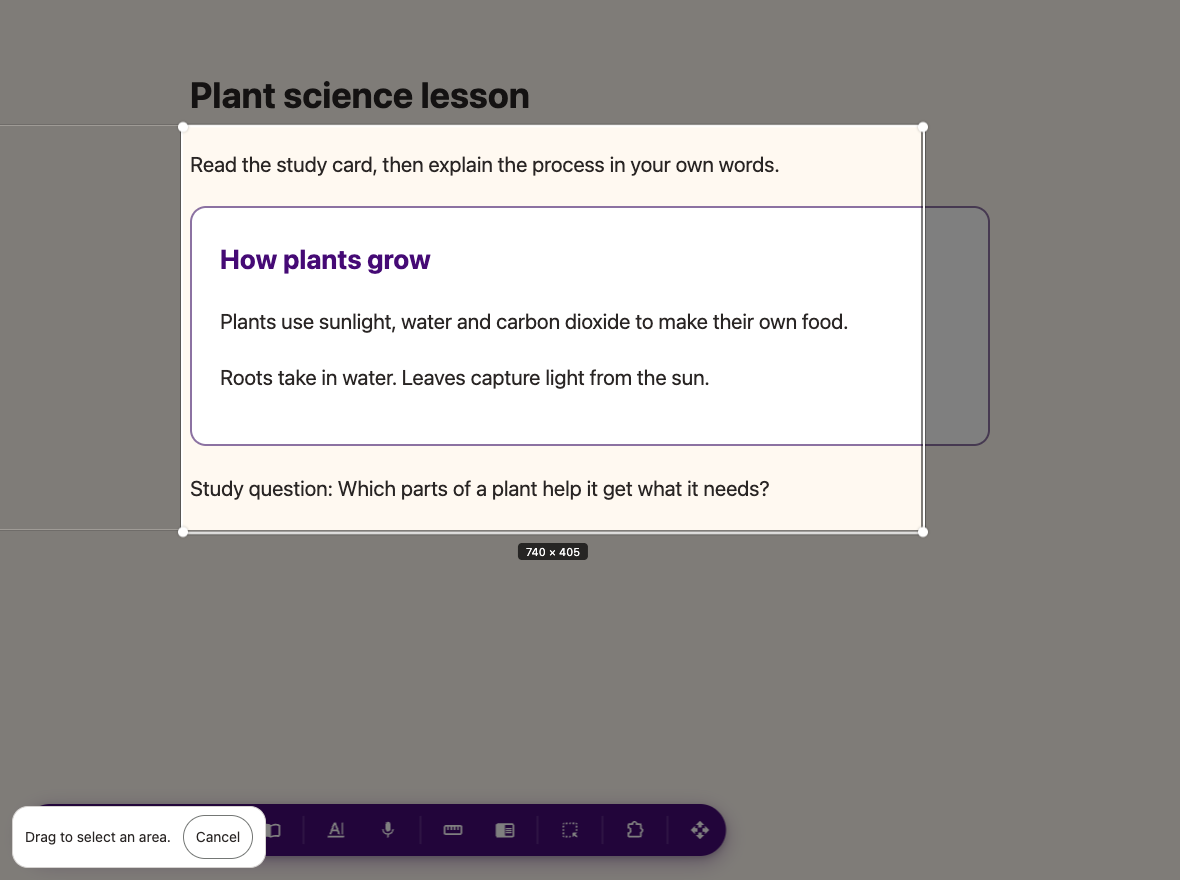
Resizing changes the right or bottom edge. Move the rectangle as well when you need to adjust its top or left edge. Hold a key to repeat small adjustments. The selection stays within the visible page and cannot become smaller than its minimum size.
 View full-size image (opens in a new tab)
Step 4 Confirm or Cancel
Press Enter while the selection overlay has focus to process the selected area. The result goes to your chosen destination. With Copy to clipboard, paste it into your document to review it. Check names, numbers and equations against the original image before relying on the extracted text.
Press Escape to leave without a capture, or use the Cancel button. If you tab to Cancel, pressing Enter activates that button and cancels; it does not confirm the rectangle.
If Selection Is Difficult
- The arrow keys scroll the page: press Escape and start Screenshot Reader again so the overlay receives focus.
- Some text is outside the rectangle: adjust the selection before pressing Enter. For content below the screen, cancel, scroll and capture that section separately.
- The result is an explanation: turn off Explain mode in Screenshot Reader and try again.
- Nothing is copied: check your chosen destination, Pro access and internet connection. Blurry or very small text can also give poor results.
Related Guides
Printed from the Helperbird Help Center · Updated October 6th, 2026
Questions? We are happy to help — helperbird.com/support