
How to Use the Helperbird Add-on for Google Sheets
Use Helperbird in Google Sheets to translate selected cells, listen aloud, change fonts, wrap text, and resize rows and columns. Follow the illustrated guide.
On this page
Helperbird adds reading tools to Google Sheets. Select cells, open a tool in the sidebar, and use its modal to read, translate, or format your selection.
What the Sheets Add-on Gives You
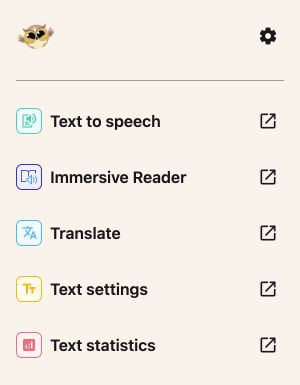
The sidebar has Text to speech, Immersive Reader, Translate, Text settings, and Text statistics. Most tools open their own modal; Immersive Reader opens directly.
The tools work with one cell, a block of cells, or several separate selections on the same sheet. Text settings brings fonts, text size, wrapping, and row and column sizing together. Alerts and confirmations appear briefly at the bottom of the sidebar.
How to Add It to Google Sheets
- Open your file in Google Sheets.
- Choose Extensions → Add-ons → Get add-ons.
- Search for Helperbird, choose Install, and follow the prompts.
Your school or workplace may need to approve the add-on. See the installation guide for help.
How to Open the Helperbird Sidebar
Choose Extensions → Helperbird → Open Helperbird. Tools open in a modal, except Immersive Reader, which opens directly. Use its close button or press Escape to return to the tool list.
 View full-size image (opens in a new tab)
How to Translate Cells
- Select the cells you want to translate. To add separate cells or ranges, hold Ctrl on Windows or Command on Mac while selecting them.
- Open Translate in Helperbird.
- Choose a language under Translate to. Use the arrow keys or type a language name to find it.
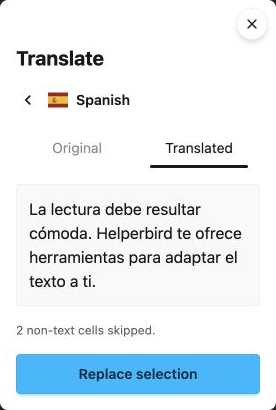
- Choose Translate. Switch between Original and Translated to compare the result.
- Choose Replace selection if you want to apply it.
- After Selection replaced appears, choose Done to close or Translate another to start again.
To apply a translation in one step, choose Translate & replace after choosing the language. Closing the modal before the translation is ready prevents the replacement from starting.
Formulas, numbers, dates, checkboxes, and empty cells are skipped. The preview shows how many cells were skipped. Both replacement actions change only text cells and insert the translation as literal text. Translation uses the cell's stored text, so prefixes added by display formatting are not copied into its value.
Before replacement, Helperbird checks that you can edit every text cell it will change. If one is protected, select editable cells and try again.
Replacement applies to the original cells shown in the preview, even if you click another cell while reviewing it. If their text changes, translate them again before replacing. Helperbird checks the updated values before showing success. A failed preview does not change your file.
 View full-size image (opens in a new tab)
How to Change the Font, Size and Layout
- Select the cells you want to format.
- Open Text settings.
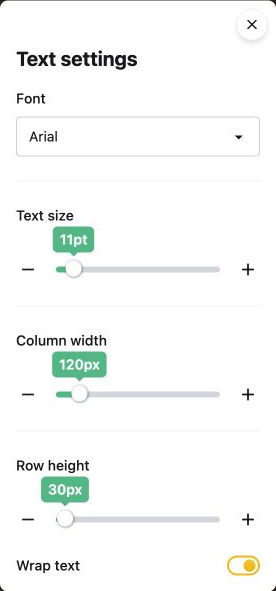
- Choose a Font, then adjust Text size.
Dyslexia and readability options are together in this modal. The font list includes Lexend, Lexend Deca, Atkinson Hyperlegible, Open Sans, Nunito, Arial, Verdana, Georgia, and more. Choose the font that feels easiest for you to read.
Only selected cells receive font and text-size changes, even if you select one cell. Use Wrap text for longer entries. Column width and Row height affect the entire associated columns or rows.
 View full-size image (opens in a new tab)
How to Listen to Cells and Count Words
- Select your cells in Sheets.
- Open Text to speech and choose a voice.
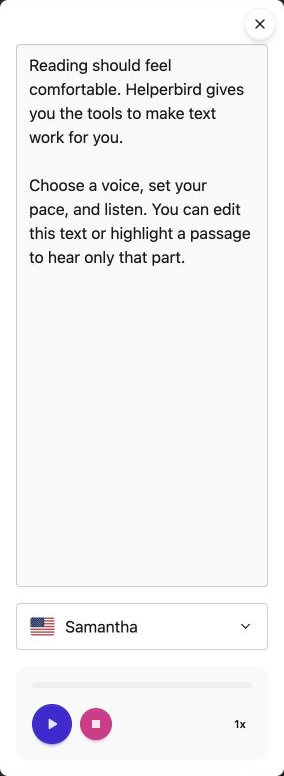
- Press Play. Helperbird loads the text into the box and reads it aloud.
- You can edit, delete, or paste text in the box. Highlight part of it to hear that passage, or leave nothing highlighted to hear the whole box.
Editing stops playback. Clearing the box leaves it empty; pressing Play again loads text from your file. You can pause, resume, stop, and change speed. Changes in the box do not change your cells.
Text is read using displayed values, including formatted dates, currency, and formula results.
Selecting a cell reads all its text. Separate selections are read in row and column order, and overlapping cells are included once. Google Sheets does not give add-ons the word highlighted inside a cell's text editor. To hear only part of a cell, load it into Text to speech and highlight the words in that tool's text box.
The voice list shows PNG flags and language names. Voices depend on your browser and device. Closing the modal stops playback.
 View full-size image (opens in a new tab)
Open Text statistics to check your selection automatically. It shows 14 statistics, including word count, reading time, characters, sentences, and unique words. Select other cells and choose Recheck to check again. Times are estimates.
For line focus and reading preferences, choose Immersive Reader in the sidebar. It opens directly with your selected cells. Exit the reader to return to the tool list.
What Each Tool Changes
Reading tools and statistics do not edit your cells. Translate creates a preview. Replace selection and Translate & replace write translated text into eligible cells.
Text settings changes the selected cells' formatting. Row height and column width change the full rows or columns containing the selection. Select a smaller range if you want to change fewer rows or columns.
What the Sheets Sidebar Leaves Out
The Sheets add-on does not offer an accessibility audit or line spacing for cells. Use text wrapping and row height to make longer entries easier to read.
Translation skips formulas and numbers. It does not translate the entire workbook or rewrite formulas. Select up to 1,000 cells across up to 100 ranges on one sheet; translation may ask you to select fewer text cells or less text.
What You Get Free
Open Settings using the gear button at the top of the sidebar. Enter your subscription key, then choose Connect.
The other sidebar tools work without a Pro key. Immersive Reader supports selections up to 1,200 characters on the free plan; Pro supports longer selections. Text to speech uses browser voices and does not use Helperbird's paid natural voices.
Need Additional Help?
Contact Helperbird support if you need help. Include which Google app you use, the tool name, and what happened.
Printed from the Helperbird Help Center · Updated September 14th, 2026
Questions? We are happy to help — helperbird.com/support