
How to Open the Helperbird Dictionary
Learn how to open the Helperbird Dictionary from the extension popup in four steps, plus the other ways to look a word up without opening the app first.
·
- features
What is the Dictionary?
The Helperbird Dictionary is a word lookup tool that opens in its own browser tab. Type a word and you get its meanings, example sentences and similar words, and it can read any of them aloud.
This page is about getting it open. For a tour of the page itself, see what is on the Dictionary page.
Who is This For?
This is helpful for:
- Students meeting new vocabulary in a reading or an assignment
- Anyone who finds it easier to hear a word than to work it out from the spelling
- People learning English
- Anyone who wants a plain definition without a search results page
Step 1: Open Helperbird
Click the Helperbird icon in your browser toolbar. It looks like a small owl and is usually in the top-right corner.
Step 2: Open All Features
Scroll to the bottom of the Helperbird menu and open All Features.
Step 3: Find Dictionary
Look through the list until you see Dictionary.
If you use it often, favourite it so it also appears in Quick Actions at the top of the menu.
Step 4: Open It
Click the button on the Dictionary row. The Dictionary opens in a new browser tab, showing Look up any word and the search box.
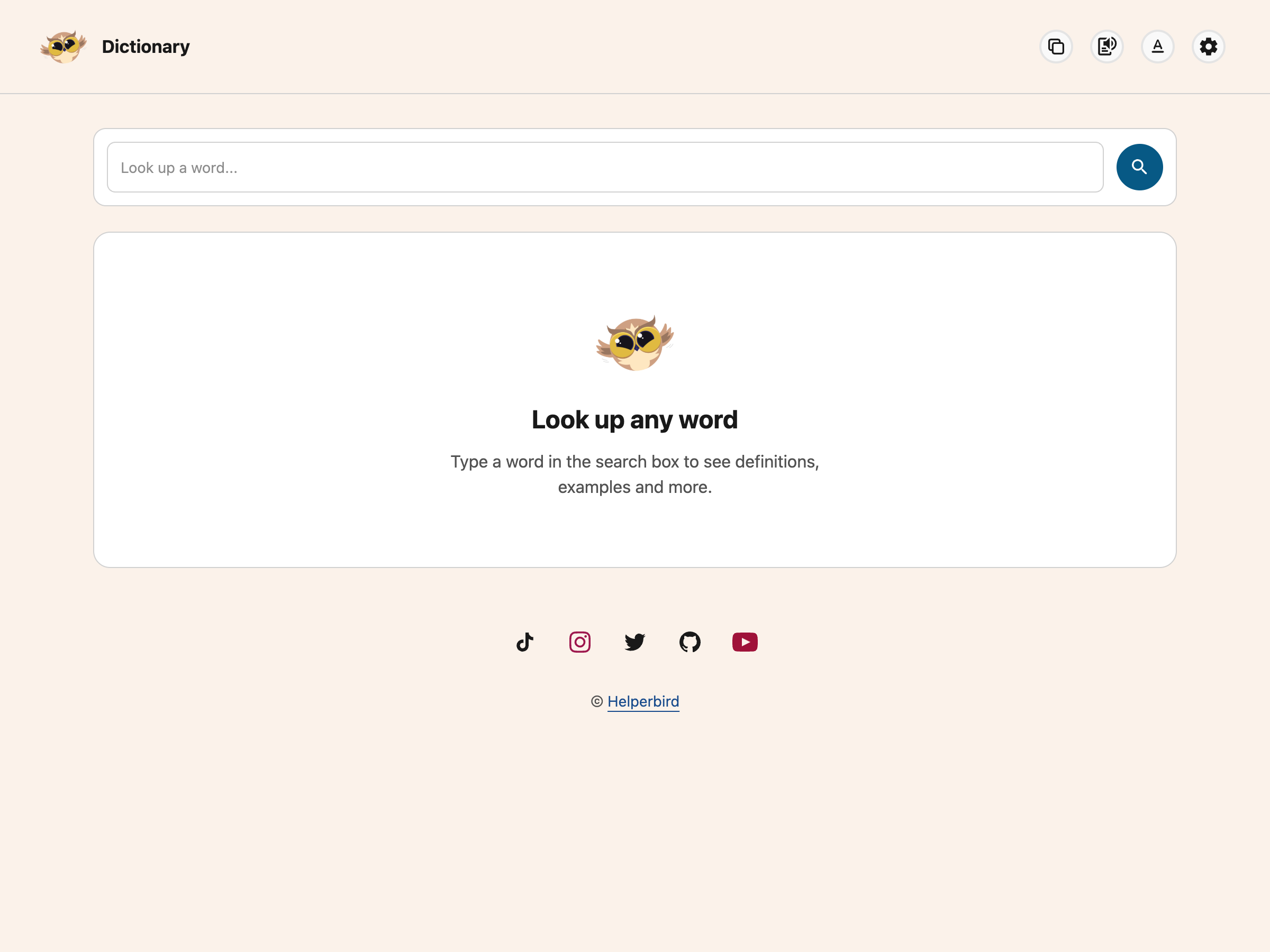
If you had text selected on the page when you opened it, that word is looked up straight away.
Other Ways to Open a Word
You do not have to open the app first. Each of these opens the Dictionary in a new tab with the word already looked up:
- Select the word on the page and use the highlight menu
- Select the word, right-click, open Helperbird and choose Define
- Use the lookup on the Floating Toolbar
The right-click menu is not added on iPhone, iPad or Safari, so use one of the other routes there.
Need Additional Help?
If you have any questions or run into any issues, please contact the Helperbird support team. You can reach us at Helperbird support. We are happy to help you get the most out of Helperbird.
Printed from the Helperbird Help Center · Updated September 22nd, 2026
Questions? We are happy to help — helperbird.com/support