
How to Make PDF Text Boxes Smaller
Make text and text boxes smaller in Helperbird's PDF Reader. Follow the screenshots to resize and move your answers into the spaces on a worksheet.
Jump to the stepsOn this page
Fit an Answer on Your Worksheet
An answer box can take up too much worksheet space. In Helperbird's PDF Reader, select the text, choose a smaller size, then drag the corner handle inward to shrink the box.
Text size and box size are separate controls. Making the letters smaller does not shrink the box automatically. Boxes also have a minimum size, so very small answer spaces may still be too narrow.
The screenshots below use a sample worksheet. If you need a box first, follow how to add text boxes to PDFs.
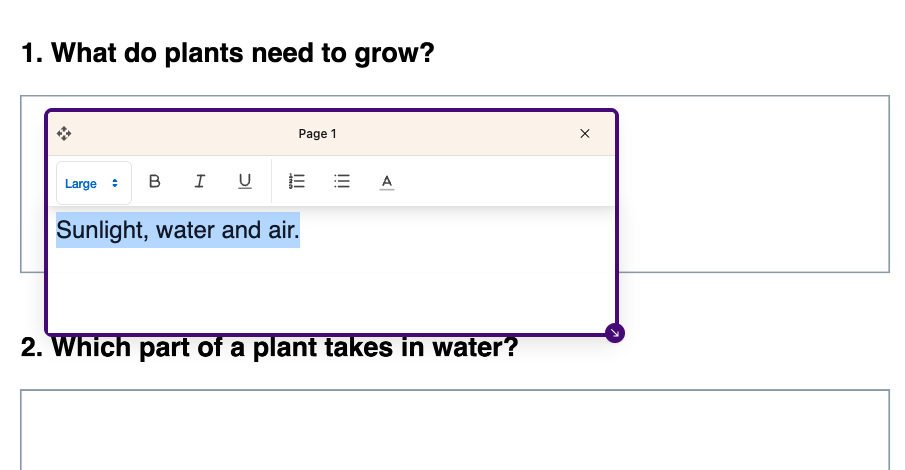
Step 1 Select Your Answer Text
Click inside the text box. Drag across the words you want to make smaller so they are highlighted.
To select the whole answer, click inside the box and press Ctrl + A on Windows or Chromebook, or Command + A on Mac.
 View full-size image (opens in a new tab)
Step 2 Choose a Smaller Text Size
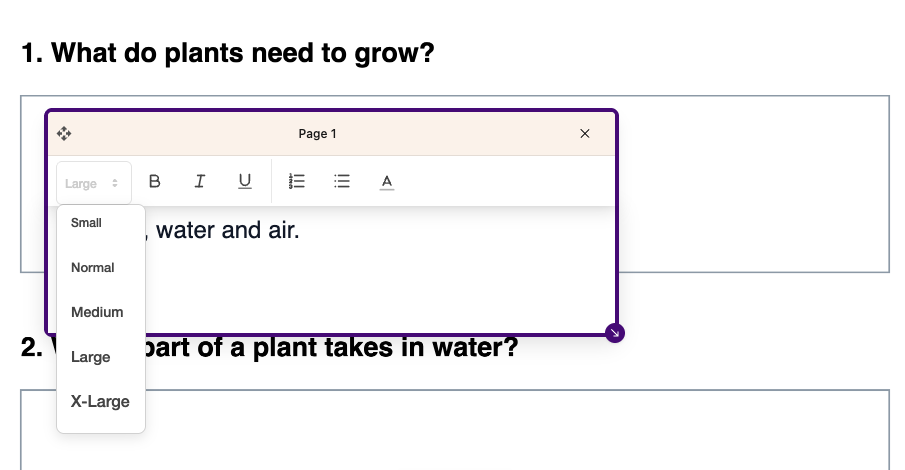
Open the size menu on the left of the box's formatting toolbar. It shows Large in this example; the label may be different in your box.
Choose Normal or Small to make large text smaller. The menu also offers Medium, Large, and X-Large.
 View full-size image (opens in a new tab)
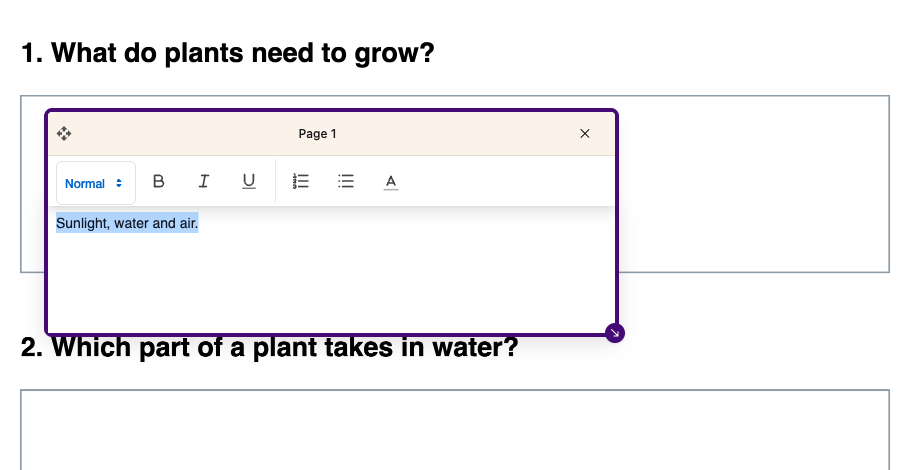
Step 3 Shrink the Text Box
Your words are now smaller, but the box still takes up the same space.
 View full-size image (opens in a new tab)
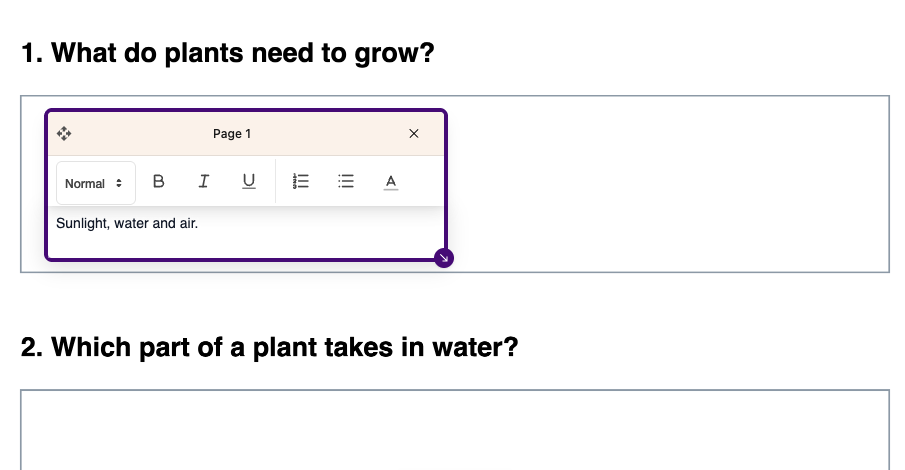
Drag the purple arrow at the bottom-right corner inward. Move it up to reduce the height, and left to reduce the width. Stop when the box fits your answer, or when it reaches its minimum size.
Check that every word is visible. If text wraps onto another line or gets cut off, make the box a little wider or taller.
Step 4 Move Your Answer into Place
Drag the arrows icon at the top-left of the box to move your answer into the worksheet space. Leave room for the attached toolbar while you work.
 View full-size image (opens in a new tab)
If the Box Still Gets in the Way
- The box stops shrinking. It has reached a minimum width or height. Smaller text will not remove that limit. Move the box to a nearby clear area if the answer space is too small.
- Only some words changed size. Select the whole answer, then choose the size again.
- The box grows as you type. It expands to fit more text. Finish your answer, then resize it again and check that all the words remain visible.
- Dragging is difficult. Follow the keyboard guide to moving and resizing text boxes.
If the box still covers something you need to read, contact Helperbird support with a screenshot so we can help.
Save Your Finished Worksheet
Choose Download, then With my changes to save your answers in the PDF. Open the downloaded file and check that the answers are complete and in the right places before sharing it.
See how to save and download annotated PDFs for more details.
Related Guides
Printed from the Helperbird Help Center · Updated October 6th, 2026
Questions? We are happy to help — helperbird.com/support