
How to Use Helperbird for Reading Long PDFs
Read long PDFs with Helperbird. Search and zoom, listen to a page, take notes, translate text and add equations. Download a PDF with your annotations included.
On this page9 sections
Long PDFs are tough. Research papers, textbooks, legal documents, course readings. The text is small, the pages feel endless, and it is easy to lose your place. Helperbird's PDF Reader gives you text to speech, a notepad, drawing and text box tools, and a menu of reading tools, so you can get through a PDF without burning out.
Overview
Helperbird opens PDFs in its own reader inside your browser. The reader is a separate workspace built for documents, so it has its own set of tools rather than the ones you use on a website.
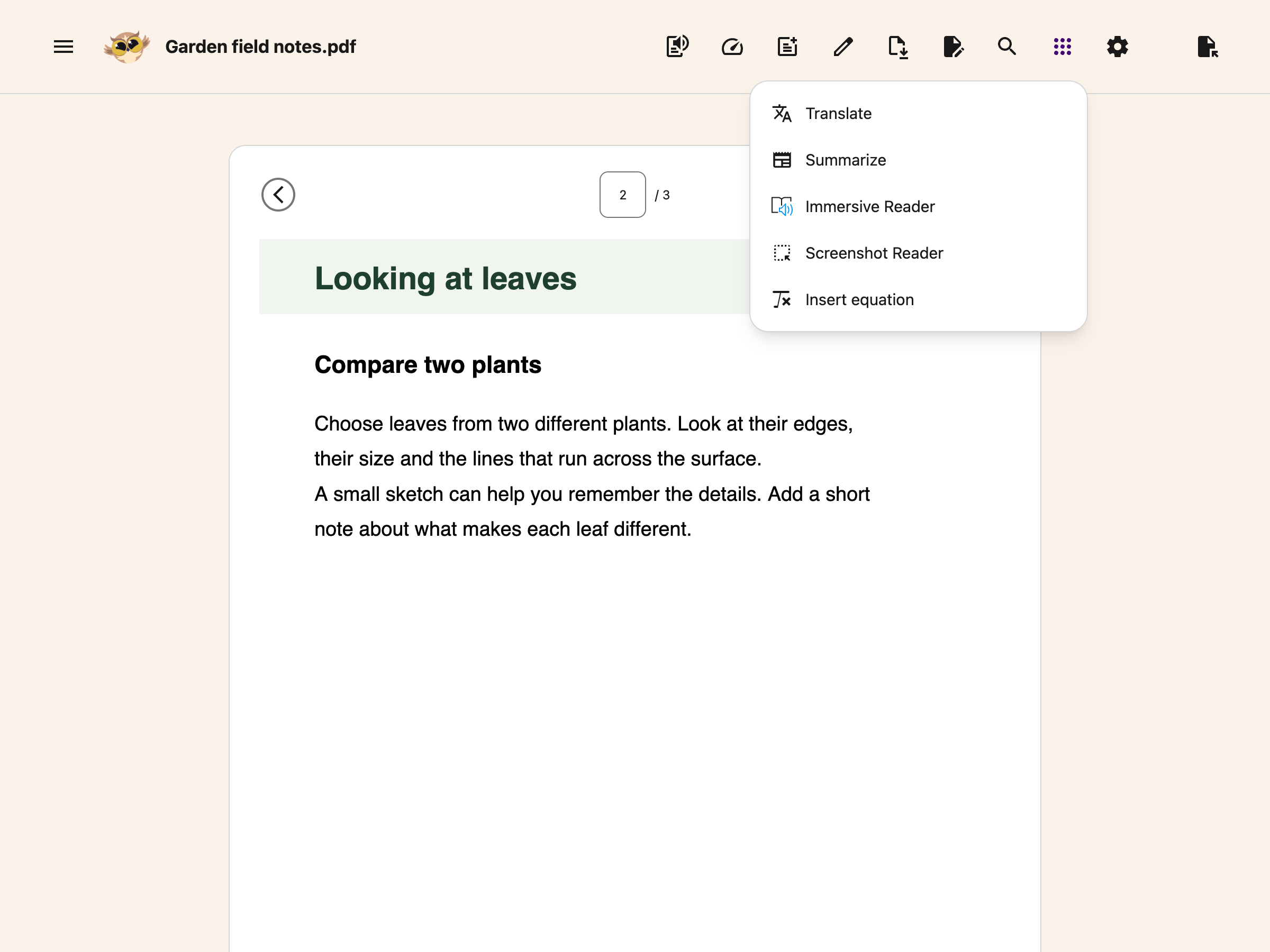
What you get in the reader is text to speech, a notepad, drawing tools, text boxes, page navigation, and a Tools menu holding Immersive Reader, Translate, Summarize and Screenshot Reader.
The PDF Reader has its own controls. Web page Highlighter, sticky notes, overlays and reading rulers do not run inside it. Fonts cannot restyle the PDF's own words. For a different reading layout, use Immersive Reader from Tools. It has its own text size, spacing, font and line focus controls.
You can open PDFs from your computer and supported Google products. Reading, search and translation need readable text; image-only scans need text extraction first.
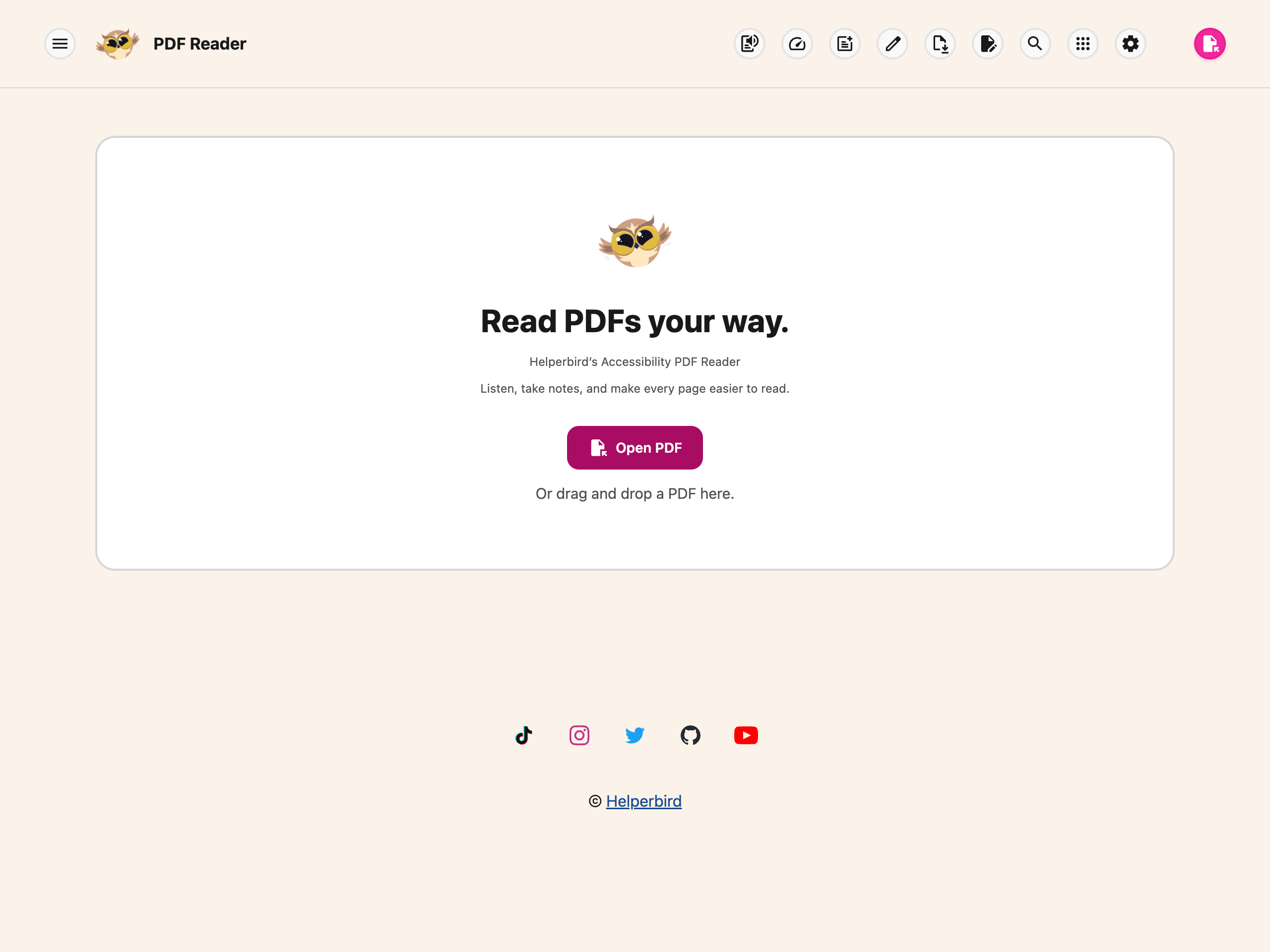
Opening PDFs in Helperbird
There are a few ways to open a PDF with Helperbird.
- From Google Drive, Classroom, or Gmail, right-click the PDF and choose Open with Helperbird. Full guide: Open PDFs with Helperbird in Google products.
- From your computer, drag the PDF into a browser tab or right-click and open with your browser, then click the Helperbird icon.
- For the full walkthrough, see How to use the Helperbird PDF reader.
Once the PDF is open in Helperbird, everything else in this guide is available.
 View full-size image (opens in a new tab)
Listening to PDFs
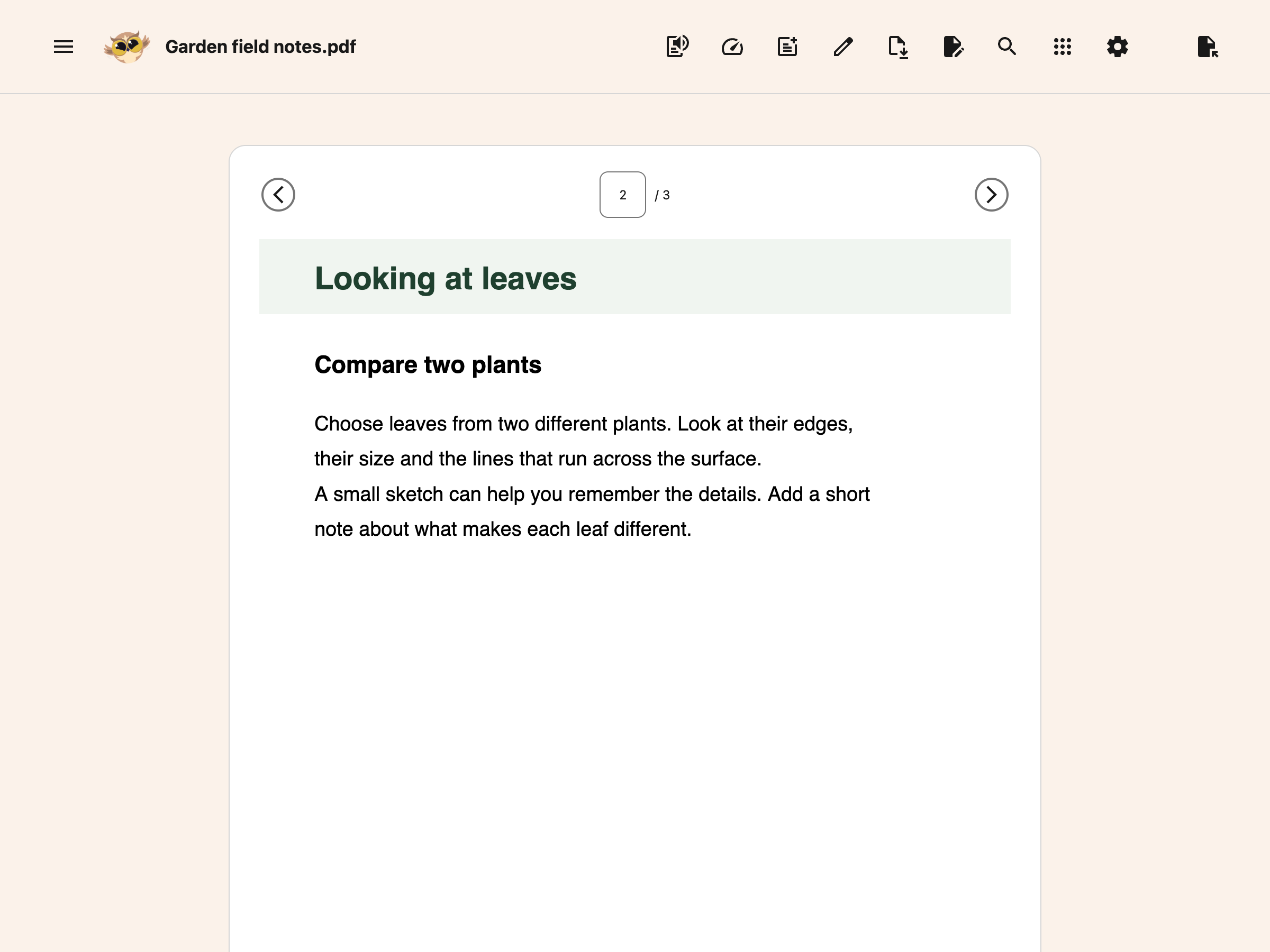
If you are reading a long PDF, listening is often faster and less tiring than reading silently. Helperbird can read the text layer of a PDF out loud. For an image-only scan, use Screenshot Reader from Tools to extract its text first.
- Highlight a paragraph and click play to hear just that section.
- Or press play with nothing selected to hear the whole page you are on.
Text to speech reads one page at a time, not the whole document. Turning to the next page stops the read, so press play again on each new page.
See How to use text to speech in Helperbird for the details. You can change the voice, speed, and language to whatever feels natural.
Tip: start the text to speech, then walk around. Listening on the move works well for long readings where you do not need to take notes.
 View full-size image (opens in a new tab)
Keeping Your Place
PDFs are where most readers lose their place. The columns, footnotes, and page breaks all make tracking hard. The reader gives you two ways to stay with the text.
Search this page. Show Zoom and search from the header, then choose the search icon. Search is free and looks only through the page you are on. The match counter and arrows move between its matches; changing pages reruns the query on the new page.
See search and zoom controls for keyboard steps and troubleshooting.
Choose a comfortable zoom. In the same bar, use the zoom slider or minus/plus buttons, or choose Fit width or Fit page. All of these view controls are free. Choose Zoom and search again when you want more space.
Follow the voice. Press play with nothing selected and Helperbird can highlight each word as it is spoken, scrolling to keep it on screen so your eye always has something to follow. Word highlighting needs one of your device's own voices. With a Natural voice, or when you have selected text first, the page is read without it. See how to listen to a PDF.
Choose Text to speech settings in the PDF player to change its shared voice, speed or highlight color. See the settings guide.
Read one passage at a time. Select a sentence or paragraph with your mouse before you press Play. Helperbird reads only what you selected, instead of the whole page. Immersive Reader and Summarize also use selected text. Translate always uses the current original PDF page, even when you select a shorter passage.
Use Immersive Reader for a calmer page. Open the Tools menu in the toolbar and choose Immersive Reader. It reformats the text in a clean window with its own controls for text size, spacing, font and line focus, and it can read aloud as well. See how to use the Tools menu.
 View full-size image (opens in a new tab)
Marking Up and Taking Notes
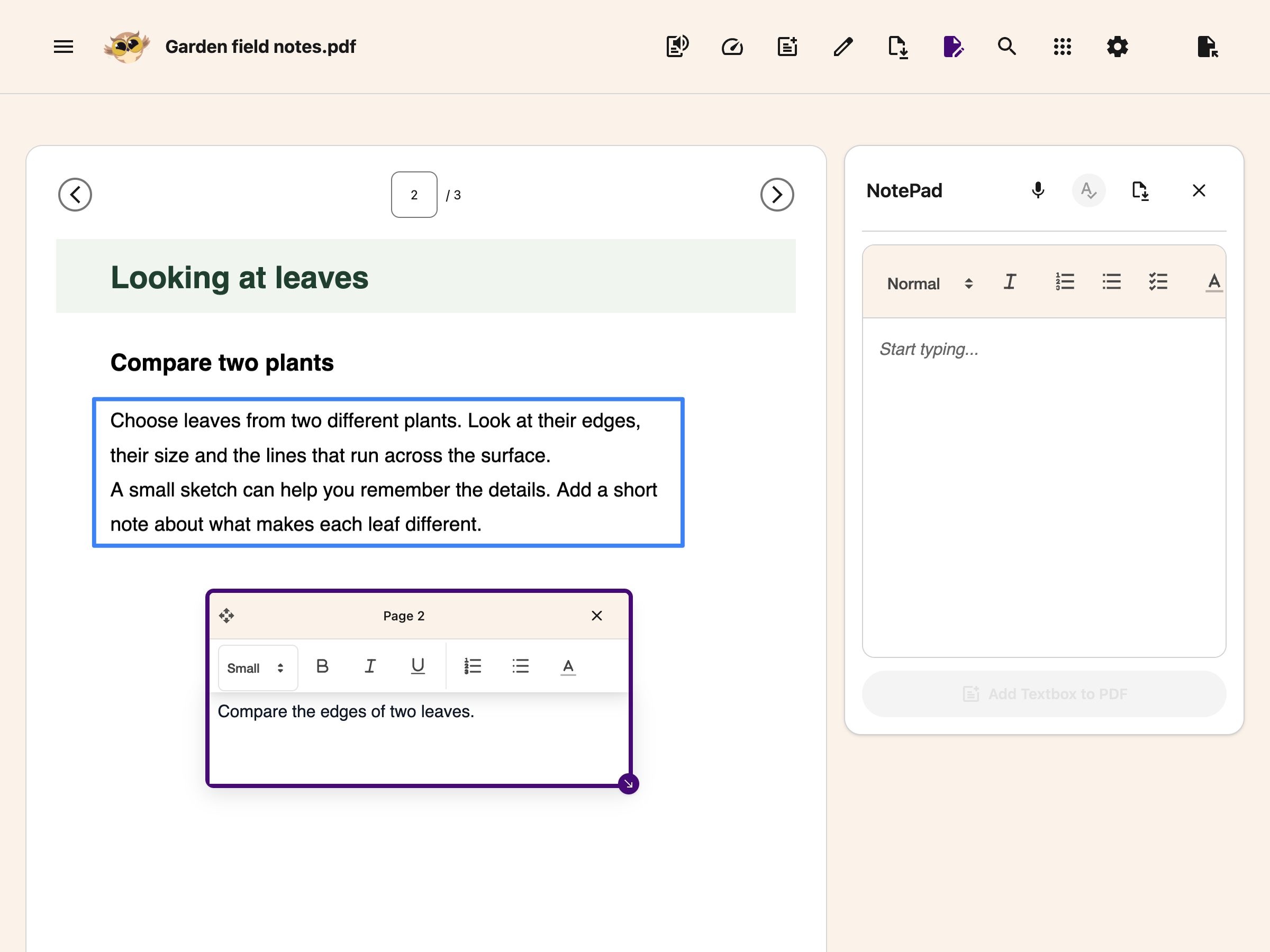
Use Draw to mark a PDF with lines and shapes, Add Textbox to type on it, or Notepad to write beside it. The web Highlighter palette and Highlight Menu are not available in the PDF Reader.
The notepad opens beside your PDF so you can write while you read. Typing, formatting and adding notes to the page are free. Voice typing and grammar checking need Helperbird Pro.
 View full-size image (opens in a new tab)
Keep a downloaded copy. Device-local recovery can restore your current notes and PDF, but opening another PDF replaces that copy. Use Add Textbox to PDF, then download With my changes before switching documents.
Use text boxes for comments that need to appear in your downloaded PDF. The separate Web Highlighter and sticky notes are for collecting ideas on web pages.
Drawing and Text Boxes
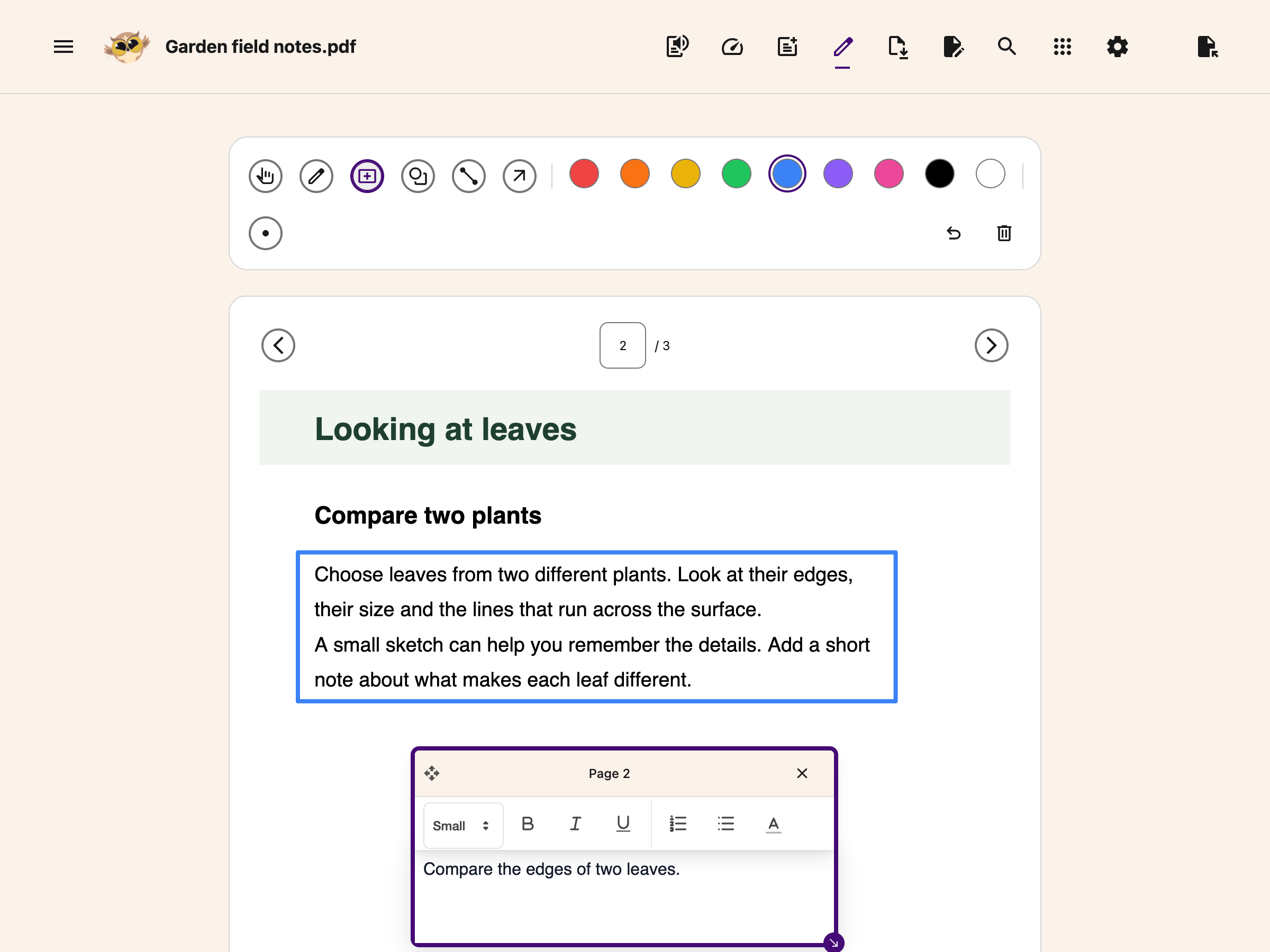
For PDFs where you need to fill in a form, mark up a diagram, or add comments, Helperbird has drawing and text box tools.
- Drawing tools on PDFs let you sketch, underline, or circle anything.
- Text boxes on PDFs let you type directly onto the page.
You can export the marked-up PDF when you are done.
 View full-size image (opens in a new tab)
A Good PDF Reading Flow
If you want a step-by-step approach for working through a long PDF, try this:
- Open the PDF in Helperbird. See how to open the PDF Reader.
- Open the notepad so you have somewhere to write as you go.
- Start text to speech on the page you are reading, and follow the highlighted word if you are using one of your device's own voices. Press play again on each new page.
- Pause when something matters and type it into the notepad, or dictate it with voice typing.
- Circle or underline it on the page with the drawing tools, or drop a text box beside it.
- If a page is hard going, open it in Immersive Reader from the Tools menu, or use Summarize to get the gist first.
- Before you finish, add your notepad text to the page and download the PDF, so nothing is lost.
Work at your own pace. The reader keeps one device-local recovery session, but download your annotated PDF before opening another file or handing in your work.
Related Guides
- How to Use Helperbird for Dyslexia
- How to Use Helperbird for ADHD and Focus
- How to Use Helperbird for Writing Essays and Assignments
- How to Use Helperbird as a Teacher
- How to Use the Helperbird PDF Reader
- How to Open PDFs with Helperbird in Google Products
- How to Use Accessibility Profiles in Helperbird
For another language, translate the current PDF page and compare it with the original. For maths notes, insert an equation.
Need Help?
If you are working through a long PDF and want help setting Helperbird up to make it easier, reach out to our support team. We are always happy to help.
Printed from the Helperbird Help Center · Updated October 26th, 2026
Questions? We are happy to help — helperbird.com/support