How to Use Helperbird's Reading List Feature

Learn how to use Helperbird's reading list app. Save and manage articles for later reading Support for all learners and educators.

·

Helperbird's Reading List lets you save websites for later reading. Think of it as your personal bookmark collection that's always just a click away.


Adding a Website to Your Reading List

Step 1: Open Helperbird

Click the Helperbird icon in the top right corner of your browser to open the extension.


Step 2: Find the Add to Reading List Button

In the Quick Actions area at the top of Helperbird, you'll see an Add to Reading list button. This button lets you save the current webpage you're viewing.


Step 3: Save the Current Page

Click the Add to Reading list button. You'll see a confirmation message at the bottom of your screen that says "Added to Reading List."

The current webpage is now saved to your reading list, and you can access it anytime.

Tip: You can add as many websites as you want to your reading list. It's perfect for saving articles, recipes, or research materials you want to read later.


Viewing and Managing Your Reading List

Step 1: Open Helperbird

Click the Helperbird icon in your browser's toolbar to open the extension menu.


Step 2: Open Your Reading List

Look for the Open Reading list button in the Quick Actions area (it's the yellow button). Click it to open your reading list in a new tab.


Step 3: Search and Manage Your Saved Websites

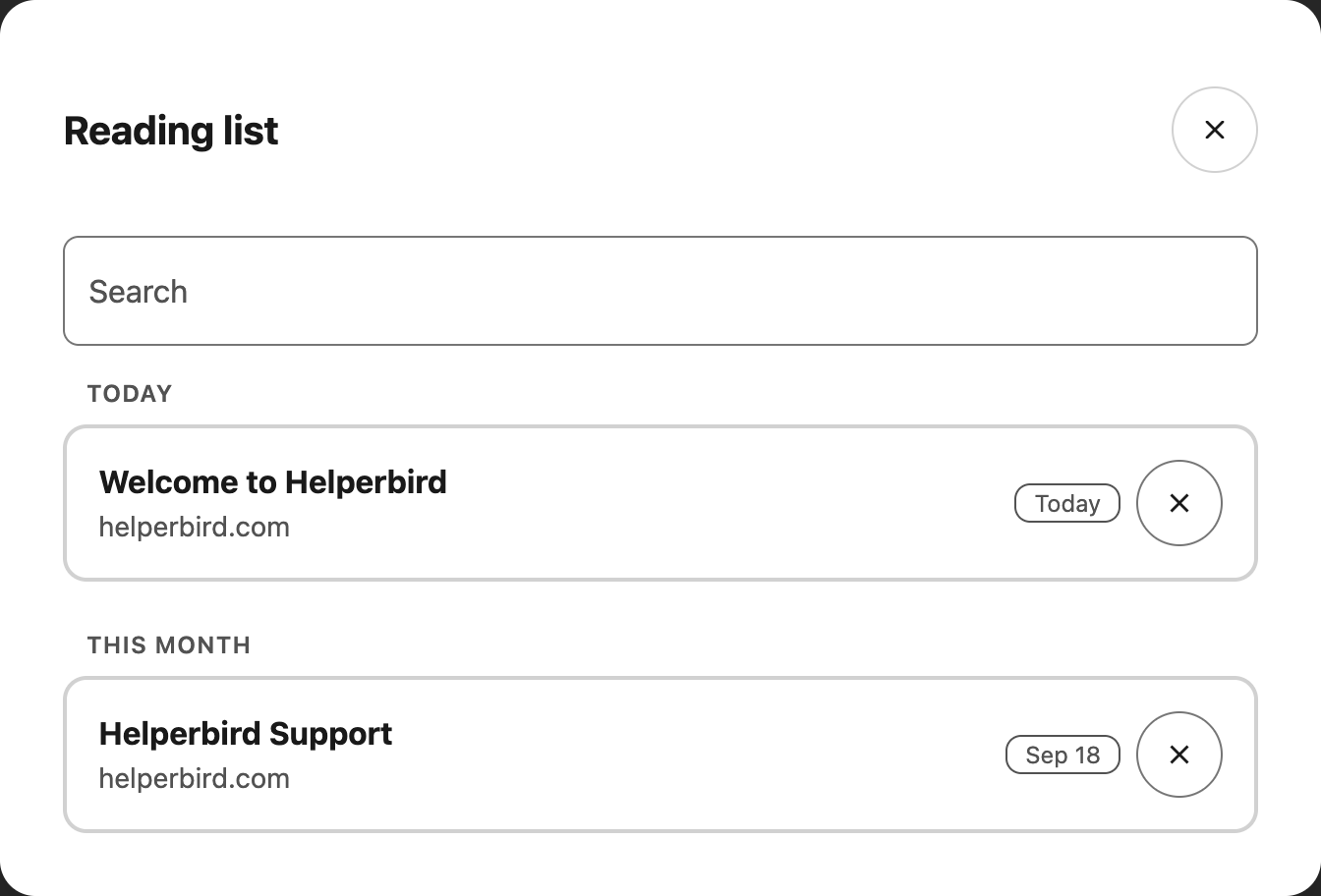
Your reading list will open showing all the websites you've saved. At the top, you will see a search bar where you can type keywords to quickly find specific saved pages.

Each saved page displays the website title and description, the date you saved it, a Remove button to delete it from your list, and a Visit button to open the website.

Click Visit to open any saved webpage, or click Remove to delete it from your reading list when you're done with it.

Tip: Use the search bar to quickly find pages as your reading list grows. Your reading list syncs across all devices where you use Helperbird, so you can save something on your computer and read it later on your phone.


Video Tutorial


Need Additional Help?

Ran into a snag while getting started? No worries at all! Just reach out to our friendly Helperbird support team, and we'll help you smooth things out in no time.

What People Are Saying

Join over 1,000,000 people who use Helperbird every day.

I have been trying to find ways to make my child happy to go to school again, and someone recommended helperbird. She loves helperbird, and she is now much happier about the idea of returning to school. I think this might be a game changer, as they do so much web based schoolwork and research. She says they really understand people with dyslexia

Cris Townley

Cris Townley

Parent

I love Helperbird!!! It's very user friendly from someone who has learning challenges because of ADHD and Dyslexia.There are so many useful features and new updates.

Entertainment Studio

Entertainment Studio

Helperbird user

Fantastic! Great software and simple to use even for kids new to the computer. Provides the option to tailor every variable to make any page easier to read. Really excellent. Super helpful support too. Great job!

Rebecca Meldrum

Rebecca Meldrum

High School teacher

My son has dyslexia and has been struggling with parts of distant learning over the last year. We recently discovered this software and he is loving everything about it, especially with the ease of following directions and completing his assignments! We have used several other tools but this has everything a dyslexia person needs all in one bundle! The upgrade is definitely worth it to make our daily struggles, on the computer, run much smoother. I also greatly appreciate customer support (helpdesk). They went above and beyond to make sure we were all set up on the computer for my son to most successful.

Melissa Motz

Melissa Motz

Teacher

Amazing in eliminating embarrassing mistakes. Am one happy kid here!

Brian Borland

Brian Borland

Helperbird user

It's easy to use with every webpage since it's just an extension. You can access lots of different functions to declutter a page (show only the relevant text and not ads, for example). You can add post it notes to annotate, and it has things like text-to-speech.

Harmony M.

Harmony M.

Program Manager

Helperbird logo: Stylized owl with large yellow eyes and a beige face, against a green background.

Download Helperbird

Make browsing easier and more accessible with tools like Text to Speech, Immersive Reader, and more.