
How to Restore Notes and Reading List Backups
Restore saved notes, highlights, NotePad documents and reading-list pages from a Helperbird backup. Review what will be replaced before confirming the import.
Jump to the stepsOn this page
Before You Import
Use this guide when you have a .helperbird backup and want to bring back saved notes or pages. The file can come from Export → Helperbird Notes or Export → Settings on Helperbird's Settings page.
Import replaces each saved collection included in the file; it does not merge that collection with your current items. For example, importing a backup with saved pages replaces your current reading list with the pages in that backup. Collections missing from the file are left alone. A Settings backup can also replace your preferences.
First export your current settings and saved content if you want a copy of what you have now. Keep that new backup separate from the older file you are restoring.
A PDF or text export of selected notes is for reading and sharing. It cannot be imported as a Helperbird backup. The local recovery copy of an unfinished PDF is separate; see recovering and saving PDF work.
Step 1 Open the Import Control
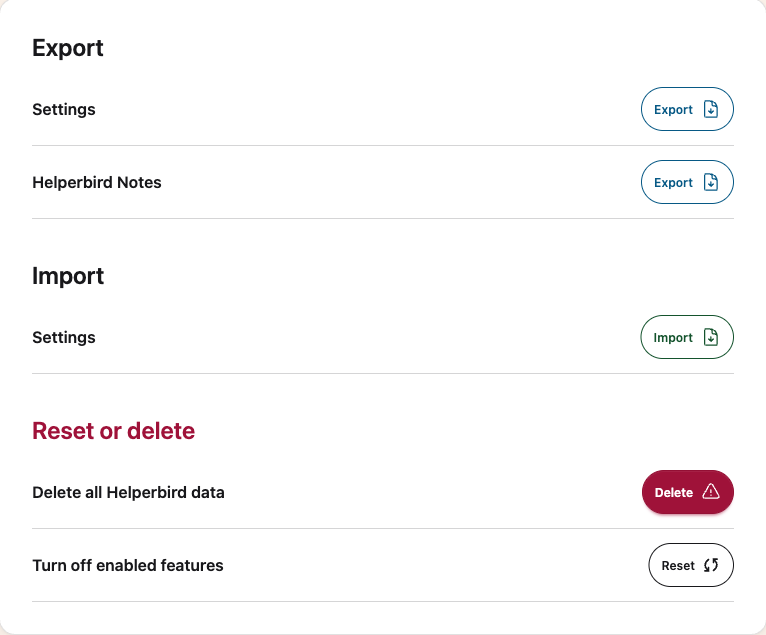
Open Helperbird and choose the Settings gear. On the Settings page, choose Data in the section menu. Under Import, choose the Import button beside Settings.
Use this same button for a Helperbird Notes backup, even though the row is called Settings.
 View full-size image (opens in a new tab)
Step 2 Review the Backup
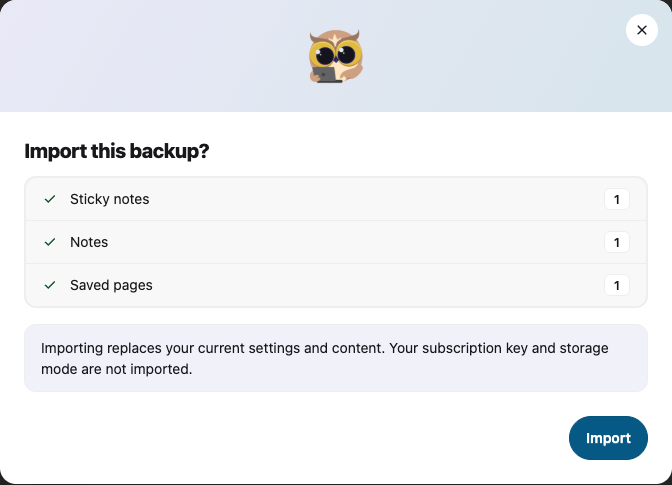
Choose your .helperbird file. The Import this backup? window lists the saved collections and item counts. Depending on the file, you may see Notes, Sticky notes, Highlights, Saved pages, and settings.
Check that these are the collections you want to restore. If you chose the wrong file, close the window and select the right backup before continuing.
 View full-size image (opens in a new tab)
A notes-only backup restores saved content without changing your reading preferences. Your subscription key and storage mode are not imported. Importing a backup does not transfer a Pro subscription.
Step 3 Import and Continue
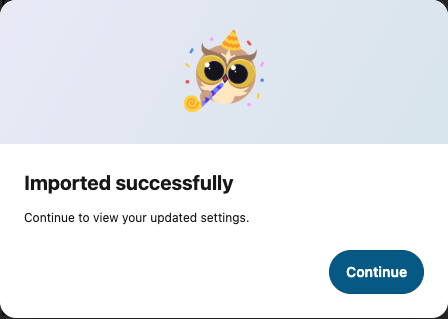
Choose Import. Wait for Imported successfully, then choose Continue to reload Settings. If an error appears, read it before trying again; do not assume the restore finished.
 View full-size image (opens in a new tab)
Step 4 Check Your Restored Content
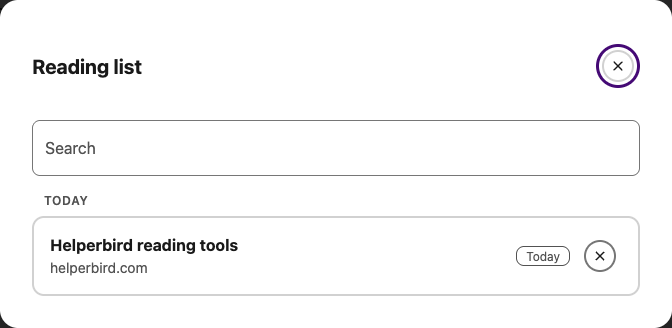
Open NotePad to check your documents and the Highlights & Notes card. Open Reading list to check your saved pages. Use the same browser profile where you imported the file.
 View full-size image (opens in a new tab)
If an item is missing, check whether its collection was present in the preview and whether the backup was made before that item was created. An older backup cannot restore newer work. Helperbird cannot recreate deleted content that was never saved in a backup.
Related Guides
Printed from the Helperbird Help Center · Updated October 6th, 2026
Questions? We are happy to help — helperbird.com/support