
How to Clear Learned Words in Word Prediction
Learn how to reset the words Helperbird's word prediction has learned from your writing, when it starts suggesting your own typos back to you.
·
- features
- writing
Why You Would Do This
Word prediction learns from what you type, so it gets better at suggesting the words you actually use. The catch is that it cannot tell a word you meant from a word you misspelled. Type the same typo a few times and it will start offering it back to you as a suggestion.
Clearing the learned words wipes that memory and starts it fresh.
Who is This For?
This is helpful for:
- Anyone whose predictions have started suggesting their own misspellings
- People who share a computer and are getting someone else's words
- Anyone who has been writing about one topic and now wants a clean slate
Step 1: Open Word Prediction Options
Open Helperbird, go to All Features, find Word prediction and open its options. Scroll down to Settings.
Step 2: Click Clear Learned Words
Click Clear learned words.
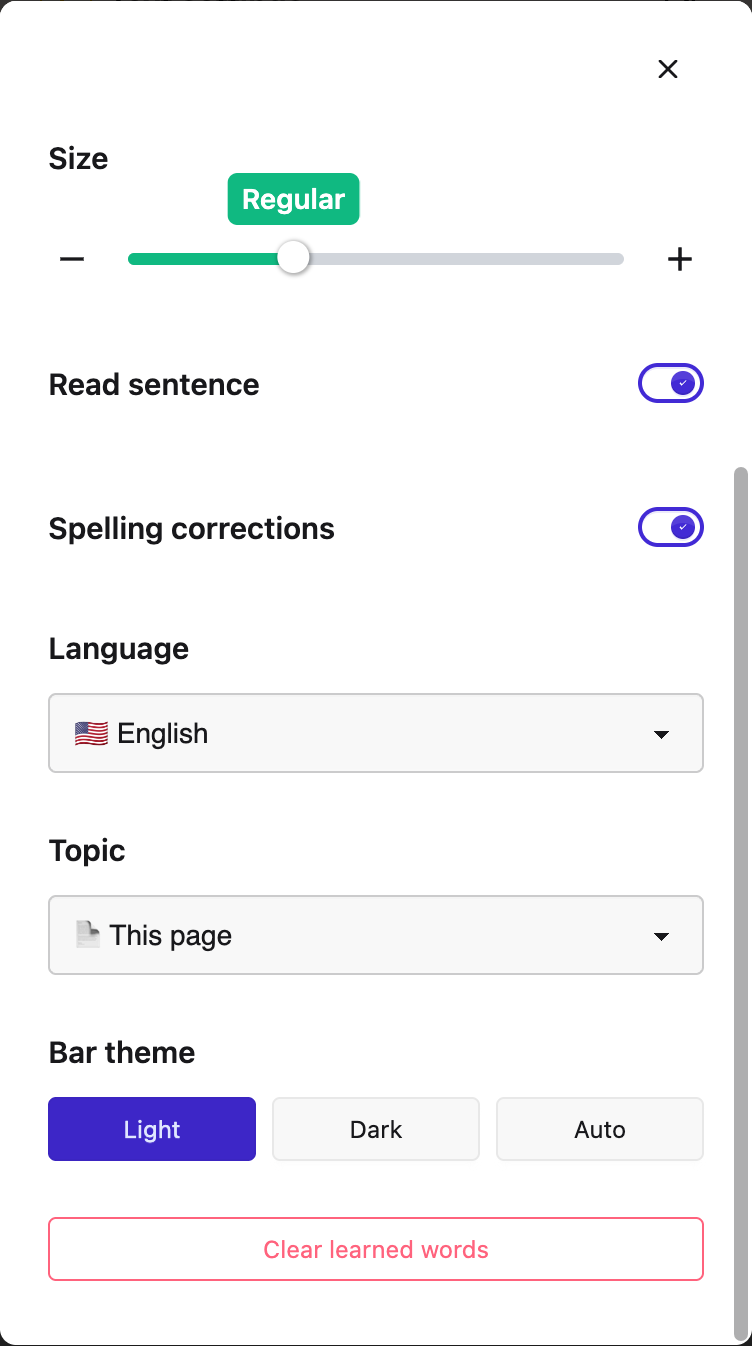
It happens straight away. Any tabs you already have open pick up the change without needing a reload.
What It Clears, and What It Keeps
It clears learned words, learned word combinations, and preferences built from the suggestions you selected. These are cleared together, not one word at a time.
It keeps the built-in dictionary, your chosen Topic, your Language, and your Spelling corrections setting. You are not resetting word prediction itself, only the words it picked up from you.
Your learned words live on the computer you are using. They are not synced, so clearing them on one machine does not clear them on another. If you use Helperbird in two places, you will need to do it in both.
Before You Do It
There is no confirmation and no undo, and it is all or nothing. There is currently no way to remove a single learned word, so if one bad word has crept in, clearing the lot is the only fix. Useful learned words are cleared too. Learning resumes as you write if learning is enabled. Changing the Topic does not require clearing your learned words.
See also how to use word prediction.
Need Additional Help?
If you have any questions or run into any issues, please contact the Helperbird support team. You can reach us at Helperbird support. We are happy to help you get the most out of Helperbird.
Printed from the Helperbird Help Center · Updated September 22nd, 2026
Questions? We are happy to help — helperbird.com/support