
How to Write and Format Text in the Helperbird Notepad
Learn how to write in the Helperbird Notepad and use the formatting toolbar for headings, bold, lists, color, links and images.
·
- features
- writing
What This Does
The Notepad is a rich text editor. You type onto the page and use the toolbar above it to change how the writing looks, in the same way you would in a word processor.
Who is This For?
This is helpful for:
- Anyone drafting something that needs structure, like headings and lists
- Students formatting an assignment before handing it in
- People who find a plain wall of text hard to read back
- Anyone who wants to color-code parts of their own notes
Step 1: Type Your Text
Click anywhere on the page and start typing.
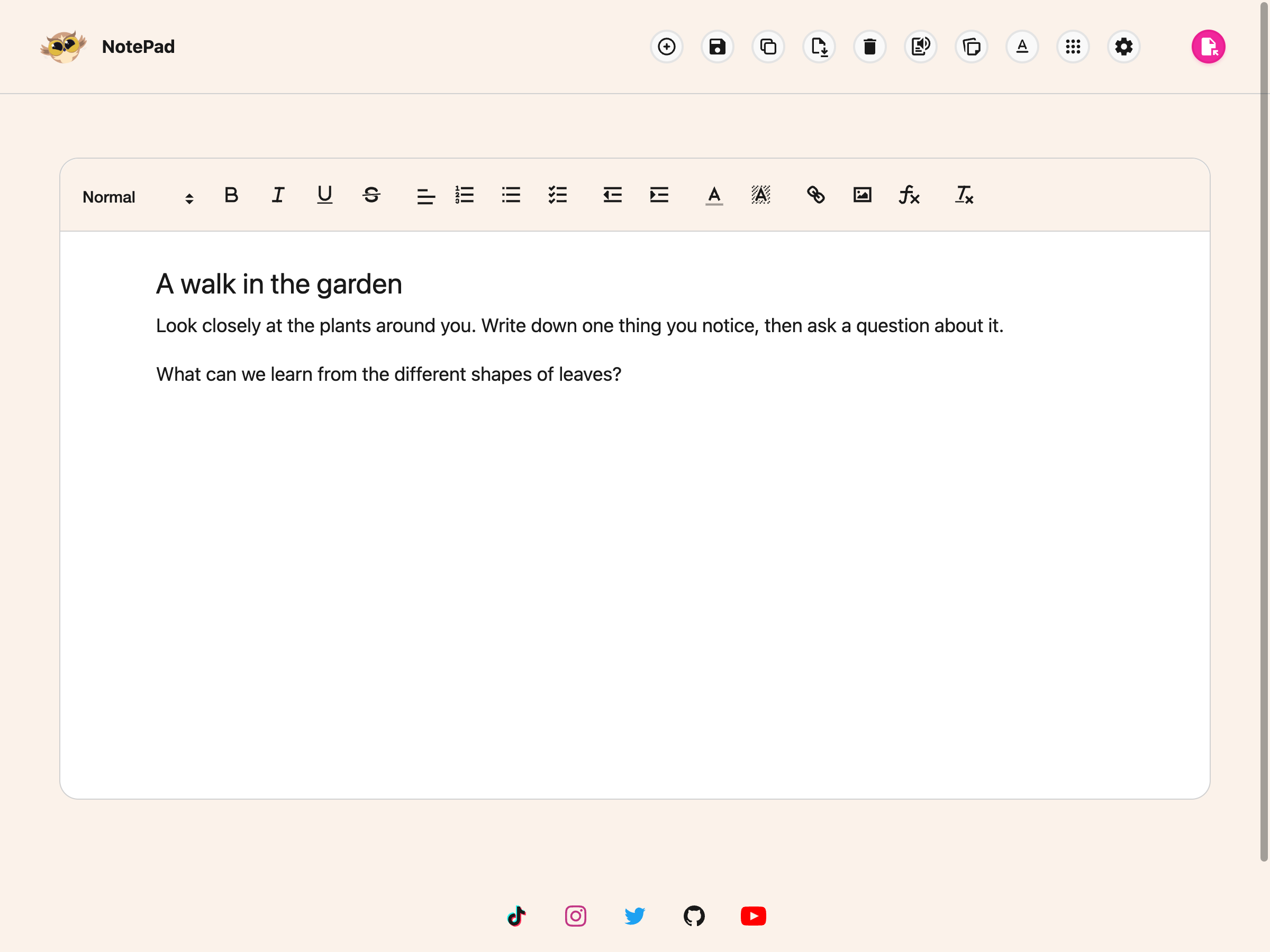
Step 2: Select What to Change
Highlight the words you want to change, then use the toolbar. Formatting applies to whatever is selected.
What the Formatting Toolbar Has
Reading the toolbar from left to right:
- A style menu that starts on Normal, for turning a line into a heading
- Bold, italic, underline and strikethrough
- Four alignment buttons: left, centre, right and justified
- Quote and code block
- Numbered, bulleted and checklist lists
- Indent and outdent
- Text color and highlight color
- Link, image and video
- Insert equation, beside the image button, to add maths at your cursor
- Clear formatting, which strips everything back to plain text
If a piece of text ends up looking wrong and you cannot work out why, select it and press clear formatting to start again.
For maths, add an equation and click it later to edit. The equation appears as an image while you write, with its source kept in your saved note.
Once you have it how you want it, save the document so your work is kept.
Need Additional Help?
If you have any questions or run into any issues, please contact the Helperbird support team. You can reach us at Helperbird support. We are happy to help you get the most out of Helperbird.
Printed from the Helperbird Help Center · Updated September 22nd, 2026
Questions? We are happy to help — helperbird.com/support