
How to Use Grammar Options in Immersive Reader
Learn how to split words into syllables and color the nouns, verbs, adjectives and adverbs in Immersive Reader, so difficult text is easier to break down.
·
- features
- reading
- writing
What This Panel Does
Grammar Options is the middle of the three buttons. It breaks words and sentences down: splitting long words into syllables, and colouring the nouns, verbs, adjectives and adverbs.
Who is This For?
This is helpful for:
- Anyone stuck on a long word they cannot get their mouth around
- Students learning parts of speech, seeing them in real writing rather than in a list
- People learning English who want to see how a sentence is built
- Readers who find a dense sentence easier once it has visible structure
Open Grammar Options
Open Immersive Reader first. You can start it from the floating toolbar, from the Helperbird menu, or from the Tools menu in the PDF Reader.
Once it is open, the three buttons in the top-right corner hold every setting.
Click the middle button.
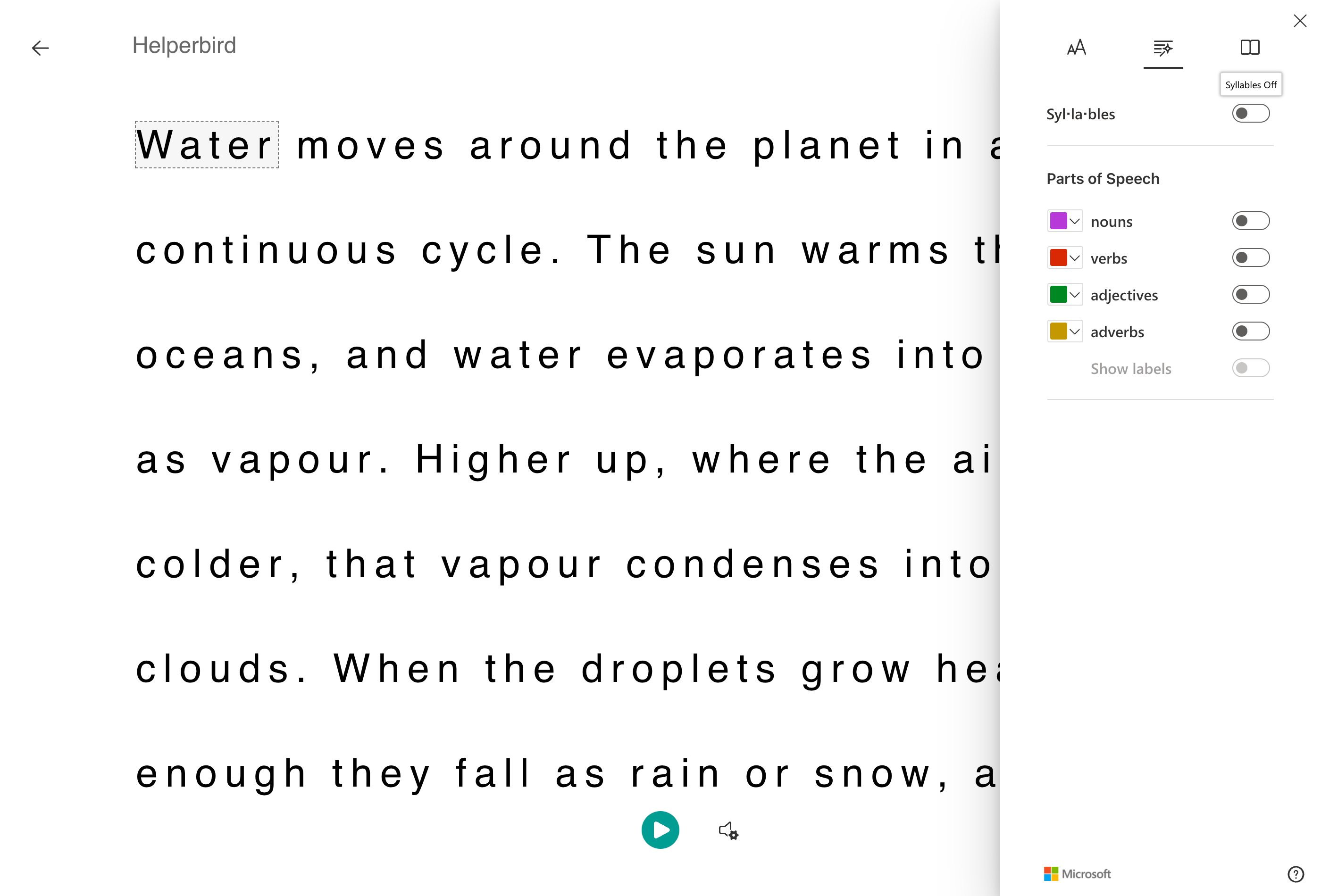
Syllables
Turn on Syllables and long words are split with small dots, so "continuous" becomes con·tin·u·ous.
This is the single most useful setting here for anyone who stalls on unfamiliar words. Breaking a word into chunks you can say is usually all it takes to get past it.
Parts of Speech
Four toggles, each with its own color you can change:
- Nouns in purple
- Verbs in red
- Adjectives in green
- Adverbs in yellow
Turn on one at a time rather than all four. Four colors at once turns the page into confetti and teaches nothing. One color at a time shows you a pattern.
Click the small square beside any of them to change its color, which matters if you find some colors hard to tell apart.
Show Labels
Once at least one part of speech is on, Show labels becomes available. It writes the name above each highlighted word.
Use it while you are still learning which is which, then turn it off, because it makes the lines taller and harder to read.
A Word of Caution
Parts of speech are worked out automatically, and English is inconsistent. A word that is both a noun and a verb will sometimes be labelled the way it is not being used. Treat it as a good guide rather than a marking scheme.
Next: Text Preferences and Reading Preferences.
Need Additional Help?
If you have any questions or run into any issues, please contact the Helperbird support team. You can reach us at Helperbird support. We are happy to help you get the most out of Helperbird.
Printed from the Helperbird Help Center · Updated September 22nd, 2026
Questions? We are happy to help — helperbird.com/support