
How to Open Immersive Reader from the Floating Toolbar

Learn how to send a page, or just the text you selected, into Immersive Reader straight from Helperbird's floating toolbar.

·

  • features
  • reading

What This Does

Immersive Reader reopens the text in a reading view of its own, where you can change the size, spacing and font, focus on one line at a time, and have it read aloud.


Who is This For?

This is helpful for:

  • Anyone who needs bigger text or wider spacing to read comfortably
  • Students who use line focus or syllable breaks
  • People reading in a second language
  • Anyone who finds the original page too busy

Step 1: Open the Toolbar

If the toolbar is closed, it sits in the bottom-left corner as a single round button. Click it to open the row of tools.
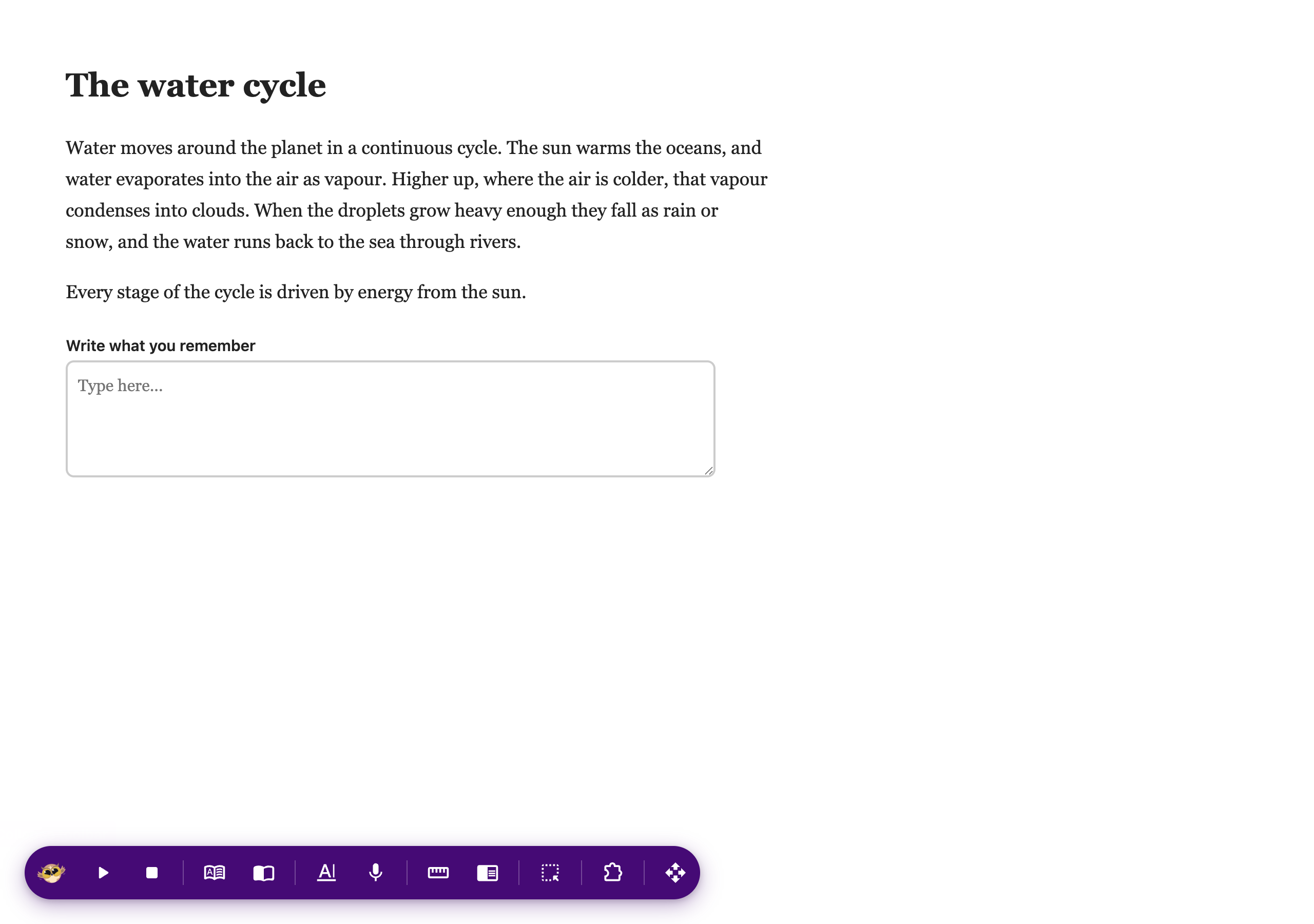
The Helperbird floating toolbar open along the bottom of a web page, showing its row of tools

If you do not see it at all, it needs turning on first. See how to turn on the floating toolbar.


Step 2: Use It

To send one part, select the text first, then press Immersive.

To send the whole page, press it without selecting anything.
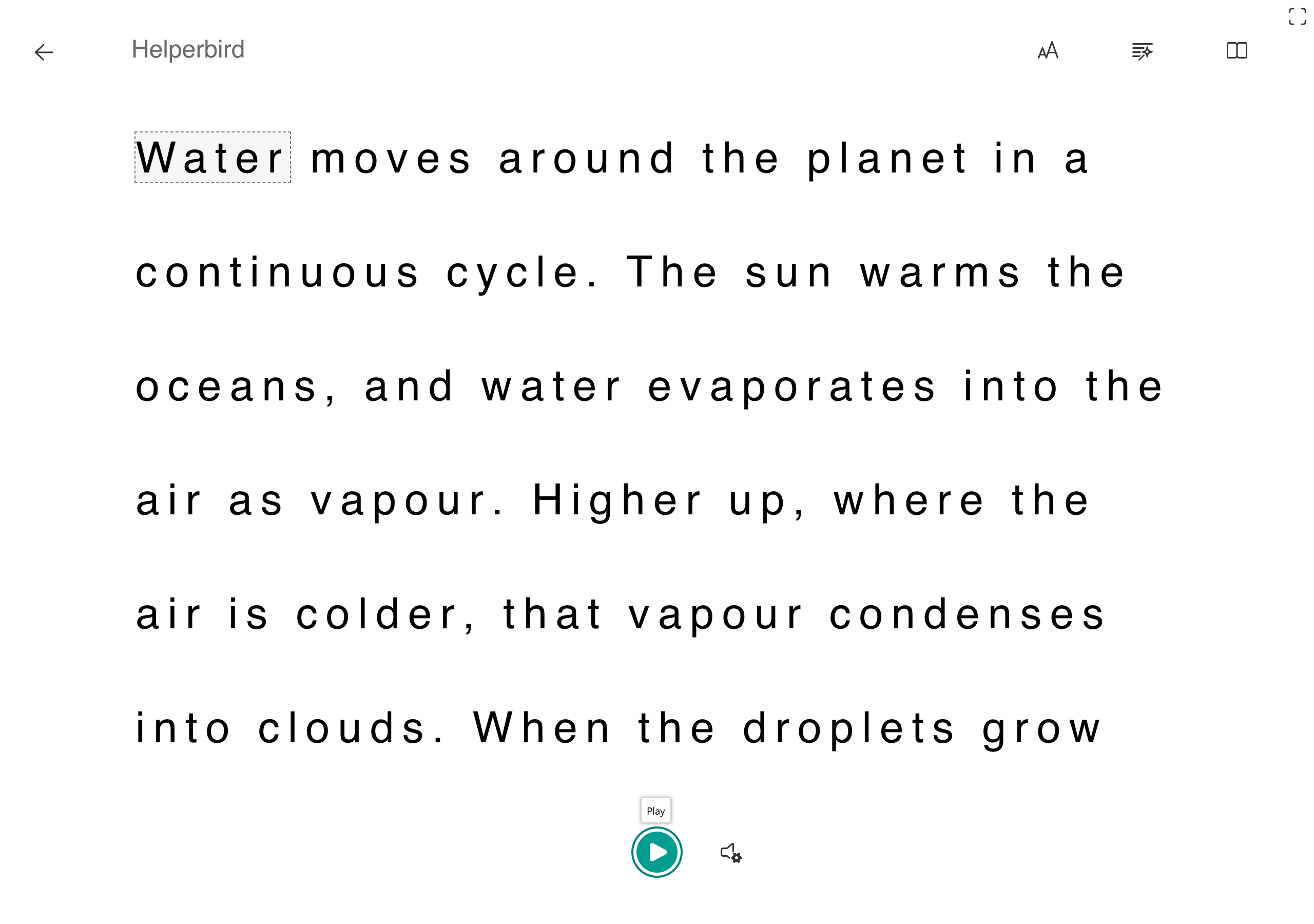
Opening selected text in Immersive Reader from the Helperbird floating toolbar

For everything you can change once you are in there, see how to use Immersive Reader.


Video Tutorial

Coming soon


Need Additional Help?

If you have any questions or run into any issues, please contact the Helperbird support team. You can reach us at Helperbird support. We are happy to help you get the most out of Helperbird.

What People Are Saying

Join over 1,000,000 people who use Helperbird every day.

Insightful functionality. Well done.

David Linde

David Linde

Helperbird user

Saw it mentioned at Cast last night! Love Immersive Reader.

Taylor Coffee

Taylor Coffee

Firefox user

This works and it makes everything so much easier to read! Thank you so much and i will keep posted if i do run into any issues!

Jay O'Bell

Jay O'Bell

Helperbird user

Helperbird does so many things that are game changing for me! By far the two most important are the font changes and the highlight ruler. I can change fonts to something dyslexia friendly. The ruler helps me stay on the line I'm trying to read. These two things change the blur into words! Tech support has been great when I have had problems!

Firefox user

Firefox user

Helperbird user

A truly great extension! We installed this on all of our 200 Chromebooks across the 3 special schools i work in and it has greatly helped our students use technology to learn. It not only helps our dyslexic learners, but also our autistic and ADHD students by helping remove distractions and making the web a more accessible place. Support is fast and efficient, and updates are very regular with new features constantly being added!

Josh Sharrad

Josh Sharrad

Helperbird user

Great features on the free side.

bookmouse

bookmouse

Helperbird user

Helperbird logo: Stylized owl with large yellow eyes and a beige face, against a green background.

Download Helperbird

Make browsing easier and more accessible with tools like Text to Speech, Immersive Reader, and more.