
How to Change the Paragraph Background Color on Any Website
Learn how to use Helperbird to add a background color to paragraphs on any website. Make text easier to read by highlighting paragraph blocks with color.
·
- features
What is Paragraph Background Color?
The Paragraph Background Color feature adds a colored background behind each paragraph on a webpage. This makes it easier to visually separate blocks of text and helps you keep your place while reading.
It works differently from the text highlighter. Instead of highlighting selected words, it automatically shades entire paragraphs across the page.
Who is This For?
This feature is helpful for:
- People with dyslexia who lose their place between paragraphs
- Students reading long articles or textbooks online
- Anyone who finds walls of text hard to follow
- People with visual processing difficulties
- Anyone who wants clearer visual separation between paragraphs
Step 1: Open Helperbird
Click the Helperbird icon in your browser toolbar. It looks like a small owl and is usually in the top-right corner of your browser.
This will open the Helperbird menu.
Step 2: Go to the All Features Section
Scroll down to the bottom of the Helperbird menu. You will see a section called All Features.
Click the arrow next to All Features to expand it and show all available features.
Step 3: Find Paragraphs
Look through the list of features until you see Paragraphs.
Step 4: Open the Paragraphs Panel
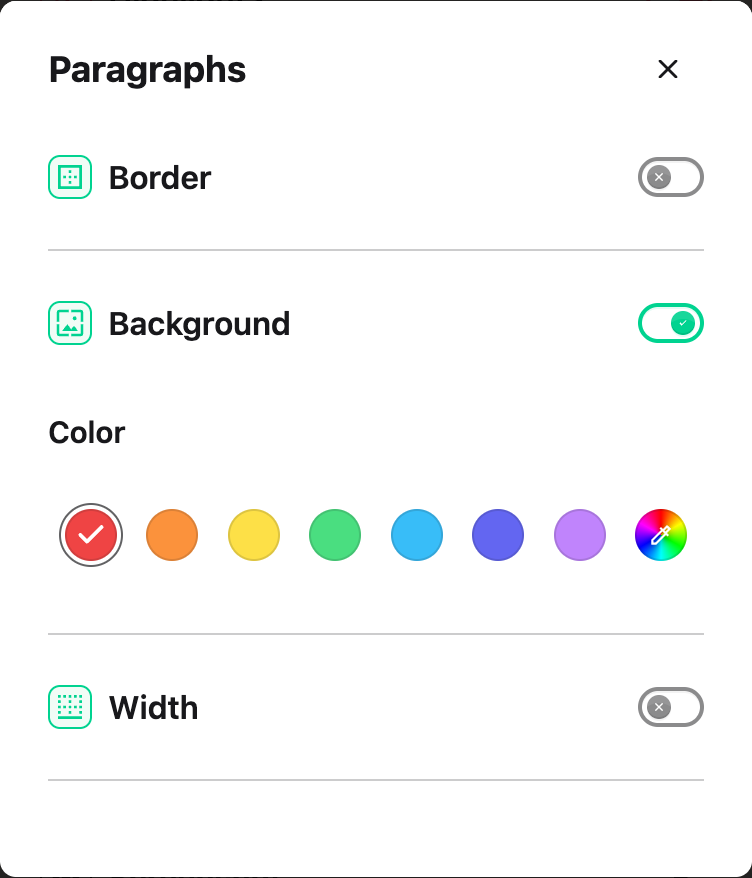
Click Open on the Paragraphs row. The panel has three settings: Border, Background and Width.
Step 5: Turn on Background
Click the toggle switch next to Background to turn it on. The toggle will turn green when it is enabled.
Every paragraph on the current page will now have a colored background applied to it.
Step 6: Choose a Color
A grid of color swatches appears under Color. Click any swatch to set the background color, or use the color wheel at the end of the grid to pick your own.
Lighter colors like pale yellow, light blue, or soft green tend to work well for reading without straining your eyes.
Tip: Try combining this with the Paragraph Border feature for even clearer paragraph separation. You can also use it alongside custom fonts and line height adjustments for the most comfortable reading experience.
Need Additional Help?
If you have any questions or run into any issues, please contact the Helperbird support team. You can reach us at Helperbird support. We are happy to help you get the most out of Helperbird.
Printed from the Helperbird Help Center · Updated September 22nd, 2026
Questions? We are happy to help — helperbird.com/support