How to Save a Page to Your Helperbird Reading List

Learn how to save the web page you are reading to your Helperbird Reading list, so you can come back to it later.

·

  • features

What This Does

This saves the page you are looking at to your Reading list, so you can close the tab and still find it again.


Who is This For?

This is helpful for:

  • Anyone who finds something worth reading at the wrong moment
  • Students gathering sources as they research
  • People who keep tabs open because they are afraid of losing the page

Step 1: Go to the Page

Open the web page you want to save and stay on it. Helperbird saves whichever page you are currently viewing, so this has to be the tab in front of you.


Step 2: Open Helperbird

Click the Helperbird icon in your browser toolbar.


Step 3: Use the Second Reading List Row

Open All Features at the bottom of the menu and scroll to Reading list.

There are two rows with this same name, one after the other. The first opens your saved list. The second saves the page you are currently on. Nothing in the row tells you which is which, so go by the order.

The All Features list showing the two Reading list rows, one for adding the page you are on and one for opening your saved list

Click the button on the second row. A message appears saying Added to reading list, and the page is saved.

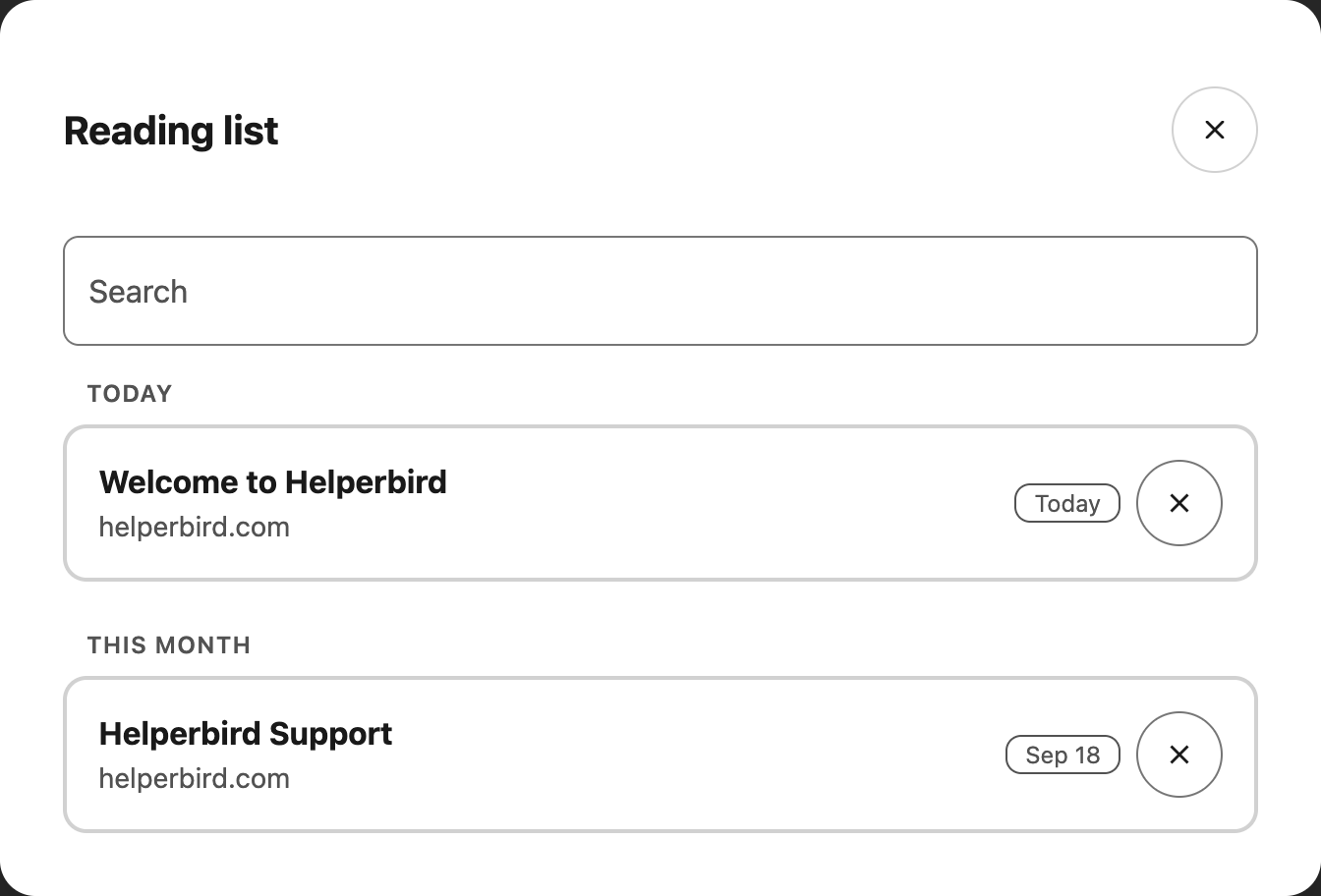
To check it worked, open your list with the first row. See how to open your reading list.


Where Your List is Kept

Your reading list is stored by your browser and synced with your browser profile. If you are signed into the same browser on another computer, your saved pages follow you there.

It is not stored on a Helperbird server, and it does not move between different browsers. Pages saved in Chrome will not appear in Firefox.


Video Tutorial

Coming soon


Need Additional Help?

If you have any questions or run into any issues, please contact the Helperbird support team. You can reach us at Helperbird support. We are happy to help you get the most out of Helperbird.

What People Are Saying

Join over 1,000,000 people who use Helperbird every day.

I really liked the ease of setting up and also accessing the tool while you are on chrome. I had no trouble, and within a week found myself using it without even noticing.

Daniel C.

Daniel C.

Account Executive

I am getting such great support from Robert. I enjoy working with him. He answers my questions very quickly. Thanks so much for your great support and a great product.

Terry Martin

Terry Martin

Assistive technology specialist

Helperbird is one of the most helpful tools I've ever used. It has so many great features that not many other apps or software have. The free version can be installed and stay forever on your browser. Other companies don't always give you access for free or give access for free forever. When you do get access to the Pro version or other paid plans, you expand your opportunity to read and stay focused better. One of the other great things about Helperbird is their support service. They have a video for every single feature that you can use. They are simple and helpful videos that make the learning process a lot easier. In addition, they have great live chat support. They are super nice and helpful. They always encourage people to give suggestions on how to improve Helperbird. Why is this important? It shows they really care about people with disabilities or people in general.

Alex R

Alex R

Helperbird user

Best website reading enhancer

Sandeep K.

Sandeep K.

Domain Trainer

omg i can actually read now

Spin F.

Spin F.

Helperbird user

It's helped me immensely with being able to focus and process words on any website

Emily Chan

Emily Chan

Helperbird user

Helperbird logo: Stylized owl with large yellow eyes and a beige face, against a green background.

Download Helperbird

Make browsing easier and more accessible with tools like Text to Speech, Immersive Reader, and more.