
How to Use Speed Reading Keyboard Shortcuts
Use Space, the arrow keys and Home to control Speed Reading in Reading Mode and PDF Reader. Find the shortcut list in Settings and change speed while reading.
Jump to the stepsOn this page7 sections
What This Does
Keep your hands on the keyboard while you read. These keys control Speed Reading in both Reading Mode and PDF Reader.
They work when focus is inside Speed Reading. You do not need to turn on Helperbird's separate Shortcuts switch.
Step 1: Open Settings
Open Settings from Helperbird's Options menu.
Step 2: Find the Shortcut List
Choose Speed Reading on the Settings page.
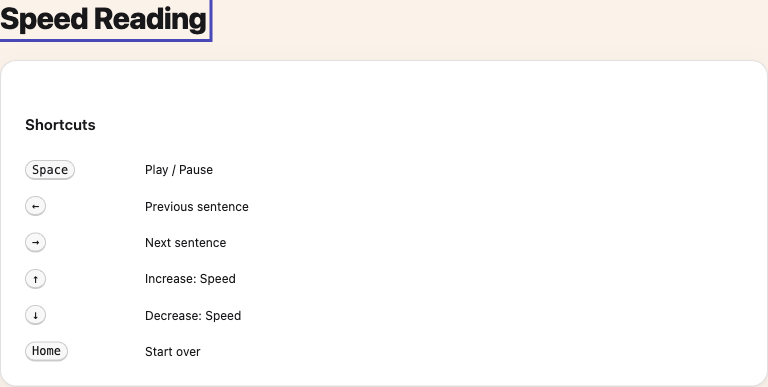
The Shortcuts section lists six keys. There are no switches to set here. Change speed beside the playback buttons while reading.
Step 3: Use the Keys While Reading
- Return to the tab with Speed Reading open.
- Press Tab until focus reaches the Speed Reading area or one of its controls.
- Press the key for the action you want.
Use Space to play or pause when the reading area has focus. On a focused button, Space activates that button. You can also use Tab to reach Play or Pause, then press Enter.
Shortcut Reference
- Space: Play / Pause when the reading area has focus.
- ← (Left arrow): Previous sentence. Return to the current sentence's start, or the previous sentence if already at its start. Pause playback.
- → (Right arrow): Next sentence. Move to the next sentence and pause.
- ↑ (Up arrow): Increase: Speed. Add 25 words per minute.
- ↓ (Down arrow): Decrease: Speed. Remove 25 words per minute.
- Home: Start over. Return to the first word without playing.
Speed stays between 100 and 600 words per minute. Both readers remember your last speed. Pausing or moving between sentences shows the sentence around your current word.
Troubleshooting
The arrows scroll the page: move keyboard focus into Speed Reading first. The keys do not control the reader from another part of the page or from Settings.
Space activates another button: this is normal when that button has focus. Move focus to Play or Pause to control playback.
A key has no effect: use it without Shift, Ctrl, Alt, Option or Command. Typing fields keep their usual keys. At the first or last sentence, an arrow may have nowhere further to go.
Need Additional Help?
See the Speed Reading guide for the playback buttons, or Helperbird's feature shortcuts for keys that open other tools.
Contact Helperbird support if a key still does not work.
Printed from the Helperbird Help Center · Updated October 25th, 2026
Questions? We are happy to help — helperbird.com/support