
How to Find Similar and Opposite Words in Helperbird
Learn how to use the Similar words and Opposite words lists in the Helperbird Dictionary, and how clicking one looks that word up straight away.
·
- features
What This Does
Under the definitions, the Helperbird Dictionary lists Similar words, which mean roughly the same thing, and Opposite words, which mean the reverse. Each one is a button you can click.
Who is This For?
This is helpful for:
- Anyone writing who keeps reaching for the same word
- Students asked to use more varied vocabulary
- People learning English who want to see a word's neighbours
- Anyone who half-remembers a word and is trying to find it
Finding Similar Words
Look up a word, choose Full entry, and scroll down past the definitions. Similar words appears as a row of buttons.
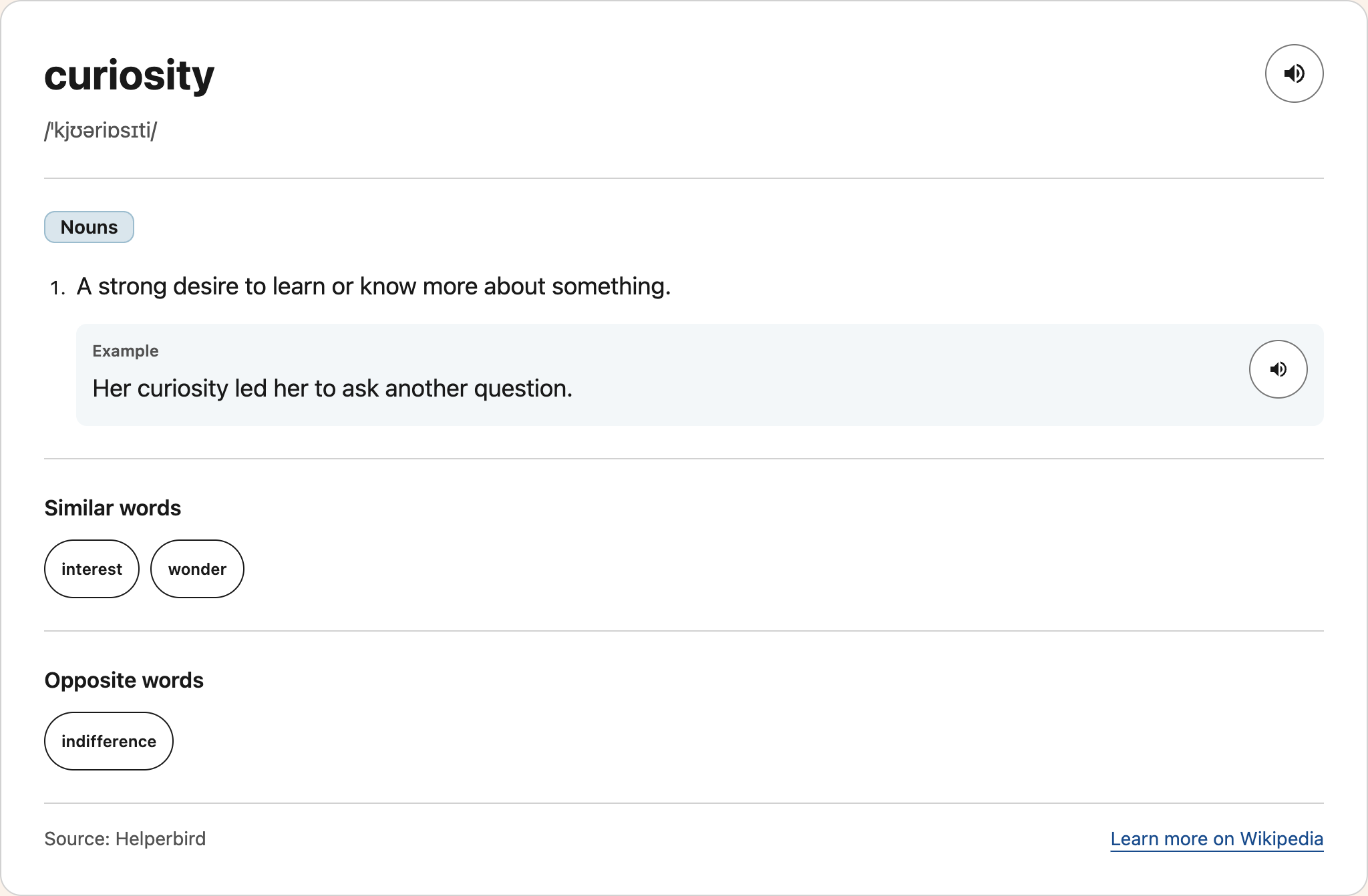
Looking One Up
Click any of those words and the Dictionary looks it up immediately, replacing the result on screen. You do not have to retype it.
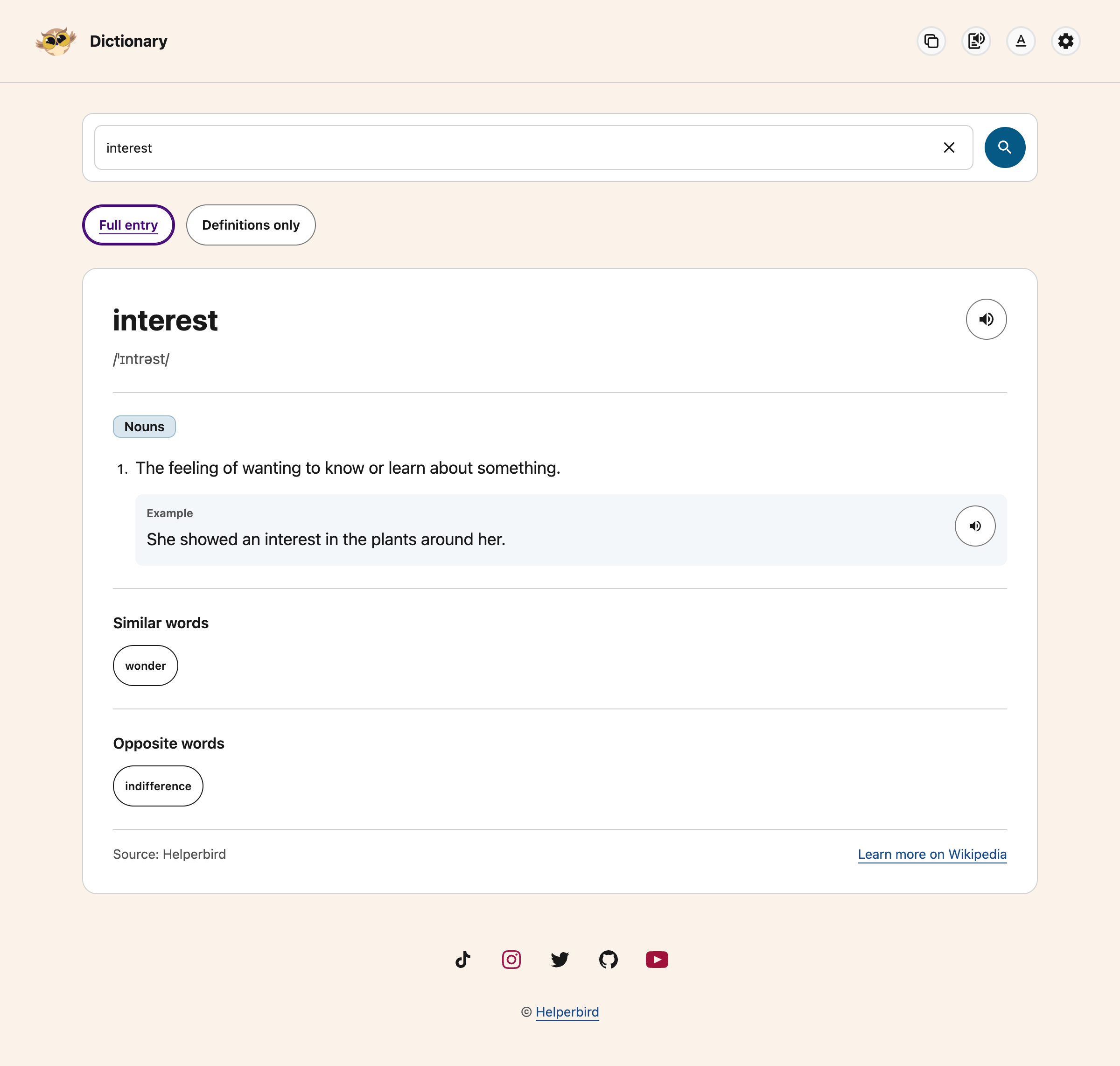
This is a quick way to follow a chain of related words until you find the one you actually want. Your browser's back button returns you to the previous word.
Opposite Words
Opposite words works exactly the same way, and appears underneath.
Not every lookup returns similar or opposite words. If a list is missing, first check that Full entry is selected. Definitions only hides both lists and the examples.
Need Additional Help?
If you have any questions or run into any issues, please contact the Helperbird support team. You can reach us at Helperbird support. We are happy to help you get the most out of Helperbird.
Printed from the Helperbird Help Center · Updated September 22nd, 2026
Questions? We are happy to help — helperbird.com/support