
How Helperbird Reads Equations from a Screenshot
Learn how the Helperbird Screenshot Reader picks up maths from a picture automatically, with no mode to choose, and what to do with the result.
·
- features
- maths
What You Get Back
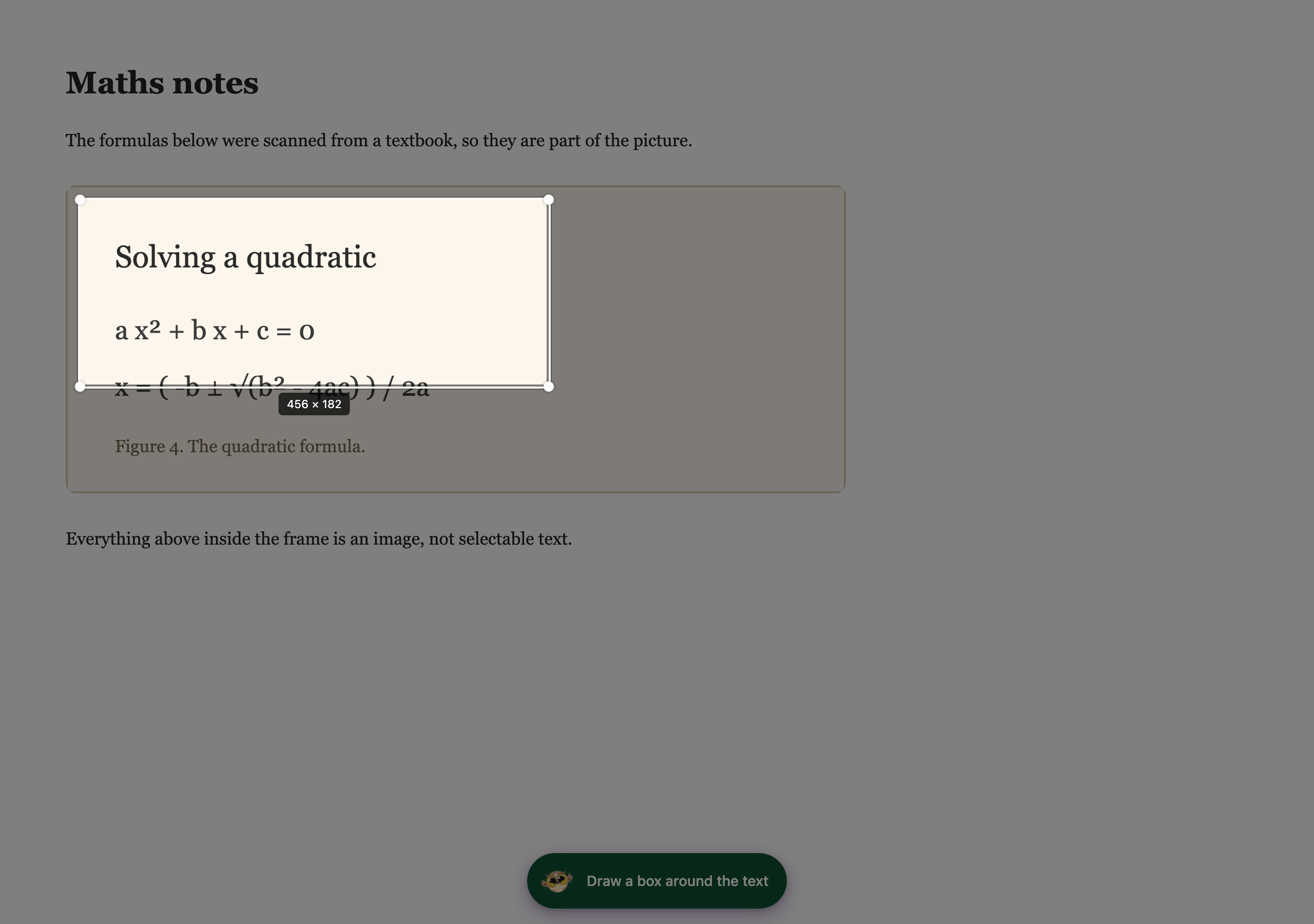
Draw a box around a scanned worksheet, a photographed textbook page, or a PDF that will not let you select the text. The Screenshot Reader reads what is inside the box. Words come back as words, equations come back as equations, and both arrive in the order they appear on the page.
An equation stays an equation rather than a flat line of symbols, so a fraction still reads as a fraction and a power stays a power. That is what makes it possible to hear it read aloud correctly.
Screenshot Reader is a Helperbird Pro feature. On the free plan the Start button stays greyed out.
Who is This For?
This is helpful for:
- Students working from scanned or photographed maths
- People who want an equation read aloud rather than decoded on the page
- Anyone who finds maths easier to read at a larger size or in a different font
Step 1: Start a Capture
Open Helperbird, go to All Features and open Screenshot Reader.
Choose where the result should go before you start. Your capture goes to one destination, not several, so turning one on turns the others off. Copy to clipboard is the default.
Press Start.
Step 2: Draw a Box Around the Maths
Drag a box around the part of the page you want. You can include the surrounding words. You do not need to isolate the equations.
Step 3: Where the Maths Goes
The result arrives at the one destination you picked before you started.
- Immersive Reader lays each equation out as maths, next to the words around it. You can change the text size, font and background color there, and hear it read aloud.
- Copy to clipboard, Save as note, Listen and Translate all work on text, so an equation arrives in words. 2x + 3 = 7 becomes "two x plus three equals seven".
If an equation cannot be rebuilt, Helperbird reads it out in words instead of showing you a broken one, and tells you it has done that.
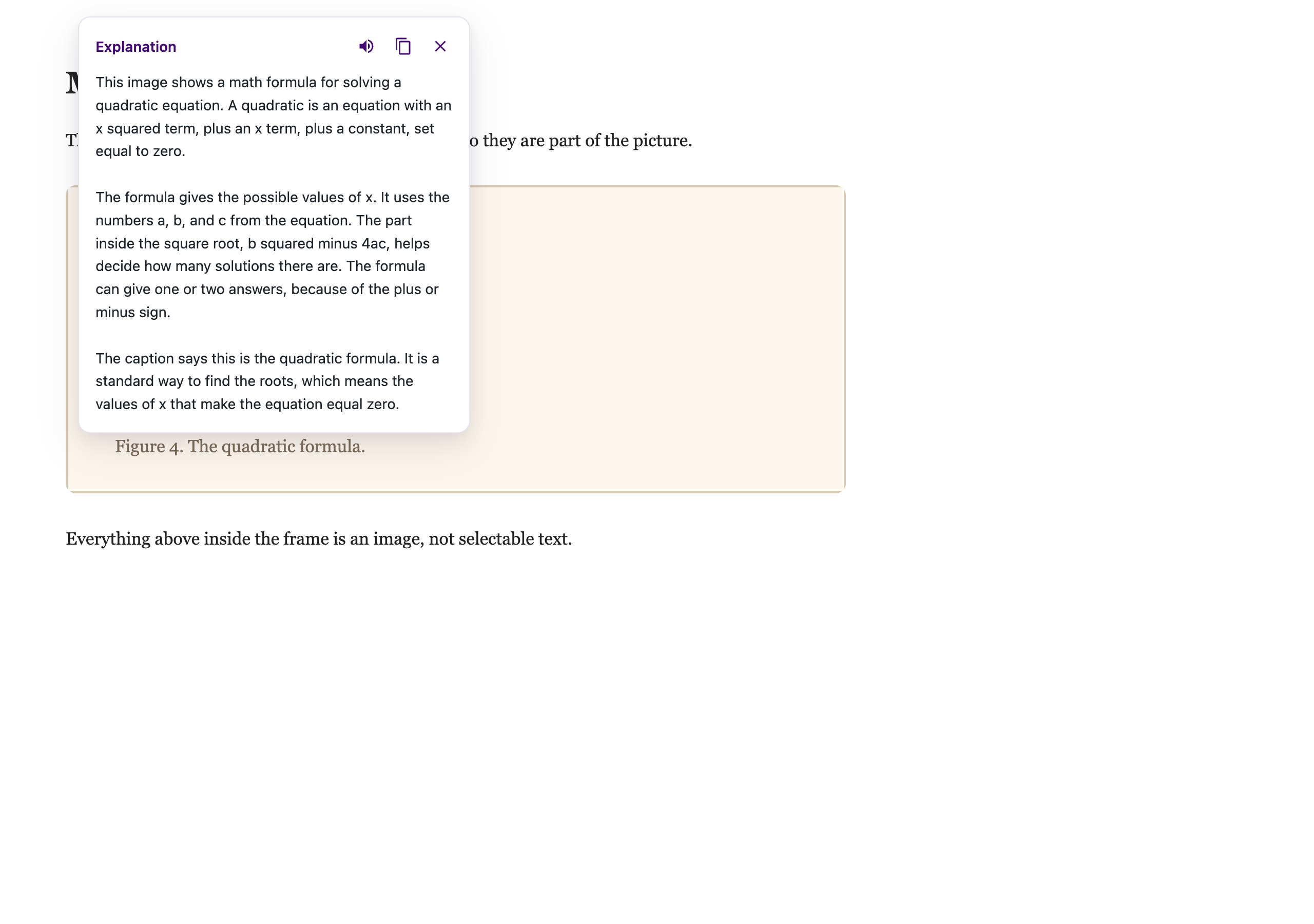
Explain mode is a separate setting. Turn it on and you get the maths described in plain language instead of transcribed, which is often what you want with a formula.
If the Maths Comes Back Wrong
- Capture a bigger area. Cutting through the middle of a fraction or a root gives it less to work with.
- Check the picture is sharp. A blurry photo of a whiteboard is hard for anyone to read.
- Try one equation at a time if a dense page comes back muddled.
- Multi-row layouts, such as matrices or aligned systems, can display with their rows overlapping when opened in Immersive Reader. That is a limitation of the reader rather than of the capture, so try another destination if a matrix looks wrong.
See also how to use the Screenshot Reader for captures of every kind, the Equation Editor if you want to write maths rather than capture it, and what happened to the Math Reader if you came here looking for that.
Need Additional Help?
If you have any questions or run into any issues, please contact the Helperbird support team. You can reach us at Helperbird support. We are happy to help you get the most out of Helperbird.
Printed from the Helperbird Help Center · Updated September 22nd, 2026
Questions? We are happy to help — helperbird.com/support