
How to Highlight Words as They Are Read Aloud
Learn how to turn on word highlighting in Helperbird, so each word lights up as it is spoken and your eye can follow along with the voice.
·
- features
- reading
- accessibility
What This Does
With this on, each word lights up as it is spoken. Instead of listening and reading separately, your eye is pulled along by the voice.
This is a beta feature, so it is still being worked on.
Who is This For?
This is helpful for:
- Anyone who loses their place when listening and reading at the same time
- Readers with dyslexia, where pairing the sound with the word helps it stick
- Students learning to read, or reading in a second language
- Anyone who drifts off partway through a paragraph
Step 1: Turn It On
Beta features live on the settings page. Open Helperbird, open Options, choose Settings, and scroll to Beta features. See how to use beta features for the full route.
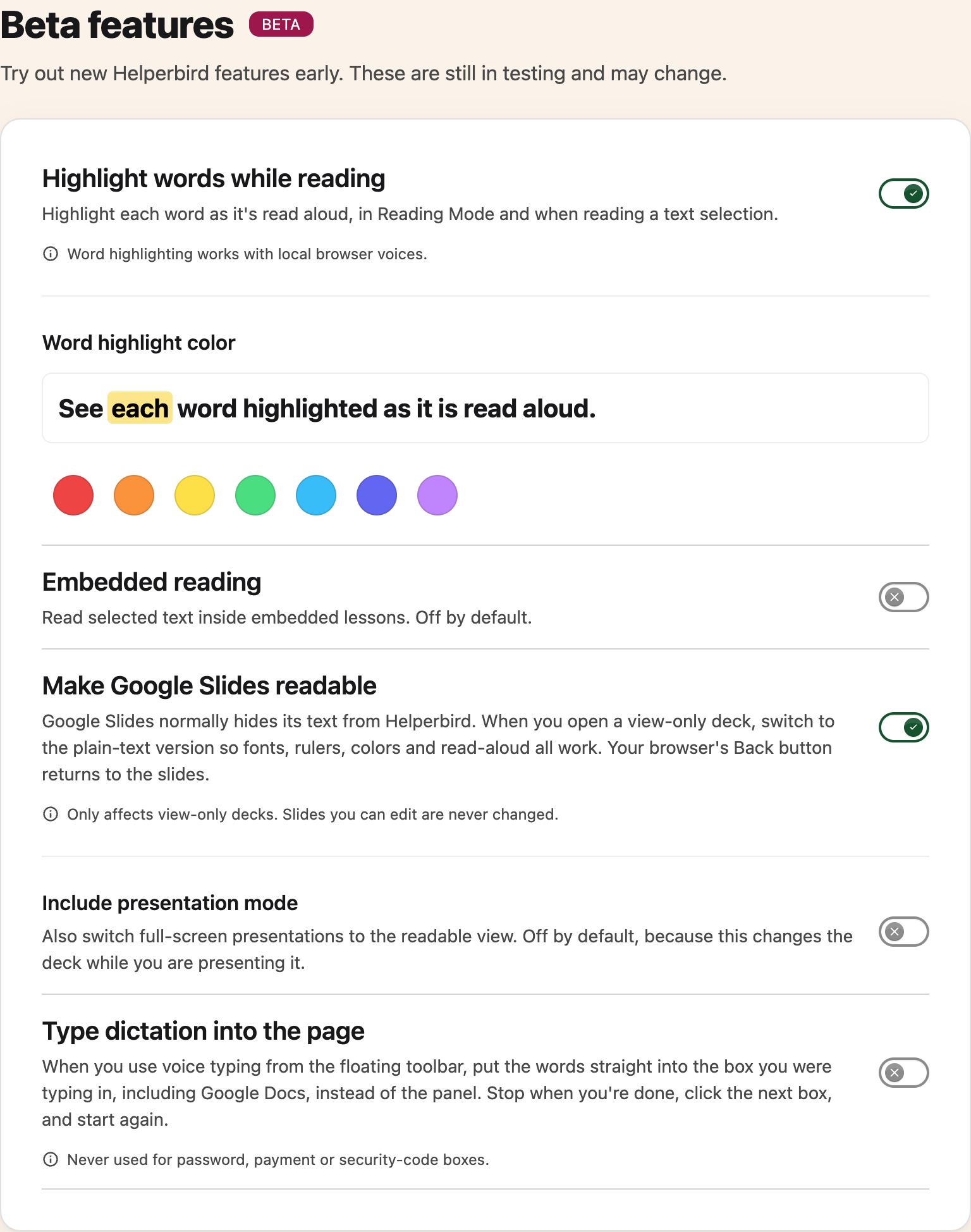
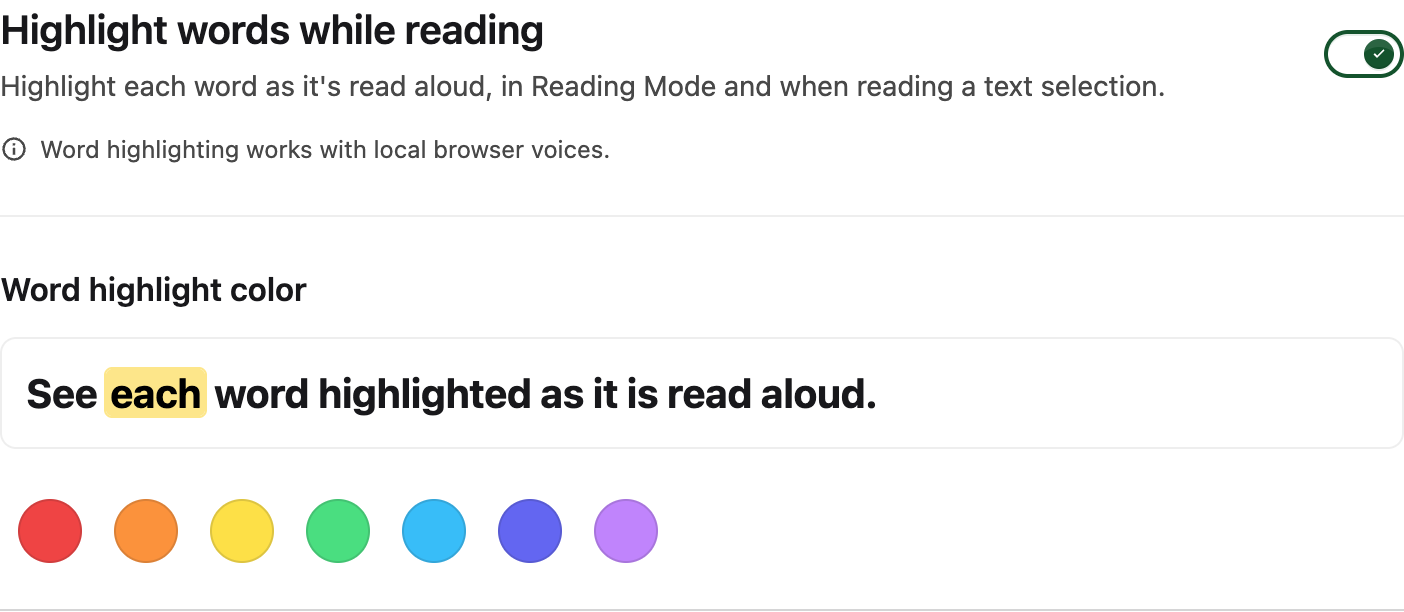
Turn on Highlight words while reading.
Step 2: Pick a Color
Underneath the switch there is a row of colors and a preview sentence showing how the highlight will look. Yellow is chosen to start with.
Pick one you can see but that does not drown out the text. If you use a color overlay or dark mode, check the preview, because a highlight that works on white may disappear on a tinted page.
Where It Works
Highlighting appears in Reading Mode and when you have selected some text and had it read. It does not highlight when reading a whole page you have not selected.
If Nothing Highlights
Word highlighting only works with your computer's own voices. If you have chosen one of the higher quality neural voices, the words will not light up, because those voices do not report their position as they speak.
Switch to a local voice in your text to speech settings and it will start working. That is a real trade-off: a better voice, or a voice you can follow along with.
Need Additional Help?
If you have any questions or run into any issues, please contact the Helperbird support team. You can reach us at Helperbird support. We are happy to help you get the most out of Helperbird.
Printed from the Helperbird Help Center · Updated September 22nd, 2026
Questions? We are happy to help — helperbird.com/support