
How to Download Your Notepad Document
Learn how to download your Helperbird Notepad writing as a Word file, a Markdown file, a Google Doc or a plain text file.
·
- features
- writing
What This Does
You can take your writing out of the Notepad as a file, in one of three formats, so you can hand it in, email it, or keep it somewhere else.
Who is This For?
This is helpful for:
- Students handing an assignment in as a Word document
- Anyone moving their writing into Google Docs to share it
- Anyone who wants a copy that does not depend on the browser
- People keeping a backup before deleting a document
Step 1: Open the Options
Click the Download arrow in the toolbar to open the download options.
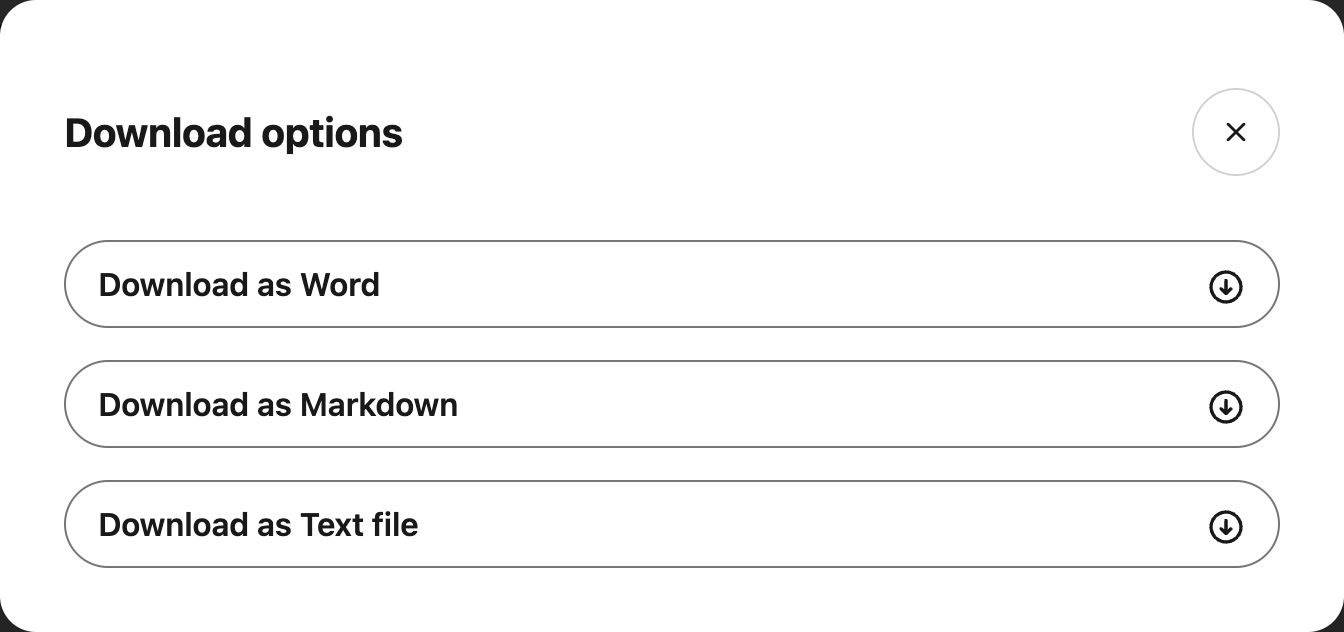
Step 2: Pick a Format
Choose the one you want.
The choices are Word, Markdown, and Text file.
Which Format Should You Pick?
- Word keeps your headings, bold, lists and colors. Pick this for anything you are handing in or sending to someone who uses Word.
- Markdown keeps the structure as plain symbols. Useful if you write for the web or use a notes app that understands it.
- Text file is your writing with all formatting stripped out. The safest option if something else will not open, and the smallest file.
To use the document in Google Docs, download Word and upload that file to Google Drive yourself. The former Google Docs option produced the same Word file; it was not a direct upload.
If you are downloading to keep a copy before deleting the document, Word or text is the sensible choice.
Downloads with Equations
Equations you insert in Notepad are included in all three formats:
- Word includes each equation image and its text description.
- Markdown keeps the LaTeX source.
- Text file uses the equation's text description.
Keep your saved Helperbird document if you want to reopen and edit the equation in the same workspace. An equation image in a Word file is not a Word equation object.
Need Additional Help?
If you have any questions or run into any issues, please contact the Helperbird support team. You can reach us at Helperbird support. We are happy to help you get the most out of Helperbird.
Printed from the Helperbird Help Center · Updated September 22nd, 2026
Questions? We are happy to help — helperbird.com/support