
How to Use the Helperbird Accessibility Toolbar
Turn on the Helperbird Floating Toolbar and your reading and writing tools sit on every website. How to switch it on, find it, move it and use each tool.
Jump to the stepsOn this page
What is the Accessibility Toolbar?
The accessibility toolbar is a small Helperbird button that floats on every website. Click it and a tidy bar slides open with your favourite tools, all in one place. In the Helperbird panel, the switch that turns it on is called Floating Toolbar.
From the toolbar you can read the page aloud, look up a word, open Immersive, turn on word prediction, dictate with voice typing, switch on the reading guide, open Reading Mode, and pull text out of an image. It saves you opening the Helperbird popup every time you need a tool.
Who is This For?
This feature is helpful for:
- People with dyslexia who want read aloud and the reading ruler one click away
- Students who move quickly between reading, looking up words, and taking notes
- Anyone who finds typing tiring and prefers to speak their writing
- People who want their accessibility tools on the page instead of in a menu
- Teachers and schools who want a simple, always-visible set of tools
Step 1: Turn On the Toolbar
 View full-size image (opens in a new tab)
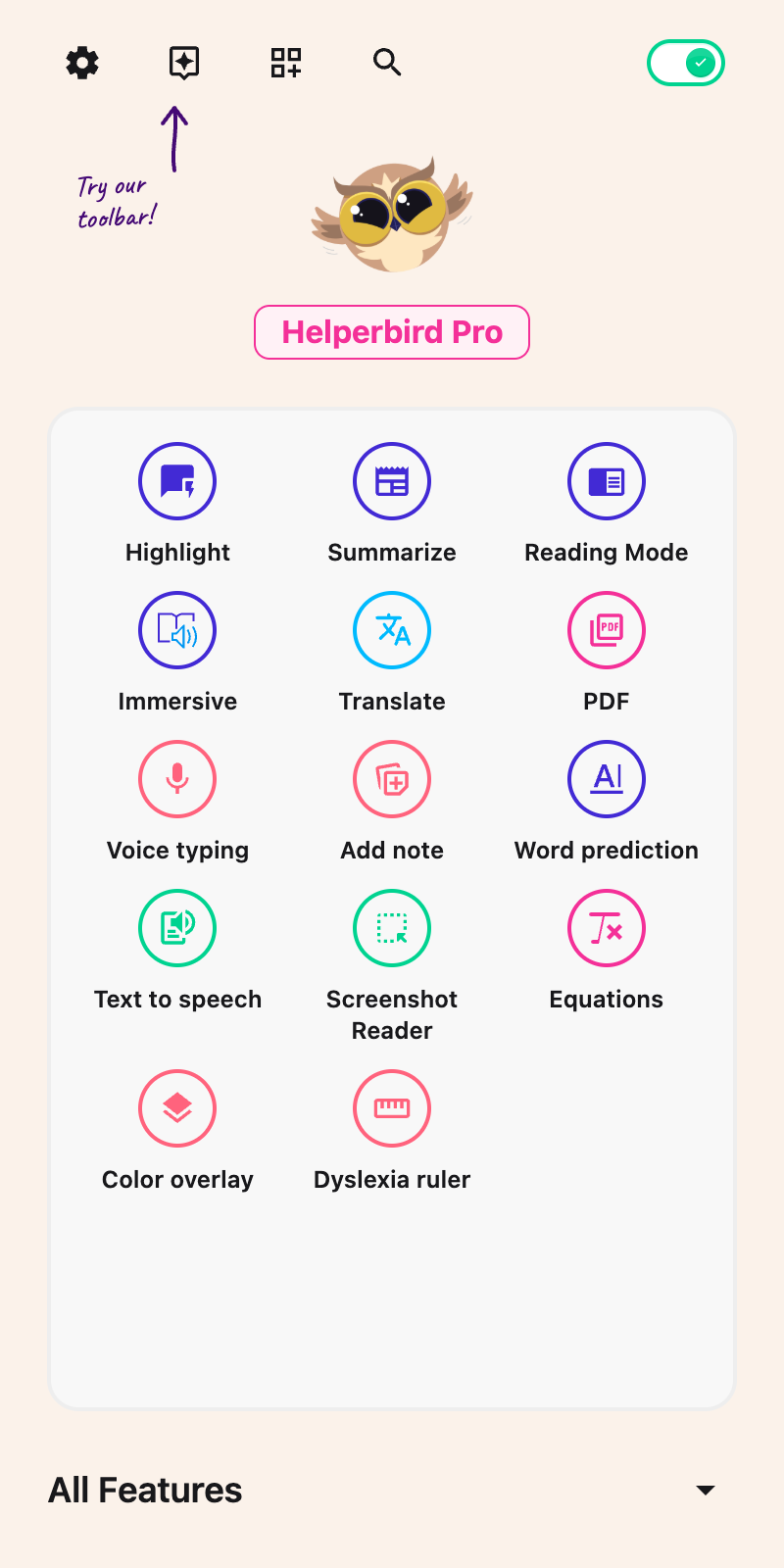
The toolbar is off until you switch it on, and you can switch it on yourself. Click the Helperbird icon in your browser toolbar to open the Helperbird panel.
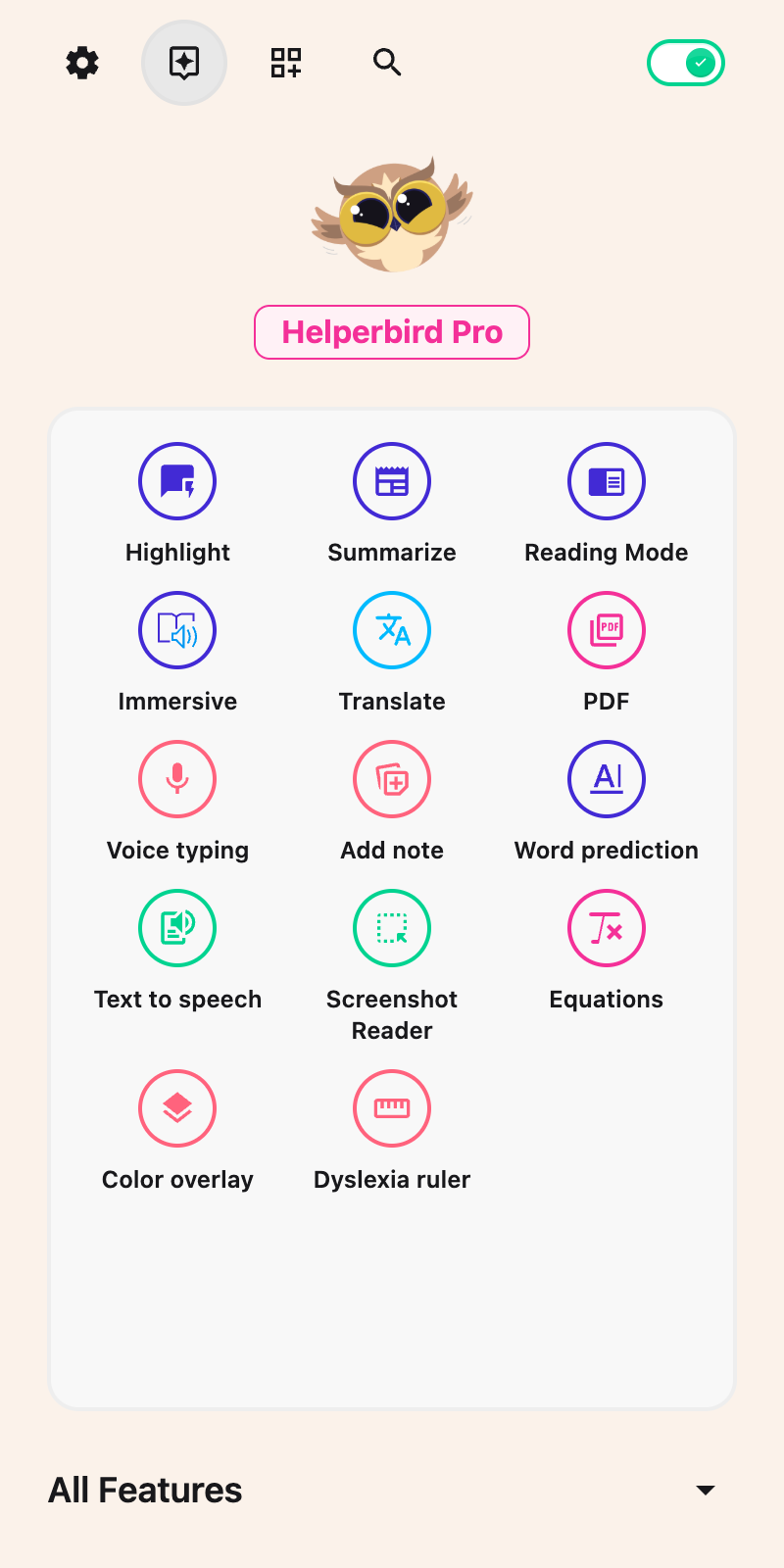
At the top of the panel, click the Floating Toolbar button. The header buttons carry no printed text, so point at one to see its name. It lights up to show the toolbar is on, and a small Helperbird logo appears on every website you visit. Click the same button again at any time to turn the toolbar off.
Tip: Schools and organizations can turn the toolbar on for everyone using a managed policy, so students do not have to enable it themselves. An administrator setting it on by default does not lock your choice; you can still turn it off or back on. If your administrator has blocked the feature, the Floating Toolbar button is not in the panel header at all.
 View full-size image (opens in a new tab)
Step 2: Open the Toolbar
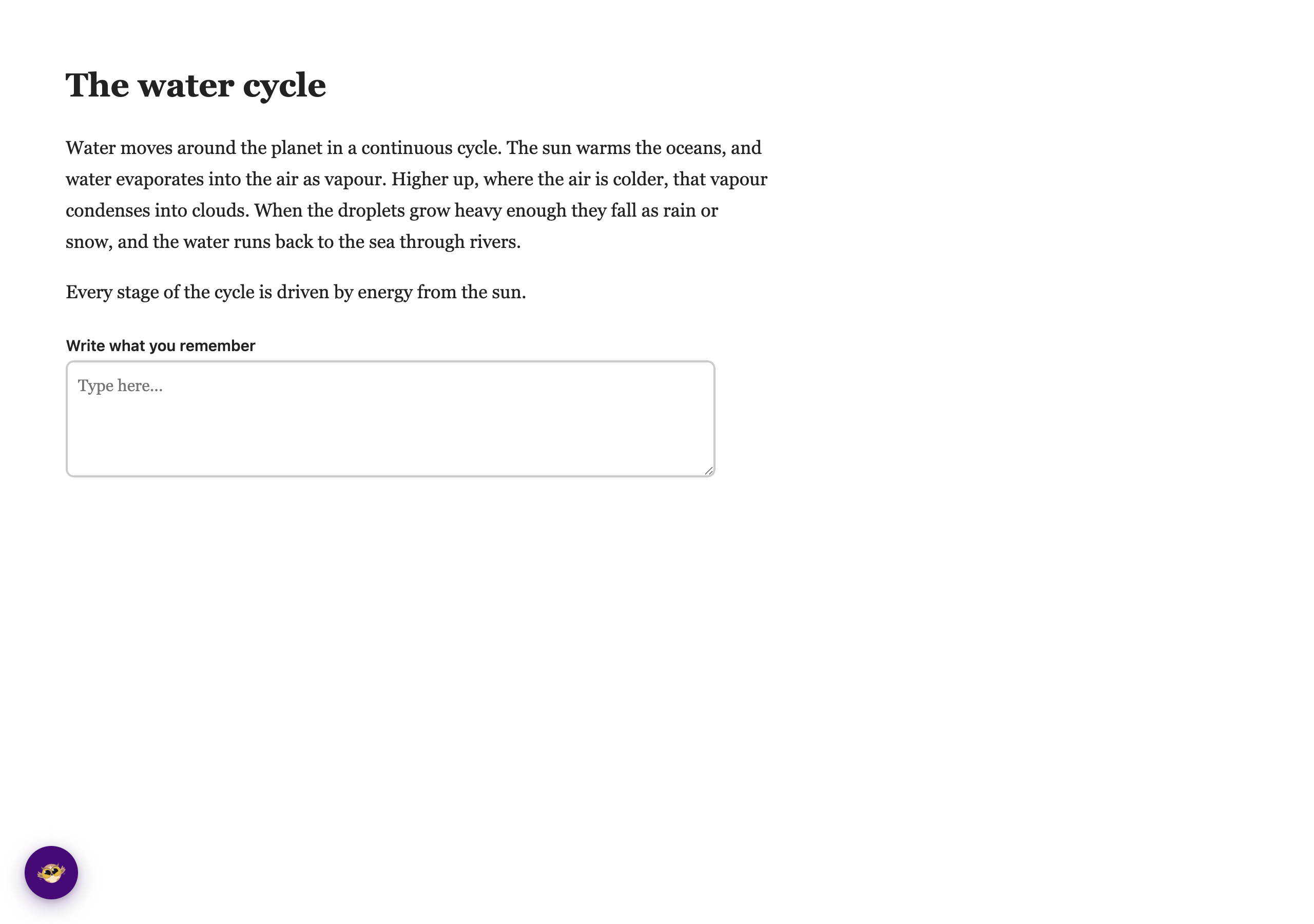
Look for the small Helperbird logo floating on the page. The first time, it sits in the bottom-left corner. After that it comes back wherever you last left it.
 View full-size image (opens in a new tab)
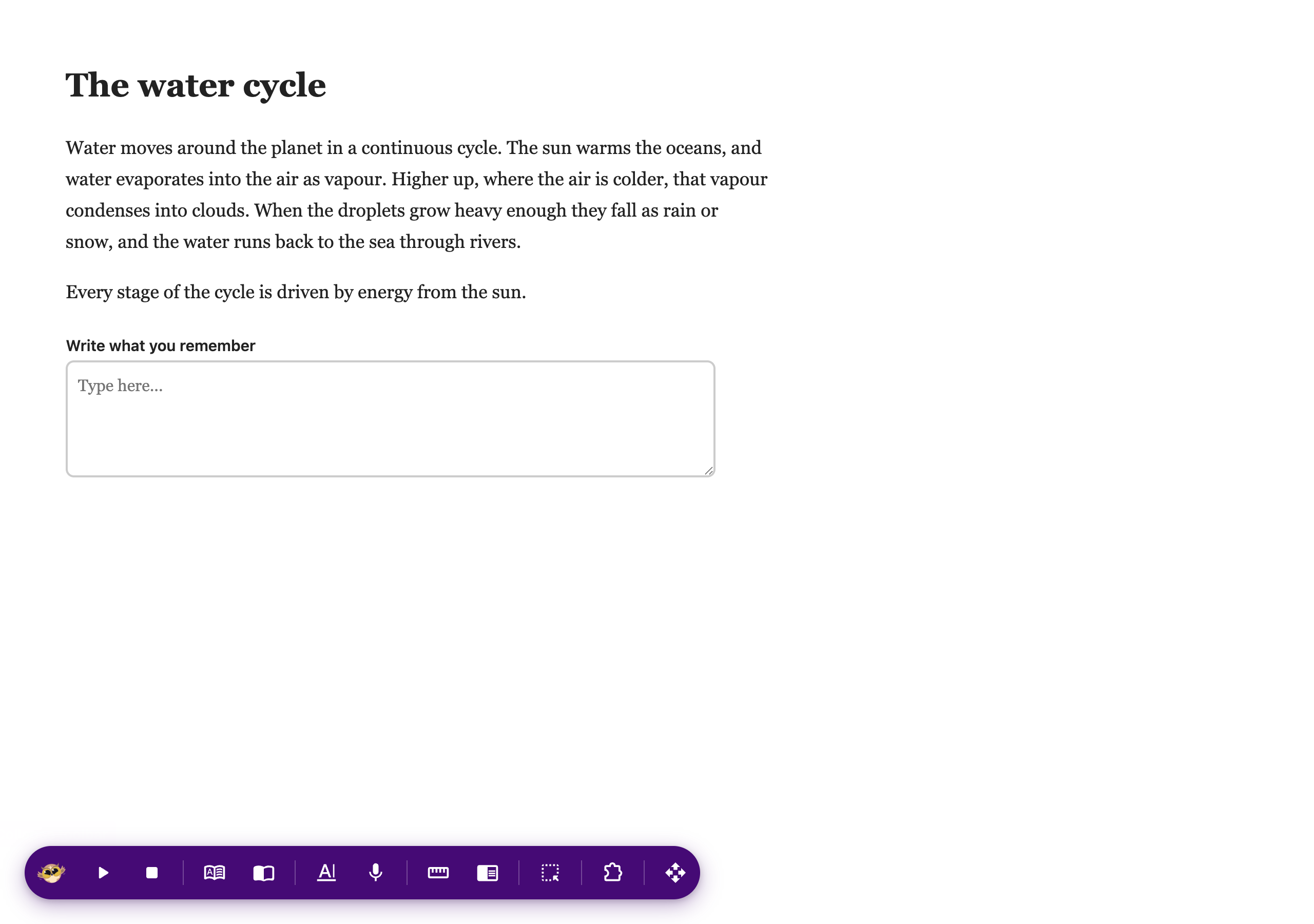
Click it once and the toolbar slides open to show all of your tools.
 View full-size image (opens in a new tab)
Click the logo again to tuck the toolbar back down to the logo on its own. Pressing Escape while you are on the toolbar closes it too. Closing or collapsing the toolbar stops its read-aloud and voice-typing sessions, including a session still starting. Its dictation draft remains available when you reopen it on the same page.
Step 3: Use a Tool
Each tool on the toolbar does one thing. The buttons carry no printed text, so hover over one to see its name. A Pro button is greyed out and its name ends in "(Pro)".
| Button | What it does | Free or Pro |
|---|---|---|
| Play | Reads the page aloud. Highlight some text first and only that text is read, with each word highlighted as it is spoken. With nothing selected, the whole page is read without word highlighting. | Free |
| Stop | Stops the reading. | Free |
| Dictionary | Highlight a single word, then click Dictionary to see its meaning. | Pro |
| Immersive | Opens your selection, or the whole page, in a clean reading view. | Pro |
| Word prediction | Suggests words while you type in text boxes. | Pro |
| Voice typing | Opens a dictation window so you can speak instead of type. See below. | Pro |
| Reading guide | Turns on a guide that helps you focus on one line at a time. | Free |
| Reading Mode | Removes ads and clutter so you can read the article on its own. | Free |
| Screenshot Reader | Pulls the text out of an image or a scanned PDF. | Pro |
| Settings | Opens the full Helperbird panel for everything else. Chrome and Edge only. | Free |
The last button on the open bar is the Drag to move handle, covered in the next step.
Step 4: Move the Toolbar
You can put the toolbar wherever suits you.
Click and hold the Drag to move handle (the grip on the far right of the toolbar) and drag it anywhere on the screen. The toolbar always stays fully on screen. When you let go, Helperbird remembers the spot, so the toolbar is waiting in the same place next time. When the toolbar is closed, you can also drag the logo itself to move it.
Prefer the keyboard? Tab to the Drag to move handle and use the arrow keys to nudge the toolbar around the screen. Hold Shift while pressing an arrow for fine, one-pixel adjustments. If you are on a tool button instead, the arrow keys move you along the bar.
Using Voice Typing
Click the Voice typing button (the microphone) and a small dictation window opens.
Press the mic in that window to start, then speak. Your words appear in the box as you talk. Press the mic again to stop, or stop talking and it switches itself off after about 10 seconds without recognized speech. Speaking resets that timer, and you can press the mic again whenever you are ready to continue.
The panel's More options menu holds the language, Regular/Math/Chemistry/Physics modes, Spoken punctuation, Copy, and Clear. Stop recording before changing language or mode. Spoken punctuation works in Regular mode and applies to your next recording. Copy the text, then paste it into your document or message.
You can edit the draft directly, or choose Correct grammar after recording stops. Grammar correction is a separate Pro action that sends the draft for processing only when you request it. Closing and reopening the panel keeps its draft on the current page; navigating away does not save it as a document.
Skip the copy step. Turn on Voice typing into the page under Beta features on the Helperbird settings page, and your words go straight into the box you were already typing in, Google Docs included. It never types into a password, payment or security-code box. See How to Type Dictation Straight into the Page.
The toolbar does not appear on Helperbird's own pages, but the Helperbird PDF reader has its own voice typing button.
Tip: Voice typing is great for long replies or for capturing a thought quickly without typing.
Use Tools While Helperbird is Paused
Even when Helperbird is paused, the toolbar stays available, so you are never locked out of your tools. Switch a tool on from the toolbar and it runs right there on the page you are reading.
This is temporary and stays on that page only: it does not change your saved settings and it does not affect your other tabs. As soon as you refresh the page or move to a new one, it clears itself. Un-pause Helperbird from the panel whenever you want to go back to your usual setup.
What It Does Not Do
- It does not appear on Helperbird's own pages, such as Notes, the Editor and the PDF reader.
- The Button position setting on the Settings page picks the corner it starts in, Left or Right. After that, you place it by dragging.
- The Settings button opens Helperbird in the browser side panel, which is Chrome and Edge only. Firefox and Safari show nine buttons, not ten.
Lockdown and Kiosk Mode
Because the toolbar lives on the web page itself rather than in the browser's toolbar, it keeps working in locked-down environments where the usual Helperbird popup and side panel cannot be opened, such as exam browsers, kiosks, and locked online quizzes. Students keep one-tap access to read aloud, the reading guide, and the rest of the toolbar's tools right on the page.
Administrators can set the toolbar on by default through managed policy. Users can turn it off or back on; that preference survives policy refreshes. An explicit FloatingButton feature restriction can block it entirely. For setup, see:
- How to Enable the Helperbird Floating Button (Admin Guide)
- How to Use Helperbird in Locked Mode on Chromebooks
- How to Deploy Helperbird in ChromeOS Kiosk Mode
- How to Use Helperbird During Google Forms Locked Quizzes
What's Free and What's Pro
The toolbar itself is free, and so are five of its ten buttons: Play, Stop, Reading guide, Reading Mode and Settings.
The other five are part of Helperbird Pro: Dictionary, Immersive, Word prediction, Voice typing and Screenshot Reader. Free users still see these on the toolbar, greyed out, with "(Pro)" on the end of the name. Click one and Helperbird shows "This is a Helperbird Pro feature. Upgrade to use it."
On a free account, Play stops after 5,000 characters and shows an upgrade note.
Read a Selection in Google Docs or a Lesson
In Google Docs, select the words you want, then press Play. Helperbird keeps that selection when you move to the toolbar. If Docs cannot provide it, select a shorter visible passage and try again.
For selectable text inside an embedded lesson, try the Read text in online lessons. It is off by default and does not guarantee support for every lesson platform.
Tips
- The toolbar only shows tools that are available. If an administrator has turned a tool off, it will not appear.
- The toolbar lives in its own isolated layer, so it looks and behaves the same on every website, no matter how that site is styled.
- Word highlighting needs a local browser voice. With an online voice the text is read without highlighting.
- You can use the whole toolbar with a keyboard. Tab or use the arrow keys to move between tools, and press Escape to close it.
Frequently Asked Questions
Is the accessibility toolbar free? Yes. The toolbar is free, along with Play, Stop, the Reading guide and Reading Mode. Dictionary, Immersive, Word prediction, Voice typing and Screenshot Reader are part of Helperbird Pro. On a free account, Play stops after 5,000 characters.
Which browsers does it work on? The toolbar works on Chrome, Firefox, Edge, and Safari. The Settings button uses the side panel, which is available on Chrome and Edge, so Firefox and Safari show nine buttons instead of ten.
How do I turn the toolbar off? Open Helperbird and click the Floating Toolbar button in the header again to switch it off. An administrator enabling it by default does not lock this button. An explicit restriction on the entire toolbar is different and cannot be overridden here.
Will it get in the way of the page? No. It starts as a small logo and stays out of the way. You can drag it anywhere, and it remembers where you put it.
Does the toolbar change how websites look? No. The toolbar sits in its own isolated layer on top of the page, so it does not affect the website, and the website cannot change how the toolbar looks.
Related Guides
- How to Use Text to Speech
- How to Use Voice Typing
- How to Use Immersive Reader
- How to Use a Dyslexia Ruler
A Guide for Each Tool
- Read a page aloud
- Look up a word
- Open Immersive Reader
- Turn on word prediction
- Dictate with voice typing
- Type dictation straight into the page
- Turn on the reading guide
- Open Reading Mode
- Pull text out of an image or PDF
- Open the side panel with Settings
Video Tutorial
Need Additional Help?
If you have any questions or run into any issues, please contact the Helperbird support team. You can reach us at Helperbird support. We are happy to help you get the most out of Helperbird.
Printed from the Helperbird Help Center · Updated October 12th, 2026
Questions? We are happy to help — helperbird.com/support