
How to Search and Filter Features in Helperbird
Learn how to use Helperbird's search and filter features in helperbird. Complete guide for improving web accessibility and reading support.
Jump to the stepsOn this page
What is Search?
The Search feature helps you quickly find any Helperbird tool or setting. Instead of scrolling through all the features, you can type what you are looking for and see matching results instantly.
Who is This For?
This feature is helpful for:
- Anyone who wants to find features quickly
- People who are new to Helperbird and exploring tools
- Users who cannot remember where a specific feature is located
- Anyone who wants faster access to Helperbird tools
- People who use many different features
Step 1: Open Helperbird
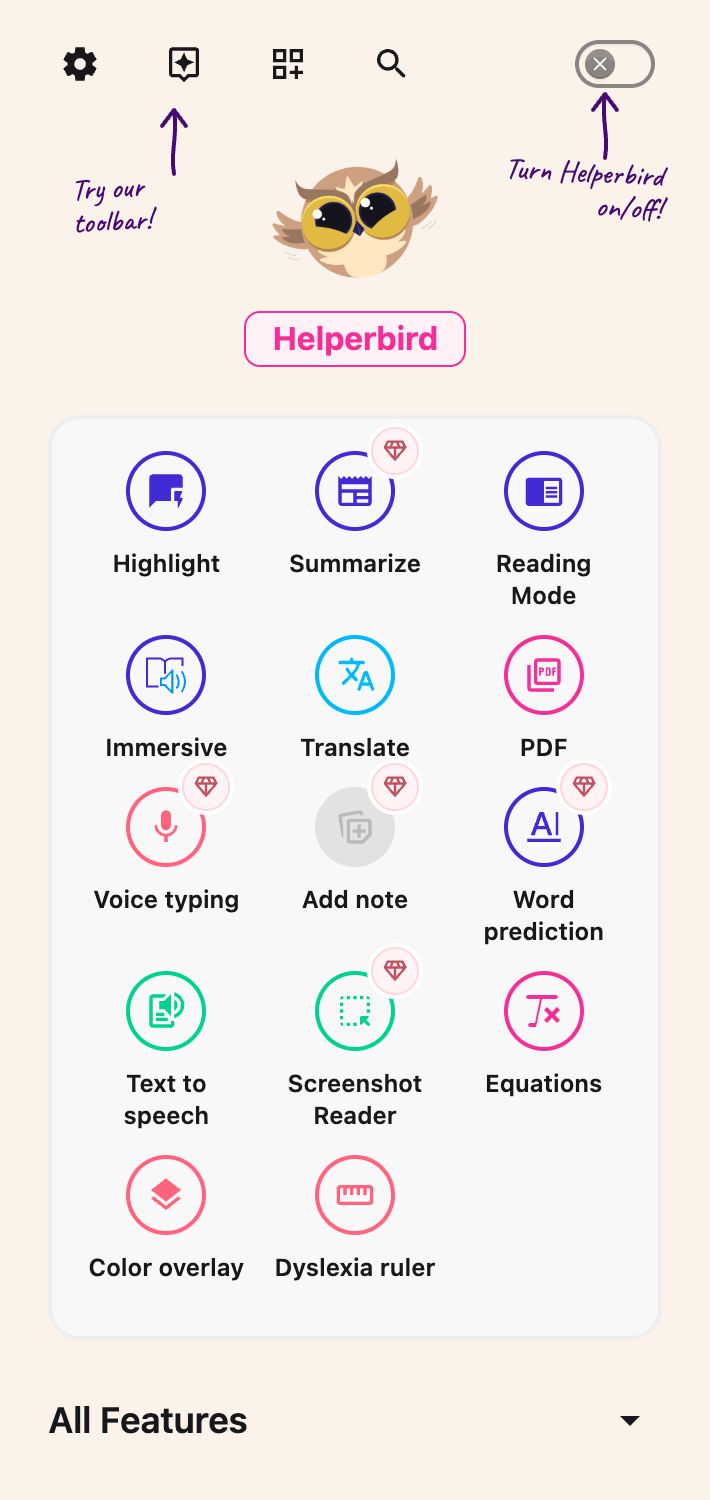
Click the Helperbird icon in your browser toolbar. It looks like a small owl and is usually in the top-right corner of your browser.
This will open the Helperbird menu.
 View full-size image (opens in a new tab)
Step 2: Open Search
In the top right corner of the Helperbird panel, look for the search icon. It looks like a magnifying glass.
Select Search (the magnifying glass). Keyboard users can Tab to it and press Enter.
A search bar opens with the cursor ready for you to type.
Step 3: Search for Features
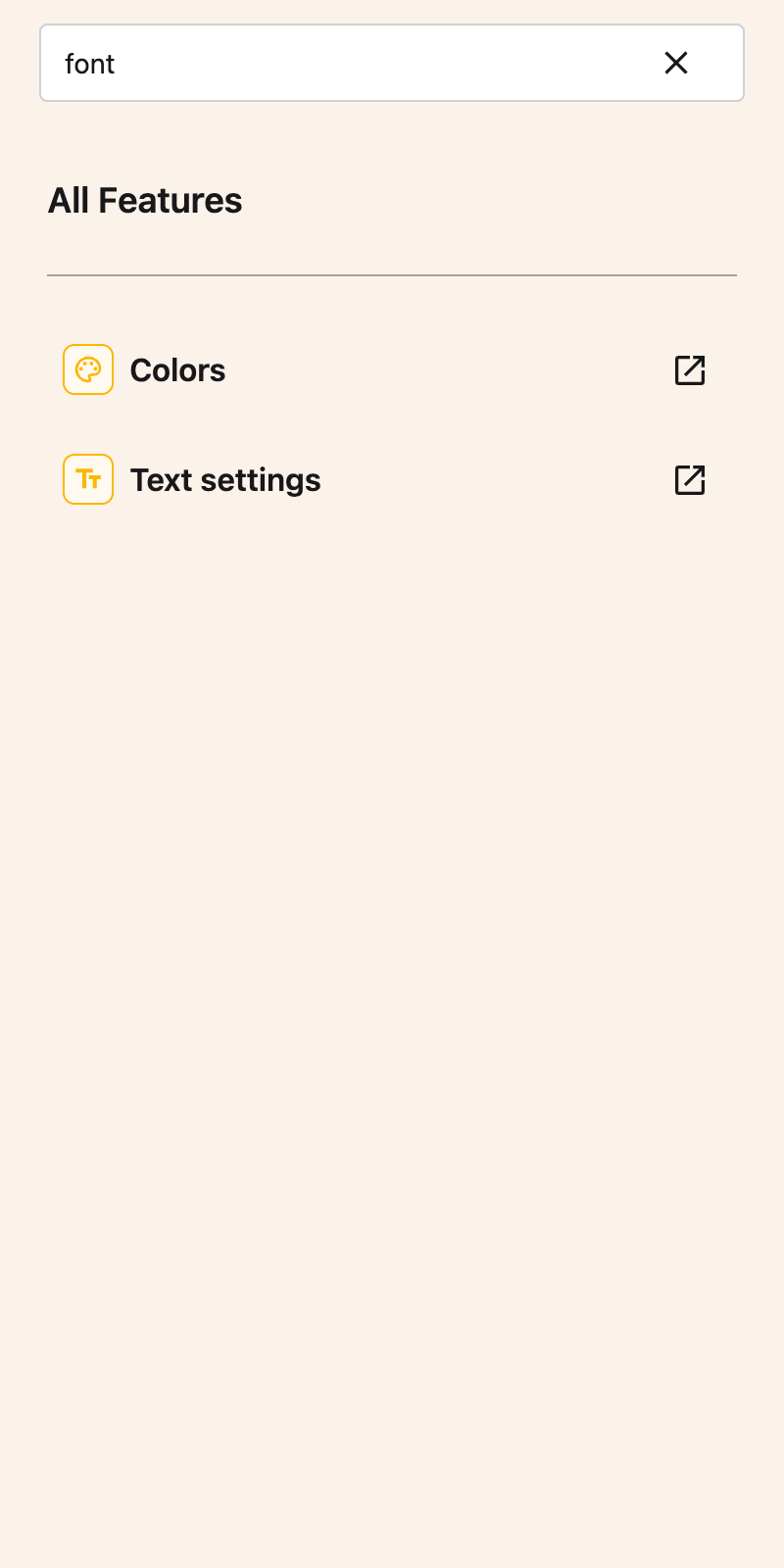
Type the name of the feature you are looking for. Helperbird will instantly filter the results to show only matching tools.
You can search by:
- Feature names like "Reading Mode", "Voice Typing", or "Translate"
- Categories like "Reading", "Writing", or "Dyslexia"
- Keywords related to what you want to do
As you type, the results update in real time. Use a feature’s control to open or enable it.
If nothing matches, the message includes your search words. Select Clear to see all features and type another search. Closing search returns keyboard focus to the Search button.
Tip: If you do not remember the exact feature name, try searching for what you want to accomplish. For example, search "read aloud", "highlight", or "fonts" to find related tools.
 View full-size image (opens in a new tab)
Video Tutorial
Need Additional Help?
If you have any questions or run into any issues, please contact the Helperbird support team. You can reach us at Helperbird support. We are happy to help you get the most out of Helperbird.
Printed from the Helperbird Help Center · Updated September 22nd, 2026
Questions? We are happy to help — helperbird.com/support