
How to Turn On Dark Mode for the Helperbird Menu
Learn how to switch the Helperbird menu itself to dark mode. This changes how Helperbird looks, and is separate from Dark Reader, which darkens the websites you visit.
Jump to the stepsOn this page
What is Dark Mode for the Menu?
Dark Mode changes the Helperbird menu itself to a dark color scheme. The buttons, panels and text you see when you open Helperbird become dark instead of light.
This only changes how Helperbird looks. The websites you visit are not affected.
Who is This For?
This is helpful for:
- People who find bright panels uncomfortable, especially at night
- Anyone with light sensitivity or visual stress
- People who already use a dark theme everywhere else and want Helperbird to match
- Anyone who finds dark backgrounds easier to focus on
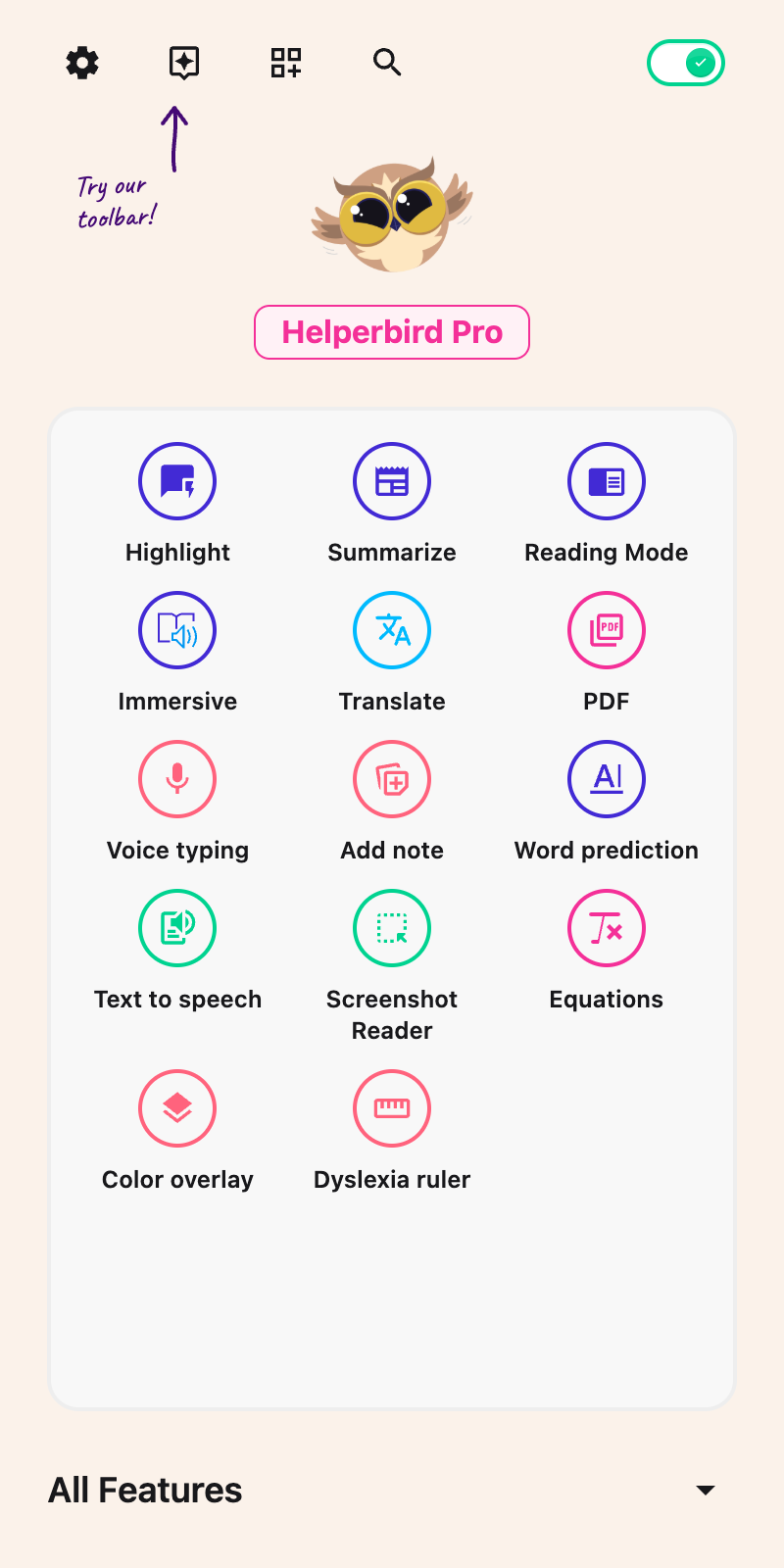
Step 1: Open Helperbird
Click the Helperbird icon in your browser toolbar. It looks like a small owl and is usually in the top-right corner of your browser.
 View full-size image (opens in a new tab)
Step 2: Open Settings
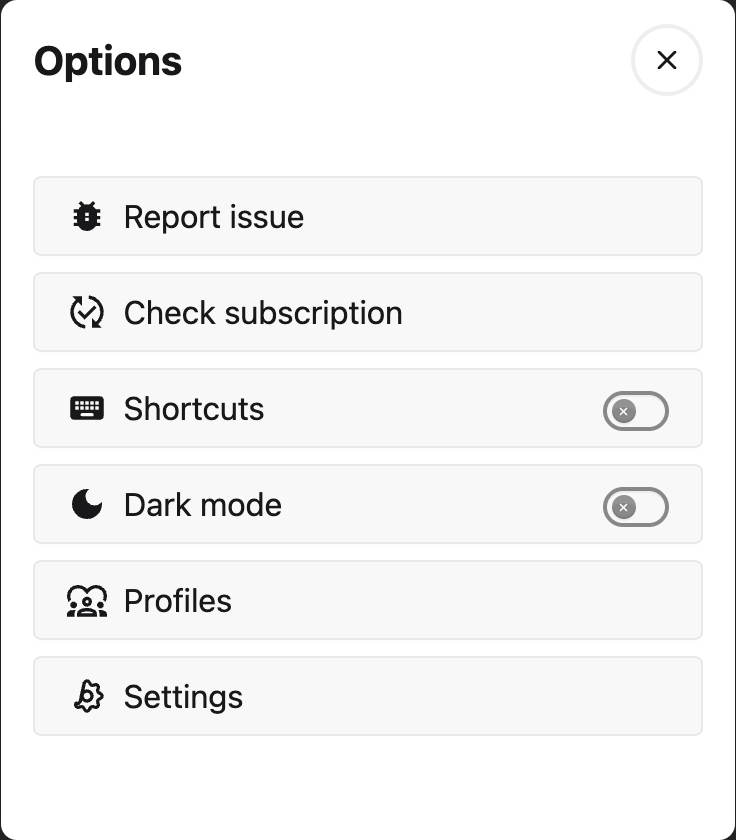
Click the gear icon in the top left of the Helperbird menu. The Options list opens.
 View full-size image (opens in a new tab)
Step 3: Find Dark Mode
Look down the Options list until you see Dark mode, just below Shortcuts.
View full-size image (opens in a new tab)
Step 4: Turn on Dark Mode
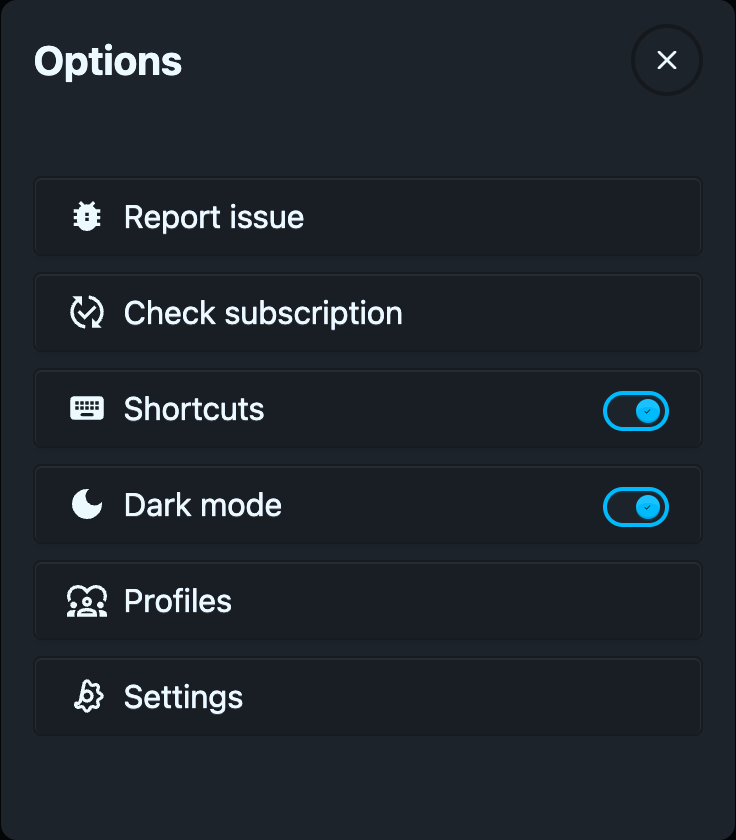
Click the switch next to Dark mode. The Helperbird menu uses its dark colors. If the open panel still looks light, close and reopen Helperbird.
Click the same switch again at any time to go back to the light menu.
 View full-size image (opens in a new tab)
Dark Mode or Dark Reader?
These are two different things, and it is easy to mix them up:
- Dark mode, on this page, changes the Helperbird menu.
- Dark Reader changes the websites you visit, turning bright pages dark.
You can use either on its own, or both together.
Need Additional Help?
If you have any questions or run into any issues, please contact the Helperbird support team. You can reach us at Helperbird support. We are happy to help you get the most out of Helperbird.
Printed from the Helperbird Help Center · Updated September 22nd, 2026
Questions? We are happy to help — helperbird.com/support