
How to Save a Document in the Helperbird Notepad
Learn how to save your writing in the Helperbird Notepad, where it is stored, and what to do if a long document will not save.
·
- features
- writing
What This Does
Saving keeps the document you are writing so you can come back to it later, and so it appears in your list of saved documents.
Who is This For?
This is helpful for:
- Anyone working on something over more than one sitting
- Students keeping drafts of an assignment
- Anyone who wants their writing available on their other computer
Step 1: Write Something
Type your text into the Notepad.
Step 2: Click Save
The Notepad autosaves changes as you write. You can also click the Save disk icon in the toolbar to save explicitly before switching tasks. Writing and saving require Helperbird Pro.
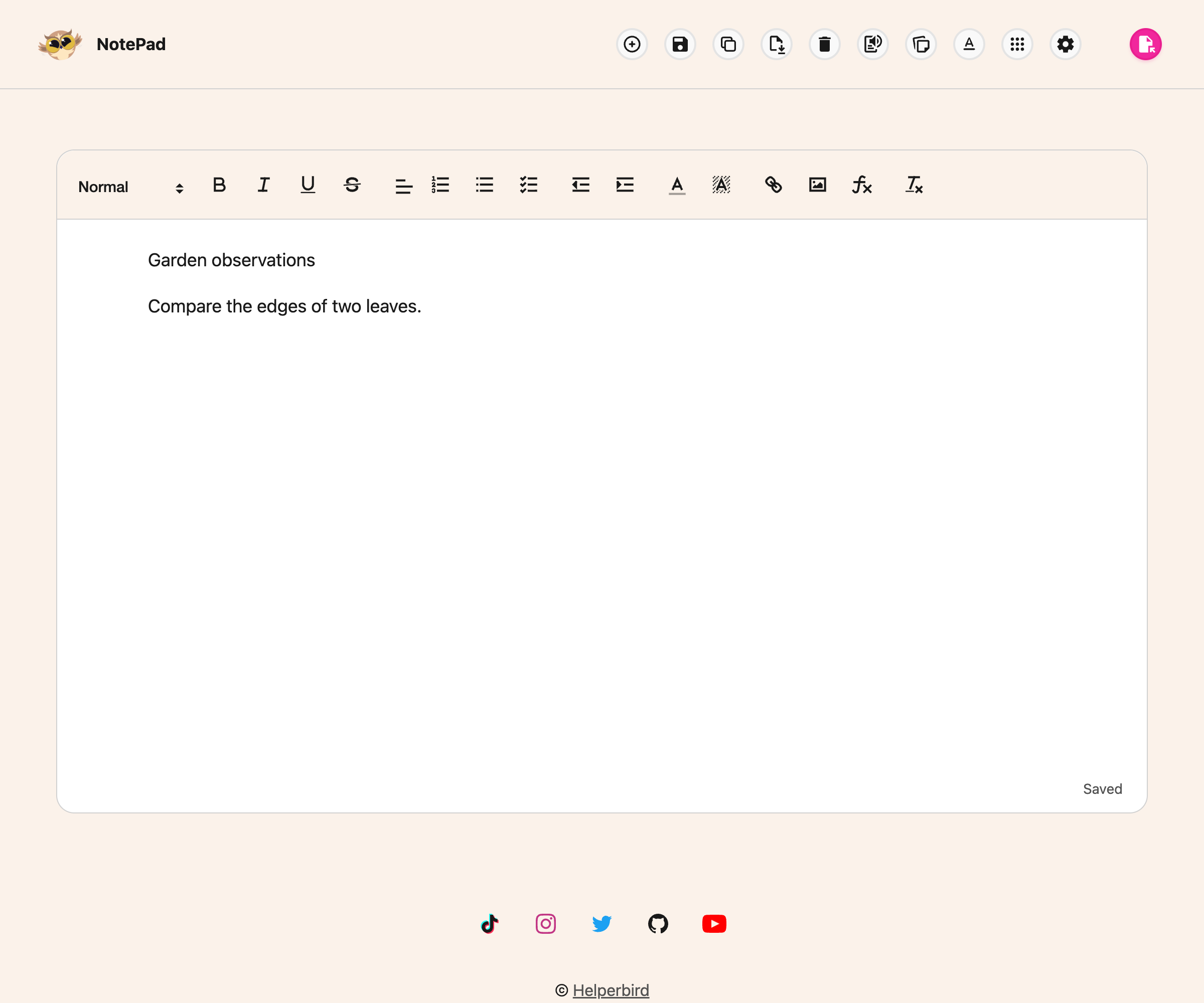
Where Your Document is Kept
Documents use Helperbird's selected storage mode. With Sync enabled and supported by your browser, they can follow the same browser account. With Sync off, they stay on this device. Storage limits can cause data to remain local, so check your setup before relying on another device.
They are not stored on a Helperbird server, and they are not shared with anyone.
If Saving Fails
A save can fail because storage is full or unavailable, or because the browser temporarily limits writes. Save an external copy before troubleshooting.
- Break a very long document into two
- Remove large pasted images
- Or download it as a Word or text file to keep a copy outside the browser
Avoid editing the same saved collection in multiple Notepad tabs at once. Autosave is not a guarantee against a browser crash or conflicting edits, so download important work regularly.
Need Additional Help?
If you have any questions or run into any issues, please contact the Helperbird support team. You can reach us at Helperbird support. We are happy to help you get the most out of Helperbird.
Printed from the Helperbird Help Center · Updated September 22nd, 2026
Questions? We are happy to help — helperbird.com/support