
Email Login vs Subscription Key - Which Should You Use?
Email login or a subscription key? Compare the two ways to unlock Helperbird Pro, see which browsers each works on, and use one subscription in every browser.
·
- account
- billing
Helperbird Pro unlocks two ways: log in with your email, or enter a subscription key. Both unlock the same Pro features, and you only need one of them.
This page helps you choose, and answers the question we get most: one subscription covers every browser and device you use.
Which One to Pick
| Your situation | Use this |
|---|---|
| Chrome or Edge, one browser, one person | Email login |
| You use Chrome and Edge | Subscription key, the same key in both |
| You use Firefox or Safari | Subscription key |
| You use an iPhone or iPad | Subscription key |
| You would rather not sign in to anything | Subscription key |
| A school, college or workplace rollout | Subscription key, deployed by your admin |
If you are unsure, pick the subscription key. It works everywhere.
Side by Side
| Email login | Subscription key | |
|---|---|---|
| Works on | Chrome, Edge | Chrome, Edge, Firefox, Safari, iPhone, iPad |
| What you give Helperbird | Permission to read your email address | A key we email you |
| Needs browser sync on | Yes | No |
| Moves to a new device | Sign in to the same browser profile | Paste the key again |
| An admin can deploy it for you | No | Yes, through a managed policy |
| Best for | One person on Chrome or Edge | Several browsers, Firefox, iPad, schools |
Email Login
You give Helperbird permission to read your email address, and it checks that address against your subscription.
- Chrome and Edge only. On Firefox and Safari the login button is not shown at all.
- Browser sync has to be on before you sign in. How to turn on browser sync
- Helperbird asks for one permission: your email address. It is used to find your subscription and nothing else.
- On Chrome the button reads Continue with Google Account. On Edge it reads Continue with Microsoft Account.
- Sign in to the same browser profile on another computer and Pro unlocks there too.
Step by step: How to Login to Helperbird

Subscription Key
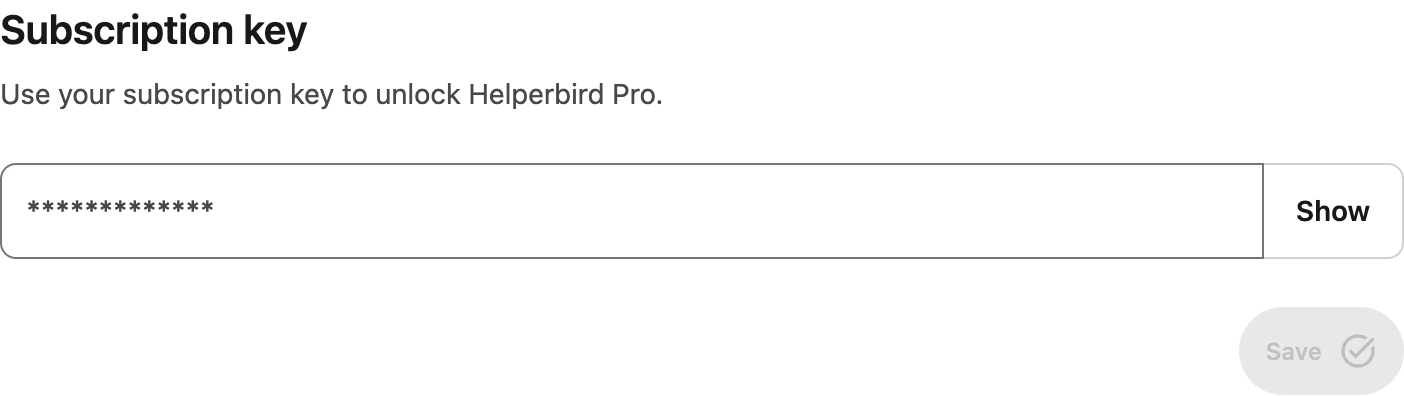
A subscription key is a long string of letters and numbers we email you after you subscribe. You paste it into the Subscription key box on Helperbird's settings page.
- Works everywhere: Chrome, Edge, Firefox, Safari, iPhone and iPad.
- You never sign in to anything. No Google or Microsoft account, and no browser sync.
- A personal key carries the email address it was made for, scrambled inside the key. A school or organization key carries the domain instead, so it is not tied to one person.
- You enter it once in each browser. It does not travel between browsers on its own.
- The Remove button clears it, so you can put a different key in.
Step by step: How to Use Your Subscription Key
One Subscription, Every Browser
One subscription covers every browser and device you use. There is no per-browser limit and nothing extra to buy.
What you do have to do is activate Helperbird once in each browser. Chrome and Edge store their settings separately, so unlocking Pro in Chrome does not unlock it in Edge.
- Same key, both browsers. One subscription key can go into as many browsers as you like.
- Or sign in to each. Your Google account in Chrome, your Microsoft account in Edge. Both have to be the address your subscription is under.
- Firefox, Safari, iPhone and iPad take the key only.
After the first time in a browser, you do not have to think about it again.
If Pro Does Not Unlock
Neither method is more reliable than the other, and both are covered by the same two guides.
- Still showing Free right after you activated? Ask Helperbird to look your subscription up now: how to resync your Helperbird subscription.
- Rechecked and still stuck? Work through Helperbird subscription not activating, which covers the five causes one by one.
Related Guides
- How to Login to Helperbird
- How to Use Your Subscription Key
- Helperbird Subscription Not Activating
- How to Resync Your Helperbird Subscription
- Enable Browser Sync in Chrome and Edge
- How to Manage Your Helperbird Subscription
- Setting Chrome Storage Managed Keys (for admins)
Need Additional Help?
If you have any questions or run into any issues, please contact the Helperbird support team. You can reach us at Helperbird support. We are happy to help you get the most out of Helperbird.
Printed from the Helperbird Help Center · Updated September 22nd, 2026
Questions? We are happy to help — helperbird.com/support