
How to Use Explain Mode in the Screenshot Reader

Learn how to turn on Explain mode so Helperbird explains a chart, diagram or paragraph in plain language instead of just reading the words back to you.

·

  • features

What Explain Mode Does

Normally the Screenshot Reader gives you back exactly the words it found in a picture. Explain mode does something different: it explains what you captured, in plain language.

Point it at a chart and it tells you what the chart shows. Point it at a paragraph you have read three times and it tells you what it means.


Who is This For?

This is helpful for:

  • Anyone stuck on a paragraph that will not go in, however many times they read it
  • Students meeting a diagram, chart or table in a subject they are new to
  • People who find a formula easier to understand described in words
  • Anyone reading in a second language

Step 1: Open the Screenshot Reader

Open Helperbird, go to All Features, and open Screenshot Reader.


Step 2: Turn On Explain Mode

Scroll down to Settings inside the panel and turn on Explain mode.
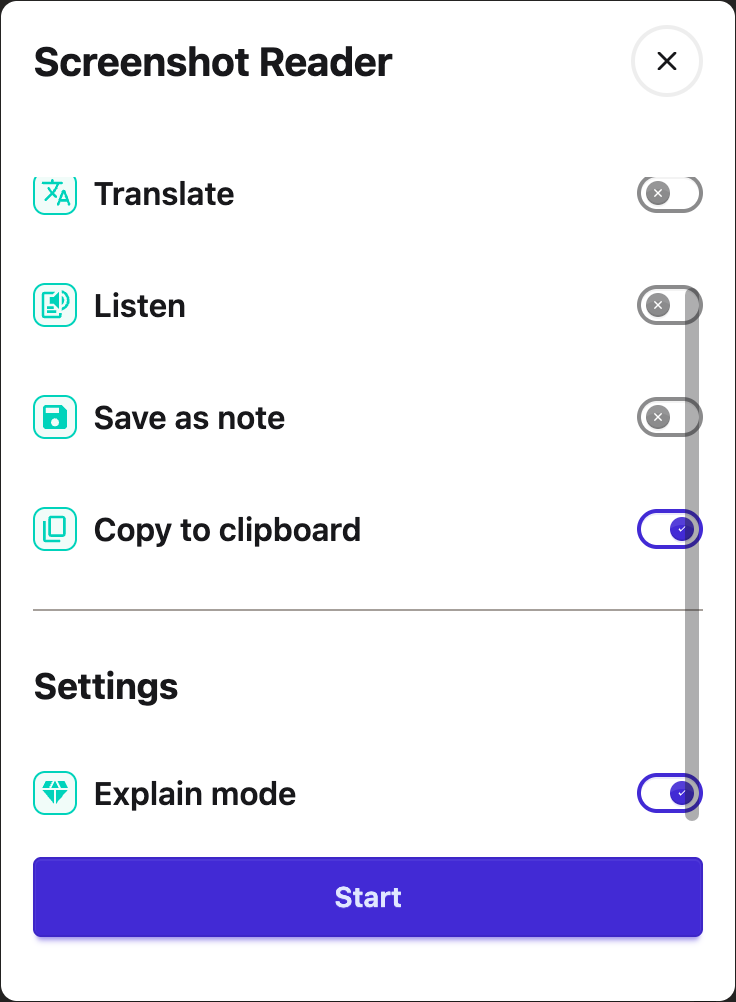
The Screenshot Reader options, with Explain mode and the choices for where the captured text is sent

This is a setting, not a one-off. It stays on until you turn it off, so remember to switch it back when you want the plain text again.


Step 3: Draw a Box

Press Start, then drag a box around whatever you want explained.
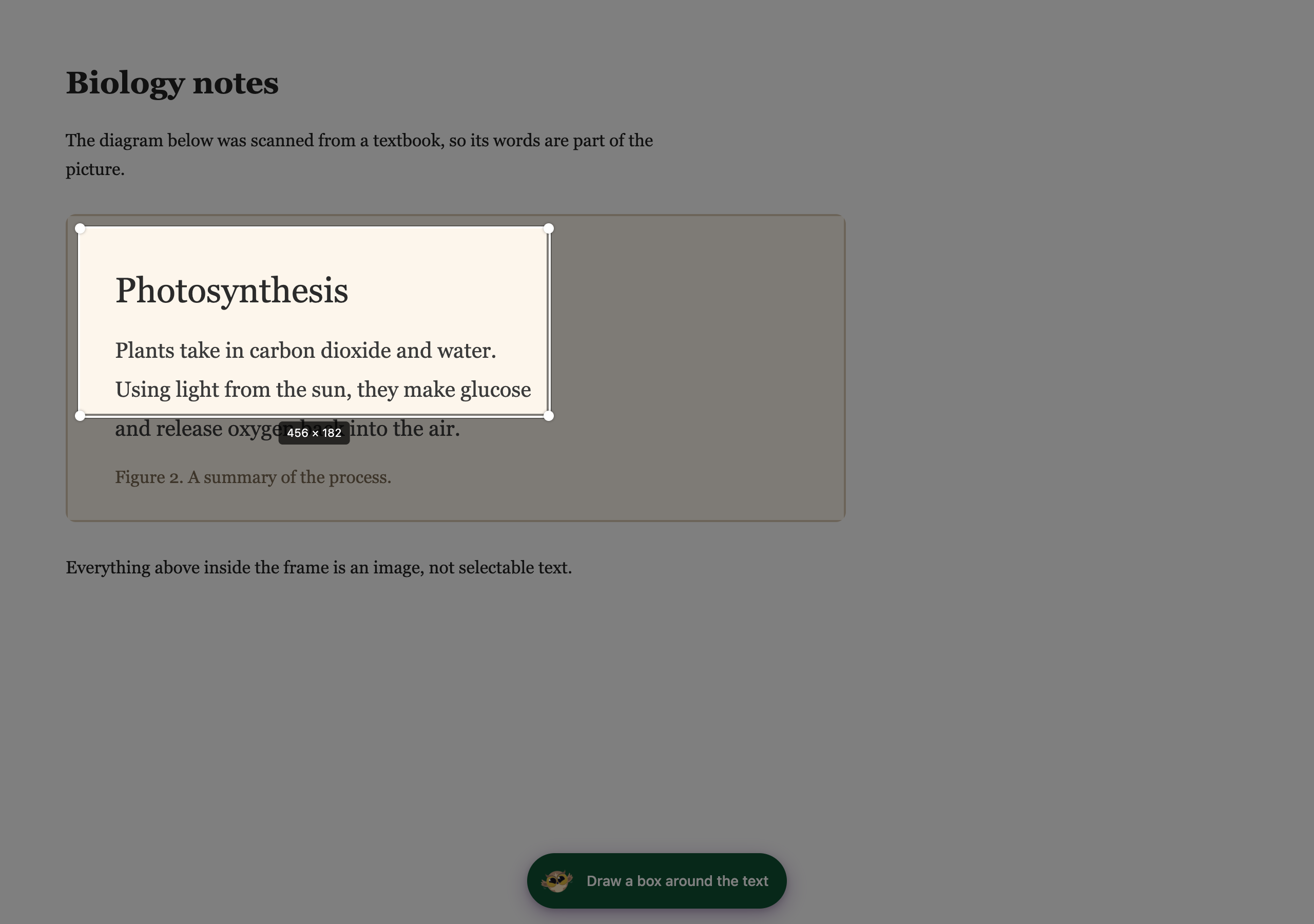
A selection box being drawn around text inside an image on a web page, with the rest of the page dimmed


Step 4: Read the Explanation

The explanation appears in a card on the page. It has buttons to listen to it, copy it, or close it.
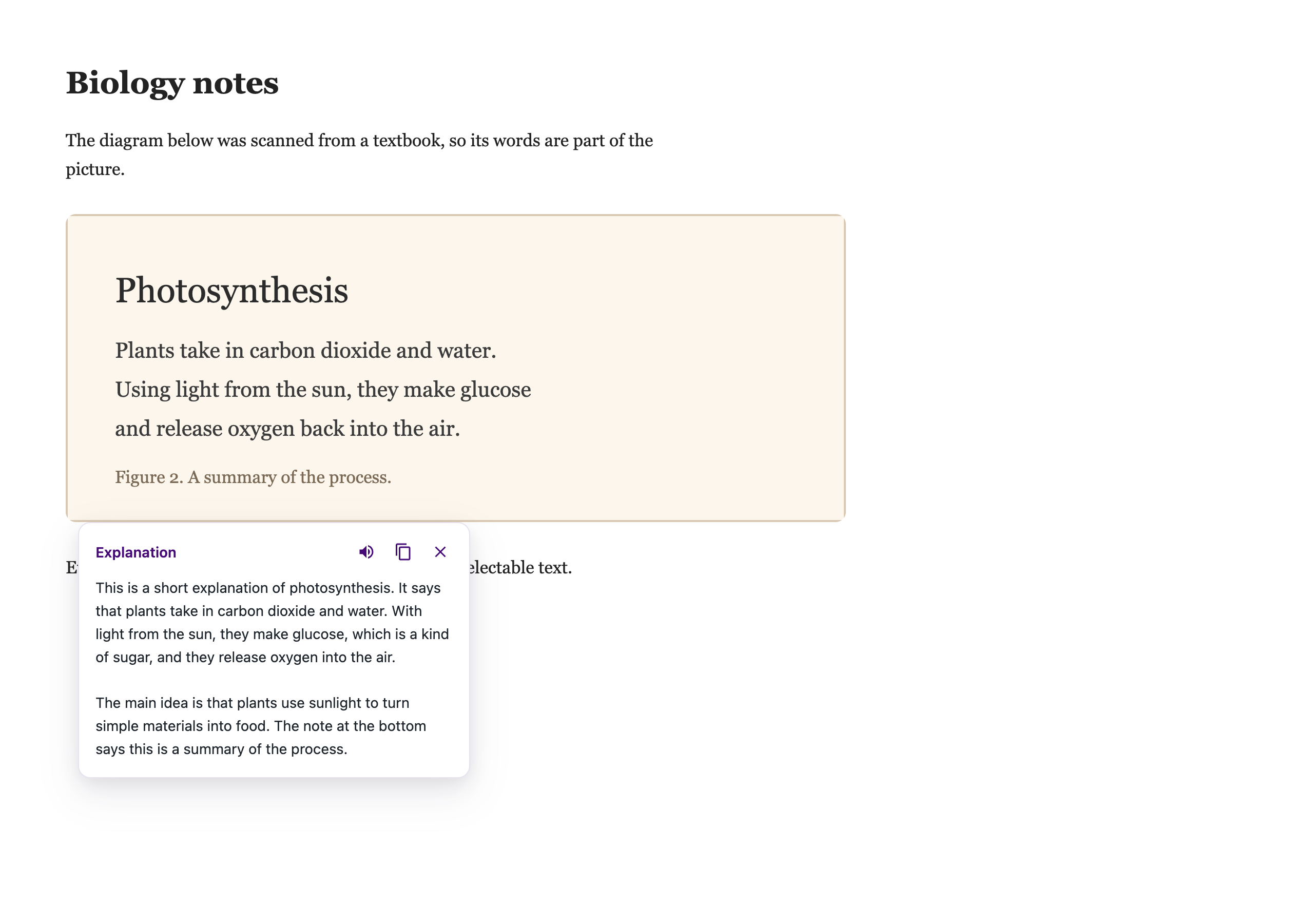
The Screenshot Reader card on the page, explaining the captured region in plain language, with buttons to listen to it, copy it and close it

The listen button uses Helperbird's text to speech, so it uses the voice and speed you have chosen there.


When to Use It, and When Not To

Use it when the problem is understanding: charts, diagrams, formulas, dense or badly written paragraphs, or anything in unfamiliar jargon.

Turn it off when you want the actual words. If you are copying a quote, filling in a form, or need the text exactly as written, Explain mode gives you a description instead, which is not what you want. Switch it off and the Screenshot Reader goes back to giving you the text itself.

See also how to use the Screenshot Reader and how it handles equations.


Video Tutorial

Coming soon


Need Additional Help?

If you have any questions or run into any issues, please contact the Helperbird support team. You can reach us at Helperbird support. We are happy to help you get the most out of Helperbird.

What People Are Saying

Join over 1,000,000 people who use Helperbird every day.

Hugely helpful app, readings become so much easier since I installed this.Saved me so much time for a couple of bucks

Jack Haverty

Jack Haverty

Helperbird user

This chrome extension is absolutely amazing. I'm a Primary school teacher and it helps children with a broad range of needs. It's so easy to set up. I love the way it syncs across devices so set up is seamless across all the children's computers. The customizable features are a game changer for allowing children to enjoy reading and accessing the web in our school. The best application I have ever seen for school children. Looking forward to trying the iPad application soon.

Luke Mccarthy

Luke Mccarthy

Teacher

This is my first google review ever! I have to share that the accessibility and support for independent access for students that Helperbird provides, is a game changer. It is constantly being updated with new features based on feedback and it is extremely user friendly. The ability to customize the settings allows students to have control over their own learning, aligning with Universal Design for Learning. Looking forward to sharing with students and fellow educators on a daily basis. Thanks, Helperbird team!

Kelli Suding

Kelli Suding

Assistive technology specialist

Really makes reading easier for dyslexics.

Máiréad Jones

Máiréad Jones

Helperbird user

I am an assistive technology consultant for 30 school districts. I am adding Helperbird to the list of reading resources that I have available.

Denise Young

Denise Young

Parent

I have ADHD and yesterday Helperbird and the text-to-speech function (available in free version) turned a 28-page reading assignment from a two-day task to roughly two hours, maybe three at the absolute most. It helped tremendously! And I loved that the text-to-speech has such a fluid voice compared to a lot of others I've used! Honestly, the fact that this was created by someone who knows the struggles is something I love, because then it has neurodivergency in mind. I've tried too many things in the past that were created by neurotypical folk trying to be helpful to us and I do appreciate it, but it doesn't work as well because our brains work different. Highly recommend!

Addison Brown

Addison Brown

Helperbird user

Helperbird logo: Stylized owl with large yellow eyes and a beige face, against a green background.

Download Helperbird

Make browsing easier and more accessible with tools like Text to Speech, Immersive Reader, and more.