
How to Move and Resize PDF Text Boxes with the Keyboard
Learn how to position, resize and delete a text box on a PDF in Helperbird using only the keyboard, without dragging anything with a mouse.
·
- features
- accessibility
Why Use the Keyboard?
Filling in a PDF usually means dragging a box to exactly the right spot on a line. That is fiddly with a mouse and hard for anyone who cannot hold a pointer steady.
Every part of a Helperbird text box can be done from the keyboard instead. You move it with the arrow keys, one pixel at a time if you need to, and resize it the same way.
Who is This For?
This is helpful for:
- Anyone filling in a form who needs the text to land on the line
- People with tremor, limited hand movement, or joint pain
- Screen reader and keyboard-only users
- Anyone who finds precise dragging slow or frustrating
Step 1: Add a Text Box
Open your PDF, then press Add Textbox in the toolbar.
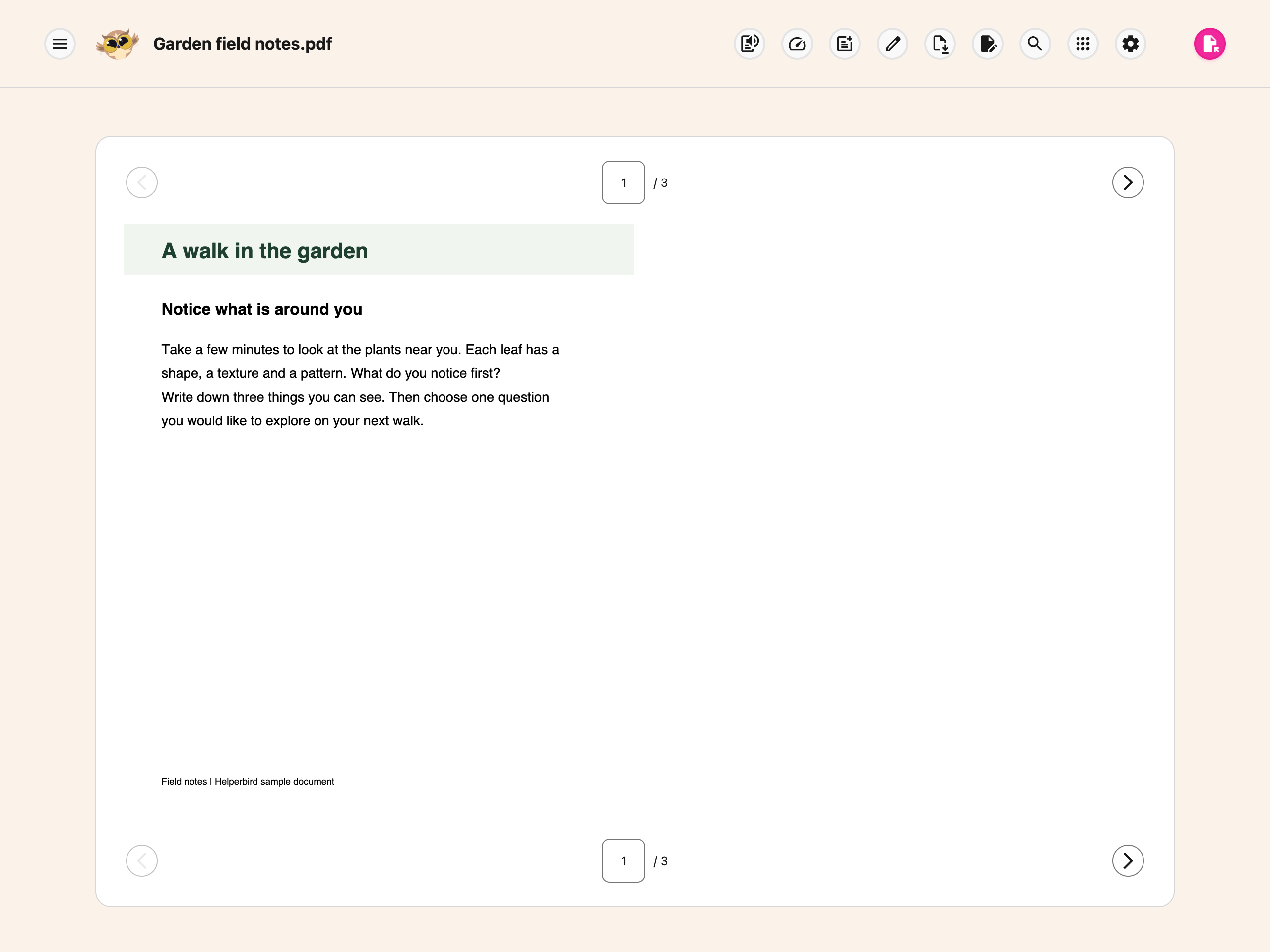
A new box appears on the page. Each one you add is offset slightly from the last, so they do not stack on top of each other.
Step 2: Type Your Text
The box opens ready for typing. Type what you need, and use the formatting bar if you want to change the size, weight or color.
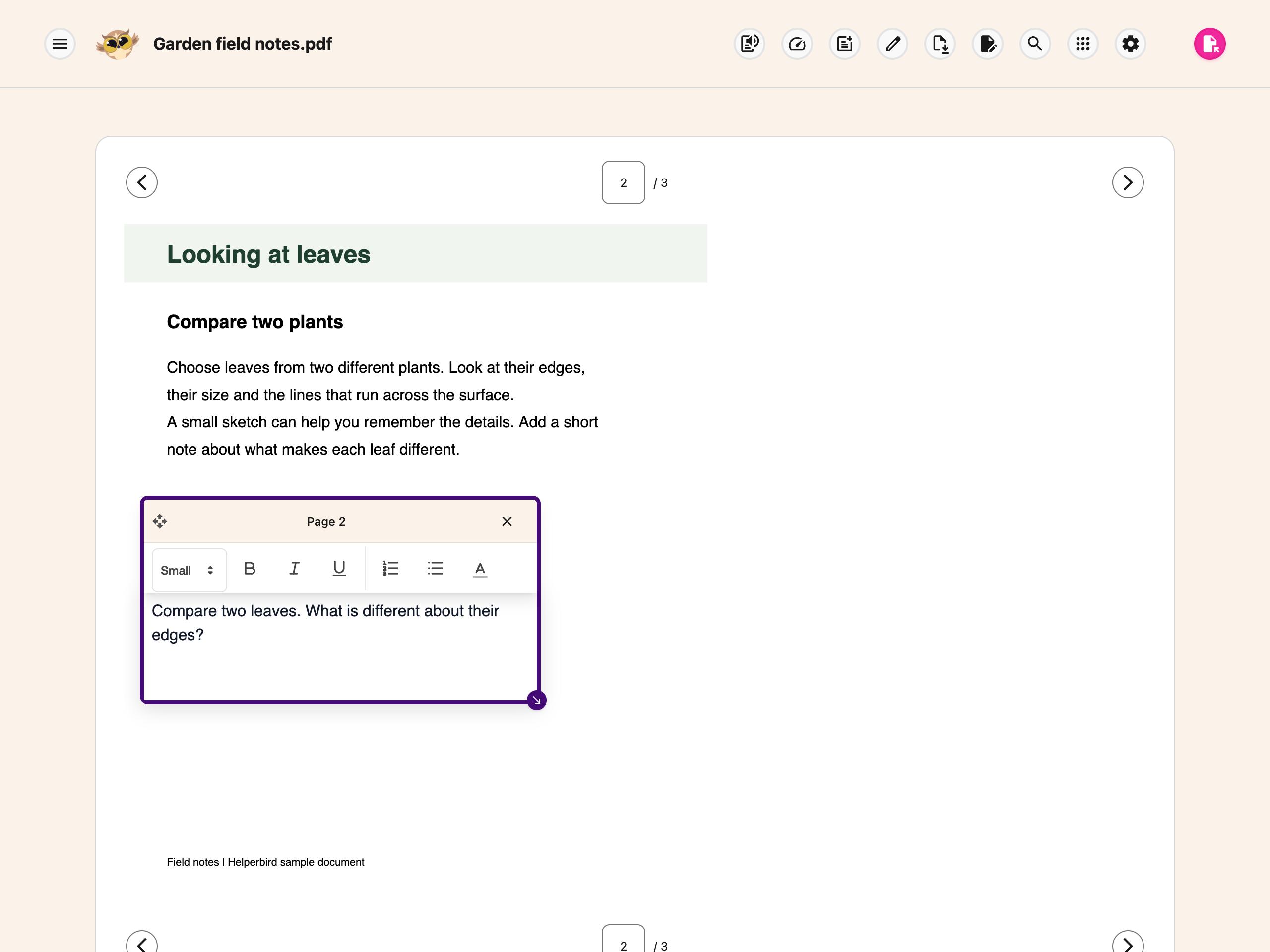
When you have finished typing, press Escape. That leaves the editor without deleting anything, and lets you Tab to the box's own controls.
Step 3: Move the Box
Tab to the box's drag grip, then use the arrow keys.
- Arrow key moves the box 1 pixel
- Shift + arrow key moves it 10 pixels
One pixel at a time is deliberately fine. It is what lets you sit text neatly on a form line rather than near it. Use Shift to cover distance, then tap the arrow keys on their own for the last few pixels.
Step 4: Resize the Box
Tab to the box's resize handle, then use the arrow keys.
- Arrow key resizes by 5 pixels
- Shift + arrow key resizes by 20 pixels
Make the box wider if your text is wrapping when you do not want it to, or narrower to fit a column.
Step 5: Delete the Box
With the drag grip focused, press Delete or Backspace. The box and its text are removed.
There is also a delete button on the box itself, which you can reach with Tab.
All the Keys
| Where you are | Key | What it does |
|---|---|---|
| In the text | Escape | Finish editing and leave the editor |
| Drag grip | Arrow key | Move 1 pixel |
| Drag grip | Shift + arrow key | Move 10 pixels |
| Drag grip | Delete or Backspace | Remove the box |
| Resize handle | Arrow key | Resize by 5 pixels |
| Resize handle | Shift + arrow key | Resize by 20 pixels |
Once everything is where you want it, download the PDF with your changes to keep them.
Need Additional Help?
If you have any questions or run into any issues, please contact the Helperbird support team. You can reach us at Helperbird support. We are happy to help you get the most out of Helperbird.
Printed from the Helperbird Help Center · Updated September 22nd, 2026
Questions? We are happy to help — helperbird.com/support