
How to Write an Equation in Helperbird
Learn how to write a maths equation in Helperbird's Equation Editor, either by typing the LaTeX yourself or by picking symbols from the math keyboard.
·
- features
- maths
- accessibility
What This Does
You write your equation in the box at the top, and Helperbird draws it out properly underneath as you go, so you can see whether it looks right before you use it.
The Equation Editor is part of Helperbird Pro. Without it the box is read-only and typing does nothing. To get the editor open, see opening the Equation Editor.
Who is This For?
This is helpful for:
- Anyone writing maths who wants to see it typeset as they type
- Students who know roughly what they want but not the symbol for it
- People who find a traditional formula editor slow
Step 1: Type Into the Box
Click into Your equation and start typing. Ordinary maths works as you would expect: E = mc^2 gives you E equals m c squared. You can also choose an example below the box, such as the fractions shown here.
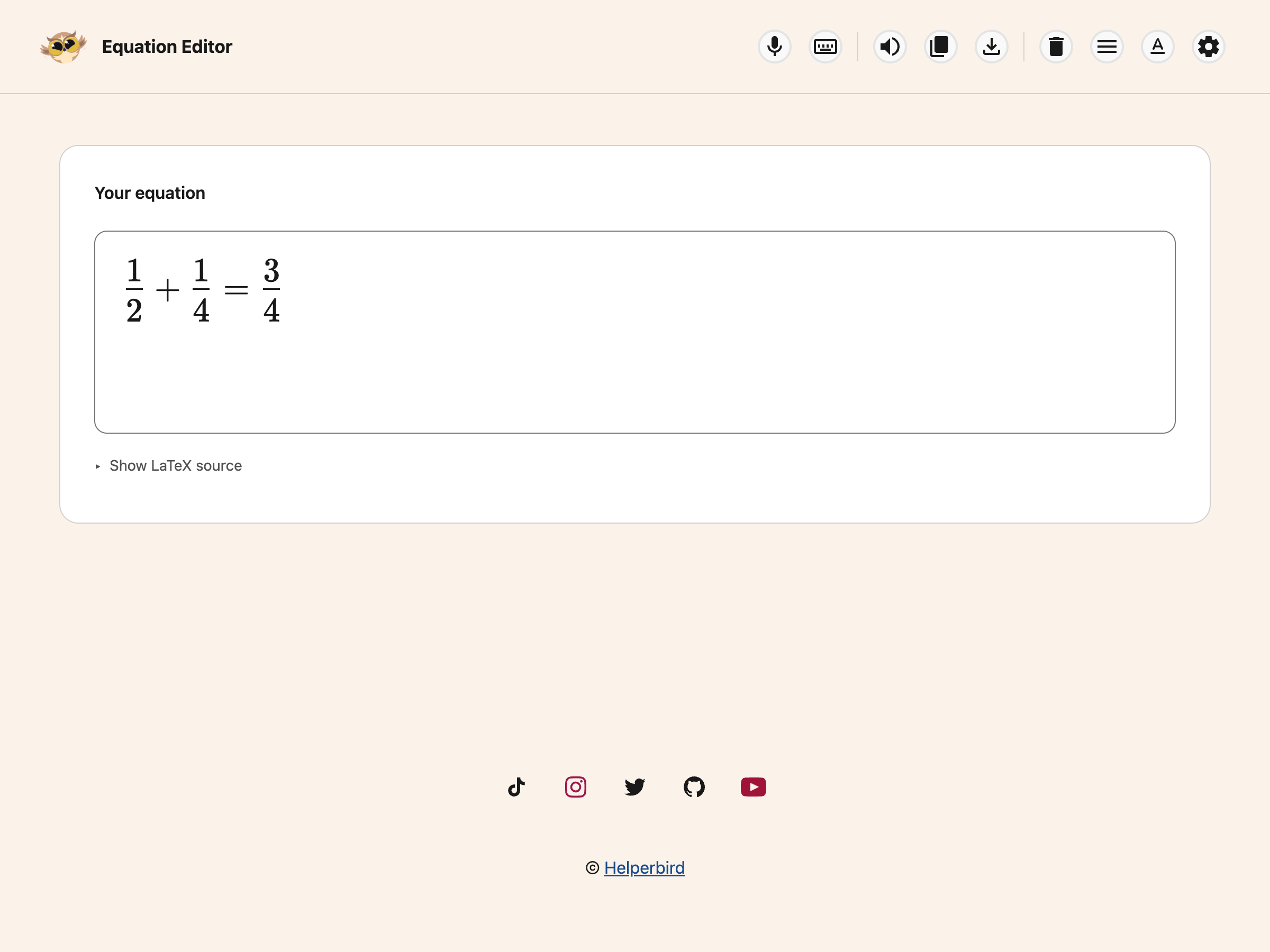
The editor understands LaTeX, the standard way of writing maths as plain text. A few that cover most of what you need:
x^2for a power,x_1for a subscript\frac{1}{2}for a fraction\sqrt{16}for a square root\pmfor plus-or-minus,\timesfor a multiplication sign
Step 2: Use the Math Keyboard
For anything you cannot type, click Show math keyboard in the toolbar and pick the symbol.
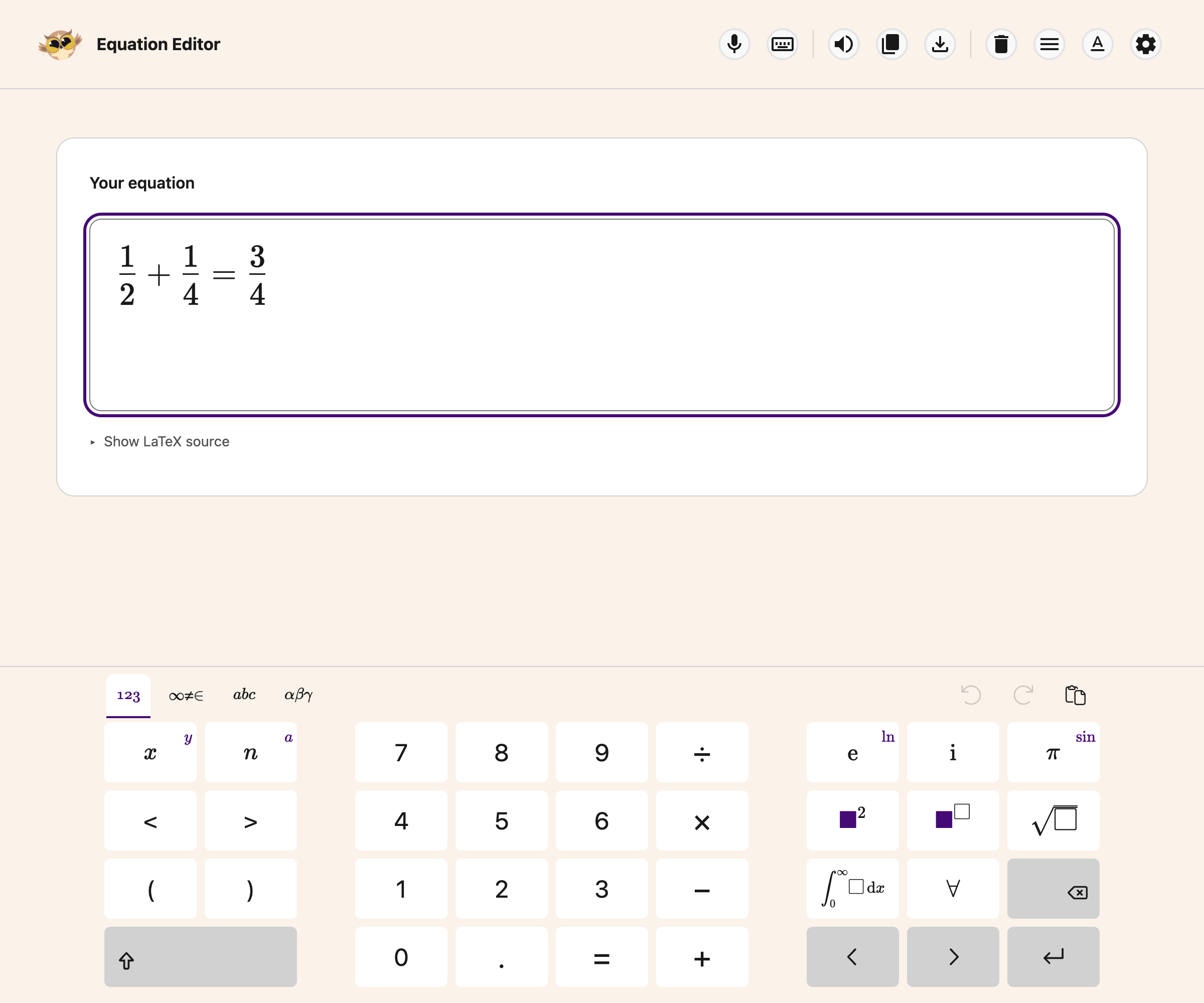
This is the quicker route for Greek letters, integrals and set notation, and it means you do not have to remember the LaTeX name for a symbol you need once.
A Note on Brackets
The editor closes curly brackets for you. When you type {, the matching } appears on its own, so do not type the closing bracket as well or you will end up with two and the equation will come out wrong: a fraction can end up with its bottom half sitting outside it.
If an equation looks scrambled, that is usually why. Clear it and let the editor close the brackets for you.
Once it looks right, the rest of the toolbar takes it further. See what each Equation Editor button does.
To put maths directly into your work, use Insert equation in a PDF or Notepad. That dialog keeps the editor above a full-width math keyboard and includes a More options menu.
Need Additional Help?
If you have any questions or run into any issues, please contact the Helperbird support team. You can reach us at Helperbird support. We are happy to help you get the most out of Helperbird.
Printed from the Helperbird Help Center · Updated September 22nd, 2026
Questions? We are happy to help — helperbird.com/support