
How to Add Image Descriptions to a PDF
Add a description to pictures pasted into Helperbird PDFs, mark decorative images correctly, and resolve missing-description prompts before downloading work.
Jump to the stepsOn this page
Why Describe Your Pictures
A chart or picture can contain information that a reader cannot see. Add an Image description to explain its meaning alongside the picture in your downloaded PDF.
This guide covers images you add to a PDF in Helperbird. It does not change pictures that are already part of the original PDF. Pasting pictures and adding descriptions are free.
Step 1 Add Your Picture
Open your PDF and go to the page you want. Copy the image itself, click on the PDF outside any text box or side NotePad, and press Ctrl + V on Windows or Chromebook, or Command + V on Mac.
A new image box appears. Move it with the arrows handle and resize it with the corner handle. For more detail, follow pasting text and images onto a PDF.
Step 2 Open Annotation Options
On the picture's attached toolbar, expand Annotation options. Find the Image description field. Type the information a reader needs to understand the picture in this document.
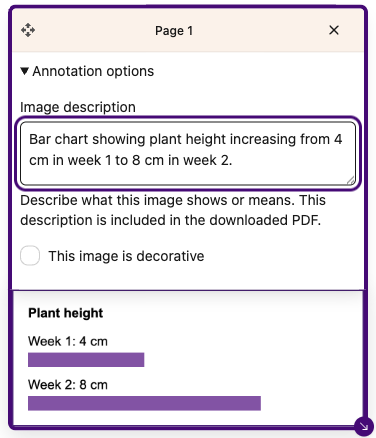
For this example, the description is:
Bar chart showing plant height increasing from 4 cm in week 1 to 8 cm in week 2.
 View full-size image (opens in a new tab)
For a graph, include the main trend and important values. For a diagram, explain the relationship it illustrates. For a picture of text, include the words that matter. A useful description explains more than a filename or a phrase such as “picture of a chart.”
Your changes stay with that image box. You can reopen Annotation options to edit the description. Repeat this for each picture you add.
When to Mark an Image as Decorative
Select This image is decorative only when the picture adds no information, such as a purely ornamental divider. The description field becomes unavailable while this is selected.
Do not mark an informative chart, diagram or screenshot as decorative to skip writing its description. The chart in this guide needs a description because its values are part of the answer. Clear the decorative checkbox if you need to describe the picture again.
Step 3 Download Your PDF
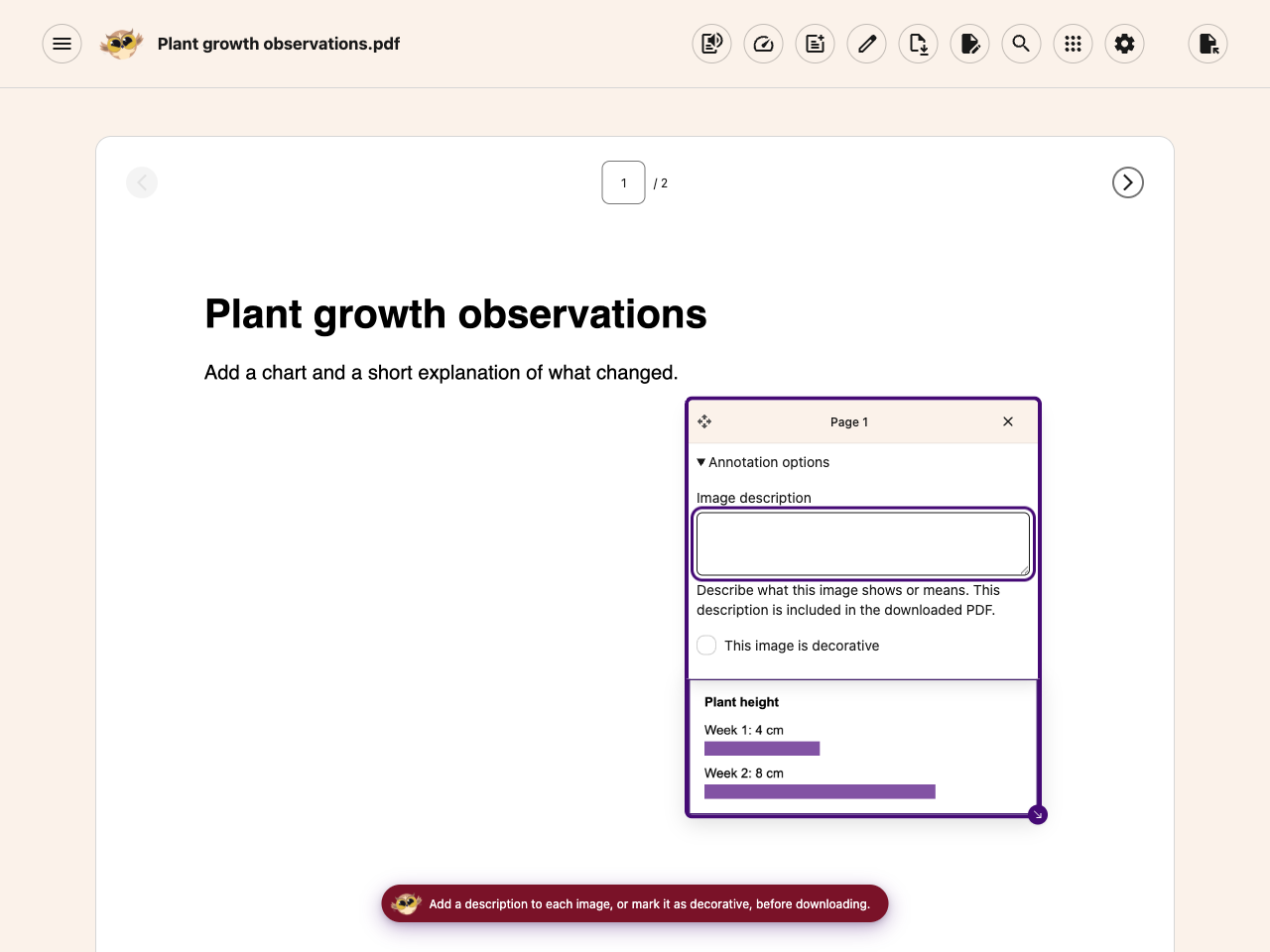
Choose Download, then With my changes. Helperbird checks the pictures you added. If an informative image has no description, the download stops and that image's controls open. Your work remains in the reader.
 View full-size image (opens in a new tab)
Add the missing description, then try Download → With my changes again. If another picture needs attention, repeat the same steps. Equation images already have an equation description.
Open the downloaded PDF and check your work before sharing it. Descriptions provide reading information, but do not repair the original PDF or guarantee that the whole document is accessible. The downloaded pictures and equations are not editable Helperbird boxes.
Related Guides
Printed from the Helperbird Help Center · Updated October 6th, 2026
Questions? We are happy to help — helperbird.com/support