
How to Use Helperbird AI Features for Learning
Simplify, summarize or translate text, dictate with voice typing and check grammar. See how Helperbird AI features help students, and how admins control them.
On this page7 sections
Overview
Helperbird includes a set of AI-powered features that help students access curriculum content and demonstrate their learning. These features work across websites, Google Docs, Google Slides, and PDFs.
Students who struggle with reading, writing, or language barriers can use these tools to engage with the same content as their peers, and to express their understanding in their own way.
AI Features for Reading
These features help students access and understand content:
Text-to-Speech
Reads text aloud with a choice of voices and speeds. Word highlighting needs a supported local browser voice; it is not available with Natural voices. Google Docs, Slides, and PDFs have their own reading steps. See How to Use Text to Speech.
Text Simplification
Rewrites text at a chosen reading level. Students can compare the rewrite with the original to check the meaning. See How to Simplify Text.
Summarization
Condenses long passages into short key-point summaries so students can focus on the main ideas. See How to Summarize Text.
Translation
Translates full pages or selected text into another language. Supports multilingual learners who are working with English-language curriculum. See How to Translate a Page or Selected Text.
Dictionary and Picture Dictionary
Look up any word with a definition, audio pronunciation, and a visual image. See How to Use the Dictionary.
OCR (Reading Text from Images)
Extracts text from images, screenshots, and scanned documents so it can be read aloud or interacted with. See How to Extract Text from Any Image, PDF, or Website.
Immersive Reader
A distraction-free reading view with syllable splitting, parts of speech highlighting, and line focus. See How to Use Immersive Reader.
AI Features for Writing
These features help students express their learning:
Voice Typing (Speech-to-Text)
Students speak to create a draft in Helperbird's text box, then review and copy it. The floating toolbar can also fill a supported page field when the optional Beta setting is on. See How to Use Speech to Text.
Word Prediction
Suggests words as the student types, with context-based and phonetic recognition to support early and struggling writers. See How to Use Word Prediction.
Grammar and Spelling Checker
Reviews text for grammar and spelling mistakes and provides corrected suggestions. See How to Use the Grammar Checker.
PDF Annotation
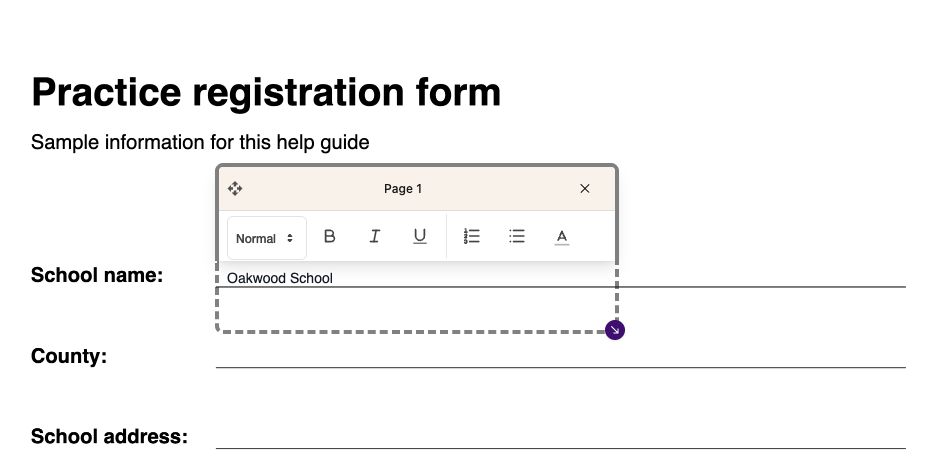
You can type answers onto a PDF or mark it with drawings. Typing and drawing are free; voice typing needs Helperbird Pro. Follow drawing on PDFs or adding text boxes.
 View full-size image (opens in a new tab)
How Students Use These Features
Here are some common classroom examples:
- A student reads an article that is above their reading level. They use text simplification to get a plain-language version, then use text-to-speech to hear it read aloud with word highlighting.
- A student needs to write a paragraph response. They use voice typing to speak their answer, then use the grammar checker to review it before submitting.
- A multilingual learner translates a science assignment into their first language using translation, reads it, then writes their response in English with support from word prediction.
- A student annotates a PDF worksheet using text boxes and drawing tools, then downloads the completed PDF to submit.
Admin Control
All of these features can be enabled or disabled by your school admin through the Google Admin Console or Microsoft Intune using managed JSON policy. This allows administrators to control exactly which tools are available during assessments or in specific organizational units.
For details on disabling features, see How to Disable Helperbird Features Using JSON Policy.
For details on deploying Helperbird to your school, see How to Deploy Helperbird to Your School or Business.
Related Guides
- How to Use Text to Speech on Any Website
- How to Simplify Text on Any Website
- How to Summarize Text on Any Website
- How to Translate a Page or Selected Text
- How to Use Speech to Text on Any Website
- How to Use Word Prediction
- How to Use the Grammar Checker
- How to Use the Dictionary in Helperbird
- How to Extract Text from Any Image, PDF, or Website
- How to Use Immersive Reader on Any Website
- How to Use Drawing Tools on PDFs
- How to Add Text Boxes to PDFs
- How to Disable Helperbird Features Using JSON Policy
Need Additional Help?
If you have any questions or run into any issues, please contact the Helperbird support team. You can reach us at Helperbird support. We are happy to help you get the most out of Helperbird.
Printed from the Helperbird Help Center · Updated October 12th, 2026
Questions? We are happy to help — helperbird.com/support