
How to Copy a Document in the Helperbird Notepad
Learn how to duplicate a document in the Helperbird Notepad so you can edit a copy while keeping the original untouched.
·
- features
- writing
What This Does
Copy makes a second, identical document in your list. The original is left exactly as it was, so you can change the copy freely.
Who is This For?
This is helpful for:
- Anyone about to make big changes who wants the old version kept
- Students keeping a first draft alongside a rewrite
- Anyone reusing the same starting point again and again, like a weekly template
Step 1: Open the Document
Open the document you want to duplicate, using View if it is not already on screen.
Step 2: Click Copy
Click Copy in the toolbar. It is the two overlapping squares, between Save and Delete.
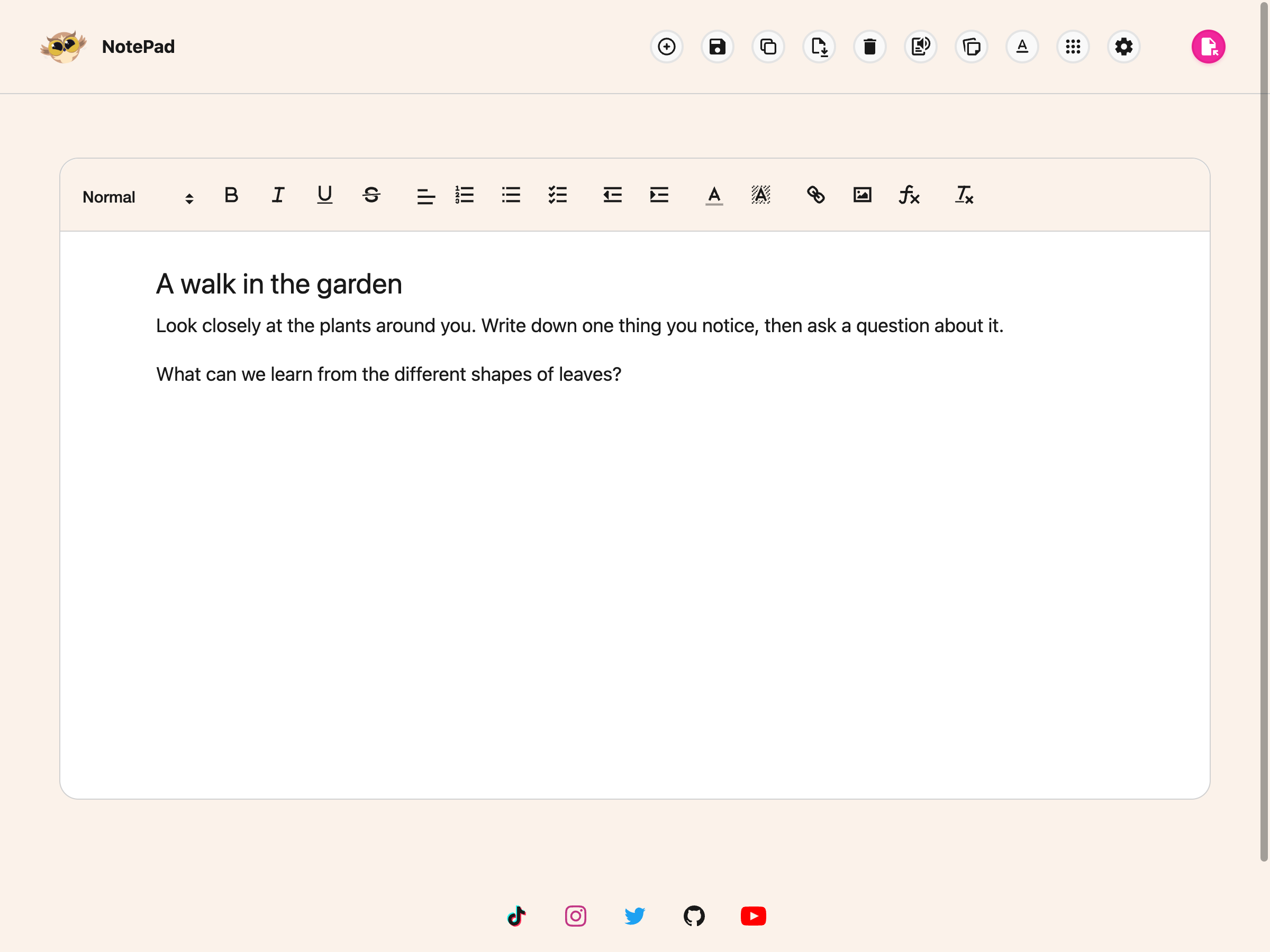
A duplicate is added to your saved documents. Open it from View and edit it without touching the original.
About the Message You See
After copying, Helperbird shows a message reading "Copied to clipboard". That wording is misleading: nothing is placed on your clipboard, and you cannot paste the document elsewhere with Ctrl+V or Cmd+V.
What actually happened is that a duplicate was added to your documents list. To get your writing onto the clipboard instead, select it on the page and copy it the normal way, or download it.
Need Additional Help?
If you have any questions or run into any issues, please contact the Helperbird support team. You can reach us at Helperbird support. We are happy to help you get the most out of Helperbird.
Printed from the Helperbird Help Center · Updated September 22nd, 2026
Questions? We are happy to help — helperbird.com/support