
How to Check Your Helperbird Version
Learn how to find which version of Helperbird you are running. Useful for troubleshooting and making sure you are up to date.
·
- getting started
Why Check Your Version?
Knowing which version of Helperbird you are running is useful when troubleshooting issues with the support team, confirming you have the latest features, or checking that an update has been applied. The version number is always visible on the Settings page.
Step 1: Open Helperbird
Click the Helperbird icon in your browser toolbar. It looks like a small owl and is usually in the top-right corner of your browser.
This will open the Helperbird menu.
Step 2: Open the Settings Page
Click the gear icon in the top-left corner of the Helperbird menu. This will open the Settings page.
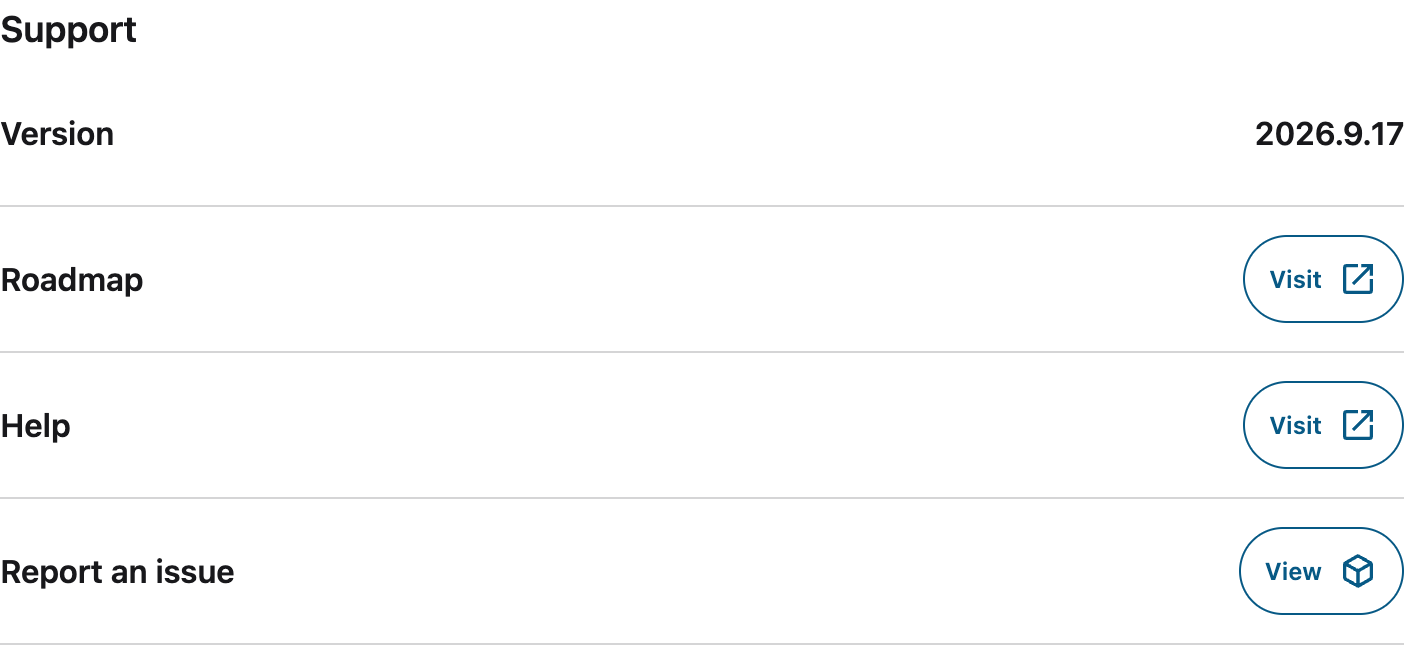
Step 3: Find the Version Number
On the Settings page, look for the Info section at the top. The Version row shows your current Helperbird version number, for example 2026.3.20.
This is the number you should share with the support team if they ask which version you are using.
How to Update Helperbird
Helperbird updates automatically through your browser's extension system. If you want to make sure you are running the latest version, you can manually check for updates.
In Chrome, go to chrome://extensions, turn on Developer mode in the top right corner, then click Update at the top of the page.
In Edge, go to edge://extensions, turn on Developer mode in the bottom left corner, then click Update at the top of the page.
In Firefox, go to about:addons, click the gear icon, and select Check for Updates.
After updating, go back to the Helperbird Settings page to confirm the version number has changed.
Need Additional Help?
If you have any questions or run into any issues, please contact the Helperbird support team. You can reach us at Helperbird support. We are happy to help you get the most out of Helperbird.
Printed from the Helperbird Help Center · Updated September 22nd, 2026
Questions? We are happy to help — helperbird.com/support