
Text to speech settings — Helperbird Help Docs
Choose a voice, hear a live sample, and set your reading speed in Helperbird's shared Text to speech settings.
On this page6 sections
Open Text to Speech Settings
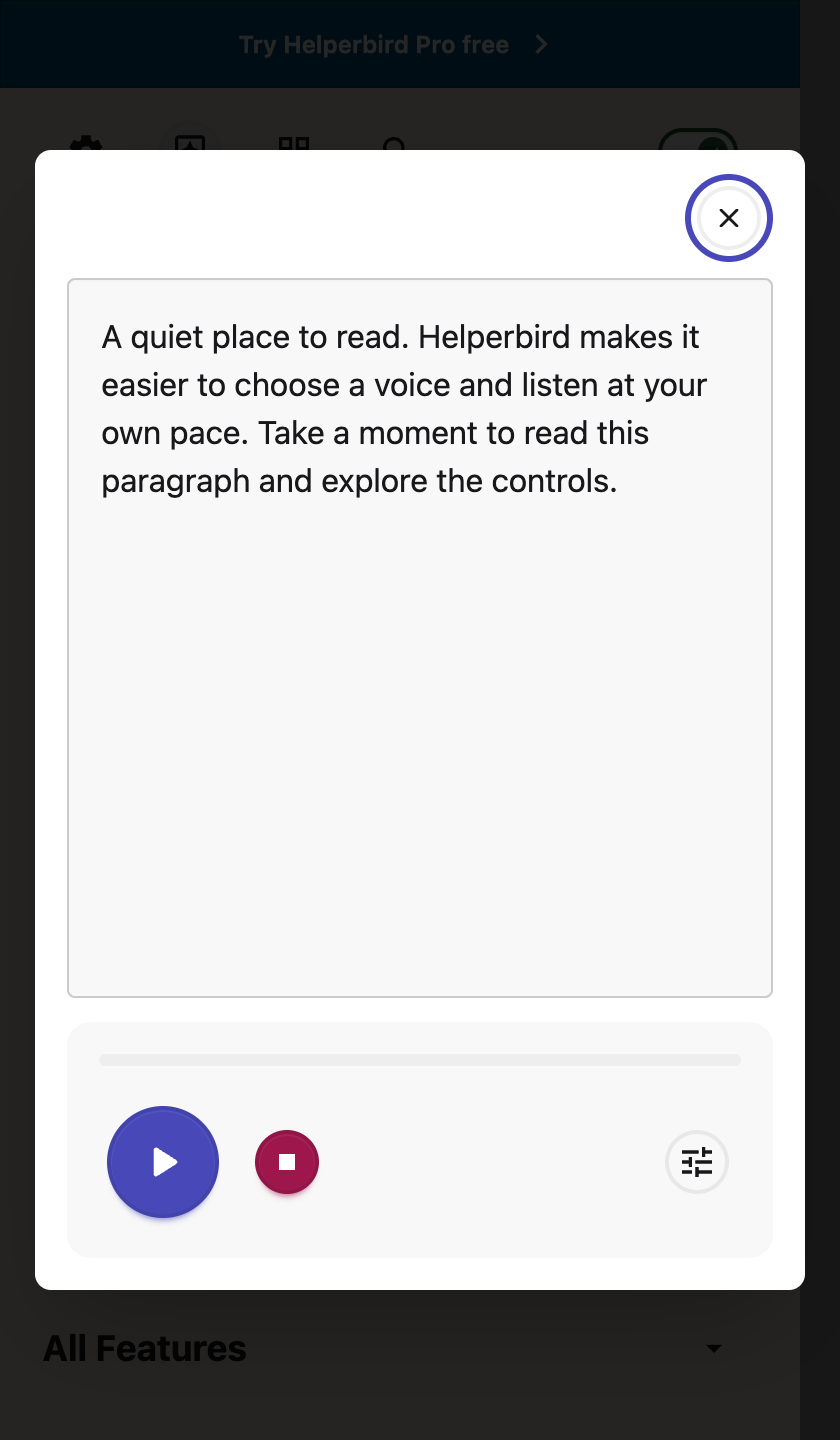
Choose Text to speech settings, the sliders icon beside your speech controls. Helperbird opens the Text to speech section in a tab. If that settings tab is already open, Helperbird returns to it. Keyboard focus moves to the section heading. In Firefox, press F6 if focus stays in the sidebar.
You can also open Settings and choose Text to speech, after Profiles.
 View full-size image (opens in a new tab)
These choices are shared by the menu, Reading Mode, PDF reader, floating toolbar, selection menu, NotePad, Dictionary, Screenshot Reader, Translate and Word prediction. Immersive Reader keeps its own settings.
Choose a Voice
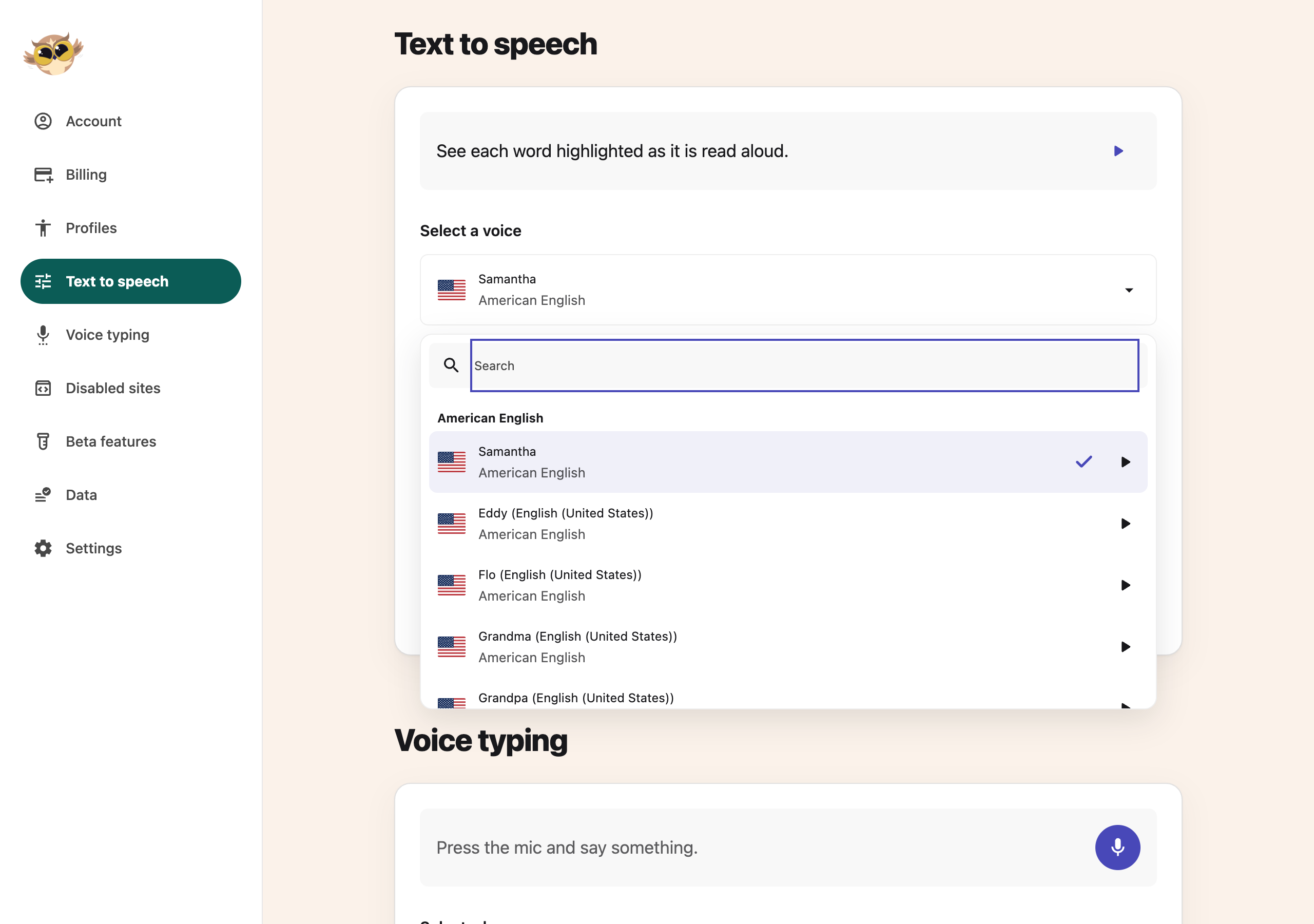
- Open Select a voice.
- Use Search inside the picker to find a voice or language.
- Choose a voice from its language group.
Your choice saves immediately. Settings saved confirms the change. The languages used by your browser appear first. Each voice shows its language name beside a flag.
To try a voice before choosing it, use Play sample, the play button beside that voice. This preview does not change your saved voice. The play button beside the sentence at the top reads with your chosen voice and speed.
Voices marked Pro require Helperbird Pro and an internet connection. Other voices are free and depend on your browser and device. Local voices can work offline.
Set Your Pace
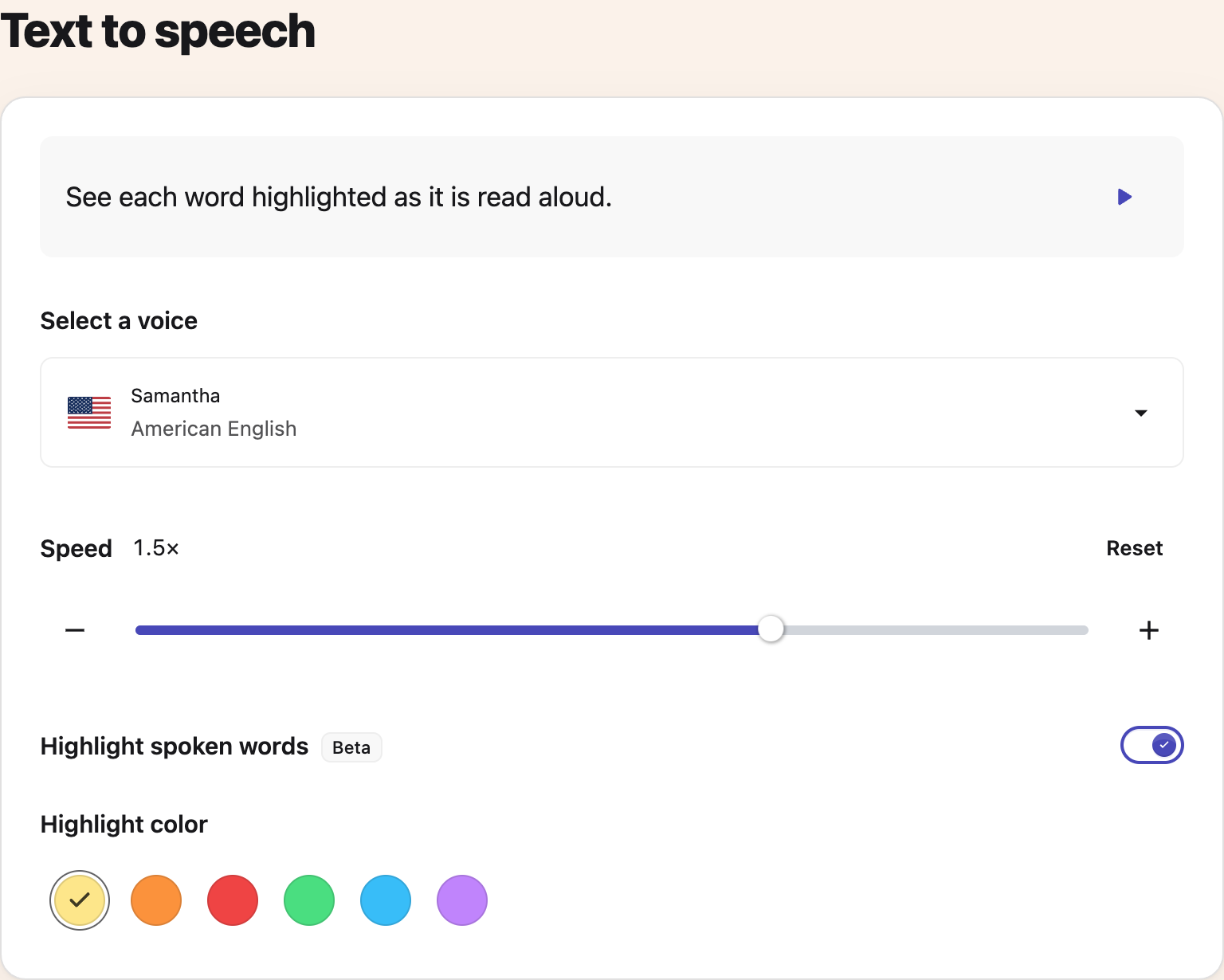
- Adjust Speed with the slider or the minus and plus buttons.
- Choose Reset to return to normal speed.
The slider and minus and plus buttons change your speed in 0.01× steps. Focus the bar to use your arrow keys. Press right to speed up or left to slow down. You can go from 0.5× to 2×.
To set your pace, open Text to speech settings. You can reach it from the speech player or Reading Mode.
In NotePad, the speed button moves in 0.1× steps. It uses your saved speed. After 2×, it starts again at 0.5×.
Reset appears when the speed is not 1.0×. Your speed saves as you change it. Open players use the same speed. A change may restart the current word. Paused speech stays paused until you press Play.
Highlight Spoken Words
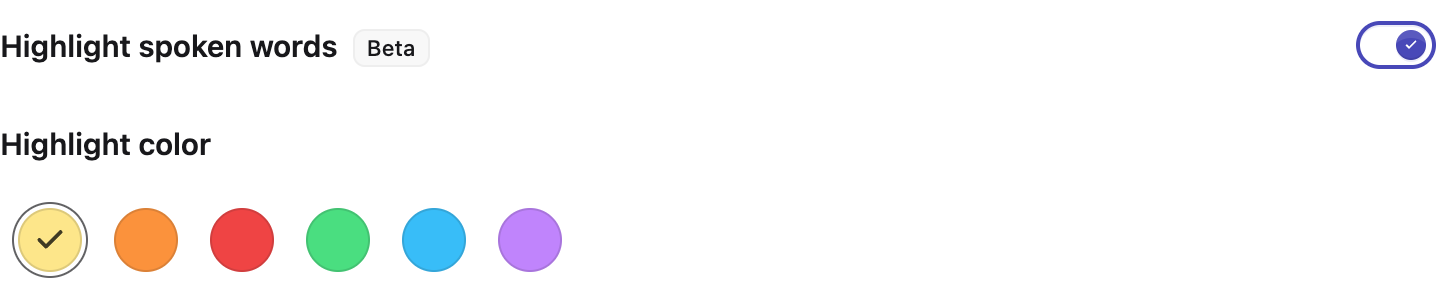
- Turn on Highlight spoken words.
- Choose a Highlight color swatch.
This free Beta setting works with local browser voices in supported Reading Mode, PDF and selected-text readings. Play the sample at the top to see each spoken word in your chosen color. The text color adjusts to stay readable. Yellow is selected to start with. Color changes save automatically.
Hear Sentences as You Type
- Open Word prediction in All Features.
- Turn on Word prediction.
- Turn on Read sentence in its Settings.
This requires Helperbird Pro. Read sentence uses your shared voice and speed while Word prediction is running.
If a Voice Is Missing
Wait a moment for your browser's voices to load. If a saved voice is unavailable on this device, Helperbird tries another voice in the same language, then a standard browser voice. The settings show which voice is being used. Your saved choice stays saved until you choose another voice.
 View full-size image (opens in a new tab)
Settings marked Managed by your admin cannot be changed here. Contact your administrator if you need a different choice.
Printed from the Helperbird Help Center · Updated October 26th, 2026
Questions? We are happy to help — helperbird.com/support