
How to Hear a Word Read Aloud in the Helperbird Dictionary
Learn how to use the speaker buttons in the Helperbird Dictionary to hear a word pronounced, or to hear an example sentence read aloud.
·
- features
- reading
What This Does
There are two kinds of speaker button in the Helperbird Dictionary. One reads the word itself, so you can hear how it is said. The others read a single example sentence, so you can hear the word used in context.
Who is This For?
This is helpful for:
- Anyone who cannot tell how a word is said from its spelling
- People with dyslexia, where an unfamiliar word is easier to recognize by ear
- People learning English who want to hear the stress and rhythm of a sentence
- Anyone who prefers listening to reading
Hearing the Word
Look up a word, then click the speaker button next to it at the top of the result. Helperbird reads the word on its own. The player appears above the result, and the speaker button becomes Stop until reading finishes.
Hearing an Example Sentence
Every Example has its own speaker button on the right. Click it and Helperbird reads just that sentence, not the whole page.
This is the more useful of the two when you already know what a word means but are not sure how it is used.
Hearing the Entry
Select Text to Speech in the top toolbar to show the player, then Play. It reads the content in your chosen view: Full entry includes examples and related words; Definitions only reads the meanings.
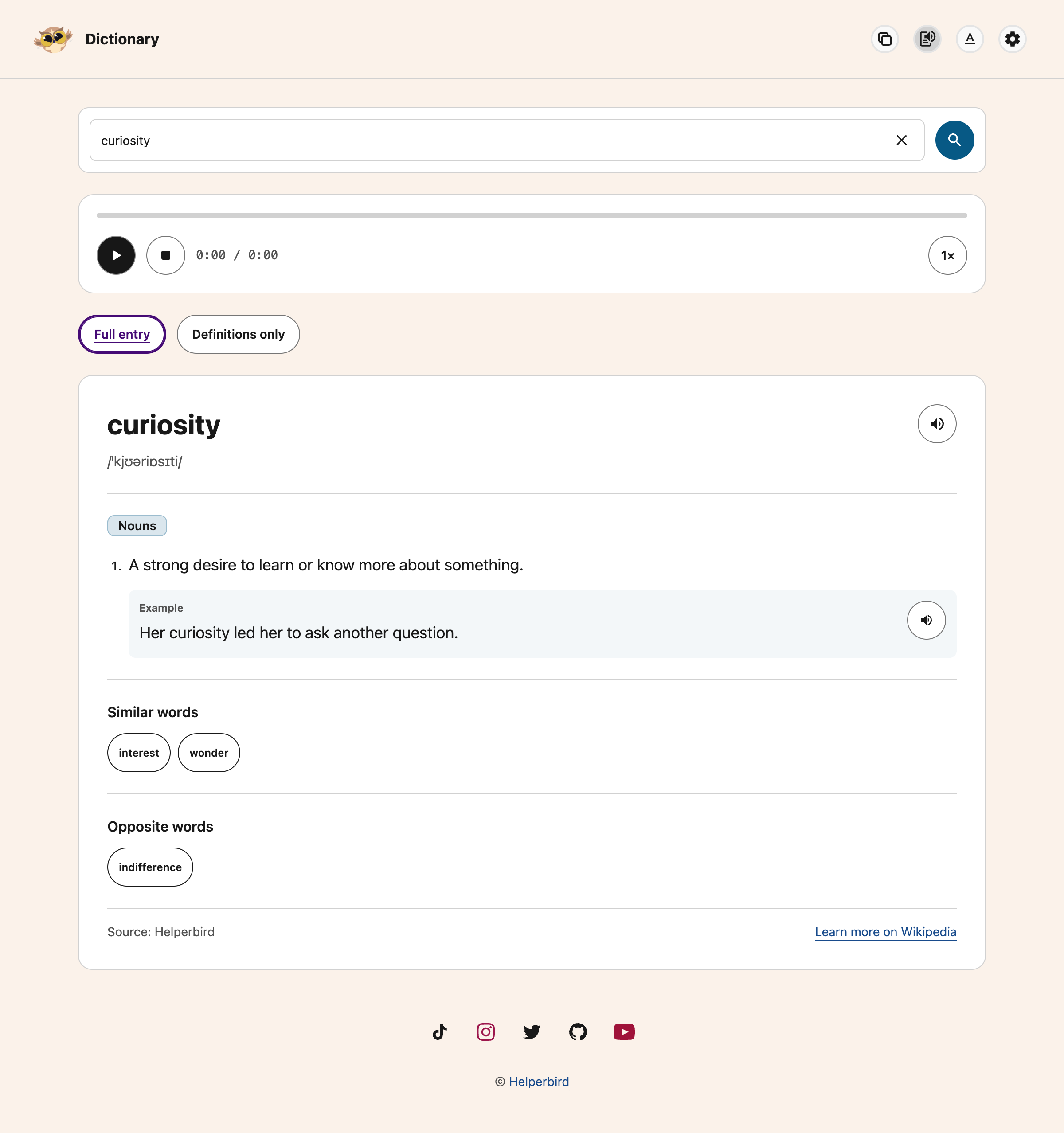
Use Pause and Play to continue from the same place. Stop ends the reading. The 1× button cycles through reading speeds. The progress bar and time estimate help you follow along.
Looking up another word, clearing the search, changing views or hiding the player stops reading. Showing the player never starts reading automatically.
Which Voice is Used?
The player and speaker buttons use Helperbird's shared text-to-speech engine and your saved voice choices. Change the voice in text-to-speech settings. The Dictionary player starts at 1× speed; use its speed button to change the pace.
If nothing is spoken, check that a voice is selected in those settings, and that your device is not muted.
Need Additional Help?
If you have any questions or run into any issues, please contact the Helperbird support team. You can reach us at Helperbird support. We are happy to help you get the most out of Helperbird.
Printed from the Helperbird Help Center · Updated September 22nd, 2026
Questions? We are happy to help — helperbird.com/support